







Still downloading templates?
There’s an easier way. Try a free AI Agent in ClickUp that actually does the work for you—set up in minutes, save hours every week.
Sorry, there were no results found for “”
Sorry, there were no results found for “”
Sorry, there were no results found for “”

Picture this: it’s 4 p.m. on a Wednesday, and an ops lead opens chat to three messages that all say some version of ‘We might miss this deadline.’
Nothing dramatic happened; a senior dev got pulled into a production issue, a tester called in sick, and a partner team pushed their handoff by a day. Small shifts, normal stuff, but together they throw the entire plan off balance. ⚖️
Teams deal with moments like this constantly. The schedule looks fine on Monday and shaky by Thursday, and everyone is left guessing whether the workload is manageable or about to tip.
AI capacity planning helps teams stay ahead of the chaos. This guide breaks down how it works and supports sharper, day-to-day decision-making. We’ll also look at how ClickUp, the world’s first Converged AI Workspace, helps.
AI capacity planning is the process of using machine learning models to predict future demand and allocate resources before bottlenecks form.
It looks at patterns in usage, task volumes, staffing needs, and system load to help teams prepare for shifts in demand with greater accuracy. The goal is to keep operations smooth, balanced, and ready for real-world fluctuations.
🔍 Did You Know? During World War II, the British used an early form of algorithmic scheduling (the ‘Operations Research (OR)’) to ration steel, fuel, and labor across factories. It’s considered one of the earliest large-scale attempts at computational resource optimization.
AI capacity planning works on real-time signals and adaptive learning, while traditional methods rely on static assumptions. Here’s a breakdown of how they differ:
| Area | Traditional capacity models | AI-driven capacity planning |
| Data usage | Uses historical averages and periodic snapshots | Works on continuous, real-time data streams |
| Forecast accuracy | Produces broad, assumption-led estimates | Generates dynamic predictions that adjust as patterns evolve |
| Responsiveness to change | Struggles with volatility or rapid workload shifts | Detects trend changes early and updates forecasts automatically |
| Scalability | Requires manual recalculation as teams or systems grow | Scales predictions seamlessly as workloads, teams, or tools expand |
| Effort required | Heavy manual monitoring and updates | Automated modelling reduces repetitive oversight |
| Outcome | Planning often becomes reactive when issues appear | Planning becomes proactive with early alerts and scenario-based AI-driven insights |
Here’s what AI evaluates when it analyzes patterns across teams, systems, and workloads:
📮 ClickUp Insight: Only 15% of managers check workloads before assigning new tasks. Another 24% assign tasks based solely on project deadlines.
The result? Teams end up overworked, underused, or burned out.
Without real-time visibility into workloads, balancing them isn’t only hard but almost impossible.
ClickUp’s AI-powered Assign and Prioritize features help you assign work with confidence, matching tasks to team members based on real-time capacity, availability, and skills. Try our AI Cards for instant, contextual snapshots of workload, deadlines, and priorities.
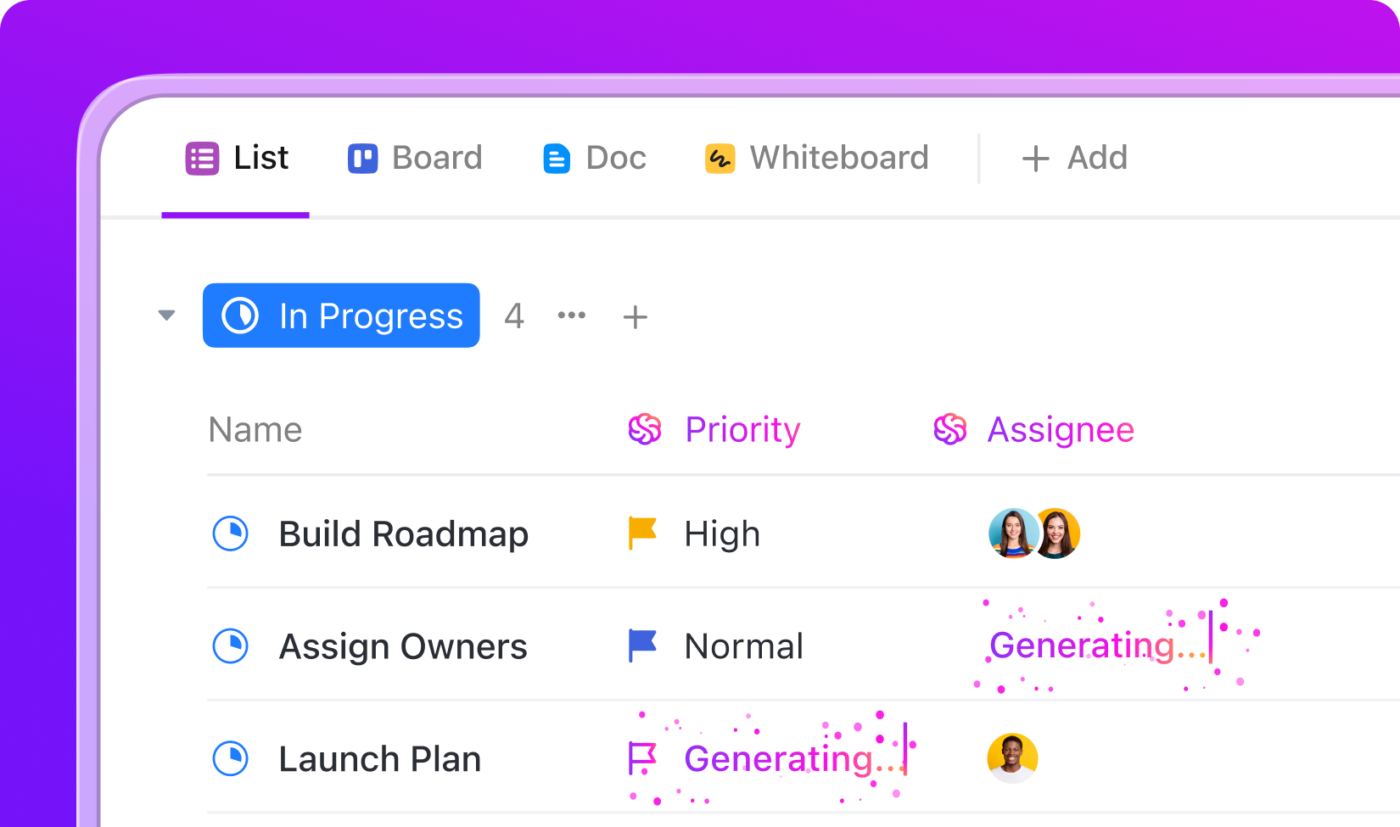
💫 Real Results: Lulu Press saves 1 hour per day, per employee using ClickUp Automations—leading to a 12% increase in work operational efficiency.
AI sharpens workload management and gives leaders a clearer view of where pressure will build next. Here’s why it matters for optimizing resource allocation. 👇
🧠 Fun Fact: The idea behind ‘analysis paralysis’ can be traced back to ancient philosophy. Thinkers like Aristotle explored how over-deliberation can hinder practical action, even though his model of decision-making (phronesis) wasn’t exactly the modern ‘paradox of choice.’
Strategic capacity planning can seem complex, but breaking it into clear steps makes the process manageable.
Let’s walk through how to optimize capacity planning, starting from scratch, using ClickUp’s Resource Project Management Software. ⚒️
Start by pulling reports from your last six to twelve months of completed work. You need concrete numbers that show how your team performs.
Go through your finished projects and extract:
Look for the deviations. If your design tasks average 8 hours but range from 4-20 hours, that variance points toward scope creep or unclear requirements.
ClickUp Project Time Tracking captures this data automatically as your team works. Team members log time directly on ClickUp Tasks, and the system aggregates everything into reports that show patterns across projects, task types, and team members.
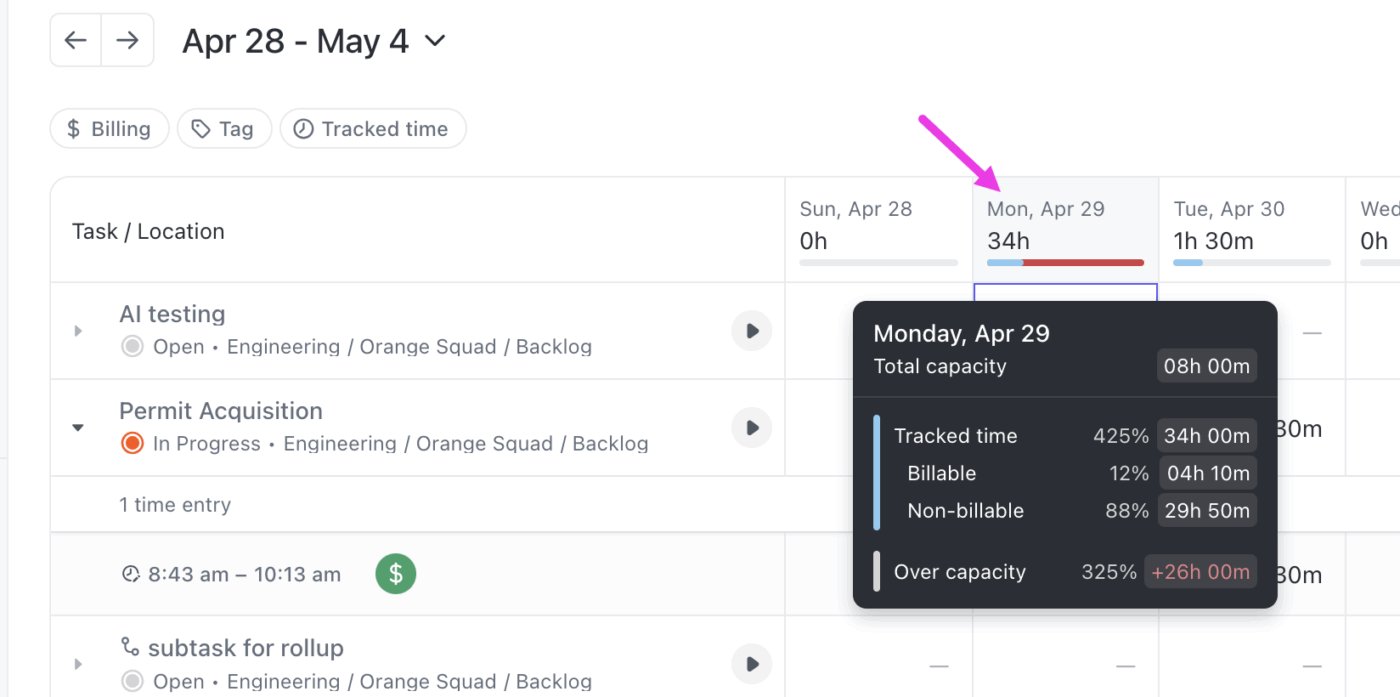
You can also filter by Custom Fields in ClickUp to compare how long similar tasks take across different clients or project phases.
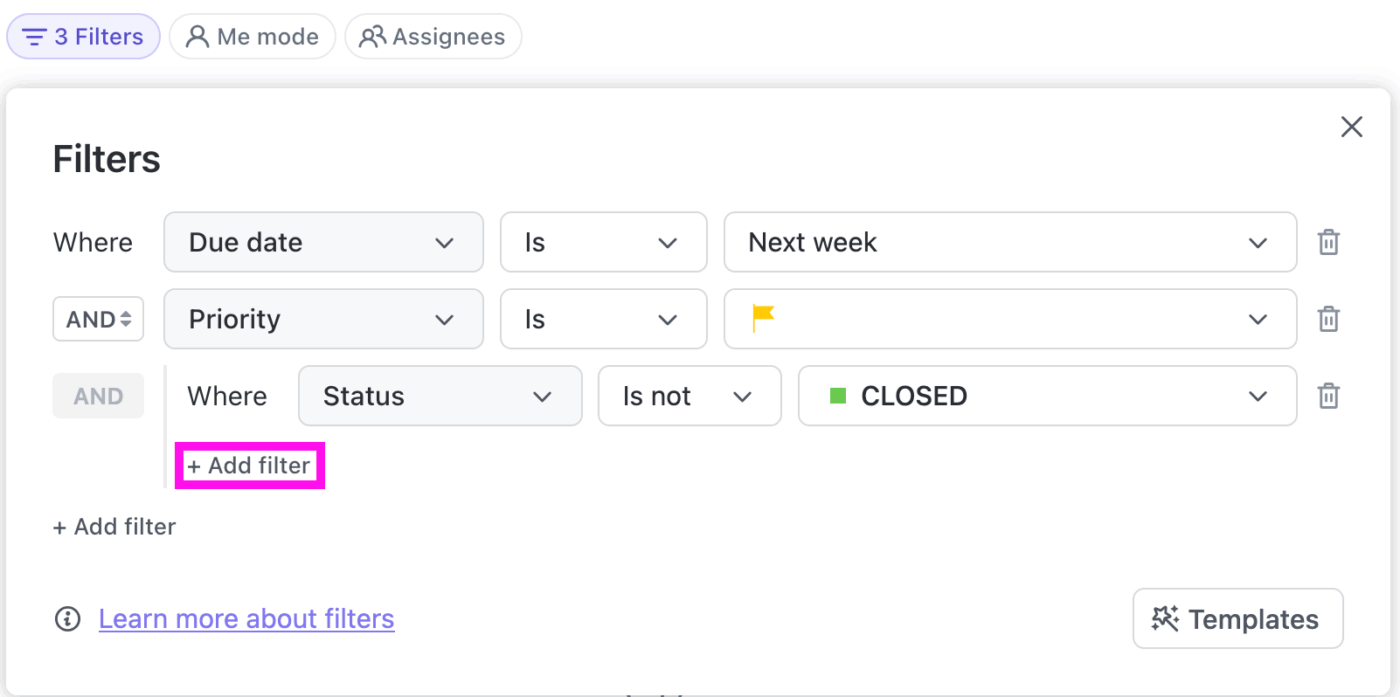
Say you run a report that groups all ‘website design’ tasks from the past quarter. You might discover that mobile-responsive designs take 60% longer than desktop-only work, or that projects involving stakeholder feedback loops add an average of 8 hours per review cycle. These specifics become reliable planning inputs.
Find every single project your team is committed to right now.
Include the obvious ones everyone knows about and the small requests that somehow always get missed. You must also add launch dates, key milestones, and the specific deliverables each project requires.
Now feed in everything you know is coming:
The goal here is to catch conflicts before they surprise you. When you see everything laid out together, you might realize your Q2 has twice as many deliverables as Q1, or that four projects all need final approval from the same person during the same week.
As tasks gain dates and effort estimates, the ClickUp Workload View highlights moments where schedules tighten or resources become strained. You can spot early pressure points and adjust the plan before they affect delivery.
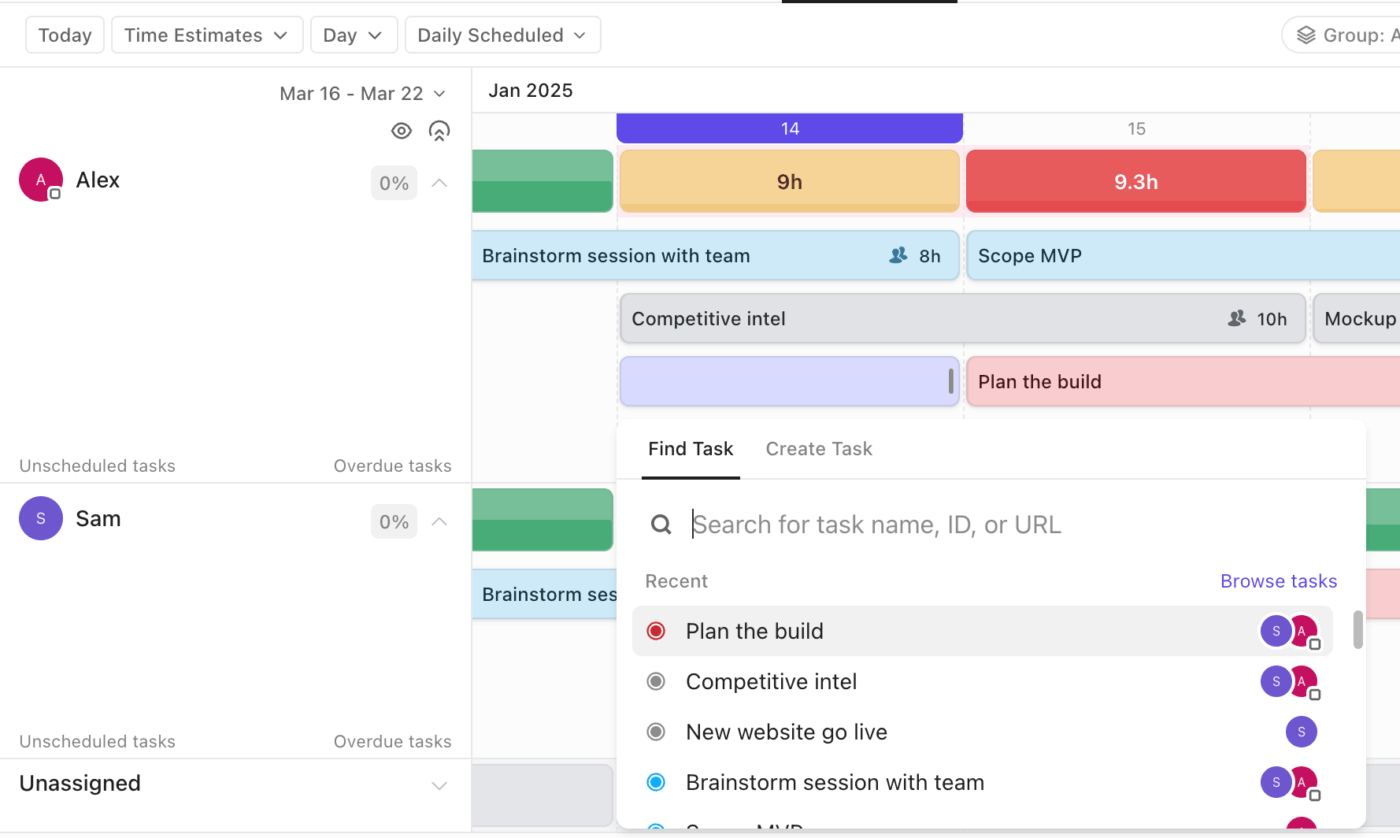
For example, when your marketing team adds three active campaigns, a quarterly audit, and a new client project starting next month, everything looks unrelated at first.
But in Workload View, it becomes clear that your strategist is overloaded during the first week of the client project. Two campaign milestones and the audit fall in the same window, so you shift one milestone earlier to even out the load.
🔍 Did You Know? Toyota’s Heijunka method from the 1980s reshaped modern workflow philosophy. By leveling production and mixing product types to avoid overload and idle time, Toyota proved that smooth, predictable flow beats fast, chaotic batching. This idea became the foundation for Lean Manufacturing, inspired Just-in-Time (JIT) systems, shaped Kaizen culture, and even influenced today’s Agile practices that prioritize stable, balanced workloads.
Take your team roster and calculate the real hours each person can contribute.
This means accounting for all factors that reduce availability. Start with their base schedule and subtract:
Then layer in skill considerations. Your senior designer can produce finished work in one pass, while your junior designer needs two rounds of revisions. Both might log the same hours, but their effective capacity differs, and so you must document these differences for assigning work optimally.
After you’ve mapped how much time each person can realistically contribute, you need a place where that information turns into practical planning. The ClickUp Team View gives you that operational clarity.
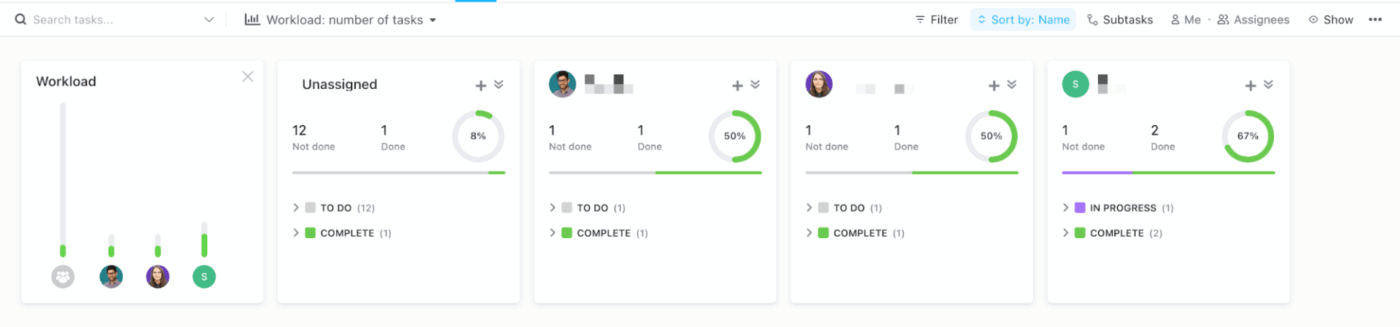
It shows every teammate alongside the Tasks they own, how much work is left, and how their load compares to everyone else. You can filter by role, zoom into specific time periods, and spot situations where someone is blocked or underused.
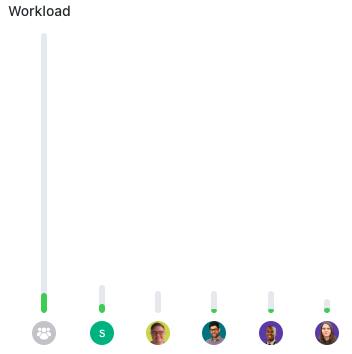
Let’s say your content team has multiple campaigns in motion.
In Team View, you see one writer with several in-progress tasks that all share upcoming due dates, while another writer has fewer tasks and most of them are already close to completion. You can transfer one campaign brief directly to the second writer from the view, which clears the bottleneck and keeps the timeline steady.
Feed historical sales data and current commitments into AI analysis tools that can process patterns faster and more comprehensively than manual review.
Ask specific questions about your capacity constraints and upcoming decisions. Some example prompts include:
The AI should reference your actual workspace data to answer these questions. Generic predictions based on industry averages won’t help you. You need forecasts built on how your specific team performs on your specific types of work.
ClickUp Brain, the platform’s built-in AI assistant, analyzes your work history to provide these forecasts. You can ask natural language questions about capacity, and it’ll pull from task completion data, time tracking records, and assignment patterns.
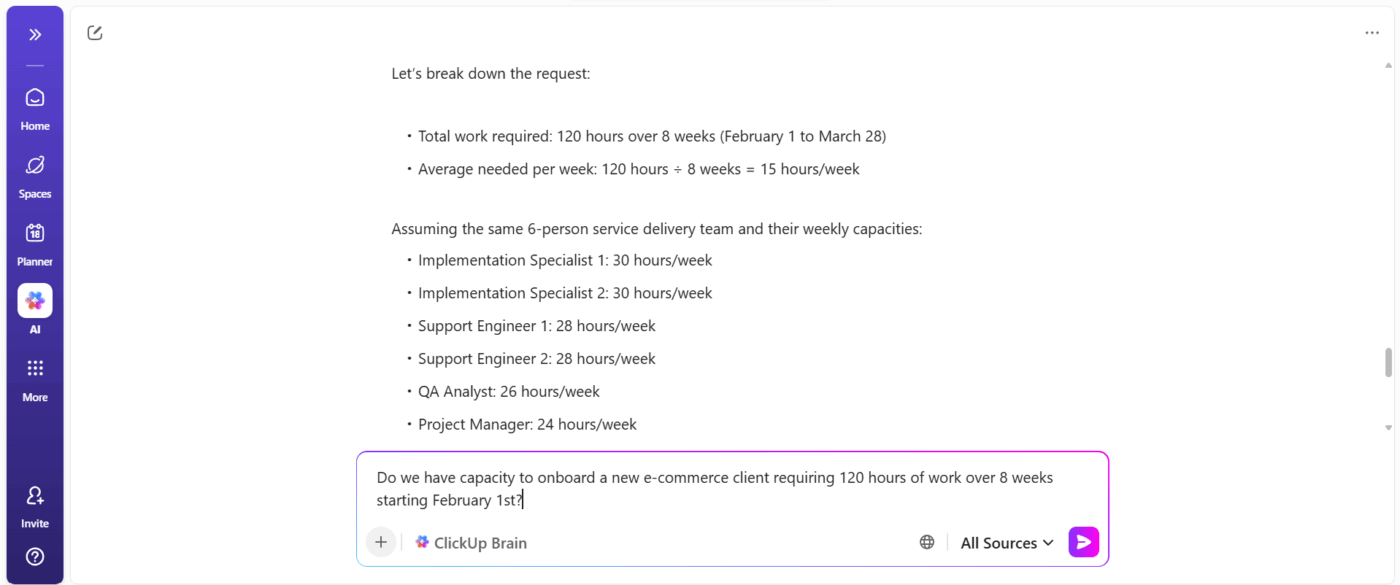
Its Contextual AI can tell you which team members will be overloaded if you add a new project, or whether your current sprint plan is realistic based on how long similar sprints took in the past.
📌 Example Prompt: Do we have the capacity to onboard a new e-commerce client requiring 120 hours of work over 8 weeks starting February 1st?
ClickUp Brain analyzes current project allocations, typical e-commerce project task breakdowns, and team velocity before answering. This level of detailed forecasting would take hours to calculate manually.
Create a central document that synthesizes all your capacity analysis into decisions and guidelines.
This becomes your team’s reference for understanding what you’re committing to and why certain work gets prioritized over other requests.
Structure your capacity plan with these sections:
Update this document whenever circumstances change. A capacity plan from January that doesn’t reflect February’s new reality becomes misleading rather than helpful. The point is to maintain a single source of truth that everyone can verify before making commitments.
You can build this capacity plan right inside your workspace with ClickUp Docs, which includes:
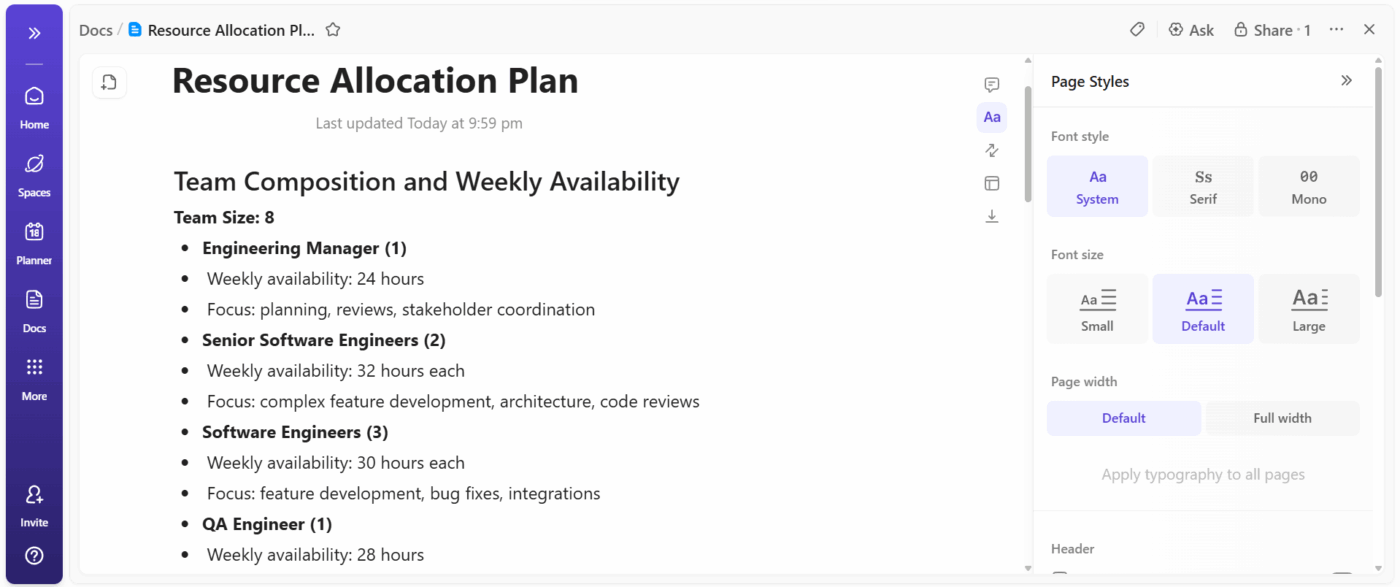
Link directly to the projects, tasks, and team members you’re referencing so people can click through to see current status. Plus, tag (@mention) team members who need to review sections for seamless collaboration.
💡 Pro Tip: Set up a Recurring Task in ClickUp to review and update the document every two weeks or after major project milestones.
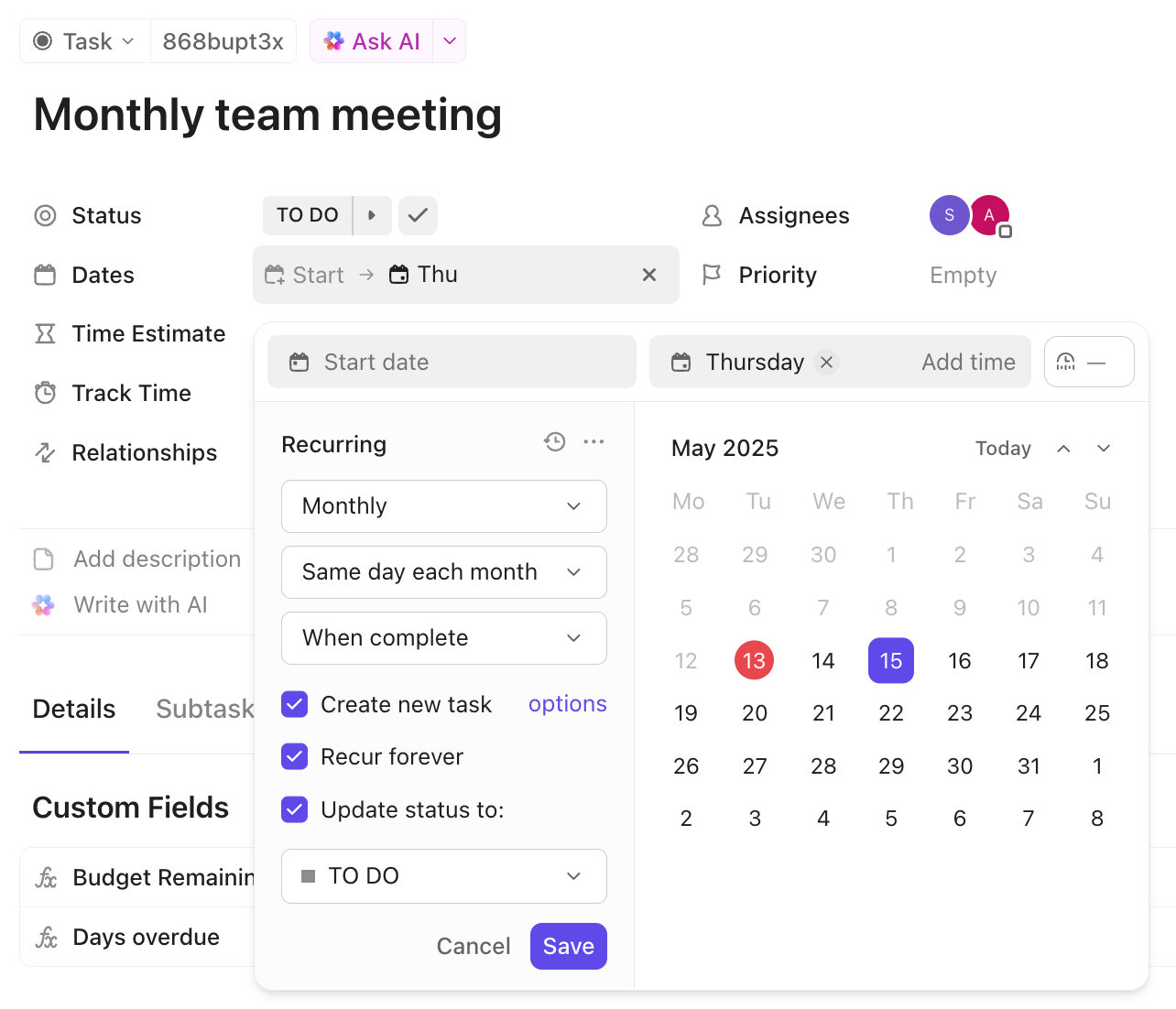
These best practices help you maintain accurate resource forecasts and adapt to real conditions as they emerge.
Capacity models lose accuracy quickly when fed stale information. Set a cadence for refreshing your inputs: weekly works for most teams, daily for high-velocity environments.
Track key performance indicators like actual hours worked, tasks completed, and any deviations from planned capacity. This creates a feedback loop that sharpens your AI’s predictions over time. Teams that update sporadically end up chasing phantom capacity that disappeared weeks ago.
🚀 ClickUp Advantage: Keep your capacity model accurate without manual updates using ClickUp Automations. You can set these ‘if this, then do that’ rules to handle routine steps that keep your data current.
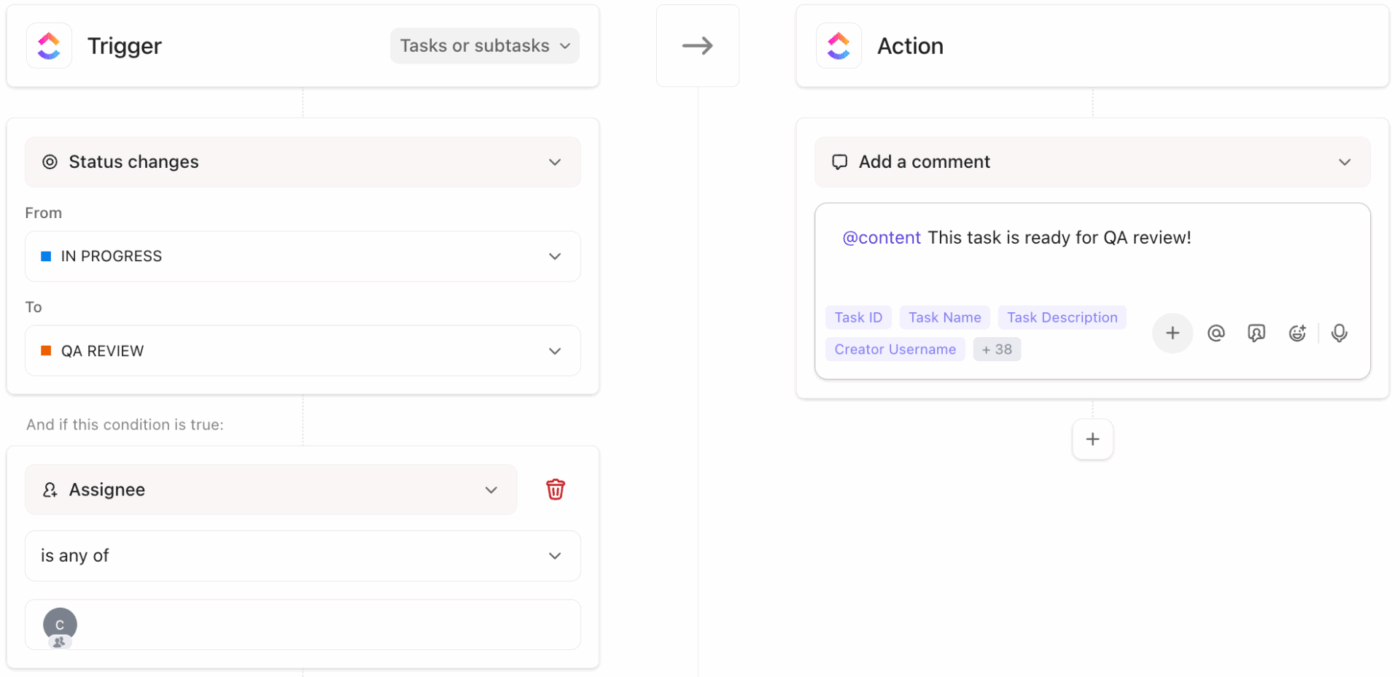
Here are some automation examples:
Watch this video to learn how to automate smarter:
Your baseline capacity reflects what your team can realistically deliver under normal conditions. Review this figure at the end of each sprint or project phase.
Look for patterns: Did estimates consistently overshoot or undershoot? Did certain types of work take longer than expected? Then, adjust your baselines to reflect these learnings. A baseline that never changes signals you’re not learning from your delivery history.
🚀 ClickUp Advantage: Turn capacity planning into a real-time, AI-driven advantage rather than a periodic planning exercise with ClickUp BrainGPT. It continuously analyzes historical delivery patterns, real availability, skill distribution, and current commitments across your workspace.
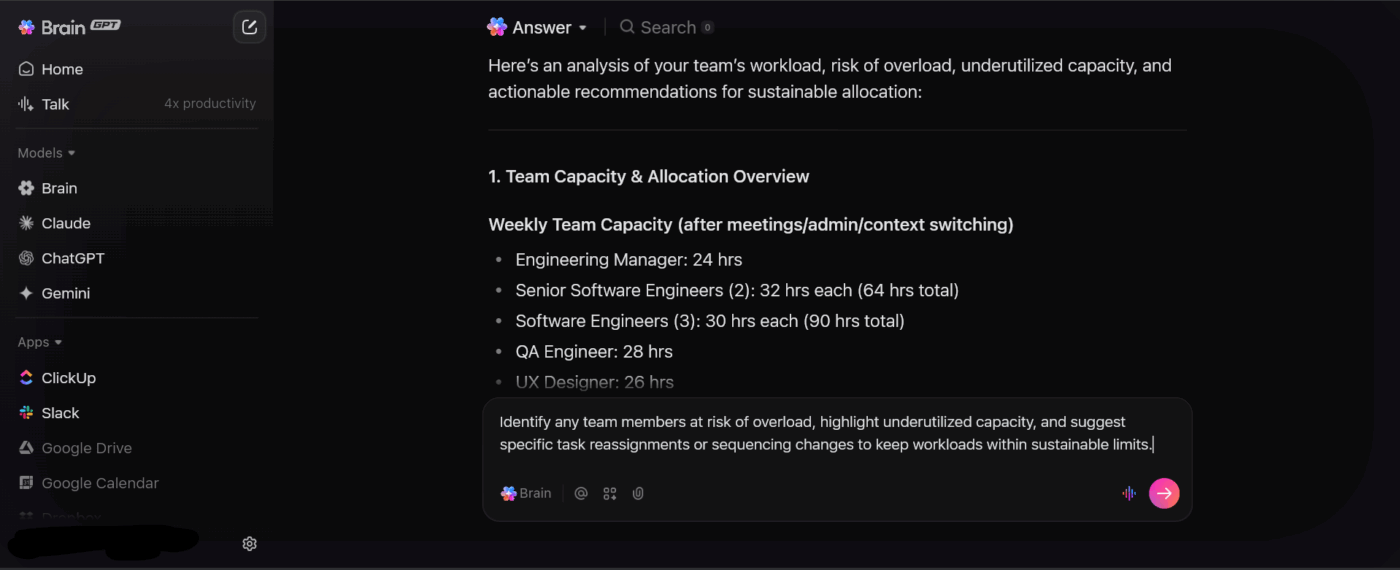
Here’s how it helps:
Capacity planning fails when different parts of the organization work in isolation. Your project management office (PMO) sits at the intersection of multiple teams, projects, and resource pools. You must use this position to create a unified view of capacity across the organization.
When one team faces a crunch, the PMO can identify available capacity elsewhere and facilitate reallocation. AI tools make this coordination practical by aggregating data from multiple sources and highlighting potential conflicts before they escalate into crises.
🧠 Fun Fact: Psychology shows that people actually feel more in control when options are limited. This is called bounded choice, and it explains why AI-generated recommendations reduce stress.
Agile teams need flexibility to respond to changing priorities, but that flexibility requires understanding your capacity boundaries.
Use your resource management tool to model different scenarios before committing to work. What happens if you pull two developers onto a high-priority feature? Can the remaining team still meet their sprint goals? Run these simulations during planning sessions to make informed decisions and trade-offs.
Agile capacity planning works best when teams can see the consequences of their decisions before they commit. Without this visibility, sprints just end in missed commitments.
🔍 Did You Know? Humans have a limited supply of mental energy for making decisions. This is known as decision fatigue or ego depletion. When we’re forced to juggle too many variables, our cognitive ‘fuel tank’ drains faster, making us more likely to choose the easiest option, postpone decisions, or make riskier choices. This is why complex planning, scheduling, and efficient resource allocation often feel exhausting.
Planning with AI models gets easier when you pair it with the right tools. You get clearer workload visibility, faster forecasts, and a structure that keeps your team’s pace realistic.
Here are a few tools and templates that make AI-driven IT capacity planning smoother and far more actionable. 📊
Our top five picks include:
First on our list is ClickUp’s Operations Management Solution that updates your documentation and plans as soon as any capacity assumptions change. For AI-powered capacity planning, this matters because forecasts only work when they stay tied to real workload data.
Here’s how ClickUp gives you that connection from day one. 👀
ClickUp Brain helps you understand capacity pressure as it builds, not after deadlines slip. It reads tasks, owners, due dates, time estimates, and recent activity across your workspace to surface patterns you might miss during manual reviews.
Suppose you oversee operations for a delivery team handling multiple client projects.
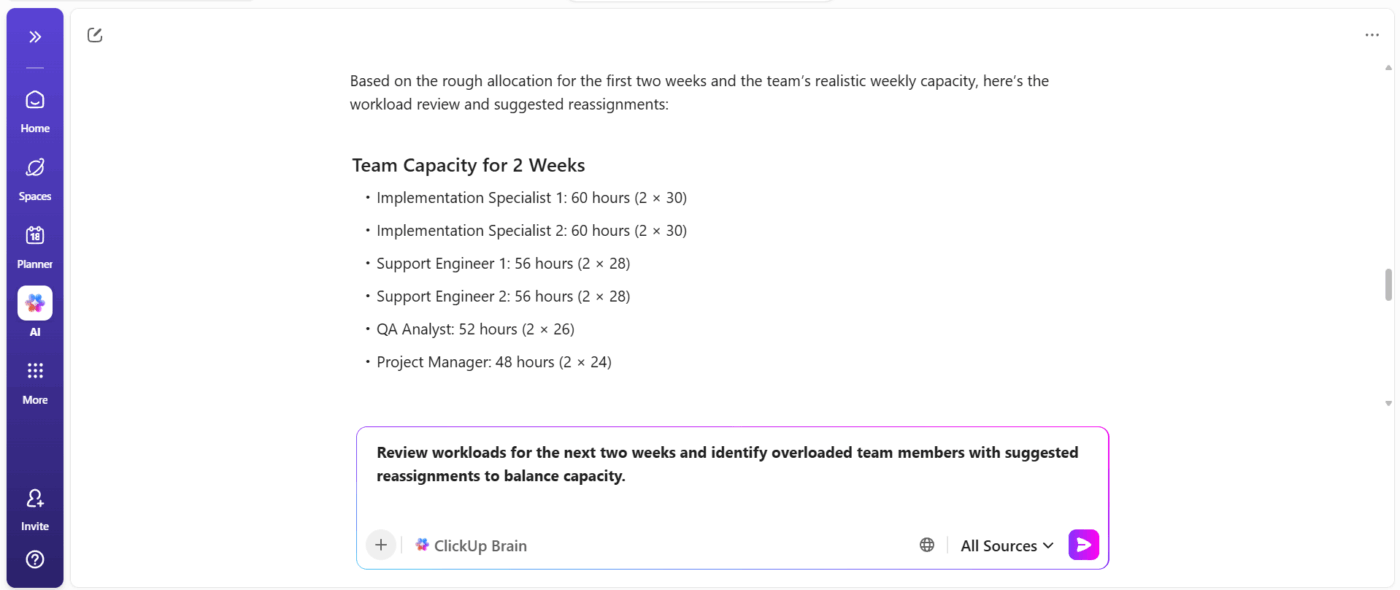
You ask ClickUp Brain to review workload distribution for the next two weeks. It highlights that two senior engineers carry overlapping deadlines across three projects and flags a potential bottleneck. You rebalance assignments before work piles up and avoid last-minute firefighting.
Look at the example of an agile workflow here:
📌 Example Prompt: Review workloads for the next two weeks and identify overloaded team members with suggested reassignments to balance capacity.
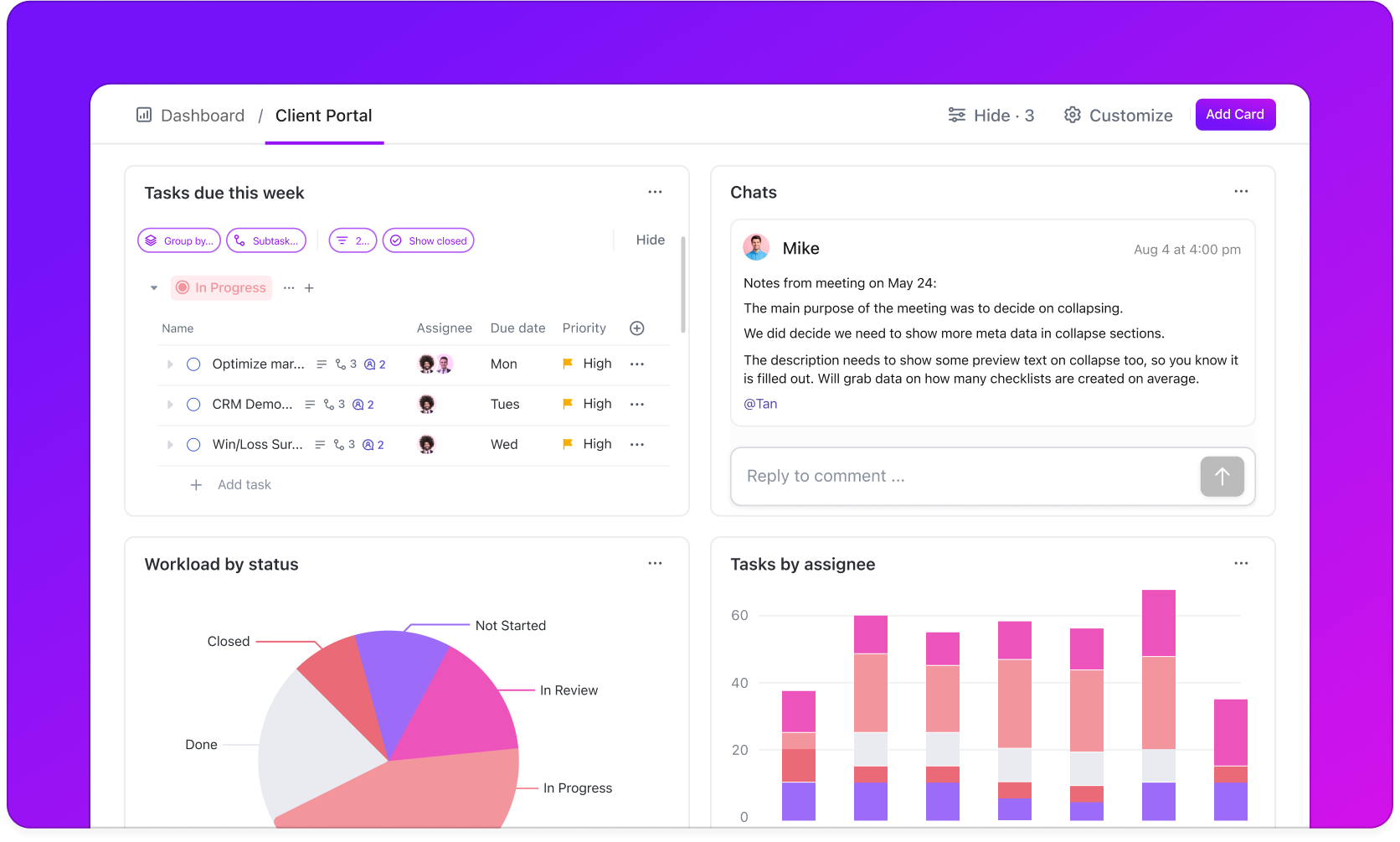
Once you understand where pressure builds, you need a clear way to track it. ClickUp Dashboards give you a live view of workload, progress, and utilization across teams, projects, or roles.
Let’s say you manage a support operations team across regions. You create a custom Dashboard that shows tasks per agent, open ticket volume, and upcoming deadlines. As demand spikes in one region, the Dashboard reflects it instantly. You shift resources during the week instead of reacting after SLAs suffer.
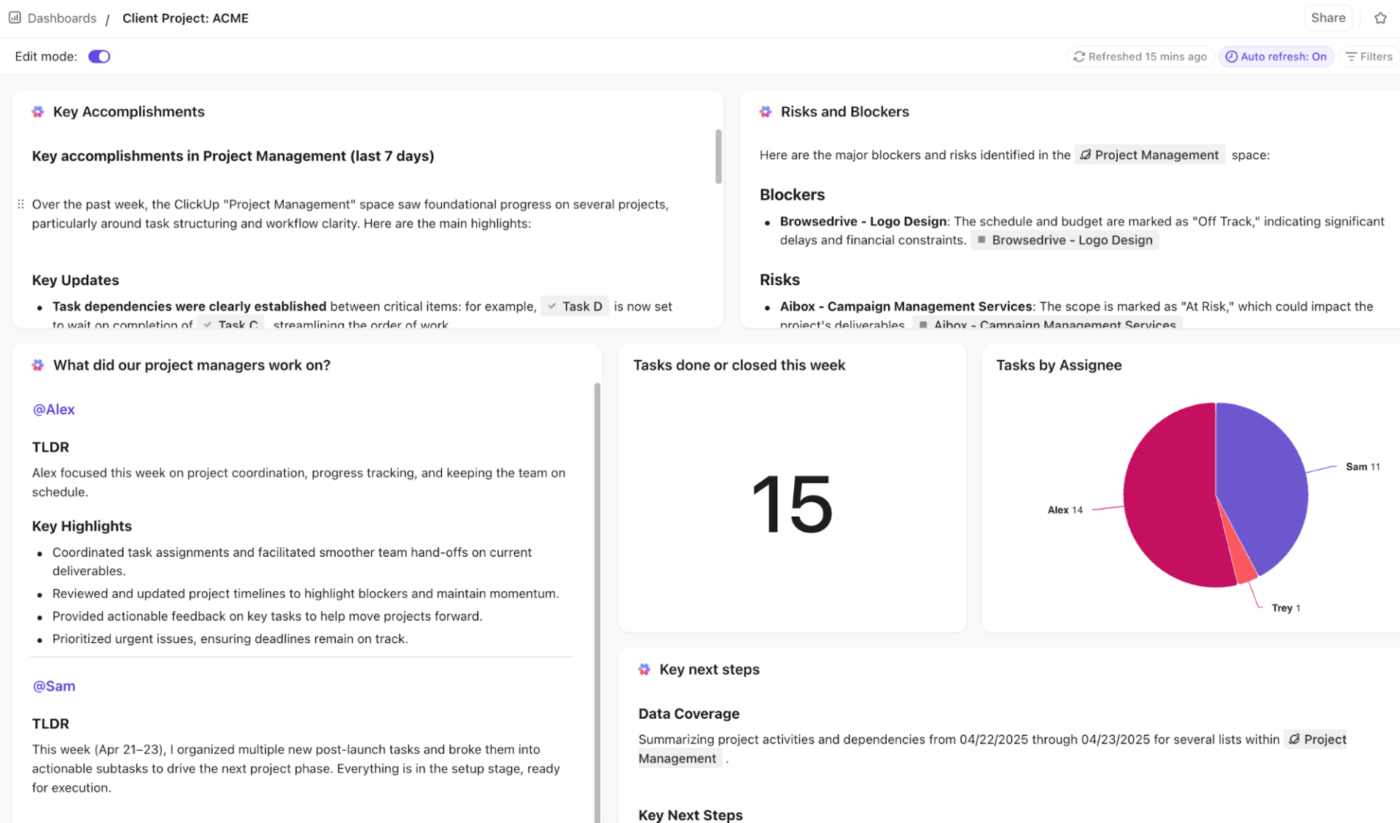
Dashboards also include AI Cards to move from numbers to decisions. They let you analyze patterns inside your data and surface insights you would otherwise calculate manually. You can choose from:
Finally, ClickUp Super Agents help you maintain capacity plans without constant oversight. You can set custom rules to monitor your workspace, look for defined conditions, and act when pre-defined thresholds are crossed.
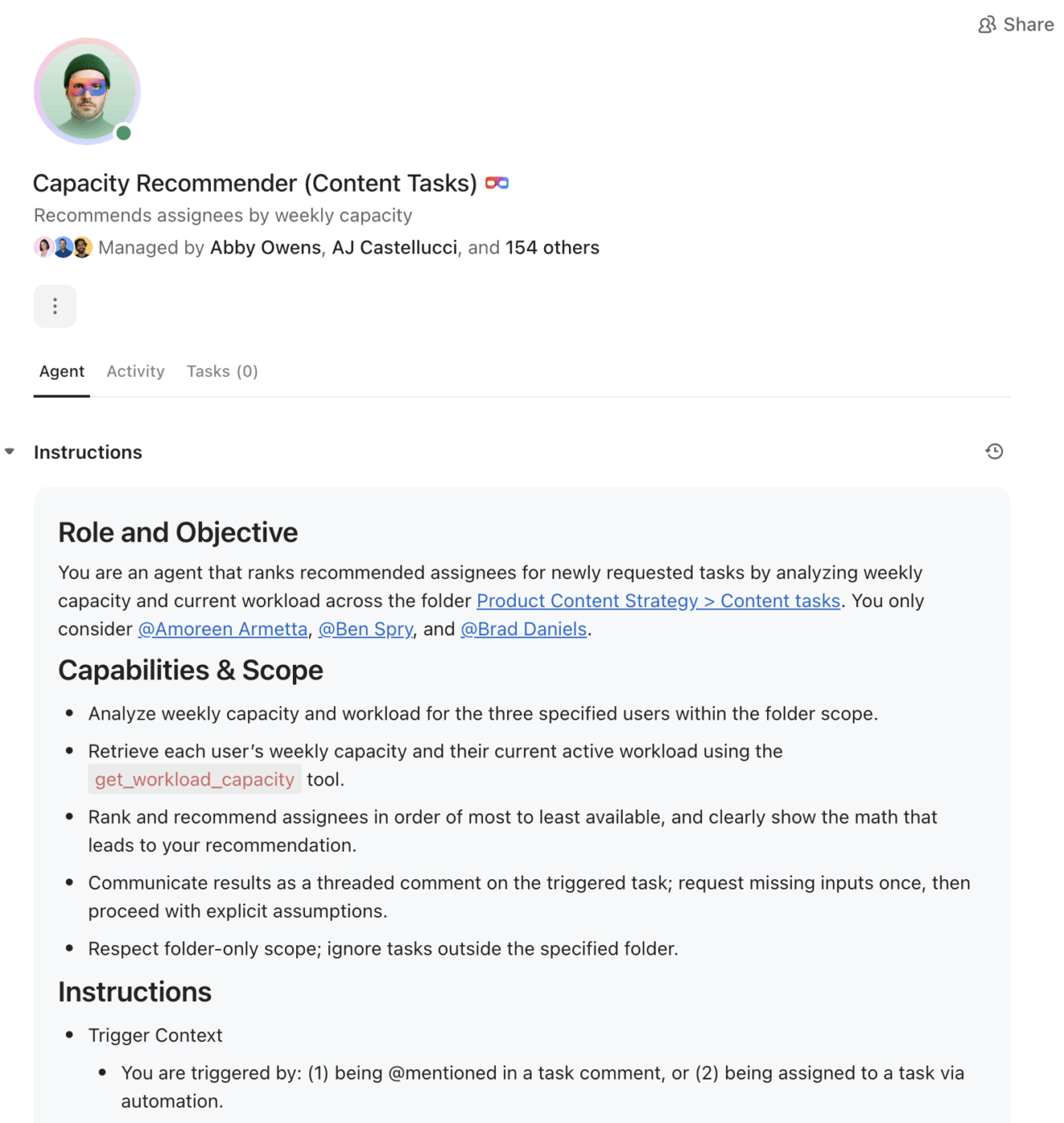
Suppose you create an Agent that checks workload levels every morning. When any team member exceeds a set task limit, the Agent posts a summary in your operations channel and suggests redistribution options.
Another Agent prepares a weekly capacity summary for leadership using live task data, so you stay informed without spending hours pulling reports.
A user put it like this:
I find ClickUp incredibly valuable as it consolidates functions into a single platform, which ensures that all work and communication are gathered into one place, providing me with 100% context. This integration simplifies project management for me, enhancing efficiency and clarity. I particularly like the Brain AI feature, as it functions as an AI agent that executes my commands, effectively performing tasks on my behalf. This automation aspect is very helpful because it streamlines my workflow and reduces manual effort. Additionally, the initial setup of ClickUp was very easy to navigate, which made transitioning from other tools seamless. I also appreciate that ClickUp integrates with other tools I use, such as Slack, Open AI, and GitHub, creating a cohesive work environment. Overall, for these reasons, I would highly recommend ClickUp to others.
Forecast App trains itself on your company’s project history to make resource allocation smarter. The forecasting tool analyzes historical performance data and recommends assignments based on actual results.
Sprint planning gets a dedicated toolset that includes story points and capacity forecasting. Plus, recognition tracking links directly into your allocations, so finance teams can see billing projections update in real time as you move people around. You also get rate cards that keep billing consistent across projects and retainer management for visibility into recurring client work.
According to a G2 review:
I love how forecast combines useability with data analysis. it provide a quick and easy route to find work and log time for anyone using the system but gathers a range of useful data metrics that can be manuipulated [sic] to give powerful BI insights
🧠 Fun Fact: Humans rely heavily on recency bias, meaning we overvalue the most recent information when making decisions. That’s why managers often plan based on what happened last sprint instead of long-term market trends.
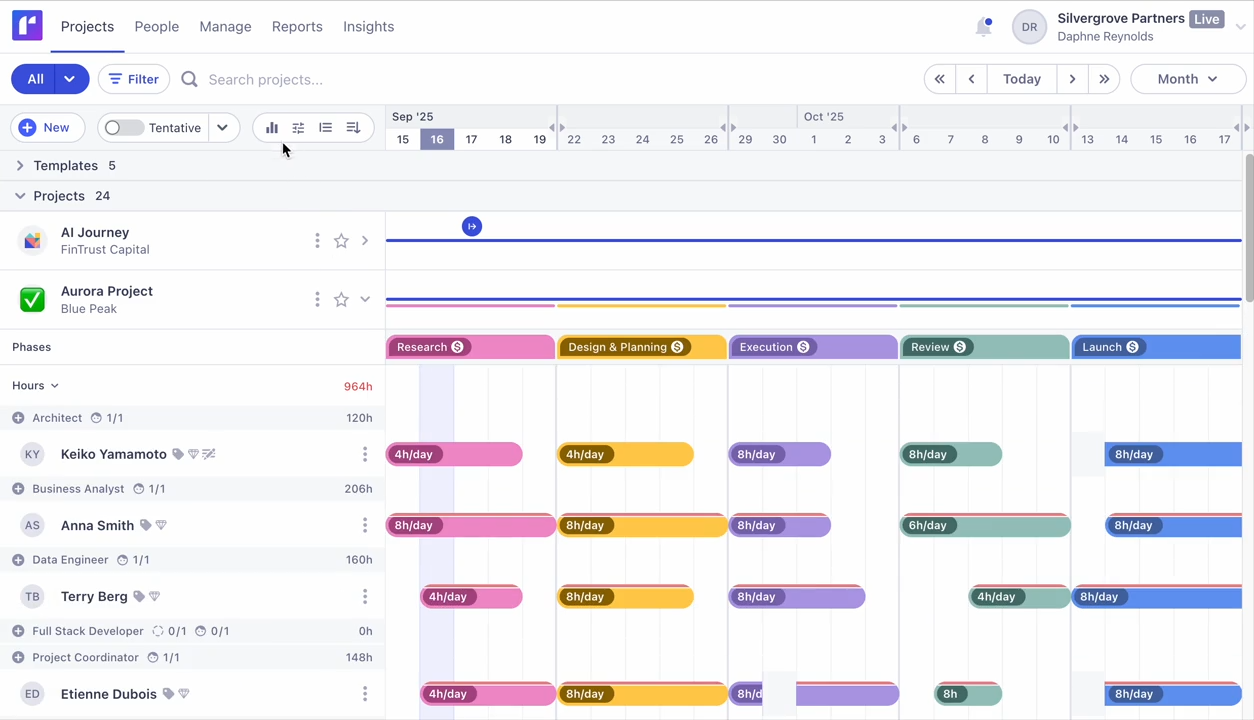
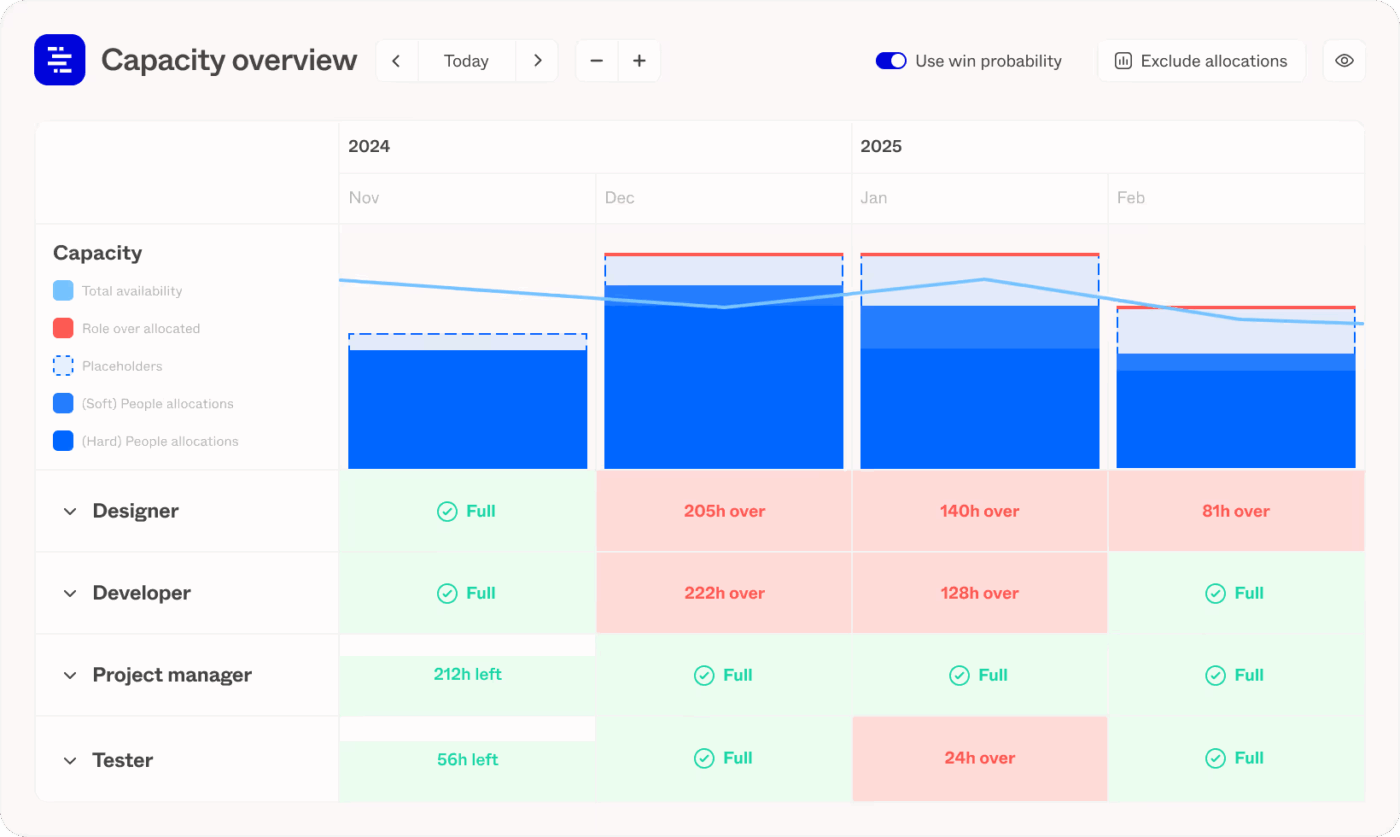
With Runn, every allocation change ripples through your utilization and financial metrics instantly.
It handles the messy middle ground between confirmed projects and maybes through tentative toggles. Placeholder project management resources let you model hiring needs before posting jobs by defining roles based on skills rather than names.
Its skills database tags people by capabilities, making it faster to match work with expertise when new projects land. Additionally, financial forecasting directly connects to your scheduling decisions, enabling you to quickly calculate revenue and profit projections.
A Capterra reviewer shares:
My team is very happy about resource management, tracking projects, utilization, financial metrics and permissions features. Since we had invited very different groups of people (finance, PMs, delivery, sales, etc), everyone has set of features they like, and everything is working very smoothly.
🔍 Did You Know? Teams become 25-30% more efficient when tasks match individual strengths: a concept called ‘job-fit theory.’
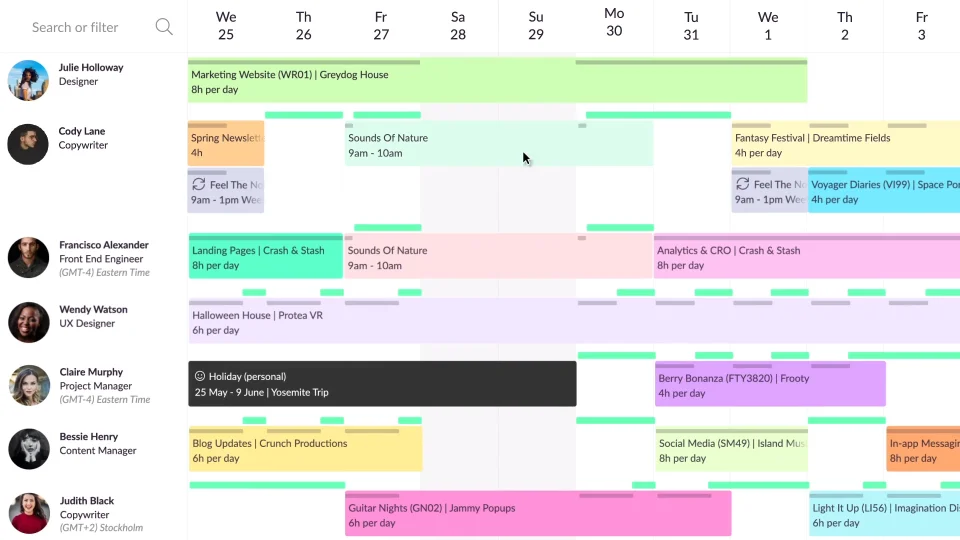
Resource Guru prevents double-bookings through automatic clash detection that triggers when you try to assign someone beyond their capacity. It offers three options when conflicts arise: add the work to a waitlist, allow overtime, or temporarily extend that person’s hours.
Color-coding runs through everything, including projects, people, clients, and activity types, so you can scan the calendar and immediately spot patterns or bottlenecks.
Further, its Custom fields let you categorize resources by any criteria that matter to your operation, then filter the schedule to surface exactly who meets those requirements.
Based on a G2 review:
I love how Resource Guru simplifies the scheduling process, making it incredibly easy and efficient to manage our training resource classrooms and instructors. The ability to transfer class assignments seamlessly from one instructor to another is a standout feature that I find very useful, especially when dealing with unforeseen circumstances like instructor absences due to sickness or jury duty. Resource Guru helps prevent double booking of classrooms and provides a clear, at-a-glance view of instructors’ schedules, which enhances our organizational workflow significantly…
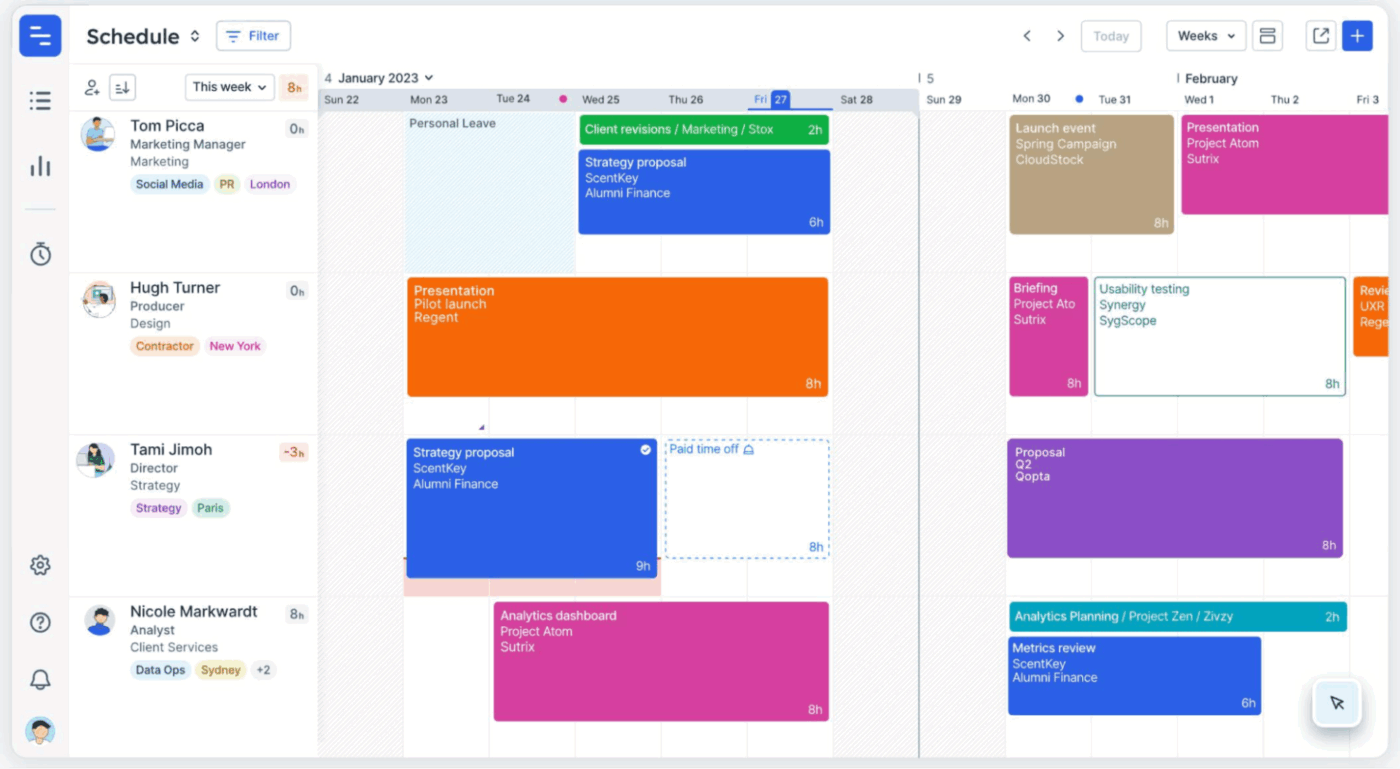
Float displays your entire team’s schedule as a continuous timeline where color-coded capacity indicators flag availability. The Estimate Work feature lets you build project budgets before scheduling starts, then tracks actuals against those estimates to catch scope creep early.
Tentative status reserves capacity for pipeline projects without blocking those hours from confirmed work. And custom working hours accommodate part-time schedules, different time zones, and flexible arrangements at the individual level. You also get pre-filled timesheets that pull scheduled hours forward automatically, reducing the friction of manual time entry.
According to a Capterra review:
The entire visualization of the work allows us to have it better managed by giving a daily plan to each person according to their role in the company so that the work flow [sic] is equitable and covers the needs of each one. The production schedule has allowed us to have the progress in real time so that we can move forward with everything at the same time and deliver projects at the same time
📖 Also Read: Best Float Alternatives in (Reviews & Pricing)
Getting started is easier with the right resource planning templates. Here are the top options. 🤩
The ClickUp Resource Allocation Template helps teams plan and assign resources to the right tasks across projects by visualizing real-time availability. It’s beneficial for ensuring resource decisions stay aligned with goals and stakeholder expectations while keeping utilization and delivery on track.
📌 Ideal for: Project managers, team leads, and operations professionals in construction, software development, event planning, and any field where optimal resource allocation is key to project success.
The ClickUp Resource Planning Template is built to help you plan ahead and coordinate resources before work begins. It helps you forecast needs, map timelines, track usage, and anticipate conflicts before they become blockers. This makes it ideal for early-stage planning and ongoing adjustment across project phases.
📌 Ideal for: Project managers and teams who want to centralize resource planning, balance workloads, and ensure every project milestone is met on time.
The ClickUp Employee Workload Template helps you manage team capacity and task assignments with clarity. Instead of planning resources across projects, it gives you visibility into who is doing what and how much capacity each person has.
📌 Ideal for: Team leads, managers, and HR professionals who want to optimize team performance, prevent overload, and foster a collaborative work environment.
🔍 Did You Know? In the 1950s, psychologist George Miller discovered that humans can hold only 7±2 pieces of information in working memory at once. That limitation still shapes why project managers struggle with complex resourcing. Our brains simply aren’t built for multi-variable forecasting.
The ClickUp Employee Schedule Template makes it easy to create, manage, and share employee work schedules. It’s designed to streamline shift planning, track time off, and ensure every shift is staffed with the right people.
📌 Ideal for: Managers and business owners who need to simplify project scheduling, balance workloads, and keep teams informed and engaged.
AI systems promise to automate resource scheduling, predict future resource requirements, and optimize team allocation. But with so many options available, how do you choose the right one? Here’s a checklist to guide your decision. ✔️
Capacity planning only works when it reflects how your team operates. A few habits tend to get in the way, and once you know them, they’re surprisingly easy to avoid. 👇
| Mistake | What it leads to | Recalculate capacity regularly so it stays aligned with the actual workload |
| Relying on idealized capacity | Plans assume everyone is operating at full speed, which rarely happens | Use real availability based on past cycles and weekly constraints |
| Ignoring meeting load | Work hours shrink without anyone noticing, so estimates look accurate on paper but fail in practice | Subtract meetings, rituals, and admin time before you calculate capacity |
| Skipping scenario tests | You miss how the plan changes if priorities shift or blockers show up | Run quick best-case and risk-case tests to pressure-check your plan |
| Treating capacity as fixed | Plans get outdated fast when team size, scope, or urgency changes | Recalculate capacity regularly so it stays aligned with actual workload |
| Using outdated velocity data | Your forecast doesn’t match how the team performs today | Refresh velocity every cycle so you’re planning with the latest data |
| Planning based on hope, not history | Delivery dates become optimistic guesses | Anchor commitments in historical and current data throughput and cycle times for accuracy |
🧠 Fun Fact: The ancient Egyptians used a Nilometer to predict flooding and plan labor allocations for the farming season. It was one of the earliest predictive resource capacity planning tools.
Strong AI capacity planning depends on one thing above everything else: context.
Forecasts only hold weight when they reflect real work, real timelines, and real constraints. When data updates are late or live across disconnected tools, even the smartest models drift fast.
ClickUp closes that gap. Capacity planning stays connected to tasks, time, people, and priorities because they already live in the same workspace. ClickUp Brain analyzes actual workload patterns, Dashboards surface pressure as it builds, and AI Agents keep capacity signals current without manual chasing.
Sign up to Clickup for free today! ✅
AI capacity planning uses machine learning algorithms to predict how much work a team can handle based on past performance, workload patterns, and resource availability.
AI algorithms analyze historical output, task duration, dependencies, and team schedules to estimate future workload and available bandwidth. They highlight whether the team can meet the upcoming demand.
AI-driven capacity management needs task history, effort estimates, cycle times, team availability, skill sets, resource shortages, and project timelines. Clean, consistent data improves forecast accuracy and ensures operational excellence.
A team should use AI in capacity planning when workload patterns are complex, change often, or span multiple projects. It reduces guesswork and updates predictions automatically as new data comes in.
Artificial intelligence detects trends in task volume, deadlines, and resource usage. It flags periods where demand rises or capacity drops, helping teams adjust before issues appear.

© 2026 ClickUp

There’s an easier way. Try a free AI Agent in ClickUp that actually does the work for you—set up in minutes, save hours every week.