
The Ultimate Guide to ClickUp Terms & Features

Start using ClickUp today

  • Manage all your work in one place
  • Collaborate with your team
  • Use ClickUp for FREE—forever

40% of digital workers use more apps than they need, and 5% bounce between 26+ tools every single day. That’s not productivity. That’s tool sprawl.

And the cost of this constant switching is a staggering $625B in lost productivity across the global workforce.

ClickUp delivers the world’s first Converged AI Workspace in the form of a digital environment where your work, teammates, and tools operate in context. It’s powerful because of its extensive customization options, but it’s easy to miss features that could simplify half your workflow.

So in this ClickUp terms and features guide, we’ll explore everything you need to know. Start taking notes! 📝

Summarize this article with AI ClickUp Brain not only saves you precious time by instantly summarizing articles, it also leverages AI to connect your tasks, docs, people, and more, streamlining your workflow like never before.
ClickUp Brain
Avatar of person using AI Summarize this article for me please

ClickUp Hierarchy and Terminology

ClickUp’s Project Hierarchy organizes your work into a simple, scalable structure: Workspace > Space > Folder > List > Tasks > Subtasks.

ClickUp’s Project Hierarchy: Visual overview of how Spaces Folders and Lists help teams stay organized
Beyond basic task management, ClickUp’s Project Hierarchy adds order, context, and growth-ready organization to your workflow

Let’s understand the benefits that make ClickUp unique. 👇

Workspace

Your ClickUp Workspace is the home base for your entire organization. It contains all your Spaces, Folders, Lists, Tasks, people, and workspace-wide settings.

Suppose you’re a small digital marketing agency setting up ClickUp to manage client projects. Your entire company can operate inside a single Workspace titled ‘Swift Sites Agency’. 

Spaces

ClickUp Spaces divide your workspace into major groups. Think of them as departments, teams, clients, or big initiatives. Each Space has its own:

  • Permissions
  • ClickApps
  • Views
  • Customization options

Inside your Workspace, you create a Space called ‘Client Work’ dedicated to all client-facing projects, complete with its own settings and permissions.

Folders

ClickUp Folders sit inside Spaces and help you group Lists for more complex workflows. They’re optional, but extremely useful when you’re running big or multi-stage projects.

Within the Space, you add a Folder named ‘Acme Corp Website’. This groups all the Lists related to that specific client project, such as:

  • ‘Website Redesign’ List inside the Marketing Space
  • ‘Sprints’ List  inside the Engineering Space
  • ‘Client Deliverables’ List inside the Client Space

Lists

ClickUp Lists are containers that hold all the actionable Tasks for a specific project, workflow stage, or topic. They’re the core building blocks of your work in ClickUp, sitting within Spaces or Folders, and providing structure and clarity to your projects.

For small projects, a single List may be enough to manage all Tasks. For larger projects, use multiple Lists within a Folder to represent different phases or teams. Examples would be:

  • Design
  • SEO
  • Assets
  • FE dev
  • BE dev

❗️Note: A List is not the same as a List View. A list is a location, whereas List View is one of the Customizable Views you can use to visualize Tasks.

Tasks

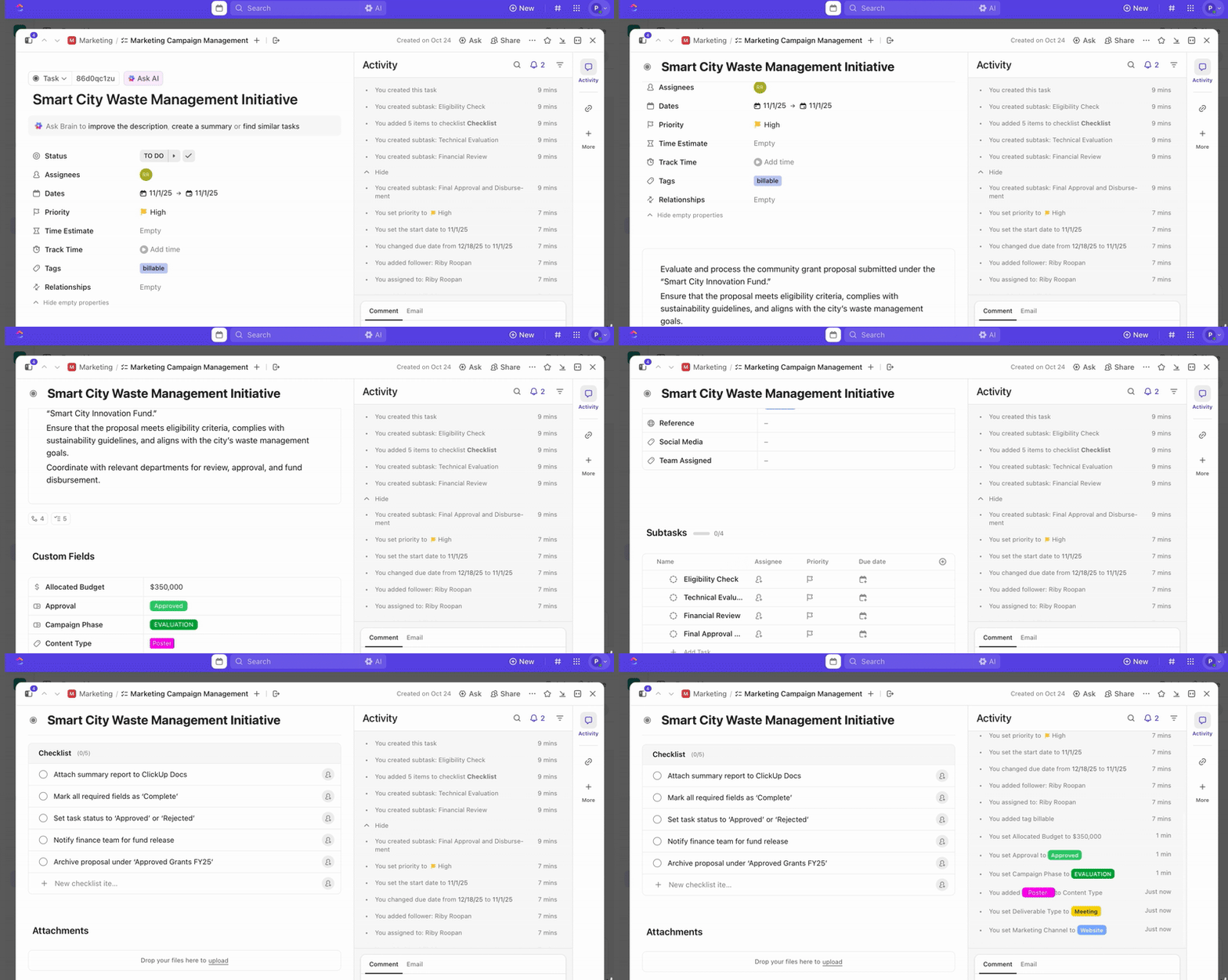
ClickUp Tasks are the basic units for organizing work within your projects. Each Task lets you break down actionable steps and hold every relevant detail in one place, so your team knows exactly what to do and what’s next. This is where you add:

📌 Example: Inside the ‘Design’ List of the ‘Acme Corp Website’ Folder, your team creates a Task called ‘Create Wireframes’. This becomes the central hub for that deliverable, housing the design brief, reference links, attached screenshots, feedback threads, and the final link.

❗️Note: Every Task can have Assignees (the people doing the work) and Followers (people who just need visibility). For instance, on a client deliverable, the account manager watches the Tasks while the designer is assigned. Both stay up to date, but only the assigned teammate is responsible for execution.

Subtasks

ClickUp Subtasks break a Task into smaller action items. You can add up to three layers of Subtasks by default or enable the Nested Subtasks ClickApp to create several more layers (perfect for complex work).

For example, within the ‘Create Wireframes’ Tasks, your UX designer adds Subtasks to break down the workflow:

  • Draft Home Page Wireframe
  • Create About Page Wireframe
  • Apply Client Branding
  • Prepare Review Deck for Presentation

📮 ClickUp Insight: 18% of our survey respondents want to use AI to organize their lives through calendars, tasks, and reminders. Another 15% want AI to handle routine tasks and administrative work.

To do this, an AI needs to be able to: understand the priority levels for each task in a workflow, run the necessary steps to create tasks or adjust tasks, and set up automated workflows.

Most tools have one or two of these steps worked out. However, ClickUp has helped users consolidate up to 5+ apps! Experience AI-powered scheduling, where tasks and meetings can be easily allocated to open slots in your calendar based on priority levels. You can also set up custom automation rules via ClickUp Brain to handle routine tasks. Say goodbye to busy work!

Summarize this article with AI ClickUp Brain not only saves you precious time by instantly summarizing articles, it also leverages AI to connect your tasks, docs, people, and more, streamlining your workflow like never before.
ClickUp Brain
Avatar of person using AI Summarize this article for me please

Core ClickUp Features Explained

Here’s the go-to cheat sheet for understanding ClickUp Features.

Tasks and Subtasks

Once you know what Tasks and Subtasks are, the next step is bringing them into your workflow in a way that keeps work clear, trackable, and easy to execute.

Start by creating Tasks directly inside the List that mirrors how your team works. You can add Tasks from any List, the Create button in your toolbar, the AI Command Bar, saved templates, and automations (e.g., ‘When a form is submitted → Create Tasks’). 

Whether you’re using ClickUp for small businesses or large enterprises, you can create Tasks for: 

  • Adding briefs, acceptance criteria, meeting notes, or links to research
  • Keeping discussions inside the Tasks, assigning follow-up items, and preventing action items from getting lost
  • Uploading creative files, specs, screenshots, recordings, and Figma links
  • Tracking micro-steps through checklists that don’t need Subtasks
ClickUp Tasks and Subtasks: View showing how to manage tasks effectively with clear structure
Centralize Tasks discussions across multiple lists with ClickUp Tasks and Subtasks

Subtasks come in when work naturally breaks into different stages or roles. You’ll create manageable Subtasks when:

  • The main Task includes multiple major steps
  • Different people own different parts of the Tasks
  • You need layered work breakdowns

💡 Pro Tip: To help you plan your structure properly, here are important limits and capabilities to keep in mind:

  • Each Task can contain up to 1,000 Subtasks, including nested ones
  • You can nest Subtasks up to three levels by default, or up to seven levels when the Nested Subtasks ClickApp is enabled
  • Subtasks inherit permissions and Custom Fields from their parent, so workspace rules stay consistent
  • Show Subtasks collapsed under the parent, expanded for clarity, or displayed as separate, standalone Tasks, depending on the view
  • Subtasks support bulk edits, sorting, and filtering

Views

ClickUp Views are a flexible system for displaying your work in different formats. Visualize, manage, and organize multiple projects in a way that fits your workflow

Here’s how you can use them: 

List View

The ClickUp List View displays specific Tasks in a column-and-row format where every detail is visible at once. It’s the most precise view for editing fields, scanning statuses, and managing work in bulk.
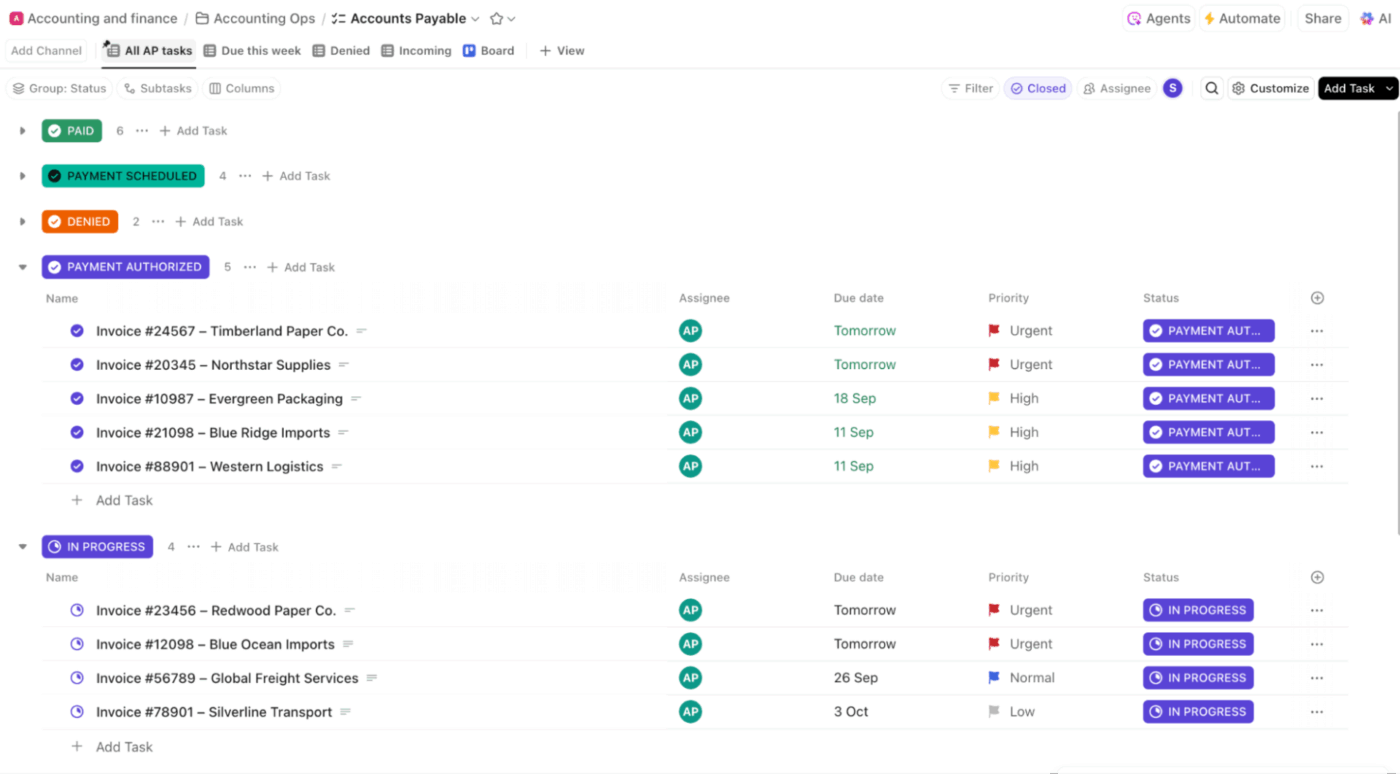
ClickUp List View: List layout displaying tasks and key terms for streamlined work
Run backlog grooming sessions by updating multiple Tasks at once with the ClickUp List View

Teams use it to:

  • Review all Tasks with Custom Fields like effort, sprint, points, or cost in one grid 
  • Sort Tasks to find blockers, such as procurement work without approvals
  • Group and filter tasks to view precisely what they need

Board View

The ClickUp Board View is a Kanban-style layout for visual progress tracking that arranges Tasks into columns based on your grouping selection, such as status, assignee, and priority. It’s designed for drag-and-drop movement and quick status updates.

ClickUp Board View: Kanban board showcasing features designed for flexible workflows
Drag, drop, and prioritize Tasks across columns for smoother project management with the ClickUp Board View

Teams use it to:

  • Move creative assets through a pipeline like Brief > Draft > Review > Approved > Live
  • Manage agile sprints and run standups by shifting cards between ClickUp Custom Statuses like To Do, Doing, and Done
  • Visualize QA stages (Testing, Fix Needed, Re-test)

Calendar View

The ClickUp Calendar View is a date-based layout for scheduling and plotting Tasks on a monthly, weekly, or daily grid based on start and due dates. 
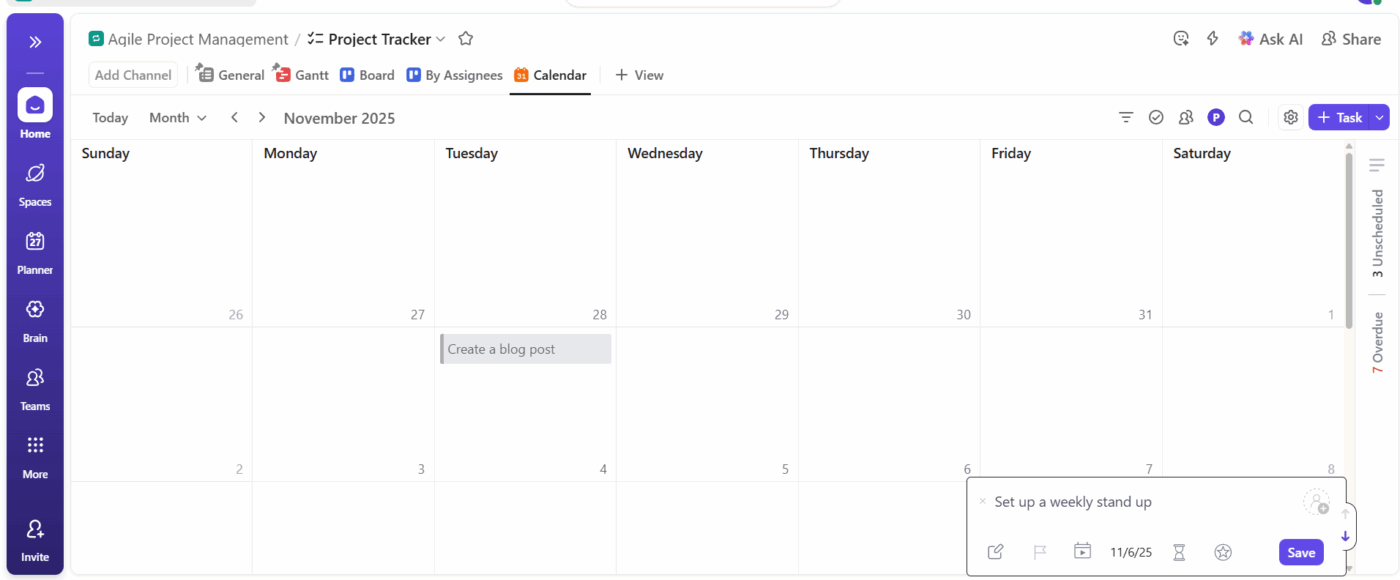
ClickUp Calendar View: Calendar interface syncing with Google Calendar for scheduling
Align product release dates and eliminate overlaps with ClickUp Calendar View

Teams use it to:

  • Build editorial calendars and drag Tasks to shift publish dates without opening them
  • Plan sales outreach sequences by seeing follow-ups and demos across the week
  • Coordinate client deliverables in agencies to avoid overloading any single day

Gantt Chart View

The ClickUp Gantt Chart View displays Tasks as horizontal bars along a timeline, allowing you to plan durations, visualize dependencies, and manage milestones.
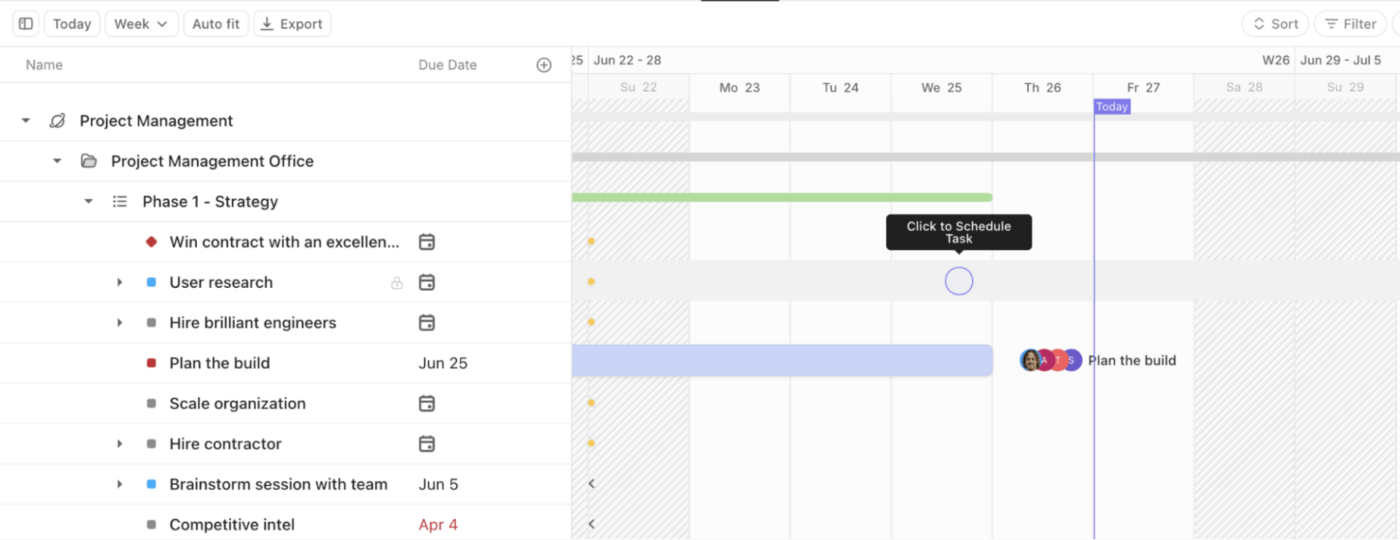
ClickUp Gantt View: Visualize your project timelines and dependencies properly
Track progress across Tasks, dependencies, and phases using the ClickUp Gantt Chart View

Teams use it to:

  • Map multi-phase complex projects like app redesigns, marketing campaigns, or engineering sprints
  • Show leadership a clear roadmap by exporting a PDF snapshot
  • Identify bottlenecks and blockers (e.g., QA Testing starting before API Integration finishes)
  • Adjust project timelines after scope changes by dragging Tasks along the timeline

Timeline View

The ClickUp Timeline View is a people-first schedule for workload balancing that shows Tasks in a linear timeline. You can group tasks by assignee, status, Team, and more. 
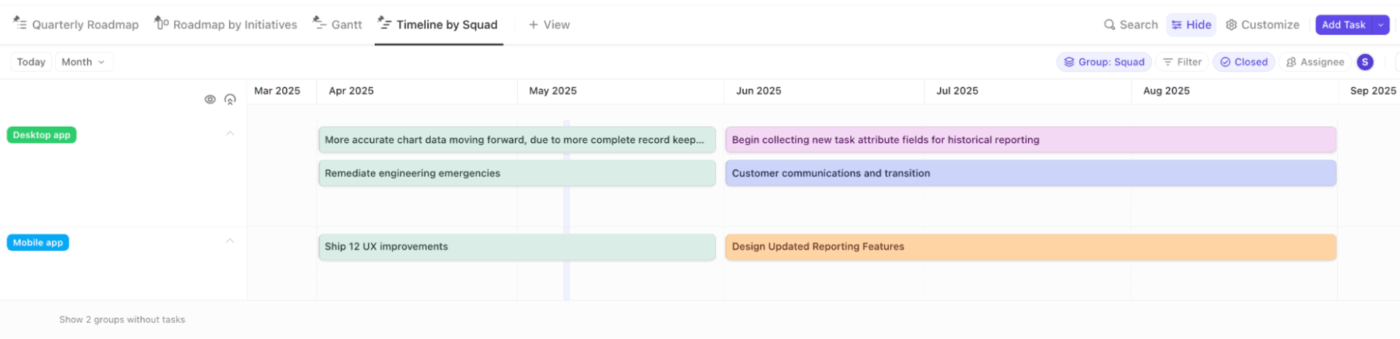
ClickUp Timeline View: Allocate resources and manage multiple clients effortlessly
Map out your projects and deadlines at a glance with ClickUp Timeline View

Workload View

Need help with capacity planning? This is your tool.

Teams use it to:

  • Allocate resources effectively to avoid overworking employees 
  • Map staffing for multi-client agencies where deliverables overlap across accounts
  • Forecast hiring needs by visualizing resource load 6-8 weeks out

Table View

The ClickUp Table View displays Tasks in a spreadsheet format without hierarchy, making it ideal for high-volume editing, analysis, and operational tracking.
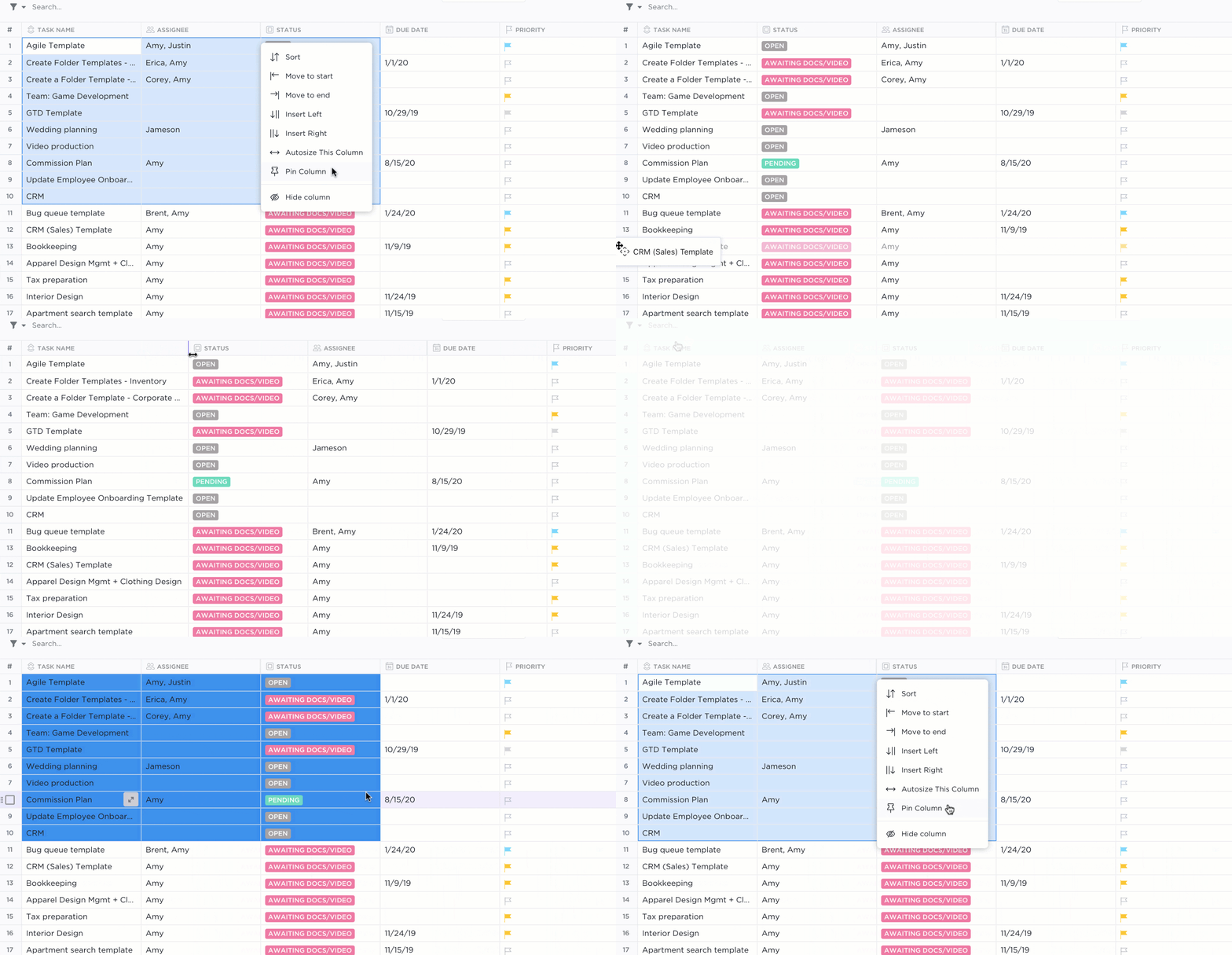
ClickUp Table View: Spreadsheet-style layout helping teams sort and analyze work
Spot missing info instantly with field-level filters within ClickUp Table View

Teams use it to:

  • Manage databases like SKU lists, asset inventories, or content libraries
  • Filter Tasks by missing fields (e.g., no owner, no due date, missing metadata)
  • Update 50+ items at once when standardizing fields like cost, category, or priority
  • Run operational reviews where multiple Custom Fields matter more than status

Form View

ClickUp Forms automatically convert submissions into Tasks. Every answer is mapped to a Custom Field, ensuring that requests enter the system cleanly and consistently.

You can customize your Forms by adding different question types with dropdowns, text fields, dates, priorities, and file uploads. Use conditional logic (on Business Plus and above) to show or hide questions based on someone’s response, and brand your Form with custom layouts, themes, and cover images.
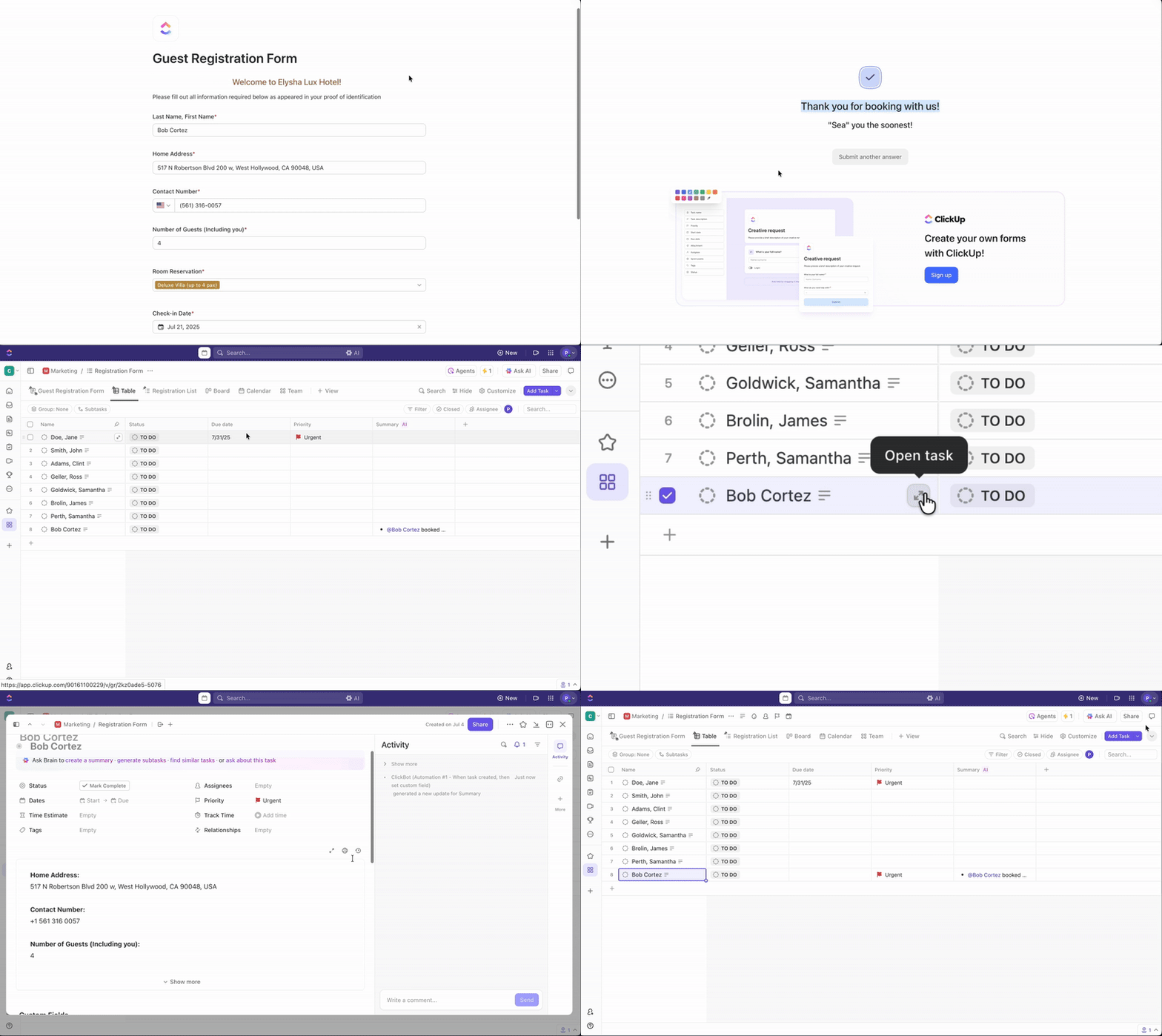
ClickUp Form View: Interactive form setup used to collect inputs while saving time
Turn ClickUp Form submissions into trackable ClickUp Tasks directly and view them in the ClickUp Form View

Teams use it to:

  • Capture design requests with required fields like dimensions, brief, assets, and audience
  • Standardize IT tickets so issues are entered with device type, urgency, and attachments
  • Collect campaign ideas across departments
  • Funnel customer requests directly into Lists like Bug Reports or Feature Suggestions

❗️Note: There is no functional difference between ClickUp Forms and ClickUp Form View. Forms is the general term for the online form itself that people fill out, and Forms View is the interface you add to a List, Folder, or Space to build, edit, and manage your Form.

Docs

ClickUp Docs are built-in collaborative documents designed to help teams create, organize, and maintain living knowledge. They sit alongside Tasks, Views, and projects, making them a central source of truth for everything from specs to wikis.
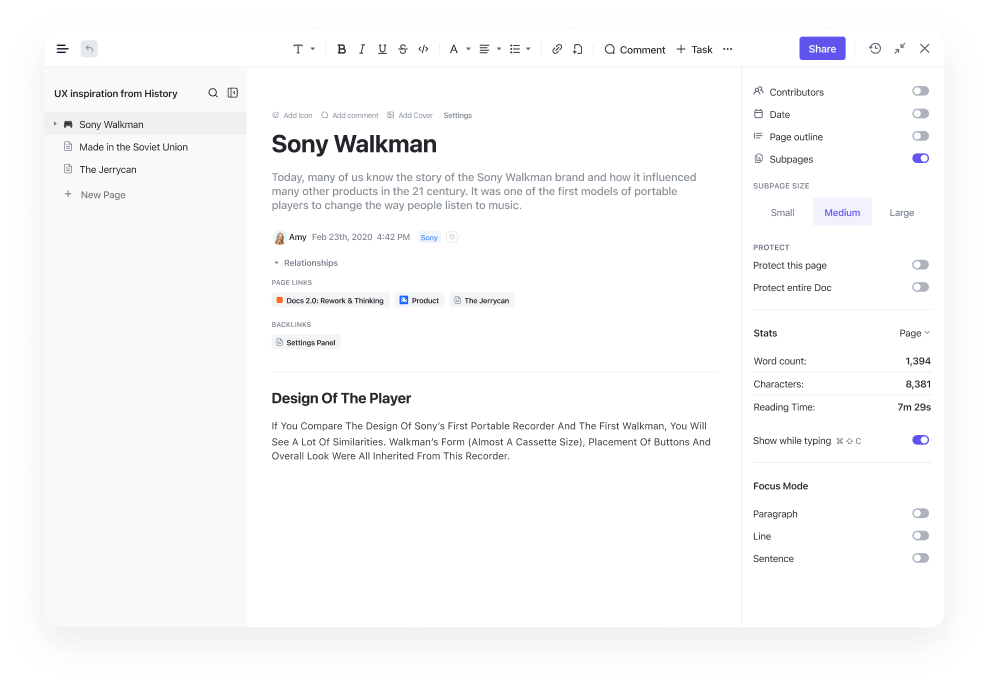
ClickUp Docs: Collaborative document editor acting as a powerful tool for teams
Collaborate on documents, link Tasks, and centralize knowledge with ClickUp Docs

Here are some excellent features you can leverage: 

  • Format content using headings, tables, embeds, checklists, code blocks, and more
  • Collaborate in real time with multi-user editing and visible cursors
  • Organize internal documentation using nested pages and subpages
  • Control access with advanced Doc-level and location-level permissions
  • Review and restore earlier versions with detailed version history
  • Connect Docs to Tasks to ensure they stay connected to work 

📌 Example: Product teams can build a multi-level feature spec where each subpage holds API requirements, acceptance criteria, and open questions. The Doc stays linked to the build Tasks so engineers never need to hunt across tools. Any changes made by the product manager, designer, or engineer are instantly reflected for everyone.

Whiteboards

ClickUp Whiteboards give teams a shared visual canvas for brainstorming, mapping workflows, and turning ideas into actionable Tasks.
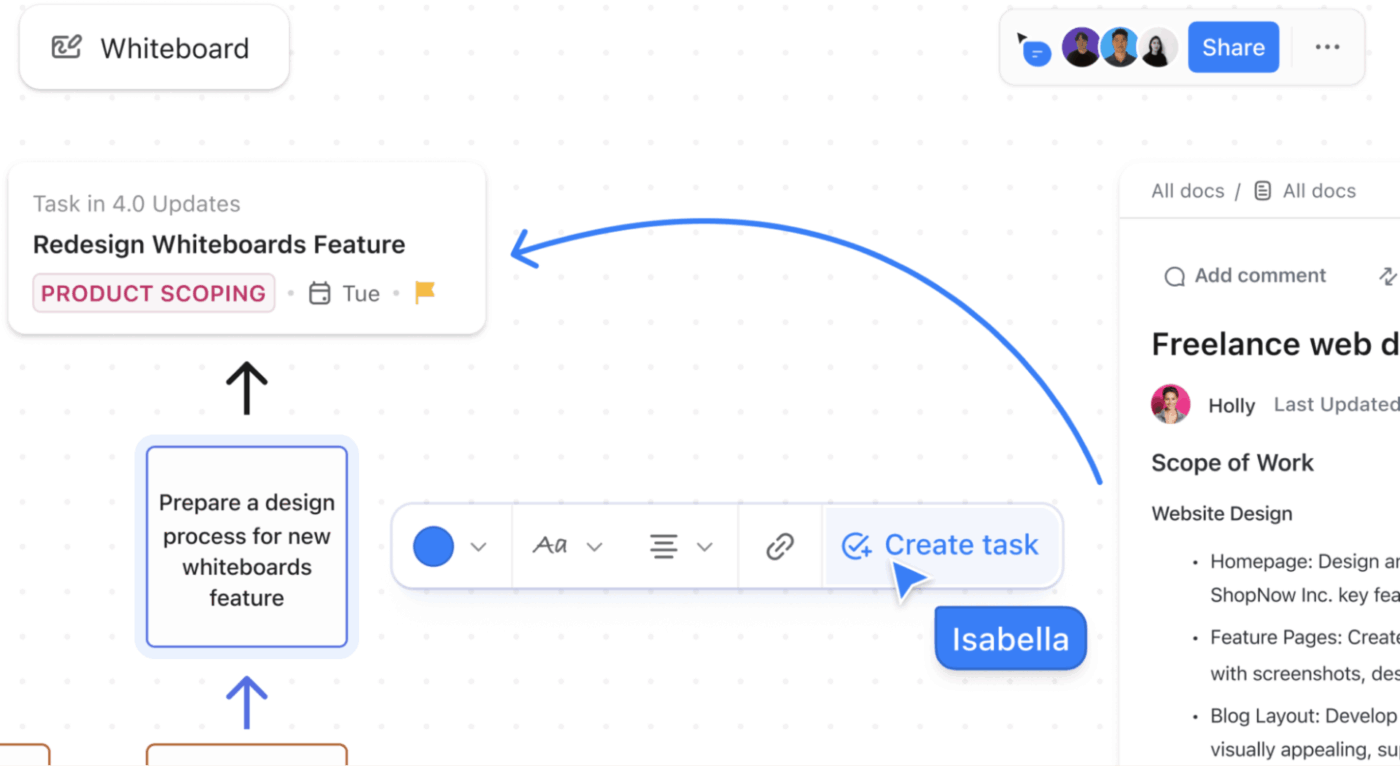
ClickUp Whiteboards: Visual canvas used as a game changer for brainstorming ideas
Embed Docs, Tasks, and notes directly on your ClickUp Whiteboard while collaborating with your team

Here’s how to use a digital Whiteboard

  • Create flexible canvases with shapes, text, images, sticky notes, and connectors
  • Collaborate in real time with multi-user editing and live cursors
  • Convert sticky notes or shapes into Tasks with a single click
  • Drag and connect elements to map flows, systems, or information hierarchies

📌 Example: An engineering lead opens a ClickUp Whiteboard during sprint planning. They drop in shapes to represent each service and use connectors to show API calls. As the team discusses edge cases, they turn sticky notes into new Tasks instantly, keeping the entire system design and execution plan tightly connected.

Mind Maps

ClickUp Mind Maps give you a visual, branching canvas to structure ideas, Tasks, and workflows. Unlike traditional lists or tables, they help you see how your project components connect with each other.

You can use them in two ways:
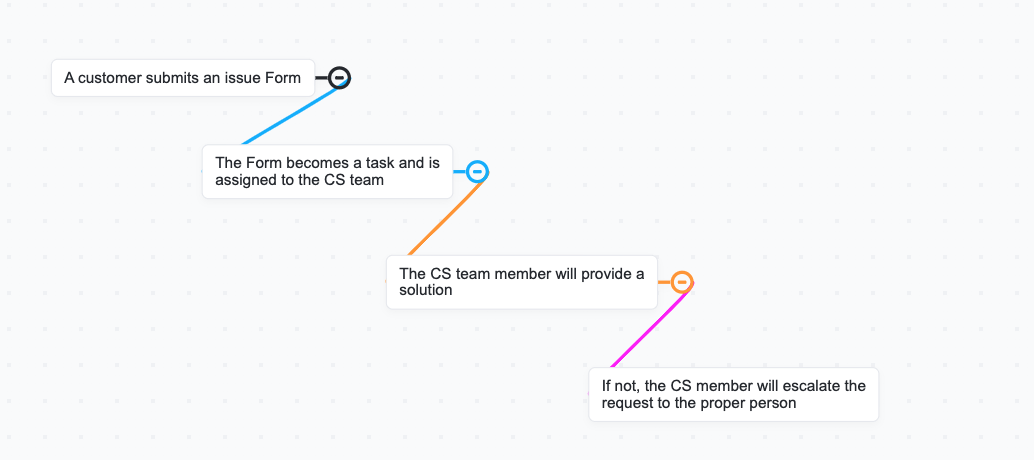
  • Blank Mode for freeform brainstorming
  • Tasks Mode to visualize real Tasks and rearrange their hierarchy directly from the map
ClickUp Mind Maps: Diagram view showing connections like an avatar of person using workspace planning
Build branching structures for ideas, phases, deliverables, or epics with ClickUp Mind Maps

Here’s how Mind Maps in ClickUp help: 

  • Convert any node into a Task 
  • Drag-and-drop nodes to change the parent–child relationship
  • Select multiple task nodes to bulk-update Custom Fields like assignee, status, or due date

📌 Example: A product designer is planning a ‘Unified Account Settings’ overhaul and opens a ClickUp Mind Map to map the entire experience. They start with the main node ‘Account Settings’ and branch it into:

  • Profile
  • Security
  • Notifications
  • Connected Apps
  • Billing

Each of these nodes can instantly become a ClickUp Task, and as priorities shift, the designer drags nodes around to restructure the hierarchy without losing context. 

💡 Pro Tip: In order to bulk edit without leaving the Map, hold Command/Ctrl > select multiple task nodes > use the bulk toolbar. You can change the status, assign users, move Tasks, and update priorities.

Dashboards and reporting widgets

ClickUp Dashboards give you a high-level snapshot of your workspace for tracking work, understanding progress, and reporting outcomes using customizable cards. Each card pulls real-time data, providing quick visibility into different metrics of your project performance.
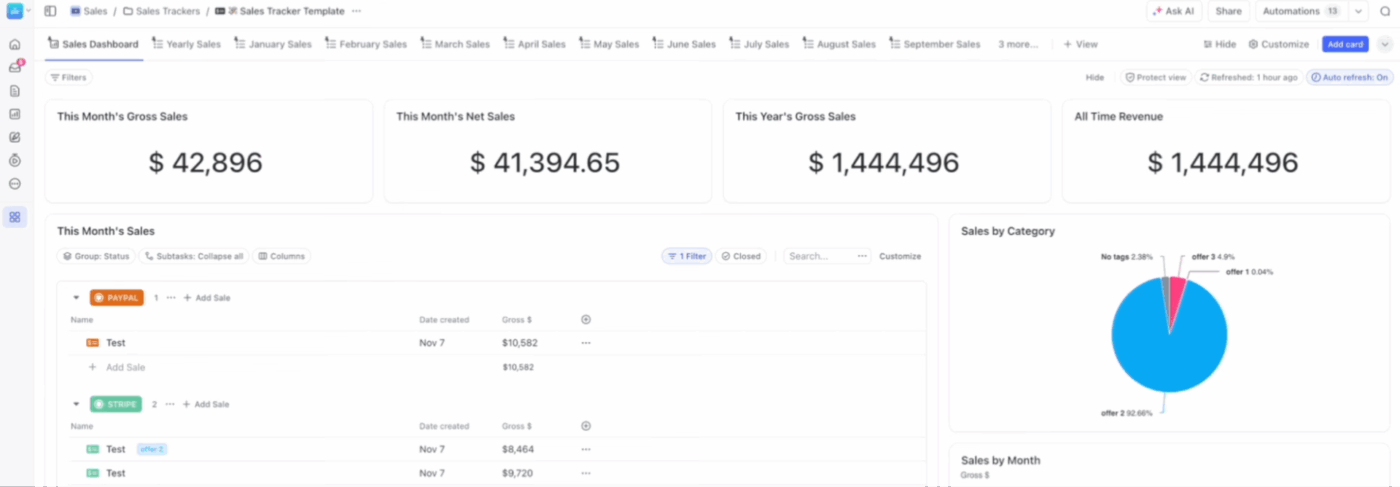
ClickUp Dashboards: Analytics view helping teams monitor workload view and performance
Combine workload, time tracking, and progress metrics on a single screen with ClickUp Dashboards

Create Dashboards to: 

  • Pull data from any Space, Folder, List, or the entire Workspace
  • Rearrange and resize cards to match your reporting style
  • Filter, drill down, and export valuable insights
  • Share them with teams or external stakeholders
  • Embed third-party tools like Figma, YouTube, Sheets, or Miro

📌 Example: A SaaS growth team builds a ‘Weekly Revenue & Experiment Review’ Dashboard to keep their entire funnel in one place. They add:

  • Overdue Tasks Card to track which experiment tickets are blocked
  • Milestones Card to monitor launches tied to monthly revenue targets
  • Tasks Due Soon Card filtered by ‘Growth Experiments’ List so PMs can spot slipping timelines
  • Pie Chart to see how many ideas are in ‘Hypothesis,’ ‘Running,’ ‘Analyzing,’ or ‘Shipped’ statuses
  • Line Chart (Tasks Created vs. Tasks Completed) to identify if the team is overcommitting
  • A Google Sheet of Weekly Revenue Metrics so leadership can see MRR, churn, and conversion trends alongside task progress 

Automations and workflows

ClickUp Automations eliminate repetitive work by running actions based on custom ‘if this, then do that’ instructions. 
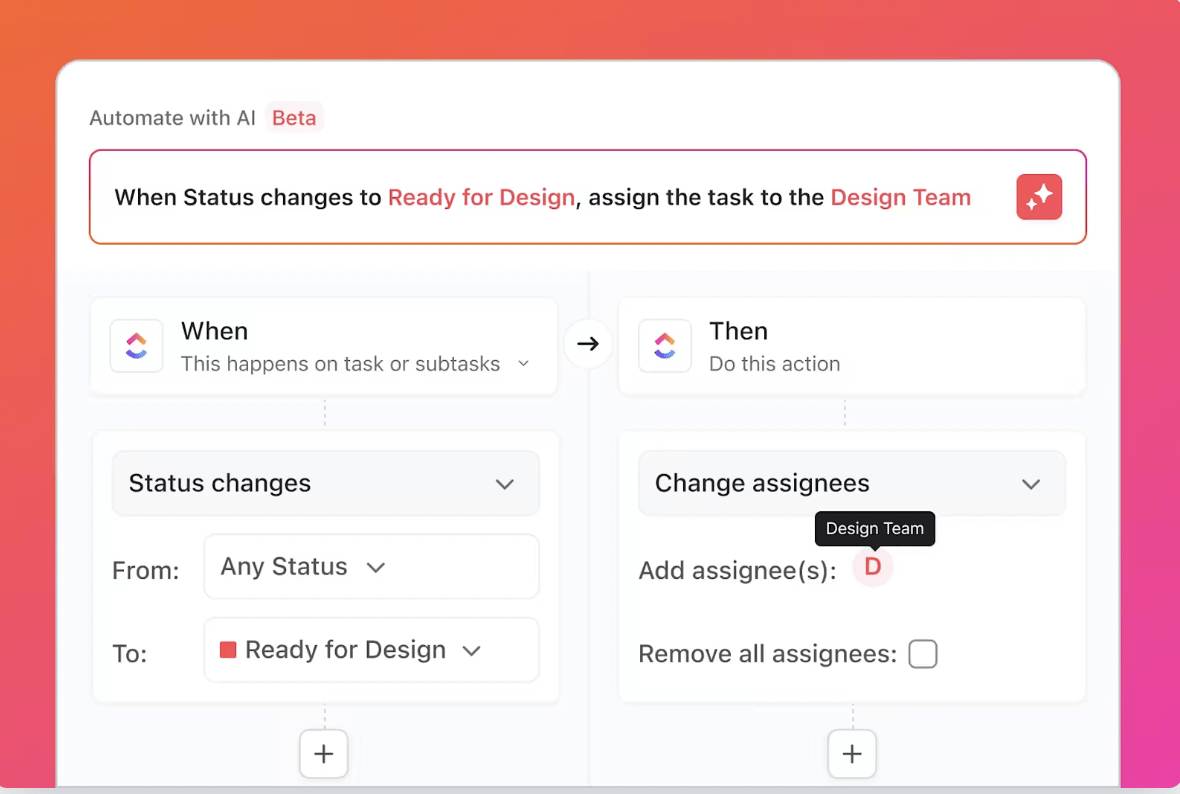
ClickUp Automations: Automated workflow setup for reducing manual effort within ClickUp lies here
Build custom ClickUp Automations based on simple Trigger > Conditions > Action rules

 They follow a simple logic: 

  • Trigger: The event that starts the automation (e.g., Tasks created, status changes, due date arrives, custom field updated)
  • Conditions (optional): Narrow the automation (e.g., only run if priority is Urgent, if Tasks contains a tag, if assignee is empty)
  • Action: What the automation performs (e.g., assign a teammate, move Tasks, update a field, send an email, post a chat message)

🔍 Did You Know? ClickUp has built-in Sprint Automations for teams who want to use ClickUp for software development. If you’re on the Business Plan or higher, you can take it even further. You can auto-create your next sprint the moment the current one closes, move all unfinished Tasks forward, and set older sprints to auto-archive to keep your workspace clean.

ClickApps

ClickApps are optional features that admins can activate or deactivate in your Workspace.

Whether you’re using ClickUp for personal use or managing a growing team, this keeps your setup focused, avoids clutter, and lets workflows scale seamlessly as your needs evolve.
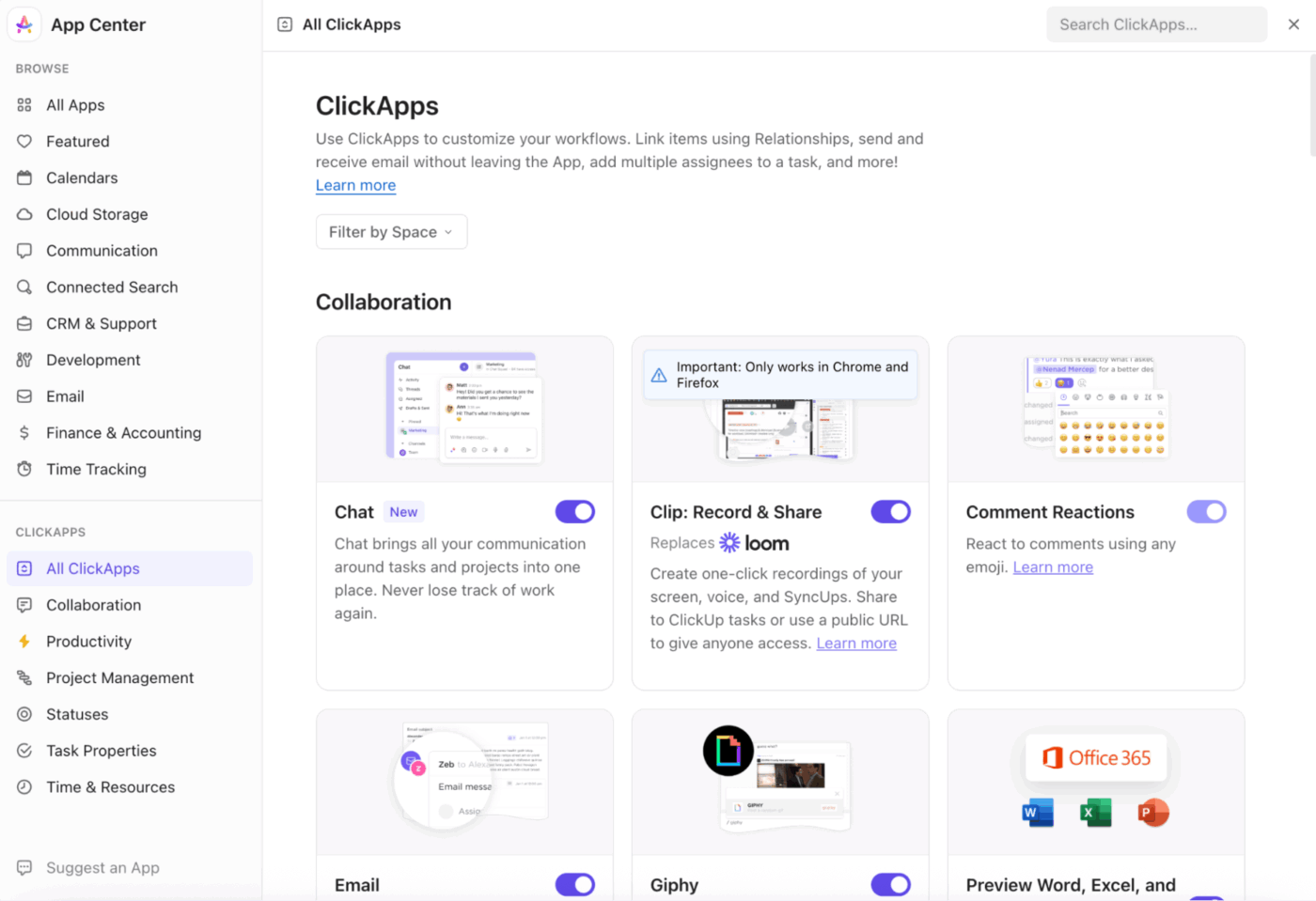
ClickApps: Feature controls that customize the platform to remind users of essential workflows
Turn on specific ClickApps to manage features in your workspace 

Examples of ClickApps you can enable:

  • Custom Fields
  • Tasks Relationships
  • Dependencies
  • Time Tracking
  • Sprints
  • Tags and Priorities
  • Automations
  • Multiple Assignees
  • Reschedule Dependencies
  • Work In Progress Limits
  • Many more

Custom Fields

ClickUp Custom Fields are flexible, user-defined categories that let teams capture and organize specific data unique to their workflows, beyond the standard Task properties. They help you track, filter, and report on important project details unique to your workflow or team.

Custom Fields can live inside a specific List or Folder, Space, or your entire Workspace (global Custom Fields).
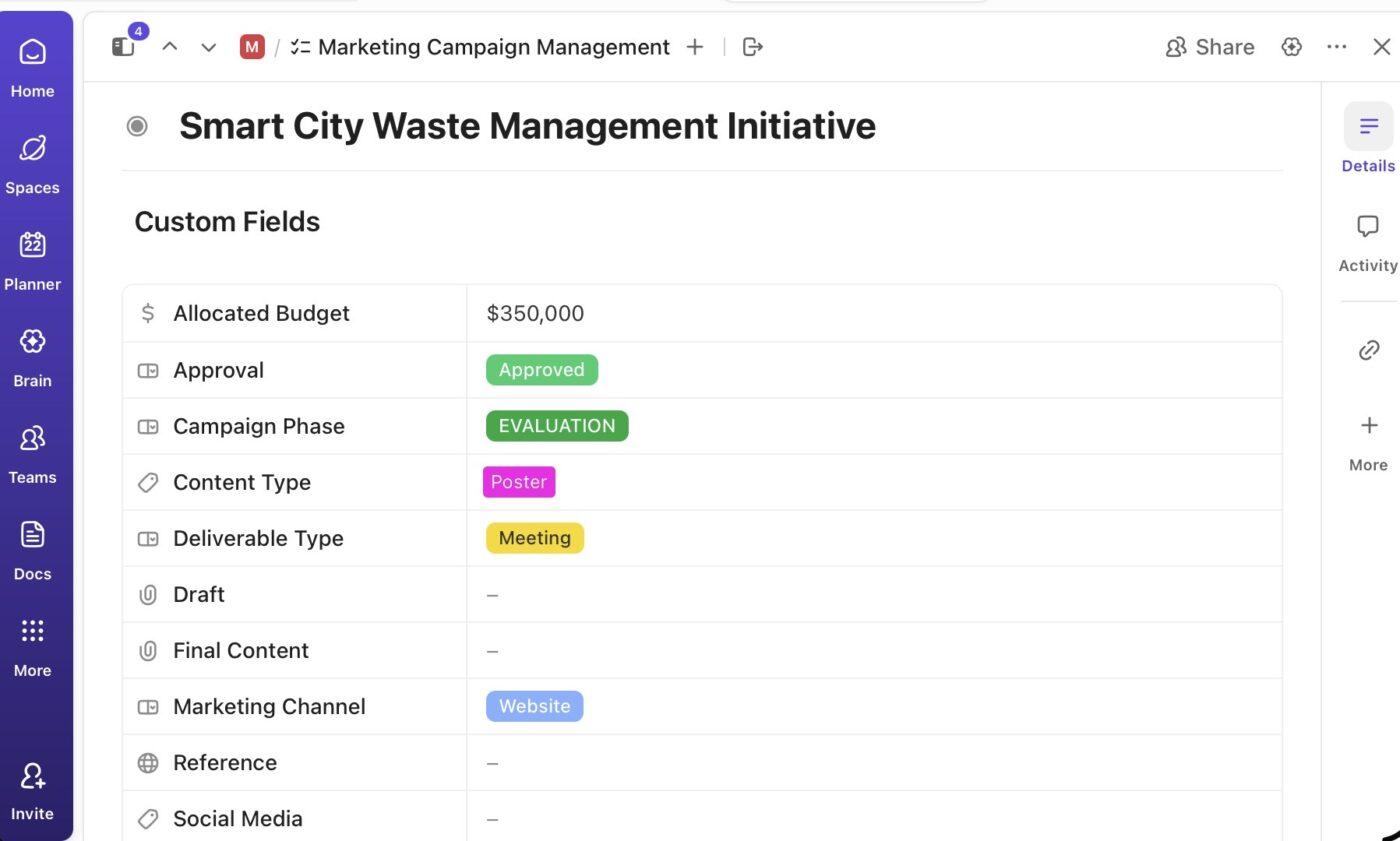
ClickUp Custom Fields: Customizable inputs tailored for unique data and person using ai scenarios
Manage complex data by categorizing it using ClickUp Custom Fields 

Some available field types include:

  • Text, Number, Dropdown, Label, Checkbox
  • Email, URL, Phone, Location, Money, Date, People
  • Attachment, Formula, Rollup, and more
  • AI Fields for automatic summaries, translations, or content generation
  • Task Type fields that show only for specific custom Task types

Here’s what you can do with Custom Fields: 

  • Pin fields for quick visibility (Business+)
  • Set edit/view permissions
  • Hide fields from guests
  • Sort, filter, search, and group using field values
  • Create formulas for calculations
  • Use rollups to summarize data from related Tasks
  • Set default values or require fields
  • Merge, duplicate, and centrally manage fields in the Custom Fields manager

Relationships

ClickUp Relationships enable you to connect tasks, allowing you to reference related work, track dependencies, or surface data from other items. They add contextual intelligence to your workspace, especially for large or interconnected projects.
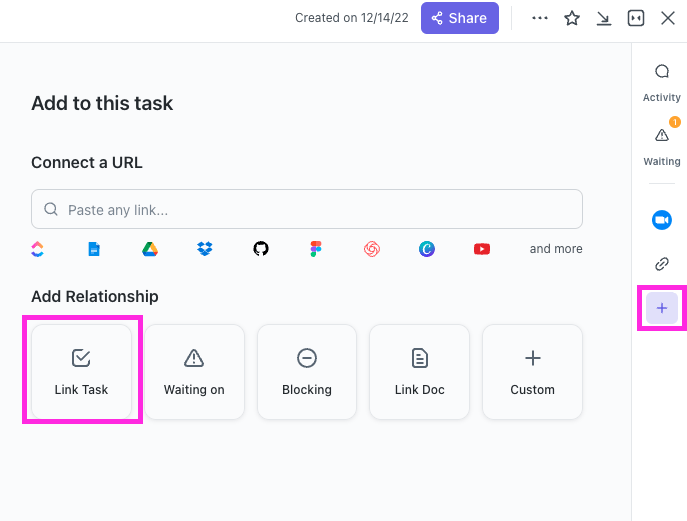
ClickUp Relationships: Linked task structure showing how items connect across the ultimate guide
Build smarter workflows by adding ClickUp Relationships directly from the Task View

Here are the types of relationships: 

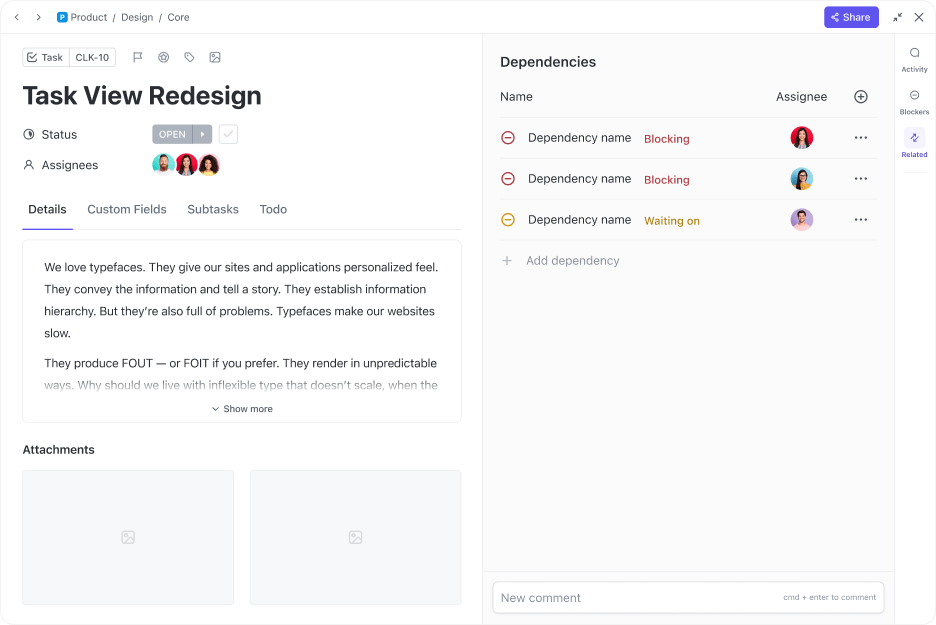
1. Dependency Relationships: Ideal for project plans, engineering workflows, and sequential work. It contains two types: 

  • Blocking: For Tasks that prevent others from moving forward
  • Blocked by: For Tasks that can’t proceed until others are completed

2. Linked Tasks: Simple references between related Tasks. You can use this for cross-functional work, shared resources, or parent/parallel efforts

3. Custom Relationships: Offer the most control and allow you to structure connections in two ways:

  • Any Task in your Workspace: Relate this Task to a group of other Tasks in your Workspace
  • Tasks from a specific List: Connect this Task to a group of Tasks from a specific List 

Templates

ClickUp Templates act as reusable blueprints for setting up work. So instead of rebuilding structures, Tasks, or Docs from scratch, you can create a template in ClickUp or choose one from the library and start immediately. They help teams maintain consistency, reduce setup time, and standardize workflows across projects and departments.
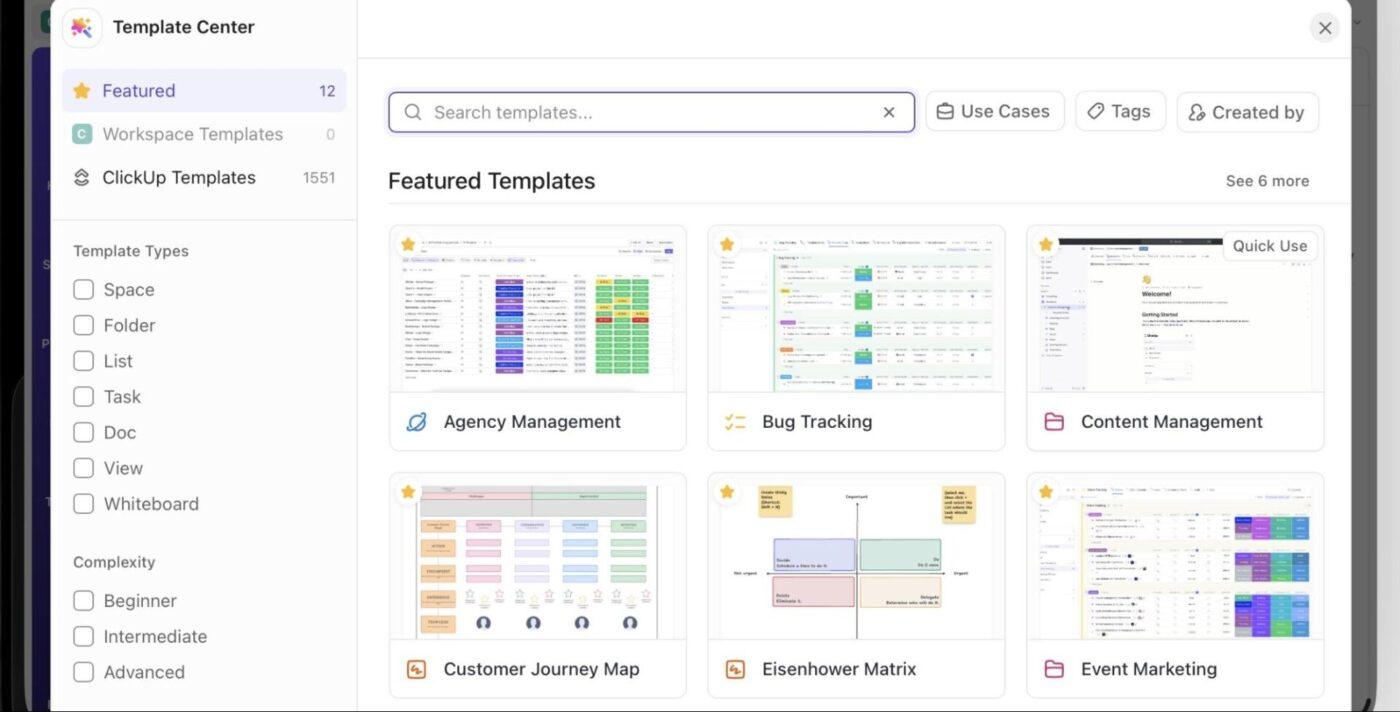
ClickUp Templates: Ready-made workflows helping teams standardize processes
Choose from 1,000+ ClickUp templates and start your work instantly to boost productivity

The best part is that ClickUp supports templates for almost every part of your workspace: 

  • Project management: Sprints, product launches, roadmaps, event plans
  • Marketing: Content calendars, campaign trackers, social media planners
  • Sales and CRM: Pipelines, lead tracking, client onboarding
  • Engineering: Bug tracking, feature requests, QA flows
  • HR: Recruitment pipelines, employee onboarding
  • Personal productivity: Daily planners, habit trackers
  • Docs: SOPs, meeting notes, wikis, knowledge bases

Template Archive: The ClickUp Project Management Template gives you a complete, pre-built Space organized by project phase. It helps you visualize resources, assign and prioritize Tasks, and manage work across multiple views, such as List and Board. With custom statuses, you always know what’s open, in progress, or done at a glance.

Summarize this article with AI ClickUp Brain not only saves you precious time by instantly summarizing articles, it also leverages AI to connect your tasks, docs, people, and more, streamlining your workflow like never before.
ClickUp Brain
Avatar of person using AI Summarize this article for me please

Collaboration and Management Terms

This section breaks down all the collaboration and management features that help teams stay aligned without switching apps.

Communication tools

Let’s start with ClickUp’s core communication tools.

Inbox

The ClickUp Inbox is your personal notification center within ClickUp. It collects updates, notifications, reminders, and important activities from across your workspace. Available to everyone (including guests), it’s unique to you. 
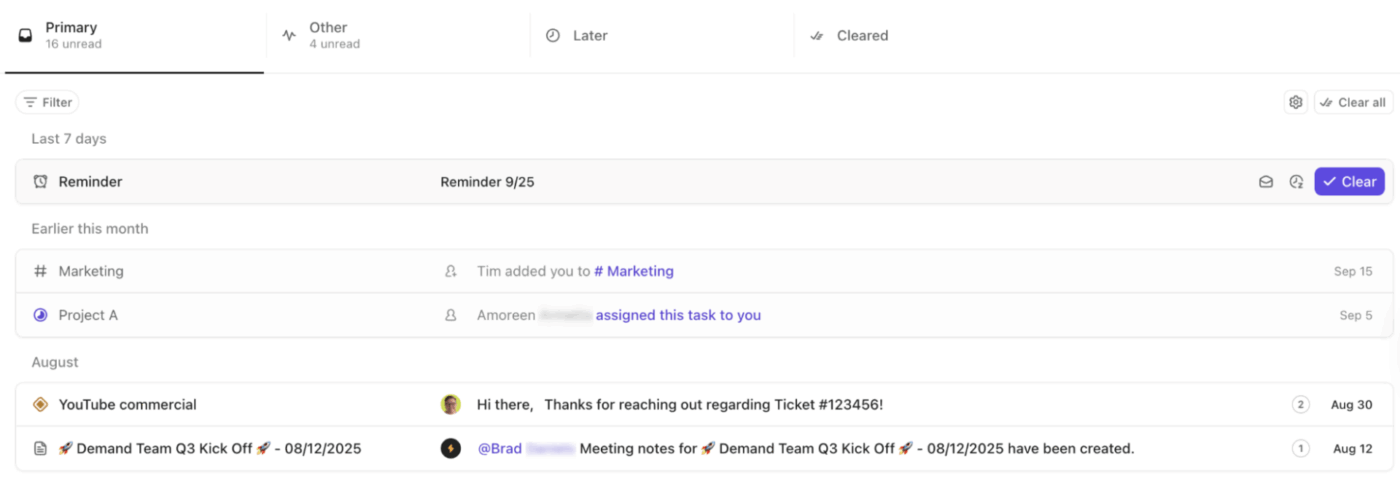
Open items side-by-side inside ClickUp Home to see the activity and context without switching screens

Here’s what you can do with the built-in inbox: 

  • See updates categorized into Primary, Other, Later/Snoozed, and Cleared
  • Filter by mentions, assignments, unread items, or reminders
  • Mark notifications as read/unread, snooze, or clear them
  • Favorite important notifications or add them to your priorities
  • Customize what appears in Primary vs. Other

Reminders

ClickUp Reminders act as your personal to-dos, keeping small Tasks from being missed. They’re lightweight, fast, and accessible from almost anywhere; you can create them from the toolbar, My Tasks, Tasks, comments, Chat, or AI Command Bar.

Add necessary details to your Reminder, like a description, due date, and attachments. You can also delegate Reminders to teammates or adjust their notification settings.
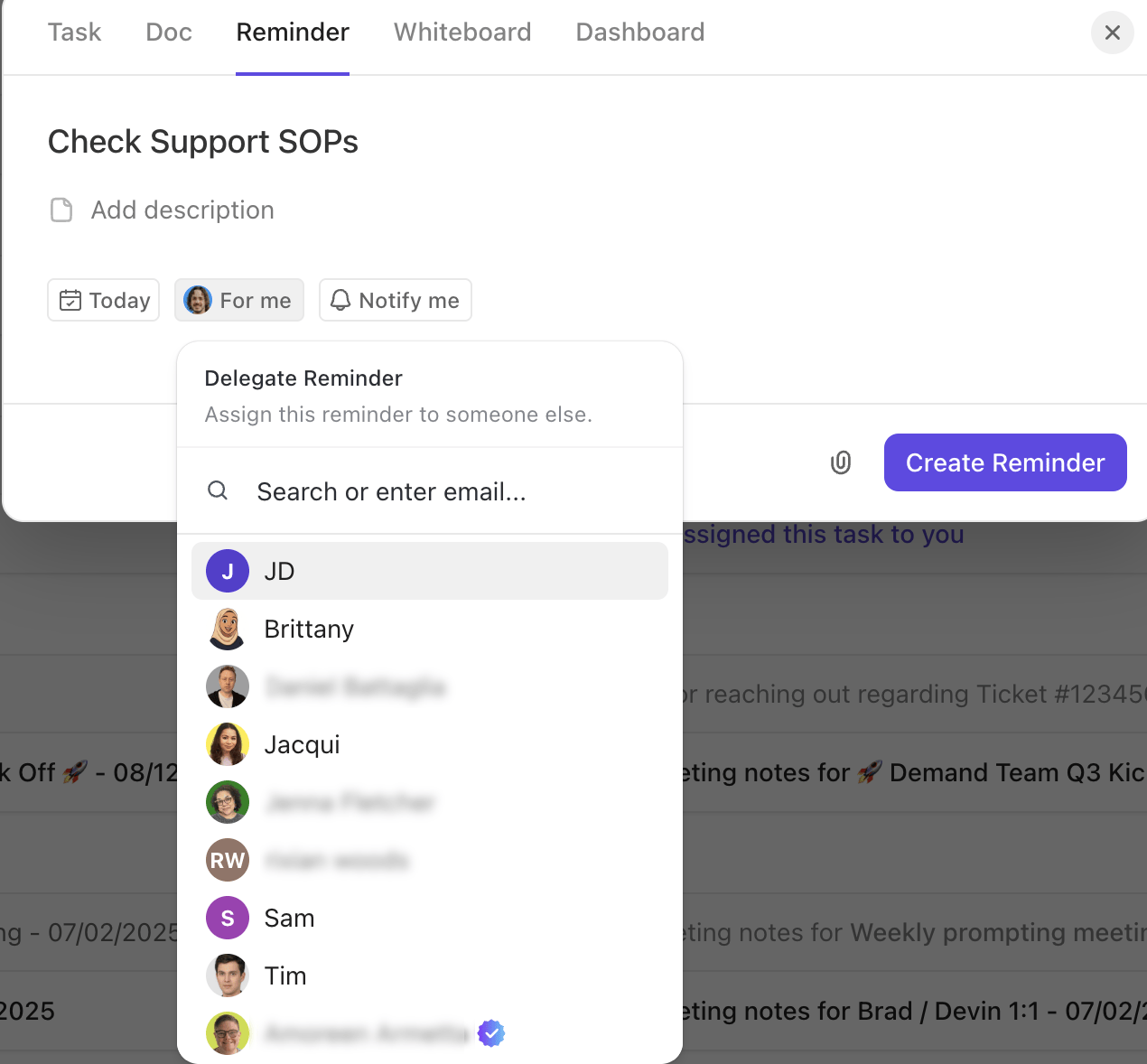
ClickUp Reminders: Quick reminder creator for tracking upcoming actions
Delegate reminders to teammates and keep ownership clear with ClickUp Reminders

Chat

ClickUp Chat is a real-time messaging tool that gives teams a dedicated space for conversations. It supports both Channels and Direct Messages, so you can talk to the whole team or keep things private.
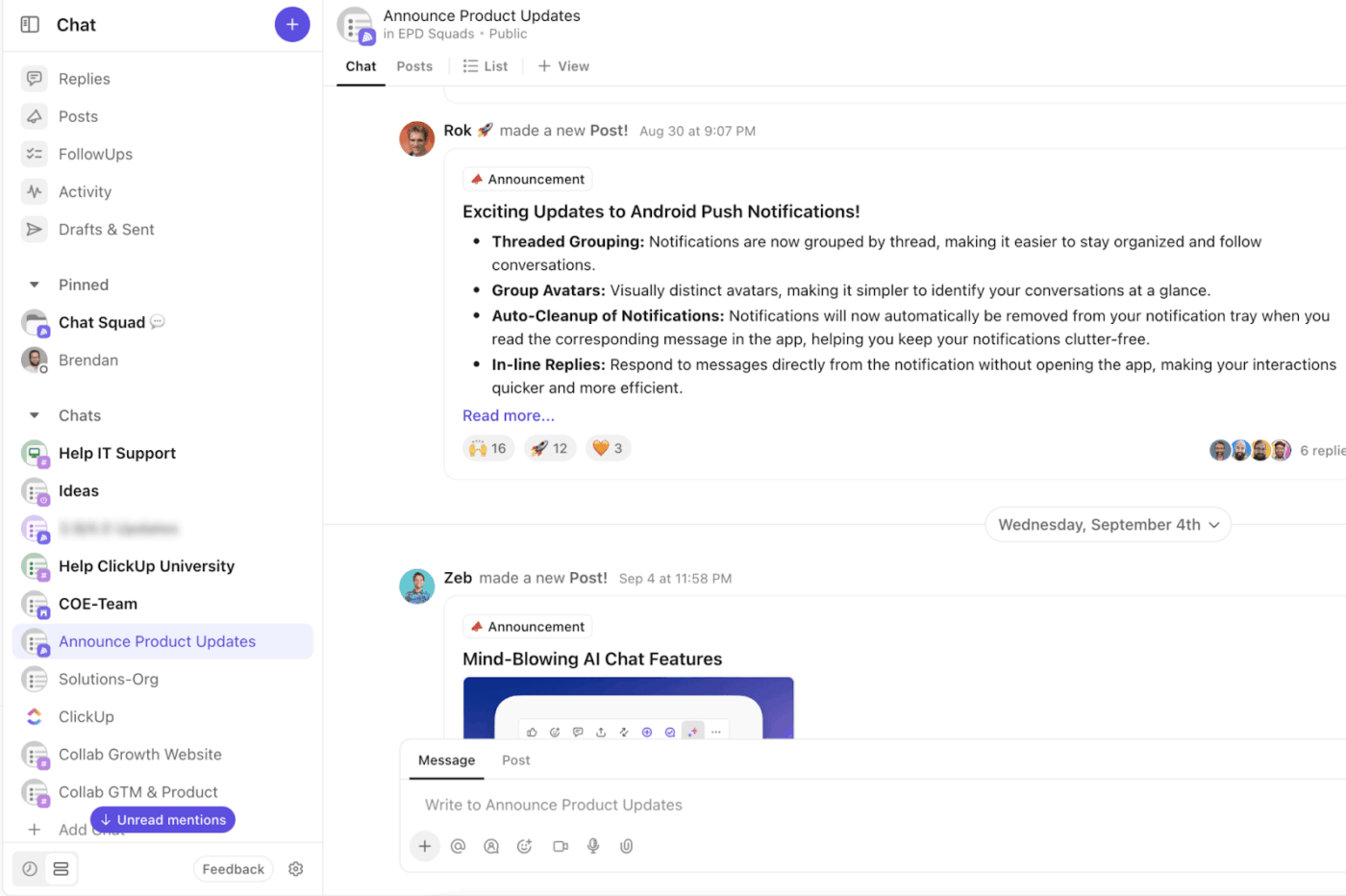
ClickUp Chat: Team messaging panel for real-time collaboration
Create Posts to highlight announcements and centralize updates with ClickUp Chat

Here are some of its features: 

  • Send threaded messages for focused conversations
  • @mention users, Tasks, Docs, Whiteboards, Channels, and locations
  • Attach files, use rich text formatting, and forward messages
  • Save messages for later or turn them into reminders
  • Create Tasks directly from messages

Here’s why you should pick ClickUp Chat: 

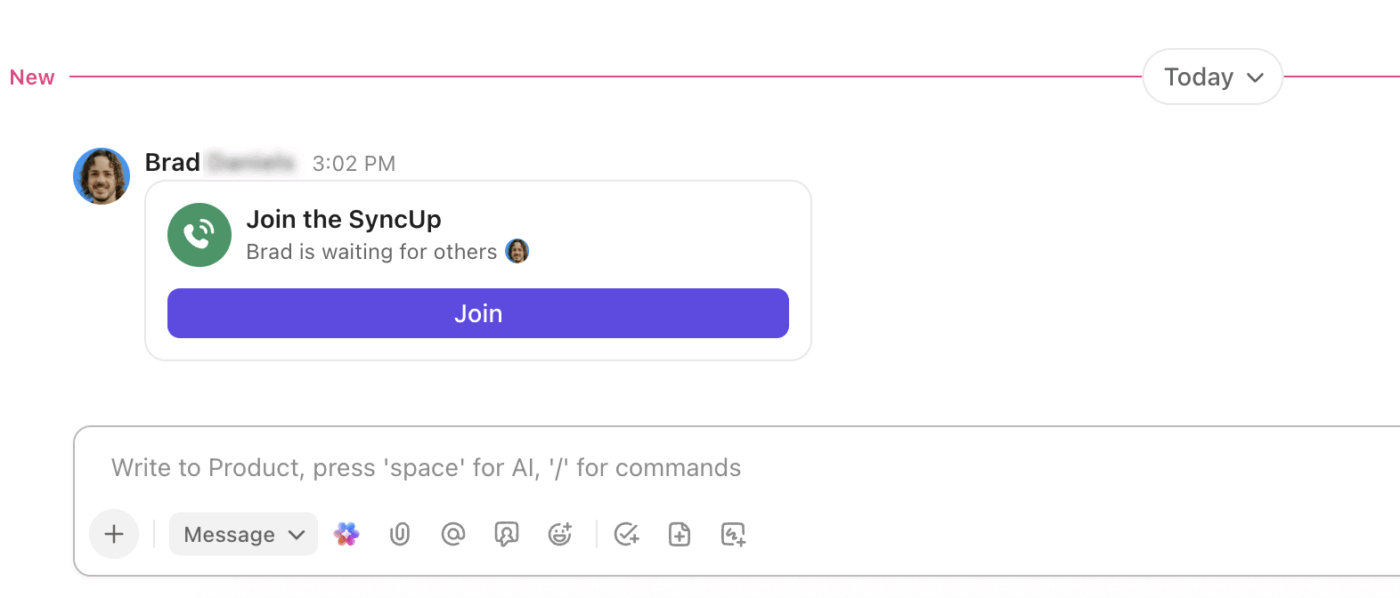
🚀 ClickUp Advantage: Built right into Chat, ClickUp SyncUps let you hop onto quick voice and video meetings. You can start a SyncUp in your workspace, share your screen, and link Tasks to it for focused discussions. You can also record meetings and get AI-generated transcriptions and auto-summaries. 
ClickUp SyncUps: Automated summaries generated for team updates
Join ClickUp Syncups straight from Chat when the meeting notification drops

Clips 

For moments when real-time conversations aren’t needed, ClickUp Clips let you share context just as effectively, on your own time.
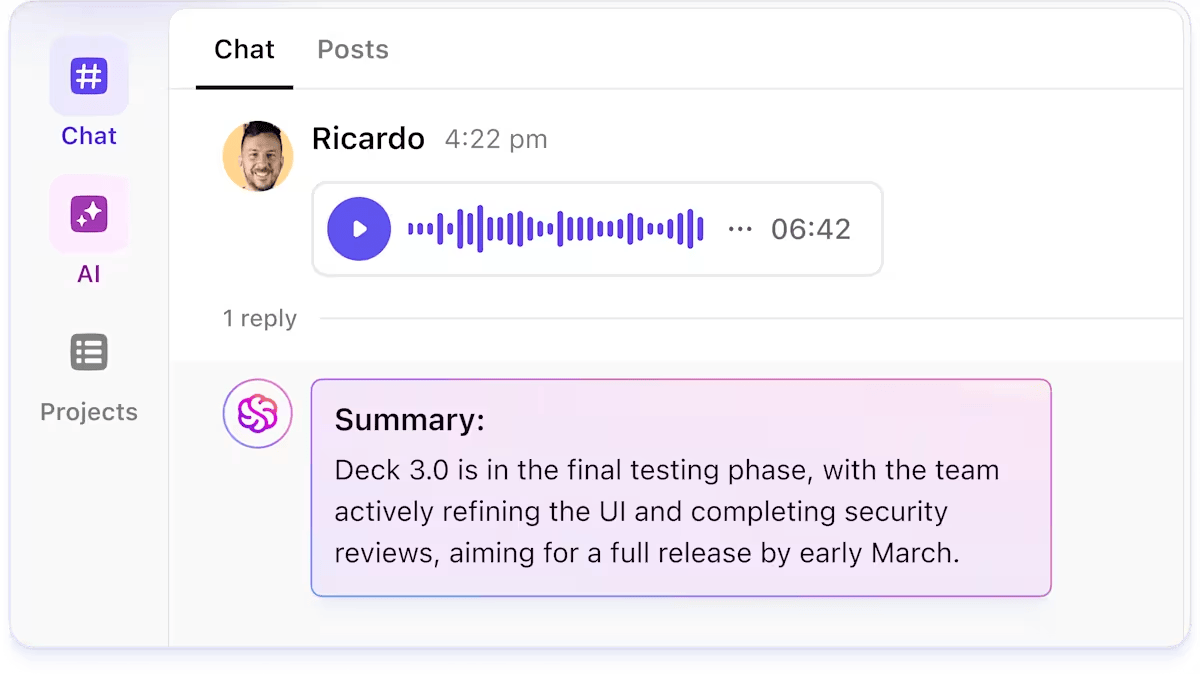
ClickUp Clips: Screen and video recording interface for capturing quick tutorials
Replace long meetings with clear async explanations using ClickUp Clips

Clips let you record your screen, your microphone, or both, making it perfect for async updates, feedback, training, or quick explanations. All recordings are organized in the Clips Hub, making them searchable and easy to share.

You can also add timestamped comments on Clips directly for precise feedback and share them using public links. 

🔍 Did you know? SyncUps and Clips work hand-in-hand inside ClickUp. Every SyncUp recording automatically becomes a Clip and shows up in your Clips Hub. This means all your communication, live or async, lives in one space, with transcripts and AI summaries ready when you need them.

Comments and assigned comments

ClickUp Comments are messages you can leave on Tasks, Docs, attachments, and other items for collaboration, feedback, questions, approvals, and general discussion. They support rich text, file attachments, emojis, and can be threaded for focused conversations.
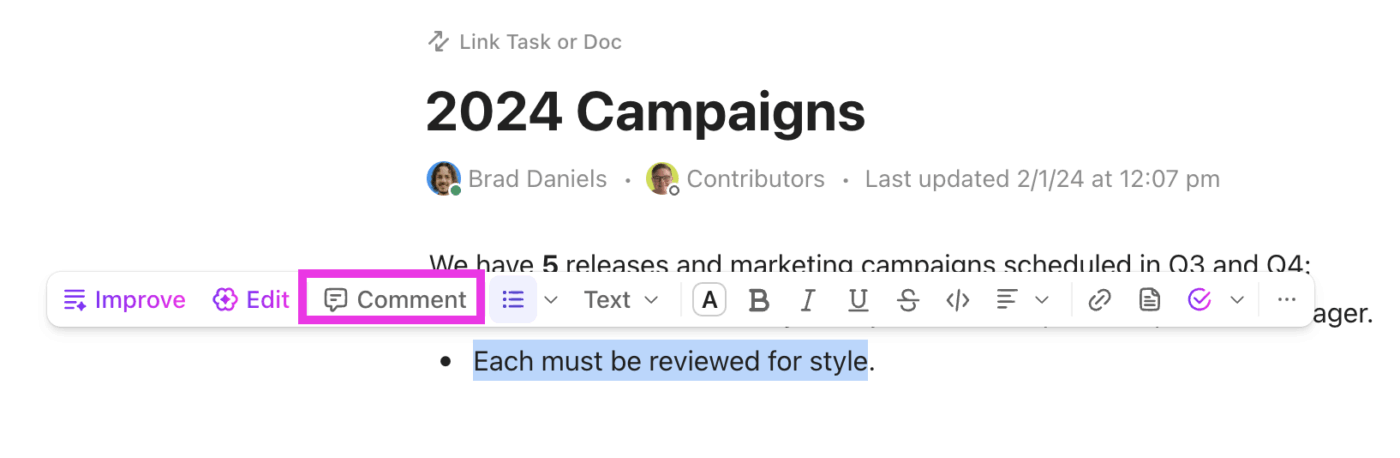
ClickUp Comments: Discussion thread area enabling collaboration directly within tasks
Drop feedback, ask questions, or share ideas with ClickUp Comments

You can create Tasks or Subtasks directly from comments, save them for later, turn them into reminders, use AI to summarize threads or generate replies, and even record Clips and attach them directly within comments. 

ClickUp Assign Comments takes things a step further by turning any comment into a clear, actionable item. When you assign a comment to a specific person, they’ll be notified immediately. If someone tries to close the task, they will be notified of any unresolved comments.
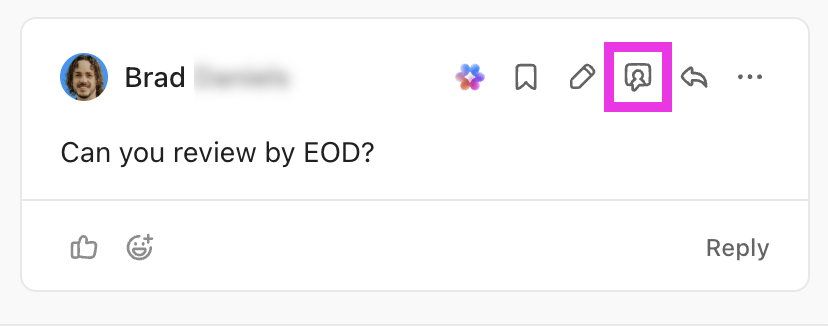
ClickUp Assign Comments: Actionable comment assignment ensuring accountability
Hover over any comment and use ClickUp Assign Comments to add it as an action item in one click

💡 Pro Tip: Tag a user, Team, or item (like a Task or Doc) using @mentions. It notifies the right people and helps bring context into conversations. 

Some special ones include: 

  • @assignees to mention all assignees of a Task
  • @followers to mention all followers
  • @everyone in Chat Channels to notify all members
  • @@ to mention a Task, @@@ for a Doc, @@@@ for a Whiteboard, @/ for a List

Task management tools

Below are the core organizational elements every ClickUp workspace relies on.

Custom Statuses

ClickUp Custom Statuses define the exact steps work must pass through before it’s considered complete. They replace one-size-fits-all workflows with stages that reflect how your team operates.
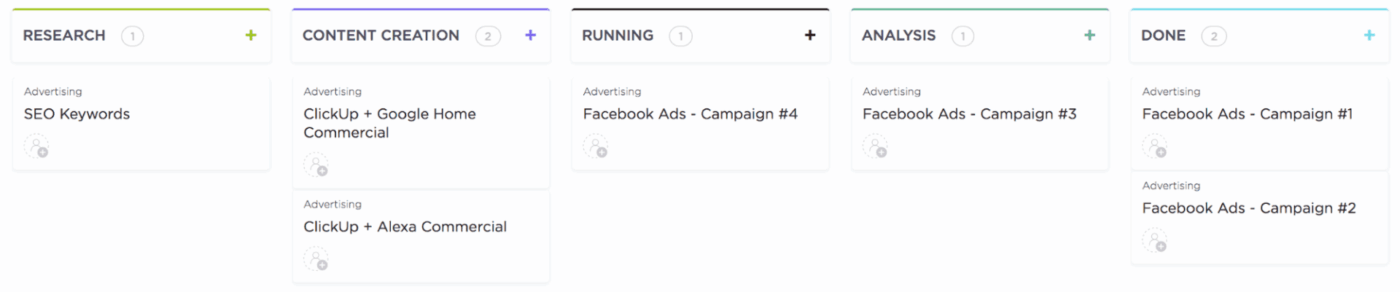
ClickUp Custom Statuses: Status labels showing progress stages for tailored workflows
Build seamless workflows for each Space, Folder, or List with ClickUp Custom Statuses

Here’s what you can do: 

  • Create, rename, color-code, and reorder Statuses
  • Organize Statuses into default groups, such as Active, Done,and Closed (with the optional Not Started group enabled by admins/owners)
  • Apply or modify Status Templates (Agile, Kanban, Marketing, Support, etc.)
  • Track Tasks progress using the Show Status Progress ClickApp (visual pie-chart progress trackers)

Tags

ClickUp Task Tags give you lightweight, flexible categorization that layers on top of your main structure. They act like metadata, perfect for labeling Tasks by theme, campaign, department, client, sprint, or status nuance that doesn’t need to become a formal Status.
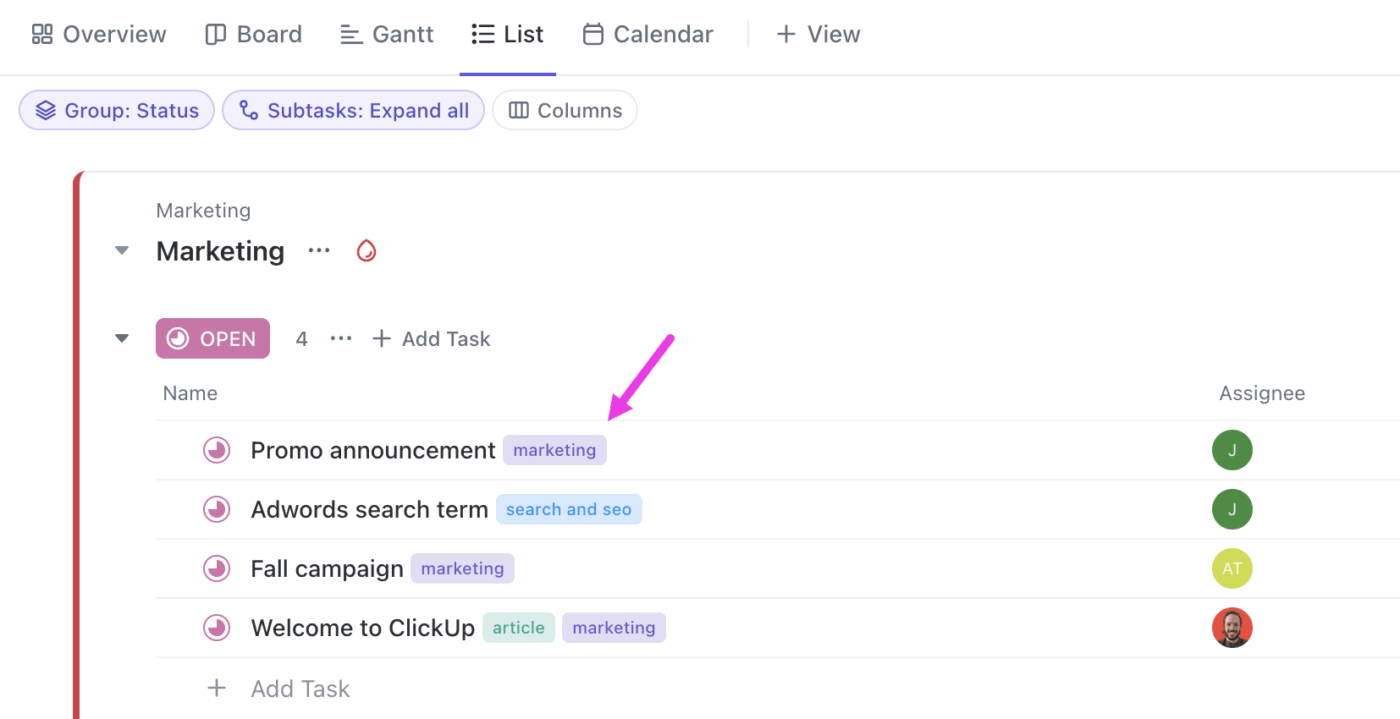
ClickUp Task Tags: Color-coded markers used for quick categorization
Track initiatives across departments and quickly surface cross-functional work with ClickUp Task Tags 

Create colorful, reusable Tags at the Space level, apply several to the same Task, and quickly search using them. You can also filter, group, and sort your work across List, Board, and Table views using these labels.

Here’s what Ansh Prabhakar, Business Process Improvement Analyst, Airbnb, had to say about ClickUp: 

ClickUp has a lot to offer in one place, such as project management, brainstorming options, task management, project planning, documentation management, etc. It has definitely made life comparatively easier as it’s easy to use, UI is well designed, and collaboration within the team and with other teams is easier. We were able to manage work better, track and report work easily, and based on progress daily huddles, future planning was easy.

Ansh PrabhakarBusiness Process Improvement Analyst, Airbnb

Priorities

ClickUp Task Priorities adds a clear signal of urgency to Tasks. They help teams understand what matters most right now, without needing to read through descriptions or comments.
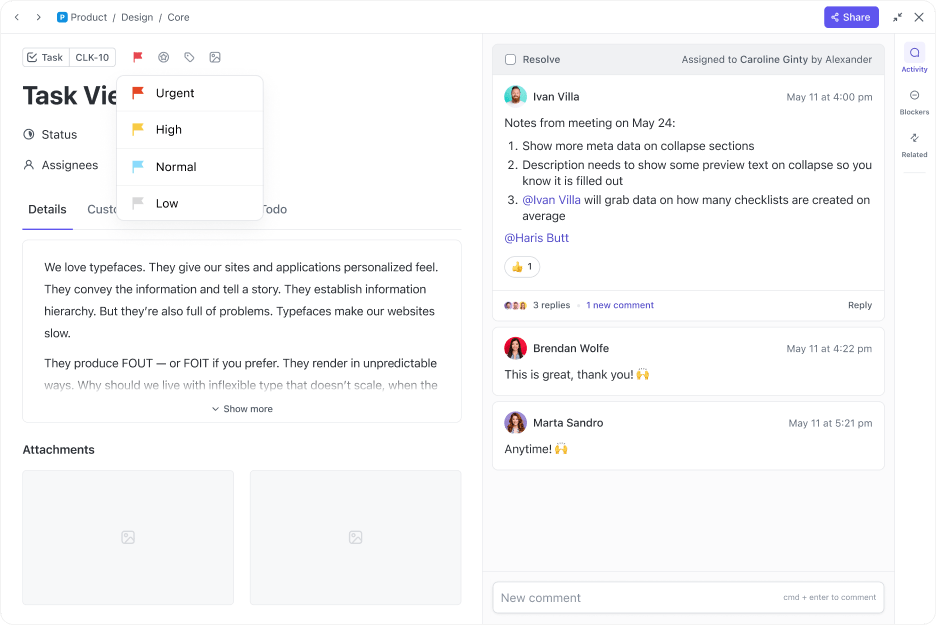
ClickUp Task Priorities: Priority flags helping teams focus on what matters most
Decide what to handle first and monitor workload distribution based on urgency with ClickUp Task Priorities 

Priority levels in ClickUp include Urgent (red), High (yellow), Normal (blue), and Low (grey). Filter, sort, or group Tasks by priority in any view and trigger automations based on them. You can also use Priority Breakdown and Priority Over Time cards in Dashboards. 

Milestones

ClickUp Milestones represent major checkpoints in a project, such as release dates, launch days, critical events, or stage and project completions. They’re a custom task type that helps teams track whether they’re on schedule for big outcomes.
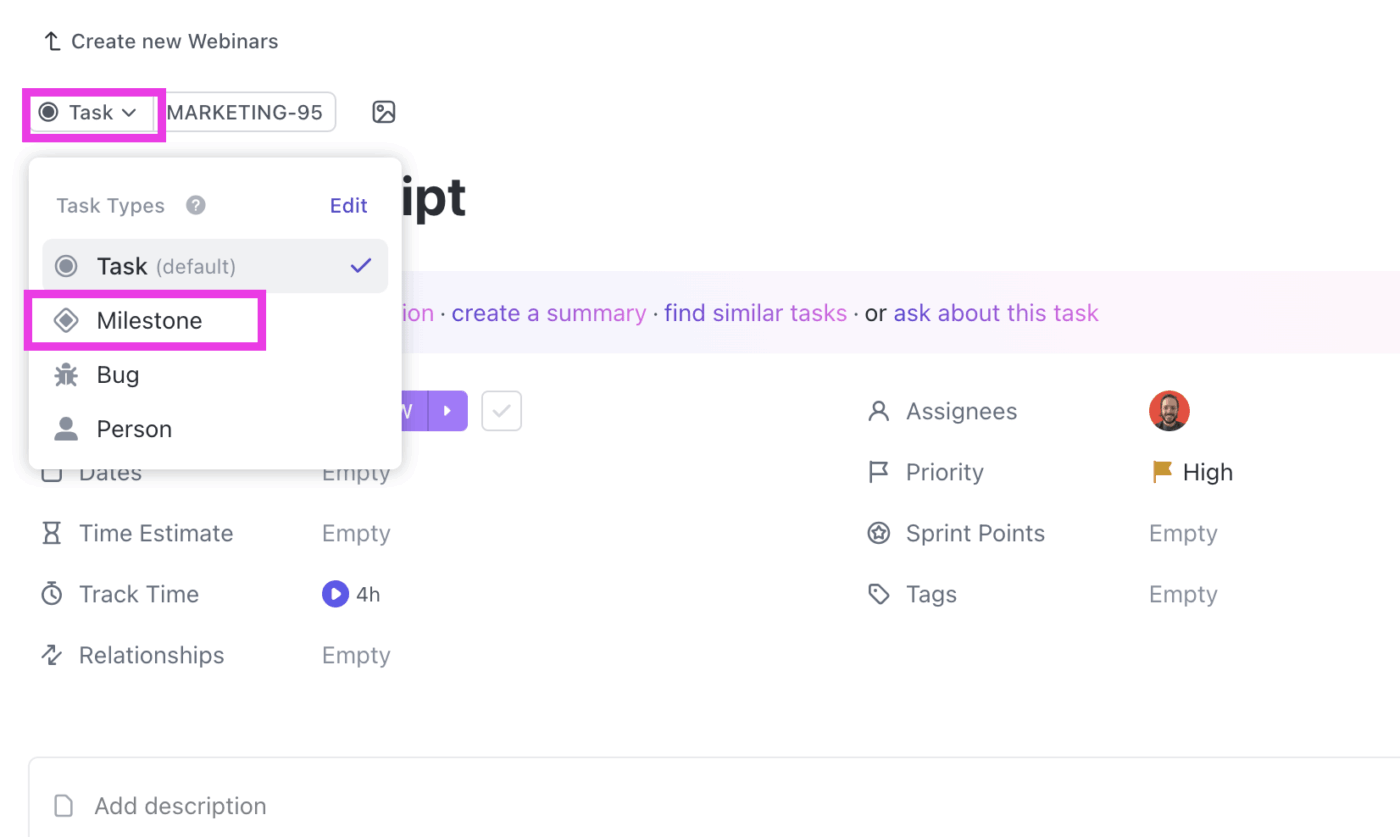
ClickUp Milestones: Primary markers in your timeline for big events
Use ClickUp Milestones to mark the end of phases in waterfall or hybrid project plans

Dependencies

ClickUp Dependencies define how Tasks relate to one another, specifically which Tasks must finish before others can start. They prevent scheduling conflicts, keep timelines realistic, and help teams understand what is stuck or blocked. 

Dependency types in ClickUp include: 

  • Waiting on: Task cannot start until another is complete
  • Blocking: Task prevents another from moving forward
  • Linked Tasks: Related, but not sequentially dependent

Some advanced features include: 

ClickUp Dependencies: Linked task order clarifying what must happen first
Plan projects with accurate timelines and manage blockers across departments with ClickUp Dependencies

💡 Pro Tip: The best way to visualize Dependencies in ClickUp is through Gantt View. It lets you see how tasks connect across your entire project, adding visibility to blockers and bottlenecks.

Permissions

ClickUp Permissions define the exact actions a user can take on any item or location in ClickUp. They can be applied at multiple levels, such as Workspace, Space, Folder, List, or individual Tasks and Docs.

Here’s how Permissions help: 
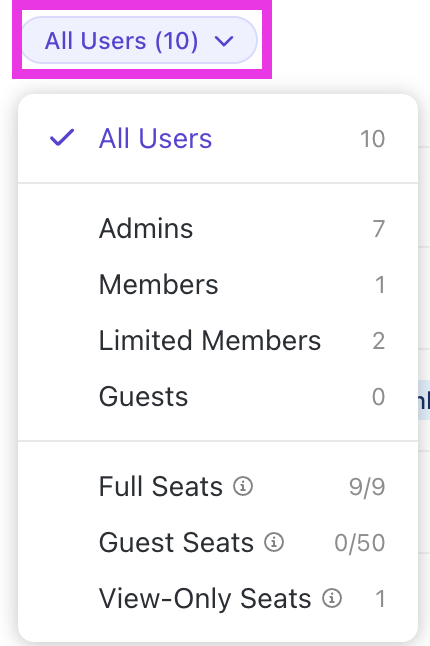
  • Manage user roles from items or from the Manage People page
  • Define default permissions for new users (admins/owners on Business Plus and Enterprise Plans only)
  • Apply granular controls on a per-item basis when needed
ClickUp Permissions: Access control settings managing who can view or edit work
Restrict or allow sharing at the Workspace level with Permissions in ClickUp

User-level permissions include:

  • Full edit: Create, edit, share, and delete items
  • Edit: Make changes, including sharing, but cannot delete
  • Comment: Leave comments and replies without editing content
  • View only: Read-only access

💡 Pro Tip: You can also add Guests in ClickUp. These are external collaborators such as clients, contractors, or vendors, who only get access to items you explicitly share. They don’t see your full Workspace, making it a safe option for external work.

Guest types include: 

  • View only guests: People from outside your organization who only need to view content
  • Permission-controlled guests: People from outside your organization who need to interact with specific content

Teams

Teams in ClickUp are shared user groups you can assign work to, mention in comments, or add as followers, making it easy to collaborate with entire departments or project squads at once. 
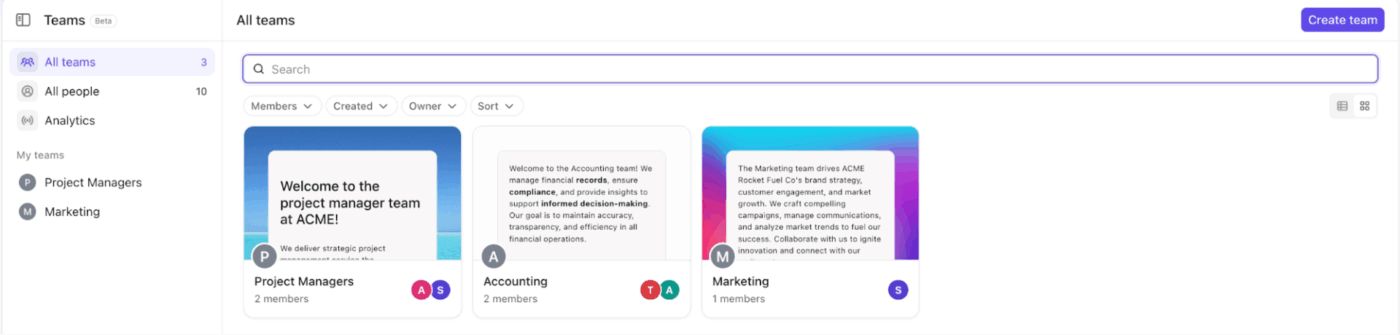
ClickUp Teams: Grouped members used to assign work and collaborate efficiently
Streamline cross-functional work by assigning Tasks to whole Teams at once

Furthermore, the Teams Hub gives you a centralized place to see every team in your Workspace, manage members, and review their work. 

Workspace owners and admins can create Teams, add members, set unique icons, and control permissions.

💡 Pro Tip: Here’s how to create a Team in a few quick steps:

  1. Open Teams Hub and click Create team
  2. Name your Team, choose an icon, and add an optional description
  3. Click Create Team, then hit the people icon to add members or skip and invite later
  4. Prefer using Workspace settings? Go to Settings > Teams > Create Team, name it, and save
  5. Add members anytime by opening the Team and selecting Add member

Time and productivity

Now that we’ve covered access controls, let’s move into the tools that help you save valuable time. 

Time Tracking

ClickUp Time Tracking is a built-in feature that allows you to log, track, and report time spent on Tasks directly within your workflow. It helps you monitor productivity, manage billable hours, and analyze how time is allocated across different activities.

You can add notes, labels, billable flags, and rollup totals to your time entries so every log is clear, categorized, and ready for accurate reporting.
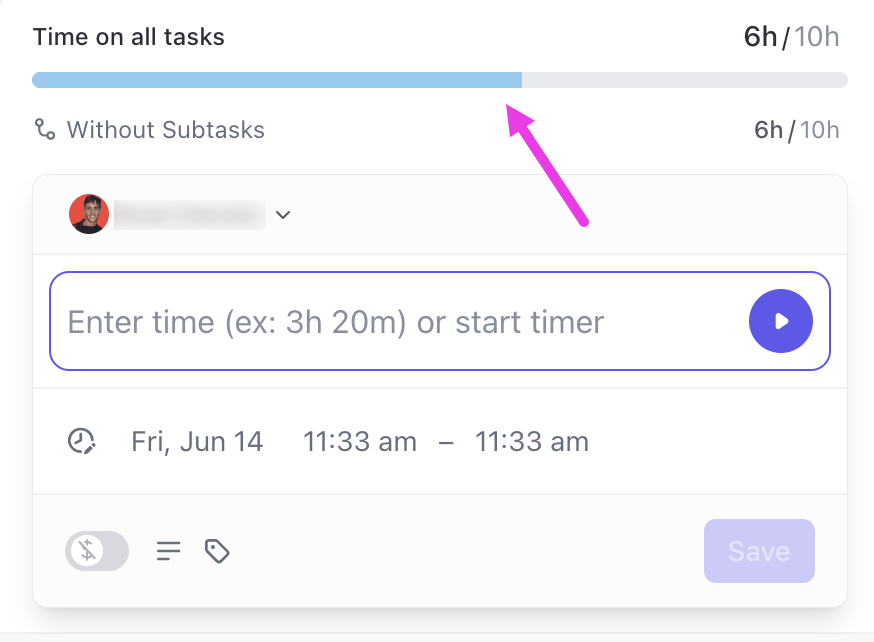
ClickUp Time Tracking: Built-in tracker showing how long tasks take
Compare estimated vs. tracked time to identify overages early with ClickUp Time Tracking

It lets you: 

  • Start and stop timers from desktop, mobile, or the Chrome extension
  • Add time manually (retroactively or by date range)
  • Track time even without a Task (Business Plan+)
  • Sync external tools like Toggl, Harvest, or Everhour for centralized time-tracking data

🔍 Did You Know? ClickUp Timesheets aggregates the time tracked by users (either manually or with timers) and presents it in an organized table for reporting, approvals, and analysis. 
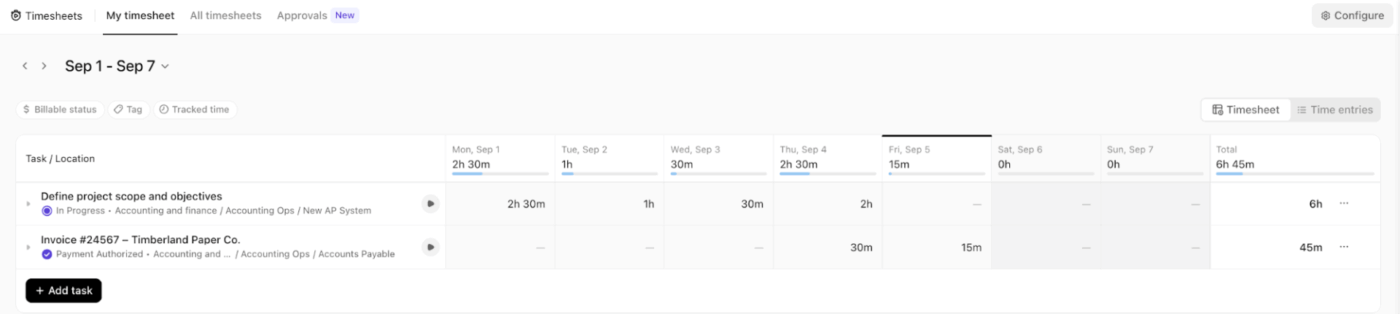
ClickUp Time Tracking: Access all your timesheets and reports in the ClickUp Timesheets Hub
Access your full work log in ClickUp’s Timesheets Hub

Here you can:

  • Review totals by user or task
  • Expand entries for detailed insights
  • Submit or approve time logs

Recurring Tasks

ClickUp Recurring Tasks automatically regenerate Tasks on a schedule you define (daily, weekly, monthly, yearly, or fully custom) so repeatable work happens without manual setup. They use due dates as the anchor, create the next instance either instantly or on schedule, and let you choose whether to update the same Tasks or generate a new one each time.
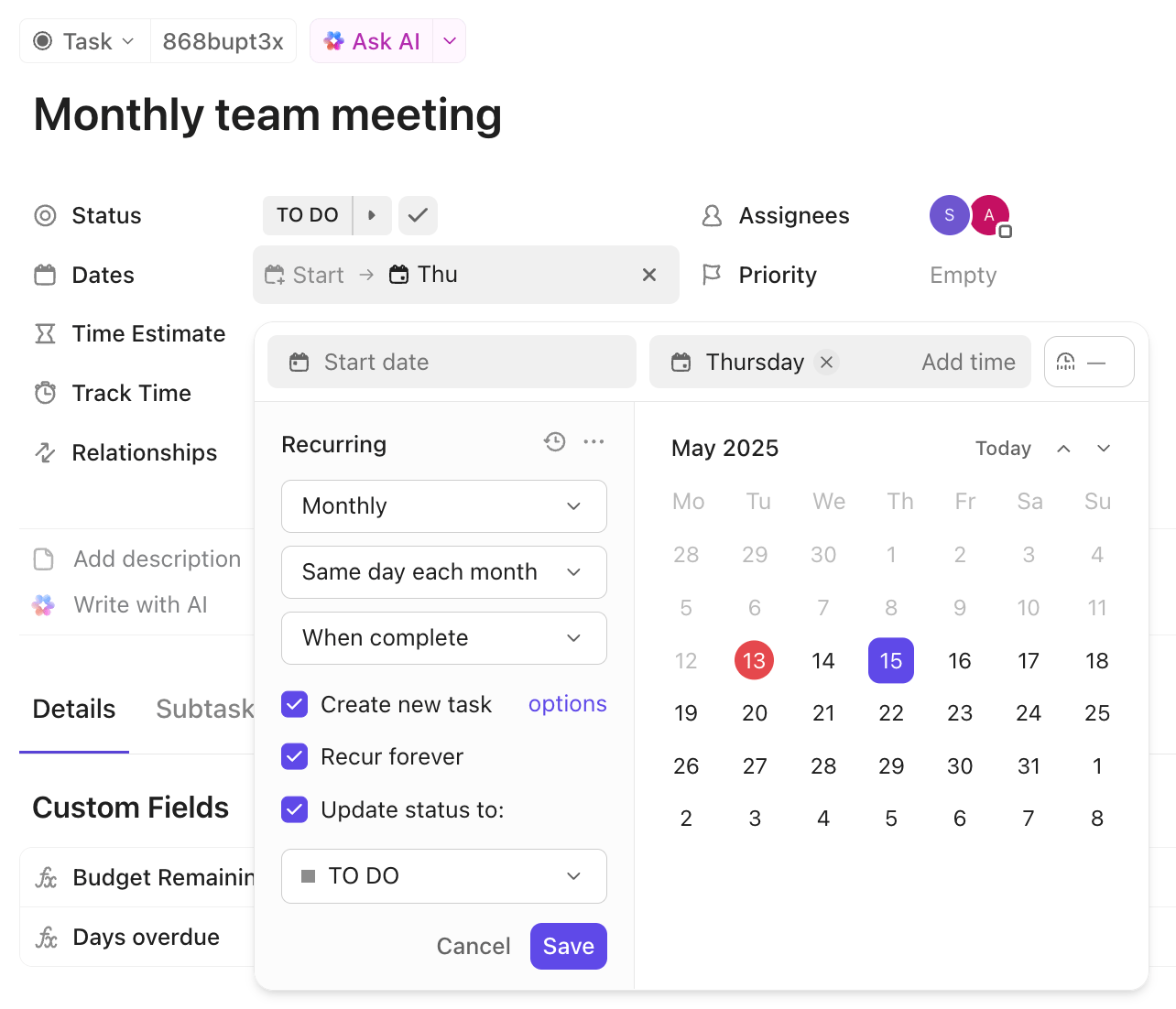
ClickUp Recurring Tasks: Automated repetition setup for cyclical work
Set a ClickUp Recurring Task and stay on top of repeating workflows effortlessly

Use recurring tasks to:

  • Set up tasks with completion-based or due-date-based recurrence rules
  • Maintain consistency by using recurring approvals, meetings, reporting cycles, and maintenance tasks

Bulk Actions or Multitasking Tray

ClickUp’s Bulk Actions or Multi-Tasks Toolbar lets you update multiple Tasks at once. This is perfect for cleanup, reorganizing, or managing large projects.
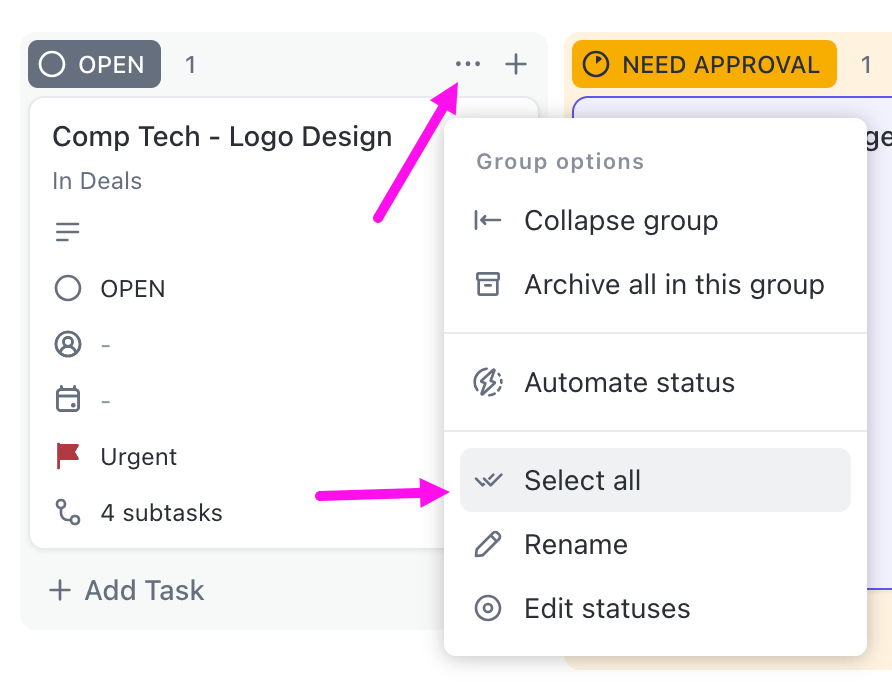
ClickUp Bulk Actions: Multi-select interface allowing mass updates
Fix messy metadata by bulk-editing Tasks 

Here’s what you can bulk-edit:

  • Update statuses, assignees, due dates, priorities, and tags
  • Archive, delete, or duplicate Tasks
  • Convert Tasks to Subtasks
  • Add or remove followers
  • Set Dependencies or convert Tasks to Milestones

In ClickUp, you can share locations and items using public links without giving full access to your Workspace. Instead of adding others as members or guests, you can simply generate a link and let them view what you want them to see.
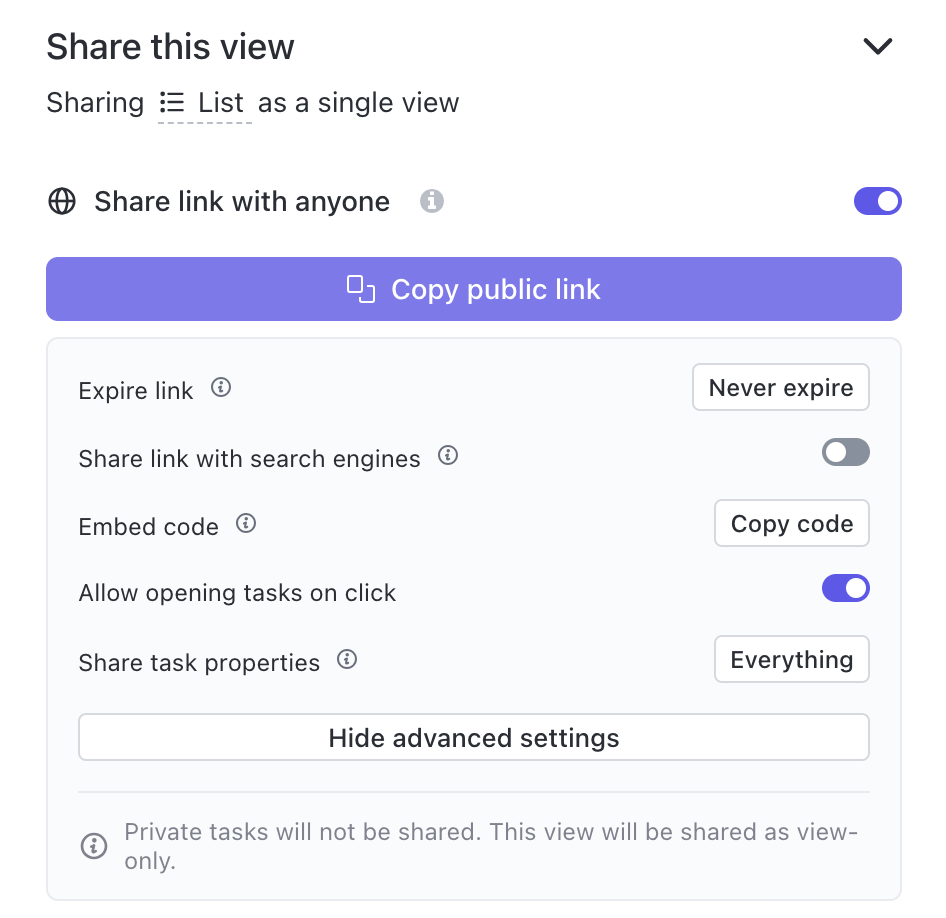
ClickUp Public Links: Shareable link generator providing external access
Share work instantly with ClickUp’s public links

Most Workspace items can be shared publicly. People accessing the link don’t need a ClickUp account, and everything is view-only by default.

Shareable Unshareable
TasksPrivate Spaces, Folders, or Lists
Docs, wikis, and pagesAny Chat threads at those locations
Whiteboards
Form views
Views like List, Board, Calendar, Timeline, Gantt, and Table (depending on the plan)
Entire ‘All Spaces’ (Everything level) on Business plans and above 

Favorites

Favorites in ClickUp give you a quick way to jump into the work you open every day, such as your go-to Lists, key Docs, high-priority Tasks, active Chats, or dashboards you monitor nonstop. Favorites are available to everyone on all plans (even guests) and are completely personal. 
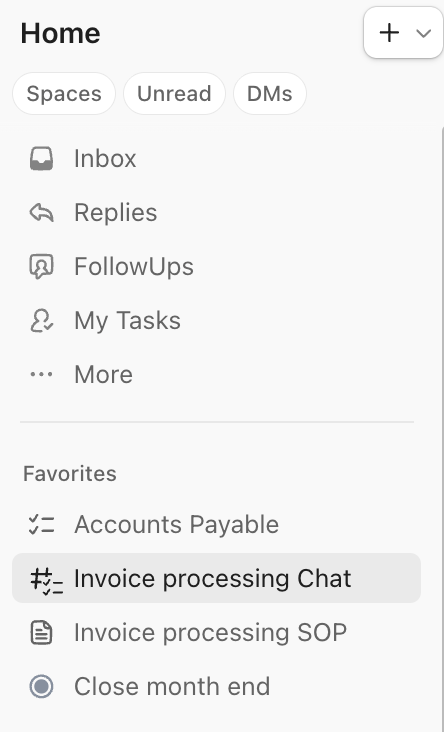
ClickUp Favorites: Bookmarked items panel for quick access to important work
Build your own quick-access bar with Favorites in ClickUp
Summarize this article with AI ClickUp Brain not only saves you precious time by instantly summarizing articles, it also leverages AI to connect your tasks, docs, people, and more, streamlining your workflow like never before.
ClickUp Brain
Avatar of person using AI Summarize this article for me please

Advanced Features and Latest Updates

Now that you’ve seen the basics, let’s level up. ⬆️

Here are some powerful updates and advanced features that make ClickUp even more useful in your everyday work.

ClickUp Brain

Most teams today are juggling different AI tools: one for writing, one for search, one for project updates, one for meeting notes, one for image generation, and more.

That AI sprawl slows teams down.

ClickUp’s Brain is your intelligent assistant that brings all these capabilities into one place, so you’re not bouncing between disconnected apps just to get simple work done. And because it’s embedded in your workspace, it understands your work, surfaces real answers, and takes action.

Here’s how to use BraiGPT for optimized workflows: 

Run projects faster 

ClickUp Brain keeps projects moving, summarizes activity, highlights risks, and handles repetitive updates for you.

It helps you: 
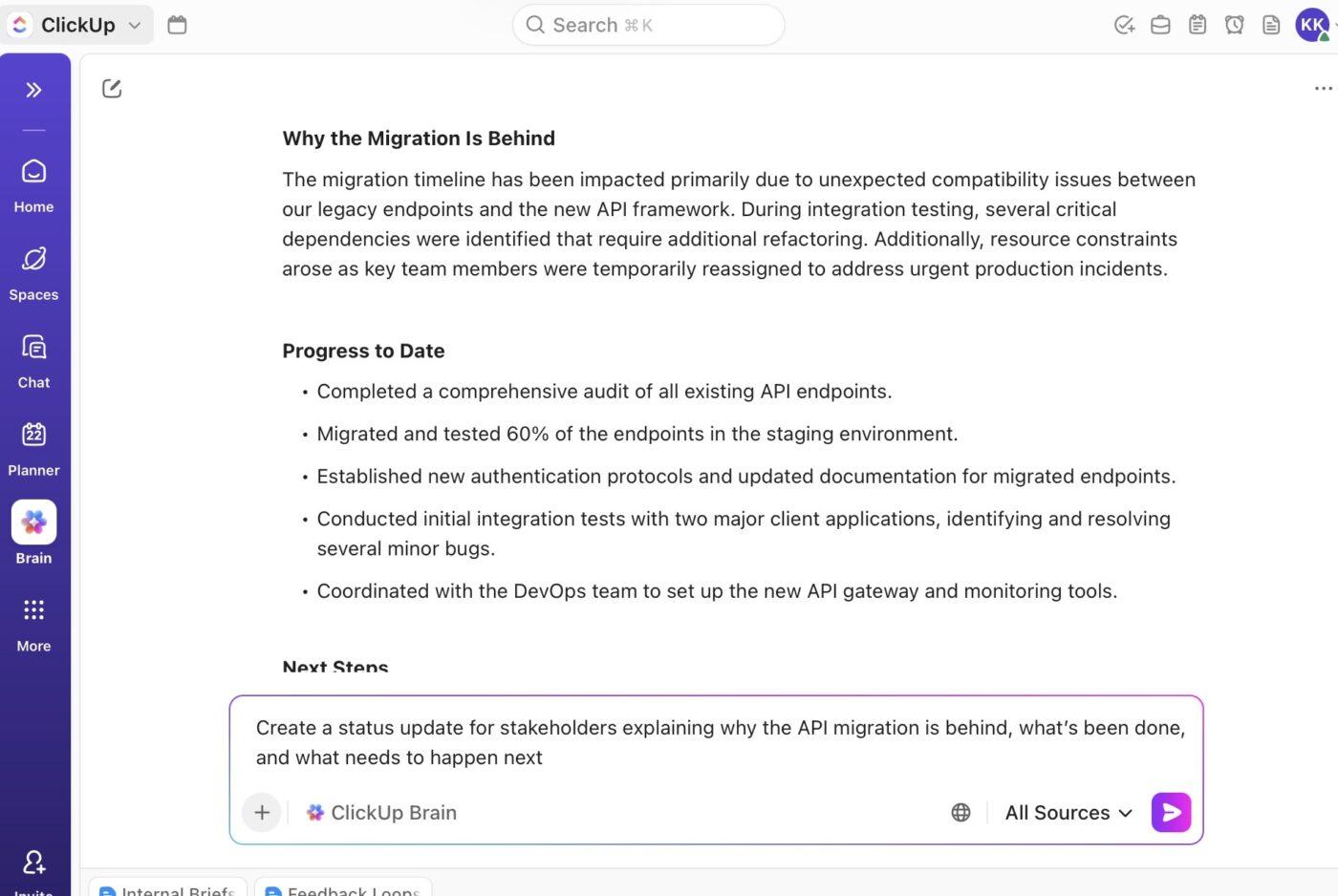
  • Understand project health instantly, without digging through Tasks
  • Get progress updates you can share with stakeholders
  • Identify stuck, overdue, or inactive Tasks
  • Offload admin work like status updates or Task creation
  • Search your Workspace for conversations, tasks, and more.
ClickUp Brain: Create stakeholder-ready updates and standups
Create stakeholder-ready updates with ClickUp Brain

Suppose your launch sprint is slipping. ClickUp Brain flags three Tasks untouched for 7 days, summarizes the sprint in seconds, and tells you exactly what’s blocking progress. It suggests next steps, updates assignees automatically, and even creates a ‘Fix API Latency’ Task when you ask it to.

📌 Example Prompts:

  • Summarize the last 7 days of activity in the Website Revamp project and show me the three biggest risks that could delay the launch
  • Identify Tasks in the Q4 Ops Sprint that haven’t moved in 5+ days and tell me who’s unblocked and who needs support
  • Find any Task with vague requirements and draft clearer descriptions or checklists so the team can start immediately
  • Spot duplicate or overlapping Tasks in the New Onboarding Flow folder and suggest a simplified structure

🔍 Did You Know: You can create Subtasks with ClickUp Brain and turn messy feedback or long comments into structured Subtasks. It analyzes the content and creates clean, titled Subtasks you can assign or track. 

Just hover over the comment, click the Brain icon, and choose Create Subtasks.
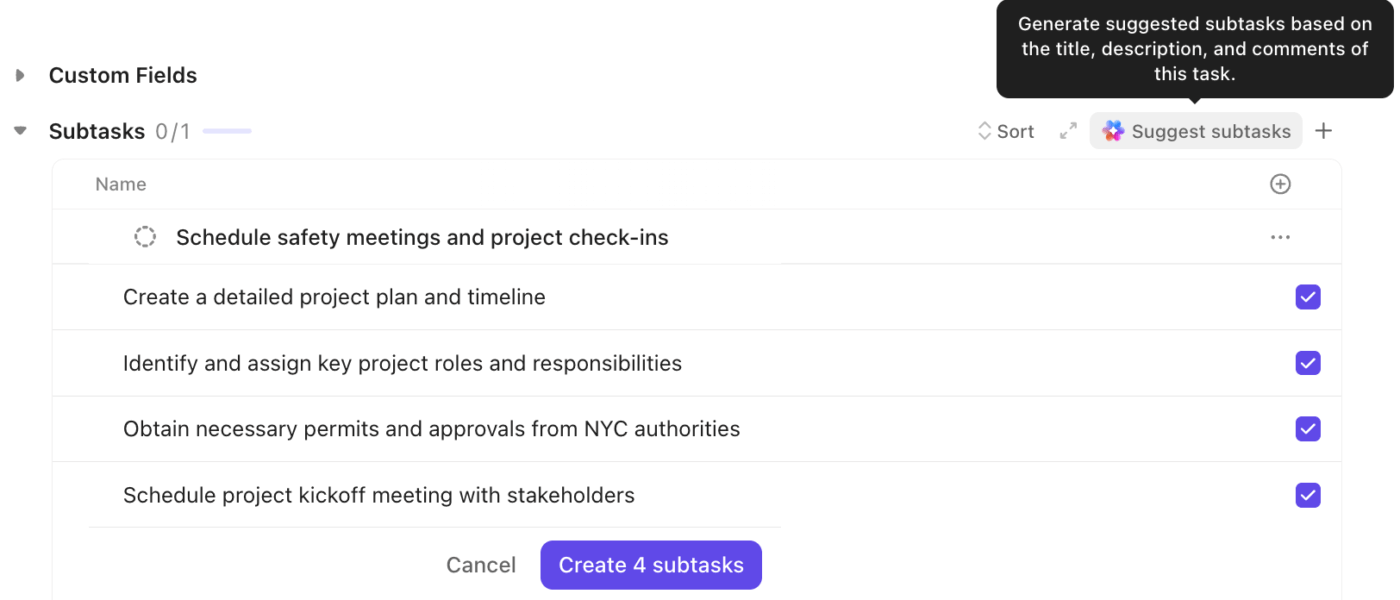
ClickUp Brain: AI breaking down task names descriptions or highlighted text into a fast Subtasks list
Break down Task names, descriptions, or highlighted text when you need a fast Subtasks list with Brain

Find answers instantly 

ClickUp Brain acts like your workspace-wide knowledge engine that connects your organization’s people, work, and information. 

It lets you: 
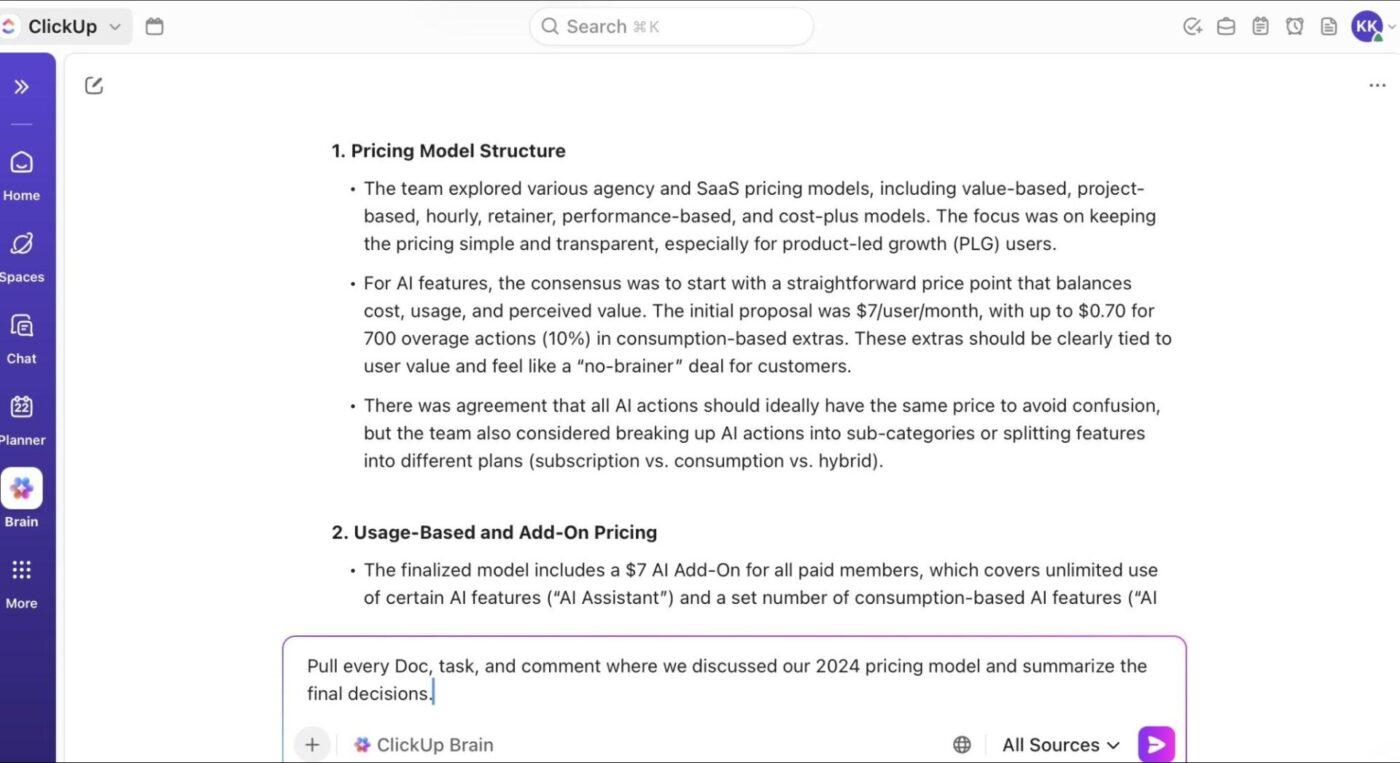
  • Run Deep Search across Tasks, Docs, comments, the web and old project history to find relevant information that’s normally hard to track down
  • Search across your entire ecosystem, including Google Drive, GitHub, Dropbox, and other connected tools, surfacing relevant files instantly
  • Ask questions and get contextual answers powered by your workspace data
  • Use wikis as your verified source of truth, so answers come from the most accurate, up-to-date documentation
ClickUp Brain: AI collecting conversations on a topic and generating a clear decision summary from multiple locations
Collect every conversation tied to a specific topic and generate a clear decision summary from multiple locations with ClickUp Brain

📌 Example Prompts:

  • Find GitHub PRs and Tasks related to the mobile navbar redesign, and show me the latest approved version
  • Search the entire workspace for onboarding best practices and generate a wiki section using only verified sources
  • Show me every historical reference to ‘checkout lag’ across Tasks, meetings, and GitHub so I can see when this issue started
  • Find documentation created by the Support team about SLA breaches and surface the most up-to-date version

Create high-quality documentation 

ClickUp Brain acts as a built-in writing assistant for drafting, editing, summarizing, and improving content. Here’s what you can do with it:
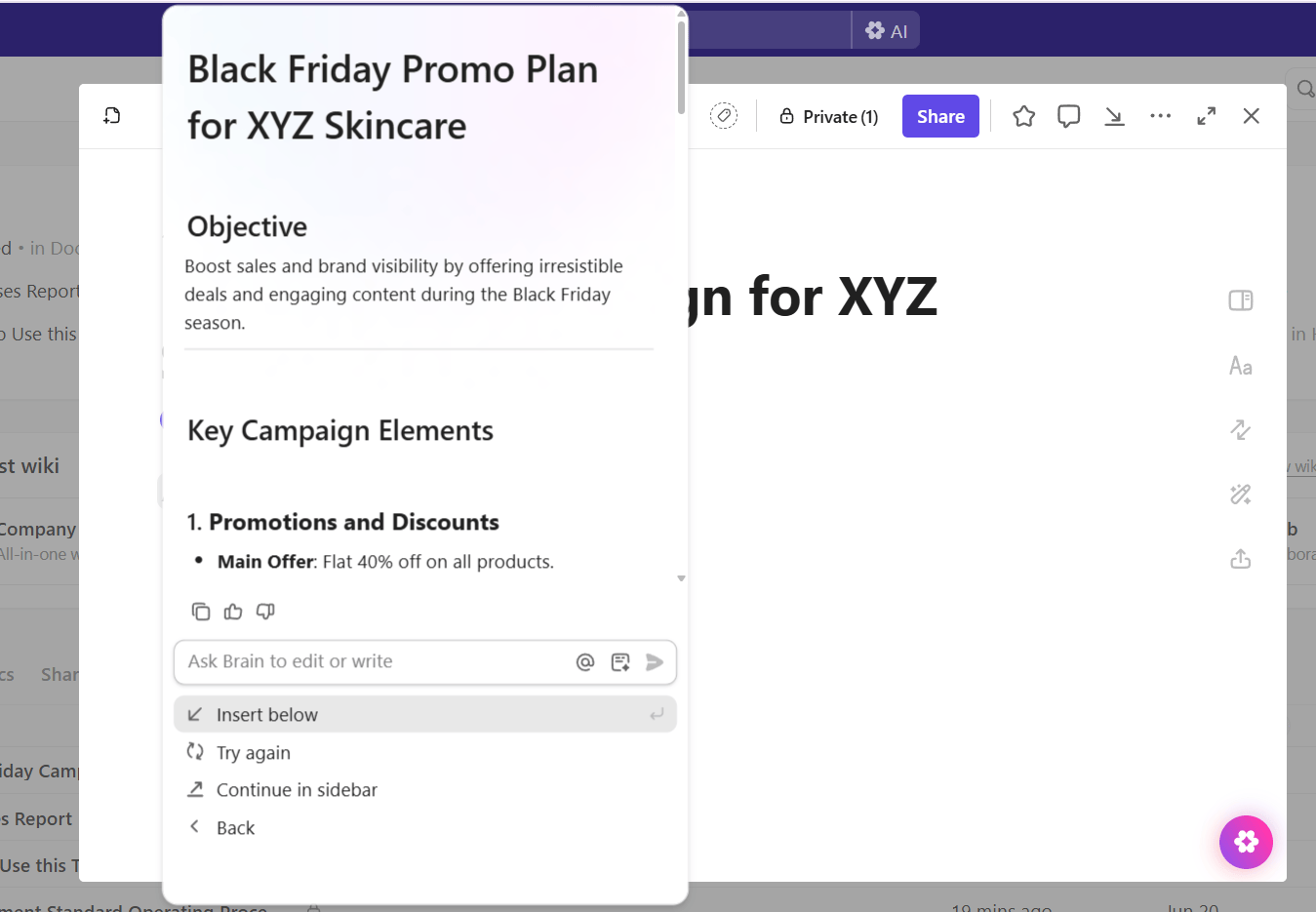
  • Draft Tasks descriptions, briefs, product notes, or emails
  • Clean up messy text and make it clear or concise
  • Summarize long Docs, threads, or meetings
  • Turn unstructured notes into actionable checklists or plans
ClickUp Brain: AI writing content tailored to your specific tone and style
Ask ClickUp Brain to write content based on your specific tone 

📌 Example Prompts:

  • Turn these raw meeting notes into a clear requirements doc with acceptance criteria and a Task breakdown
  • Rewrite this messy Task description so it’s concise, actionable, and easy for engineering to estimate during the development process 
  • Draft a kickoff brief for the ‘Customer Education Hub’ project, including project goals, scope, resource allocation, timeline, and risks
  • Convert this brainstorm list into a priority-ordered execution plan with owners and next steps to ensure timely completion

Turn ideas into on-brand visuals 

You can also generate images with Brain to create or edit visuals directly inside ClickUp Whiteboards. It’s made for quick, contextual image creation during brainstorming, planning, or documenting work. 

Here’s what you can do: 
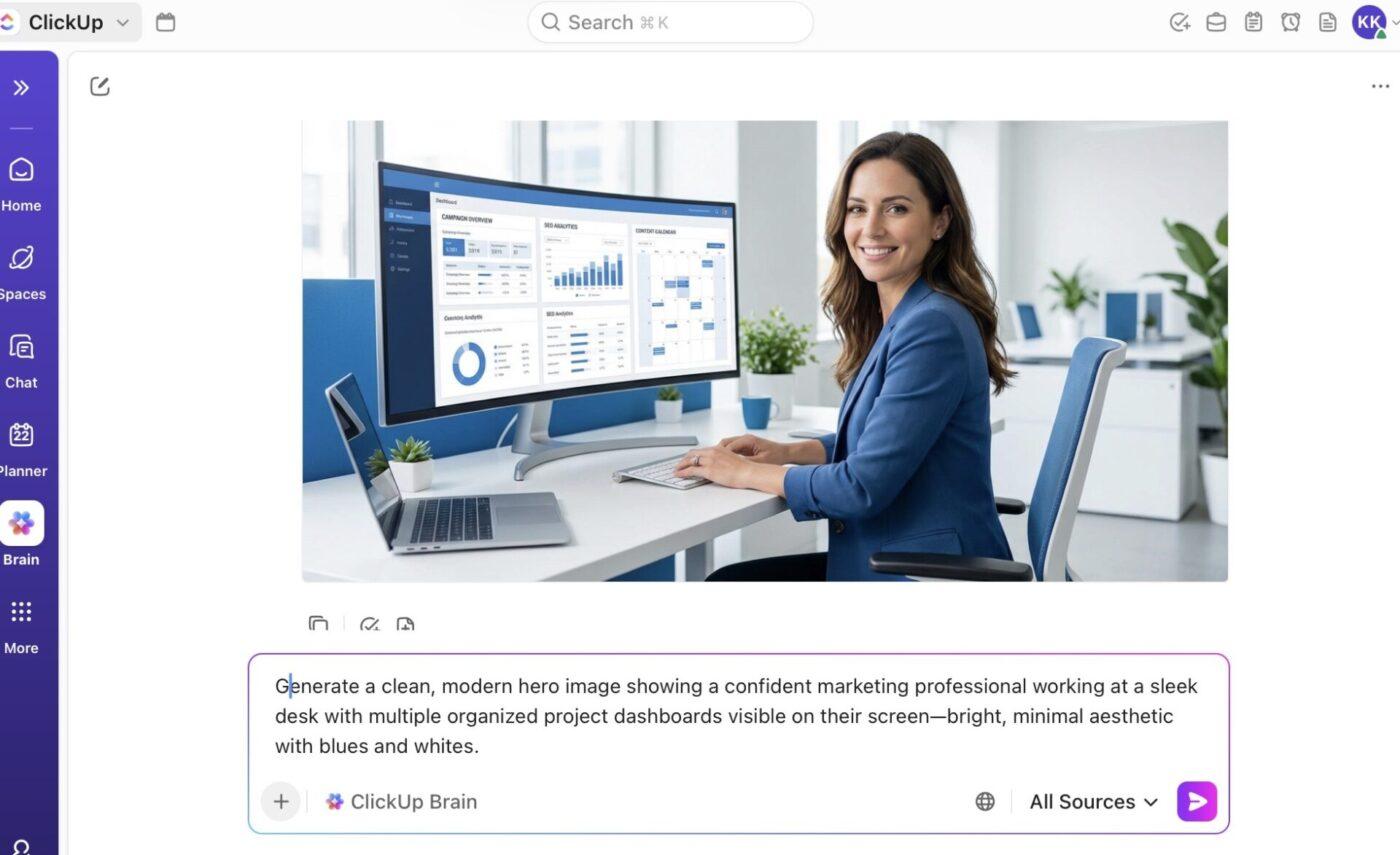
  • Edit or refine images by adjusting prompts, changing styles, adding details, or regenerating variations
  • Insert generated visuals into Docs, Tasks, Whiteboards, or share them instantly via Chat or DMs
  • Map ideas, add illustrations, or create design references during collaborative sessions within Whiteboards 
ClickUp Brain: AI generating images to support creative and brainstorming sessions
Prompt ClickUp Brain to generate images during brainstorming sessions 

📌 Try these prompts:

  • Create a whiteboard-style sketch illustrating the new customer journey flow for our app onboarding
  • Generate four variations of a UI wireframe for a cleaner notifications center I can reference in the design doc
  • Produce an icon set for ‘Data Migration,’ ‘System Health,’ and ‘Risk Flagged’ in a minimal outline style
  • Generate a quick visual representation of the homepage hero banner based on this copy and layout idea

Search your entire workspace 

The ClickUp AI Enterprise Search is a unified search engine that scans your entire workspace and all your connected apps from one place, giving you real answers, not just links. It pulls information from Tasks, Docs, chats, files, meetings, and external tools while respecting permissions and keeping your data fully secure.

Additionally, you don’t have to be worried about data security. ClickUp offers enterprise-grade protection with GDPR, SOC 2, HIPAA compliance, no third-party data training, and zero retention policies. 
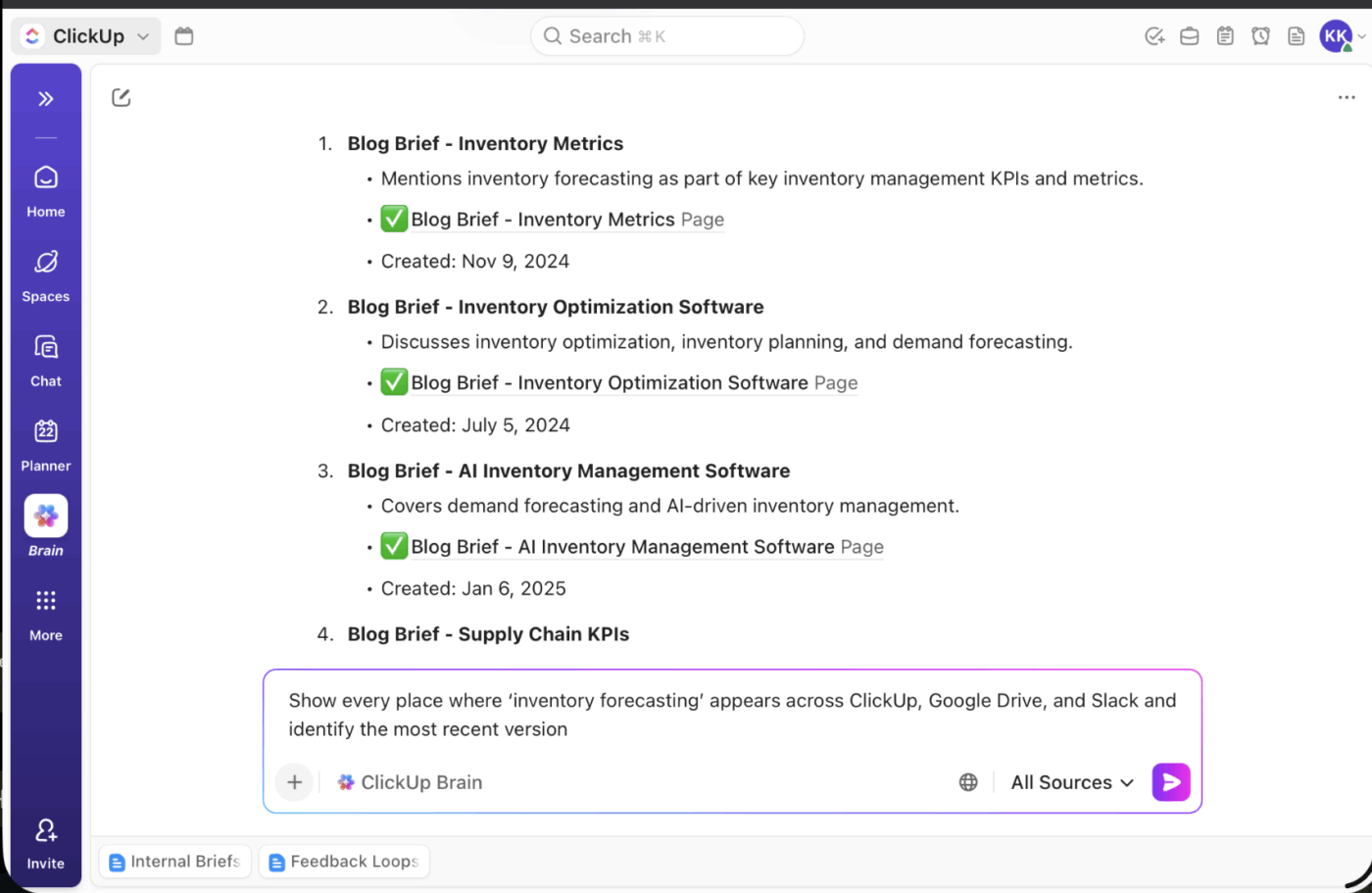
ClickUp Enterprise Search: AI surfacing up-to-date information instantly with real-time indexing across your workspace
Surface up-to-date information with real-time indexing with ClickUp Enterprise Search

📌 Try these prompts:

  • Show every place where ‘inventory forecasting’ appears across ClickUp, Google Drive, and Slack, and identify the most recent version
  • Find all Docs, Tasks, and meeting notes related to the ‘2025 Product Vision’ and surface the latest approved decisions
  • Pull every file and comment referencing ‘ADA compliance’ from ClickUp + external apps and summarize the requirements
  • Locate all Tasks assigned to me across ClickUp, GitHub issues, and Jira tickets that are due in the next 5 days

ClickUp Brain MAX

ClickUp Brain MAX is the next-generation AI super-app that pulls all your tools, data, and workflows under one roof. This desktop-based, standalone offering from ClickUp is built to solve work sprawl by giving you a single, unified hub for search, automation, content creation, and deep insights. 

Here’s how it helps: 

  • Contextual intelligence: It’s deeply integrated with ClickUp’s work graph. This way, it knows your Tasks, Docs, projects, relationships, external tools, and team context
  • A unified AI hub: Instead of maintaining multiple subscriptions, you can just use Brain MAX to access Claude, ChatGPT, Gemini, and other tools
  • Cross-app automation: Find buried files, missed threads, or related tasks from connected apps like Google Drive, GitHub, OneDrive, SharePoint, and more

Brain MAX is designed with large teams and organizations in mind, supporting enterprise-grade security and privacy, as well as LLM-agnostic flexibility.

Here are some of its other benefits: 

  • Upload screenshots or images to run visual searches
  • Save prompts and customize your search scope
  • Access multiple LLMs instantly with the floating bar and global shortcuts
  • View Brain MAX’s home cards with calendar events, suggestions, and recent activity
  • Export audio and play back transcripts for voice inputs

ClickUp Brain MAX’s Talk to Text

Talk-to-Text in ClickUp Brain MAX is a voice-to-action tool that turns your speech into written content. It helps capture notes, draft long-form content, or quickly log updates before they slip away.
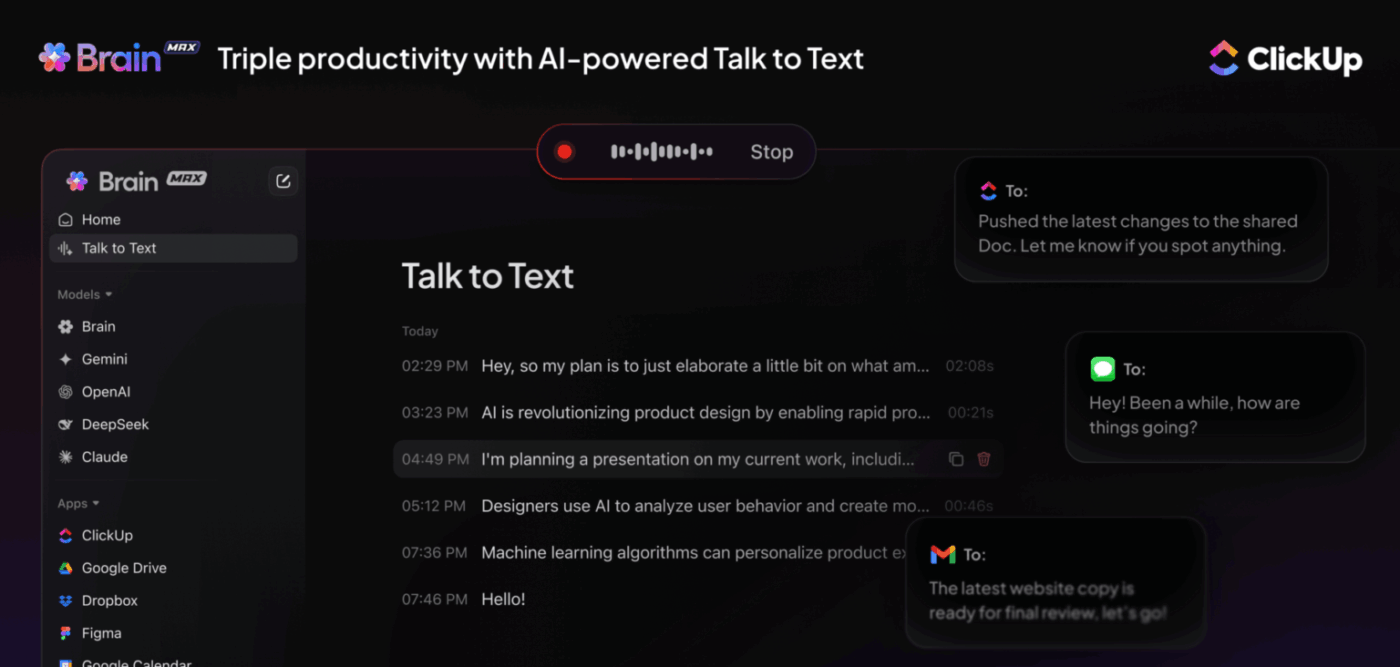
Talk to Text in ClickUp Brain MAX: Voice input converted into structured text tasks notes and updates
Dictate text anywhere using global Talk to Text across your entire device using ClickUp Brain MAX

Here’s how it helps: 

  • Record effortlessly with a floating bar that shows live status and lets you stop dictation instantly
  • Build a personal vocabulary by teaching Brain MAX your industry terms, product names, and custom dictionary entries

💡 Pro Tip: Start recording anywhere using any of these triggers:

  • Hold fn (or your custom shortcut)
  • Press Shift + fn
  • Click the microphone icon in Brain MAX
  • Use Option + B (Mac) or Alt + B (PC) in the Chrome extension

A floating bar indicates that you’re recording. Brain MAX captures your voice in real-time so your spoken ideas instantly appear wherever your cursor is or in its search bar.

📮 ClickUp Insight: Over 60% of our survey respondents spend more than an hour a day typing, and 36.75% regularly feel discomfort or pain in their hands.

Typing fatigue isn’t just an annoying side effect of our work habits. It’s a productivity killer.

But it’s easily fixable. Brain MAX’s Talk-to-Text is your shortcut to a healthier workday.

Dictate updates, brainstorm ideas, or meeting notes hands-free, and give your wrists (and your focus) a break.

ClickUp AI Notetaker

Let ClickUp AI Notetaker join your Zoom, Google Meet, or Teams calls automatically, listen in, and build a clean, structured Doc for you afterward.

You can: 
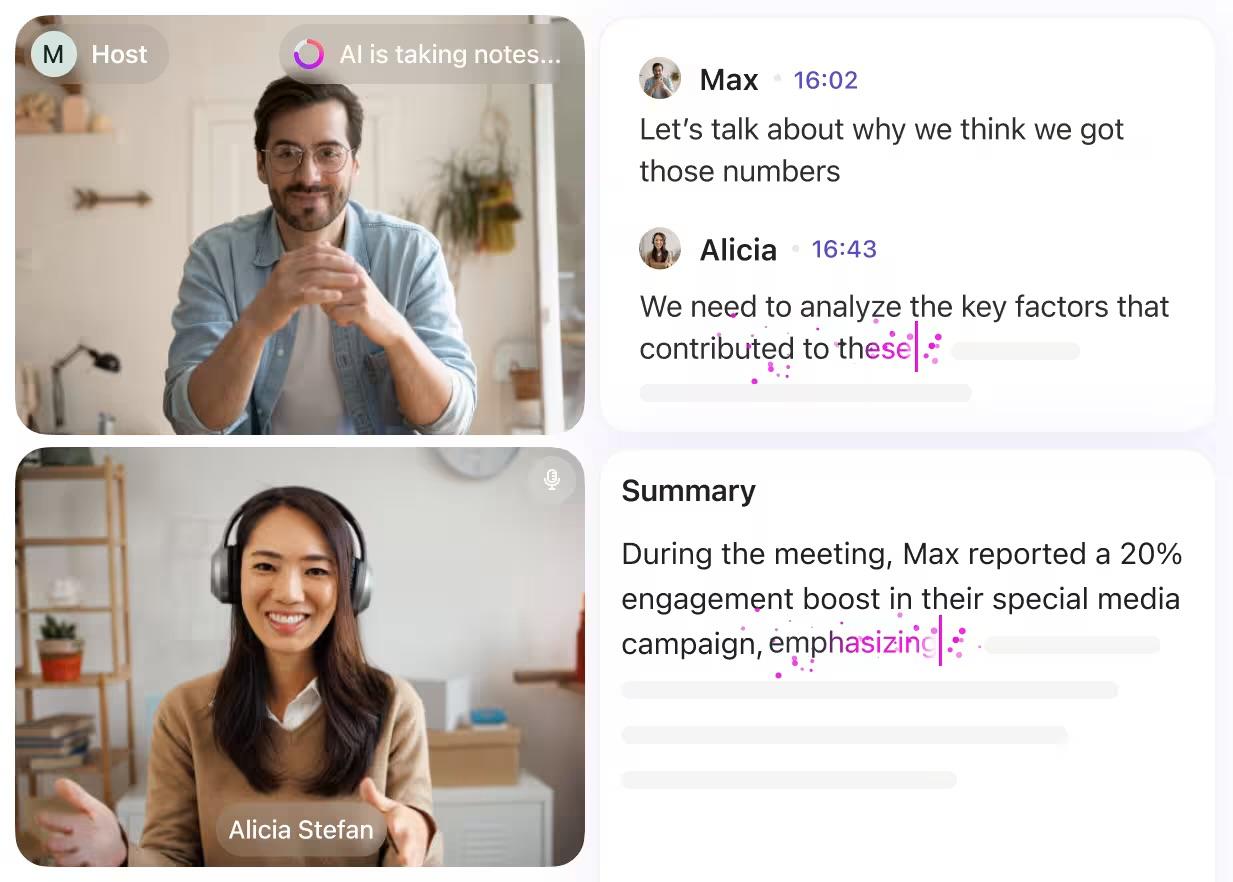
  • Get instant meeting summaries that highlight key takeaways, decisions, open questions, and next steps
  • Review organized transcripts stored in your private Docs, making it easy to search who said what across any meeting
  • Turn action items into Tasks automatically, complete with owners, due dates, and context pulled directly from your calls
  • Ask the AI assistant questions about your meetings (‘What did we decide on the launch plan?’), and get answers sourced from every related note and transcript
ClickUp AI Notetaker: Automated meeting notes capturing key points action items and summaries
Catch up on calls you missed with smart TL; DRs, topic breakdowns, and decision summaries with the ClickUp AI Notetaker

AI Cards

ClickUp’s AI Cards let you add live, auto-generated insights to your Dashboard. They pull real data from your Workspace to give you summaries, status updates, and quick reports.
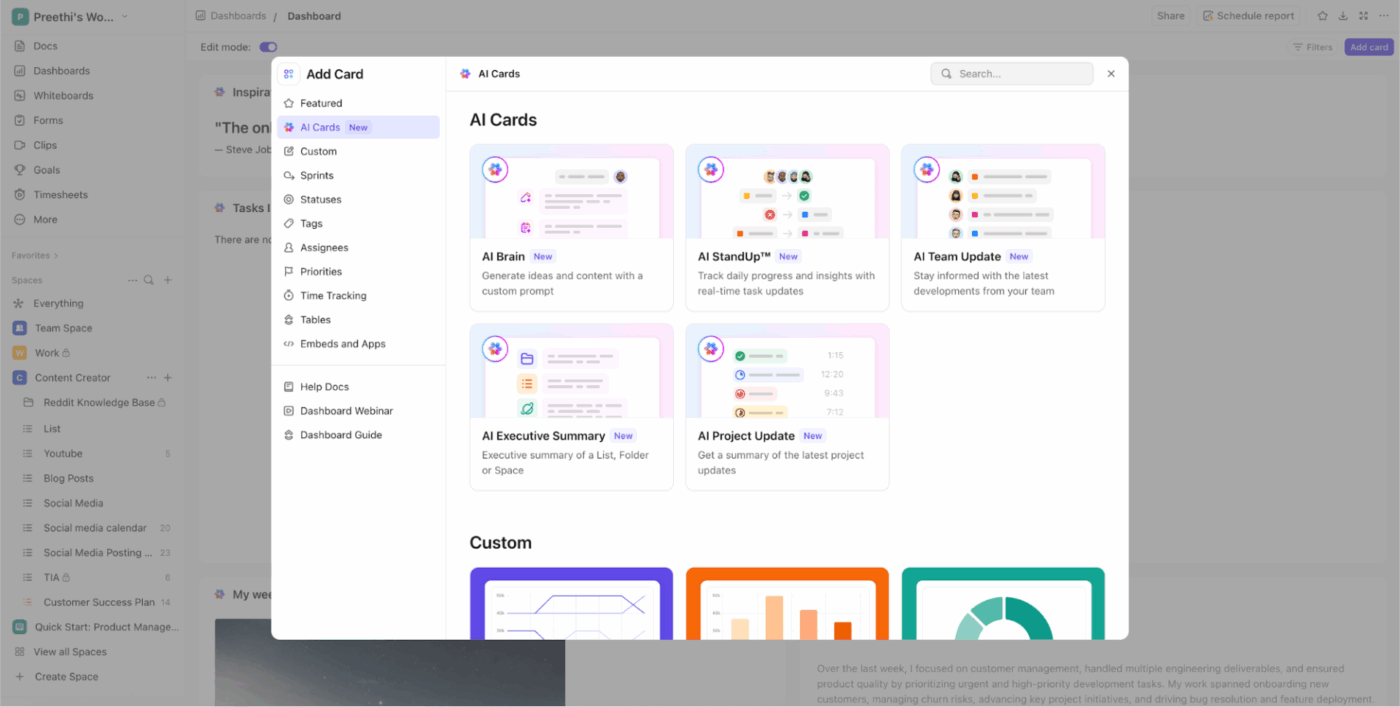
AI Cards in Dashboards: Smart dashboard widgets showing real-time AI insights and workspace summaries
Add AI cards to turn your Dashboards into real-time, auto-updating insight hubs

These cards are divided into prebuilt cards (with set functions) and custom cards (where you can define your own prompts): 

1. Prebuilt AI Cards

Here are the main prebuilt AI cards available in ClickUp:
  • AI StandUp: Summarize your recent activity during a selected time period
  • AI Team StandUp: Get an instant recap of recent activity from selected people or teams over any time period you choose
  • AI Executive Summary: Generate an up-to-date executive summary showing the health and status of your department, team, or projects
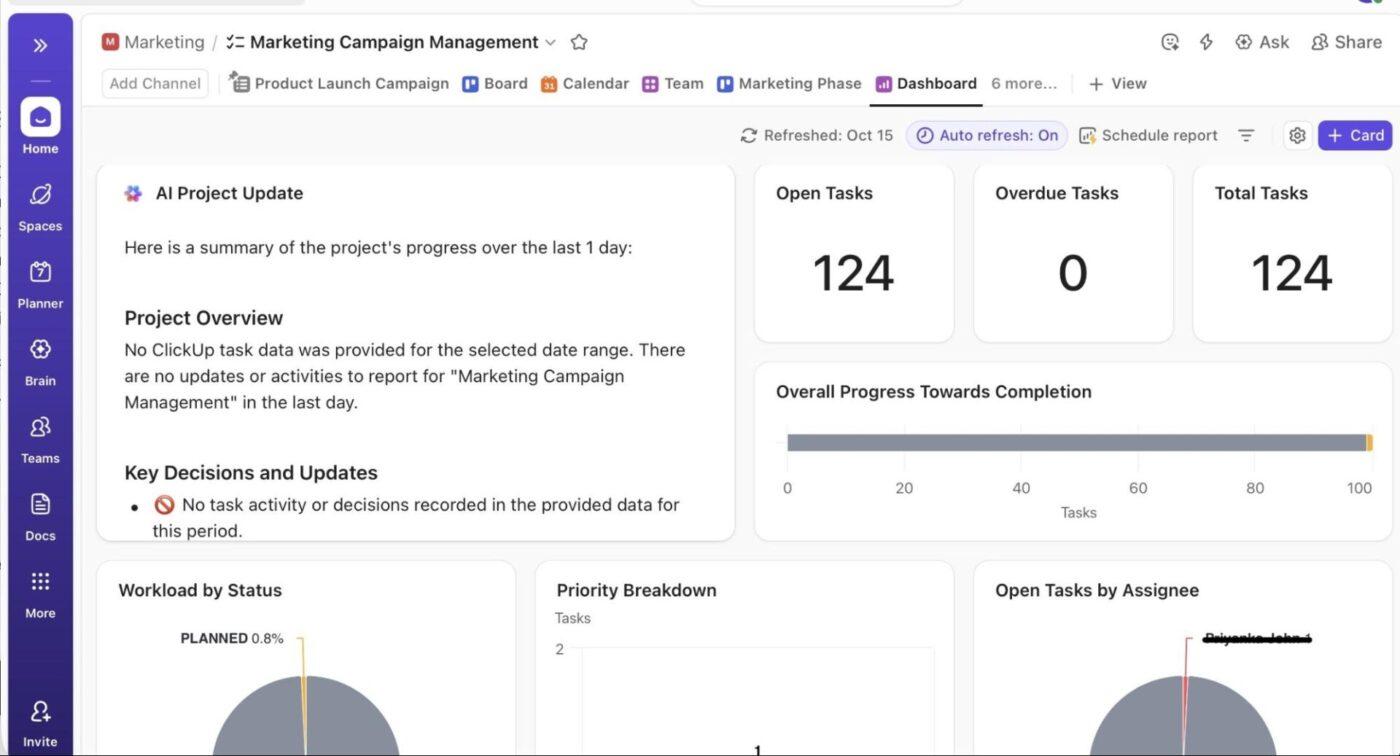
  • AI Project Update: Create a high-level overview of your project status and progress
AI Project Update Card: Automated project status card generating instant progress and blockers updates
Highlight risks, delays, and next steps in seconds with the AI Project Update Card

2. Custom AI Cards

  • AI Brain (Custom prompt): Write your own prompt for the AI, use saved prompts, mention specific items from your workspace, or attach files for the tool to use

AI Agents and logic conditions

ClickUp AI Agents are no-code coworkers that handle repetitive, predictable, or time-sensitive work for you.
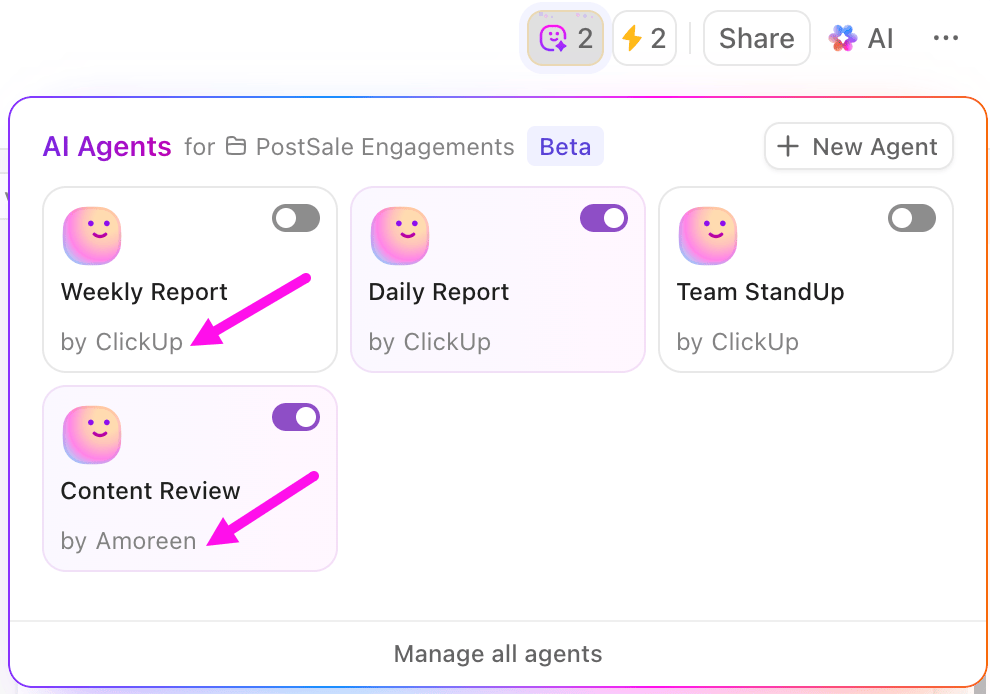
ClickUp Prebuilt Agents: Ready-made AI agents performing common workflows and repetitive actions
Set up Prebuilt Agents for quick wins or build your own with the no-code builder

Prebuilt AI Agents are ready-made, easy-to-use agents designed for common workflows. They respond to specific triggers and perform actions like posting updates, reports, or answers.

📌 Examples of Prebuilt Agents:
  • Weekly Report Agent: Posts a weekly update in a chosen location at a set time
  • Daily Report Agent: Posts a daily update every workday at a specified time
  • Team StandUp Agent: Summarizes what your team has been working on, posting updates at scheduled times
  • Answers Agent (Auto-Answers): Responds to questions in Chat Channels by searching workspace knowledge and replying in threads
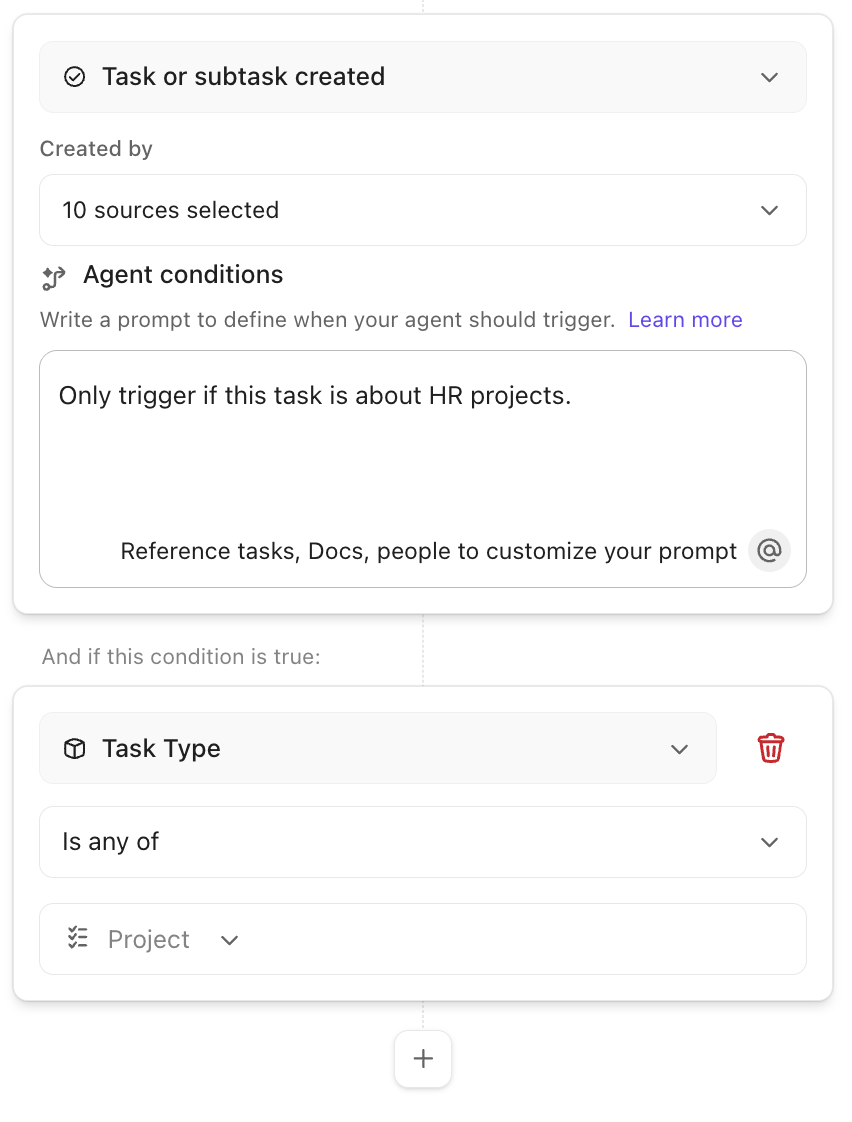
ClickUp Custom Agents: User-created AI agents tailored to unique team processes and automations
Add specific conditions and triggers to build a no-code Custom AI Agent that handles work for you

On the other hand, Custom AI Agents are fully configurable and built using a no-code builder. They allow you to define your own triggers, conditions, actions, instructions, and knowledge sources, making them highly flexible for unique workflows.

They let you: 

  • Respond to a wide range of triggers (e.g., task status changes, comments added, tags added, etc.)
  • Set detailed conditions for when the agent should act

Build your own agent: 

AI Autopilot Bundle

Forget about repetitive tasks like manually assigning Tasks, setting priorities, filling fields, or blocking time on your calendar. The AI Autopilot Bundle does the heavy lifting for you. Once enabled for your Workspace, every member gets unlimited access to its features.

Let’s walk through different parts of your bundle so you can see how they fit into your day. ⌚

AI Assign

AI Assign helps you stop guessing who should take on what. Once you define the logic, whether it’s based on task type, keywords in the description, workload, or your own custom criteria, it steps in to assign Tasks to the right person automatically.

Turn to either of these two ways: 

1. Using AI Assign
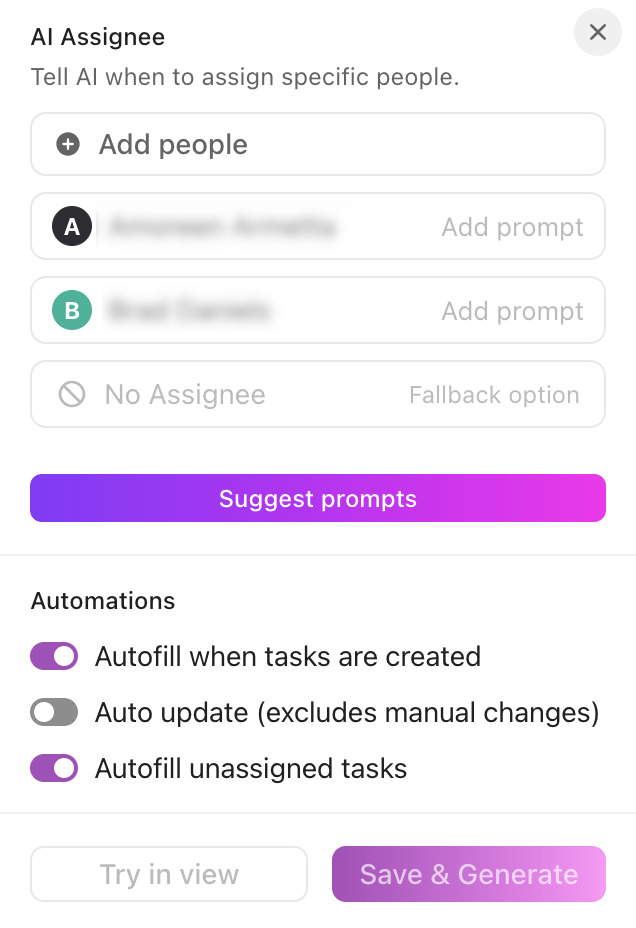
  • Go to the Space, Folder, or List where you want Task assignments to run
  • Click the Assignee column header
  • Select Set up fill with AI
  • Once enabled, AI will auto-assign new Tasks in that location based on your assignment logic and available Tasks data
AI Assign: AI automatically assigning tasks to the right person based on context workload and history
Update all auto-assigned Tasks every 20 minutes with AI Assign 

2. Using the Brain Assistant

  • Open the Brain Assistant from the Ask button on any Task or location
  • Use or customize prompts to generate Tasks and assign them instantly. Examples:
    • Outline key responsibilities from this project brief and assign them to the right roles
    • Generate three Task breakdowns for this sprint and include deadlines + owners
    • Create an onboarding plan and assign each step to the appropriate team member

The AI creates Tasks, fills in owners, and organizes everything based on your prompt. 

AI Prioritize

AI Prioritize automatically assigns the right priority to every Task based on the logic you define. You can set it up directly from the Priority column or through Autopilot Agents.

Here’s a step-by-step guide: 

Method #1: Setting up AI Prioritize from the Priority column
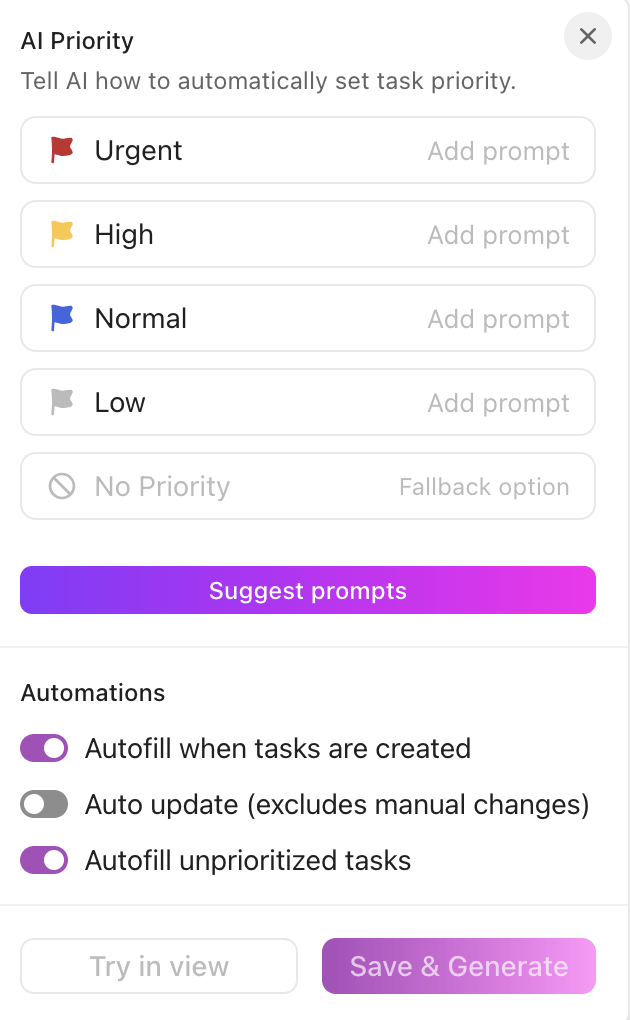
  1. Open the Folder or List where you want priorities to be applied
  2. Click the Priority column header and choose Set up fill with AI
  3. Add prompts for each priority level (Urgent, High, Normal, Low)
    • You can use variables like Task Description, Assignee, and more
    • Click Suggest prompts if you want AI to recommend logic
  4. Choose how to apply your setup:
    • Save & Generate: Apply priorities to all Tasks (shown only when Autofill unprioritized Tasks is on)
    • Try in view: Preview results on the first three Tasks in your view
AI Prioritize: AI ranking tasks by urgency impact and dependencies to guide daily focus
Use AI Prioritize to automatically set Task priority based on your own logic and prompts

Method#2: Setting up AI Prioritize using Autopilot Agents

  1. Open the Folder or List where the logic should run
  2. Click Agents from the upper-right corner, then select Priority under AI Project Manager
  3. Add or refine prompts for each priority level
    • Include field variables, or use Suggest prompts to let AI help you define your rules
  4. Enable or disable automations:
    • Autofill when Tasks are created
    • Auto update (excludes manual changes)
    • Autofill unprioritized Tasks
  5. Apply your setup

AI Fields

AI Fields in ClickUp automatically interpret, summarize, categorize, or translate Task information based on prompts you define. Unlike traditional Custom Fields that simply store data, AI Fields continuously generate insights using context.

Use them to eliminate repetitive updates, standardize Task information, and surface insights directly inside your views.
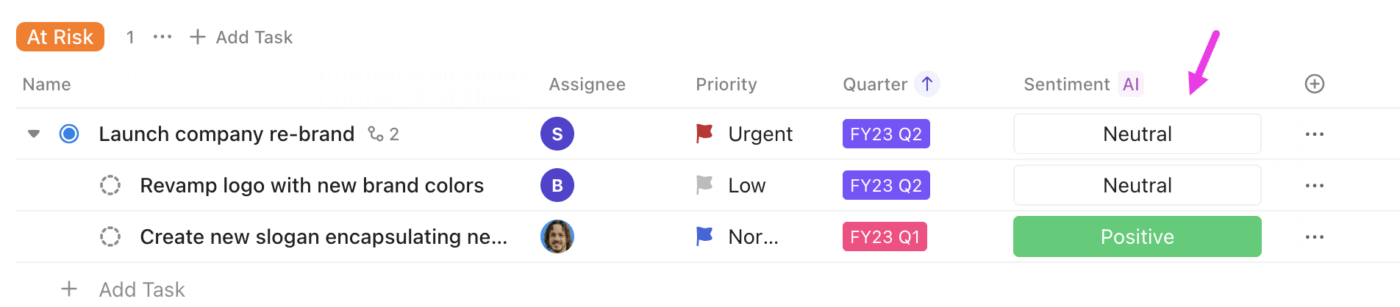
Sentiment AI Field: AI detecting sentiment in updates or comments to flag tone and team health
Use the Sentiment AI Field to gauge Tasks sentiment as positive, neutral, or negative using Tasks descriptions, Custom Fields, and comments

AI Fields can be added within Short Text, Long Text, and Dropdown Custom Fields.

1. Short Text

  • Sentiment

2. Long Text

  • Summary
  • Progress Updates
  • Translation
  • Action Items
  • Custom Text

3. Dropdown

  • Categorize
  • Custom Dropdown
  • T-Shirt Size

AI time-blocking

The AI helps you turn an overwhelming task list into a focused, realistic daily plan. ClickUp Brain automatically analyzes your Tasks, priorities, deadlines, and work habits to build a time-blocked project schedule that adapts as your day changes.

Here’s how you can deal with change management using ClickUp:

  • Build an optimized daily schedule by assigning Tasks to time blocks based on priority, effort, and deadlines
  • Adapt your plan automatically when meetings shift, or new Tasks appear, intelligently rescheduling low-urgency work
  • Prioritize Tasks by urgency and impact, placing critical work in your peak productivity hours to reduce procrastination
  • Get suggested deep-work blocks during your most productive periods and recommendations on appropriate break intervals
  • Detect scheduling conflicts and get alternative times to keep your day realistic and manageable

Calendar Integrations

With Calendar Integrations, your team gets a unified view of Tasks and events, so everything you plan in ClickUp matches what shows up on connected calendars. 

You’ll see events appear right inside ClickUp’s Calendar view, and you can open, join, or edit them without jumping back and forth. 
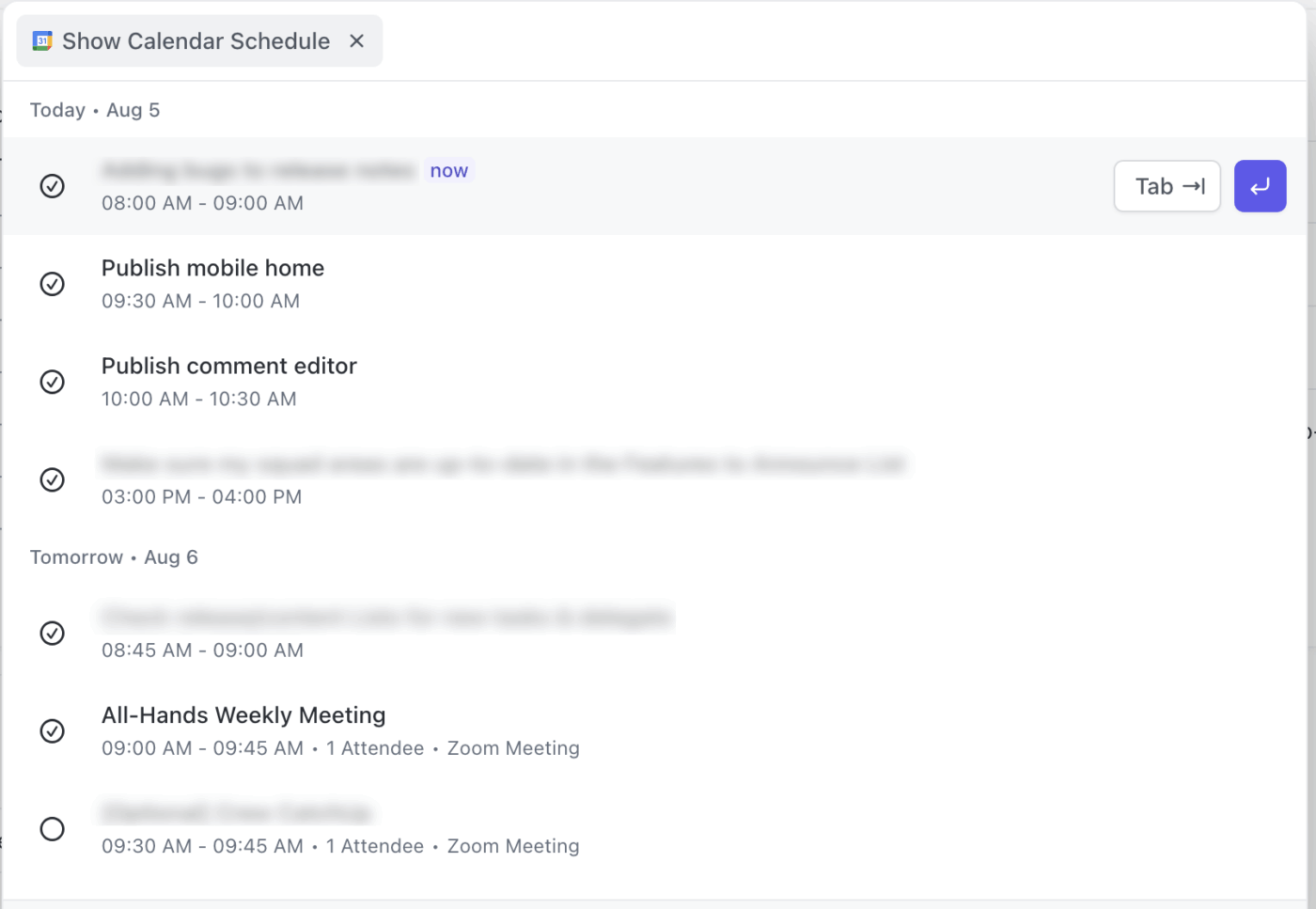
Calendar Integrations: Calendar syncing connecting ClickUp tasks and events to external calendars
Use ‘/Show Calendar Schedule’ in the AI Command Bar to view today’s and tomorrow’s events and join video meetings with a single click

When you update a Task’s dates, it reflects in your Google Calendar and Outlook calendar automatically. And if you prefer steering everything with natural language, you can use ClickUp Brain to create or update events just by typing a quick prompt. 

Time tracking upgrades

ClickUp’s time tracking integrations connect with popular tools so you can log hours, analyze workloads, and sync timesheets without changing your team’s existing workflow.
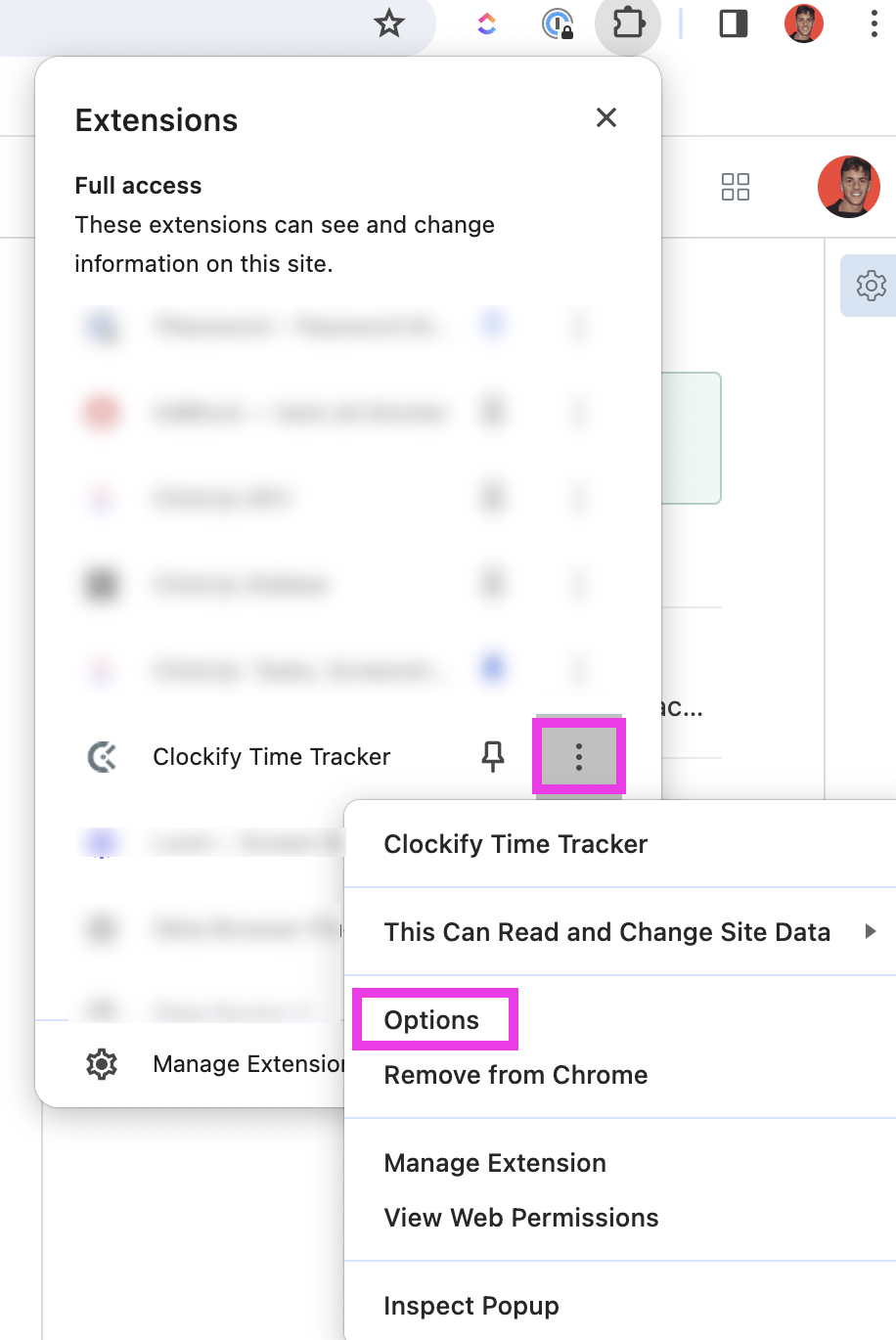
ClickUp Time Tracking Integrations: Connected timers and logs syncing time data across ClickUp and external apps
Track time through your preferred external apps like Clockify, while keeping all your data organized in ClickUp

Here are some popular integrations: 

  • Clockify: Track time directly inside Tasks and view free Clockify reports. Task names auto-sync, and timers can be controlled from Clockify’s web, mobile, or desktop apps
  • Everhour: Use the Chrome extension to track time, edit entries, and add estimates; it includes flexible reporting, sharing, and a real-time view of team activity
  • Harvest: Sync time logged in ClickUp to Harvest, including Task titles and IDs
  • Hubstaff: Assigned ClickUp Tasks appear in Hubstaff’s apps for easy start/stop tracking across desktop, mobile, and web
  • Timely: Add time log entries, invoice clients, and review activity in Timely’s dashboards
  • Toggl: Start and stop Toggl timers from ClickUp with automatic Task syncing

Workspace Authenticated Forms

With ClickUp’s Workspace Authenticated Forms enabled, only people who have joined your Workspace and are signed into their ClickUp account can access your Forms. This keeps internal workflows secure and ensures sensitive requests, submissions, and data stay within your organization.
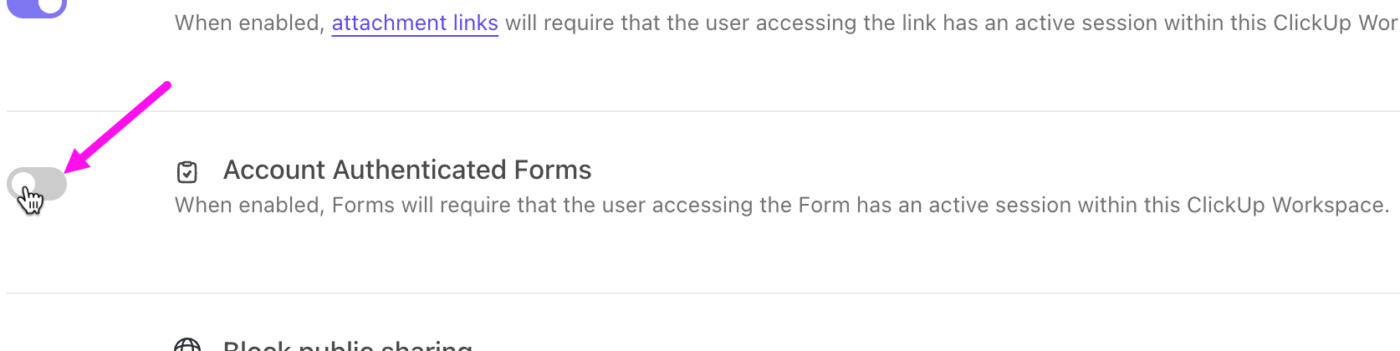
ClickUp’s Workspace Authenticated Forms: Secure forms capturing data that automatically maps to workspace users
Protect internal processes like IT requests, HR submissions, and project intake with Workspace Authenticated Forms

Global Action Bar

ClickUp’s Global Navigation is the vertical bar on the left side of ClickUp that keeps all your core tools in reach. It gives you quick access to the essentials such as your notifications, AI Command Bar, settings, and the ‘Create’ button.
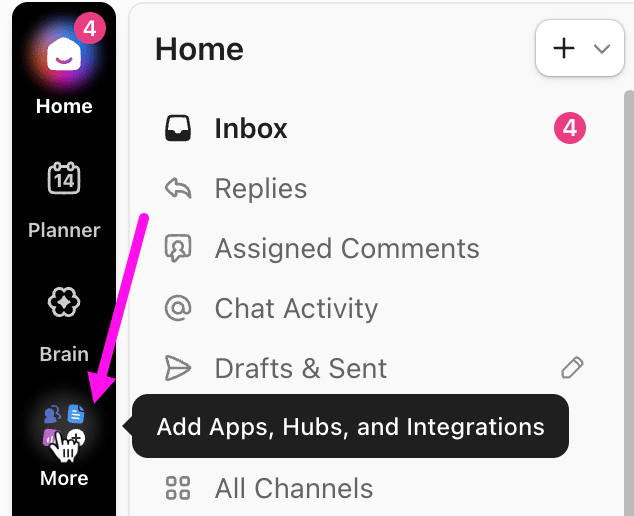
Global Action Bar: Universal command bar enabling quick actions search and navigation across ClickUp
Expand the More menu of your Global Navigation to open or pin additional features

Enterprise AI Command Bar

For enterprise teams, finding the right information fast is everything. The ClickUp Enterprise AI Command Bar pulls data from anywhere, and you can instantly jump to what you need.
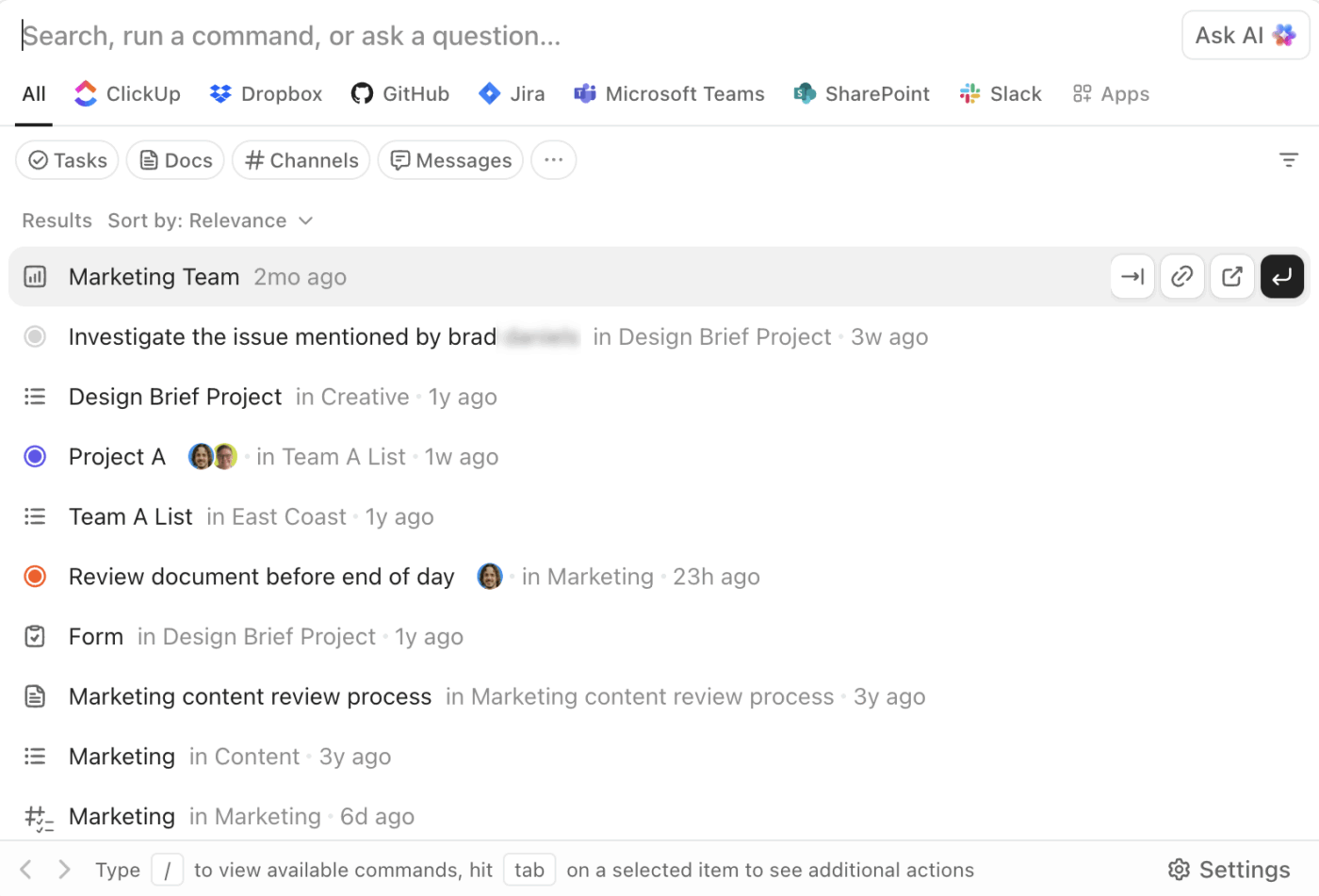
ClickUp Command Center: Central hub for triggering workflows accessing tools and viewing workspace intelligence
Open, sort, copy links, filter results, and even create brand-new Tasks or Docs right from the ClickUp AI Command Bar

Start typing, and you can search Tasks, Docs, Lists, Spaces, people, files, comments, and even content from connected apps like Dropbox or Box. 

With keyboard shortcuts, connected search, and cross-workspace visibility, the AI Command Bar becomes the fastest way to move around your growing ClickUp environment.

App Center

As your tech stack expands, ClickUp’s App Center becomes the single place to manage all your integrations. It’s where you connect tools like Slack, GitHub, Google Drive, Salesforce, or Figma, bringing your team’s files, conversations, and workflows closer to the work they support.

You can manage personal connections, workspace-level integrations, and even enable Connected Search, which allows your ClickUp search results to include files from your external apps. Admins can review, disconnect, or re-authenticate Workspace connections directly from here, making it easy to keep your environment clean and secure.
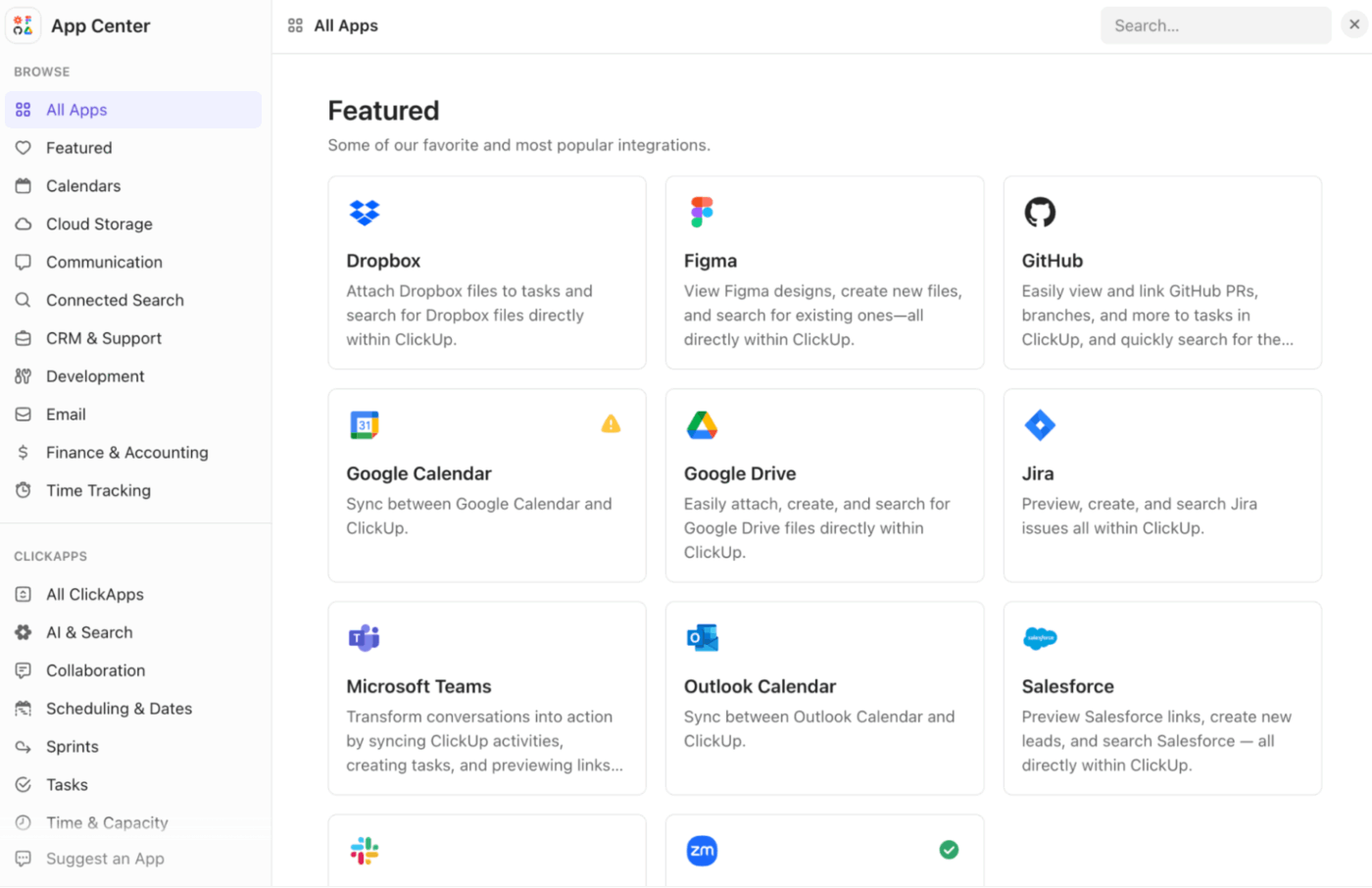
App Center: Unified library for managing ClickUp apps integrations and AI extensions
Connect and manage all your integrations in App Center

Org Chart

ClickUp’s AI Organizational Chart gives your entire company a clear picture of who reports to whom and how teams are structured. It’s especially helpful for onboarding new hires, coordinating cross-department projects, and aligning roles and responsibilities.

Summarize this article with AI ClickUp Brain not only saves you precious time by instantly summarizing articles, it also leverages AI to connect your tasks, docs, people, and more, streamlining your workflow like never before.
ClickUp Brain
Avatar of person using AI Summarize this article for me please

How to Use This Guide in Your Workflow

Think of this guide as a blueprint you can plug directly into your team’s day-to-day operations. You can treat it like an internal handbook, one you can reference, adapt, and share across your organization. 

Here are some tips. 📚

1. Build an internal ‘Glossary’ Doc

Create a central Doc in ClickUp that explains how your team uses each AI feature. Map each feature to a real scenario in your operations.

For instance: 

  • ClickUp Chat: Daily escalation space for customer issues with a thread for each ticket
  • ClickUp AI Notetaker: Used for onboarding calls, partner syncs, and weekly standups
  • Create Subtasks with ClickUp Brain: Break down incoming requests into engineering-ready steps
  • Calendar Integrations: Use AI Command Bar shortcuts to join meetings instantly

2. Map your workflows end-to-end

Once your glossary of complex concepts and SOPs is ready, outline how AI fits into your processes.

  • Choose the Views your team works from daily (List, Board, Calendar, Timeline)
  • Define the Custom Fields that power reporting and automations (Status, Priority, SLA timers, Approval steps)
  • Add Automations that eliminate repetitive handoffs (assigning owners, updating statuses, notifying channels)
  • Layer AI features where they naturally remove friction (drafting messages, generating task breakdowns, creating docs, summarizing updates)

This step helps you operationalize AI instead of treating it as an add-on.

3. Create a ‘Getting started’ AI checklist

Use this checklist to onboard teammates and new hires quickly, so everyone can ramp up on your AI setup without extra training.

  • Enable ClickUp AI in your Workspace and download Brain MAX
  • Connect Google or Outlook calendars
  • Test the AI Notetaker on one internal and one external meeting
  • Save your most-used ClickUp Brain prompts
  • Run one automation test (status > assignment > comment generation)
  • Create Subtasks with ClickUp Brain for an upcoming project

This ensures every user experiences the core features before diving deeper.

4. Review new features and refresh processes

ClickUp Brain evolves weekly, sometimes daily. Make it a habit to evaluate new updates and decide if your workflow benefits from change.

  • Review new ClickUp Brain features during team retros
  • Replace manual effort that could now be automated
  • Update the internal glossary when roles or processes shift
  • Archive old workflows that no longer add value
  • Re-train automations and AI prompts if they no longer match current processes

Keeping your system fresh ensures your team always benefits from the latest improvements.

Summarize this article with AI ClickUp Brain not only saves you precious time by instantly summarizing articles, it also leverages AI to connect your tasks, docs, people, and more, streamlining your workflow like never before.
ClickUp Brain
Avatar of person using AI Summarize this article for me please

Start Using ClickUp ASAP! 

Now that you’re at the end of this ClickUp terms and features guide, it’s safe to say that you have a pretty good grasp of what the platform is. From Views and Workspaces to AI-powered Automations, and everything in between, we’ve got you covered.

This guide is like a playbook for building a smarter, more unified workflow. Whether you’re just getting started or optimizing for scale, you know what each part of ClickUp means and how to use it.

The real win? As your team grows, you’ll be unlocking new ways to work better, faster, and more collaboratively.

Sign up to ClickUp for free and start building a workspace that works exactly the way you do. ✅

Summarize this article with AI ClickUp Brain not only saves you precious time by instantly summarizing articles, it also leverages AI to connect your tasks, docs, people, and more, streamlining your workflow like never before.
ClickUp Brain
Avatar of person using AI Summarize this article for me please

Frequently Asked Questions (FAQ)

What is the difference between a Space and a Folder?

A Space is a high-level container for organizing workflows, teams, or major departments (like Marketing or Engineering) in a ClickUp Workspace. Whereas a Folder lives inside a Space and is used to group related Lists (but it doesn’t directly hold Tasks themselves). 

Can I rename the default statuses in ClickUp?

Yes, you can rename and even add your own ClickUp Task Statuses at the Space, Folder, or List level. Also, Space owners and admins can reorder or change status settings from settings. 

Do I need to use all Views, or can I stick with one?

You don’t have to use all the Views. You can pick and stick with whichever suits your workflow best.

What does ‘ClickApps’ mean in ClickUp?

ClickApps are modular features that you can turn on or off at the Workspace or Space level. They let you customize which features you want to use (e.g., Automations, Nested Subtasks, Sprints, etc.), so you can tailor your workspace to your team’s needs.

Everything you need to stay organized and get work done.
clickup product image
Sign up for FREE and start using ClickUp in seconds!
Please enter valid email address