Microsoft found that 1 in 3 employees say the pace of work over the past five years has made it impossible to keep up. Employees are interrupted by meetings, emails, or notifications on average every 2 minutes.
That is why workload balancing matters now more than ever.
Because the problem is deeply rooted in the wrong work landing on the wrong people at the wrong time. One teammate is overloaded, another has capacity nobody can see, and managers are left patching the week together.
Smart workload balancing tools help teams see capacity clearly, rebalance assignments early, and keep priorities moving without waiting for burnout or bottlenecks to force the conversation.
In this post, we will break down the best workload balancing tools, see what each one does best, and help you choose the right fit for your team.
Summarize this article with AI
ClickUp Brain not only saves you precious time by instantly summarizing articles, it also leverages AI to connect your tasks, docs, people, and more, streamlining your workflow like never before.
Summarize this article for me please
Smart Workload Balancing Tools Software At a Glance
Here’s a quick side-by-side look at the top smart workload balancing tools, who they’re best for, their standout features, and pricing:
Teams needing lightweight workload visibility through visual task management at small businesses
Dashboard view, card counts per member, Calendar and Timeline views, Butler automation
Free plan available; Paid plans from $5/user/month
Motion
Individuals and small teams wanting AI auto-scheduling that rebalances work automatically
AI auto-scheduling, intelligent prioritization, calendar integration
Paid plans from $29/seat/month
*Please check each tool’s website for the latest pricing.
How we review software at ClickUp
Our editorial team follows a transparent, research-backed, and vendor-neutral process, so you can trust that our recommendations are based on real product value.
Summarize this article with AI
ClickUp Brain not only saves you precious time by instantly summarizing articles, it also leverages AI to connect your tasks, docs, people, and more, streamlining your workflow like never before.
Summarize this article for me please
What to Look For in Smart Workload Balancing Tools
When you’re evaluating smart workload balancing tools, focus on three core capabilities: visibility, flexibility, and intelligence.
Visibility lets you know who’s overbooked, who has bandwidth, and how work is distributed across the team. In fact, you should look for real-time dashboards that pull data automatically from tasks, time tracking, and calendars.
Flexibility matters because every team approaches capacity planning differently. Some track hours, others use story points, and many simply count tasks. The right tool lets you define capacity your way—whether that’s 40 hours per week, a maximum number of concurrent projects, or custom effort scores per task type.
Intelligence separates basic task managers from true workload balancing tools. AI-powered features can flag potential bottlenecks before deadlines slip, suggest task reassignments based on availability, and even automate workload distribution based on rules you define.
Here are the key features to evaluate:
Capacity settings per person: Can you set individual work hours, account for part-time schedules, and factor in time off?
Multiple workload views: Does it offer timeline, calendar, and list views so different stakeholders can see data their way?
Integrations: Does it connect with your existing calendar, time tracking, and project tools to avoid duplicate data entry?
Alerts and notifications: Will it proactively warn you when someone exceeds capacity or a deadline is at risk?
Reporting: Can you track utilization trends over time to inform hiring decisions and process improvements?
👀 Did You Know? 62% of workers say AI already saves them time, with AI-relevant roles reclaiming an average of 1.5 hours per day.
Summarize this article with AI
ClickUp Brain not only saves you precious time by instantly summarizing articles, it also leverages AI to connect your tasks, docs, people, and more, streamlining your workflow like never before.
Summarize this article for me please
Top 10 Smart Workload Balancing Tools for Teams
Let’s look at the best workload balancing tools you can choose from:
1. ClickUp (Best for complete workload visibility and project management with AI-powered workflows)
Plan workload and capacity with ClickUp
It’s nearly impossible to keep track of your team’s workload when every work item floats around different tools. Your resource visibility sits in one platform, while the actual planning and execution live somewhere else. All that creates is work sprawl, and it shows up as missed handoffs, overloaded teammates, and constant reshuffling.
ClickUp, the world’s first Converged AI Workspace, brings workload visibility and execution into the same operating layer.
Let’s take a look 👇
Spot overload before it becomes a bottleneck
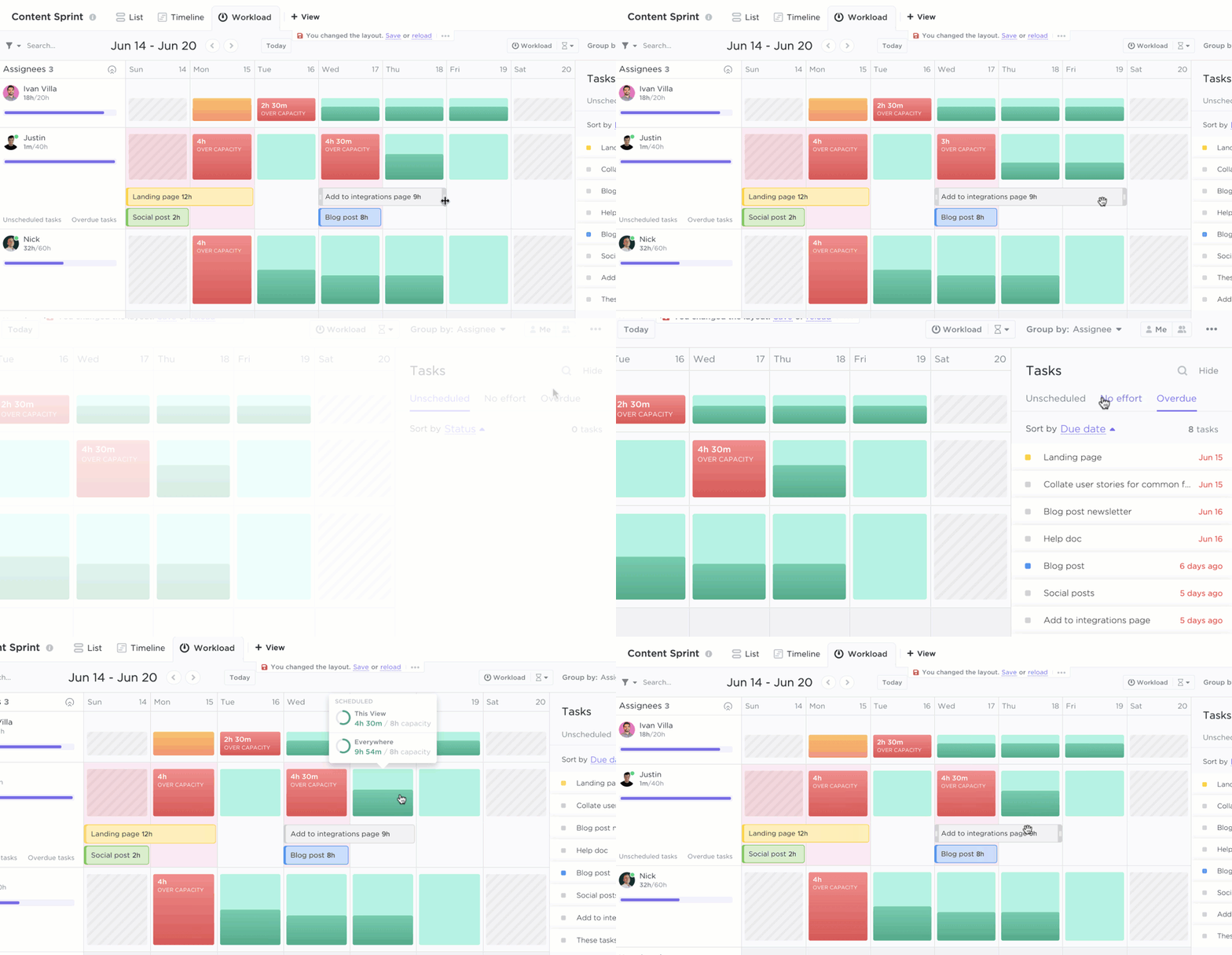
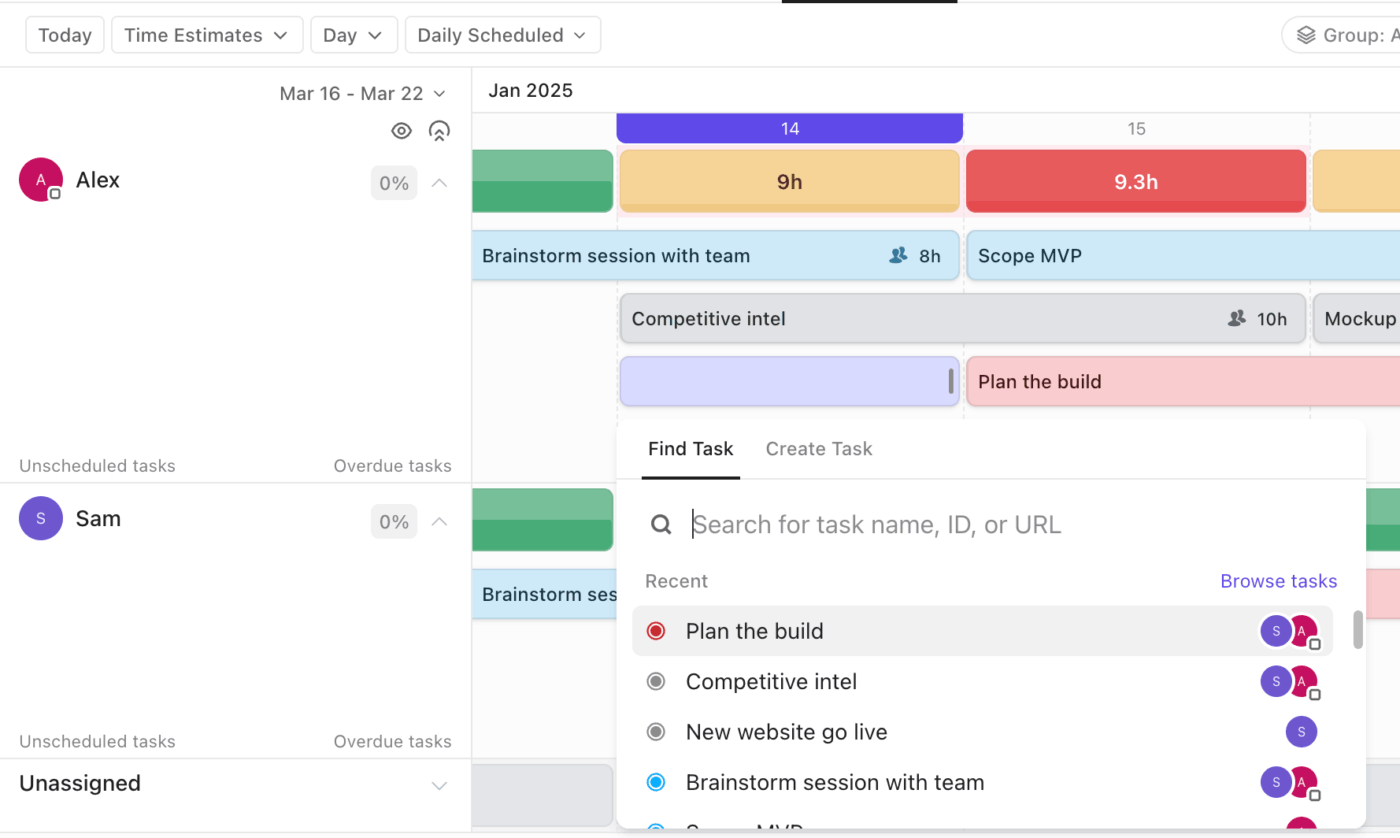
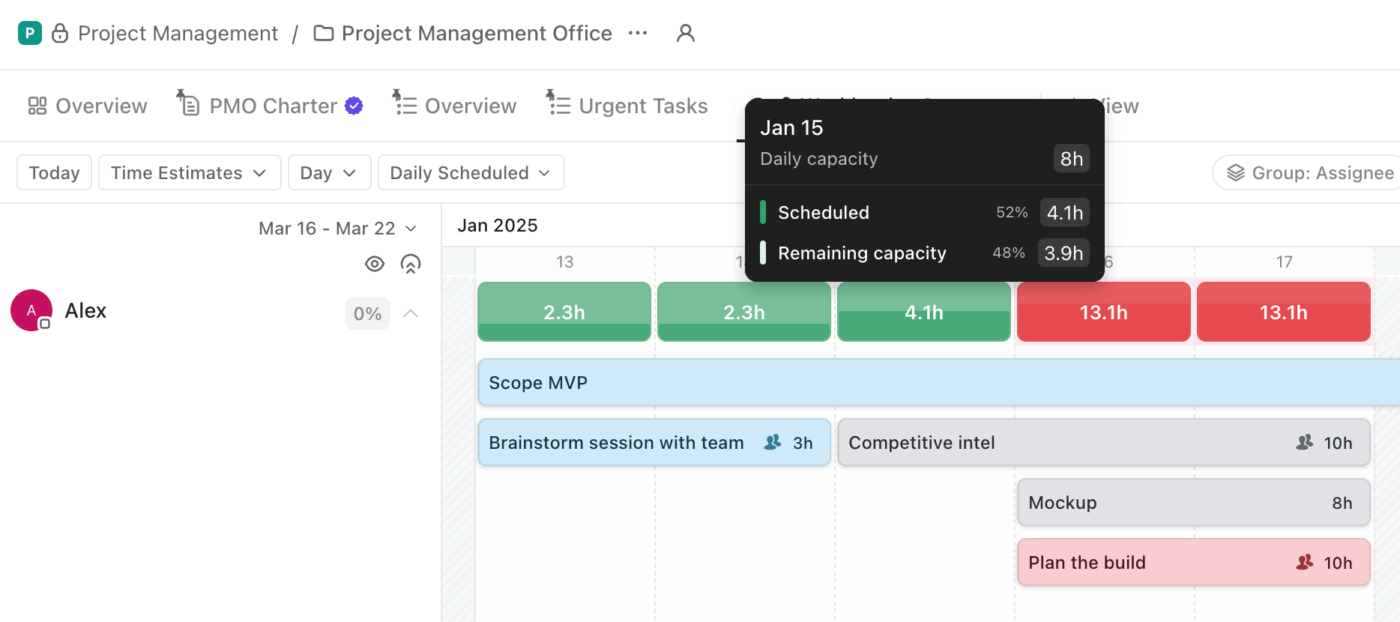
ClickUp Workload View shows who is over capacity and why, using the tasks already assigned across your workspace. Zoom from days to months to see the big picture, then simply click any gap to create a task right where you need it.
Switch between viewing availability and capacity to compare what people have committed to against what they can realistically take on.
Spot overcapacity, plan across time, and balance availability vs capacity with ClickUp Workload View
Once you group by assignee, you can set capacity limits per person, and ClickUp applies those limits across Workload views throughout the workspace. This makes overload visible immediately, with simplified color signals that show under, at, or over capacity.
Learn more about workload balancing in ClickUp in this video:
Build a real-time workload command center
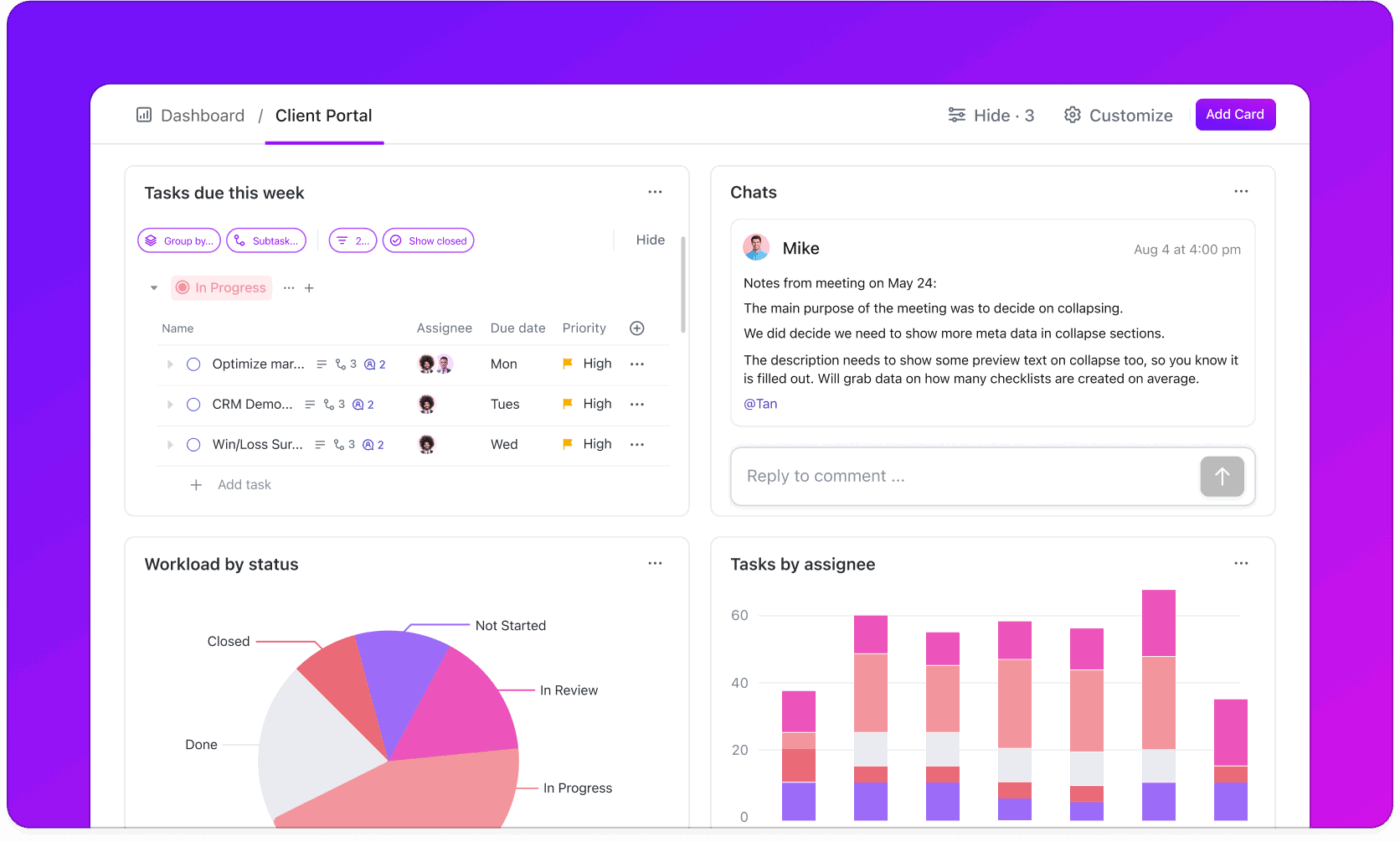
ClickUp Dashboards give you a live, leadership-ready view of workload and delivery without pulling reports from five places. You can track what’s on track, what’s at risk, and where capacity is getting squeezed using real-time cards.
Monitor workload, risks, and delivery in real time with ClickUp Dashboards
For workload balancing, this is where the signal becomes actionable. Teams commonly pair Dashboards with time and workload reporting to monitor utilization trends, overdue work, and throughput, then drill down to the exact ClickUp Tasks creating the bottleneck.
Run smarter capacity planning with team-wide resource management
ClickUp Resource Management for Teams is a curated resource planning solution for day-to-day staffing decisions. It brings your time tracking, capacity views, and team coordination into one place.
Plan team capacity and staffing in one place with ClickUp Resource Management for Teams
You get the core building blocks your team will rely on to balance workload. Use ClickUp Time Tracking to understand where hours go, use views like Timeline to plan and rebalance across dates, and keep collaboration seamless with ClickUp Chat. The best part? All in the same workspace.
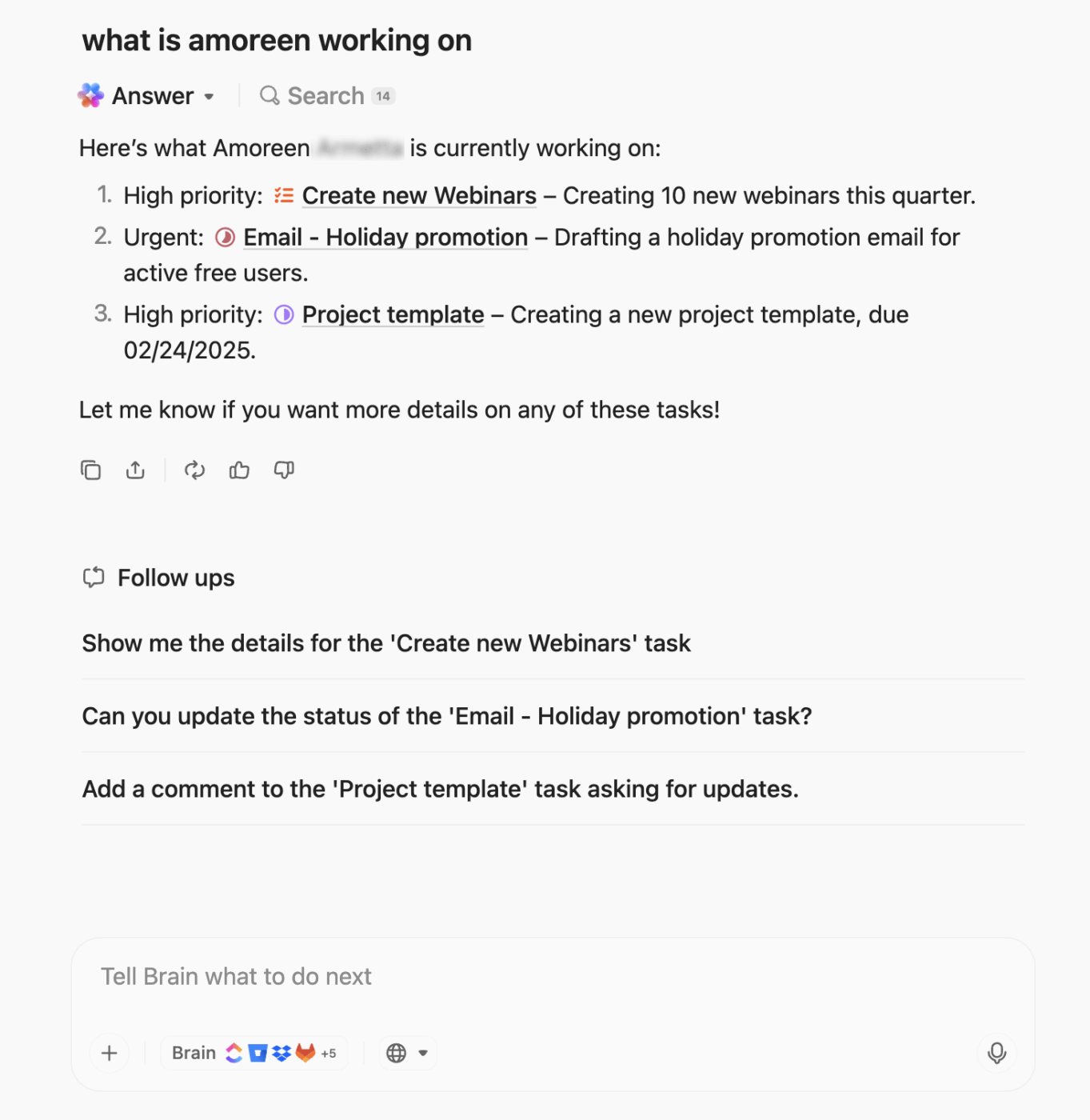
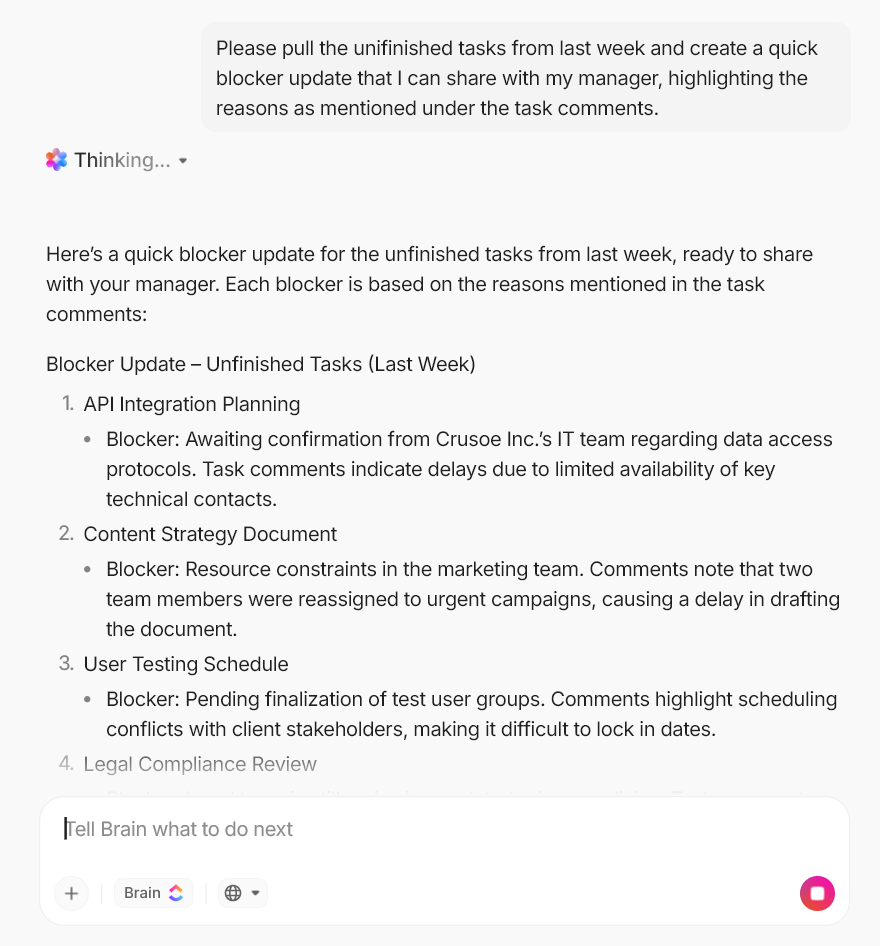
You can further layer in ClickUp’s contextual AI, ClickUp Brain, to answer real-time questions and help teams move from planning to action more quickly.
Get contextual answers about team workload with ClickUp Brain
Plan with real effort signals: Forecast workload more accurately with ClickUp Time Estimates, so capacity reflects effort and task count
Plan schedules visually: Use ClickUp Calendar to map tasks and deadlines across days and weeks so workload clashes show up early. It can even auto-block focus time and reprioritize tasks when needed
Automate the handoffs: Keep work moving with ClickUp Automations that assign owners, update statuses, and trigger follow-ups as tasks change
Catch deadlines before they slip: Use ClickUp Reminders to nudge yourself or teammates about follow-ups, due dates, and quick check-ins without creating extra tasks
Sync your stack: Connect ClickUp to tools like Slack, Google Drive, and GitHub with ClickUp Integrations so updates flow without manual copying
Delegate coordination: Use ClickUp Super Agents to monitor activity, create multi-step workflows, stakeholder reports, and so much more
ClickUp pros and cons
Pros:
Converged workspace eliminates tool sprawl: Tasks, docs, chat, and workload views live in one platform, so capacity data stays accurate without manual syncing between separate tools. Teams see the full picture without switching apps
AI-powered insights surface actionable recommendations: ClickUp Brain doesn’t just display data—it interprets it. Get proactive suggestions to reassign tasks and prevent bottlenecks based on real-time analysis of your workspace
Highly customizable capacity definitions: No matter how your team measures work—be it hours, story points, task counts, or custom effort scores—ClickUp adjusts to fit your needs. Set different capacity limits per person to account for part-time schedules, varying roles, or individual preferences
Cons:
A slight learning curve when first exploring advanced capacity settings
ClickUp has completely replaced Trello, Slack Threads and Gdocs for our company. What I love the most is the custom dashboards. I built one that shows all client projects with deadlines, budget status, and team workload at a glance. The automations are a huge time saver too. When a task moves to client review it automatically notifies the right person and logs time. The doc feature is solid now for keeping strats and SOPS and the Ai helper is actually useful for quickly turning briefs into subtask. Super helpful overall.
💡 Pro Tip: Balanced workloads are not just about productivity, they are also about protecting your team from burnout. ClickUp Super Agents can help managers catch uneven workloads early, support teammates before they get overwhelmed, and create a more sustainable pace of work.
For example:
Schedule Manager Agent balances meetings, task work, and focus time into a realistic weekly schedule that adapts as priorities shift
Priorities Manager Agent continuously evaluates task priorities based on shifting deadlines, dependencies, and workload, keeping the team’s focus aligned
Task Prioritizer Agent scores all tasks by urgency, impact, and effort so teams always know what to work toward
Pick from our collection of 650+ prebuilt Super Agents to build your own today!
🚀 ClickUp Advantage: Use ClickUp Brain MAX as your voice-first search bar for resource management.
Search ClickUp, connected files, and the web hands-free with ClickUp Brain MAX
Brain MAX lets you search ClickUp, the web, and files from connected apps like Google Drive, SharePoint, and GitHub from one place. Then just switch to Talk-to-Text to ask questions hands-free while you’re in the middle of planning.
2. Asana (Best for workload and capacity planning across cross-functional projects)
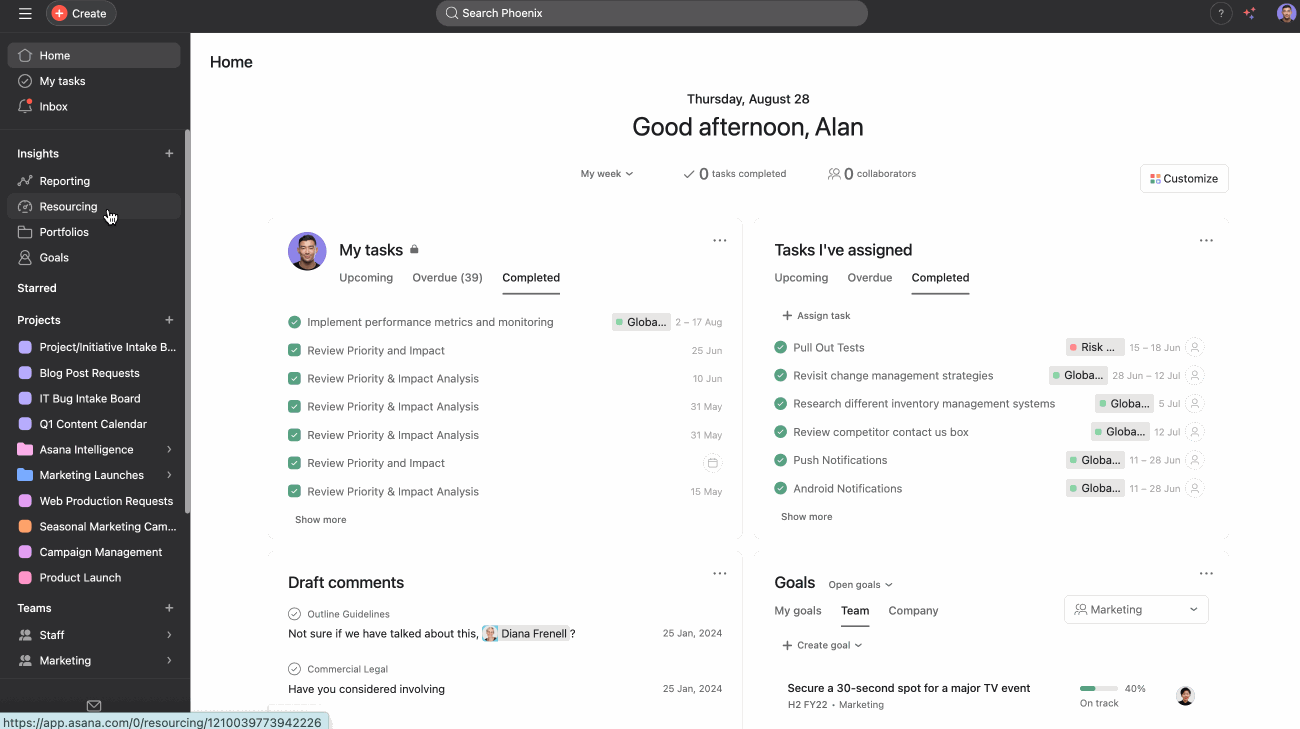
Asana approaches workload balancing through its Workload view, which displays team members’ assigned tasks on a timeline with capacity limits you define. It’s Work Graph data model connects tasks to people, projects, and timelines. This enables portfolio-level visibility into how work is distributed across teams and initiatives.
For organizations managing multiple projects, Asana’s portfolio features let managers see workload across an entire department or business unit.
Plus, Asana’s AI Studio allows no-code automation workflows that help with workload management—for example, automatically flagging tasks that push someone over capacity or suggesting reassignments based on availability.
Asana best features
Rebalance work in seconds: See capacity bars by teammate using Workload, and drag and drop tasks to reassign or reschedule when someone’s overloaded
Plan staffing beyond task-level detail: Use Capacity planning to allocate people to projects/workstreams over time for a higher-level staffing view
Quantify load with effort: Add effort fields (hours/points via a numeric custom field) so Workload reflects the weight of tasks, not just task count
Asana pros and cons
Pros:
Strong portfolio management features enable workload visibility across departments and business units
Work Graph architecture provides intelligent insights about task relationships and dependencies
Supports organizations with advanced controls, reporting, and multi-team coordination
Cons:
Workload view is only available on paid plans, limiting access for smaller teams
Learning curve can be steep for new users due to the breadth of features
Mobile app functionality lags behind desktop, making on-the-go workload management less convenient
What I like most about Asana is how clearly it helps me see everything I need to do in one place. As a developer working in a startup, I often handle multiple tasks at the same time, and Asana makes it easy to track priorities, deadlines, and progress without feeling lost. I also like that I can break big features into smaller tasks and update the status as I work. The board and list views are both useful depending on how I want to visualize my work, and having discussions directly inside tasks avoids confusion and scattered communication.
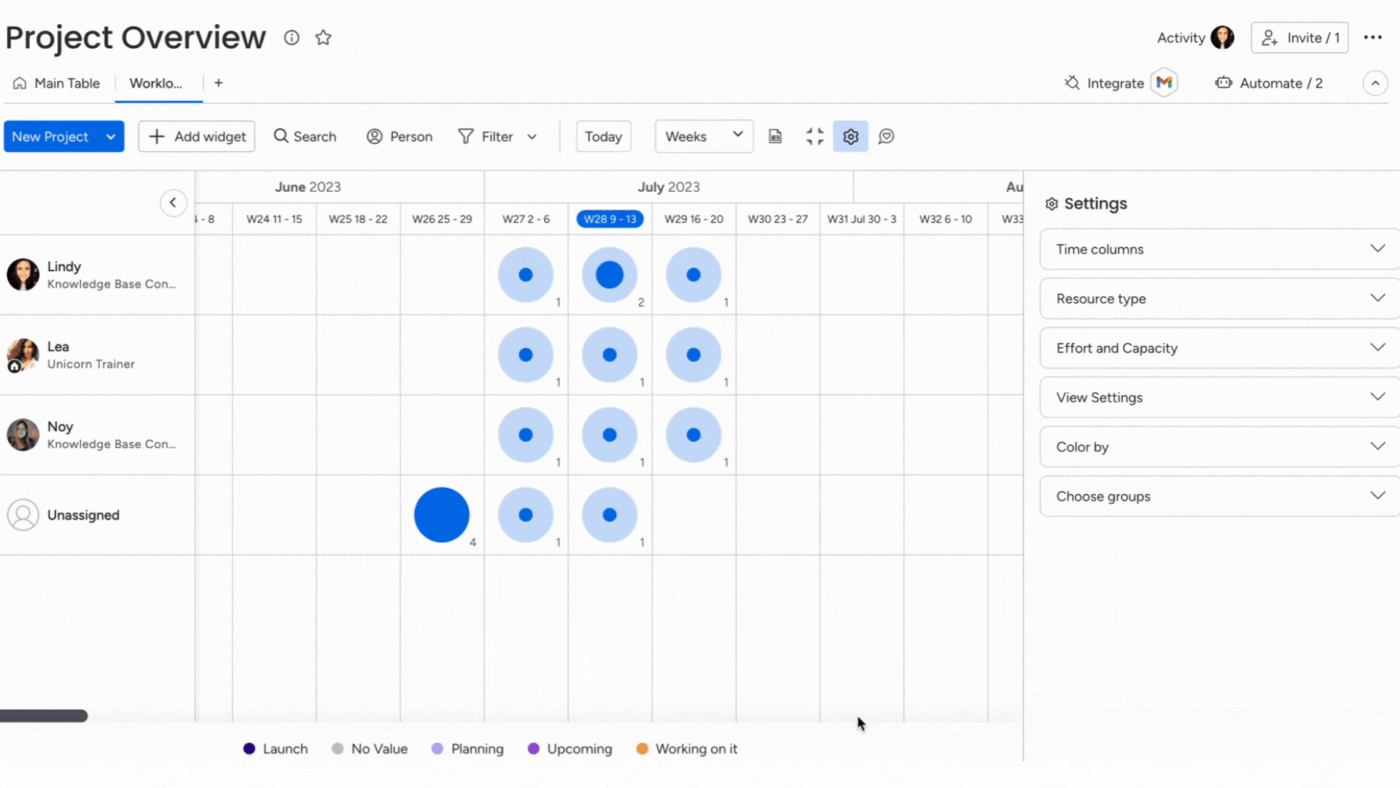
Monday.com brings workload balancing to non-technical teams through its visual, board-based interface. It has a Workload widget that displays team capacity alongside assigned work.
In fact, it lets you define and track capacity in multiple ways. Add a “capacity” column to any board, set limits per person, and the Workload widget automatically calculates utilization. You can measure capacity in hours, story points, or any custom unit that matches how your team thinks about effort.
On top of it, Monday AI Assistant can help with workload-related tasks, like summarizing team status, generating task descriptions, and identifying patterns in how work is distributed.
Monday.com best features
See overload: Spot who’s over capacity and shift upcoming work accordingly with the Workload view
Make workload more accurate: Configure workload around time ranges using Date/Timeline so capacity is accurate right when the work happens
Forecast capacity with a resource lens: Assign teams to work schedules (admin setting) to get more advanced availability signals inside Workload
Monday.com pros and cons
Pros:
Highly intuitive visual interface lowers adoption barriers for non-technical teams
Multi-product ecosystem allows organizations to manage diverse workflows on a single platform
Strong marketplace with integrations and apps extends functionality for teams with specific needs
Cons:
Bucketed seat minimums can increase costs unexpectedly for growing teams
Automation action limits vary by tier, potentially requiring upgrades
I really appreciate being able to view the workload for a single project, as well as how the workflow diagrams are displayed in a clear, organized way. The platform feels compact and user-friendly, which makes it easy for me to set up new projects quickly. The features are explained clearly, and I also like how fast I can organize and manage tasks once everything is in place.
👀 Did You Know?ClickUp’s workplace communication report found that it takes 23 minutes to refocus after an interruption, and 83% of knowledge workers are stuck in scattered emails and chats where important information gets lost.
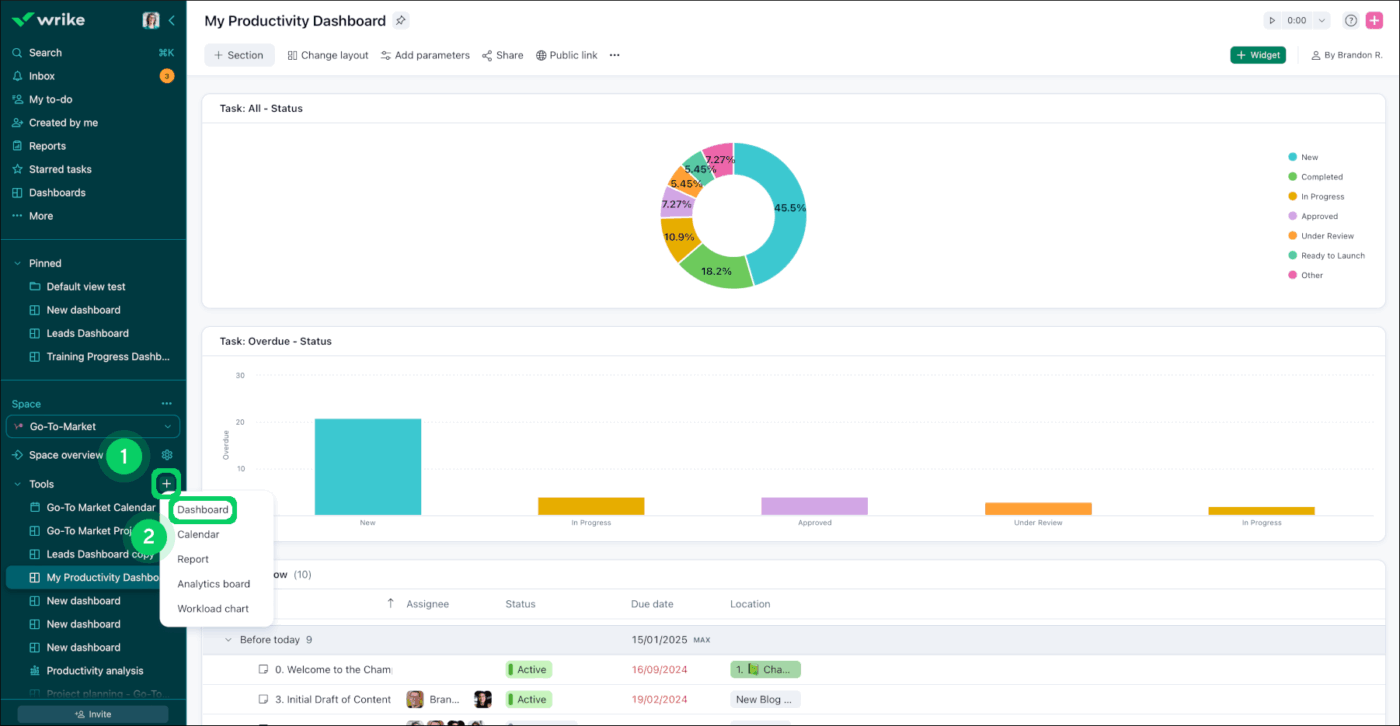
4. Wrike (Best for effort-based workload balancing with a drag-and-drop backlog)
Wrike is a useful solution for teams requiring advanced resource management alongside project tracking. The platform’s resource management module provides detailed workload visibility with effort tracking, capacity planning, and AI-powered predictions about potential bottlenecks.
Wrike also balances work day to day with the Backlog Box in Workload charts. It keeps unassigned tasks in a holding area so you can drag work onto the right person only when they have capacity.
And it comes with deep customization options for items, fields, and workflows that mirror your organization’s processes.
Wrike best features
Resource management module: Track team capacity, effort, and utilization with this dedicated functionality
Work Intelligence AI: Use Wrike’s AI to analyze workload patterns and project data to surface risks proactively
Advanced dashboards and reporting: Build custom dashboards that track utilization trends, compare planned vs. actual effort, and identify chronic imbalances
Wrike pros and cons
Pros:
Enterprise-grade security and compliance makes it suitable for regulated industries
Deep customization capabilities allow teams to build workflows that mirror unique organizational processes
Powerful proofing and approval workflows are valued by creative and marketing teams
Cons:
Steep learning curve and UI complexity can feel overwhelming for new users
True total cost of ownership increases when add-ons are factored in
Initial setup requires significant time investment and often benefits from a dedicated administrator
Wrike centralizes client work, approvals, and task ownership so our 5-person team isn’t chasing threads across email and chat. Dashboards and workload views give me a real-time picture of project health, and automations remove repetitive follow-ups so we move faster without growing headcount.
📮 ClickUp Insight: 31% of managers prefer visual boards, while others rely on Gantt charts, dashboards, or resource views.
But most tools force you to pick one. If the view doesn’t match the way you think, it just becomes another layer of friction.
With ClickUp, you don’t have to choose. Switch between AI-powered Gantt charts, Kanban Boards, Dashboards, or Workload View in a single click. And with ClickUp’s AI, you can auto-generate tailored views or summaries based on who’s looking—whether it’s you, an exec, or your designer.
💫 Real Results: CEMEX sped up product launches by 15% and cut communication delays from 24 hours to seconds using ClickUp.
Smartsheet appeals to teams that want workload balancing capabilities without abandoning a familiar spreadsheet interface. Its Resource Management module provides dedicated capacity planning with visual heatmaps showing team utilization over time.
For PMOs managing standardized project portfolios, Smartsheet’s Control Center allows templatized project creation with built-in resource allocation.
Smartsheet also blends spreadsheet flexibility with purpose-built project management features. Teams can start with simple grids and progressively adopt more sophisticated resource management features as their needs grow.
Smartsheet best features
Resource management: Use the dedicated capacity planning module to view team availability, project assignments, and utilization rates
Capacity heatmaps: Track utilization intensity across the team over time with color-coded views and quickly identify overallocation or underutilization
Cross-sheet formulas and reporting: Pull data from multiple project sheets into consolidated workload reports
Smartsheet pros and cons
Pros:
Familiar spreadsheet interface reduces learning curve for teams already comfortable with Excel
Strong enterprise governance and compliance makes it suitable for government and regulated industries
Control Center enables standardized portfolio management for PMOs
Cons:
Resource Management is a separate module that requires additional configuration and potentially additional cost
Performance can lag on very large sheets or with heavy cross-sheet formula use
Advanced features like Control Center and Bridge require significant setup and often dedicated administrative resources
Its ability to work with traditional spreadsheet formats while also using it for more complex project management, like tracking timelines, budgets, and resources. The collaboration features, like shared sheets and real-time updates, are also a big plus.
🎥 Bonus: Resource planning falls apart fast when capacity, timelines, and the actual work are spread across tools. The best AI tools help you spot overload early, rebalance work, and keep delivery moving without burning your team out.
Watch this video to explore AI tools for resource planning, scheduling, and team capacity management, and see how ClickUp brings workload visibility, planning, and execution together in one place.
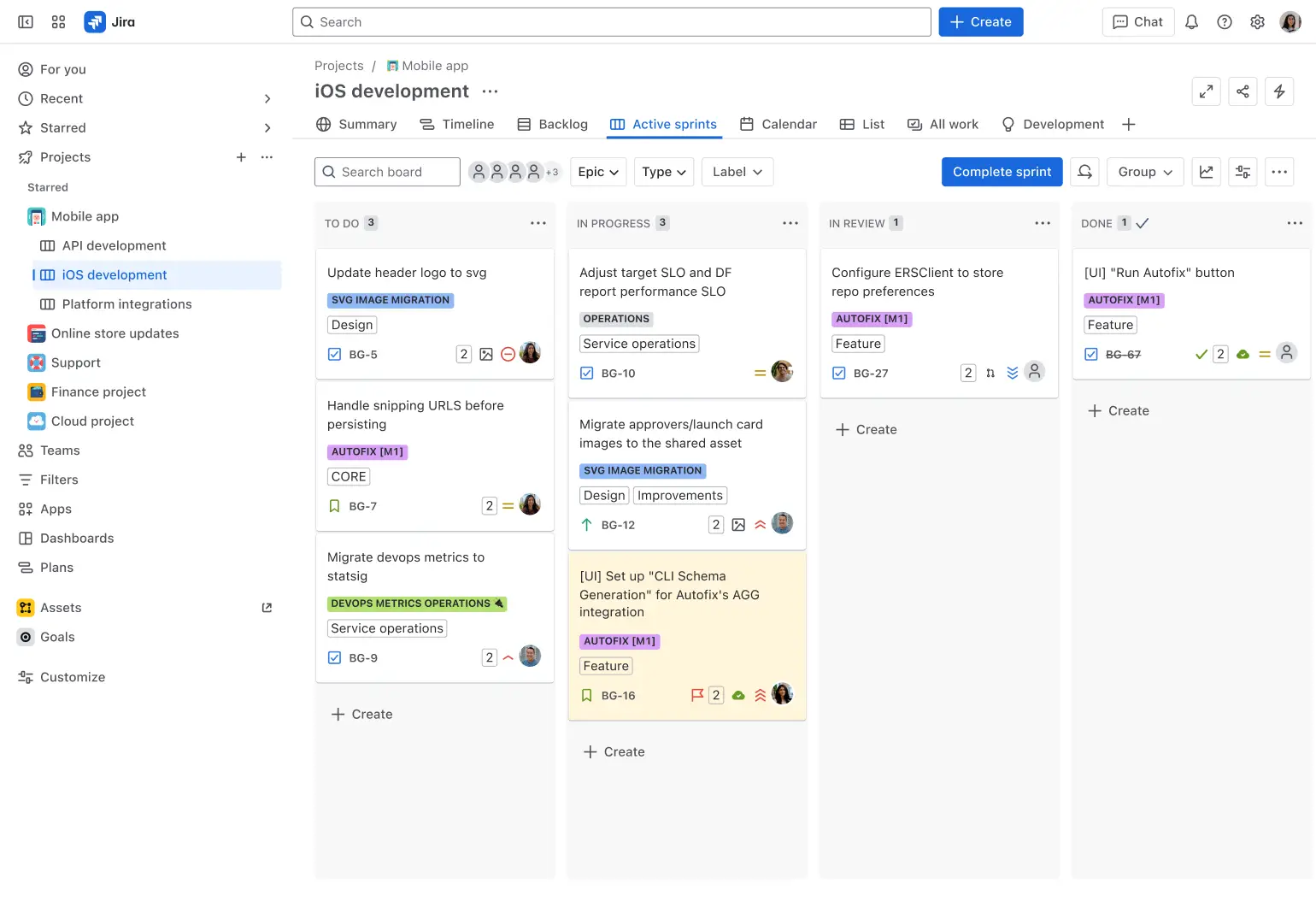
Jira is widely used by software development teams using Agile methodologies, and its workload balancing features reflect that focus.
Sprint capacity planning lets teams set velocity targets and see how assigned story points compare to historical capacity. Advanced Roadmaps extends this to cross-team planning with dependency mapping.
For development teams, Jira’s strength is deep integration with the development workflow. Workload data connects to code commits, pull requests, and deployments through Bitbucket integration.
Its Jira Query Language (JQL) features powerful custom filters for workload analysis—query all tasks assigned to overloaded team members, find unassigned work that needs owners, or identify tasks at risk due to capacity constraints.
Jira best features
Plan capacity on a real timeline: Group work by Team or Sprint with Jira Plans and turn on “Show capacity” so you can see whether upcoming iterations overflow
Balance work using estimates: Capacity planning counts work only when Team, Sprint, and Estimation values are set, which keeps the load signal tied to effort
Map dependencies across teams: Spot upstream blockers before you commit to dates with cross-team dependency mapping
Jira pros and cons
Pros:
Convenient for software development teams with depth in Agile/Scrum workflows
Highly customizable workflows and powerful JQL enable sophisticated workload queries and reporting for technical teams
Seamless integration with the Atlassian ecosystem creates a unified view of development work and documentation
Cons:
Steep learning curve for non-technical users; the interface can feel cluttered and overwhelming
Workload features are primarily designed for sprint-based work, making it less suitable for teams with continuous workflows
Advanced Roadmaps with capacity planning requires Premium or Enterprise tier
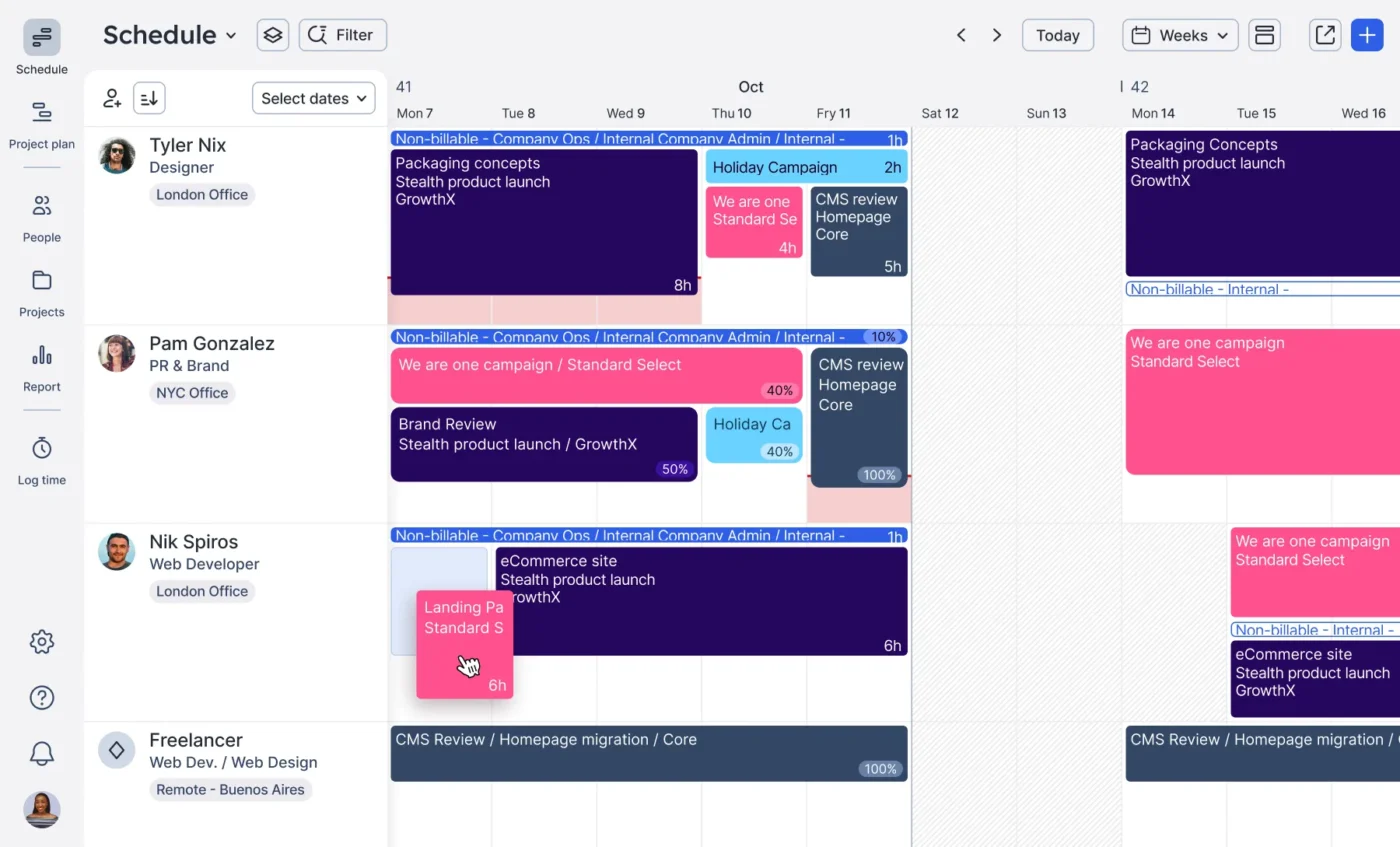
Float is a resource scheduling tool built specifically for agencies and professional services firms. Unlike project management platforms that add workload features, Float starts with resource scheduling as its core function. It’s particularly strong for teams where billable utilization is a primary metric.
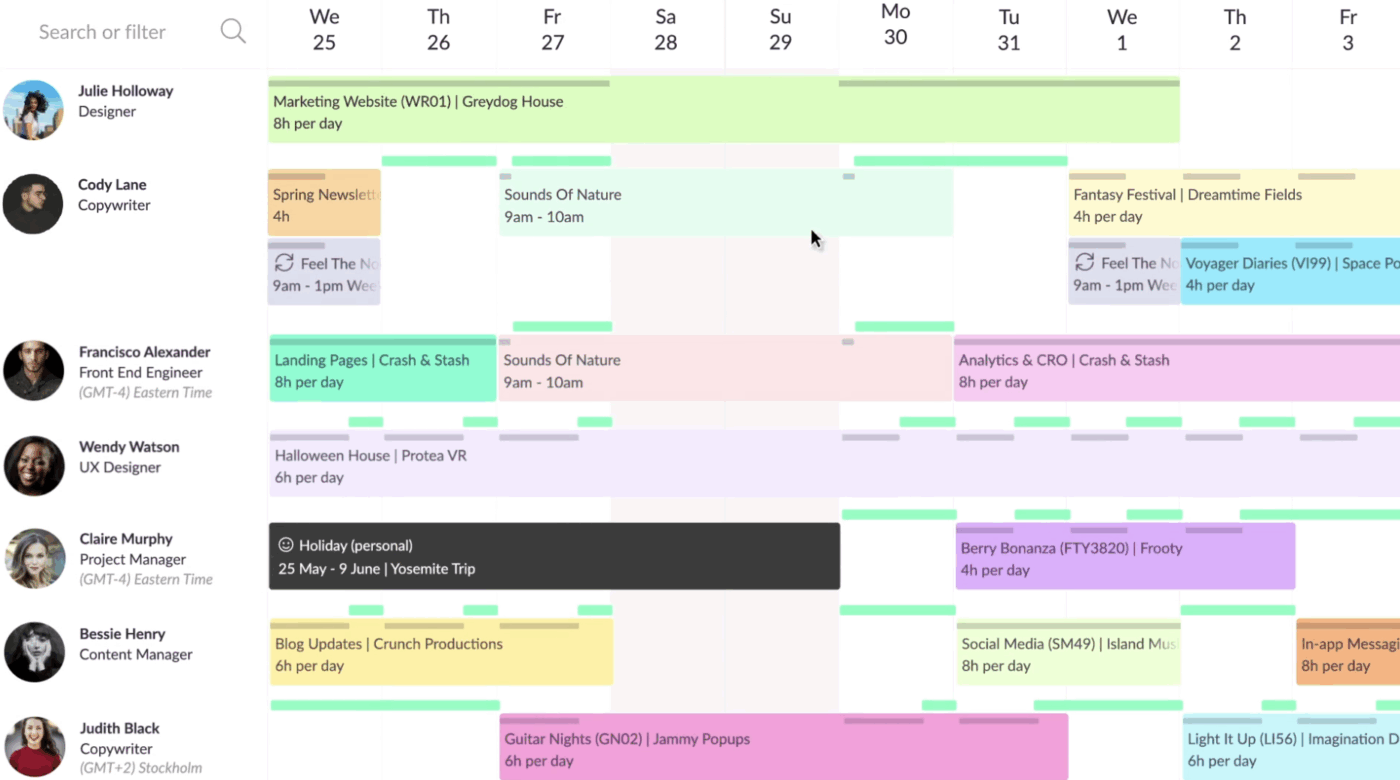
Plus, its visual schedule shows each team member’s assignments as colored bars on a timeline, with capacity indicators that reveal overallocation or available bandwidth. Drag-and-drop scheduling makes it easy to reassign work, and the interface updates in real time as changes are made.
For teams that don’t need full project management but desperately require resource visibility, Float shows who’s available without extra features getting in the way.
Float best features
Visual resource schedule: Each team member appears as a row with their assignments displayed as colored bars across a timeline
Time-off and availability management: Track vacation, sick days, and other time off directly in the schedule
Utilization reporting: Track billable vs. non-billable time, compare scheduled vs. actual hours, and analyze utilization trends over time
Float pros and cons
Pros:
Purpose-built for resource scheduling, the interface is optimized for capacity planning without complexity
Clean, intuitive visual design makes it easy to understand team workload at a glance
Strong time-off management ensures capacity calculations reflect actual availability
Float is a great resource management tool that makes scheduling and planning easy. The interface is simple and easy to use, even for beginners. I love how you can quickly see your team’s availability and avoid scheduling conflicts. The ability to assign tasks based on your team’s workload helps keep things organized and on track.
📮ClickUp Insight: For 33% of workers, decision ownership is either unclear or constantly shifting. The outcome? Confusion, hesitation, and important work left unfinished.
But what if ownership happened automatically? With ClickUp’s AI Assign, tasks are instantly delegated to the most relevant person, taking into account workload, role, and scope. No more manual handoffs. Just clear, smart ownership from the very beginning. 🎯
Resource Guru focuses mostly on resource scheduling and capacity planning with a clean, straightforward interface. It displays team availability on a visual timeline where you can use drag-and-drop scheduling to book team members, see capacity at a glance, and identify scheduling conflicts.
Resource Guru is a good choice for teams that want dedicated resource management without a full-spectrum project management suite.
The platform integrates with popular project management and calendar tools, allowing it to serve as the resource scheduling layer on top of your existing workflow.
Resource Guru best features
Plan for resources: Use resource placeholders to block capacity now, then drag bookings to the right person once you know who’s doing the work
Add tentative bookings: Signal uncertainty (pending approval, scope, or timing) while keeping the schedule honest with tentative bookings
Spot overload instantly: See who’s over/under capacity and where scheduling conflicts are forming with the help of heatmaps and clash management
Resource Guru pros and cons
Pros:
Simple, focused interface makes it easy to adopt without extensive training
RG is user-friendly and easy to use. It works really well for us because schedules and people are constantly changing, and we can update appointments quickly and easily so everyone stays informed in real time.
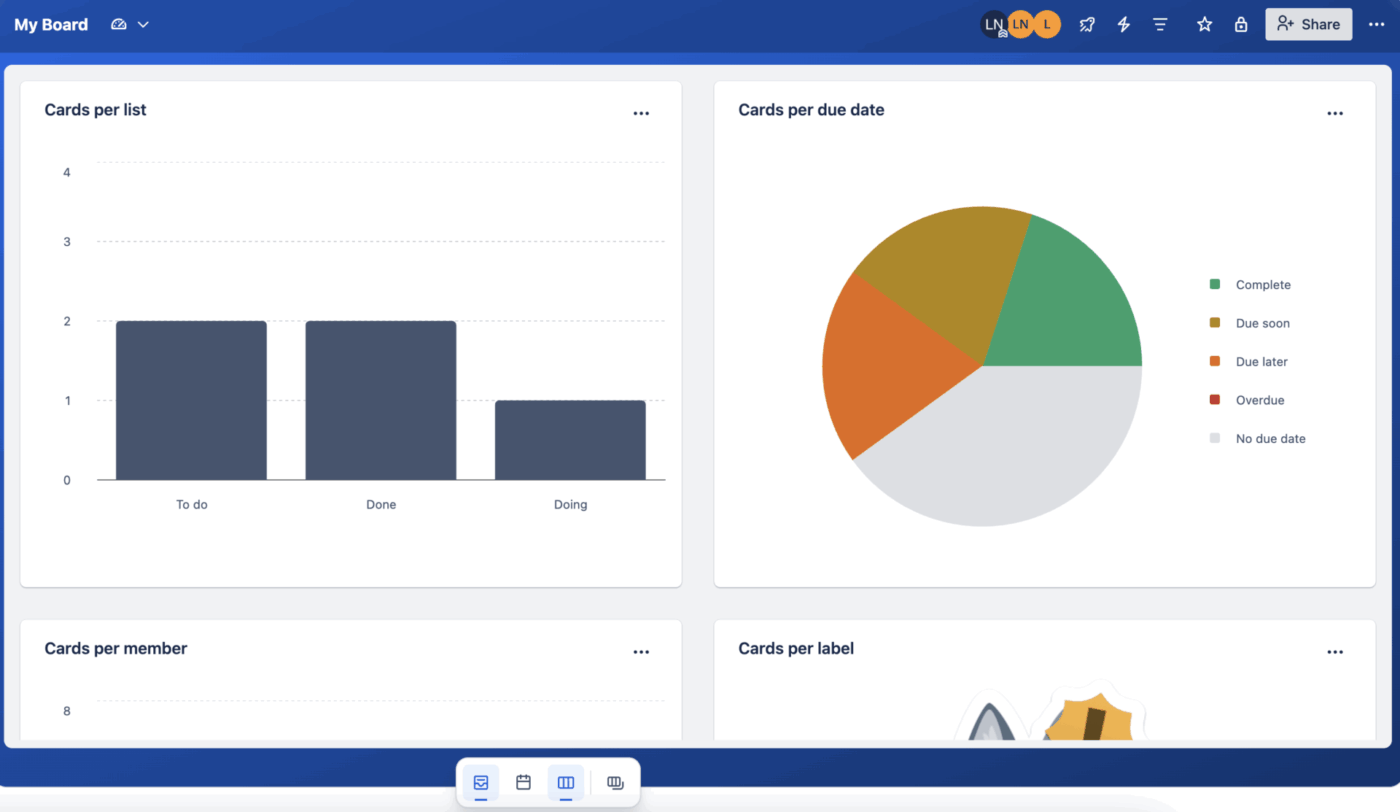
Trello’s Kanban-first approach makes workload balancing more visual and less data-driven than dedicated resource tools. It shows you work distribution through card counts per list or per member, with the Dashboard view providing aggregate metrics across boards.
You can see at a glance how many cards each person owns, identify bottlenecks in specific workflow stages, and use labels to flag overloaded team members.
Butler automation extends Trello’s workload capabilities. For example, sending a notification when someone has more than a set number of cards assigned or automatically moving cards to a “needs help” list when deadlines approach.
Trello best features
Dashboard view: Track card counts, due date status, and cards per member across boards using dashboards
Card counts per member: Quickly see how many cards each team member owns by filtering the board
Butler automation: Use Trello’s built-in automation (Butler) to auto-move cards, assign owners, and trigger reminders
Trello pros and cons
Pros:
Intuitive interface with minimal learning curve
Simple card-based system makes it easy to see work distribution visually
Generous free plan allows small teams to test workload visibility features
Cons:
Limited capacity planning features compared to dedicated resource management tools
Dashboard view with workload metrics requires Premium or Enterprise plan
Not designed for complex resource scheduling; better suited for task visibility
The board and card system is very intuitive. I love how I can drag and drop tasks, add checklists, and keep everything visually organised. It’s also very easy to onboard new teammates.
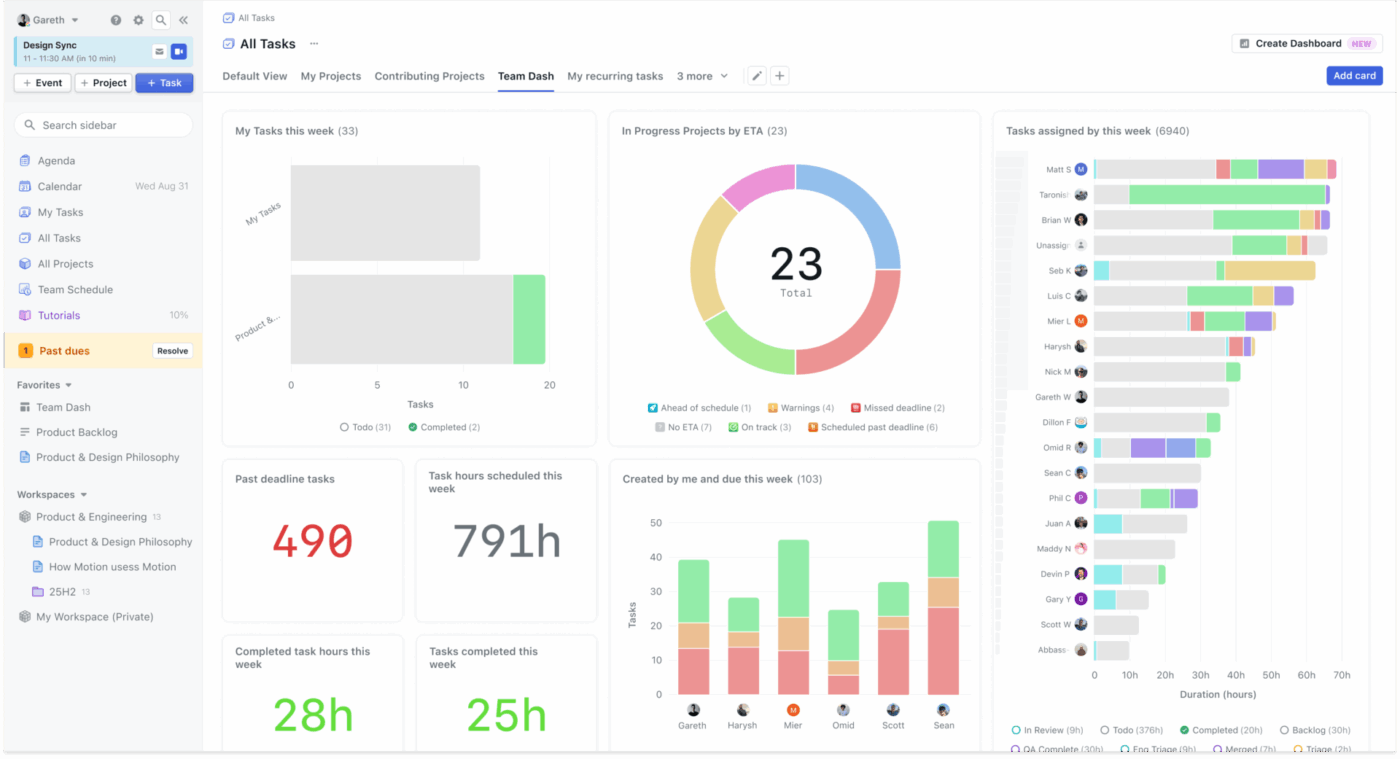
Motion is an AI scheduling tool that time-blocks your tasks onto your calendar, then keeps reshuffling the plan as meetings move and priorities change.
For individuals and small teams who struggle with manual prioritization, Motion removes the decision-making burden. Tell it what needs to get done and when, and the AI figures out when you’ll realistically do it—rescheduling automatically when priorities shift, or meetings get added.
The platform integrates with calendars to see actual availability, making its scheduling recommendations grounded in reality.
Motion best features
AI auto-scheduling: Add tasks with deadlines and effort estimates, and Motion automatically finds time on your calendar to complete them. The AI considers meeting schedules, working hours, and task priorities to create a realistic plan
Intelligent prioritization: Let Motion’s AI determine task order based on deadlines, dependencies, and importance. When something urgent comes in, it automatically reshuffles lower-priority work to accommodate
Calendar integration: Integrate with Google Calendar and Outlook so Motion sees your actual availability
Motion pros and cons
Pros:
Removes manual scheduling decisions by automatically blocking time for tasks
Dynamic rescheduling adapts to changes in real time
Forces realistic planning by only scheduling work that fits in available time
Cons:
Individual-focused design limits team workload balancing capabilities
Requires trust in AI scheduling decisions; some users prefer more control
Limited project management features mean teams need additional tools for collaboration
I like using Motion’s AI feature to ask questions about how I’m spending my time and if there’s a better way I could operationalize things. It’s really helpful in identifying if I’ve missed something. I also like the feature that allows me to send tasks directly from my email. The AI agenda is something I use daily as it organizes my tasks into what I need to prioritize, helping me to manage everything effectively.
Summarize this article with AI
ClickUp Brain not only saves you precious time by instantly summarizing articles, it also leverages AI to connect your tasks, docs, people, and more, streamlining your workflow like never before.
Summarize this article for me please
Balance Work Before It Becomes a Bottleneck With ClickUp
A workload balancing tool should help you catch overload early, shift work with confidence, and keep priorities moving without turning managers into full-time coordinators.
ClickUp brings that together in one place. You can see capacity, assign work clearly, and keep the bigger picture visible as priorities change. With AI built into the workflow, you can surface blockers faster and make smarter adjustments before burnout or delays pile up.
Summarize this article with AI
ClickUp Brain not only saves you precious time by instantly summarizing articles, it also leverages AI to connect your tasks, docs, people, and more, streamlining your workflow like never before.
Summarize this article for me please
Frequently Asked Questions
What is the difference between workload balancing and capacity planning?
Workload balancing focuses on distributing current tasks evenly across team members based on their availability at the moment. Capacity planning looks further ahead—forecasting future resource needs based on upcoming projects, hiring plans, and strategic priorities.
How do AI-powered workload balancing tools differ from basic task managers?
Basic task managers show you a list of who’s assigned to what. AI-powered tools analyze patterns, predict bottlenecks, and recommend actions—like suggesting who should take a new task based on current workload and skills.
How do you assess employee workload using balancing tools?
Set capacity limits per person, then compare assigned work against those limits. Look for utilization rates above your target threshold and track trends over time to identify chronic imbalances versus temporary spikes.
Everything you need to stay organized and get work done.