






Still downloading templates?
There’s an easier way. Try a free AI Agent in ClickUp that actually does the work for you—set up in minutes, save hours every week.
Sorry, there were no results found for “”
Sorry, there were no results found for “”
Sorry, there were no results found for “”

Your team switches between apps 1,200 times every single day. That’s four hours a week just trying to remember what they were doing before the next notification pulled them away.
This work sprawl costs serious money: $2.5 million annually per 1,000 employees in lost productivity. And because only 28% of tools actually connect to each other, people spend their days copying the same information across different platforms.
The 10 best converged software on this list bring your workflows together in one place, so your team can focus on getting things done without constant context switching.
Let’s jump right in! 💪🏼
Here are the 10 best converged software and what they bring to the table. 🎯
| Tool | Best for | Best features | Pricing* |
| ClickUp | Converged AI execution and unified work orchestration for cross-functional enterprise teams | ClickUp Brain and Brain MAX for Contextual AI, Integrations to keep your apps connected, Talk to Text for voice-first productivity, and Enterprise Search for centralized workplace search | Free forever; Customization available for enterprises |
| ServiceNow | Enterprise department alignment and complex multi-workflow automation across IT, HR, and finance | Flow Designer automation, Virtual Agent chat workflows, SLA performance dashboards, centralized service catalog intake | Custom pricing |
| Kissflow | No-code business process automation for HR, finance, and operations teams scaling workflow requests | Parallel approval routing, conditional logic for request paths, SQL-powered analytics reporting, and real-time audit histories | Basic plan starts at $2,500/month; Enterprise plan offers custom pricing |
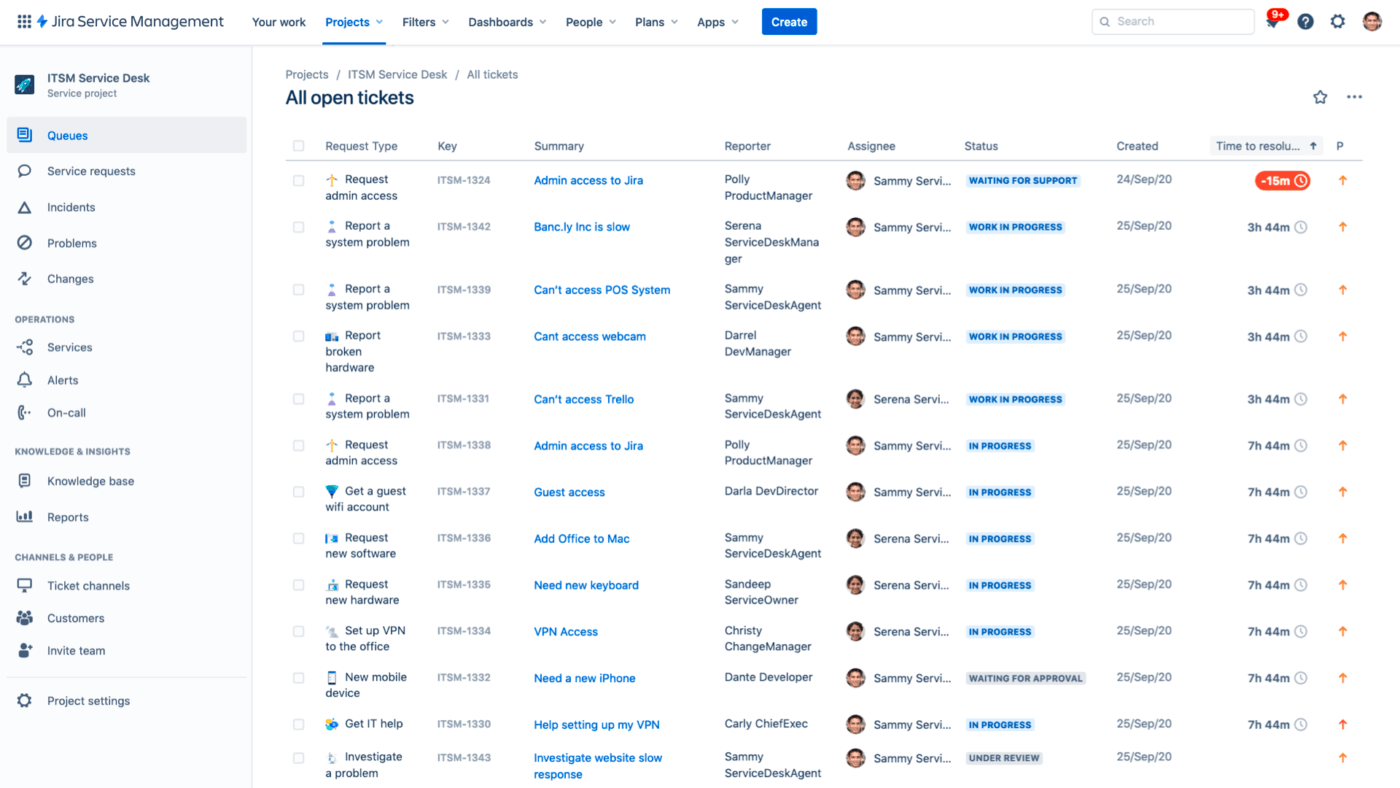
| Jira Service Management | Agile service delivery and IT ticketing for technical support and engineering alignment | Issue linking to Jira Software, SLA tracking queues, automated ticket categorization, and asset discovery mapping | Free for three agents; Paid plans start at $20/month per agent |
| Monday.com | Visualized project tracking and resource allocation for marketing, operations, and PMOs | Mirror columns for cross-board data, workload balancing views, end-to-end dependency timelines, and automation based on status and dates | Free plan available; Paid plans start at $12/month per user |
| Notion | Knowledge-first collaboration and documentation with lightweight workflow support for creative and product teams | Synced blocks across pages, relational databases for multi-view content, embedded integrations, and formula functions for dynamic fields | Free plan available; Paid plans start at $12/month per user |
| Asana | Goal-based work mapping and multi-team project visibility for growth organizations | Project Portfolios for executive roll-ups, conditional form logic, automated task assignments, timeline conflict warnings | Free plan available; Paid plans start at $13.49/month per user |
| Zoho One | Full-stack business operations under one integrated platform for SMBs and hybrid enterprises | Zia AI assistant across apps, Zoho Flow automation, unified CommandCenter administration, cross-app data reporting | All-employee pricing starts at $45/month per user |
| Airtable | Collaborative databases and structured content workflows for operations, content, and product teams | Interface Designer layouts, rollups for related records, conditional formulas, automation triggers for updates and notifications | Free plan available; Paid plans start at $24/month per user |
| Wrike | Multi-project resource scheduling and workload governance for PMOs and professional services firms | Custom request intake forms, blueprint project templates, proofing for version reviews, and cross-project health dashboards | Free plan available; Paid plans start at $10/month per user |
A converged software is a unified system that brings communication, collaboration, data, and automation tools into one connected platform.
It cuts unnecessary context switching by giving teams a single space to work and share information. Plus, as organizations deal with growing SaaS sprawl, a converged software offers a cleaner, more cohesive setup that reduces friction, supports faster decisions, and scales with evolving operational needs.
📮 ClickUp Insight: 20% of our survey respondents confess they’ve kept up to 15 tabs open for weeks! Yes, weeks!
These “zombie tabs” 🧟 eat memory and mental space, quietly draining focus even when ignored. It’s classic attention residue where unfinished items pull energy in the background.
With ClickUp’s AI-powered Enterprise Search, you can safely let go of those browser graveyards. Anything important is instantly searchable across your workspace and integrated third-party tools.
You can even ask ClickUp’s AI what was discussed in last Friday’s meeting, and it will fetch the notes for you!
The best converged software simplifies work, reduces employee overload, and gives teams a clear, connected way to operate. You should look for:
🔍 Did You Know? Every time you switch interfaces, your brain must reset its mental map – a process HCI researchers call reorientation. Studies show this micro-reset dramatically increases cognitive load, slows performance, and spikes error rates.
Here are our picks for the best converged software! 🤝
Our editorial team follows a transparent, research-backed, and vendor-neutral process, so you can trust that our recommendations are based on real product value.
Here’s a detailed rundown of how we review software at ClickUp.
The ClickUp Project Management Software sits at the center of your work because it’s the world’s first Converged AI Workspace. Your tasks, projects, docs, automations, and AI live together in one system, so your team avoids the constant switching that slows momentum.
Plus, it solves work sprawl – your documentation and execution stay connected, information stays current, and workflows evolve inside the same platform your team uses every day.
Here’s why ClickUp is the best converged software. 👀
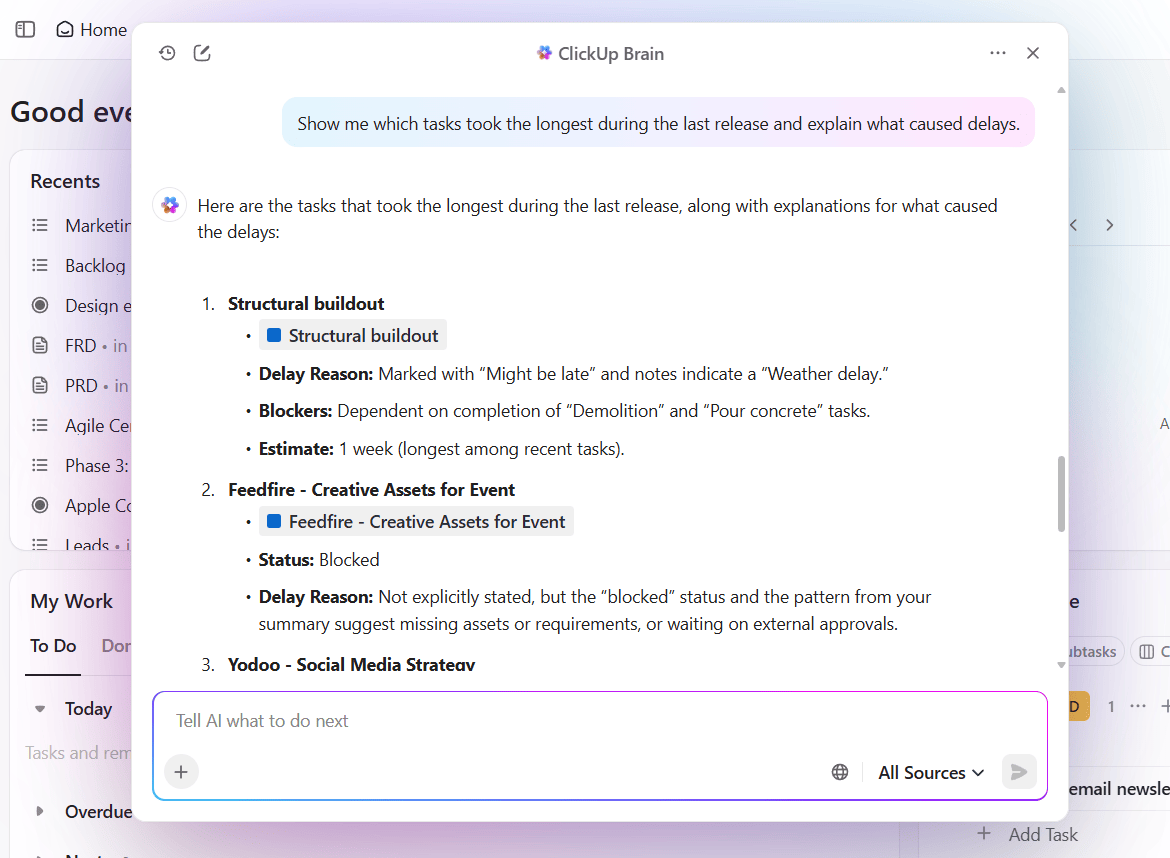
ClickUp Brain strengthens your daily decisions by reading the work that already lives in your workspace. You ask a question, and it draws from ClickUp Tasks, Docs, comments, and project activity before responding.
You move more quickly because your AI understands real context instead of working in isolation.
Suppose you manage a multi-team initiative and prepare for tomorrow’s leadership sync. You ask ClickUp Brain to review activity across the initiative. It studies progress, owner updates, concerns raised in subtasks, and dependencies that need attention.
You receive a concise overview you can use immediately, along with suggestions for follow-up actions that align your team before the meeting.
📌 Example Prompt: Review this initiative. Summarize progress, highlight risks, and list the follow-up actions I should assign today.
Watch this video to see how to ask AI a question:
ClickUp Integrations help your team keep work centralized, even when your tools vary across projects or departments. You gain a clearer picture as activity from Drive, GitHub, Figma, or other systems appears next to your tasks and docs.
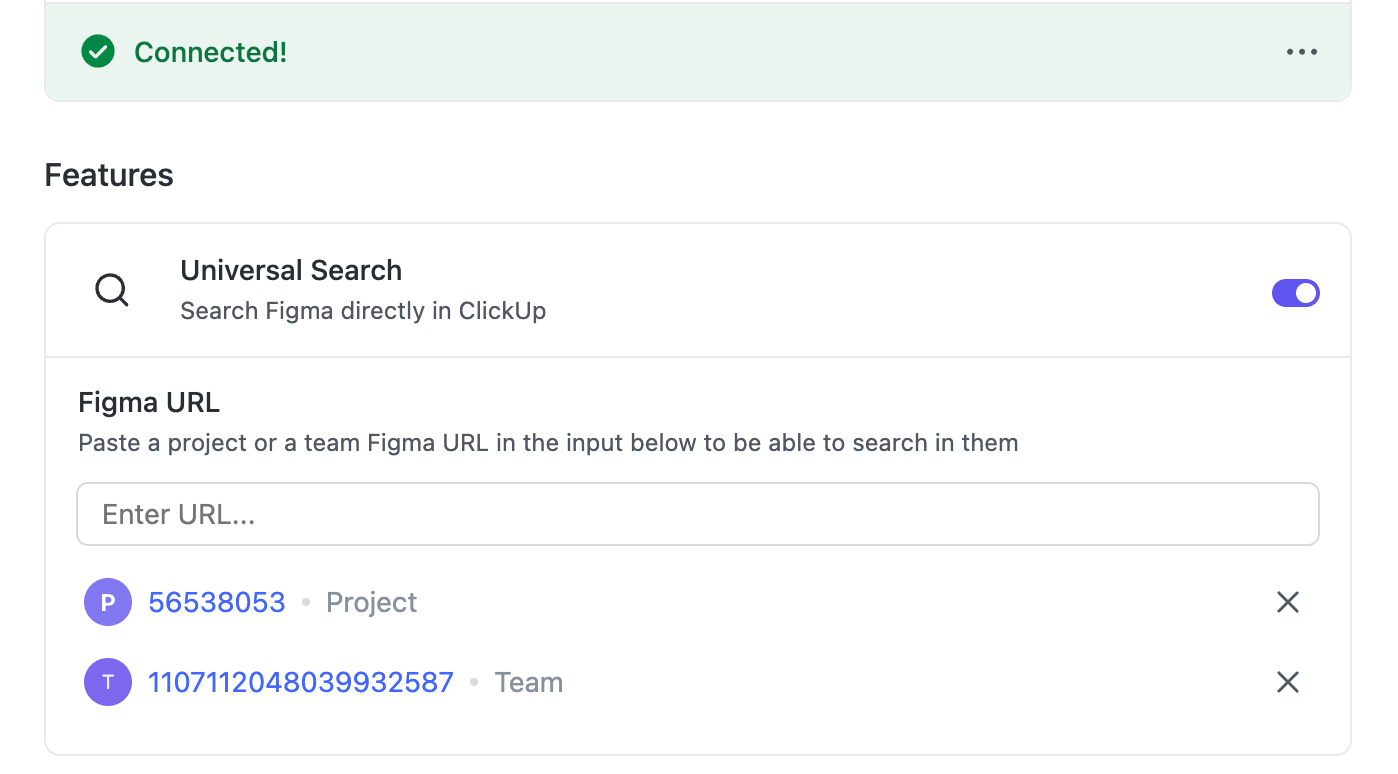
Suppose engineering, design, and product each rely on different platforms. You link these tools to ClickUp, then open a feature rollout task and see linked design updates, open engineering issues, and the latest spec document. This unified digital workplace helps you avoid switching tools so you can keep the rollout on track.
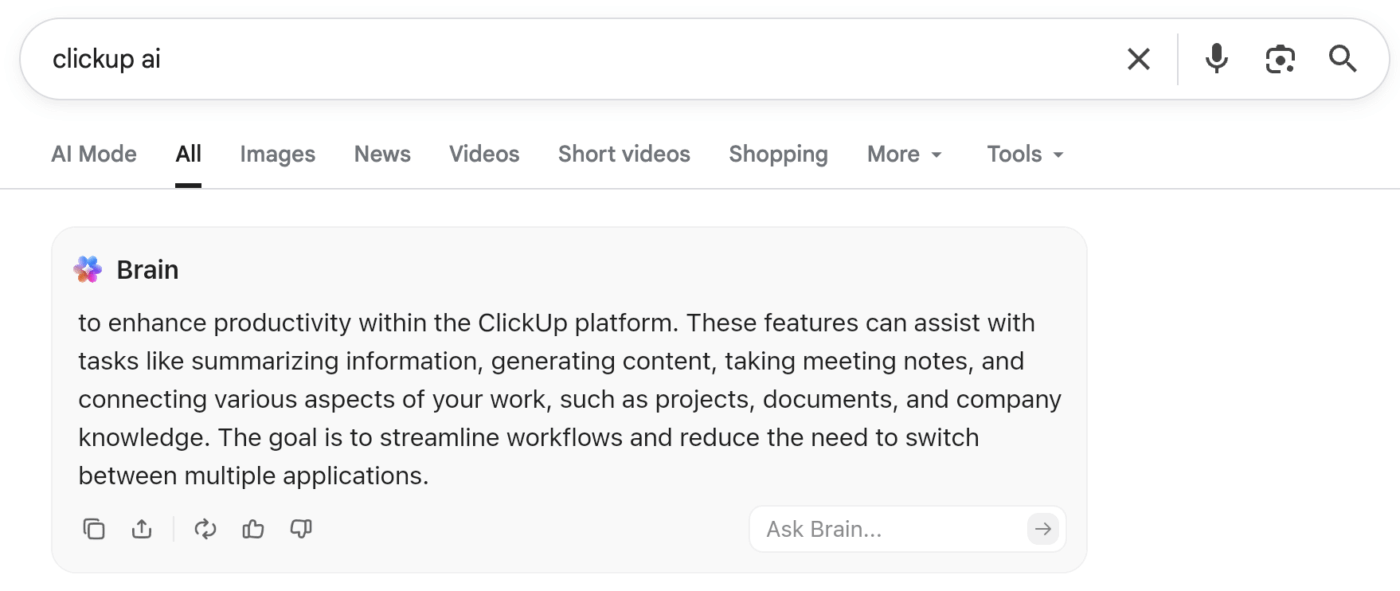
ClickUp BrainGPT acts as a Contextual AI Super App that follows your work across your browser or desktop.
It understands your tasks, docs, and projects, then reaches across tools like Google Drive, GitHub, OneDrive, SharePoint, and even the web through one unified search bar. This setup solves AI sprawl because you no longer hop between separate tabs for research, drafting, or lookup.
ClickUp Brain MAX also supports Talk to Text. This means you can just hold a shortcut key, speak your thoughts, and watch clean text appear, ready to use. You capture follow-up notes for the incident, quick action items, or message drafts while ideas stay fresh. After this, you can just ask Brain MAX in natural language to refine that text or turn it into Tasks in ClickUp.
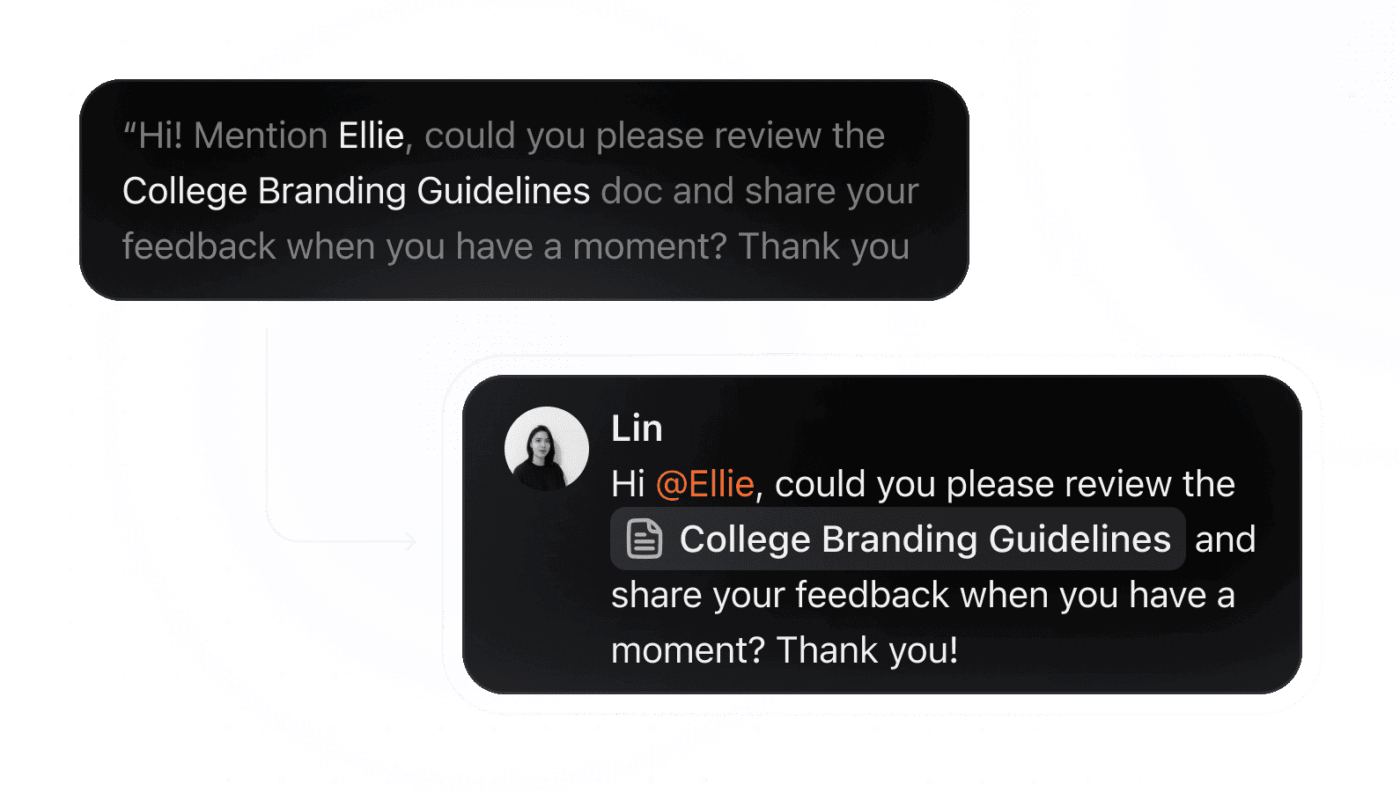
The ClickUp AI Enterprise Search solves the time sink of hunting through tools and folders. You ask a question in natural language and surface tasks, docs, comments, and files that relate to it.
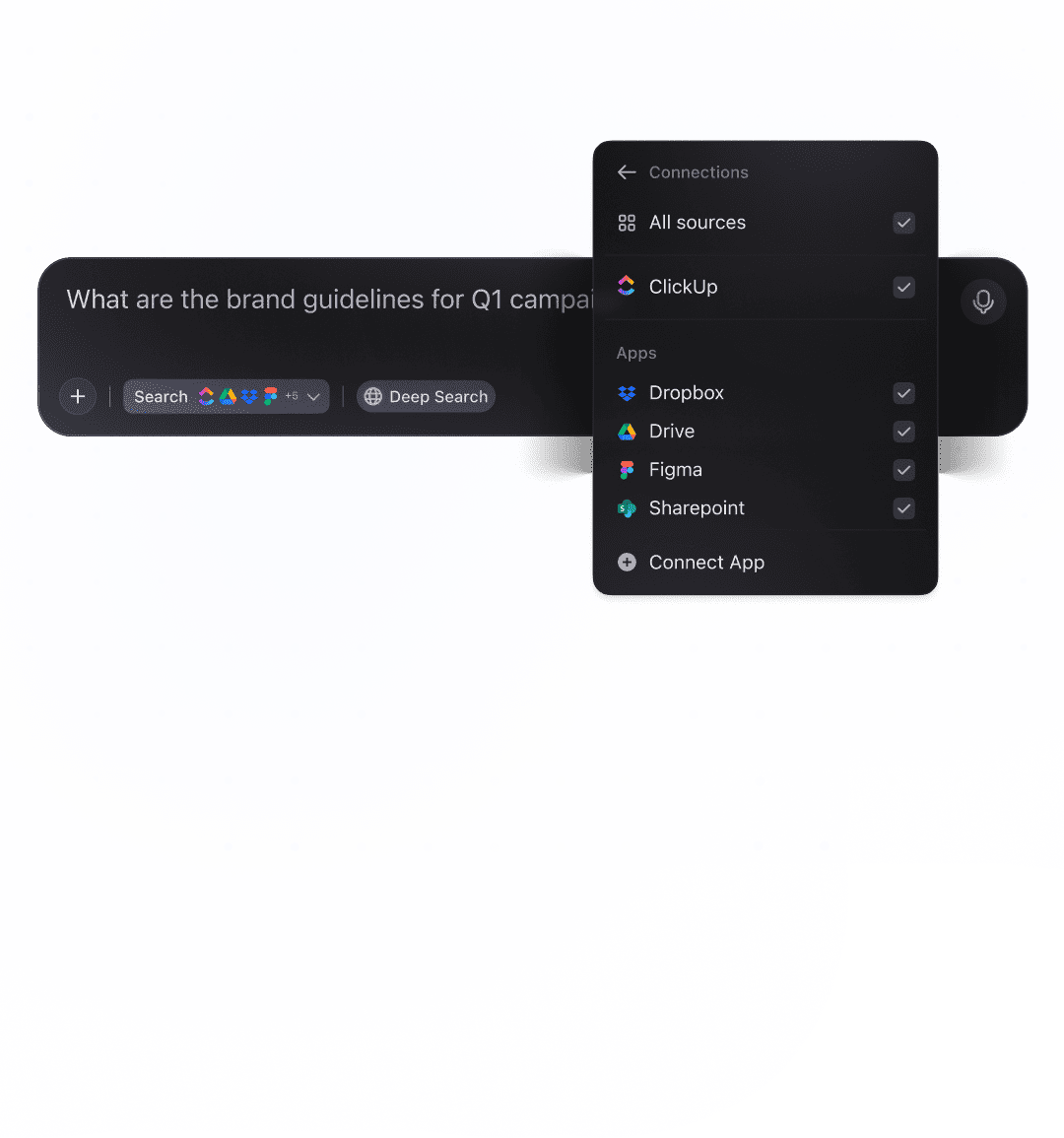
What’s more, you regain momentum because your information stays discoverable inside one workspace.
Suppose you prepare for a compliance review and need every reference to a recent policy change. You search for it once, and Enterprise Search collects relevant docs, project tasks, and conversations, then shows you exactly where follow-up work remains.
Learn more about workplace search tools:
A happy user put it like this on G2:
I find ClickUp incredibly valuable as it consolidates functions into a single platform, which ensures that all work and communication are gathered into one place, providing me with 100% context. This integration simplifies project management for me, enhancing efficiency and clarity. I particularly like the Brain AI feature, as it functions as an AI agent that executes my commands, effectively performing tasks on my behalf. This automation aspect is very helpful because it streamlines my workflow and reduces manual effort. Additionally, the initial setup of ClickUp was very easy to navigate, which made transitioning from other tools seamless. I also appreciate that ClickUp integrates with other tools I use, such as Slack, Open AI, and GitHub, creating a cohesive work environment. Overall, for these reasons, I would highly recommend ClickUp to others.
Forrester’s Total Economic Impact report proves it: when companies move their work into a unified workspace, the gains are dramatic.
Over three years, organizations using ClickUp saw a 384% ROI, reclaimed 92,400 hours of productivity, generated nearly $3.9 M in additional revenue, and paid back the investment in less than six months.
That’s the power of bringing work, context, and AI together in one place.
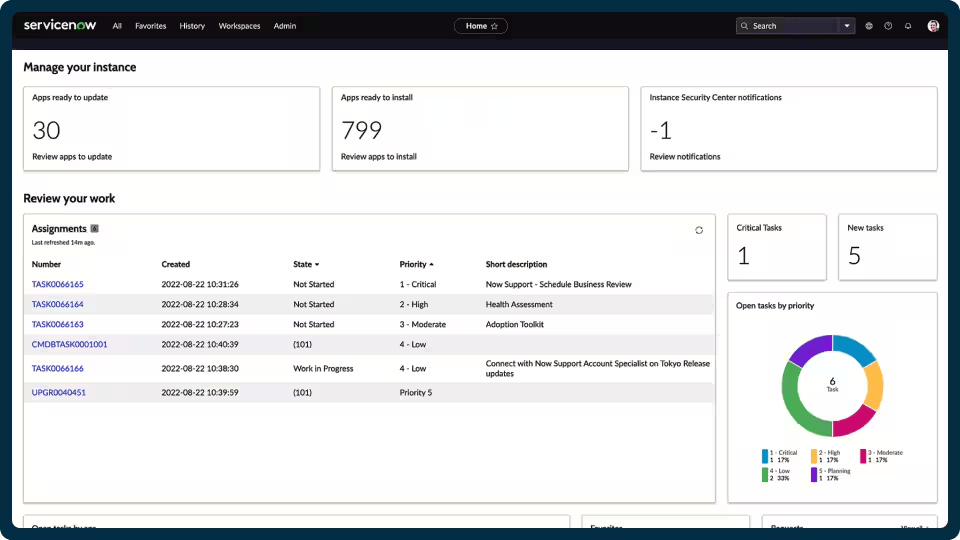
ServiceNow supports large organizations that need multiple departments talking to each other. It lets you build custom applications without writing much code, which means your procurement team can design their own approval process, while IT handles incident management their way. Everything routes to the right person automatically based on rules you set up.
What makes ServiceNow different is how it handles scale: hundreds of locations, thousands of employees, complex approval chains that would make your head spin. You get real-time visibility into where work gets stuck and why.
A G2 reviewer shares:
I truly appreciate how ServiceNow IT Asset Management provides a single system for recording our hardware assets, which greatly enhances tracking and visibility. […] Additionally, the Asset Workspace centralizes asset control, enabling faster and more informed IT decisions. The Dashboards are particularly useful as they provide real-time insights for proactive management and reporting. I find the initial setup to be really easy, and any challenges in adoption were effectively overcome through change management strategies. Overall, these capabilities make it an indispensable tool for our global operations.
Compare the top project management tools here:
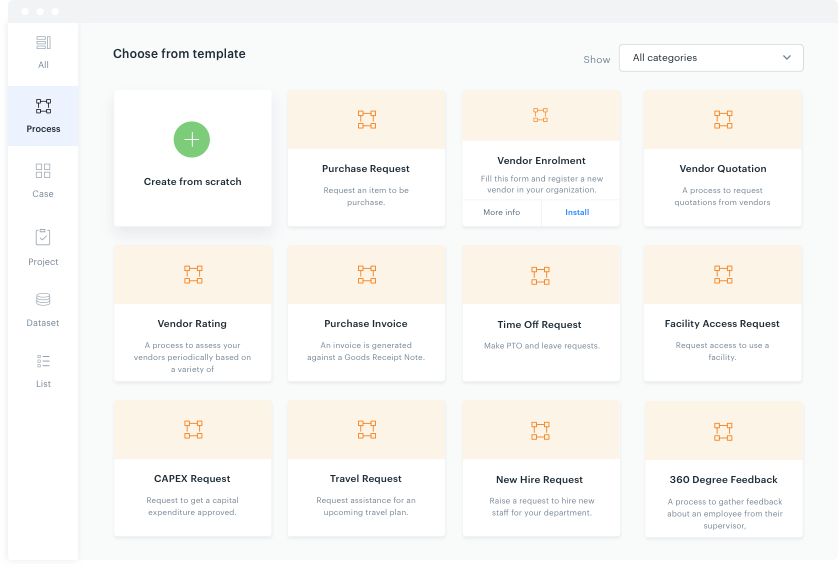
Kissflow hands process design to the people who actually do the work. Its visual interface lets you drag and drop approval steps, add conditional logic, and set up notifications that trigger when action is required.
You’re not starting from scratch either. Kissflow includes ready-made templates for standard business processes that you can tweak to match how your company operates.
The converged software maintains a complete audit trail of who approved what and when, which saves you during compliance reviews. When your business rules change (and they always do), you can adjust active workflows without breaking everything.
From a G2 review:
I love the easy visuals – so many programs I’ve used in the past are clunky and difficult to navigate. Kissflow is easy on the eye. I love that I can be in control of changes and updates and that I don’t have to rely on anyone else to make the changes for me. I love that as I learn the capabilities, my workflows have evolved into a type of office assistant. It has made training a breeze because the workflows guide the emoloyees (sic) with check boxes and preprogrammed explainations (sic). Getting started is very easy and customer service is epic. Kissflow is now an intregal (sic) part of our daily office routine. It’s marvelous!
Jira Service Management bridges the gap between your helpdesk and your development team. When users submit tickets about bugs or system issues, those requests can link directly to the development tasks your engineers are already tracking in Jira. This connection means your support team can see exactly where a fix sits in the sprint cycle.
The converged software routes tickets based on expertise and availability, then applies SLA timers that alert you when response deadlines approach. You can build a knowledge base where your team documents common solutions, reducing repeat tickets.
Additionally, its workflow automation features handle the routine stuff, such as categorizing requests, sending acknowledgment emails, and escalating overdue items.
Per a Capterra review:
Jira service management is one of the effective tools for managing and tracking the product’s internal progress and reports based on bugs, development, or any other. It is developed in such a way that we can see past or ongoing requests easily for product planning, and internal updates. It is an easy roadway which removes delays in working management and improves efficiency.
🔍 Did You Know? When you receive too many alerts, your brain starts tuning them out automatically. This process is called habituation. That means the more notifications you get, the less likely you are to notice the important ones.
📖 Also Read: Best Kissflow Alternatives and Competitors
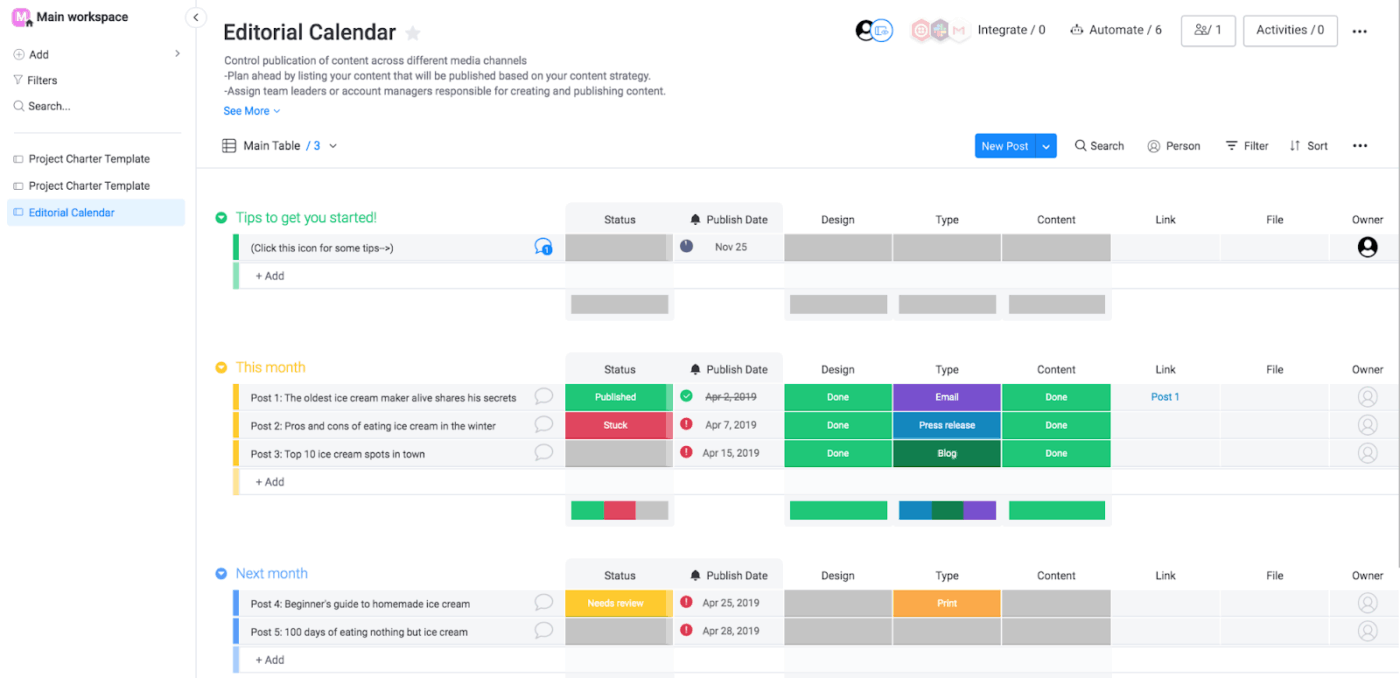
Monday.com turns project data into color-coded boards that tell you what’s happening at a glance. Each board represents a project, campaign, or ongoing operation, and you decide what columns to include (like status, owner, deadline, budget, and priority).
Need to see tasks as a kanban board today and a Gantt chart tomorrow? Switch between them. The color coding and progress bars make it obvious which items are on track and which ones are falling behind.
Your marketing team can run campaigns on one board, while product managers track feature releases on another, each using different workflows. Additionally, Monday.com pulls data from other tools through integrations, so information flows in without manual entry.
One Reddit user writes:
…Overall it does a fantastic job. It took some time to figure out how best to lay out our boards, subitems and connections. We used zero templates out of the box. The visibility it creates is awesome, and thanks to automations we simply don’t miss deadlines and details. Pain points- reporting. Maybe I haven’t spent enough time learning to build dashboards, but data exporting for report building is terrible. Lack of subtotaling, basic calcs, and true formula building. If they could give us a true raw data export to Excel so I could report from there, I would have no complaints.
📖 Also Read: Best monday.com Alternatives & Competitors
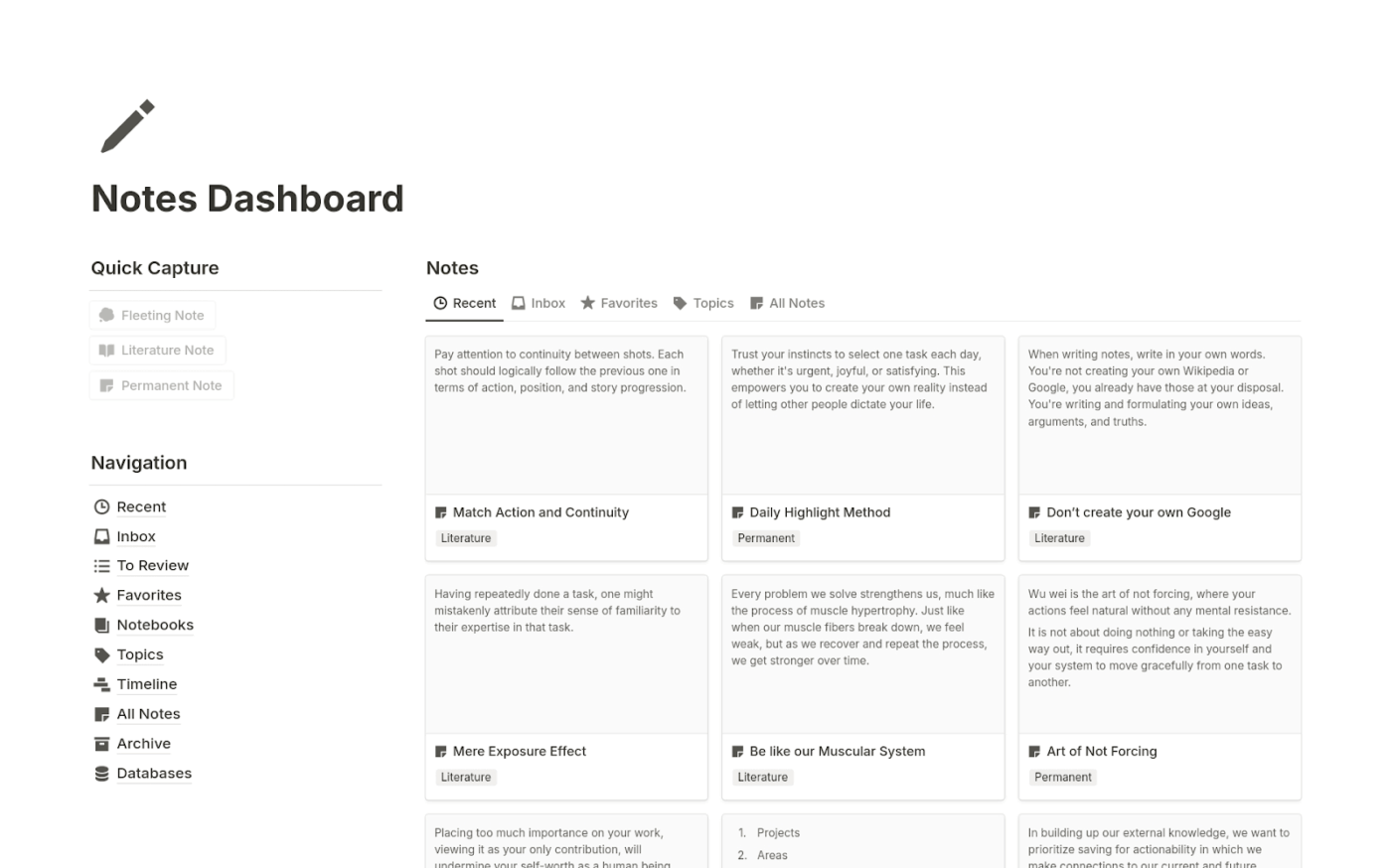
Notion blurs the line between documents and databases. You can write a project brief in paragraph form and then turn sections of it into trackable action items. The same workspace holds meeting notes, team wikis, product roadmaps, and simple task boards using blocks that you arrange however makes sense.
Databases in Notion can display as tables, kanban boards, calendars, or galleries. Furthermore, you can also link them together. Your projects database can reference your team directory, which connects to your process documentation library.
Everything is searchable and interconnected. Notion also grows with you organically: start with a few pages, add databases when you need structure, and create templates for recurring documents. Teams use it for everything from company handbooks to product specs to simple project tracking.
According to a G2 review:
Notion is incredibly flexible and lets me bring together documents, notes, tasks, and databases all in one clean workspace. The interface is intuitive, the drag-and-drop structure makes reorganizing content effortless, and the ability to embed different types of media or link related pages is a big productivity boost…Inline tables are my biggest frustration. While they look fine inside Notion, exporting them for use elsewhere—especially in Word—becomes a messy process. The formatting rarely survives intact, and it often requires a lot of manual cleanup. There’s no native .docx export, so you have to go through workarounds like PDF or HTML exports, or CSV for tables, which means losing layout and styling…
📖 Also Read: Best Notion Alternatives & Competitors
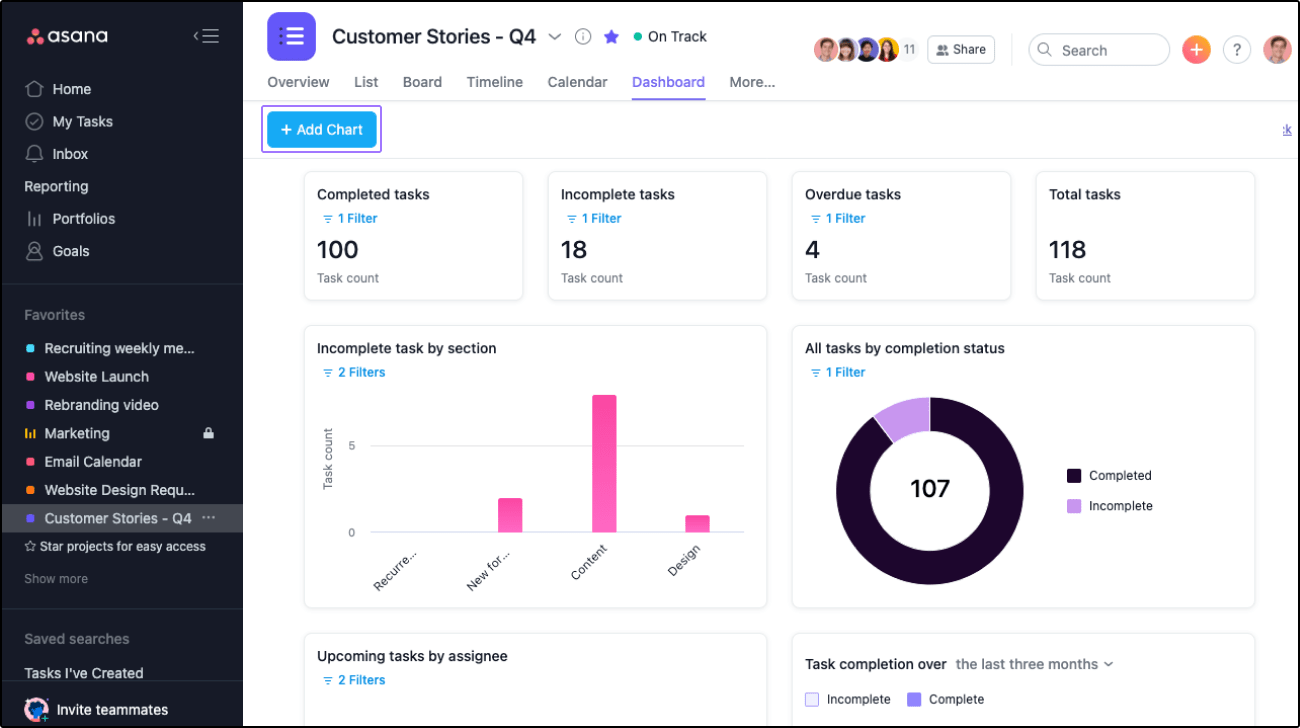
Asana connects the dots between company goals and daily tasks. You set objectives at the top level, say, launch in three new markets, then link projects that contribute to that goal. This cascading structure shows everyone how their work ladders up to larger aims.
Projects move through custom workflows that reflect how your team actually operates. A content team might track pieces through ‘drafting,’ ‘review,’ ‘revision,’ and ‘publication,’ while an engineering team moves tickets through ‘backlog,’ ‘development,’ ‘testing,’ and ‘deployment.’
Dependencies between tasks reveal what’s blocking progress. If Task B can’t start until Task A finishes, Asana shows that relationship and alerts you when timelines conflict. The timeline view displays how projects overlap and compete for the same resources.
Straight from a Capterra review:
My overall experience with Asana is very very good, I have been using it since last 2 organisations (sic) and as a Senior Manager it is very easy to monitor things and create reports. […] The ease of navigation through the website is really impressive, The task management system is also one of my favourite over other task management websites.
📖 Also Read: Best Asana Alternatives and Competitors
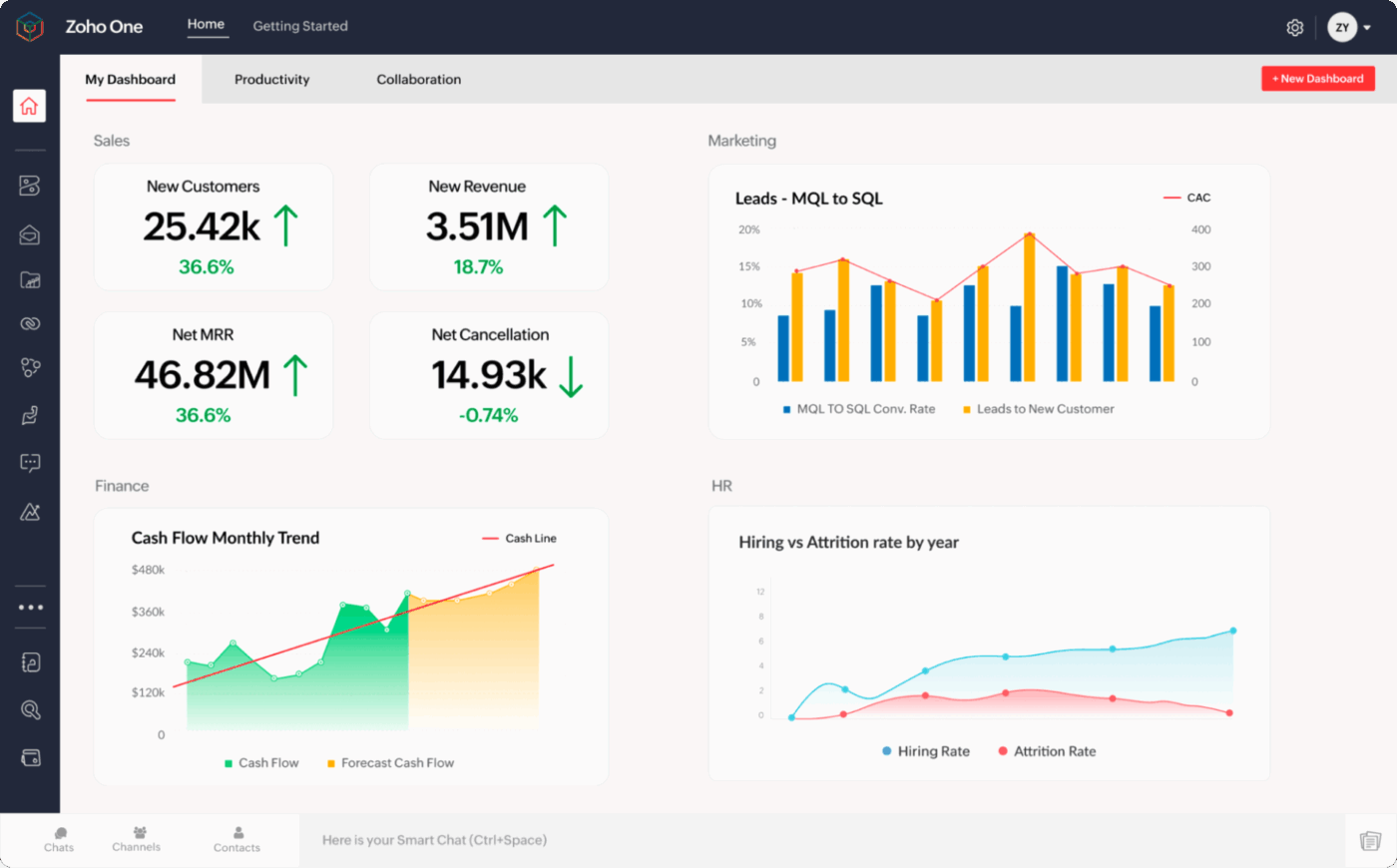
Zoho One bundles over 45 applications under one subscription, including CRM, accounting, email marketing, helpdesk, and project management tools.
These apps share data automatically. This means that when your sales team closes a deal in Zoho CRM, that customer information flows into your invoicing system, support tickets, and marketing campaigns without manual data entry. You can start using a few applications and expand into others as your needs grow.
Use Zoho Creator to build one using low-code tools. Additionally, the platform includes Zoho Analytics, which pulls data from across applications to show business performance in detailed reports.
Based on a Capterra review:
Amazing range of apps, functions, integration possibilities at top cost/benefit ratio. We use CRM, Projects, Sign, Vault, Assist and others. For any SME the true operating platform with adequate customization options. For large enterprise (sic) some of the products are adequate and also provide top in cost/benefit ratio, e.g. CRM. Support is quick and most often helpful. Other highlights include integration between apps, analytics capabilities, AI integration from OpenAI and the like.
🧠 Fun Fact: The modern 8-hour workday was inspired by 19th-century factory workers. It was never designed for cognitive, creative, or digital work, which is why most people peak for only a few deeply focused hours.
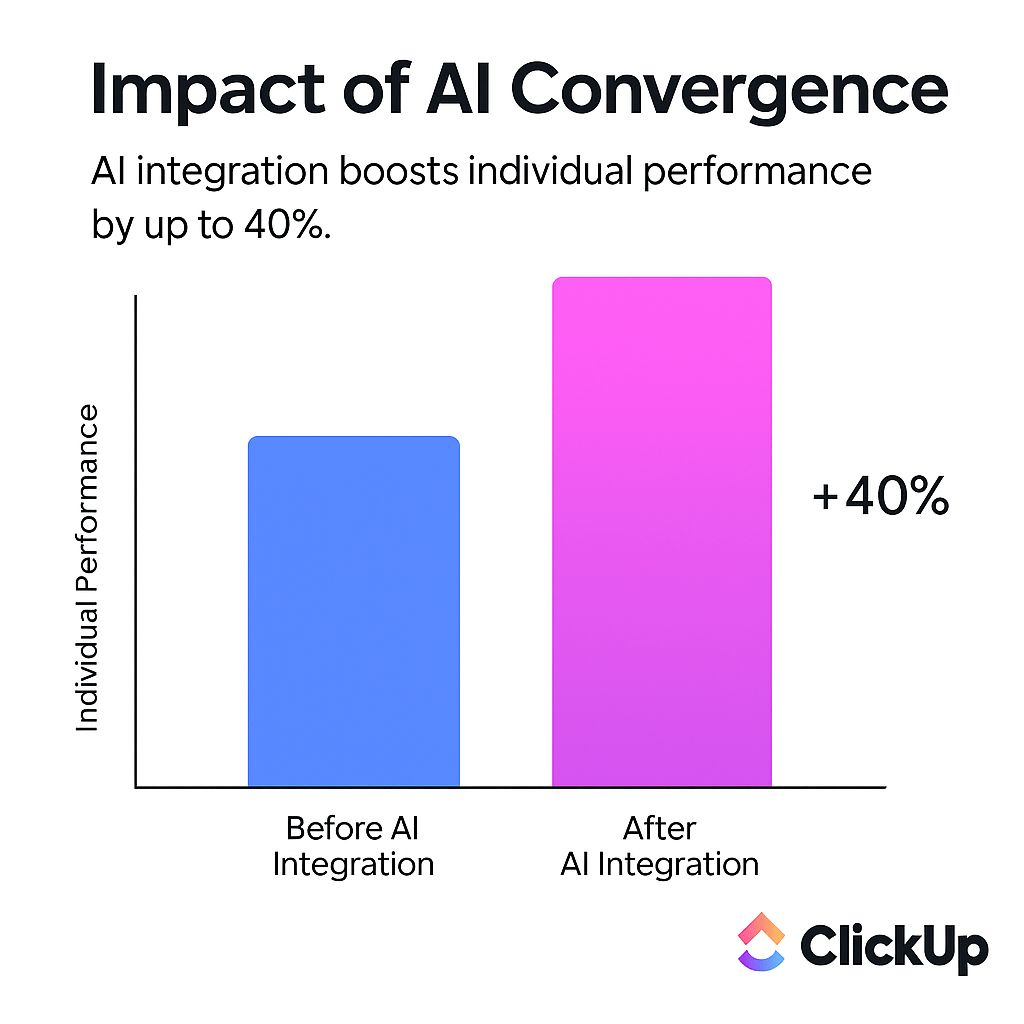
AI Convergence = 40% Boost in Individual Performance
Teams using integrated AI platforms like ClickUp see up to a 40% increase in individual productivity—proving the power of AI-driven workflows to eliminate context switching and streamline execution.
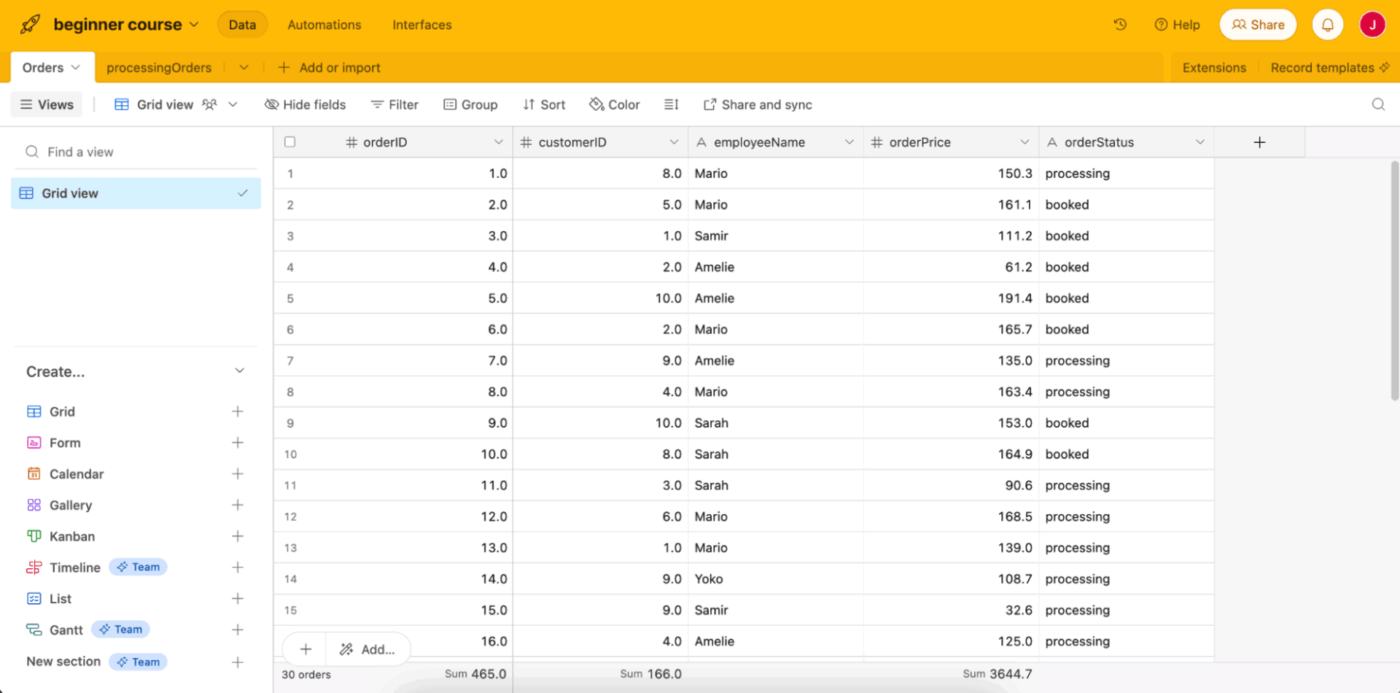
Airtable gives you database power without making you learn SQL. The interface looks like a spreadsheet, but you’re actually building relational databases where tables talk to each other.
Create a base for your content calendar that links to another table of writers, which connects to a table of publication channels. Then, click a writer’s name in one table and see all their assigned articles. You can change their email address once, and it updates everywhere.
Each field can hold different types of data: attachments, checkboxes, dropdown menus, formulas that calculate values, or lookups that pull information from related tables. You can use Airtable for product roadmaps, inventory management, event planning, and CRM.
As shared on G2:
I really appreciate how Airtable makes it easy to build something more than a vanilla spreadsheet: linking tables, choosing field types (attachments, dropdowns, checkboxes), and then visualising the data in grids, calendars, Kanban boards – it gives me flexibility without jumping into full database dev. The fact that I didn’t need to code to start is a big plus: within hours I had prototypes running, collating blog ideas, app features, marketing tasks – which for a solo dev/blogger workflow matters a lot.
📖 Also Read: Best Airtable Alternatives & Competitors
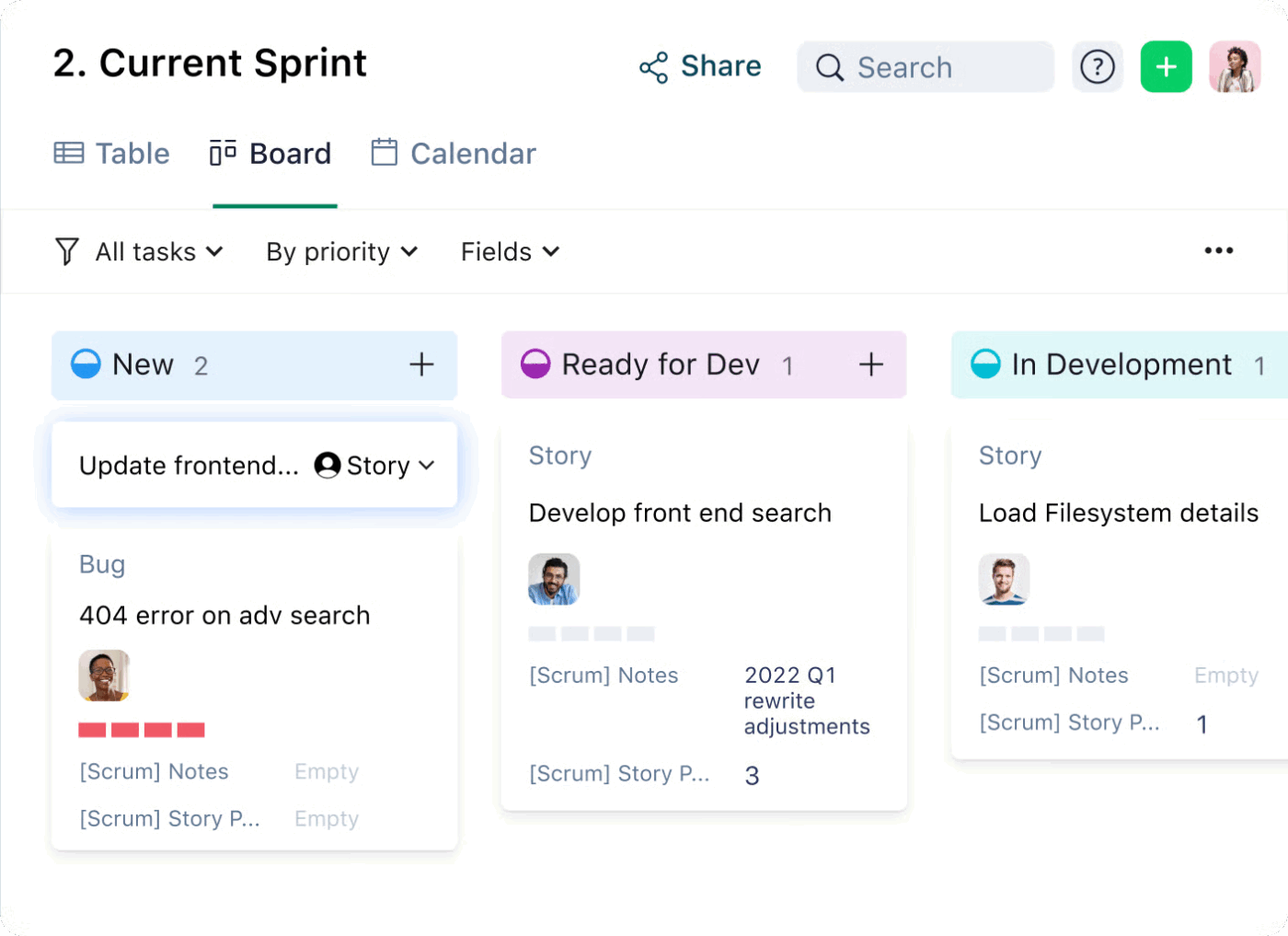
Wrike focuses on resource management: how do you deliver multiple projects when everyone is already busy? The platform shows you where people are overallocated before schedules implode. Assign hours to tasks, view who has capacity, and shift timelines when priorities change. Plus, projects move through custom workflows and approval processes that you define.
Different teams can work across their preferred PM methodologies—waterfall, agile, or hybrid approaches—while still rolling up to unified portfolio views. Budget tracking compares estimated costs against actual spending as projects progress. Wrike also generates reports that identify at-risk projects based on deadline proximity, budget consumption, and completion rates.
Feedback on G2 mentions:
Wrike centralizes client work, approvals, and task ownership so our 5-person team isn’t chasing threads across email and chat. Dashboards and workload views give me a real-time picture of project health, and automations remove repetitive follow-ups so we move faster without growing headcount.
📖 Also Read: We Tested the Best Wrike Alternatives & Competitors
Converged software speed up execution by removing the operational clutter that slows teams down. IDC highlights the impact of this shift: organizations that consolidate their tools can cut software-related costs by nearly 30% and see productivity climb by roughly 25%.
Here’s how that speed shows up in day-to-day workflows:
🔍 Did You Know? Multiple HCI studies confirm that interface switching forces the brain to burn extra energy just to remember how the new tool works. This unnecessary cognitive load is one reason multi-tool workflows feel mentally exhausting.
Both approaches solve real needs, but they support teams differently. Use this breakdown to decide which path fits your workflow reality:
| Decision criteria | Converged software is better when… | Single-purpose tools are better when… |
| Team structure | Multiple teams contribute to shared workflows | One team manages the entire process end-to-end |
| Work complexity | Projects involve communication, planning, and documentation in one flow | Processes are focused and require depth in one specific area |
| Information flow | Work relies on shared context that must stay connected across steps | Information stays contained within a defined function |
| Tool landscape | Too many disconnected systems slow progress | Few tools are in use and they already support work efficiently |
| Automation needs | Processes must trigger actions across different teams or work areas | Automations only need to run within a single workflow |
| Visibility requirements | Leaders need a unified view of progress across functions | Visibility is needed only within one team or discipline |
| Scalability | You anticipate growth in team size, data volume, or workflow complexity | Workload and structure remain relatively stable |
| Governance and security | Central oversight, consistent access control, and standardized policies matter | Each system can be managed independently without overhead |
| Cost management | You want to simplify your stack and reduce operational waste | You’re comfortable investing in multiple specialized systems |
| Onboarding and adoption | A shared platform makes it easier for new members to ramp up | Teams benefit from mastering high-depth, purpose-built tools |
| Integration load | Maintaining many connections creates unnecessary maintenance | Only a few targeted integrations are required |
| Execution speed | Fast movement depends on connected tasks, updates, and communication | Speed depends on deep capability in a single function, not cross-team coordination |
Evaluating all-in-one software requires a systematic approach to ensure it meets your organization’s needs.
Here’s a comprehensive step-by-step process:
Before contacting vendors, get clarity on what you’re trying to solve:
🔍 Did You Know? Your brain experiences an ‘attentional blink’ every time you switch tasks. It’s a brief moment where it simply can’t process new information. Even a 200-500 millisecond blink is enough to break the flow and slow down performance.
📖 Also Read: ClickUp’s GVP of Marketing on Solving Work Sprawl
Request evaluation units from shortlisted vendors for 30-60 days and deploy your real applications, like databases, email systems, and whatever runs your business.
Testing with synthetic benchmarks tells you nothing about real-world performance. The platform needs to handle your busiest periods without degrading. Push it hard to find its limits before you buy.
Our AI Sprawl Survey reveals a simple truth: employees stick to 1-4 AI tools, even when organizations purchase dozens. Adoption drops the moment AI is separated from the actual work.
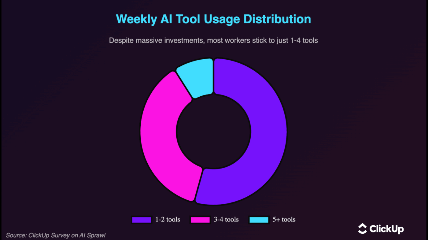
ClickUp solves that with a converged workspace. Tasks, docs, chat, and AI sit together, so usage becomes natural, not another tool to chase.
Your IT staff should spend time in the management console doing routine tasks. If they need extensive training for basic operations, that’s a problem.
Calculate five-year total costs, including:
Then, contact existing customers in your industry and ask about their real experiences: support quality, hidden costs, and whether the platform delivered as promised. These reference checks often reveal issues that never surface in sales demos.
Choose the platform that solves your specific problems, fits your budget, and that your team can manage effectively.
🧠 Fun Fact: The human brain is most creative during the ‘default mode network’, the mental state you enter while showering, commuting, or daydreaming.
Unified work feels impossible when your team chases updates across tools and tries to remember which tab holds the real truth. But once everything sits in one flow, work finally moves the way people expect it to.
ClickUp creates that flow.
ClickUp Brain reads the work already happening across tasks and docs. Automations remove routine nudges that slow momentum, and AI Agents watch stalled work and jump in with the next step. Dashboards pull your entire operation into one screen, while Chat and Docs keep conversations and documentation attached to the work they support. Everything clicks because everything connects. So, why wait? Sign up for ClickUp today! ✅
Converged software is a unified system that combines collaboration, communication, task execution, automation, and knowledge management — all in one platform. It replaces multiple point solutions to reduce context switching and fragmented workflows.
Teams adopt converged platforms when separate tools create friction, information silos, and wasted time. Converged software improves alignment, reduces tool costs, and centralizes work execution in one system.
Single‑purpose tools focus on one function (e.g., chat, docs, ticketing). Converged software connects those functions together, so documents, chats, tasks, and automation share context rather than live in disconnected systems.

© 2026 ClickUp

There’s an easier way. Try a free AI Agent in ClickUp that actually does the work for you—set up in minutes, save hours every week.