






Still downloading templates?
There’s an easier way. Try a free AI Agent in ClickUp that actually does the work for you—set up in minutes, save hours every week.
Sorry, there were no results found for “”
Sorry, there were no results found for “”
Sorry, there were no results found for “”

ShareX is a free and open-source screen capture and recording software for Windows.
Beyond basic screen recording, it allows you to capture scrolling web pages, annotate images, and record GIFs and screen videos.
Used by developers, technical writers, and designers alike, it allows you to upload a screenshot or video recording to more than 80 supported destinations (like Imgur, Google Drive, or Dropbox) or trigger custom workflows.
However, if you’re looking for additional capabilities such as real-time collaboration, cross-platform support, and AI-powered professional video creation, you need more robust options.
In this blog, we explore the ShareX alternatives that fill the above-mentioned gaps.
Here’s a quick overview of the top ShareX alternatives, along with their key features and pricing plans.
| Tool | Best For | Best Features | Pricing* |
| ClickUp | Project management with built-in screen recording | Record videos with Clips, Brain for transcripts and summaries, AI Notetaker for meetings | Free plan available; Customization available for enterprises |
| OBS Studio | Live streaming and advanced video workflows | Multi-source video capture, scene transitions, plugin and script support | Free |
| Flameshot | Quick annotated screenshots on Linux | In-app screenshot editor, customizable hotkeys and interface, export to Imgur | Free |
| Greenshot | Windows users capturing business documentation | Region/window/fullscreen capture, quick annotations, Jira & Confluence integration | Free |
| Snagit | Polished training materials and tutorials | Scrolling page capture, screen video + audio, OCR text extraction, templates for step-by-step guides | Paid plans start at $39/year per user |
| Camtasia | Professional video editing and instructional content | Multi-track editor, AI Script Generator, AI Voice Generator | Paid plans start at $179.88/year per user |
| PicPick | Design-focused captures with precision tools | Screenshot capture with editor, blur/watermark/brightness, whiteboard | Free plan available; Paid plans start at $55/year per user |
| Lightshot | Simple, fast screenshot sharing | Print Screen quick capture, online editor | Free |
| Bandicam | Gamers and long session recordings | 4K UHD + 480 FPS recording, game/device/screen modes, 24-hour continuous recording | Free plan available; Paid plans start at $2.78/month per PC (annual billing) |
| ScreenRec | Instant sharing with view analytics | Screen + webcam recording, instant encrypted cloud upload, viewer analytics | Free plan available; Paid plans start at $8/month per user |
To avoid trial-and-error with multiple screen recording software, keep these key criteria in mind when evaluating a ShareX alternative:
🧠 Fun Fact: The very first computer-generated art featured the image of a pin-up model, drawn by a computer programmer in 1959, on a 213 million euro Cathode-ray tube screen.
Our editorial team follows a transparent, research-backed, and vendor-neutral process, so you can trust that our recommendations are based on real product value.
Here’s a detailed rundown of how we review software at ClickUp.
Let’s look at the ShareX alternatives worth exploring, along with their pros and cons.
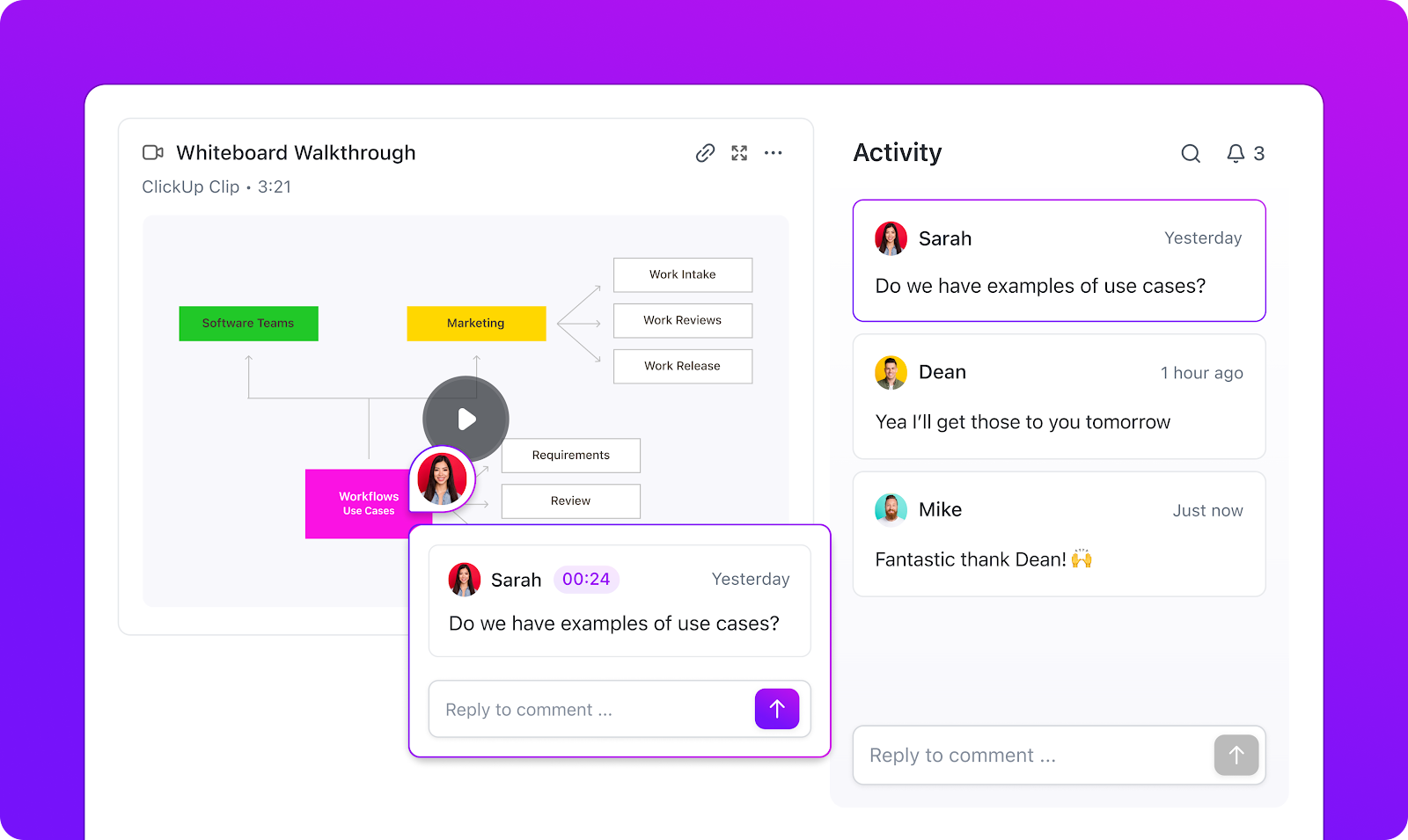
While most of the ShareX alternatives are standalone video capture software or screen recorders, ClickUp stands out. As the everything app for work, it offers robust project management along with computer screen recordings.
With ClickUp Clips, you can record your full screen or a specific window to make explanations more personal.
Instead of uploading files into a separate platform, every recording is automatically saved to your Clips Hub and can be embedded directly into tasks, docs, or chat threads.
Best part? Your teammates can pause at any moment in the video and leave time-stamped comments, minimizing the chances of miscommunication. You can even record yourself presenting a PowerPoint using Clips.
Note: ShareX doesn’t offer a browser-based recorder, whereas ClickUp has a Chrome Extension that lets you start recording directly from your browser. Capture quick explanations, product walkthroughs, or project updates without switching tabs or opening a separate app.
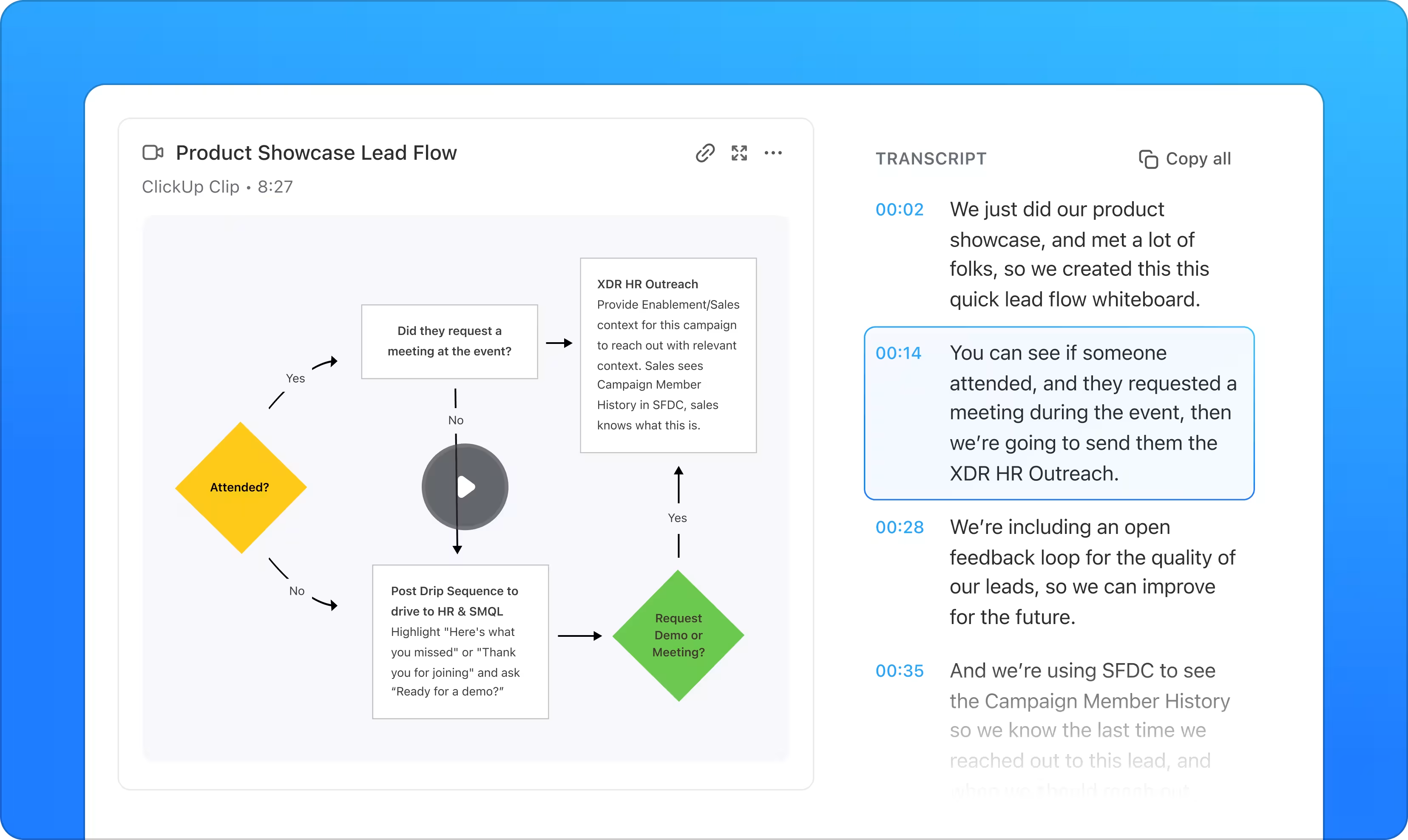
With ClickUp Brain, the platform’s context-aware AI, every clip becomes smarter. Brain automatically transcribes your recordings with timestamps, generates quick summaries, and can even turn parts of the video into new tasks.
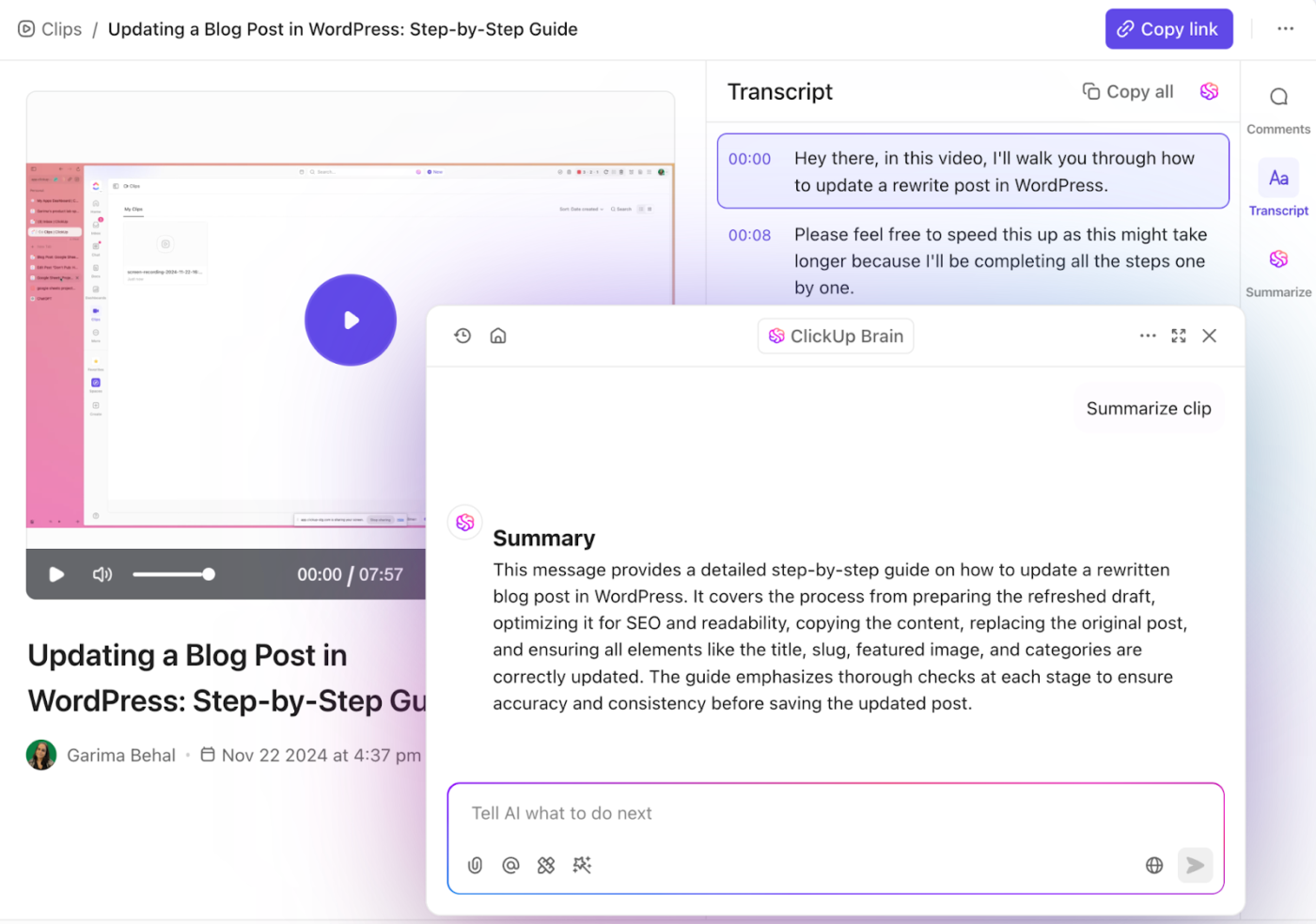
It’s not just a screen recorder—it’s a way to transform raw recordings into structured, searchable knowledge. For more context, watch this YouTube video.
You can even embed Clips into documents or tasks, along with autogenerated titles for context.
And if you’re running virtual meetings, ClickUp’s AI Notetaker records notes right alongside you. It creates meeting notes, identifies action items, and helps you generate and delegate tasks seamlessly. That’s right, you no longer have to manually take notes from the video.
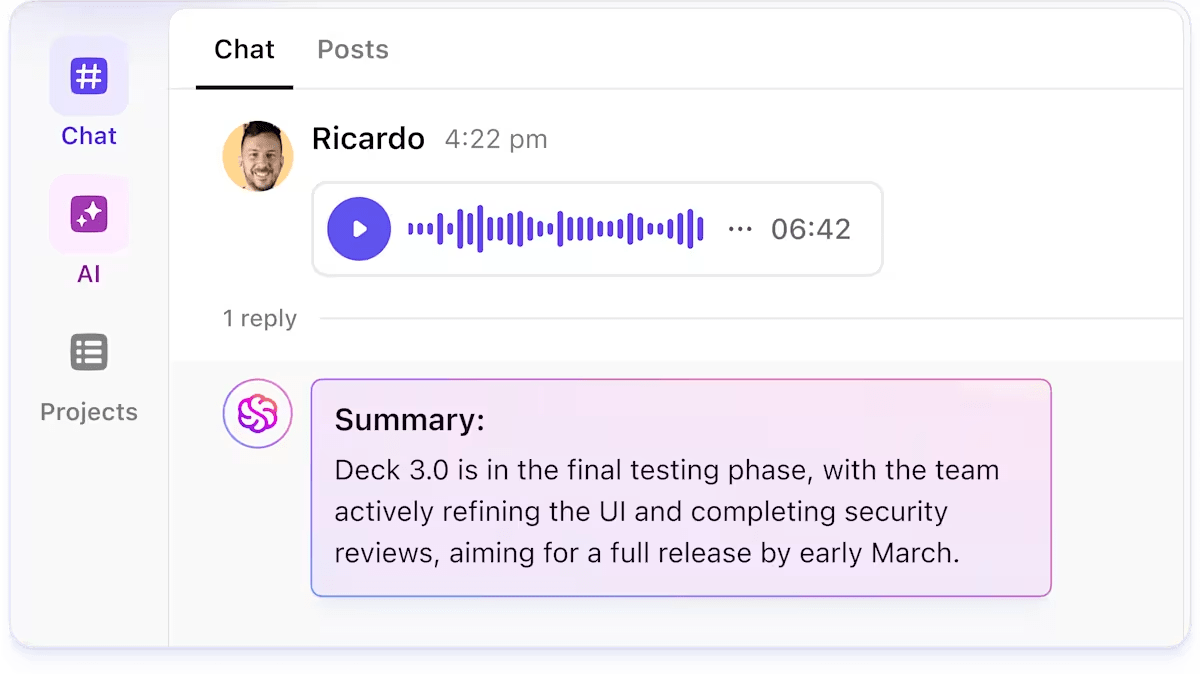
That’s not all, though. You can record and transcribe voice notes in ClickUp, too.👇🏼
Here’s a G2 review:
What I like best about ClickUp is its unparalleled customization and the sheer breadth of features. It’s incredibly powerful to be able to tailor almost every aspect of a workspace to fit specific team needs, from custom statuses and fields to a multitude of views like List, Board, Calendar, and Gantt.
💡 Pro Tip: Use ClickUp’s Proofing Tools to get precise, timestamped feedback on your screenshots and screen captures as part of larger projects. Just upload the screen recording to a task, enable Proofing, and let reviewers comment directly. It’s built-in, actionable, and perfect for async reviews—especially when paired with video production project management workflows in ClickUp.
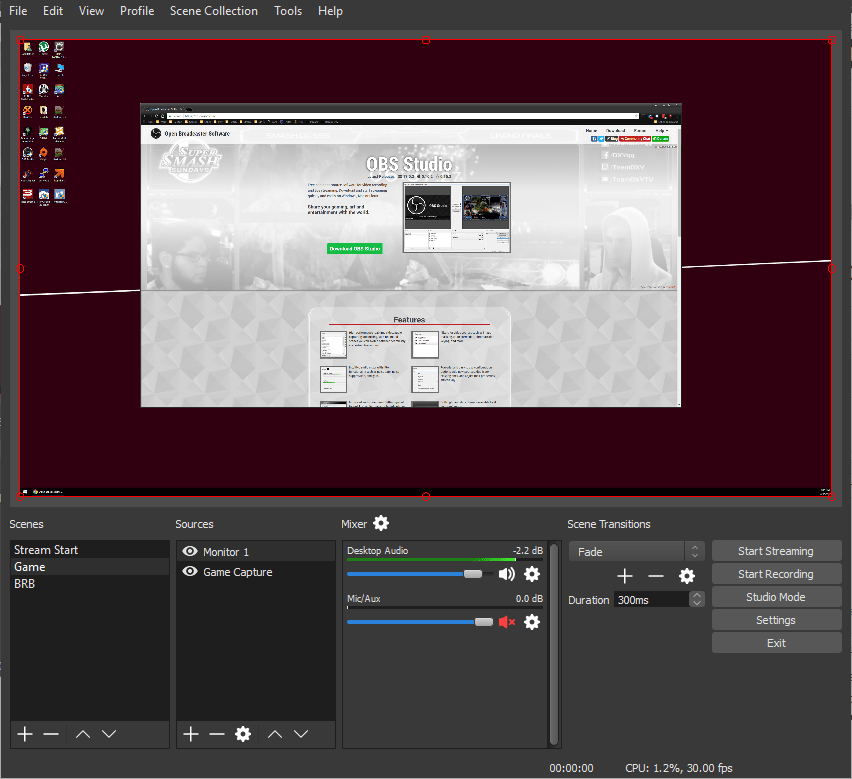
OBS (Open Broadcaster Software) is a free, open-source application for video recording and live streaming, available on Windows, macOS, and Linux.
You can capture real-time audio and video, combine multiple sources like screens, webcams, images, and browser windows, and build custom scenes with transitions.
Because OBS is open-source, there’s an active developer and streaming community constantly building and sharing plugins. That means if a feature doesn’t exist out of the box, chances are you’ll find (or request) a plugin that makes it possible—ranging from Twitch chat overlays to AI-based noise suppression.
OBS is used by gamers, educators, and professionals who need reliable, customizable streaming and screen capture tools without licensing fees.
A G2 review says:
I now use the software every couple of weeks. I can easily integrate different video sources and automatically switch between different ‘scenes’ by browsing around my computer. The recordings are output to the video folder and then can easily be dropped in powerpoints.
⚡ Template Archive: Free Project Communication Plan Templates
👀 Did You Know? The average office worker spends almost 1,700 hours a year in front of a computer. Screen recording tools are increasingly used for training and documentation—they save time and effort.
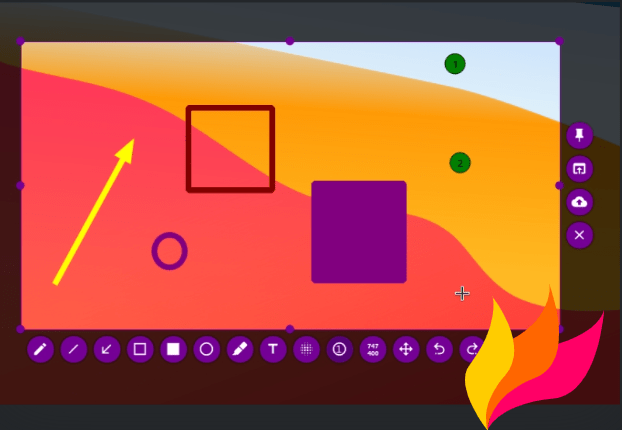
The ShareX alternative, Flameshot, is also an open-source screenshot tool available on Linux, Windows, and macOS. With the in-app screenshot editor, you can capture a selected area and annotate with arrows, text, or shapes—all without opening a separate editor.
To streamline your workflow, you can configure hotkeys, adjust opacity, or pick from multiple export options. Through Flameshot’s accessible configuration dialogue, you can customize the interface color, button selection, keyboard shortcuts, how images are saved, and more to tailor the tool to your workflow.
Cross-functional teams can use Flameshot to capture and annotate screenshots that highlight bugs, design feedback, or process steps. It helps streamline communication by making necessary adjustments clear across engineering, design, support, and marketing.
A Reddit review says:
Flameshot is definitely neat. I mainly use spectacle tho. I only use flameshot in the off chance I need a bunch of annotation. I personally like how spectacle makes a thumbnail of the screenshot appear, that I can drag to any application.
💡 Pro Tip: Flameshot is great for quick captures, but it’s still a standalone tool.
With ClickUp Brain MAX, you get everything in one AI super app—screen recording, access to multiple LLMs, text-to-speech, task creation, AI summaries, and instant knowledge retrieval. Instead of jumping between multiple tools for screenshots, notes, and feedback, you can centralize your entire workflow inside ClickUp and make collaboration seamless.
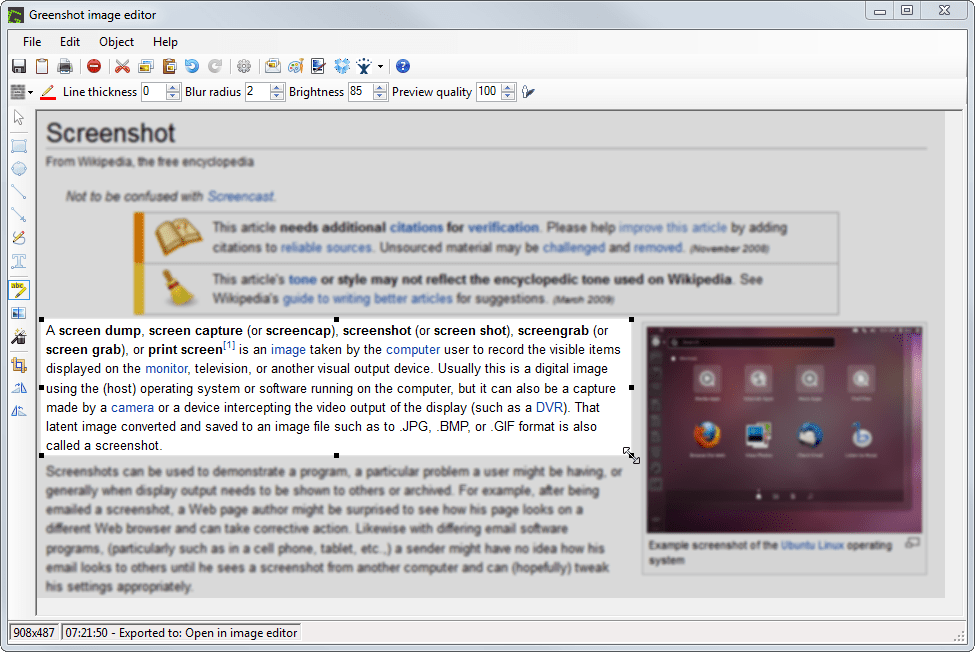
Greenshot is a lightweight Windows screenshot tool to capture and annotate images. This free software is used to capture screens for documentation, bug reporting, or training manuals.
With a single keystroke, you can capture a region, window, or full screen, and then immediately open it in its built-in editor. The editor provides quick annotation tools—arrows, highlights, and text.
Owing to its third-party integrations, you can export screenshots directly to Office apps like Word, Excel, or PowerPoint, or upload them to services like Jira and Confluence.
The open-source program Greenshot is suitable screen capture software for IT teams and business leaders who need reporting with minimal friction.
A G2 review says:
The best thing I like about Greenshot is, it’s editing features which are similar to Microsoft Paint, but when compared to Microsoft Paint, Greenshot is light weight, it consumes very less space in your system.
💡 Pro Tip: Part of practicing good virtual meeting etiquette is wrapping up with a quick recap of action items. Pair this with ClickUp AI Notetaker, and you can turn those notes into tasks automatically.
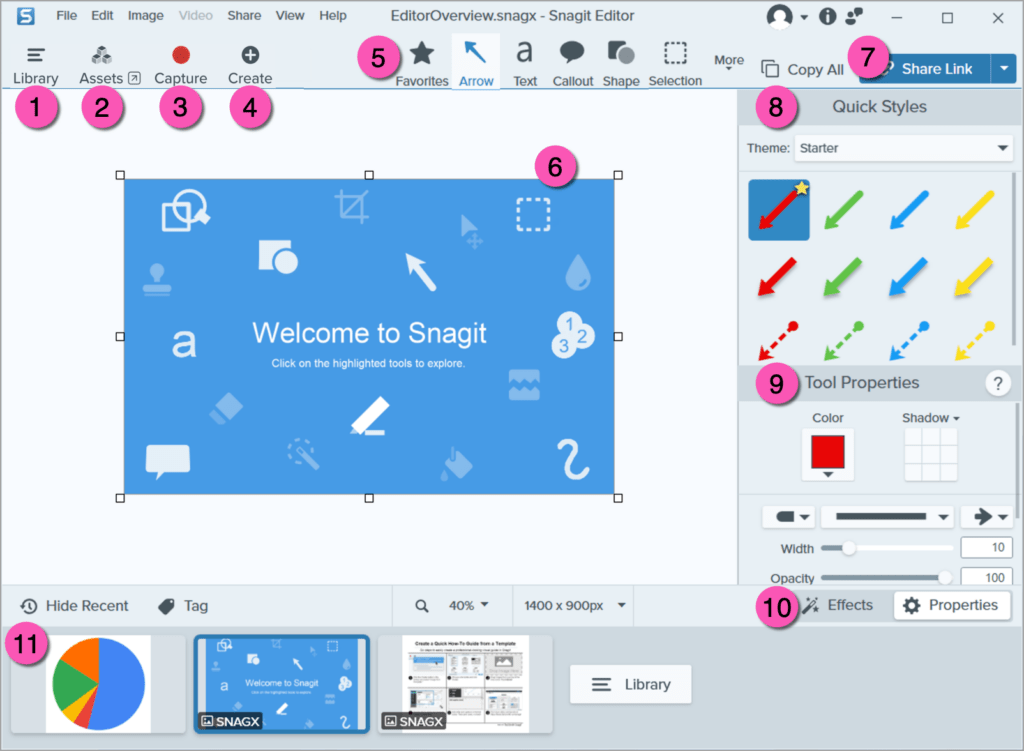
Unlike the free ShareX alternatives, Snagit by TechSmith is a paid screen capture and recording software.
Beyond simple image captures, Snagit allows users to capture scrolling web pages, record screen video, and even extract text from images with its built-in OCR feature. Its editing suite offers callouts, templates, and the ability to combine multiple captures into a single document.
You can export the professional video to platforms like Slack, email, and cloud storage. As a result, it is used by marketers, educators, and trainers who need to add visuals to tutorials, presentations, and team communication.
The multiple content assets generated from screen captures can be repurposed into SOP materials, process documentation, how-to guides, and more.
A Capterra review says:
It has enough features for annotations which are critical for our kind of work. We use the SnagIt Editor the most and hope that the team continues to add more features to it.
📮 ClickUp Insight: ClickUp’s meeting effectiveness survey data suggests that nearly half of all meetings (46%) involve just 1-3 participants.
While these smaller meetings may be more focused, they could be replaced by more efficient communication methods, such as better documentation, recorded asynchronous updates, or knowledge management solutions.
Assigned Comments in ClickUp Tasks let you add context directly within tasks, share quick audio messages, or record video updates with ClickUp Clips—helping teams save valuable time while ensuring important discussions still occur—just without the time drain!
💫 Real Results: Teams like Trinetrix are experiencing a 50% reduction in unnecessary conversations and meetings with ClickUp.
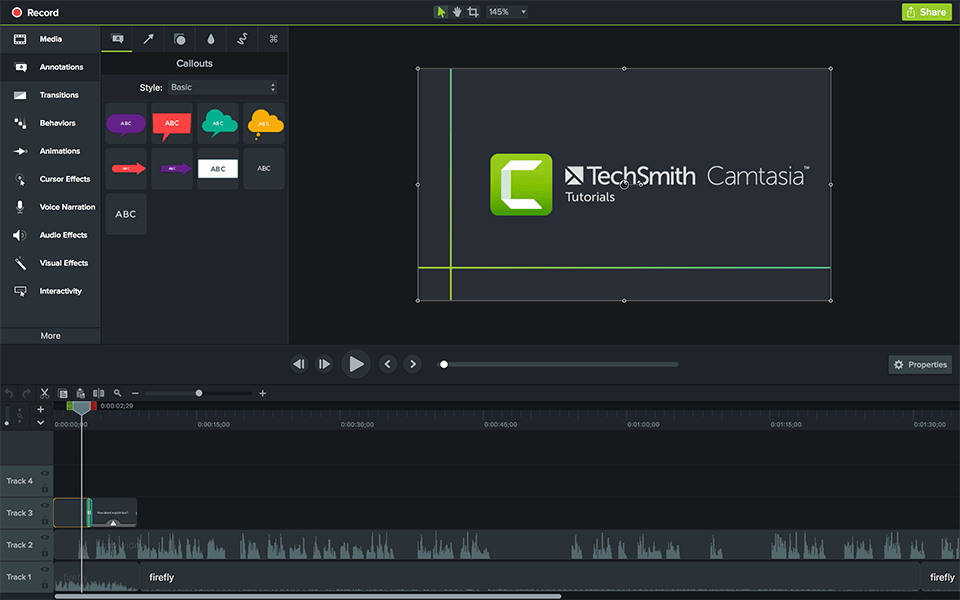
Camtasia is an all-in-one platform for screen recording and video editing. It is available on both Windows and macOS. Record your screen, system audio, webcam, and mic on separate tracks and adjust them independently afterward.
The drag-and-drop editor supports multi-track editing, annotations, transitions, and advanced effects like background removal and customizable cursor visuals.
If you hit writer’s block, Camtasia’s AI Script Generator can craft scripts for tutorials, marketing, or training videos at work. Input your prompt and customize tone, length, or format. The AI Voice Generator converts your text into high-quality narration, complete with voice options, tone adjustments, and multilingual output.
You don’t need a mic or voice talent. The AI screen recorder generates the narration for you.
A G2 review says:
It is a fast and cost-effective alternative to higher end software such as Apple’s Final Cut Pro or Adobe Premiere.
👀 Did You Know? The term “screencast” was coined in 2004. Tech columnist Jon Udell invited readers to name this emerging medium, resulting in the now-familiar term screencast, distinguishing it from traditional video.
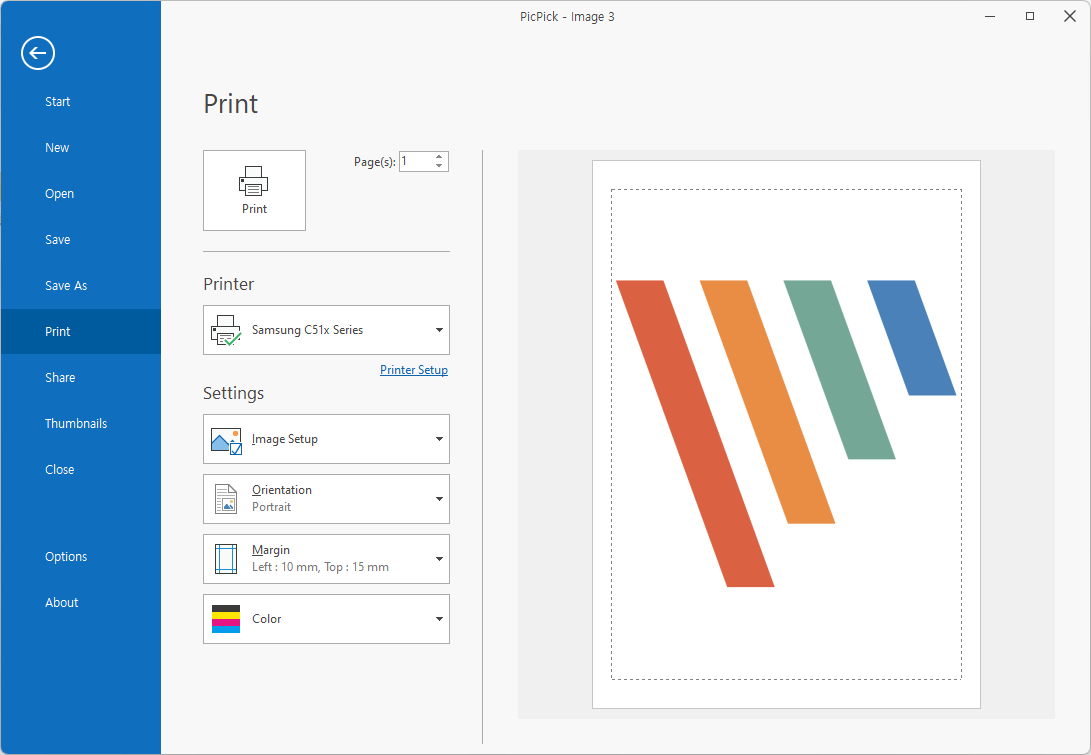
With PicPick, you can capture your screen in several ways—full screen, active window, a scrolling page, or just a selected area.
After capturing, you can make quick edits directly in its built-in editor. You’ll be able to add arrows, text, boxes, or apply simple effects like blur, watermark, or brightness changes.
Beyond screen capture, PicPick doubles as a design toolkit. The color picker, pixel ruler, crosshair, magnifier, and protractor are useful for UI/UX designers, developers, or anyone working with precise visuals
There is a built-in image editor. After taking the screenshot, you can insert watermarks or logos for consistent brand identity. Then, blur sensitive information, add a mosaic effect, or sharpen areas for clarity.
📚 Read More: Best Screen Recording Chrome Extensions
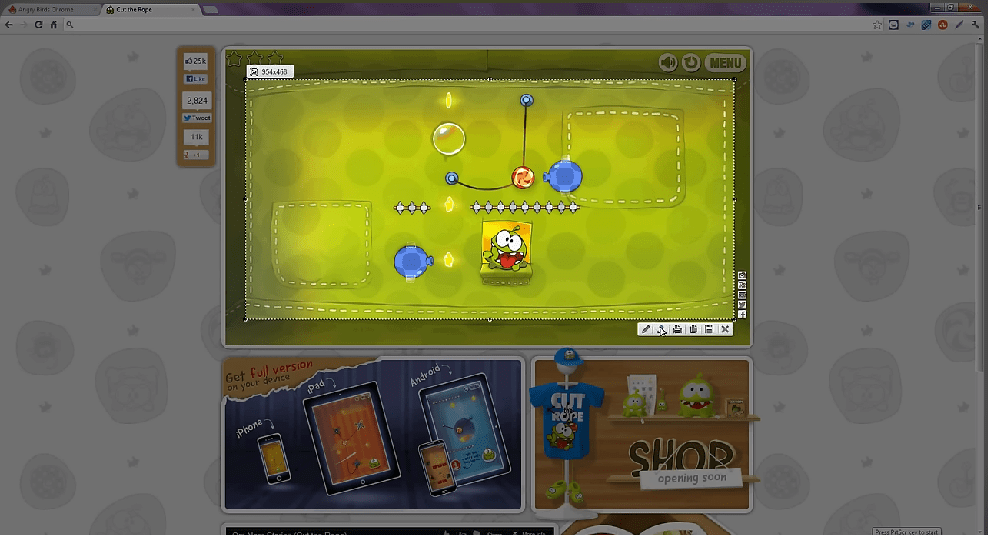
With Lightshot, taking a screenshot is as easy as pressing the Print Screen key, dragging to select the area, and saving or sharing it.
You can upload your capture online with one click and get a link you can share immediately. If you want to edit, Lightshot connects you to a simple online editor. Add text, highlights, or drawings without needing extra software.
You can also save screenshots locally in formats like JPG or PNG, or just copy them to your clipboard. With an account, you can keep your captures in an online gallery to manage later.
As a ShareX alternative, it allows for screen captures, but does not offer detailed workflows or professional output.
A G2 review says:
The best thing about Lightshot is that its very easy to use as it works in a single click. We can select area that to be captured.
👀 Did You Know? Your built-in OS tools can be used for recording too. On Windows, you can use the Snipping Tool or Xbox Game Bar; macOS offers QuickTime Player.
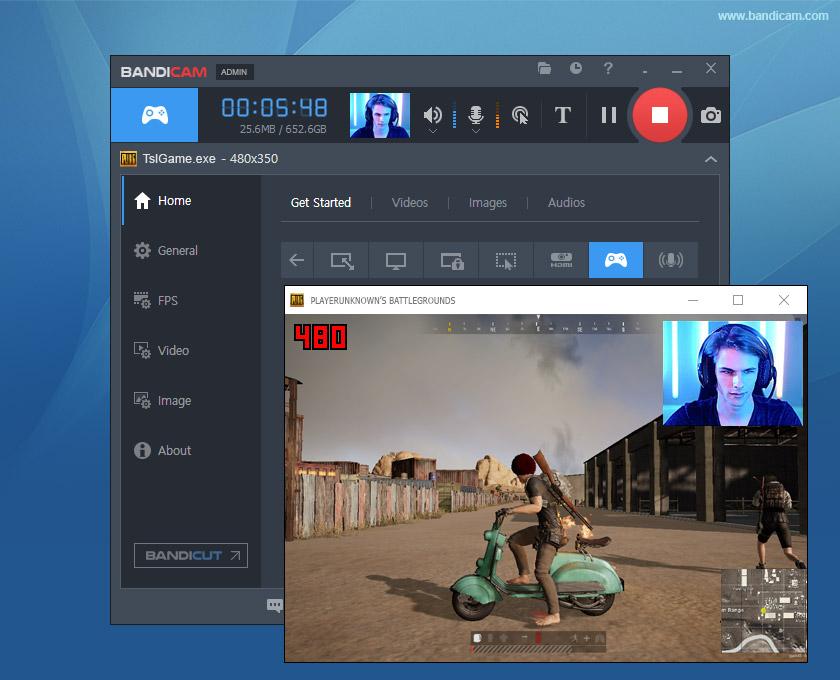
For users who need long, high-quality recordings, Bandicam is your screen recorder, video capture, and game recorder of choice.
It offers three recording modes: Screen (for desktop tasks), Game (for DirectX, OpenGL, Vulkan gameplay), and Device (for webcams, HDMI, or capture cards).
Bandicam supports hardware-accelerated encoding (NVIDIA, AMD, Intel), so your recordings take up less storage without losing clarity. You can record in 4K Ultra HD at up to 480 FPS, which is especially valuable for creating content where you want to draw attention to detail, like tutorials or gameplay.
Another feature worth mentioning is its ability to record for more than 24 hours straight in the full version. Something most free tools don’t allow.
However, it doesn’t include built-in editing, so making the necessary adjustments to your footage requires external software.
A G2 review says:
Bandicam makes it easy to stay organized with automatic file naming by date and time. I appreciate how quickly recording starts and how simple it is to assign keyboard shortcuts.
🧠 Fun Fact: GIF screen capture dates back to the 1990s. Before video compression was common, animated GIFs were often used for quick demo loops and product tutorials.
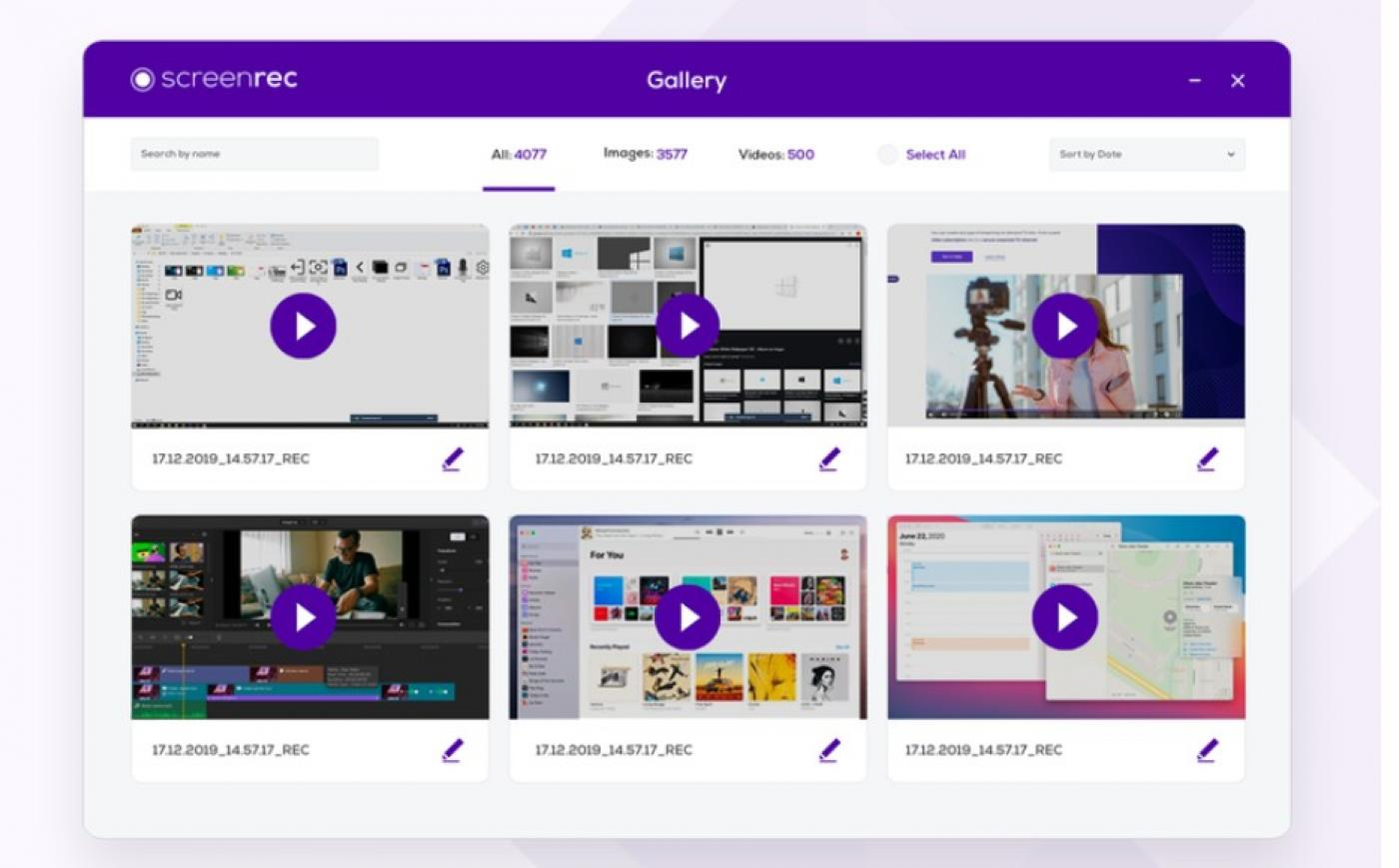
ScreenRec is a free cross-platform recorder built for speed and sharing across Windows, Mac OS, and Linux.
You can capture both screenshots and screen recordings with audio from your mic and system. As soon as you finish, your content is uploaded to the cloud, and an encrypted shareable link is copied to your clipboard.
Annotated screenshots and content management make it suitable for eLearning teams that need to quickly create tutorials. This feature also makes it useful for teams looking for collaboration in the workplace, such as sales, product, marketing, and more.
ScreenRec also tracks view analytics. You can see when someone has watched your video and for how long, which is useful for sales or training content. Keyboard shortcuts such as Alt+S for start/stop make recording easy.
A G2 review says:
First of all its free. It gives you many features like annotation,analytics, variety of sharing mechanism, best resolution recording and snapshots. It is simple to use and gives you whatever required for recording and snap capturing.
🧠 Fun Fact: The most-viewed YouTube video of all time is a children’s song. “Baby Shark Dance” has been viewed over 16 billion times—far surpassing the next most-watched video, “Despacito,” which sits at under 9 billion views.
Most ShareX alternatives stop at recording, but what do you do with all that recorded information?
To make sure your screen captures are not gathering dust in a bottomless digital drawer, you need an integrated platform!
With Clips, Brain, and the AI Notetaker, your recordings go beyond simple documentation.
They drive projects forward. Whether you’re summarizing meetings, creating tasks from walkthroughs, or centralizing feedback, ClickUp ensures every recording is converted into action.
Sign up on ClickUp for free to get started.

© 2026 ClickUp

There’s an easier way. Try a free AI Agent in ClickUp that actually does the work for you—set up in minutes, save hours every week.