Microsoft’s Work Trend Index says 53% of leaders believe productivity needs to go up. At the same time, 80% of workers say they already don’t have enough time or energy. That right there is a planning problem.
Predictive workload planning tools catch problems before they happen. They help you spot capacity gaps early, forecast demand, and make smarter resourcing decisions before deadlines slip or people burn out.
In this blog post, we’ll explore the top predictive workload planning tools that help teams stay ahead, plan confidently, and stop firefighting every week.
Summarize this article with AI
ClickUp Brain not only saves you precious time by instantly summarizing articles, it also leverages AI to connect your tasks, docs, people, and more, streamlining your workflow like never before.
Summarize this article for me please
Predictive Workload Planning Tools Software at a Glance
It’s easy to waste hours researching options that aren’t the right fit for your team’s size, budget, or specific needs. This table gives you a quick, scannable overview to help you narrow down the choices.
*Please check the tool website for the latest pricing
How we review software at ClickUp
Our editorial team follows a transparent, research-backed, and vendor-neutral process, so you can trust that our recommendations are based on real product value.
Summarize this article with AI
ClickUp Brain not only saves you precious time by instantly summarizing articles, it also leverages AI to connect your tasks, docs, people, and more, streamlining your workflow like never before.
Summarize this article for me please
What Are Predictive Workload Planning Tools?
Predictive workload planning tools are software solutions that use historical data, artificial intelligence (AI), and statistical modeling to forecast future resource needs and distribute work efficiently across a team.
Moving beyond daily tracking, these tools analyze your data to predict future availability, flag burnout risks, and highlight upcoming skill gaps.
📝 Example: Your team has a product launch coming up. The tool analyzes deadlines, task effort, team availability, and past workload patterns, then flags that two designers will be over capacity next week.
That gives you time to reassign work, adjust timelines, or add support before deadlines slip.
👉 In one line: Regular workload tools show current capacity. Predictive workload planning tools forecast future capacity problems and balance your workload.
📮 ClickUp Insight: Only 15% of managers check workloads before assigning new tasks. Another 24% assign tasks based solely on project deadlines.
The result? Teams end up overworked, underused, or burned out.
Without real-time visibility into workloads, balancing them isn’t just hard — it’s almost impossible. ClickUp’s AI-powered Assign and Prioritize features help you assign work with confidence, matching tasks to team members based on real-time capacity, availability, and skills. Try our AI Cards for instant, contextual snapshots of workload, deadlines, and priorities.
💫 Real Results: Lulu Press saves 1 hour per day, per employee using ClickUp Automations—leading to a 12% increase in work efficiency.
Summarize this article with AI
ClickUp Brain not only saves you precious time by instantly summarizing articles, it also leverages AI to connect your tasks, docs, people, and more, streamlining your workflow like never before.
Summarize this article for me please
What to Look For in Predictive Workload Planning Tools
You’ve seen the options, but how do you choose the right one? Picking a tool based on a long feature list can lead you to buy expensive software that doesn’t solve your core problem: a lack of visibility into future capacity.
A predictive workload planner is only as good as the real-time data it uses. It should connect to your existing project management, time-tracking, and HR systems to ensure its forecasts reflect reality.
Here are the key criteria to focus on 🛠️:
AI/ML forecasting capabilities: Does the tool learn from your team’s historical data to make its predictions smarter over time?
Real-time data sync: Can it automatically pull in live updates from tasks, time entries, and team availability without manual intervention?
Scenario planning: Can you model “what-if” scenarios, such as adding a new project or team member, to see the impact on capacity before you commit?
Utilization tracking: Does it provide a clear, at-a-glance view of individual and team-level capacity?
Actionable alerts: Will it notify you when a team member is approaching their limit or when a future capacity gap is detected?
Integration depth: Does it integrate seamlessly with the project management, HRIS, and time-tracking tools your team already uses?
🎥 To help you develop a strategic approach to capacity planning before evaluating specific tool features, watch this overview:
Summarize this article with AI
ClickUp Brain not only saves you precious time by instantly summarizing articles, it also leverages AI to connect your tasks, docs, people, and more, streamlining your workflow like never before.
Summarize this article for me please
Top 10 Predictive Workload Planning Tools
Ready? Let’s take a look at the best-in-the-market predictive workload planning tools:
1. ClickUp (Best for AI-powered predictive resource planning)
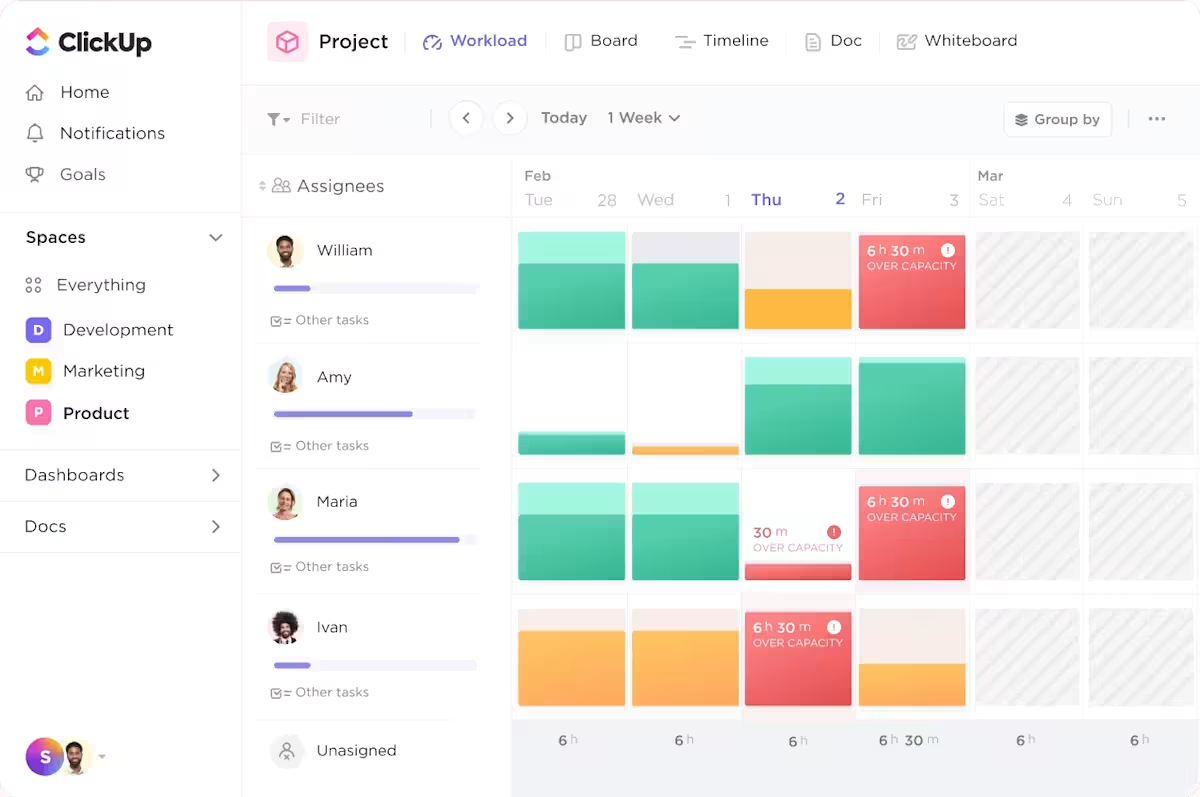
Predict team capacity and rebalance assignments with ClickUp Workload View
It’s nearly impossible to plan workload predictively when your “capacity view” lives in one tool, and the actual work lives in another. You can’t forecast overload with confidence if priorities, estimates, and dependencies keep changing in a separate system. All you get is work sprawl, constant reshuffling, and planning that turns stale the moment the week begins.
ClickUp, the world’s first Converged AI Workspace, brings workload visibility and execution into the same operating layer. Your forecasts pull from the tasks, timelines, and effort signals your team already works with, so you can spot capacity risk early and rebalance before deadlines slip.
Spot workload risk early with ClickUp Workload View
ClickUp Workload View gives you a quick way to see who’s about to get overloaded. It pulls directly from the tasks already assigned in your workspace, then lays them out across a timeline. You can zoom in by day, week, or month and spot the crunch points before they hit.
💭 A simple way to think about it: ClickUp Workload View acts as a control panel, allowing you to quickly adjust the lens before staffing decisions.
Identify workload risk with context-aware AI
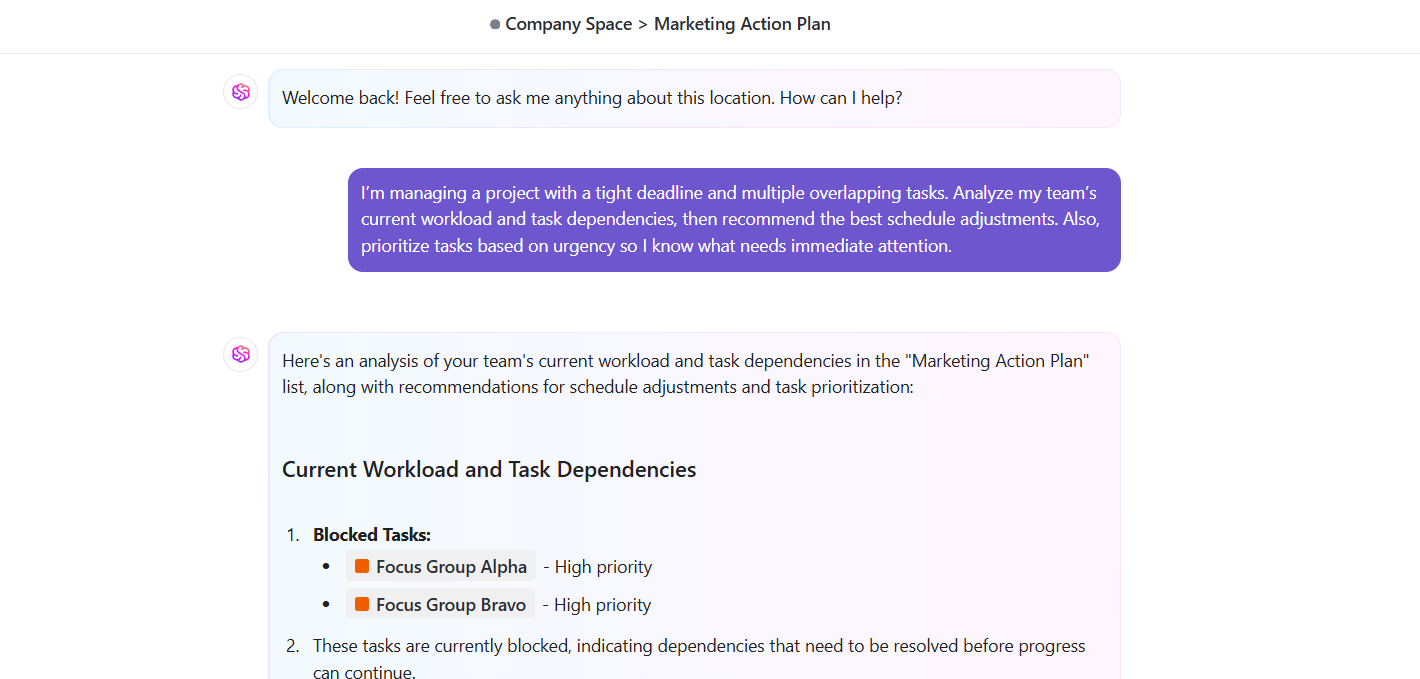
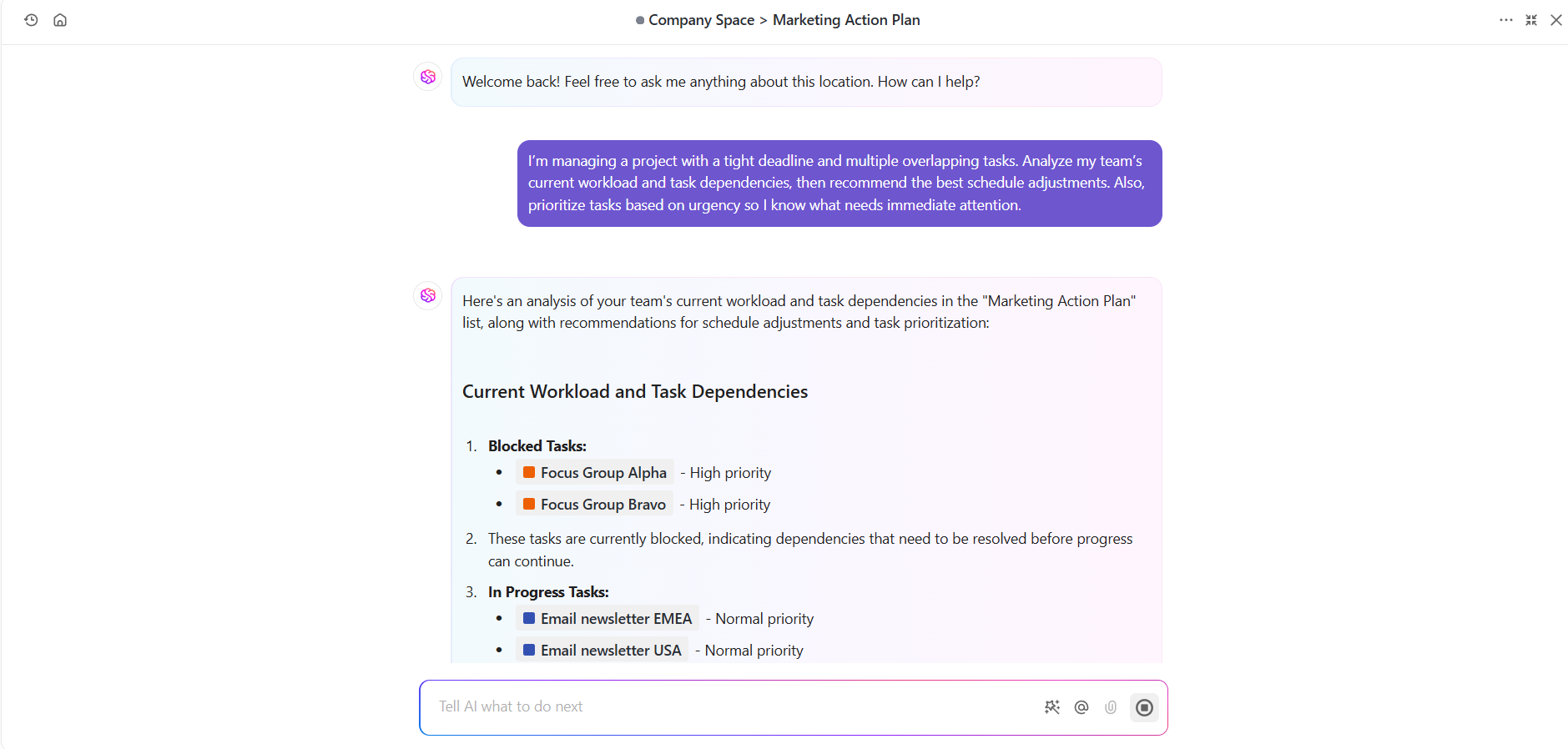
Most AI tools make you leave your work to get answers. ClickUp Brain doesn’t. It sits on top of your task activity, deadlines, and project history, giving you a clear capacity signal.
Summarize activity across a List, Folder, or Space to see what’s piling up, where things are blocked, and what needs reassigning before it becomes a problem.
Need answers mid-planning? Ask Brain questions like, “Who has availability for a 10-hour task next week?” It quickly analyzes your workspace data—including historical task durations and completion rates—to forecast future capacity.
Use ClickUp Brain to uncover resource bottlenecks by reviewing tasks, Docs, and updates in your workspace
You can also layer in the Risk Assessment Analyzer Agent when delivery risk is the bigger concern. It evaluates projects across three dimensions:
Deadline proximity relative to completion rates
Resource allocation patterns that signal overcommitment
Dependency chains where one delay cascades into multiple workstreams
Identify delivery risks sooner with Risk Assessment Analyzer Agent
Each risk gets a severity score based on impact and the remaining window to act. Then, the agent groups findings into a summary with concrete mitigations such as reassignment, deadline adjustment, or escalation.
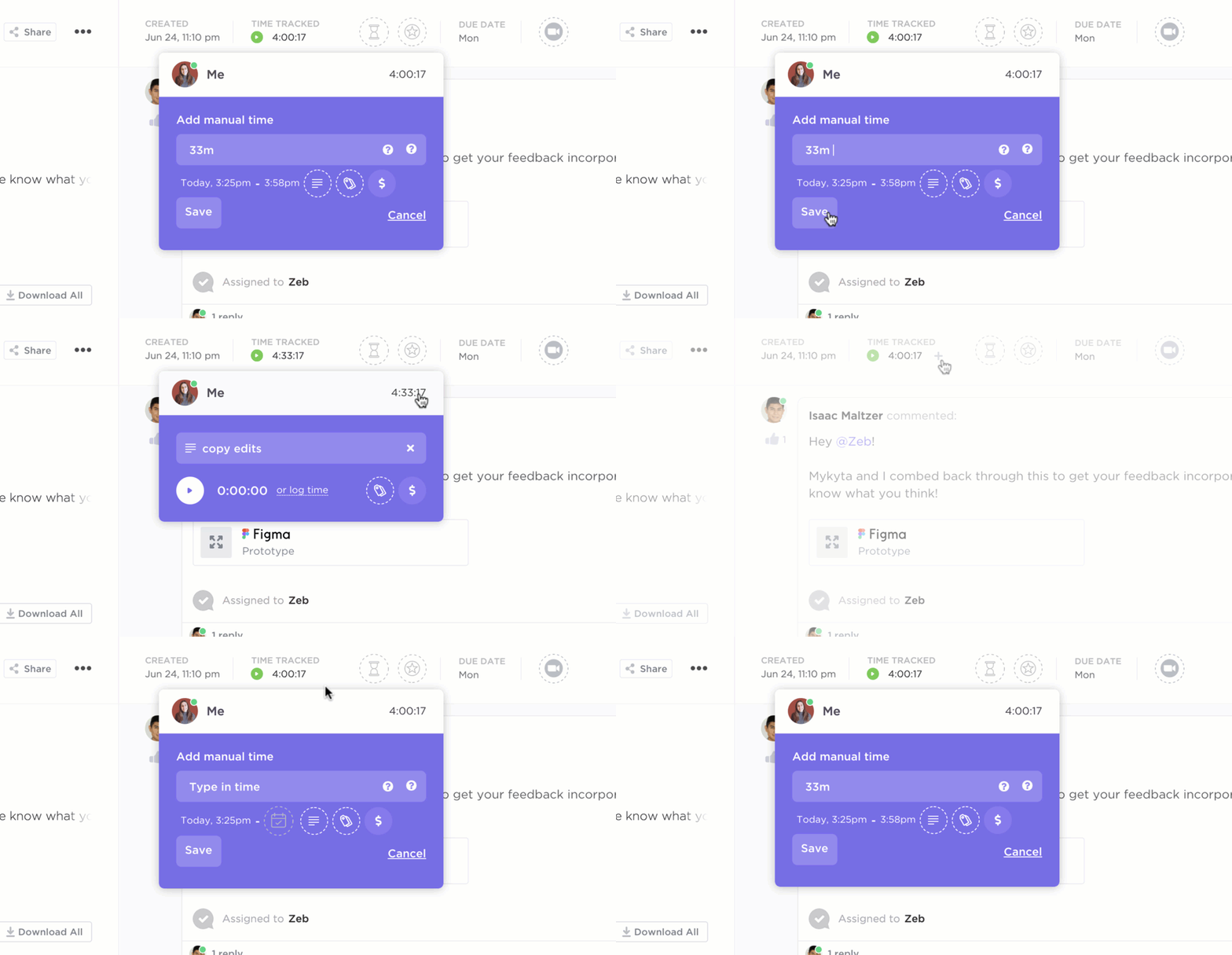
When your plan says “2 hours” and reality says “6,” your workload forecast breaks fast. ClickUp Time Tracking lets your team log time directly on tasks, then review it in ClickUp Timesheets to see where effort actually goes.
Monitor time spent on each project easily with ClickUp’s Project Time Tracking
Those actuals help you plan with more confidence. You can spot patterns like recurring underestimation, work types that consistently run long, and teams that are overloaded. That makes it easier to adjust estimates, rebalance allocation, and set timelines that hold up.
ClickUp best features
Run planning on real execution data:ClickUp Tasks keep owners, priorities, dependencies, due dates, and estimates in one place
Query workload with voice-first AI:ClickUp Brain MAX searches across ClickUp, connected work apps, and the web, with Talk-to-Text for fast triage when you’re rebalancing schedules mid-week
Dashboards with utilization widgets: Build custom ClickUp Dashboards to track real-time capacity metrics like utilization rates, task distribution, and deadline density
Automations for workload balancing: Create rules in ClickUp Automations that trigger when a team member’s capacity is exceeded
ClickUp pros and cons
Pros:
Unified workspace eliminates tool sprawl: Because planning and execution happen in the same place, forecasts are always based on real-time data
Native AI capabilities: ClickUp Brain is built into the platform, providing insights based on the full context of your work without requiring separate integrations
Flexible capacity settings: Set individual capacity limits to account for part-time schedules, focus time, or different roles, providing a more accurate picture of team bandwidth
Cons:
The extensive customization options can present a learning curve for new users
ClickUp pricing
free forever
Best for individual users
Free
Free
Key Features:
60MB Storage
Unlimited Tasks
Unlimited Free Plan Members
unlimited
Best for small teams
$7
$10
per user per month
Everything in Free Forever, plus:
Unlimited Spaces, Folders, and Forms
Unlimited Gantt Charts
Unlimited Integrations
Most Popular
business
Best for mid-sized teams
$12
$19
per user per month
Everything in Unlimited, plus:
Unlimited Dashboards with Advanced Cards
Unlimited Message History
Unlimited Activity Views
enterprise
Best for many large teams
Get a custom demo and see how ClickUp aligns with your goals.
Since it houses the files in one place, I’m not having to dig through 500 emails like a lunatic. I can visually see how much work the creative people are doing and whether or not they are drowning. It’s nice I no longer have to manually repeat the same tasks each Monday morning because the automation actually works.
2. Monday.com (Best for predictive workload planning with effort-based capacity)
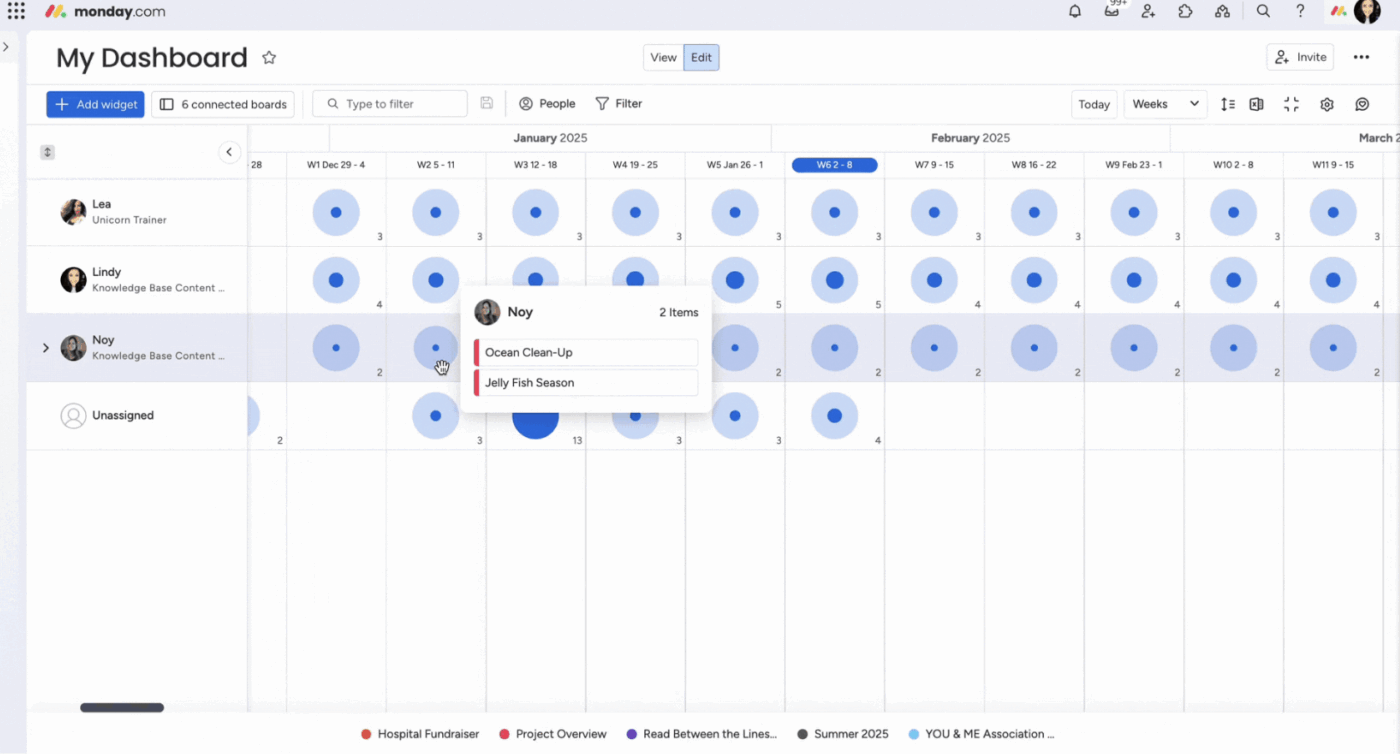
Monday.com is built for teams that want a clear, “at-a-glance” look at their capacity. Its workload widget uses a simple board-based view to show you exactly who is doing what and when.
Its AI-powered “Smart Workload Insights” automatically flags potential burnout and suggests re-assigning tasks to under-utilized team members.
While its interface remains simple, predictive “What-If” scenarios let you simulate how new projects will impact your team’s schedule before you hit ‘Save.’
Monday.com best features
Workload widget for capacity visualization: Quickly identify overloaded team members and redistribute work with a simple drag-and-drop action on a color-coded timeline
Customizable dashboards with utilization charts: Aggregate workload data from multiple boards to get a team-wide view of capacity, effort distribution, and individual utilization rates
Automation recipes for workload alerts: Create “if this, then that” rules to notify managers when a team member’s assigned tasks exceed their capacity
Monday.com pros and cons
Pros:
Highly visual interface with a gentle learning curve
Flexible automation builder for non-technical users
Strong template library for resource planning
Cons:
Seat minimums can increase costs for growing teams
Full workload features require higher-tier plans
AI capabilities are not focused on predictive workload analysis
What I like most about Monday Work Management is how easy it is to organize projects and track tasks all in one place. The interface is highly visual and intuitive, so it’s simple for the whole team to see progress, deadlines, and responsibilities at a glance. I also appreciate the automation features and integrations, since they cut down on manual work and help keep everyone aligned. Overall, it makes collaboration smoother and project tracking much more efficient.
👀 Did You Know? The word “deadline” has a much darker origin. It traces back to the Civil War, when a “dead line” was a literal boundary in prison camps that prisoners could be shot for crossing. The modern term we use during office hours came much later.
3. Smartsheet (Best for spreadsheet-style predictive workload planning)
Do you need enterprise-grade capacity forecasting, but your team is most comfortable in a spreadsheet environment? Smartsheet bridges this gap by offering sophisticated resource management within a grid-based interface.
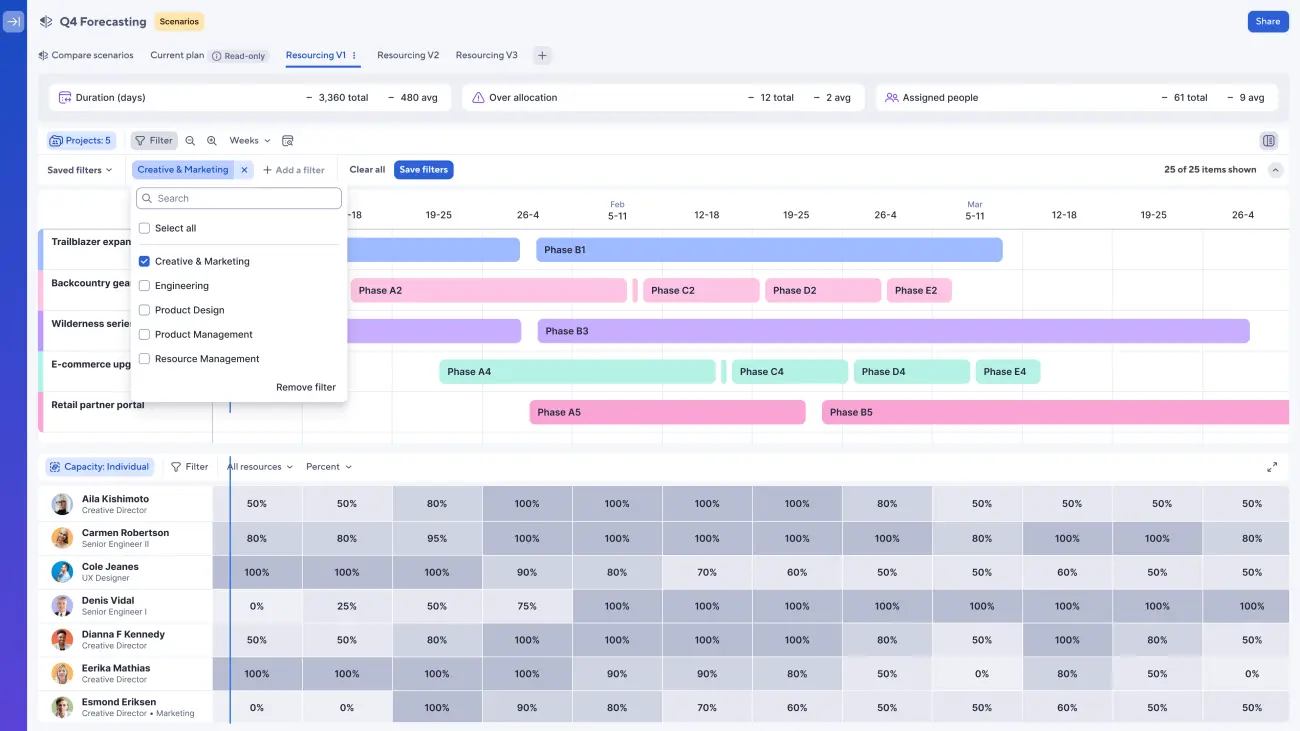
Its Resource Management module provides capacity heatmaps that show team utilization over time, highlighting who is overbooked and who has availability. It’s great for portfolio planning, enabling PMOs to see how projects compete for resources and identify conflicts early.
Smartsheet best features
Resource management with capacity heatmaps: Visualize team utilization with color-coding to flag overallocation and drill down into individual schedules
Portfolio-level resource forecasting: Aggregate resource demands across all projects to show where future capacity conflicts will occur
Build smarter capacity models faster: Use Smartsheet AI to generate formulas and analyze sheet data for planning
Smartsheet is genuinely strong for timeline and Gantt-style project tracking. For campaigns with linear dependencies and defined milestones, the grid view is intuitive for users who think in spreadsheet terms, and the timeline visualization gives stakeholders a clear view of where projects stand. For straightforward project tracking with a team that already works in Excel-like environments, it gets the job done without much configuration overhead.
💡 Pro Tip: Create separate predictive models for different work types (new features, bug fixes, and maintenance). Lumping everything together produces generic forecasts that miss the mark.
4. Float (Best for predictive resource scheduling with placeholders and utilization)
For agencies and creative teams juggling multiple client projects, knowing exactly who is available and when is critical. Float is purpose-built for this challenge, offering a clean approach to resource scheduling.
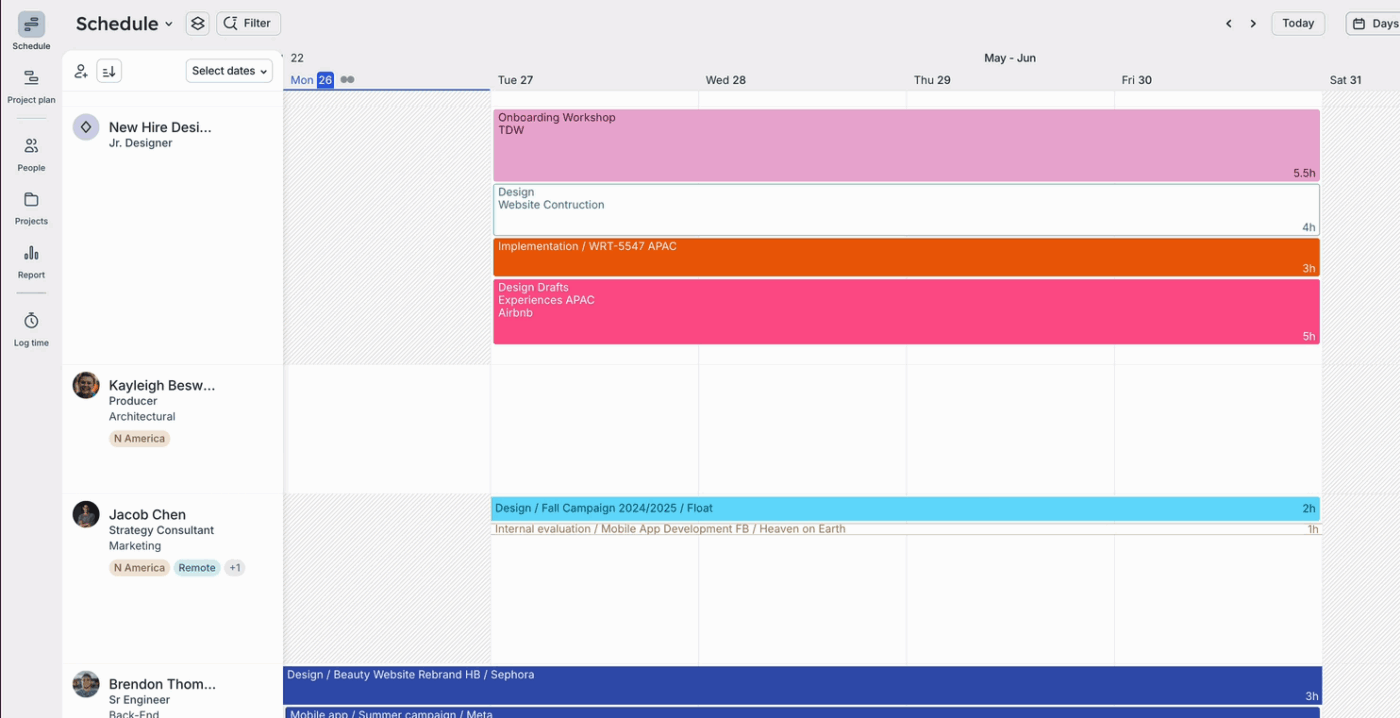
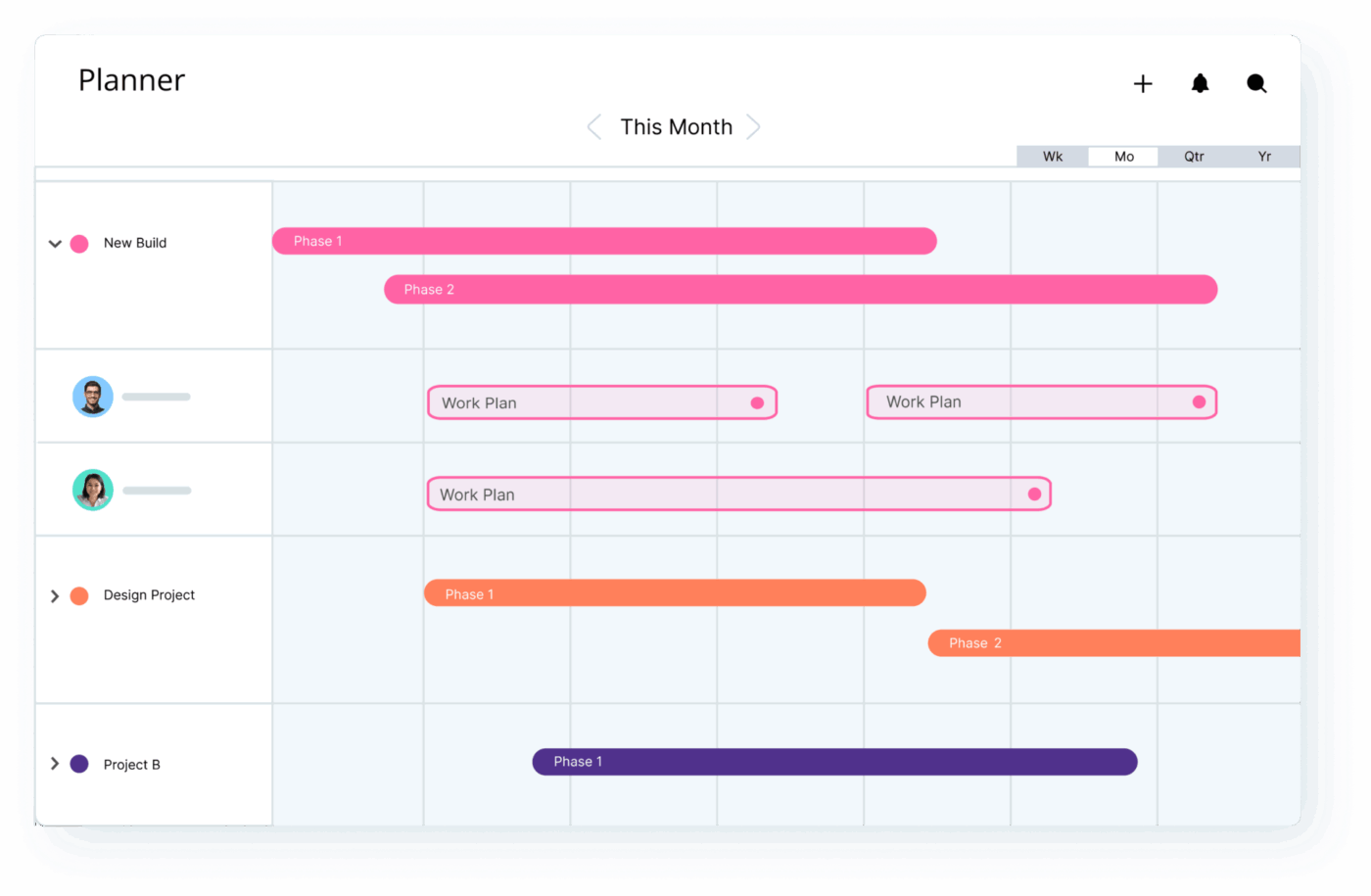
Its visual schedule displays team members with their assigned work shown as colored blocks on a timeline. This makes it easy to spot availability gaps, drag tasks to fill them, and set capacity limits that account for non-project time.
While it doesn’t offer AI-driven predictions, its capacity planning reports show the upcoming workload based on confirmed and tentative bookings.
Float best features
Visual schedule builder: Drag and drop assignments across a clean timeline view, with color-coding for confirmed work, tentative bookings, and time off
Capacity planning reports: Generate reports on team utilization broken down by project, client, or department to inform hiring and project intake decisions
Placeholders: Plan future demand without final names, which you can assign later
Float pros and cons
Pros:
Purpose-built for resource scheduling with a streamlined interface
Clean and intuitive design allows new users to start scheduling quickly
Features like tentative bookings are ideal for agency workflows
Cons:
Limited project management features; best used alongside a dedicated PM tool
Forecasting is based only on scheduled work, with no AI-driven predictions
Reporting may not be deep enough for enterprise PMOs
I like that I can move in and out of different projects or people fairly quickly on the Report screen. I am a people manager as well as an individual contributor, so I have to balance views of multiple schedules, and it is very easy for me to move around to get to what I need quickly.
🧠 Fun Fact: PERT, a classic planning method, came out of the Polaris missile program. In other words, one of the most famous ways to map uncertainty and dependencies in a project was developed to help manage a Cold War weapons program. That is an extremely dramatic backstory for something now used in ordinary project plans.
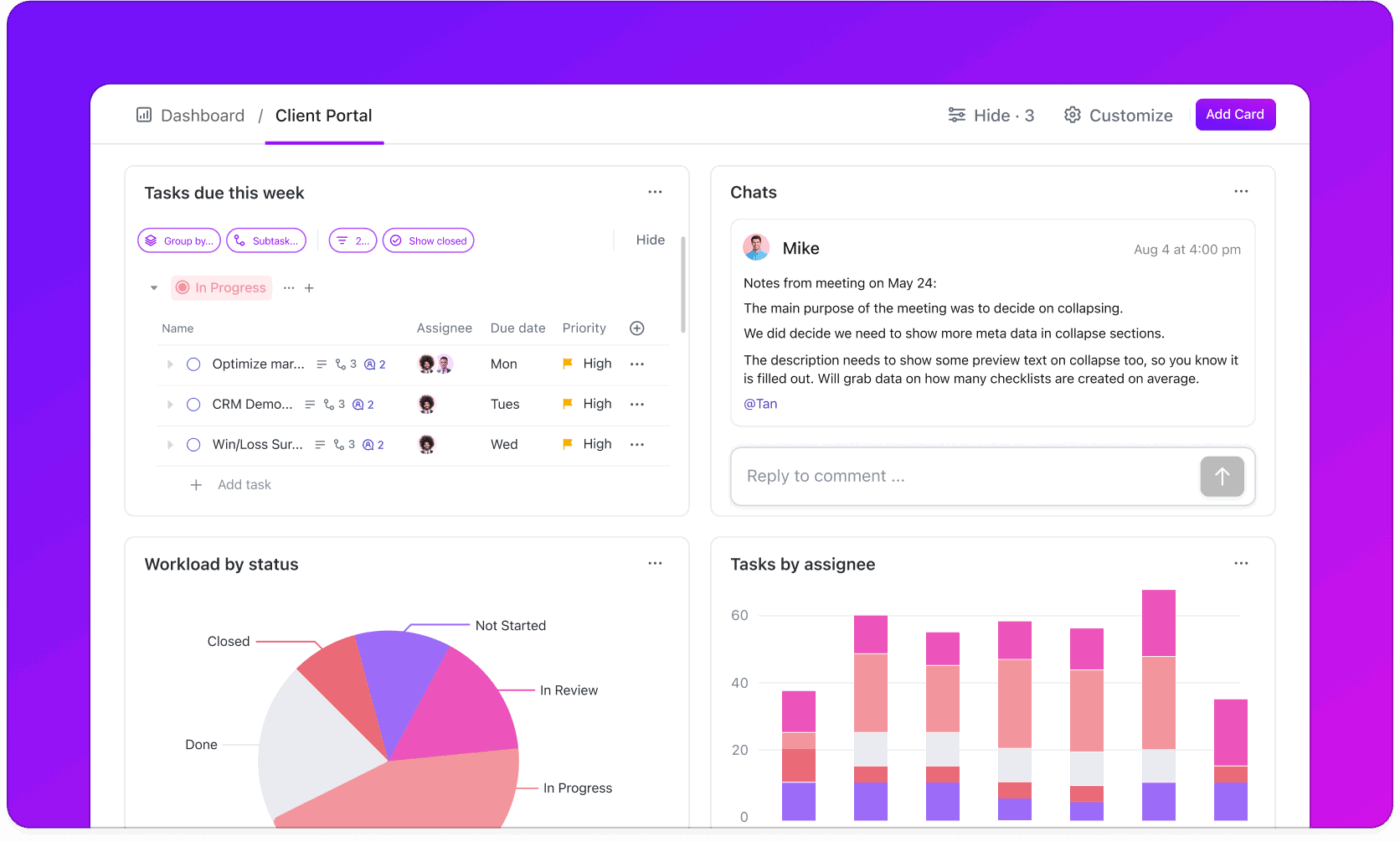
💡 Pro Tip: Where ClickUp’s Workload view shows you who is overloaded, ClickUp Dashboards help you explain what that overload means for delivery. No more pulling together a new status report every week.
Explain workload impact on delivery using ClickUp Dashboards
5. Mosaic (Best for AI-driven workload forecasting and hiring signals)
Tired of manually searching for the right person for a project? Mosaic uses AI to recommend the best fit based on skills management, availability, and current workload. It’s designed for professional services firms that need to optimize talent matching while maintaining balanced utilization.
In fact, its AI analyzes project requirements and suggests optimal staffing, learning from past project outcomes to improve its recommendations over time.
It also provides pipeline forecasting by connecting to CRM data, showing how upcoming sales opportunities will impact future resource demand.
Mosaic best features
AI-powered resource recommendations: Get optimal project assignment suggestions based on team member skills, availability, and project needs
Skills management and tracking: Maintain a database of team member capabilities, certifications, and experience to enable skills-based staffing
Pipeline forecasting for demand planning: Connect to CRM data to project future resource demand, helping firms plan for hiring or adjust timelines
Mosaic pros and cons
Pros:
AI recommendations reduce manual staffing effort and improve consistency
Built specifically for professional services workflows
Connects resource planning to business development for better strategic alignment
Cons:
Custom pricing requires a sales conversation
May be overly complex for teams with simple resource needs
Limited reviews make independent validation difficult
After using Mosaic, our team has been able to become much more efficient. We can look up billing history on similar job types so when taking on a new project we can price them very accurately. We can track tasks and assign tasks with dates so employees are accountable for their items. Scheduling projects is a huge help for ensuring the team makes deadlines. Timesheets and the AI used to predict entries are super helpful and save a ton of time. It is intuitive, easy to use, and the user interface looks great. Got us out of using spreadsheets.
🎥 Mosaic helps you leverage your CRM data, but first, you have to make sure your team actually uses the system. This breakdown explains how to avoid the common pitfalls of CRM adoption:
6. Wrike (Best for effort-based workload forecasting with capacity views)
Wrike’s “Work Intelligence” suite has a “Project Risk Prediction” tool that flags projects likely to fall behind schedule. It analyzes millions of data points across your organization to give you a “Red/Yellow/Green” health score based on predictive patterns.
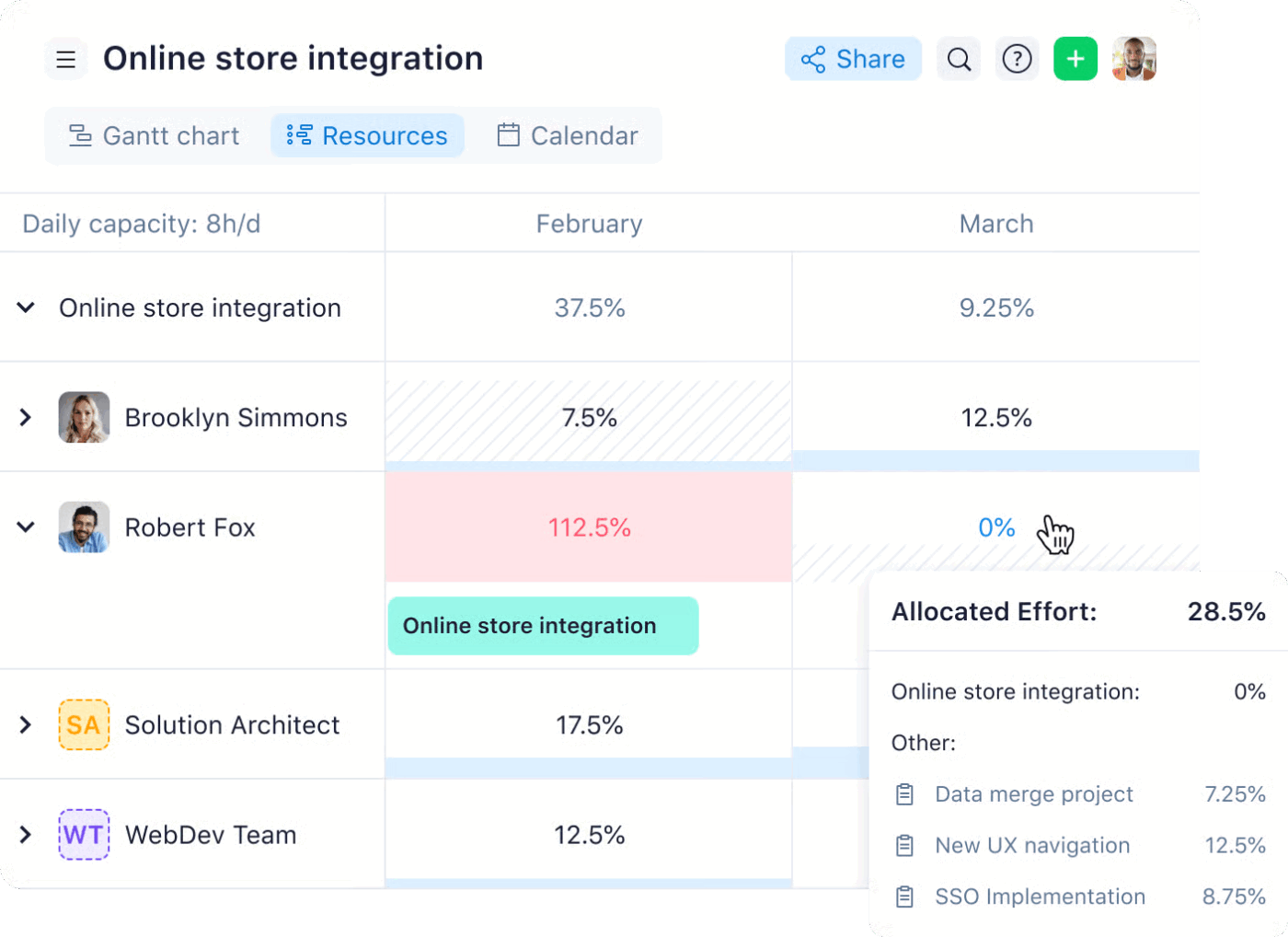
When your planning needs a project lens, the Resources view adds effort allocation by project, making it easier to see where a single initiative is consuming too much bandwidth.
Wrike best features
Workload charts with drill-down capability: Visualize team assignments and filter by project, department, or time period to identify conflicts
Work Intelligence AI for risk prediction: Analyze task dependencies, historical completion rates, and current workloads to surface warnings about at-risk projects
Cross-tagging for multi-project visibility: Tag tasks across multiple projects, ensuring resource allocation reflects all demands on a team member’s time
Wrike pros and cons
Pros:
AI can summarize updates and highlight risks and priorities
Shows effort allocation focused on projects for tighter forecasting
Deep integration ecosystem with tools like Adobe Creative Cloud and Salesforce
Cons:
Steep learning curve for new users
Advanced AI features require higher-tier plans
Cap around templates/customization depending on plan and workflow needs
What I like most is that Wrike gives us a simple place to keep work organized without overcomplicating things. It makes it easier to see what’s active, what needs attention, and where things might be slowing down. It’s not perfect, but it helps the team stay more structured and reduces some of the usual back-and-forth.
💛 Burnout doesn’t happen overnight—and it’s rarely anyone’s fault. It builds quietly, task by task, until your team is running empty and wondering how things got so overwhelming. The most powerful thing a manager can do is simply see it coming and create space for relief before it becomes a crisis.
Here are a few ways to genuinely support your team:
Celebrate progress: Recognizing effort (not just results) reminds your team that they are valued as people
Check in on them: A simple “how are you really doing?” can go a long way in making people feel seen beyond their professional output
Redistribute before it’s too late: If someone’s plate is overflowing, don’t wait for them to ask for help—proactively reassign tasks before burnout takes hold
Protect boundaries around capacity: Normalize saying no to new work when the team is already stretched, and lead by example in doing so
7. Kantata (Best for forecasting staffing demand in professional services)
Kantata (formerly Mavenlink) is designed for professional services organizations that need to connect resource management with financial planning. It helps you forecast resource needs across your entire services pipeline for a complete picture of capacity and profitability.
It analyzes upcoming projects and confirmed assignments to identify potential capacity gaps or surpluses. Beyond tracking availability, Kantata also matches resources with the required skills and certifications, ensuring projects are staffed with qualified team members.
Kantata best features
Resource forecasting with pipeline integration: Project future resource demand by combining project schedules with sales data for proactive hiring and capacity planning
Skills and certification tracking: Maintain detailed profiles of team member capabilities for skills-based resource matching
Utilization dashboards with target tracking: Display real-time utilization against targets at individual, team, and organization levels
Kantata pros and cons
Pros:
Purpose-built for professional services workflows
Connects resource planning to financial outcomes like profitability
Strong forecasting for long-term demand planning
Cons:
Less flexibility in reporting and dashboards as processes scale
Can be overly complex for teams outside of professional services
Implementation often requires significant configuration
Tired of manually managing your calendar? Motion uses AI to schedule your tasks automatically based on task prioritization, deadlines, and available time. It focuses on individual productivity rather than team-wide resource management.
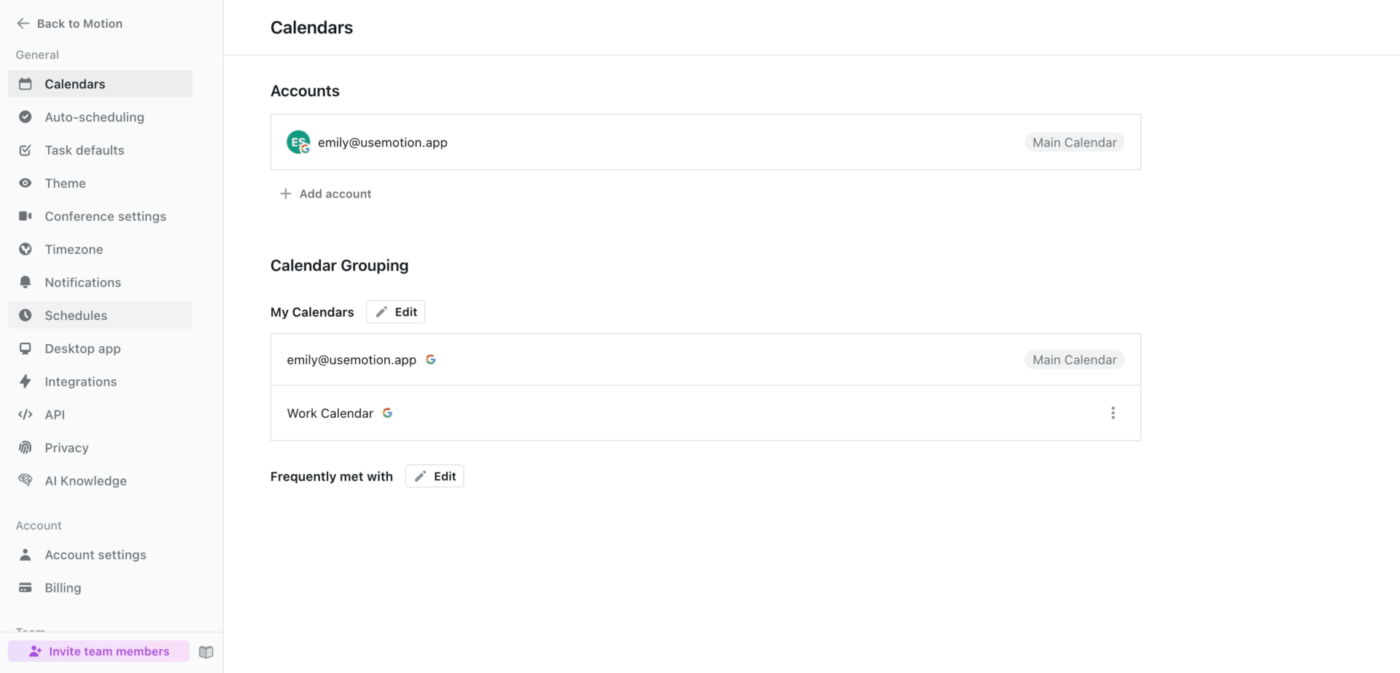
Motion’s AI analyzes your task list and calendar to schedule work into open time blocks. When your plans change, the system automatically reschedules tasks to ensure everything still fits. It’s best suited to individuals or small teams who want to delegate their schedules to AI.
Motion best features
AI-powered auto-scheduling: Automatically place tasks on your calendar based on priority, deadline, and duration, creating an optimized daily plan
Dynamic rescheduling: Accommodate a change of plans by adjusting your schedule without manual intervention
Deadline-aware prioritization: Schedule critical tasks with enough buffer time and get alerts if a deadline is at risk
Overall, an amazing tool that lets you manage your tasks based on your own requirements. Integrates with the calendar. Automatically organizes tasks based on urgency and priority.
9. Epicflow (Best for AI-based capacity forecasting across multi-project portfolios)
Do you manage multiple projects with shared resources where conflicts are common? Epicflow specializes in these environments, providing early warnings before capacity issues arise.
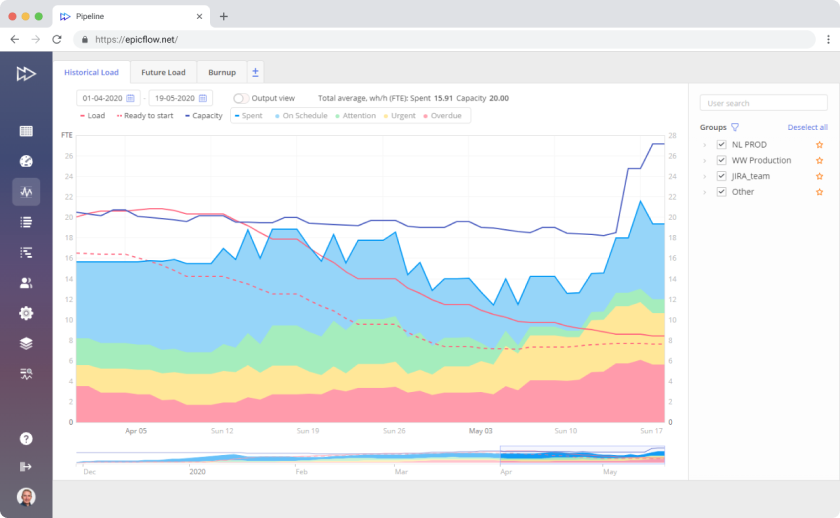
The centerpiece is the “Future Load Graph,” which projects resource demand across all active projects on a single timeline. This graph shows when teams will be overloaded and provides bottleneck alerts.
Layer on top of that the ability to run what-if scenarios—shift a deadline here, swap in a contractor there—and you get a live picture of how each decision ripples through the broader portfolio.
Epicflow best features
Future Load Graph: Visualize projected resource demand to know when capacity will be exceeded and which resources are the constraint
What-if scenario modeling: Test the impact of project delays, resource additions, or scope changes on overall capacity
Execution-focused across projects: Use personal and group task lists to keep priorities clear across a multi-project environment
Epicflow pros and cons
Pros:
Specialized for multi-project environments with shared resources
Strong scenario planning capabilities for informed decision-making
Provides an early warning system for capacity issues
Cons:
Niche focus may not suit organizations with simpler needs
Limited reviews make independent validation difficult
Limited admin/control flexibility as teams scale beyond standard portfolio use cases
I love that Epicflow calculates future load and shows the possible resource constraint before it becomes a problem. Capacity/load output charts are also great for tracking the team’s efficiency on a daily basis. Simulation mode is an interesting solution too; it lets you make any changes to your projects to see the results without disturbing your environment.
10. Resource Guru (Best for predictive capacity planning with heatmaps and placeholders)
If you need simple, visual resource scheduling without enterprise-level complexity, Resource Guru is a great option. It focuses on a clean interface that shows team availability at a glance.
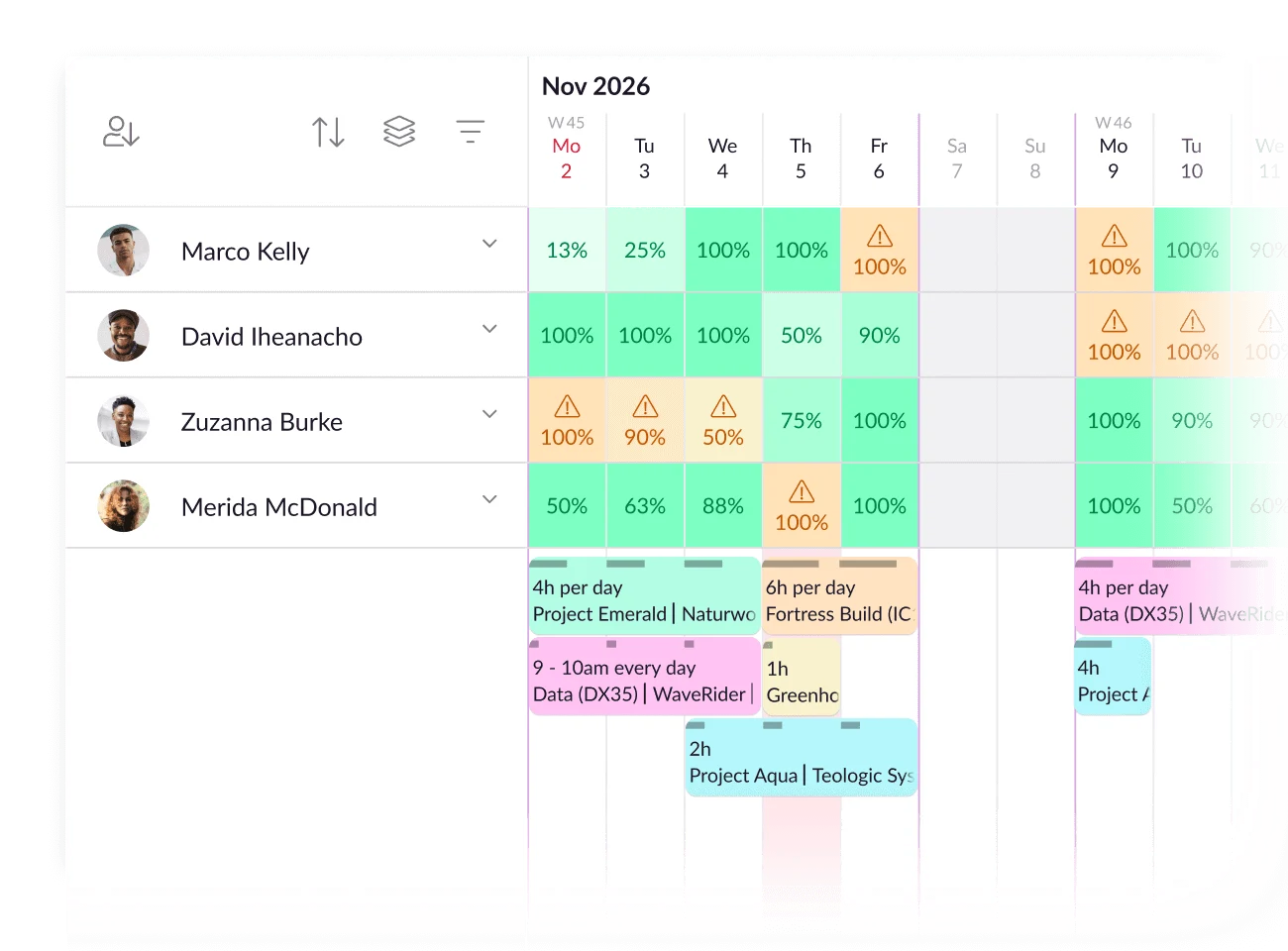
It also displays team members and their bookings as colored blocks on a calendar timeline, making it easy to see who’s available and to create new bookings.
For forward planning, Resource Placeholders and Tentative bookings let you map upcoming demand even when the “who” and “when” are still in flux. You can hold capacity, keep plans realistic, and finalize assignments when the project details lock.
Resource Guru best features
Visual availability calendar: Book time in a calendar with a clear timeline format where availability gaps are immediately visible
Clash management: Prevent double-booking by getting alerts about existing commitments before confirming new assignments
Leave and availability management: Track time off and non-project time in the same view as project bookings for accurate scheduling
Resource Guru pros and cons
Pros:
Simple, intuitive interface that is easy to learn
Affordable pricing makes it accessible for smaller teams
Focused feature set does its core job of scheduling well
Cons:
Limited project management features; best used with a dedicated PM tool
No AI-driven predictive capabilities
May lack the depth required for enterprise PMOs
Resource Guru pricing
Grasshopper: $5/person/month
Blackbelt: $8/person/month
Master: $12/person/month
Resource Guru ratings and reviews
G2: 4.6/5 (400+ reviews)
Capterra: 4.7/5 (500+ reviews)
What are real-life users saying about Resource Guru?
RG is user-friendly and easy to use. It works really well for us because schedules and people are constantly changing, and we can update appointments quickly and easily so everyone stays informed in real time.
Summarize this article with AI
ClickUp Brain not only saves you precious time by instantly summarizing articles, it also leverages AI to connect your tasks, docs, people, and more, streamlining your workflow like never before.
Summarize this article for me please
Start Planning Your Resources Efficiently With ClickUp
The best predictive workload planning tools help teams stay ahead of overload, spot bottlenecks before they slow delivery, and make smarter resourcing decisions.
But the real value comes when planning and execution live in the same place.
ClickUp ends the age-old problem of managing resources and workloads across scattered tools. It brings everything together, from workload planning to AI agents that are always looking at resource and workload gaps.
Instead of stitching together planning, tracking, and action, you get a single platform that handles it all. Sign up for ClickUp for free today.
Summarize this article with AI
ClickUp Brain not only saves you precious time by instantly summarizing articles, it also leverages AI to connect your tasks, docs, people, and more, streamlining your workflow like never before.
Summarize this article for me please
Frequently Asked Questions
What is the difference between predictive workload planning and traditional workload management?
Traditional workload management is reactive, showing you current assignments and capacity. Predictive workload planning is proactive, using historical data to forecast future needs and identify potential bottlenecks before they happen.
How do predictive workload planning tools use AI to forecast team capacity?
These tools analyze data like historical task completion rates, current assignments, and team availability patterns. AI models then identify trends to project when capacity constraints will likely emerge in the future.
Can small teams benefit from predictive workload planning tools, or are they only for enterprises?
Small teams can definitely benefit from predictive planning, especially when team capacity is tight and margins for error are limited. In fact, tools like ClickUp make this kind of planning accessible for teams of all sizes, enabling them to optimize their resources effectively.
How do you assess the accuracy of a workload planner’s predictions?
You can assess accuracy by comparing forecasted capacity against actual outcomes over time. Track how often predicted bottlenecks occurred and whether the tool’s suggested interventions helped improve results.
Everything you need to stay organized and get work done.