






Still downloading templates?
There’s an easier way. Try a free AI Agent in ClickUp that actually does the work for you—set up in minutes, save hours every week.
Sorry, there were no results found for “”
Sorry, there were no results found for “”
Sorry, there were no results found for “”

Like a lot of project management software, ONES.com has its fans and critics. If you’re here, you might be one of the latter.
While ONES.com has many positive reviews and checks most of the boxes on paper, many teams find the interface clunky. They also report collaboration features to be lacking and the need to juggle multiple tools to get work done.
Most teams today don’t need more software. They need fewer tools that actually talk to each other. Especially when the average company already runs on 100+ SaaS apps, and critical context gets lost every time someone switches tabs.
So we looked at what teams use when ONES.com isn’t cutting it.
We evaluated popular ONES.com alternatives based on how well they:
Let’s break them down.
| Tool | Best for | Standout feature | Pricing* |
|---|---|---|---|
| ClickUp | AI-powered all-in-one work management for teams of all sizes | ClickUp Brain and Super Agents to automate work using context-aware AI | Free plan available; Custom pricing for enterprises |
| Jira | Mid-market to enterprise agile software development teams | Advanced sprint and backlog management | Free plan available; Paid plans start at $9.05/user/month; Custom pricing for enterprises |
| Trello | Visual Kanban-style task management for small teams | Intuitive drag-and-drop boards | Free plan available; Paid plans start at $6/user/month; Custom pricing for enterprises |
| Notion | Flexible docs and knowledge management for startups to mid-market teams | Relational databases with wiki capabilities | Free plan available; Paid plans start at $12/user/month; Custom pricing for enterprises |
| Asana | Cross-functional team coordination for mid-market to enterprise teams | Work Graph data model that maps relationships between people and tasks in your workspace | Free plan available; Paid plans start at $13.49/user/month; Custom pricing for enterprises |
| monday | Customizable workflow automation for SMB to enterprise teams | Visual Work OS with 200+ integrations | Free plan available; Paid plans start at $14/user/month; Custom pricing for enterprises |
| Wrike | Enterprise resource management for mid-market to enterprise teams | Advanced proofing and approvals | Free plan available; Paid plans start at $10/user/month; Custom pricing for enterprises |
| Basecamp | Simple team communication and projects for small teams and agencies | Simple, no frills project management | Free plan available; Paid plans start at $15/user/month; Custom pricing for enterprises |
| Zoho Projects | Budget-conscious growing teams | Affordable full-featured PM tool | Free plan available; Paid plans start at $5/user/month; Custom pricing for enterprises |
| Smartsheet | Spreadsheet-style project tracking for enterprises and the government | Familiar spreadsheet interface with advanced PM features | Free trial available; Paid plans start at $12/user/month; Custom pricing for enterprises |
Our editorial team follows a transparent, research-backed, and vendor-neutral process, so you can trust that our recommendations are based on real product value.
Here’s a detailed rundown of how we review software at ClickUp.
Some ONES.com alternatives are built for developers. Others focus on docs, coordination, or automation. A few try to do it all—but only one truly does. Let’s start with that one, also known as ClickUp.
Picture a typical week.
Your roadmap lives in one tool. Tasks live in another. Conversations happen in chat. Documentation is buried somewhere else. Every update requires copying, pasting, or re-explaining what already exists—just in a different app.
This kind of Work Sprawl is why many teams using tools like ONES.com hit a wall.
ClickUp is built for the exact opposite scenario.
Instead of forcing teams to manage projects around their tools, ClickUp brings tasks, projects, docs, conversations, automation, and AI into one Converged AI Workspace. The result? Less switching. Fewer gaps. And far less “work about work.”
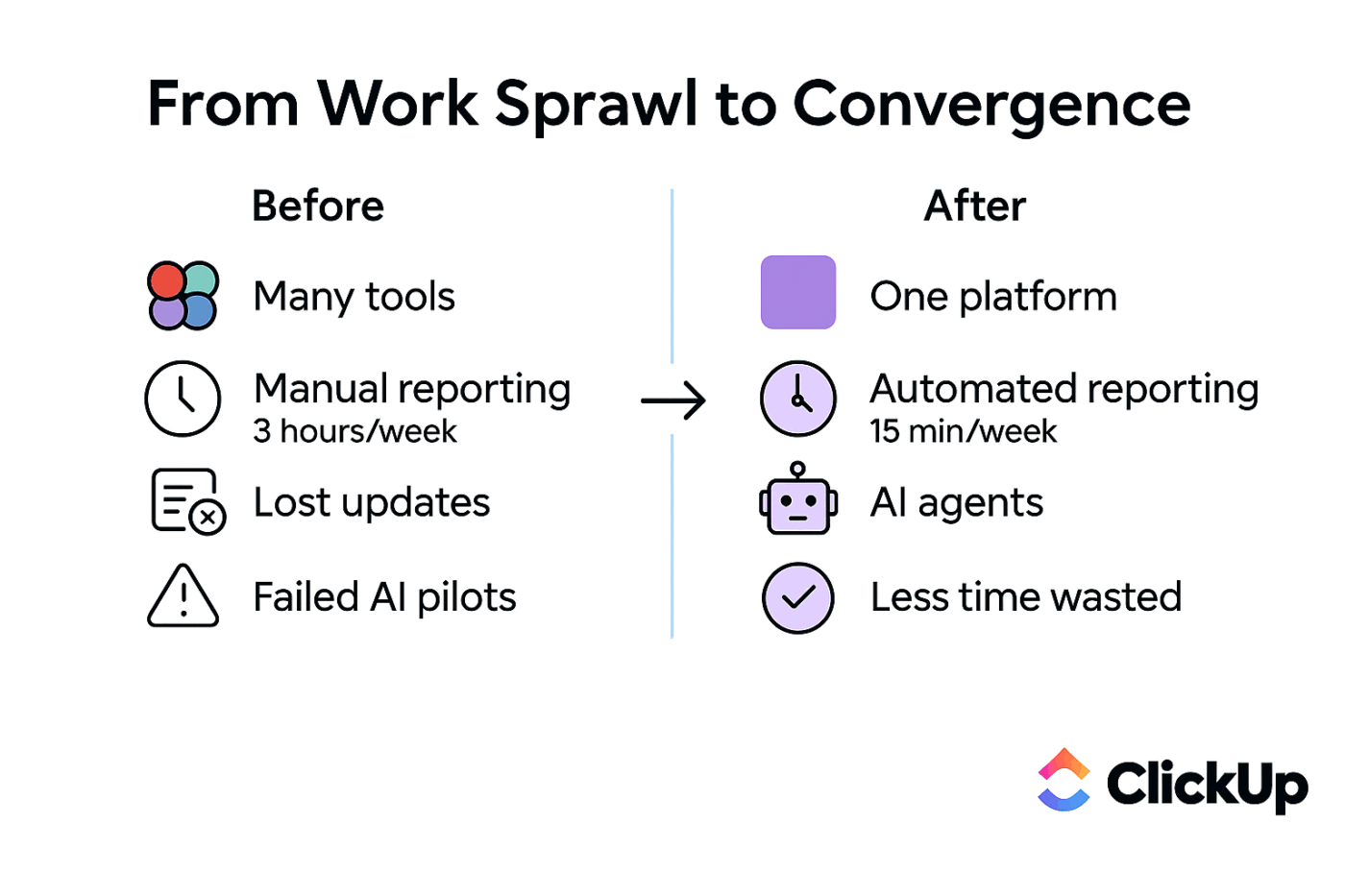
In ClickUp, your projects aren’t isolated containers. They’re living systems.
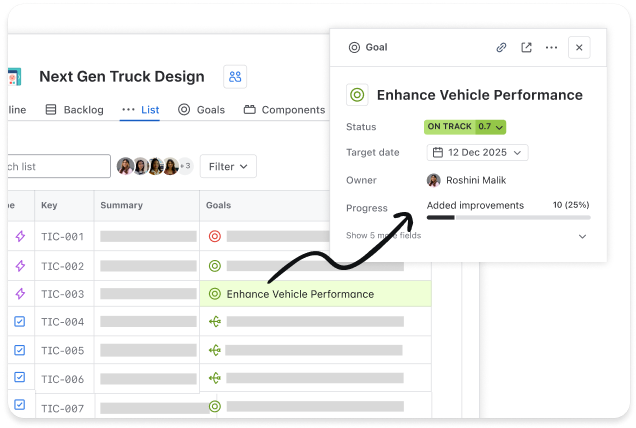
Your documents connect to tasks. Individual ClickUp Tasks connect to shared goals. Conversations happen in ClickUp Chat, directly where work lives, so you needn’t mentally reconcile them later. Whether you’re managing a product launch, sprint planning, or cross-functional operations, everything stays tied to the same single source of truth.
That’s the biggest difference teams notice when moving away from tools that focus heavily on structure but fall short on day-to-day collaboration.
💡 Pro Tip: Build the exact workflow your team needs with flexible task management in ClickUp Tasks, including ClickUp Custom Fields for tracking unique data, ClickUp Multiple Assignees for shared ownership, and ClickUp Task Dependencies to ensure work happens in the right order.
Use ClickUp Task Priorities—Urgent, High, Normal, or Low—to clarify what your team should focus on next.
Not everyone thinks in lists. Or boards. Or timelines.
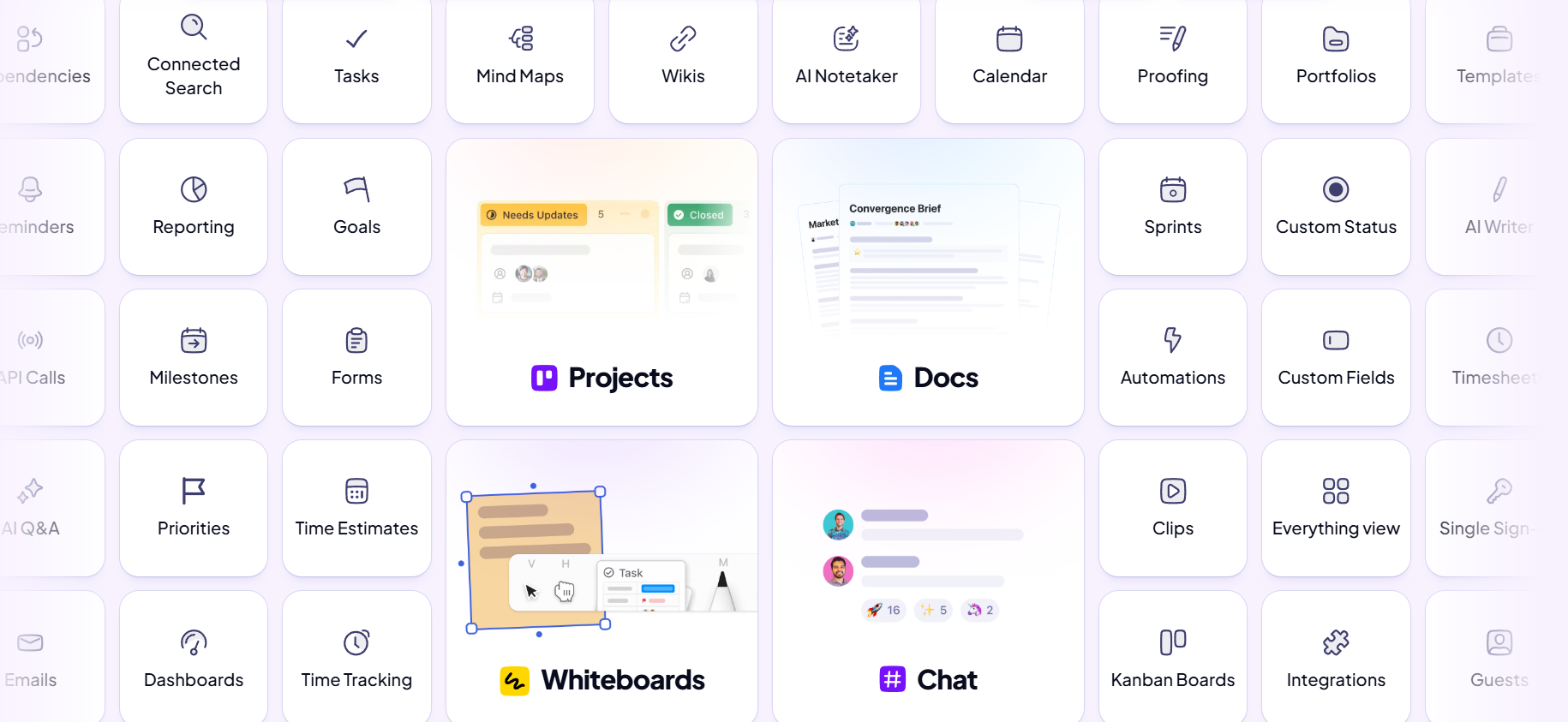
You and your team get to switch between 15+ ClickUp Views—without duplicating work. The same tasks can appear as a list for operations, a board for agile teams, a Gantt chart for project managers, or a calendar for leadership.
ClickUp doesn’t treat automation and AI as bolt-ons. Instead, they’re built on top of your docs, tasks, and chat, referencing context from your workspace.
With built-in ClickUp Automations, teams can eliminate repetitive busy work—status updates, assignments, and notifications—without writing code. And with ClickUp Brain, your AI assistant becomes contextual instead of generic.
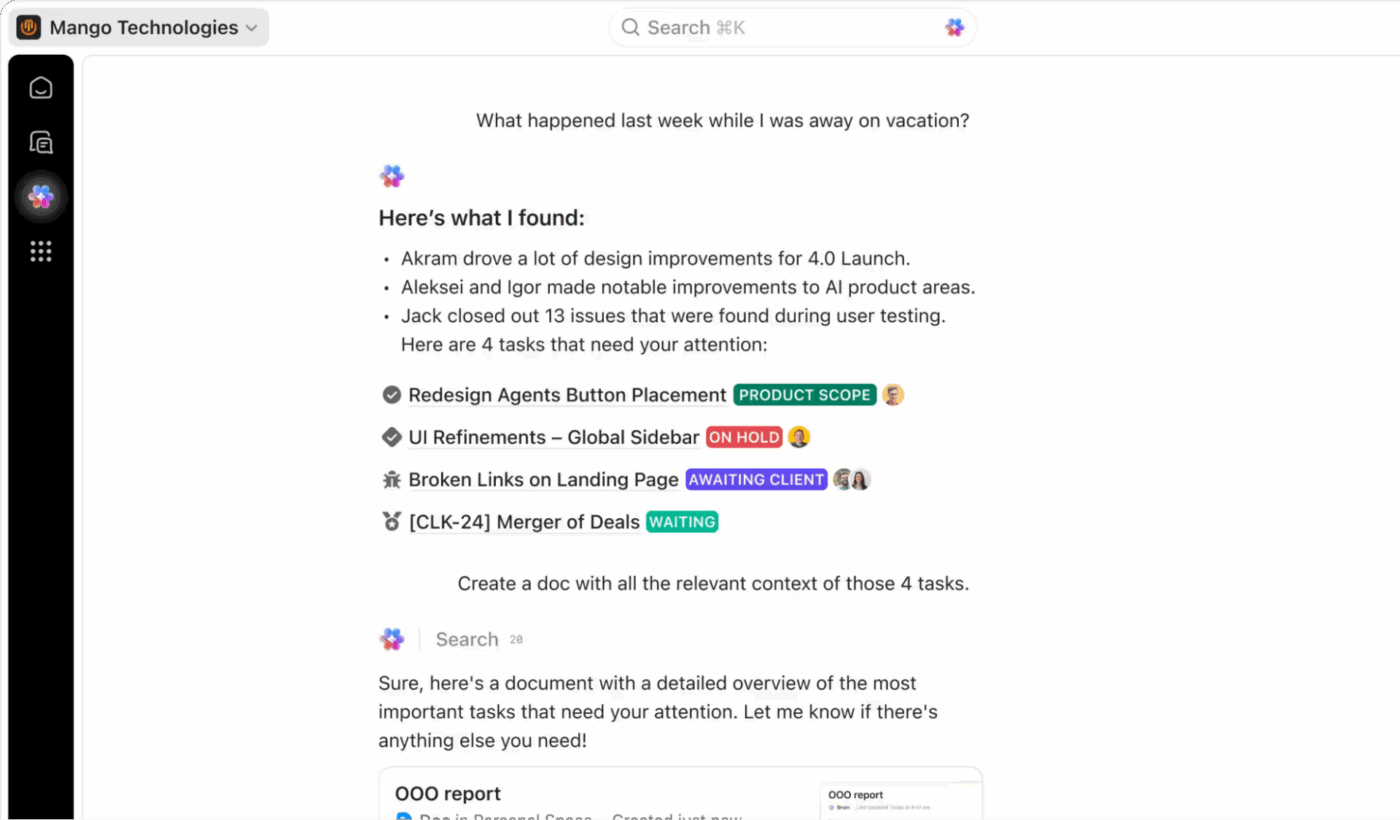
You can use it to ask questions about your projects. Summarize long task threads. Generate updates. Execute actions like creating and assigning tasks or building project docs and reports—all within the same workspace where your data already lives.
You can even mention @brain in a comment, just like a teammate, to get help right where you’re working.
💡 Pro Tip: Most AI tools wait for instructions. ClickUp Super Agents don’t.
Super Agents are AI teammates you can assign to tasks, mention in comments, or trigger through events—just like a human teammate. They run ambient, scheduled, or trigger-based actions across tasks, docs, and chat, using full workspace context and company knowledge to take action autonomously.
That means you can delegate ongoing work—like monitoring blockers, generating weekly updates, or escalating risks—without manually prompting AI each time. You lead. Your Super Agents handle the follow-through.
Learn more about Super Agents here 👇🏽
But what makes ClickUp truly stand out in an era of tool sprawl? It’s how seamlessly it works with the tools you already rely on—Slack, Google Drive, GitHub, Zoom, Salesforce, and hundreds more. Instead of forcing a rip-and-replace approach, it acts as the business command center that pulls everything together.
Feedback from a G2 user reads:
ClickUp’s flexibility is the biggest advantage for us. We’ve customised the entire workspace around our business workflows instead of adjusting our processes to the tool.
We use it across Customer Success, Growth, Operations, Compliance, Finance, and Tech, and having everything in one place has brought strong structure and visibility. Custom statuses, fields, automations, and dashboards help us run onboarding, compliance, integrations, and internal tracking smoothly, with far less dependency on emails and follow-ups.
📮 ClickUp Insight: Low-performing teams are 4 times more likely to juggle 15+ tools, while high-performing teams maintain efficiency by limiting their toolkit to 9 or fewer platforms. But how about using one platform?
As a Converged AI Workspace, ClickUp brings your tasks, projects, docs, wikis, chat, and calls under a single platform, complete with AI-powered workflows. Ready to work smarter? ClickUp works for every team, makes work visible, and allows you to focus on what matters while AI handles the rest.
If your team ships software for a living, your workday probably starts with a backlog.
Stories waiting to be groomed. Bugs competing with features. Epics spanning multiple teams. Releases tied to dependencies that can’t slip. In this world, lightweight project tools fall apart fast.
But Jira is built to be the project management software for teams following agile methodologies. From the moment you create a project, everything is structured around backlogs, sprints, and workflows. This rigidity can be a strength for engineering teams. But it also means Jira works best when everyone using it understands agile deeply.
Jira works best when paired with tools like Confluence, Bitbucket, and Jira Service Management. Together, they form a tightly integrated stack for software teams. The tradeoff? Collaboration, documentation, and communication often live across multiple Atlassian products, rather than in a single workspace.
A Capterra reviewer shares mixed feedback:
It is good for tracking model bugs and sprint planning. I can see what tasks are pending for deployment. The Kanban board helps me move tasks from doing to done easily…
It is very slow to load sometimes. Too many buttons and settings make me confused. Setting up a simple workflow takes too much time. It feels heavy for small projects.
👀 Did You Know? While Jira is powerful for developers, ClickUp offers comparable agile features—including sprints, story points, and burndown charts—within a more accessible platform that your entire organization can use.
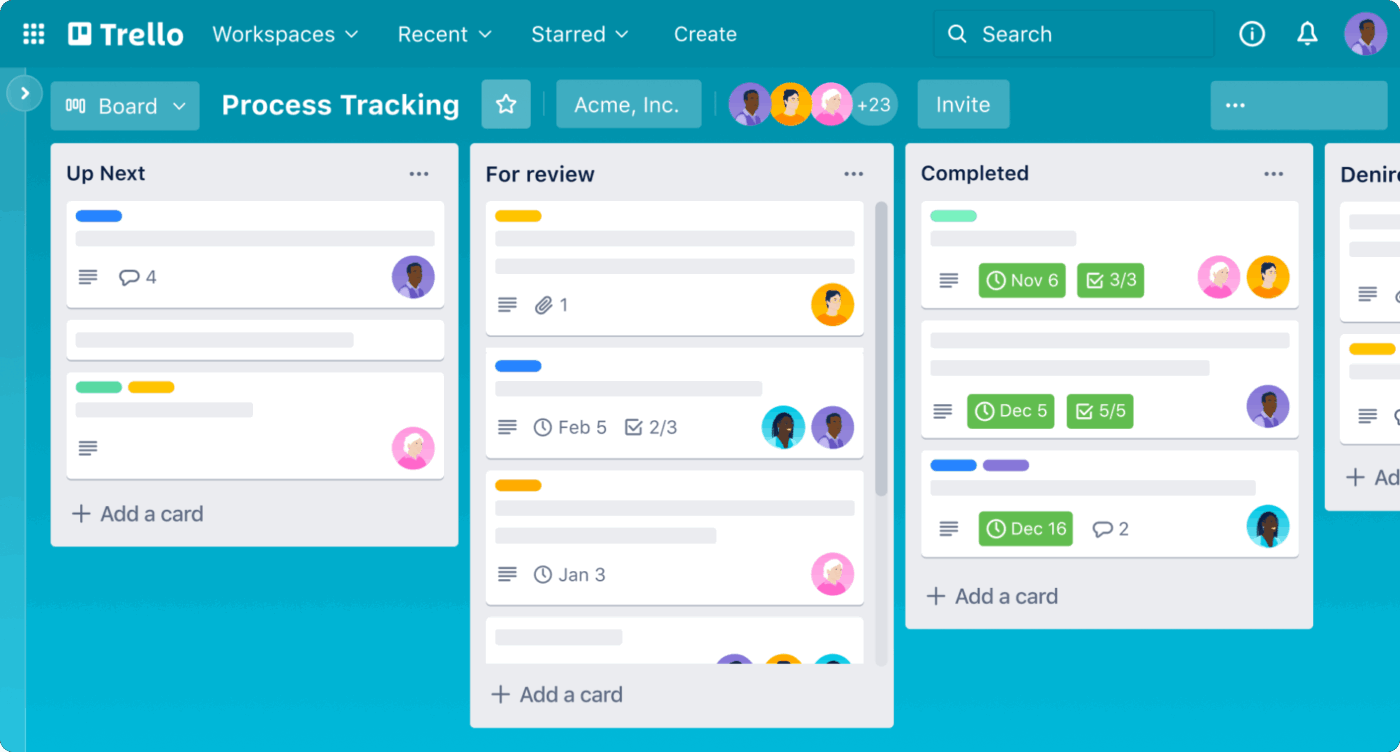
Trello is the go-to choice for teams who want intuitive, visual task management without the steep learning curve. Its core is the Kanban board, a simple system of cards and columns that makes tracking progress as easy as moving a sticky note.
That simplicity is Trello’s biggest strength. And its biggest limitation.
As work grows more complex, teams often start layering Power-Ups, automation rules, and integrations to make Trello do more. At that point, what began as a lightweight visual tool can start to feel stretched thin—especially when reporting, dependencies, or cross-team coordination are involved.
A G2 user reports:
I like using Trello for project and task management as it helps with handling multiple tasks at the same time and makes it easy to review…Sometimes it’s difficult to manage complex projects and long-term projects.
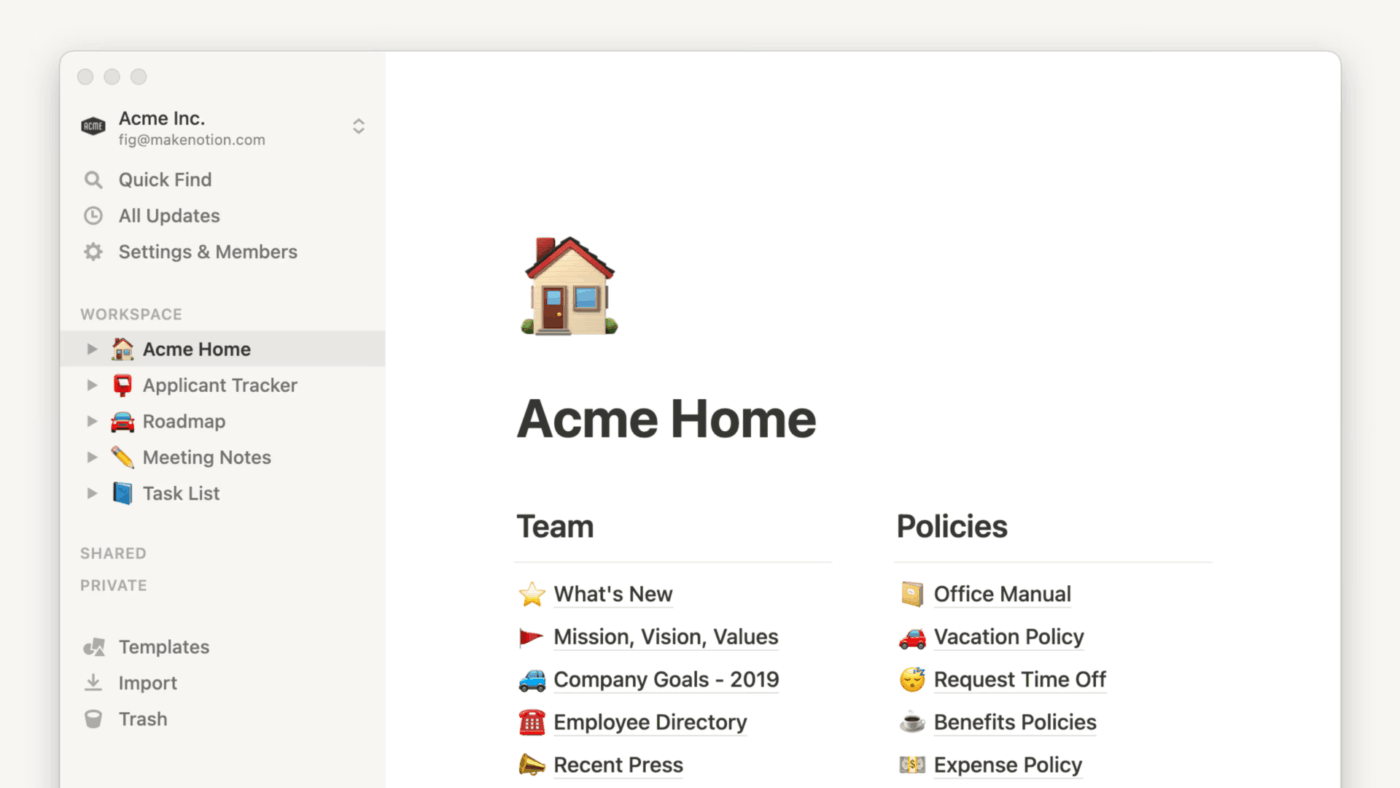
Unlike structured project management tools that force you into lists and workflows, Notion’s block-based system lets you craft the workspace you want. It combines note-taking, docs, wikis, databases, calendars, and light project tracking into one flexible interface, acting as a project management and knowledge management system in one.
You can create relational databases that link work to docs, turn any view into boards or calendars, and embed media and files right where the work happens.
That flexibility comes with tradeoffs. Notion doesn’t force structure, which means building complex project systems takes time and thoughtful design. And while it supports database views and task tracking, it doesn’t natively offer deep automation or advanced resource planning like purpose-built work management tools.
A user on Capterra shares:
I have been able to save campaign ideas, client notes and schedules in one place, eliminating spreadsheet documents and last minute confusion…I don’t like the fact that complicated pages may scare off novices, and onboarding requires more discussion in comparison with less complicated tools.
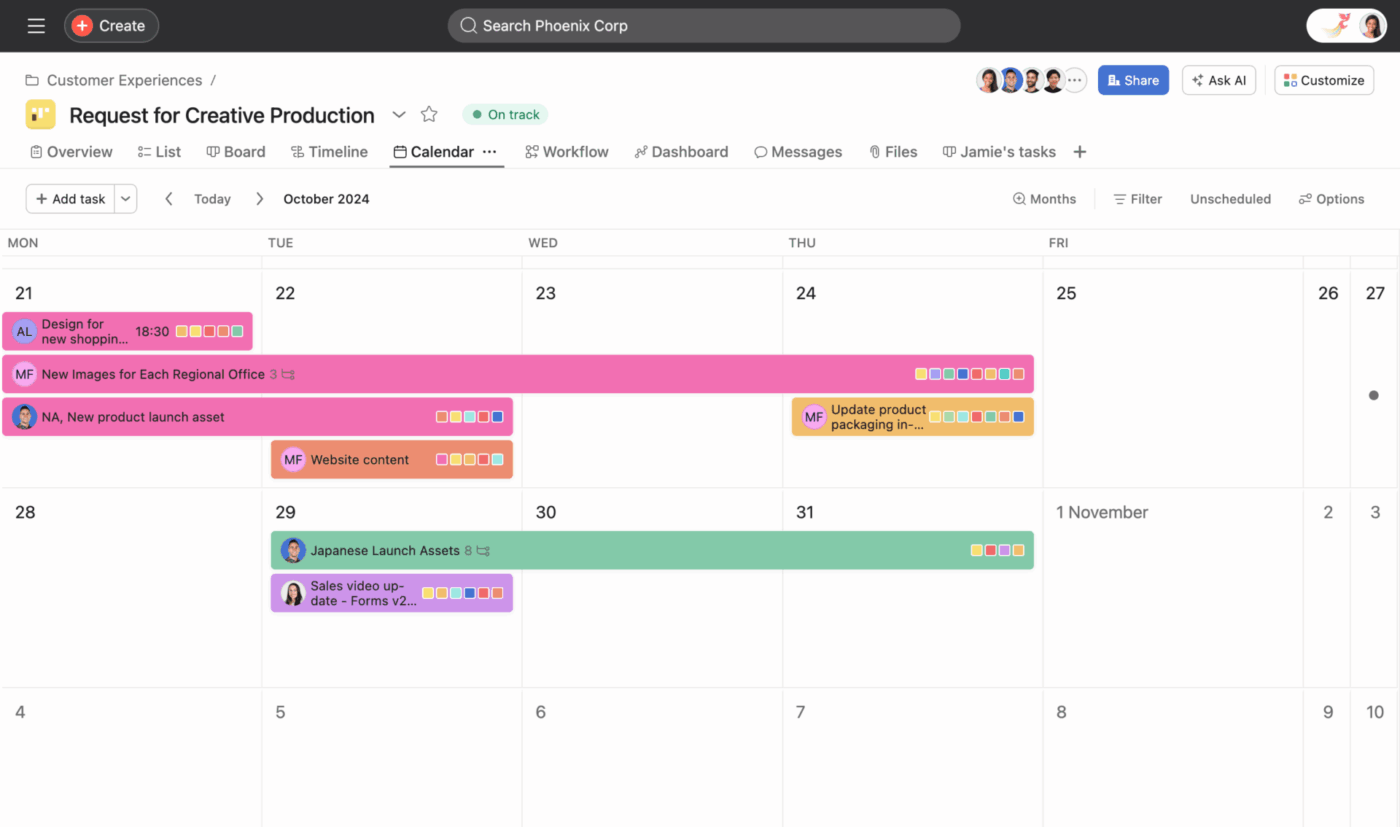
Are you struggling to connect the dots between your company’s strategic objectives and the daily work your teams are doing? When work happens in departmental silos, you lack a clear line of sight into how projects are progressing across the entire organization. This misalignment means teams can be busy but not productive, working on tasks that don’t move the needle on key goals.
Asana solves this by providing cross-functional coordination at scale. Its proprietary Work Graph data model intelligently maps the relationships between people, tasks, and goals. The result? Leaders get clarity at every level.
And while its AI features won’t replace your PM strategy, they can summarize insights and recommend workflow tweaks that keep teams moving forward.
According to a G2 reviewer:
The various visual views—such as list, board, and timeline—make it easier to see priorities and deadlines at a glance. Additionally, the automations and integrations help minimize manual effort and ensure everything stays in sync….Many advanced tools, like timelines, goals, and reporting, are only available in more expensive plans, which may lead to higher costs as your team grows.
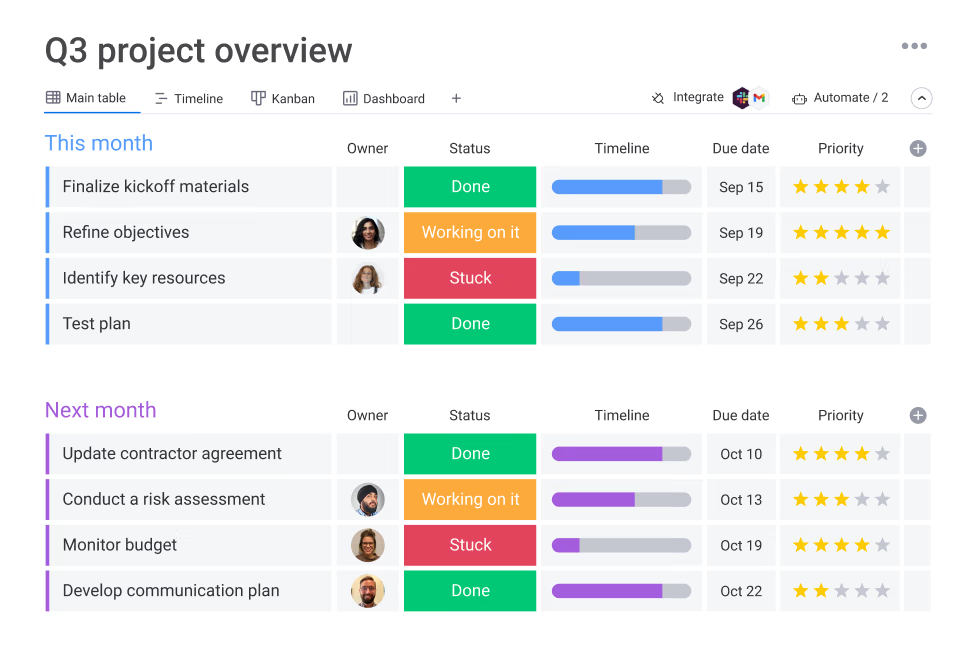
If your team’s process is unique, and off-the-shelf project management tools just don’t fit, monday can be a good choice. monday’s flexible Work OS offers extensive customization through colorful, visual boards and no-code automation.
You can intuitively connect work across departments, embed approvals in workflows, and set up repeatable actions. But, because you construct many workflows from its modular components, teams without a clear process blueprint can spend time designing rather than doing.
A user on G2 shares both the pros and the cons:
I love the fact that I have every option possible to stay on top of tasks, assign work to my team and define critical steps in processes…Automation seems to break form time to time. I’d like to see it better perform and maybe have a manager manage each broken connection by being notified when it breaks.
📚 Also Read: ClickUp vs. Monday: Which Tool Is Right for You?
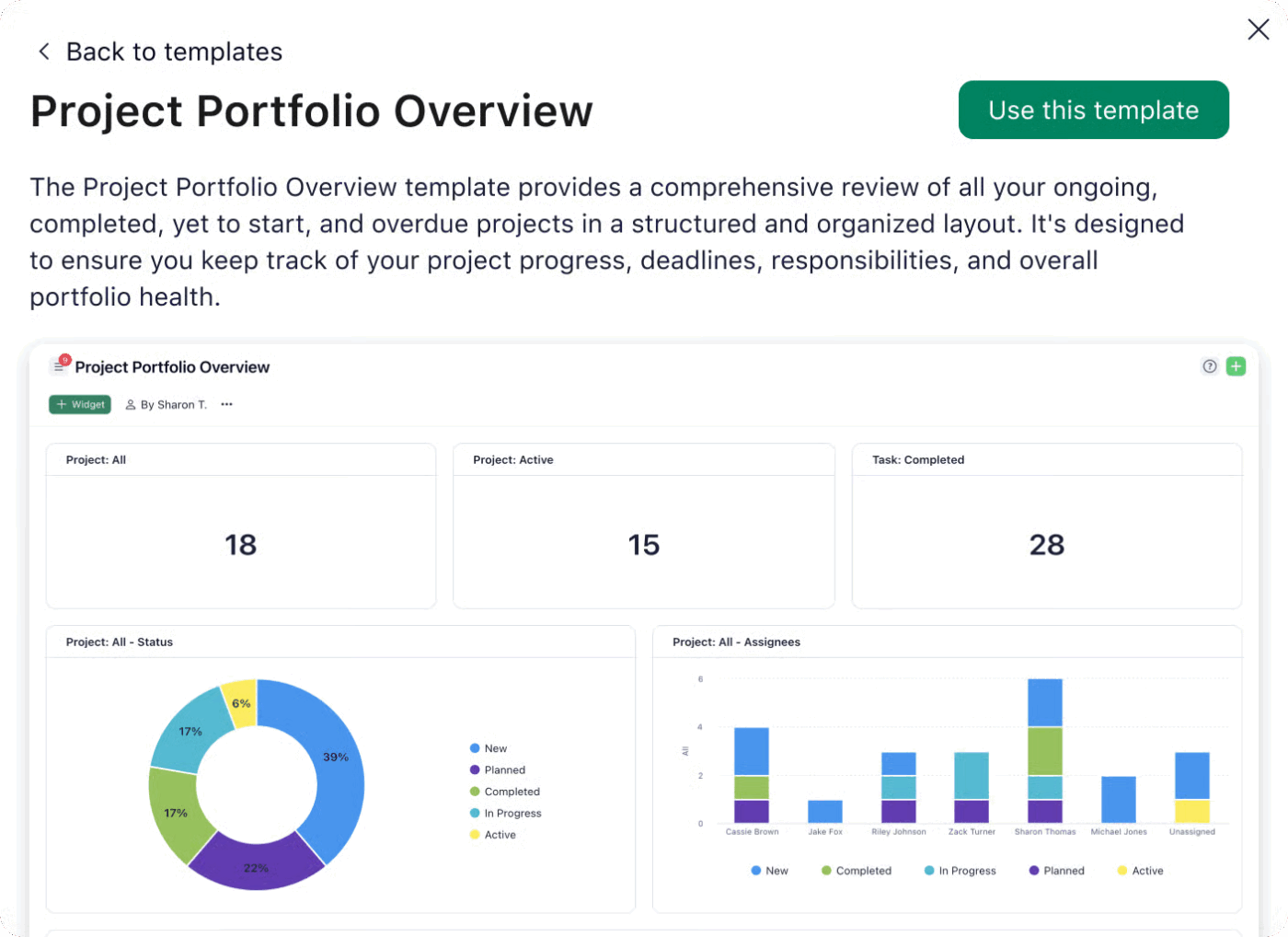
Your marketing or creative agency is struggling to manage team capacity and a chaotic approval process. Without clear visibility into who’s overworked and who’s available, you can’t allocate resources effectively, leading to burnout and project delays. Feedback on creative assets is scattered across emails and chat messages, causing a chaotic approval process and endless revision cycles.
If that sounds like you, Wrike’s resource management and proofing workflows might help. Users love Wrike for its collaboration features and dashboards, which simplify managing multiple stakeholders and deliverables.
This is what a Capterra reviewer had to say:
Overall, my experience with Wrike is a solid 3 stars. It’s powerful and clearly capable but using it feels heavier than it needs to be. The learning curve is steep, and even once you understand it, the day-to-day still isn’t as intuitive as other platforms might be.
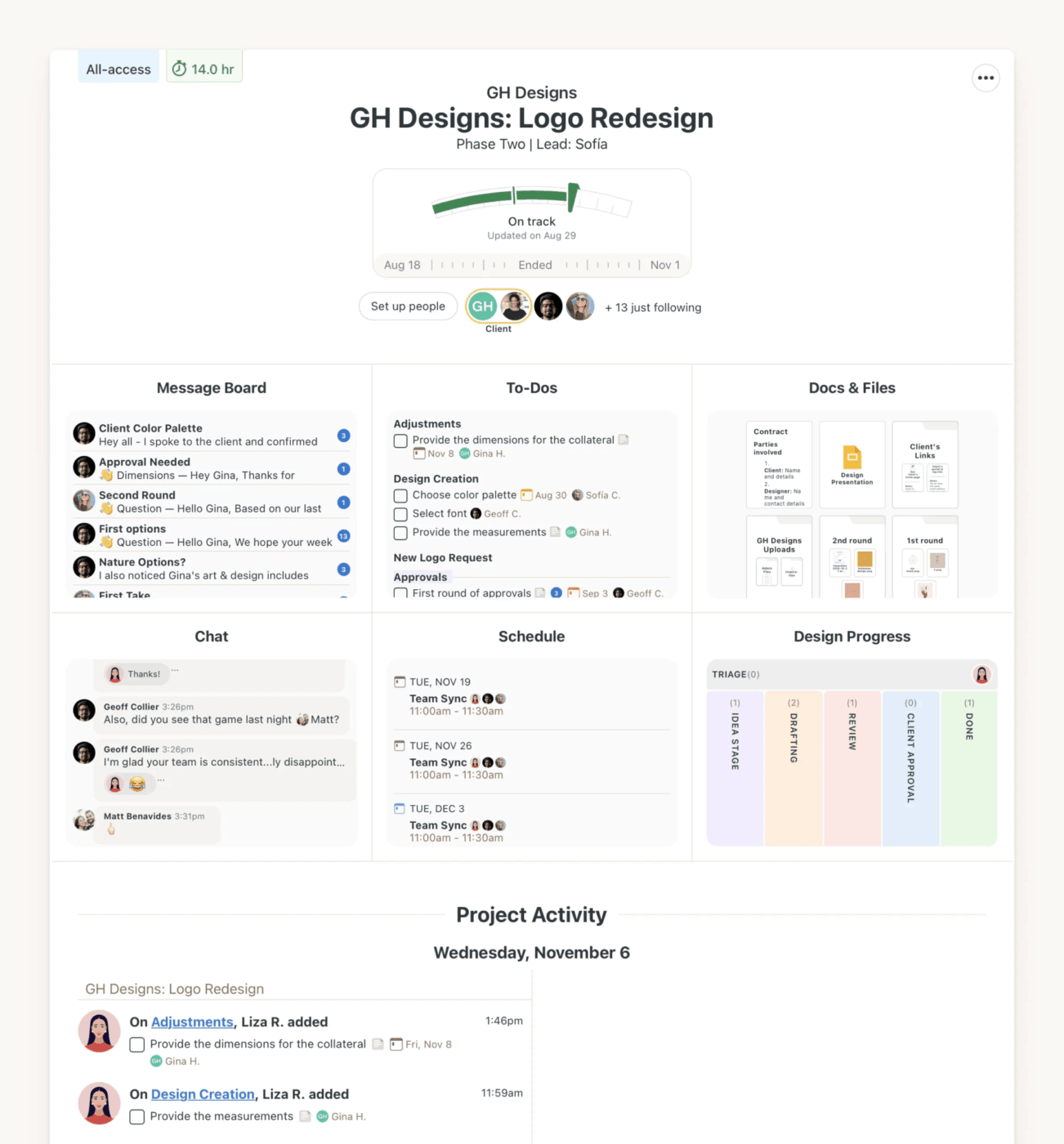
Basecamp takes a keep-it-simple approach to work. Its biggest strength is less feature bloat and more of the basics done well. Many teams that aren’t looking for sophisticated workflows or deep customization enjoy how quickly new members can jump in, see what needs to be done, and start contributing.
This makes it ideal for smaller teams or agencies that just want clear communication and basic project tracking without the “bells and whistles.”
At the same time, that simplicity comes with limits. Basecamp doesn’t offer built-in features like task dependencies, advanced reporting, or native automation builders that you’d find in modern work management platforms. It’s really designed to replace scattered email threads and ad-hoc spreadsheets, not to manage complex project portfolios or automated processes.
A user on G2 feels simplicity is both Basecamp’s strength and limitation:
Tasks, discussions, files, and timelines are easy to find, which cuts down on noise and constant back-and-forth. It helps teams stay aligned without turning project management into a full-time job…The lack of advanced reporting, detailed task dependencies, and flexible views makes it harder to manage larger or fast-moving teams.
📚 Also Read: Top Basecamp Alternatives
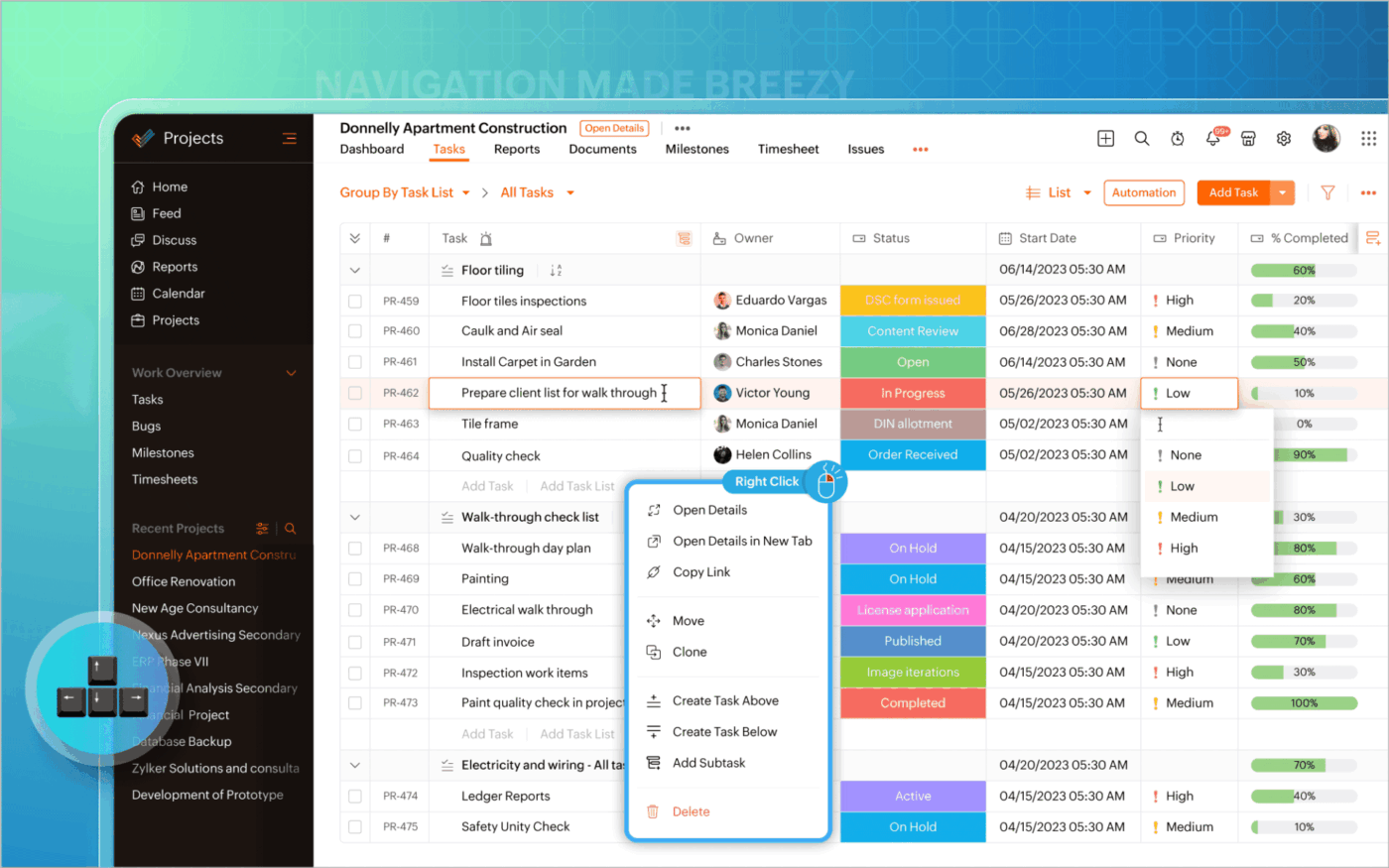
Does your startup or small business need a full-featured project management tool? Are you worried about the enterprise-level price tag?
Zoho Projects combines task and milestone management, Gantt charts, time tracking, issue tracking, reporting, and basic automation into a cost-effective project hub. It’s a good fit it when budgets are tight, and you don’t require deep AI assistance or an all-encompassing workspace.
Because it’s part of the broader Zoho ecosystem (with over 50 apps), you can also connect it to chat tools, CRM systems, calendars, and other apps your team already uses. This is a nice plus if you prefer a modular stack over an all-in-one platform.
Many G2 reviews echo the same sentiment:
I like how it organizes work through tasks, milestones, and Gantt charts, making it easy to track progress and deadlines at a glance. I appreciate the collaboration features, like comments, file sharing, and activity feeds, which keep everything in one place…The user interface of Zoho Projects feels a bit crowded when managing large or complex projects, and there’s a learning curve for advanced features like automation and dependencies.
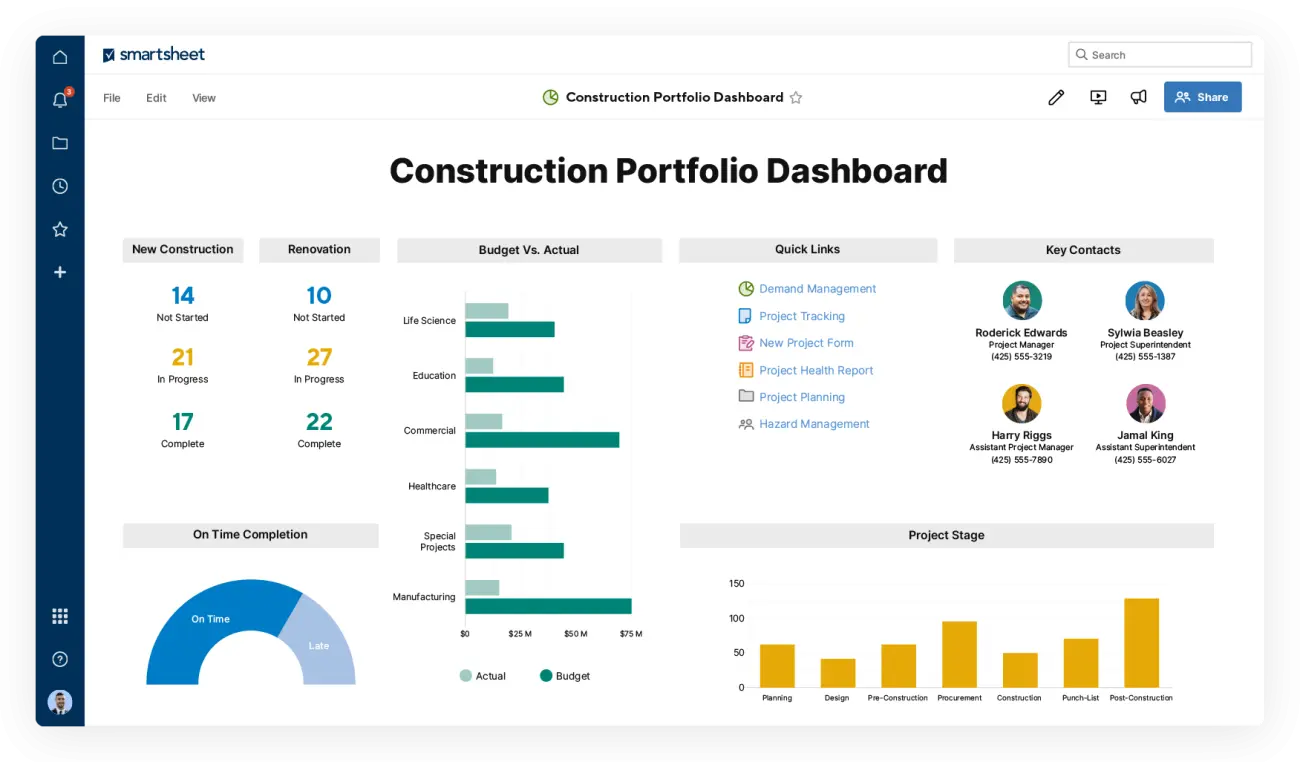
Smartsheet marries the familiarity of spreadsheets with the structure of a project management tool. If you and your team have ever wished a spreadsheet did more—like visualize project timelines, automate workflows, or centralize reporting—Smartsheet delivers that in a single interface.
The layout lowers the barrier to entry for Excel power users while layering powerful project management capabilities on top. Smartsheet also supports multiple project perspectives (grid, calendar, Gantt, card views) and ties them back to the same underlying sheet, so your plans and progress stay in sync.
👀 Did You Know?
📌 FedRAMP Moderate means Smartsheet is approved by the U.S. federal government to handle moderate-impact data—information that isn’t classified but still requires strong protections (think internal agency operations, contractor data, regulated workflows).
📌 DoD IL4 (Impact Level 4) means Smartsheet can be used by the U.S. Department of Defense and its contractors for controlled, unclassified information, under strict security and access controls.
Here are the pros and cons straight from a Capterra review:
Smartsheet allows for flexible project management and team collaboration with real-time updates and comments. We can organize the tasks within our team and assign them as necessary…Text formatting and navigating the Smartsheet for tasks can be time-consuming if not experienced with it.
📚 Also Read: Best Smartsheet Alternatives and Competitors
The best ONES.com alternative for you ultimately depends on why your current setup feels limiting. Development teams may gravitate toward Jira for better control, while those seeking simplicity might prefer Trello or Basecamp.
But if your core challenge is Context Sprawl—tasks in one tool, docs in another, conversations somewhere else, and automation bolted on later—then replacing ONES.com with another single-purpose tool won’t solve the root problem.
In those cases, the strongest alternative is a platform that consolidates work end to end: planning, execution, collaboration, automation, and AI. A platform like ClickUp.
🧠 Fun Fact: Over 4 million teams are using ClickUp already, and ~97% of them report better efficiency since switching to ClickUp!
Want to see what a connected workspace feels like? Try ClickUp for free today!
Most modern project management tools offer import features for CSV or Excel files, and some provide dedicated migration assistance for larger teams. You can export your data from ONES.com, map the fields to the new platform’s structure, and run a test import with a single project before migrating everything.
While several alternatives offer free plans, they are typically not suitable for enterprise use due to limitations on features, security, and support. Free plans are excellent for evaluating a tool’s core functionality before committing to a paid plan that meets enterprise requirements.
Traditional project management tools focus on tracking work. AI-powered tools go beyond simple task tracking by automating repetitive work, providing intelligent suggestions, and summarizing information to save you time. A truly context-aware AI, like ClickUp Brain, understands the relationships between your projects, documents, and conversations to provide more relevant and powerful assistance.
Onboarding time can range from a few days for simple tools to several weeks for complex enterprise platforms. The best approach is to start with core features that solve your team’s biggest pain points and then gradually introduce more advanced capabilities over time.

© 2026 ClickUp

There’s an easier way. Try a free AI Agent in ClickUp that actually does the work for you—set up in minutes, save hours every week.