
How to Use Notion for Project Management (Database, Gantt Chart, Timeline, CRM)


Sorry, there were no results found for “”
Sorry, there were no results found for “”
Sorry, there were no results found for “”
Curious about Notion project management?
It’s been just four years since Notion arrived on the scene, and the software has already made waves in the industry.
But what is Notion?
Notion is a powerful note-taking app (similar to Evernote) and a collaborative tool that helps teams organize their work and documents.
While the Notion workspace is definitely more suited to note-making, it does have a few features geared towards managing project tasks.
How helpful those features are is another story, though.
Luckily, that story begins right here!
In this article, we’ll take a look at how Notion helps you with project management, its advantages, its limitations, and how to get around its issues with an easier alternative!
Let’s get started.
Notion is a digital workspace that allows you to organize all your company’s work and tasks.
This productivity tool essentially lets you create documents and collaborate with your team.
But that’s not all. Notion can play a role in managing projects too.
Oh, and if you enjoyed playing with legos as a kid, you might find this interesting…
Notion offers different blocks that can be used to create your own unique layouts and templates for your project. This way, you combine various blocks of information to create a cohesive project space.
Most companies use Notion primarily as a note taking app and an internal knowledge base.
It’s largely used to:
However, the Notion workspace isn’t just for teams; it can be used by anyone who wants to organize their life.
You can do all sorts of interesting stuff like storing your favorite recipes, personal goals, and more.
The Notion app might look like compact project management software, but it has a few interesting features up its sleeve.
Let’s take at the best it has to offer:
Here’s how they work:
This is Notion’s jam.
This feature allows you to create ‘Wikis’, or directories of documents that have everything your team members need to know about your company or project.
Just like a Google Doc, each document supports rich-text formatting, code snippets, and more. You can also group all your policies, professional goals, plans together for easy knowledge management.

When you’re managing projects, you need to know what your team is working on at all times.
Unfortunately, there’s no crystal ball to help you out. (Sorry, psychics.)
However, Notion has the next best thing: a Kanban board.
A Kanban board reveals the status of all your project tasks (‘To Do’, ‘Doing’, ‘Done’), and who’s assigned to the task. Once Notion users finish a task, they can drag and drop the card to the relevant status column.
Besides Kanban boards, Notion’s database offers multiple views of your project tasks. You can view them as a task list, in a calendar view, through a gallery view, or via a table.
As a more advanced type of page, the Notion database can be imagined as a distinct spreadsheet. When populating fields in a Notion database, each item can have its own Notion page.
As mentioned above, each item in your Notion linked database has a dedicated Notion page. The Notion page can be chock-full of important information and checklists related to the task. This way, you get a detailed breakdown of every item.
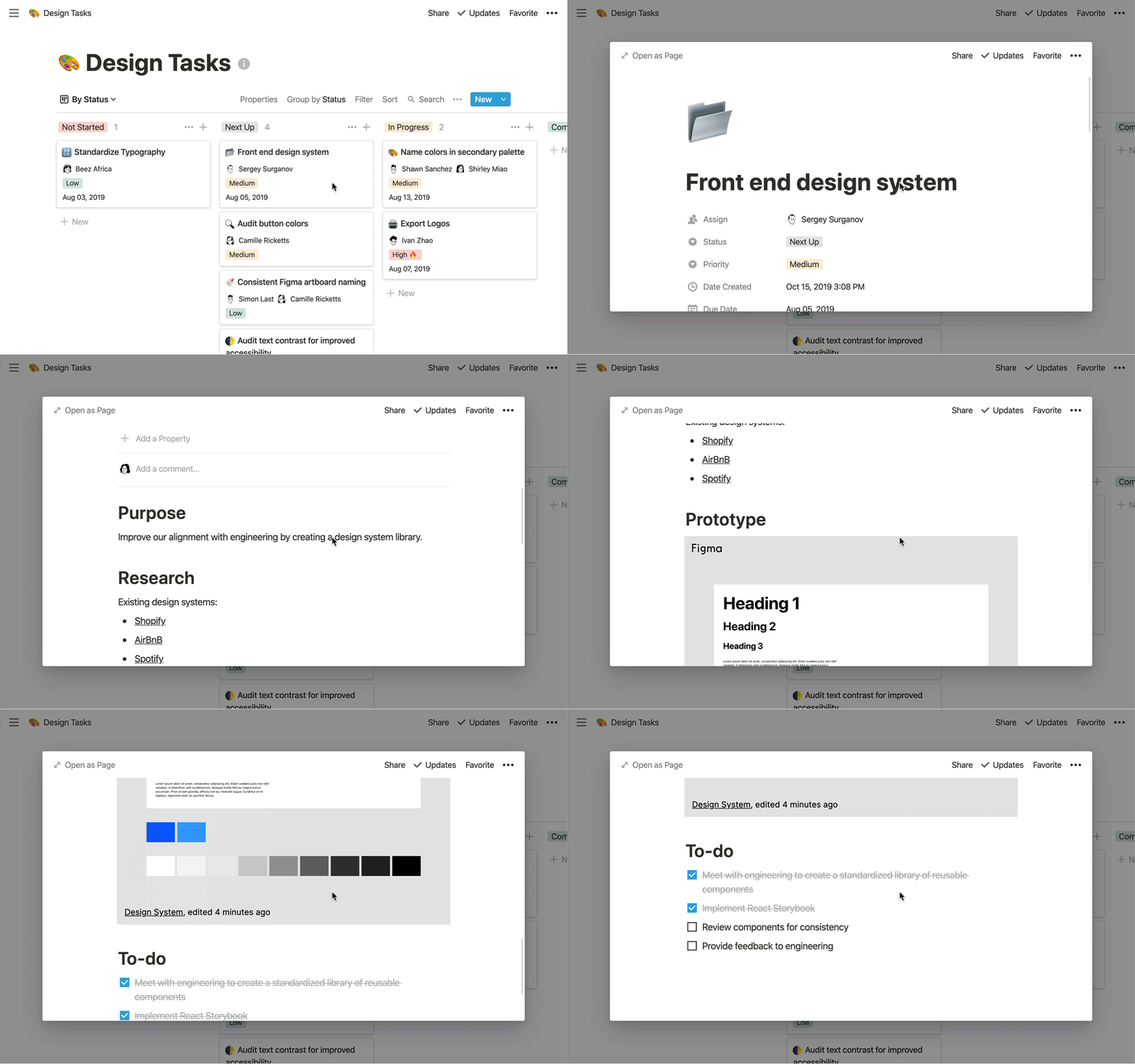
If you need to see a full picture of your tasks and projects, then the timeline view database feature can help you get that.
Timeline is a new type of Notion database that allows you and your team the flexibility to adjust timelines, customize your workflow, and filter what properties are shown or hidden on the timeline.
With this view, you’ll see your projects and deadlines in one easy-to-read view across time units. Each project is laid out as a card. Simply click on the card to bring you to the project page.
Notion offers a template gallery that features real-Notion pages designed by their team and community.
Choose templates for marketing, design, planning, agile sprints, and so much more. And if you’re feeling spontaneous, you can try out their standout templates under Notion Picks or their template of the month. Keep in mind: some templates are free to try, and others are paid options.
Gantt charts are great for visualizing your projects on a timeline, and in Notion, you can create your own Gantt-style time view to help you plan your work and keep track of deadlines.
This gives you and your team a visual representation of projects and events over time, lets you see any potential capacity issues at a glance, and easily adjust start and due dates with the drag-and-drop feature.
Sure, Notion has a few project management features, but note-making is what it prioritizes.
If you have a small team, Notion can help you with basic project management processes like assigning tasks, storing project documents, and working with your colleagues. But that’s it.
Bonus: Notion vs Roam
Let’s take a look at what you can benefit from though:
Notion lets you add comments anywhere within the database or a project page. Notion also sends team members a notification whenever you mention them in a comment.
They missed an opportunity to call them Notionifications, tbh.
Additionally, you can work on a particular Notion page at the same time with your remote team, making it the perfect replacement for Google Docs aficionados.
As previously mentioned, Notion’s user interface is like a set of legos.
Because of this, you can create your custom project page to match your project needs.
However, you don’t have to do the hard work yourself.
Tons of Notion users have already created every project template imaginable, including:
(We’re not joking)
You can access every Notion feature on almost any platform.
There is an Android app, an iOS app, a desktop app (Mac and Windows), and also a Chrome extension.
And that isn’t all.
Like the Evernote web clipper, the Notion web browser extension lets you store webpage clippings, articles, links, or pictures in your Notion workspace.
Bonus: Coda Vs. Notion
Notion’s database view makes it a good tool for managing CRM contacts. The app offers a CRM template that you can duplicate with a baseline of category fields.
Recently Notion added an integration with Zapier so you can populate inbound leads into your Notion CRM.
In your Notion CRM, import CSV files, add contact tags, populate email addresses, and change pipeline stages.
Bonus: Compare Notion to OneNote!
While Notion does have a few handy features for project management, it lacks a lot of core functions that you find in dedicated free project management software.
Look, Notion is a great note-taking app, but it’s not enough if you’re looking for a comprehensive project management tool. You might need to look for Notion alternatives.
Here are a few disadvantages of choosing Notion for project management:
(click on the links to jump to a specific drawback)
Note: This Notion project management analysis also showcases how dedicated project management software like ClickUp can solve all the problems you might experience with Notion.
What’s ClickUp?
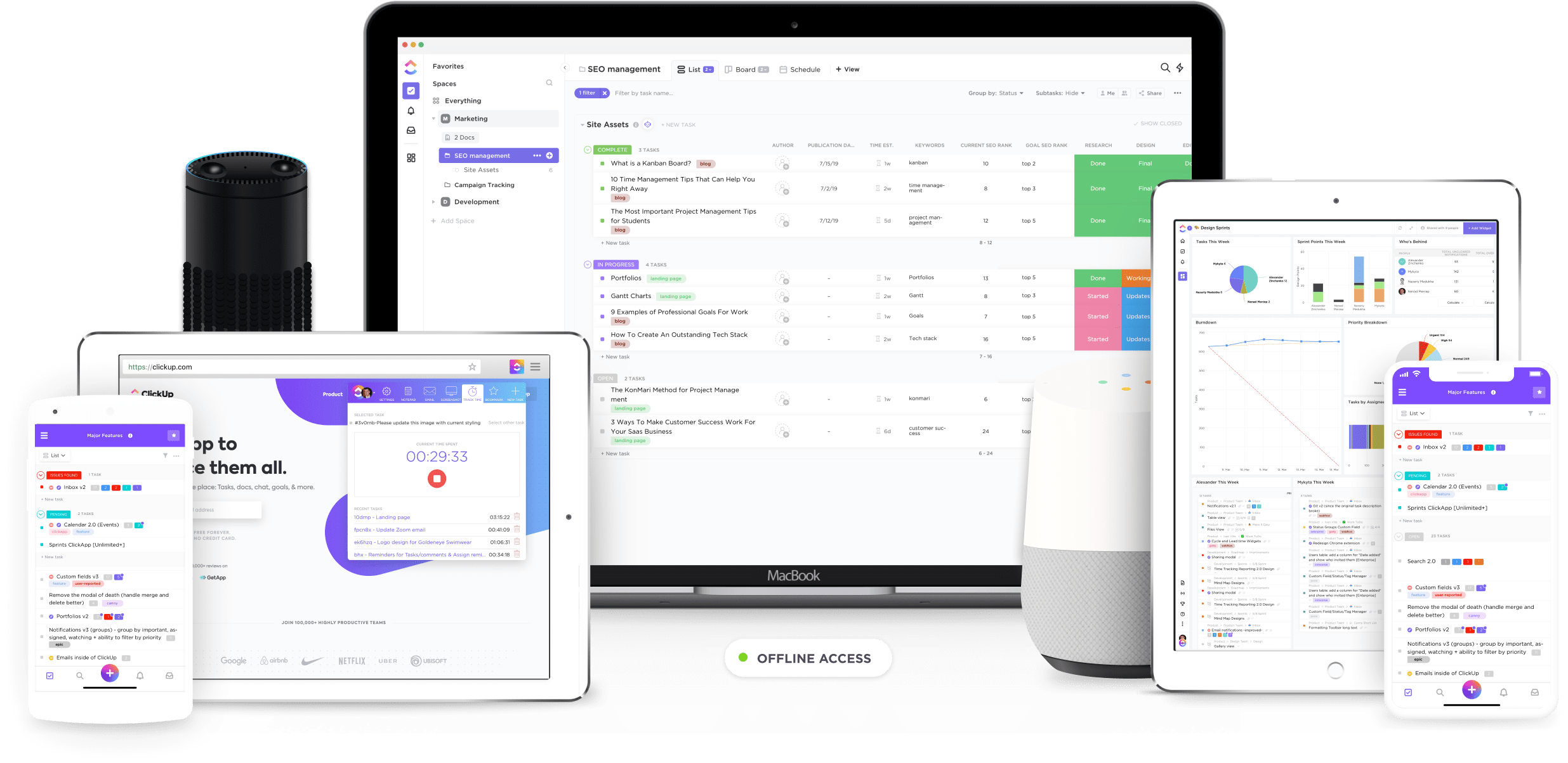
ClickUp is the world’s leading remote project management tool.
With a whole host of features, it’s got everything an in-house or a remote team needs to run successful projects.
Now, let’s get down to some major Notion limitations and how ClickUp solves them:
Notion is like a cannon made out of glass.
It might be powerful, but its biggest strength is also its biggest weakness.
Here’s what we mean:
It requires users to use its blocks to make the most out of its features. However, figuring out how to use all these blocks and templates can be overwhelming for most Notion users.
It’s sort of like opening up a 10,000-piece lego set all at once.
You have all the parts you need.
You don’t have to solve puzzles to use a project management tool like ClickUp.
ClickUp is a ridiculously simple task management platform that has no learning curve.
You don’t have to spend days teaching your project teams on how to use ClickUp.
All you need is our quick-start guide.
It has everything your team needs to know before they create their first task in ClickUp.
Note: If you’re migrating from another productivity app like Basecamp, Wrike, or Jira, you can import all your project data in a few simple steps. Click here to find out how.
Psst..want to know a few shortcuts to help you breeze through task management?
ClickUp has a built-in slash command or keyboard shortcut for almost everything.
Here are just a few out of our 50+ shortcuts:
Because the Notion workspace doesn’t have a structure in place, you might be stuck for hours within the labyrinth of pages, databases, and tasks.
Which would leave you feeling like this:
If you want to make task management easier, you’ll have to create a linked Notion database that contains all your tasks and multiple projects.
But that’s too much work if you ask us.
There’s an easier way.
ClickUp has a simple Hierarchy Structure that acts as a map while you’re navigating through your unified workspace.
Workspace > Space > Folders > Lists > Tasks > Subtasks > Checklists

Here’s how they work:
Workspace: the highest level where you can break your company into teams
Spaces: these are the major departments, like “marketing” or “HR”
Folders: used to store project lists/groups
Lists: this is where individual projects are listed
Tasks: each task page has its own subtasks, description, comments, and more
Subtasks: large tasks are broken down into manageable subtasks
Checklists: they exist within tasks or subtasks
You can create a beautiful Notion page to plan your business goals… but there’s just one problem.
There’s no way to track your progress towards the goal.
Yes, you can create a checklist of objectives.
But you can’t see how close you are meeting those objectives either.
This can be quite demotivating.
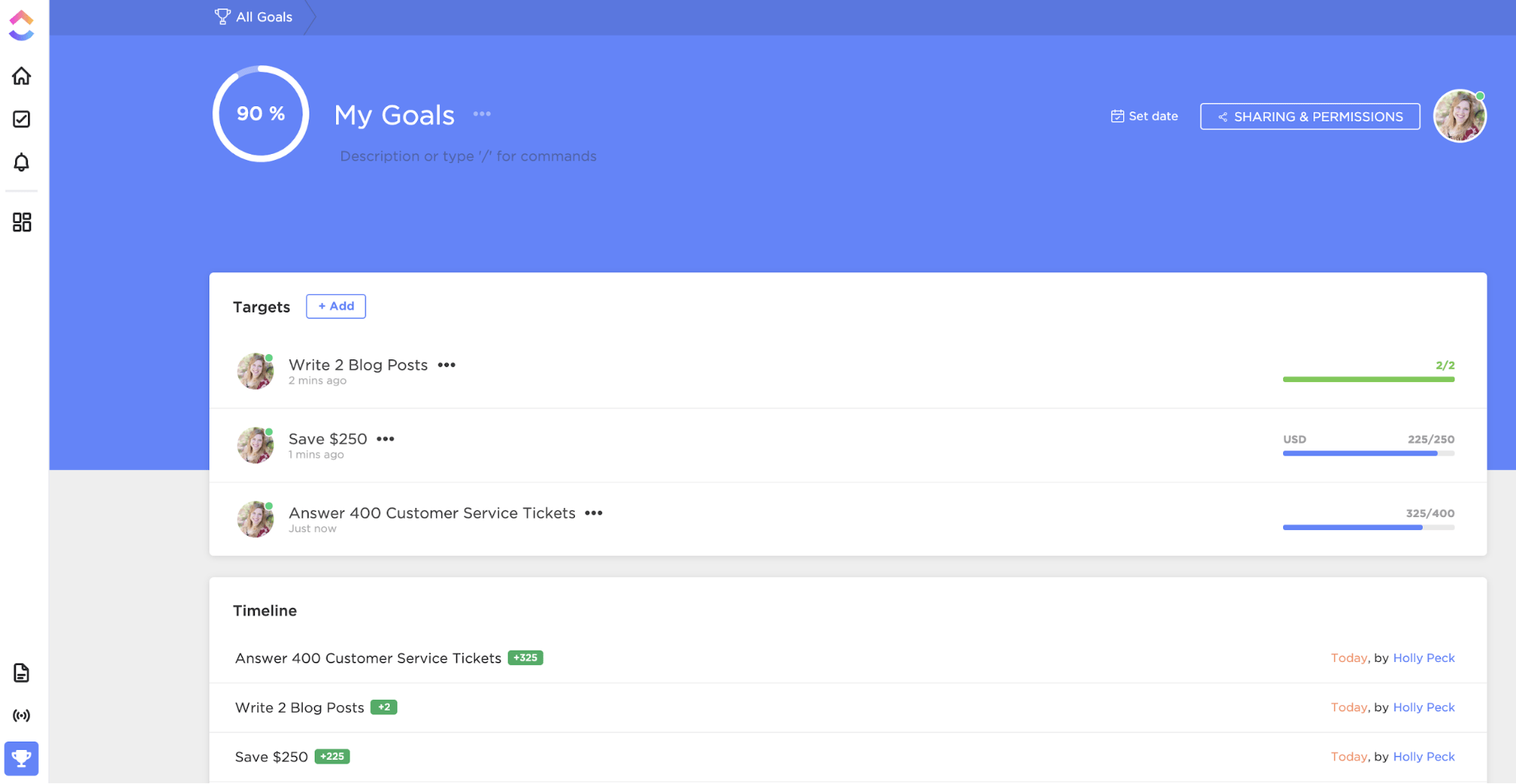
Unlike Notion, ClickUp’s Goals aren’t just words written on a page.
Goals are high-level containers that are broken down into small objectives known as Targets.
You can measure Targets with a variety of units like numbers, currency, true/false, and task lists.
And once you hit a Target, ClickUp updates the progress percentage automatically and shows you how close you are to the Goal.
One of the core parts of project management is tracking your project’s progress to determine if you can meet your deadlines.
How do you do that?
You’ll need a project timeline or a Gantt chart that lists the sequence of tasks that need to be done in order to complete the project.
And while Notion mostly addressed this need late in 2020 with their Timeline view, it’s missing a major component of managing larger, more complex projects: dependency management.
This means that, while you can see when tasks start and are expected to end, prioritizing tasks by visualizing relationships and dependencies is a no-go …which can lead to confusion from all parties involved.
ClickUp’s Gantt charts neatly display all the project tasks on a dated timeline.
This way, you know what tasks are expected to be completed and by when.
It also displays how the tasks are linked to each other with Task Dependencies.
Just draw a line between two tasks like so, and boom, you’ve created dependent tasks.
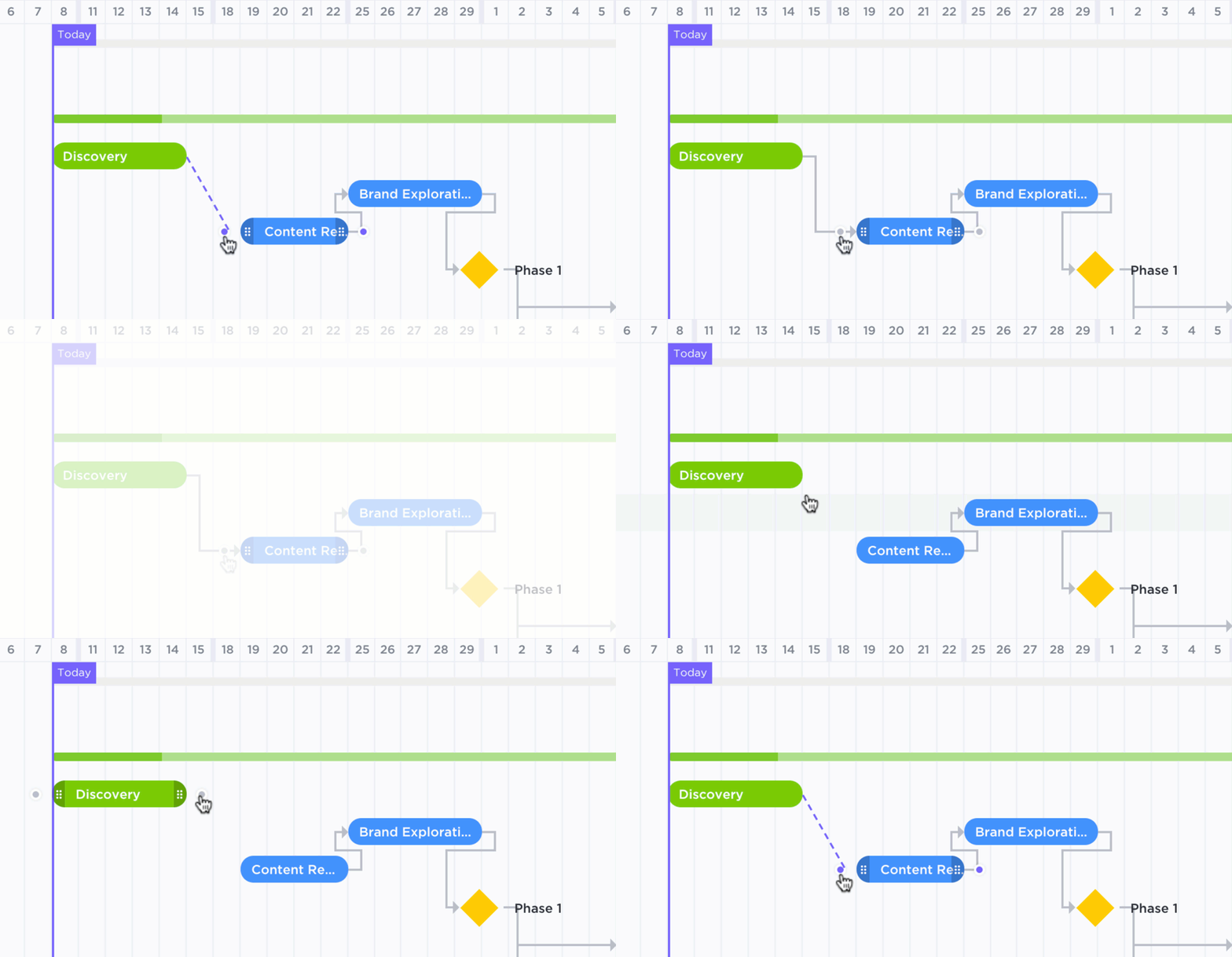
And that’s not all; these Gantt charts also indicate your Critical Path.
PS: It’s the list of crucial tasks that need to be completed in order to meet your deadline on time.
Bonus: Critical path templates
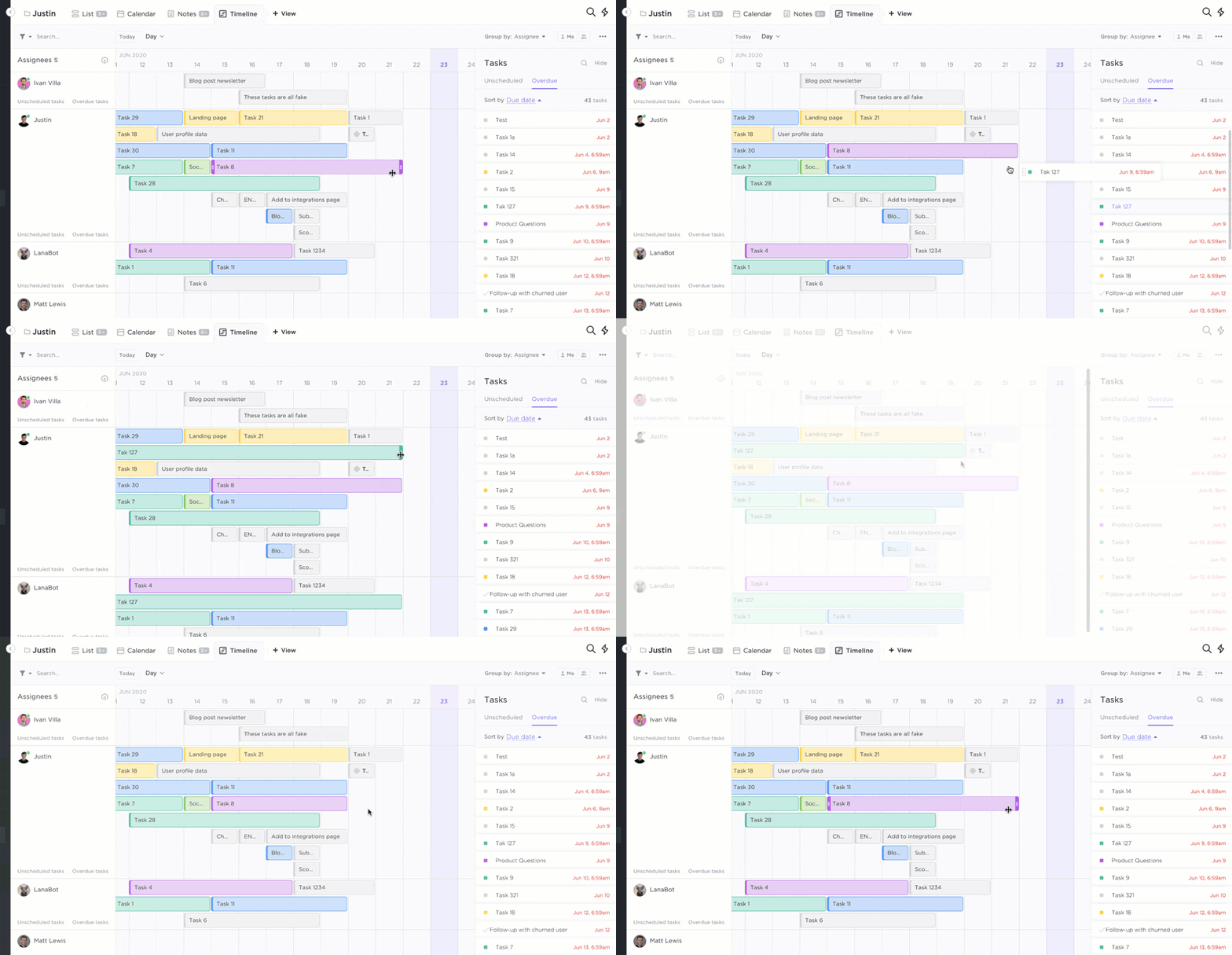
If you’re planning to create a product roadmap: choose ClickUp’s Timeline View.
It lets you visualize your project tasks, assignees, and deadlines so you can keep tabs on the development process.
You can also use it to group tasks by team members, so you can make sure no one is overloaded with a task list that goes on forever.
Almost every new project management tool allows you to track your team’s performance with reports.
Does Notion have reports?
This unified workspace lacks a built-in reporting feature. However, there is a third-party reporting app for Notion.
While it does have some neat charts, it comes with a hefty price tag.
In fact, the ‘Personal’ plan for that reporting app ($19/month) is almost five times as expensive as Notion’s Pro plan!
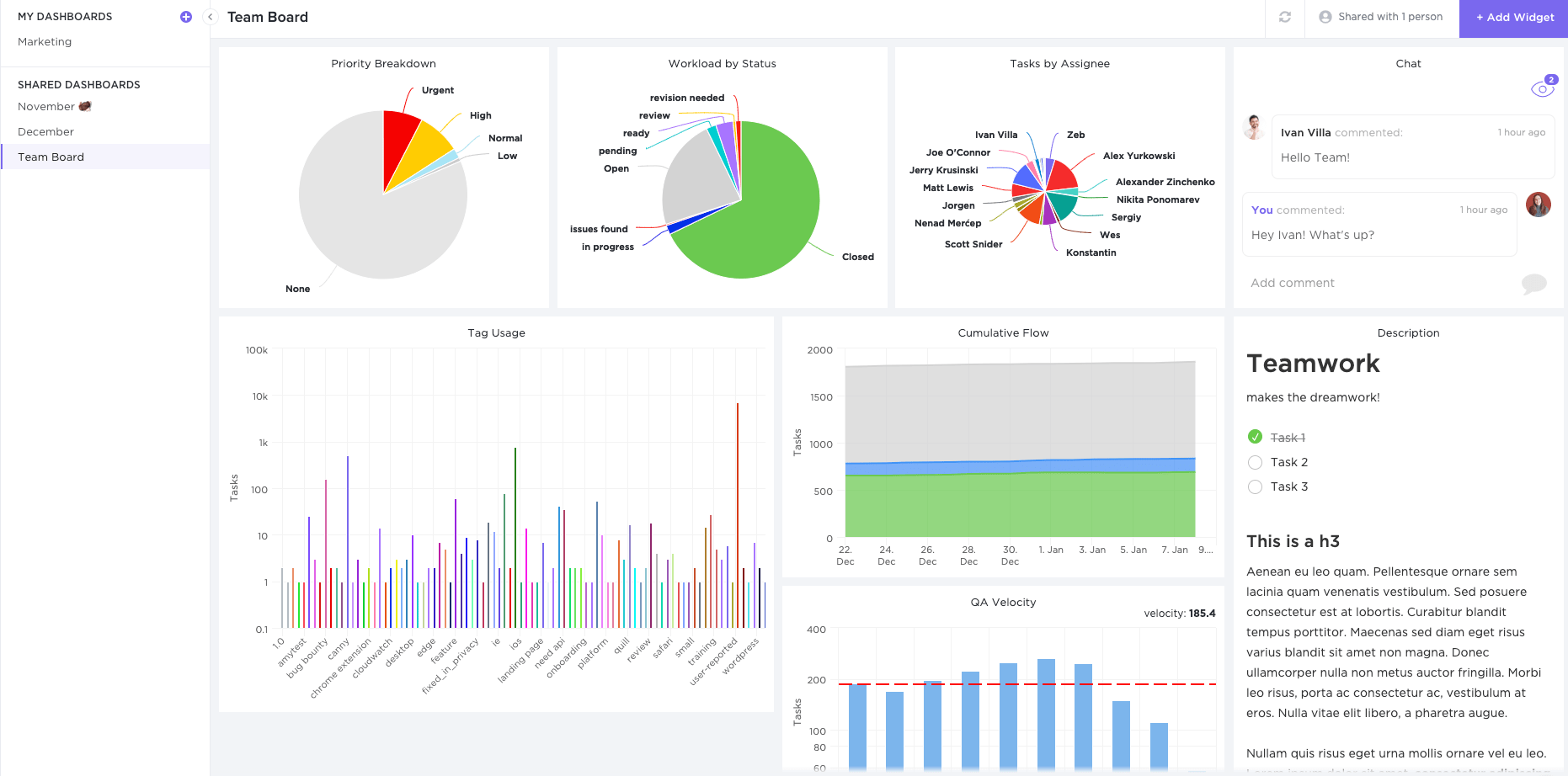
ClickUp’s powerful built-in Dashboards help you visualize your project data without the help of another app.
Here are a few Agile project metrics you can track with Dashboards:
While Notion doesn’t have an automation feature, you can technically use codes and formulas to help you out.
However, if you want to automate your workflow, you’ll have to figure out the correct formula through trial and error.
It’s like playing with chemicals in a lab.
You don’t know what will happen, but the results can be disastrous, most of the time.
Fortunately, you don’t have to experiment with ClickUp.
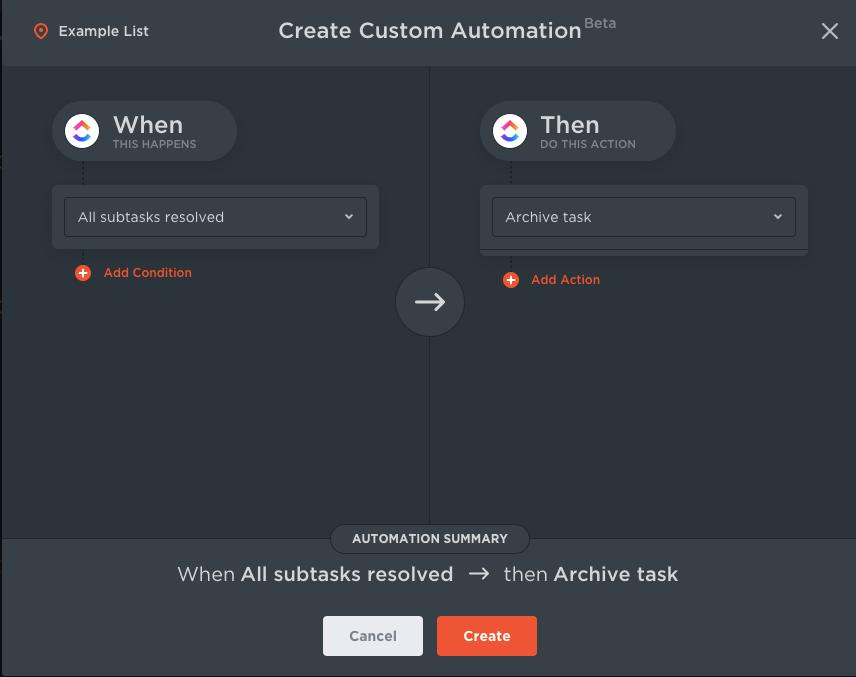
You get access to around 50+ pre-made Automations that help you manage repetitive task management processes.
With it, you can automatically:
And if you can’t find a particular automation, you can create your own!
(without any explosions, of course)
But wait.
What about the things that Notion does well, like note-taking?
You betcha!
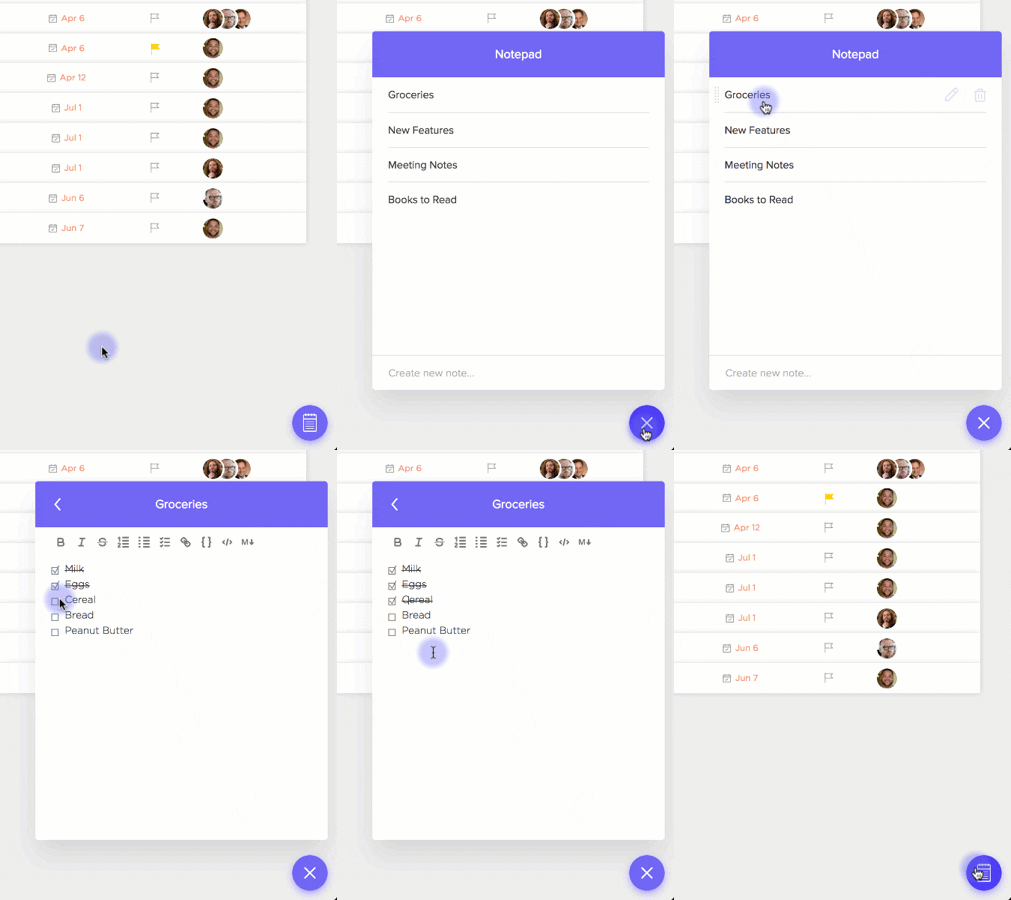
ClickUp’s Notepad feature lets you quickly jot down all your ideas (especially the ones you get at 3 AM), so you can convert them into actionable tasks later.
You can also:
But what about Wikis?
We got them too!
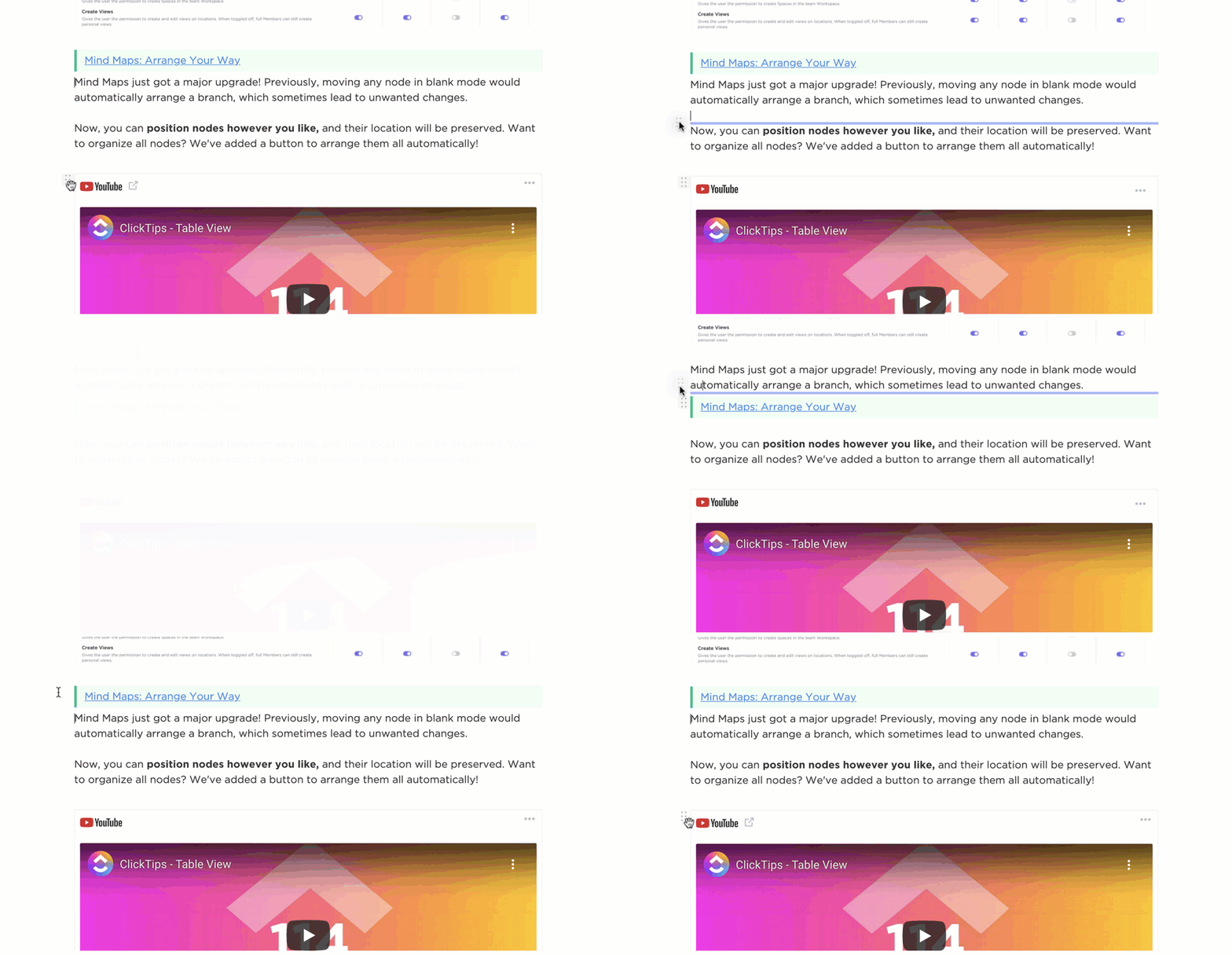
ClickUp lets you create dynamic Wiki databases with ClickUp Docs.
And since each Doc is stored alongside your project spaces, you can easily access them whenever you want.
With Docs, you can also:
Powerful mobile project management app: manage your team from anywhere, even your couch.
So, should you choose Notion for project management?
There’s no denying that Notion is a great knowledge management and note-taking app.
But when it comes to managing projects, it’s pretty limited.
It lacks a lot of key features that are already present in dedicated project management software like ClickUp.
A tool like ClickUp not only allows you to build detailed databases like Notion; it also offers all the essential features you need to manage your team and projects efficiently.
So get ClickUp for free today, and let your team’s productivity shoot for the stars!

Manasi Nair
Max 32min read
Manasi Nair
Max 14min read

Arya P Dinesh
Max 21min read

© 2026 ClickUp




