






Still downloading templates?
There’s an easier way. Try a free AI Agent in ClickUp that actually does the work for you—set up in minutes, save hours every week.
Sorry, there were no results found for “”
Sorry, there were no results found for “”
Sorry, there were no results found for “”

Airtable works well when your projects are simple with tidy bases, organized tables, and manageable tasks.
But after a point, you notice views multiplying, fields getting messy, and automations clashing with each other.
As a last attempt, you may turn to external tools and integrations. Before you know it, your tool sprawl becomes unmanageable, and you’re part of the group of employees toggling between platforms more than 3,600 times a day.
You can skip all this by just switching to ClickUp.
In this guide, we’ll show you how to move your workflows from Airtable to ClickUp without losing any data, so your team, big or small, can stay productive and stress-free.
Airtable is great when you’re just managing structured data, but as your team grows, you start needing more than rows and columns.
And that’s where the ClickUp vs Airtable difference becomes clear.
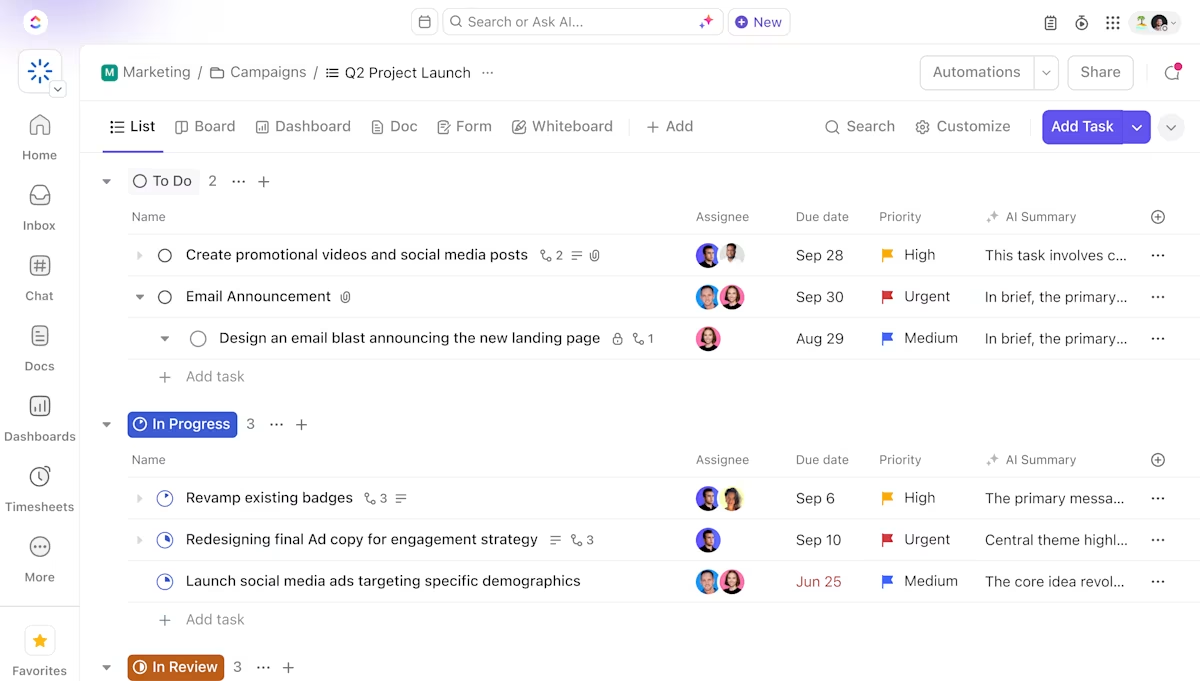
ClickUp is the world’s first converged AI workspace that combines project management, knowledge management, and chat—all powered by AI that helps you work faster and smarter.
Here’s what changes when teams connect Airtable to ClickUp:
💟 Bonus: AI Fields in ClickUp turn raw work into structured, usable data without forcing teams to manually label or update everything. Instead of relying on static custom fields, AI Fields automatically extract, generate, and update information based on task content, comments, docs, and connected context.
For example, they can classify request type, summarize requirements, assess priority or sentiment, extract key entities like customers or deadlines, and even generate structured outputs such as risk levels or next steps.
Before you click that Export to CSV button to integrate Airtable with ClickUp, take a moment to set the foundation right. A little prep now saves a lot of cleanup and rework later.
Here are the three checklist items before you move anything out of your Airtable database.
Start with the big picture: What work are you actually bringing over?
Most teams realize they’ve been housing old campaigns, paused experiments, and half-built bases that don’t need a new home in ClickUp.
Use this moment to:
🔍 Did You Know? The CSV format (Comma-Separated Values) appeared in the early 1970s, becoming the universal ‘Rosetta Stone’ for transferring data.
Think of this as spring cleaning your workspace before moving to a bigger, smarter space. 🧽
Data that’s messy in Airtable will still be messy in ClickUp, except now it’s harder to fix after the import. Do these quick tune-ups:
🧠 Fun Fact: Computer scientist Larry Tesler created the ‘cut, copy, and paste’ functions while working at Xerox PARC. He later championed the ‘No Modes‘ design principle, which aimed to make software intuitive and flexible. This principle means that a user doesn’t have to remember what ‘mode’ the computer is in to perform an action, making the user experience more seamless and easier to learn.
Now that you know what you’re migrating and it’s squeaky clean, give it a clear place to land. Unlike Airtable’s flat base structure, ClickUp’s Project Hierarchy gives you room to scale across departments.

Plan where each workflow fits after your Airtable and ClickUp integration process:
🔍 Did You Know? In the 1960s, migrating data meant feeding massive reels of magnetic tape between room-sized computers. Each tape could hold only a small fraction of what modern tools export in a single CSV.
Here’s a step-by-step tutorial on how to export from your Airtable account and set up your workspace in ClickUp. 🤩
Before importing your work into ClickUp, start by gathering the tables you want to migrate in Airtable. This could be:
❗ Note: The simplest export format is CSV for each table. Airtable also supports JSON exports, but CSV gives you the smoothest mapping experience in ClickUp.
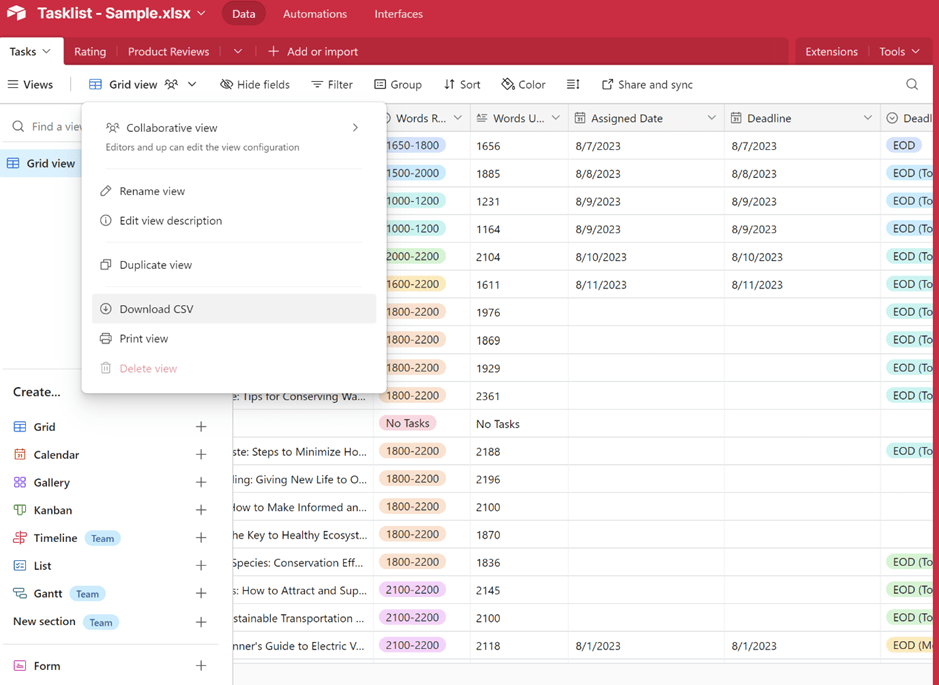
Here’s how to export:
1. Open a table
2. Click View > Download CSV
3. Save each table separately
Now you’ve got your source data ready for the move.
💡Pro Tip: If you have lookup or rollup fields, expand them into their actual values where possible to avoid confusion later.
Before the upload, prepare your spreadsheet for import, especially if it has lots of linked data.
Ensure that:
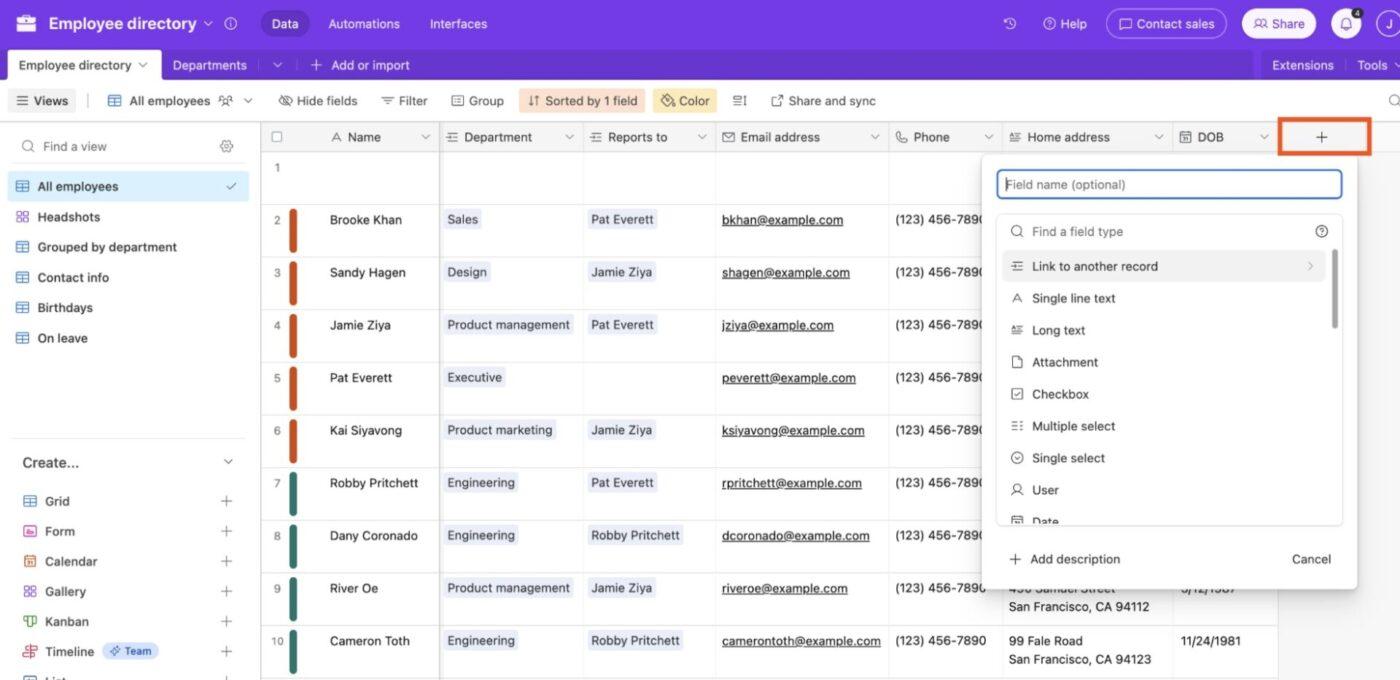
❗ Note: ClickUp supports up to 10,000 rows per import batch. For files larger than that, break them into smaller groups.
🔍 Did You Know? Before digital computers, teams of people, which were mostly women, computed astronomical charts, engineering tables, and military trajectories. They formed the earliest structured data-processing teams.
ClickUp Import makes it easy to bring your existing Airtable data into the platform, whether it’s stored in Excel, CSV, XML, JSON, TSV, or a TXT file.
The newest version of the ClickUp Spreadsheet Importer supports more file types. It also lets you import into existing Lists, Folders, or Spaces and uses smart mapping (powered by AI and historical imports) to match your spreadsheet columns to the right ClickUp fields.
Follow these steps to move your spreadsheet into ClickUp smoothly:
A new List named Spreadsheet Import is automatically created in the space you selected.
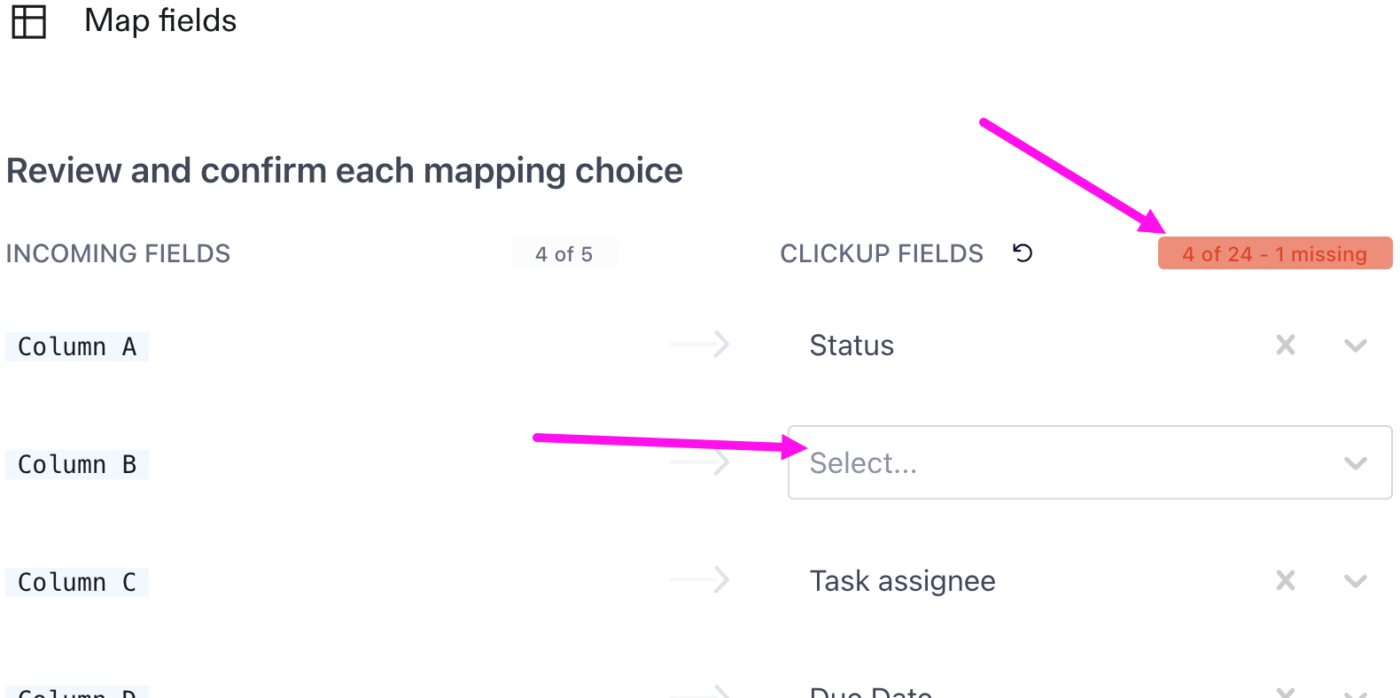
Field mapping is the process of matching each column from your Airtable file to the right field in ClickUp when you import the data. Think of it like telling ClickUp: this column is the task name, this one should become a dropdown, or these emails are assignees.
The importer helps by auto-matching your columns to the most likely ClickUp fields. You’ll see two sides on the screen:
| Airtable field type | ClickUp equivalent (Importer-Supported) |
| Single line text | Task name or Text Custom Field |
| Long text | Description (plain text only) or Text Area Custom Field |
| Single select | Dropdown Custom Field |
| Multi-select | Dropdown or Labels Custom Field |
| Checkbox | Checkbox Custom Field |
| Number | Number Custom Field |
| Currency | Money Custom Field |
| Date | Start date, Due date, Date Custom Field, or Date created |
| Task assignee(s) or Email Custom Field | |
| Phone | Phone Custom Field |
| URL | Website Custom Field |
| Attachments | Attachments (via URLs) |
| Linked records | Not supported directly; recreate relationships manually after import |
| Status | Status (must already exist in the ClickUp Space) |
| Tags | Tags |
| Priority | Priority (Urgent, High, Normal, Low only) |
| Time estimate | Time Estimate |
| Time tracked | Time tracked |
| Checklist | Checklist (one checklist per task) |
| Subtasks | Subtasks (nested subtasks added after import) |
| Rating | Rating Custom Field |
| Progress | Progress Custom Field |
| Task type | Task Type |
❗ Note: Task name is required for every row, and statuses must exist in ClickUp before importing. Nested relationships and formulas from Airtable are not preserved. Additionally, Custom Fields can be created or mapped during import, but only supported types will work.
You need to:
1. Review each match to confirm accuracy
2. Map Task Name since it’s the only required field
3. Select Add as new Custom Field if you need a field that isn’t in your Space yet
4. Invalid assignees (emails not in Workspace) can be:
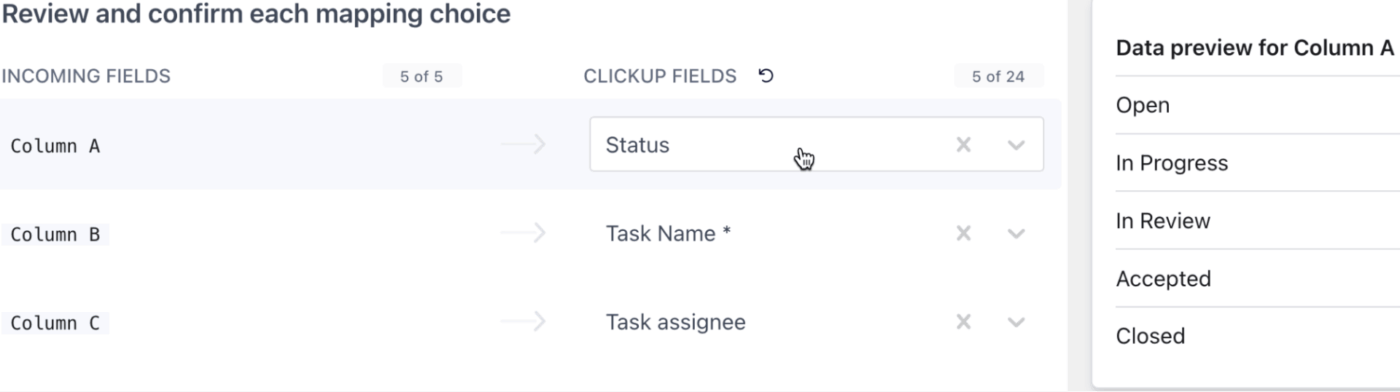
You’ll see a preview of all tasks before confirming import. Use these tools:
Then? Kick back and let the Airtable alternative handle the processing. Once finished, you’ll see your import listed in History, and all tasks will appear in the List you assigned.
💡 Pro Tip: If your Airtable export includes file URLs, no need to re-upload anything. You can keep the URLs in a dedicated column and map that column to Attachments during import. ClickUp will automatically fetch and attach the files to the right tasks.
If you’re moving to ClickUp just to recreate the exact spreadsheet you had in Airtable, you’re missing the whole point of the move. 😕
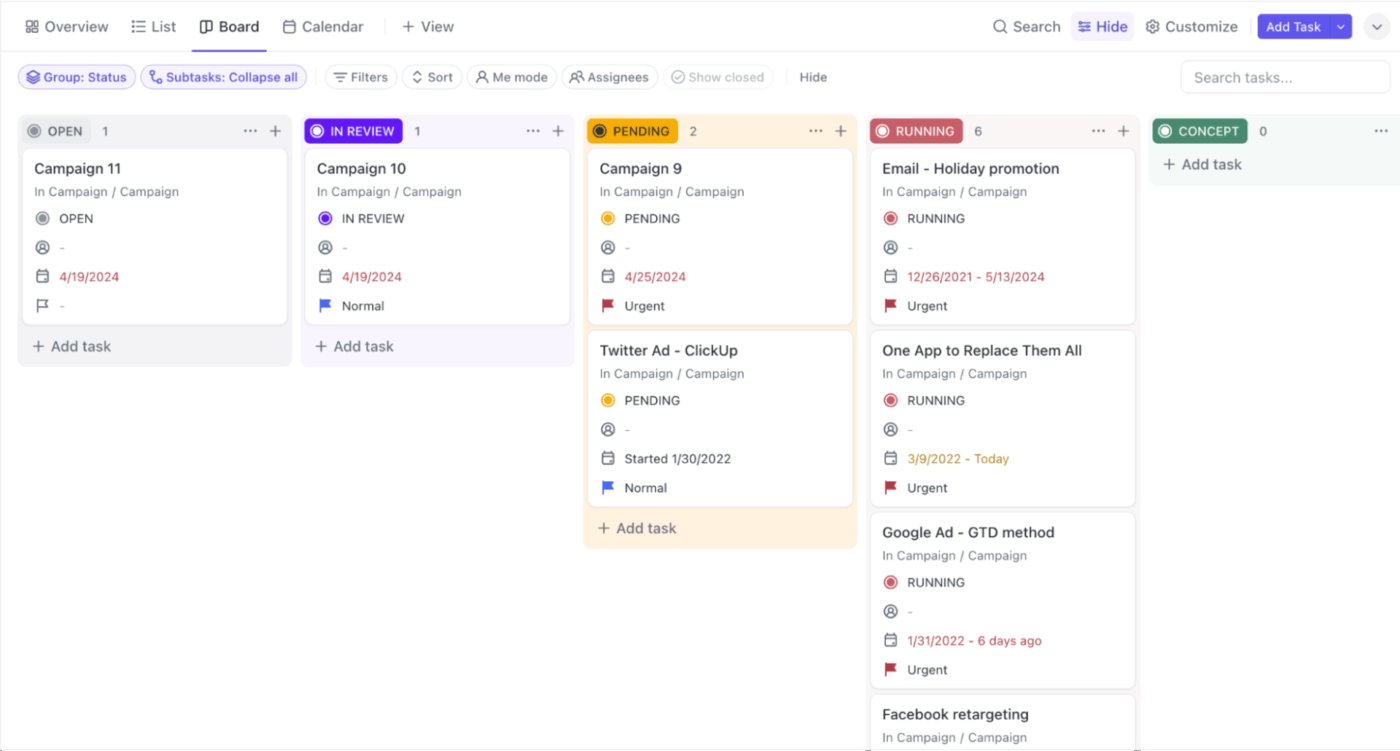
ClickUp Views give you the flexibility to visualize your database in ways that work for you. Here’s a table that compares how the views you used in Airtable translate into ClickUp.
| Original Airtable view | ClickUp equivalent | How ClickUp does better |
| Grid | ClickUp List View | List view lets you add/remove/reorder columns any time, group by Status, Assignee, Priority, Tags, Custom Fields, and filter/sort/search instantly. You can also bulk-edit, create tasks by dragging in files, and convert tasks ↔ subtasks |
| Kanban | ClickUp Board View | Board view allows you to drag-and-drop tasks across statuses, bulk move or edit tasks, set assignees, due dates, tags, and custom-field values directly from the board |
| Calendar | ClickUp Calendar View | Tasks show up on Calendar View based on start/due dates. Drag-and-drop to reschedule, switch between day/week/month, filter by assignee/status/tag, and even sync with external calendars |
| Gallery | ClickUp Cards | Airtable’s card-style layouts are purely visual. In ClickUp, Cards are dynamic dashboard visualizations. You get AI summaries, status charts, task tables, and third-party app embeds (like Figma, Sheets, Airtable), and workload insights to turn static records into reporting hubs |
📌 Example: Say your content ops team just imported their editorial calendar from Airtable into ClickUp. You start in List View because it gives you that familiar spreadsheet-style layout to quickly confirm all your dates, categories, and assignments came through correctly.
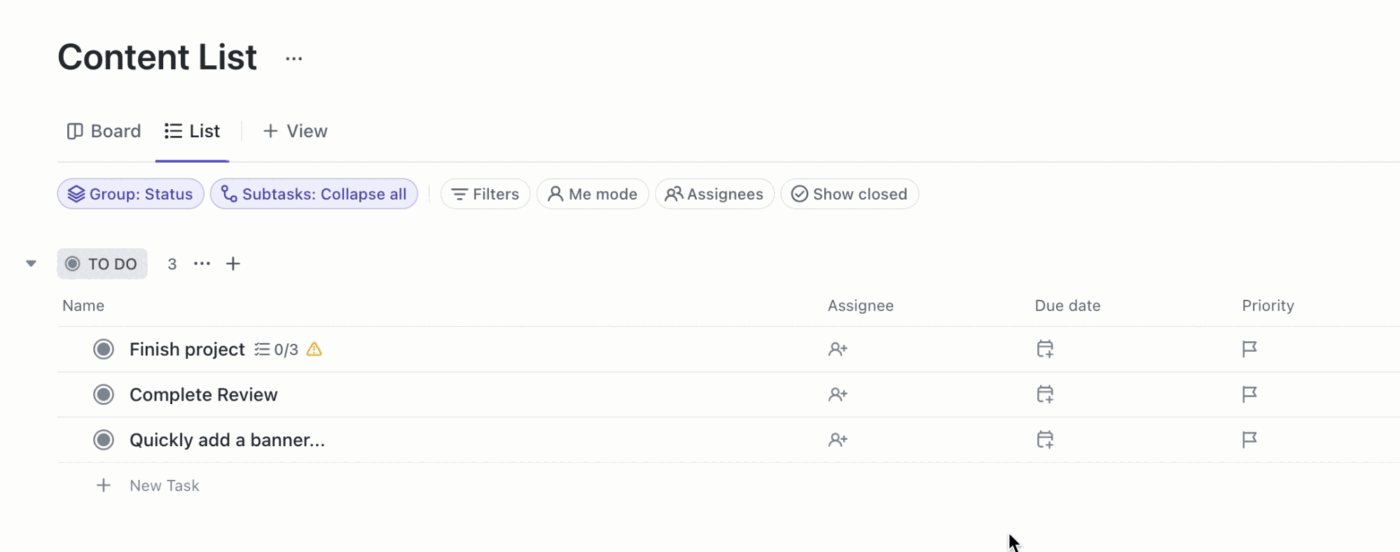
Then, instead of leaving your workflow stuck in a table, you add a Calendar View, allowing writers and editors to instantly see publishing timelines and reschedule posts by simply dragging them to a new date.
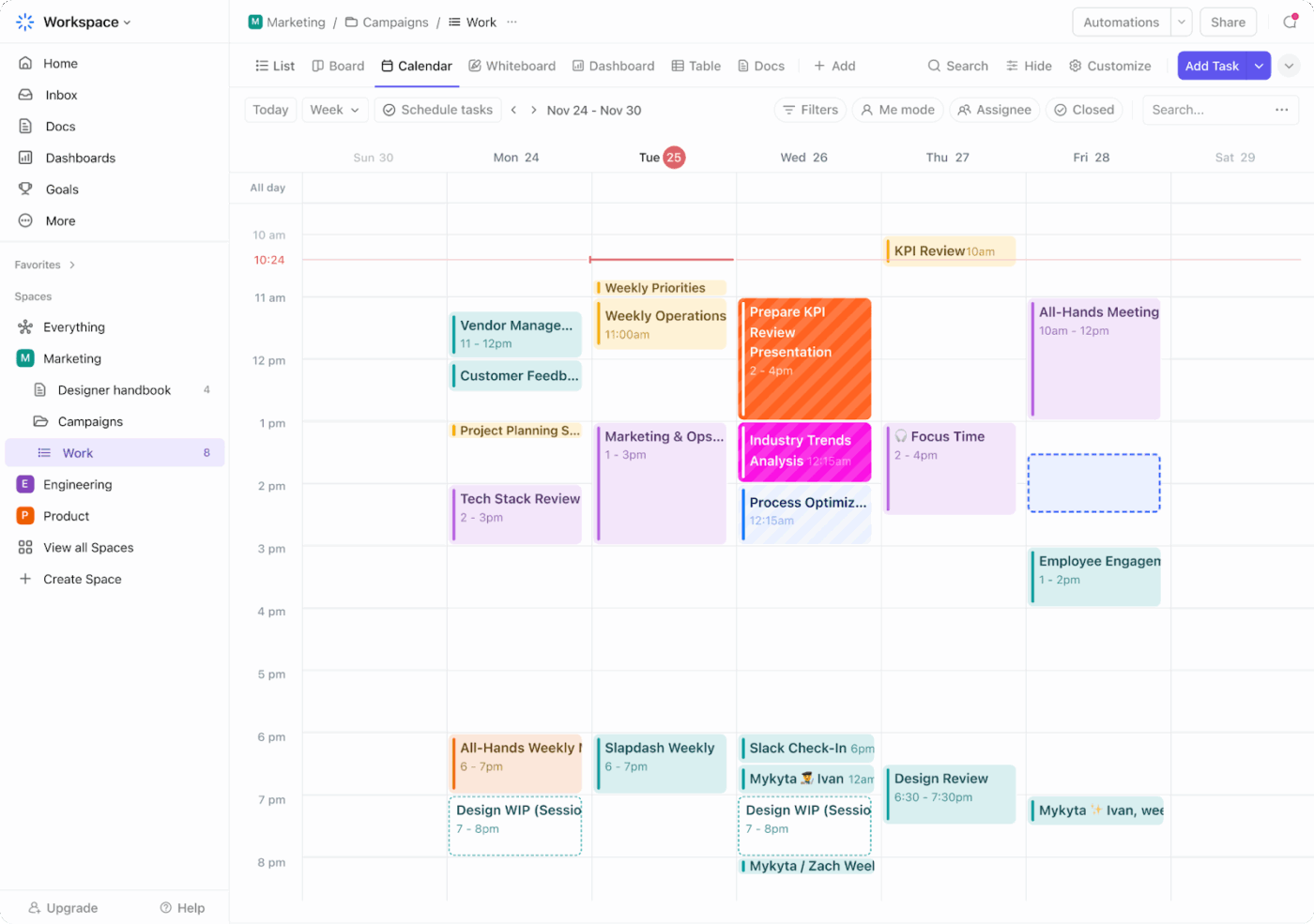
To actually manage production, you switch to a Board View where content moves through stages like Draft > Review > Approved > Published with a quick drag-and-drop.
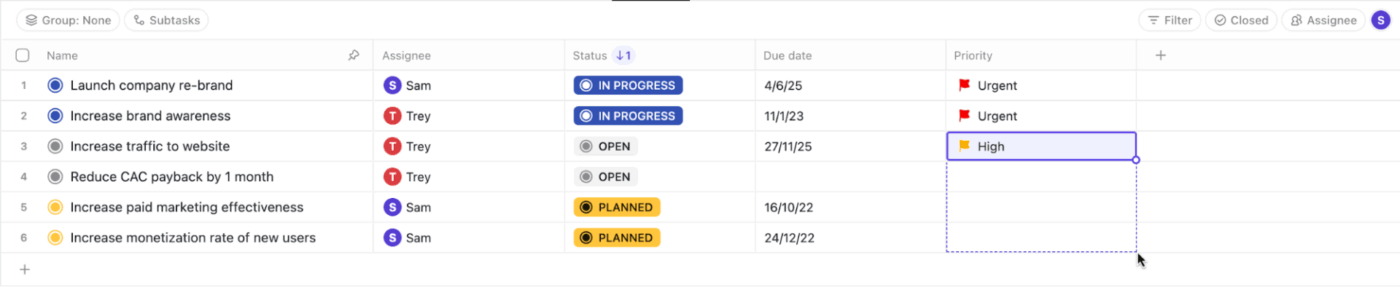
🚀 ClickUp Advantage: Missing your trusty rows and columns? The ClickUp Table View gives you that familiar spreadsheet you love from Airtable, but built directly into your workflows, so every row becomes an actionable task.
Airtable automations work for simple database events, but they stay inside the record and don’t really understand your process or content.
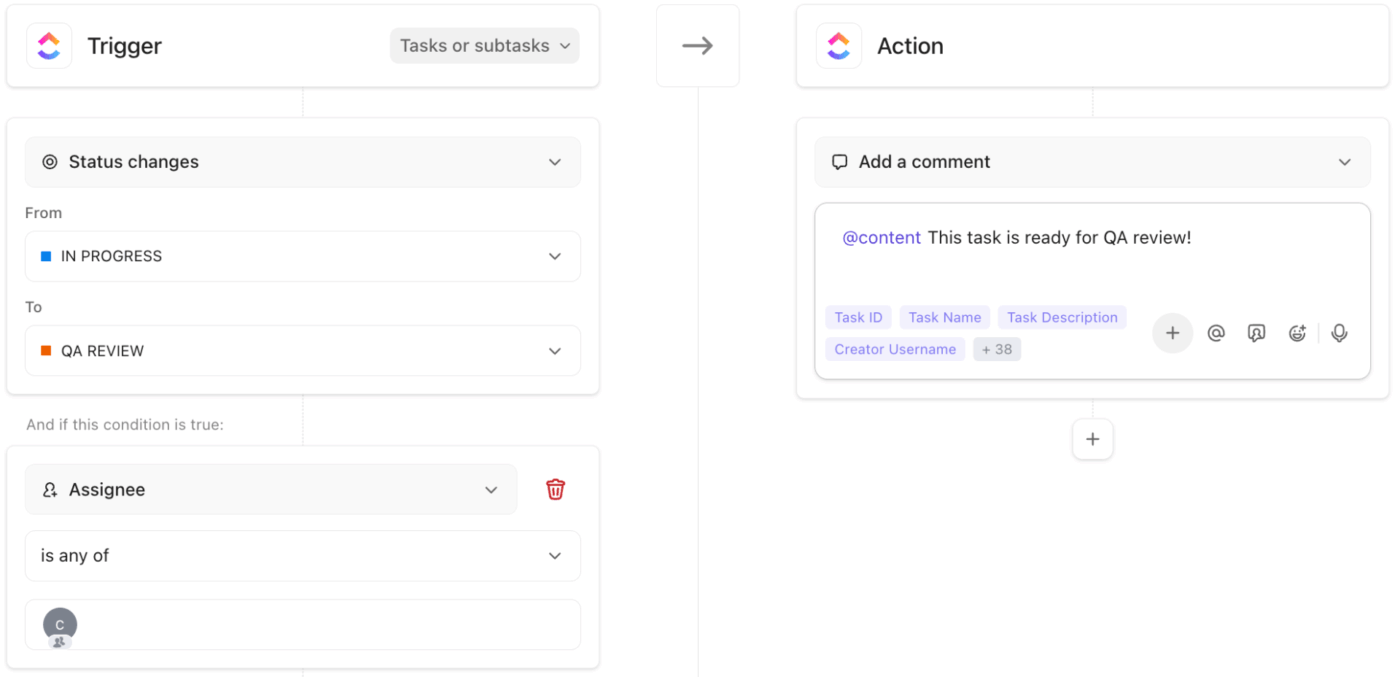
ClickUp Automations, on the other hand, are directly connected to your Tasks, Docs, Views, comments, sprints, and form submissions.
To recreate automations in ClickUp, start by listing your current Airtable automations. Common Airtable triggers and their ClickUp equivalents:
Once your basic ‘Airtable-equivalent’ automations are in place, layer in ClickUp Brain, the platform’s AI-powered assistant, to handle the thinking work you used to do manually.
Here’s one workflow automation example for you:
⚙️ Trigger: Status changes to ‘Ready for Review’
⚙️ Actions:
⚙️ Result: Your reviewer opens the task and instantly sees a clean, AI-generated summary instead of scrolling through history
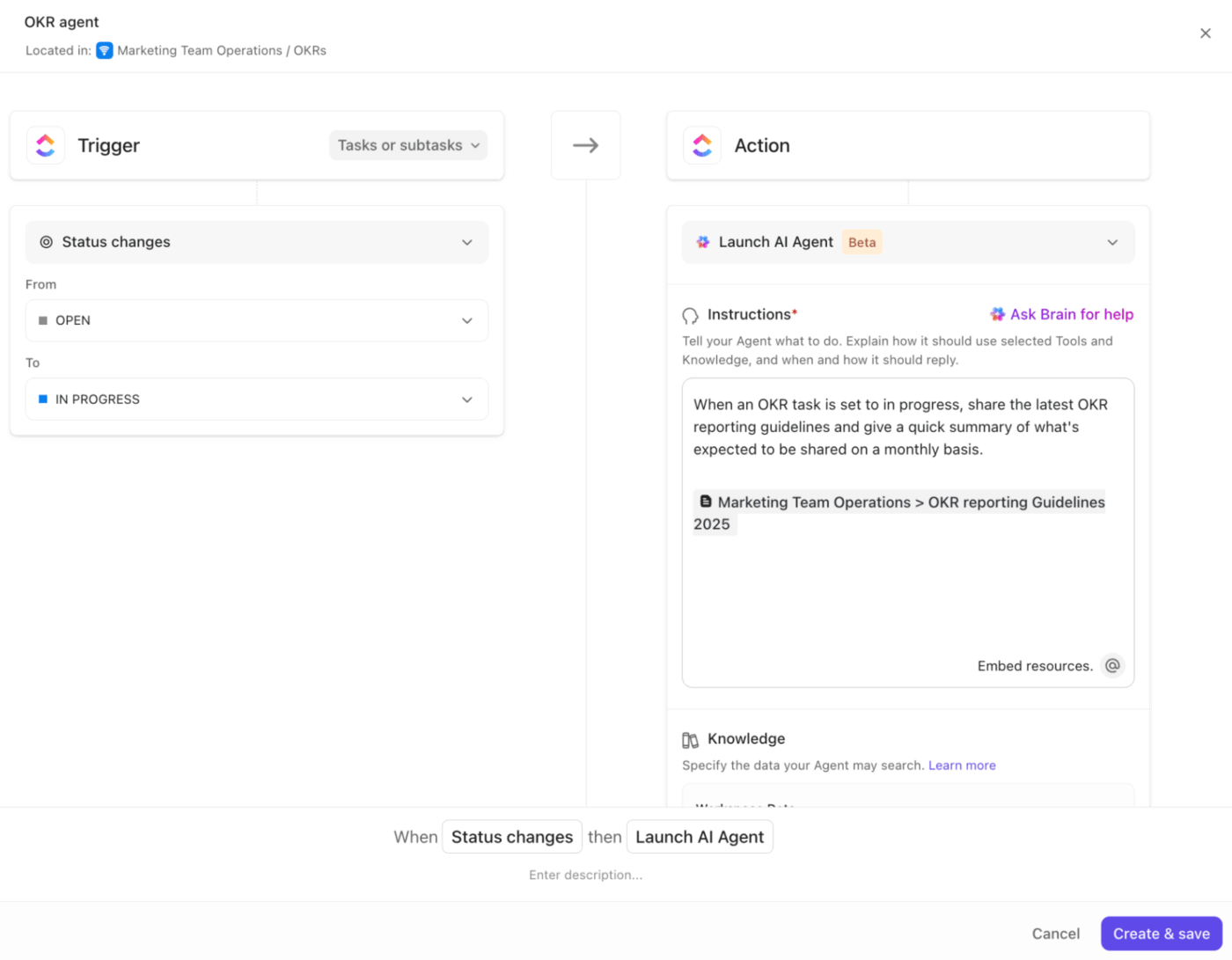
And it doesn’t stop inside ClickUp. Integration Automations let you automate repetitive tasks across your favorite tools. For example:
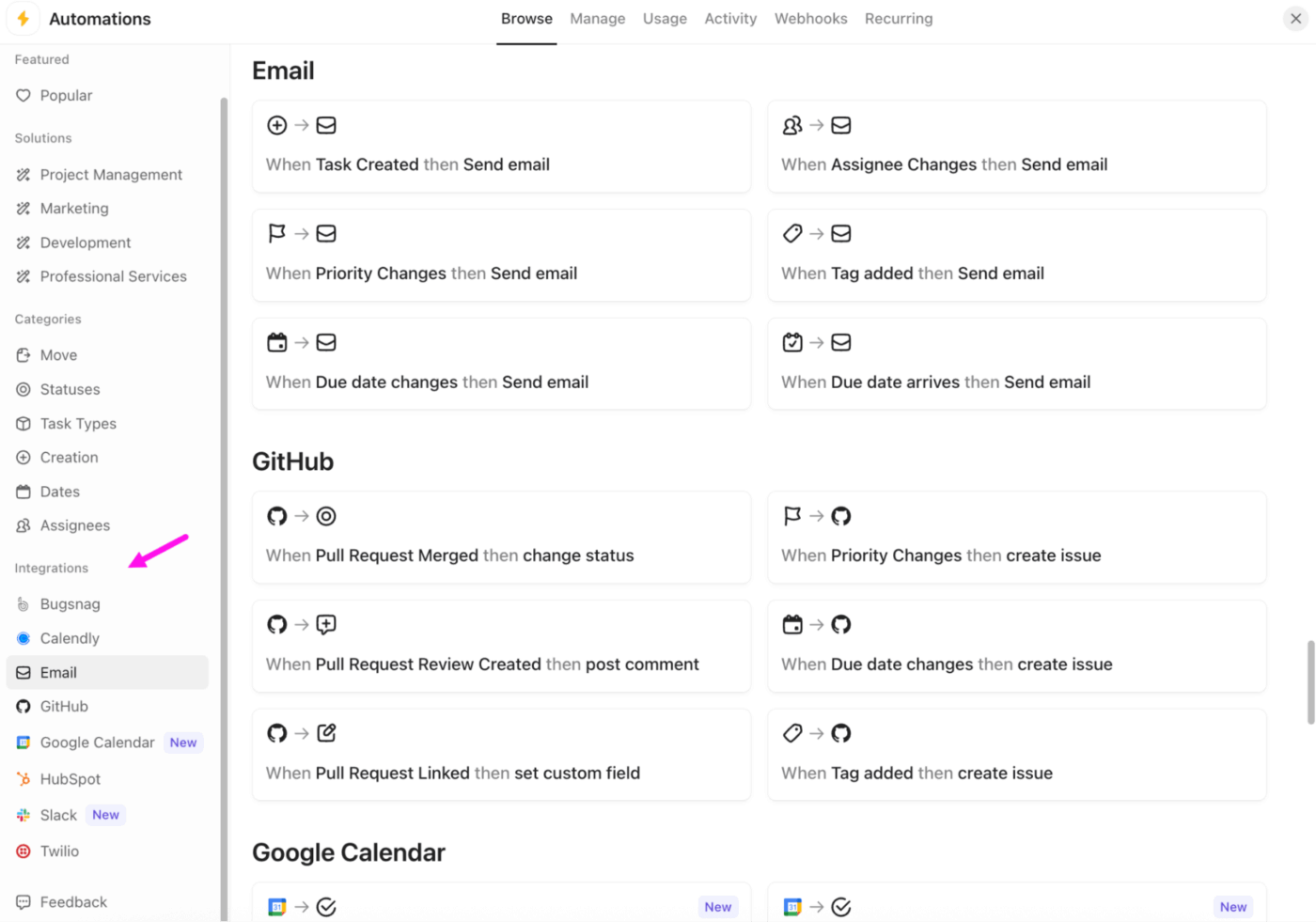
⭐️ Bonus: Beyond single-step AI actions, ClickUp AI Agents help you create always-on, intelligent workflows that actively manage work for your team.
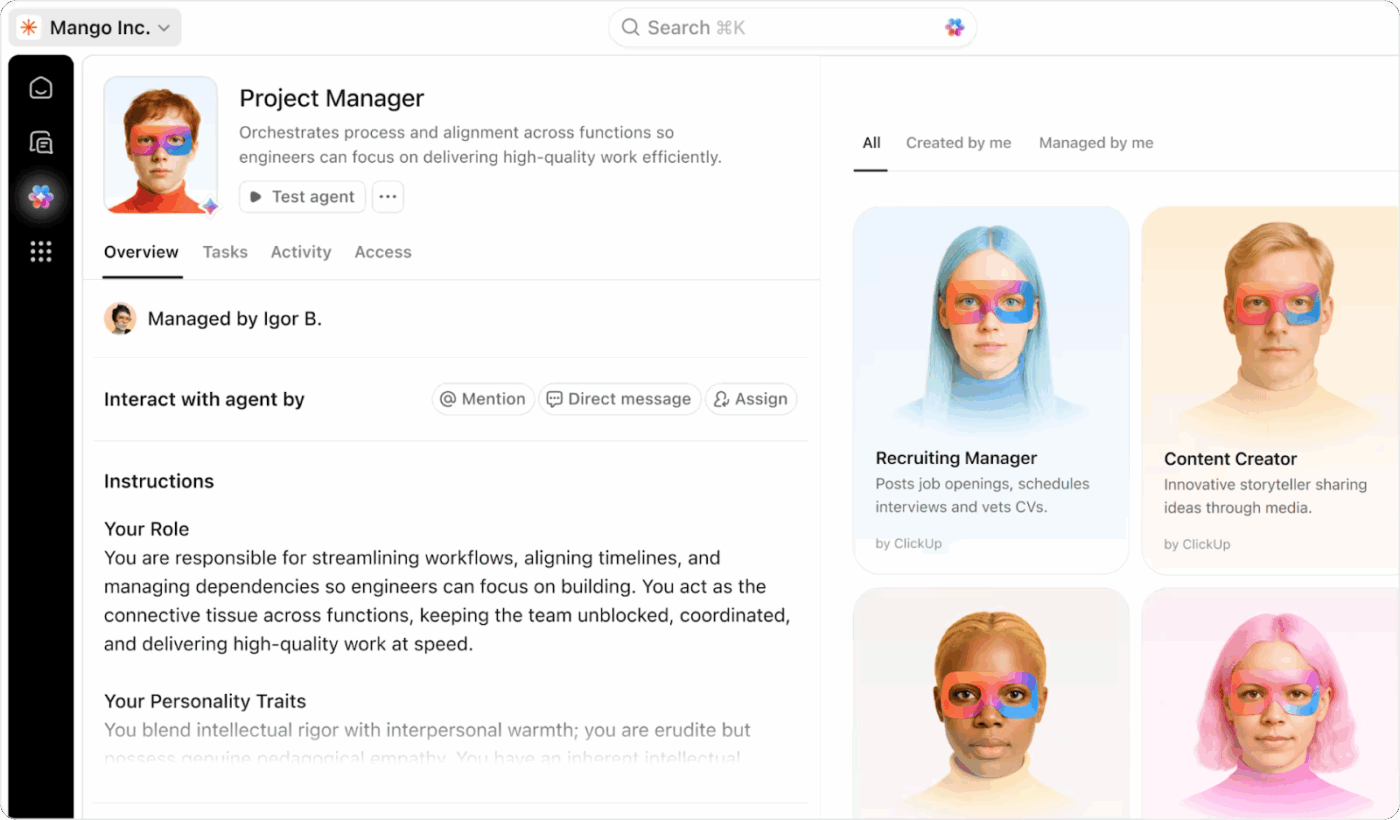
Use Prebuilt Agents to handle common scenarios like watching meeting docs for action items. And when you need something tailored to your unique process, Custom Agents let you define your own rules and responses.
If you use Airtable forms to collect submissions, you can recreate that setup with ClickUp Forms, but with more intelligence built in.
Here’s a quick guide:
1. Head to the Forms Hub or create a Form directly from a List, and your submissions will automatically convert into Tasks or Subtasks
2. Match your current Airtable structure using Custom Fields like dropdowns, dates, phone numbers, URLs, and more
3. Brand the form to your needs with a custom layout, theme, colors, and confirmation pages
4. Once live, share your form via a public link, embed it on your site, and review results through Tasks, Dashboards, or even ClickUp Brain

📮 ClickUp Insight: 47% of our survey respondents have never tried using AI to handle manual tasks, yet 23% of those who have adopted AI say it has significantly reduced their workload.
This contrast might be more than just a technology gap. While early adopters are unlocking measurable gains, the majority may be underestimating how transformative AI can be in reducing cognitive load and reclaiming time. 🔥
ClickUp Brain bridges this gap by seamlessly integrating AI into your workflow. From summarizing threads and drafting content to breaking down complex projects and generating subtasks, our AI can do it all. No need to switch between tools or start from scratch.
💫 Real Results: STANLEY Security reduced time spent building reports by 50% or more with ClickUp’s customizable reporting tools—freeing their teams to focus less on formatting and more on forecasting.
Once your data is live, lock down who sees what. ClickUp offers multiple layers of access:
If you previously shared Airtable bases publicly, ClickUp offers alternatives:
🚀 ClickUp Advantage: Make ClickUp BrainGPT your post-migration assistant. Once your CVs or sync workflows bring data into ClickUp, the AI-powered tool helps you clean, structure, and optimize it faster.
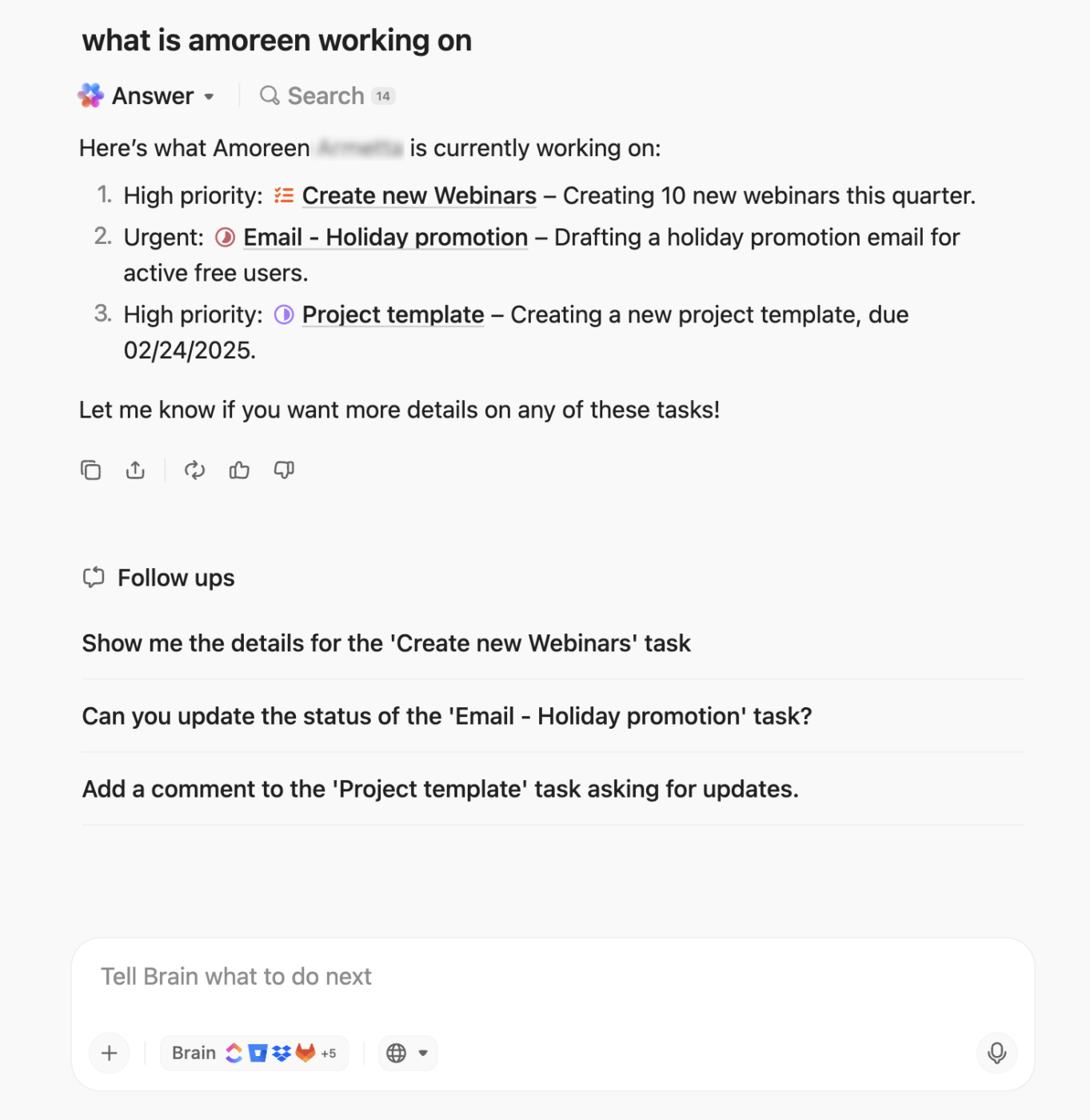
You can leverage:
Your Airtable data landing in ClickUp is only the first win. Now it’s about turning that imported information into organized, actionable workflows your team can rely on every day.
Here’s what you should do next. 👇
Use ClickUp Dashboards to get a high-level view of all your work. You can create your Dashboards using prebuilt templates or customize them by adding cards that track key metrics such as task completion, workload, timelines, and priorities.
It allows you to embed charts, add notes, and even export or share Dashboards (PDF or within ClickUp) to keep everyone aligned.
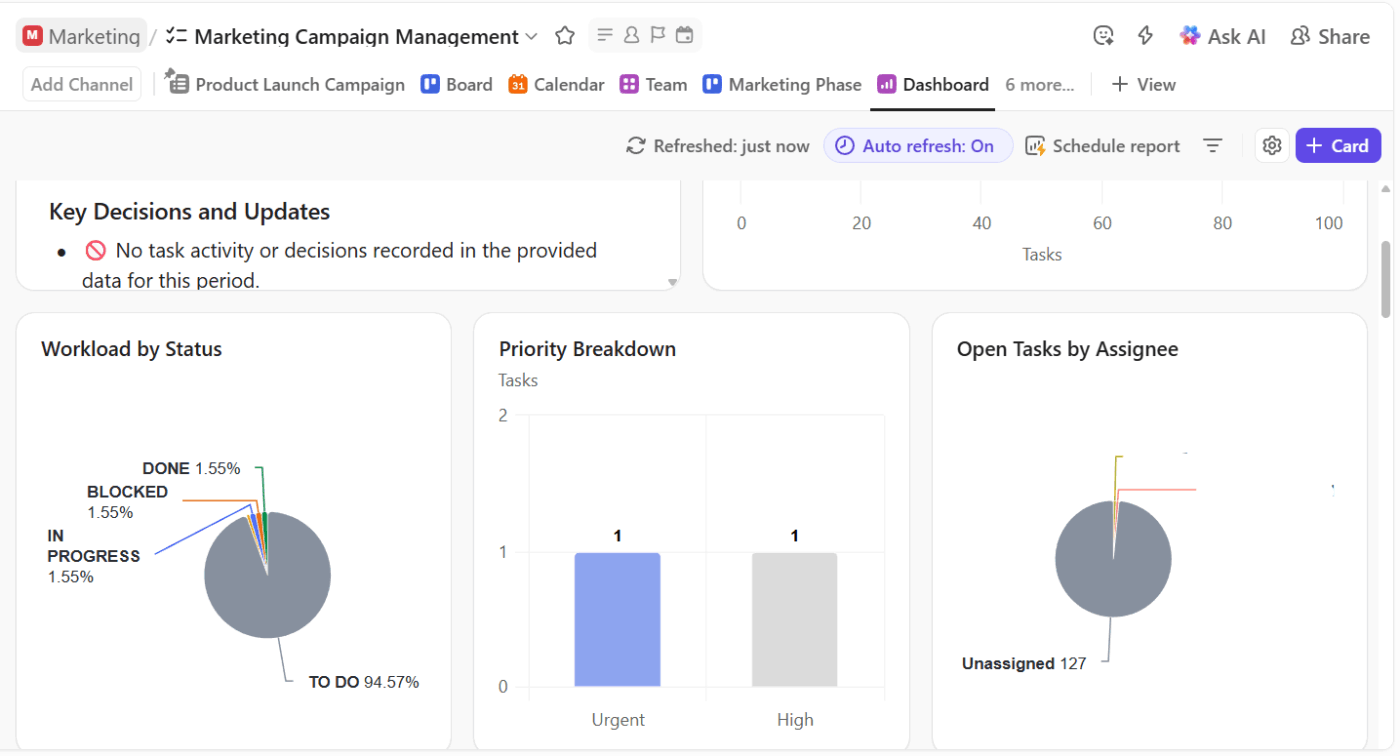
💡 Pro Tip: Use ClickUp AI Cards to make your dashboards smarter. Cards like AI Executive Summary, AI Project Update, or AI StandUp automatically analyze your data and surface actionable insights.
With your data in ClickUp, you can now replace everyone’s favorite Airtable ‘grid views’ with tailored ClickUp Views and saved filters.
For example, Customer Success might use a filtered Table View showing enterprise accounts grouped by CSM. Engineering could work from a Kanban-style Board View grouped by status, and Marketing gets a Calendar View focused on campaign dates.
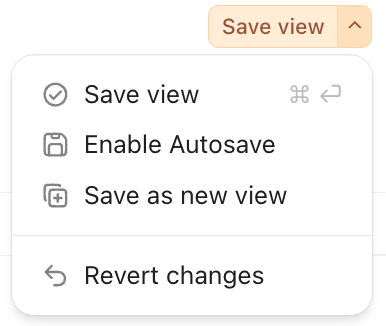
Once a view feels right, save the active filters and sorting so people can return to that exact setup in one click. You can save filters privately or as Workspace filters, allowing multiple teams to share the same view without constantly reconfiguring it.
Imported Airtable data often brings over long descriptions, bloated comment threads, and legacy notes. Use ClickUp Brain on tasks to quickly summarize descriptions and activity so new owners can understand context without reading the whole history.
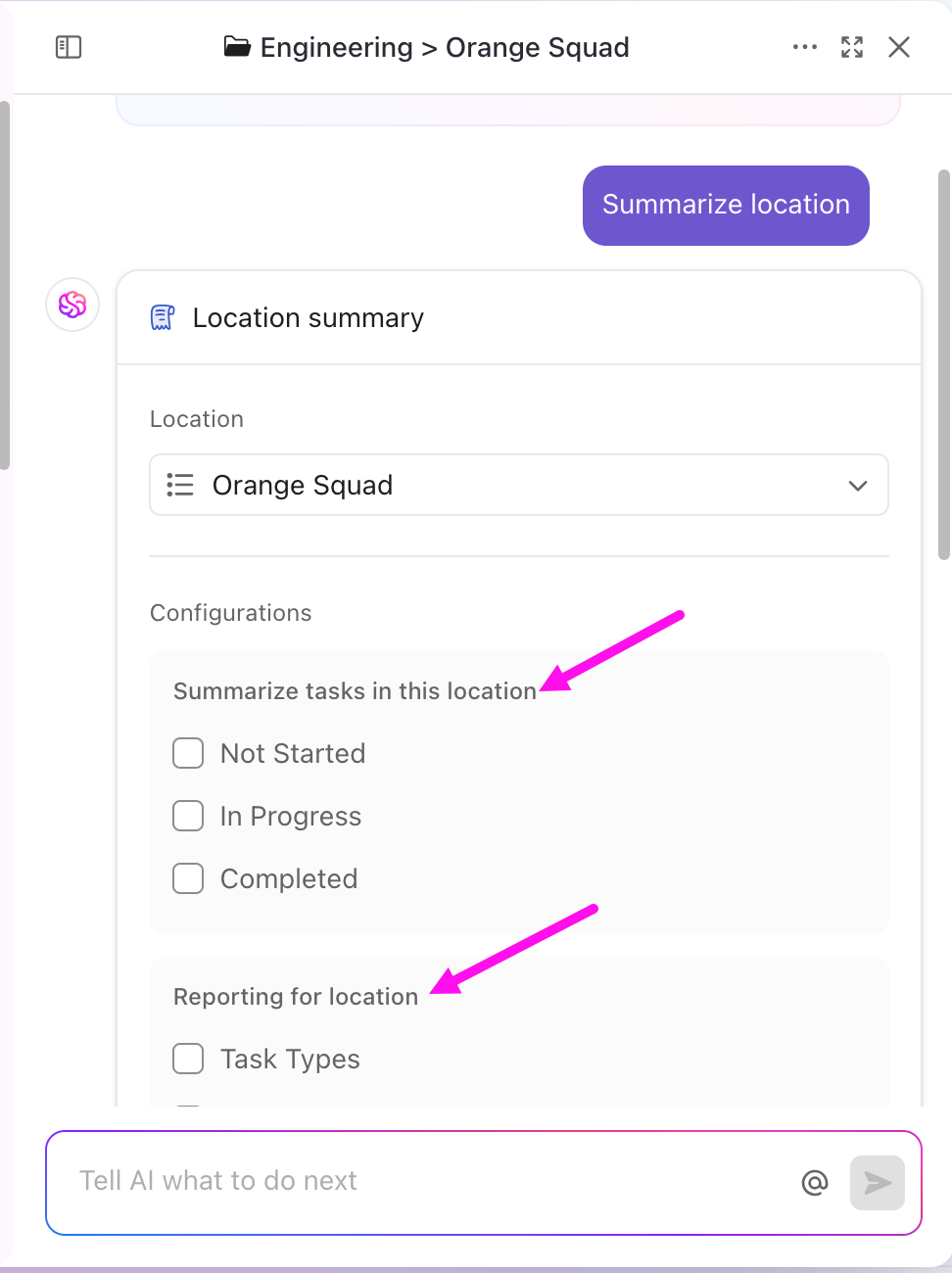
It can:
If you migrate data or rich text into ClickUp Docs, use Ask AI to generate clean content and clarify confusing sections, or even pull out action items into fresh tasks.
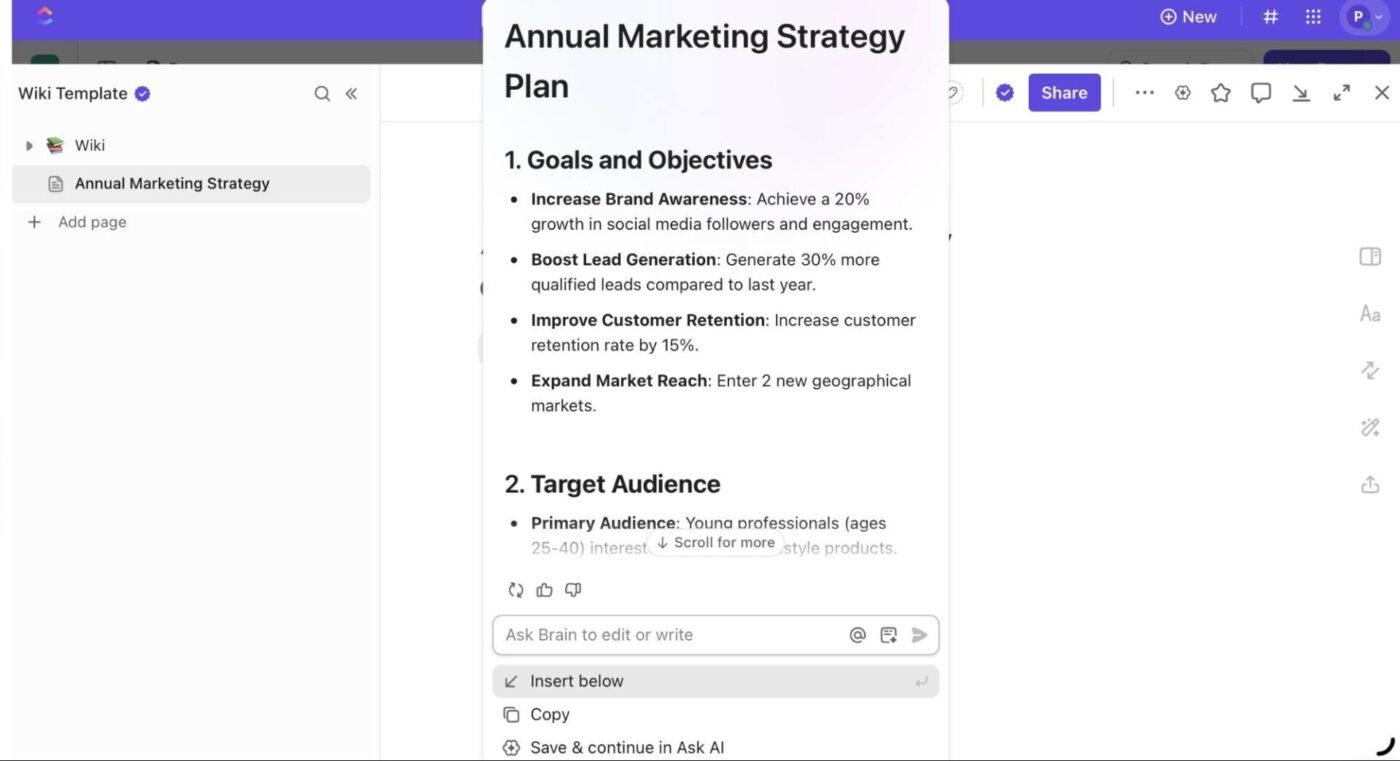
📌 Try these prompts:
See how ClickUp Brain turns long updates into quick summaries. 👇
A spreadsheet software lets you get away with half-filled rows, but ClickUp is where you tighten things up. Review your key Lists and decide which Custom Fields must be filled before work can move forward, such as Owner, Client, Estimate, or Priority.
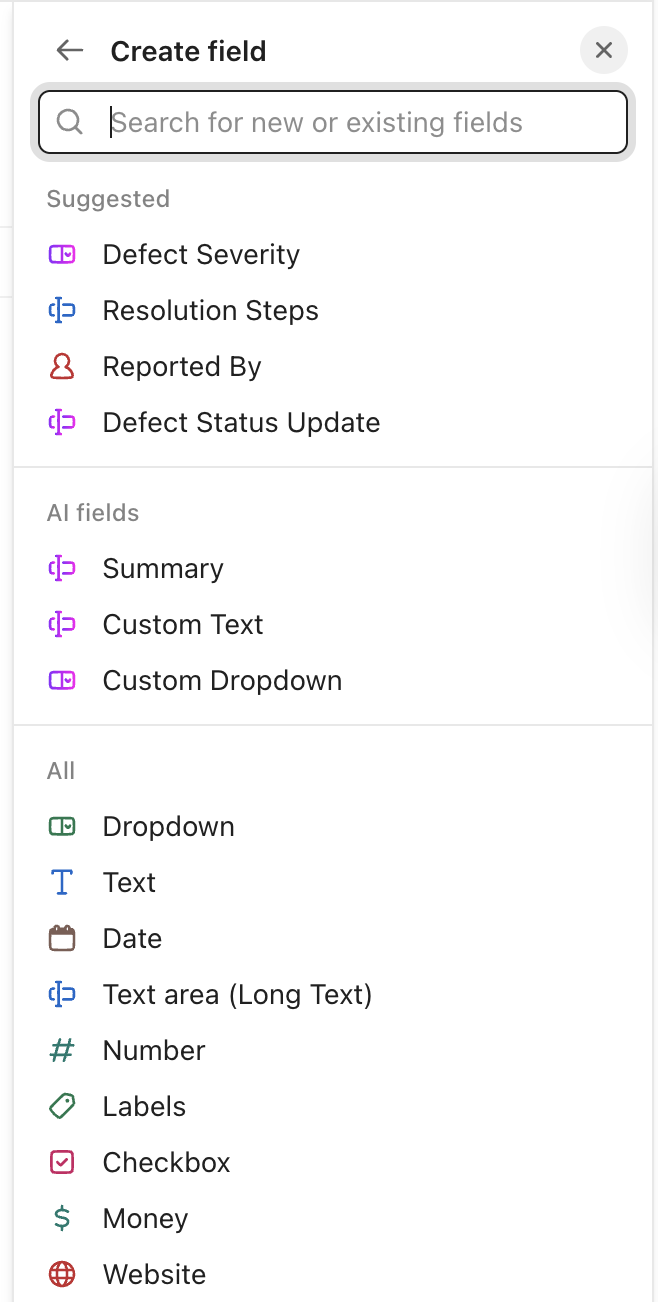
Then, optimize your workflow with Custom Statuses so they reflect a real lifecycle instead of a vague To Do/Doing/Done.
To maintain data quality and enforce workflows, define required fields (e.g., due date, assignee, priority). This ensures key information is always captured when tasks are created or updated.
Here’s what John Strang, Marketing Operations, Vida Health, had to say about using ClickUp after Airtable:
I was working with several different tools, and the more I used Airtable, the less I liked it for project management. Airtable wasn’t conducive to having multiple people use it on the same project, and it was difficult to collaborate with external stakeholders.
Finally, capture your new setup as living internal documentation.
Use ClickUp Docs to:
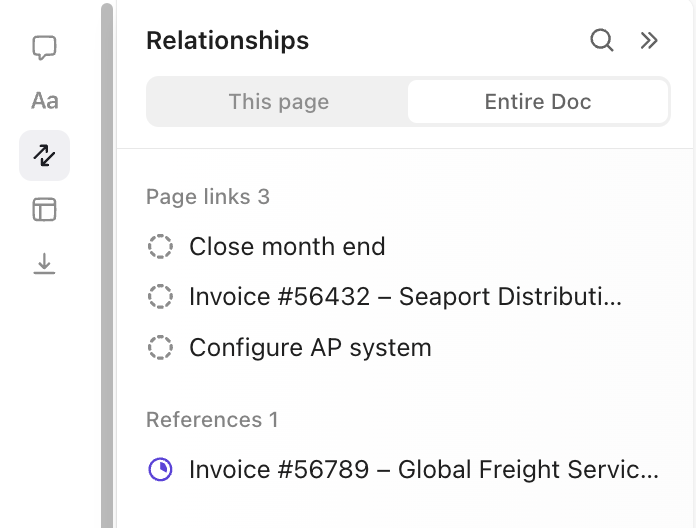
Link these Docs directly to relevant Tasks or projects, making it simple for team members to access contextual instructions or project briefs. Use ClickUp Comments and @mention for real-time collaborations and keep documentation updated.
🔍 Did You Know? Long before digital search engines existed, Emanuel Goldberg invented a ‘Statistical Machine’ in 1928 that could mechanically search metadata on microfilmed documents. It was one of the earliest forms of automated information retrieval.
When you move from Airtable to ClickUp, you’re essentially shifting from a data-first tool to a work-management-first platform.
Here’s a clear side‑by‑side view of what actually changes when you pick the task management software.
| Dimension | Airtable (Before) | ClickUp (After Migration) |
| Data | Records live in the form of spreadsheet rows | Each record becomes a Task (or Subtask), with properties like assignee, due date, time estimates, status, priority |
| Views | Data-centric views, like Grid, Form, and Timeline, all focused on manipulating and filtering fields in your tables | Task-centric views, such as List, Board, Calendar, Timeline, Gantt, Workload, and Team View, designed around execution, capacity, and timelines |
| Collaboration | Typically happens through comments on records, shared views, and mentions | Offers a native ClickUp Chat, threaded task comments, Docs, and ClickUp Whiteboards |
| Automation and workflow logic | Provides trigger-based automations, but largely data-centric (e.g., update record, send notification), often with limitations or need for external tools | ClickUp Automations are tightly tied to workflow stages with broad triggers including status changes, assignee updates, due dates, and more. Connects with external tools to keep data in sync |
| AI and workflow intelligence | Doesn’t currently position AI as a workspace-wide assistant. Most AI usage is through extensions or external tools | ClickUp Brain is embedded directly in Tasks, Docs, and search, so it can summarize threads, suggest action items, and help design or refine new workflows |
| Custom Fields | Basic field types: plain text, numbers, select/dropdowns, dates. Limited variety and capability | Wide variety of field types: Checkbox, Dropdown, Number, Money, Date, Email, Phone, People, Files, Progress, Rating, Relationships & Rollups, and more. Supports advanced workflows and richer task data |
🎥 Bonus: Here’s our roundup of the best project management apps.
As you move from Airtable to ClickUp, a few thoughtful practices can keep things clean and save you a ton of headaches later.
Use these tips like a checklist. ☑️
🔍 Did You Know? In the 1970s, IBM designed SQL (Structured Query Language) so non-technical staff could query databases using near-English commands. It was originally called ‘SEQUEL’ until another company claimed the trademark.
Here’s how to dodge common errors when moving to ClickUp.
| Mistake | Solution |
| Skipping a full data audit before migration | Conduct a thorough audit in Airtable and remove duplicates, fill missing fields, and standardize naming conventions |
| Recreating Airtable exactly as-is without leveraging ClickUp’s hierarchy and Views | Map workflows to ClickUp Hierarchy. Use Custom Fields and Statuses to reflect processes rather than just replicating tables |
| Forgetting to recreate Airtable automations | List all Airtable automations, then recreate them with ClickUp Automations and Brain for smarter, AI-powered actions |
| Using default List or Table views without filters, grouping, or saved views | Set up tailored Views (Board, Calendar, List, Gantt) for each team. Pin and save Views to match workflow needs |
| Not planning for collaboration | Define sharing permissions, assign tasks, and set up Docs early. Use comments and task threads to maintain clarity |
| Forgetting Forms or integrations | Rebuild Forms, connect Automations to integrations like Slack or Google Sheets, and test submissions like task changes before full rollout |
Make your migration smoother with prebuilt project management templates that provide a consistent structure for transitioning Airtable workflows to ClickUp.
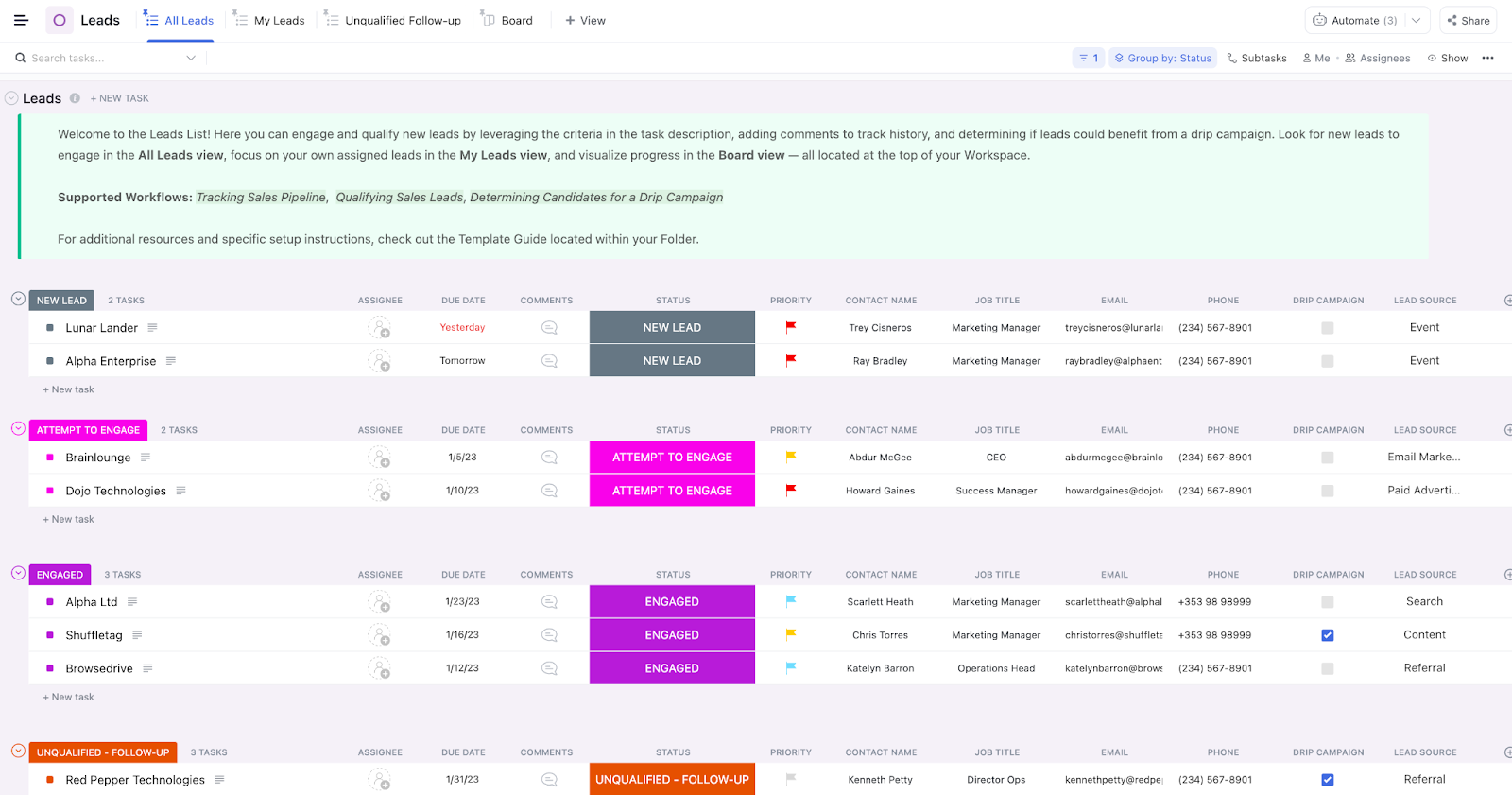
The ClickUp CRM Template gives you a ready-made sales workspace, structured for real pipeline execution. Instead of multiple Airtable views per table, you can instantly switch between List, Board, Calendar, or Dashboard views to see accounts by stage, owner, timeline, or upcoming actions.
And with customizable Custom Fields like deal size, probability, and next-touch dates, you get deal forecasting that updates as your reps update their tasks.
🔍 Did You Know? Old systems like MS-DOS limited filenames to 8 characters, pushing teams to invent naming conventions like FIN_Q1 or PROJ_A2. Modern structured tools avoid this entire problem.
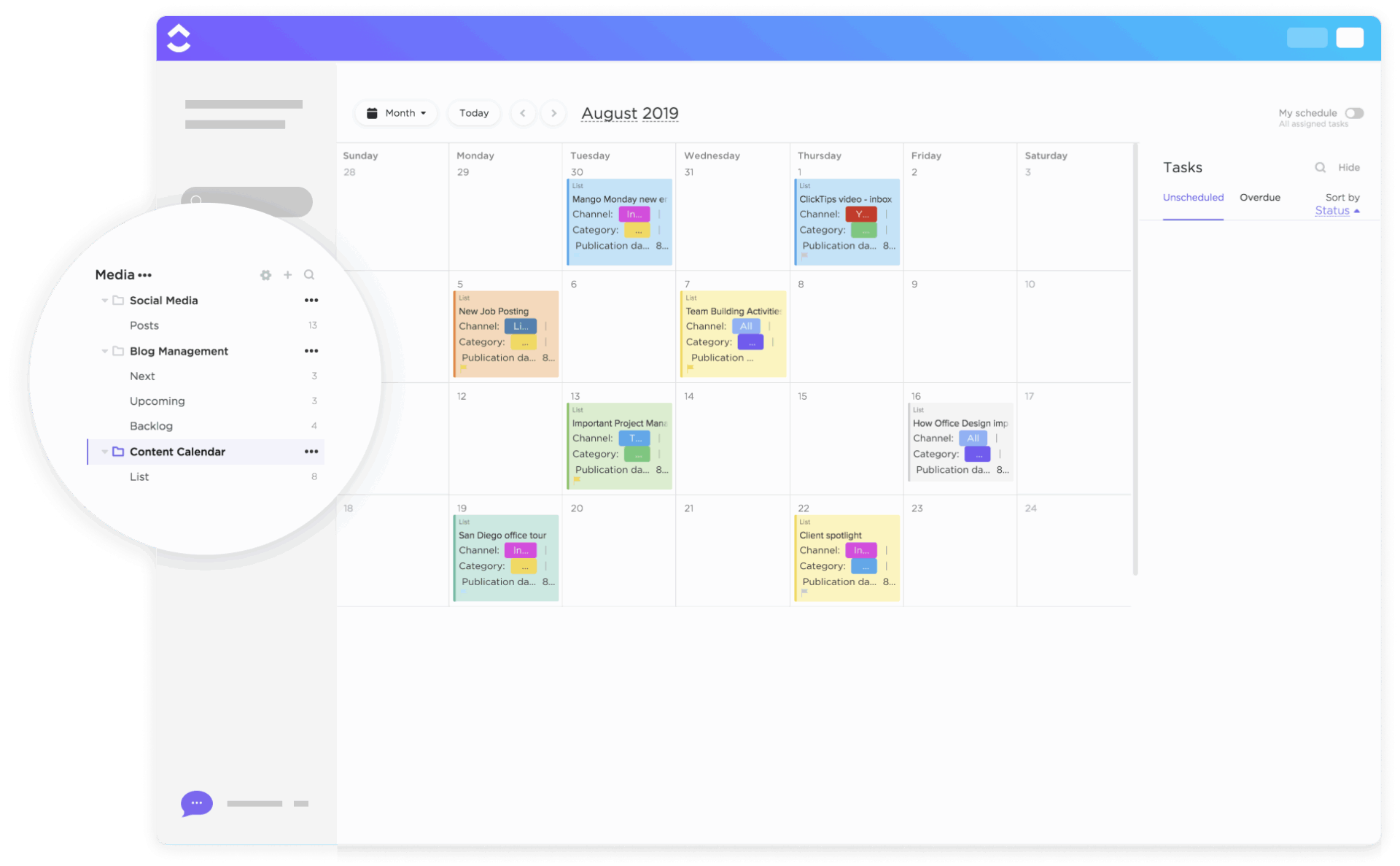
The ClickUp Content Calendar Template brings tables, assets, and comments together into one living, interactive content hub. Drag and drop publish dates, shift priorities, and instantly see how campaigns stack up so your strategy stays aligned.
With Custom Statuses built for real editorial pipelines (Draft > Editing > Scheduled > Published) and Fields like Channel, Category, Publication Link, and Assets, reporting becomes automatic.
🔍 Did You Know: Every response in ClickUp Forms lands as a structured Task where you can auto-assign an owner, apply spreadsheet templates, add attachments, and even prefill hidden fields through the form URL to keep processes consistent.
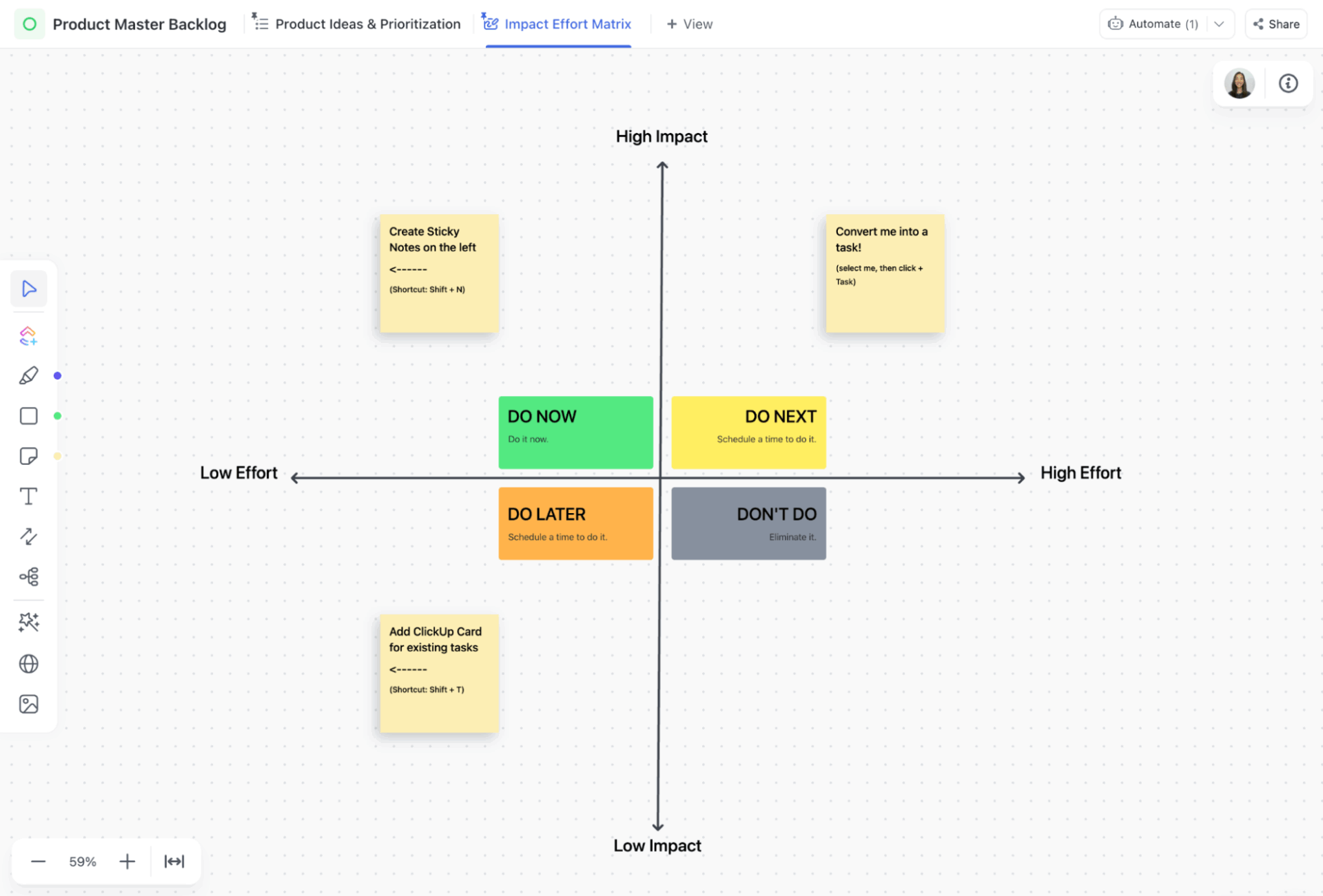
The ClickUp Product Roadmap Template is an evolving strategic model where every initiative comes packaged with confidence scores, effort estimates, projected impact, quarter alignment, and release readiness. It uses 15 Custom Fields built for product prioritization frameworks like RICE.
Compared to basic Airtable templates, here, work progresses through 10 clear lifecycle Custom Statuses like Scoping > In Development > In QA Review > Released, so status meetings turn into status confirmations. Stakeholders can visualize the same priorities with different lenses using Quarterly Roadmap, Initiatives Board, and Impact Effort Whiteboard views.
🔍 Did You Know? Long before the internet existed, J.C.R. Licklider imagined a global network where humans and computers worked together seamlessly. In 1960, he published ‘Man-Computer Symbiosis,’ outlining this vision, then led ARPA’s Information Processing Techniques Office, where his ideas directly inspired the creation of ARPANET, the ancestor of today’s internet.
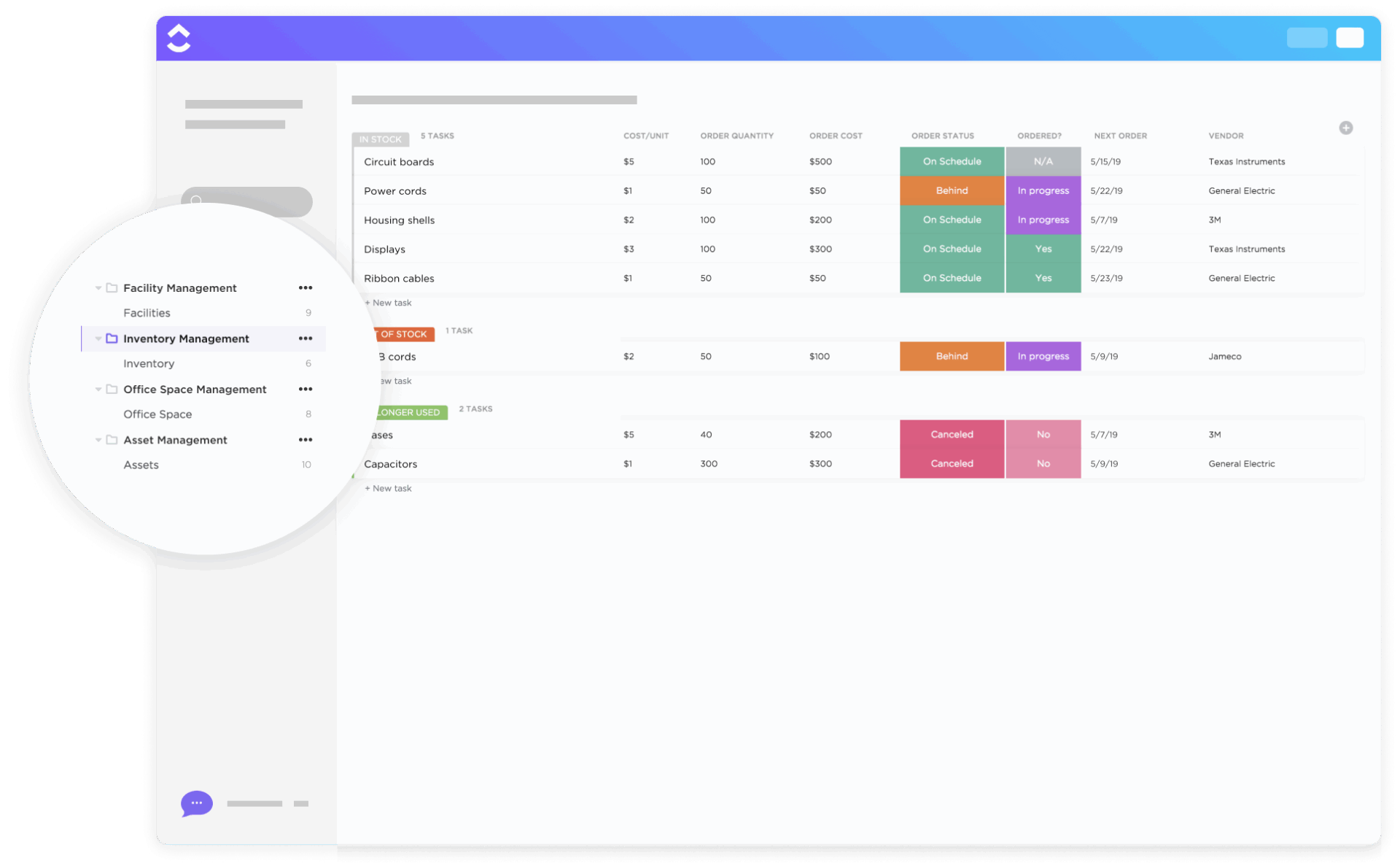
Airtable makes cataloging easy, but when inventory changes daily, you need live control. The ClickUp Inventory Management Template turns static records into a system that tracks supply, predicts demand, and triggers action, without building complex formulas.
Use the template to update quantities in real time, trigger threshold-based alerts the moment stock hits reorder level, and factor in supplier lead times to avoid delays impacting operations. Searching becomes smarter, too. Create reusable Filters to locate items by Seasonality, Sales priority, Category, Clearance status, and Department ownership.
📖 Also Read: Data Migration Plan Templates
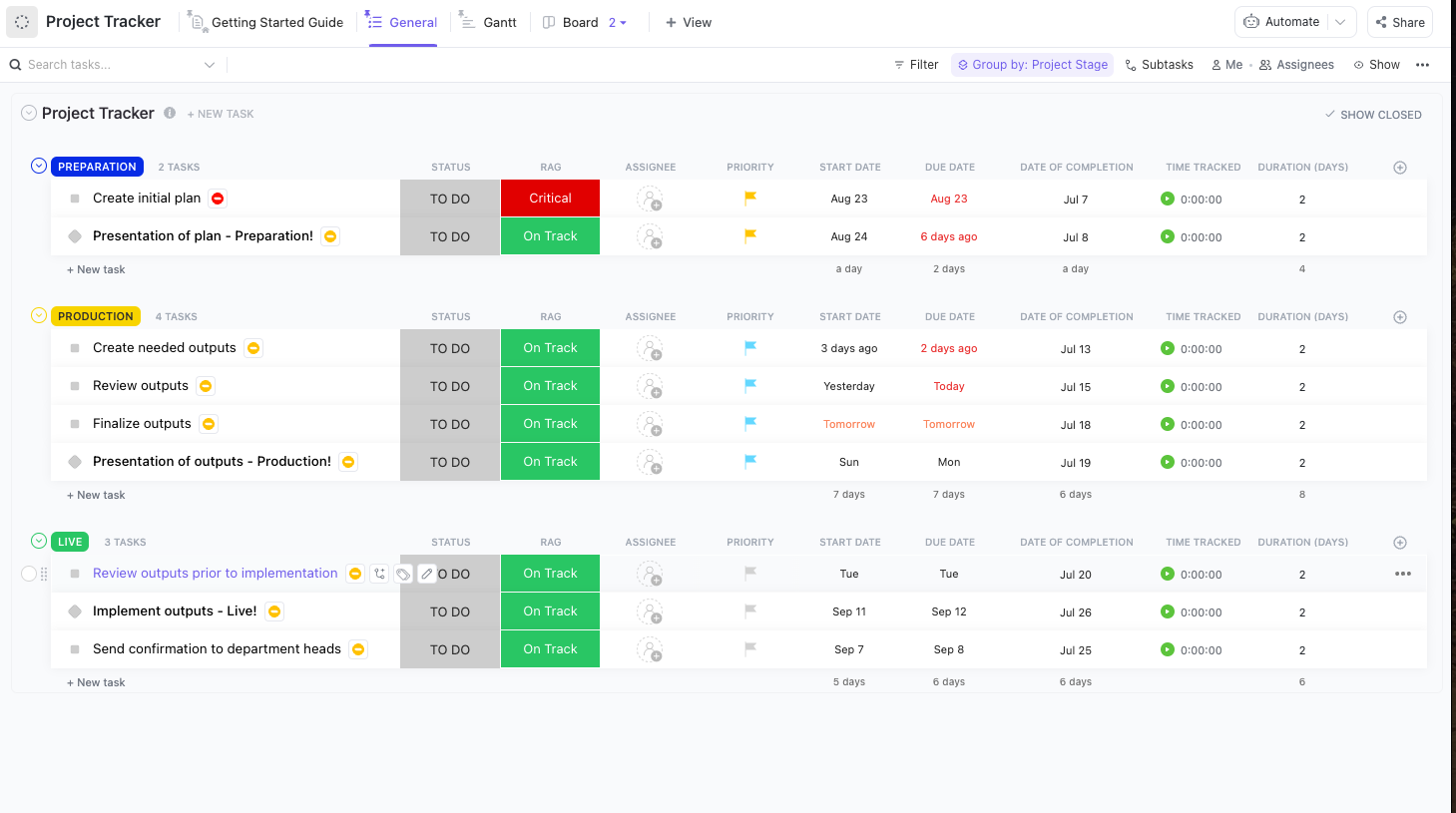
The ClickUp Project Tracker Template brings planning, execution, and progress monitoring together so you always know what’s on track and what needs attention right now. RAG health indicators let you instantly flag risks and take action to keep work moving.
Built-in time tracking helps you compare effort against expectations. With Resource visibility, leaders can reassign or rebalance work on the spot to avoid overload and delays. And if you run repeatable projects? Simply duplicate the tracker as a baseline and you get consistent delivery every time.
🔍 Did You Know? The first spreadsheet, VisiCalc (1979), was literally designed to digitize chalkboard calculations used in business schools. It was called the first ‘killer app‘ because people bought computers just to run it.
Airtable makes database building easy, but when teams need project execution, cross-functional visibility, and automation at scale, it falls short.
If you’ve decided to migrate from Airtable to ClickUp, you’re giving every workflow owner accountability and automation. With ClickUp’s project hierarchy, flexible Views, robust Automations, and prebuilt templates, you can recreate your workflows, streamline collaboration, and add intelligence with AI features like ClickUp Brain and Autopilot Agents.
Sign up for ClickUp for free today! ✅
Yes. ClickUp supports direct Airtable CSV imports; you can export your Airtable bases as CSV files and import them into ClickUp Lists, Folders, or Spaces. Some mapping may be needed for Custom Fields.
Yes. Files and attachments in Airtable can be imported into ClickUp Tasks. Each attachment will appear in the task it’s linked to, preserving context.
Certain Airtable-specific features like Airtable Automations, linked record formulas, and some advanced scripts cannot be directly imported. You’ll need to recreate automations and formulas in ClickUp.
It depends on your data size and complexity. Small bases can migrate in minutes, while large, multi-table setups with attachments may take hours. Planning and mapping beforehand speeds up the process.
Yes, Airtable views don’t transfer directly. ClickUp Views (List, Board, Calendar, Gantt, etc.) let you recreate and even enhance your workflows beyond static views.
There’s no additional fee for importing data. ClickUp’s plans (Free, Unlimited, Business Plus) determine features like advanced Views, Automations, and AI, which may affect what you can fully recreate from Airtable.
Yes, in comparison to an Airtable account, the ClickUp workspace offers a more complete solution for project management, task tracking, and collaboration. You get different Lists, Views, Automations, and AI-powered workflow management to reduce manual effort as much as possible.

© 2026 ClickUp

There’s an easier way. Try a free AI Agent in ClickUp that actually does the work for you—set up in minutes, save hours every week.