Evaluating project planning tools can quickly turn into a rabbit hole of tabs, feature grids, and conflicting opinions.
Meanwhile, work is still happening in scattered spreadsheets, endless threads, and ad‑hoc meetings. This makes it hard to see what’s at risk until it’s too late.
This guide to project planning tools pulls everything into one place: how to compare platforms, which features actually matter, and where each option fits.
Use it to match the right tool to your team’s size, workflows, and complexity so you can plan with confidence and keep projects on track.
15 Best Planning Tools to Organize Projects, Goals, and Workflows
Summarize this article with AI ClickUp Brain not only saves you precious time by instantly summarizing articles, it also leverages AI to connect your tasks, docs, people, and more, streamlining your workflow like never before.
Summarize this article for me please
Best Project Planning Tools of 2026 [At a Glance]
The right tool often depends on your team’s size, style, and the kind of projects you manage. Here’s a quick overview of the tools we’ll be covering, so you can spot the one that fits your workflow.
Mid-to-large teams needing structured workflows & automation
Free plan available; Paid plans start from $13.49/user per month
Monday.com
Custom visual boards, board-level automations, and Pre-built templates
Marketing and PMO teams needing customization and scalability
Free plan available; Paid plans start from $14/seat per month
Zoho Projects
Dependency Gantt charts, blueprint automation, time and budget tracking
Scalable project management for growing teams
Free plan available; Paid plans start from $3.97/user per month
TeamGantt
Drag-drop timelines, time tracking visuals, portfolio baselines
Construction and manufacturing project planning for large teams
Paid plans start from $59/manager per month
Airtable
Relational databases, interface builder, Omni AI
Small teams needing flexible, database-driven planning
Free plan available; Paid plans start from $24/seat per month
Miro
Visual whiteboards, live team collaboration
Remote and creative teams needing visual planning
Free plan available; Paid plans start from $8/seat per month
* Please check the tool’s website for the latest pricing.
How we review software at ClickUp
Our editorial team follows a transparent, research-backed, and vendor-neutral process, so you can trust that our recommendations are based on real product value.
Summarize this article with AI ClickUp Brain not only saves you precious time by instantly summarizing articles, it also leverages AI to connect your tasks, docs, people, and more, streamlining your workflow like never before.
Summarize this article for me please
The Selection Criteria We Used
To shortlist the best project planning tools, we evaluated each platform against consistent, vendor-neutral criteria using product demos, documentation, user feedback, and third-party reviews.
Criterion
Weight
What it Covers
Core Planning Features
25%
Task hierarchies, timelines/Gantt, dependencies, milestones, and portfolio views needed to plan and track projects end to end.
Ease of Use & Adoption
20%
Learning curve, interface clarity, onboarding experience, and how quickly a mixed-skill team can become productive.
Collaboration & Visibility
15%
Comments, notifications, shared views, guest access, and how well the tool keeps stakeholders aligned without extra meetings.
Automation, AI, & Integrations
15%
Built-in automation, AI capabilities, native integrations, and API depth for fitting into an existing SaaS stack.
Customization & Scalability
10%
Custom fields, workflows, permissions, and the ability to support more teams, projects, and complexity over time.
Reporting & Resource Management
10%
Dashboards, workload and capacity planning, time tracking, and insights for forecasting and decision-making.
Pricing & Value
5%
Plan structures, free tiers, per-seat vs. flat pricing, and overall value relative to feature depth.
Summarize this article with AI ClickUp Brain not only saves you precious time by instantly summarizing articles, it also leverages AI to connect your tasks, docs, people, and more, streamlining your workflow like never before.
Summarize this article for me please
15 Best Project Management Planning Tools
Now, let’s take a closer look at each tool’s features, pricing, ratings, and user reviews.
1. ClickUp (Best for organizing goals, timelines, and tasks in one collaborative space)
Manage complex projects, plan and visualize project timelines, and coordinate cross-functional work with ClickUp for Project Management Teams
ClickUp, the everything app for work, helps teams plan, organize, and track projects efficiently in one place.
With ClickUp for Project Teams, you can manage tasks, visualize timelines, automate workflows, and collaborate with your team in real time so everyone knows what’s happening. It keeps work visible and makes it easier to stay on top of priorities.
Project managers can start by breaking projects into manageable tasks with ClickUp Tasks. Assign responsibilities, set due dates and priorities, add stages, and use Custom Fields to capture important details.
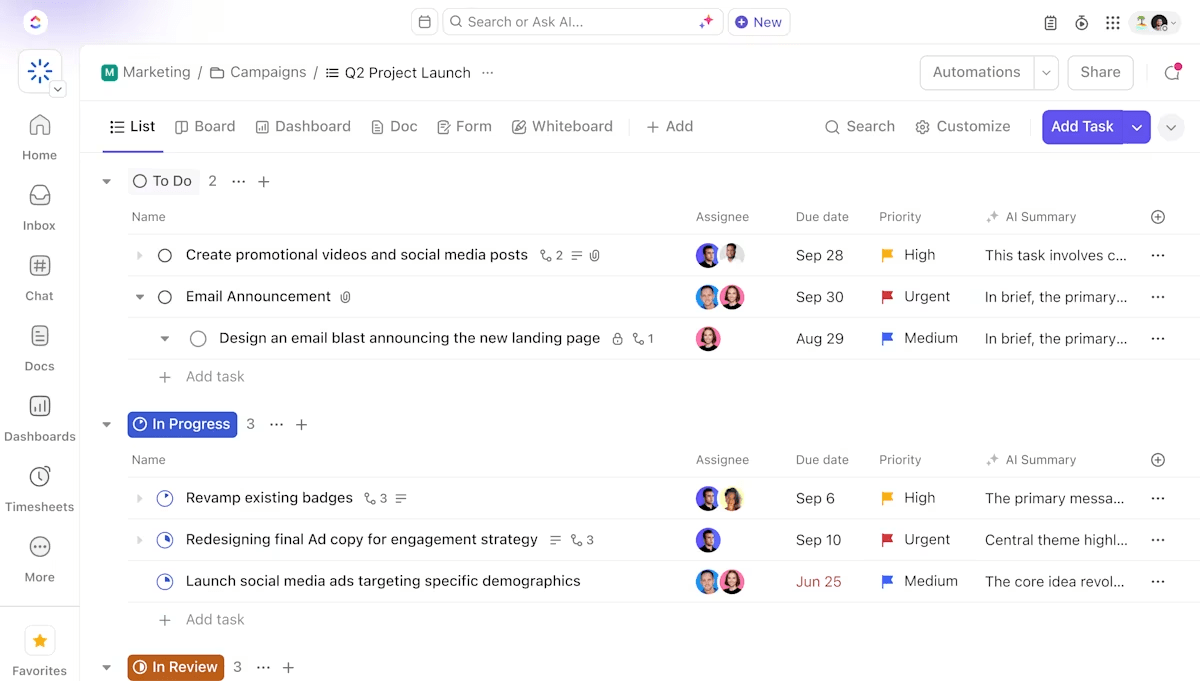
To plan and track work in a way that works best for your team’s needs, you can switch between 15+ Custom Views.
🎯 Visualize your work, your way:
ClickUp List view: Get a clear overview of all tasks in an organized format, making it easy to see what’s next
ClickUp Board view: Move tasks across stages, helping visualize progress and the flow of work
ClickUp Timeline view: Create a visual roadmap of tasks and dependencies, making it easier to coordinate complex projects
ClickUp Gantt Chart view: See tasks on a timeline, highlighting overlaps and helping you plan more effectively
For planning and collaboration, ClickUp Whiteboards provide a space where teams can brainstorm, map ideas, and outline project workflows in real time. You can draw connections, assign tasks, and involve team members in discussions as the plan develops.
Sketch, draw, and build your vision effortlessly with ClickUp Whiteboards
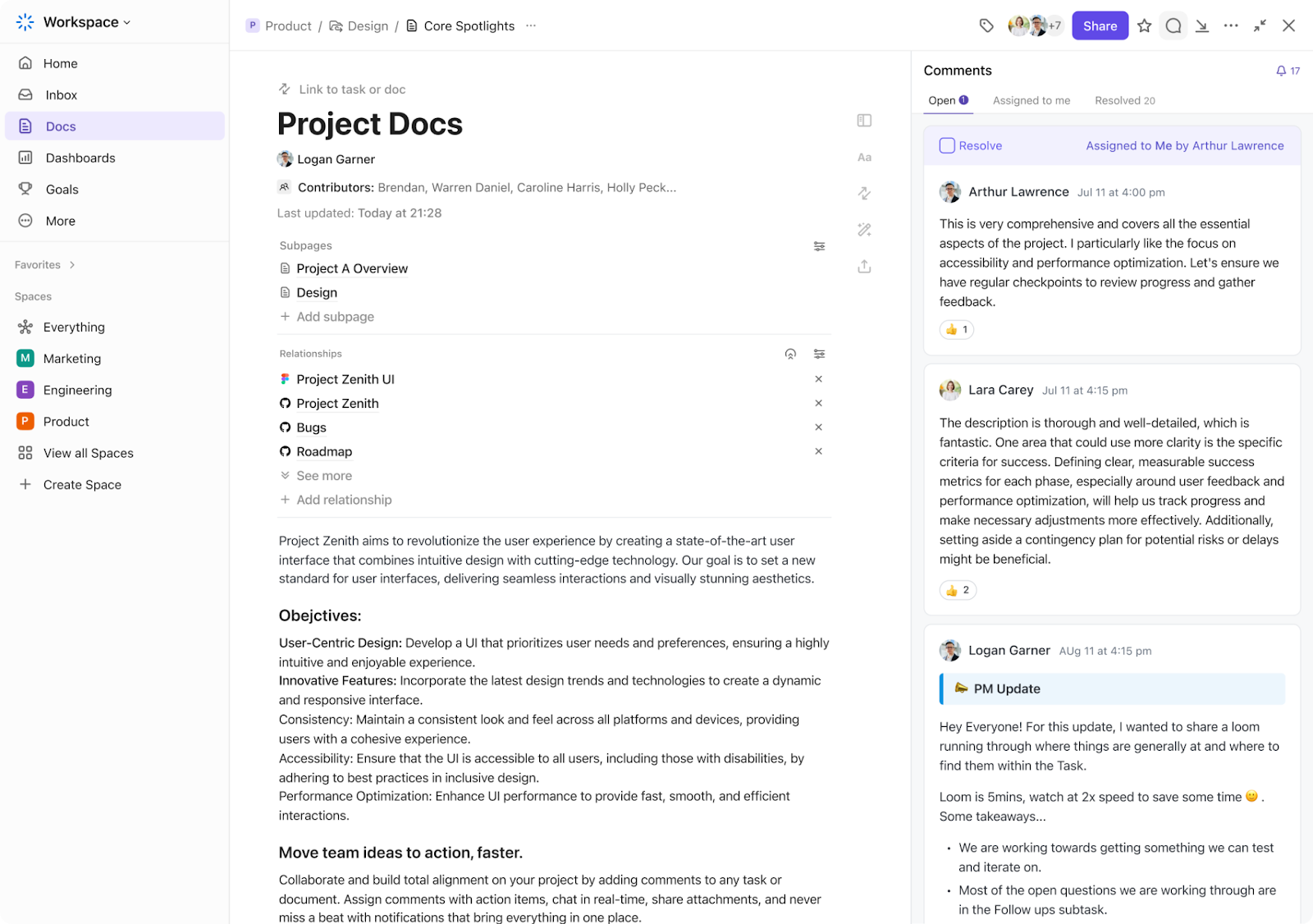
ClickUp Docs complements this by letting you centralize project resources like meeting discussions, project briefs, notes, and SOPs. With formatting options, tables, banners, buttons, and attachments, you can create organized and accessible documentation without switching apps.
Link tasks directly and collaborate in real time with ClickUp Docs
If you are looking for ready-made frameworks, ClickUp’s library of fully customizable templates makes it easier to maintain consistency across projects without having to create detailed project plans from scratch.
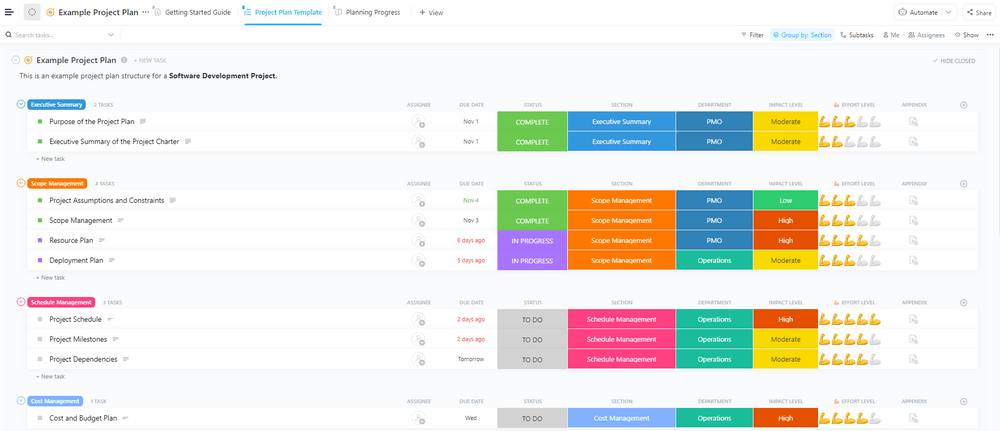
The Example Project Plan Template by ClickUp lets you write out the project objectives, key deliverables, timeline, budget, stakeholders, and scope. With tasks, subtasks, Custom Fields, and dependency mapping for sequential tasks, you can easily monitor progress and adjust as needed.
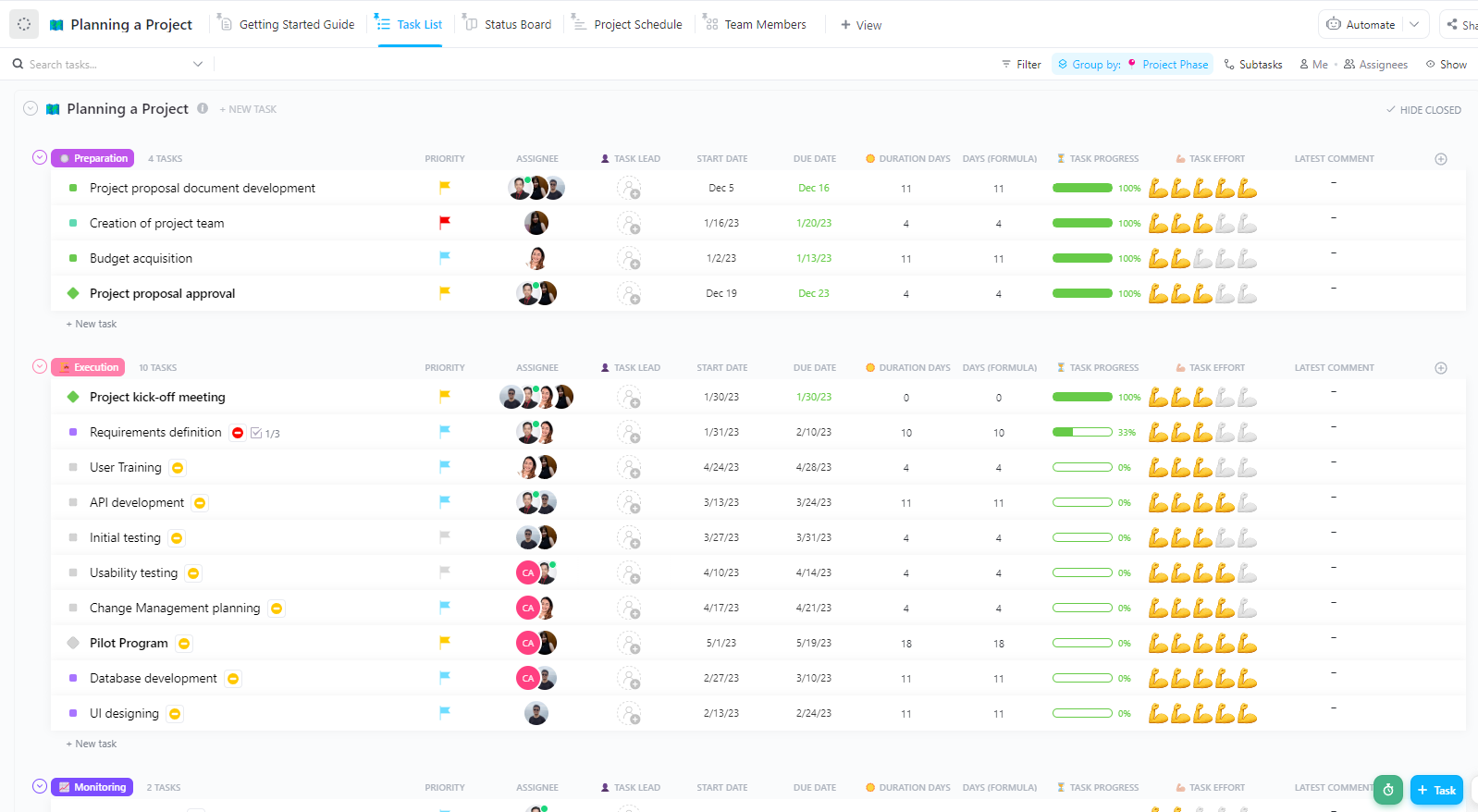
Track, manage, and organize your project tasks with the ClickUp Planning a Project Template
It has four main views:
Task List view: Organize tasks by phases and click on any task’s Custom Fields to quickly update or edit details
Status Board view: Track progress at a glance and click on any task card to view its details or drag it to another column to update its status
Project Schedule Gantt view: See your project’s timeline and dependencies between tasks, showing which activities need to be completed before moving on to the next stage
Team Members Box view: Check each team member’s current capacity and workload with the tasks assigned to them and their current statuses
Within ClickUp, project planning becomes more efficient because it combines AI-powered assistance, automation, and knowledge management directly within your workspace.
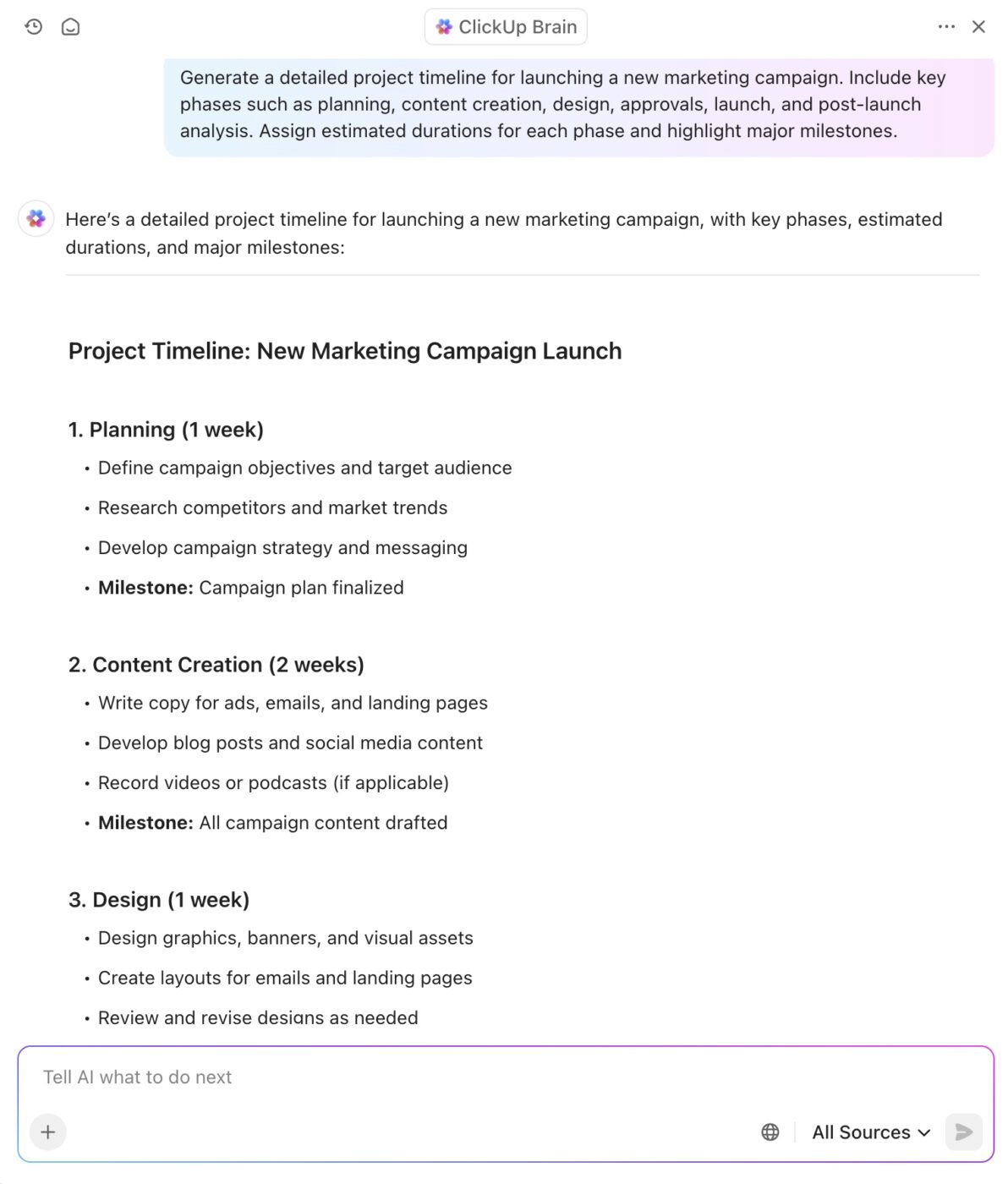
ClickUp Brain is a context-aware AI assistant that can instantly generate a structured plan with tasks, milestones, dependencies, and timelines based on your project requirements.
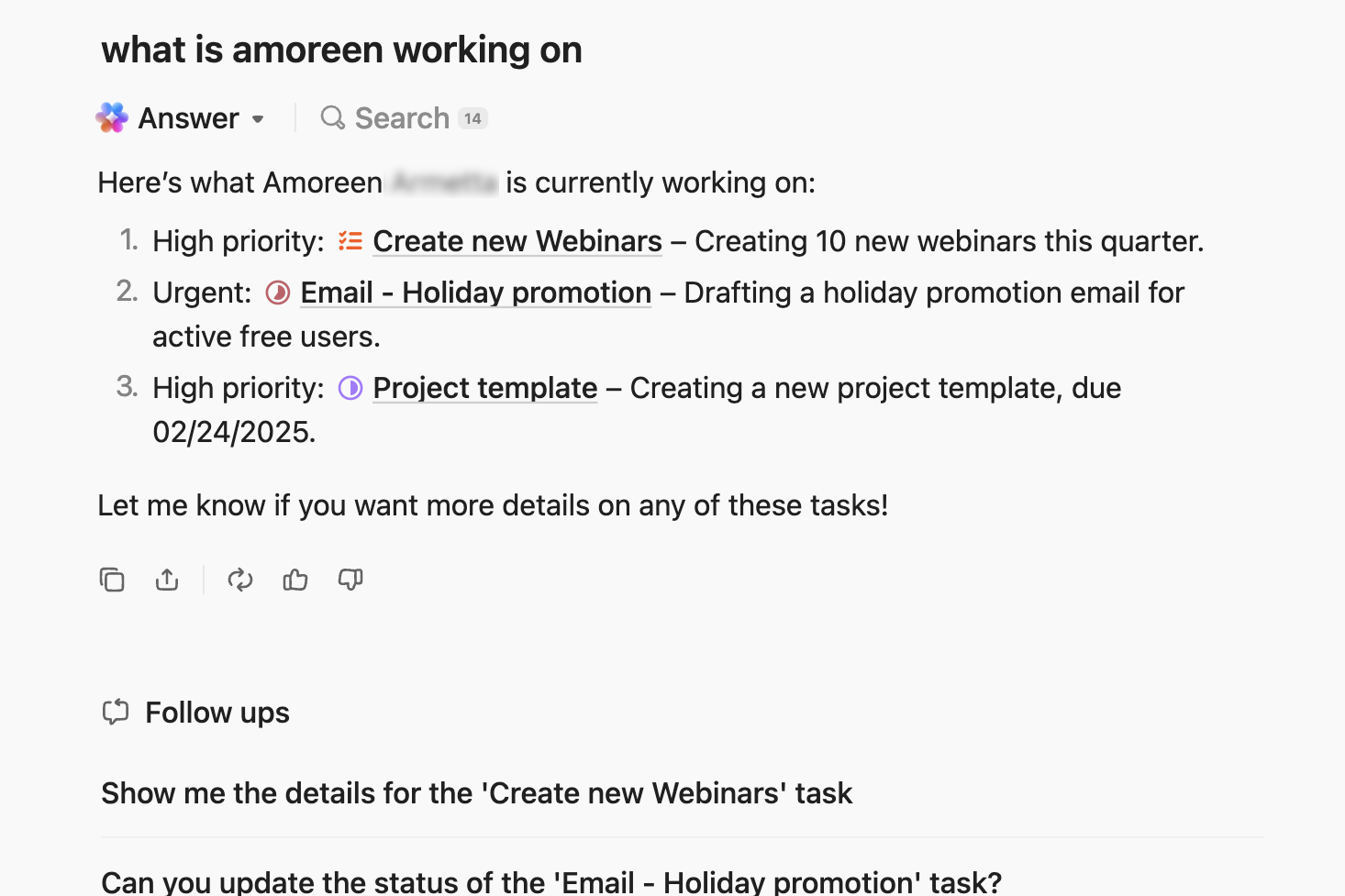
To prevent important details from getting lost in discussions, it turns meeting notes and chat messages into tasks, and even fetches updates from across your workspace.
Get instant updates from across projects with ClickUp Brain
Built-in collaboration tools: Use task comments to tag, assign, and ask questions on specific tasks, or jump into threaded discussions using ClickUp Chat
One-click task automations: Automate repetitive tasks like status updates, deadline reminders, etc., using custom conditions and IF/THEN logics with ClickUp Automations
Track time efficiently: Log work hours per task, monitor team productivity, and generate reports for analysis or billing with the ClickUp Time Tracking tool
Visualize workload: Use the ClickUp Workload view to see team capacity, balance task assignments, and prevent overloading team members
Manage dependencies: Set Dependencies in ClickUp to ensure work is completed in the right order, reducing blockers and project scheduling conflicts
ClickUp limitations
The wide range of features can be challenging for users unfamiliar with advanced project management tools
ClickUp has a lot to offer in one place such as project management, brainstorming options, task management, project planning, documentation management, etc. It has definitely made life comparatively easier as it’s easy to use, UI is well designed, and collaboration within the team and with other teams is easier. We were able to manage work better, track and report work easily, and based on progress daily huddles, future planning was easy.
Ready to get started with ClickUp? Watch this video to see how you can create a project plan in under 30 minutes!
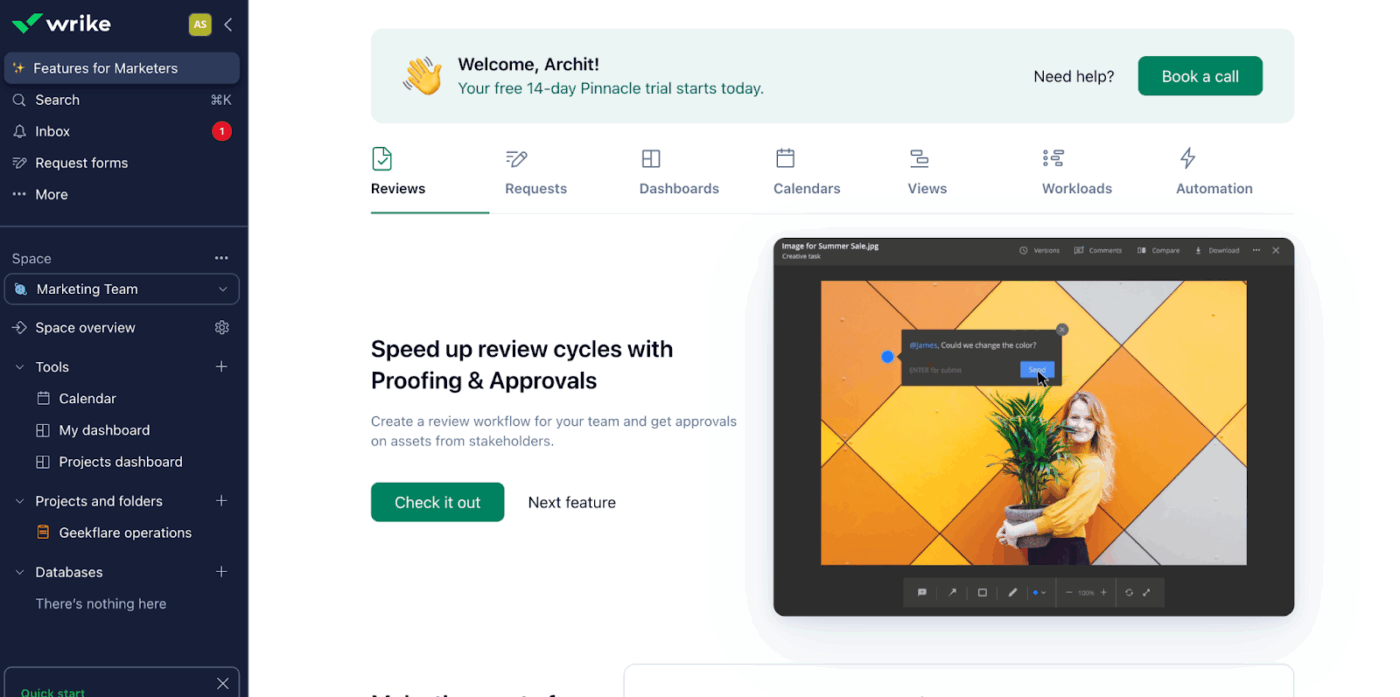
Wrike is an AI-powered work management platform. It provides visual project boards that help teams create detailed project plans and execute them efficiently.
With Wrike, you can customize how projects are set up and organized. You decide how tasks, timelines, and workflows are structured to match your team’s needs. You can view projects using List, Kanban, and Calendar views, and organize tasks using folders and nested hierarchies.
Wrike AI works with the automation builder to analyze project flows and recommends automations at the account or space level, helping reduce repetitive work.
The cross-tagging feature allows you to connect tasks, subtasks, milestones, and even entire projects across multiple workflows. A single task can appear in multiple projects—like ‘Marketing Campaign’ and ‘Weekly Report’, so teams stay aligned without duplicating work or losing important details.
Wrike best features
Implement detailed permissions and secure workspaces, ensuring data protection and compliance with organizational policies
Automate recurring workflows to reduce manual status updates
Use Wrike AI to generate content like briefs or project plans, summarize long discussions, predict risks, and more
Visualize project schedules with interactive Gantt charts and Kanban boards
Get resource management tools like Resource View, Workload Charts, Timesheets, and more (with Wrike’s Business plan and above)
Wrike limitations
Does not offer built-in chat, so teams must rely on external tools for communication
Wrike is one of the easiest project management platforms to set up and get started. It helps us to organize projects by their deadline, clients, and subject, and customize our workflow.
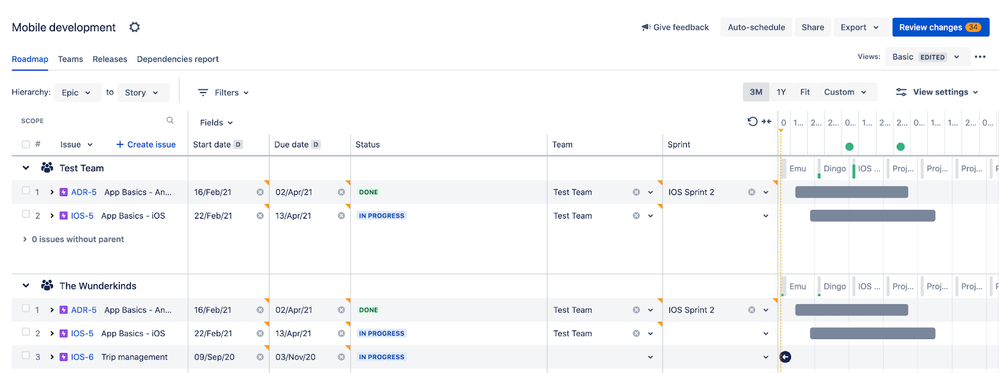
Jira helps you track and manage software, IT, and product launch projects by breaking work into epics, stories, tasks, and subtasks, giving you a clear picture of progress across your teams.
This Agile project planning tool lets you customize your workflows, adjust screens, and design boards that match exactly how your team works. If you want a shortcut, you can pick a template specifically designed for Agile sprints, bug tracking, or product launches.
The backlog view lets you prioritize tasks, plan sprints, and visualize exactly where each task sits on your Scrum or Kanban board.
Jira key features
Generate real-time reports like burndown charts, velocity charts, cumulative flow diagrams, and custom dashboards to monitor team performance and project progress
Access deep integration with hundreds of tools, including Confluence, and CI/CD tools like GitHub, Gitbucket, and GitLab
Streamline project management with integrated Atlassian AI features such as Rovo Search, Chat, and Rovo Agents
Jira limitations
Limited native time tracking, so you need third-party apps or add-ons to monitor hours worked and generate detailed timesheets for your projects
Setup and configuration can be incredibly complex, often requiring a dedicated administrator
Jira helps our team stay organized and on track with all ongoing projects. I really like how clearly it shows the progress of tasks, deadlines, and responsibilities. The boards and sprint views make it easy to follow up with developers, content creators, and designers; everything stays transparent.
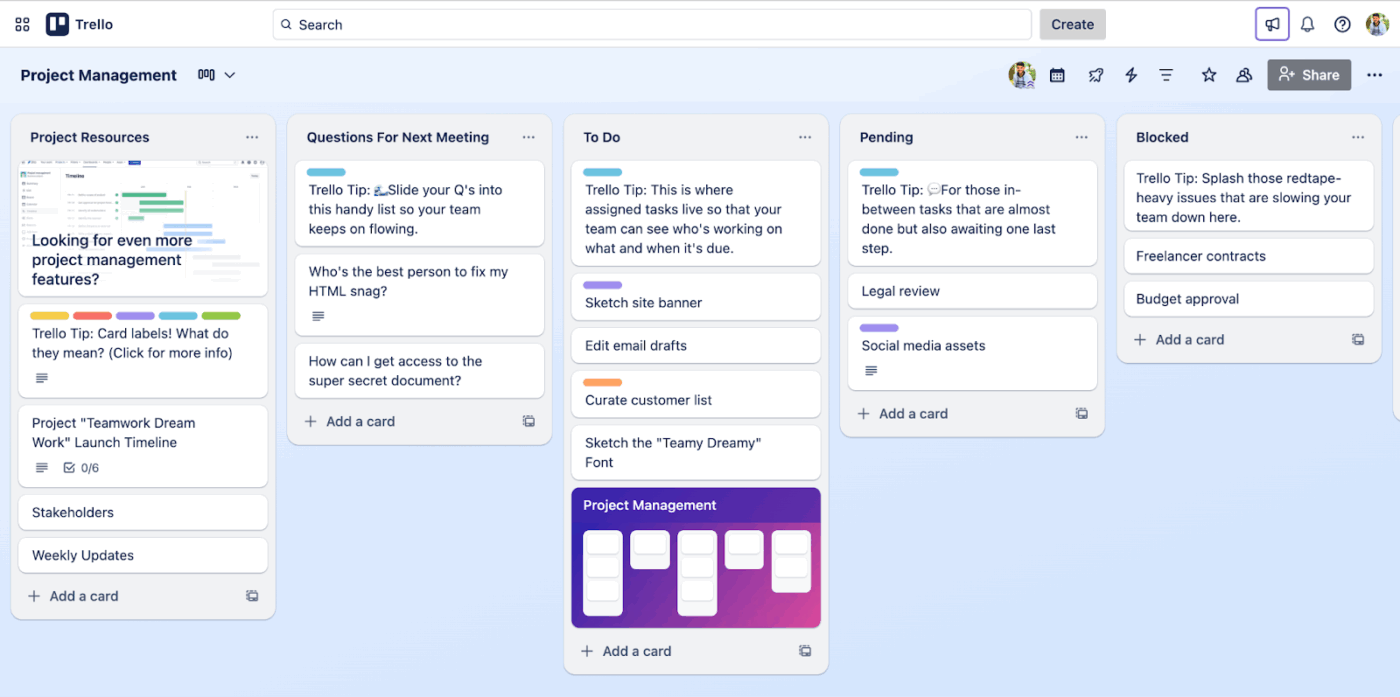
Trello is a visual project management tool ideal for solo projects, small teams, and agencies. It has a minimalistic design, built atop the classic Kanban board view.
You create task cards for each piece of work and move them across columns as progress is made. If you need other perspectives, it’s easy to switch between Calendar, Timeline, Table, Dashboard, or Map views to see your tasks in different ways.
You can link design files from Figma or InVision directly to a task card, so your team always sees the latest version. Emails and Slack messages can become tasks automatically, and you can even turn cards into QuickBooks invoices.
Trello’s Power-Ups and automations add extra functionality. While power-ups help convert any email or Slack message into a task, standard automations let you handle repetitive work, like moving cards when a task is complete or sending reminders.
Trello best features
Capture to-dos, notes, and messages from email, Slack, and Microsoft Teams in a unified inbox inside Trello
Use Trello Planner to view your scheduled cards on a calendar and synchronize events from your favorite tools, like Google Calendar and Outlook
Drag-and-drop tasks across lists to instantly update status
Automate board-level and cross-platform workflows using the no-code automation builder
Trello limitations
Limited reporting capabilities and no offline access
Becomes unwieldy and difficult to view when managing complex projects with hundreds of tasks
Trello pricing
Free
Standard: $6/month per user
Premium: $12.50/month per user
Enterprise: $17.50/month per user (billed annually)
If you’re working on a small project with just a few team members and don’t want to spend hours setting up tools, I’d highly recommend Trello. It has all the features you need to track project progress and assign tasks to team members.
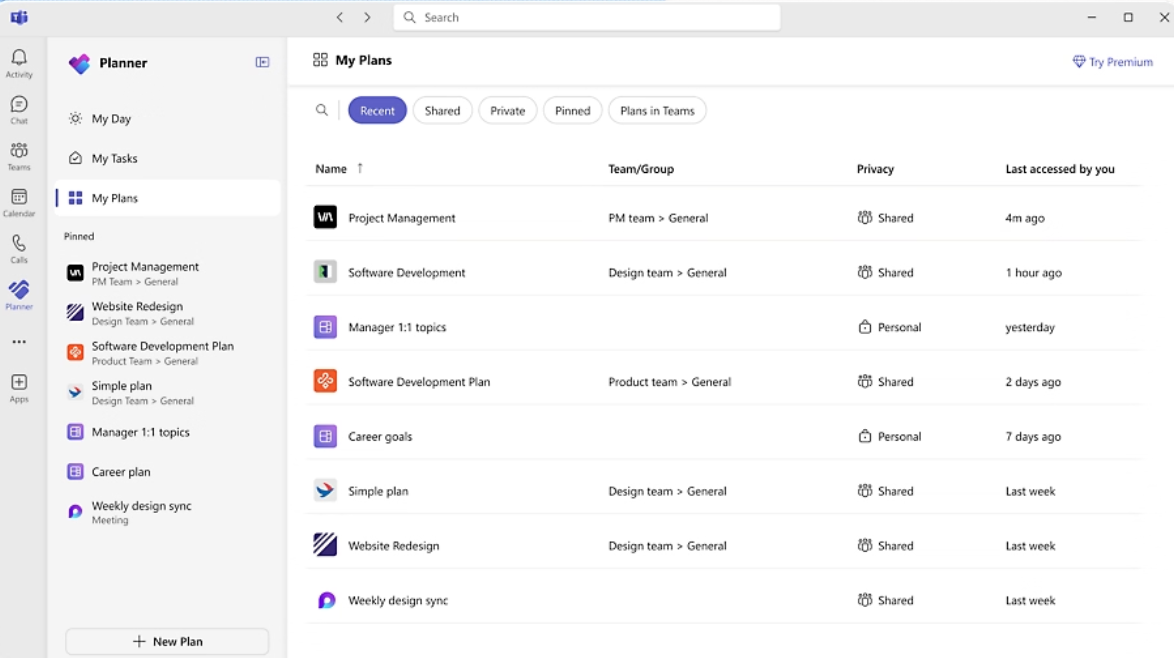
Microsoft Planner is a cloud-based project planning tool integrated with Microsoft 365, including MS Teams, Outlook, and SharePoint.
If your team already works within the Microsoft ecosystem, you can see and manage tasks without switching between applications. Collaboration is built in. You can co-author tasks, comment on them, and receive real-time updates, ensuring your team stays connected and informed.
The platform enables you to group tasks, add priority labels, assign owners, and create checklists to ensure no details are missed.
Tasks can be organized into buckets, and you can view them in different formats: List, Board, Calendar, or Timeline.
Planner also supports task dependencies, enabling you to establish relationships between tasks. This feature is particularly useful for complex projects where the completion of one task depends on the completion of another.
Microsoft Planner best features
Use AI Copilot (available with the premium plan) to create tasks, buckets, and measurable goals for you
Manage complex resource allocation and level workloads across large teams
Pin a Planner board as a tab inside a Microsoft Teams channel and manage tasks directly while chatting with your team
Add external users (like clients or contractors) to specific plans while keeping your overall workspace secure
Forecast budgets and financials with granular cost-tracking tools
Calculate critical paths to identify tasks that directly impact project finish dates
Microsoft Planner limitations
Basic level reporting and time tracking with no built-in hours logging or detailed reports unless you connect to Power BI or other tools
Microsoft Planner pricing
Free
Planner Plan 1: $10/month per user (billed annually)
Planner and Project Plan 3: $30/month per user (billed annually)
Planner and Project Plan 5: $55/month per user (billed annually)
Microsoft Planner ratings and reviews
G2: 4.2/5 (200+ reviews)
Capterra: 4.3/5 (200+ reviews)
What are real-life users saying about Microsoft Planner?
Microsoft Planner makes task organization a breeze and effortless. The ability to create tasks, assign them to members, set deadlines and prioritize them all in one platform is a boon to everyone in the industry.
💡Pro Tip: ClickUp is the only platform designed for true project execution, powered by contextual AI agents. Connect everything you need to run a full project lifecycle in one platform—powered by AI—to unlock flawless execution and deliver results for every team.
Automatically generate project plans: Agents like the Project Plan Creator can break down a project into actionable subtasks, assign owners, and set timelines based on your project brief
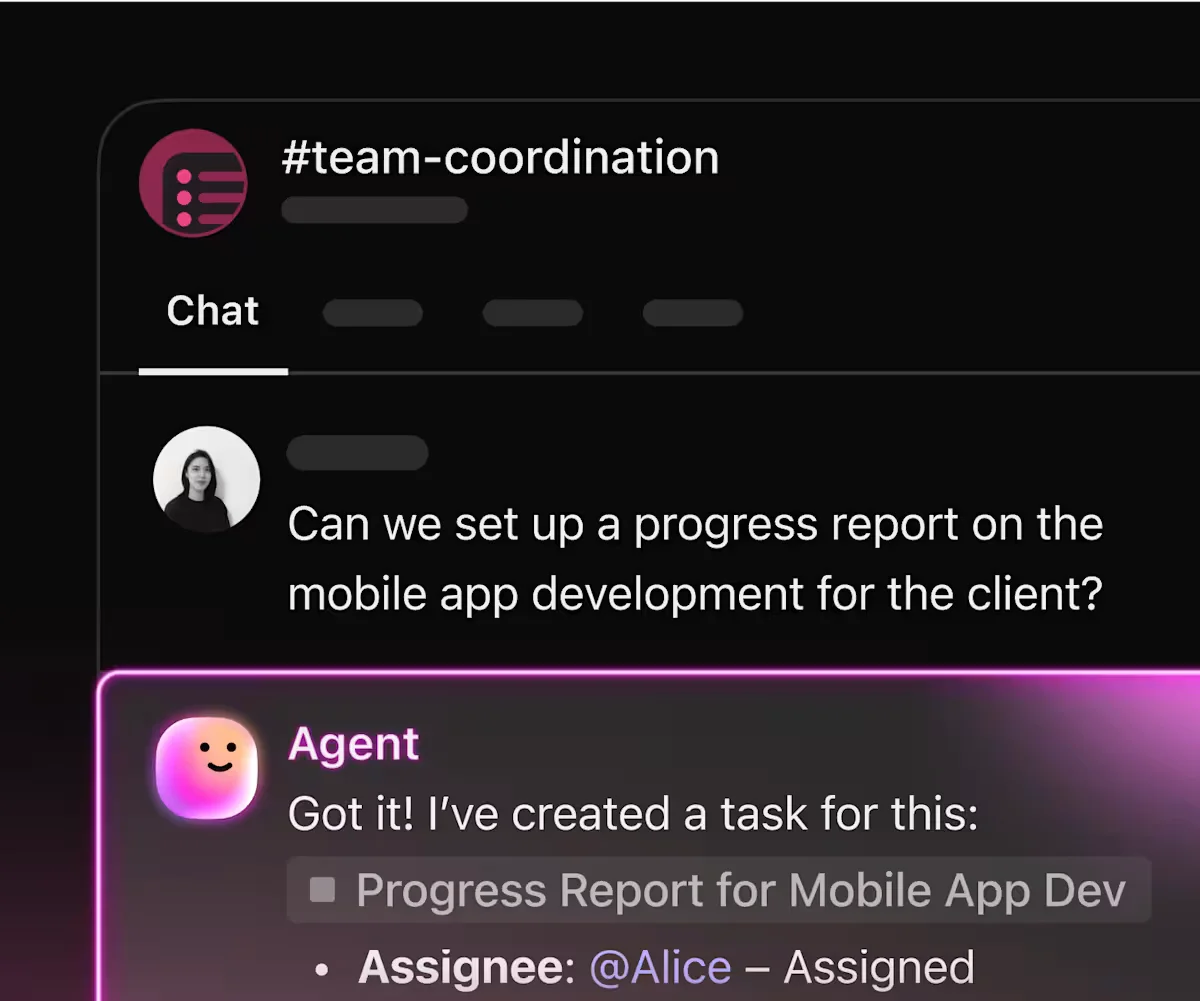
Provide real-time progress updates: Agents can summarize project status, highlight blockers, and deliver weekly or daily updates without manual input
Assign tasks intelligently: AI can recommend or auto-assign the best team member for each task based on workload, expertise, or past performance
Surface insights and answer questions: Agents can answer project-specific questions in chat channels, such as “Who is the project lead?” or “What’s the status of this deliverable?”
Automate intake and review: Agents can review new project requests, create briefs, and ensure all necessary information is captured before execution begins
ClickUp AI Agents
6. Paymo (Best for independent professionals and micro teams focused on client work)
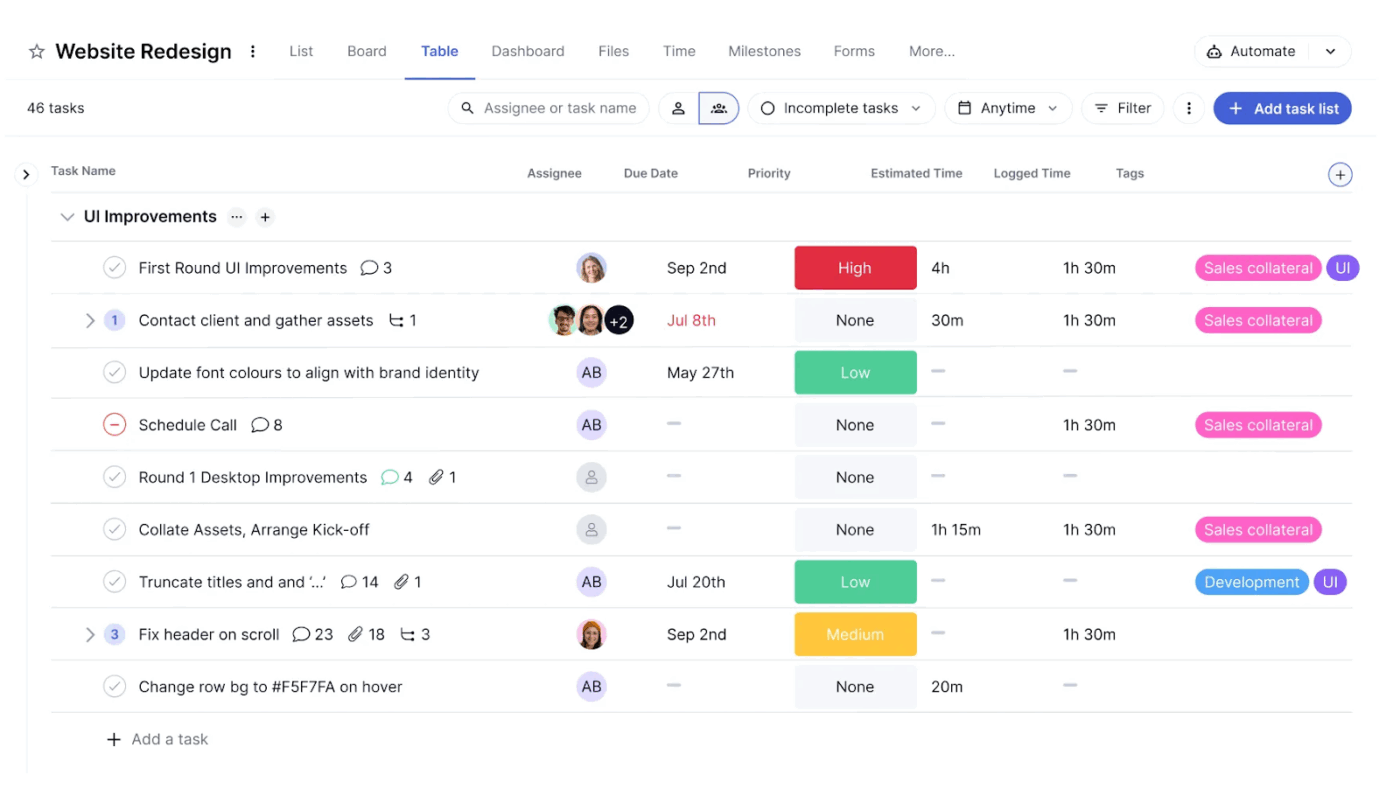
Paymo is a project management tool built for both independent professionals and growing agencies that live and die by client work. It combines task planning, time tracking, and invoicing so you can scope projects, schedule work, and see profitability in one place, instead of stitching together multiple apps.
With Paymo, you can break projects into tasks and subtasks, assign owners, and visualise timelines using lists, Kanban boards, and Gantt charts, which is perfect for planning multi-phase client engagements. Built-in time tracking (web, desktop, and mobile) connects directly to those tasks, so you always know where hours go and how they stack up against estimates and budgets.
If you’re a small client-services team that needs both project planning and billing in one lightweight tool, Paymo gives you a clear view of workloads, deadlines, and margins without the complexity of enterprise platforms.
Paymo’s best features
Multiple project views (Lists, Kanban boards, Gantt charts, and calendar views) to plan and visualize work your way
Automatic time tracking that ties time entries directly to project tasks and estimates
See which projects and clients are most profitable at a glance with real-time budget vs. actual analysis
Convert tracked time directly into professional invoices with payment reminders and online payment links
Task assignments, real-time updates, file sharing, and communication all in one place
Visualize team workload across projects to prevent overload and balance assignments
Paymo limitations
Task Gantt Chart View, task dependencies, and employee scheduling/workload are only available on the Pro plan
Best suited for client-focused teams that need planning plus time tracking and invoicing; less tailored for complex, enterprise-scale portfolio management
I like the ease with which I can add a new project, the colour-coding for different clients, the auto-time spent per project calculation, the timesheet layout and, of course, how I can easily create invoices based on the time added to the timesheet. The invoice itself can be bespoke-tailored to my needs as well.
G2 reviwer
7. Teamwork (Best for project budget planning and resource allocation)
Teamwork is an AI-powered project management software perfect for businesses and agencies managing client work.
For teams handling overlapping deadlines, it has resource planning features and built-in cost tools to help track budgets, log billable hours, and stay on top of profitability without exporting to spreadsheets. You can sketch out projects using tasks, milestones, and goals, then visualize them all as a Gantt chart or in simpler list and board views.
The AI features can be used to plan projects, fill in missing steps, create action items, or summarize long task threads. They even help with smart task assignment—matching work to people based on their skills, availability, and workload.
Teamwork best features
Automate your way through project tracking, form intakes, data entry, reminders, task creation, and other monotonous jobs using Teamwork AI
Get all client-level insights, including billable time tracking, timesheets, budgeting, invoicing, and profitability tracking under the Client View
Create advanced project reports on project health, financials, workload capacity, planned vs. actual outcomes, and more
Track time spent on tasks and instantly convert logs into invoices
Teamwork limitations
The interface can be slow to navigate at times and doesn’t scale well for larger client-facing teams that need a more consistent experience
Teamwork.com is remarkable in managing tasks, with brilliant features, including Gantt Charts, time tracking, budgeting, resource management, etc.
🔎 Did you know? Nearly 1 in 4 projects experience scope creep, delays, or budget overruns due to poor planning and lack of visibility. The right project planning software helps teams stay aligned, manage complexity, and deliver on time.
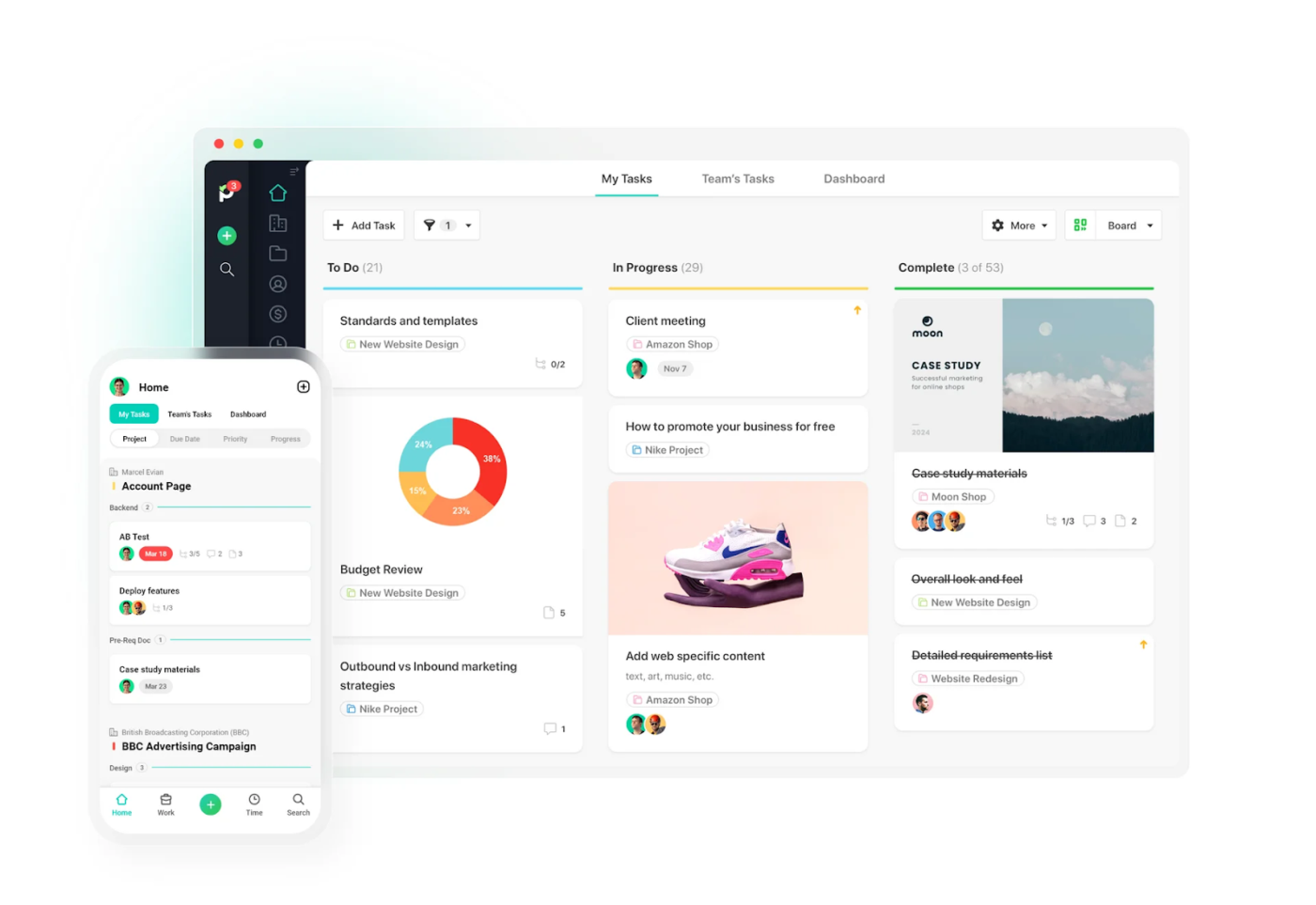
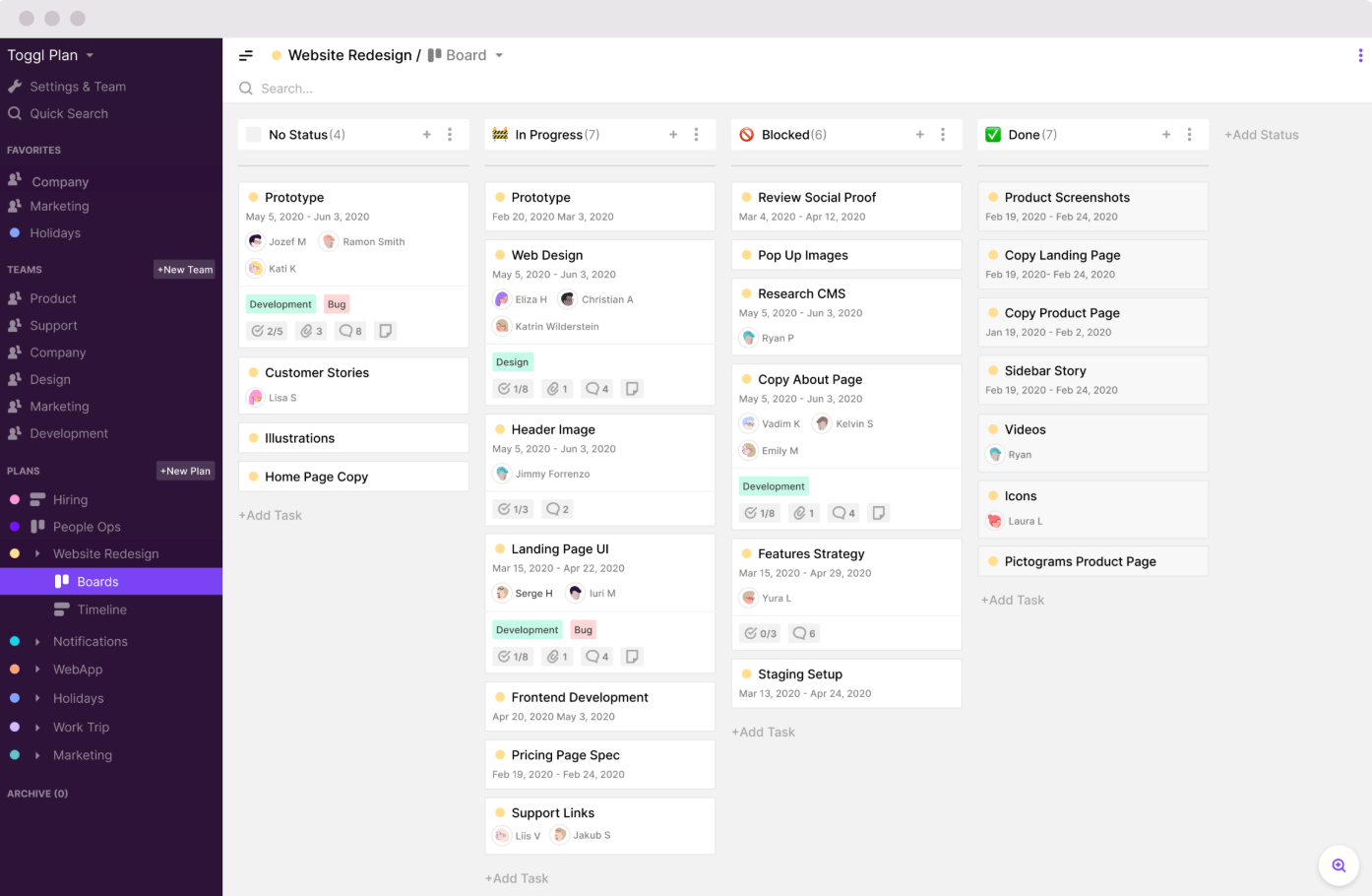
Toggl Plan helps you prioritize things, schedule tasks, and get projects done with drag-and-drop timelines. If you’re managing a team, a consultancy, or handling multiple projects, you can check who’s available and adjust workloads without the stress of micromanaging.
You can break projects into smaller tasks, add checklists or SOPs, and move things around quickly if priorities shift. Boards and timelines give you two different ways to track project progress, depending on how your team prefers to work.
Color-coded milestones and task cards in this free project management tool make it easy to see at a glance what’s coming up and what’s already in progress. Each card shows key details like due dates and hours spent.
You can zoom out to view your project’s progress by month, quarter, or year, which makes forecasting and long-term planning easy.
Toggl Plan best features
Use Calendar view to visualize the team’s availability and schedule projects without conflicting with their time-offs and public holidays
Schedule tasks using a colorful, drag-and-drop team timeline view
Get in-app notifications when tasks or plans change, or when a colleague tags you
Track time spent on tasks, billable hours, estimates for project completion, and more with two-way integration to Toggl Track
Toggl Plan limitations
Slow loading times or lag, especially when dealing with a high volume of tasks and projects
Toggl Plan offers several features that make it great for project management and team collaboration such as visual planning, user friendly interface, task management, customization and time tracking.
🌟 Bonus: When you’re starting a new project, ClickUp Brain MAX can help build a plan and structure it around priorities and dependencies. Because it links to your workspace, docs, task lists, and connected apps, it provides a “single source of truth” for project planning.
It knows your projects, team, deadlines, and work history, so you can ask natural-language queries like “Which tasks are planned in the first quarter for Project X?” and it scans your entire workspace for insights and provides accurate answers.
Here is a video on what it looks like in action ⬇️
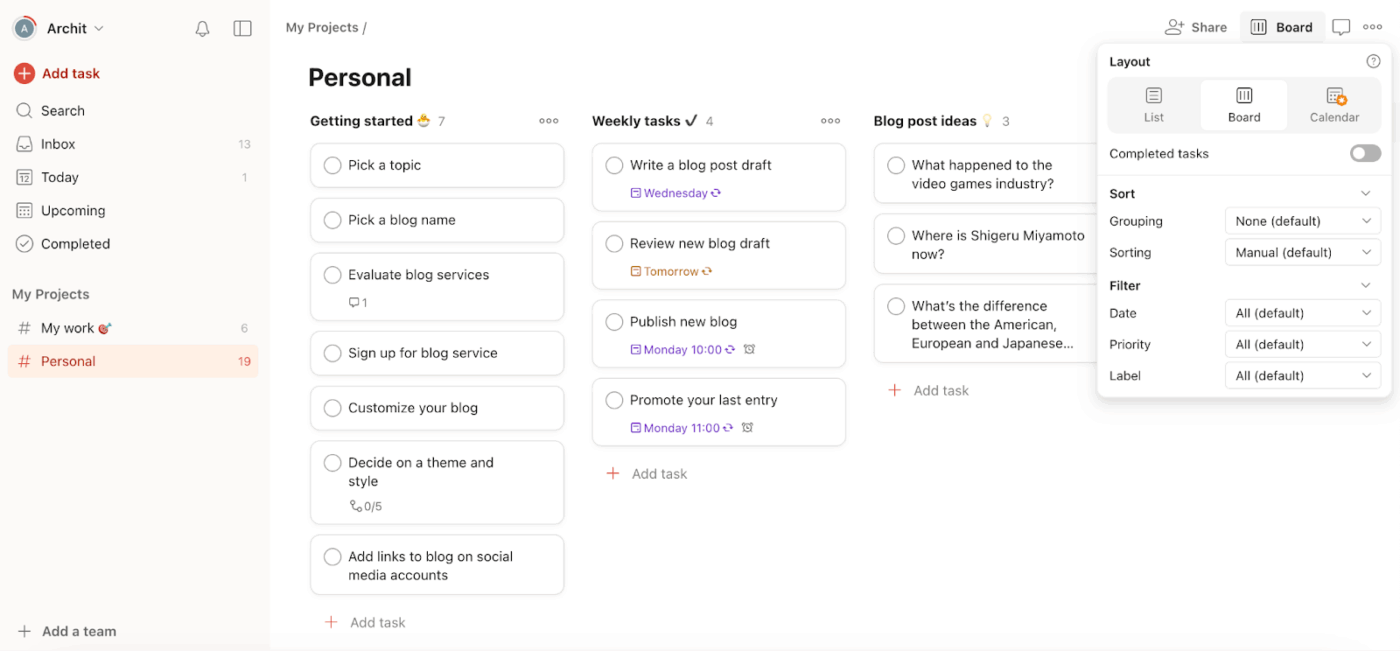
Todoist is a versatile task management software for hobbyists, freelancers, and entrepreneurs looking to manage personal and team to-dos side-by-side.
Its clean dashboard keeps distractions away and makes it simple to navigate through your tasks. You can group tasks, set priorities, add deadlines, and create separate spaces for different parts of your life—one for personal work and another for a team project.
Todoist’s AI Assist helps generate project briefs, provides task and sub-task suggestions, breaks down complex work, turns emails into organized tasks, and even gives tips on what to prioritize next.
Todoist best features
Use Calendar View to oversee your workload for the day, week, or month, and simply drag and drop tasks to reschedule them
Organize tasks into sections and sub-tasks for a clean project hierarchy
Track progress with reminders and priority levels, get in-app reminders on desktop, mobile, and smartwatch apps
Capture, organize, and set up due dates for tasks using commands in natural language
Integrate with email and calendar tools to turn messages into actionable tasks
Todoist limitations
Todoist isn’t built for advanced or complex project management, as it lacks Gantt charts and deeper automation features
Todoist has completely transformed my workflow and productivity. Its intuitive interface, powerful task management features, and seamless cross-device syncing allow me to stay organized and focused, whether I’m at work or on the go. The flexibility to customize projects, set priorities, and automate recurring tasks makes it incredibly versatile for any type of user.
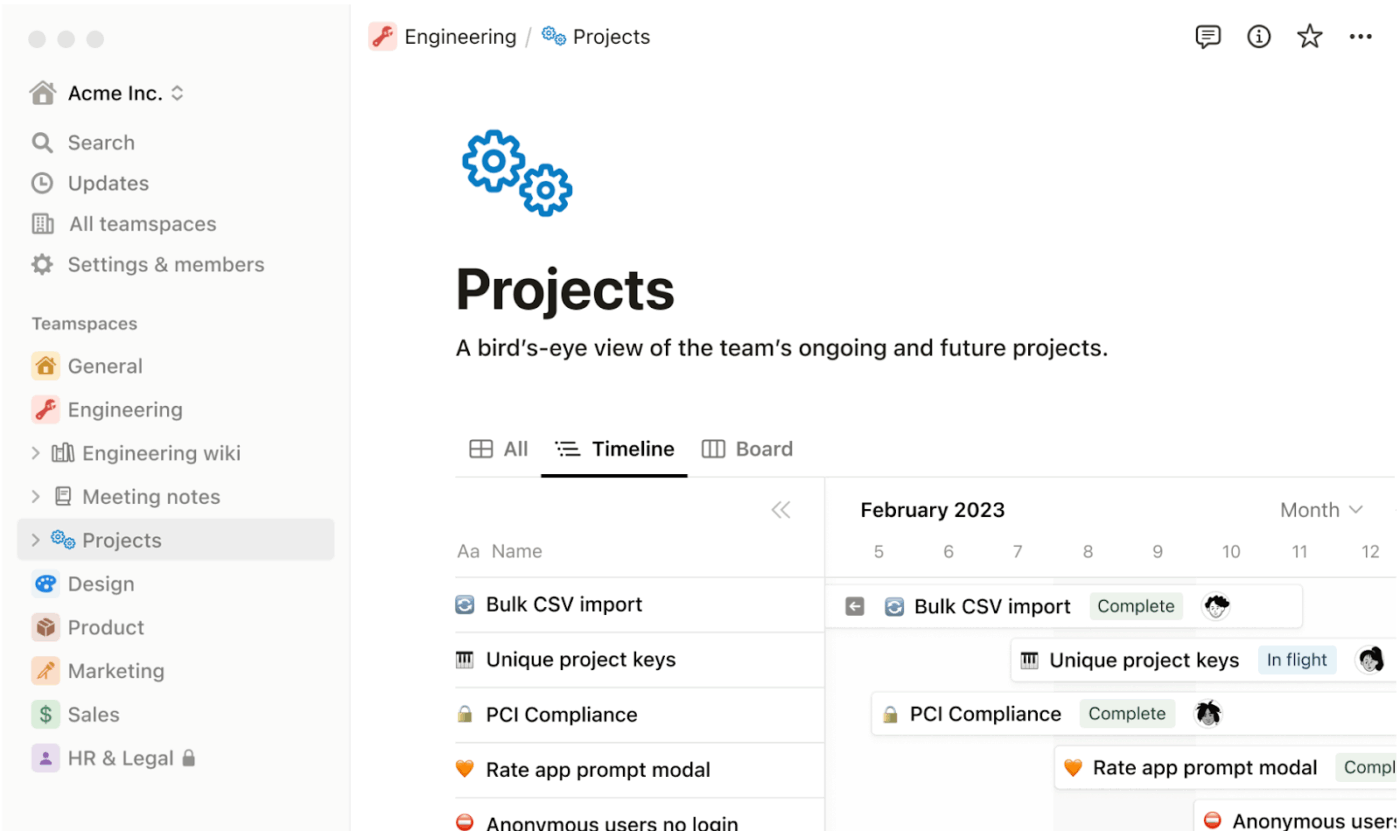
When you’re planning projects, you can build them in Notion using dashboards, pages, wikis, and task databases, and link them together for a comprehensive view of all your project data.
It lets you create dedicated workspaces, break down projects into small tasks with details like descriptions, statuses, and due dates, and switch between views to track progress. And because it plays well with tools like Gmail and Google Calendar, you don’t have to switch tabs to get the most recent status update.
Notion AI edits and polishes your documents and answers questions directly from your docs and databases, helping you find the right information without searching manually. It can also be used to design and automate project workflows, such as generating task lists, structuring timelines, or summarizing meeting notes.
Notion best features
Build fully relational databases and display them as tables, boards, calendars, or timelines
Use progress bar formula or linked database rollups to show project completion percentage
Notion gives my team a ton of freedom to organize our work however we want. From project docs to back-and-forth brainstorming, it’s the only tool that doesn’t box us in.
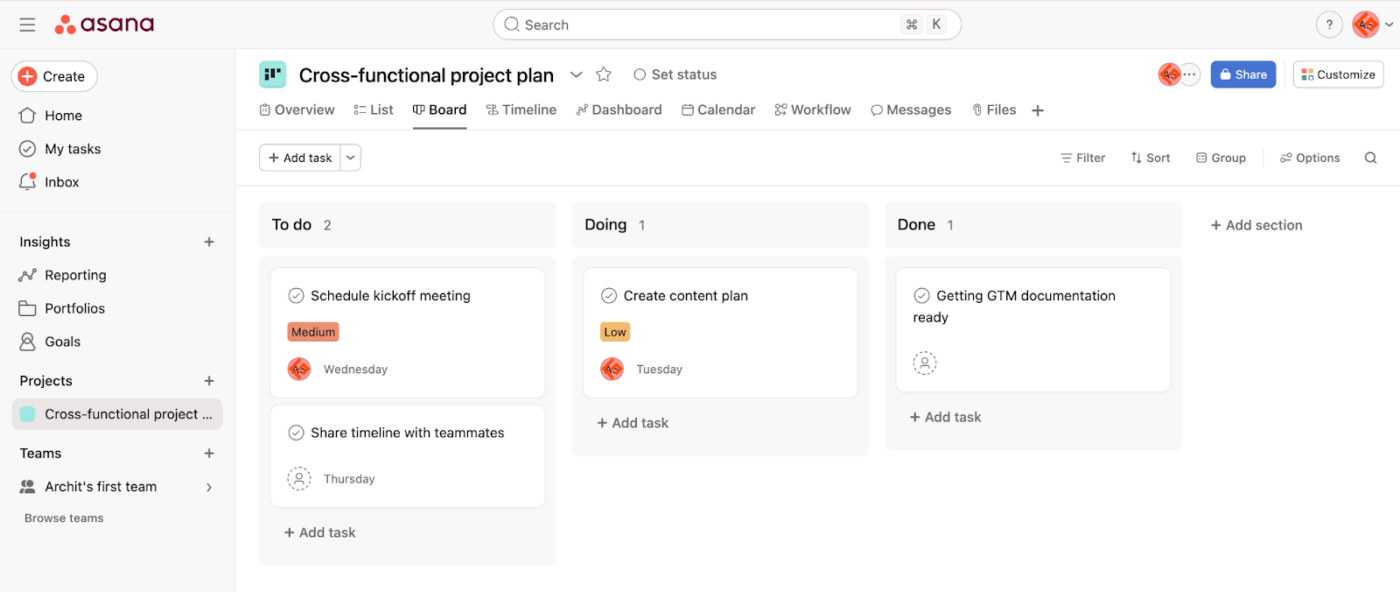
With Asana, you can create shared project hubs to plan, track, and execute multiple projects simultaneously.
This free project management software gives you flexible ways to track progress. You can map dependencies in Timeline view to see how tasks connect, or switch to the Calendar view when deadlines are piling up. If you’re running Agile sprints, the Board view keeps priorities clear, while the List view helps you with fine details.
Besides managing projects, Asana works well for content calendars, product launches, and cross-team initiatives. The tool also has a wide library of project planning templates built for different teams, such as marketing, HR, IT, operations, and sales.
If you’re looking to cut down on repetitive work, Asana’s AI Studio works with the Automation Builder to handle tasks like assignments, approvals, reminders, and routine updates. The AI also helps draft clear project goals, summarize team discussions into actionable tasks, measure project performance, and generate insights that highlight blockers or missed deadlines.
Asana best features
Create high-level project plans with built-in tools like goals, milestones, approvals, capacity planning, workload view, and more
Use Portfolio View to oversee multiple projects at once with smart task suggestions, auto-prioritization, and AI-powered project summaries
Leverage tools like time-tracking, workload management, and capacity planning for resource allocation and management
Automate routine handoffs and rules with a visual workflow builder
Asana limitations
The starter plan lacks advanced features like goals, approvals, time tracking, and AI studio
Strict “one assignee per task” philosophy can be frustrating for collaborative work items
Asana is great for keeping projects organized and tracking team tasks. The interface is clean and intuitive, and the notifications make sure nothing gets forgotten.
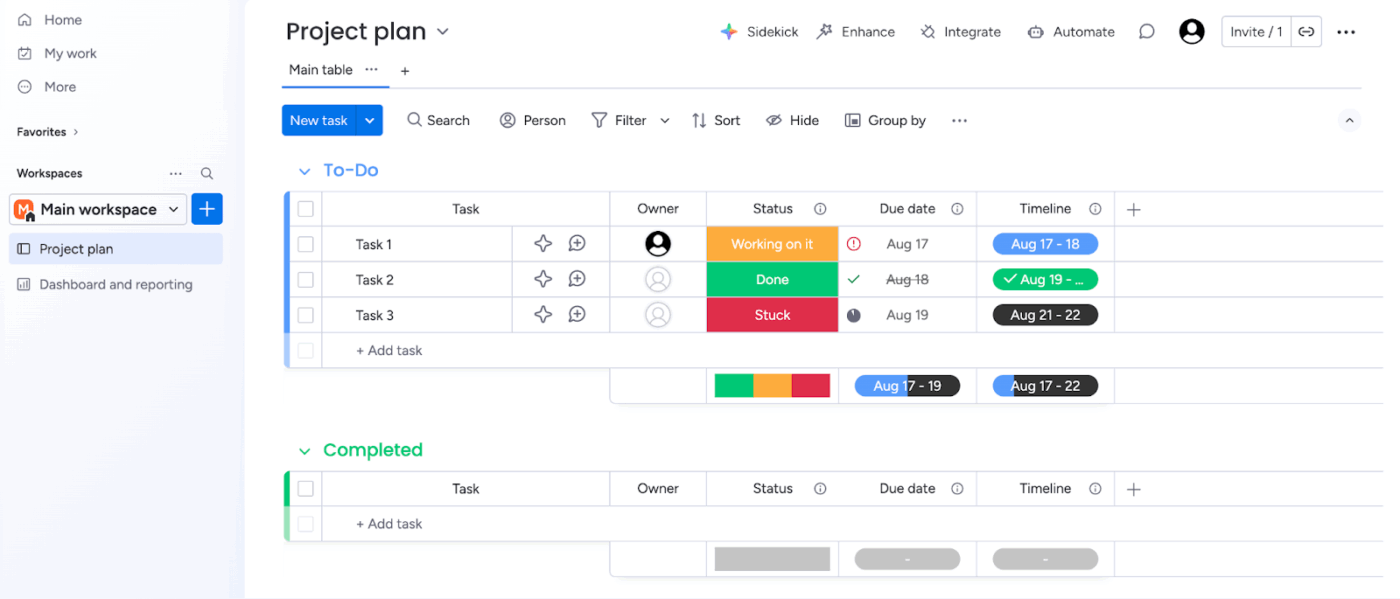
Monday.com scales with your team’s needs, offering a highly customizable and visual work management platform.
There are project boards to help you manage tasks with over 30 column types, like Status, Date, Timeline, and People, to tailor workflows for your team’s needs. You can switch between views like List, Kanban, Timeline, and more.
The tool lets you create both basic board-level and cross-platform automations with an automation builder.
For team and workload planning, it offers a native time-tracking widget, which you can embed on each task. When someone starts a task, they can simply start the timer. This way, you know which tasks are delaying projects.
Monday.com best features
Analyze data with Pivot Board to slice, summarize, and uncover trends without exporting to Excel
Work with data in the Smart Spreadsheet App for Excel-style editing, formulas, and conditional formatting right inside monday.com
Use Portfolio Boards to oversee all your projects with key indicators like project health, percentage of completed tasks, the planned vs. actual timelines, and much more
Automate notifications and item movements with “If this, then that” recipes
Design custom dashboards with widgets for numbers, battery charts, and timelines
Monday.com limitations
Lacks in-app chat and many other functions, like Approvals, are dependent on add-ons from Monday.com’s marketplace
Amazing tool to manage projects and products being released with multiple view options like charts, table and more which makes it highly useful. Easy to assign tasks and sprints to different teams.
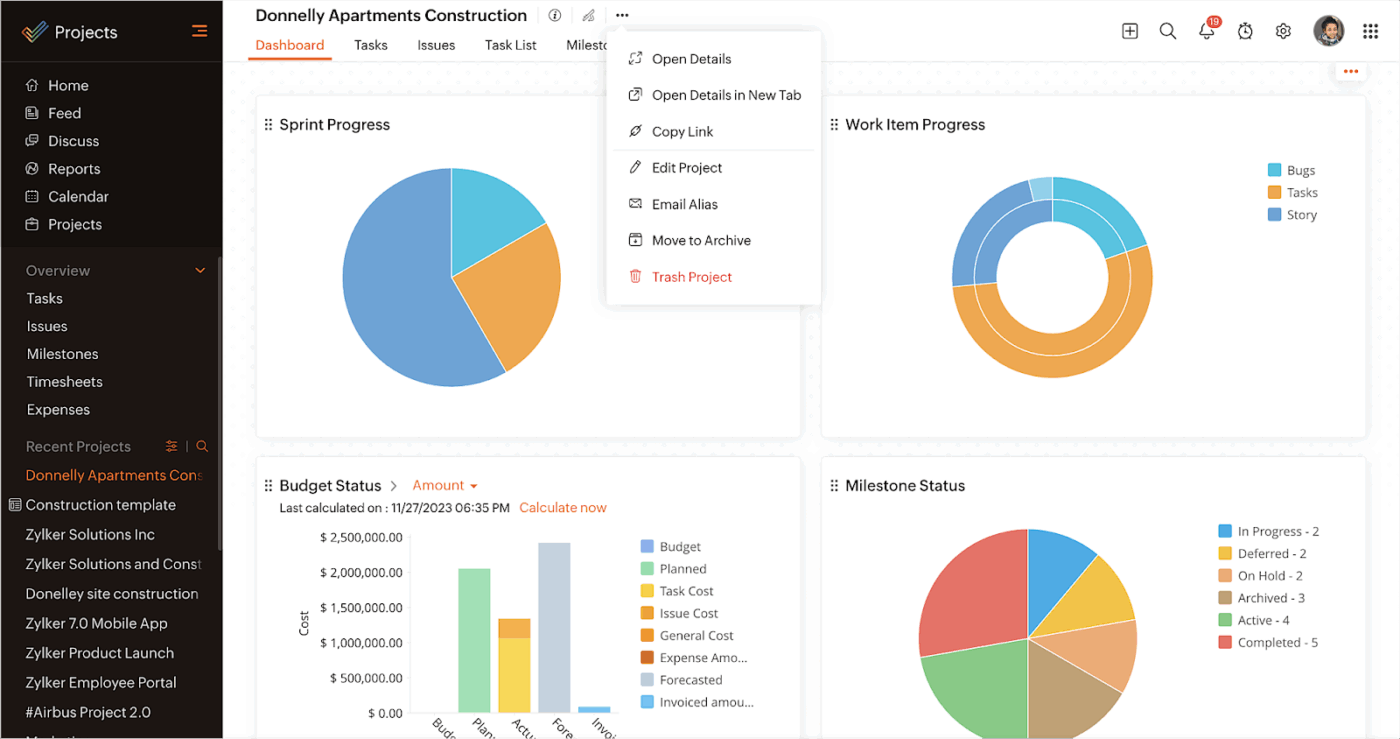
If your team is already in the Zoho ecosystem, Zoho Projects is a reliable project planning software. You can connect with Zoho CRM to sync client details or Zoho Sprints to manage Agile workflows.
The tool lets you break down your long-term plans into a nested structure, including tasks, subtasks, milestones, deadlines, and clearly defined dependencies.
Time tracking is built in. This enables you to log hours and track billable and non-billable time. That data integrates with Zoho Books or Zoho Invoice for smooth invoicing and reporting.
Zia, Zoho’s proprietary AI, helps you work smarter by answering project-related questions, predicting outcomes, budget forecasting, and more.
Zoho Projects best features
Use Blueprints to perform repetitive tasks with a click, trigger actions across boards and thousands of apps based on custom rules and events
Enable project portfolio management via Gantt charts, portfolio dashboards, and integration with Zoho Analytics for deeper reporting
Use built-in chat, together with live feeds and forums, for a complete and collaborative workspace experience
Log billable and non-billable hours with timesheets and approval workflows
Zoho Projects limitations
Only users who are part of the Zoho Projects portal can access project tabs in Teams channels
User interface can feel dated and less intuitive compared to modern competitors
Zoho Projects pricing
Free
Premium: $3.97 /month per user
Enterprise: $7.94 /month per user
Project Plus: Custom pricing
Zoho Projects ratings and reviews
G2: 4.3/5 (400+ reviews)
Capterra: 4.5/5 (800+ reviews)
What are real-life users saying about Zoho Projects?
Zoho Projects makes it easy for us to manage multiple projects at once with clear visibility of tasks and deadlines. It also supports different project management methods, from traditional task lists to Agile boards, which makes it versatile for different teams.
ClickUp Brain helps project managers streamline planning by generating project timelines, summarizing meeting notes, and assigning priorities in seconds.
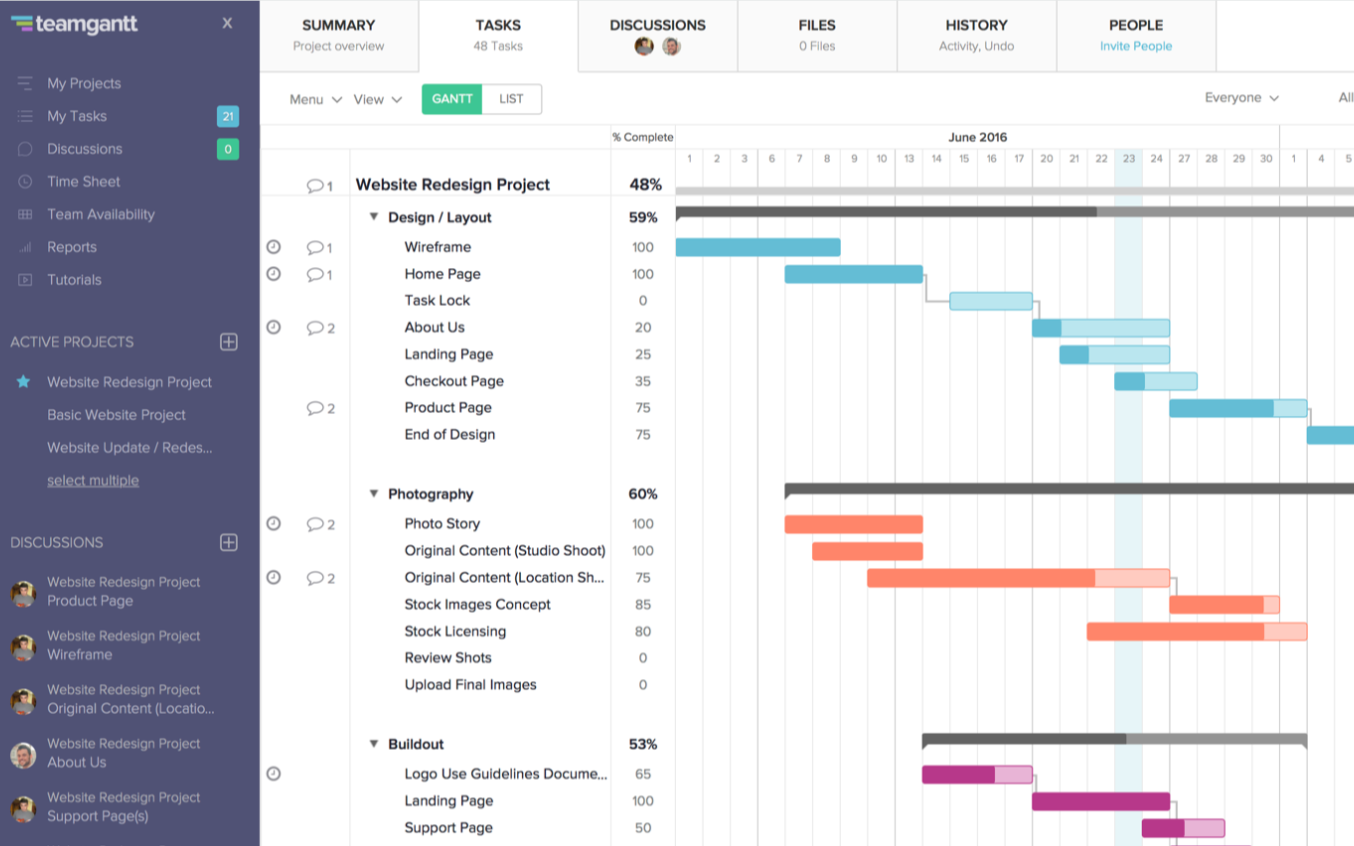
TeamGantt simplifies visual planning, especially if Gantt charts are your go-to.
The platform enables you to view tasks, dates, dependencies, and milestones across multiple projects in one intuitive timeline. You get the flexibility to organize tasks into color-coded subgroups and use filters to zero in on specific tasks, team members, or timeframes.
The built-in RACI chart lays out who’s responsible, accountable, consulted, and informed, so everyone knows their role. If something changes, the drag-and-drop scheduler makes it simple to move tasks or rebalance workloads.
Moreover, you can also switch to Calendar, List, and Kanban board views. Collaboration happens in the task view, and the time-tracking features let you log hours, compare estimates against actuals, and check team availability.
TeamGantt best features
Spot conflicts between projects by opening multiple projects in a single Gantt chart
Use baseline reports to compare your original projections with the actual timeline of the project
Export Gantt charts as PDFs or share them via a public link so clients and stakeholders can view progress without logging in
Drag entire task groups to reschedule projects while maintaining dependencies
TeamGantt limitations
Limited customization, making it challenging to adjust or personalize Gantt charts to fit specific project requirements
Reporting depth is limited; it focuses heavily on the schedule rather than detailed task data
I really like how TeamGantt enables team communication and coordination within the project environment, with features like @ tagging, discussions, and file sharing.
Airtable feels a lot like a spreadsheet at first glance, which makes it easy to get started.
However, unlike traditional spreadsheets, Airtable lets you use 25 field types to organize projects, tasks, and people and build relational databases. If you find it difficult to configure relational tables or automations from scratch, simply type your project idea in Omni (Airtable AI), and it builds tables, interfaces, workflows, and automations around your data.
You can interact with data cells and choose to visualize data using different layouts—List, Calendar, Kanban, Timeline, Gallery, or Form.
The tool’s built-in collaboration tools allow you to leave comments, attach files, and @mention teammates. And with integrations to Slack, Google Drive, Trello, and plenty more, it fits into most team setups.
Airtable best features
Build AI agents for project document analysis, lead generation, data visualization, and any custom use case from scratch, without code
Build custom interfaces and dashboards for different stakeholders
Prompt Omni or use Interface Builder to turn data records into visually interactive apps; drag-and-drop preset components, set role-based permissions, and share the app with your team
View data flexibly as grids, calendars, galleries, or Kanban boards
Automate data entry and status updates with powerful scripting and triggers
Airtable limitations
Some complex reporting capabilities require workarounds or third-party integrations to achieve desired results
Steep learning curve for users not familiar with database concepts
It is a great platform can be used as an Excel and project management tool all in one place. Workspaces and templates and everything can be created with AI. Easy to use and manage projects and assign tasks with deadlines to people in teams.
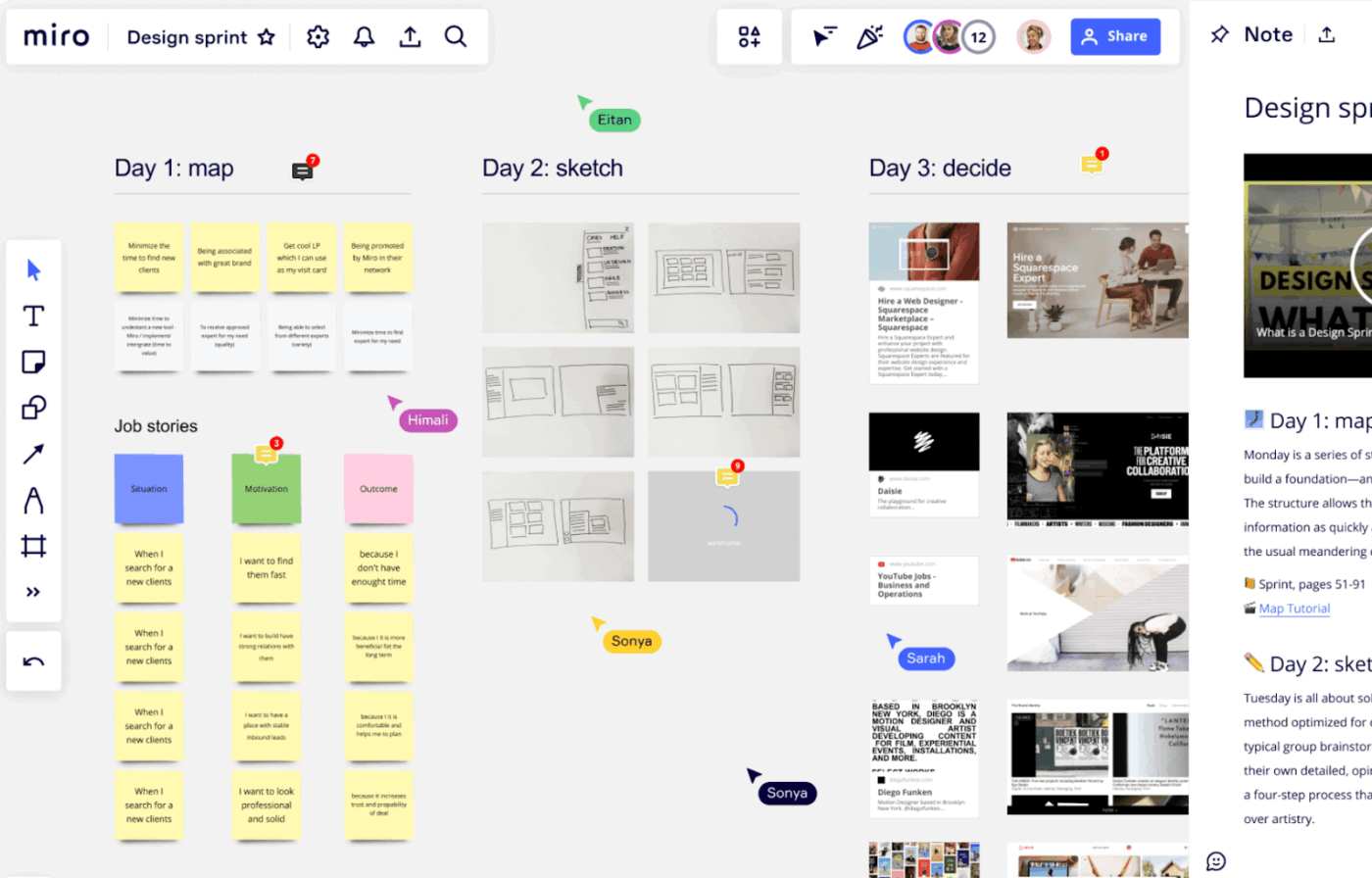
Miro, a collaborative whiteboard platform, makes it easy to collect and organize your team’s ideas in one place. You can brainstorm, map out workflows, or plan projects visually using flowcharts, mind maps, and Kanban boards.
In addition to Whiteboards, it has project management tools like SWOT analysis, resource management, and a library of ready-made templates to get you started. You can build detailed flowcharts, process maps, and org charts with automated connectors, alignment tools, and interactive diagramming features.
Permissions let you control access to sensitive projects or external collaborators, while embedded voting and prioritization tools make decision-making straightforward.
You can bring in Figma designs, MURAL boards, or other third-party apps directly onto your canvas and turn your boards into interactive presentations for stakeholders without exporting.
Miro best features
Add sticky notes, draw wireframes, diagrams, map out flow charts, roadmaps, and more in one board
Use AI-powered Miro Docs to turn the elements in your Miro Board into clear, professional text documents
Map complex user flows, diagrams, and org charts collaboratively in real time
Run interactive meetings with Timer, Voting, Video calls, Private mode, Estimation, and more
Miro limitations
Sometimes, large boards with many elements can become slow to load or navigate, especially when multiple users are editing at once
The boards are incredibly versatile, allowing multiple people to contribute and collaborate in real time. It’s a great way to get started with collaborative whiteboarding.
Summarize this article with AI ClickUp Brain not only saves you precious time by instantly summarizing articles, it also leverages AI to connect your tasks, docs, people, and more, streamlining your workflow like never before.
Summarize this article for me please
Features of Project Planning Tools
Modern project planning tools combine scheduling, collaboration, and reporting so you can organize work and keep projects moving without constant fire drills.
Planning & Scheduling
Task and subtask structures to break projects into manageable pieces
Start/end dates, durations, and dependencies between tasks
Gantt charts and timelines to visualize critical paths and milestones
Roadmaps and portfolio views for tracking multiple projects at once
Recurring tasks and templates to reuse proven plans
Work Visibility & Views
Multiple views such as List, Board, Calendar, and Timeline
Custom fields and filters to surface the data that matters to your team
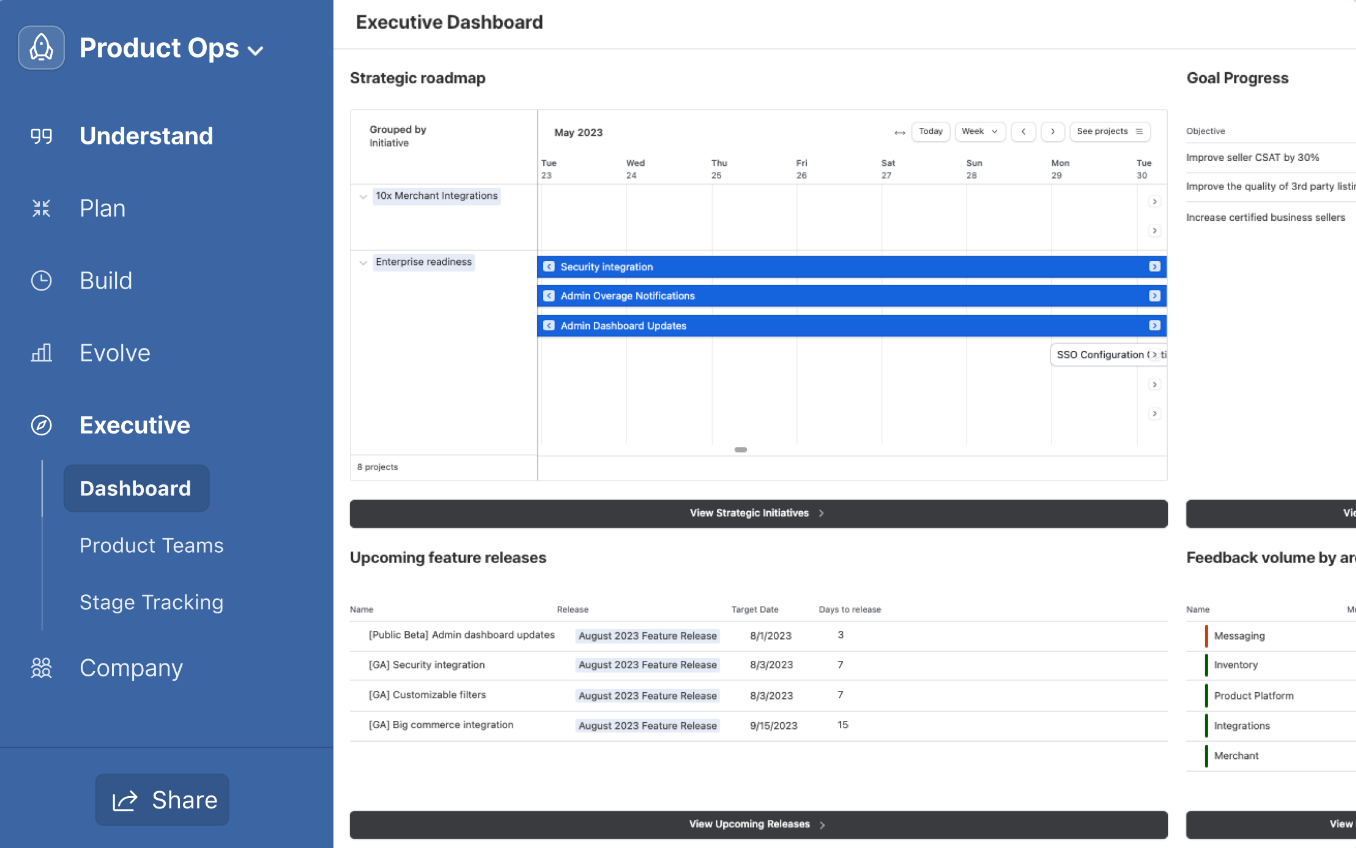
Dashboards that roll up status, blockers, and KPIs in one place
Workload and capacity views to balance assignments across people
Collaboration & Knowledge Sharing
Comments, @mentions, and task-level discussions to keep context close to the work
File attachments and document management linked to tasks and milestones
Real-time co-editing on docs, whiteboards, or notes
Guest or client access for controlled external collaboration
Automation, AI, & Integrations
No-code automations for status changes, notifications, and handoffs
AI assistance for creating project plans, summarizing updates, or drafting briefs
Native integrations with chat, dev tools, CRMs, and storage platforms
APIs and webhooks to connect planning data into your broader stack
Reporting, Time, & Financials
Time tracking and estimates to understand effort and velocity
Custom reports on progress, workload, and risks
Budget tracking, billable vs. non-billable hours, and cost summaries
Exportable data for BI tools and executive reporting
Summarize this article with AI ClickUp Brain not only saves you precious time by instantly summarizing articles, it also leverages AI to connect your tasks, docs, people, and more, streamlining your workflow like never before.
Summarize this article for me please
How to Choose Project Planning Tools
Use these factors to match project planning tools to your team’s size, workflows, and level of complexity.
Factor
What to Consider
Team size & structure
Whether the tool supports individuals, small teams, or multiple departments with different workflows and permissions.
Project complexity
Need for dependencies, critical paths, multi-phase projects, and portfolio-level oversight versus simple task lists.
Preferred views
Whether your team plans primarily in lists, boards, calendars, timelines, or whiteboards—and if you need to switch between them.
Collaboration style
How your team communicates today (chat, email, comments, docs) and whether the tool centralizes those conversations.
Integrations & stack fit
Connections to tools you already rely on, such as chat, code repositories, CRM, file storage, or finance systems.
Automation & AI needs
Where automation or AI can remove manual work—status updates, intake, reporting, risk flags, or drafting plans.
Governance & security
Role-based access, audit trails, data residency, and compliance requirements in your industry.
Reporting & leadership views
Dashboards and exports stakeholders need for status reviews, steering committees, or OKR tracking.
Implementation & change management
Time and support required to roll out the tool, migrate data, train users, and sustain adoption.
Budget & total cost
Licenses, add-ons, admin time, and any extra tools you might still need alongside the platform.
Summarize this article with AI ClickUp Brain not only saves you precious time by instantly summarizing articles, it also leverages AI to connect your tasks, docs, people, and more, streamlining your workflow like never before.
Summarize this article for me please
Costs & Pricing of Project Planning Tools
Project planning tools use a mix of per-seat subscriptions and tiered plans, so it helps to understand how pricing typically scales before you compare options.
Pricing models
Most platforms charge per user per month, with feature-based tiers. Some offer flat-rate plans for a set number of seats, or enterprise agreements that bundle add-ons, support, and security features.
Typical tiers
Free: Core task management with limited users, storage, or views; often missing advanced automation and reporting.
Entry: Adds basic timelines, integrations, and larger usage limits for small teams starting structured planning.
Mid: Includes advanced views, automations, improved security, and richer reporting for growing teams and portfolios.
Number of users, guests, and external collaborators you need to provision.
Access to advanced features such as automation, AI, resource management, or portfolio dashboards.
Required integrations, APIs, and data export capabilities.
Storage requirements for files, historical projects, and audit logs.
Support level, including SLAs, onboarding assistance, and training.
Hidden costs to watch
Add-on fees for AI assistants, advanced automations, or premium integrations.
Extra tools you still need to bridge gaps in reporting, documentation, or time tracking.
Implementation effort for migrating data and rebuilding workflows.
Productivity loss if the tool is too complex and adoption stalls.
Over-provisioned licenses for inactive users or teams not yet onboarded.
Summarize this article with AI ClickUp Brain not only saves you precious time by instantly summarizing articles, it also leverages AI to connect your tasks, docs, people, and more, streamlining your workflow like never before.
Summarize this article for me please
Trends in Project Planning Tools for 2026
This overview draws on recent release notes, changelogs, and industry analyses to highlight where project planning tools are heading in 2025.
1. Deeper AI Assistance in Everyday Planning
AI is moving from novelty to a built-in assistant that drafts project plans, summarizes updates, and flags risks based on real activity. This helps teams spend less time on admin and more on decision-making.
2. Stronger Support for Hybrid and Remote Work
Tools are doubling down on shared views, async communication, and real-time collaboration on boards and docs. The goal is to give distributed teams the same clarity they’d have in a physical war room.
3. Resource & Capacity-Driven Planning
Workload and capacity planning features are becoming standard, tying project timelines to real availability and skills. This reduces overcommitment and improves forecasting accuracy.
4. Richer Integrations Across the Toolchain
Project planning platforms increasingly act as hubs, connecting to dev tools, CRMs, BI platforms, and chat. Tighter integrations reduce double data entry and keep plans aligned with execution.
5. More Emphasis on Governance & Security
As planning tools hold more sensitive data, vendors are enhancing permissions, audit trails, and compliance options. This makes it easier for larger organizations to standardize on a single platform.
Summarize this article with AI ClickUp Brain not only saves you precious time by instantly summarizing articles, it also leverages AI to connect your tasks, docs, people, and more, streamlining your workflow like never before.
Summarize this article for me please
Get an All-in-One Planning Powerhouse With ClickUp
Not all planning tools are built the same. And that’s exactly what makes this list valuable.
While Notion or Todoist are personal productivity tools, Trello and Miro are good for brainstorming and visualizing workflows. But if you want all your project tasks, documentation, reports, and more in one converged workspace, pick ClickUp.
ClickUp, the everything app for work, excels at managing complex projects with advanced automation, AI, dashboards, time-tracking, and team collaboration features. That means fewer context-switches and a more consistent workflow across your team.