
Sorry, there were no results found for “”
Sorry, there were no results found for “”
Sorry, there were no results found for “”
It’s Monday morning, and your team’s prepping for a major client presentation in two hours. You’re frantically searching for the latest file, messages are lost in a flood of chats, and someone can’t join the video call due to ‘technical issues’—aka, their cat decided to chew on the router cable. 🐱🔌
Sound familiar?
With hybrid work models becoming increasingly common, companies are racing to find the right business messaging tools to keep teams connected, collaborative, and productive.
Enter Microsoft Teams—a platform designed to streamline video meetings, instant messaging, file sharing, and more—all under one virtual roof. But does it smooth out the chaos—or does it introduce challenges that can hinder your team’s productivity?
This blog post examines Microsoft Teams pros and cons to help you decide if it suits your business needs.
Microsoft Teams is a comprehensive communication and collaboration tool that streamlines workflows for remote and hybrid teams. Launched as part of the Microsoft 365 suite, the Teams project management is a central hub for messaging, video conferencing, file sharing, and more.
You could almost hear the sigh of relief from employees everywhere: “Finally, I can avoid the chaos of ten different apps!” 🙌
It enables real-time interaction and coordination, streamlining collaboration by reducing the need to switch between apps as it seamlessly integrates into the Microsoft Ecosystem. Understanding Microsoft Teams’ pros and cons allows teams to plan effectively, maximize its features, and navigate its limitations.
Like any tool, Teams has both benefits and drawbacks. Let’s break down the Microsoft Teams pros and cons to give you a clearer picture.
Microsoft Teams is widely adopted across industries for its effective communication capabilities. For businesses already utilizing other Microsoft applications, Teams provides easy implementation without any additional cost.
So here are the key benefits from various perspectives:
When it comes to collaboration, nothing feels better than being part of a truly connected team! With Teams, you can share ideas, communicate effortlessly, and make work much more enjoyable!
Unified communication platform: Teams centralizes instant messaging, calls, and file sharing—reducing app switching. For example, marketing team members can discuss strategies, brainstorm via the video call feature, and edit documents simultaneously with real-time updates and instant feedback—all within the platform.
Collaboration tools: Microsoft Teams enhances teamwork through various collaboration tools. One of the notable integrations is the SharePoint site integration, which allows teams to access files directly from Teams, streamlining the process of document sharing and collaboration. This means that teams can collaborate on documents without having to switch between different applications, making the workflow smoother and more efficient
Intuitive UI: Teams interface is user-friendly and integrates seamlessly with other Microsoft 365 applications like Word, Excel, and PowerPoint. This minimizes the learning curve and allows new team members to adapt quickly. Also, Microsoft Teams also offers advanced, intuitive capabilities, such as background blur during calls, to ensure a professional appearance in training sessions and meetings.
📌
Let’s face it: if there’s one thing managers love more than coffee, it’s a tool that helps them keep everyone on the same page!
Enhanced project management: Teams enables task assignments, deadline management, and progress tracking through seamless integration with Microsoft Planner.
Improved coordination: Creating and managing different channels in Teams—by project, department, or topic—allows managers to enhance team communication and file-sharing, ensuring focus and preventing information from getting lost
Collaboration Tools: Microsoft Teams enhances teamwork through various collaboration tools. One of the notable integrations is the SharePoint site integration, which allows teams to access files directly from Teams, streamlining the process of document sharing and collaboration. This means that teams can collaborate on documents without having to switch between different applications, making the workflow smoother and more efficient
Bonus: Learn how to keep your Teams status green!
In the age of remote work and hybrid or asynchronous models, the ability to communicate effectively can make or break your business strategy. With Teams, you can bridge the gap between your distributed workforce and foster a culture of collaboration.
Synchronous communication: This business messaging tool connects remote and geographically dispersed teams and fosters a unified work environment regardless of location.
Cost-effective solution: For organizations already using Microsoft 365, Teams comes included in the subscription. This makes it a cost-effective solution that minimizes additional software purchases and simplifies budgeting.
Despite its benefits, Microsoft Teams has some disadvantages that organizations should be aware of. 🚫
Here are the cons:
This file-sharing software limits teams to 200 public channels and 30 private channels. This restriction can be challenging for companies with multiple teams, resulting in cluttered conversations and difficulty locating relevant information.
Compare Microsoft Teams with Google Workspace to find the best fit!
You can’t invite guest users to specific channels, as adding someone to a team grants them full access to all resources. This limits control over sensitive information and can expose confidential data to external collaborators.
All files uploaded during conversations are placed in the channel’s file section without categorization. This can result in confusion and wasted time as team members sift through a cluttered repository.
A user says: I feel it does not have advanced features, especially if we have to search for some old discussion or files shared that go back a year or so. My organization works on multinational projects which run for years and require us to go back to the earlier discussion multiple times.
(Via: Q2)
By default, Microsoft Teams allows anyone to create a team, increasing collaboration and security risks. This open access will enable guests to upload harmful files that could contain malware, infecting the organization’s network when downloaded by a team member.
Further, unmanaged external devices can connect, increasing the risk of data theft. Or, an employee might accidentally share a confidential financial report, exposing sensitive data to all members.
Hence, Microsoft Teams’ pros and cons should be carefully evaluated. As it may not meet your team’s specific challenges, exploring better alternatives becomes crucial.
💡 Pro Tip: Discussing Microsoft Teams pros and cons with your IT team can ensure any potential challenges are addressed before implementation.
While Microsoft Teams is a great tool for meeting a company’s communication goals, it may not always meet the unique needs of every team. The limitations—such as restricted channels, rigid permission settings, and the challenge of organizing files—can lead to frustration and inefficiencies, highlighting the Microsoft Teams pros and cons.
But what if there was a solution that combines effective communication with advanced project management features? Enter ClickUp. 🌟
ClickUp is not just another messaging tool; it’s a comprehensive project management platform designed to enhance team productivity and streamline workflows. If you find that Microsoft Teams falls short in addressing your collaboration challenges, ClickUp could be the answer you’ve been searching for.
It is an effective project management platform that provides task management for organizing assignments, time tracking for monitoring project hours, goal setting for tracking objectives, and detailed reporting for performance analysis.
It also enables real-time discussions on tasks, document sharing for collaboration, and notifications to keep team members updated on project progress.
With its seamless and efficient features, templates, and integrations, you can count on ClickUp as one of the best team collaboration software solutions.
Here’s how it helps:
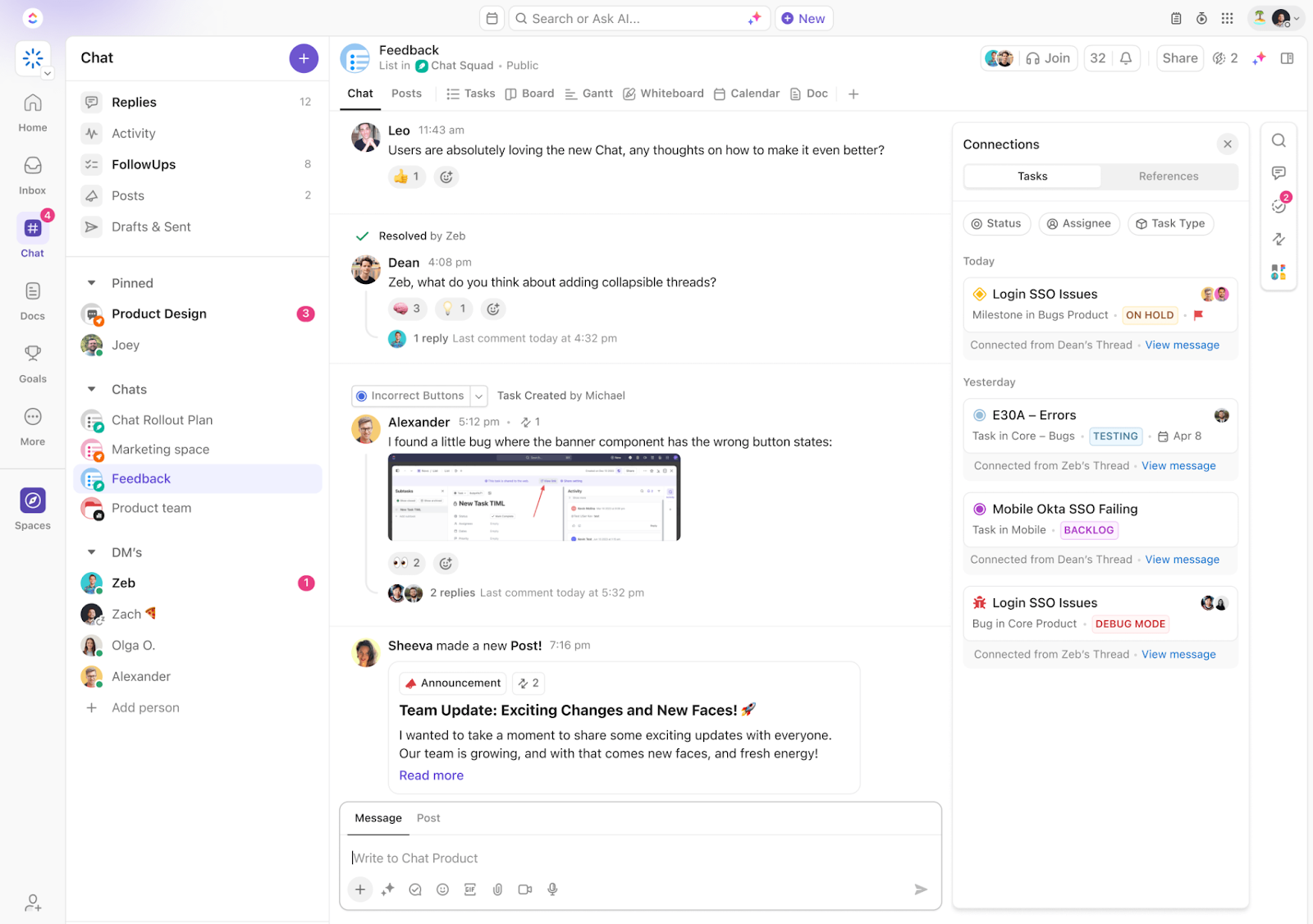
ClickUp Chat centralizes team communication—you can share updates, link resources, and collaborate with other members directly within a single interface. You can also instantly convert messages into tasks with one click, ensuring all actionable items are tracked and not overlooked.
Here’s how it enhances communication:
📮 ClickUp Insight: 1 in 4 employees uses four or more tools just to build context at work. A key detail might be buried in an email, expanded in a Slack thread, and documented in a separate tool, forcing teams to waste time hunting for information instead of getting work done.
ClickUp converges your entire workflow into one unified platform. With features like ClickUp Email Project Management, ClickUp Chat, ClickUp Docs, and ClickUp Brain, everything stays connected, synced, and instantly accessible. Say goodbye to “work about work” and reclaim your productive time.
💫 Real Results: Teams are able to reclaim 5+ hours every week using ClickUp—that’s over 250 hours annually per person—by eliminating outdated knowledge management processes. Imagine what your team could create with an extra week of productivity every quarter!
ClickUp Clips enables teams to record and share video messages within ClickUp conversations. This visual format provides clear explanations, minimizes misunderstandings, and allows instant feedback.
For instance, a project manager might create a video explaining a new marketing strategy and embed it in the relevant task. Team members can then watch it directly within their workflow—improving clarity.
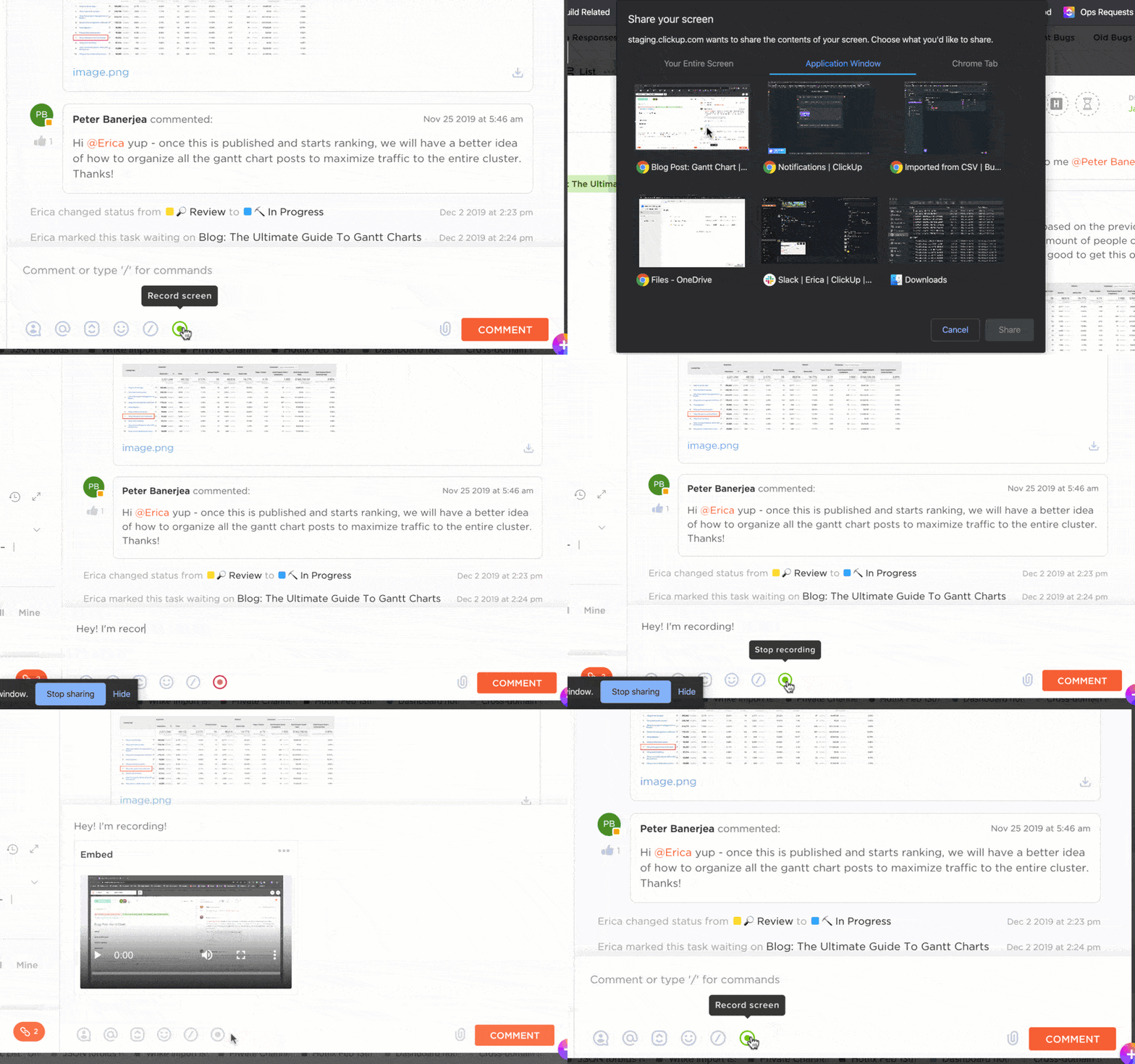
But that’s not all—ClickUp Clips also excels at note-taking during meetings. It automatically generates transcriptions that capture all the key points discussed so your team can focus on the conversation without worrying about jotting everything down.
One of the preferred free screen recorder tools is that if a team member has a question about a segment, they can leave a comment directly on that part, facilitating clear and direct feedback.
With timestamped notes, you can easily navigate to specific meeting segments, ensuring essential discussions are always at your fingertips.
Plus, the Clips Hub organizes all recorded clips in one place, making it simple to revisit crucial discussions whenever needed.
Team members are often overwhelmed by scattered comments that lead to missed actions and confusion. ClickUp Assign Comments solves this by organizing feedback and discussions directly within tasks.

For immediate action, use comments to notify a team member. And once they complete the task, they can mark the comment as resolved—eliminating the need for separate follow-ups.
You can keep conversations organized with threaded comments, which keep replies nested under original comments. You can also quote them to highlight text or pose specific questions about certain sections.
And here’s the best part: You can turn any comment into a reminder in your inbox on a chosen date, ensuring nothing gets left on the back burner. It’s all about keeping your team on track and focused on what matters most!
ClickUp Meetings is a powerful collaboration tool for managing video conferences. It transforms chaotic discussions into structured and productive sessions, enforcing virtual meeting etiquettes and enhancing team communication in multiple ways:
Read More: Meeting Agenda Examples & Free Templates
ClickUp Calendar View offers a structured layout that prevents confusion and missed deadlines in team meetings. It allows teams to visualize their schedules, making it easy to coordinate events and manage task timelines—all in one place.
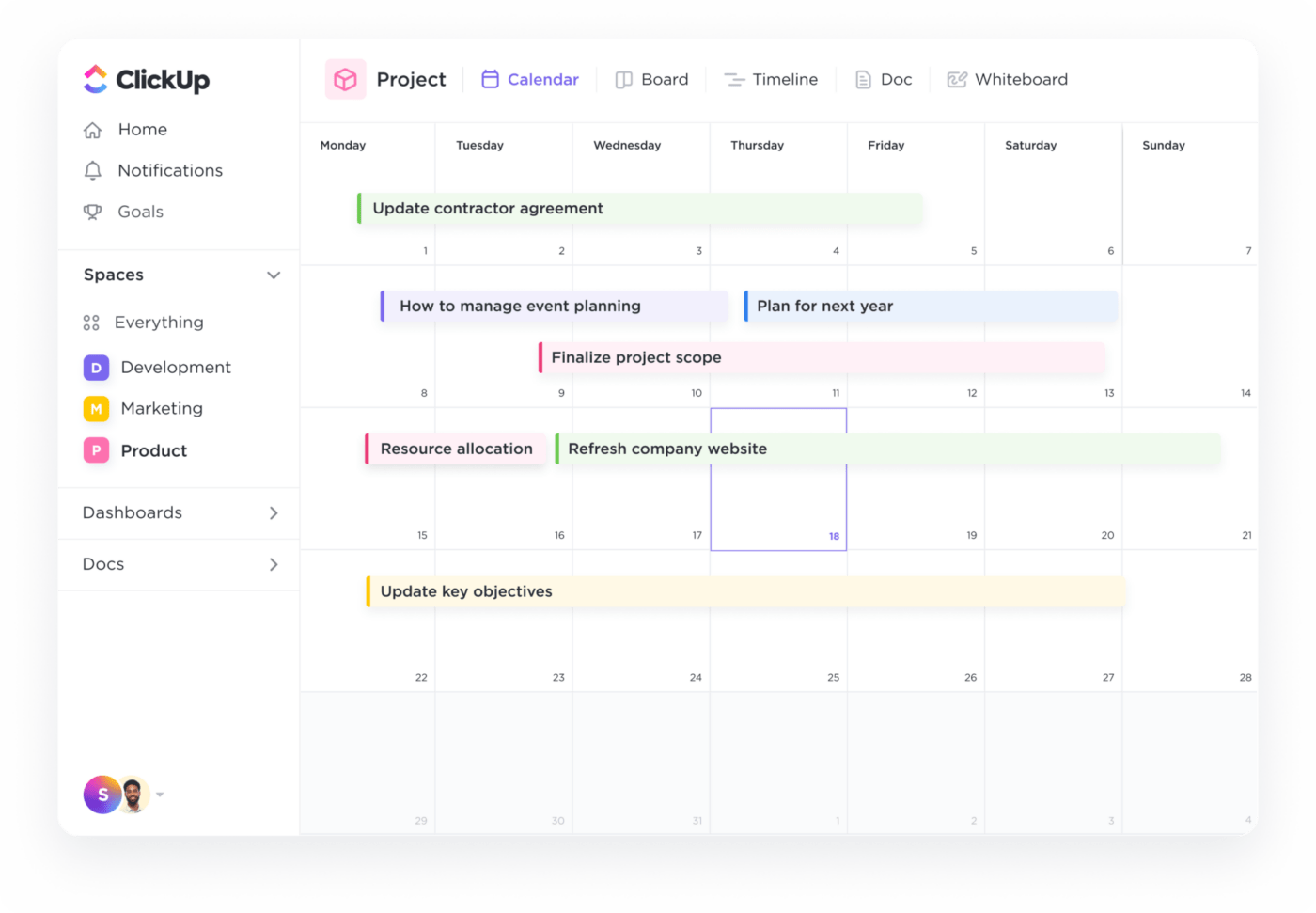
With customizable views—daily, weekly, or monthly—team members can focus on what matters most. For example, a team preparing for a product launch can switch to a weekly view to prioritize upcoming deadlines, while a team focused on a long-term project can use a monthly overview to track overall progress.
The drag-and-drop functionality enables users to easily add, reschedule, or adjust tasks directly within the calendar. Plus, they can also share their calendars with each other.
The best part? Set alerts and reminders to notify team members on all devices, reducing missed deadlines for meetings or tasks.
These integrations allow teams to concentrate on tasks and objectives without the distraction of switching between tools.
With ClickUp’s Slack Integration, you can:
Similarly, ClickUp’s Zoom Integration offers numerous benefits, such as:
ClickUp Brain uses advanced AI capabilities to help your team communicate better, stay aligned, and focus on what matters.
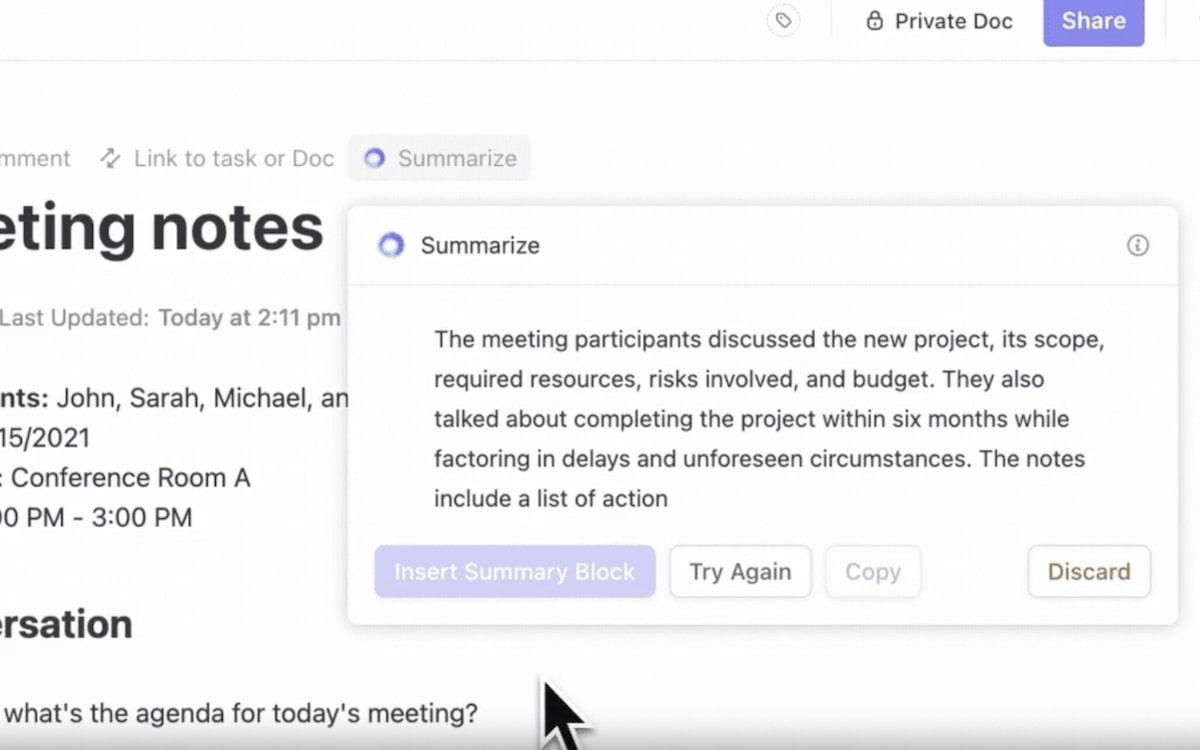
Here’s how:
Tired of hunting through old threads or digging for files shared months ago? ClickUp Brain MAX makes everything instantly searchable with voice-first queries, contextual memory, and multilingual support.
💡 Pro Tip: With Brain MAX, that “where was that file again?” panic before a client call disappears—just ask in plain language, and it surfaces the right document instantly.
ClickUp offers a vast gallery of communication plan templates designed to help teams manage their communication strategies efficiently.
The ClickUp Internal Communication Strategy and Action Plan Template guarantees your message is clear and aligns everyone—from the C-suite to team members—around the company’s vision, mission, and goals.
It allows you to:
You can also use the ClickUp Meeting Minutes Template to simplify recording and organizing meeting discussions. It includes organized sections for team notes, key takeaways, and detailed instructions on maximizing its use.
The benefits are clear:
Ready to move on from MS Teams and make the switch to ClickUp? Here’s how you can go about it easily.
Transitioning from Microsoft Teams to ClickUp is simple, thanks to ClickUp’s built-in Microsoft Teams Integration. You can easily sync ClickUp data with chosen Spaces, Folders, and Lists to receive updates as messages in your Teams workspace. 🔄
From Microsoft Teams,
1. Click ‘Add’ next to ‘Sync ClickUp Activity to Channels’
2. Choose a specific Space, Folder, or List to sync
3. Select a public Microsoft Teams channel for receiving activity messages; private channels cannot be synced
4. Customize your activity message settings:
5. Install the ClickUp app to your selected Teams channel to start getting notifications
Here’s how it helps:
Effective communication is the backbone of any successful team, especially in remote and hybrid work. When evaluating Microsoft Teams pros and cons, it’s clear the platform offers robust features that cater to modern workplace needs. It offers essential messaging and document-sharing features, but its limitations can sometimes feel like finding a Wi-Fi signal in the middle of a forest—frustrating and a bit pointless!
Enter ClickUp—with its centralized Chat View and ClickUp Clips, you’ll be able to keep conversations organized and spark creativity with quick video updates. Plus, with advanced capabilities and seamless integrations with Slack and Zoom, managing everything from one central hub is as easy as finding a cat video online.
So why let communication challenges hold you back? Experience the transformative power of ClickUp—sign up today for free and watch your team’s productivity soar! 🚀

Manasi Nair
Max 26min read
Manasi Nair
Max 26min read
Manasi Nair
Max 20min read

© 2026 ClickUp