






Still downloading templates?
There’s an easier way. Try a free AI Agent in ClickUp that actually does the work for you—set up in minutes, save hours every week.
Sorry, there were no results found for “”
Sorry, there were no results found for “”
Sorry, there were no results found for “”
When you’re deep in a Zoom meeting, capturing every key point while staying engaged feels nearly impossible. That’s why many teams now look for smarter ways to automate repetitive tasks like manually taking meeting notes.
On average, office workers collaborate with others for almost half of their time (42%). This makes tools that simplify transcription and action tracking more important than ever.
Otter.ai is one such tool. Its Zoom integration generates live transcripts for the host and all meeting participants, helping everyone stay engaged and access clear meeting notes afterward.
In this article, we’ll walk through exactly how to use Otter AI with Zoom to simplify your Zoom meetings, improve note-taking, and boost productivity across teams.
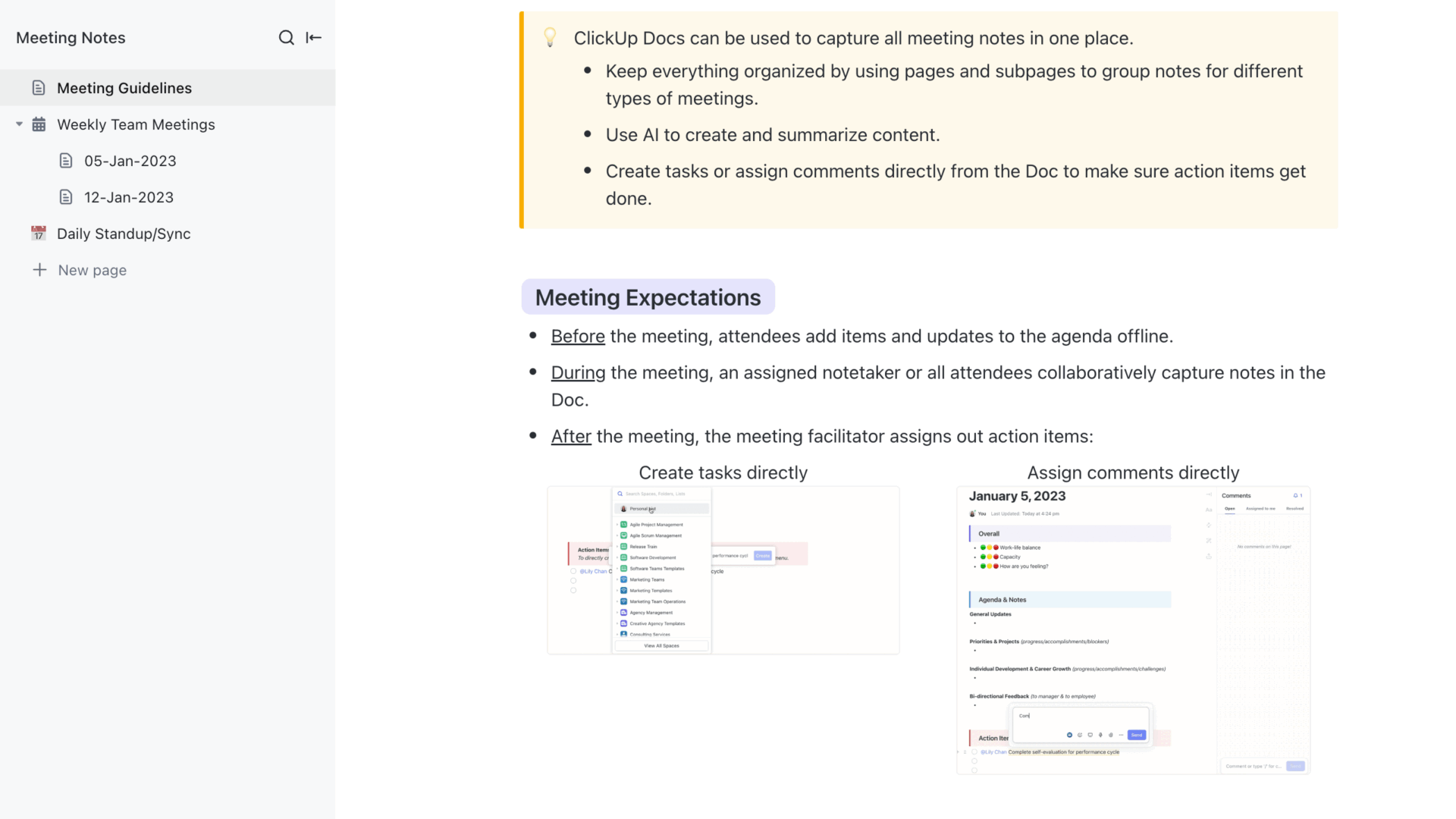
Looking to capture your meeting notes effectively with minimal setup? ClickUp’s Meeting Notes Template has you covered with predefined meeting agendas and action item tracking.
It’s as simple as it sounds. The Otter.ai and Zoom integration allows users to automatically join, record, transcribe, and summarize Zoom meetings without any manual effort.
With Otter Business or Enterprise plans and a Zoom Pro, Business, or Enterprise Zoom account, you can generate live transcripts, capture slides, and instantly share meeting notes with your team. This functionality is especially useful for Zoom meeting hosts, educators, and remote teams looking to reduce admin work.
Here are some more perks from this integration:
✅ Join scheduled Zoom meetings from the waiting room and automatically start transcription
✅ Provide real-time transcripts so meeting participants can follow along and review instantly
✅ Capture and highlight key points and action items, and automatically sync summaries during the live meeting
✅ Include shared notes and slides directly in your meeting notes
✅ Use Otter’s AI bot to answer questions, generate follow-up emails, and summarize discussions across Zoom and Zoom Phone
Setting up OtterPilot to take live notes during your Zoom meetings is simple. All you have to do is follow these straightforward steps:
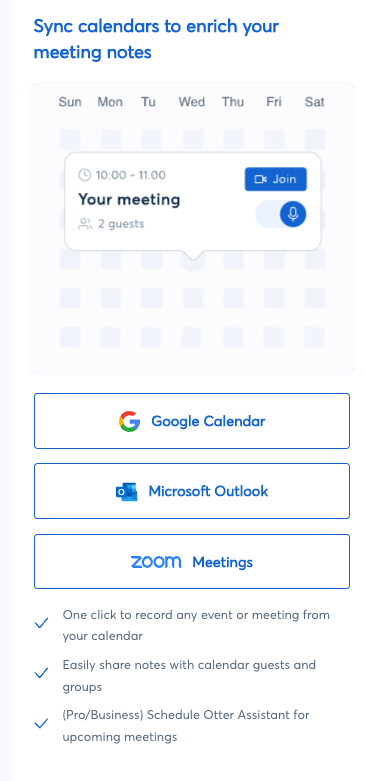
Start by logging into your Otter.ai account. To allow Otter to recognize your upcoming meetings, connect your calendar. In your Home Feed, use the right-hand panel to click Connect for each calendar app (Google Calendar or Microsoft Outlook), then sign in and grant access.
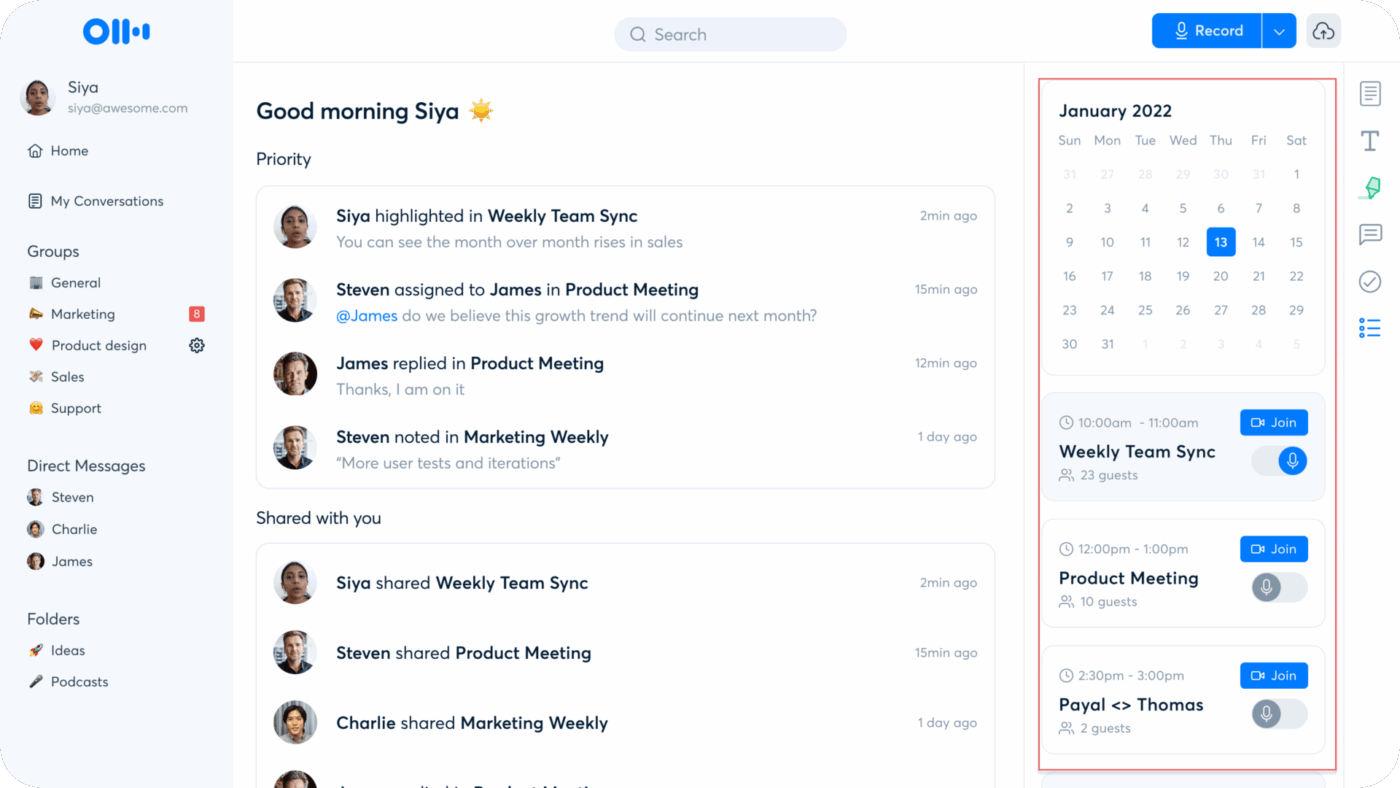
Once your calendar is synced, you’ll see upcoming Zoom meetings. From there, you can schedule Otter Assistant to automatically join your calls, transcribe them, and share meeting notes with participants.
Once enabled, Otter Assistant lets you:
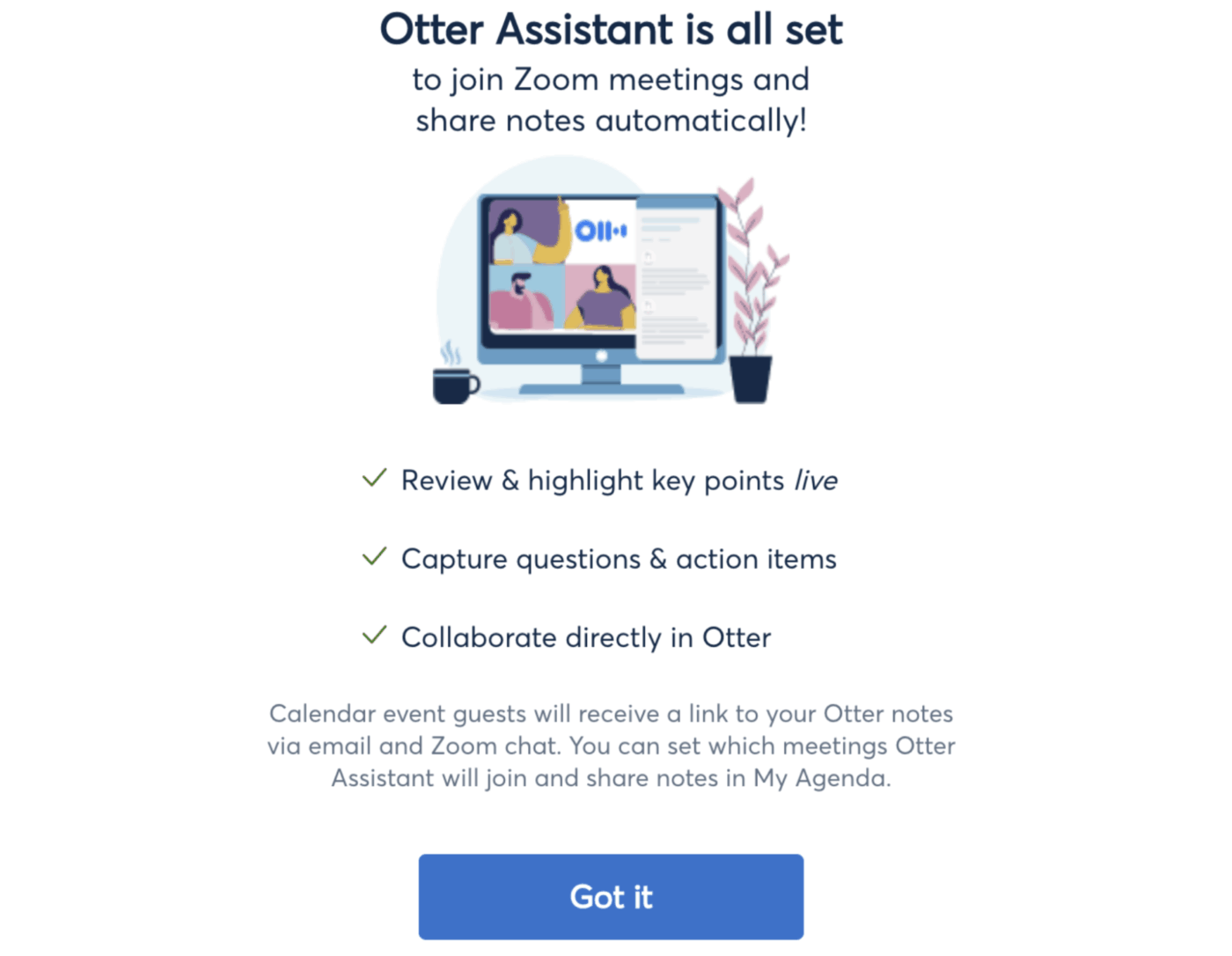
You can choose which meetings to join by adjusting preferences directly from your calendar.
📖 Also Read: Best Zoom Alternatives
📮 ClickUp Insight: Data from ClickUp’s meeting effectiveness survey shows that nearly 46% of meetings involve just 1–3 people.
While smaller meetings may seem efficient, many of them could be replaced with smarter communication methods, such as better documentation, asynchronous video communication, or streamlined knowledge sharing.
💫 Real Impact: Teams like Trinetrix report cutting unnecessary meetings and back-and-forth discussions by 50% using ClickUp.
To control default behavior for all future meetings, go to Account Settings > Meetings. You can make modifications to the following options:
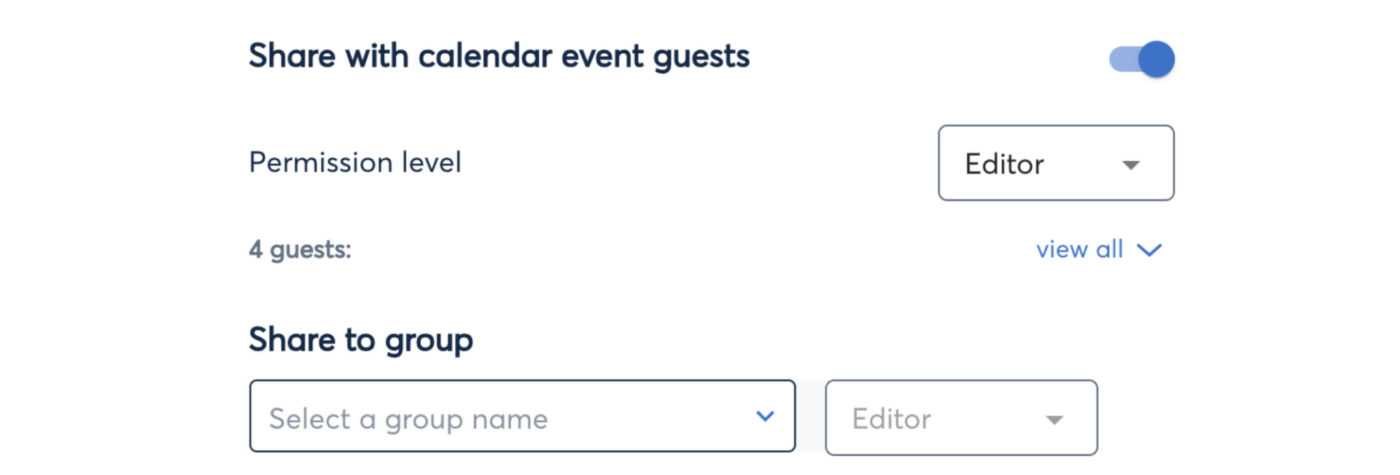
If you want to fine-tune Otter’s behavior for specific meetings, you can override the defaults directly from your calendar.
Toggle Auto Join on or off for any upcoming meeting. This gives you the flexibility to choose which sessions the Otter Assistant attends.
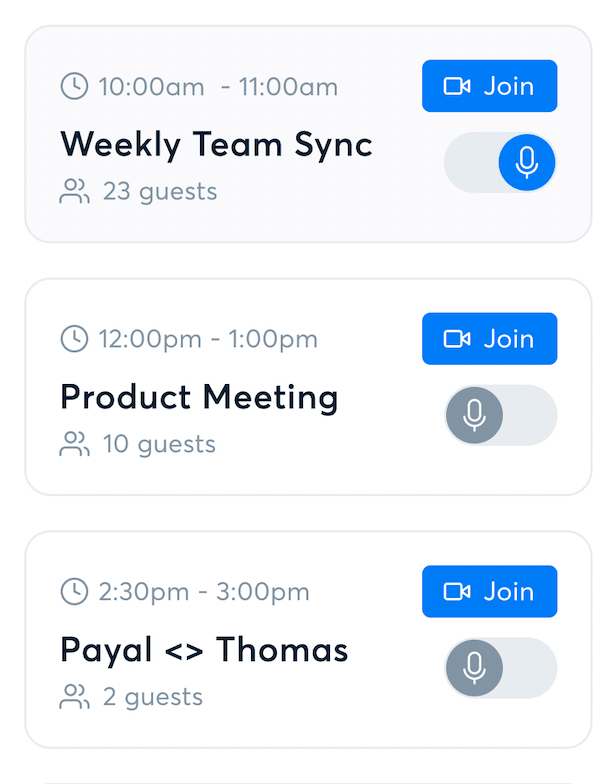
Click on the meeting card and adjust sharing settings for individual sessions.
📖 Also Read: One-on-One Meeting Templates for Managers
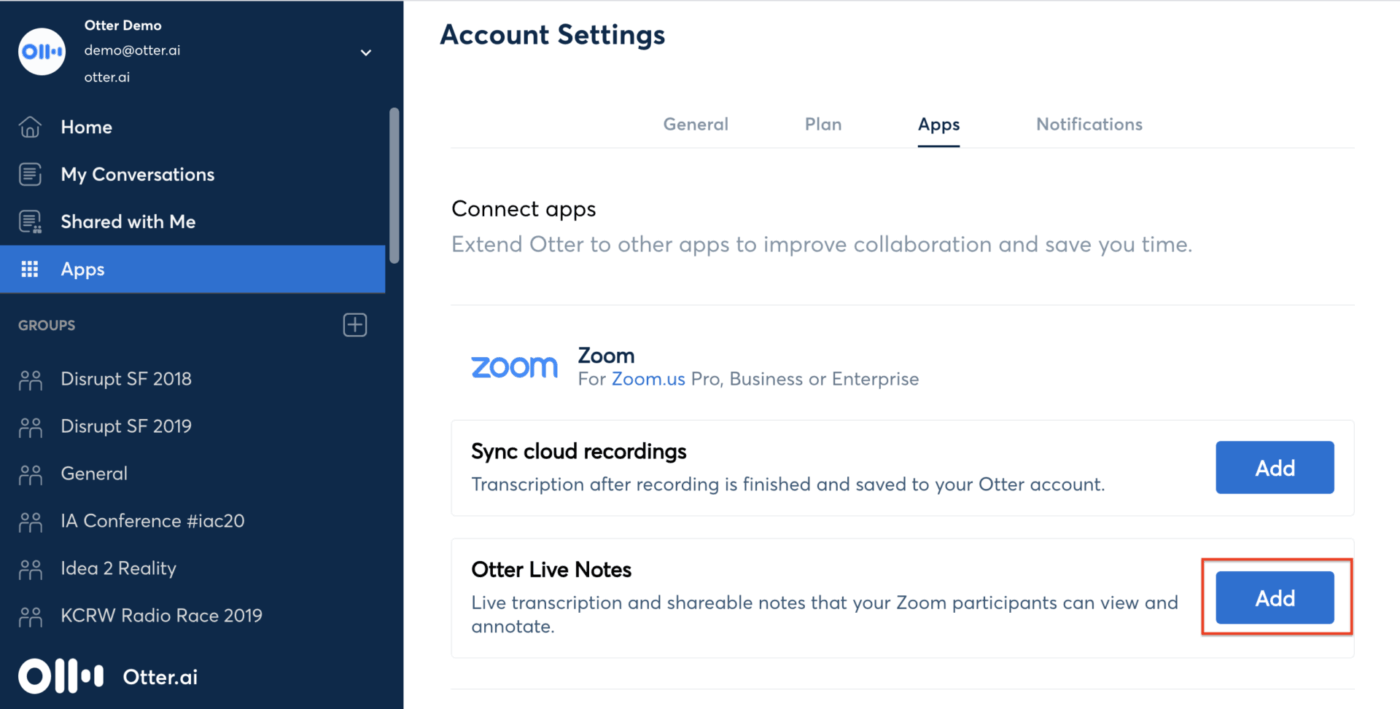
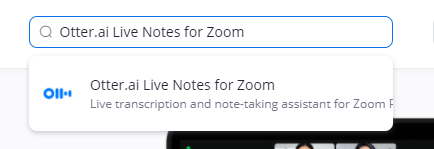
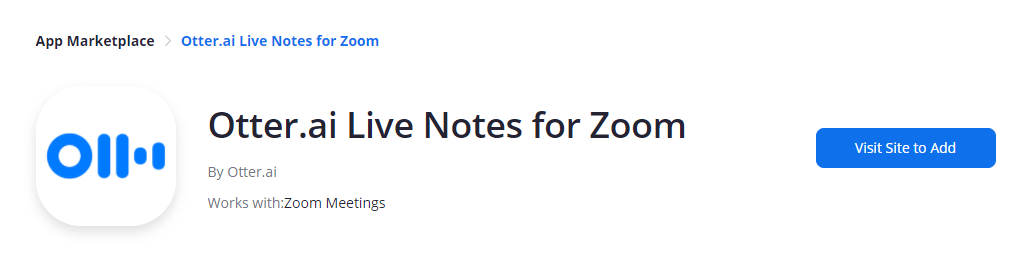
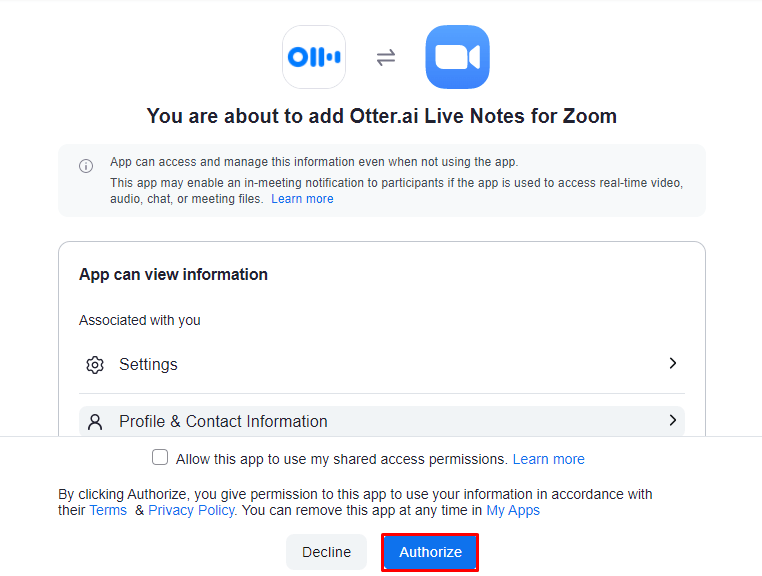
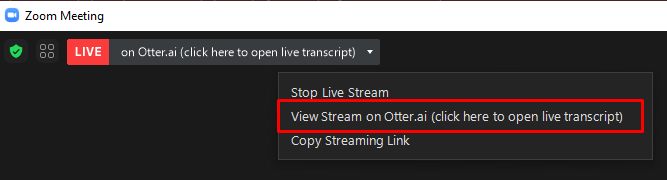
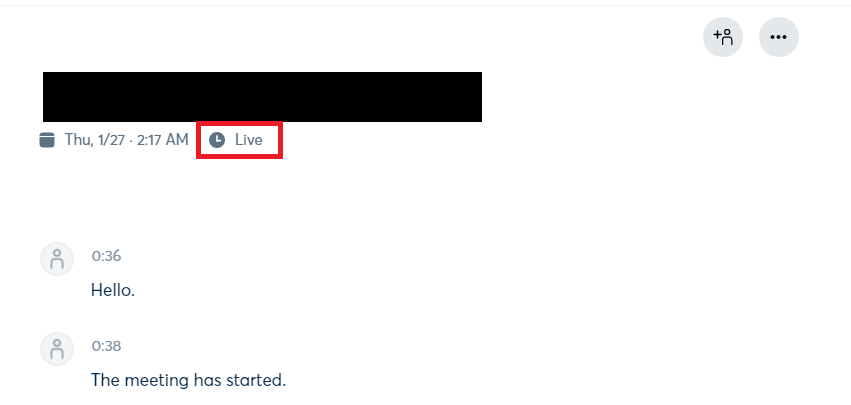
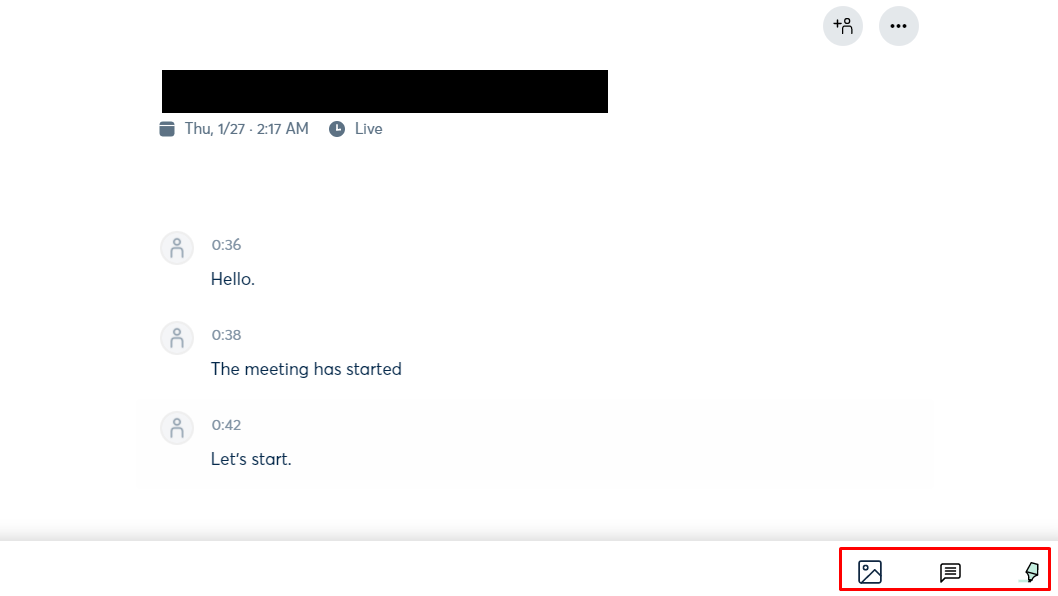
Otter Live Notes is an add-on that allows meeting hosts to enable live transcription for all Zoom meeting participants while also supporting collaborative note-taking. The live transcript opens as a web page, which you can view alongside your Zoom meeting or on another device.
This option is a paid feature available on the Otter Business plan and works with Zoom Pro, Business, Enterprise, or Education accounts.
Who can use Otter Live Notes in Zoom?
👀 Fun Fact: In Japan, nemawashi is the practice of informal pre-meeting alignment. Important decisions are often agreed upon quietly before the official meeting, turning formal discussions into confirmations rather than debates.
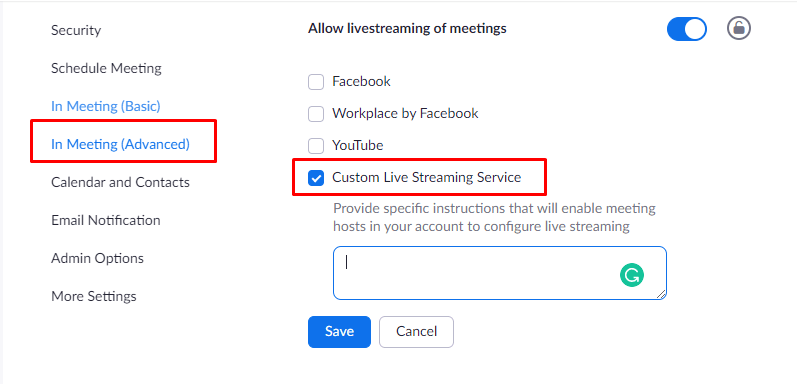
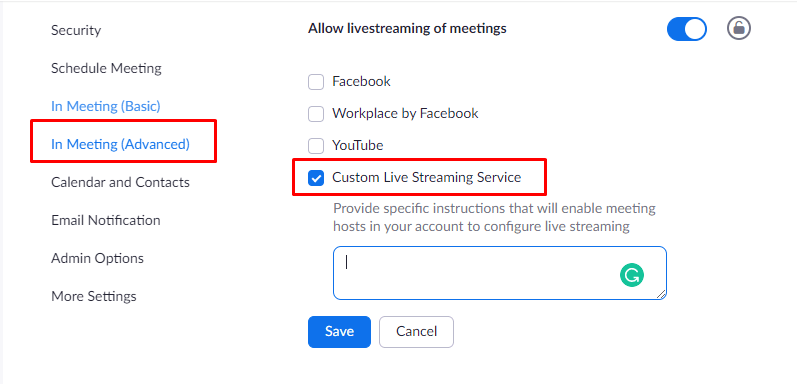
📖 Also Read: Virtual Meeting Etiquette Rules
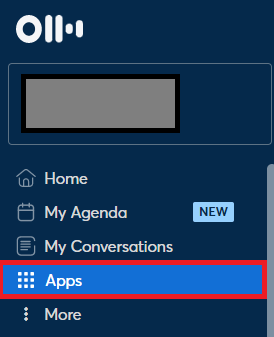
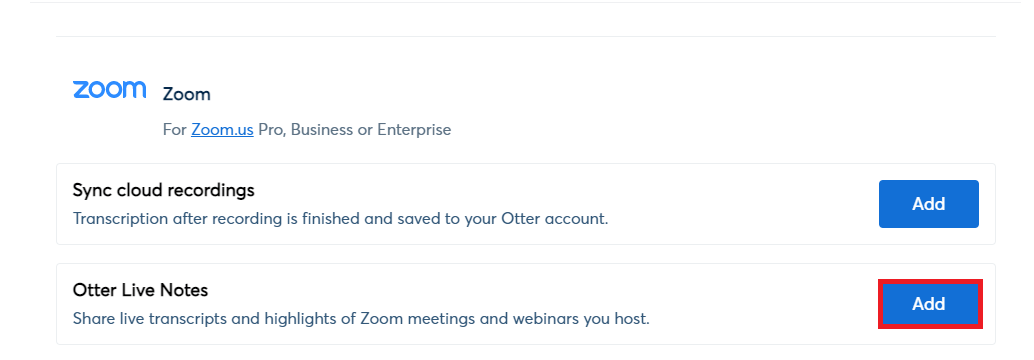

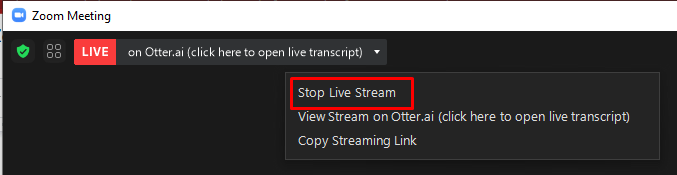
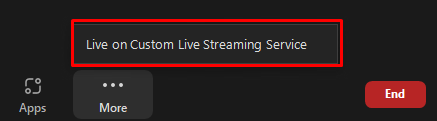
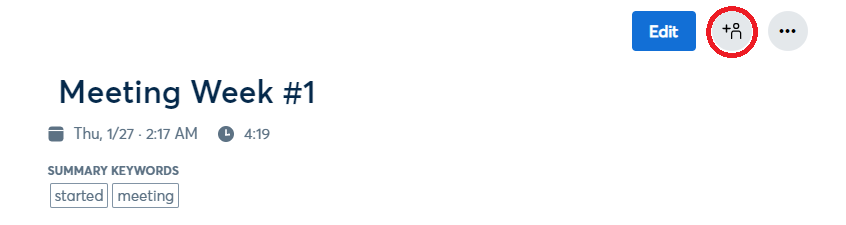
To manually stop or restart live transcription:
📖 Also Read: How to Use AI for Meeting Notes?
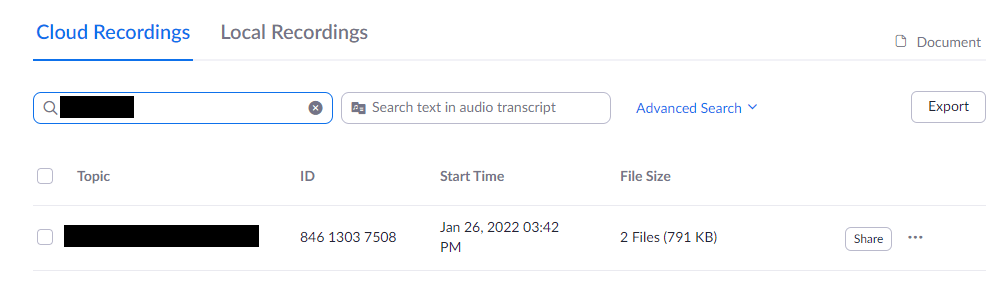
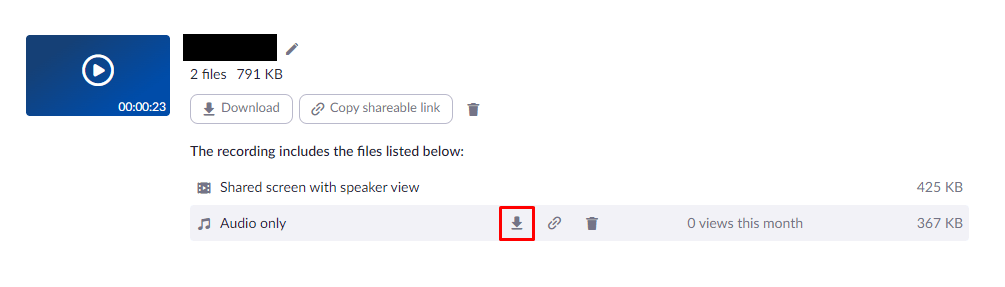
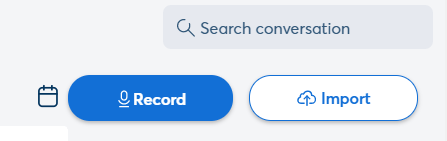
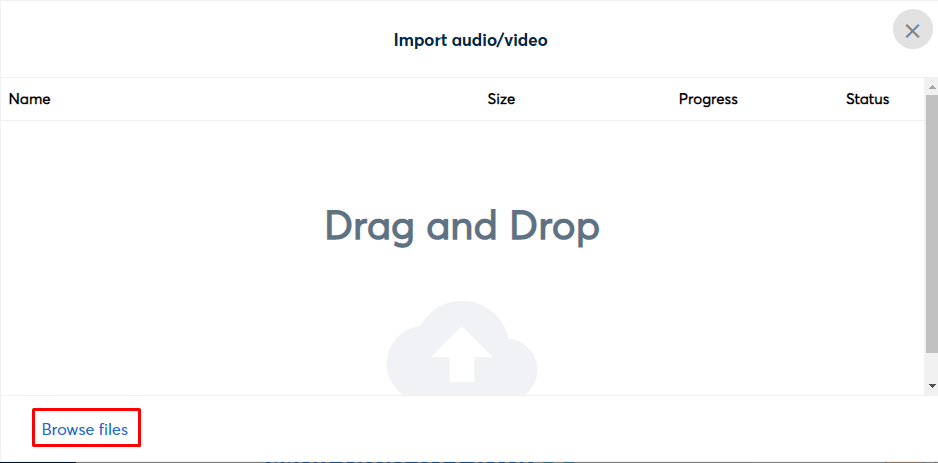
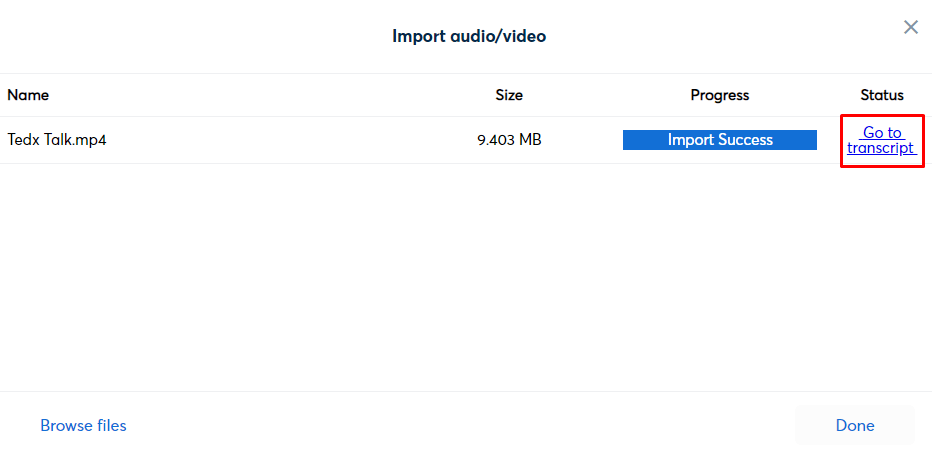
If you’re using Zoom cloud recordings, Otter.ai makes it easy to generate post-meeting transcripts automatically. As soon as a meeting ends and the recording finishes processing, Otter syncs the file and transcribes it, storing the result in My Conversations.
This Zoom sync feature is available only to meeting hosts on the Otter Business plan and requires a Zoom Pro or higher plan.
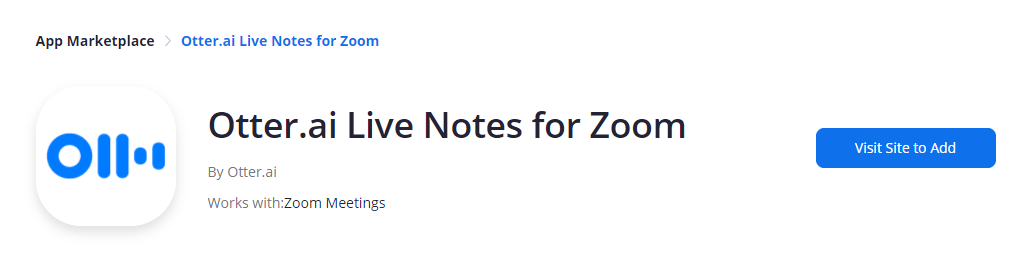
via Otter.ai
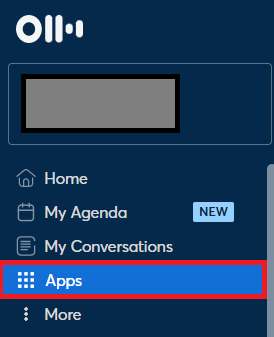

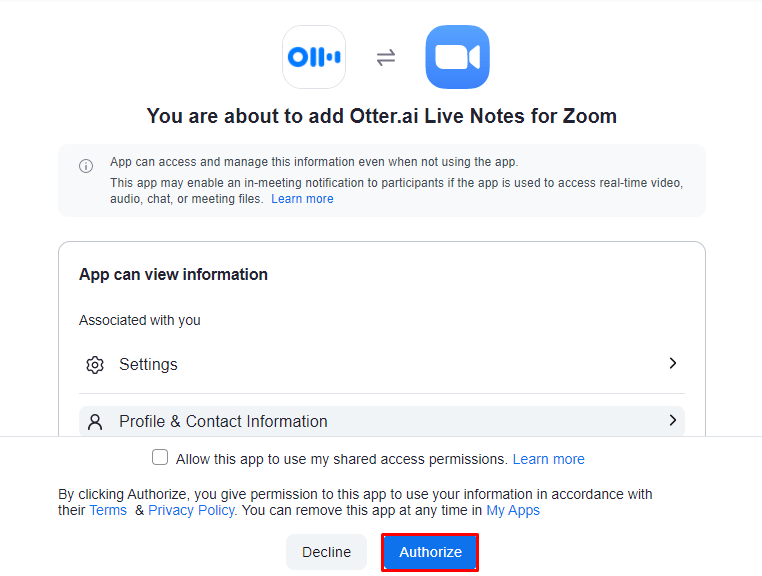
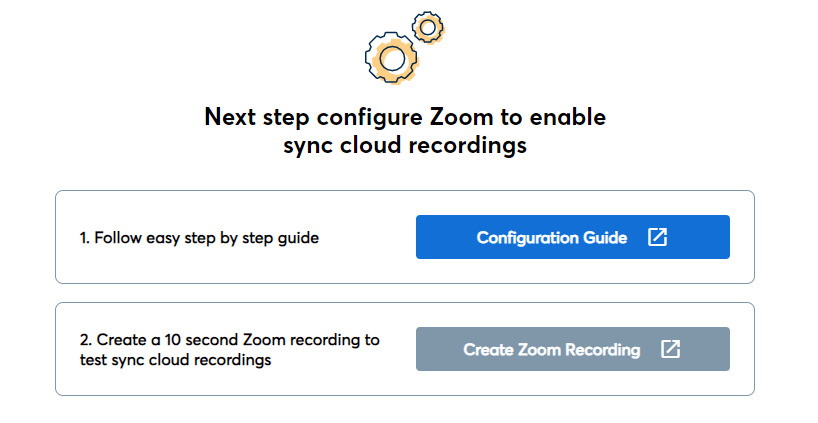
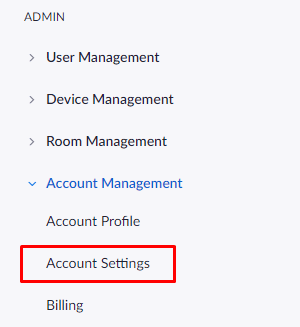
For Zoom administrators:
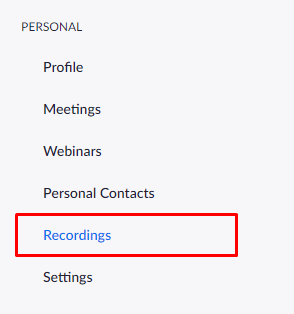
For personal accounts:
📖 Also Read: Best AI Meeting Note Taker Tools
👀 Fun Fact: Roman senators used gestures and symbolic items in meetings to express opinions without speaking. Signals like a raised hand or thumb conveyed votes or dissent, proving that structured communication doesn’t always require endless talking.
As the Washington Post once summed up their Otter experiences in an article, “At one point, Otter misheard ‘roaches’ as ‘Russians,’ and Zoom heard ‘barky’ as ‘Mark.’ And transcripts degraded with sound quality.”
While Otter.ai with Zoom makes meeting notes easier, it still comes with a few challenges users should know about.
These restrictions often force users to look for Otter.ai alternatives that are more conducive to how their team works.
📖 Also Read: Crafting an Effective Meeting Recap
Most meeting hosts aren’t short on tools; they’re drowning in them.
You schedule Zoom meetings in your calendar, invite an Otter assistant to generate a transcript, store meeting notes in separate documents, and then copy and paste decisions into a project tool.
That’s classic work sprawl.
On top of that, every new AI app promises “smart summaries” to manage meeting summaries while quietly creating yet another inbox to check. That brings AI sprawl: multiple AI meeting management software in use, with no single source of truth for what actually needs to happen after a Zoom call.
ClickUp is built to solve both problems. Instead of using one tool for live transcripts and another for task management, ClickUp’s features work together in one converged AI workspace. Your Zoom meetings, meeting notes, action items, and follow-ups all live inside your ClickUp Workspace, so nothing gets lost between tools.
Here’s how that workflow looks in practice:
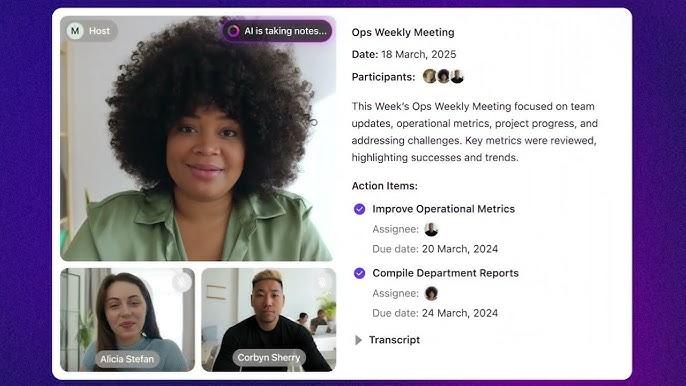
With ClickUp AI Notetaker, every important Zoom meeting becomes a connected record: transcript, summary, and action items linked directly to your work.
Instead of shifting between a separate Otter tab, you can:
This directly addresses one of the biggest limitations of using Zoom + Otter alone: you no longer stop at “here’s your transcript.” ClickUp AI Notetaker connects those notes to your actual workflow, so the next steps are clear and trackable.
Here’s a visual guide on how easy ClickUp’s AI makes note-taking:
💡 Pro Tip: If you run recurring Zoom meetings (like weekly standups or client check-ins), pair ClickUp AI Notetaker with a recurring task in ClickUp Meetings and let AI build summaries and follow-up tasks from the same place each time.
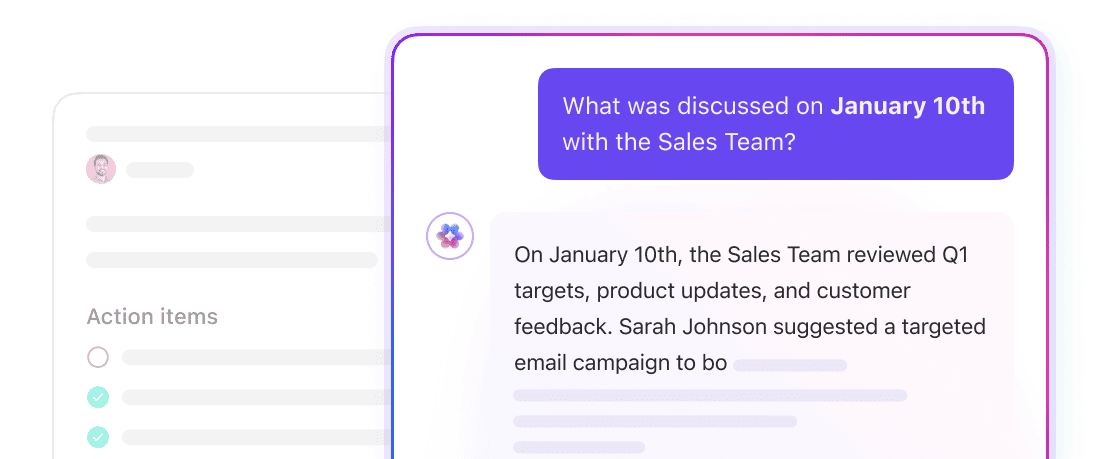
Otter’s summaries can still feel like a wall of text you need to clean up before sending, especially when you’re drafting follow-up emails or deciding what to do next. With ClickUp Brain, every meeting becomes input for smarter decisions and workflows.
In a single AI workspace, you can:
You can go even further with ClickUp AI Agents powered by ClickUp’s AI:
Together, ClickUp AI Notetaker, ClickUp Brain, and AI Agents turn your Zoom meetings into an end-to-end system, all without bouncing between multiple AI tools.
While you’re reviewing an Otter/Zoom transcript, use ClickUp BrainGPT’s Talk to Text to clean up notes.
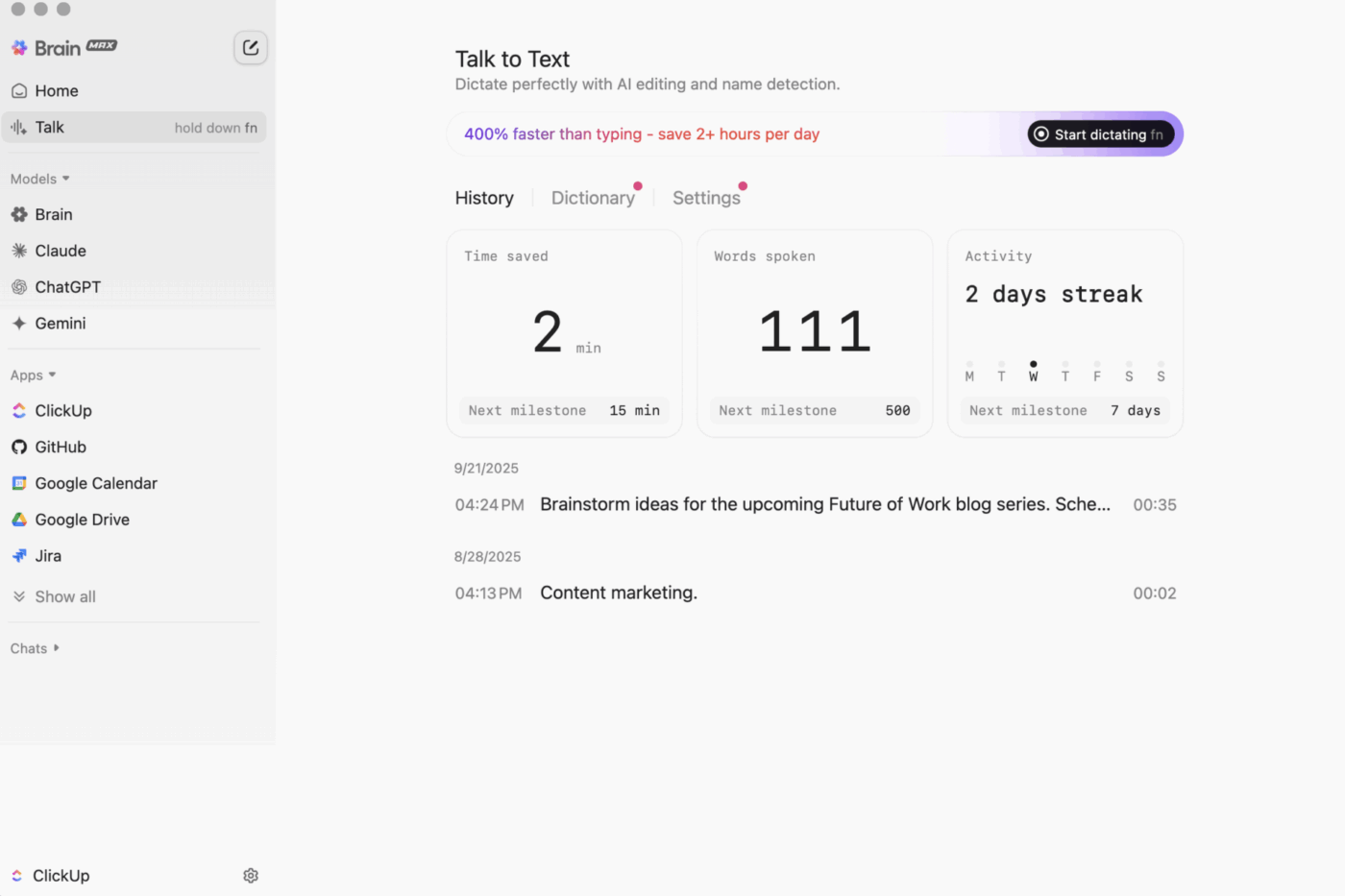
This desktop AI turns your voice into clean, structured notes you can drop straight into your ClickUp Meeting Notes Doc or follow-up email.
📖 Also Read: Free Screen Recorder No Watermark Tools
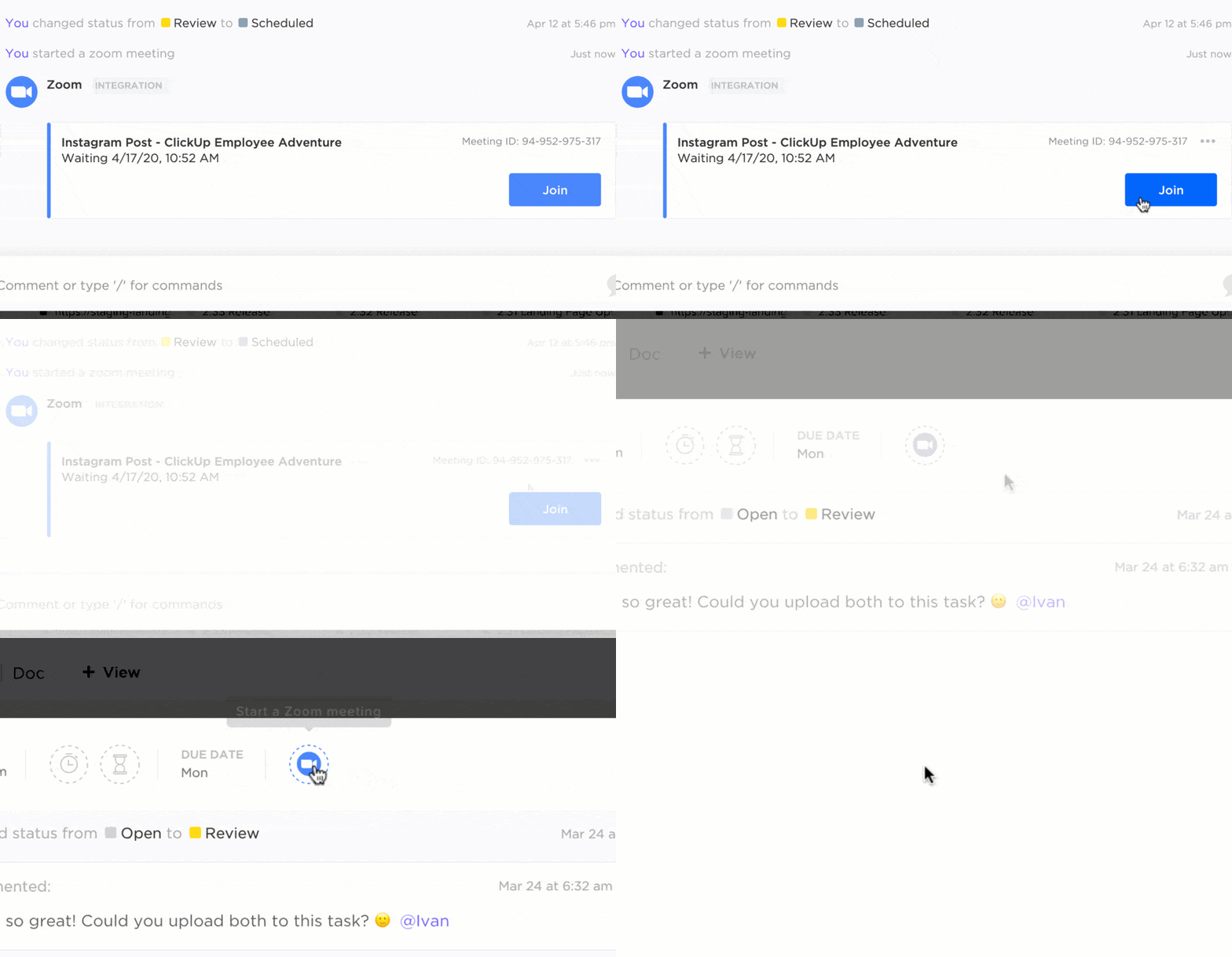
Instead of copying Zoom links into calendar descriptions and chat threads, you can run your Zoom meetings directly from ClickUp Tasks, Docs, or Chat using the ClickUp Zoom integration.
Here’s how it fits into your workflow:
If the host hasn’t set up a personal Zoom integration, they can still approve ClickUp AI Notetaker to record the session from within Zoom. This helps keep control over which AI bots can access the meeting.
This solves another Otter + Zoom pain point: instead of transcripts living in one system and recordings in another, ClickUp pulls meetings, recordings, notes, and action items into a single thread tied to the work you’re actually doing.
What ClickUp users say:
We use it to help and accelerate our daily meetings from our Scrum ritual. It helps me out getting to know the progress of my sprint, the progress of my tasks and to keep an organized backlog for all of my errands.
👀 Fun Fact: The phrase “on the same page” comes from choir practice, not business. Singers needed to follow the same sheet of music, a habit that later became a metaphor for team alignment and shared understanding during meetings.
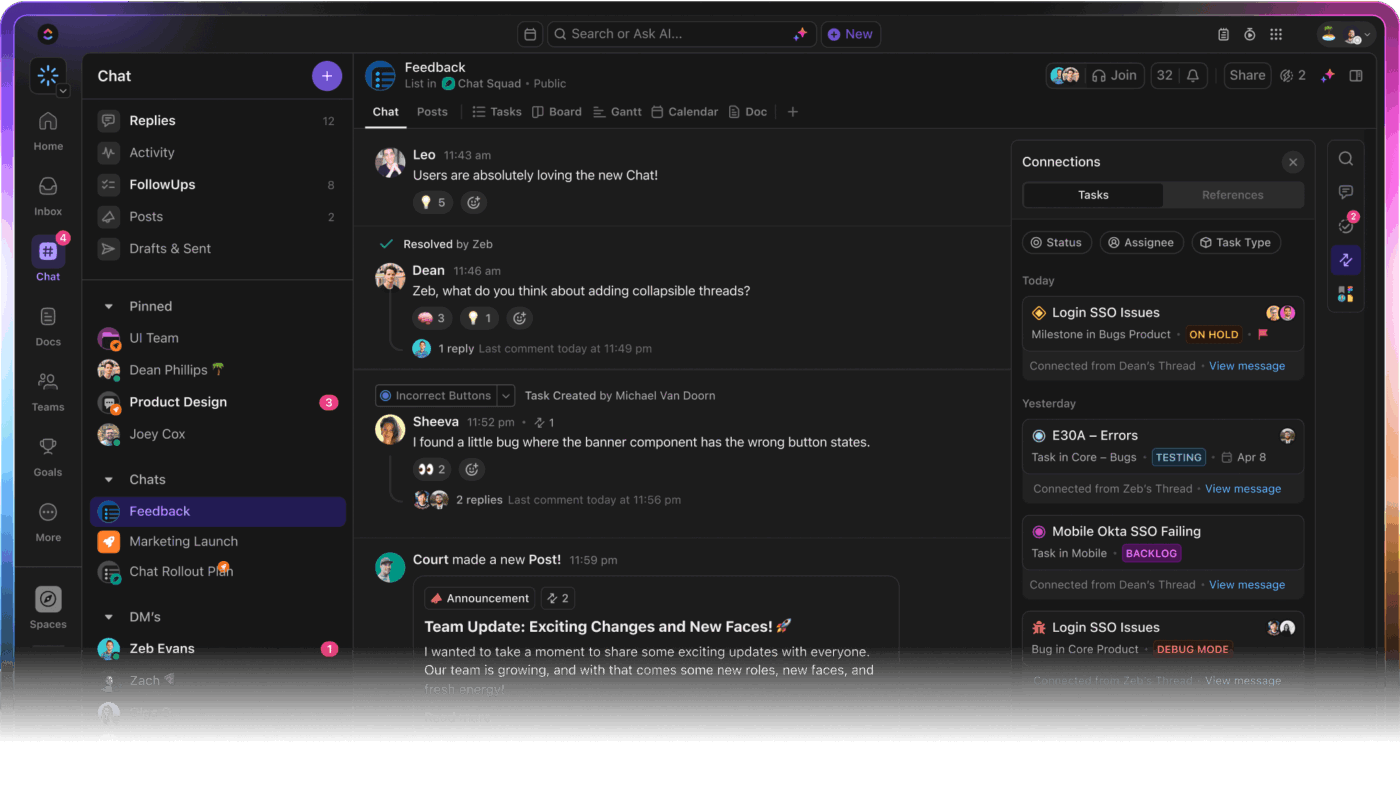
With Otter, follow-up often means jumping back to Slack or email to discuss what the transcript captured. In ClickUp, the discussion stays right next to your tasks and meeting notes:
💡 Pro Tip: Combine ClickUp Clips with the ClickUp Meeting Minutes Template to send short recap videos after high-stakes Zoom meetings. Attach the clip, paste the AI summary, and everyone stays aligned without adding another call to the calendar.
Transcription alone doesn’t resolve unclear meetings. You still need structure. That’s where ClickUp’s meeting templates come in.
Start by organizing your Zoom meetings around a consistent format using the ClickUp Meeting Notes Template. By structuring every call with clear meeting agendas and action item tracking, this meeting notes template keeps teams aligned and follow-ups effortless.
Here’s why you’ll love this template:
💡 Pro Tip: For formal review sessions or client check-ins, switch to the ClickUp Meeting Minutes Template to log who attended, what was discussed, and what was agreed.
However, if you manage a high volume of Zoom meetings across hybrid teams, consider using the ClickUp Meetings Template or the ClickUp Meeting Tracker Template to track all sessions, notes, and follow-ups in one place.
Why are AI meeting tools no longer optional?
Because video calls consume more time than ever before, making manual note-taking inadequate. AI transcription tools, such as Otter, have stepped in to help teams capture conversations, but they often stop at just delivering a transcript.
While Otter focuses on standalone transcription, ClickUp AI Notetaker blends transcripts, smart summaries, action items, and task assignments.
Plus, with features like Zoom integration, Brain for AI-powered insights, and built-in meeting templates, you get a complete system that supports collaboration before, during, and after every call.
Ready to make your meetings actually productive? Sign up for ClickUp today!

© 2026 ClickUp

There’s an easier way. Try a free AI Agent in ClickUp that actually does the work for you—set up in minutes, save hours every week.