How to Create a Project Timeline in 7 Simple Steps (Examples, Tools & Templates)



Sorry, there were no results found for “”
Sorry, there were no results found for “”
Sorry, there were no results found for “”
About to tackle a big project? Do your project (and yourself) a favor by making your project timeline ASAP. Take it from us—things get chaotic pretty fast without one!
Project managers use timelines to break everything down into achievable tasks, which helps keep the project schedule and everyone on track from start to finish. 🌻
You want to succeed. We want you to succeed. And we’ve created a guide with everything you need to know about project timelines to make it happen.
Get ready to learn about different types of project timelines, the benefits of having a project plan, examples of an effective project plan timeline, and (of course) how to create the perfect one.
A project management timeline is a visual representation of a current or new project. It outlines all the tasks and project milestones necessary to achieve your goal or objective.
An effective project timeline often includes:
The purpose of a project timeline is to allow you to view the big picture and better understand the entire project. It also lets you see how it’s progressing at a glance.
A project timeline also lets your team zoom in on specific tasks, subtasks, and key milestones in real time to see what’s necessary now and what’s coming up next.
Also Read: Steps to Efficient Project Time Management
There’s a reason why almost every project manager loves project timelines. These babies are an essential part of the planning process! 🤩
Timelines prepare everyone involved for the adventure you’re about to embark on. Plus, they can impress stakeholders by showing them exactly how your team is accomplishing your goals and smashing deadlines every step of the way. 🏆
Here are some of the many benefits of using a project timeline:
The list could go on, but you have important stuff to do! So, in short, even a basic project timeline makes every step easier to ensure a successful process. Project managers will have fewer headaches and more time to spend at a happy hour with their team. 🙌
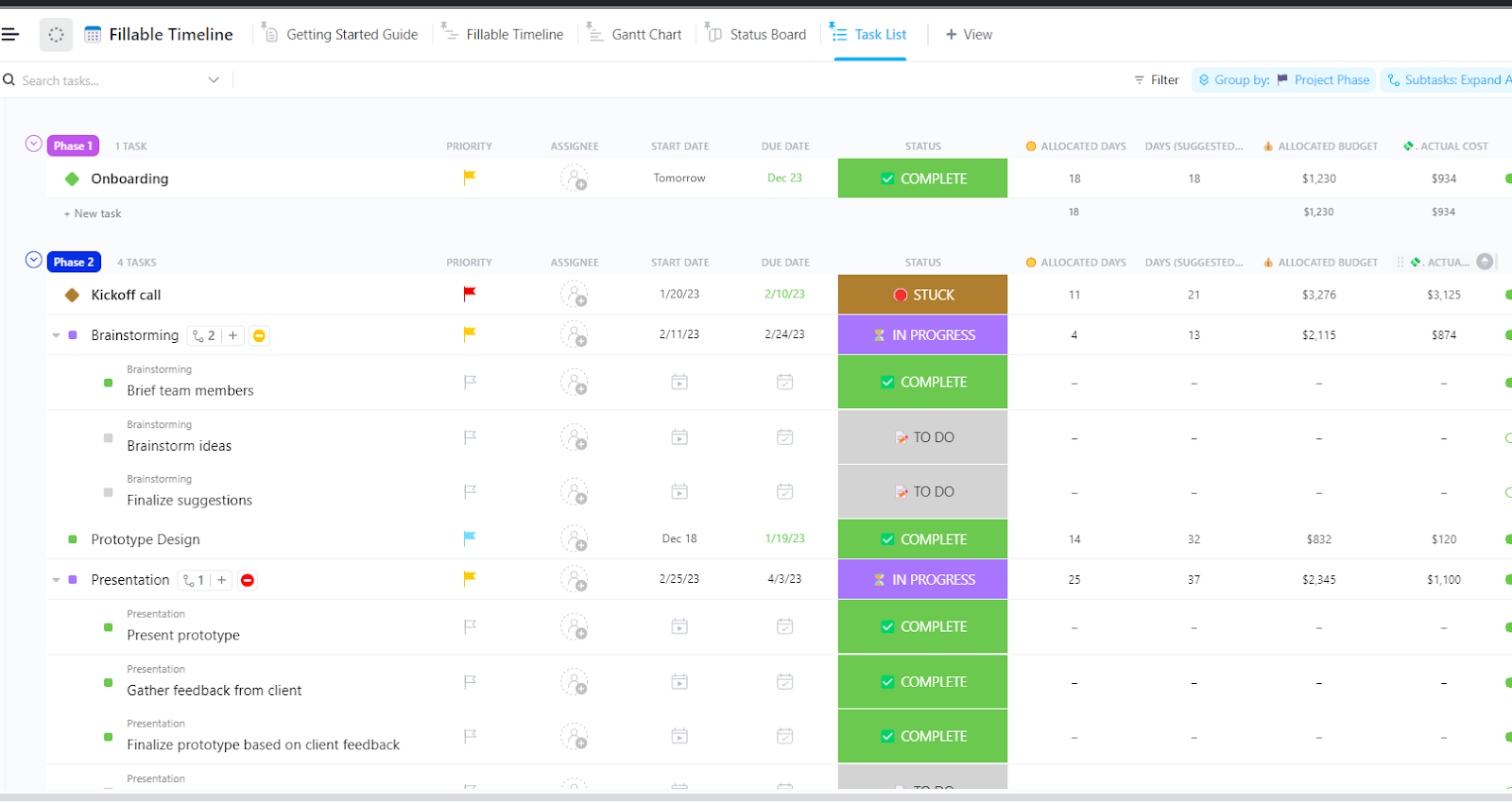
Keep your project on track with ClickUp’s Fillable Timeline Template. Easily set milestones, visualize deadlines, and manage progress all in one place. Try it for free today!
Let’s review the steps involved in creating a project timeline. To explain each step in context, we’ll use the example of organizing an annual employee rewards event at the workplace.
First of all, clearly outline the project’s objectives, deliverables, and success criteria. This will set the tone for all successive steps. This involves considering:
In our example of organizing the annual employee rewards evening, the scope could be to plan and execute a memorable annual rewards event to celebrate employee achievements.
Goals:
Based on the deliverables and milestones from the first step, list down all the tasks you have to complete to successfully deliver the project. Take inputs and suggestions from your team and various project stakeholders to ensure nothing is missed at this point.
For efficient organization, break every large task into smaller activities and steps.
A work breakdown structure, if available, can be very helpful at this stage.
For instance, the tasks for our employee rewards celebration could be:
📮ClickUp Insight: Nearly 42% of knowledge workers prefer email for team communication. But it comes at a cost. Since most emails only reach select teammates, knowledge stays fragmented, hampering collaboration and quick decisions. To improve visibility and accelerate collaboration, leverage an everything app for work like ClickUp, which turns your emails into actionable tasks within seconds!
Now, identify relationships between tasks so that critical tasks can be highlighted. Note the tasks that must be completed first in order to allow other tasks to be performed.
Use dependency types like:
In our example, project dependencies might include:
Calculate the time each task will take (in weeks, days, or hours). Keep in mind the complexity of each task, the resources required for it, and any identified dependencies. Then, build a buffer to account for potential delays.
Correctly estimating time for tasks in a project is the key to building an accurate project timeline.
In the employee rewards project, we may see these timelines:
Now divide the project into specific milestones. Milestones are important points in the project that are significant to track, such as project kickoff, review stages, and final delivery.
Setting milestones helps track the project, ensures that deadlines are met, and aligns project team members and stakeholders.
Typical milestone examples for the employee rewards evening could be:
With tasks and milestones listed down, start allocating resources to each. These include equipment, funds, team members, etc.
Strategically allocating resources this way keeps you from being under- or over-resourced anywhere, keeps team workloads balanced, and helps to track redundancies.
In our example, some of the team roles and responsibilities might be:
Choose a project timeline software to visualize your project timeline. Input all the project details like tasks, dependencies, durations, and resources into the tool to create a visual timeline.
Project teams may use a simple calendar, a Gantt chart, or an integrated project management tool such as ClickUp.
For accurate timeline visualization, but also for efficient planning and delivery of your entire project, nothing beats ClickUp. Here are a few reasons why:
Here’s a step-by-step walkthrough for creating your first timeline with ClickUp’s project timeline software and creator. 🙂
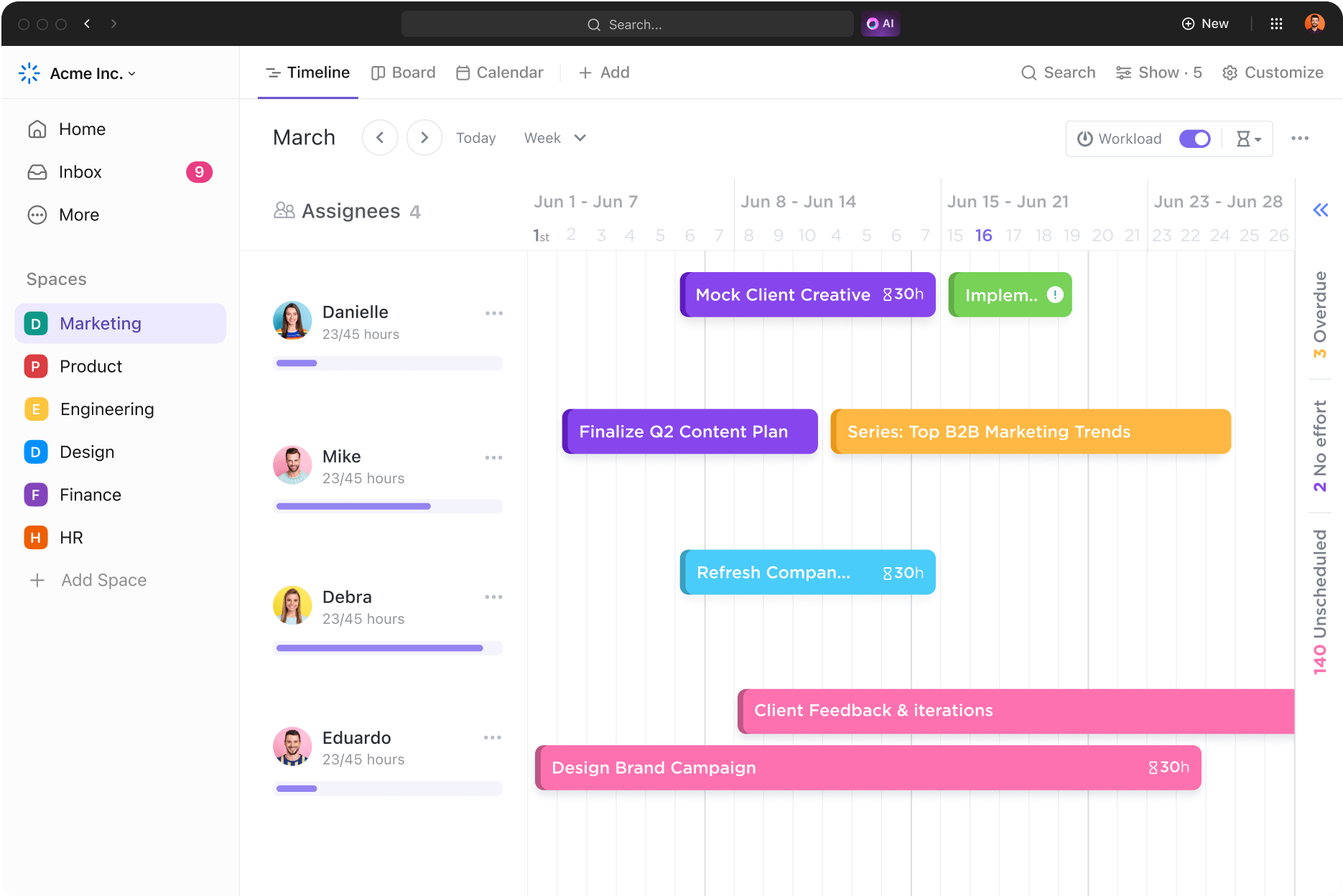
ClickUp’s timeline layout offers a wide range of functionality. You can zoom in to view individual days or zoom out to view weeks or months at a time. This allows you to see tasks and historical events from start to finish.
To add a Timeline view, click the “New View” button in any list, folder, or space and select “Timeline” from the drop-down menu. Click “Add View” to create your own timeline. You can now add tasks and assign deadlines accordingly.
Add tasks easily by clicking anywhere on the Timeline view and following the prompts to create the task. Drag and drop an existing task from the right-hand sidebar onto your timeline.
Using a project management timeline view only shows tasks scheduled within the time range you select. So if you don’t see your tasks, click on the sidebar (it’s on the right side of the screen) to view unscheduled or overdue tasks.

You can drag them directly from this sidebar onto your timeline as needed. And you can use ClickUp Whiteboards to make it easy to brainstorm a list of tasks before beginning timeline creation. This is a whole other aspect of your project timeline software to visualize what’s needed and when. 👀
One of the key features of ClickUp’s Timeline view is grouping tasks by assignee so you can see how many tasks each person has at a glance. You’ll also be able to see overlapping tasks that you might want to shift around. You can also group tasks using priority, tags, and Custom Fields. For this simple timeline tutorial, we’ll group by the assignee.
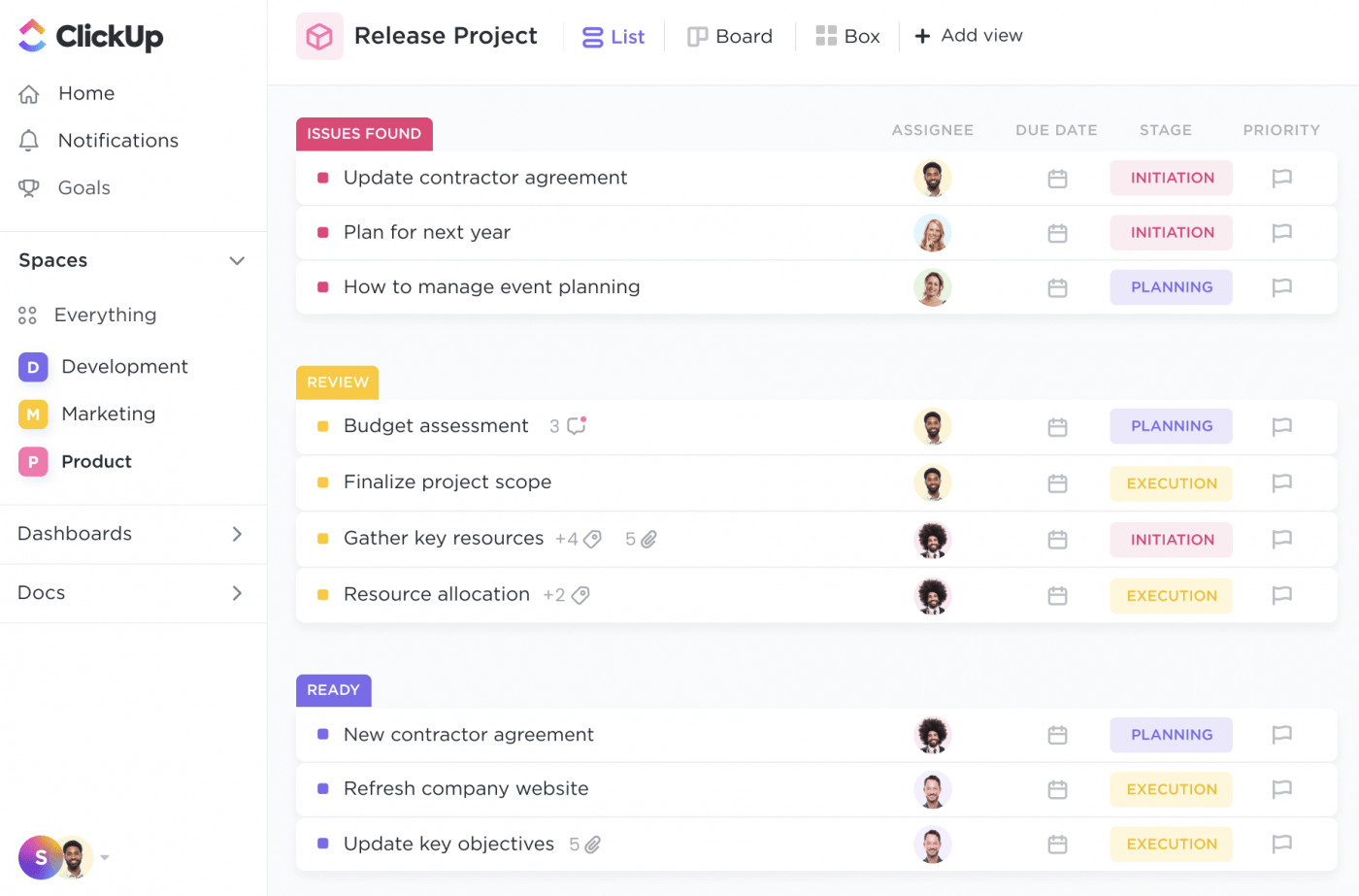
Click the “Group By” button on the right-hand side of your toolbar at the top of your timeline and select “Assignee.” This will group your timeline rows according to each assignee, with all their tasks in a single row. If a task is assigned to multiple people, it will appear in three rows, but it’s still a single task.
Each task will also be sorted using a background color to make it easier to tell them apart.
ClickUp allows you to edit tasks directly from the Timeline view. You can drag tasks in or out to adjust the start and end dates. In addition, you can add or remove tasks from groups by dragging them out of one group and into another.

You can also interact with the text box associated with each task to view any other rows it appears in, resize the text box, and double-click for additional options for necessary edits.
Click on the ellipses in the right-hand corner of your toolbar to view the Settings menu and customization options. Here, you can change the background color of each task, adjust notification settings, expand task names, and choose what you want to show on your Timeline view.
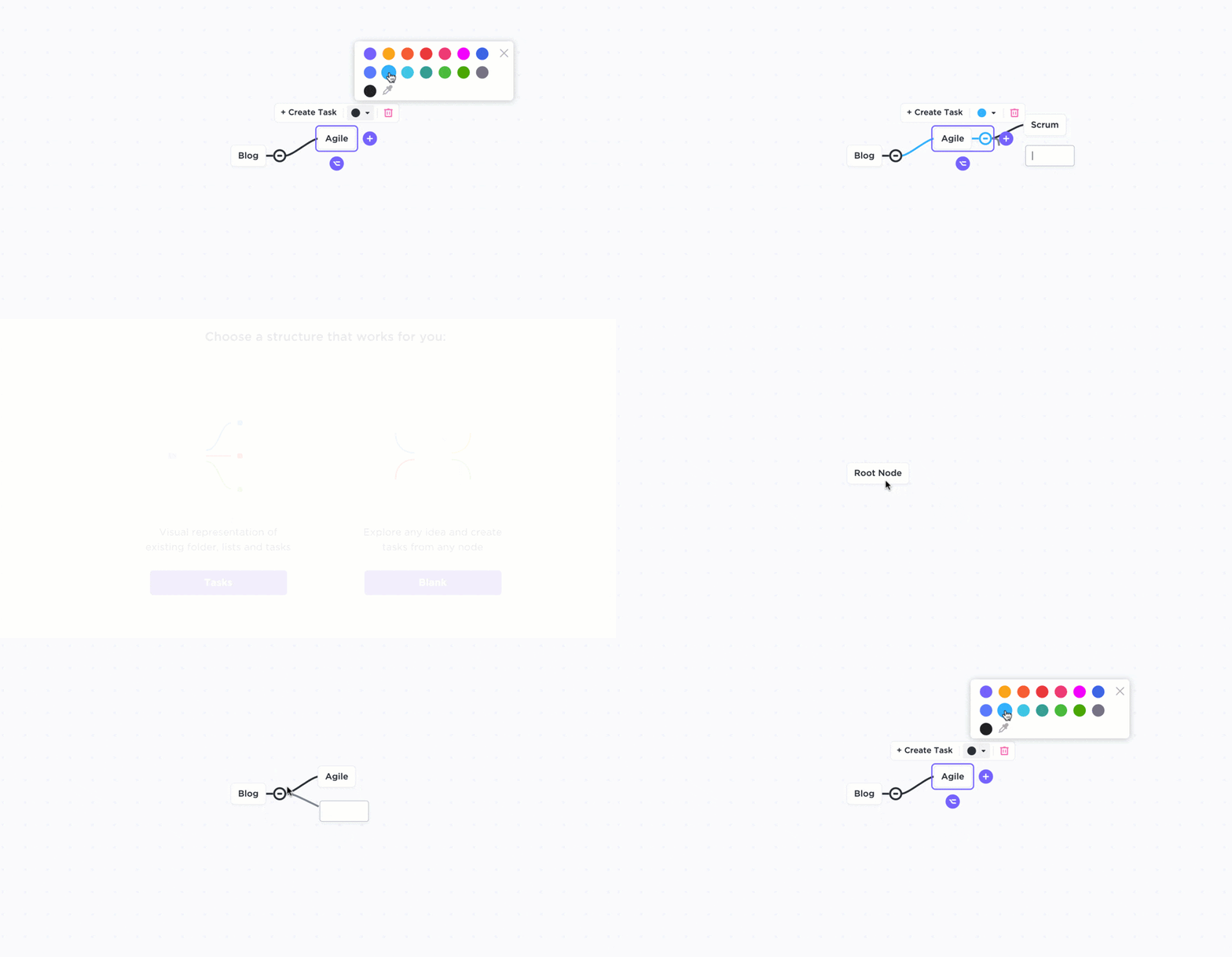
You can also collapse and expand groups by clicking on the arrow icon to the right of the name, which is the assignee in this tutorial.
We’re stating the obvious here, but it’s worth mentioning: timelines work best when you actively use them to stay on track! Even the best apps can’t keep you on schedule if you and your team members aren’t checking in regularly.
The good news is that ClickUp isn’t just a timeline maker—it’s a complete suite with hundreds of tools to make it easier for your team to complete every task on the timeline. 🛠️
ClickUp has 1,000+ integrations with programs including Jira, Asana, Slack, Gmail, Google Docs, Outlook, Loom, Zoom, and the entire Microsoft Suite (Excel, PowerPoint, Word, etc.). And you can use this to keep everything in one central dashboard.
Since access to the Timeline view begins with Business pricing and above, you’ll have all the tools in our suite. We can help with everything from marketing plans and infographics to new employee training and creating other human resources documents.
Also Read: Top Project Management Charts
Picking the right type of project timeline is a must if you want to get the most out of your project planning. Each one has its pros and cons for different kinds of projects, so choose wisely.

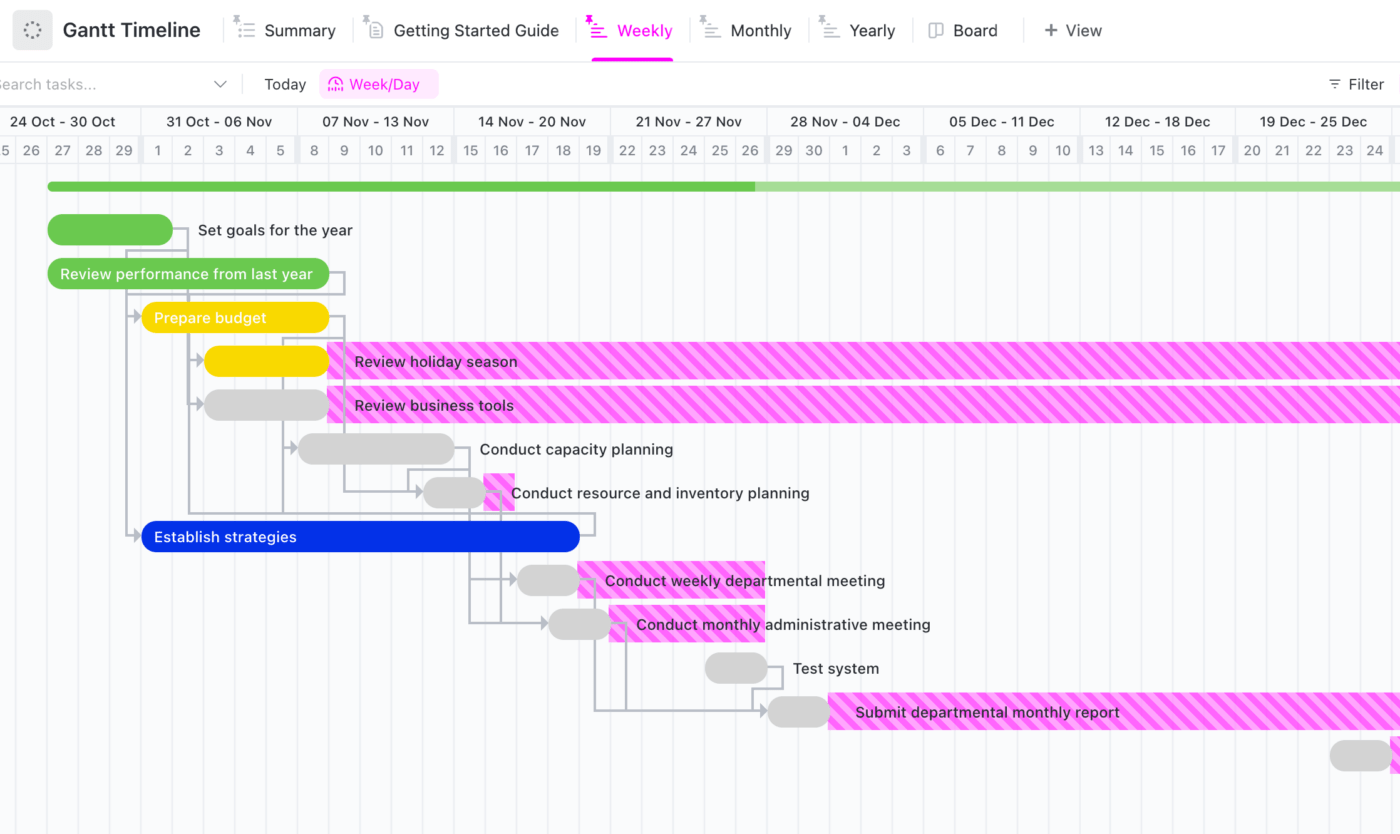
The Gantt chart is easily the most popular type of project timeline. It’s one of our favorites—as evidenced by the love we poured into ClickUp’s Gantt Chart View. 👀
Gantt charts are super-versatile and can work for almost any project, showing you all the information you need in one place. This lets you get tons of insight in seconds!
Project management tools like ClickUp have streamlined Gantt chart project templates, making them interactive and valuable for efficient time tracking.
For anyone interested in Agile project management, you’ve probably heard of Gantt charts as they apply the waterfall model to map out your project from start to finish.
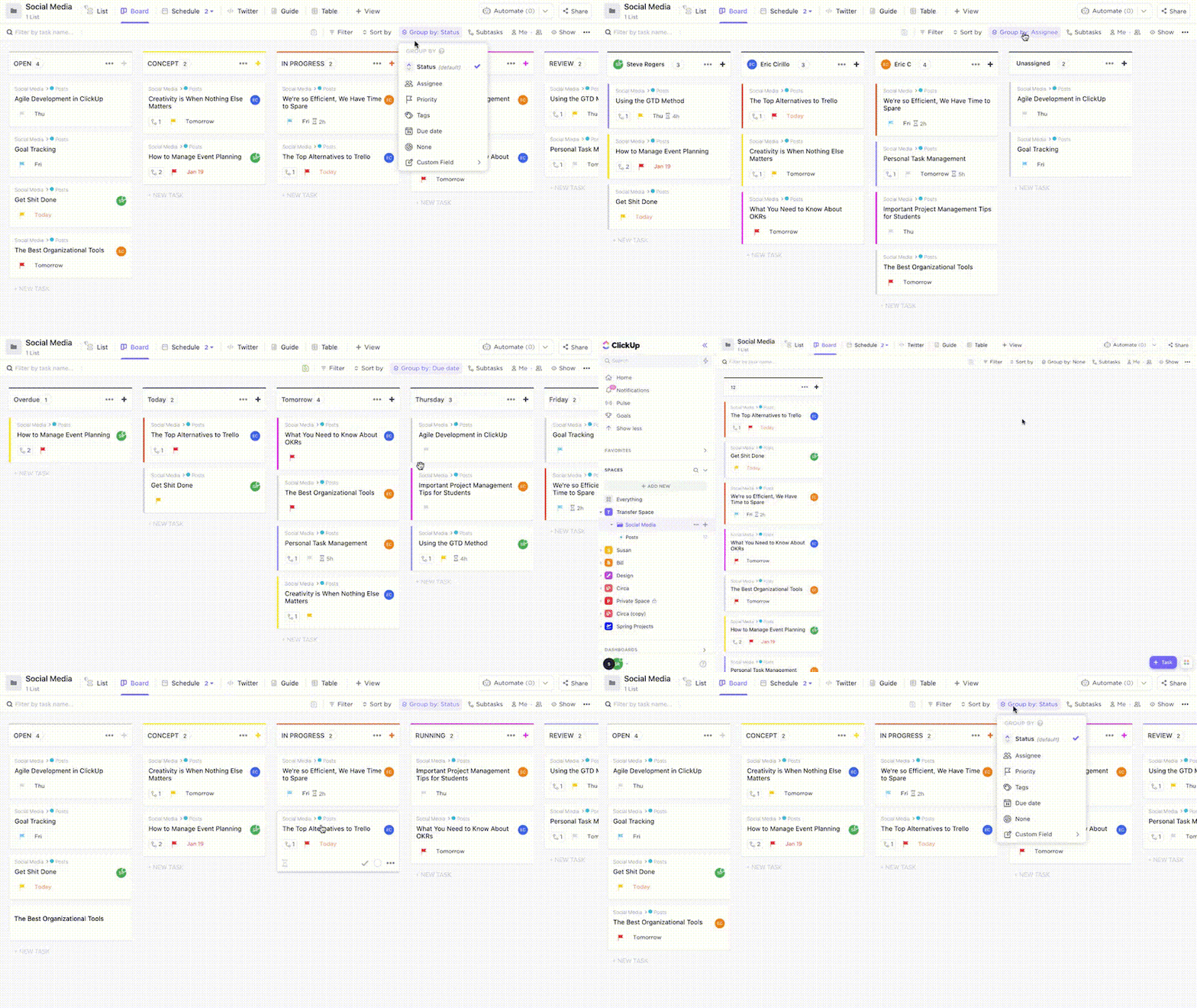
Kanban timelines work well for sprint planning on Agile projects and are good supplements to Gantt chart timelines. Agile teams often use Gantt charts for big-picture project management and Kanban boards for daily and weekly timelines.
Most project management software featuring Gantt charts also provides Kanban boards since these two often go hand-in-hand. At ClickUp, for example, Gantt charts and Kanban boards are some of our most popular project roadmap templates.👀
A chronological timeline is designed for linear projects. These timelines are much simpler than a Gantt chart.
They usually run from left to right, showing progress from start to finish without smaller tasks or multiple pathways. This makes it easier for project managers to get an idea of the project plan so they know what’s coming up or due.
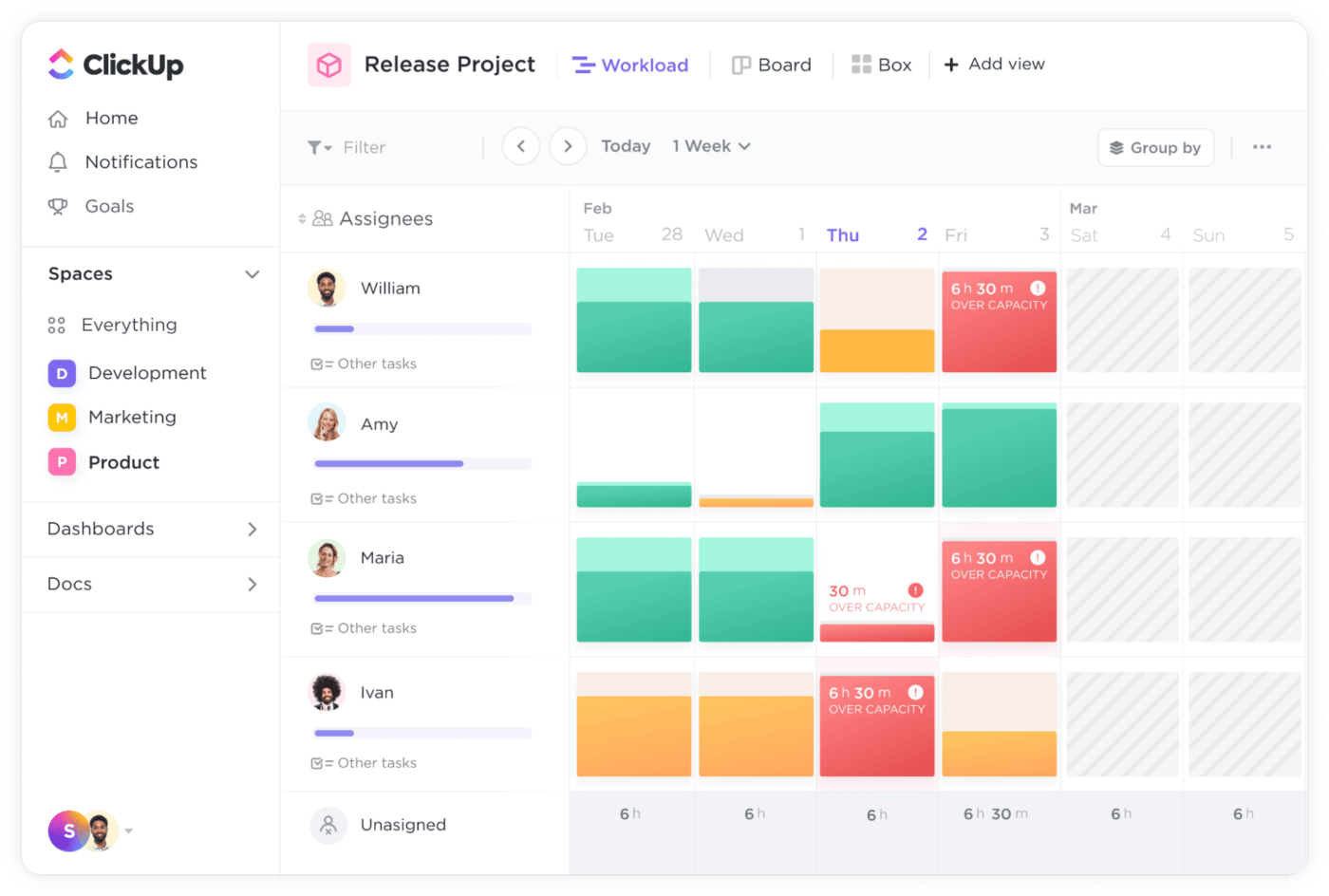
A vertical chart or bar chart has a vertical and horizontal axis, allowing you to see resources and time accordingly. These charts are popular with financial projects for detailed resource management and trend tracking.
Resource management is crucial for the health of your project management timeline so you know you’re not over or under-estimating your resources. And whether it’s workforce, tools, or budgets, your project management timeline is impacted by how you plan your resources.
Apart from the four basic types of project timelines we mentioned above, two other methodologies are also used plan timelines and schedules of complex projects. These are the Critical Path Method (CPM) and Program Evaluation Review Technique (PERT).
In the critical path method, project managers identify critical dependent tasks by calculating their duration using a specialized formula (or critical path algorithm). It helps identify critical tasks that need to be at the top of your priority list and the most logical order of completing them.
On the other hand, PERT chart diagrams break down major project tasks into more manageable action items and arrange them graphically. The complexity of your PERT chart is driven by the number of project milestones along your critical path and the estimated time set to complete each task.
Essentially, the critical path method is better used when the task duration is known, whereas PERT charts come into play when the task duration is unknown.
Also Read: PERT Charts Vs. Gantt Charts
With the multiple types of timelines, almost any project can benefit from a timeline! Here are just a few examples of timeline projects:
A Search Engine Optimization (SEO) Strategy Project Timeline can be instrumental in enhancing the visibility of your website on search engines. This timeline would include:
Whether it’s a conference, product launch, or wedding, event planning timelines are essential for success! They include:
Home renovation projects are a perfect example of how timelines can help you stay organized and efficient. Here’s what that timeline might look like:
Project timeline software makes creating plans for projects of all sizes more efficient. Project management apps that provide multiple timelines and timeline templates work particularly well for projects with numerous task groups and changing goals.
For example, here are some of ClickUp’s project timeline template options that will help you create a project timeline schedule with accuracy:
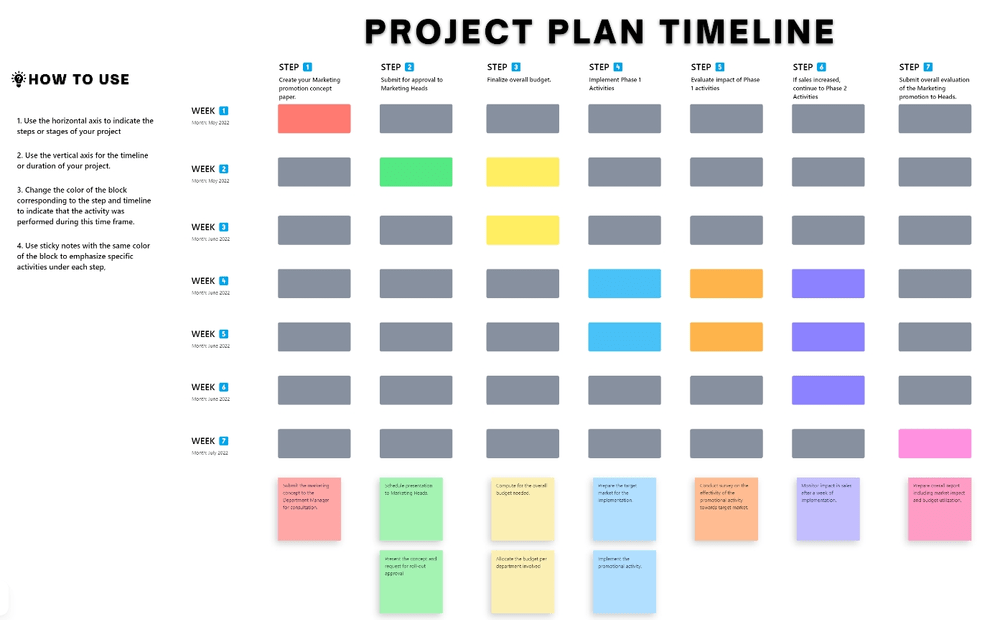
Digital whiteboards are versatile tools for project planning. And this versatile tool is perfect to outline the project scope, timeline, resources, and goals.
ClickUp’s Project Timeline Template helps create accurate project timelines with real-time updates. Braindump and categorize project activities to understand scope, timeline, and resource needs. Creating a project timeline enables teams to identify roadblocks and dependencies.
Ideal for: Remote teams looking to create a project timeline that’s accessible to all.
A blank timeline is perfect for planning projects or events where activity sequencing is crucial. It helps outline steps and visualize your project’s timeline, giving a clear overview of tasks and deadlines.
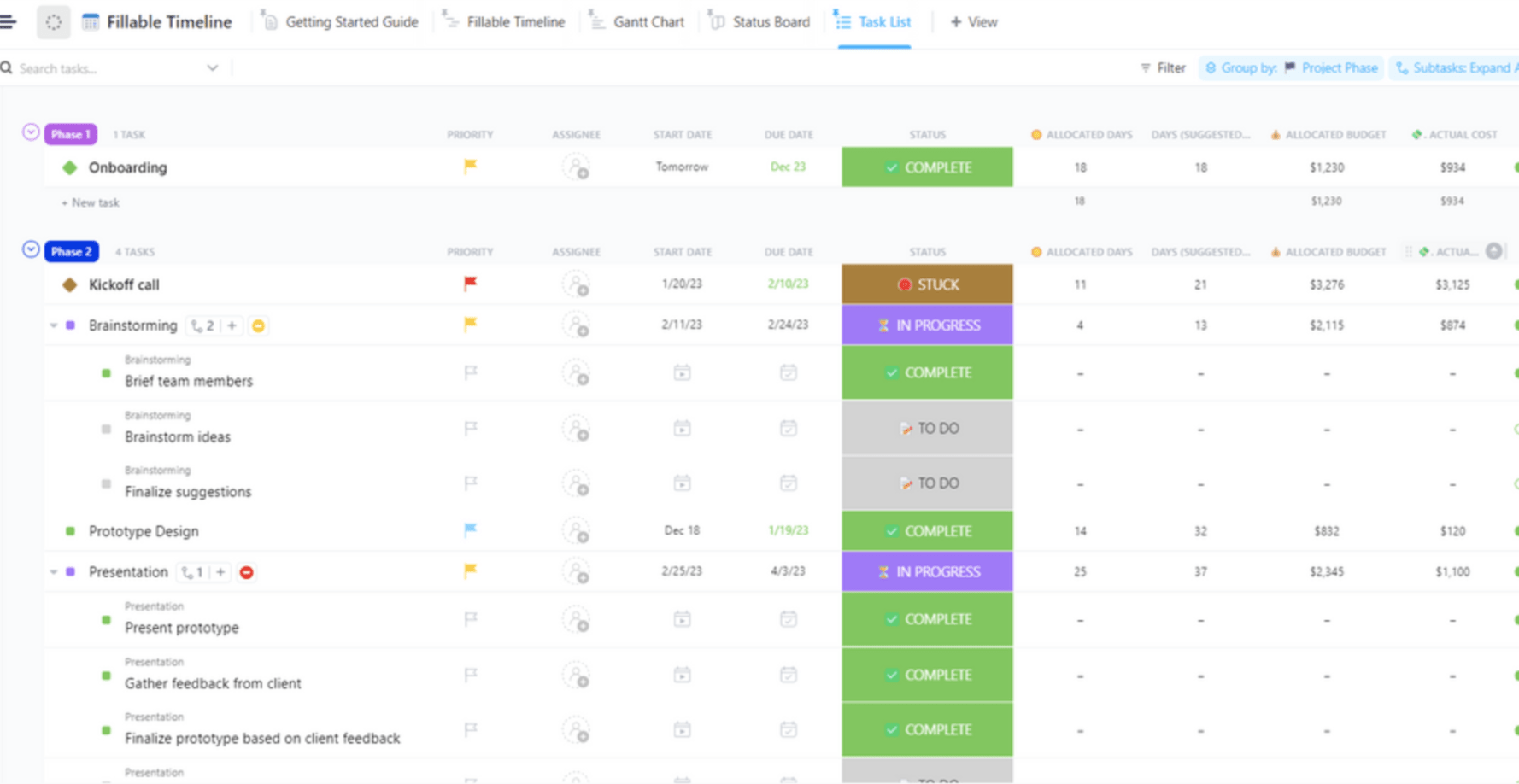
ClickUp’s Fillable Timeline Template enhances this with detailed Custom Fields, displaying vital information in one view. Custom Fields lets teams add relevant details like task descriptions, due dates, assignees, and milestones.
Included Custom Fields expedite the creation process:
Ideal for: Projects where the exact sequence of tasks is critical
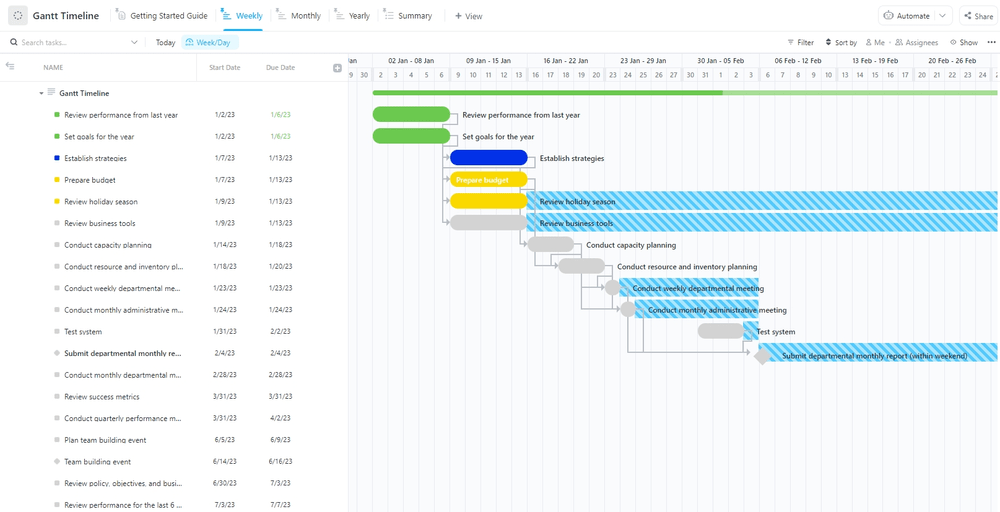
The ClickUp Gantt Project Timeline Template offers daily, monthly, and yearly overviews for easy progress tracking and planning.
Daily view handles day-to-day work, while monthly view highlights monthly progress and potential roadblocks. The yearly view provides a big-picture perspective for identifying trends and long-term planning.
Leveraging the Gantt timeline template enhances project management, streamlines operations, and boosts productivity. 📈
Ideal for: Project teams planning complex and long-term projects.
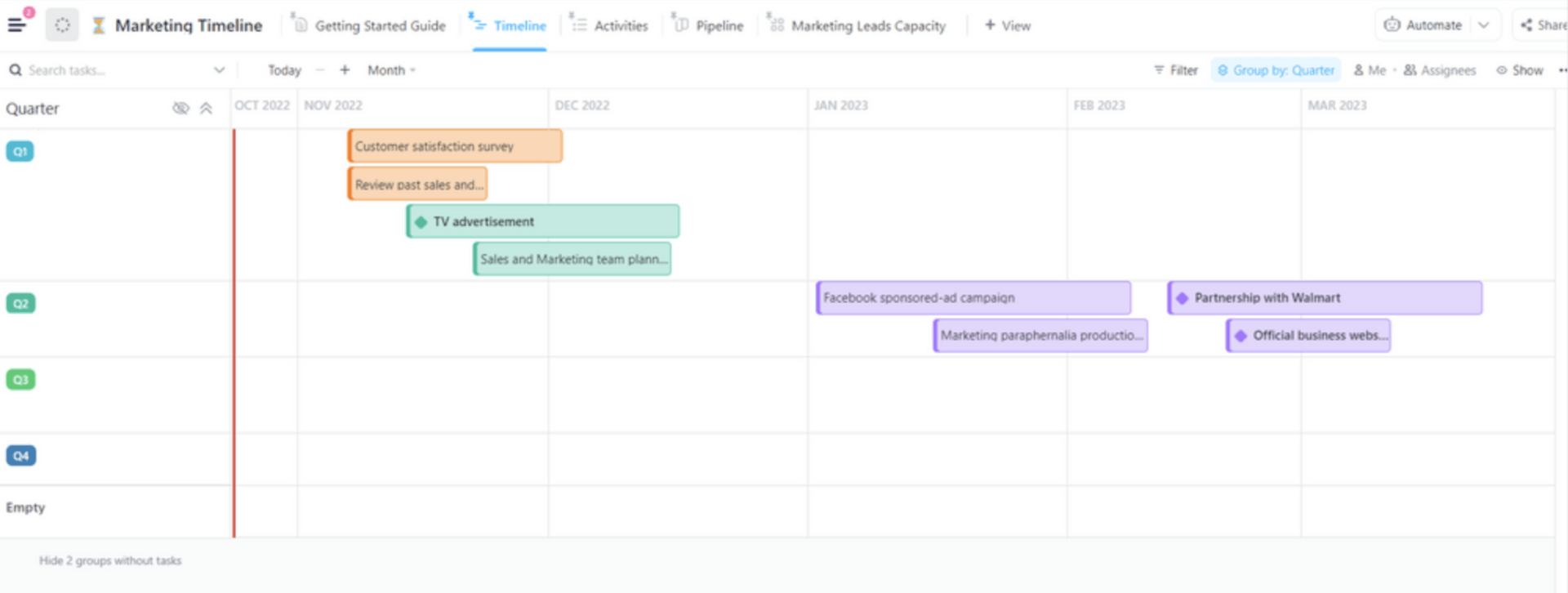
The ClickUp Marketing Project Timeline Template is a robust tool for marketing teams aiming to optimize their workflow and manage campaigns effectively. This template enables teams to create adaptable, repeatable timelines for any marketing campaign or project. 🌐
It promotes consistency by organizing custom project views:
Streamline content creation, promotion, reviews, and launches in one place, ensuring consistent branding and enabling quick adaptations for specific project needs.
Ideal for: Planning and executing marketing team projects
ClickUp’s Project Timeline Whiteboard Template boasts a user-friendly drag-and-drop interface for effortless organization of sticky notes and objects.
This template is suitable for designers, copywriters, developers, product managers, and other stakeholders. It simplifies task comprehension and role identification for team members.
By establishing precise requirements, team members can concentrate on relevant tasks, minimizing time spent on unimportant work. This approach helps mitigate miscommunications and misunderstandings, preventing delays or rework.
Ideal for: Cross-functional teams working together on sophisticated projects
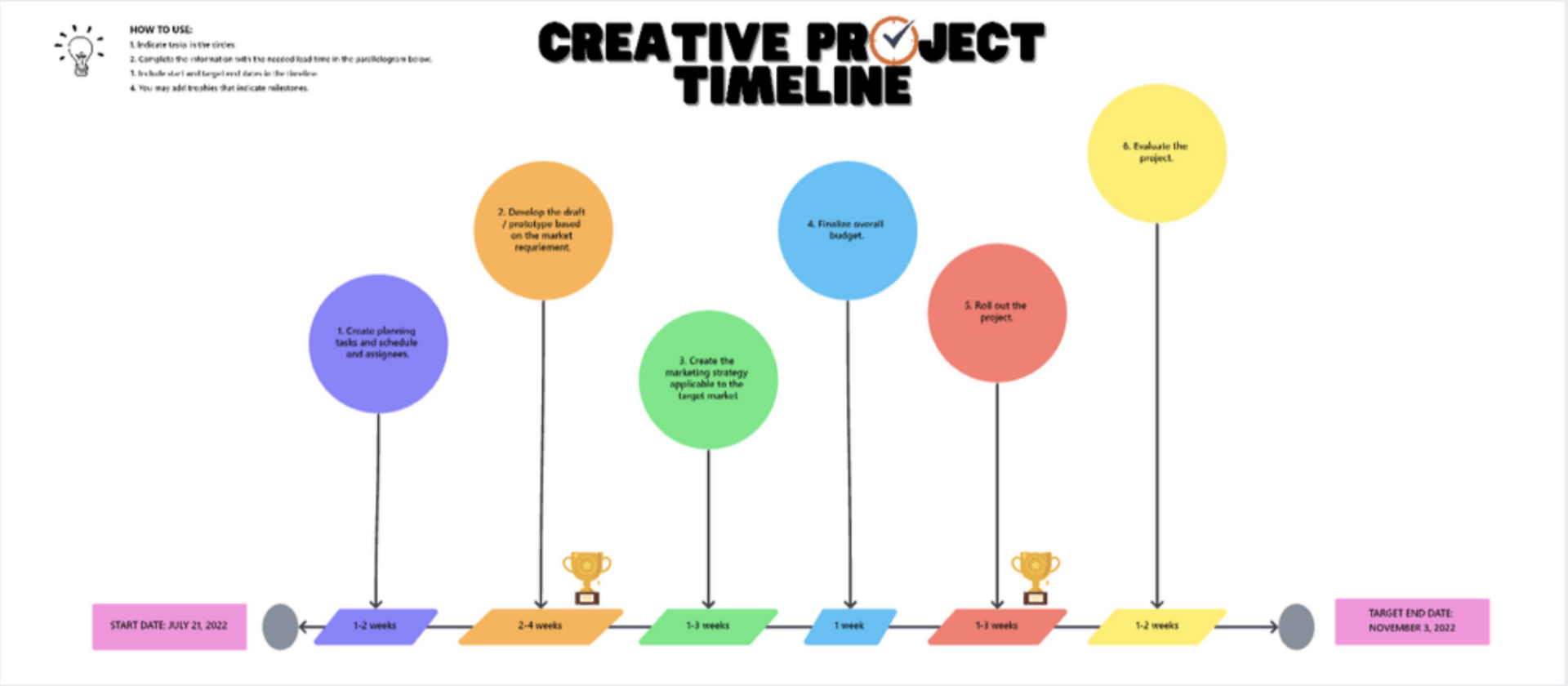
ClickUp’s Creative Project Timeline Template is a powerful tool for organizing and managing creative projects, regardless of size or complexity. It offers a structured framework for visualizing milestones and critical tasks, streamlining project management. 🎨
Suitable for small or large projects, the template is designed to accommodate any idea. Its intuitive drag-and-drop interface allows for swift creation of detailed timelines, emphasizing important milestones and tasks.
This ensures all project participants stay informed about progress and crucial deadlines.
Ideal for: Creative teams and agencies looking to streamline project planning.
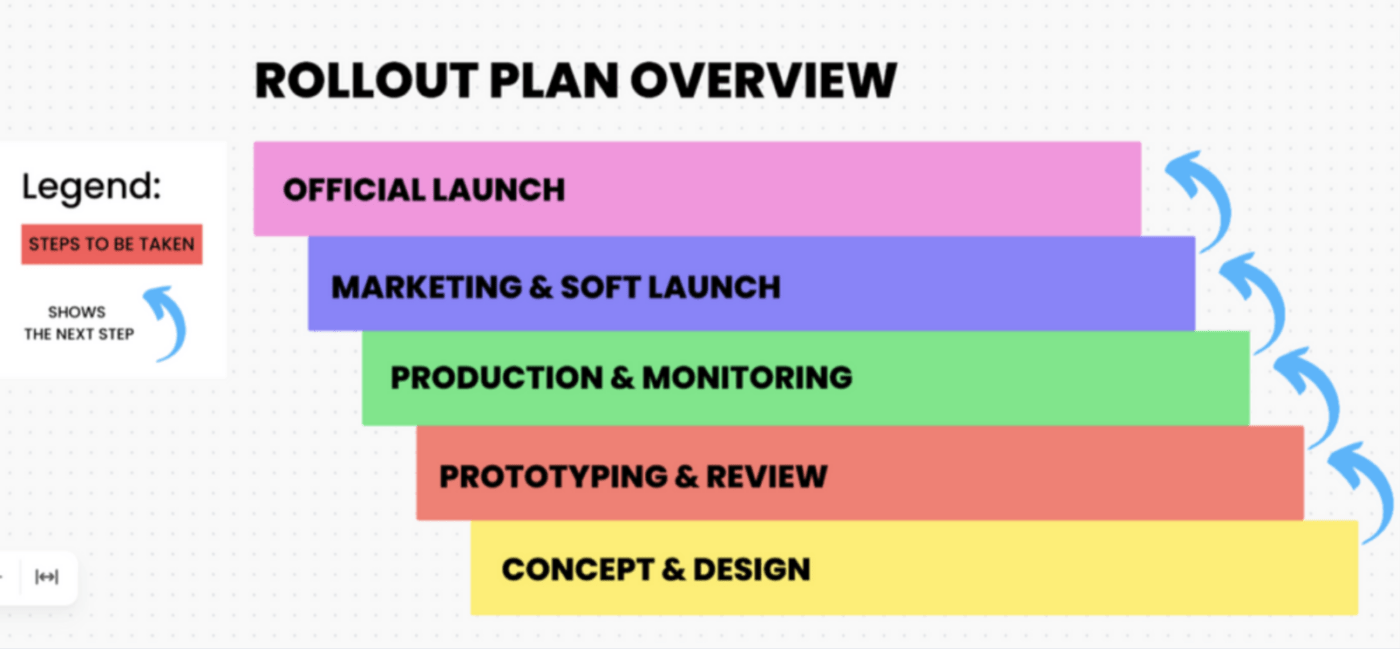
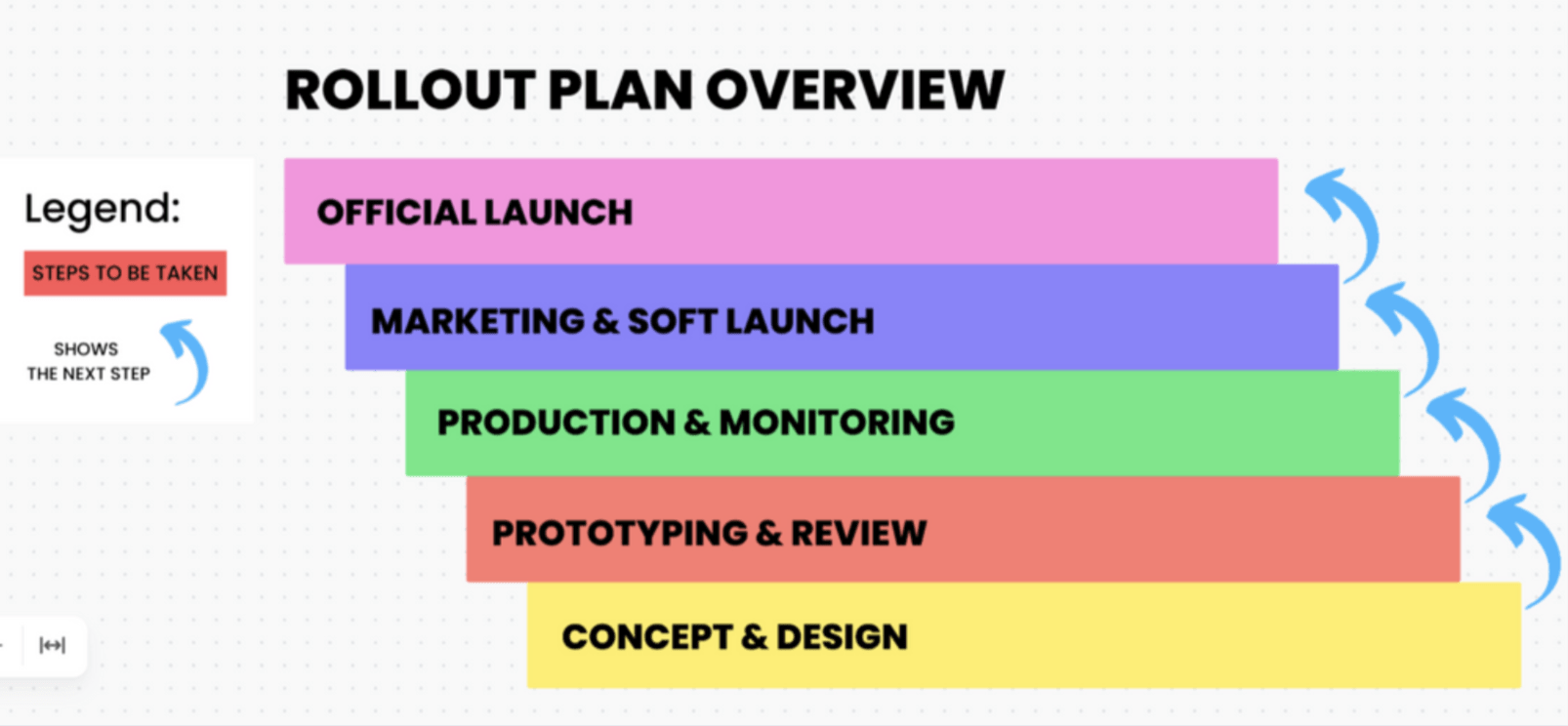
The ClickUp Software Rollout Project Timeline Template provides development teams with the resources to collaborate and strategize their software rollout timelines. By generating visual displays of tasks, timelines, and dependencies, team members can effortlessly pinpoint crucial tasks and monitor real-time progress.
Moreover, the user-friendly drag-and-drop capabilities enable teams to swiftly rearrange and categorize their cards, adjusting their rollout timeline as needed. This adaptability allows teams to promptly respond to changes in project scope or timeline, ensuring all tasks are accomplished on schedule. 🗓️
Ideal for: Software teams who want to plan a structured rollout plan for their product.
Knowing how to create a project timeline is critical for project success. However, it doesn’t have to be a headache—it’s a snap with this step-by-step guide. Plus, our project timeline templates make it even easier!
ClickUp does so much more than simplify project timelines, though. It’s an all-in-one solution for project management with hundreds of tools to help you get the job done faster so you can get to the good stuff. (Netflix binge, anyone?)
Sound good? If so, try ClickUp with our Free Forever plan. In just seconds, you can start creating the tasks you’ll use to make your project timeline a success. 🙌
© 2025 ClickUp