






Still downloading templates?
There’s an easier way. Try a free AI Agent in ClickUp that actually does the work for you—set up in minutes, save hours every week.
Sorry, there were no results found for “”
Sorry, there were no results found for “”
Sorry, there were no results found for “”

Your to-do list is ready, and you’re all set to dive into the day, but your monday.com board just won’t load.
When you finally do log in, it won’t budge. An error message shows up, and no matter how many times you try reloading the page, it freezes or throws you right back to that login screen.
It might seem minor, but at the very beginning of a busy day, it’s a big deal.
In this blog, we’ll explore how to log in to your account and fix the most common hiccups you might face. 🎯
A versatile, cloud-based work management platform, monday.com helps individuals and organizations plan, track, and automate their work across different business functions.
When you’re planning projects, assigning tasks, or collaborating with your team, monday.com streamlines work with customizable workspaces, real-time dashboards, and workload views. It also supports workflow automation, team communication, and specialized needs like content planning, event coordination, and hiring.
🔎 Did You Know? A survey by PwC revealed that nearly 77% of companies use some kind of project management software and that the adoption is often linked to high-performing projects.
Getting into your monday.com account is usually quick and simple.
Here’s how to log in smoothly. ⚒️
To log in, head to monday.com login page and click Log in in the top right corner. Enter your work email and hit Next.
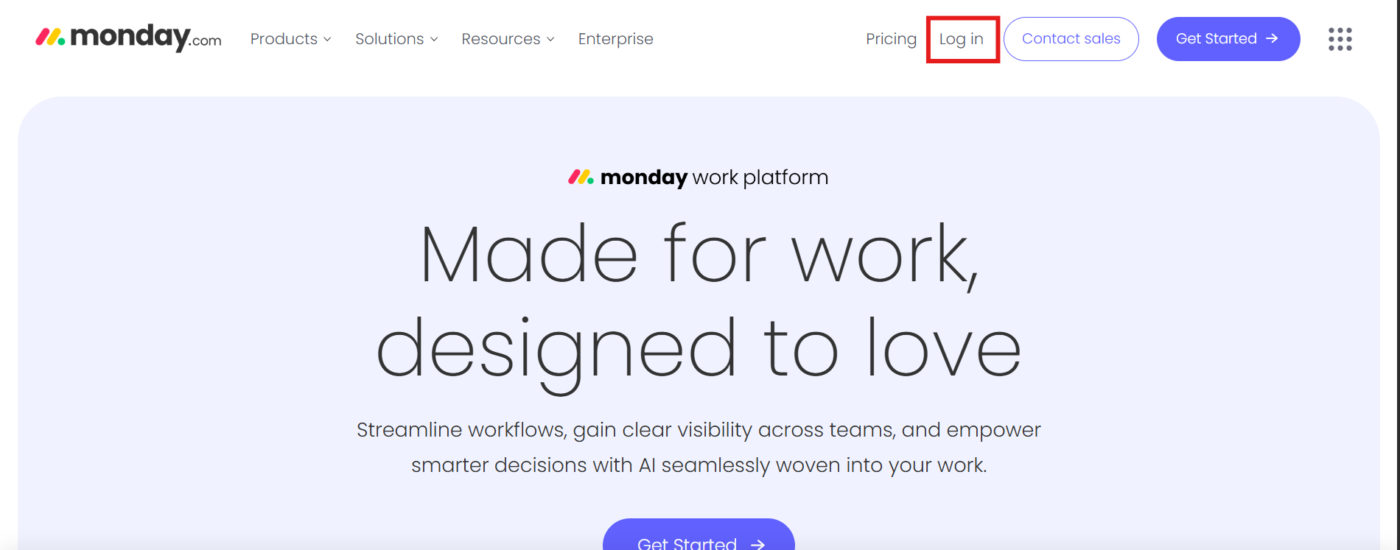
If prompted, type in your account URL (like yourteam.monday.com) and click Next. Type in your password.
✅ First time using monday.com? If you received an invitation email, click Accept Invitation. You’ll be prompted to enter your name, create a password, and agree to the terms before accessing your workspace.
Enter your password and click Log in. You can also log in with your Google account.
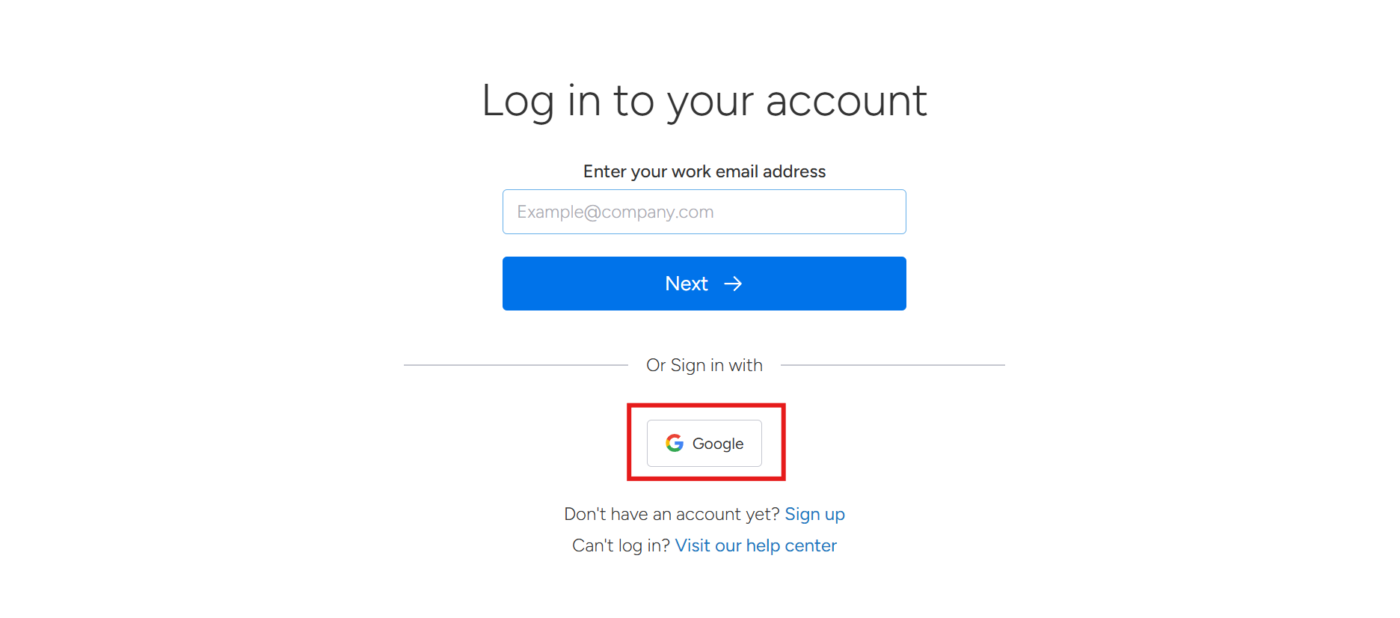
Already signed into multiple accounts? You’ll see a list, just pick the one you want.
😎 Fun Fact: Originally launched as Dapulse in 2012, the company rebranded to monday.com in 2017 to better reflect its mission and avoid confusion.
Download the monday.com app from the Mac or Windows App Store. Launch the app, and you will be taken to the login screen.
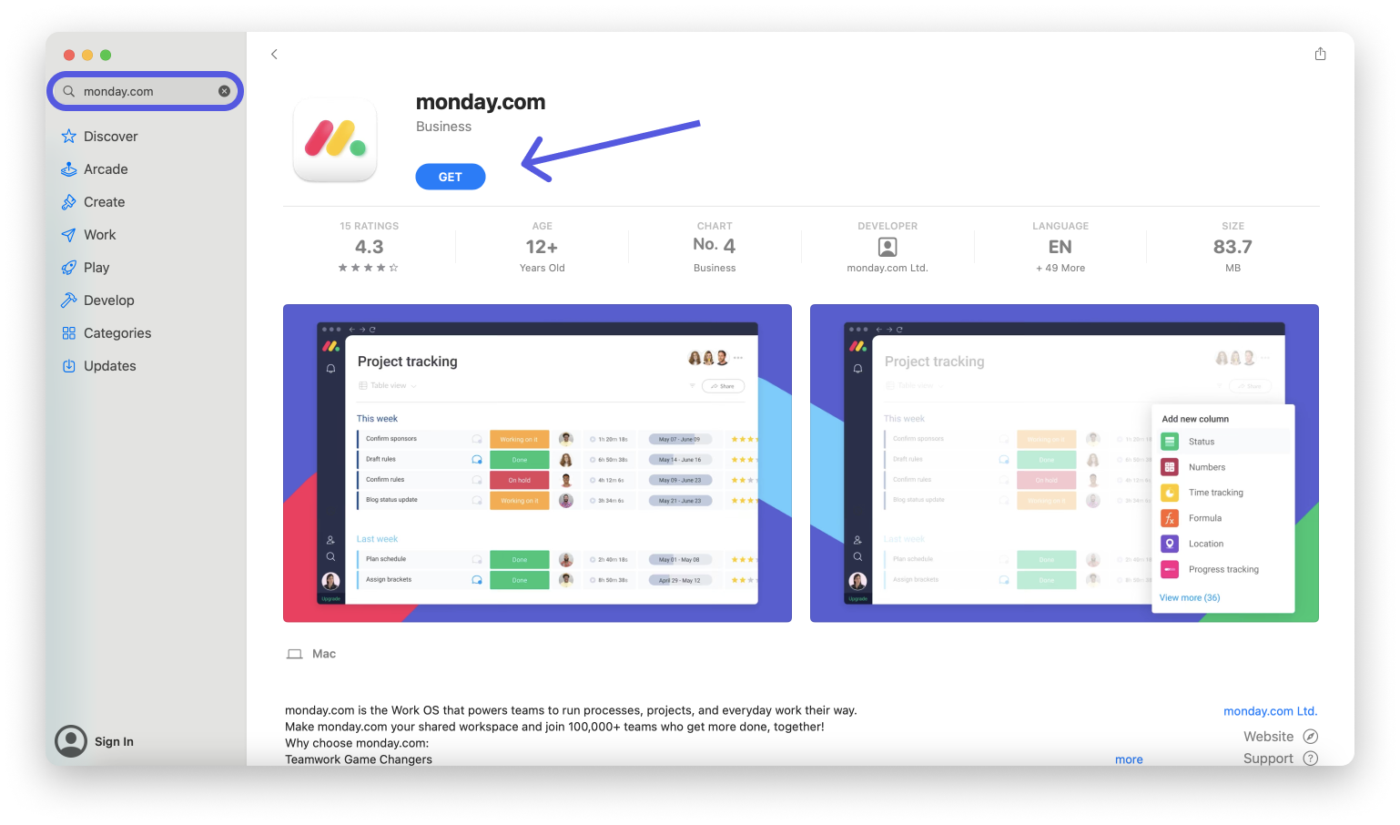
Either enter your email and follow the usual login steps or use one-click login via Google, Slack, or LinkedIn.
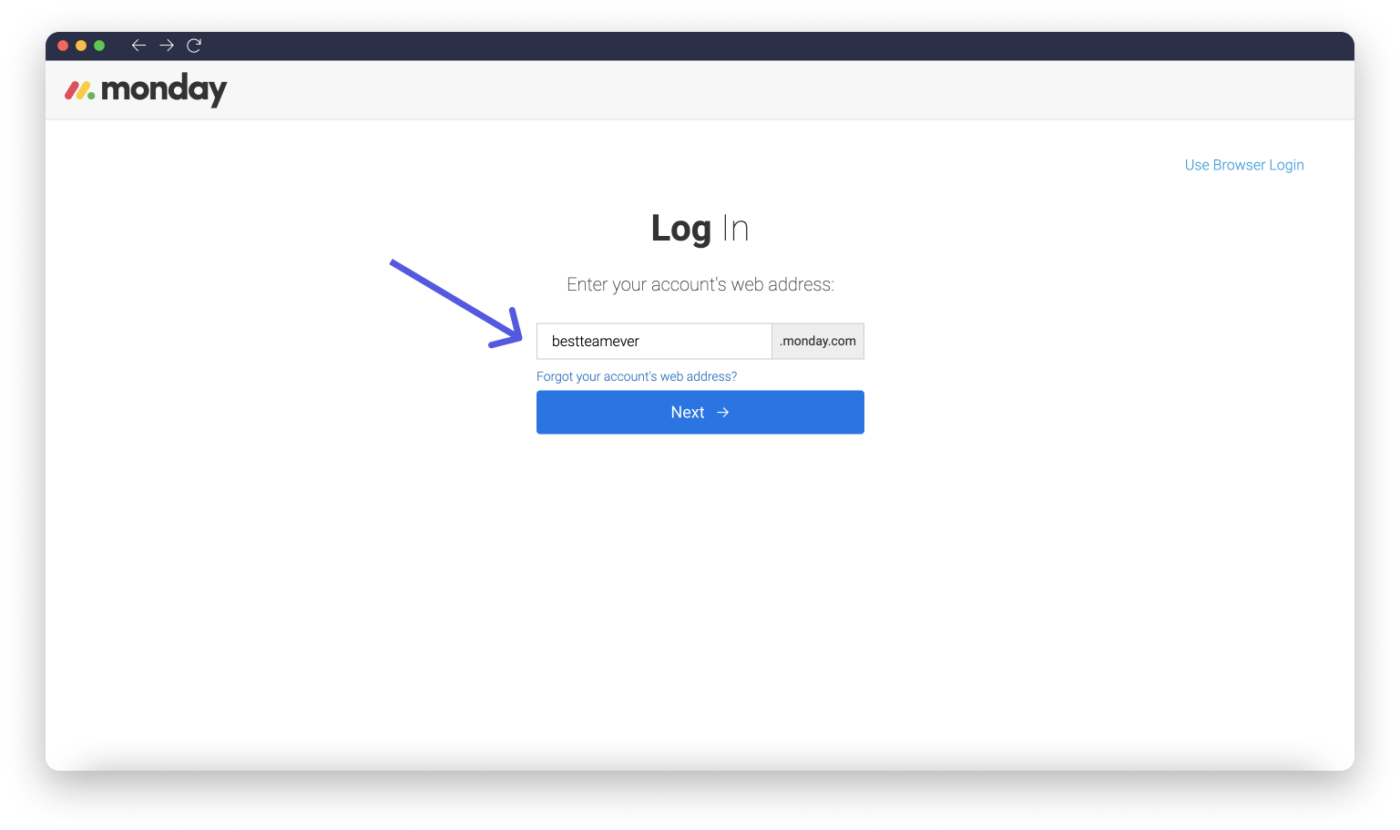
💡 Pro Tip: Prefer using a password manager or SSO? Choose Use Browser Login, and you’ll log in through your browser and get a code to paste back into the app. It’s a secure shortcut.
If your email is connected to multiple accounts, enter your unique workspace URL. Otherwise, enter your password and log in.
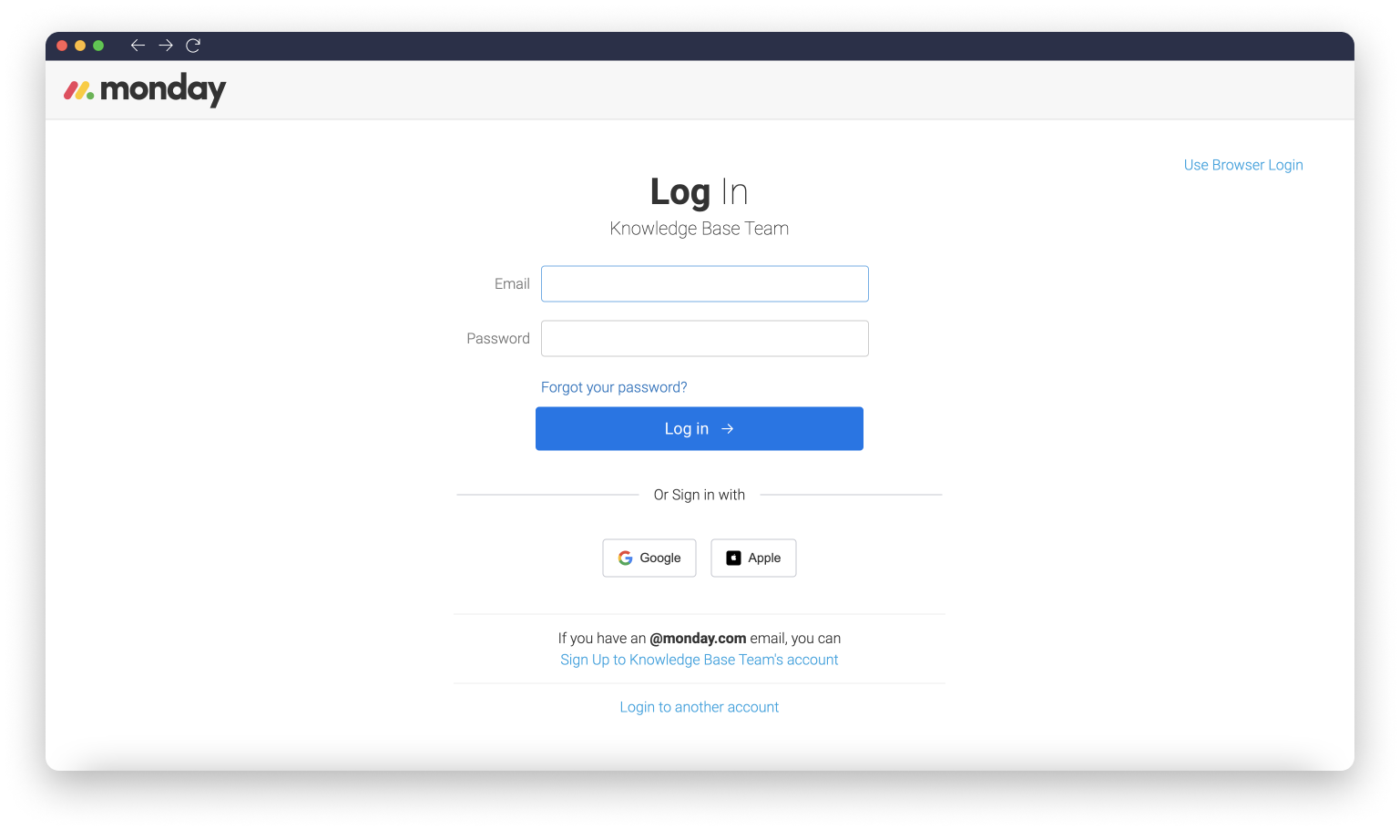
If logging into monday.com isn’t working as expected, here are the most common issues and exactly what to do to get back in fast:
Your monday.com account has a unique web address. If you’re stuck on the login screen or setting the wrong account, you might be using the wrong link.
✅ Try This
Search your email for your original invitation or welcome email—it usually includes your correct account URL.
Are you seeing a red banner that says, “User is inactive. Please contact your account admin?” This means your profile has been deactivated, either by an admin or due to account changes or inactivity.
✅ Try This
Contact your account admin directly. Only admins can reactivate your profile. Ask them to:
1. Go to Admin > Users
2. Search for your name and email
3. Click the settings icon next to your profile
4. Select Reactivate user
💡 Pro Tip: If you don’t know who your admin is, check previous monday.com notification emails (like invite or project updates). These emails often include the admin’s name or email.
Two-factor authentication adds a security layer by requiring not just your password, but also a second form of verification, like a code sent to your phone, making it much harder for unauthorized users to access your account.
If you’ve changed phone numbers, deleted your authenticator app, or can’t access your verification code, you’ll be locked out.
✅ Try This
Reach out to your workspace admin for help. Ask them to:
1. Open Admin > Users
2. Find your name in the user list
3. Click the three-dot menu next to your name
4. Select Reset Two-Factor Authentication. Once reset, you’ll be prompted to set up 2FA again the next time you log in. Make sure to save your backup codes or link the new device securely
💡 Pro Tip: Use an authenticator app like Google Authenticator or Authy and enable backup methods in your account for future-proof access.
A weak or unstable internet connection can stop monday.com from loading or logging in, especially on the desktop or mobile app.
✅ Try This
Browser issues are a common reason for login troubles. Outdated versions, overactive extensions, or stored cache can interfere with how monday.com runs.
✅ Try This
Sometimes, the monday.com mobile or desktop apps glitch or become out of sync, but they’re usually quick to fix.
✅ Try This:
As a work management platform, monday.com offers tools like shared workspaces, SSO, and domain controls to simplify and secure logins for your team.
In monday.com, workspaces are your team’s project hubs, like one for marketing, another for product development, etc. Each workspace contains task boards, folders, and dashboards to keep everything organized and focused.
So, how do you access one?
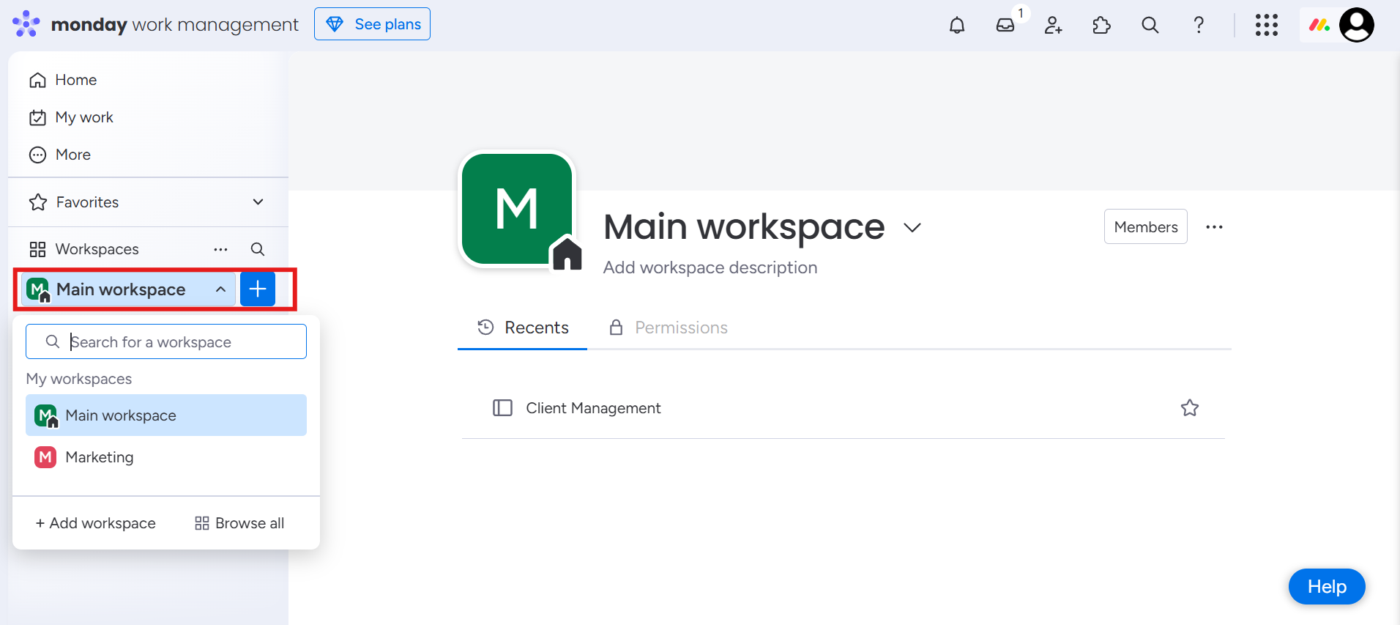
To access a workspace, just subscribe to it.
For example, if you’re on both the Marketing and Product teams, subscribe to both to access their task boards. Once subscribed, your workspaces show up in a dropdown on the left for easy switching.
📖 Also Read: Task Management Skills: How To Manage Tasks
On monday.com, teams can create two types of workspaces:
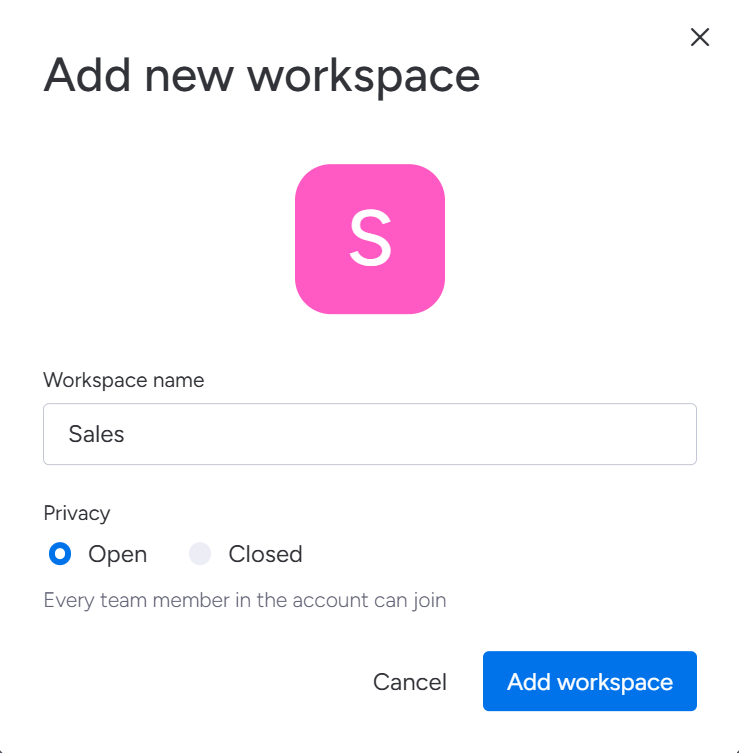
Admins and workspace owners can:
📮 ClickUp Insight: The average professional spends 30+ minutes a day searching for work-related information—that’s over 120 hours a year lost to digging through emails, Slack threads, and scattered files.
An intelligent AI assistant embedded in your workspace can change that. Enter ClickUp Brain. It delivers instant insights and answers by surfacing the right documents, conversations, and task details in seconds—so you can stop searching and start working. Plus, AI agents in ClickUp can even answer questions for you!
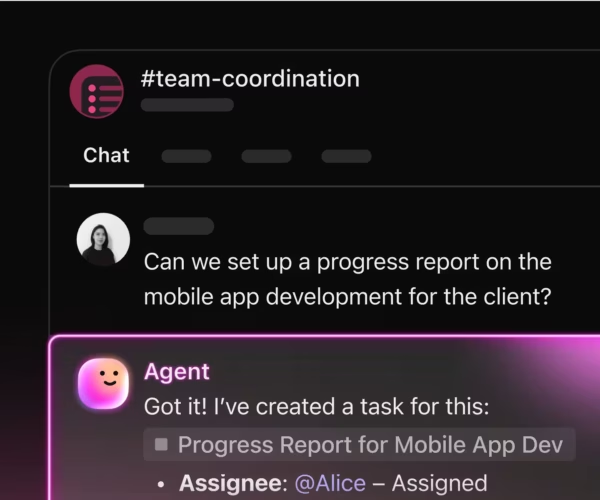
💫 Real Results: Teams like QubicaAMF reclaimed 5+ hours weekly using ClickUp—that’s over 250 hours annually per person—by eliminating outdated knowledge management processes. Imagine what your team could create with an extra week of productivity every quarter!
Admins keep everything secure, clean, and functioning. They’re the behind-the-scenes heroes of a monday.com account.
Click on your profile picture in the top-right corner, then go to Administration.
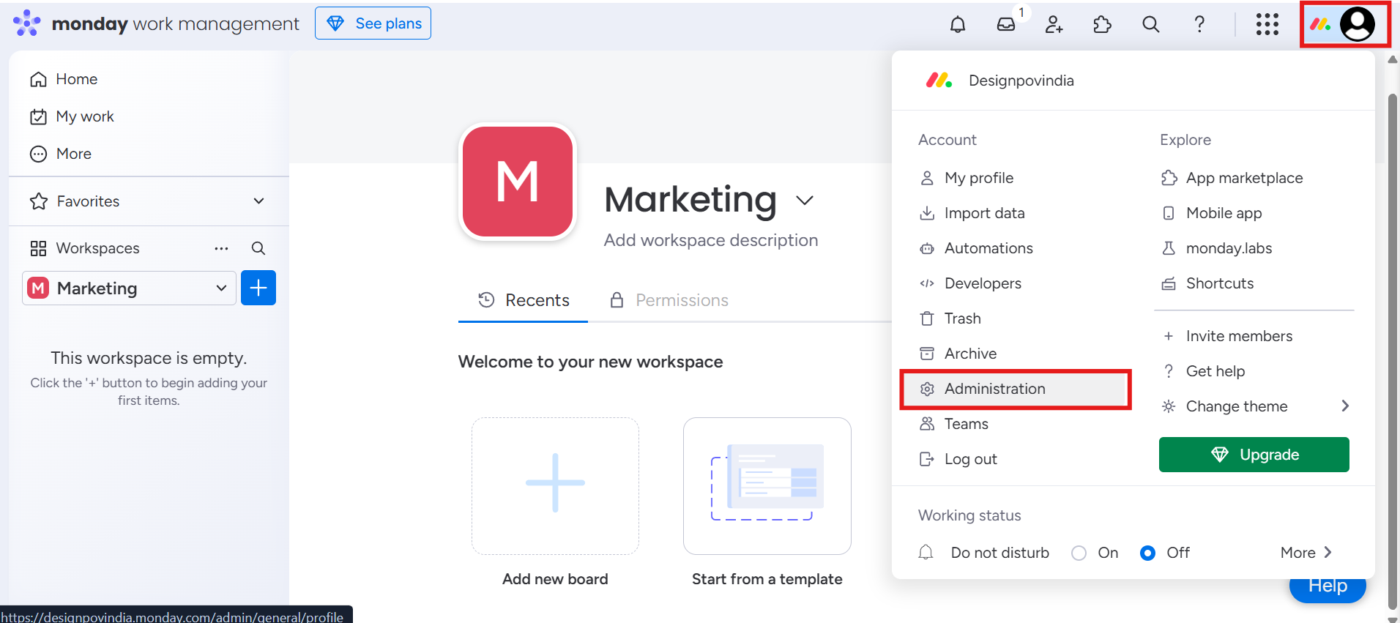
Admins have full control over the account, including:
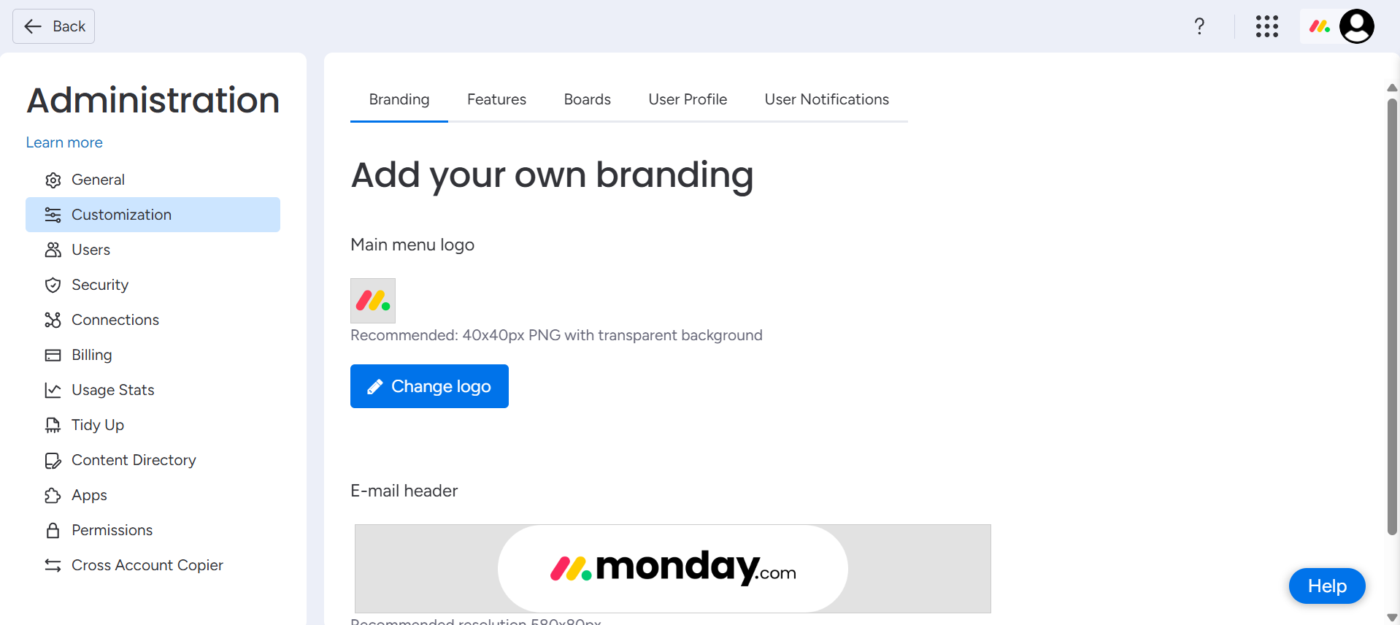
Your monday.com account supports single sign-on to help teams log in securely without extra passwords. Here’s how you can execute this:
Here’s what you get to pick from:
Option 1: SAML SSO
Here are the steps:
Once activated, you’ll get onboarding emails or can log in via your company’s SSO portal.
For example, if your company uses Azure, IT can set up SAML SSO so all employees log in with their Microsoft accounts.
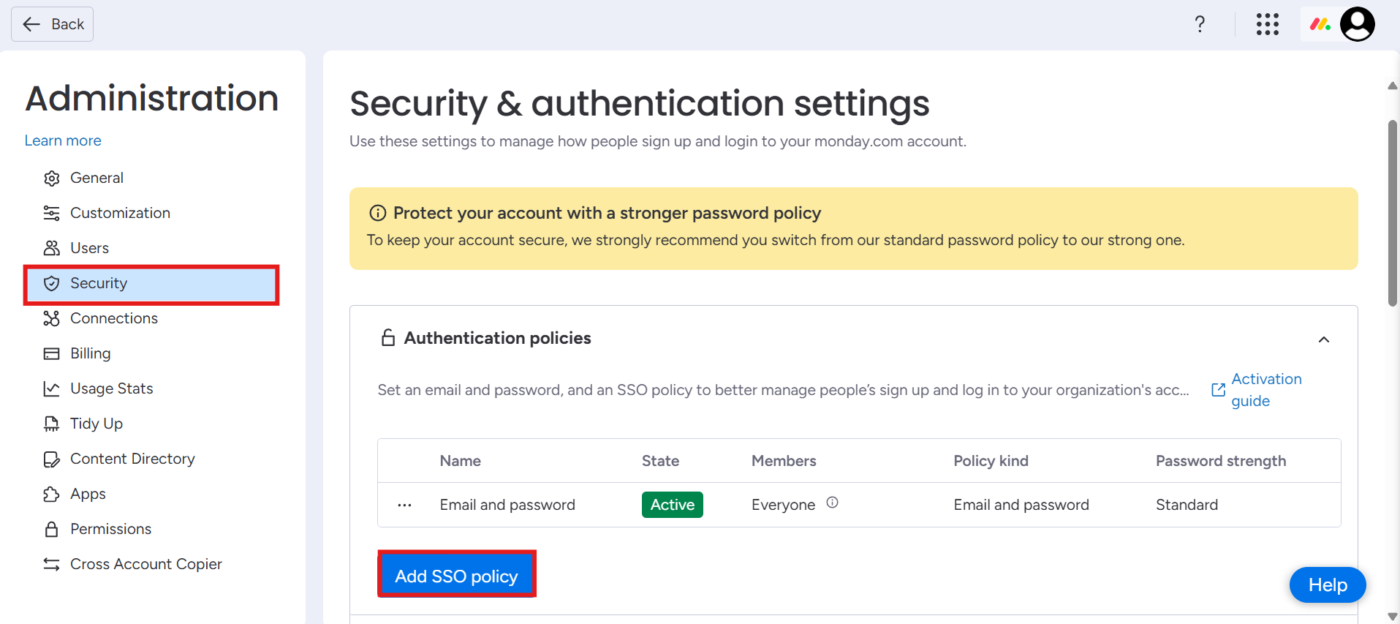
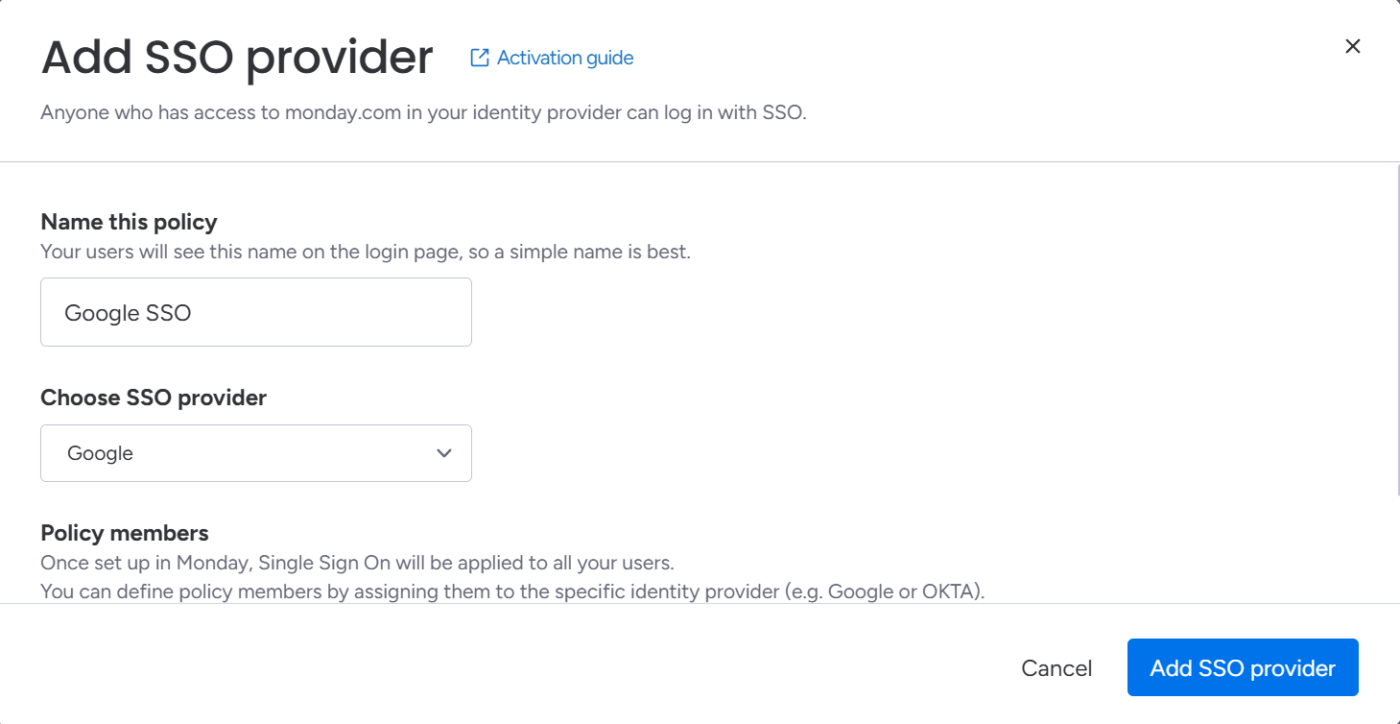
Option 2: Google SSO
Here are the steps:
This method is faster to set up than SAML and works well for Google Workspace users. It’s especially useful for freelancers or consultants without company email addresses, and allows you to support multiple login methods with clear user guidance.
This is great for letting people from your organization join your monday.com account without needing an invitation.
Here’s how you can do this:
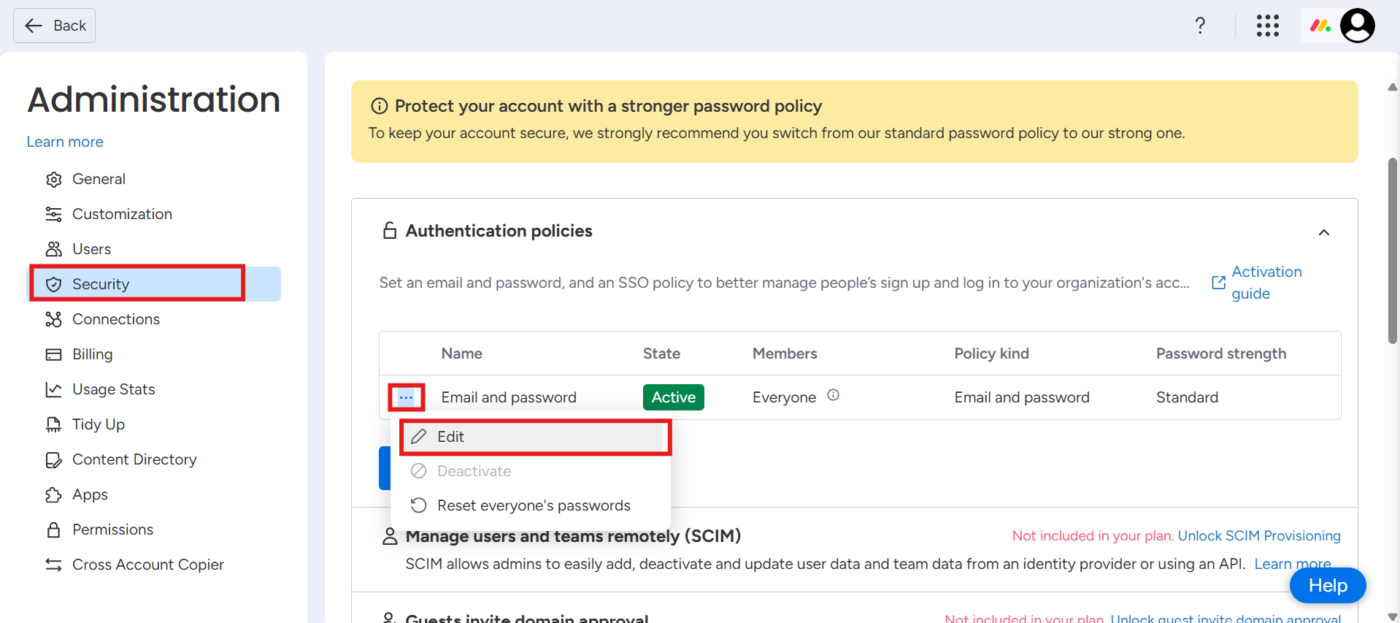
Anyone signing up with this email domain can join your account automatically. For instance, New hires with @acme.com emails can just sign in and be added to the company’s monday.com account.
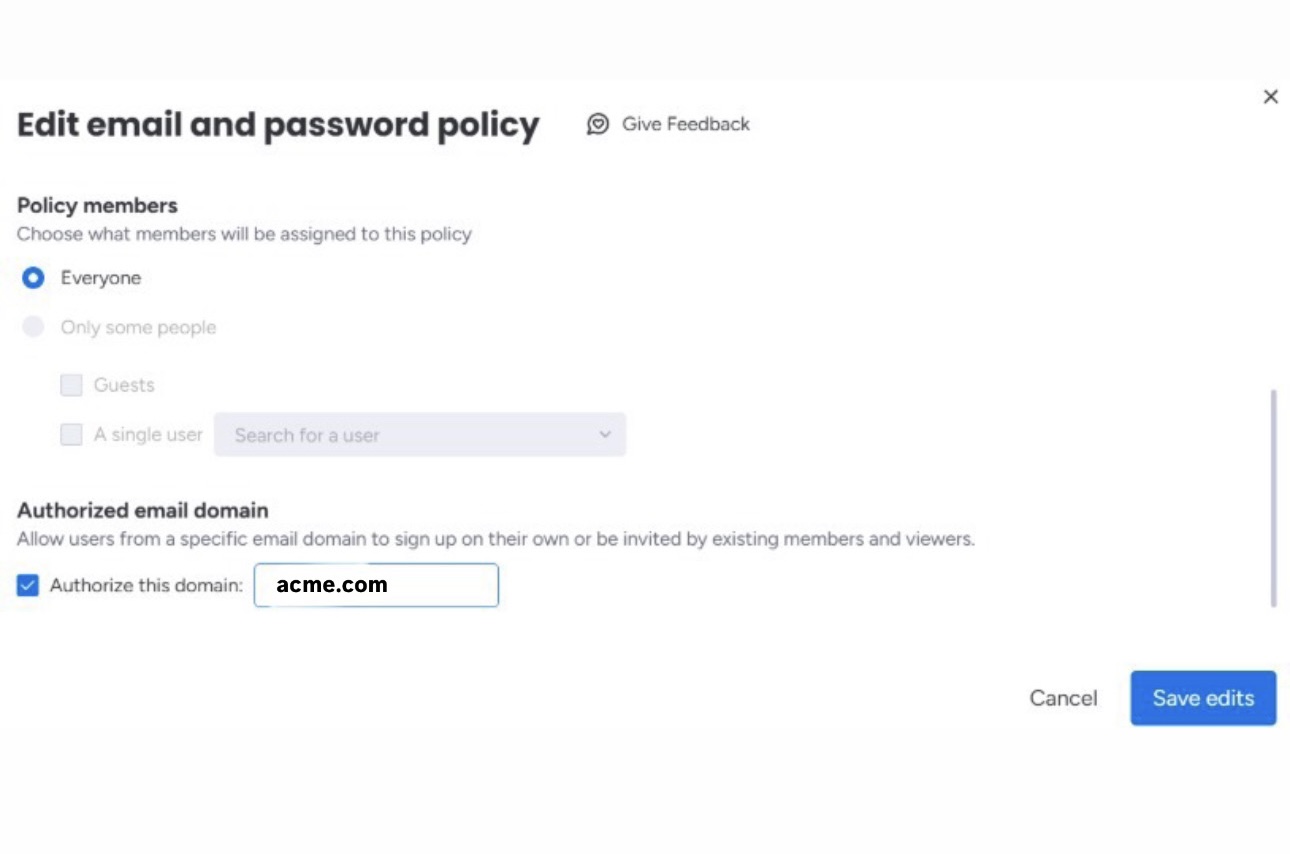
💡 Pro Tip: If SSO is turned on, domain-based login will be disabled. Your identity provider takes over and controls who can access what.
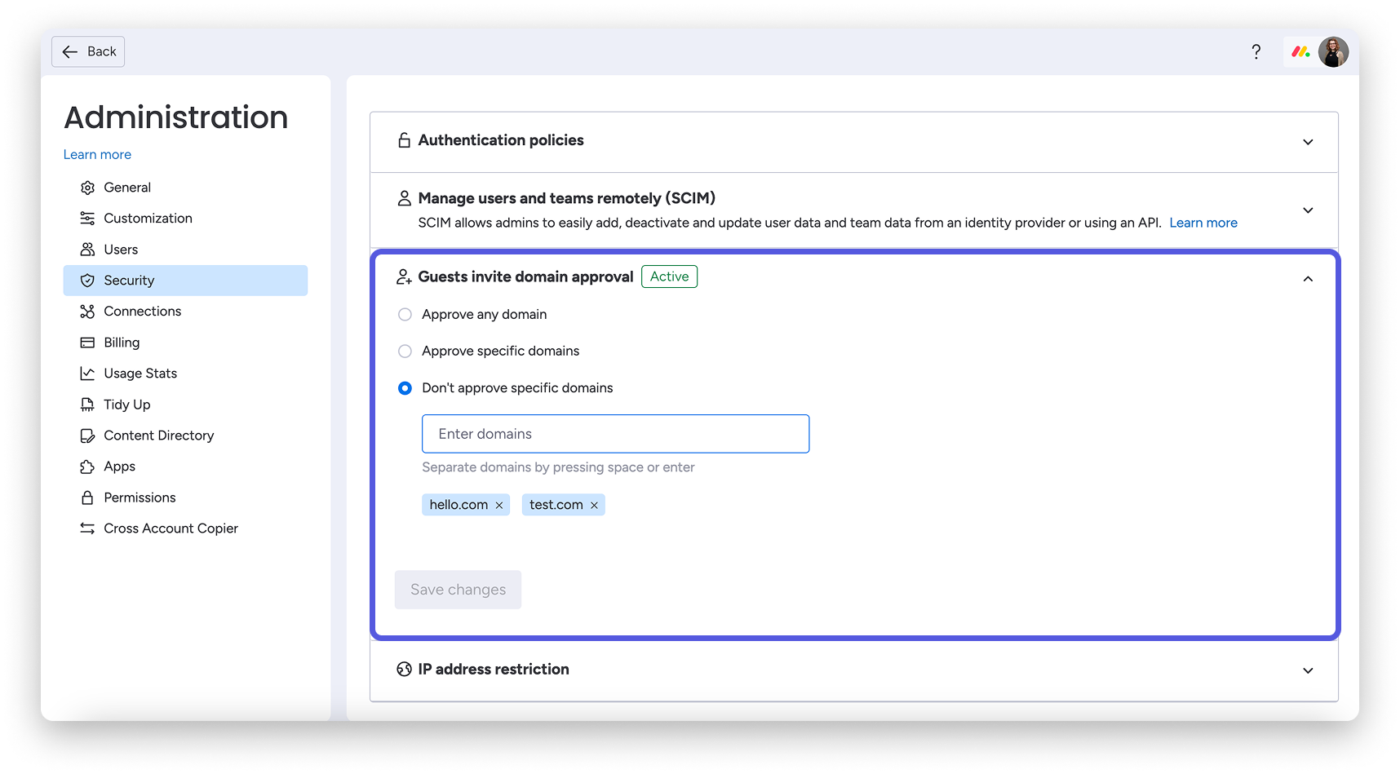
Working with external partners? You can control which outside email domains are allowed to be invited as guests. This helps you control cross-functional collaboration and prevent sensitive information from leaving your ecosystem.
In the Admin section, under Guests invite domain approval, you can:
📖 Also Read: How to Create a Gantt Chart in monday.com
While the tool keeps your workflows centralized and is suitable for a variety of use cases, here are some limitations that might make you consider monday.com alternatives:
Here are AI other AI-powered project management platforms to help you overcome the limitations of monday.com.
Project managers and team leads juggling many tools often find themselves stuck in login loops, disconnected workspaces, and patchy workflows.
ClickUp, the everything app for work, stands out as a more seamless, unified alternative.
It combines project management, knowledge management, and chat, all powered by AI that helps you work faster and smarter. You don’t need workarounds or third-party apps to get things done.
Want to compare monday.com vs. ClickUp?
Let’s start where most work begins: ClickUp Task Management. 🗃️
ClickUp offers familiar views like Lists, Boards, Calendars, and Gantt, but with added flexibility (think 15+ visualization options).

ClickUp Tasks have nested subtasks, checklists, Custom Fields, dependencies, automations, and even embedded documents, all in one card. Track deliverables, bugs, or roadmaps using statuses, tags, and priorities tailored to your processes.
📌 Example: For a website redesign task, you can:
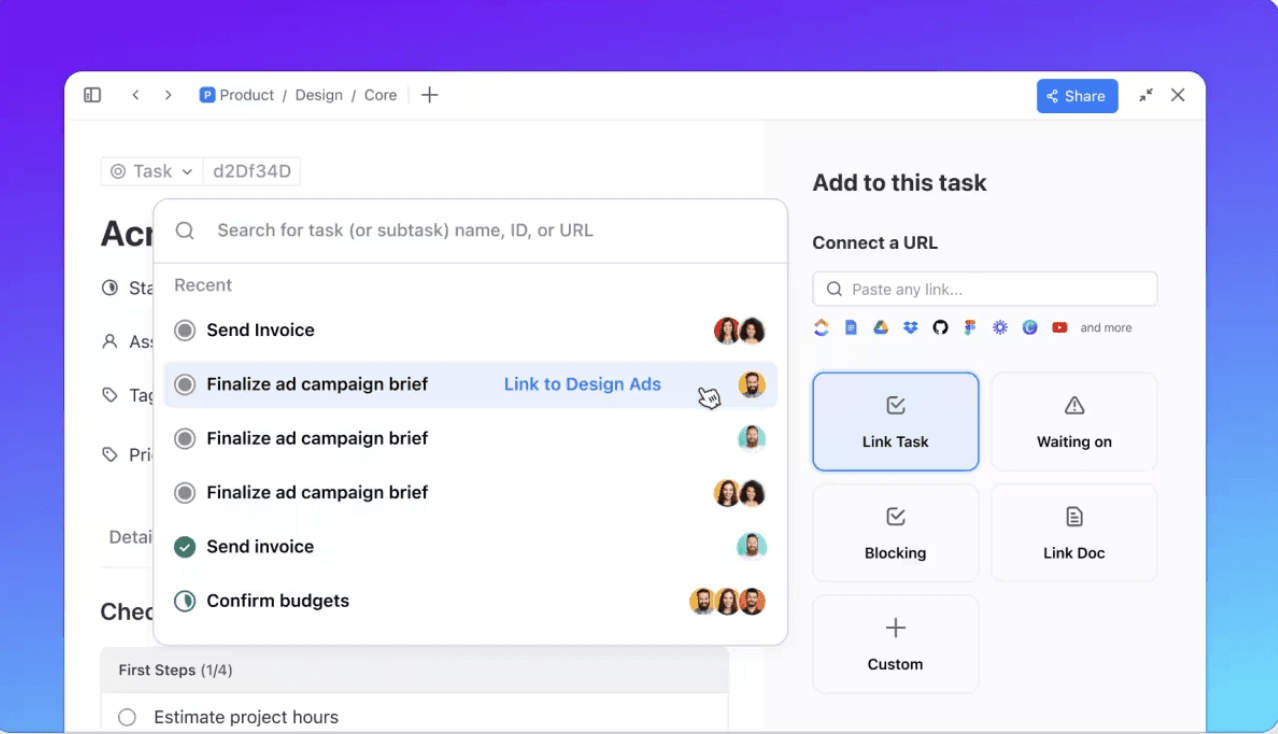
➡️ Need a head start? Use task management templates from ClickUp’s library to quickly build workflows.
Then, there’s ClickUp Dashboards, which bring everything together. 📊
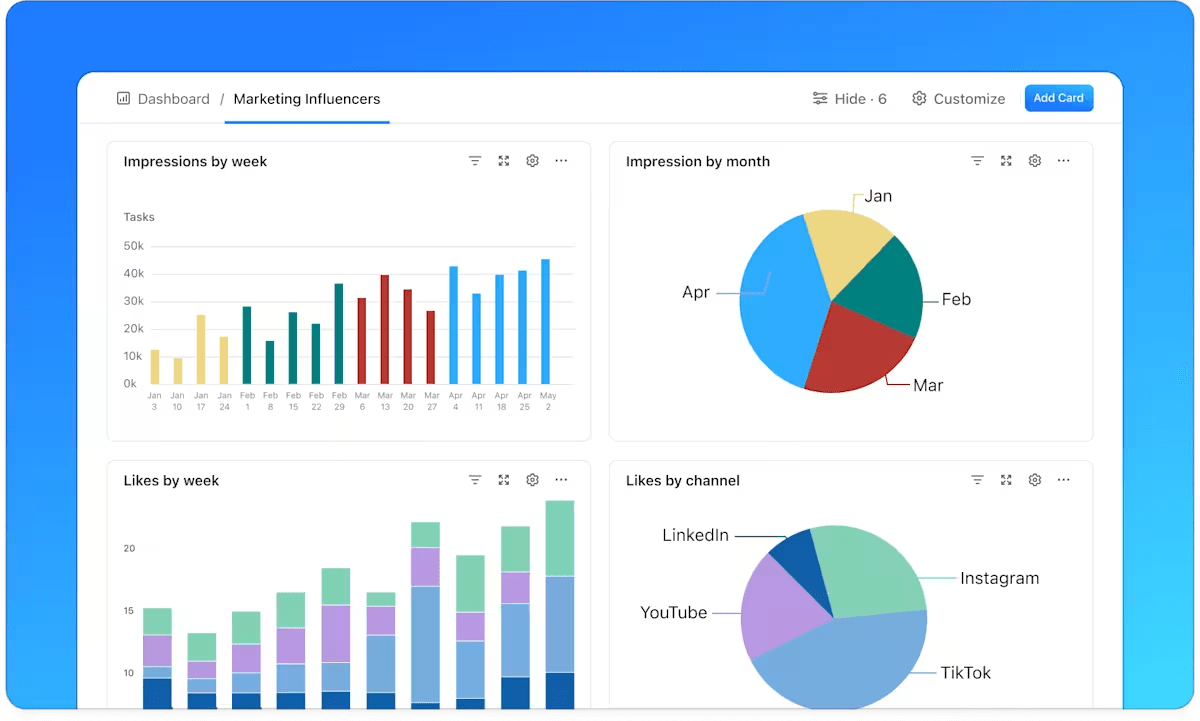
Unlike monday.com’s limited view-building, Dashboards in ClickUp are fully customizable with 50+ custom cards that can pull live data from your workspace.
Need a real-time sprint summary for your dev team? Build a dashboard with burndown charts, time tracked, and velocity metrics. Running a client campaign? Create a dashboard with task status, overdue items, team workload, and embedded docs, all updating in real time.
You can also share dashboards externally, making them ideal for client updates without granting full workspace access.
📌 Example: You’re managing a marketing campaign for a client. You build a dashboard showing task tracking and progress, overdue items, and team workload, all updating in real time.
Once your projects are mapped and underway, documentation becomes critical. This is where ClickUp Docs brings everything together on one platform.
One of monday.com’s most complex challenges is that it relies on third-party tools like Google Docs or Notion. ClickUp Docs, on the other hand, is built directly into your workspace.
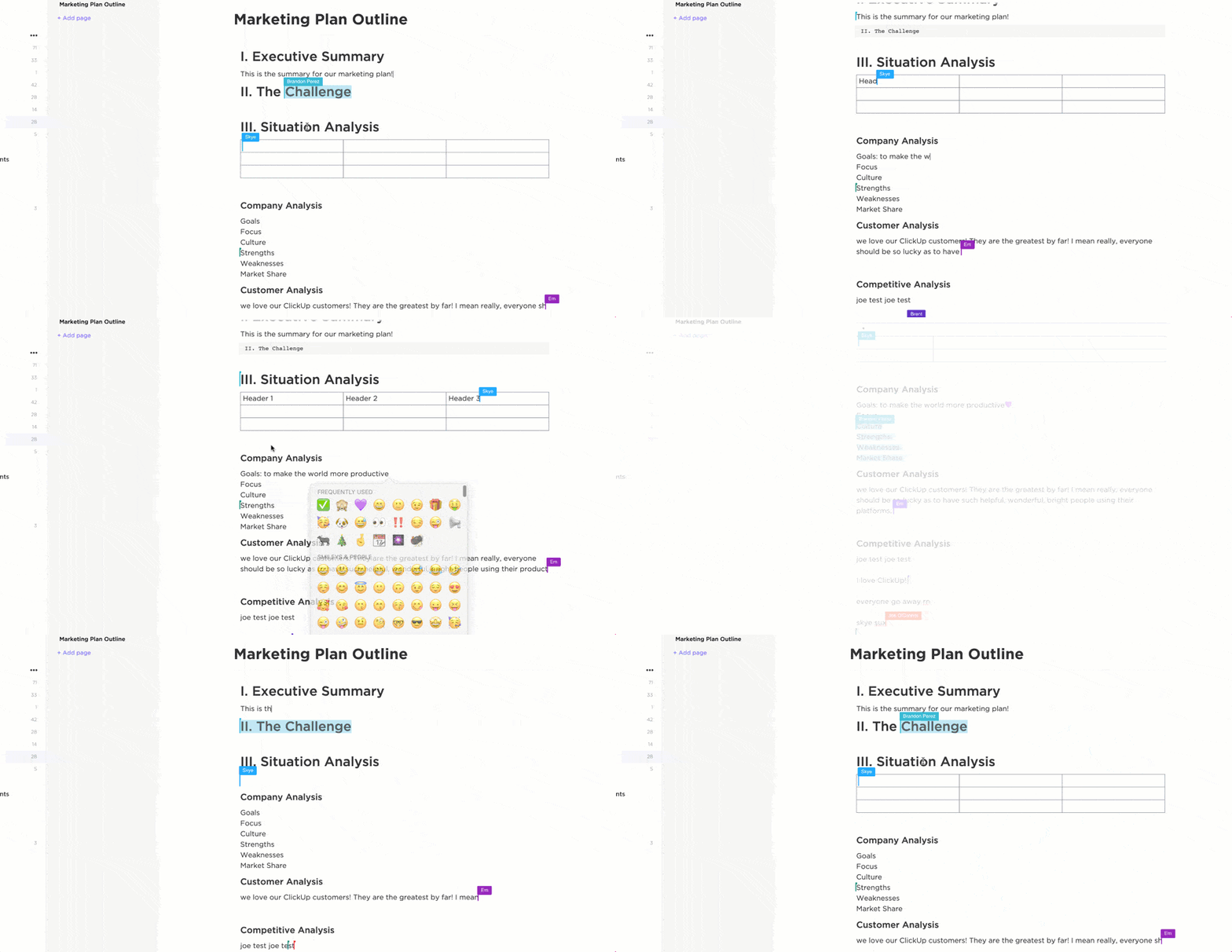
With ClickUp Docs, you can:
Plus, you can easily access and manage all your documents in the Docs Hub, where everything is searchable, organized, and linked to your work.
For brainstorming and visual planning, ClickUp Whiteboards offer an alternative to standalone tools like Miro.
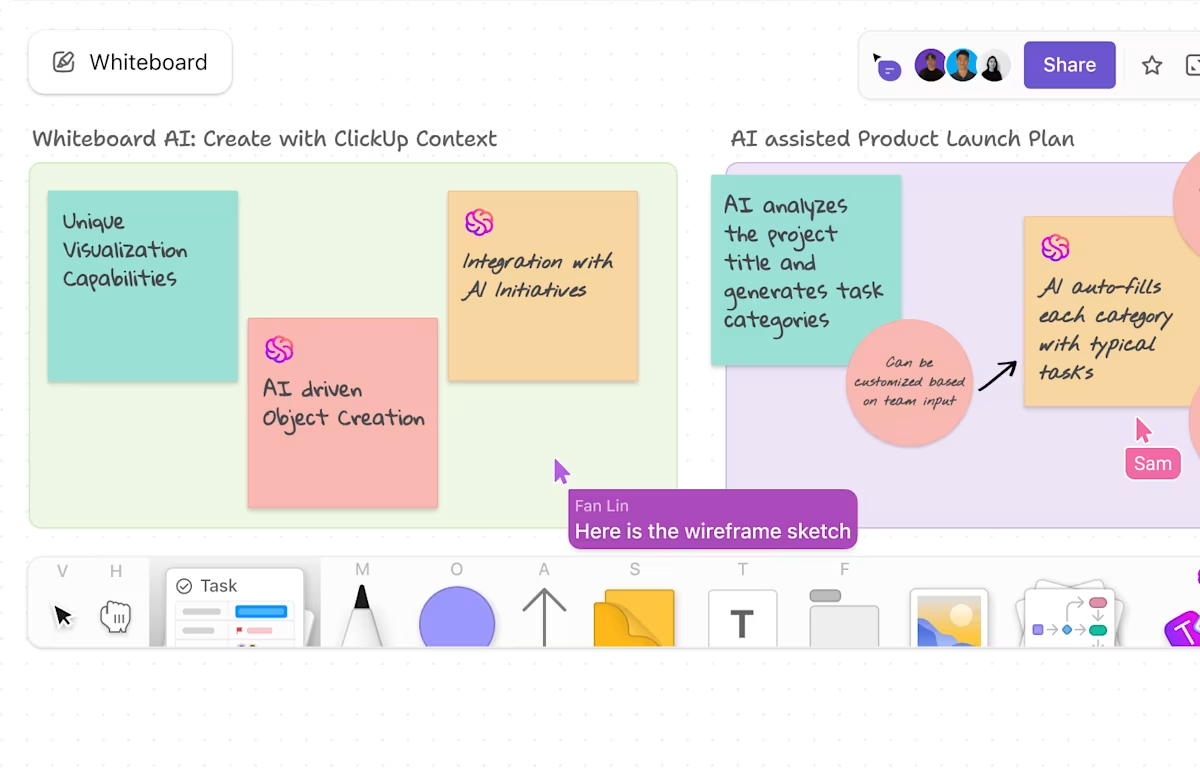
Whiteboards are dynamic, actionable workspaces. Start with a blank canvas or use ClickUp’s templates to map out processes, plans, or org charts. Each element—sticky notes, shapes, and text—can be instantly turned into tasks.
📌 Example: Let’s say your team outlines a go-to-market strategy on a whiteboard. You sketch out your phases, assign owners using avatars, and convert key milestones into tasks, all instantly appearing in your project lists and dashboards.
ClickUp Brain, the task management software’s integrated AI assistant, is your project-aware tool that lives inside the workspace.
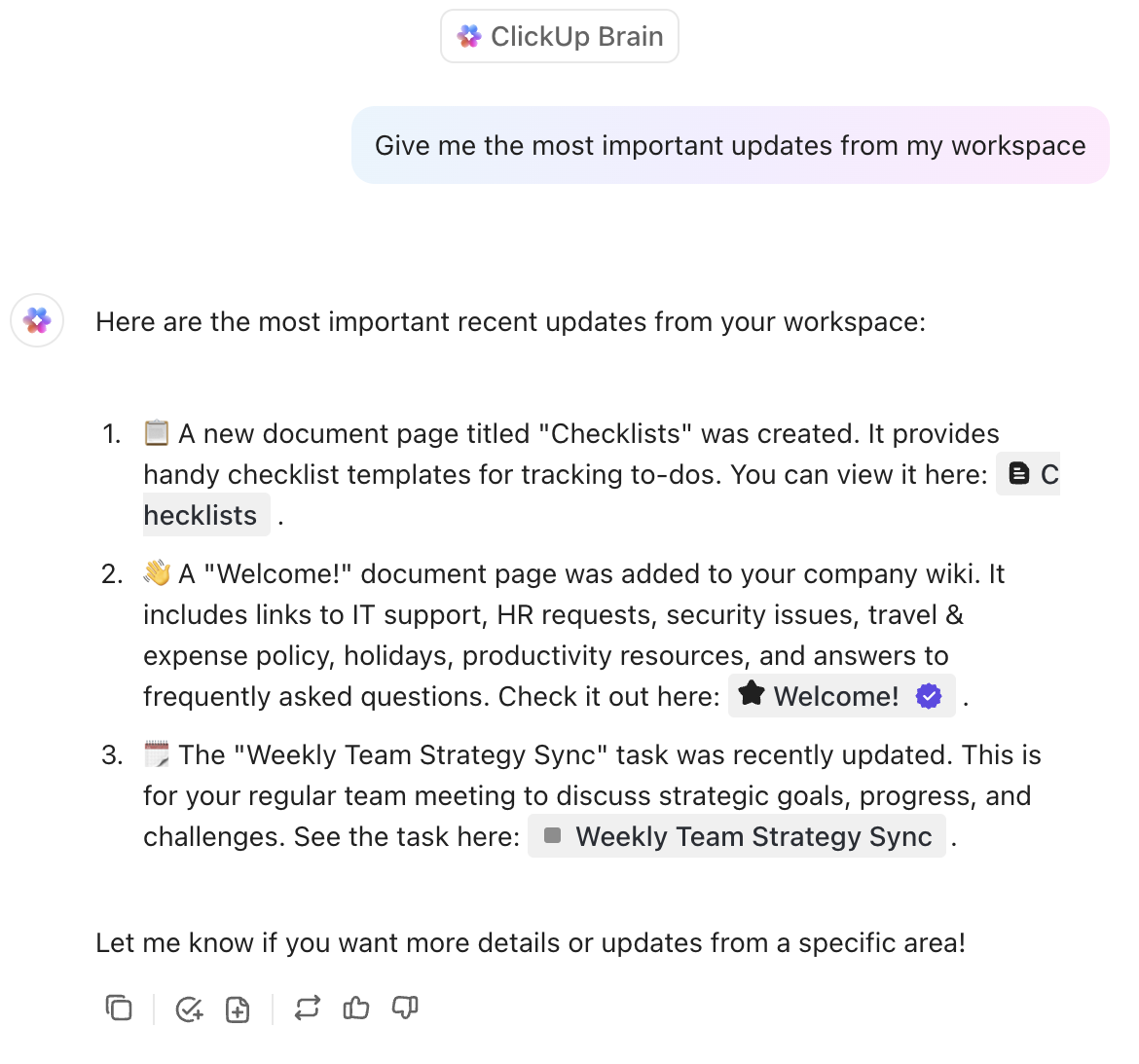
Use ClickUp Brain to:
What sets ClickUp Brain apart from generic AI tools is that it:
📖 Also Read: Review of monday.com with Pros and Cons
Finally, communication is revitalized with ClickUp’s integrated Chat. You can create chat channels tied to specific spaces, folders, or projects for keeping conversations relevant.
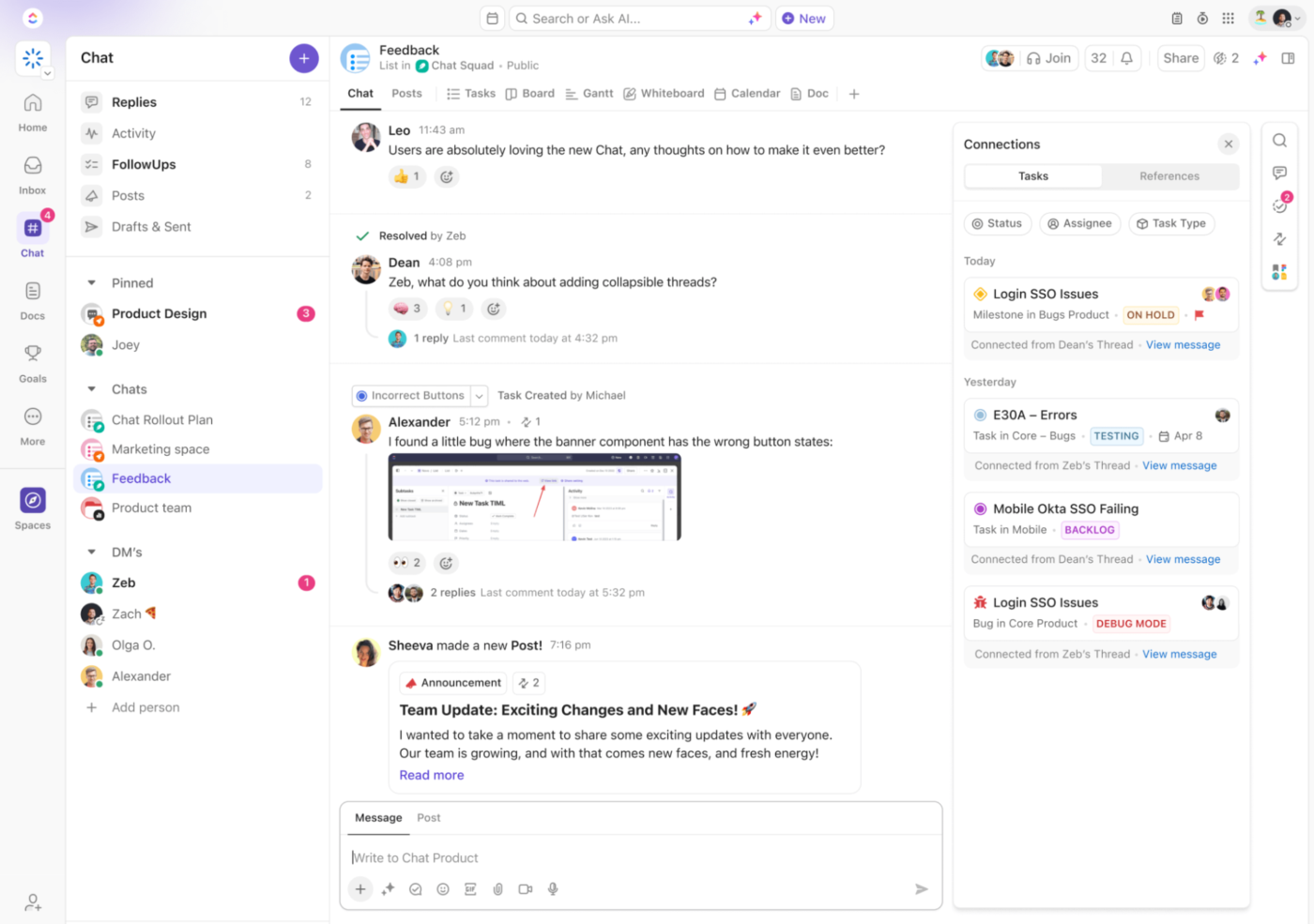
If your design team is collaborating on a website refresh.
💟 Bonus: Brain MAX is your AI-powered desktop companion that pulls all your work into one place. It seamlessly connects with your tasks, documents, emails, spreadsheets, and even third-party apps like Google Drive and Slack. No more jumping between tabs or losing track of important files—everything you need is unified and searchable from a single, easy-to-use desktop app. With Brain MAX, you can focus on your work, instead of searching for it.
In ClickUp’s integrated Chat, your design team can create topic-based channels to share ideas, files, and instantly convert messages into tasks, without losing context. Missed something? ClickUp Brain summarizes chat threads, highlights key decisions, and suggests next steps.
Need a quick call? Use SyncUps for voice or video meetings with AI-powered summaries, so nothing gets missed.
And that’s how your tasks, documentation, and collaboration get supercharged by AI, under a single platform! Experience the world’s first Converged AI Workspace with ClickUp!
If you’ve made it this far, chances are you’ve either solved your monday.com login problem or realized how long it takes to troubleshoot basic access. While it offers solid tools, sometimes the little things (like logins, permissions, or workspace quirks) get in the way of real productivity.
That’s where ClickUp, the everything app for work, comes in.
With everything from tasks and docs to dashboards and chat in one beautifully connected platform, the tool makes it easier to manage your work without jumping through hoops. Ready to make the switch?
Sign up on ClickUp for free today! ✅
monday.com offers a free plan with limited features for up to 2 users. For more advanced features and larger teams, paid plans are available.
monday.com is a work operating system (Work OS) designed for project management, task tracking, team collaboration, workflow automation, and resource planning across various industries.
Your monday.com URL is typically in the format: youraccountname.monday.com. If you’re unsure, check your welcome email or ask your admin. You can also use the “Forgot URL?” link on the login page to retrieve it.

© 2026 ClickUp

There’s an easier way. Try a free AI Agent in ClickUp that actually does the work for you—set up in minutes, save hours every week.