

Sorry, there were no results found for “”
Sorry, there were no results found for “”
Sorry, there were no results found for “”
Knowledge workers spend nearly 10 hours each week, about a quarter of the work week, just searching for and gathering the information they need to do their jobs, according to McKinsey’s social-economy report. That’s time lost to digging through chat threads, shared drives, and the memory of whoever happens to be online.
The problem usually isn’t that your team lacks knowledge. It’s that the knowledge is scattered and locked in individual heads.
An internal knowledge base fixes this by giving everyone one searchable place to find answers. This guide walks you through building one from scratch, picking the right software, and keeping it useful long after launch.
An internal knowledge base is a centralized, searchable repository of company information that only employees and internal stakeholders can access. Think of it as the single source of truth your team checks before asking a colleague. Modern internal knowledge bases increasingly lean on AI search, so people ask a question in plain language instead of hunting through folders.
It’s built for any team that needs answers fast: support, engineering, HR, and operations. Anyone who would otherwise tap a teammate on the shoulder uses it instead.
Without one, knowledge lives in people’s heads, gets buried in chat threads, or sits in files nobody can find. The cost isn’t just time spent searching. It’s duplicated work, inconsistent answers to customers, and a rough onboarding experience for every new hire.
An internal knowledge base is not the same as a customer help center. A help center faces the public and explains your product to users. An internal knowledge base sits behind a login and is written for your own people.
| Aspect | Internal knowledge base | External help center |
|---|---|---|
| Audience | Employees and internal teams | Customers and the public |
| Access | Behind a login or firewall | Open or self-serve sign-in |
| Content | SOPs, policies, runbooks, decisions | Product how-tos, FAQs, guides |
| Tone | Direct; internal shorthand is fine | Polished and brand-facing |
Your team needs an internal knowledge base because scattered information has real, recurring costs: slow onboarding, repeated questions, lost expertise when people leave, and inconsistent answers to customers. Here’s what each one looks like in practice.
An internal knowledge base should include company policies, SOPs, role-based onboarding guides, technical docs, product context, decision logs, FAQs, and reusable templates. Start with whatever your team searches for most, then expand. Here’s what each type covers.
The best knowledge bases aren’t comprehensive on day one. Start with the content your team searches for or asks about most, then expand from there.
Building a knowledge base is a sequence, not a single project. Most don’t fail because of bad software. They fail because no one owns or maintains them. The seven steps below cover both the technical setup and the human side that keeps it alive.
Answer three questions before you touch any tool: What problem are you solving? Who is the main audience? What does success look like?
Every knowledge base that dies was an orphan. Name one owner, not a committee, responsible for structure, quality, and freshness.
Focus on evaluation criteria here, not specific products. Build a shortlist around what your team actually needs.
No tool category is universally best. The right choice of knowledge management software depends on team size, technical comfort, and how much structure you need.
Structure decides whether people find what they need or give up and ask in chat.
This is where most teams stall. Here’s how to get content written without it becoming a six-month slog.
Not everything should be visible to everyone, but most of it should.
A knowledge base nobody uses is just a documentation graveyard.
Looking to build an AI knowledge base? This video will tell you how to.
Building the knowledge base is the easy part. Keeping it alive and useful is the real work.
The best-managed knowledge bases feel like a living product, not a static archive. They have roadmaps, backlogs, and regular releases, just like software.
Adding AI to your knowledge base? Read this first.
Google Research found that when an AI system retrieves outdated context, its hallucination rate jumps from 10.2% to 66.1%. A neglected knowledge base doesn’t leave your AI neutral. It makes confident wrong answers six times more likely. Keep the source fresh, and the AI gets better; let it rot, and the AI gets worse than nothing.
Researchers have warned for decades that a large share of knowledge management initiatives fail. A landmark Journal of Knowledge Management study found these programs usually fall apart not from bad technology, but from being bolted on as an IT project instead of woven into how the business actually works.
Plenty of teams build a knowledge base. Most stop using it within a year. The tool is rarely the culprit. These four failure modes are, and each has a fix.
The pattern underneath all four: a knowledge base is a habit, not a project. It fails the moment people stop trusting it enough to check it first. This isn’t new, either: as far back as 2000, Stanford’s Robert Sutton warned that information warehouses become “junkyards” of forgotten files when no one who understands the work is responsible for them.
There’s no single best tool, only the best fit for how your team works. Here’s how the main categories stack up.
| Tool | Best For | Strengths | Limitations |
|---|---|---|---|
| Guru | Teams that want verified, in-context answers | Strong verification workflows, browser and chat extensions, surfaces cards where you work | Less suited to long-form docs or general project documentation |
| Slite | Small teams wanting a clean, simple KB | Fast, distraction-free editor and solid search | Fewer structure and governance controls as you scale |
| Notion | Teams wanting a flexible all-purpose workspace | Page-based flexibility, good for KB plus general docs | Flexibility cuts both ways; gets messy fast without strong governance |
| Confluence | Engineering-heavy orgs already in the Atlassian stack | Deep structure, mature permissions, tight Jira link | Steeper setup and a dated editing feel for non-technical contributors |
| ClickUp | Teams that want knowledge living next to their work | KB sits alongside tasks, docs, and chat in one workspace, with built-in AI search across all of it | More setup up front; teams who want a KB and nothing else may not use the rest of the platform |
| Zendesk | Support teams whose main use case is agent knowledge | Strong for support workflows and ticket-linked articles | Less natural fit for company-wide internal documentation |
Here’s how we set this up for our own team.
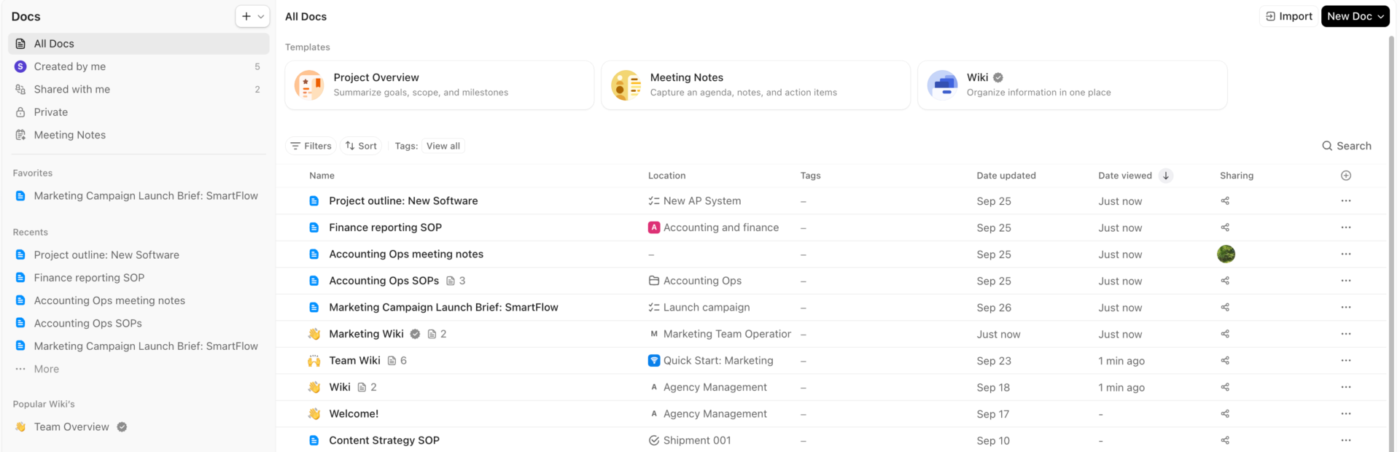
We use ClickUp Docs as the foundation. Docs support nested pages, rich formatting, and real-time collaboration, and they live in the same workspace as our tasks and projects. That keeps documentation connected to the work it describes. The wiki-style Docs Hub gives us one place to browse and organize everything.
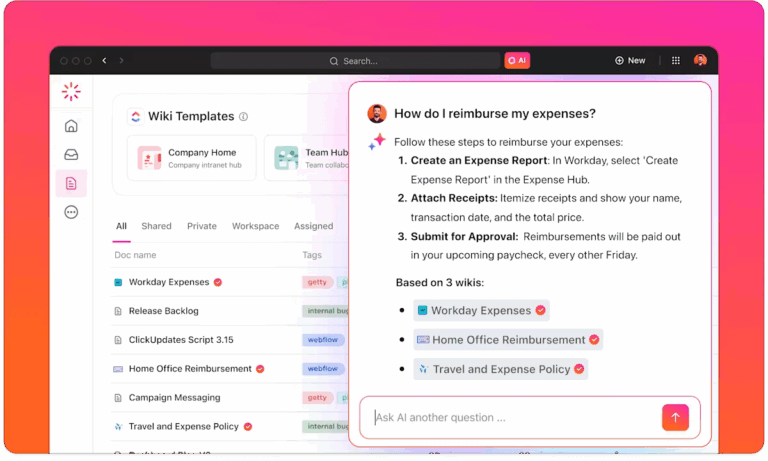
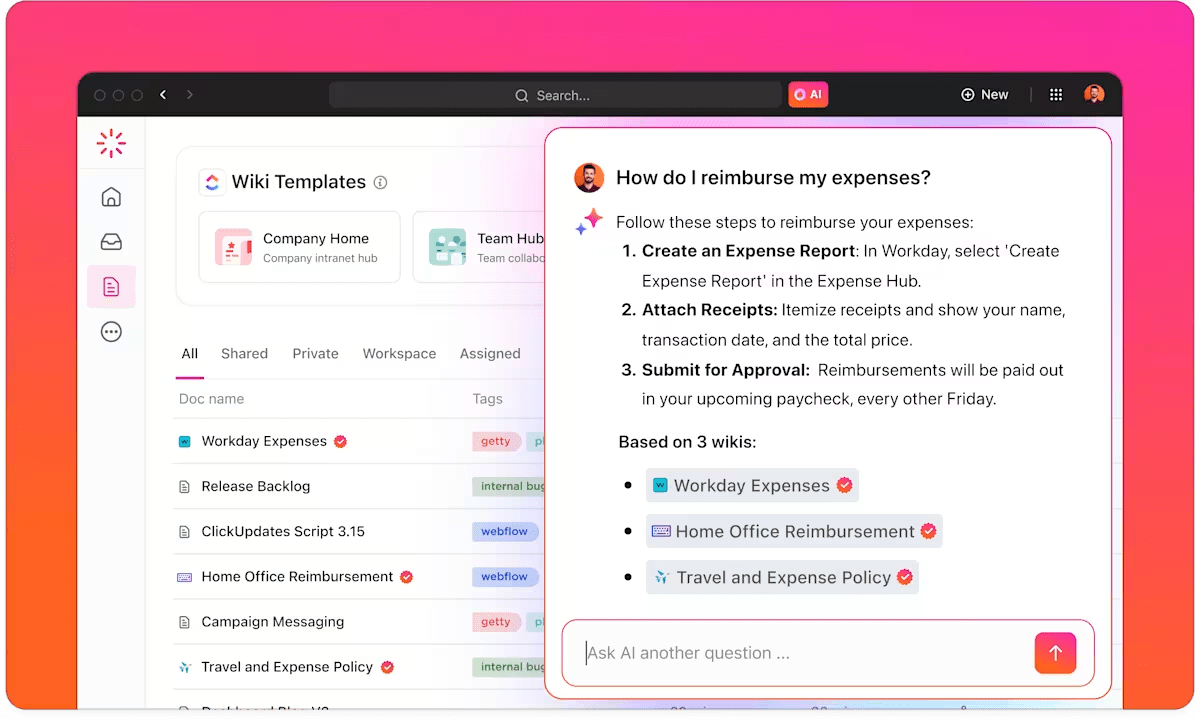
For finding answers, we lean on ClickUp Brain. Instead of browsing categories or guessing keywords, anyone can ask a plain-language question and get an answer pulled straight from existing Docs, tasks, and comments. It’s native AI, so it has full context across the workspace. That kills the search friction that usually tanks adoption.
Permissions in ClickUp work at the Doc, Folder, and Space level, so we keep most content open while locking sensitive material to the right teams. Guest access covers contractors and cross-functional partners who need a limited view.
ClickUp’s Enterprise Search ties it together by indexing Docs, tasks, comments, and integrated apps. The knowledge base isn’t a silo. It’s part of one unified search across everything.
We also use ClickUp’s internal knowledge base templates, which give us ready-made categories, an article format, and tagging conventions.
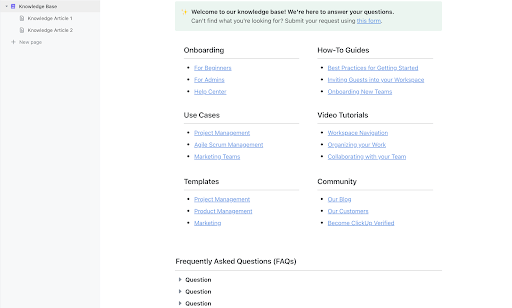
Try it for yourself: ClickUp’s Knowledge Base Template gives you a ready-to-use Doc with pre-built sections for knowledge articles, FAQs, and resources, plus a built-in help-center layout. Start with the structure already in place instead of building categories from scratch.
The honest trade-off: ClickUp shines because the knowledge base lives in the same tool where work happens, eliminating context switching. If you only want a standalone, single-purpose KB with no other functionality, the broader platform may be more than you need.
A knowledge base is never really “done.” Treat it like a product with an owner, a backlog, and a steady rhythm of updates, not a folder you fill once and forget. Don’t wait for a complete archive to start. Pick one nagging question your team keeps asking, document it today, and let real usage tell you what to build next.
If you want one solution where your tasks, teams, and knowledge are all connected through native AI, ClickUp’s converged AI workspace can help. Get started with ClickUp for free.
A company wiki is one type of internal knowledge base, specifically one where any employee can freely create or edit pages. The internal knowledge base is the broader category and often adds stricter editorial controls, approval workflows, and structured article formats that a traditional wiki doesn’t enforce.
Track search-to-click rate, zero-result searches, article feedback scores, and the drop in repetitive questions in chat or support channels. If new hires finish onboarding tasks faster and senior teammates re-answer fewer questions, it’s doing its job.
Shared glossaries that align terminology, handoff procedures like design-to-engineering specs, escalation paths for support-to-engineering issues, and company-wide policies such as security protocols or brand guidelines. These are the references every team needs, but no single team owns.
Most teams build one using software they already pay for, so the real cost is time, not licensing. Dedicated KB tools typically run per-user per-month, while all-in-one platforms fold the knowledge base into an existing plan. The bigger investment is the upfront writing and ongoing maintenance, which is why a single owner matters more than the price tag.
A usable first version takes days, not months, if you start with the top 20 questions your team asks rather than trying to document everything. Full coverage is an ongoing process, not a launch milestone. Teams that wait for “complete” never ship.
A single named person, often a technical writer, ops lead, or senior IC who already fields most of the team’s questions. Ownership by committee is the most common reason knowledge bases go stale, because no one is individually accountable for freshness.
AI can draft articles from existing chat threads and docs, flag stale content, and answer questions in natural language pulled straight from your existing material. It still needs a human owner to verify accuracy, because an AI answer built on an outdated source is just a faster wrong answer.

Manasi Nair
Max 20min read

Sudarshan Somanathan
Max 23min read
Sudarshan Somanathan
Max 22min read

© 2026 ClickUp




