






Still downloading templates?
There’s an easier way. Try a free AI Agent in ClickUp that actually does the work for you—set up in minutes, save hours every week.
Sorry, there were no results found for “”
Sorry, there were no results found for “”
Sorry, there were no results found for “”
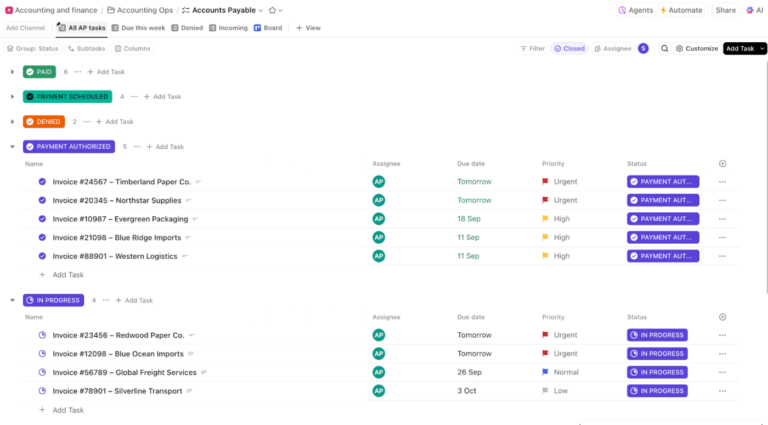
Smartsheet’s spreadsheet interface looks easy at first glance, with cells, rows, and filters.
But many newcomers complain about its steep learning curve, which creates friction in projects and reduces the platform’s overall utilization.
Users often note that Smartsheet is powerful once you climb the learning curve. That’s fine for spreadsheet professionals, less so for busy teams that need momentum this week.
And because large moves are risky, it pays to plan the switch carefully. Oracle reports that more than 80% of data migration projects miss deadlines and mess up schedules.
This guide shows how to migrate from Smartsheet to ClickUp without stalling projects: export cleanly, map columns to ClickUp Custom Fields, and import into a clear structure.
We’ll also touch on how to rebuild views leaders rely on and add light automations so updates happen on time. By the end, you’ll have one workspace the whole team understands.
In addition to facing a steep learning curve for automation and reporting, users mention managing multiple tabs to monitor their work.
They also experience a mobile app that lags behind the desktop version and encounter feature gaps that cause them to switch tools frequently.
The result? Work sprawl.
People spend 60% of their time sharing links, hunting updates, and reconciling project data across apps rather than moving work forward. When that’s the norm, project managers start looking for one place to plan, discuss, and deliver.
ClickUp solves this challenge by being a converged AI workspace that combines projects, knowledge, and chat in one platform.
Think of ClickUp as a control center for analyzing all workflows and making quicker decisions without switching between tools or third-party apps. It helps you
Shift easily with ClickUp’s Project Plan Template for Data Migration. A project plan template like this saves time and resources during your migration!
Here are some benefits for your team:
🧠 Fun Fact: Today, over 3 million teams use ClickUp to work faster with centralized knowledge, efficient workflows, and focus-friendly chat that replaces noise with momentum.
Before you move anything, confirm what you have and what you actually need.
A quick audit of your Smartsheet estate prevents surprises mid-import and helps you map like-for-like in ClickUp. Spend an hour here, and you’ll save days later.
📖 Also Read: Data Migration Plan Templates For Easy Data Transfer
Here’s a step-by-step breakdown of how to migrate from Smartsheet to ClickUp and shift from your existing PM software (in seconds).
In the Smartsheet app, you can export any sheet or report to the following formats:
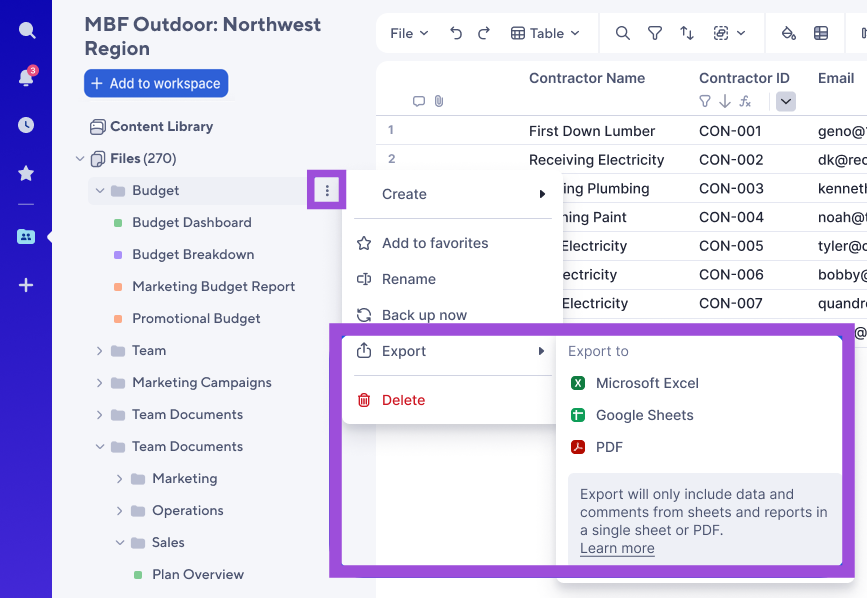
After exporting a sheet or report, your browser saves it on your computer. It stores your exported file in a folder based on your browser settings.
Your export doesn’t include everything. Groupings and summary rows are excluded, and attachments are dropped. To include attachments, you can create a backup of the sheet instead.
📖 Also Read: How to Use Smartsheet for Project Management
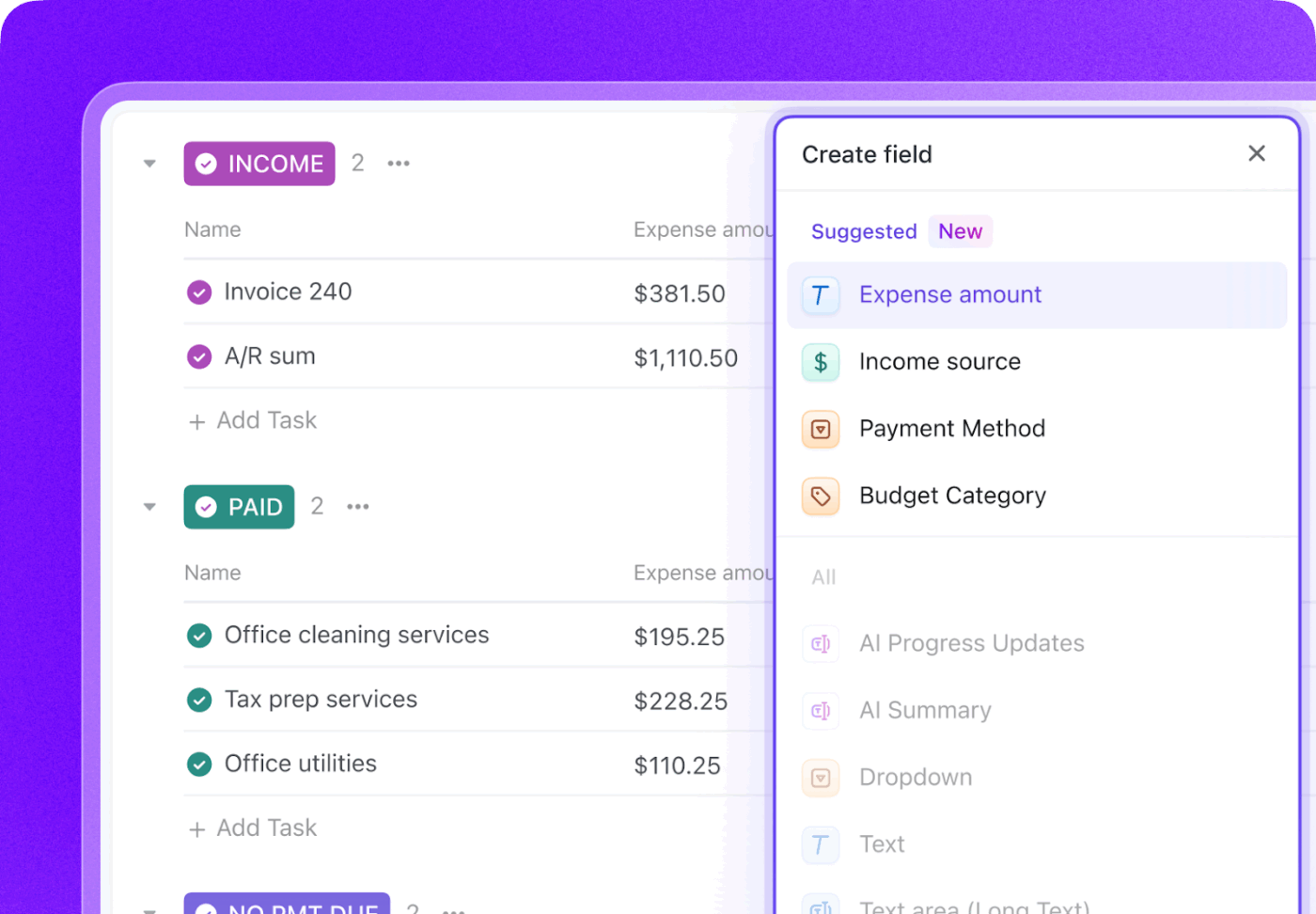
Open your export in Excel or Google Sheets, normalize column names, and decide which items go into Custom Fields (dropdowns, numbers, people) and which go into the task description.
You can then convert formulas to values, split multi-select cells into distinct entries, and ensure consistent date formats for start and due dates. Next, you can replace predecessor formulas with a simple “Depends on” ID list that you can recreate as dependencies after import.
Then, verify assignees match real ClickUp users, and gather attachments and comments you’ll re-add where needed. Finally, trim archived rows so only live project data is moved.
📮ClickUp Insight: Over 60% of our survey respondents spend more than an hour a day typing, and 36.75% regularly feel discomfort or pain in their hands.
Typing fatigue isn’t just an annoying side effect of the way we work. It’s a productivity killer. But it’s easily fixable. ClickUp Brain GPT’s Talk-to-Text is your shortcut to a healthier workday.
Dictate updates, brainstorm ideas, or meeting notes hands-free, and give your wrists (and your focus) a break.
📖 Also Read: Best Project Management Tools
📽️ Watch a video: Looking to set up your hierarchy in ClickUp? Check out this best practices guide to get started:
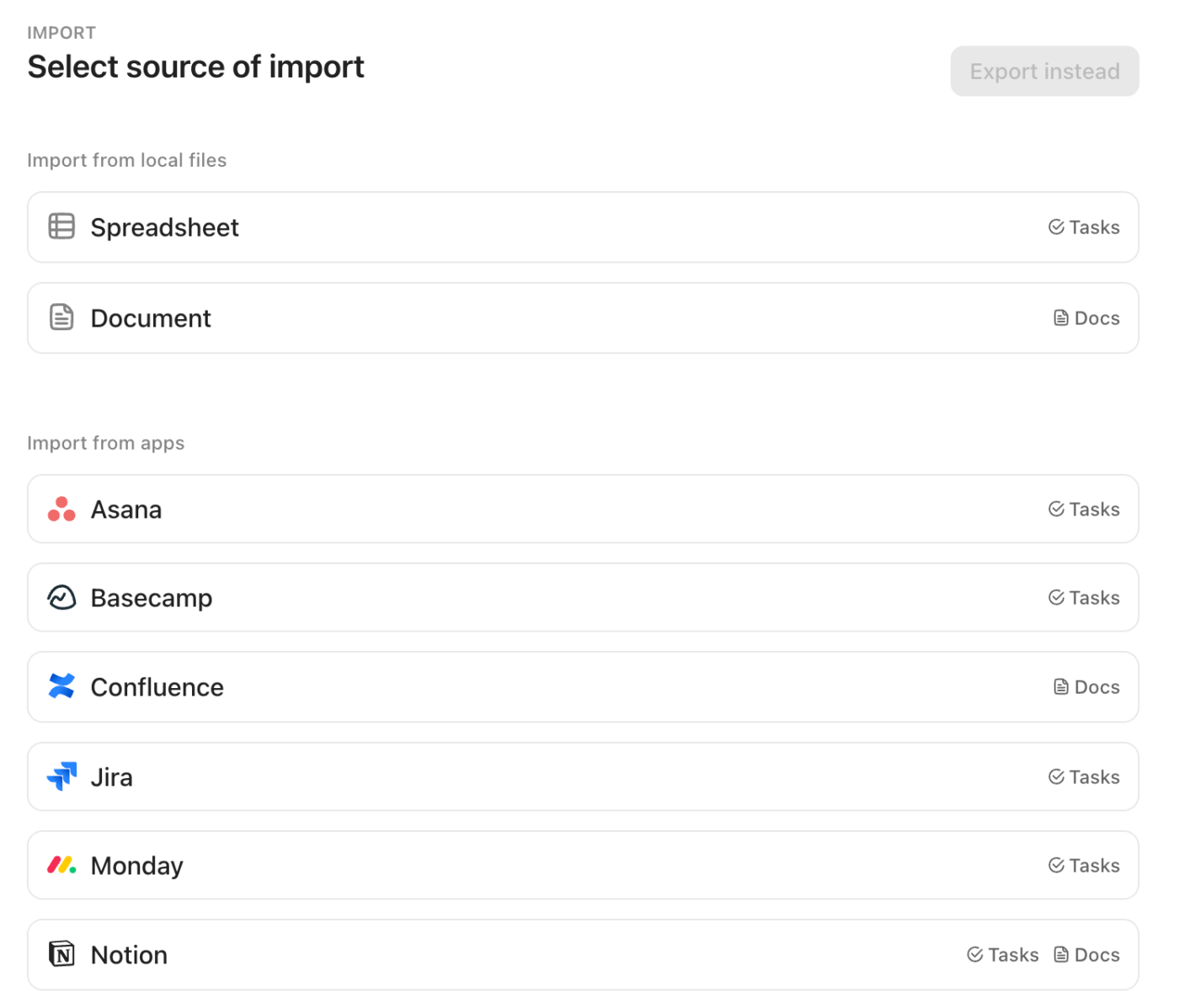
Before starting with the views, you’ll need to map the data. Mapping means matching the columns in your spreadsheet software to ClickUp Task Fields and Custom Fields. The importer simplifies this by automatically aligning your data with the correct fields. During the import from Smartsheet to ClickUp, you’ll review these matches to ensure accuracy. All fields available in your chosen location are accessible.
💡 Pro Tip: For this to work seamlessly, make sure every team member’s email address in Smartsheet is identical to their email address in ClickUp. If emails don’t match, assignments may import as unassigned entries.
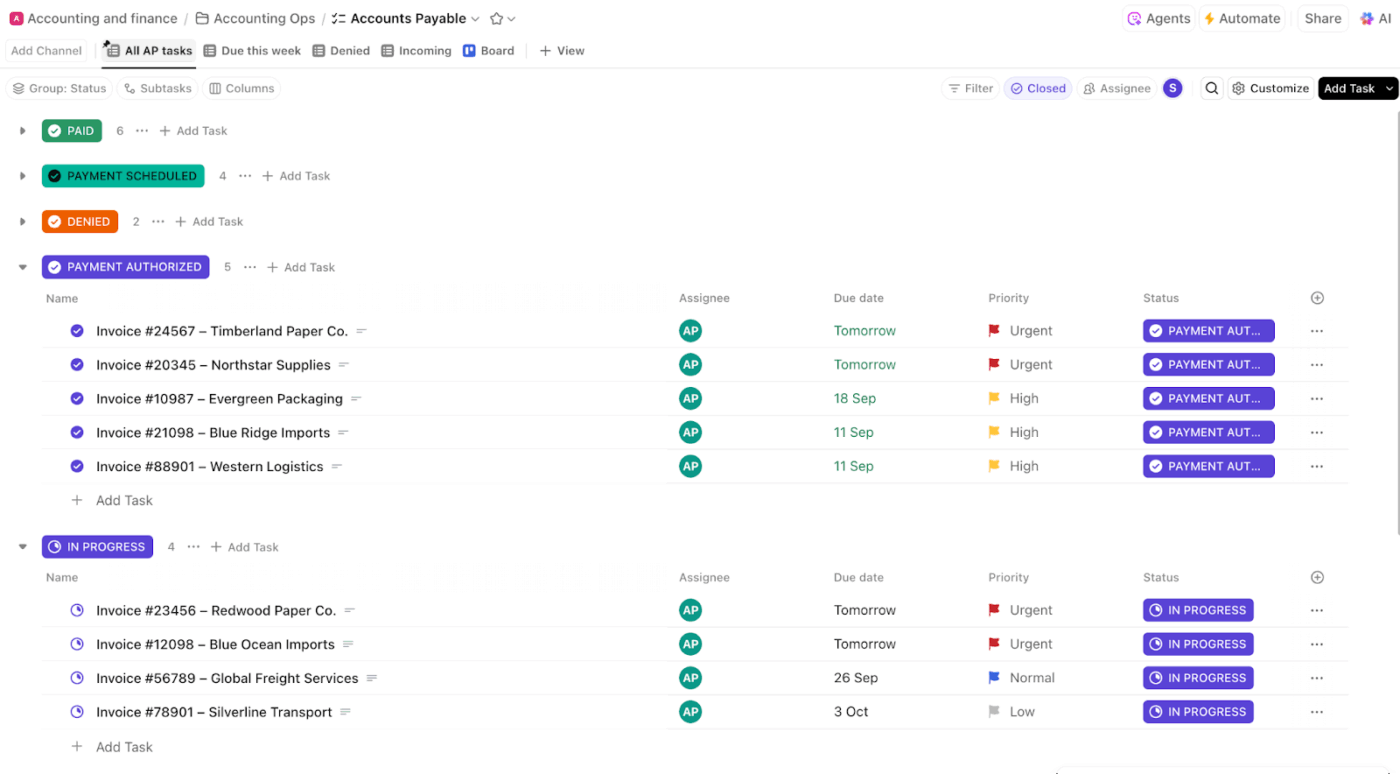
Purpose: Both show tasks in a table/spreadsheet format
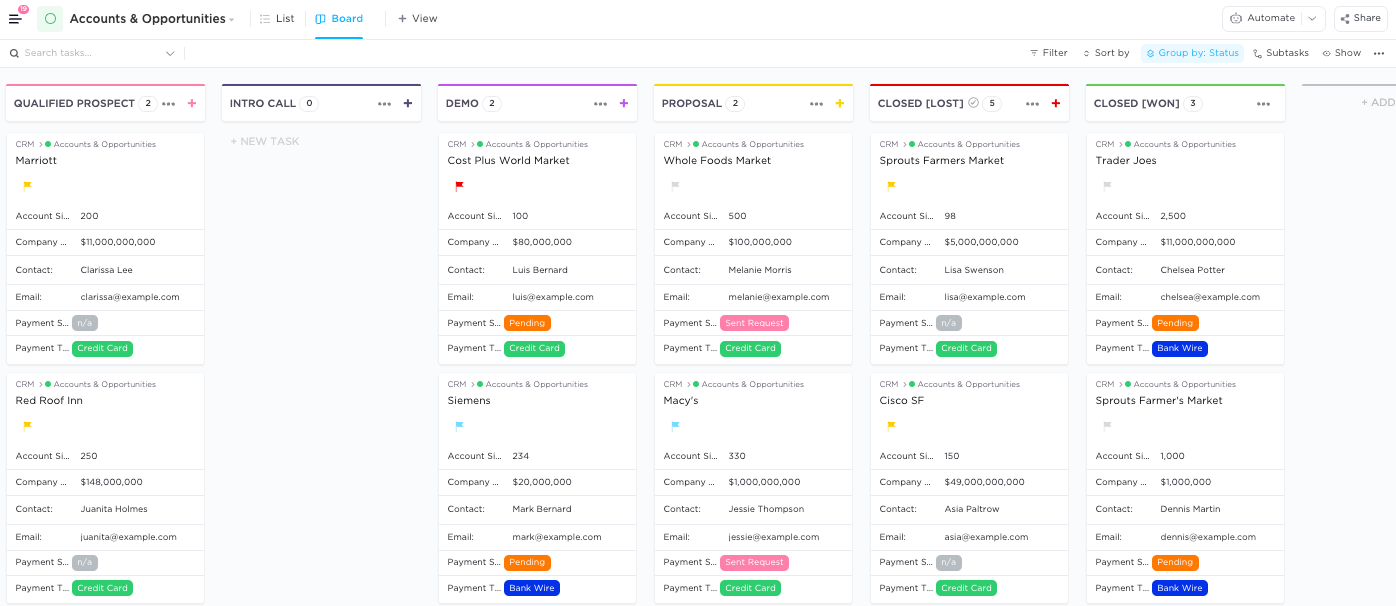
Purpose: Visualize tasks as cards in columns (Kanban)
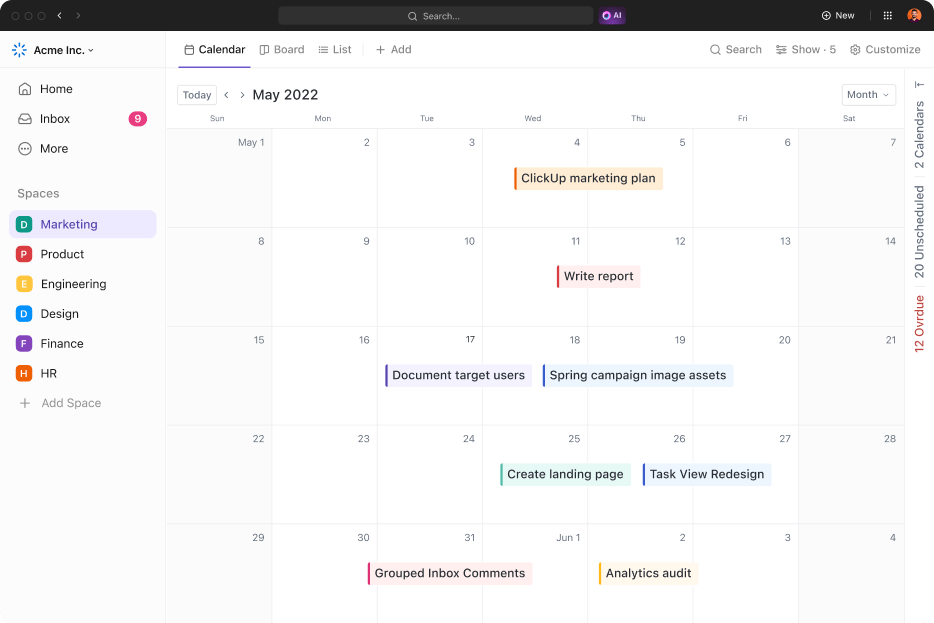
Purpose: Visualize tasks/events by date
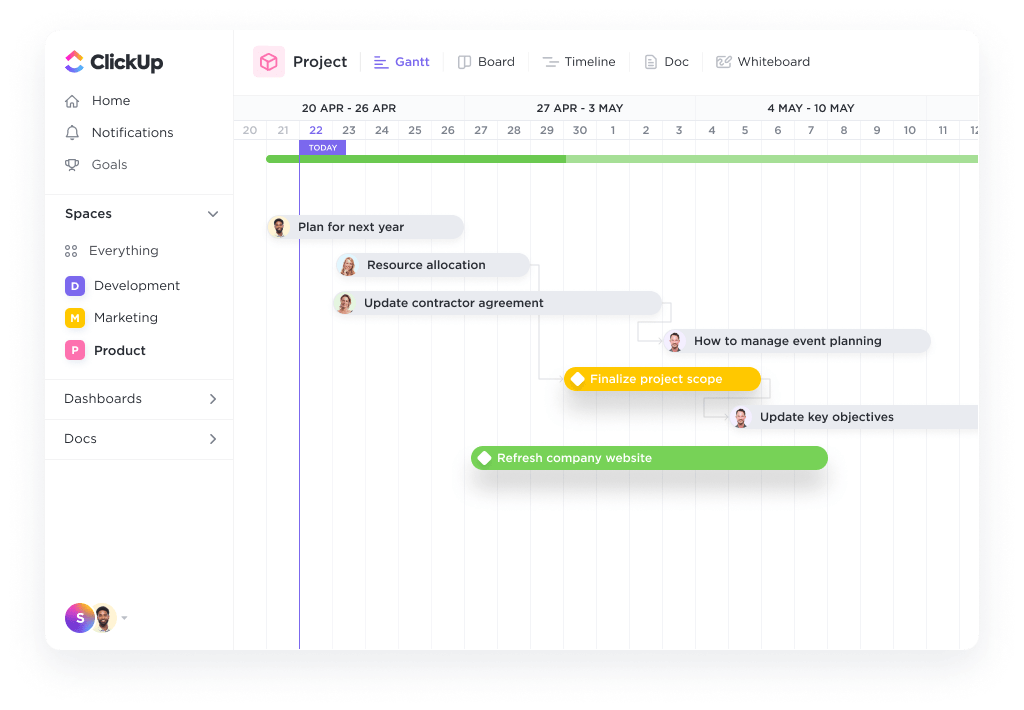
Purpose: Project planning, dependencies, timelines
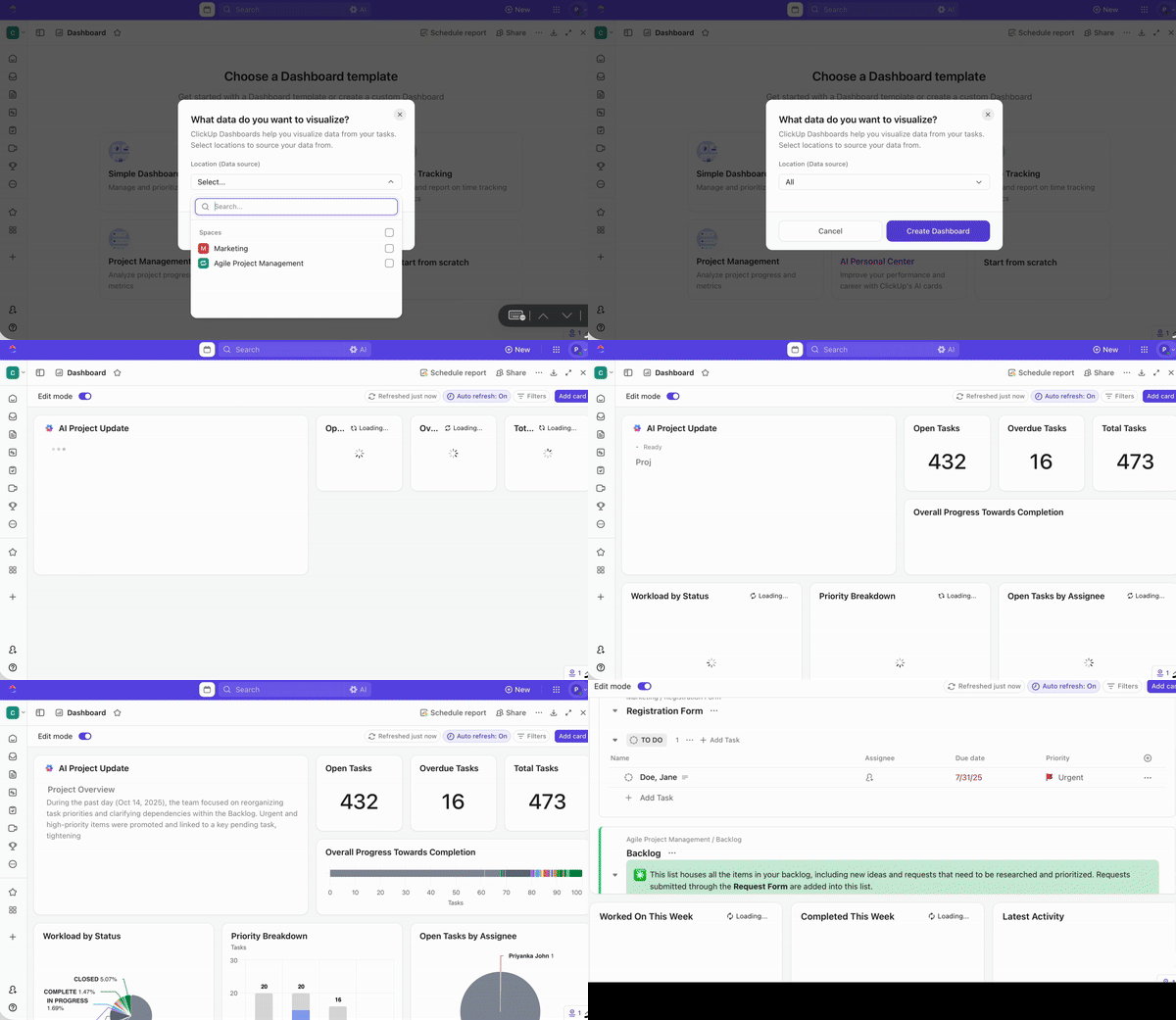
This will help you with custom reporting, analytics, and project overviews.
Tips for a smooth transition

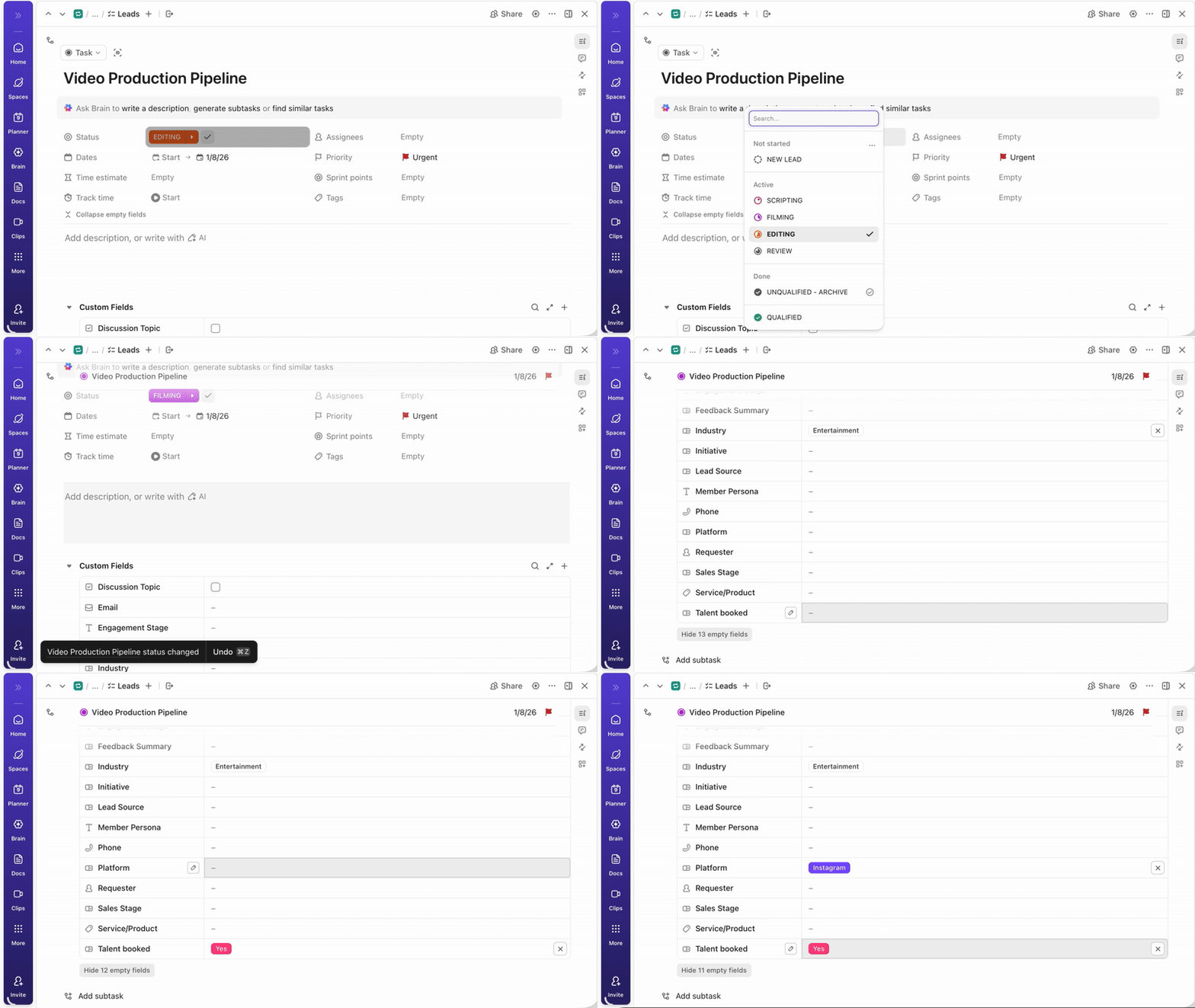
You can use ClickUp Custom Fields to add structured data to ClickUp Tasks (e.g., dropdowns, numbers, and dates). Additionally, use ClickUp Formula Fields to perform calculations, such as sums, differences, or string manipulations, similar to Smartsheet formulas.
How to Recreate:
Note: Not all Smartsheet formulas have direct equivalents in ClickUp, but most basic calculations and string manipulations are supported.
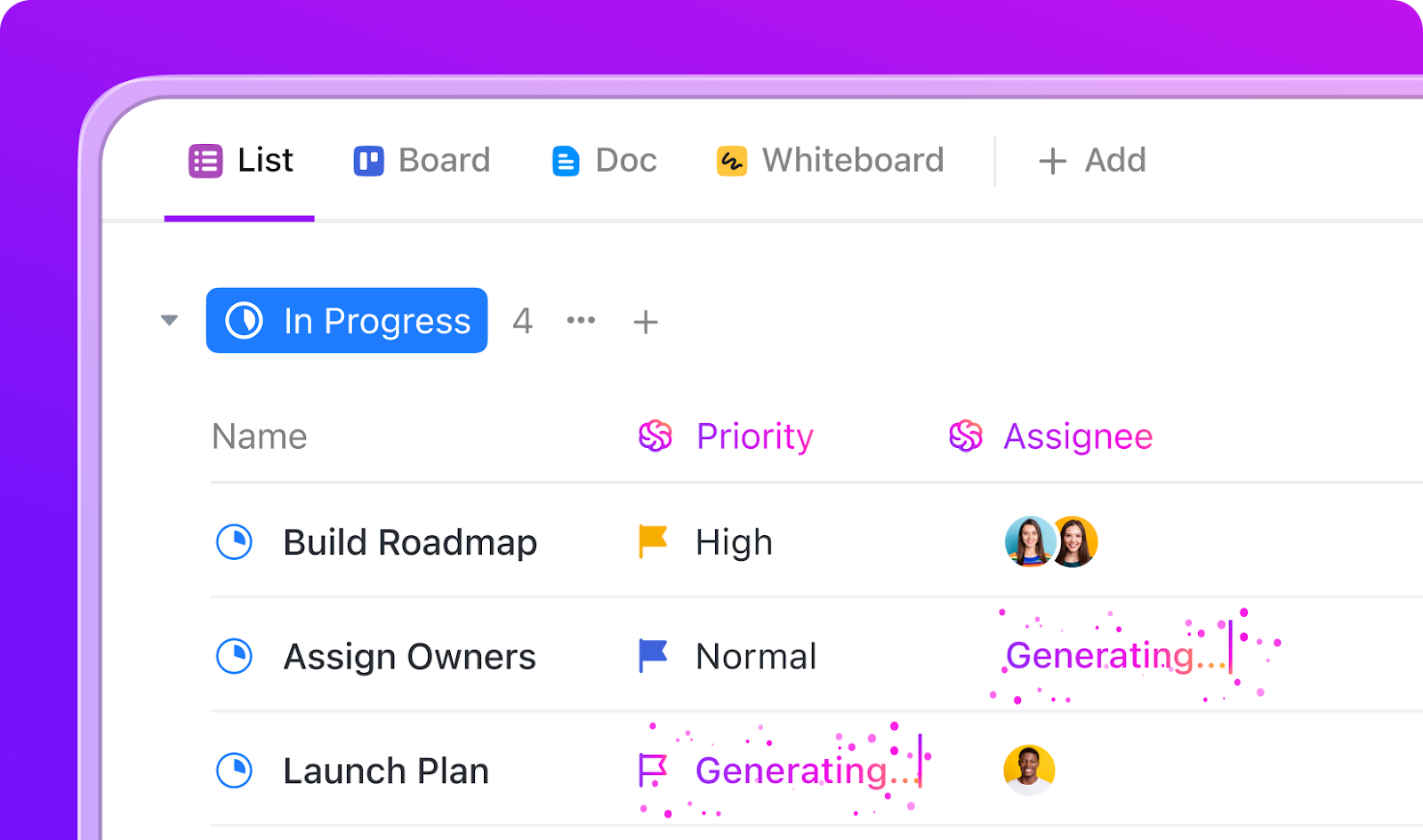
ClickUp Automations let you automate repetitive actions, such as creating ClickUp Tasks, changing statuses, assigning users, or updating due dates.
How to Recreate:
💡 Pro Tip: You can also use ClickUp Brain to summarize comment threads into a clean change log or next-step checklist, so designers and writers see exactly what changed between versions.
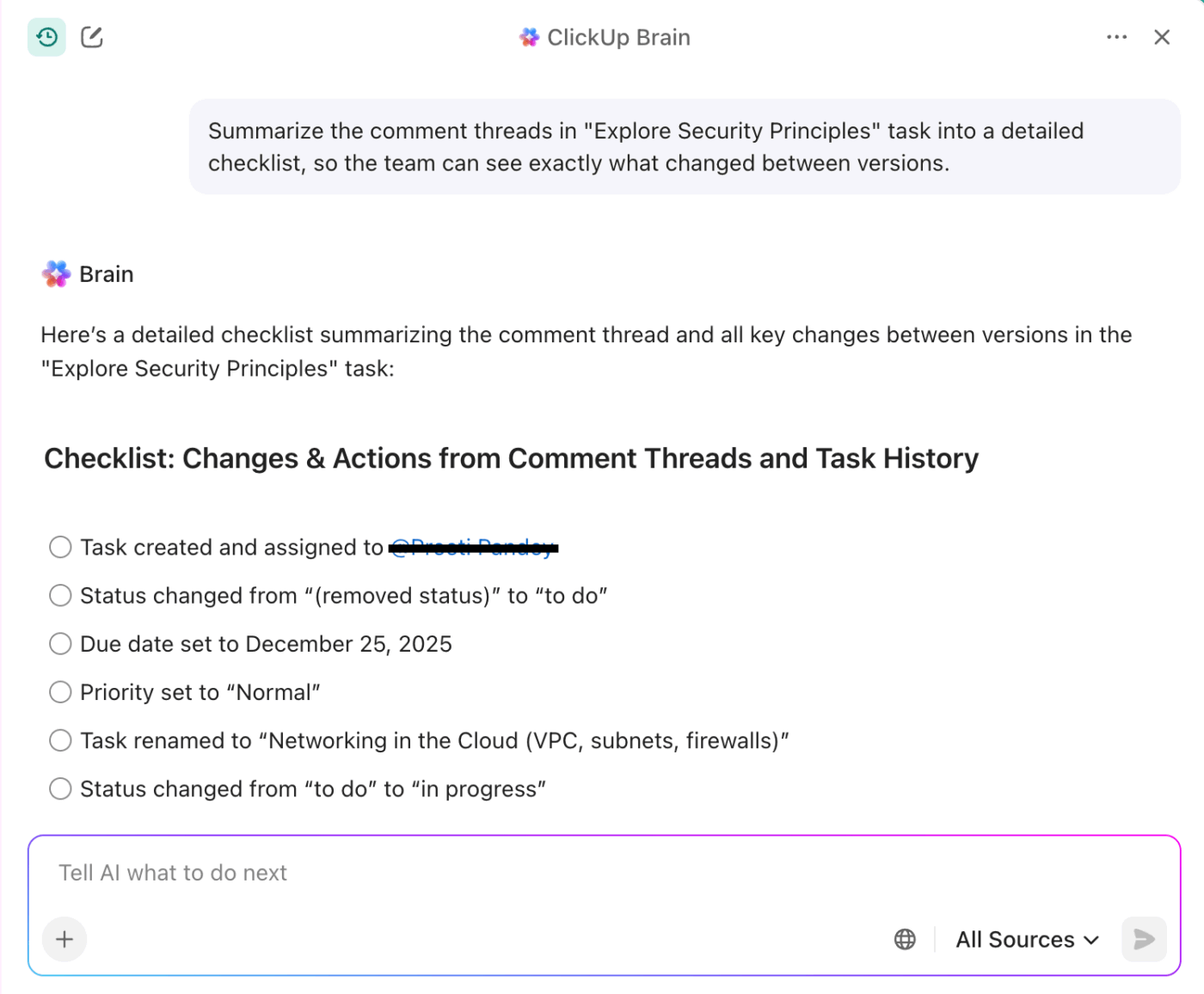

If you previously used forms in Smartsheet to collect data or requests, now is the time to recreate them as ClickUp Forms.
Start by identifying each Smartsheet form and the fields it contains. In ClickUp, navigate to the relevant section and add a ClickUp Form view. You can drag and drop fields to match your original structure, including dropdowns, text fields, dates, and more.
Customize the form’s appearance, set required fields, and configure submission settings. ClickUp Forms automatically create ClickUp Tasks from each submission, streamlining intake and tracking.
You can also share ClickUp Forms via public links or embed them on your site, ensuring a seamless transition for your team and stakeholders.
With your structure and workflows in place, it’s essential to set up roles and permissions to control access and collaboration.
ClickUp allows you to assign roles such as owner, admin, member, and guest, each with specific capabilities. This granular control ensures sensitive information stays protected while empowering the right people to contribute.

Now that your tasks are in, turn reporting into a living view instead of static exports. With ClickUp Dashboards, you can mix cards for workload, burnup/burndown, sprint velocity, time tracked, and status by assignee.
Create executive snapshots for progress and budget, then a separate “ops” dashboard for blockers, overdue items, and cycle time. You can mirror the same rollups you used to build in Smartsheet reports, without juggling multiple sheets.
📖 Also Read: Free Spreadsheet Templates in Excel & ClickUp
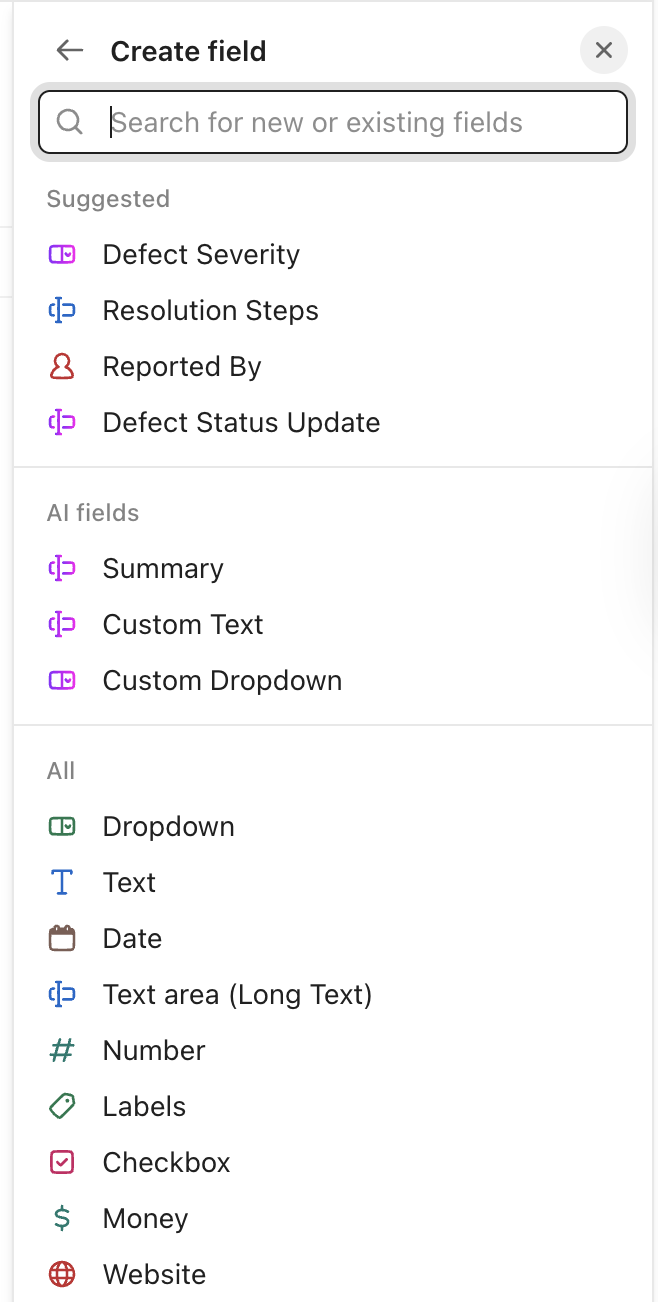
Most spreadsheet math becomes structure plus logic in ClickUp. Move numeric rollups (e.g., story points, costs) into Number or Currency ClickUp Custom Fields and surface totals using Dashboard card aggregations.
Translate formula-driven statuses into ClickUp Automations: when a dependency is done, change status to “Ready,” or when a Field crosses a threshold, add a priority and watcher.
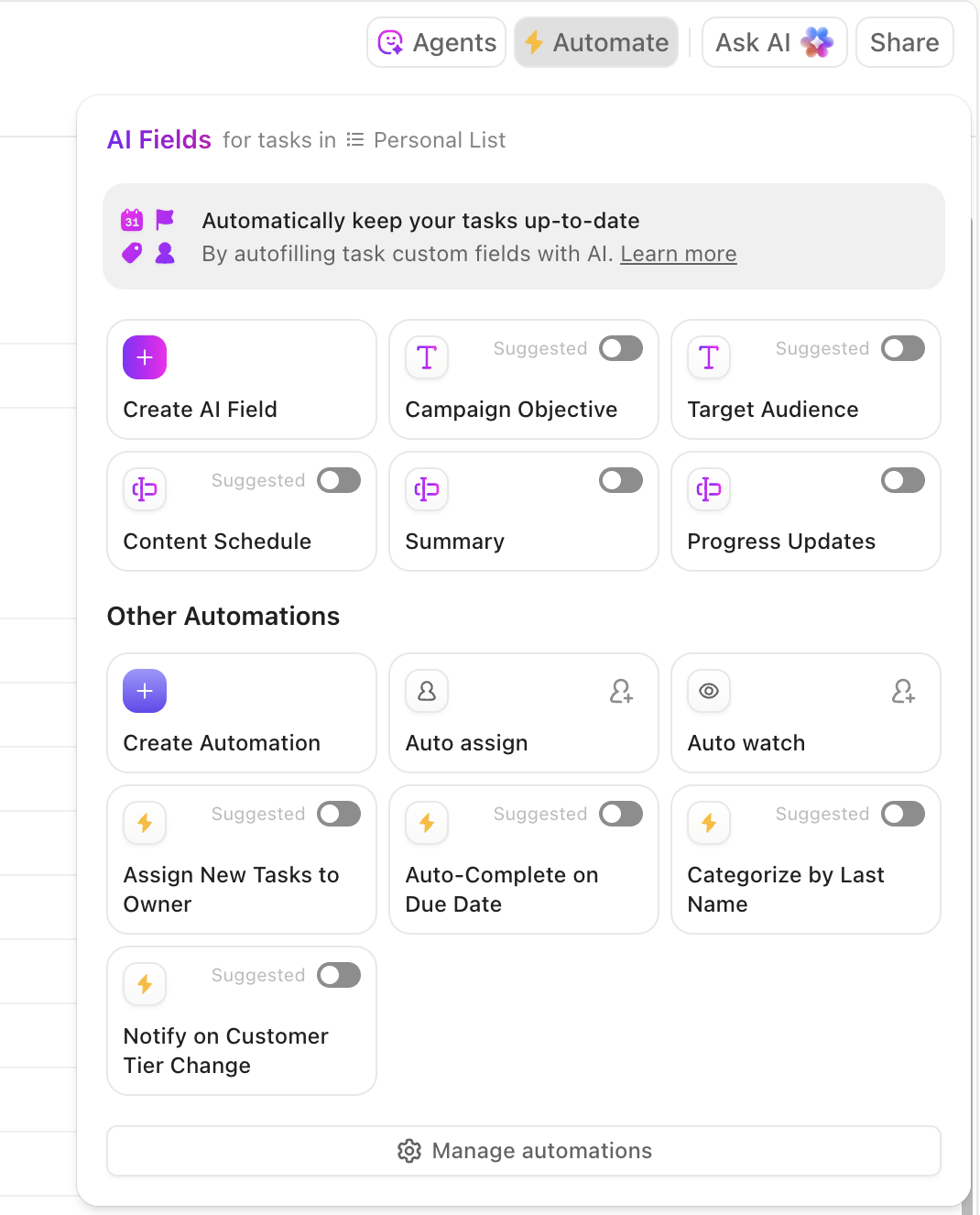
Lock in the everyday wins so your team isn’t babysitting the board. Create automations to:
Add a final layer of guardrails, required fields on status change, default assignees per List, and recurring tasks for weekly rituals. So, your new workspace stays predictable as you scale.
📖 Also Read: Workflow Automation Examples and Use Cases
Moving from Smartsheet to ClickUp shifts you from a spreadsheet-first model to an everything app built for connected execution. Here’s what changes on day one, and why project managers feel the lift fast.

Treat migration as a short, well-run project. You’ll avoid rework, keep momentum, and help project managers land in ClickUp with confidence.
Here’s a tight playbook for how to migrate from Smartsheet to ClickUp:
✅ Start small with a pilot one list first, then validate mappings, and then scale
✅ Map columns to Custom Fields up front (single select, number, people), and document every choice with shared accessibility
✅ Normalize dates before import so due dates and start dates behave consistently across views
✅ Preserve hierarchy deliberately by deciding what becomes tasks vs. subtasks, and use relationships where linked rows existed
✅ Keep files close to the work—move attachments into tasks so context travels with the asset
✅ Recreate only the views people use, and archive the rest to reduce noise on day one
✅ Replace formulas with lightweight automations and clear owners; verify triggers in a sandbox
✅ Set guardrails with required fields on status change, default assignees, and naming conventions per workspace
Finally, schedule a 10–14 day dual-run window. Keep Smartsheet read-only, and capture feedback in ClickUp Docs.
Even with solid prep, a few bumps are normal. Here are quick fixes you can apply right away.
👀 Did You Know? Throughout the import process, your data is protected with end-to-end encryption. If you run into any persistent issues, our support team is always here to help, and we offer dedicated migration specialists for enterprise accounts.
ClickUp turns static grids into living project management templates and hubs where project data flows across views, automations, and AI. Below, we’ll show how each feature upgrades the way you plan, create tasks, report, and continuously improve.
In ClickUp, each of the +15 views saves its own filters, grouping, and sorting, so people see just what they need.
Turn big deliverables into a clear, actionable structure. You can break work into subtasks and add nested subtasks (subtasks of subtasks) to mirror real-world processes, without losing context or ownership.
ClickUp Automations let you replace brittle formulas with event-driven logic you can read at a glance.
Define triggers, optional conditions, and specific actions, then iterate without breaking your system. Use the AI Automation Builder to describe a rule in plain English and let it draft the workflow for you.
🧠 Fun Fact: In 1771, Richard Arkwright revolutionized the textile industry by inventing the first fully automated spinning mill powered by water—known as the ‘water frame.’
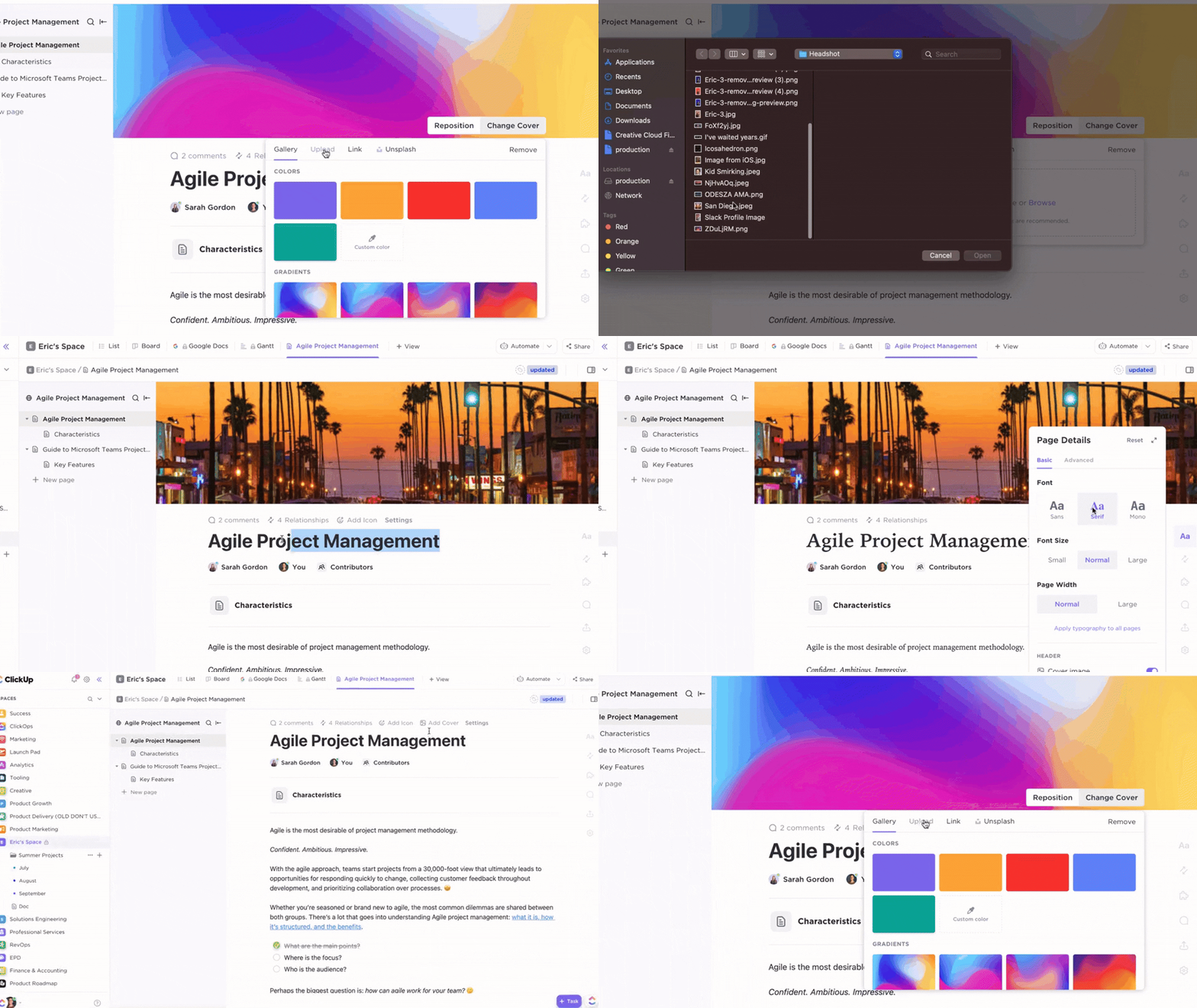
If you’re moving off sheets, ClickUp gives you one workspace where plans, execution, and reporting actually live together, so you’re not jumping between a doc tool, a task app, and a separate report builder. Here’s how that lands day-to-day:
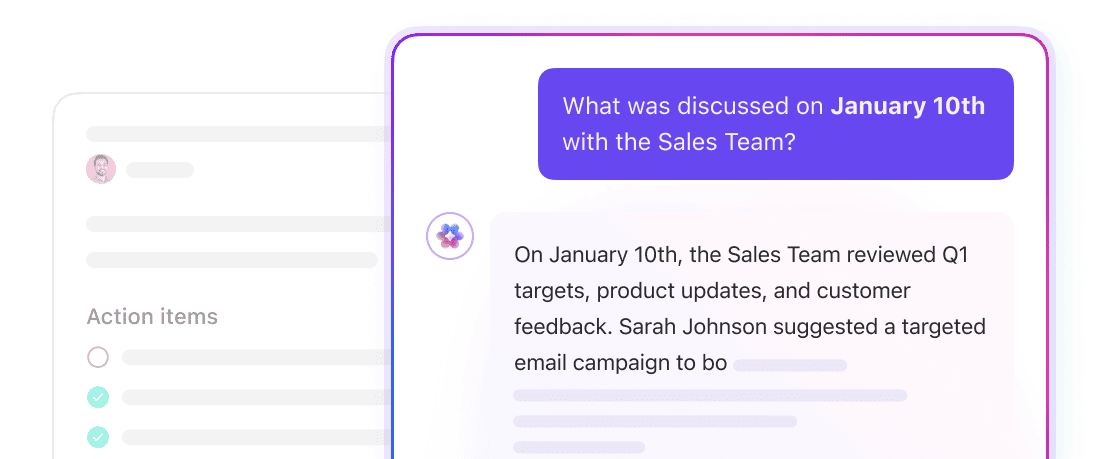
When you move from manual updates and scattered formulas to AI-assisted work, it’s fewer handoffs and more accurate decisions.
ClickUp’s AI is purpose-built to help you automate routine steps, surface the right details at the right time, and adjust plans as reality changes.
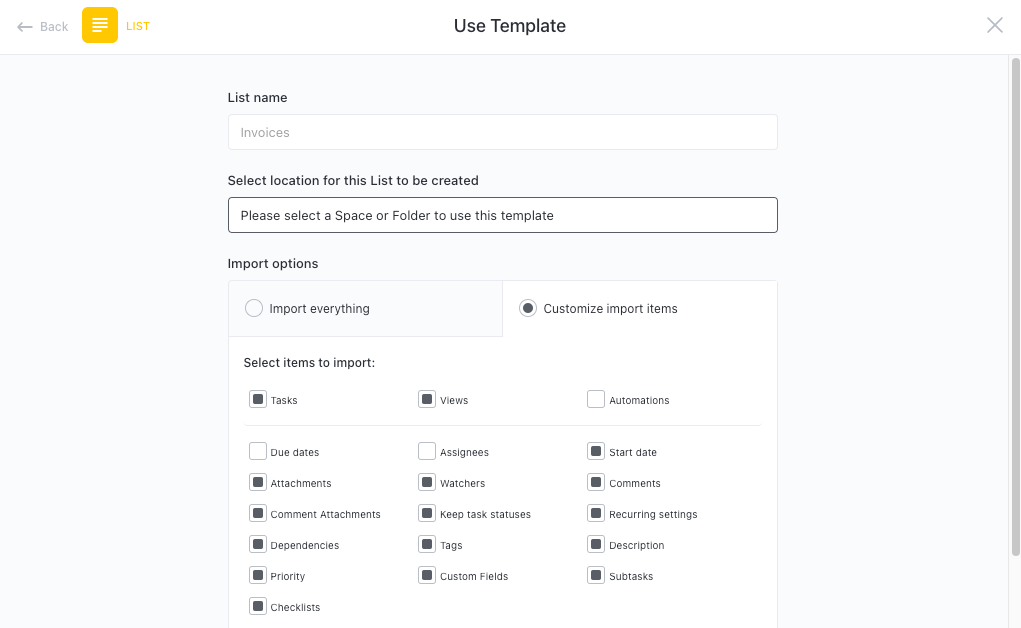
ClickUp Templates give you a running start after migration. Pick a template for Spaces, Folders, Lists, Docs, or Views, then tailor fields and statuses to match your projects.
The Template Center lets you browse by use case (PMO, Creative, Finance, and more) and apply proven layouts that already include views, tasks, and reporting scaffolds. When you import historical work, you can drop it into a templated workspace. This way teams land in something familiar: standardized fields for ownership and dates, dashboards wired for status rollups, and Docs for playbooks and SOPs.
The payoff is speed and consistency. You’re not rebuilding structure every time a new initiative kicks off, and your schedule and reporting stay aligned across teams.
As Jessie Whitman, the Sr. Director of Events at Convene puts it:
The biggest game changer for me with Click Up has been the customizable templates and being able to bring that consistency across all of our properties in any region so that the client experience is the same no matter which Convene location they go to.
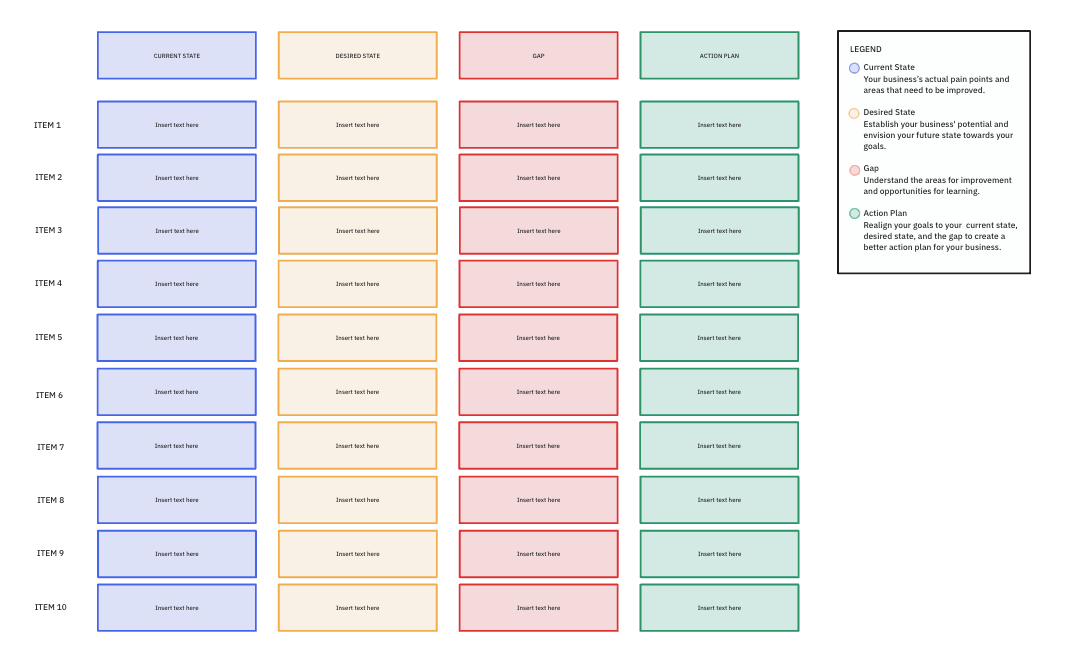
When conducting a gap analysis, you can expect the following benefits:
ClickUp’s role model lets you control access without slowing delivery. At the workspace level:
Need finer control? Apply permissions at Space, Folder, List, Doc, or task to decide who can create, edit, delete, or share—so external users see only what your team approves.
For regulated work, use (plan-dependent) custom roles to tailor create/delete, field editing, and sharing rights to your process. The win is a clean stakeholder collaboration and fewer “who changed this?” moments.
You’ve seen why teams outgrow spreadsheets, how to prep clean exports, and import with hierarchy intact to help everyone work effectively from day one.
The big win is greater than moving project data. It reduces tool-hopping so updates, conversations, and decisions happen in one place. That’s how you save time, organize at scale, and keep momentum as your portfolio grows.
ClickUp gives you a clear path from pilot to rollout, with room to adapt your process as the team matures. Ready to consolidate work and track progress where the work actually lives?
✅ Try ClickUp for free. Start with one project and feel the difference this week.
Not directly. Exports bring values, not formulas. Replace sheet math with ClickUp Custom Fields, ClickUp Dashboards aggregations, and ClickUp Automations (if/then rules) so calculations and status updates live with your tasks and project data.
Predecessors don’t auto-migrate. After import, rebuild dependencies in ClickUp (Blocking/Blocked by), then confirm your schedule in Gantt or Timeline. Tip: Keep a mapping sheet to quickly re-link critical paths and due dates across related tasks.
Batch export from Smartsheet, then use ClickUp’s Spreadsheets Importer with a saved field mapping. Run imports list-by-list to preserve hierarchy, then apply a template for views and statuses so each List lands in production-ready condition.
No. Smartsheet rules don’t transfer. Recreate them as ClickUp Automations (trigger → condition → action). Start with the essentials—status changes, assignments, and date shifts—then expand once your workspace structure is stable.
If you want one place for project management, Docs, chat, and reporting, ClickUp reduces tool-hopping and helps project managers scale. Heavy spreadsheet modeling favors Smartsheet. Most PMOs benefit from ClickUp’s unified execution, visibility, and governance.
The built-in import is included. Your cost is time: cleanup, mapping Custom Fields, and rebuilding dependencies/automations. Optional professional services or internal hours vary by the number of sheets, users, and the complexity of the process.

© 2026 ClickUp

There’s an easier way. Try a free AI Agent in ClickUp that actually does the work for you—set up in minutes, save hours every week.