

Sorry, there were no results found for “”
Sorry, there were no results found for “”
Sorry, there were no results found for “”
When Notion 2.0 launched in 2018, it changed how people organized work. Pages, databases, and blocks made it easy to build custom systems without locking into a traditional project tool. For a long time, that flexibility worked.
But documentation alone can’t keep work moving.
As work becomes more execution-heavy, relying on pages and tables starts to slow things down. That’s usually when teams begin looking for something more structured and efficient.
If you’re in that phase, this article is for you. This guide breaks down how to move from Notion to ClickUp, step by step.
And why ClickUp? Because it approaches work differently. It’s a project management tool where tasks, timelines, docs, automation, and reporting converge into one space.
So, let’s get started! 🎯
If your team has outgrown Notion project management as a ‘do‑everything’ workspace and now needs reliable project tracking, automations, and a clearer structure, ClickUp is a strong next step. This ClickUp vs. Notion comparison helps you understand where Notion shines, where it struggles at scale, and how ClickUp helps.
Notion is excellent for flexible documentation, connected wikis, and lightweight databases, especially for solo creators and small teams.
The gaps appear when work becomes task-heavy. Dependencies, automation, permissions, and workload tracking are limited. Managing deadlines, owners, and progress across teams often requires manual upkeep or external tools, which slows execution.
Here are the main benefits of using ClickUp as your go-to task management software:
🧠 Fun Fact: Turns out 72% of PMOs expect their scope and responsibilities to grow in the coming years. And when the workload keeps widening, a platform like ClickUp makes it easier to keep everything structured, aligned, and manageable as you scale.
Before moving from Notion to ClickUp, it’s important to understand what types of content transfer cleanly and what may need a quick review. The good news is that most core Notion elements used for planning, tracking, and documentation migrate reliably when structured well.
Structured databases, such as task trackers, content calendars, CRM-style tables, or simple project lists, can be migrated safely. Rows, properties, and basic relationships transfer well, especially when databases are clearly defined.
Notion pages containing written content like headings, paragraphs, bullet lists, and links migrate smoothly. Long-form documentation, meeting notes, knowledge bases, and SOP-style content are especially safe to move, as long as page hierarchies are intentional and not overly fragmented.
Task-style databases, checklists inside pages, and kanban-style boards transfer well when they follow a consistent structure. Status-based workflows and basic priority setups carry over cleanly, making them easy to rebuild into an actionable system after migration.
Uploaded files, images, and common embeds generally migrate to ClickUp without issue. External links and references are preserved, though some embedded third-party widgets may need to be reconnected depending on the source.
🔍 Did You Know? Teams that grow with ClickUp get time back. By year three, the average team saves around 12 hours per employee every month, which adds up to more headspace for planning, decision-making, and the work that actually drives impact.
Not everything in a complex Notion build has a one‑click equivalent in ClickUp. Knowing those limits upfront prevents surprises:
This checklist keeps the import lean so your new ClickUp workspace feels organized from day one.
Audit your workspace before exporting anything. Here’s what you can do:
Old experiments, personal pages, and abandoned systems create clutter during migration. Do these quick tune-ups:
ClickUp is built around a clear, structured framework that turns work into an organized system. Understanding this hierarchy upfront helps you import Notion content cleanly and avoid restructuring later.
Here’s how the ClickUp Hierarchy works:

Before importing from Notion, align both your pages and databases with this structure:
Notion permissions don’t migrate. So, you will need to:
Below is a practical roadmap to move your work safely from Notion with ClickUp Importer. 👇
Here’s how to export from Notion and grab all pages and databases in one go:
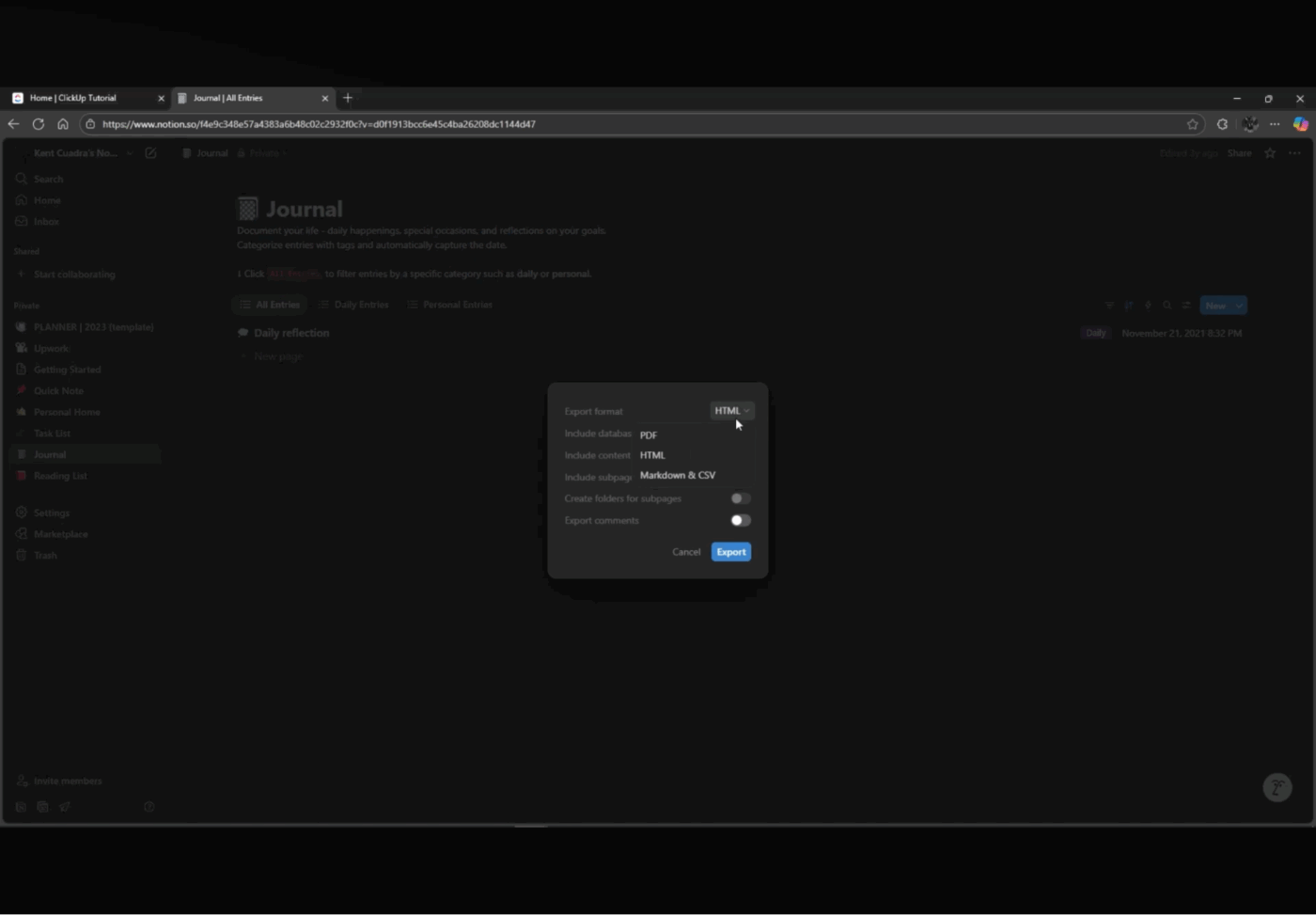
❗ Note: Exporting HTML ensures readable content and structure, while CSV captures spreadsheet-style data you’ll bring into ClickUp Lists.
Before importing your work into ClickUp, tidy and label everything clearly:
💡 Pro Tip: When exporting individual Notion pages, enable Create folders for subpages. This keeps nested pages intact inside ClickUp Docs. If it’s turned off, all subpages collapse into a single document.
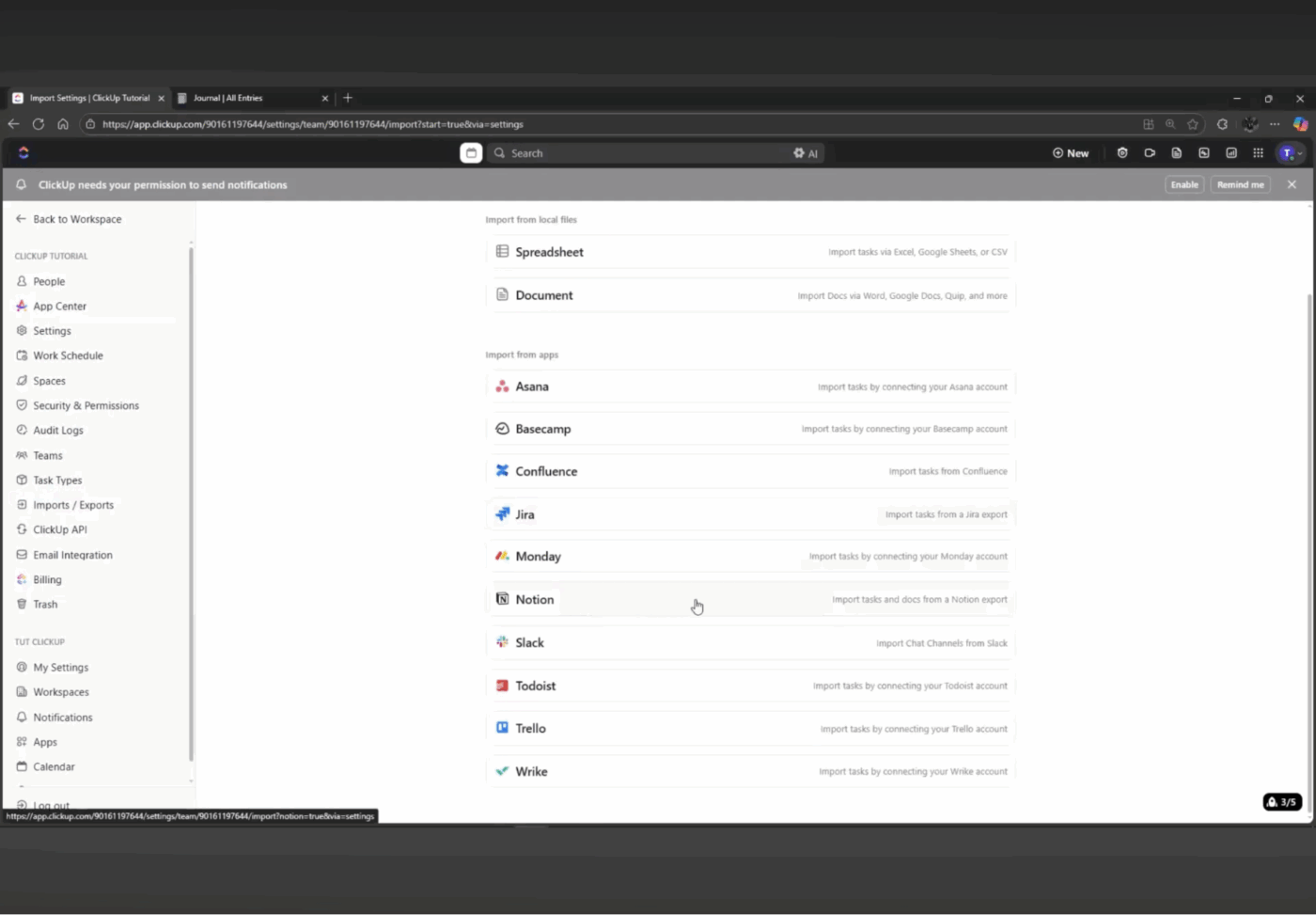
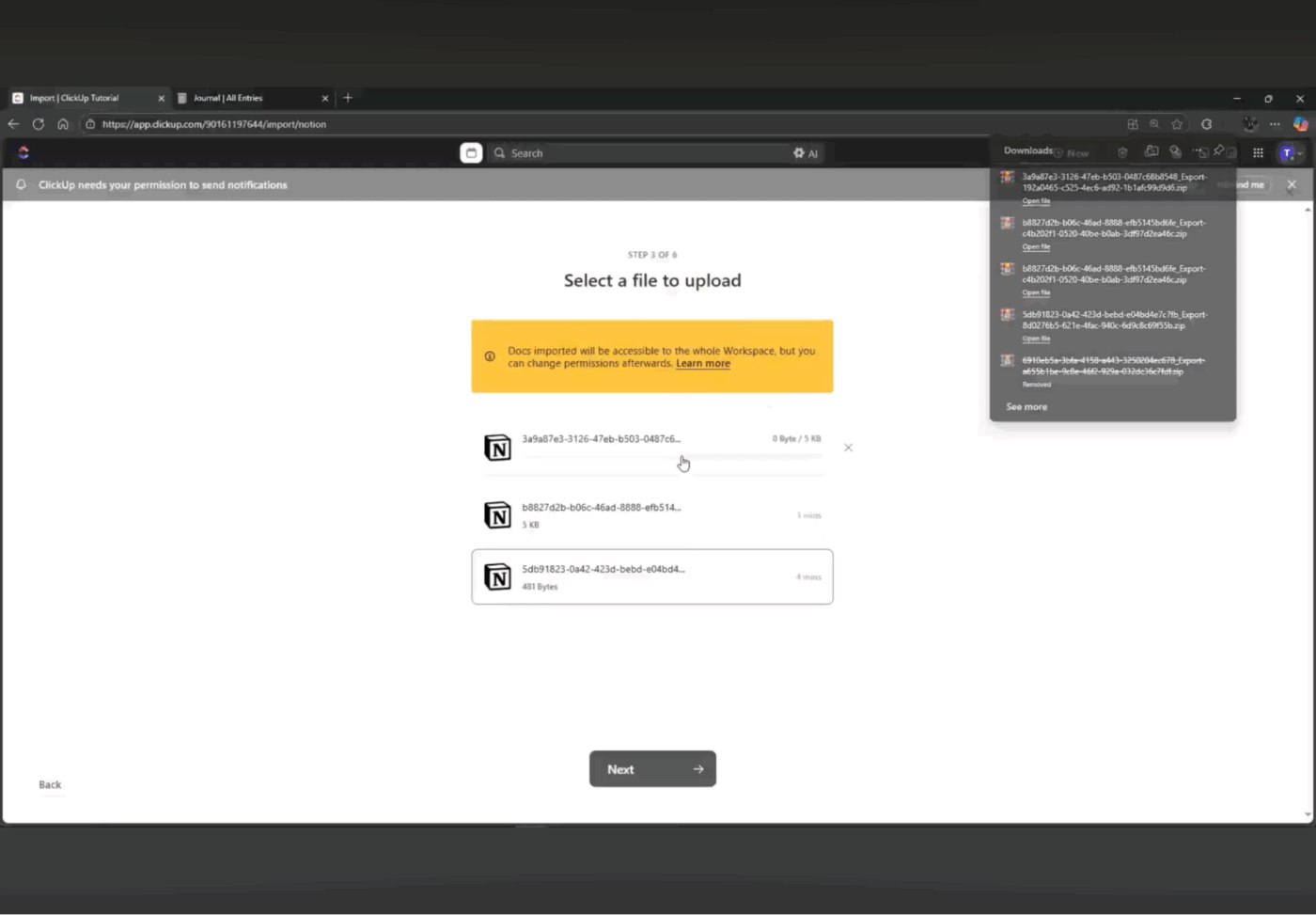
ClickUp has a dedicated Notion importer that pulls pages, databases, and users into a single ClickUp Space and Folder. Here’s how you can import from Notion:
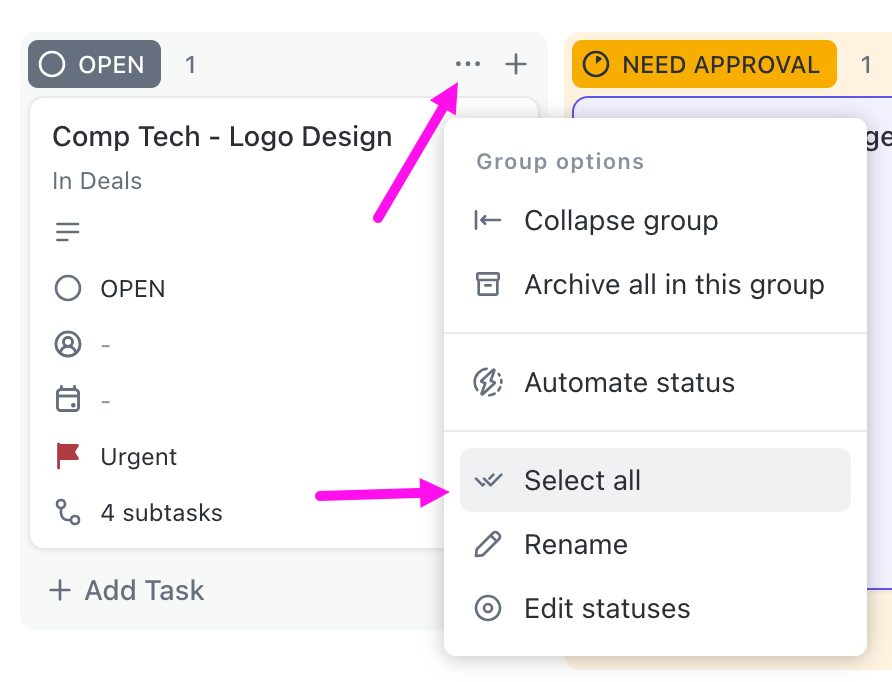
Once your data is in ClickUp, the next step is to rebuild how you see it:
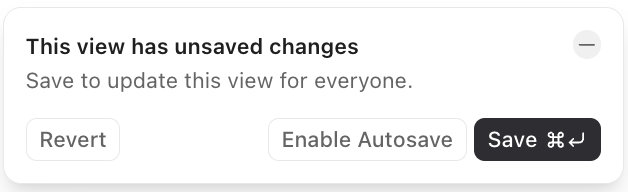
ℹ️ FYI: We’ll dive deeper into this in the next section, where you’ll learn which Notion views translate best into ClickUp Views like List, Board, Gantt, or Calendar.
Like we discussed before, Notion relations and rollups do not carry over as-is. They must be rebuilt using Custom Fields, dependencies, and formulas.
ClickUp Permissions let you control access at Space, Folder, List, and Doc levels, so it is important to re-establish guardrails you previously had in Notion. Doing this immediately prevents confusion and accidental edits in the newly imported workspace.
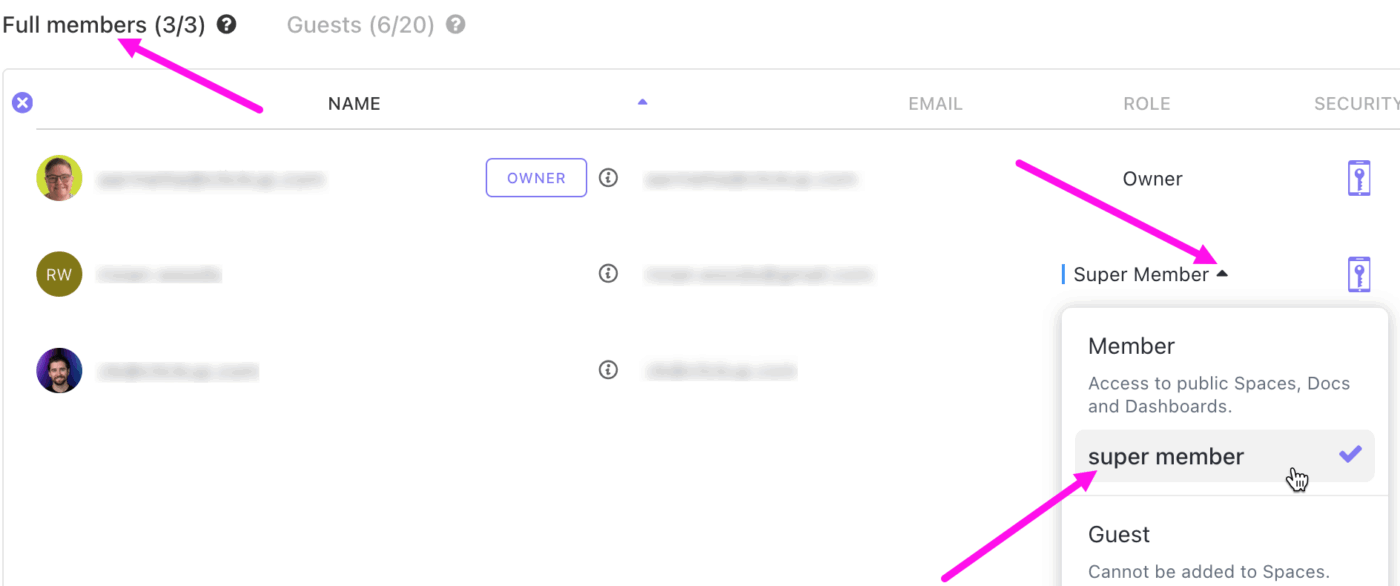
📌 How to set up permissions in ClickUp:
Permissions can be set on Spaces (Enterprise), Folders, Lists, and Docs. For each location, you can choose what invited users can do:
Make Lists or Docs private and share them only with specific people or teams. Use ‘View only’ or ‘Comment’ permissions for external collaborators to prevent unwanted edits.
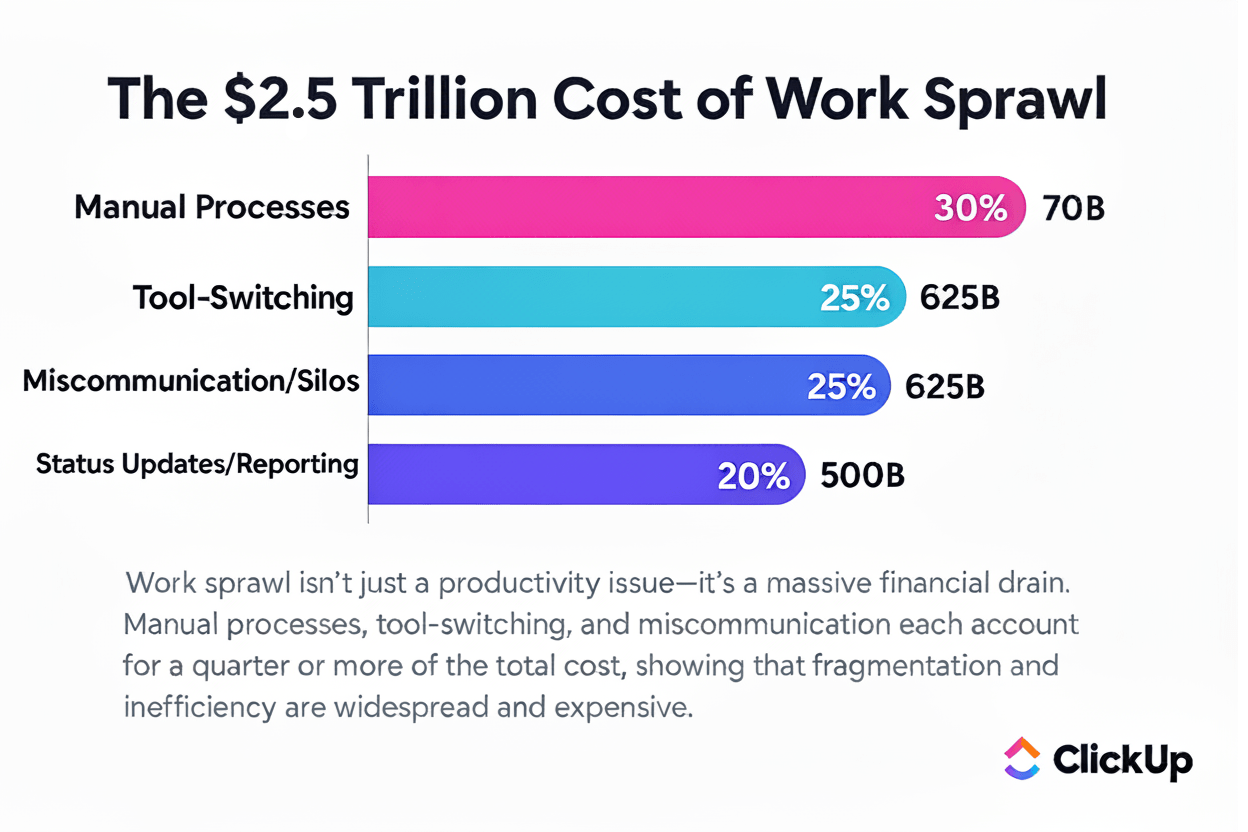
🧠 Fun Fact: Work Sprawl is more expensive than most teams realize. It adds up to an estimated $2.5 trillion in lost productivity, and the hidden costs pile up fast: manual processes, constant tool-switching, and endless status updates quietly drain budgets quarter after quarter.
This is exactly the kind of fragmentation ClickUp helps teams move away from, so work feels faster, clearer, and far less expensive in the long run.
Now, the next step is understanding how Notion’s building blocks translate into ClickUp’s structure.
All Notion docs import into one ClickUp Doc. Each Notion page becomes a subpage inside that Doc. You can organize them into nested pages and subpages so your team can easily find:
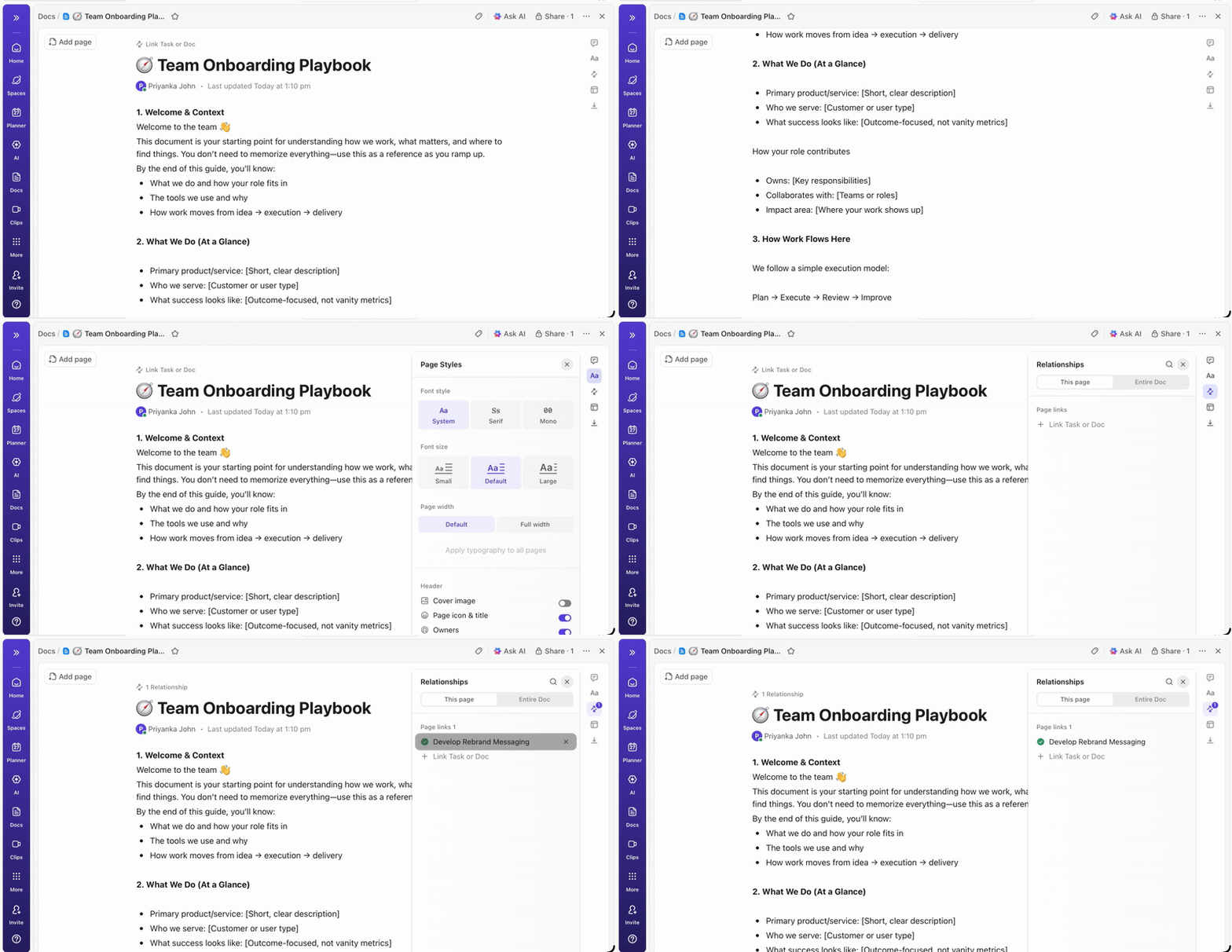
Unlike in Notion, ClickUp Docs don’t live in isolation.
This Notion alternative allows you to link Docs to Folders and Lists, create Tasks directly from highlighted text, and relate Docs to tasks for added context. Teams can enjoy real-time collaboration, comment inline, assign feedback, and track page history to see what changed and when.
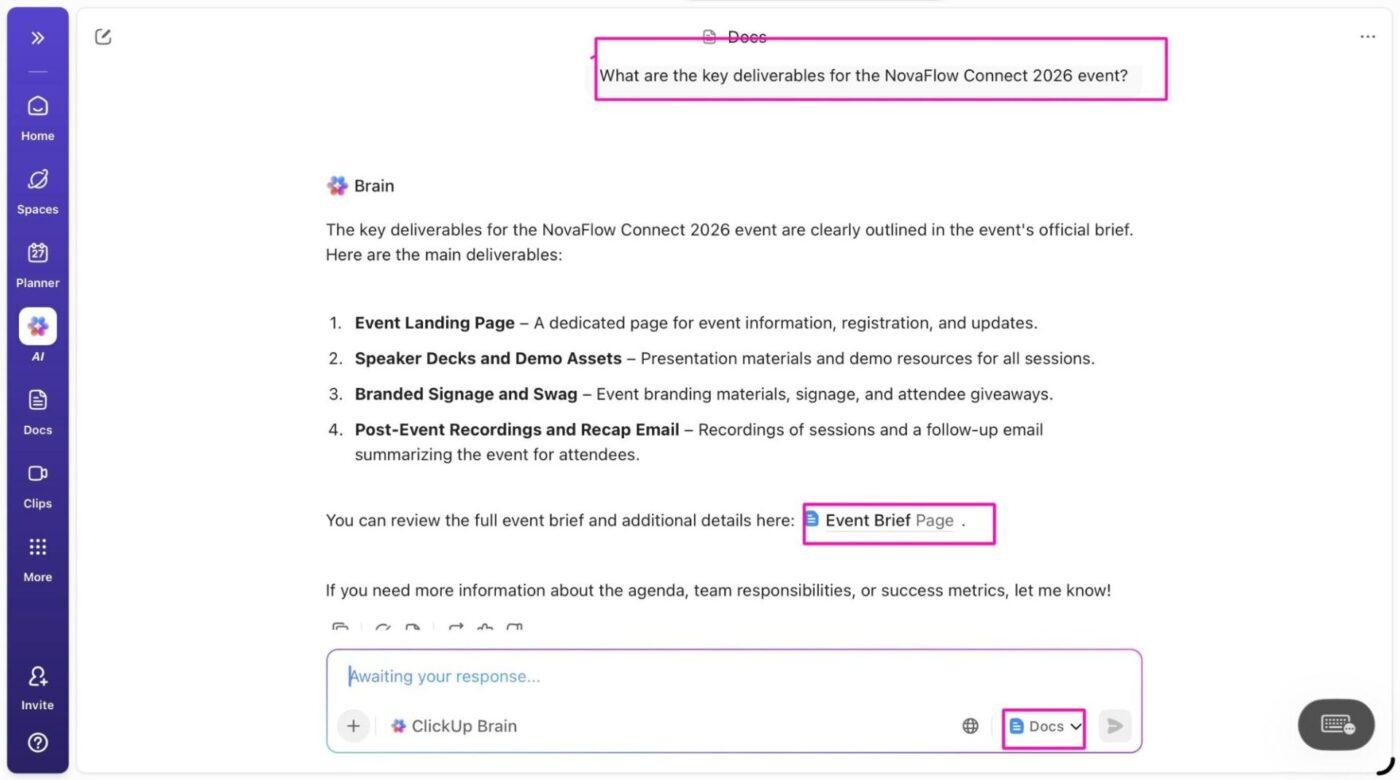
🚀 ClickUp Advantage: Make your Docs come alive with ClickUp Brain—the world’s first context-aware AI built directly into your workspace.
Here are some practical ways to use ClickUp Brain:
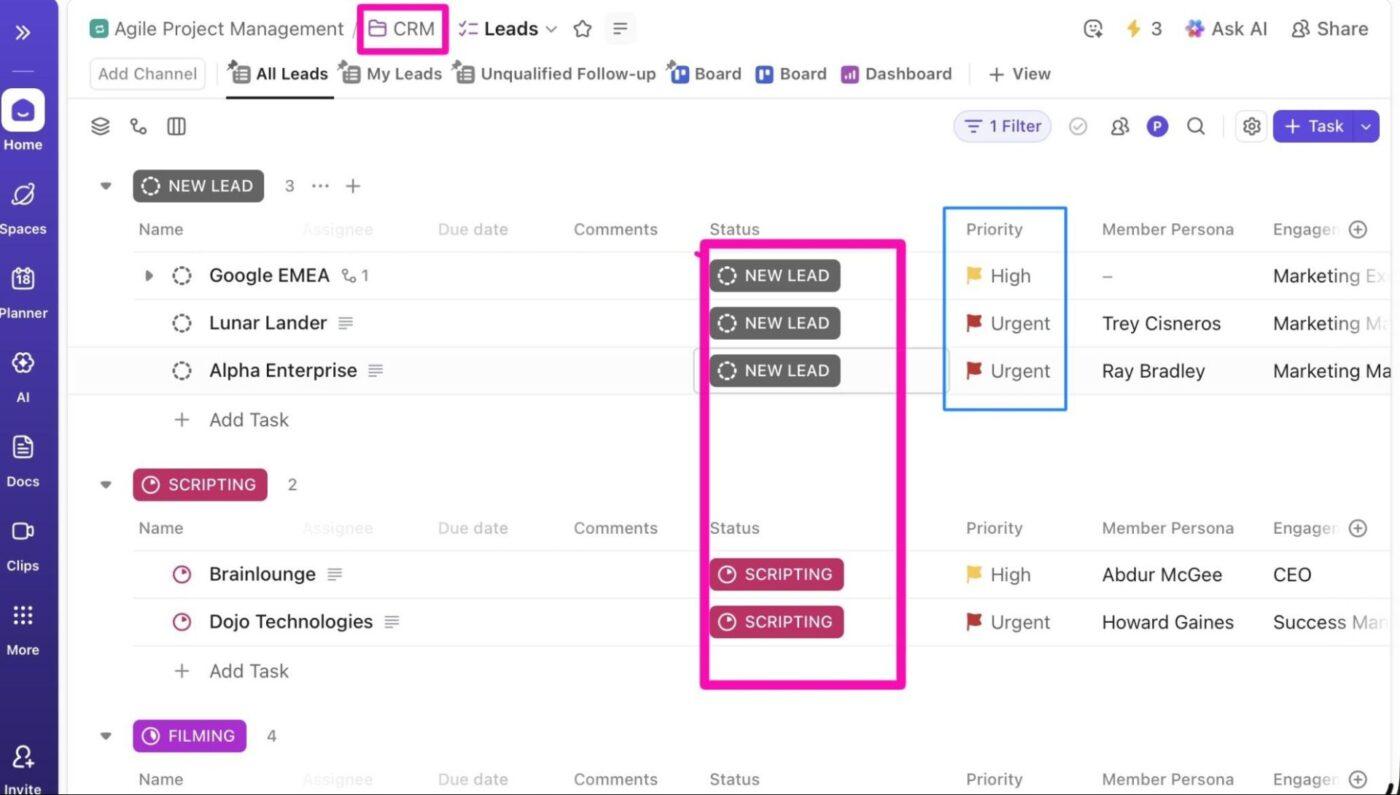
Notion databases translate best into ClickUp Lists. Each row becomes a task, making it easier to assign ownership, due dates, priorities, and dependencies.
Each task is a flexible, actionable item with rich properties such as:
Database properties such as select options, text fields, numbers, and dates convert into ClickUp Custom Fields.
You can choose from specialized field types such as Dropdowns, Labels, Money, Email, URL, Location, or Formula Fields, so each property behaves exactly as intended.
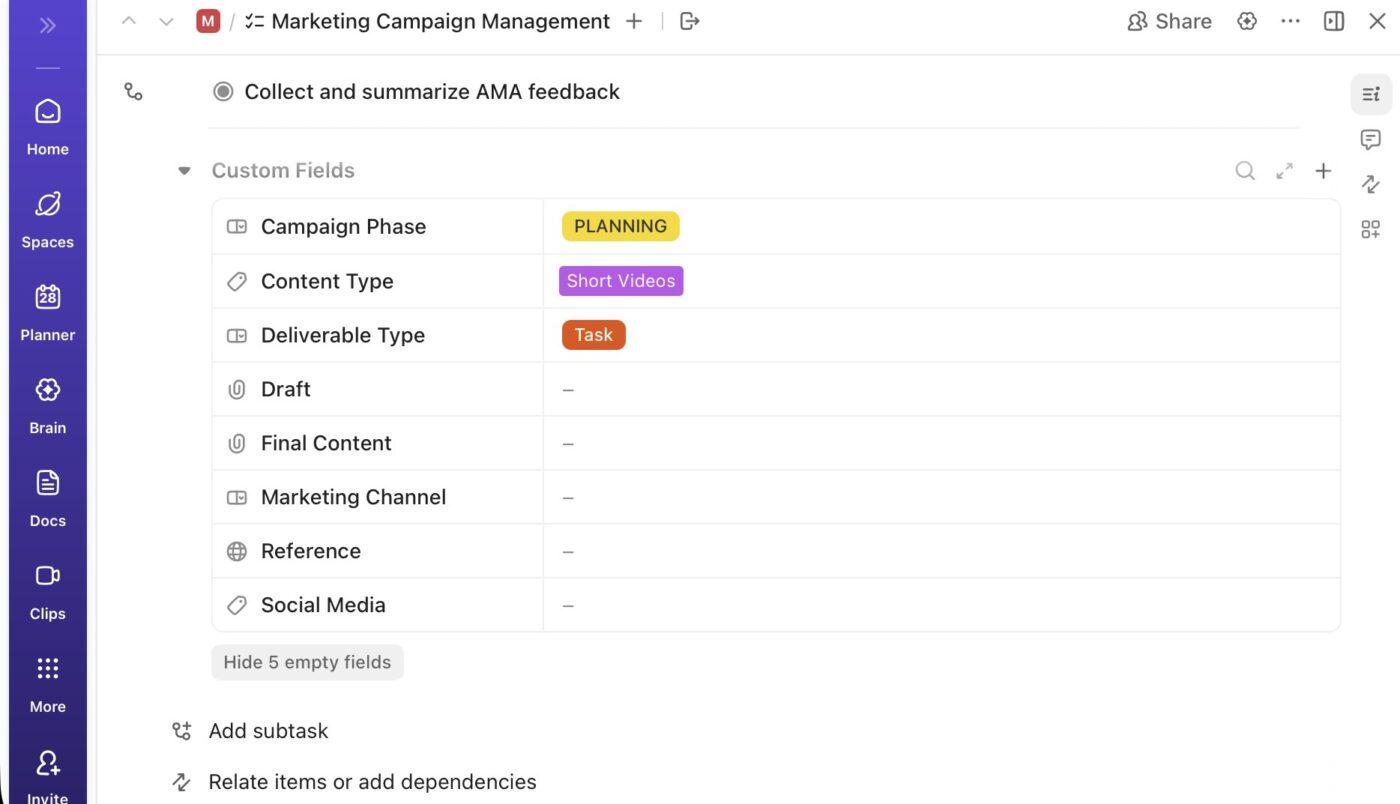
Once imported, Custom Fields help you:
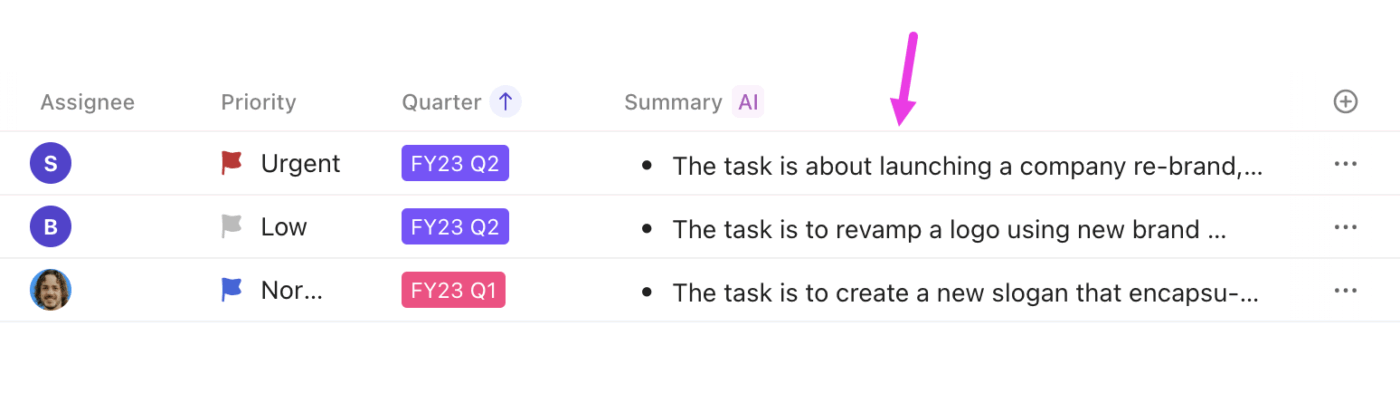
💡 Pro Tip: Use ClickUp AI Fields to automatically generate, interpret, or standardize information inside Tasks using ClickUp Brain.
For instance, you can add a Summary Field to your List or Folder view so teammates can scan multiple tasks without opening a single one. Choose Short or Bulleted formats for backlog reviews and planning meetings.
🔍 Did You Know? Even though companies keep adding new AI tools, 91% of workers use only 1-4 tools per week, so most of that investment never gets real adoption. And because so many tools feel disconnected from day-to-day work, 44.8% of people said they stopped using at least one AI tool in the last year.
ClickUp cuts through that AI Sprawl by bringing your AI into the same place where teams plan, track, and communicate, so the tools you use don’t multiply, the work does.
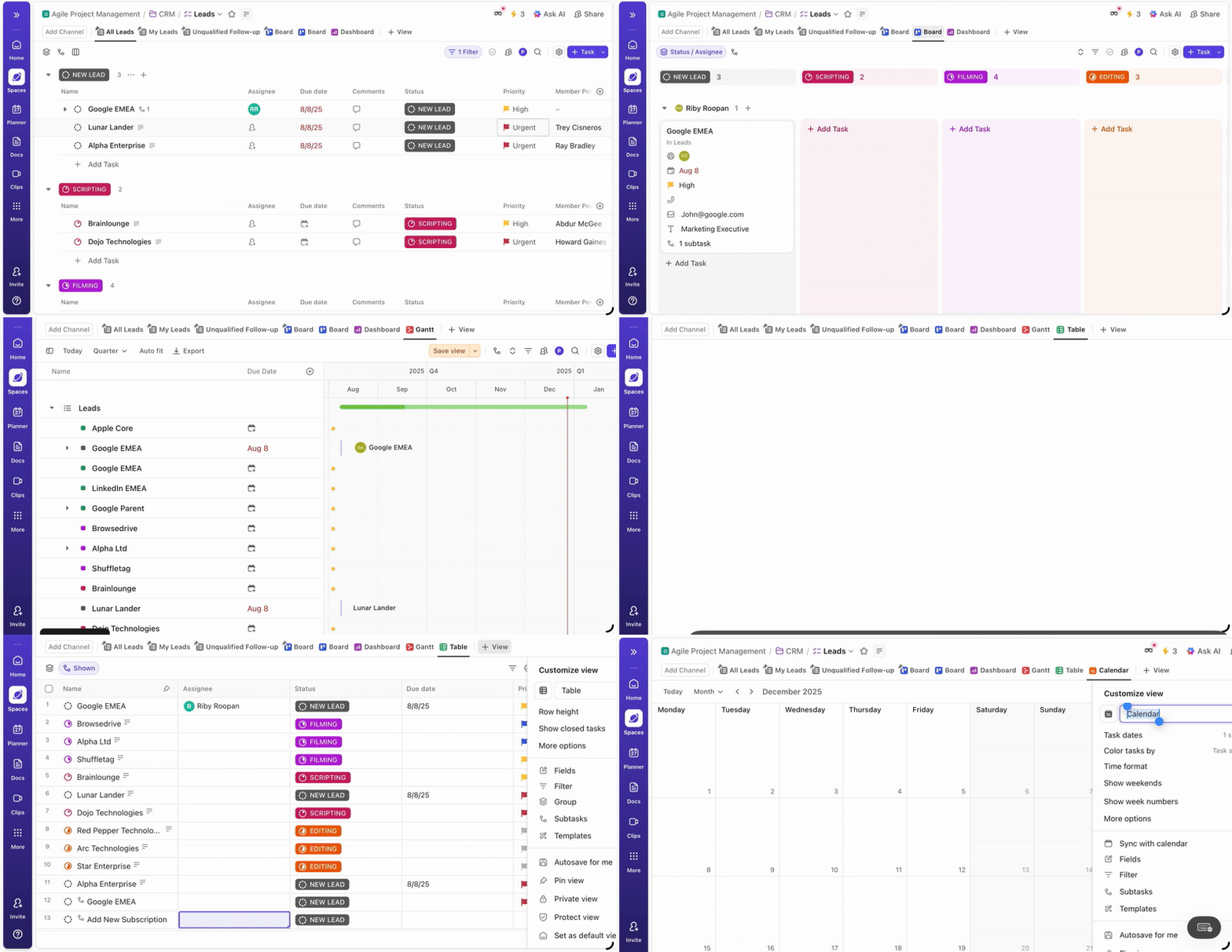
Notion views like tables, boards, and timelines map perfectly to ClickUp Views.
Here’s a comparison of ClickUp and Notion views, along with what you gain when you make the switch:
| Notion view | ClickUp view | Why ClickUp is better |
| Table | ClickUp Table View | Supports calculations, grouping, sorting, and custom fields for advanced analytics |
| Board | ClickUp Board View (Kanban) | Offers drag-and-drop stages plus built-in automations, statuses, swimlanes, and workflow rules |
| Timeline | ClickUp Timeline View | Provides horizontal project timelines similar to Notion, but integrates with task dependencies and scheduling adjustments |
| Calendar | ClickUp Calendar View | Shows tasks and dates alongside scheduling, and syncs with external calendars like Google/Outlook for real-world planning |
Notion templates don’t migrate as reusable templates by default. Instead, you import the underlying pages or databases using ClickUp’s native import tool, just like any other Notion content.
Once imported, you can then convert into reusable ClickUp Templates.
📌 How to recreate Notion templates in ClickUp:
Getting your data into ClickUp is important, but it’s what you do after the migration that determines adoption. This is where ClickUp’s workflow optimization, AI, and automation strengths start to pay off.
ClickUp Automations let you automate repetitive tasks and turn your workflows into self-maintaining systems. With a few clicks, you can build automation rules using triggers, conditions, and actions.
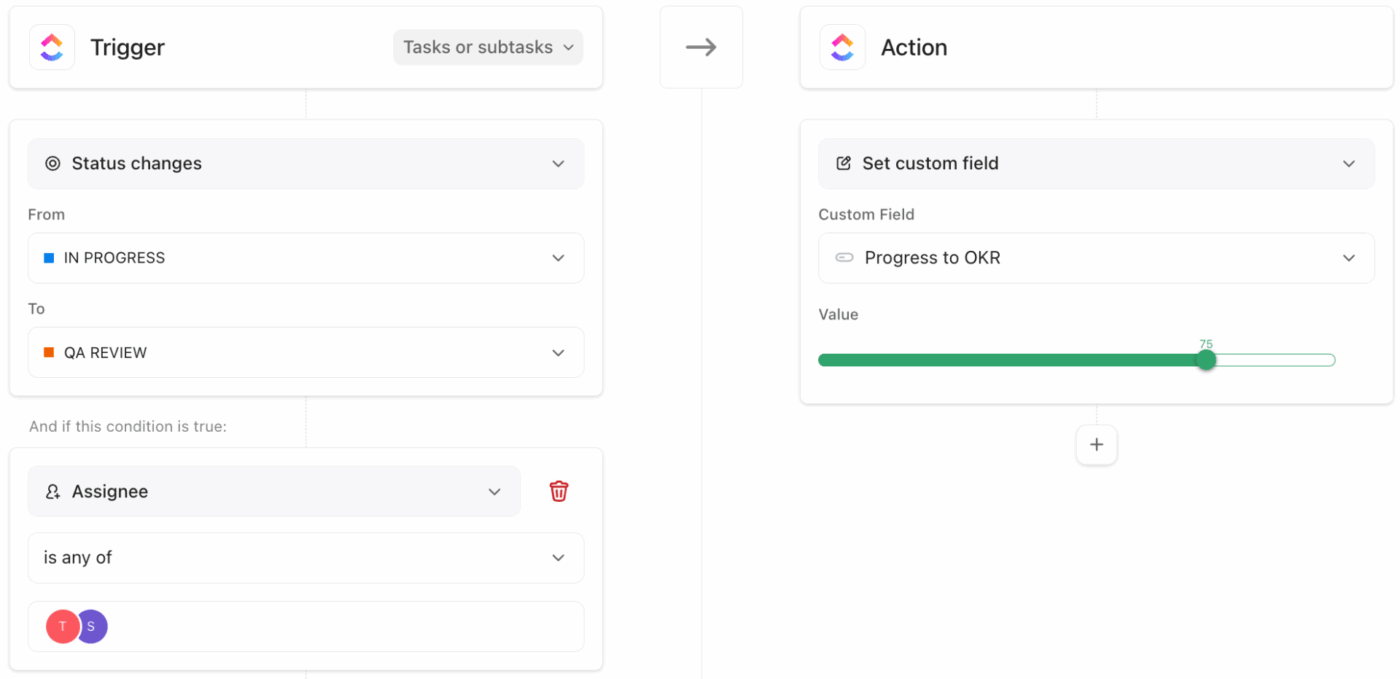
Here’s a workflow automation example:
On top of traditional automations, ClickUp Agents bring an extra layer of intelligence by going beyond simple ‘if this, then that’ rules.
Use natural language to define what you want and these agents will summarize activity, draft task lists, generate subtasks, and suggest field values for you.
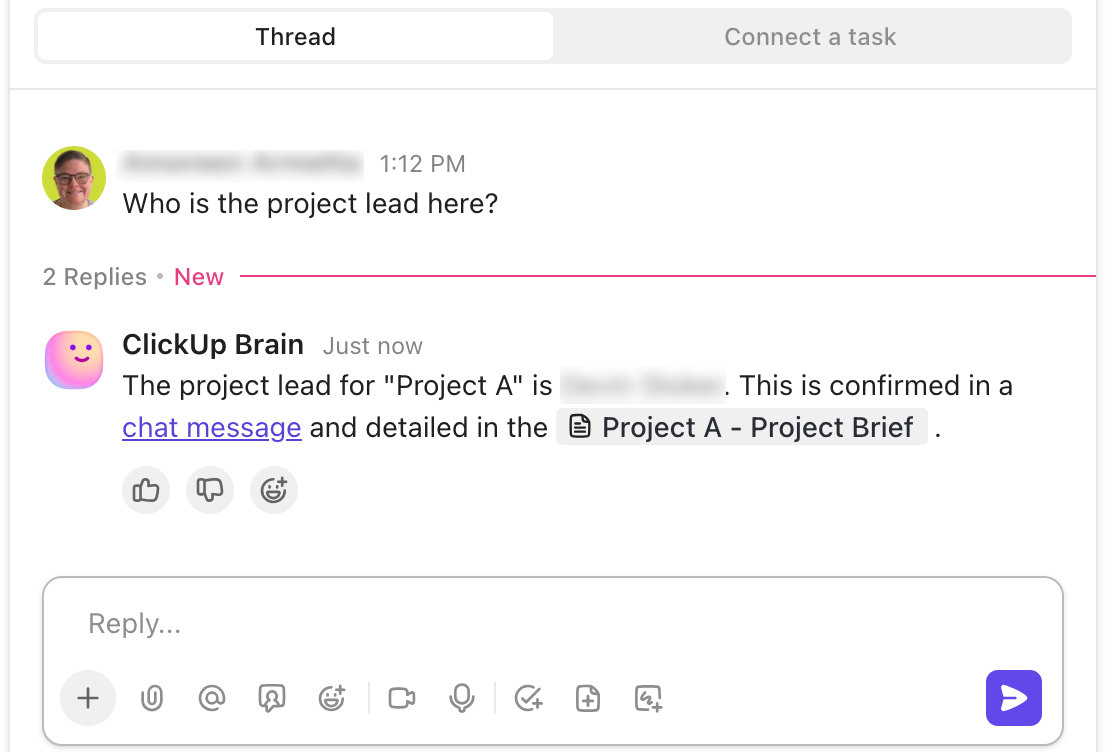
You can deploy prebuilt agents like Ambient Answers, which can be enabled in a ClickUp Chat Channel to answer team questions with detailed, context-aware responses using your workspace knowledge and external sources.
And for custom workflows, build your own Super Agents with a no-code builder. For example, you can create an HR Agent that only answers questions about employee benefits, referencing your internal docs, and so on.
📮 ClickUp Insight: 59% of our survey respondents say they do not have a weekly reset or review system in place.
When updates live across tasks, comments, docs, and messages, pulling everything together can feel like a project of its own. By the time you gather information on what changed, what slipped, and what needs attention, the energy to actually plan the week ahead is already gone.
What if an agent can take over this for you? ClickUp’s AI Super Agents can automatically compile activity across tasks and summarize what needs follow-up.
Instead of spending time reconstructing the past, you get to make clearer decisions about what comes next.
ClickUp Dashboards are your command center for visibility. They let you combine multiple cards to show metrics that matter, including task counts by status, overdue items, sprint velocity, workload balance, time tracking, charts, and more.
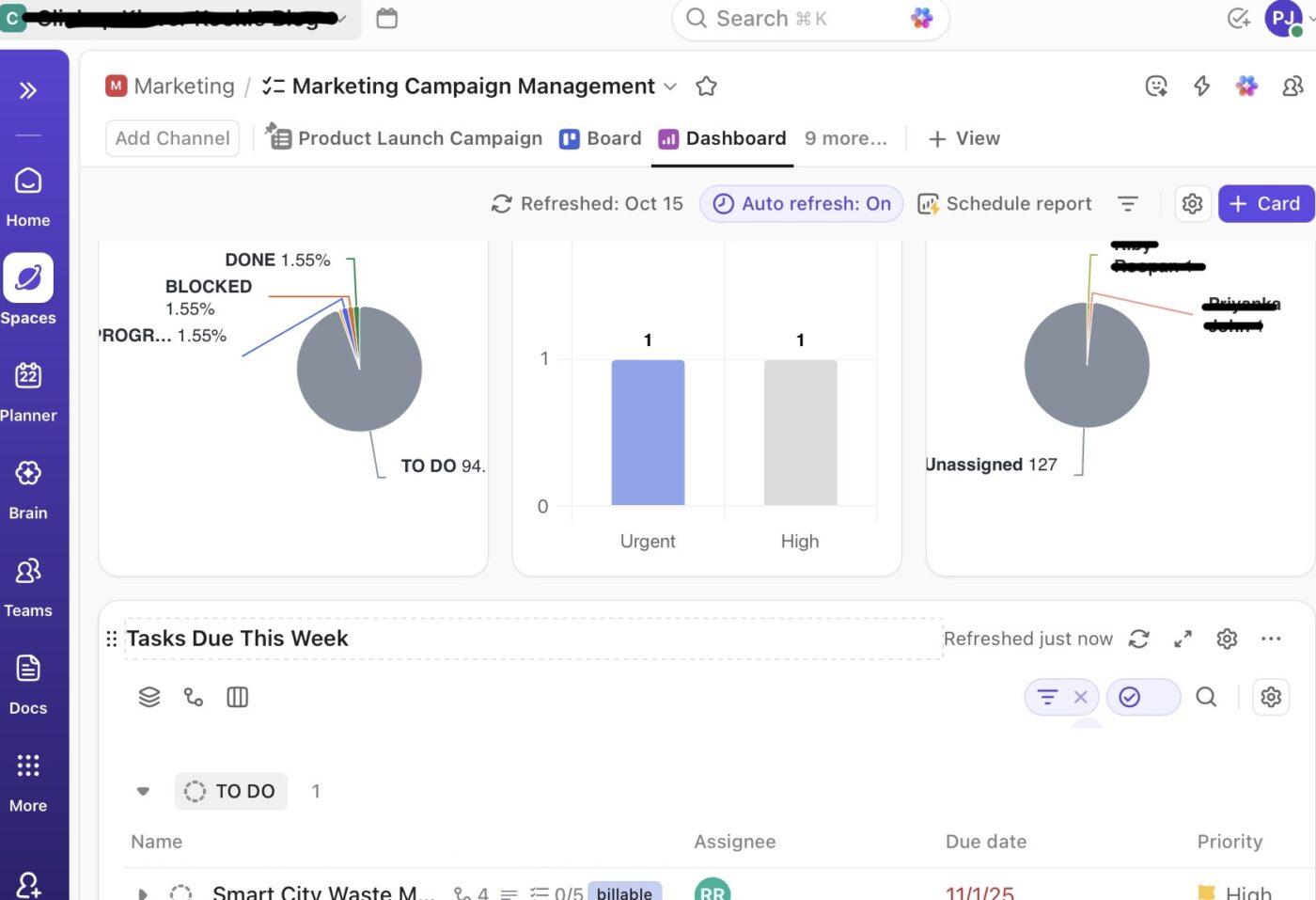
Start with common views like:
Dashboards pull live data from your workspace, updating in real time and supporting CSV or Excel exports for offline reports.
🚀 ClickUp Advantage: Eliminate the need for weekly standup docs and status emails with ClickUp AI Cards. With AI Cards, you can:
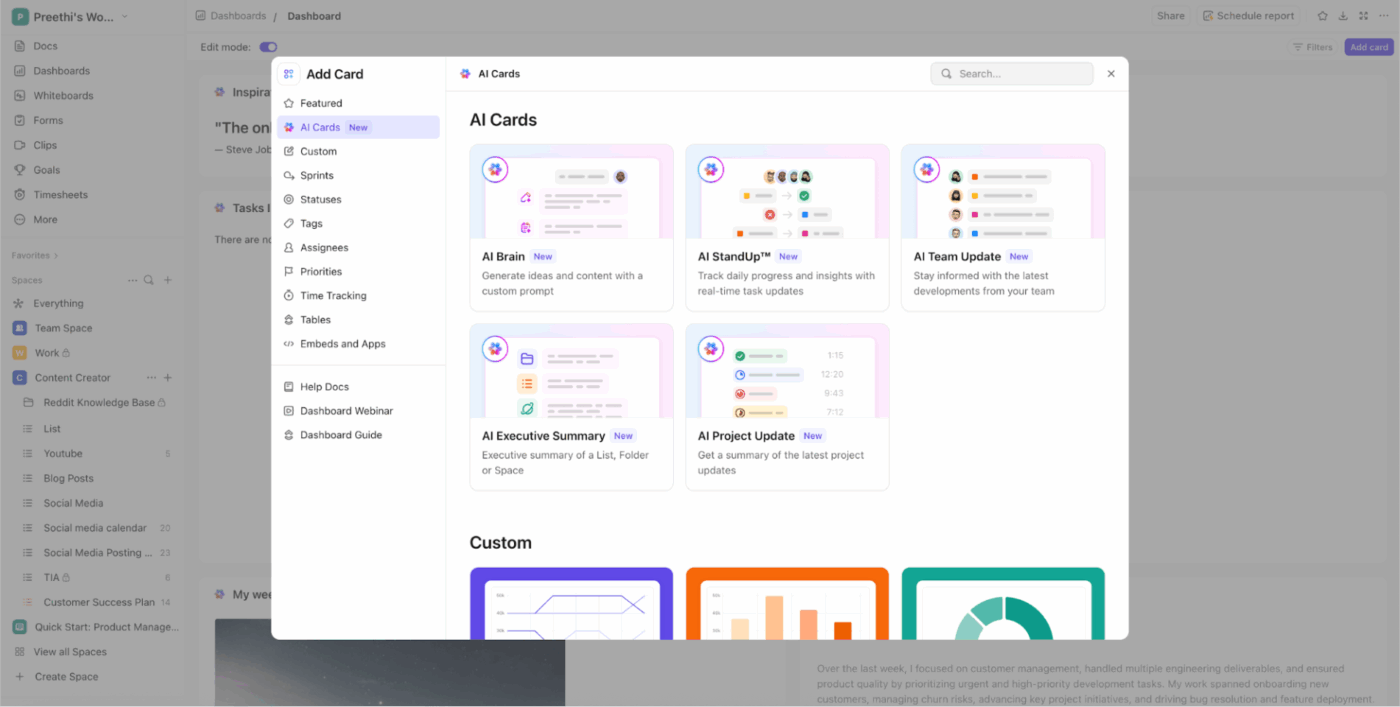
A migration is only successful if your team actually benefits from it.
To avoid confusion, broken workflows, or people defaulting back to old tools, build onboarding documentation that explains:
You can use project management templates inside ClickUp Docs to make onboarding consistent for future hires. Embedding tasks into your onboarding Docs, for example, ‘Complete your first task’, encourages hands-on learning.
ClickUp Integrations allow you to connect with hundreds of external tools so you can keep using what your team already relies on.
Native connections include:
A practical look at the AI tools product managers will actually use:
Teams often rush the migration and end up recreating the same chaos in a new tool. The table below highlights the most common mistakes and how to avoid them.
| Common mistake | How to avoid it |
| Importing cluttered Notion workspaces | Archive outdated pages, delete duplicates, and remove test databases before export |
| Treating Notion databases as documentation instead of work queues | Split knowledge bases into ClickUp Docs and execution databases into Lists before importing |
| Assuming comments and discussions will retain context | Convert key discussions into task comments or Docs before export, since inline database comments may not carry over cleanly |
| Skipping structure planning | Define Spaces, Folders, and Lists before importing any content |
| Importing all users at once | Assign roles and permissions deliberately after testing access levels |
| Migrating everything in one go | Run a pilot import with one team or workspace before scaling |
Here are some additional tips to ensure long-term adoption and clean execution.
Migration only makes sense when ClickUp’s structure aligns with how your team works. Consider sticking with Notion if the following apply:
Notion is a great place to think, plan, and document ideas. But when work becomes deadline-driven and collaborative, documentation alone isn’t enough to keep things moving.
That’s where ClickUp stands apart. It brings tasks, timelines, docs, automation, and reporting into one workspace, so you’re not jumping between pages and trackers anymore.
And documentation doesn’t take a back seat. ClickUp Docs give you something that Notion doesn’t. Docs stay tied to the work itself and you can turn text into tasks, link Docs to projects, and use AI to summarize, write, and surface the right information when you need it.
With ClickUp Brain helping you move faster, Automations reducing manual work, and Dashboards giving you clear visibility into progress, the system starts working for you instead of the other way around.
If your Notion setup is starting to feel rigid, migrating to ClickUp is a practical next step. Sign up to ClickUp for free today.
Yes. When you use ClickUp’s Notion import, databases from Notion are brought into ClickUp as Lists inside a single Folder. Each row becomes a task, and fields are converted to Custom Fields so your data structure stays usable in ClickUp.
No. Complex database features like relations, rollups, and formulas do not transfer automatically. You’ll need to manually recreate them in ClickUp using Relationships, Formula Fields, or Automations after import.
Yes. ClickUp has a built-in Notion importer in Workspace Settings under Imports/Exports. You upload your Notion HTML export and choose where to bring content into your ClickUp Workspace.
Migration time depends on the size of your Notion workspace. Small imports can finish in minutes; larger exports with many pages and databases can take longer, but ClickUp processes them asynchronously once started. Planning for a few hours overall, including prep and review, is typical.
ClickUp has broader native project management features like task ownership, dependencies, timelines, Automations, and Dashboards. Notion is stronger for free-form documentation and flexible layouts. For structured execution and reporting at scale, ClickUp provides more built-in tools.

© 2026 ClickUp




