







Still downloading templates?
There’s an easier way. Try a free AI Agent in ClickUp that actually does the work for you—set up in minutes, save hours every week.
Sorry, there were no results found for “”
Sorry, there were no results found for “”
Sorry, there were no results found for “”

You start with the best intentions. A fresh color-coded spreadsheet with dates lined up neatly, maybe even a tab for ideas.
Fast forward a few weeks, and suddenly you have five campaign threads, two separate documents, and a ‘final-final-FINAL’ version of a tweet.
If this feels a little too familiar, it’s probably time for a reset. In this blog post, we’ll explore how to create a content calendar in ClickUp that’s flexible and easy to maintain. 🧰
ClickUp for Marketing Teams is the everything app for work that combines project management, documents, and team communication, all in one platform—accelerated by next-generation AI automation and search.
If you’re a content marketer, social media manager, or part of a marketing team, here’s why you should use the content collaboration software:
💡 Pro Tip: Tag evergreen or high-performing content that’s ripe for remixing. This helps when you’re low on capacity but still want quality output.
If you’re handling social posts, blog content, or full-blown campaigns, this step-by-step walkthrough will help you plan, assign, and track everything in one place within the content calendar software. ⚒️
Before you start planning posts or assigning deadlines, let’s get the foundation right. A solid workspace setup in ClickUp makes everything easier to scale, especially as your content grows across platforms.
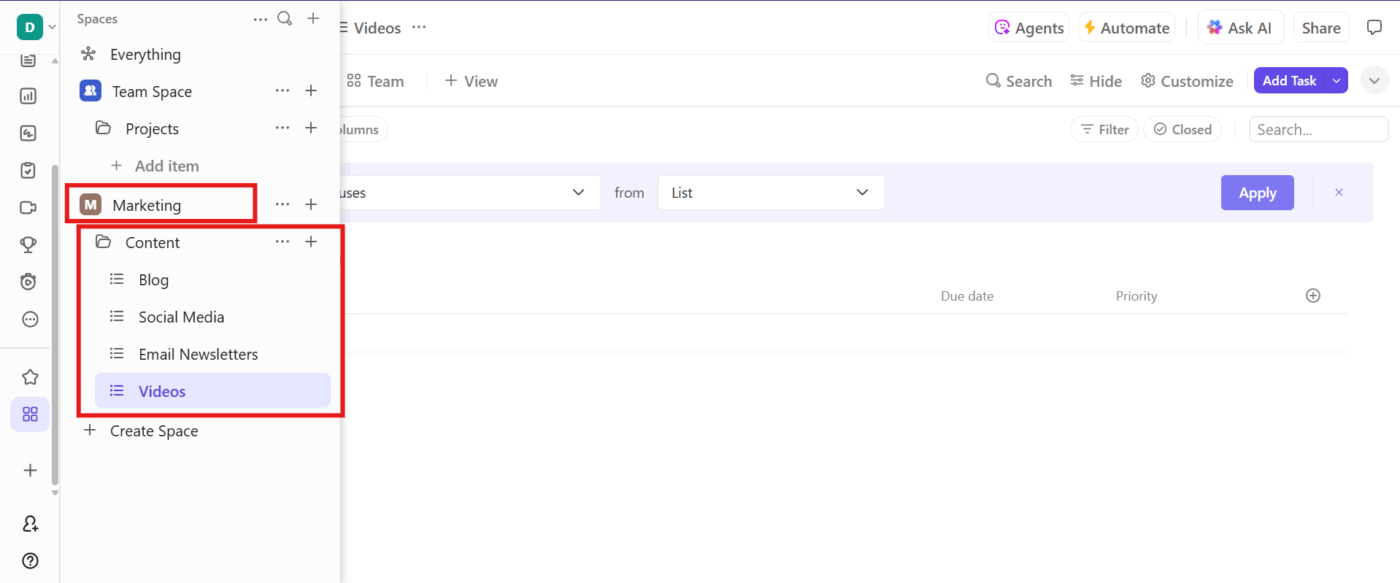
Let’s say you’re on the BrightWave Solutions marketing team. Your team handles content for the blog, social media, email newsletters, and video. That’s a lot of moving parts, so keeping things tidy is key.
Here’s how to create an ideal social media project management workspace:
Each List is a mini-project where you can track tasks, deadlines, and content types specific to that channel.
💡 Pro Tip: Group content by purpose, not just by channel. For example, awareness content in one folder, product campaigns in another. It keeps tracking easier and reporting cleaner.
With your workspace set up and Lists for each content channel, it’s time to make your tasks smarter. Instead of relying on a bunch of comments and scattered updates, you can use ClickUp Custom Fields within ClickUp Tasks to keep all your content details front and center.
Now, the BrightWave Solutions team is working on everything from Instagram reels to long-form blogs. Each type of content has its own needs, but you still want a consistent way to track key info, without turning your tasks into a messy scroll-fest.
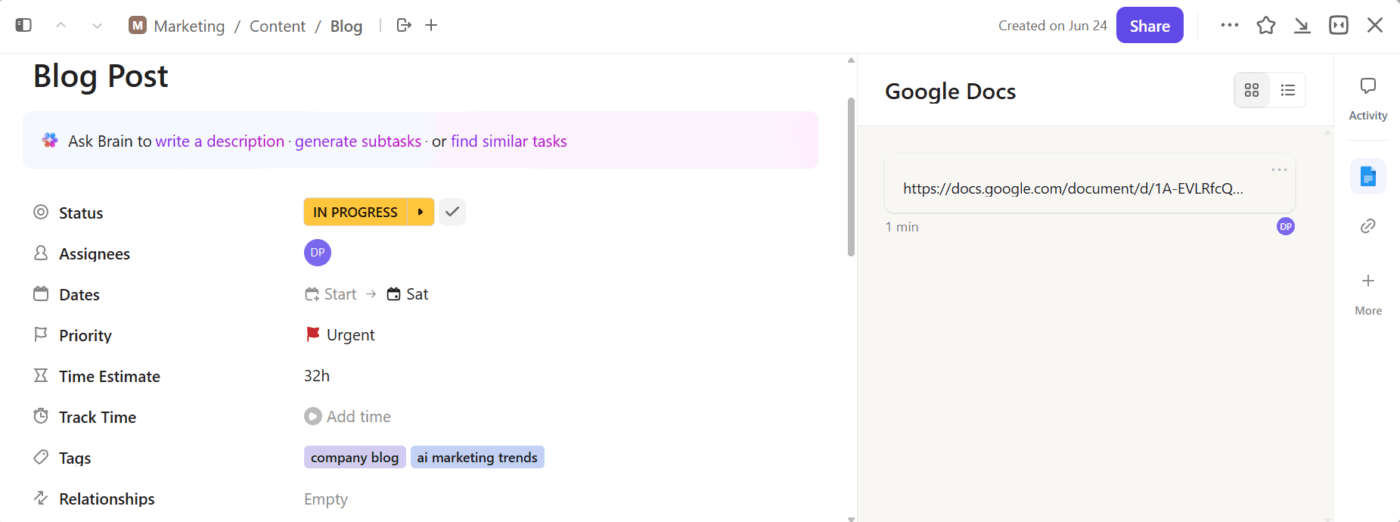
Head into each List (like Blog, Social Media, etc.) and start adding the Custom Fields you need. Some useful ones include:
Additionally, Tags in ClickUp are great for categorizing and organizing content across your calendar without getting too complicated. For example, Tags like Blog, Instagram, or Video help you quickly group by platform. You can also tag content themes, such as AI, Product Launch, or your Q3 Campaign.
💡 Pro Tip: Use two separate layers: the real plan and the parking lot. Never dump half-baked ideas directly into your calendar. Keep a separate list for brainstorms, experiments, and random stuff that might be cool someday. Only promote what’s been validated or approved.
It’s time to get those content ideas into the system and start building a flow your team sticks to.
Let’s keep rolling with the BrightWave Solutions example. Here’s how to keep it all moving within the social media management tool:
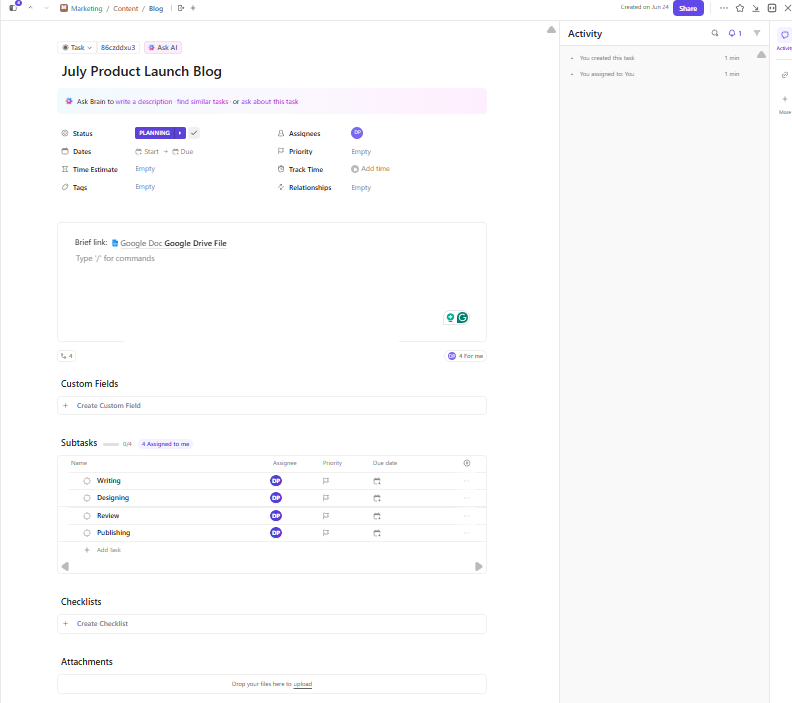
For instance, the task for the ‘July Product Launch Blog’ can be assigned to the content writer. You can add subtasks for writing, design, review, and publishing, and drop the content brief link in the description so everyone has what they need.
Once your content tasks and workflows are in place, enhance your setup with ClickUp Brain. Unlike generic AI chatbots, the social media AI tool understands your projects, tasks, docs, and even your team structure.
Let’s say the team at BrightWave is launching a new AI-powered feature, and you’ve got a campaign coming up with blogs, Instagram teasers, and email newsletters.
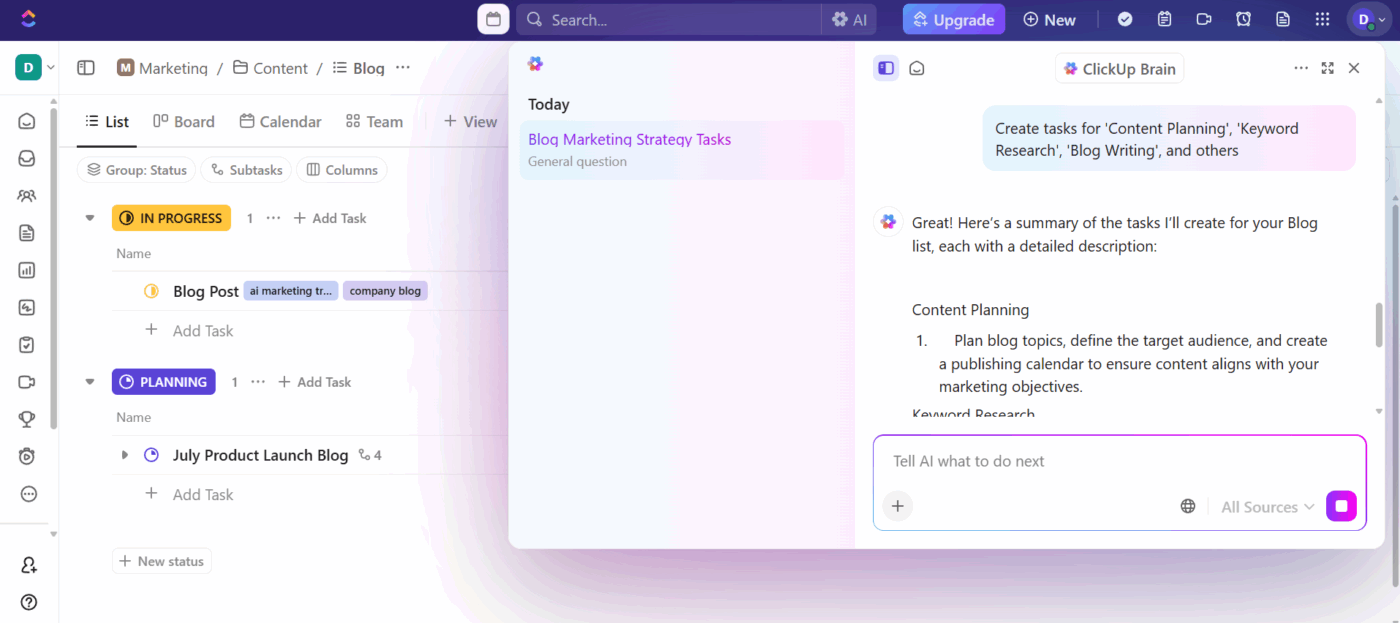
Here’s how ClickUp Brain helps you pull it all together:
As your content machine grows, keeping everything in sync becomes harder than creating the content itself. ClickUp Super Agents quietly handle the housekeeping behind the scenes by monitoring task updates, spotting blockers, flagging slipping deadlines, and prompting next steps across your campaign.
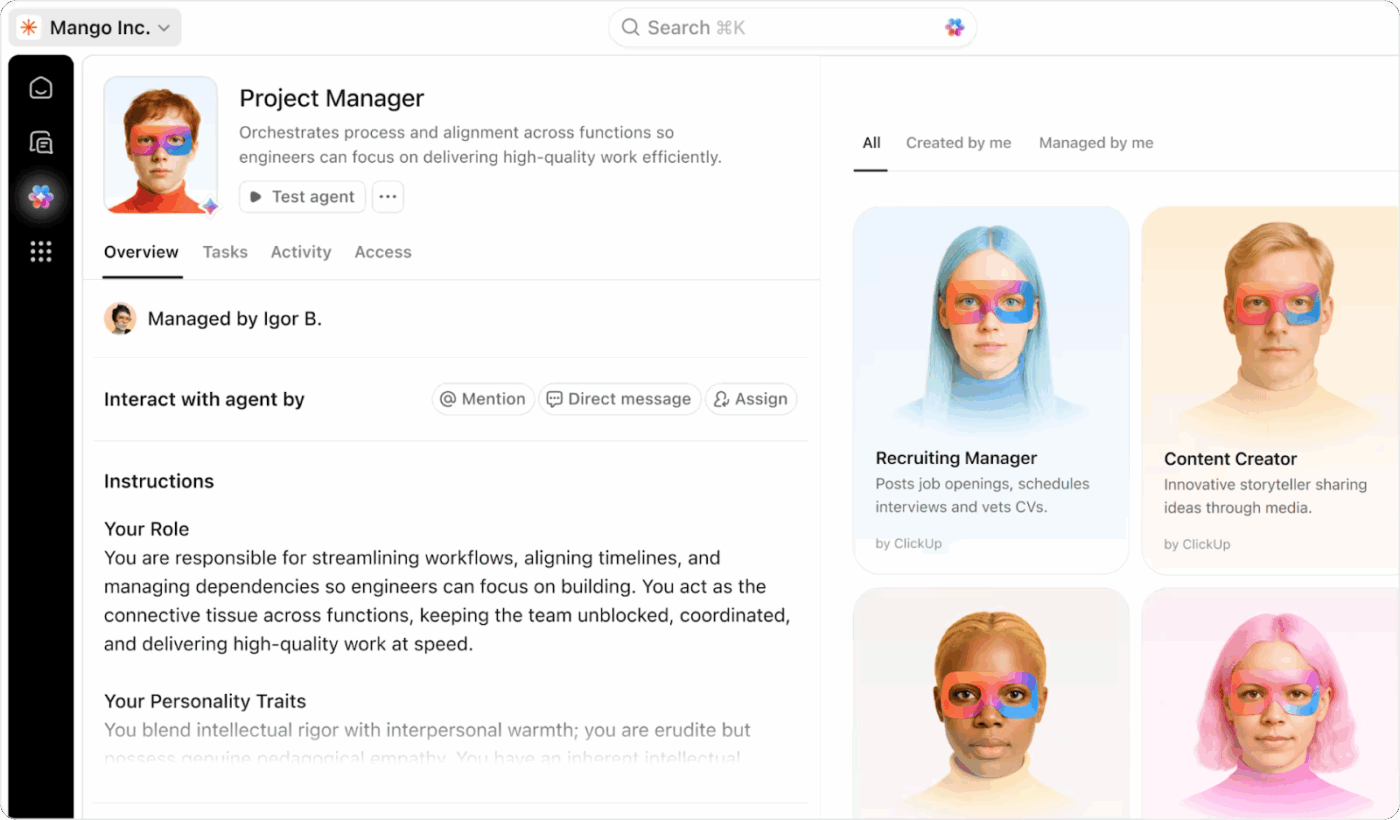
Whether you’re managing a product launch with ten moving parts or juggling weekly social posts, Super Agents help keep your calendar consistent and your team unblocked without adding more manual check-ins or Slack reminders. They act like the always-on coordinator your team wishes it had.
💡 Pro Tip: Create your content briefs directly in ClickUp Docs to build a content database and keep everything centralized. Then, use ClickUp Brain to generate outlines, pull key points from meeting notes, or even draft sections of the content right inside the doc.
Now that you’ve added your content tasks and organized the details, it’s time to see it all come together. Clickup Views enable you to visualize your content calendar in ways that make sense for your team.
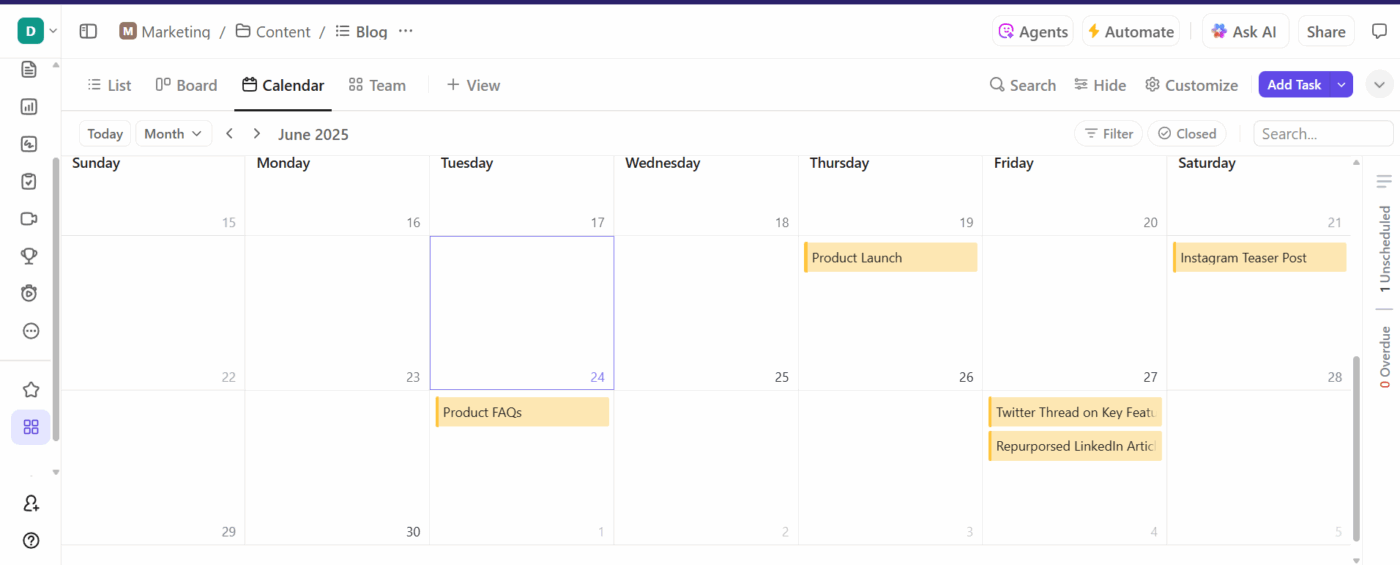
ClickUp Calendar View is where everything lives on a timeline. You’ll see all your content scheduled across days, weeks, or months, color-coded and easy to read.
Let’s say the July Product Launch is set to go live on the 10th. It pops up on the calendar exactly where it should.
If the launch gets bumped by a week? No problem, just drag the task to the new date. If BrightWave also has its Instagram teaser scheduled for the 8th and an email blast planned for the 11th, they can spot overlaps and adjust gaps on the fly.
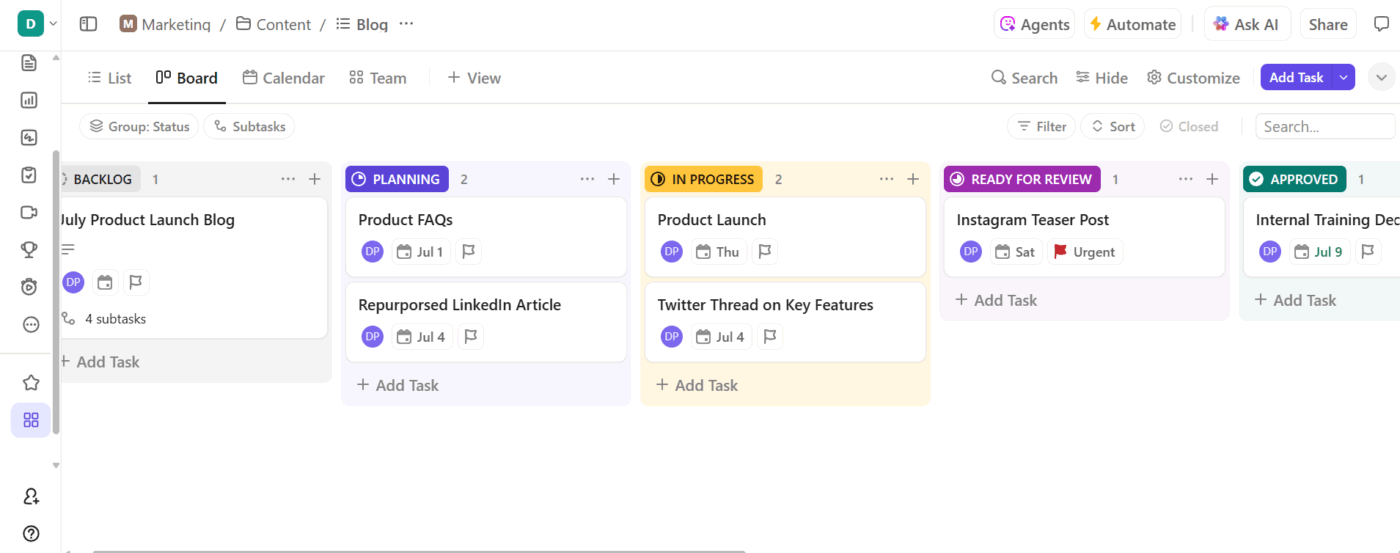
If you want Kanban-style columns, turn to ClickUp Board View. As tasks progress, you can drag them from one stage to the next.
The content team drops the Product Launch Blog into the Idea column when it’s pitched, moves it to Draft once it’s assigned to Andrea, shifts it to Review when it’s ready for feedback, and finally shifts it to Published on go-live day.
💡 Pro Tip: Use ClickUp’s List View to filter and sort content by owner, publish date, or platform. Additionally, add the Gantt Chart View in ClickUp to plan timelines, visualize dependencies, and track project progress. It’s especially helpful for scheduling tasks, managing resources, and seeing how all your work fits together on a timeline.
Here’s where it gets more efficient: ClickUp Templates and ClickUp Recurring Tasks.
Let’s say BrightWave shares a ‘Weekly Instagram Tips’ post every Monday. Instead of creating a new task from scratch each time, the team can just set it up once as a Recurring Task. It’ll automatically pop up on the calendar every week, ready to be assigned, written, and published—no extra clicks, no forgotten posts.
ClickUp’s Content Calendar Template provides a visual and structured way to manage and track your content across multiple channels. Calendar View brings all your scheduled content into one clean, color-coded layout.
Each card in the content calendar template represents a task, such as a blog post, social media update, or video, and displays key information, including the content channel, category, and publish date.
🎥 You’ll learn how ClickUp syncs calendars across devices, lets you toggle different calendar layers, and becomes a single command center for managing personal, team, and campaign schedules.
⚙️ Bonus: Use the ClickUp Editorial Calendar Template for blog and email planning, and a social media template like the ClickUp Modern Social Media Calendar Template to streamline posts across Instagram, X, and more.
As your content operation grows, things can get messy. But with ClickUp, it doesn’t have to be. Here’s how to manage a content calendar that keeps up with your team and creative chaos. 💁
Hear it from Sid Babla, Wellbeing Program Coordinator at Dartmouth College – Student Wellness Center:
We use ClickUp to manage and track our social and digital media content creation pipeline. This allows us to see the status of each content piece (in progress, needs edits, scheduled, etc.) along with who is the lead designer. It also eliminates all the back-and-forth email communication as the comments section for each task can be used to deliberate and delegate tasks/next steps (serving the need for tracking and following up on our content creation cycle).
Another excellent way to ensure your content calendar stays scalable is Clickup Calendar.
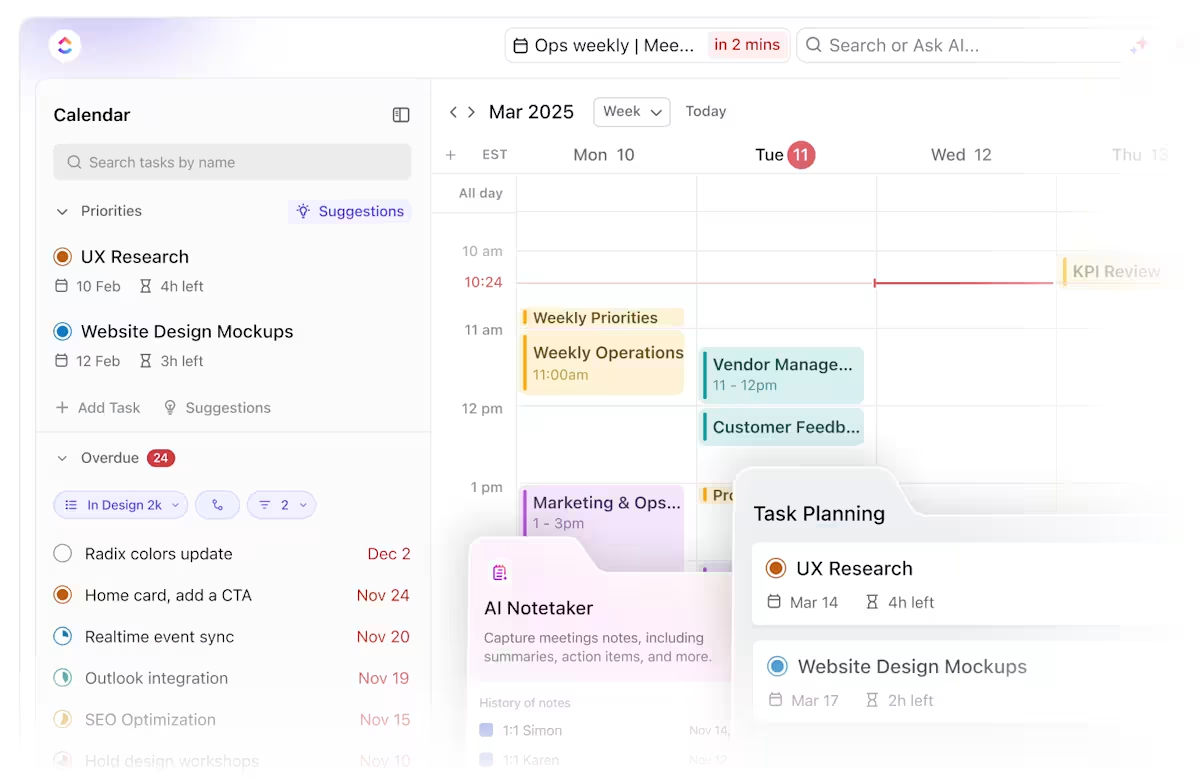
It’s a central hub for everything from scheduled posts to meetings and deadlines. Let’s say you’re managing content for a fast-paced FinTech startup, and you’re juggling blog deadlines, campaign rollouts, and recurring syncs across teams in different time zones.
Need to reschedule that Thursday newsletter? Just drag and drop it. Want to see only your video content deadlines for the month? Filter by Custom Fields. You can even sync it with Google Calendar or Outlook, so your editorial team remains on the same page.
And with AI-powered scheduling, ClickUp Calendar can auto-block focus time, reschedule tasks when priorities shift, and even generate meeting summaries that turn into actionable tasks.
📮ClickUp Insight: 18% of our survey respondents want to use AI to organize their lives through calendars, tasks, and reminders. Another 15% want AI to handle routine tasks and administrative work.
To do this, an AI needs to be able to: understand the priority levels for each task in a workflow, run the necessary steps to create tasks or adjust tasks, and set up automated workflows.
Most tools have one or two of these steps worked out. However, ClickUp has helped users consolidate up to 5+ apps using our platform! Experience AI-powered scheduling, where tasks and meetings can be easily allocated to open slots in your calendar based on priority levels. You can also set up custom automation rules via ClickUp Brain to handle routine tasks. Say goodbye to busy work!
And there you have it! Your step-by-step walkthrough for building a powerful, organized content calendar in ClickUp. From planning blog posts to keeping up with your social schedule, everything lives in one place, updated in real time, and tailored to how your team actually works.
You can use Calendar View to map out due dates, Custom Fields to track granular content details, or Recurring Tasks to eliminate repetition from your weekly social posts. And with tools like ClickUp Brain to generate briefs and automate updates, and pre-built templates to skip the setup, you’re not just staying organized, you’re staying ahead. Sign up for ClickUp for free today! ✅
A content calendar in ClickUp is a structured planning system using tasks, lists, views, and custom fields that helps teams schedule, organize, and track content across channels.
Start by creating a workspace and a Content folder, then make Lists for each channel (e.g., blog, social, video). Add tasks with custom fields like publish date, platform, and status, then visualize them using ClickUp Calendar or Timeline views.
Yes. Use ClickUp Automations to move tasks through review stages, remind assignees of deadlines, or reroute work when a task is overdue. This reduces manual steps and keeps the calendar moving.
Use Calendar View to see scheduled content, Timeline and Gantt View to plan across weeks and months, Board View for workflow stages, and List View to sort and filter content details.
Custom fields let you capture key content details like content type, platform, SEO keyword, status, and owner, which helps teams filter, group, and manage tasks more effectively.
ClickUp Brain can draft summaries, generate weekly updates, find related tasks/docs, and surface contextual insights across your workspace, speeding up brief writing and alignment.

© 2026 ClickUp

There’s an easier way. Try a free AI Agent in ClickUp that actually does the work for you—set up in minutes, save hours every week.