
Sorry, there were no results found for “”
Sorry, there were no results found for “”
Sorry, there were no results found for “”
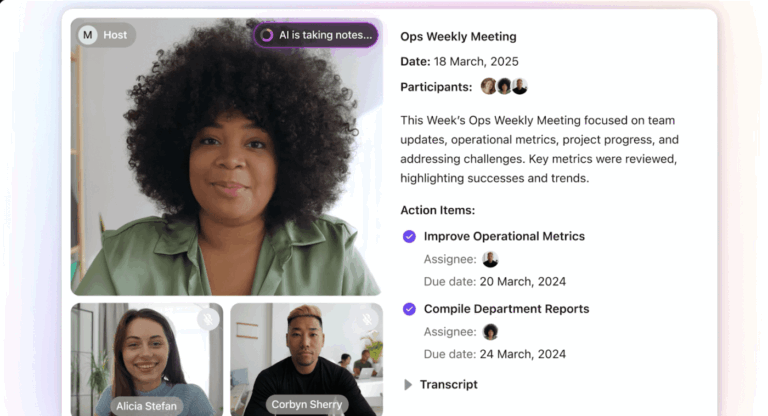
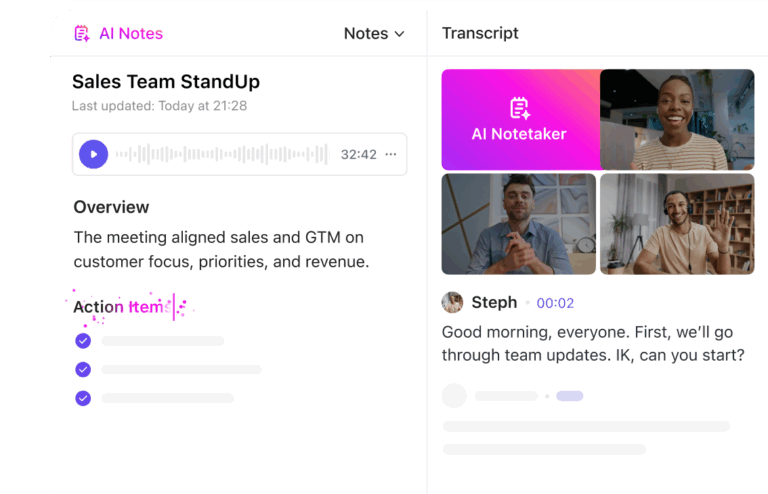
If you’re looking for an online note-taking app, look no further. In addition to the free notepad that we’ve integrated into ClickUp, we also built an interactive notetaker that you can use without an account. Check it out: ⬇️
If you’re looking for a dedicated note-taking app, we understand. That’s why we’ve included a list of our favorite note-taking apps below.
You captured it. But if it stays in the note, it never gets done. Here are 4 types of notes that should already be tasks in your workflow.
Here are the best note-taking apps at a glance:
| App | Best for | Standout Feature |
| ClickUp | Best free note-taking app with AI and task management capabilities | AI and automation capabilities to summarize and analyze notes and generate action items |
| Notion | Collaborative, customizable workspace | Rich integration and customization options for notes, docs, wikis, and more |
| Evernote | Organizing extensive notes | Powerful search and organization features |
| Microsoft OneNote | Flexible note-taking | Freeform canvas in which you can click anywhere to add text |
| Apple Notes | Seamless integration with Apple devices | Simple, clean user interface with iCloud syncing |
| Google Keep | Quick capture and organization with Google | Deep integration with other Google apps and services |
| Obsidian | Advanced note-taking with interlinked notes | Version history for notes |
| Joplin | Open-source enthusiasts who value privacy | Fully customizable and extendable with plugins |
| Simplenote | Fans of minimalism and distraction-free apps | Focus on plain-text notes and easy synchronization |
| Bear | Beautiful, minimalistic themes | Markdown formatting and focus mode |
Our editorial team follows a transparent, research-backed, and vendor-neutral process, so you can trust that our recommendations are based on real product value.
Here’s a detailed rundown of how we review software at ClickUp.
We’ve listed apps that aren’t just popular with professionals but those that just about anyone can use to their advantage—students, freelancers, business owners, or office workers.
Let’s start with the in-house favorite.
ClickUp has been my go-to note-taking app over the last few years, for good reason.
I use ClickUp Docs to jot down notes and tasks and build my knowledge base and wikis. This makes it easy for me to assign tasks and collaborate with team members in real-time.
Rich text formatting options, such as bullet points, checklists, banners, headings, highlights, and code blocks, let me customize my documents and make particular sections of my notes stand out (a bonus for visual learners!). You can also add and embed multimedia elements to Docs.
I’ve used these features on both the web and mobile versions, and they work smoothly everywhere.
ClickUp also supports bi-directional linking within ClickUp Tasks using relationships—a seamless way to connect similar Tasks and get a comprehensive overview of my workflow.
ClickUp Brain is now an integral part of my note-taking strategy. This AI tool helps me summarize long notes, create tables with accurate data, get automated task updates, and quickly find information from anywhere in my Workspace.
When I’m in a hurry, I use ClickUp Brain to summarize comment threads on Tasks so I can understand what’s going on without reading each of the 200+ comments. (I use this a lot to track the signal from the noise and quickly see what my team is up to.
However, if your note-taking woes are specific to meetings, call in the ClickUp AI Meeting Notetaker! It captures every single detail from the meeting and delivers it to you as a structured ClickUp Doc, so you can focus more on what’s being said rather than scrambling to take notes. Once you get the doc, simply ask ClickUp Brain to create tasks from the notes or send a summary to your colleagues using ClickUp Chat. Learn more here. 👇🏼
ClickUp’s Notepad is another feature I rely on for quick note-taking, whether on my phone or desktop. It’s unintentionally become my favorite writing app. I do many of my first drafts here with simple formatting before moving them elsewhere.
The best part is I can turn these entries into trackable Tasks as well, if I need to.
For example, if the note reads ‘Email quotations to Sam,’ I can swiftly create a Task out of it with a deadline and other details.
When I don’t have the time to get on a call to explain something to a team member, I use ClickUp Clips. It allows me to share screen recordings directly within notes, adding a visual and interactive element that even some top note-taking apps lack.
You can get AI-powered transcription for these Clips, making every spoken word searchable within ClickUp.

You can also try ClickUp’s free online notepad directly in your browser with no signup required.
Besides these, ClickUp offers many note-taking templates to save time and boost efficiency. My favorite one is the ClickUp’s Project Note Template.
It includes customizable statuses to track project progress, custom fields to categorize and visualize project data efficiently, and custom views such as List, Gantt, Calendar, and more to adapt to your workflow.
I use this template to:
It is not just me; many ClickUp users agree that Notepad has become a lifesaving tool for them. One of them calls ClickUp the best project management app and highlights:
I used to use sticky notes before but now with Notepads I can itemize my mementos and talking points categorized based on topic, client, and priority particularly when I need to remember something before client meetings.
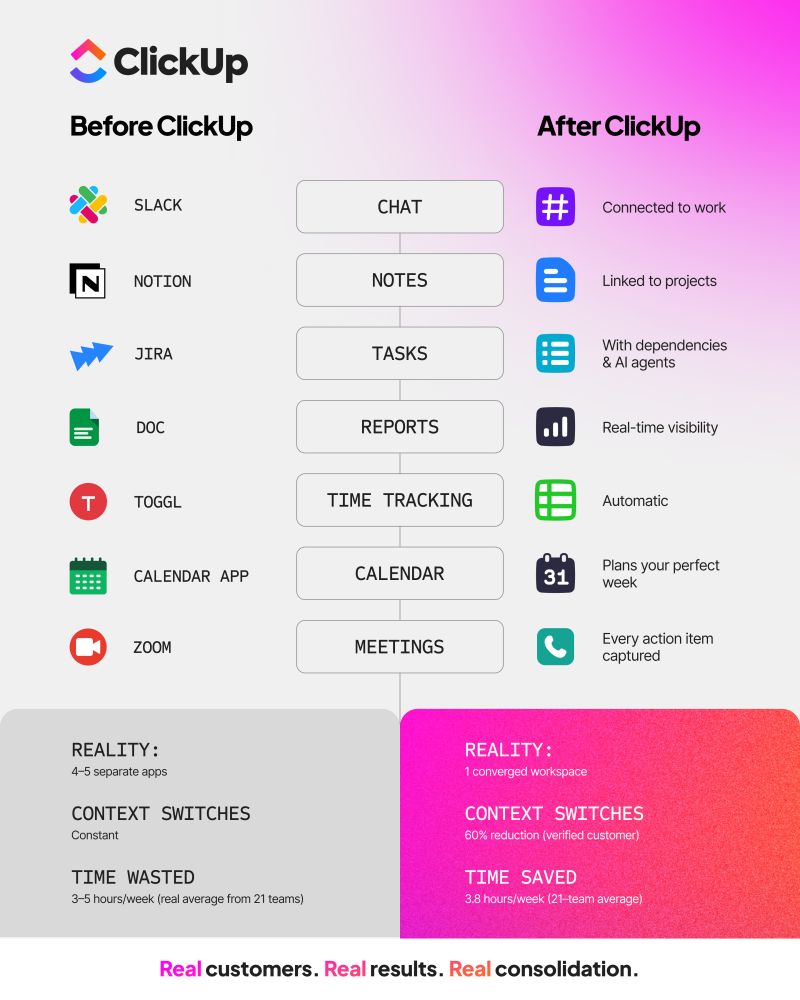
When you’re managing work across multiple standalone apps, without layers of ops or admin support, all that coordination falls on one person, usually you.
Video production company path8 Productions hit that point as they scaled. Work was spread across tools like Smartsheet, Slack, Toggl, and Dropbox Paper. Producers spent time copying updates between systems rather than moving projects forward, slowing delivery and increasing the risk of slips.
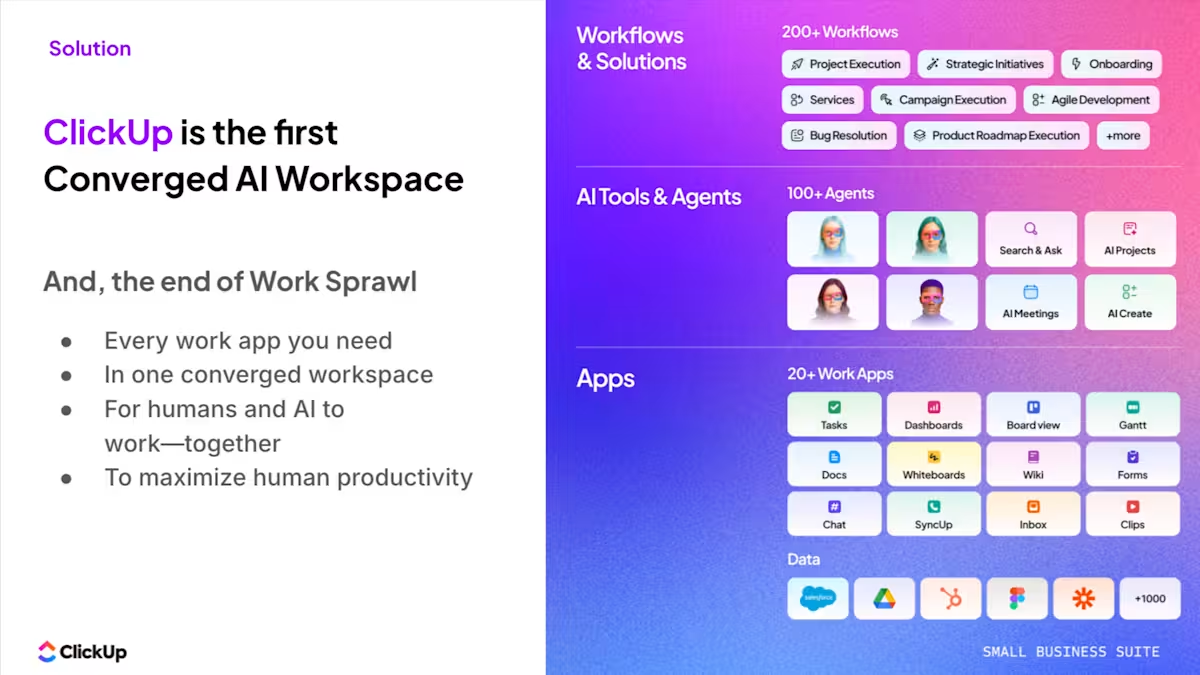
Instead of adding more process or headcount, they consolidated everything into ClickUp’s Small Business Suite.
⚡ The impact
With communication, project tracking, and time logs centralized, the “update every tool” problem disappeared. Producers now log time directly on tasks, conversations stay tied to the work, and meeting agendas build themselves from live project data.
For founder Pat Henderson, the biggest gain wasn’t just efficiency. It was the ability to keep the team moving fast without adding operational overhead.

Notion’s note-taking experience supports various content types, including images, text notes, bookmarks, videos, and code. You can add these to your notes with intuitive controls such as drag-and-drop and slash commands.
We loved its customization options. They allowed us to tailor our workspace for different personal and team needs, such as changing privacy settings to keep confidential meeting notes private or sharing them with team members when needed.
One pet peeve the team had with Notion is the maze of organization; you’re sometimes lost in the app, and the bread crumbs aren’t always helpful. On the other hand, it is quite popular with people who want to create databases and wikis. Go figure.
The UX is sometimes hit or miss; the windows you’d want to open as separate pages often open as popups and vice-versa. Of course, it depends on your personal preference.
While testing the app, I tinkered with Notion AI to discover how it can simplify note-taking and organization. I listed a few tasks, mostly related to a new product launch, and Notion AI quickly auto-filled the steps I had to follow to accomplish those tasks. While they were not fully accurate, the tool did a fair job.
The platform works well for cross-functional teams where collaboration is a must. Comments and real-time editing offer a seamless way to ideate with remote teams, collect and provide feedback quickly, and keep everyone on the same page.

With Evernote, it’s a case of never forgetting your first love. I spent years tinkering with Evernote to build my ideal experience and workflow, but it never quite came together.
From notes, tasks, and schedules to your favorite resources from the web, Evernote makes it easy to save anything you want on your chosen device.
I could quickly integrate Evernote with ClickUp, Google Calendar, Slack, and Microsoft Teams, so all my standups, client meetings, and reminders automatically synced with Evernote.
The tool is also available offline, so it’s comforting to know I’ll still be able to access my notes if I’m camping or traveling without internet access.
Evernote’s AI-powered search functionality is quick and intuitive. It works across PDFs, documents, and images, so searching through a large number of notes and content is never an issue.
The Tasks feature lets you outline project steps and assign responsibilities to others—a great way to collaborate with your team on the go.
Most users love how quickly and easily they can find and organize their notes on Evernote. One user also appreciates the ability to interlink notes to build a knowledge bank seamlessly:
I truly believe that Evernote owes its logo: It does help to build an elephant’s memory, not only in terms of capacity but also regarding the limitless connections you can create and enrich, following your preferred classification rules. You can add as many tags, notebooks, and sub-notebooks as you can, not to mention the internal links bridging notes to each other.

Microsoft OneNote provides a suite of note-taking tools to accommodate different inputs, including typing, handwriting, and drawing.
You can incorporate content from the web directly into your notes, refining the research and documentation process. I’ve always found OneNote’s organization to be great. It’s so simple to get to what you’re looking for with the fewest clicks. The other thing I love is that the app is less rigid and more fluid across text, numbers, and images.
You can quickly add a formula, a table, or an image to the same note. I appreciate the fluidity of this approach—it feels like a natural note-taking and journaling experience.
OneNote templates provide a convenient starting point for organizing your notes, whether you’re planning a project, keeping track of tasks, or journaling.
Our team tested its collaboration features, which were quite seamless. You can work in tandem (on grocery lists, party shopping, or work to-dos) with family members or your team, and your notes get updated in real-time. There’s always that interconnectedness of the Microsft suite that makes it its USP and its limitation—it depends on who you ask.
👉🏽 Our Small Business AI Playbook breaks down exactly how to use AI to reduce complexity in your workflows.

Apple Notes is a simple but efficient note app that works across all Apple devices. If you’re deep into the Apple ecosystem, this could become your go-to tool.
It’s still the most straightforward app if you work within the Apple realm—summon it anytime on your Mac from the bottom right corner, and it pops up earnestly. Syncing is mostly great; copying something on the phone and pasting it on your desktop is magic. The little things that elevate the experience.
Ask more of the app, and you’ll be disappointed. Just moving the text around, formatting, and indenting are not easy or straightforward. Any more advanced use cases are not supported.
You can save multiple types of content, including images, web links, handwritten notes, maps, PDFs, and sketches.
I do prefer Apple Notes’ scanning feature to scan documents directly from my iPhone—there is no need for third-party scanners! The documents are saved directly within Notes as PDFs.
Check out these Apple Notes alternatives!

Google Keep allows users to effortlessly capture a variety of content, including notes, lists, photos, and audio, and organize it all on a digital bulletin board.
Sharing notes among family and friends is simple. For example, you can share a shopping list and see updates in real-time as items are checked off—there is no need for back-and-forth communication.
I personally like Google Keep’s voice note feature. When I’m in a rush and need to jot down something important, I can simply record a voice memo instead and transcribe it into text later—fast and efficient!
Like Apple Notes, anything more complex or advanced you want from the tool is a struggle. You might think Google would make more effort to combine the Keep experience with Google Tasks and Calendar, but it’s not happened. They continue to be disparate experiences, which can be frustrating if you want an all-in-one software or experience.
Check out these Google Keep alternatives!

Obsidian is a note-taking app useful for people like me with hundreds or thousands of notes on their devices.
What I love the most about this tool is the inter-linking and bi-directional linking—you can create connections between notes, ideas, people, places, and more.
For example, I saved multiple notes on different marketing campaigns, all for the same product. Linking helped me keep everything integrated and access relevant notes quickly. An interactive graph also identifies hidden patterns within notes and visualizes their relationship.
On that note, I’ve been a big fan of Obsidian and Notion. But if I have to assess Notion vs Obsidian head-to-head, I’ll pick Notion any day, as its note-sharing and collaboration features are way smoother. Obsidian is great if you want to spend a lot of time on the tool itself. If you’re looking for collaboration or integration features where you can push out information or tasks to support your productivity workflow—it’s not built for that.
Most Obsidian users swear by the ease of using markdown to format their notes in the app.
Obsidian’s support for Markdown is also great. It makes it easy to format my notes and include images, tables, and other media
Some of them, however, dislike that many basic and interesting features—like cloud sync and a multi-device subscription—are behind paywalls.
Cons: “You have to pay for the multi-device link subscription, I think it should be a one-time payment.”

Joplin is an open-source note-taking application that helps you put your thoughts into words and securely access them across Windows, MacOS, Windows, Linux, and iOS. The tool supports multimedia notes, including images, videos, PDFs, and audio files.
Its sharing and collaboration features are seamless. It allowed me to share my notes with friends, family, and colleagues and work alongside them on the notes without hassle.
There was also an option to save a note (on the internet) and share the link with others—an easy way to share task lists, company wikis, or meeting notes with a large group of people.
Joplin offers extensive customization options through plugins, custom themes, and text editors (such as Rich Text and Markdown), ensuring you can tweak the tool to your liking.
While it’s an open-source app, it maintains data privacy with End-To-End Encryption (E2EE). Your notes will be accessible only to you unless you choose to share them.
Check out these Joplin alternatives!

Simplenote is a no-fuss note-taking app that syncs across multiple devices and platforms, including Android, iOS, Mac, Windows, Linux, and web browsers. Notes update automatically in real time across all devices—there’s no need to look for a ‘sync’ button!
I found the version history feature to be the most useful. Sometimes, I create a detailed note on a topic, and once the job is done, I edit the note with new content. Later, if I want to retrieve that note, it’s not possible anymore.
Simplenote is a savior in such cases—it backs up notes with every change, so I can look up what I had written down days, weeks, or even months ago.
The interface is quite similar to Apple Notes, but there’s no option to add images or sketches.
Simplenote seems a popular choice for jotting down notes in classrooms and meetings, with users admiring its simple, no-fuss UI.
It’s helped me (a) lot in meeting(s) to note down the MOM.
The downside, of course, is the lack of bells and whistles, like templates, as pointed out by this user.

Bear is a Markdown-based note-taking app that allows you to format and organize different types of content (including text, photos, tables, and to-do lists) within a single note.
I loved its aesthetics, especially the minimal user interface—it made me feel less anxious when I was toying with the app, even though I had a massive task list to tick off!
Bear is available on Mac, iPhone, and iPad. It’s a great choice if you’re more inclined toward the Apple ecosystem and looking for something more visually pleasing than Apple Notes.
Opting for the paid version, Bear PRO, unlocks advanced features, such as OCR search capabilities and exporting notes into multiple formats (PDF, HTML, DOCX, and JPG). It’s worth the money if you’re into designing.
If you’re using Windows or any other operating system, you can explore these Bear app alternatives.
When selecting an app, prioritize features that complement your professional routine and boost productivity. I’m particular about how I work and the myriad routes I take to feel productive and less burdened by the information I need to remember.
Here are some key aspects to consider:
These essential features helped me sort through the many note-taking tools available on the market and find the best ones for you.
The apps we tested and shortlisted have a few things in common: they are all simple to use, available across platforms, and keep me more organized and productive.
While they are great for taking down notes and accessing them later, very few tools go beyond the basic features.
I prefer tools that help me balance both personal and professional tasks, so I prefer apps with advanced features such as team collaboration, task management, project management, and robust integrations.
Having multiple note apps on my device defeats the purpose—it only clutters my digital space and overwhelms me. So, I like to use one powerful app that dons many hats and integrates with my tech stack.
There’s only one software that checks all the boxes—ClickUp!
It simplifies note-taking with Docs, Notepad, and ready-to-use templates. The AI capabilities fast-track writing, retrieve old notes, and transcribe voice notes. And project management tools let us stay on top of task lists and collaborate with cross-functional teams.
Try ClickUp today!

Praburam Srinivasan
Max 22min read

Sudarshan Somanathan
Max 18min read
Praburam Srinivasan
Max 18min read

© 2026 ClickUp





