
Sorry, there were no results found for “”
Sorry, there were no results found for “”
Sorry, there were no results found for “”
Imagine a parallel world where you had endless time and resources at your disposal. You could drive ambitious projects, pursue endless priorities, and do it all stress-free.
Unfortunately, that’s not how things work. As a project manager, you’re managing multiple projects and priorities at any given time.
You’re always under constraints: of time, resources, and everything else.
To see all your projects reach the finish line, you need to be ruthless in how you manage them.
We’ve put together a list of the top 3 project management software to manage multiple priorities and projects, despite the accompanying chaos and obstacles.
Here’s how the top three project management software to manage multiple priorities stack up against each other:
| Tool Name | Best For | Key Features | Pricing* |
|---|---|---|---|
| ClickUp | AI-powered project management and collaboration | Task management and prioritization, AI-powered contextual intelligence, no-code AI agents | Free Forever; enterprise customization available |
| Asana | Project tracking and cross-functional team workflows | My Tasks, AI Studio, Portfolios, AI Teammates | Free; paid plans start at $13.49/user/month |
| Trello | Visual task management and collaboration | Visual boards and cards, Checklists, Butler automation, Power-Ups | Free; paid plans start at $6/user/month |
👀 Did You Know? At any given time, a project manager is working on several projects. They need superpowers to ensure the same level of focus and output quality across all of them. Because the cost of poor project performance is a colossal waste of investment—11.4% to be precise.
When every task feels urgent, what project managers really need isn’t more project planning; rather, more clarity.
Here are some key features to look for in a project management tool to manage multiple priorities effectively:
🧠 Fun Fact: The word ‘priority’ originates from the Latin prioritas, meaning ‘first in rank or order.’ Historically, it was used in the singular, implying that there could be only one priority at a time. The plural form, “priorities,” became common only in the 20th century, when knowledge workers began juggling multiple projects, deadlines, and stakeholders simultaneously.
Our editorial team follows a transparent, research-backed, and vendor-neutral process, so you can trust that our recommendations are based on real product value.
Here’s a detailed rundown of how we review software at ClickUp.
Your client wants an update on last week’s deliverables, and your team is waiting for the feedback on a draft. You scan your project board, and can’t seem to spot the bottleneck.
That’s what a project manager’s nightmare is made of.
Here are the project management software with features that are specifically designed to manage multiple projects:
ClickUp for Project Management is the everything app for work that combines project management, task management, and team communication, all in one platform—accelerated by next-generation AI automation.
Below are the key features of ClickUp’s project management tool that make it a breeze to manage multiple projects (and retain your sanity):
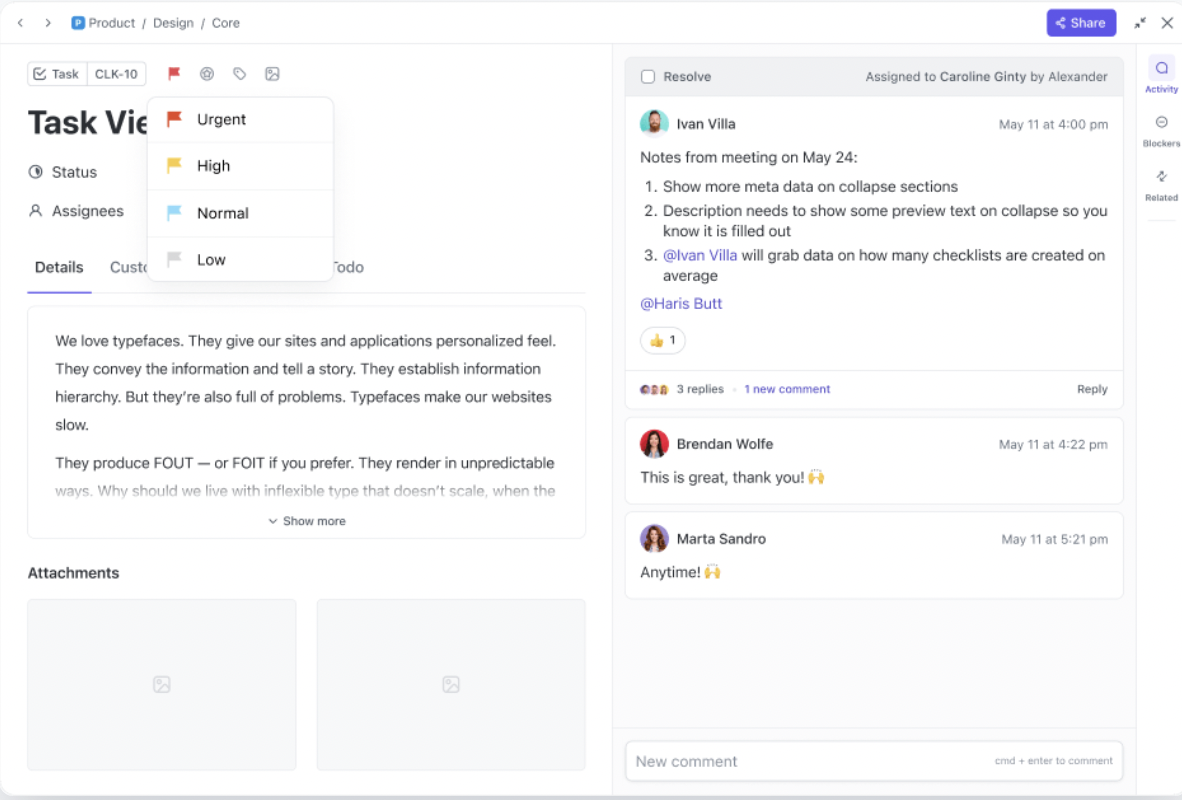
ClickUp Tasks become the building blocks of every project in your workspace. You can create a task for ‘Launch landing page’ and then break it down into subtasks like ‘Write copy’ and ‘QA test’ using this task management feature. Assign them to the right team members, add tags, due dates, descriptions, and even link them to each other.
To add more accountability, flag each task with one of the four priority levels offered by ClickUp Task Priorities. Pick from Urgent, High, Normal, or Low so your team always knows what needs attention first.
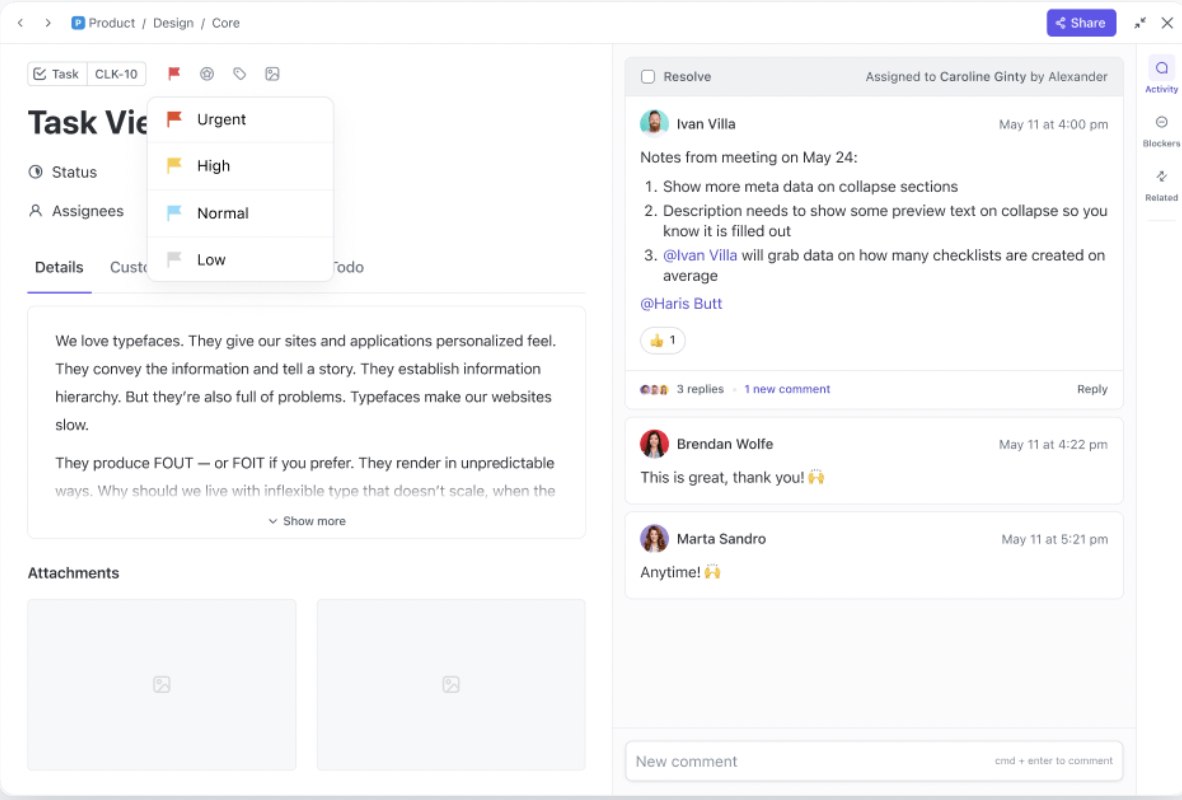
For instance, your marketing team planning a product launch can mark:
Tasks can be sorted by priority and time estimates, giving every team member a clear daily roadmap.
ClickUp Dependencies adds another layer of context. Mark a design task as ‘blocking’ development, and its priority instantly signals urgency to the right people. You can also save filters to create custom views, like showing only High and Urgent tasks due this week.
This video shows you how to prioritize tasks like a pro:
Compared to a traditional project management tool, ClickUp Brain adds contextual intelligence to your project workflows.
It understands the context of your workplace and the multiple projects you manage.
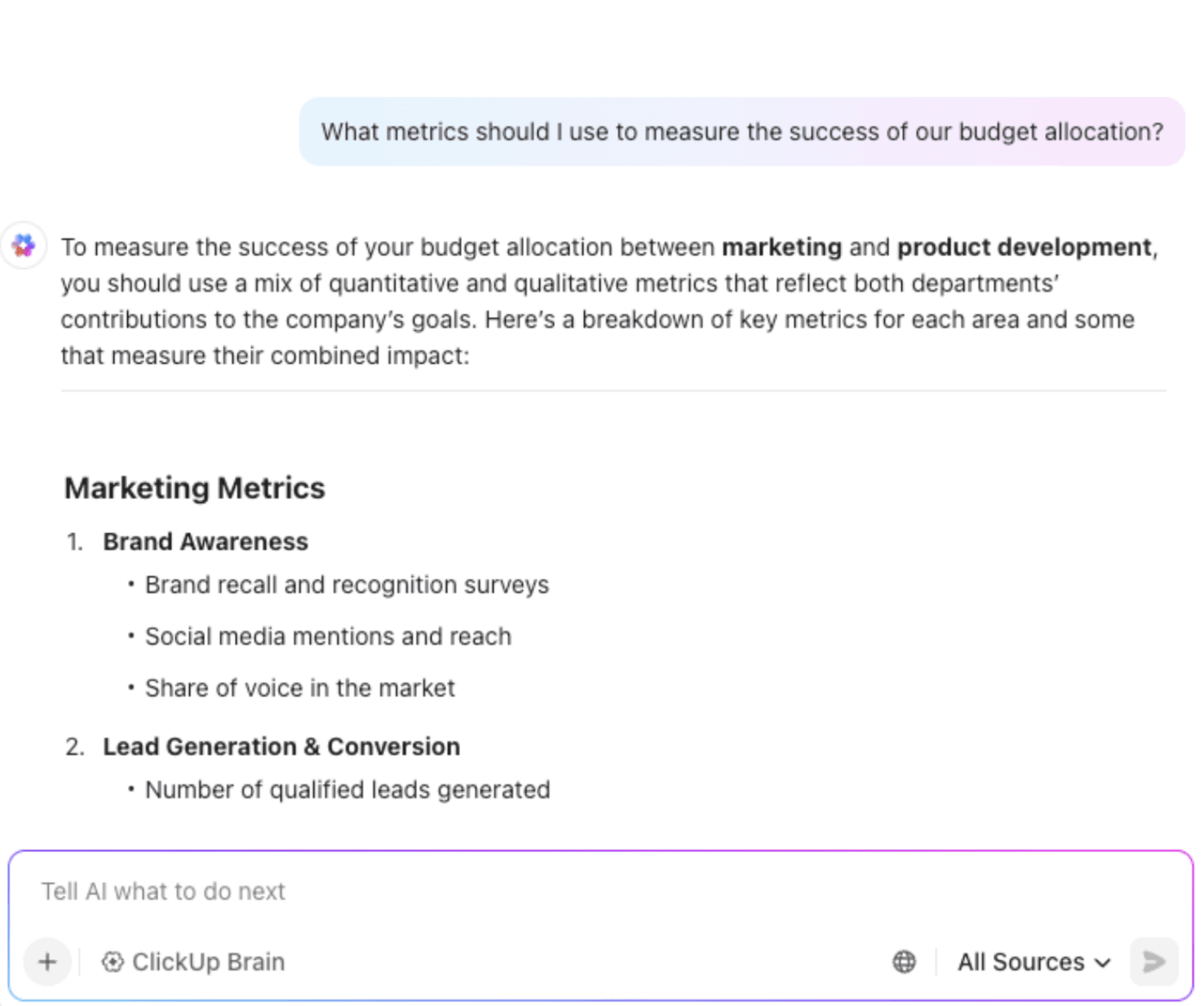
ClickUp Brain is designed to connect tasks, docs, and conversations into one intelligent system. Here’s how to use AI for workflow management:
Embedding ClickUp Brain directly into your workflow ensures that you spend less time chasing project data (delivery timelines, project risks, etc) and more time making strategic decisions.
This video shows you how to streamline project management with ClickUp Brain:
ClickUp Automations lets you build no-code rules that trigger actions across multiple projects. Using simple “if this, then that” logic, you can automate priority changes, assignments, status updates, and handoffs. No manual tracking needed.
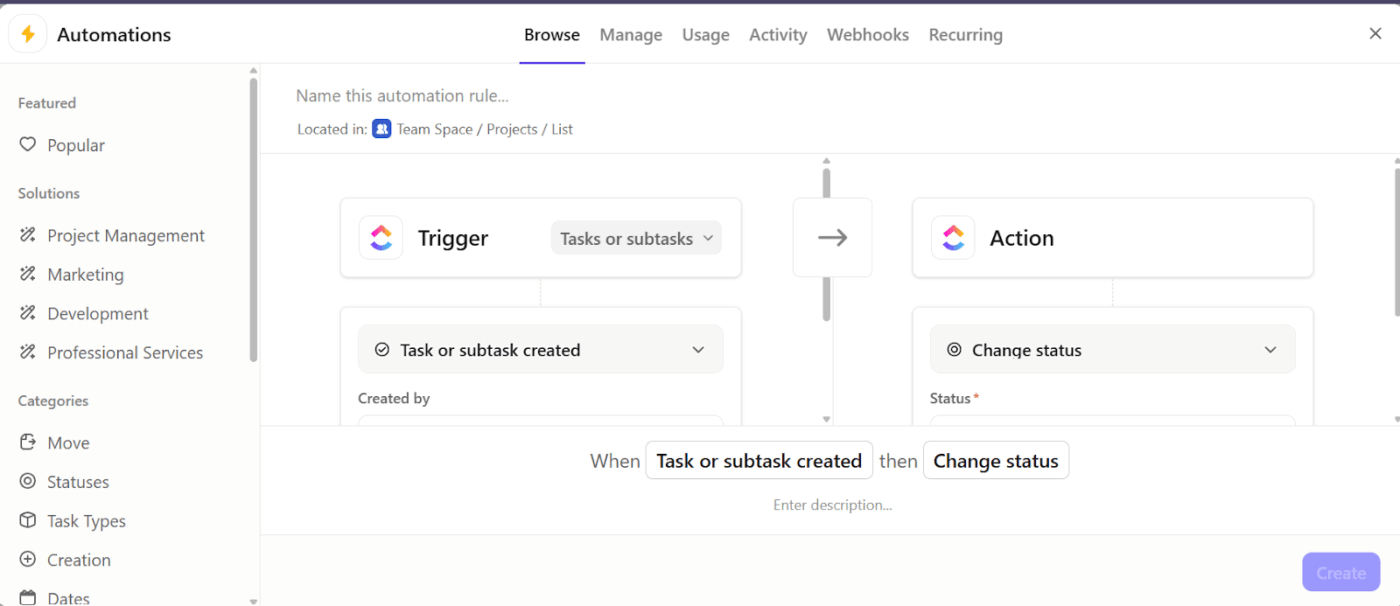
You can set up automations to update priority or ownership when:
Examples:
ClickUp Autopilot Agents take automation a step further by acting on priority changes as they happen. Unlike rule-based automations, these AI agents continuously monitor tasks, comments, and docs and then update priorities or notify owners based on context.
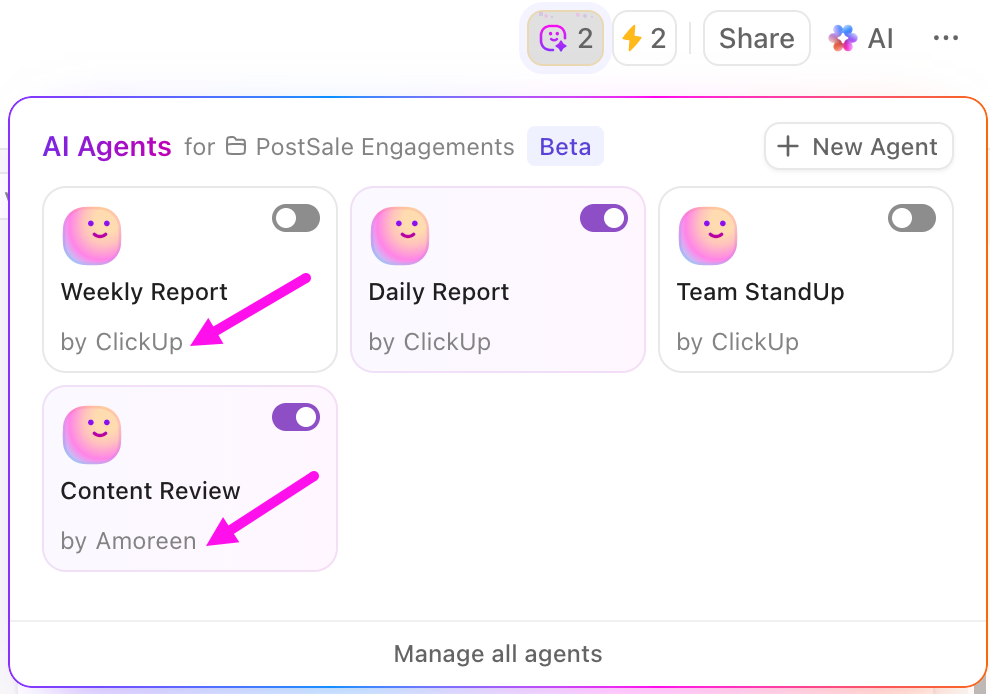
You can use a prebuilt Autopilot Agent or build a custom one for your workflow.
Use Prebuilt Autopilot Agents when you want quick, ready-to-use automation for common workflows, such as daily/weekly status reports or automatic updates.
On the other hand, Custom Autopilot Agents are the best choice when you need agents to follow your own logic (multi-step triggers, conditions, or workspace-specific rules) to manage priorities in a customized manner.
With AI-powered project execution, ClickUp eliminates tool switching costs and centralizes task management. Work moves forward without you having to hunt for updates. It converts context into action by automatically tagging, assigning, and escalating tasks.
ClickUp pulls tasks, docs, timelines, chats, and AI into one Converged AI Workspace so every priority stays aligned to the same source of truth.
This G2 review really says it all:
ClickUp has been a game-changer for organizing projects and keeping my team aligned. I love how customizable it is — whether I need a Kanban board, Gantt chart, or just a simple task list, it’s all there. The ability to create docs, track goals, and even chat within the platform saves us from jumping between multiple tools. That said, the flexibility can be a little overwhelming at first. It took some time for our team to figure out the best setup, and onboarding new members requires a bit of training.
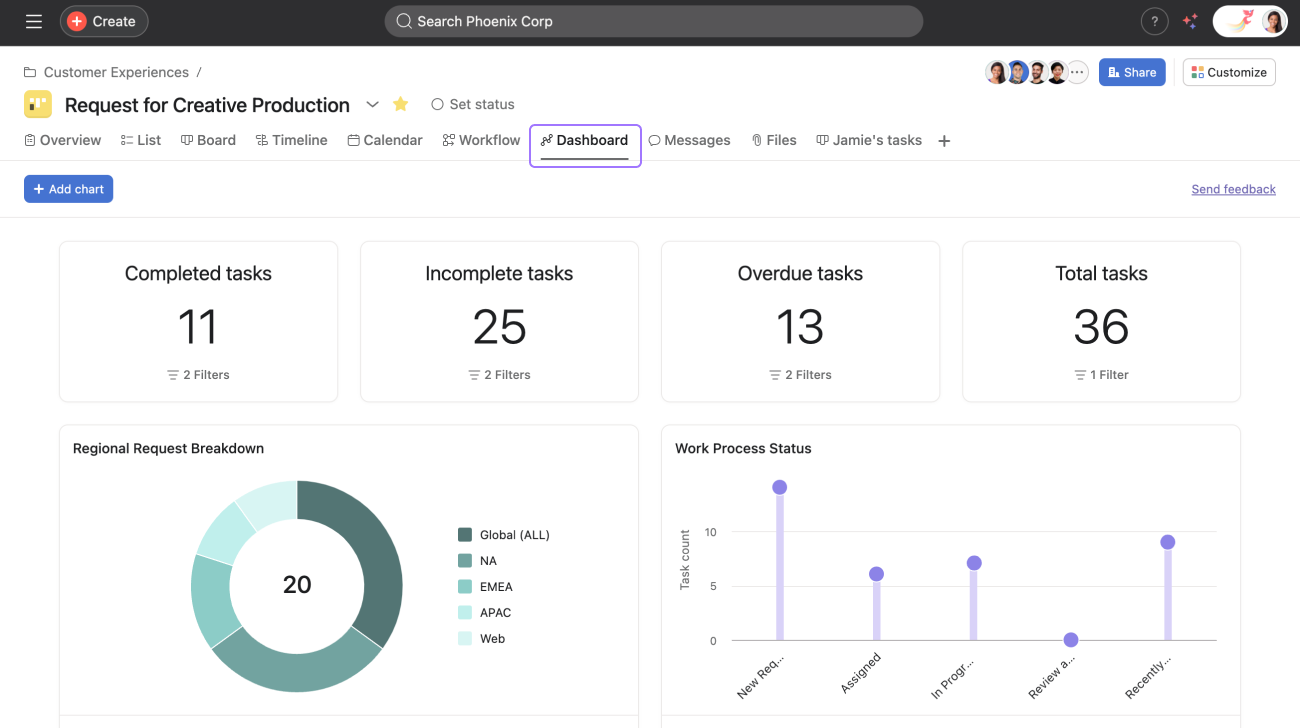
Asana is a task management software that brings your to-do lists into one centralized location. By connecting your work with your to-dos it helps you prioritize tasks effectively.
Unlike scattered sticky notes, Asana gives you a unified view of everything on your plate across multiple projects and teams.
The MyTasks view pulls together all assigned tasks into a manageable list. It also handles task relationships. When a deliverable affects multiple projects, you can multi-home a task instead of creating duplicates.
The Portfolios feature serves as mission control for project managers overseeing multiple initiatives. With the dashboard, you can see which projects are trending behind schedule and where your team might be overloaded before problems spiral out of control.
Asana AI embeds intelligent features directly into your workflow. AI surfaces insights about project plans, can answer questions about next steps, and generate summaries of the latest progress. The AI Studio allows you to build no-code AI workflows to automate repetitive tasks without dependency on tech teams.
Asana ties together projects, dependencies, and workloads for easy visibility and quick adjustments. Layered views support tracking tasks at different scales, even as priorities shift. Automations and real-time updates ensure cross-functional collaboration without losing sight of goals.
From a G2 review:
Asana’s layout is highly engaging and interactive with many features such as automations, fields that populate directly into your project from created request forms, and an insane amount of reporting ability at multiple levels of a workflow. It also integrates with a TON of outside platforms that companies utilize on a regular basis, allowing everything to flow into one place for your various teams and clients.
🧠 Fun Fact: Psychologist Bluma Zeigarnik discovered that people tend to remember unfinished or interrupted tasks better than completed ones. This phenomenon, known as the Zeigarnik Effect, suggests that incomplete tasks create a cognitive tension that keeps them top-of-mind, enhancing memory retention.
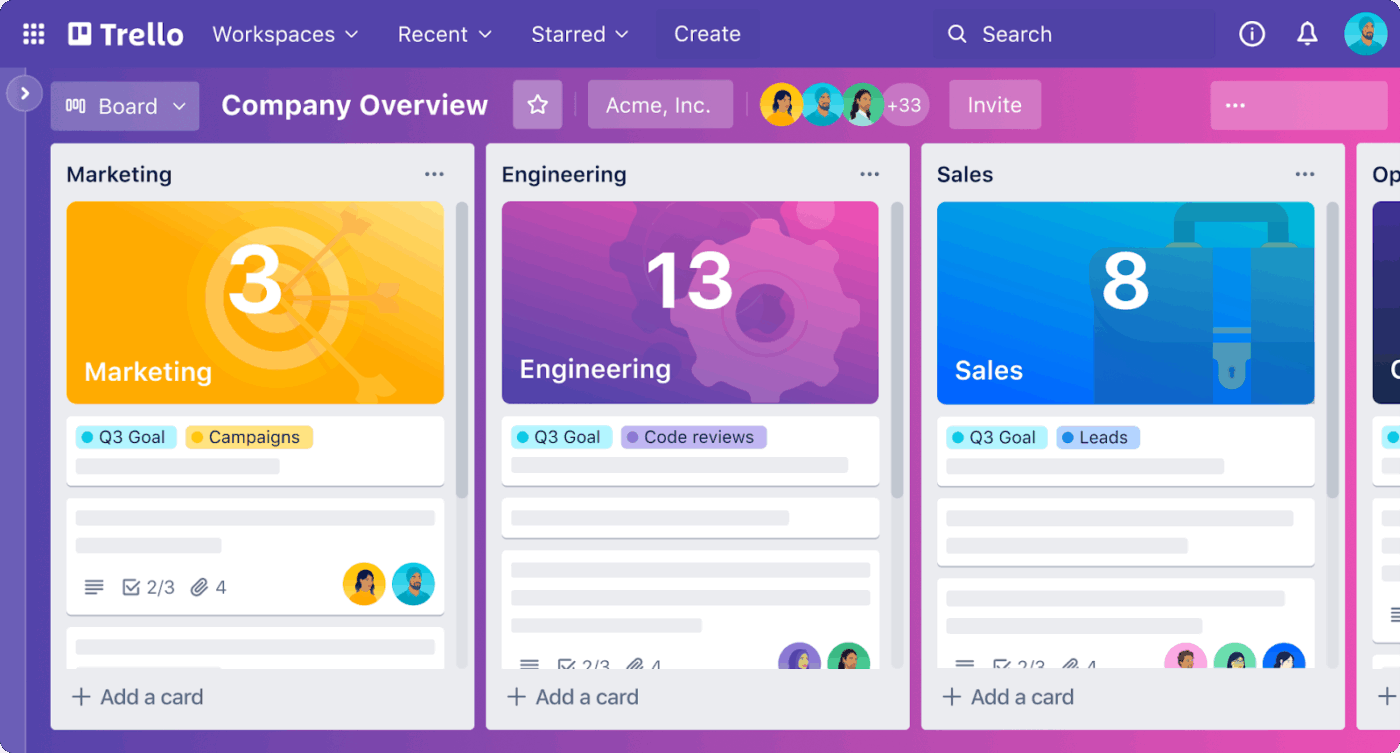
Planning and scheduling a single project is straightforward from a capacity perspective. But when several projects run simultaneously with a siloed view, tasks will soon pile up on your plate. Before you realize it, you’ll have three tasks to deliver at the same time.
The project management and visual collaboration tool Trello helps you proactively manage all these priorities and your capacity.
To understand how much your team is tackling at any given time, Trello has different views.
The Calendar View shows upcoming work so you don’t overload specific days or weeks. Dashboard highlights workload metrics like due dates and assigned cards to prevent bottlenecks.
Table pulls tasks from all boards into one sortable list. And Timeline maps tasks in a Gantt-style
You can add relevant resources, such as attachments and conversations, to cards. Centralize comments, status updates, and project conversations on cards.
Create advanced checklists to capture details of project tasks. Use Dashboards to track any set of tasks across your Trello boards, such as overdue tasks or projects, each month.
Trello Inbox AI parses Slack and Teams messages saved to Trello Inbox to extract due dates, priorities, and action items.
Trello highlights project prioritization through visual cues, helping rapid change across boards. Automation and integrations streamline task movement as plans evolve. It’s especially effective for dynamic environments.
Here’s what a Capterra user had to say:
I’ve been using Trello for well over a decade. The free version has gone through several iterations, but still represents good value for money – especially in an agency / consulting setup where per-seat pricing for occasional client use is cost prohibitive. I find my clients love the ease of use compared with alternatives.
📮 ClickUp Insight: Only 7% of professionals say they rely on AI mainly for task management and organization. One reason could be that most tools only cover narrow areas like calendars, to-do lists, or email.
With ClickUp, AI stretches further. It connects your email, communication, calendar, tasks, and docs in one place. You can even ask, “What are my priorities today?” and ClickUp Brain will scan your workspace to give you a clear, urgency-based list. In doing so, ClickUp brings together the power of five or more apps into one simple super app.
Here are some other project management tools that prevent priority clashes:
💡 Pro Tip: According to the ‘Peak-End’ rule, people judge experiences largely based on how they felt at the peak moment and the end, not the total duration. In task management, completing key priorities early or ending the day with small wins can boost motivation.
Tools can only take you so far. When you’re struggling to organize and manage work across multiple projects, these strategies will help you keep everything on track:
Picture this: You’ve just finished the marketing campaign for the last quarter of the year and you’re getting ready for the next year. You don’t remember how you set up the reporting dashboard.
On top of it, you’re managing multiple projects. You’re not sure what the initial components are, so how do you replicate the campaign without missing crucial tasks and details?
✅ Solution: Templatize important workflows. This way, when you start a new project, simply plug-and-play the data. Ramp up faster and more efficiently.
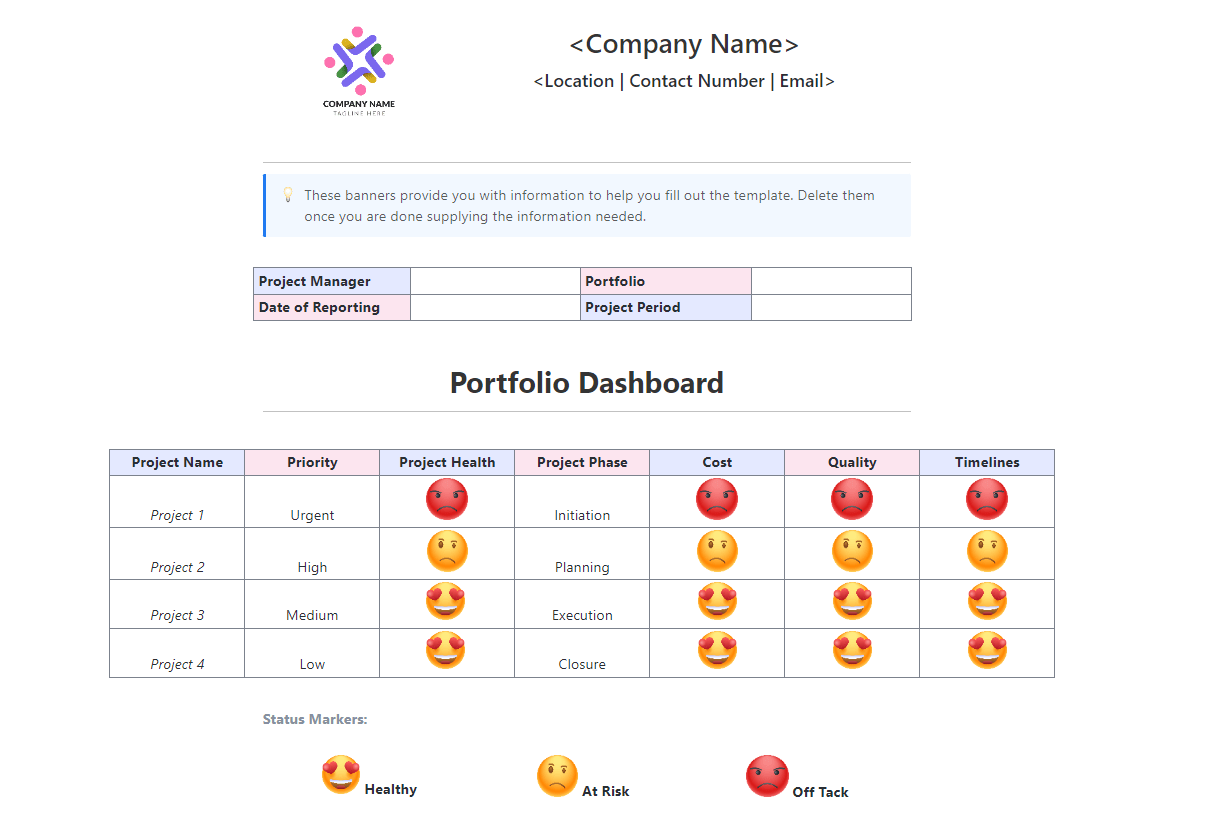
💡 Pro Tip: Use ClickUp’s Multiple Projects Status Report Template to keep all your projects accessible and organized.
You get an eagle-eye view of all necessary details, including project phase, health, cost, quality, and timelines. With tagging, sub-tasks, priority labels, and multiple assignees, you get notified whenever there are delays and blockers.
When you manage multiple priorities, everything feels urgent.
You jump between tasks, respond to messages, and attend meetings. By the end of the day, your actual priority work hasn’t moved.
✅ Solution: Apply the Ivy Lee method.
At the end of each workday, write down the six most important tasks for the next day, prioritizing them in order. Focus on completing them one at a time, moving down the list only after finishing the previous task.
⚒️ Quick Hack: At the end of the day, when your brain is mush, let ClickUp Brain make your life easier. Use it to:
⚡ Template Archive: Free Multiple Project Tracking Templates to Run Your Projects Like Clockwork
Without a standard project planning process or a clear project management methodology, every new project gets managed differently.
The result? Deliverables become inconsistent, project managers reinvent the wheel, and teams operate from different assumptions. No one has a unified view of priorities, ownership, or timelines.
✅ Solution: Plan the process and responsibilities even before the project starts.
At the project level, outline goals, milestones, dependencies, and feedback/approval steps.
At the program level, establish team-level objectives and show how they connect to business goals.
When expectations are defined upfront, team collaboration gets easier and execution becomes repeatable—especially when your task management software supports templates and project kickoffs.
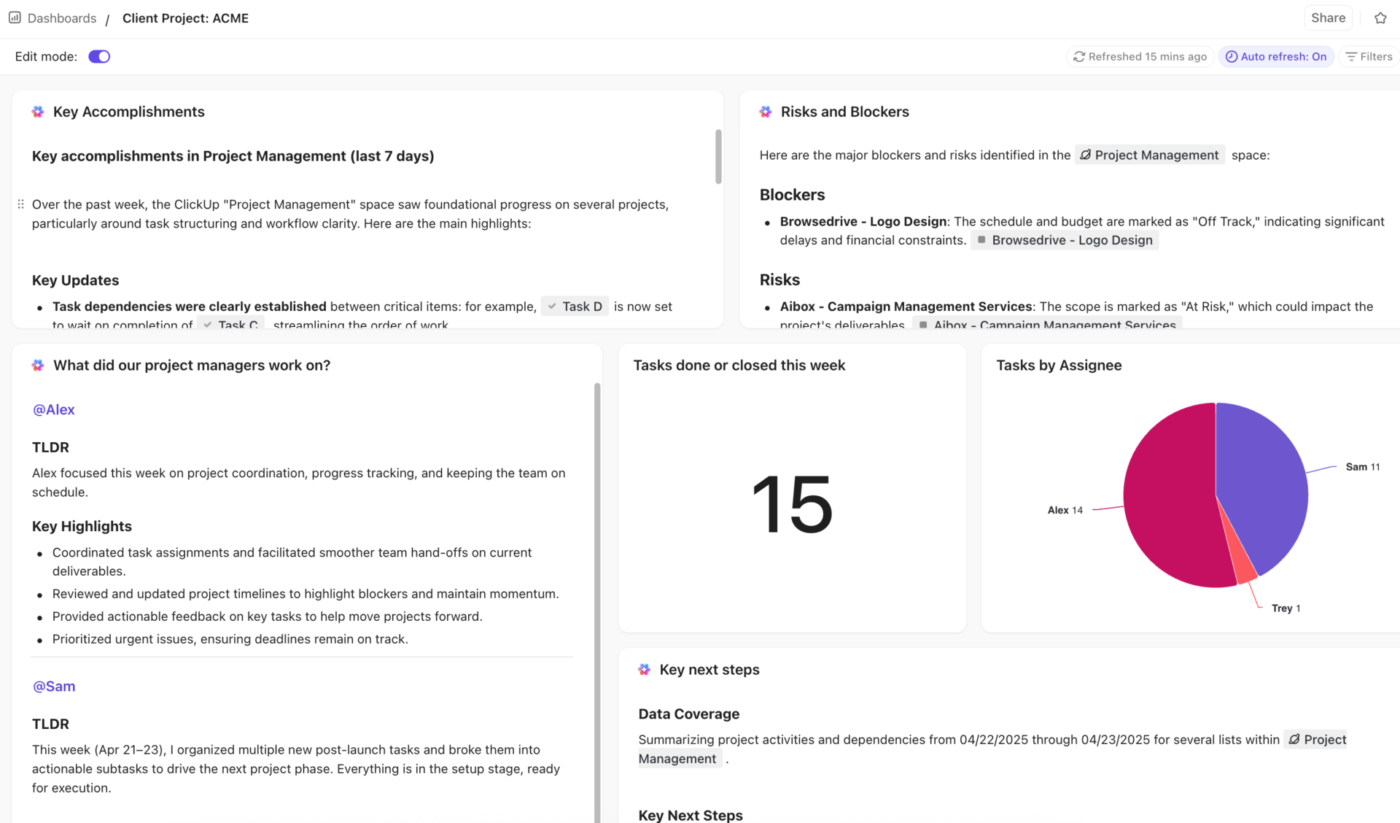
⚒️ Quick Hack: Once you outline goals, milestones, deliverables, and ownership in your project doc, add AI Cards to your ClickUp Dashboard to keep those expectations visible and updated automatically.
Use AI cards to:
⚡ Template Archive: Free Project Prioritization Templates to Organize Your Tasks
When you plan each project in a different place, you don’t have a way to see all the work the person is doing across different projects.
You rely on the person to let you know if the workload is too little or too much. You only find out about it with missed deadlines or when they finally speak up. This kills the whole purpose of efficient resource allocation.
✅ Solution: The first step to solving this is managing all your projects in one place (hint: project management tool). Then, you will want to see all the tasks in each project and who they’re assigned to.
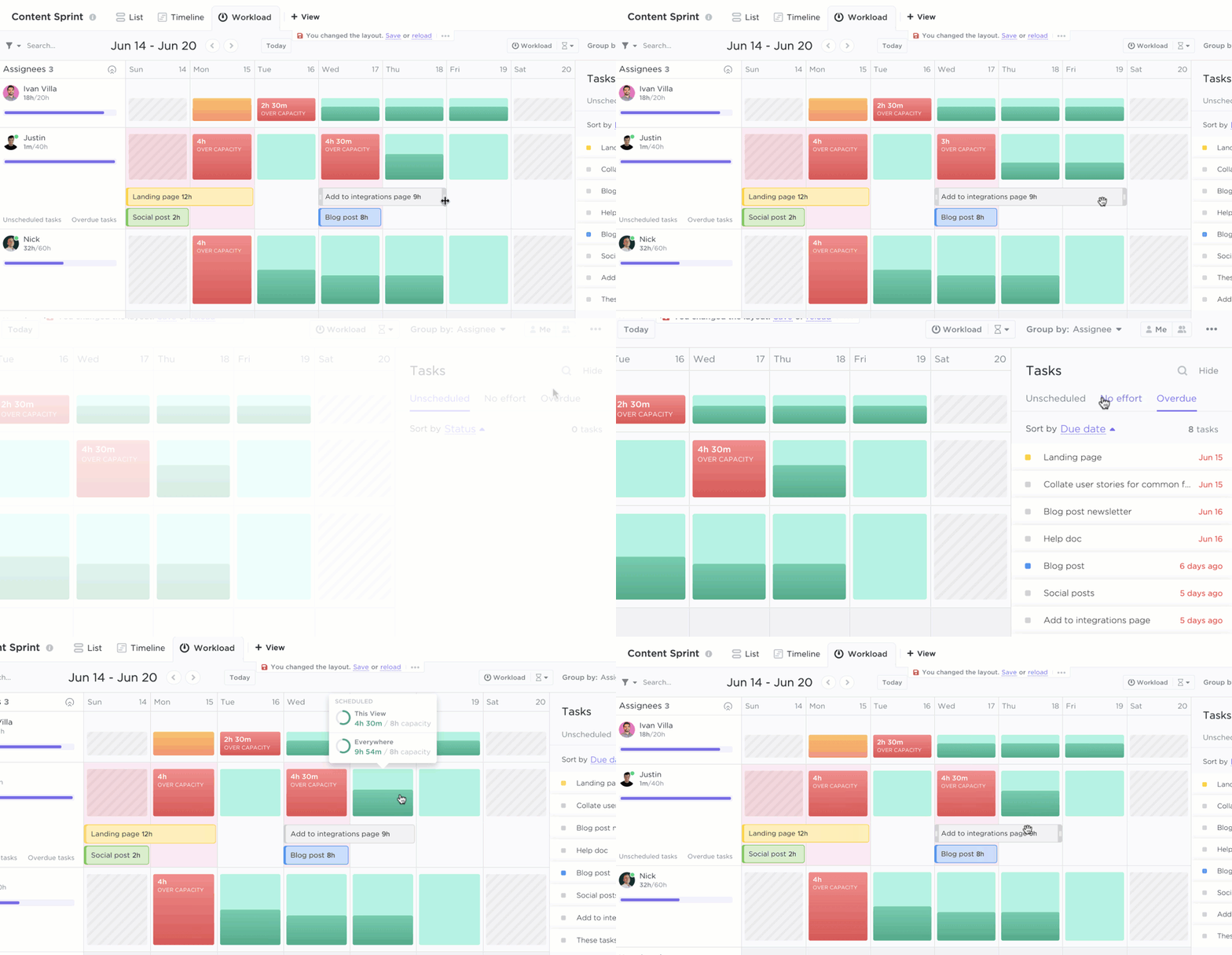
Based on this, you can remove or delegate tasks to keep projects on track and prevent burnout. But remember that not all PM tools include resource management tools or a workload view filter. So choose wisely.
💡 Pro Tip: ClickUp’s Workload View lets you visualize each person’s available capacity based on time estimates, story points, or custom effort fields. Each person’s capacity is displayed in red, green, or yellow, indicating their workload at a glance.
👀 Did You Know? ‘Multi-tasking’ is a misnomer. The human brain can’t perform two or more tasks simultaneously. Research indicates that when we attempt to handle multiple tasks simultaneously, our brains engage in ‘task switching.’ The increased demand on the neurocognitive systems supporting control and sustained attention leads to slower performance and more errors compared to focusing on a single task.
Say goodbye to the chaos of competing with multiple priorities by implementing these simple yet impactful strategies.
When paired with a project management tool like ClickUp, you’ll be able to track project progress, stay organized, and hit project performance goals every single time.
To ace task prioritization, sign up with ClickUp for free.

© 2026 ClickUp