






Still downloading templates?
There’s an easier way. Try a free AI Agent in ClickUp that actually does the work for you—set up in minutes, save hours every week.
Sorry, there were no results found for “”
Sorry, there were no results found for “”
Sorry, there were no results found for “”
Your team just had a 30-minute meeting to decide which platform to use for scheduling 30-minute meetings. The irony is not lost on anyone.
Collaborative tools were supposed to make work easier. Somehow, you’ve ended up with seven different apps, none of which talk to each other, and a team that’s ready to go back to carrier pigeons.
It’s not that collaboration tools are bad. It’s that picking the wrong ones turns your team into digital nomads wandering between platforms.
Here’s what makes this tricky: every tool promises to be the one your team needs. They all have slick demos. They all claim to boost productivity by 347%. And they all seem perfect until day three, when you realize half your team can’t figure out how to tag someone in a comment.
This guide breaks down how to choose collaboration tools that fit your team’s needs. We’ll cover what to evaluate, which features genuinely matter, and some top options (yes, including ClickUp!).
Collaboration tools are software platforms that connect your team’s work in one central place so everyone knows what’s happening without constant meetings or email chains. They handle task assignments, file sharing, project timelines, and team communication all in the same system.
When someone updates a task status at 9 p.m., the rest of your team sees it the next morning without anyone sending update emails. This keeps your projects moving forward even when team members work different hours or from different locations.
🔍 Did You Know? Gallup’s Science of High-Performing Teams study found that good collaboration connects deeply with engagement: teams where people know each other’s strengths, get feedback, feel included, and feel meaning in their work perform far better in productivity, profitability, and teamwork.
Collaboration takes many forms, and understanding each type can help teams work together more effectively.
Ever get tired of answering the same questions over and over, scrambling to coordinate weekly team updates, and all those routine communication tasks? What if all those could be automated via Agents? With ClickUp Agents, you can!
Here’s how to choose collaboration tools that will work for your team.
Forget the clean sample projects that vendors set up for demos.
Take your messiest ongoing project with actual deadlines, multiple dependencies, and the chaos your team deals with daily, then load it into the platform. The collaboration tool either handles real complexity or it falls apart, and you’ll know within days which one you’re dealing with.
Pay attention to these friction points:
🧠 Fun Fact: In 1837, six renowned pianists—Franz Liszt, Frédéric Chopin, Carl Czerny, Sigismond Thalberg, Johann Peter Pixis, and Henri Herz—came together to compose a set of variations on a theme from Bellini’s opera I Puritani. This collaborative piece, known as Hexameron, showcases the fusion of individual styles into a harmonious whole.
Hand the platform to whoever on your team takes the longest to adapt to new software. The team collaboration tool that works great for your project managers but confuses everyone else becomes the tool nobody uses.
Watch how these users handle everyday scenarios to determine adoption rates:
How long does it take for your team in status meetings, hunting for files in email threads, or figuring out who’s responsible for what? Use the new tool for two weeks and measure those same activities again.
Track these metrics:
🔍 Did You Know? A survey by Great Place To Work revealed that in hybrid/remote settings, cooperation (people believing they can count on others to work with them) drives productivity more than physical proximity. Teams with high cooperation gave extra effort much more often.
Connect the platform to your email, calendar, and file storage, then actually use these integrations for a week.
Weak integrations mean you’re managing data in parallel systems, which defeats the entire point. Test these integration scenarios:
🚀 ClickUp Advantage: When you need that urgent file or a critical insight, ClickUp’s AI-powered Enterprise Search and ClickUp Brain can find it in seconds across tasks, docs, and connected third-party integrations.
Access work via your phone during your commute or between meetings and try approving a request, reviewing a document, or reassigning a task.
A tool that works beautifully on desktop but barely functions on mobile doesn’t match how teams operate anymore. Evaluate these capabilities:
📮 ClickUp Insight: 31% of managers prefer visual boards, while others rely on Gantt charts, dashboards, or resource views.
However, most tools require you to choose one. If the view doesn’t match the way you think, it just becomes another layer of friction.
With ClickUp, you don’t have to choose. Switch between AI-powered Gantt charts, Kanban Boards, Dashboards, or Workload View in a single click. And with ClickUp AI, you can auto-generate tailored views or summaries based on who’s looking—whether it’s you, an exec, or your designer.
💫 Real Results: CEMEX sped up product launches by 15% and cut communication delays from 24 hours to seconds using ClickUp.
Your budget should match your team size, project complexity, and how much wasted coordination time is currently costing your business.
Free and low-cost options work for teams under 10 managing straightforward projects. You’ll get basic task lists, file sharing, and team chat, but expect storage caps and limited customization. Most platforms at this price point limit features such as timeline views, automation, or guest access.
🔍 Did You Know? During World War II, the U.S., the U.K., and Canada collaborated on the Manhattan Project to develop the first atomic bomb. This massive endeavor involved thousands of scientists and engineers working together in secrecy and urgency.
This range supports 15-50 people who need better project visibility, time tracking, and custom fields.
You’ll get expanded storage, priority support, and integrations with your calendar and file systems. Teams at this stage often discover that different communication styles in the workplace create coordination gaps, and the right platform bridges those differences by making project status visible for everyone.
Teams with 50-200 people running projects with multiple dependencies and strict deadlines are a good fit here. You’ll gain access to advanced reporting that displays resource utilization and capacity planning.
Features that use AI for project management help predict delays based on historical patterns and suggest optimal task assignments. This level pays off when missed deadlines trigger contract penalties or poor resource allocation forces expensive contractor hires.
Large organizations with 200+ users need advanced security compliance, single sign-on (SSO), and custom integrations with existing systems. Enterprise document collaboration software at this tier includes version control with detailed audit trails, granular permissions, and compliance certifications that meet the requirements of regulated industries.
💡 Pro Tip: Calculate what coordination problems cost you. If poor project visibility causes deadline misses that delay revenue recognition by two weeks, or duplicated work wastes five hours per person weekly at $75 per hour, a collaboration tool quickly pays for itself.
Here’s a look at the most popular digital collaboration tools and what makes them stand out.
ClickUp is a Converged AI Workspace that unifies project management, knowledge management, and real-time chat—all in one place. Unlike traditional tools that contribute to work sprawl by scattering information and conversations across multiple disconnected apps, ClickUp brings your entire team’s work, knowledge, and communication together.
This convergence eliminates the chaos of switching between tools, reduces silos, and ensures everyone has complete context.
That means teams can seamlessly collaborate on projects, share and organize knowledge, and communicate instantly—whether through tasks, docs, or chat channels. AI is deeply integrated throughout the platform, helping you automate routine work, surface relevant information, and generate insights so you can work faster and smarter. Let’s see how:
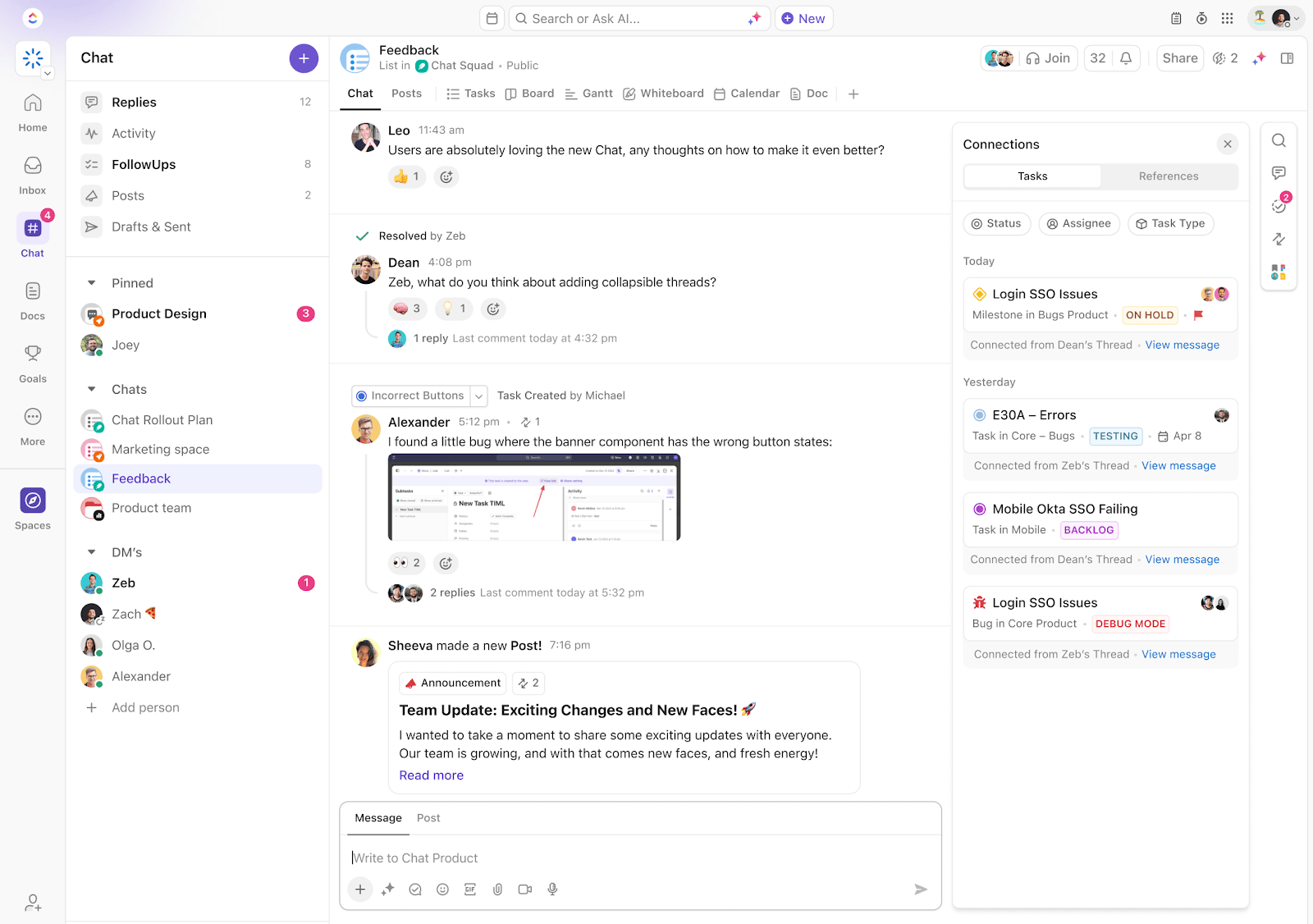
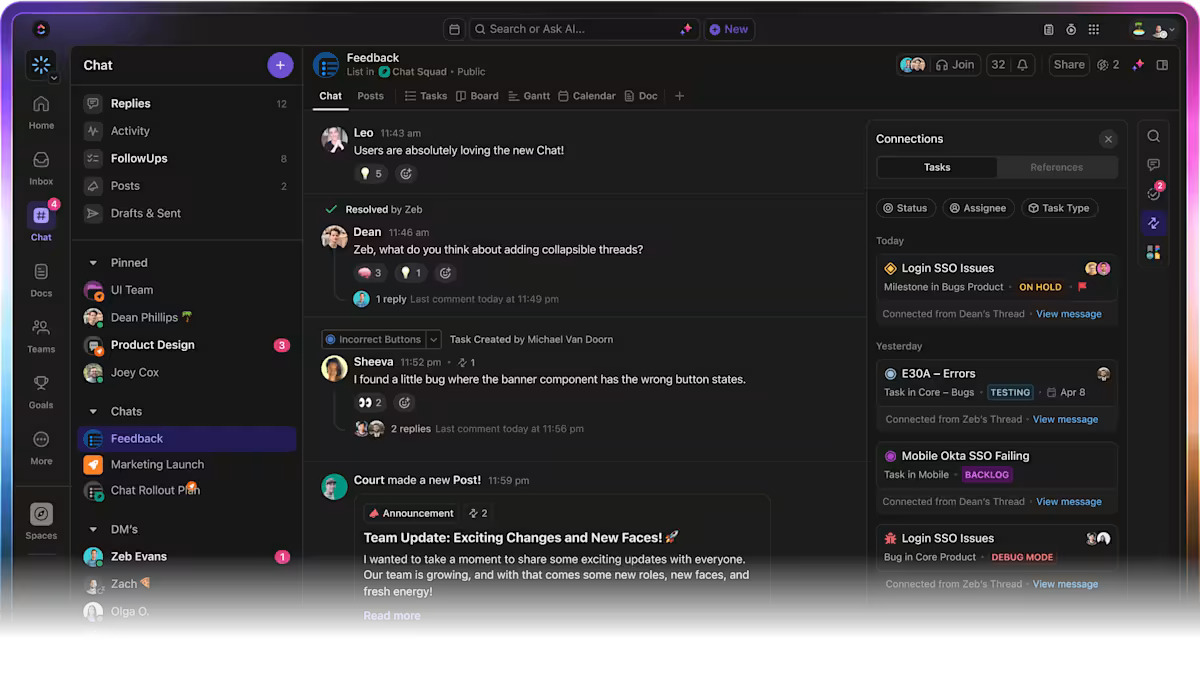
ClickUp Chat keeps conversations tied to the work they belong to. A single message can become a task or a FollowUp, so nothing gets missed.
For example, during a website redesign, a developer drops in Chat to say that the checkout flow breaks on Safari. The product manager converts that message into a task, assigns it to the QA team, and attaches the screenshot shared in the thread.
The bug is logged, assigned, and tracked before the conversation even ends.
Plus, Chat on mobile makes updates flow seamlessly, even during fieldwork or travel.
Some decisions move faster face-to-face. SyncUps in Chat bring video calls, screen sharing, and task boards into the same space. Teams can meet, edit, and record all in one flow.
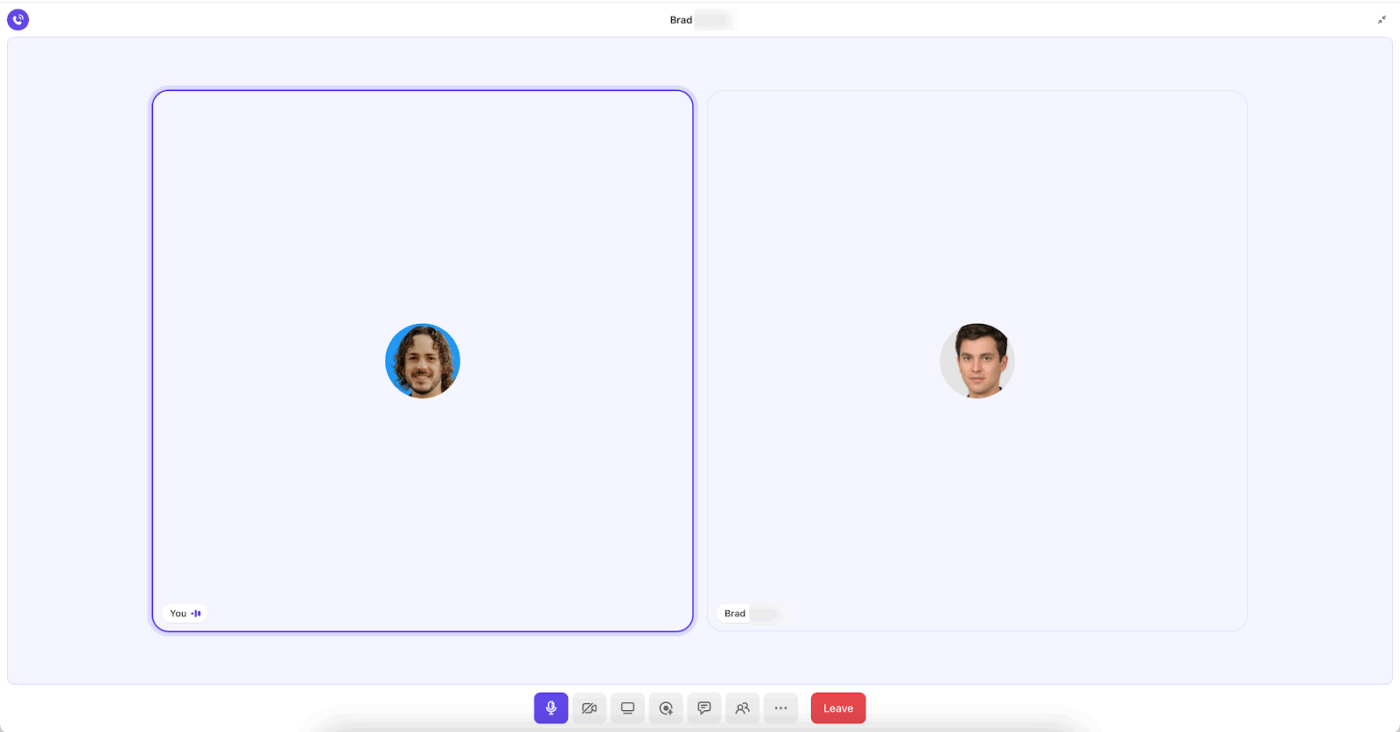
For instance, a global marketing team runs a SyncUp to finalize creative assets for an upcoming campaign. While screen sharing the design board, the creative director shifts deadlines, assigns final polish tasks, and records the session.
Different collaboration styles are supported equally—those who prefer live discussions and those who prefer catching up afterward.
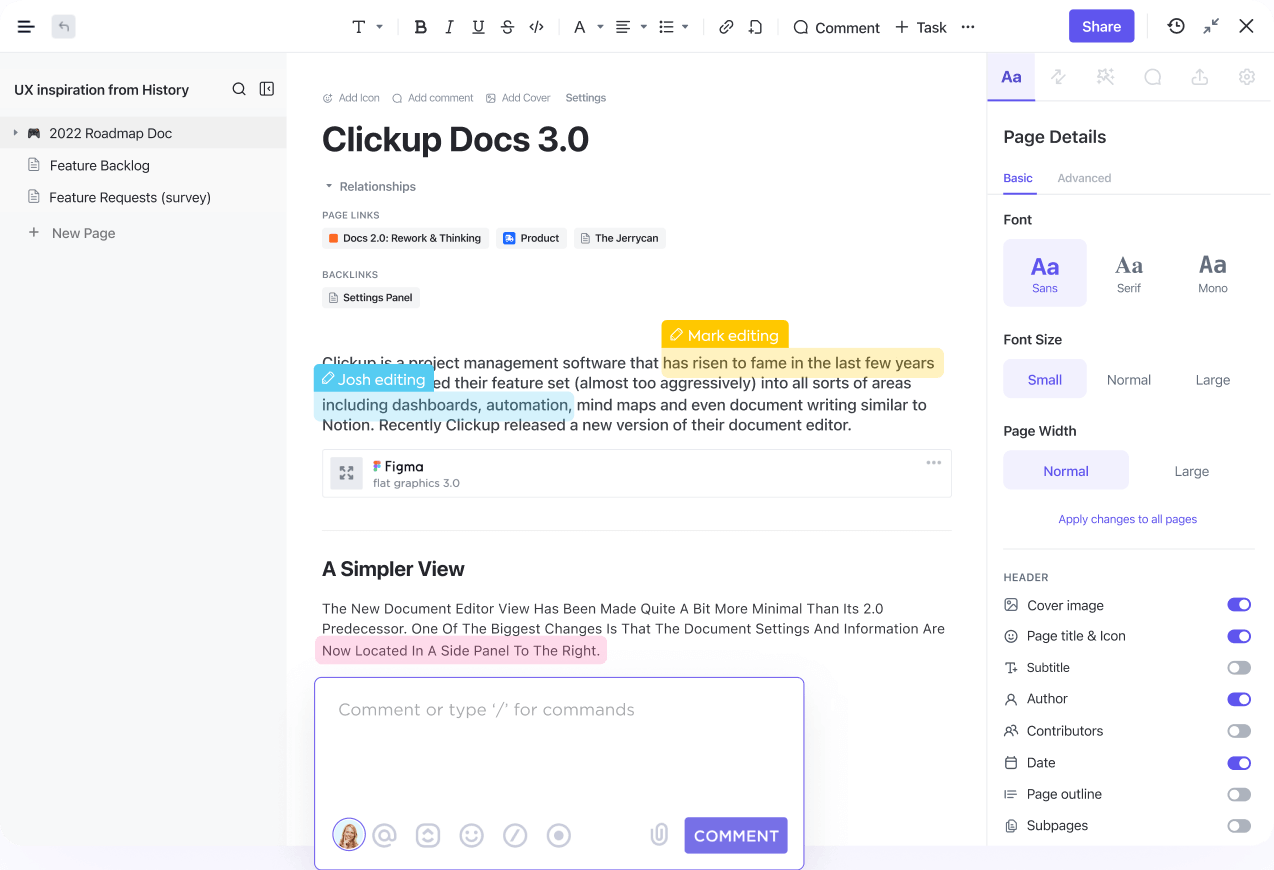
ClickUp Docs gives teams one living file that connects directly to projects.
For example, an HR team preparing onboarding for 15 new hires creates a single Doc outlining training schedules, IT setup, and policy links. IT is tagged directly inside the Doc to confirm account creation, and the recruiting manager adds a checklist for Day 1 orientation.
Everyone edits the same file, so when schedules shift, the updates appear instantly for the whole team.
Even better? You can @mention team members and drop feedback notes with Assign Comments in ClickUp for clear accountability.
Projects generate endless updates, and searching across apps wastes time. ClickUp Brain, the integrated AI assistant, gives teams instant answers by pulling from tasks, Docs, and chat channels.
Say a program manager needs to prep for a stakeholder briefing. They can ask ClickUp Brain: ‘Summarize the current blockers in the mobile app release.’
ClickUp Brain scans Chat threads, repetitive tasks, and notes from SyncUps, then provides a short list of blockers. The manager then drops the summary into a Doc and shares it as part of the weekly report.
Ansh Prabhakar from Airbnb shares his experience with ClickUp:
ClickUp has a lot to offer in one place such as project management, brainstorming options, task management, project planning, documentation management, etc. It has definitely made life comparatively easier as it’s easy to use, UI is well designed, and collaboration within the team and with other teams is easier. We were able to manage work better, track and report work easily, and based on progress daily huddles, future planning was easy.
🧠 Fun Fact: Working on a global software team? Be ready to meet. A lot. Teams spread across locations spend around 7 hours 45 minutes in scheduled meetings each week…and almost 9 more in unscheduled ones. And even then, progress can stall if the right people aren’t in the room or if some voices dominate while others barely speak up.
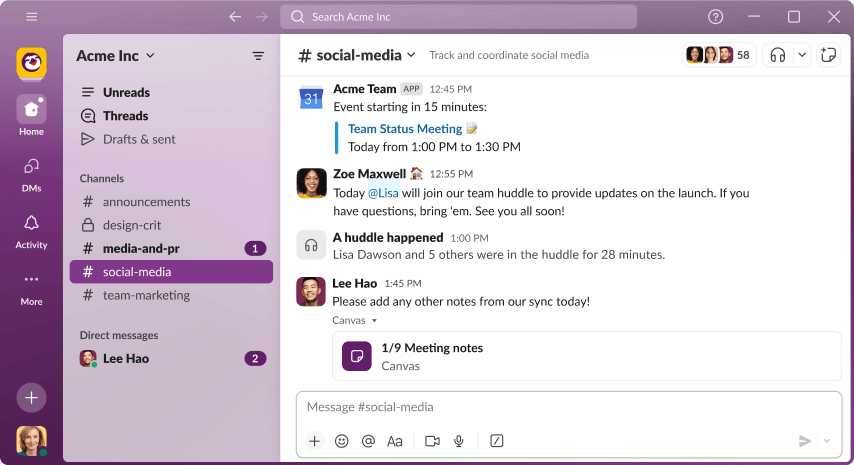
With Slack, you get a team collaboration software that replaces the email nightmare most teams deal with. You get channels instead of cc’d threads that spiral out of control—one for marketing campaigns, another for product bugs, maybe one for sharing dog photos. Each conversation stays in its lane.
Apps plug in directly, so your project management tools and calendar invites flow right into relevant channels. Collaborative work management on mobile means you can jump into conversations from anywhere, though whether that’s a blessing or a curse depends on your boundaries.
A user review says:
I really like how I can organize workspaces or channels in Slack, allowing me to identify exactly what I want to control and gather all the respective information there. Slack has proven to be a valuable tool for increasing productivity in information management in my company. Additionally, I am motivated by the fact that it offers better integration with projects compared to Discord, which was the product we migrated from. This demonstrates its ability to better adapt to our needs at the project management level.
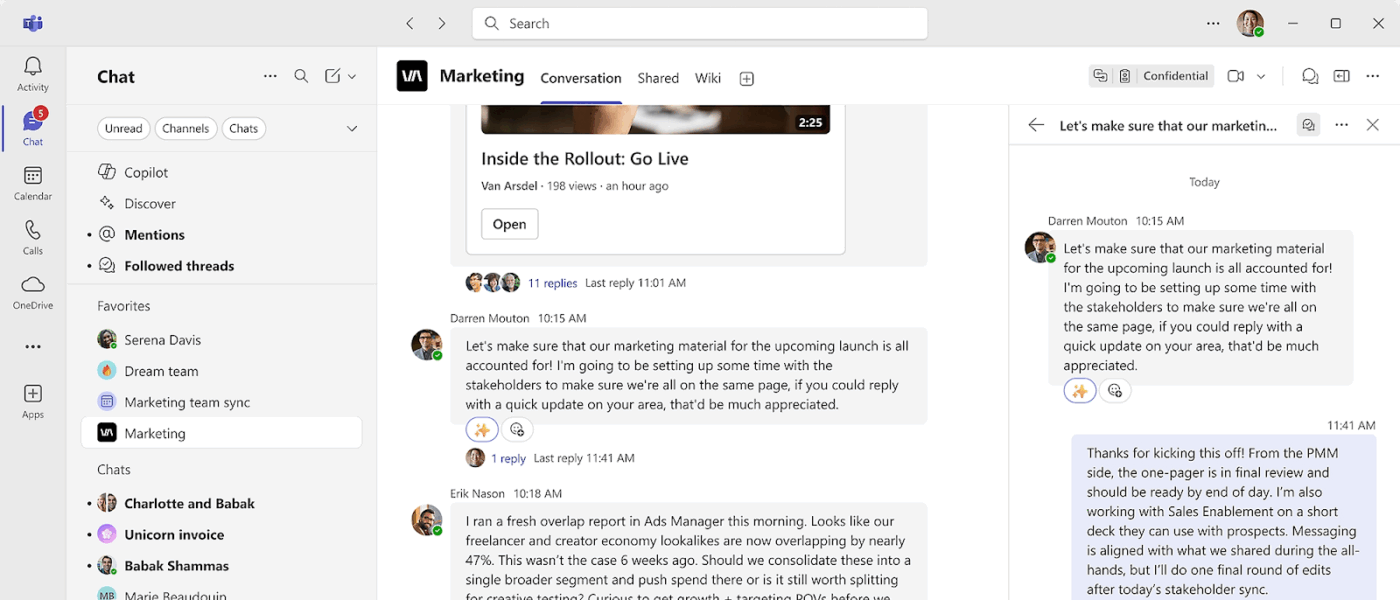
Teams makes sense if your company already runs on Microsoft’s ecosystem.
Everything connects—your Outlook calendar automatically generates meeting links, Word documents open right inside chat windows, and SharePoint handles file storage behind the scenes. You’re not constantly switching between apps or dealing with version control issues because Teams and Office 365 talk to each other.
The platform includes data security controls and compliance features for organizations that need them. While the interface takes some getting used to, especially if you’re coming from simpler platforms, the integration works once you’re in the Microsoft world.
Business
Enterprise
A user review says:
The best feature is the seamless integration with the Microsoft 365 ecosystem. Being able to schedule a video call directly from Outlook and having those calendar invites sync instantly is a huge time saver. The video quality is generally reliable, and features like background blur and noise suppression help make remote meetings feel professional, even in a noisy environment.
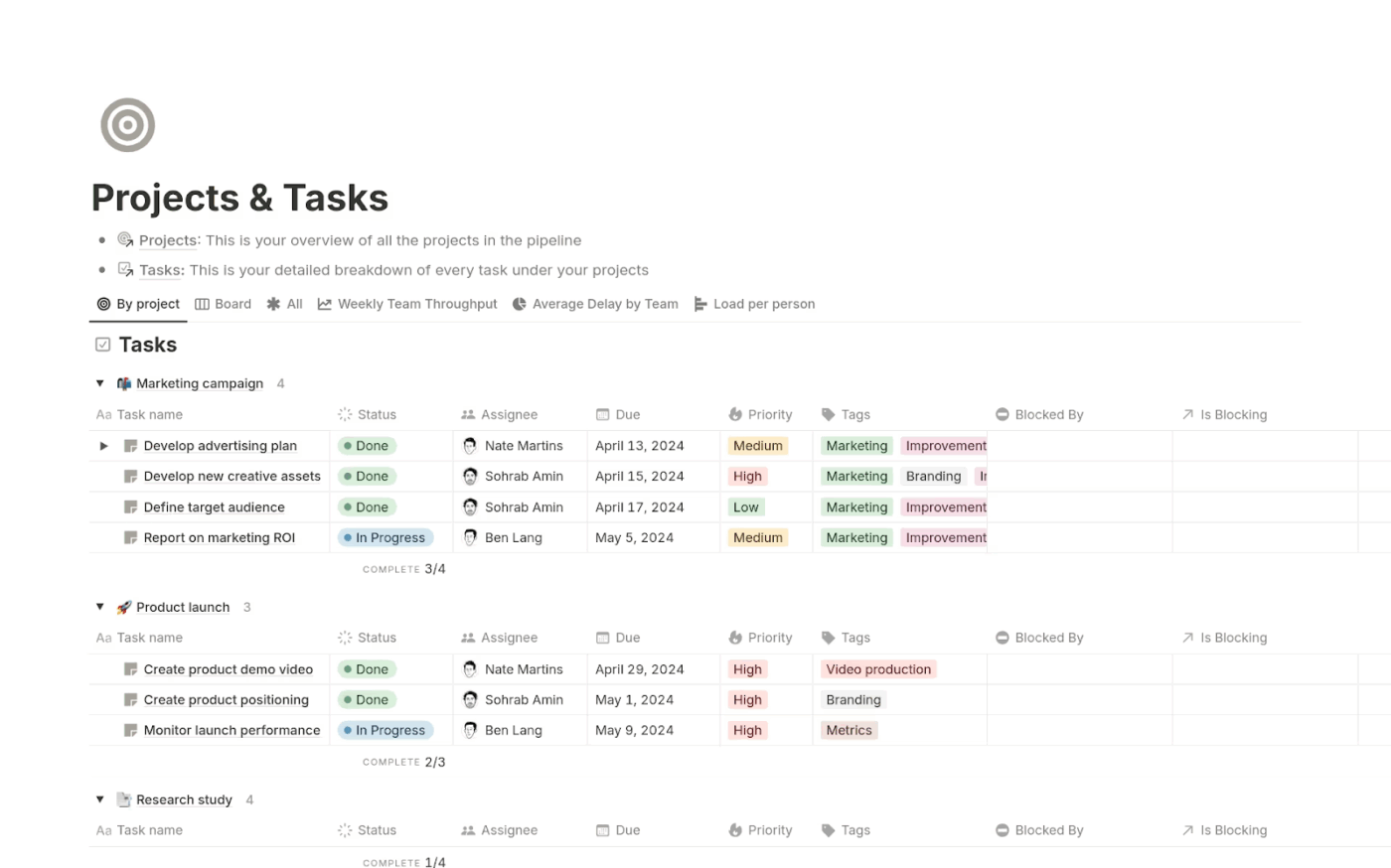
Notion hands you the building blocks and says ‘Figure it out’. That sounds messy, but it means you’re not stuck following someone else’s workflow structure. You build databases, wikis, task lists, and calendars that fit your team’s needs.
A page can start as simple meeting notes, then grow into a project hub linking related documents, tracking tasks, and embedding Figma designs. It all connects through backlinks and relations, creating a web of information. The flexibility means you’ll spend time upfront building your system, but once it’s running, Notion molds to how you think.
A user review says:
I use Notion for a variety of purposes, including taking meeting notes, creating SOTs for my team, knowledge sharing, creating onboarding guides, and personal research. I like how organized Notion helps me stay, allowing me to have all my needs in one spot. It is quite intuitive, which means I can navigate its features and perform different tasks easily, like adding data tables. I appreciate that Notion supports multiple contributors, enabling collaborative work while also providing the flexibility to keep documents private if needed. I enjoy the feature that allows me to favorite certain pages I visit frequently, ensuring quick access. Overall, the initial setup of Notion was fairly easy, and despite a learning curve, it is intuitive and easy to use.
📖 Also Read: ClickUp vs. Notion: The Best Docs Tool to Choose
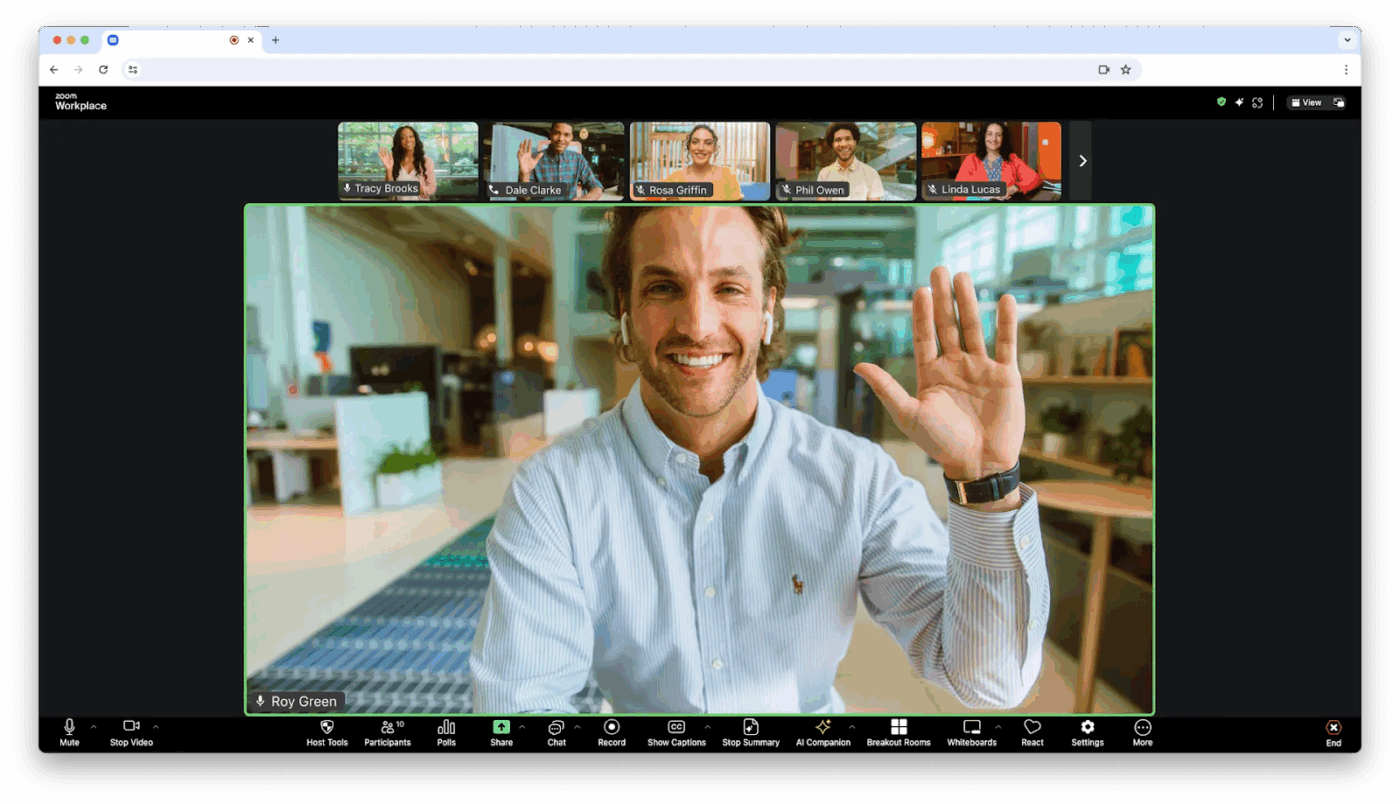
Zoom handles video calls across varying internet speeds. Your call maintains a connection while you’re presenting to clients or running team standups from a coffee shop. Setting up meetings is straightforward—generate a link, send it, done.
Breakout rooms split large groups into focused discussions, then merge everyone back together when you’re ready. You can blur your background, share specific windows instead of your entire desktop, and record everything for people who couldn’t make it. The platform scales from one-on-one calls to webinars with thousands of attendees without requiring a different interface or complicated setup.
Individuals and businesses
A user review says:
I use Zoom Workplace primarily for conducting interviews, trainings, and meetings, and I really appreciate its clear audio and video conferencing capabilities. This ensures that communication is effective and helps identify the person who is being interviewed, which is crucial for my work. I find the smooth video conferencing and screen sharing features invaluable, as they seamlessly facilitate presentations and interactions. Additionally, I like the raising hand feature, which allows individuals to provide feedback or intervene during a training session or meeting, thus promoting interactive and inclusive discussions. The app and web support enhances accessibility, allowing me to use the platform on various devices, which is very convenient. I particularly enjoy the option to connect with multiple team members simultaneously, a capability that many other video conferencing apps lack, making Zoom Workplace a more versatile choice for team collaboration and communication.
📖 Also Read: Teams vs. Zoom: Which is the Best Meeting Tool?
Let’s explore how these team collaboration tools fit into different team workflows and use cases. 🗒️
Remote work creates a fundamental challenge: your teammate in Tokyo is asleep when you have urgent questions, and waiting 12 hours for a response kills momentum.
Asynchronous communication solves this by allowing people to contribute meaningful work on their own schedule without requiring real-time coordination.
In such scenarios, task tracking becomes your single source of truth for remote visibility. When everyone can see what’s being worked on and who owns it, you eliminate the anxiety of wondering if work is actually happening. More importantly, proper task documentation means remote workers understand the full context behind assignments.
💡 Pro Tip: Track work with ClickUp Views—List, Board, Calendar, or Gantt—to see the full picture of your team’s work. Spot dependencies, track deadlines, and jump into tasks with all the context you need.
Creative work is messy, non-linear, and hard to track in traditional project management tools.
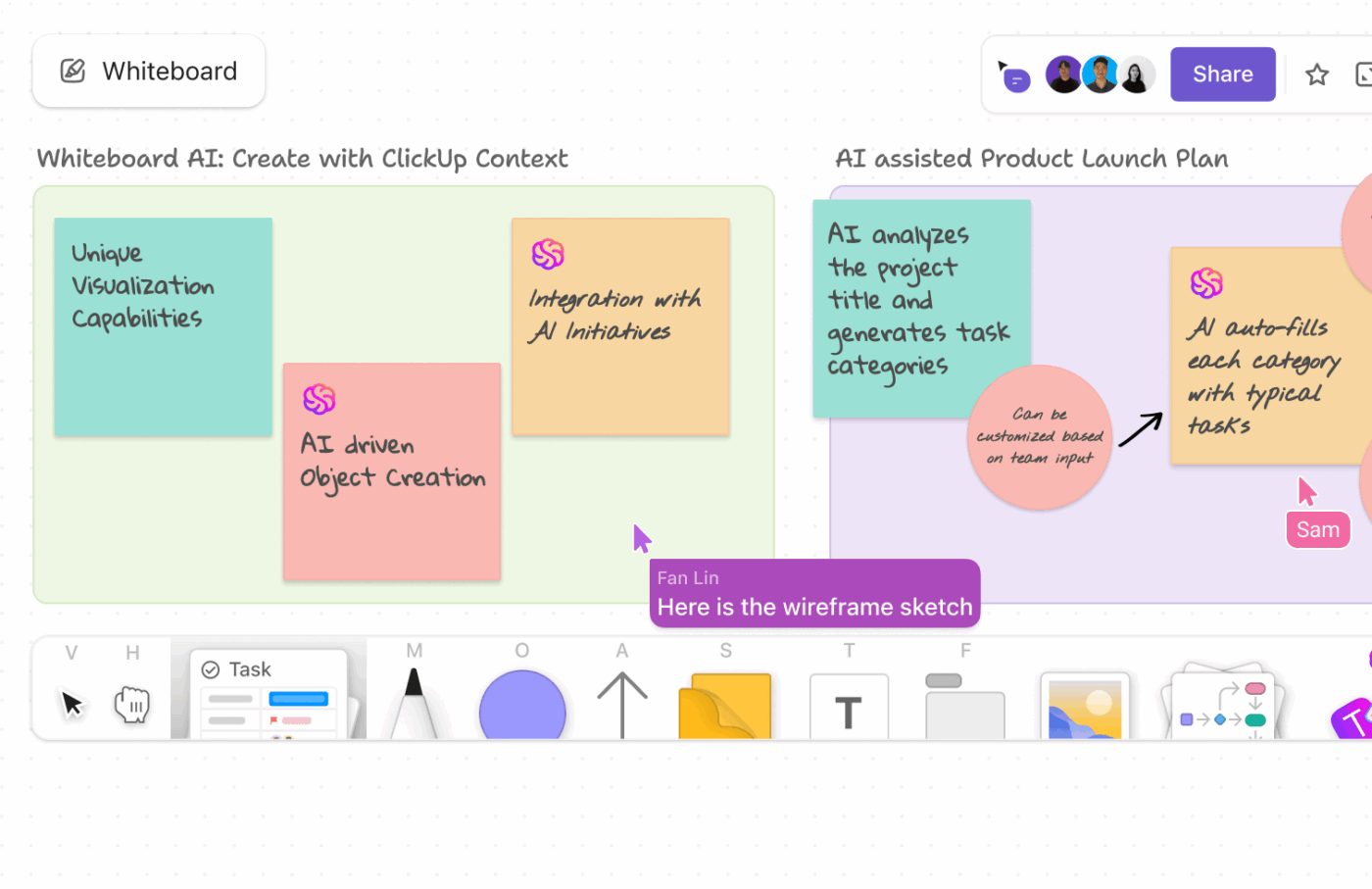
ClickUp Whiteboards give creative teams room to think visually and collaboratively. Concepts can evolve in real time during discussions, with everyone contributing simultaneously rather than taking turns.
Beyond ideation, creative teams need robust asset management. The ‘which file is the final version?’ question wastes more creative time than most teams realize. Centralized libraries with version control and clear naming conventions enable designers and copywriters to find what they need in seconds, rather than hours spent searching through folders and chat history.
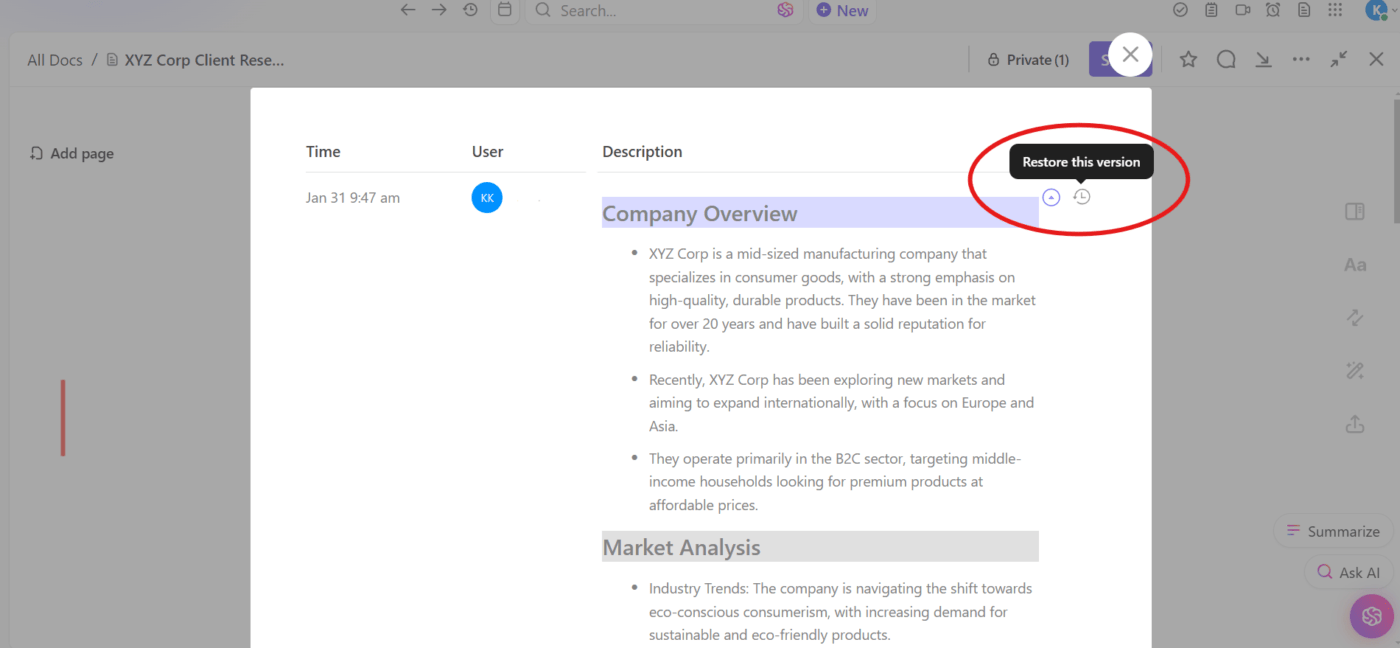
🚀 ClickUp Advantage: Every version change and edit counts when tracking feedback, and ClickUp Docs remembers them all. Version history lets your team roll back changes, compare updates, and see who did what, keeping creative work transparent and stress-free.
Cross-functional collaboration typically fails because of invisible dependencies, not lack of effort. Marketing needs features from the product, sales needs collateral from marketing, and engineering needs requirements from everyone.
Task management that explicitly displays these connections prevents surprise conflicts. Now with dependencies visible, teams can adjust proactively instead of discovering problems during launch.
Plus, different departments need to see how their work connects to company goals, not just their team’s objectives. When dashboards show progress toward shared outcomes, cross-functional teams naturally coordinate better because they understand why certain requests matter urgently while others can wait.
Security and permissions become complex when thousands of employees need different access levels to different information. You need granular controls that protect sensitive data without creating so many restrictions that work grinds to a halt.
Plus, standardization becomes critical at enterprise scale. Different teams naturally develop their own workflows, which work fine until they need to collaborate. Enterprise tools like ClickUp enforce enough consistency for cross-team work while allowing departments flexibility for their specific needs.
Integration capabilities also matter more for enterprises because they’re working with tech stacks built over the years. Your collaboration platform needs to connect seamlessly with CRM systems, HR platforms, and industry-specific tools so that data flows automatically. Features like AI-powered deep search can be invaluable here.👇🏼
🚀 ClickUp Advantage: Protect sensitive data without slowing work. ClickUp gives enterprise teams multi-factor authentication and granular permissions, letting you control who sees what while keeping project collaboration smooth.
Support teams face a unique type of chaos. A customer discovers a critical bug at 4:47 p.m. on Friday, another can’t access their account during a product demo, and someone else needs clarification on their invoice—all within ten minutes of each other.
The real productivity killer is the toggle tax. By the time your agent gathers everything needed to help the customer, 20 minutes have passed, and the customer’s frustration has doubled.
Collaboration platforms that centralize everything make a massive difference. When customer conversations, team discussions, and documentation live in one place, sales agents resolve issues faster because they’re not hunting for information.
Smart assignment features also ensure complex issues reach experienced team members while simpler questions get handled quickly by AI agents for customer service, preventing bottlenecks that frustrate both customers and staff.
You can understand how to use AI in customer service with this video:
These collaboration tool mistakes create hidden inefficiencies that compound over time:
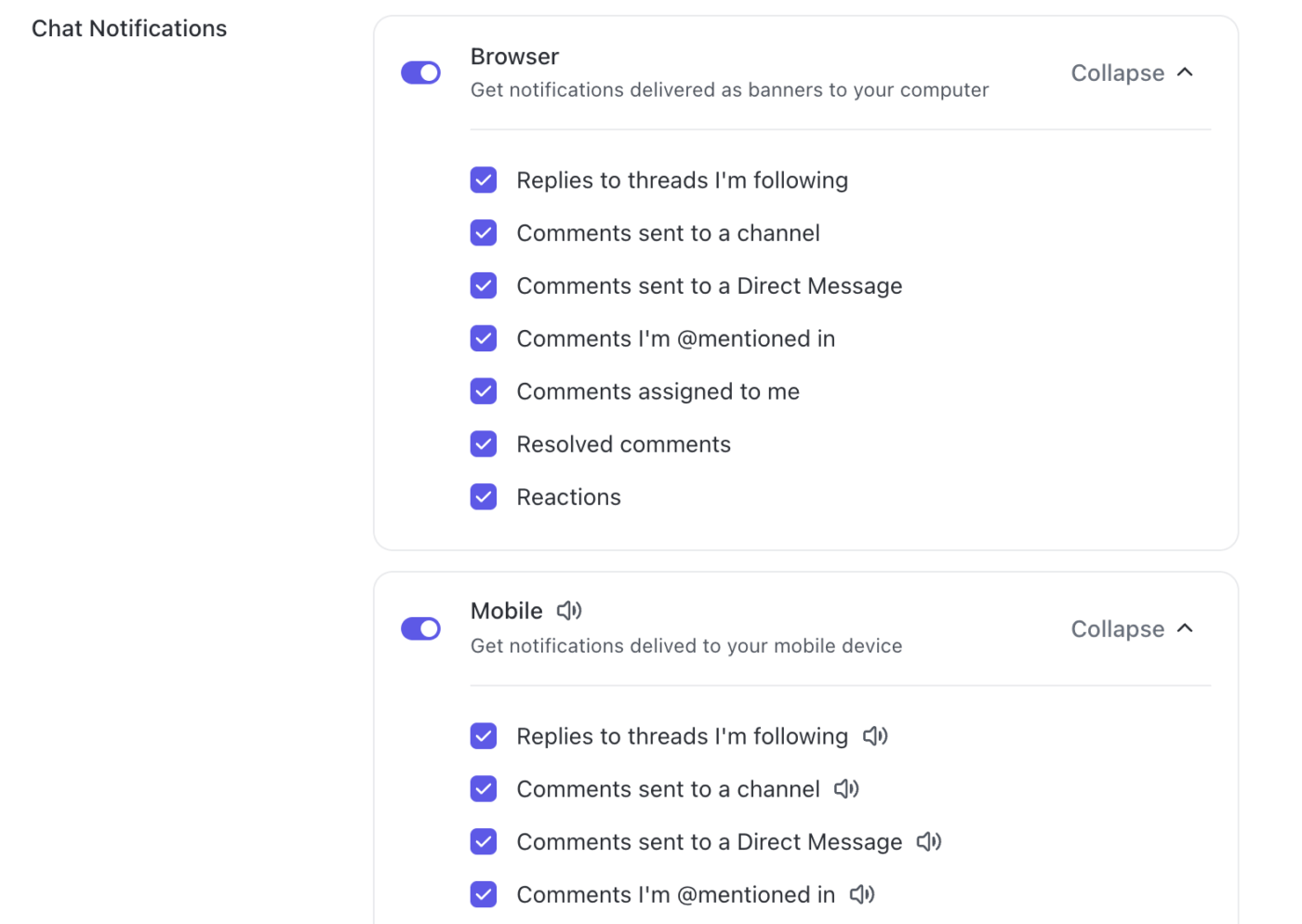
🚀 ClickUp Advantage: Take control of your ClickUp Chat experience by customizing notification settings. You can even mute notifications during focused work hours or set up mobile alerts with specific sounds.
Stop working harder than you need to with these tips to improve team coordination:
Organize collaboration spaces around how work flows through your organization.
A product launch might need a space where design, marketing, engineering, and sales all collaborate, not separate departmental silos that require constant cross-posting.
Cross-functional project spaces keep all relevant stakeholders informed without forcing people to join every departmental channel. Your team could see only the projects they’re involved in, rather than drinking from a firehose of irrelevant updates.
🧠 Fun Fact: In 1913, Indian mathematician Srinivasa Ramanujan, largely self-taught, sent a letter filled with his theorems to British mathematician G.H. Hardy. Hardy was so impressed that he invited Ramanujan to Cambridge, leading to one of the most fruitful collaborations in mathematical history.
The best time to document something is right when you figure it out, not weeks later when you’ve forgotten the details. Create templates that prompt people to document decisions, troubleshooting steps, and lessons learned as part of completing work.
This practice builds your internal knowledge base organically without requiring dedicated documentation sprints that never seem to happen.
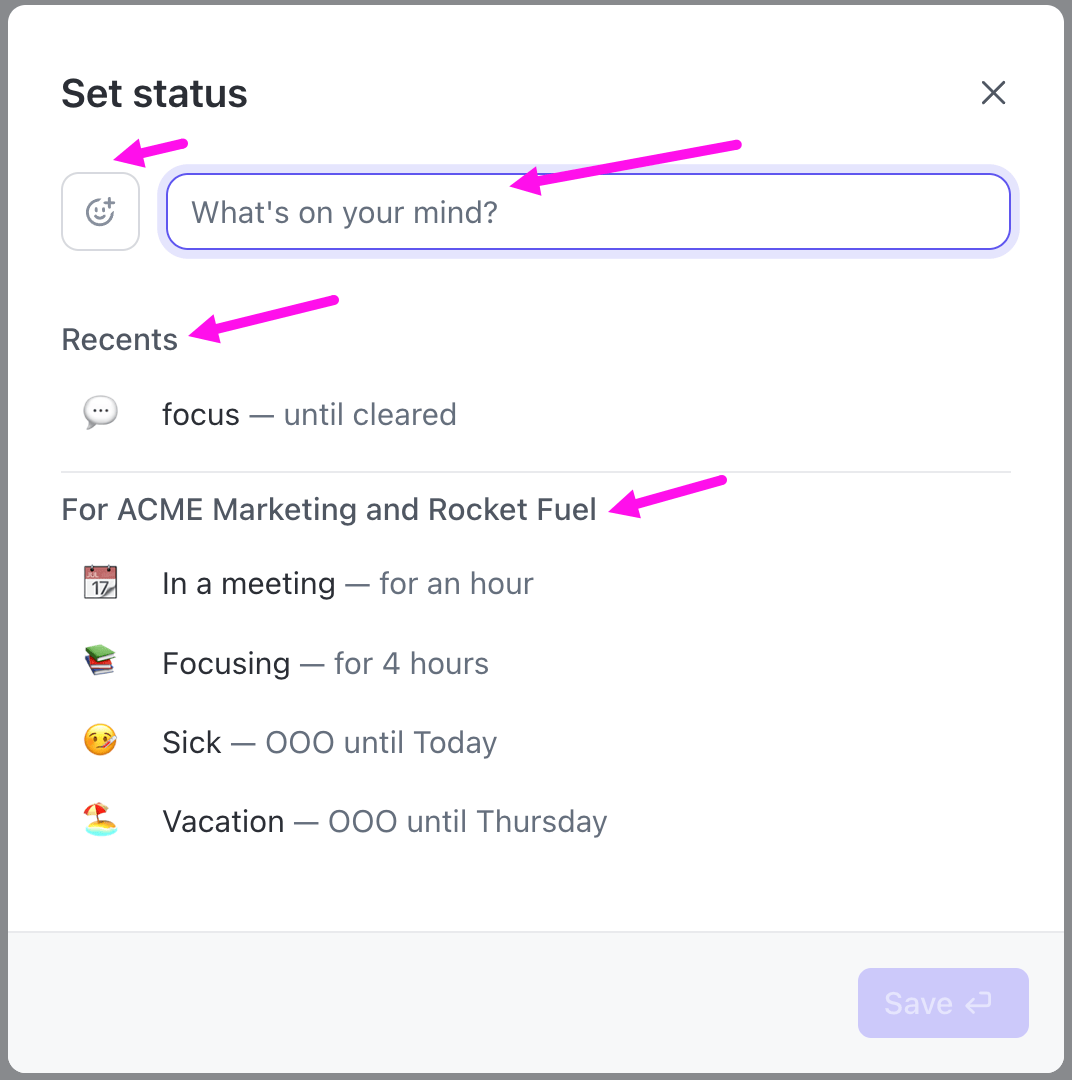
Status indicators like ‘in a meeting’ or ‘focusing’ should always mean something.
If your status always says ‘available’ even when you’re not, people stop trusting the system and interrupt you anyway.
Honest presence indicators could help teams coordinate better. People know when to expect quick responses vs. when to leave detailed async messages. Your team could respect focus time without wondering if someone’s just ignoring them.
Your team marks tasks complete, but three days later, someone asks, ‘Wait, did we finish that thing?’ because nobody’s quite sure what done means. This ambiguity kills productivity more than almost anything else.
Define completion criteria before work starts, not when someone thinks they’re finished. A marketing campaign is done when:
Similarly, an engineering task is complete when code is tested, reviewed, deployed, and the relevant stakeholders are notified.
These definitions prevent the endless ‘just one more thing’ cycle where tasks never truly close. When everyone understands exactly what complete looks like, people stop reopening finished work or discovering at the last minute that critical steps were skipped.
Most collaboration tools make it easy to pull people into projects, channels, and meetings. What they don’t do well is help people gracefully decline involvement when they shouldn’t be included.
This creates the opposite problem you’d expect: people get over-included in work that doesn’t need their input, diluting their focus across too many things. Your developer doesn’t need to be in every marketing meeting just because they built the product. Your designer doesn’t need to attend every sprint planning session.
Smart teams make it socially acceptable and operationally easy to say ‘I don’t need to be here.’ Collaboration spaces should clearly indicate who needs to actively participate vs. who’s just kept informed.
People can opt out of channels or projects without worrying they’ll miss something critical, because truly urgent items have separate routing that ensures the right people get pulled in.
Here’s a look at ways AI is transforming how teams collaborate:
🧠 Fun Fact: Employees who have at least one collaborative relationship at work are 29% more likely to say they’ll stay with their company for the next year. Having even just one good working partner seems to boost retention.
Every team has different ways of working, but they all need a place where ideas, updates, and tasks connect. The challenge comes down to knowing how to choose collaboration tools that cut out confusion instead of adding more noise.
ClickUp makes that choice easier.
It pulls chat, documentation, tasks, and AI into one space so teams stay aligned from kickoff to delivery. You get fewer app-switching headaches, smoother remote collaboration, and more energy left for actual work.
Sign up for ClickUp today! ✅
The most important features to look for include real-time messaging and video calls for instant communication, task and project tracking to keep responsibilities and deadlines clear, secure file sharing with version control to avoid confusion, integration with the apps your team already uses, and scalability so the tool can grow with your team.
You may need a new tool if communication is often delayed or unclear, tasks are spread across multiple platforms, it’s difficult to facilitate conversations and track progress, sensitive information isn’t well protected, or your current tool can’t support team growth.
Project management software is designed to plan, track, and oversee projects, offering features like timelines, milestones, and resource allocation. Collaboration software, on the other hand, focuses on day-to-day teamwork, providing messaging, file sharing, and real-time collaborative editing.
Budgeting depends on team size and needs. Small teams can often use free or low-cost digital tools, medium to large teams may spend $7-20/month per user for advanced features, and enterprise-level solutions usually involve custom pricing for enhanced functionality, security, and support.
ClickUp is the best collaboration tool for large teams as it scales effectively, supports structured communication, and centralizes task management, document sharing, workflow automation, and collaboration in one platform.

© 2026 ClickUp

There’s an easier way. Try a free AI Agent in ClickUp that actually does the work for you—set up in minutes, save hours every week.