







Still downloading templates?
There’s an easier way. Try a free AI Agent in ClickUp that actually does the work for you—set up in minutes, save hours every week.
Sorry, there were no results found for “”
Sorry, there were no results found for “”
Sorry, there were no results found for “”
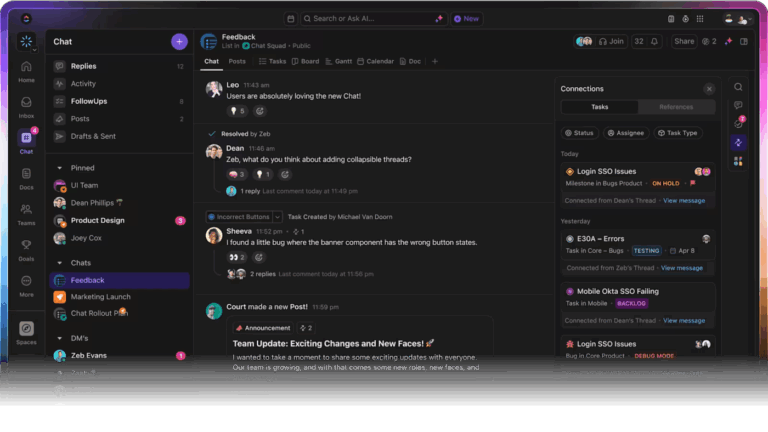
Global agencies lose time when briefs, feedback, files, and delivery tracking live in different tools. Across time zones, small handoff gaps turn into real delivery delays.
Harvard Business School research found that synchronous communication, like phone calls and video chats, declined by 11% when the time delay between coworkers increased by one hour.
In this guide, we break down the best cloud productivity tools for global agencies, what each one is best at, and how to build a delivery stack that stays fast across time zones. We’ll also show how ClickUp brings tasks, docs, collaboration, reporting, and AI into one workspace, so global teams do less chasing and more shipping.
Looking for a quick comparison of top tools for cloud productivity? Here’s a snapshot of the best cloud productivity tools for global agencies and what each offers. 📊
| Tool | Best features | Best for | Pricing* |
|---|---|---|---|
| ClickUp | Built-in task management, Docs, dashboards, time tracking, automation tools, and real-time collaboration | Agencies that want task management, project tracking, docs, and reporting in one place | Free forever; customizations available for enterprises |
| Notion | Docs and wikis, databases, project tracking views, team collaboration, templates | Teams that want flexible docs plus light project management in one workspace | Free plan available; paid plans start at $12/user/month |
| Microsoft 365 | Microsoft Teams, Word, Excel, PowerPoint, OneDrive file sharing, Outlook calendars | Agencies standardized on Microsoft Office plus enterprise-grade admin controls | Free trial available; paid plans start at $7.20/user/month |
| Google Workspace | Google Drive, Google Docs, Google Calendar, Meet video calls, shared drives, and admin controls | Distributed teams that live in Google Docs and need fast file sharing and calendar events | Free trial available; paid plans start at $8.40 per user month billed annually |
| Figma/FigJam | Multiplayer design, prototyping, FigJam workshops, comments, version history | Creative and product teams that need design handoffs and feedback in the same file | Free plan available; paid plans start at $5 per seat per month |
| Adobe Creative Cloud | Creative apps, shared libraries, asset storage, version history, and admin console | Agencies producing high-volume creative assets across teams and clients | Free trial available; pricing starts at $54.99 per license per month, billed annually |
| Slack | Channels, huddles, video calls, screen sharing, integrations, and external collaboration via Slack Connect | Agency communication tools that need faster handoffs and fewer long email threads | Free plan available; paid plans start at $8.75 per user per month |
| Airtable | Database-style work management, views, automations, forms, permissions, and reporting features | Ops and delivery teams managing workflows, resourcing, and client requests at scale | Free plan available; Team plan billed at $24 per user per month |
| Miro | Visual whiteboards, templates, workshops, video calls, voting, Talktracks | Strategy, research, and workshop-heavy teams that need async collaboration across time zones | Free plan available; paid plans start at $8 per user per month |
| Dropbox Business | File storage, file sharing, admin controls, permissions, version control, recovery options | Agencies that need reliable cloud file storage and structured access for client assets | Paid plans start at $19.99 per user per month |
Our editorial team follows a transparent, research-backed, and vendor-neutral process, so you can trust that our recommendations are based on real product value.
Here’s a detailed rundown of how we review software at ClickUp.
📖 Also Read: Best Productivity Tools For Agencies And Teams
When you manage projects across regions, you need productivity software that can keep your schedule and tasks clear. You can start by checking whether the tool supports strong project management and task management without adding admin work for your team members.
✅ Here’s what matters most for global agency delivery:
📖 Also Read: Best Creative Project Management Software
Here is our pick for the top cloud-based productivity tools you can use if you’re a global agency looking to manage your projects and tasks on time.
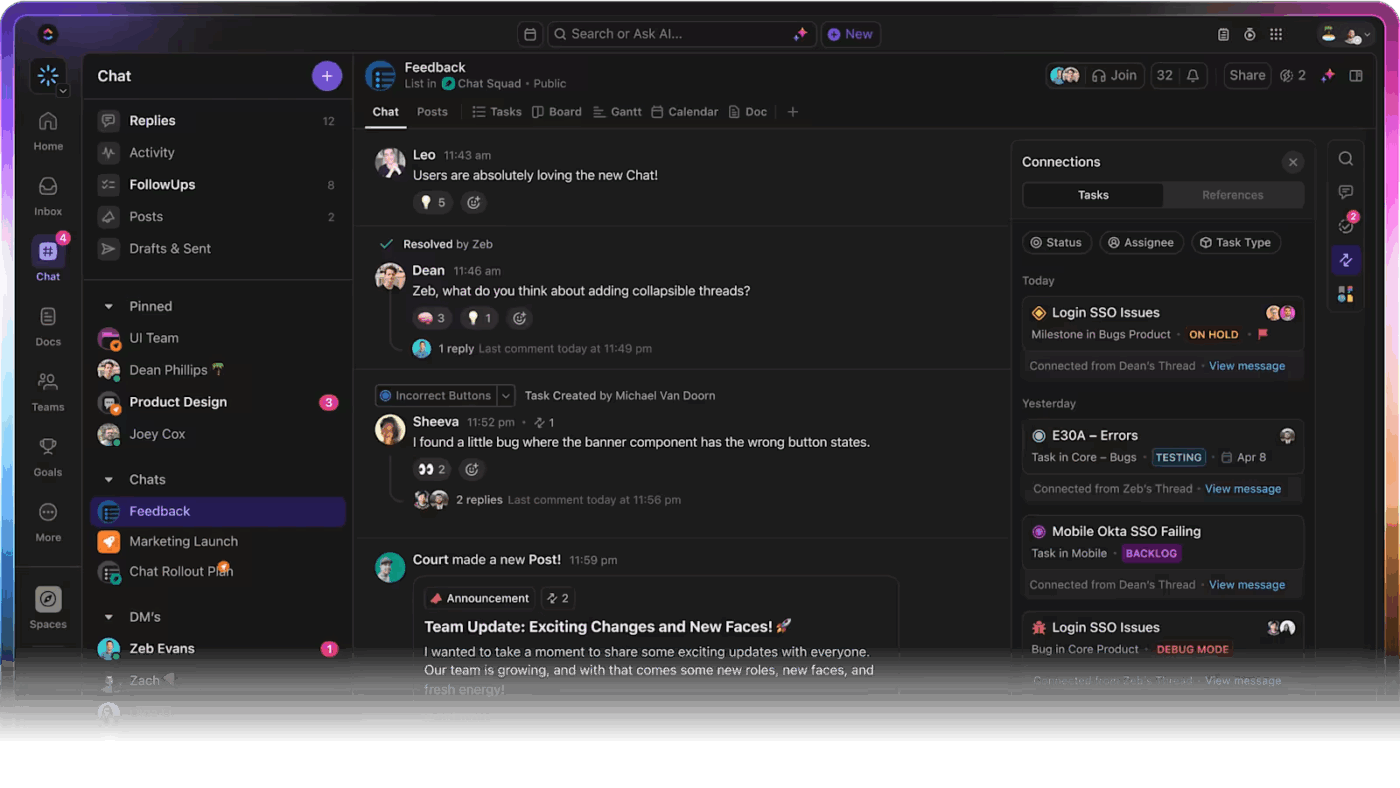
Global agencies lose time when delivery depends on systems that don’t share context. Briefs, approvals, feedback, and tracking end up in different places. This fragmentation is called work sprawl, and it slows execution across remote teams.
AI can add another layer of complexity when teams use multiple AI tools with no shared context. The result is more switching, more duplicate work, and less consistent execution.
ClickUp helps solve both issues by being a converged AI workspace that brings your core productivity software into one system. This helps the execution stay connected to context and helps you create a workflow with fewer communication gaps.
Here’s a quick walkthrough of how ClickUp can help you achieve this.
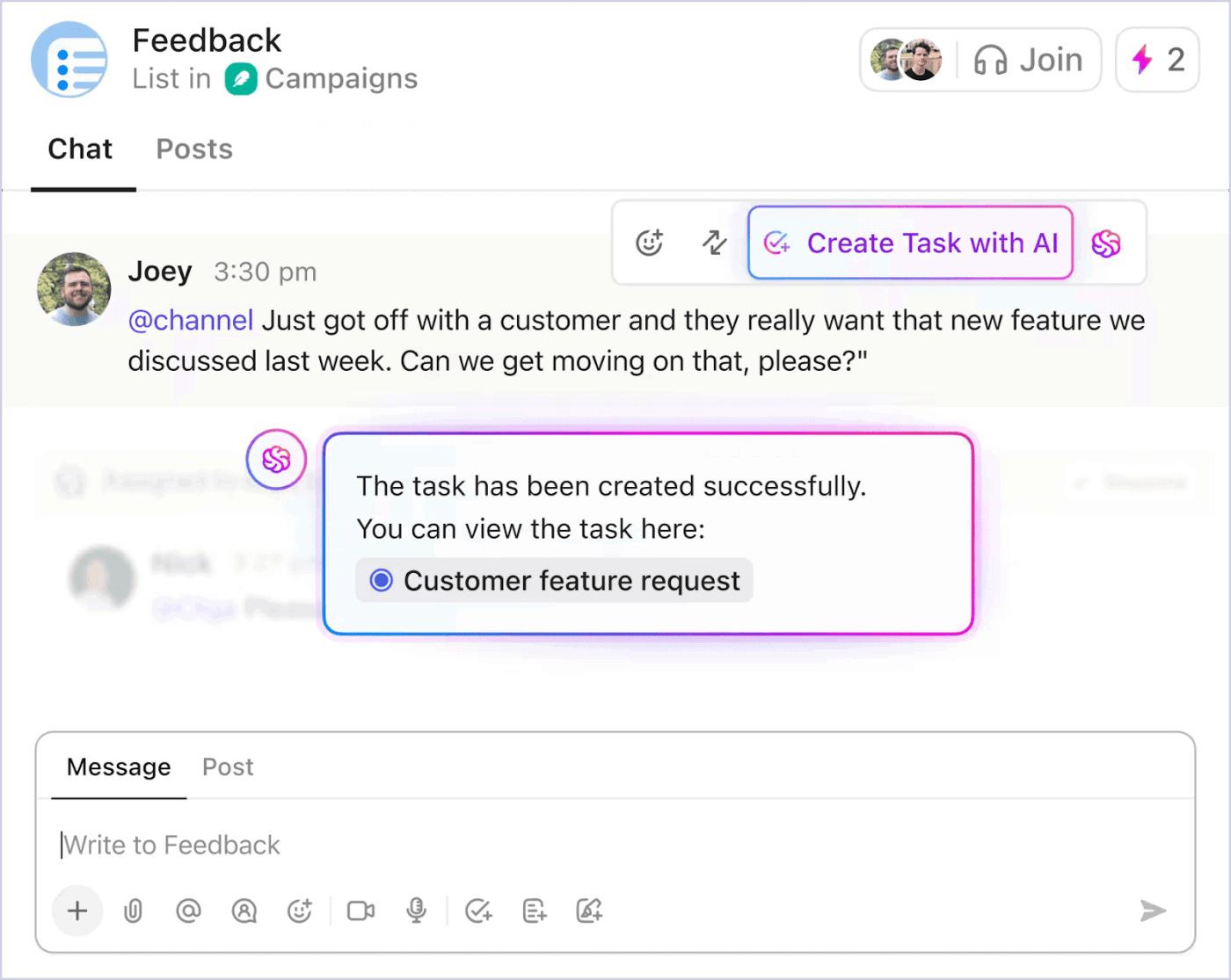
When chat lives outside your project management tools, updates get buried and action items drift. ClickUp Chat is built to connect conversations to execution so you can turn messages into tasks, keep threads tied to related work, and reduce back-and-forth messages.

For real-time alignment when you need it, ClickUp SyncUps gives you built-in audio/video calls and screen sharing inside the same environment your team uses to manage projects, so you can move from discussion to assignment without switching tools.
📌 Example: Your NYC account lead posts a client change request in Chat, creates a task from the message, tags the APAC design owner, and the team uses a short SyncUp to confirm scope before end-of-day handoff.
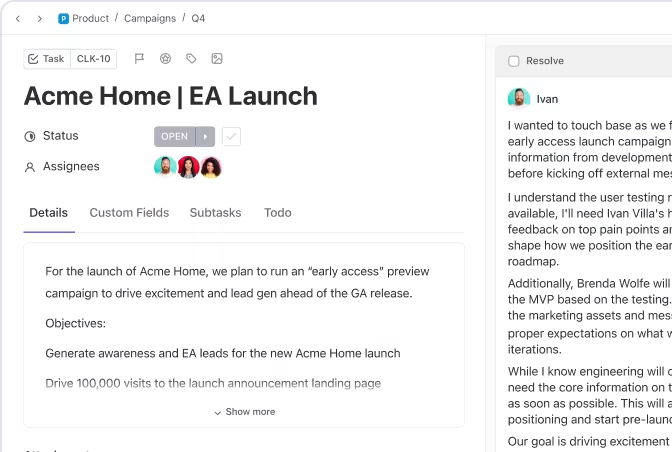
Agency delivery breaks when task organization is inconsistent across teams. ClickUp Tasks makes it easier to standardize how you assign tasks and keep project tracking clean across multiple projects. You can structure work with owners, due dates, statuses, and the level of detail you need for complex projects, without forcing teams into rigid workflows.
This is especially helpful when the same client work involves different team members across regions.
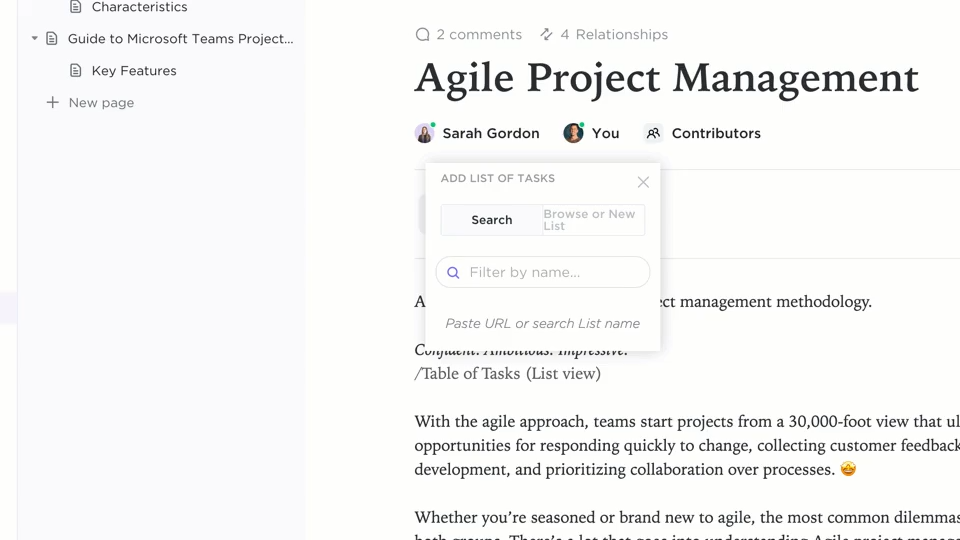
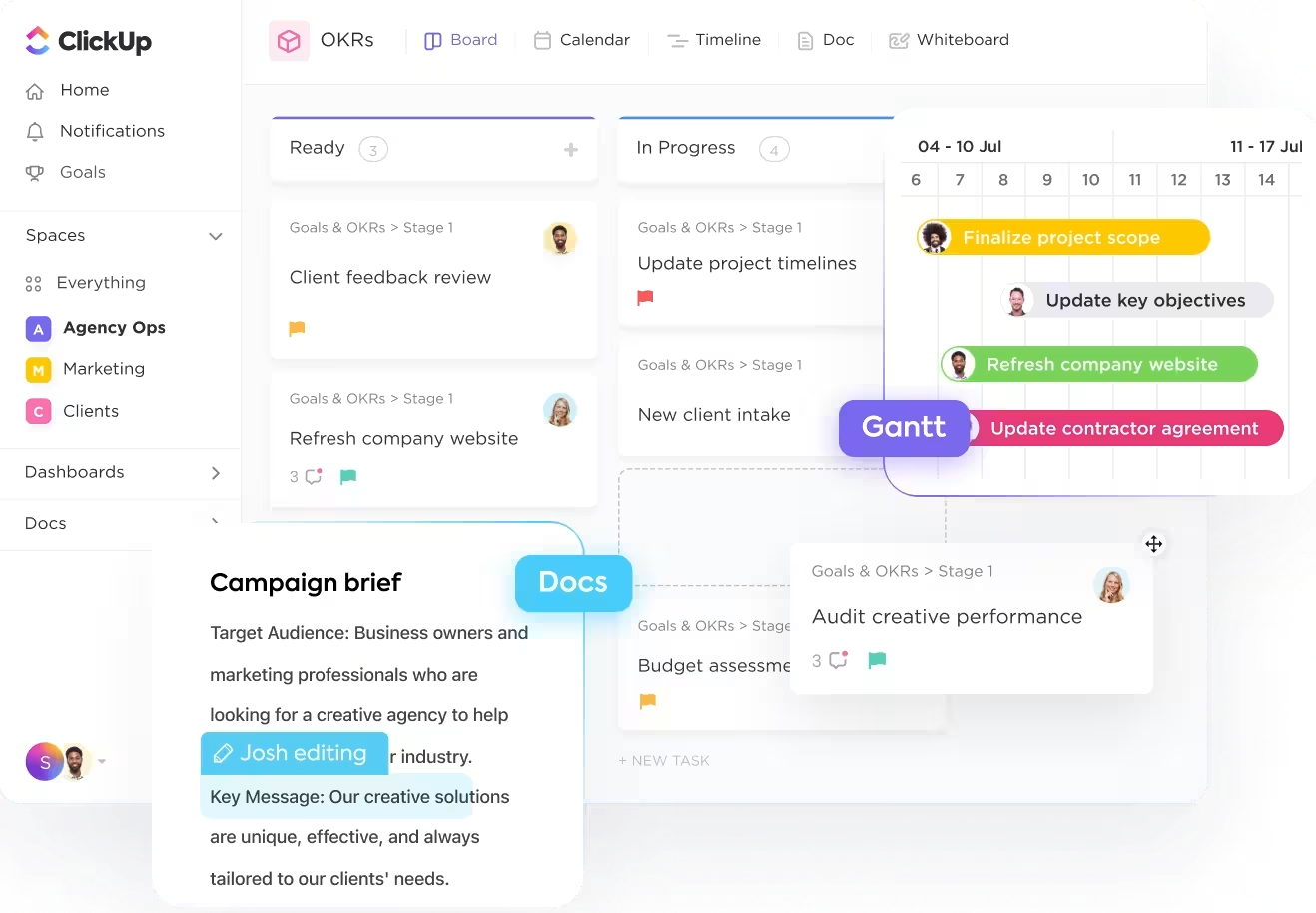
Global agency work requires extensive documentation: briefs, client notes, campaign plans, creative direction, meeting outcomes, and revision context are scattered across various folders.
ClickUp Docs keeps that documentation close to delivery so teams don’t lose time hunting for the latest version. You can collaborate in real time, comment for reviews, and keep documentation connected to the work it supports.
This reduces rework in remote teams because the “why” behind a task stays available when another region picks it up hours later.
💡 Pro Tip: Use ClickUp Docs Hub as your “handoff library” for every client.
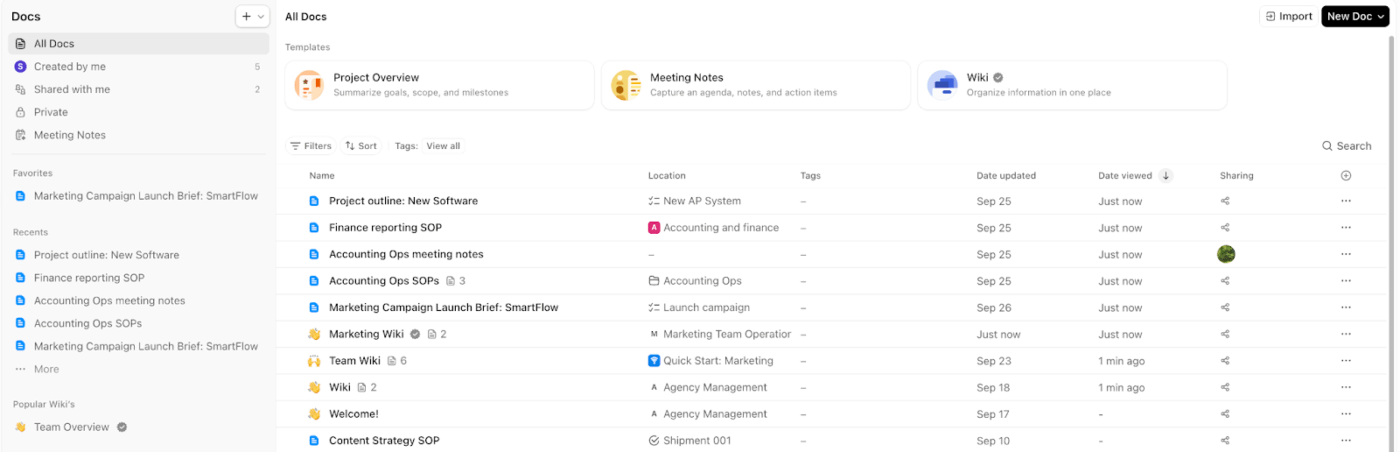
When your team is spread across time zones, the fastest way to avoid rework is to make “the latest brief” easy to find. Docs Hub gives you one centralized place to organize, search, and create Docs and wikis, so your APAC (Asia-Pacific) team doesn’t start work from an outdated file that your US team updated overnight.
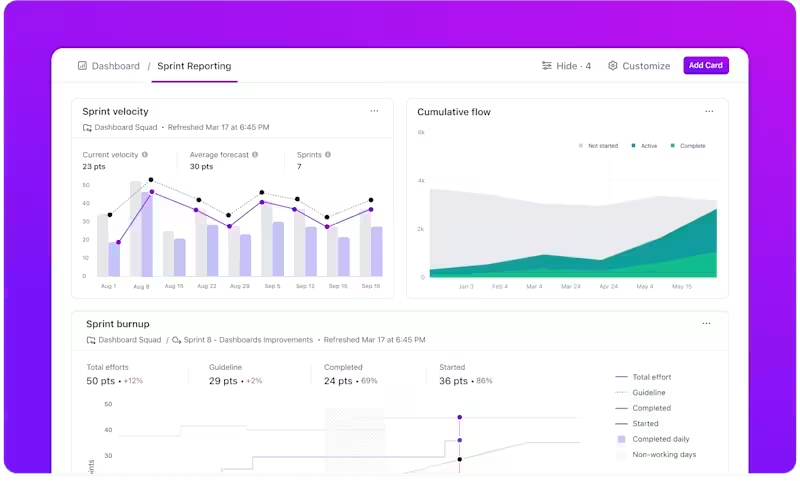
Ops leaders and delivery managers need reporting that’s fast to trust. ClickUp Dashboards let you build client portals and performance views that track progress across multiple projects without rebuilding status updates manually.
If time tracking matters for margins, ClickUp Dashboards also support timesheet-style reporting and time-based views so you can answer questions like “How long did it take?” with less spreadsheet work.
💡 Pro Tip: Use ClickUp AI Cards to handle async status updates across time zones.
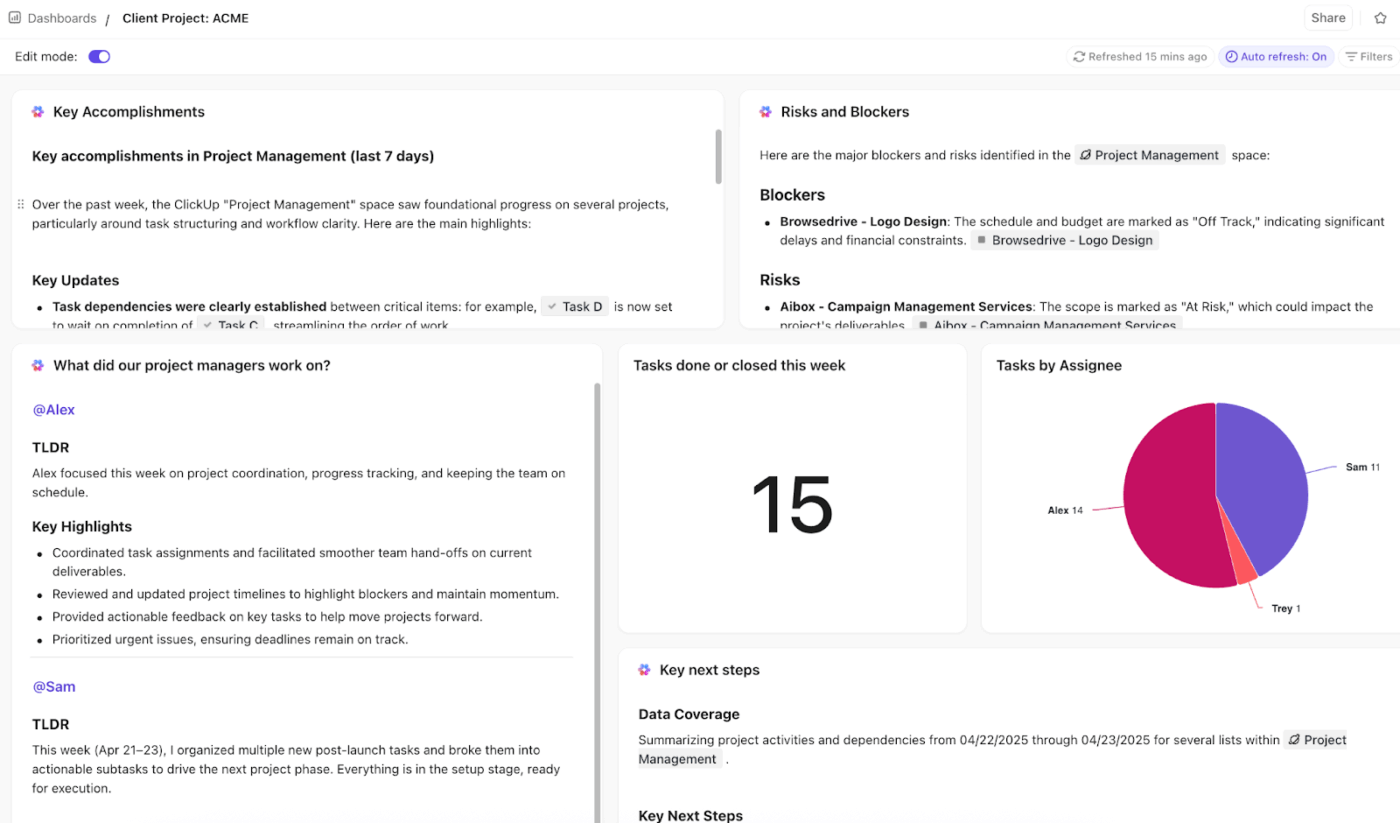
Add an AI Project Update or AI Executive Summary card to your ClickUp Dashboard so you can share a clean snapshot of project progress without scheduling extra calls. You can also point the card to a specific List, Folder, or Space, then rerun it before a handoff to keep the update current.
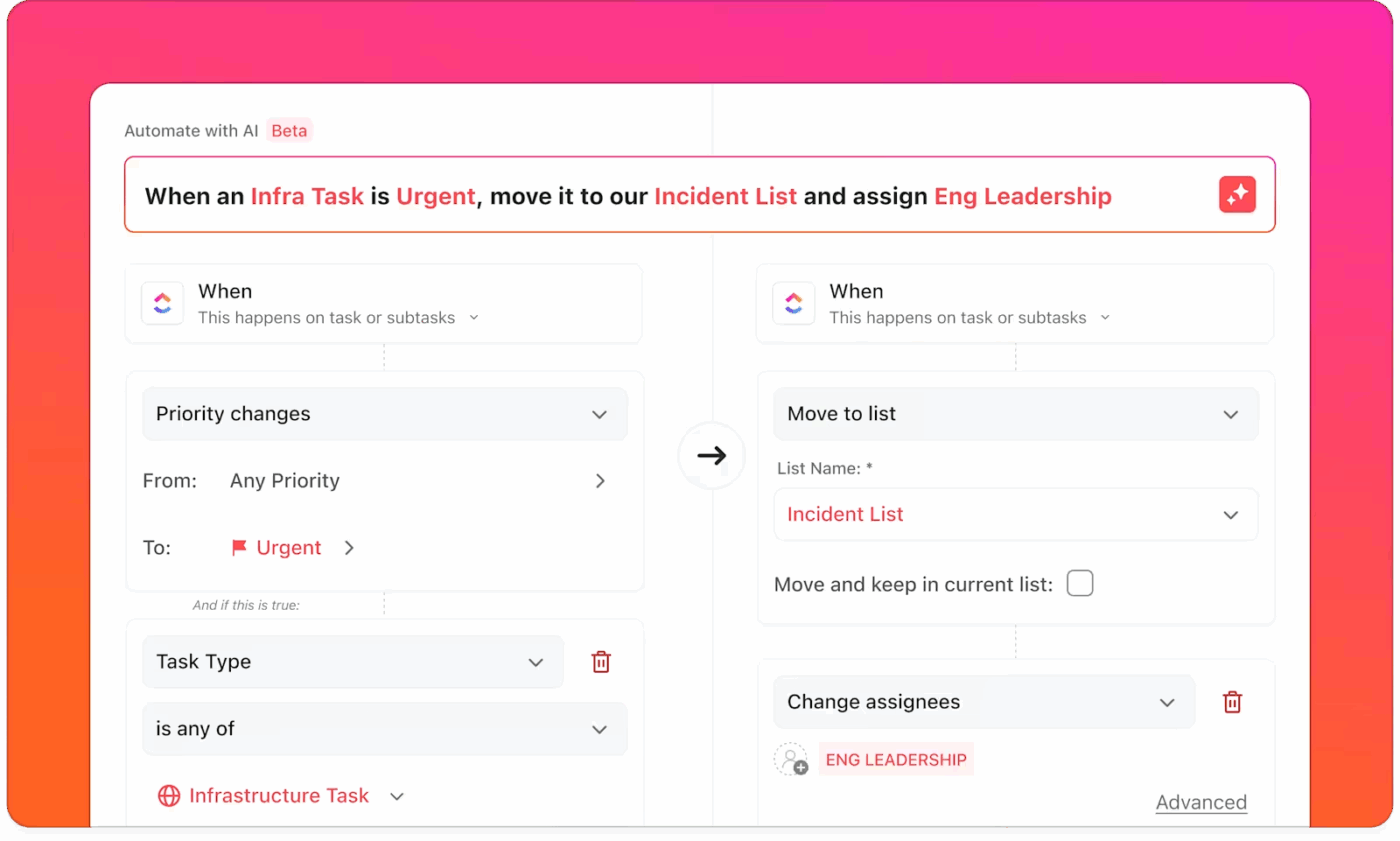
When handoffs depend on memory, global delivery slows down. ClickUp Automations help automate routine workflow processes (like updating statuses, routing work, notifying reviewers, or assigning owners) so predetermined actions can happen automatically when conditions are met.
ClickUp also offers 100+ ready-to-use workflow automation templates to speed up setup. This is one of the most practical ways to reduce repetitive tasks while keeping accountability tied to execution.
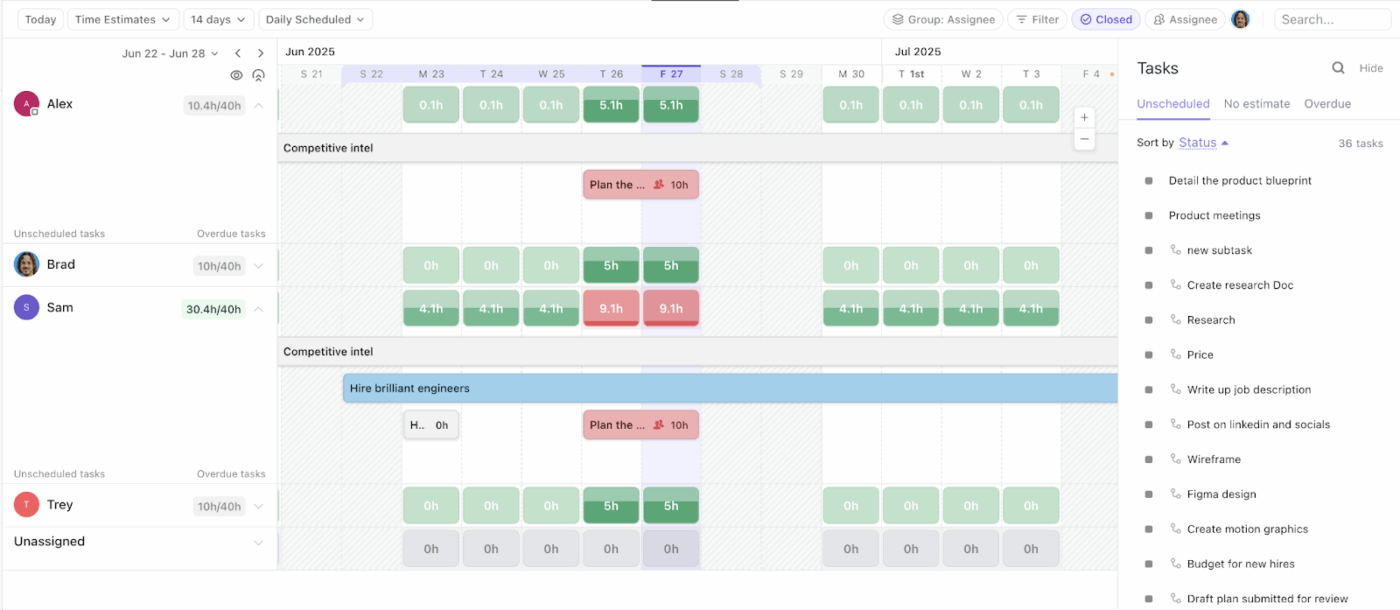
For global agencies, time tracking is not just a timesheet requirement. It is a margin and capacity signal.
ClickUp supports tracking time on tasks via timers or manual entries, including timesheets and dashboard cards, so you can keep time data tied to actual work.
And for capacity planning, Workload view helps teams visualize who is over or under capacity, with options to set capacity limits and view workloads by day, week, or month.
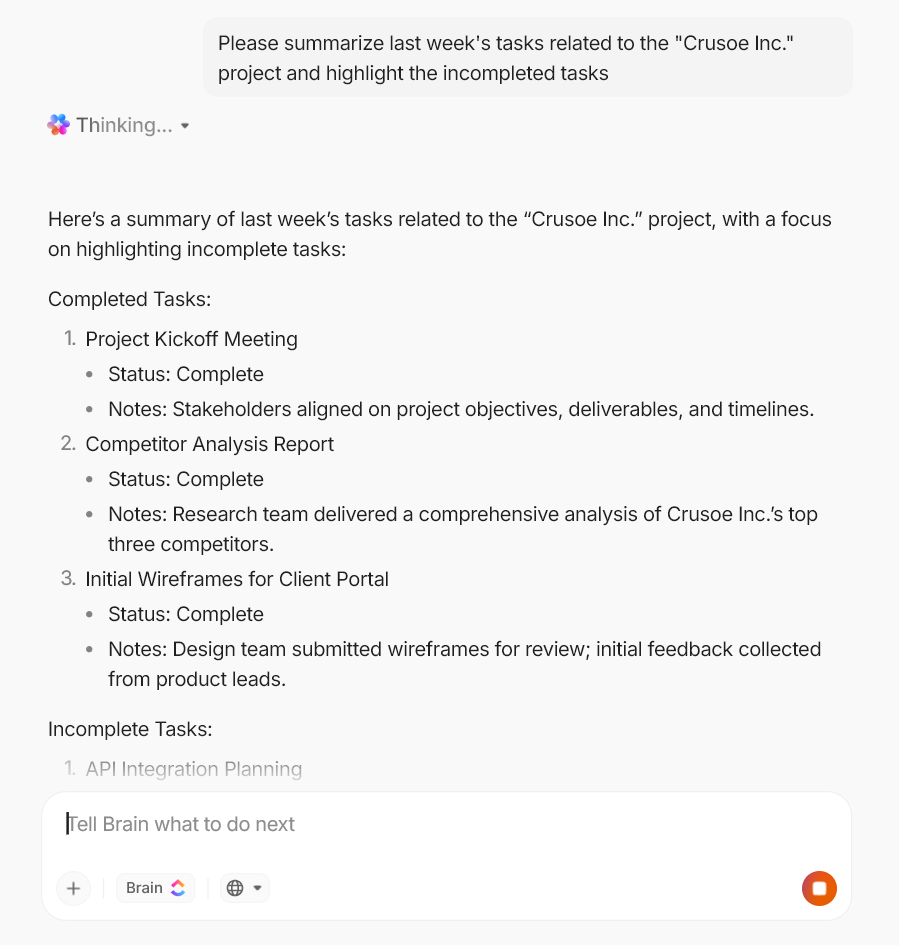
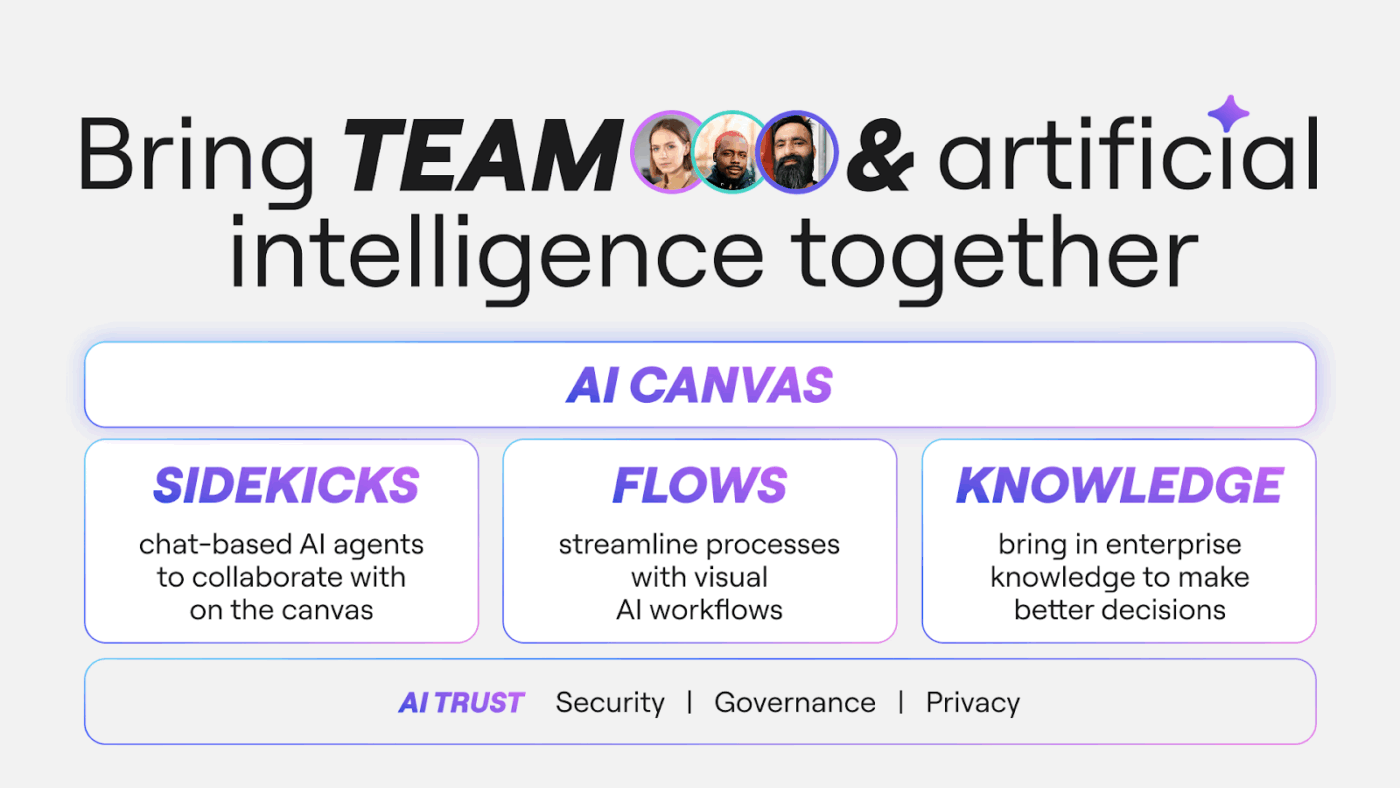
AI can improve speed, but only if it respects context and permissions. ClickUp Brain adds an AI layer to your tasks and projects, which connects docs and team members with unified permissions and privacy controls.
ClickUp’s AI policies also prevent third-party AI providers from training on your data and don’t allow third-party data retention. This is important for agencies working with sensitive data.
When the bigger issue is “Where is the latest answer?”, ClickUp’s Enterprise Search supports searching across connected tools and apps (for example, Drive, Slack, and Gmail) from one place, so teams can find context without reopening five different systems.
💡 Pro Tip: Run faster status updates and sync handoffs with ClickUp Brain MAX.
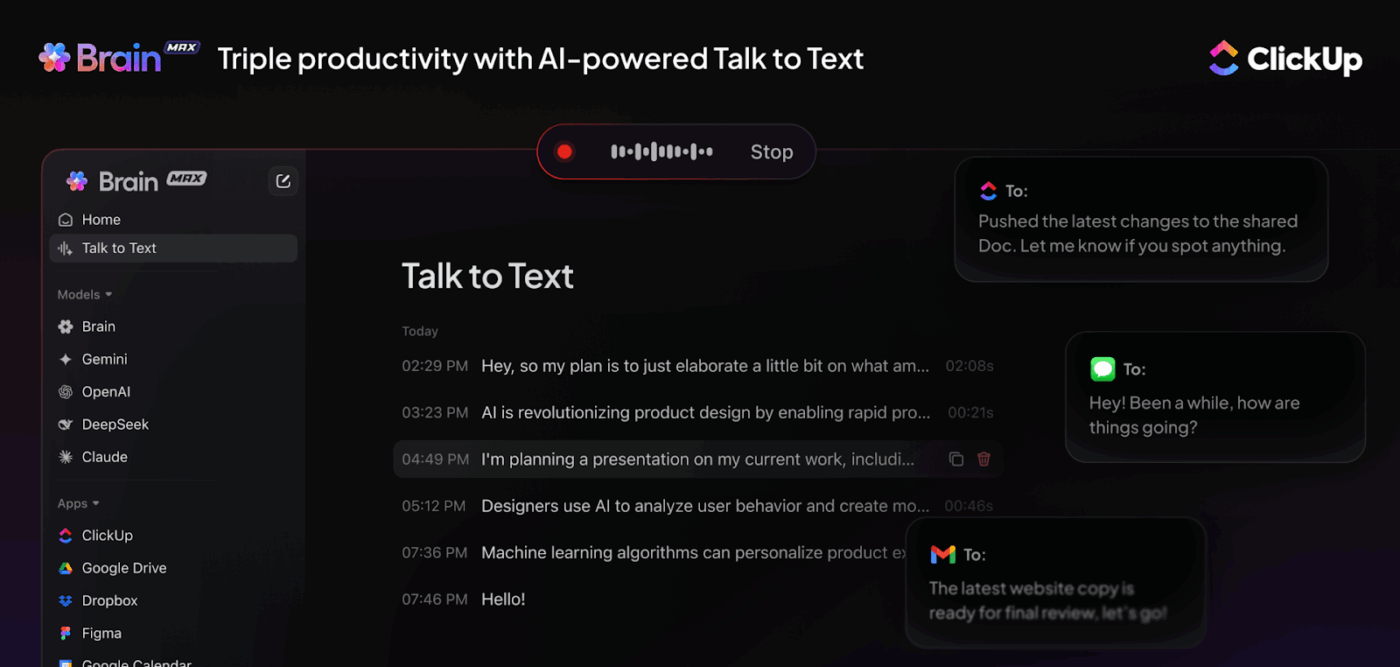
ClickUp Brain MAX helps you turn scattered updates into structured delivery signals, which is exactly what you need when remote teams are not online at the same time.
A G2 user has shared a positive comment on ClickUp:
I like ClickUp’s integration systems and platform buildout. It really makes the process less difficult and streamlines it. Sometimes the layout is not the most user-friendly, and the timesheet section doesn’t show my tasks unless I search them word for word. The initial setup was also lengthy.
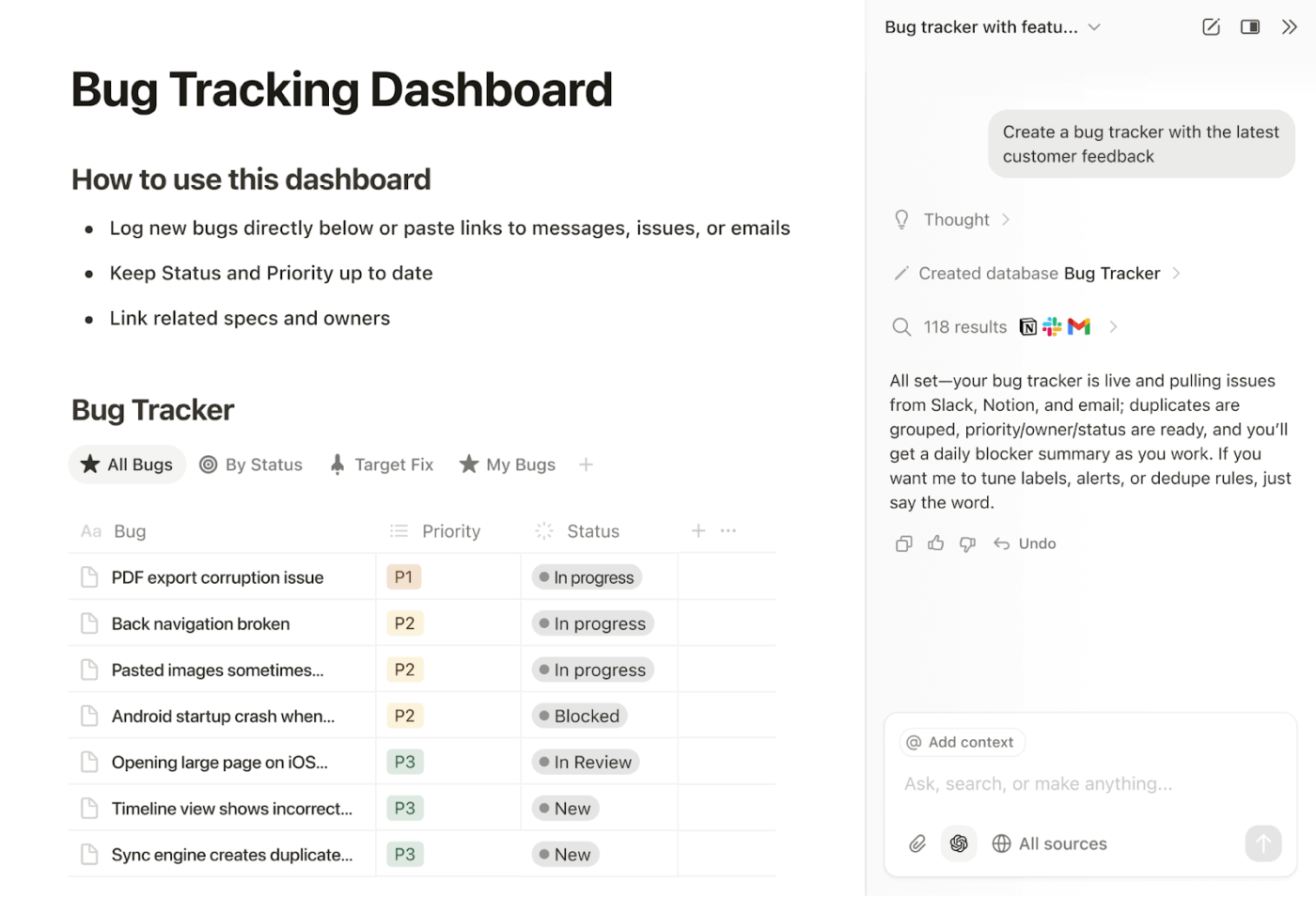
When a global agency runs multiple projects, the fastest way to lose time is letting the “source of truth” spread across docs and chat threads. Notion is useful because it lets you keep project context and delivery documentation together, so remote teams can pick up work without hunting for the latest brief or decision.
For project management, Notion’s strength is its databases. You can set up a tasks database with status, assignee, and due dates, then view that same work as a table, board, calendar, or timeline, depending on how your project managers like to run project tracking.
Notion also helps with schedule management through Notion Calendar. It can show Notion database items alongside Google Calendar events, which is useful when you need to align task due dates with calendar events across time zones.
A G2 user says:
“It’s very flexible to be modified/leveraged from project management and task tracking, to covering CRM needs.”
📖 Also Read: Marketing Collaboration Tools for Teams
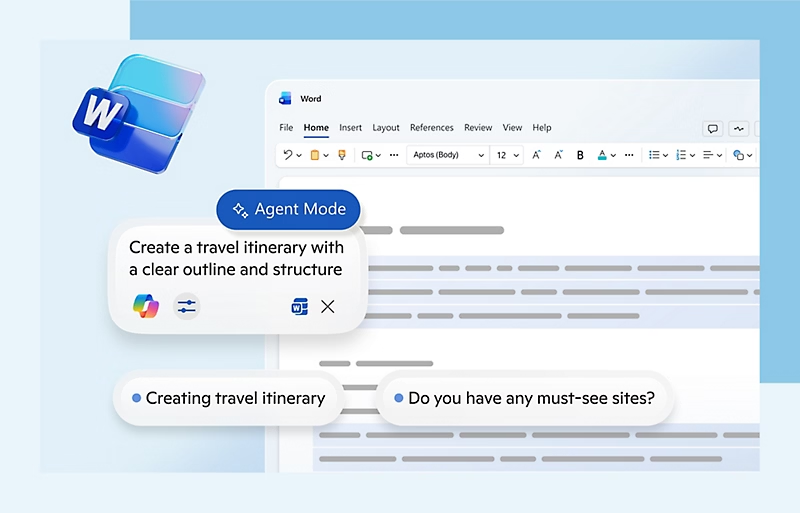
If your agency already builds proposals and reports in Microsoft Office, Microsoft 365 can reduce workflow friction because the core writing and spreadsheet work stays inside the same suite your team already knows.
Microsoft Teams typically becomes the center of team collaboration, with chat plus video calls and screen sharing for client reviews and internal handoffs. For file sharing, OneDrive and SharePoint support cloud file storage and access controls, which helps when you’re working with external stakeholders.
Where Microsoft 365 becomes more useful for distributed work is co-authoring. When files are saved in OneDrive, SharePoint, or Teams, multiple people can work in the same Word, Excel, or PowerPoint file at the same time. That reduces version control issues that show up when teams pass attachments across time zones.
A Capterra user says:
“Microsoft 365 is an excellent value for money, especially with the multiple tools bundled into a single subscription. File sharing and document management work perfectly with OneDrive and SharePoint. Ease of use is another strength with customer support.”
📮ClickUp Insight: Nearly 88% of our survey respondents now rely on AI tools to simplify and accelerate personal tasks. Looking to generate those same benefits at work through online collaboration tools?
ClickUp is here to help! ClickUp Brain, ClickUp’s built-in AI assistant, can help you improve productivity by 30% with fewer meetings, quick AI-generated summaries, and automated tasks.
📖 Also Read: Free Productivity Templates in Excel & ClickUp
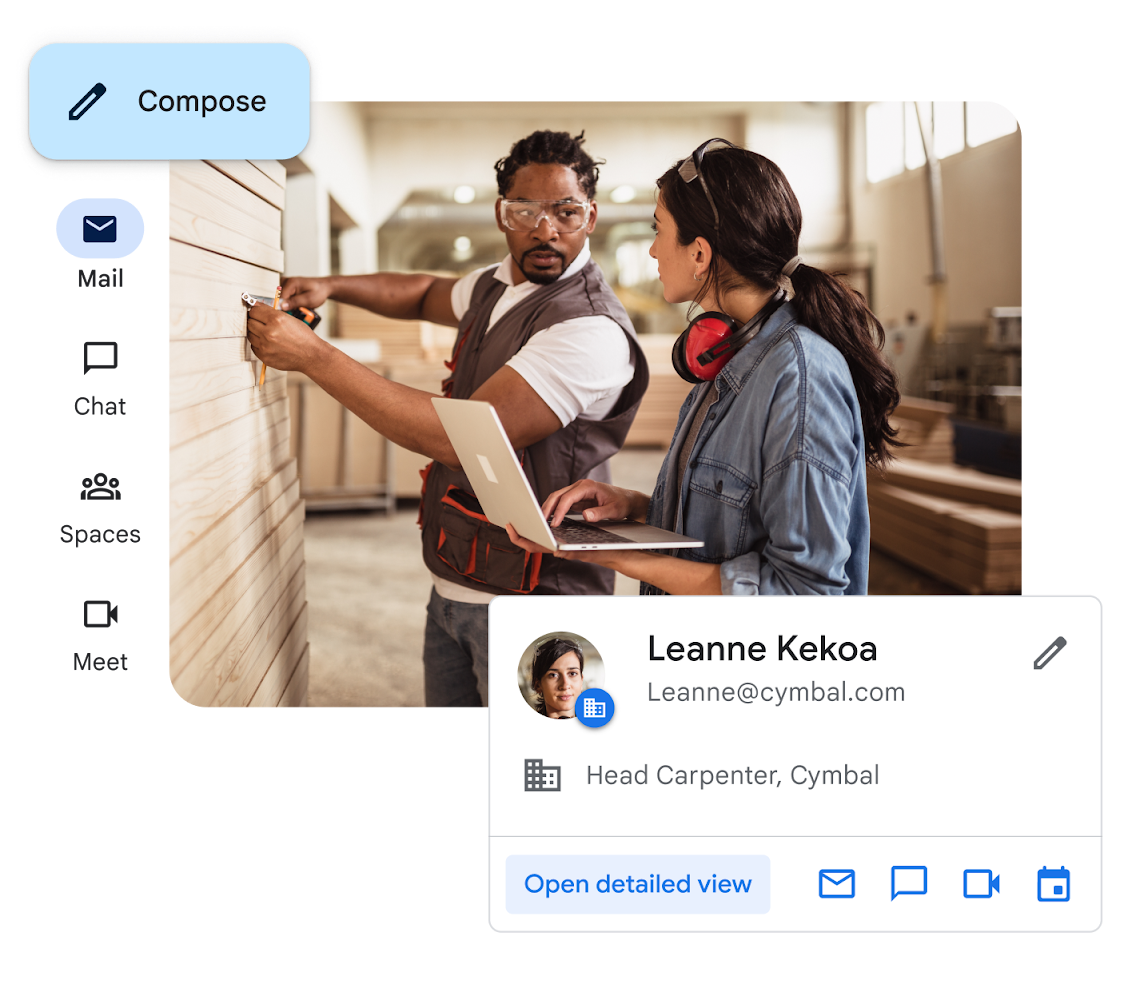
For agencies that do a lot of review-heavy work, Google Workspace is often a strong fit because the basics are built around real-time collaboration. Google Drive supports cloud file storage and file sharing, while Google Docs makes it easy for remote teams to edit briefs and working drafts together without emailing versions back and forth.
Google Calendar is also a big part of why global teams adopt Workspace. Shared calendars make schedule management easier across time zones, since meeting times adjust to each person’s local time and availability.
Google Meet then supports the live moments that still matter, like creative reviews and stakeholder check-ins, with video calls and screen sharing.
A user on Capterra said:
“I think Google Workspace is a superior team management workspace. It is extremely easy to navigate between the 20 shared drives that we have with each of our branch offices. I am able to move documents easily. Being able to use a special @ for emailing purposes makes team communication efficient.”
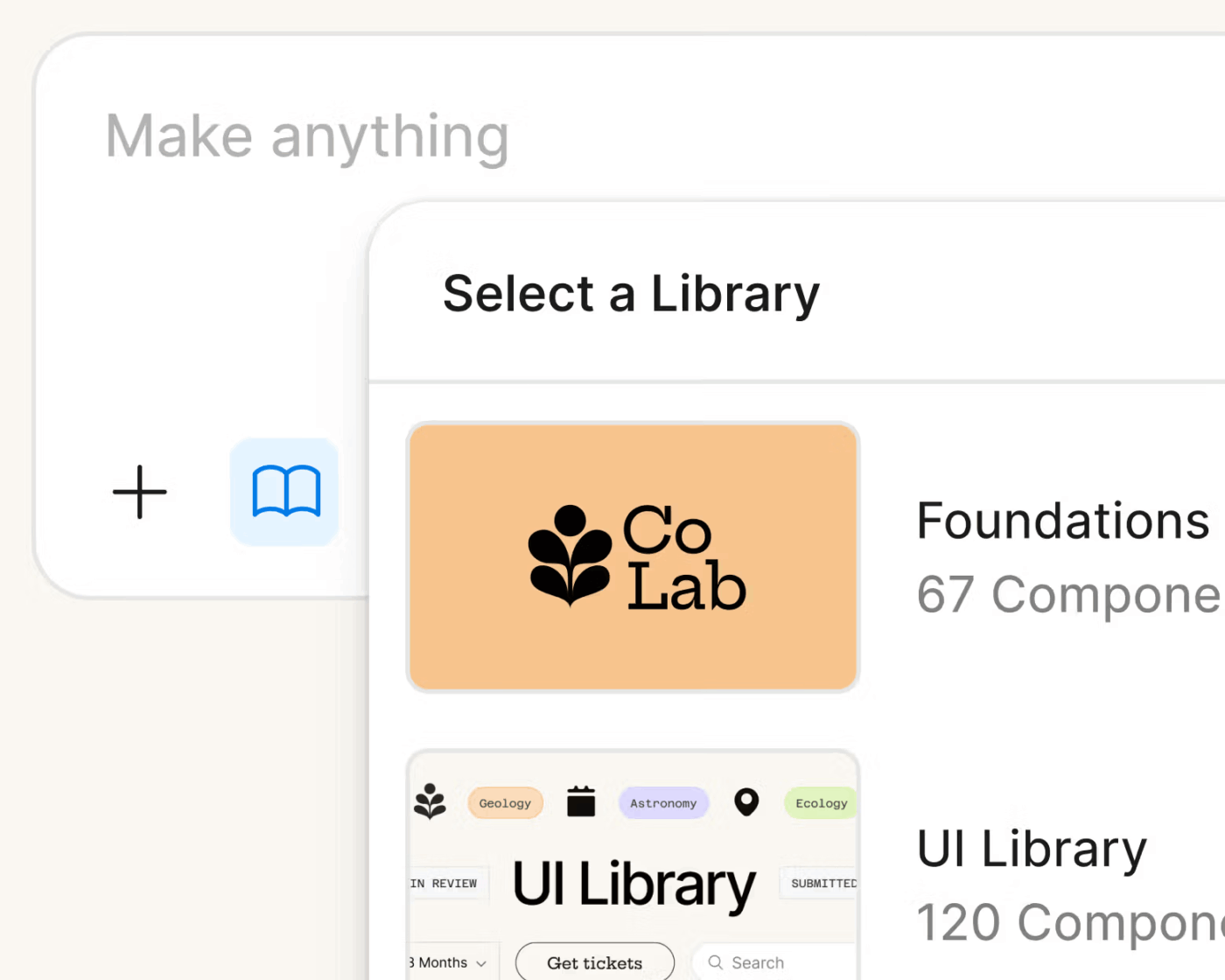
When designers and clients work in different time zones, feedback loops can become the bottleneck. Figma helps because teams work from a single cloud file, which cuts down the “wrong version” problem and keeps comments tied to the exact design element being discussed.
Figma is also built for live, in-file collaboration. Cursor chat lets people type temporary messages inside a design file for quick questions and confirmations during overlap hours, which can reduce the number of short video calls that break focus.
Permissions are tied to view and edit access, so you can invite the right team members without giving everyone full control. For workshops and early-stage planning, FigJam supports collaborative whiteboarding with options for live chat, comments, and audio.
A G2 reviewer said:
“Collaborating with team members is seamless, allowing us to turn thoughtful ideas into reality. This tool supports our UX research activities, such as mapping user journeys, brainstorming sessions, and conducting design critiques.”
💡 Pro Tip: If you want a more agency-specific view of how ClickUp supports this operating model, ClickUp for Creative Agencies helps with planning and presenting work in one place.
Global agencies that ship high volumes of creative assets often run into the same issue: files and brand elements get scattered, and reviewers are not sure which version is approved. Adobe Creative Cloud for teams is built for that environment, pairing the core creative apps with business controls that help agencies manage assets and access across team members.
For day-to-day creative operations, shared libraries matter. Through Adobe Creative Cloud, teams can access “company-owned libraries,” which helps keep brand assets like colors and components consistent across multiple projects.
On the admin side, users get access to a web-based admin console plus the ability to reclaim assets when someone leaves. That’s useful for agencies with freelancers, rotating teams, or frequent staffing changes, because ownership and access can remain under business control instead of living in personal accounts.
A G2 reviewer said:
“My daily work includes preparing short classes, educational videos, patient guidance material, and online teaching sessions. I use it (Adobe Creative Cloud) to design diet charts, patient education posts, and health-related visuals for different conditions, which I use regularly in clinic guidance, educational posts, and online teaching sessions.”
📖 Also Read: Workflow Automation Examples and Use Cases
When a global agency runs delivery across time zones, the biggest slowdown is usually the gaps between updates. People make decisions in one place, someone misses the context, and the next region spends its first hour asking “what changed?”
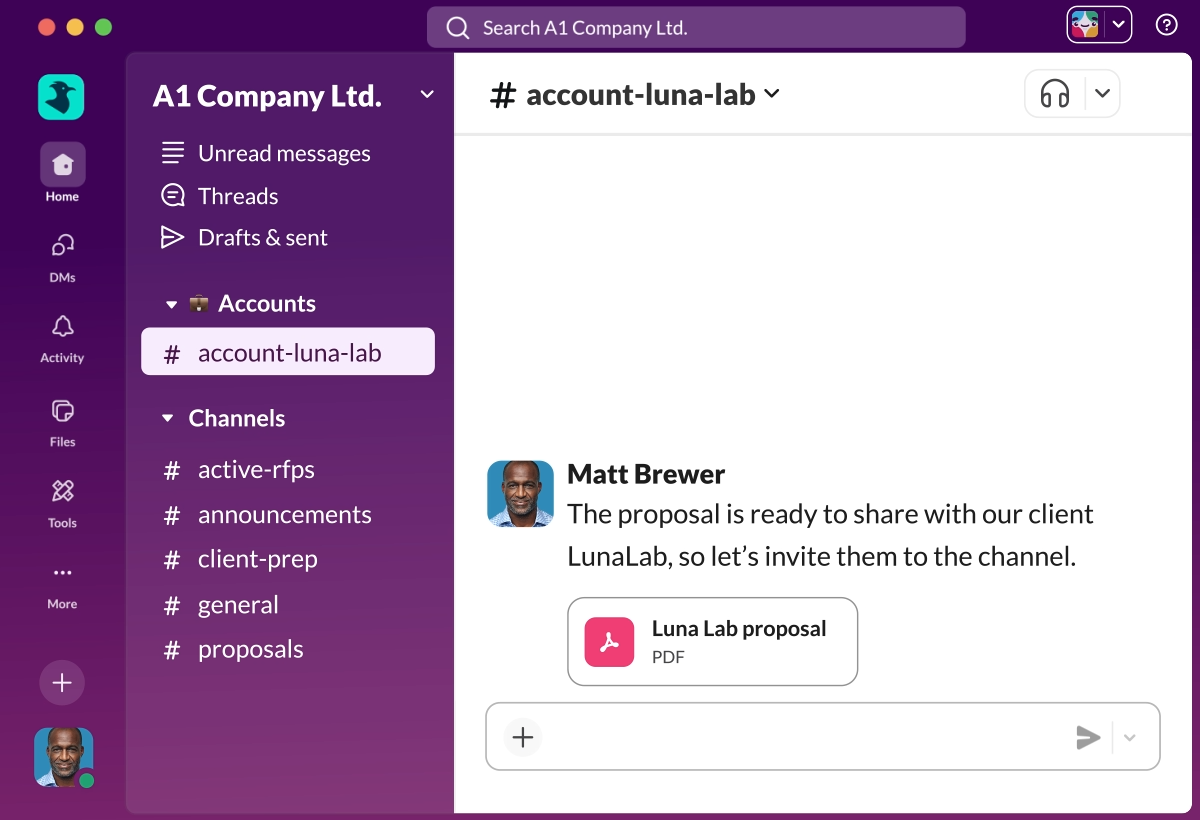
Slack is designed for nonlinear, async communication, so teams can contribute updates when they are online instead of waiting for the “right overlap window” or replying to long email threads.
Instead of information spreading across random DMs and inboxes, Slack’s approach encourages discussions to stay organized by project or topic, which reduces the risk of leaving key team members out of the loop. That can improve team productivity when multiple projects are moving in parallel and handoffs happen daily. Slack also tends to work well when agencies need to collaborate with external stakeholders.
A G2 reviewer left the following comment:
“Among the communication software I’ve used, Slack is definitely the most complete, intuitive, and has a beautiful interface. I can’t think of any areas for improvement… The ability to create channels with people both inside and outside my organization is amazing!”
🎥 Watch a video: 60% of knowledge workers’ time is wasted just hunting for information. The solution? An AI knowledge base that acts like your team’s digital brain.
In this video, you’ll see how to build an AI knowledge base step by step.
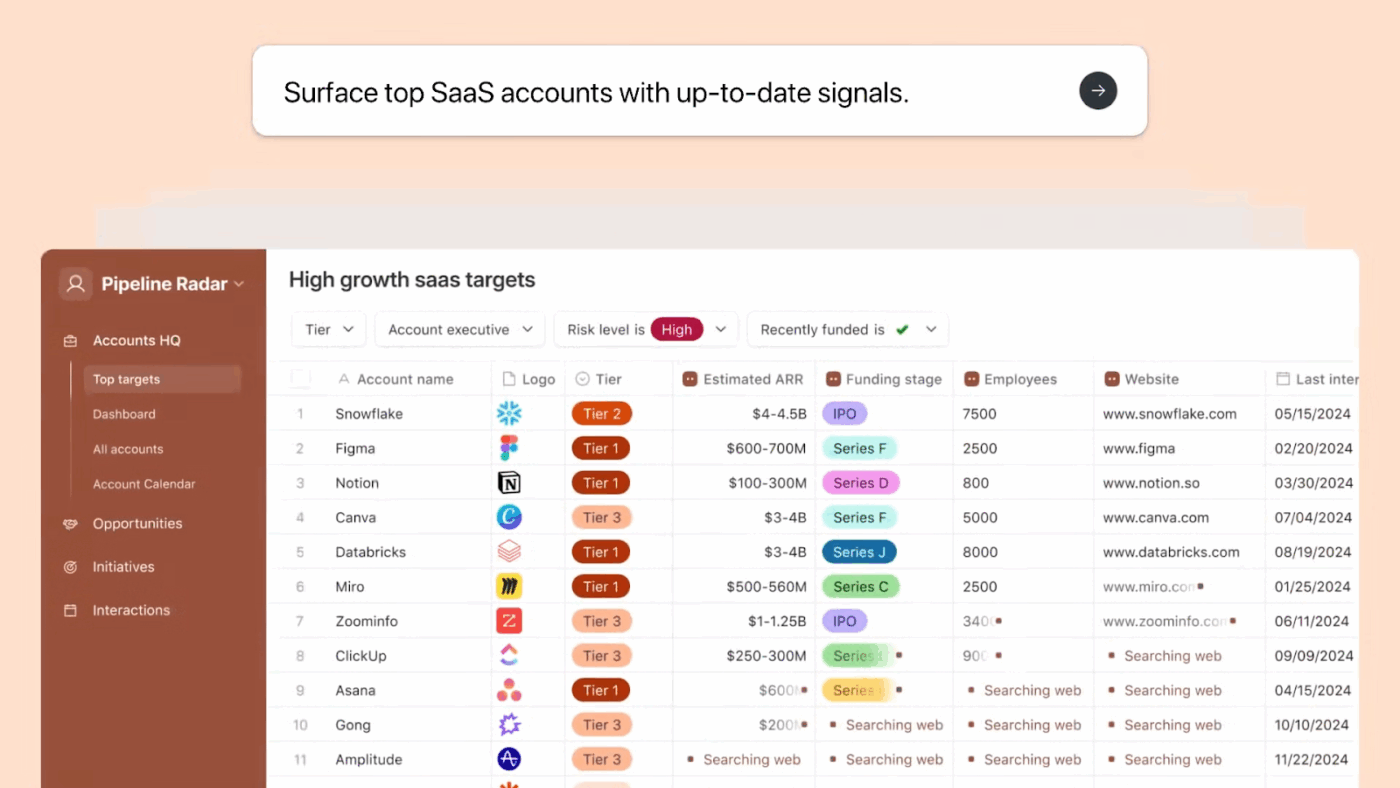
Airtable positions itself as a platform for building business apps and connecting workflow and data end-to-end, which is useful for ops teams who need a single system to run recurring workflow processes.
For agencies, the real advantage is control and consistency. You can standardize how work gets tracked across regions and reduce the reporting scramble that shows up when delivery information is duplicated across multiple tools. That makes Airtable a practical productivity tool for teams that manage complex tasks and ongoing projects at scale.
Airtable also emphasizes governance and security as part of its platform story, which matters when you are managing client information and structured operational data across distributed team members.
A reviewer on G2 said:
“I started using Airtable the moment I realized I had exhausted everything Excel could offer. After countless attempts to force a database structure into spreadsheets, I finally found Airtable, and nearly ten years later, I’ve never looked back. Airtable is incredibly easy to navigate at the start.”
📖 Also Read: How To Improve Project Collaboration At Any Scale
In distributed agencies, alignment work often becomes the hidden project. Miro is built around a zoomable online whiteboard that supports both synchronous and async collaboration, which makes it easier to keep planning work visible and reusable across time zones.
For agency leaders, Miro is most valuable when you need to turn fuzzy inputs into a shared plan. Teams use it to brainstorm, map workflows, and run structured workshops, which helps reduce misinterpretation during handoffs. Its template library also helps teams start faster instead of building every board from scratch.
Miro also leans into async explanation, not just async editing. With Talktrack, teams can record walkthroughs that stay embedded in the board, so someone in another region can understand decisions and intent without scheduling another meeting.
A G2 reviewer says:
“I love how Miro makes it feel easy and natural to bring ideas to life visually. It’s like having an endless whiteboard where everyone can jump in. I do a lot of workshops for clients in advertising, and Miro helps me collaborate in real-time”
📖 Also Read: Ways To Be More Productive At Work
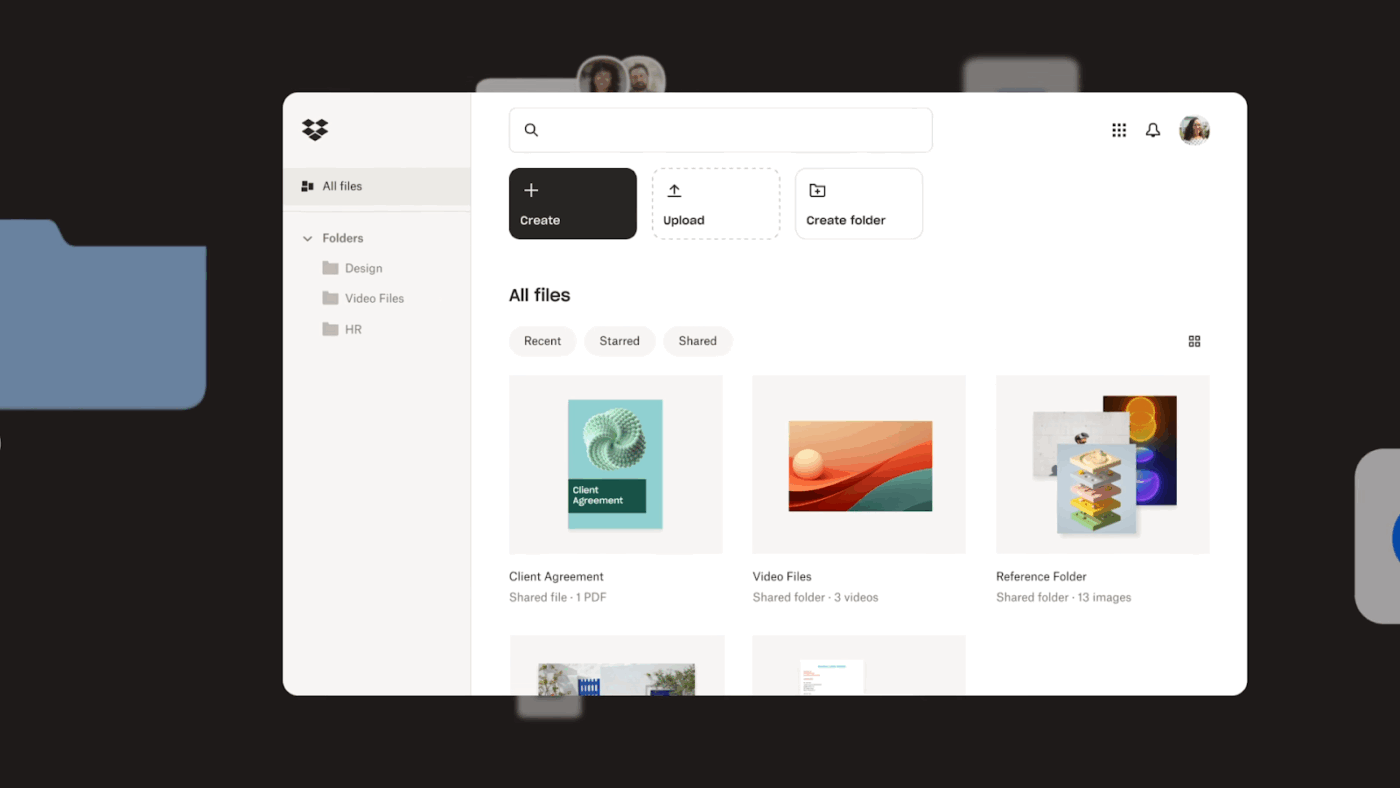
Global agencies move a lot of files, and file mistakes are expensive. When teams share creative assets across regions, the “latest version” problem shows up fast, and one wrong upload can set a project back.
Dropbox Business is positioned as secure cloud storage for business teams, with file recovery and history features that help reduce the risk of accidental overwrites and deletions during active work.
For ops leaders, Dropbox is often a “stability tool.” It helps keep file sharing predictable, reduces asset loss risk, and supports cleaner governance around client-facing folders. If your agency already has project management software elsewhere, Dropbox Business can still be the backbone for reliable file storage across remote teams.
📖 Also Read: Creative Operations for Teams
A G2 reviewer says:
“What I like most about Dropbox is its unmatched reliability and true “set-it-and-forget-it” feel. For me, its delta-sync technology is still the gold standard: it uploads only the parts of a file that have changed, which makes updates impressively fast even when I’m working with large datasets.”
📖 Also Read: Best AI Productivity Tools to Use
If your core stack is set, these three cloud productivity tools can cover the “in-between” gaps global agencies run into, especially around virtual meetings and automating repetitive tasks across multiple tools.
Zoom: A virtual meeting tool that’s useful when client reviews still need live walkthroughs. Zoom supports video calls with screen sharing, so teams can review a deck or a reporting dashboard together without sending a dozen versions back and forth.
Loom: An async video messaging tool for faster handoffs across time zones. Loom lets you record your screen (with or without a camera), share a link instantly, and collect comments, which works well for creative feedback when your team members are not online at the same time.
Zapier: A workflow automation tool that connects the apps your agency already uses. Zapier lets you build automated workflows using a trigger-and-action setup and supports integrations across 7,000+ apps, which helps when your delivery process spans tools like Google Drive, Slack, and spreadsheets.
Choosing cloud productivity tools for a global agency isn’t just about file storage or video calls. It’s about keeping tasks, context, approvals, and reporting connected, so work keeps moving even when teams are offline in different regions.
ClickUp works well when you want to reduce tool switching and build a single delivery system that teams can rely on across time zones. You can centralize execution in Tasks, keep briefs and decisions in Docs, and share real-time visibility through Dashboards. Automations help handoffs happen consistently, and ClickUp Brain adds AI support inside the same workspace where delivery actually happens.
If you’re ready to run global delivery with fewer gaps and faster handoffs, sign up for ClickUp and build a workflow your teams can pick up without losing context.

© 2026 ClickUp

There’s an easier way. Try a free AI Agent in ClickUp that actually does the work for you—set up in minutes, save hours every week.