






Still downloading templates?
There’s an easier way. Try a free AI Agent in ClickUp that actually does the work for you—set up in minutes, save hours every week.
Sorry, there were no results found for “”
Sorry, there were no results found for “”
Sorry, there were no results found for “”
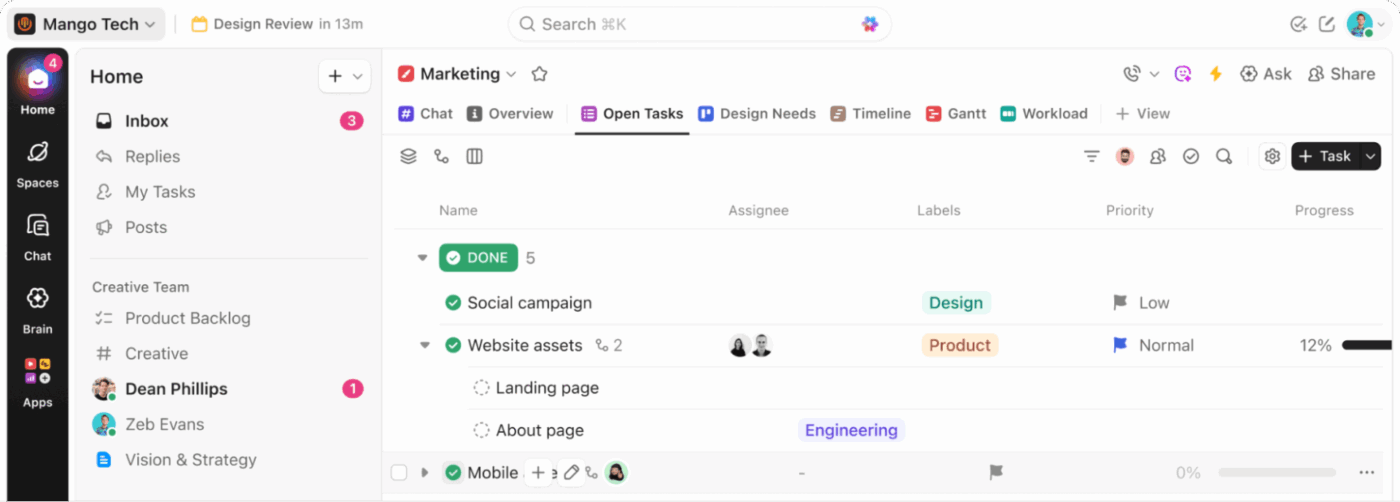
Modern work is fragmented. You move between chat, meetings, docs, email, and project tools just to complete basic workflows, and that fragmentation slows execution.
It’s exhausting. And it’s not just you. 😮💨
Research shows teams spend 61% of their time searching for information or updating tools, while workers switch between apps 1,200 times a day, losing nearly 4 hours every week just to regain focus.
But what if it didn’t have to be this way?
The ClickUp desktop app brings your tasks, communication, docs, and dashboards into one converged AI workspace, eliminating tool sprawl.
In this guide, you’ll learn how to take full advantage of it so you can move faster, stay focused, and finally make work work again.
Follow these quick steps to download and install the desktop app on your computer.
Before installing the ClickUp desktop app, ensure your device meets the minimum system requirements:
❗Note: The ClickUp desktop app is available for all ClickUp plans and can be used by all users, including guests.
A user on Reddit shares their opinion on ClickUp’s desktop app:
The pros of the desktop is that it’s closer, you don’t need to hunt for the ClickUp browser tab and can just click to open the app. It also feels faster, since if you have it open, ClickUp doesn’t have to load.
It also gives you a shortcut to open Search (CMD J), or create a task (CMD E) regardless of what app you have open, which is pretty fun and you can’t do with the browser. The search part is killer for heavy ClickUp users.
I drive mostly the desktop app, but I’ll find myself in the browser from time to time too.
You can install the ClickUp desktop app directly from the ClickUp website or, for some platforms, from app stores.
📌 For Windows:
1. Go to the ClickUp Download page
Visit the ClickUp Download page and click “Download for Windows.”
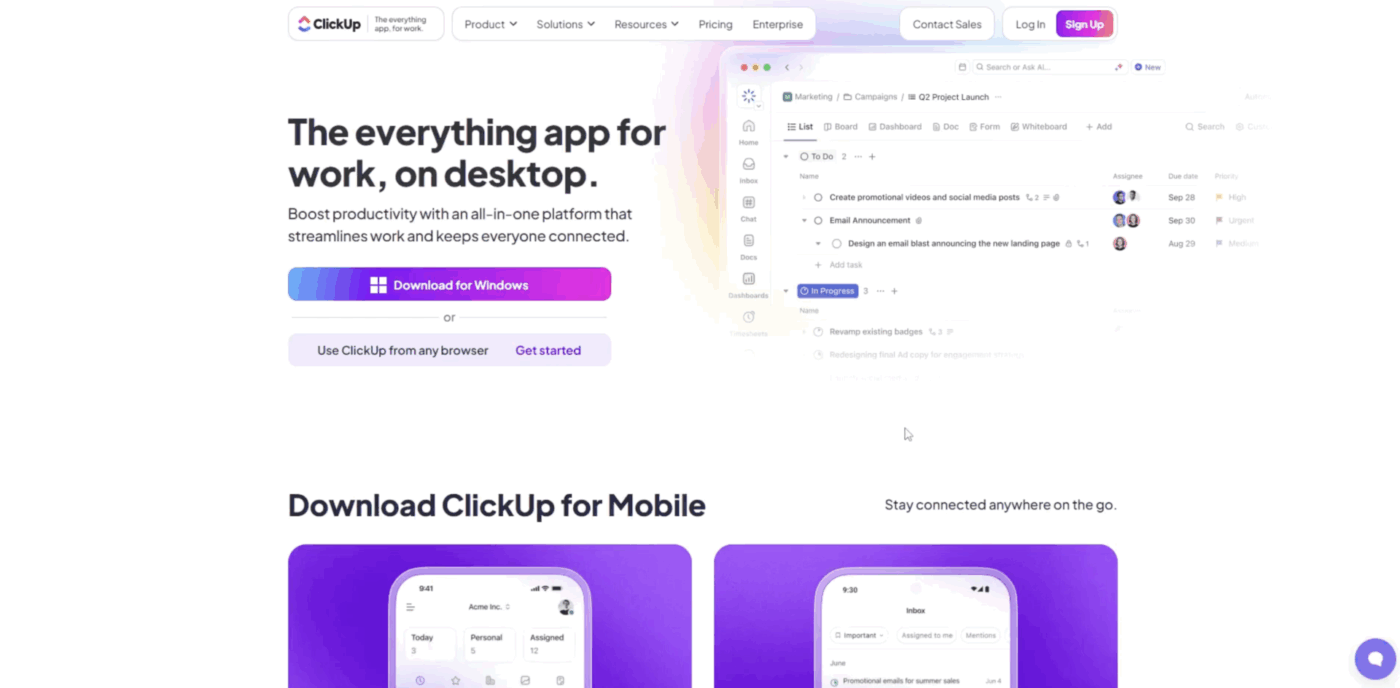
2. Download the installer for Microsoft Windows
You’ll be redirected to the Microsoft Store. Click “Download” to get the ClickUp app.
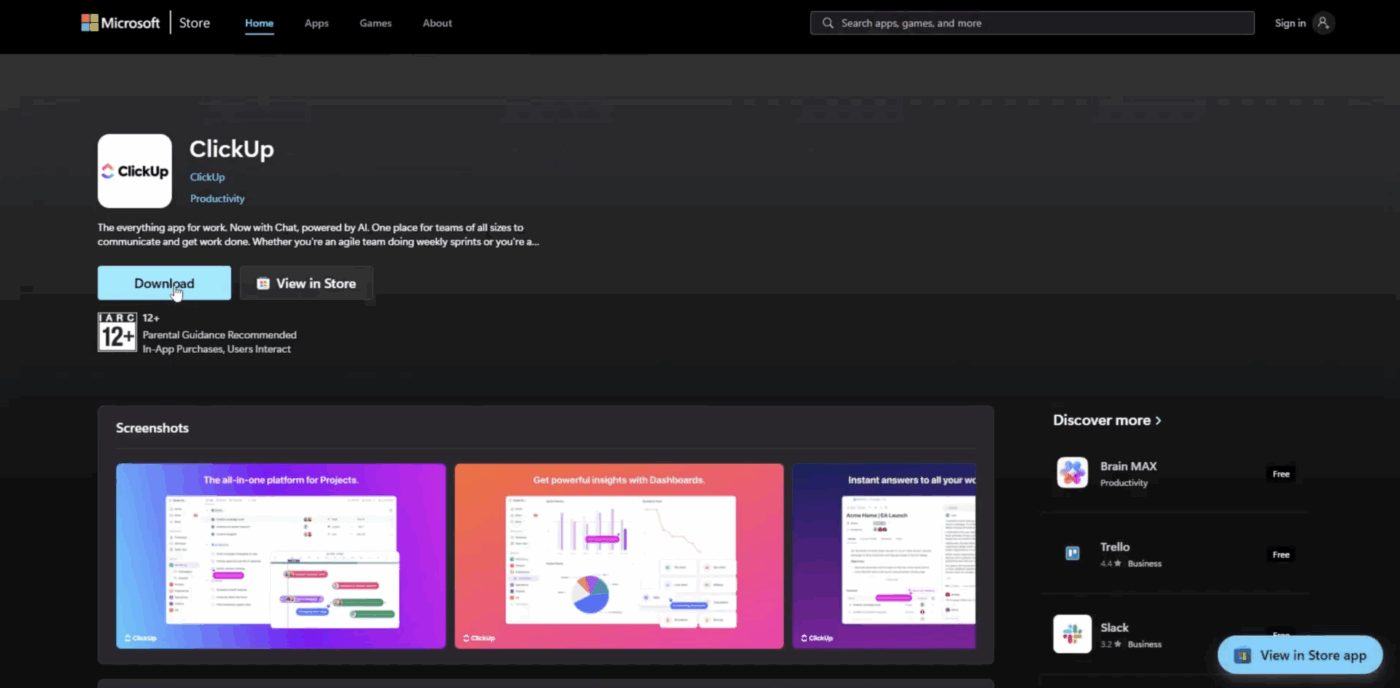
3. Run the Installer
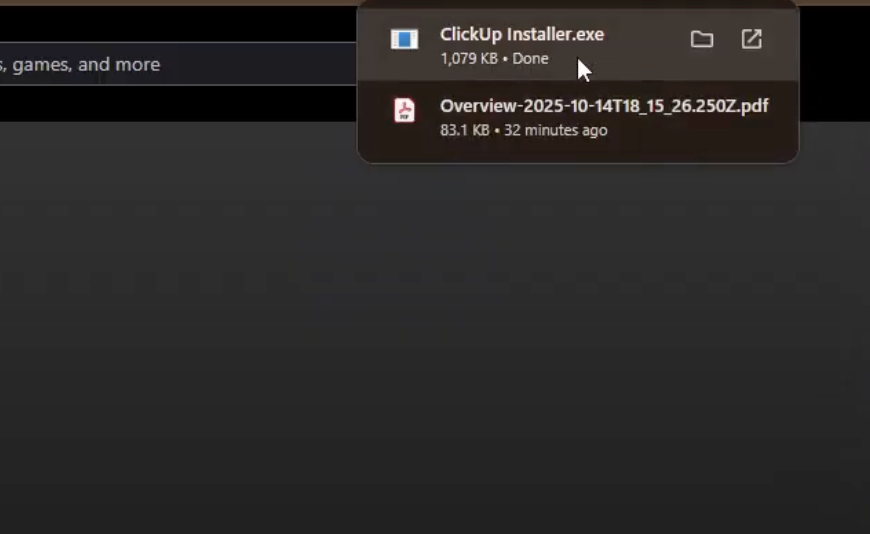
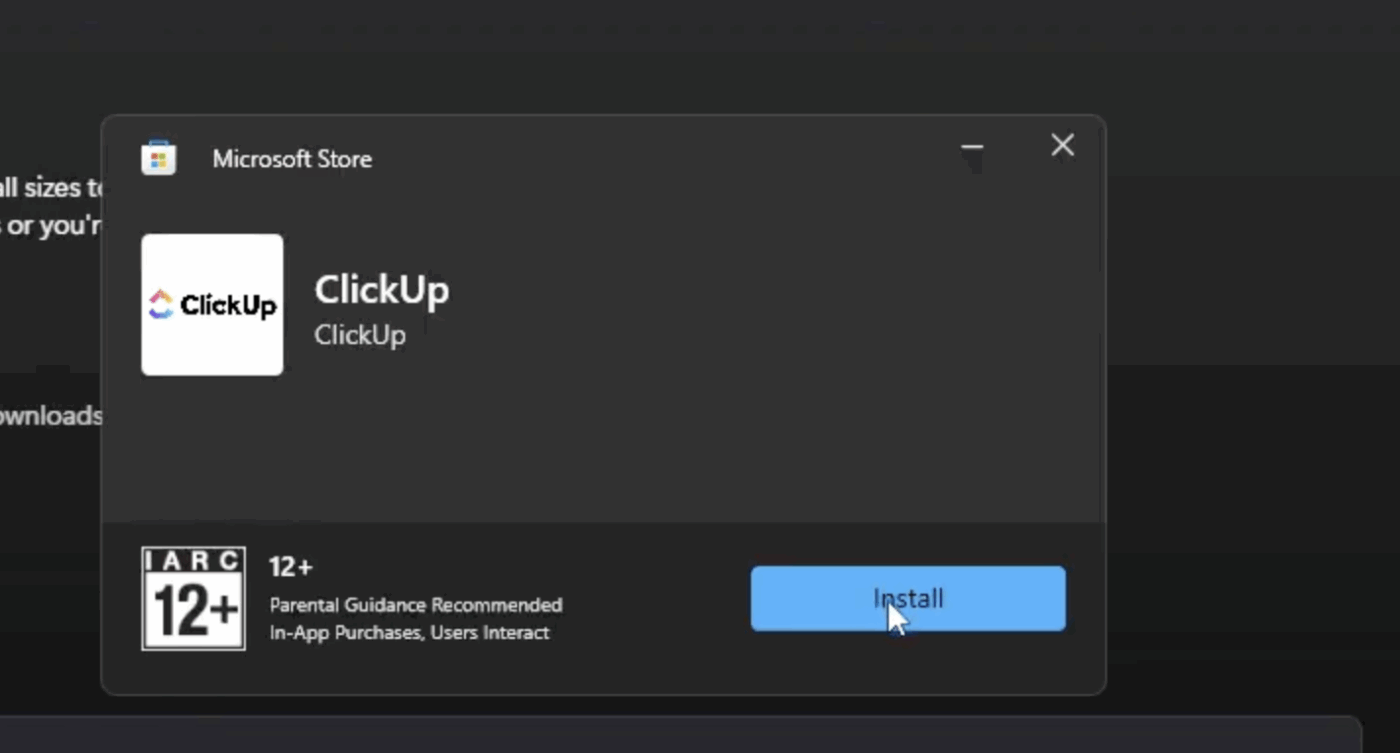
Open the downloaded ClickUp Installer (.exe) file. If prompted, click “Install” in the Microsoft Store pop-up.
4. Wait for Installation
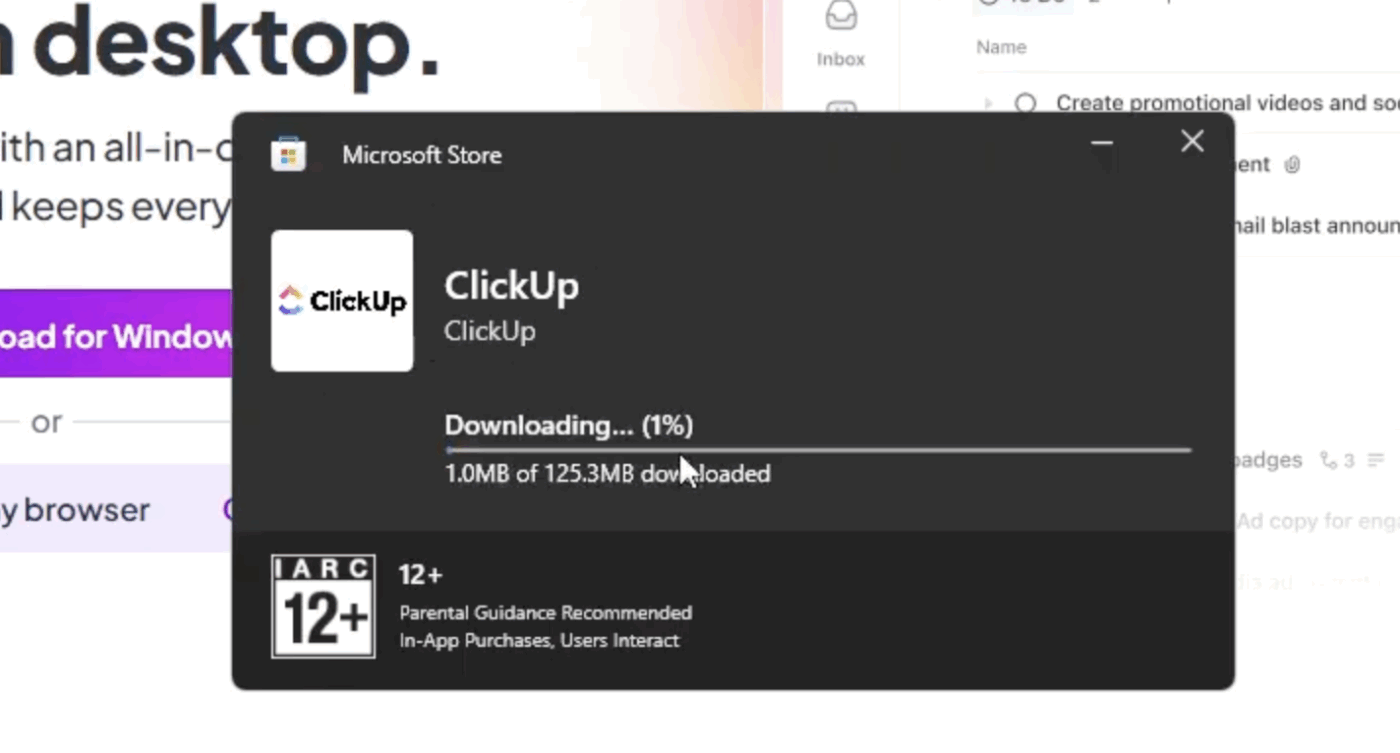
The app will download and install automatically. Once finished, you can launch ClickUp from your Start Menu.
📌 For Mac:
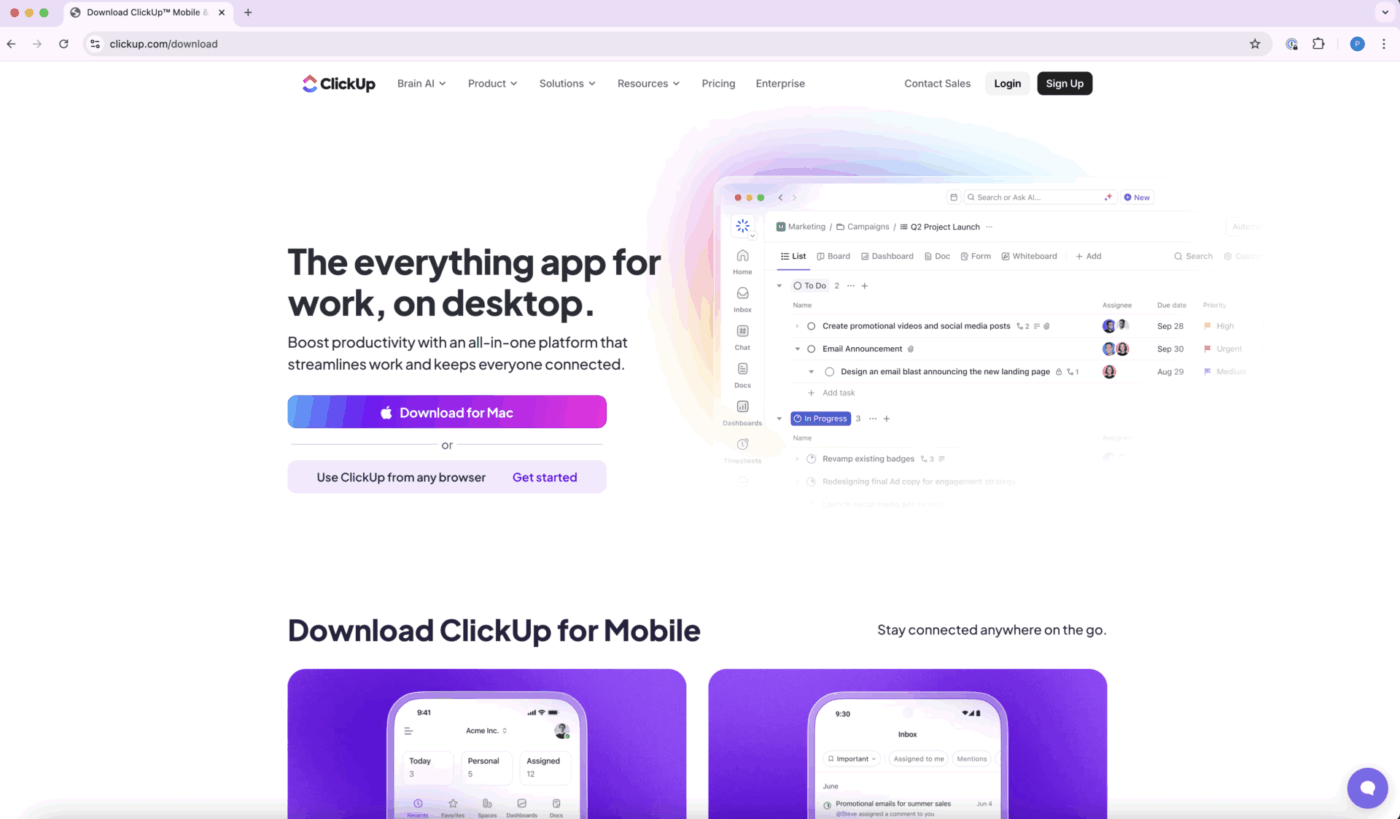
Go to the ClickUp Download page and select “Download for Mac.”
2. Open the Downloaded File
Double-click the downloaded .zip file to extract it.
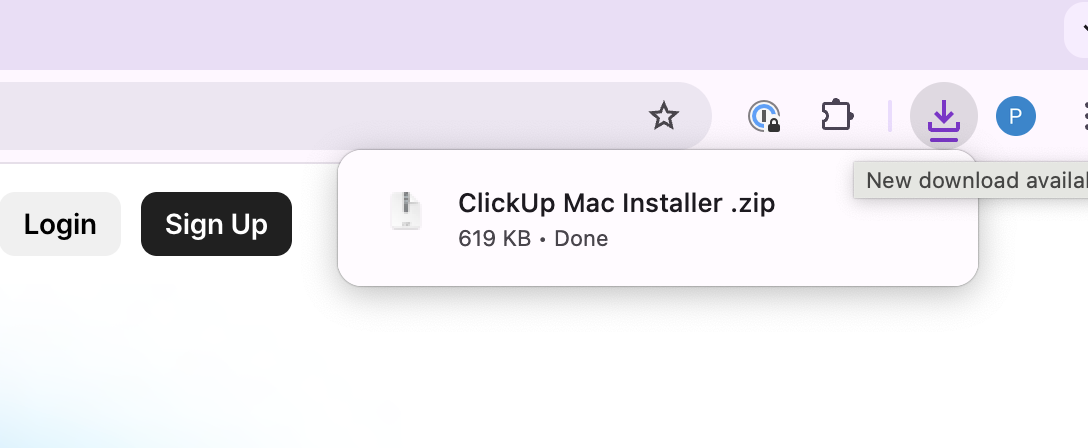
3. Install ClickUp
Double-click the “Install ClickUp” application and follow the prompts to complete installation.
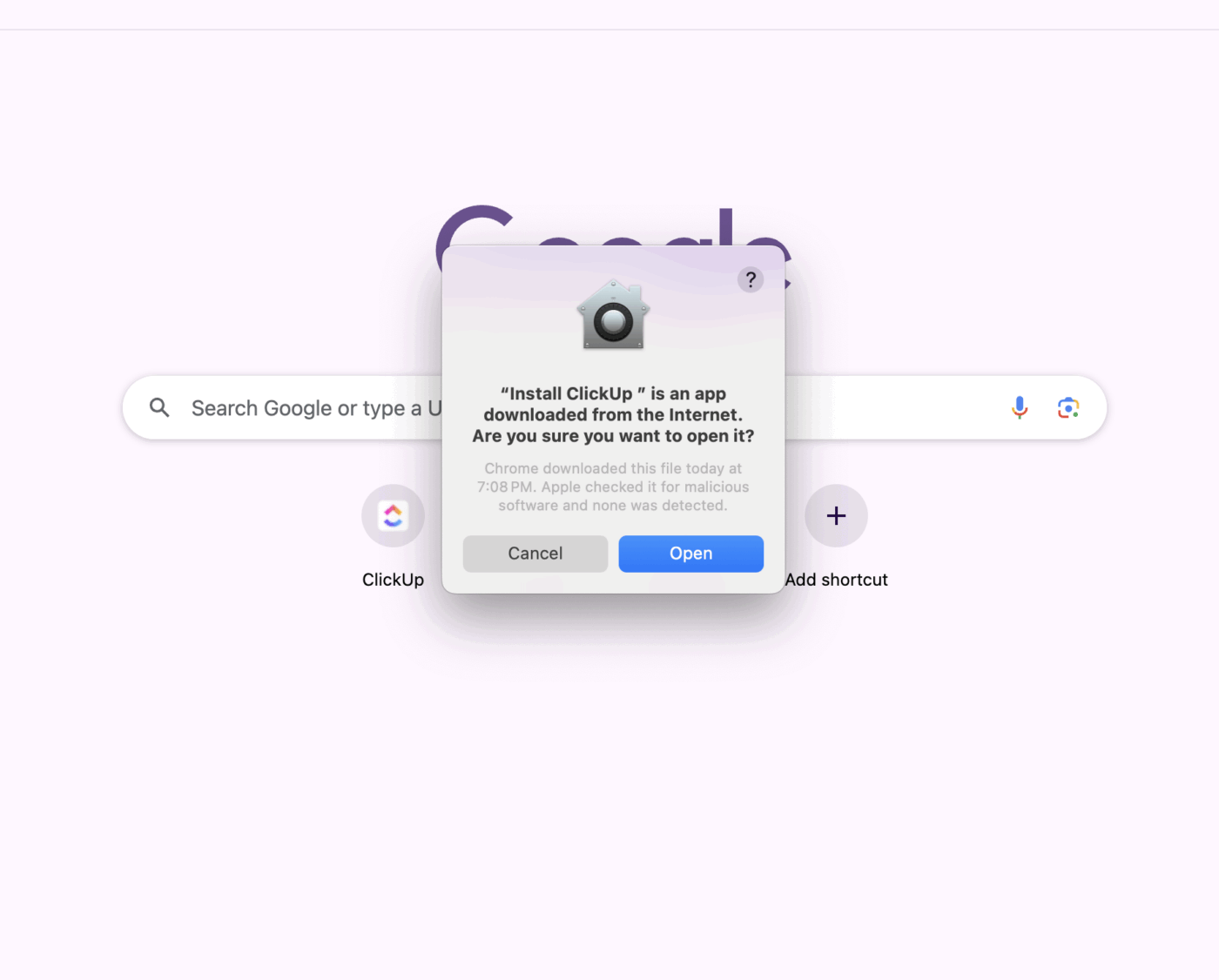
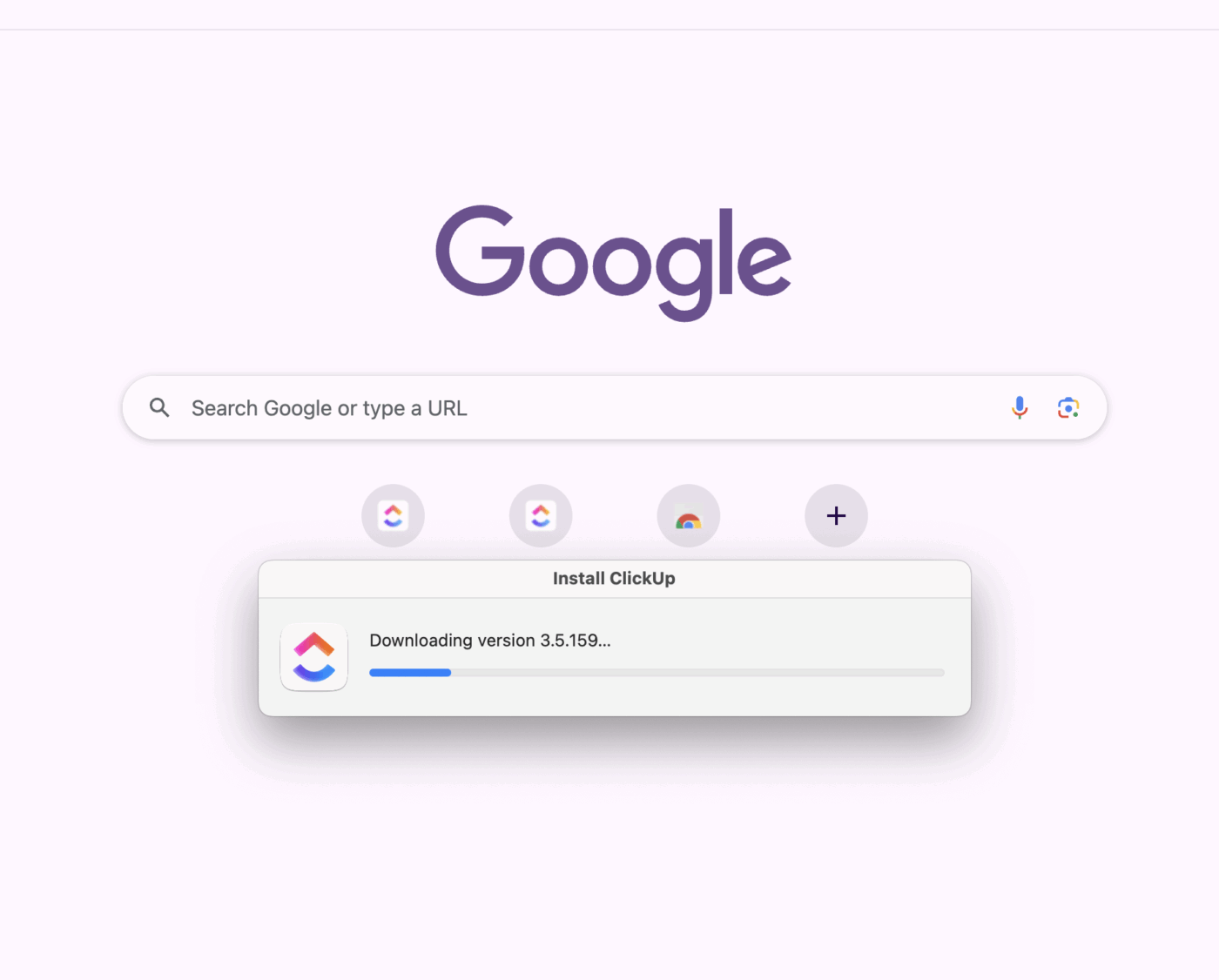
After starting the download, you’ll see a progress bar indicating that ClickUp is being downloaded to your computer. Once the download is complete, you can proceed with the installation.
📌 For Apple Mac M1 and M2:
1. Download the dedicated installer for M1/M2 from the same page
2. Double-click the .dmg file and drag the ClickUp app into your Applications folder
3. From Applications, double-click the ClickUp disk image to finish installation
After you have downloaded the App, the next step is to set up your workspace to get started.
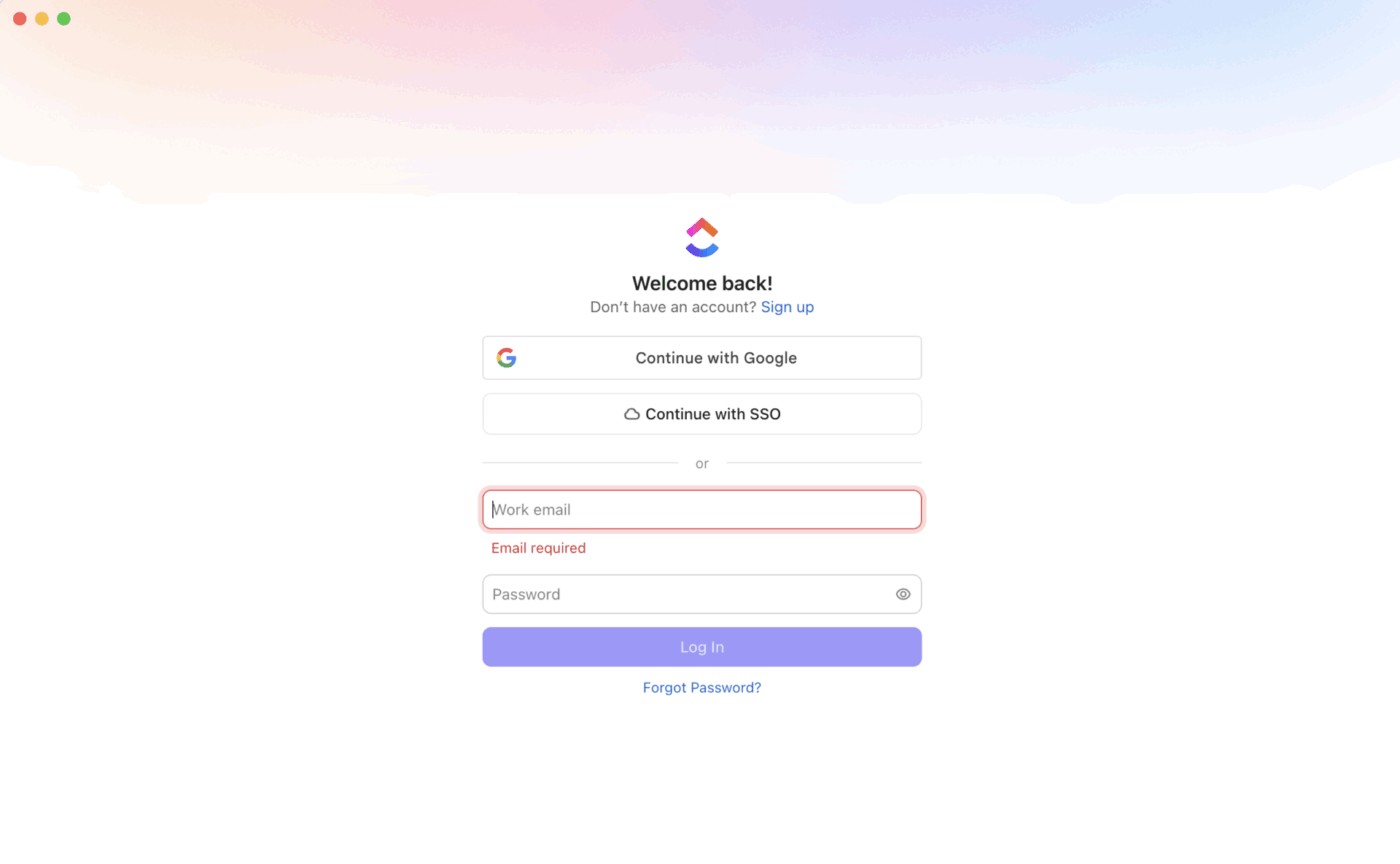
Workspace visibility and available settings depend on your user role and permissions:
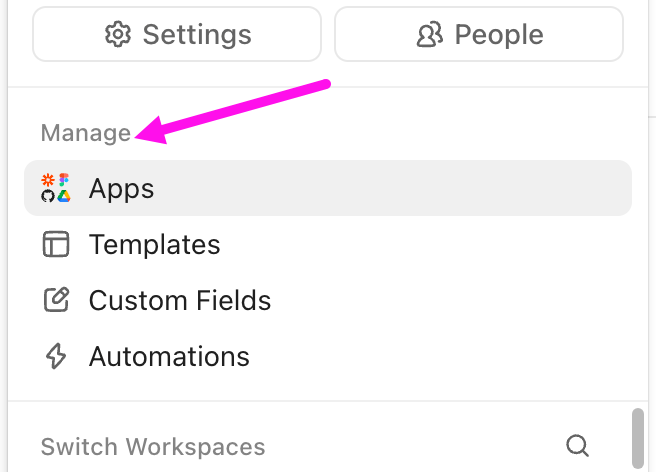
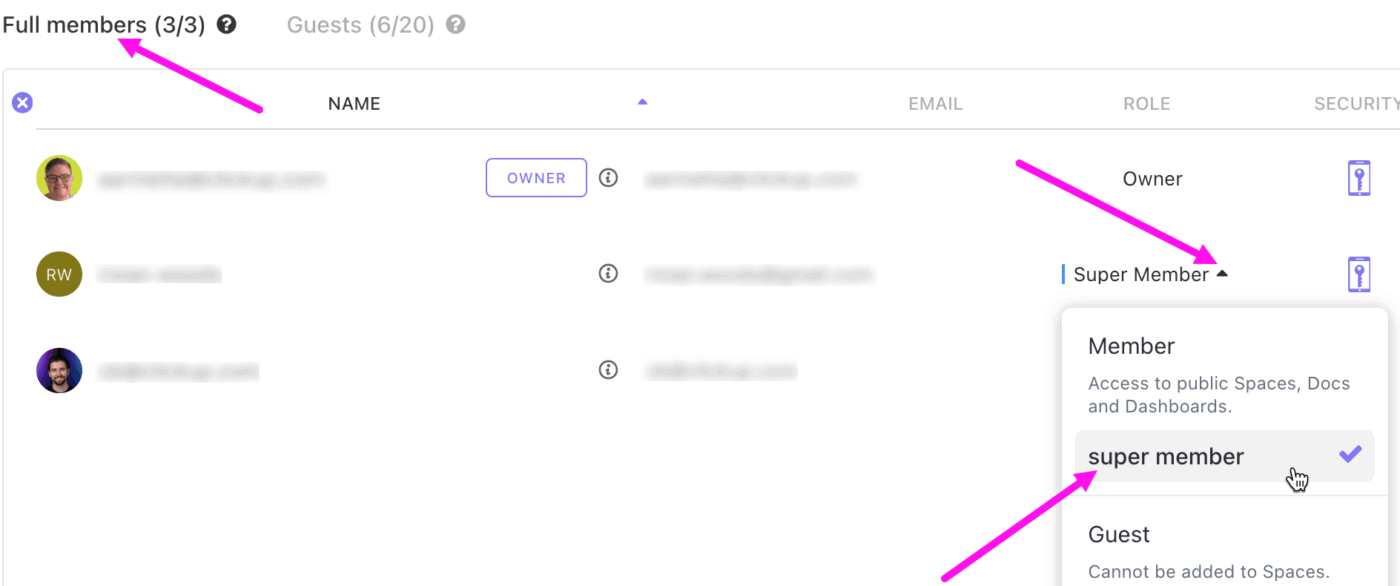
You’re now ready to use ClickUp’s full functionality in a dedicated desktop environment!
🧠 Fun Fact: The very first ‘desktop app’ didn’t actually live on a desktop computer. In 1964, IBM released the Magnetic Tape Selectric Typewriter, a typewriter that could store text on magnetic tape so people could edit and reprint documents without rewriting entire pages.
With the desktop app installed, it’s time to understand where everything lives so you can work smarter from the start.
The Global Navigation bar is the vertical menu on the far left of the desktop app. It serves as the hub, giving you entry to your Spaces, tools, and collaboration areas without switching tabs or windows.
📌 Here’s what you can access here:
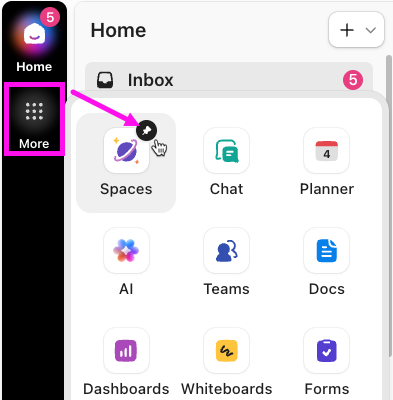
⭐ Bonus: Every team works differently, and ClickApps helps your app adapt. These are feature toggles that let Workspace owners activate specific functionality to match their workflow. Some favorites across teams include:
Within the Global Navigation bar, you’ll find two main sidebars that guide your workflow. Here’s a quick breakdown of how they work and when to use each.
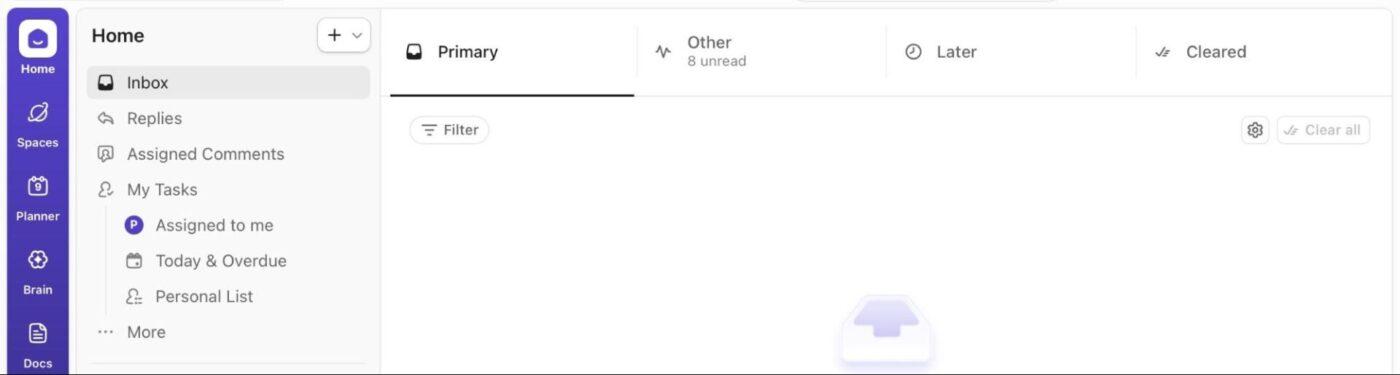
The Home Sidebar keeps everything that’s personally relevant to you in one place. It includes:
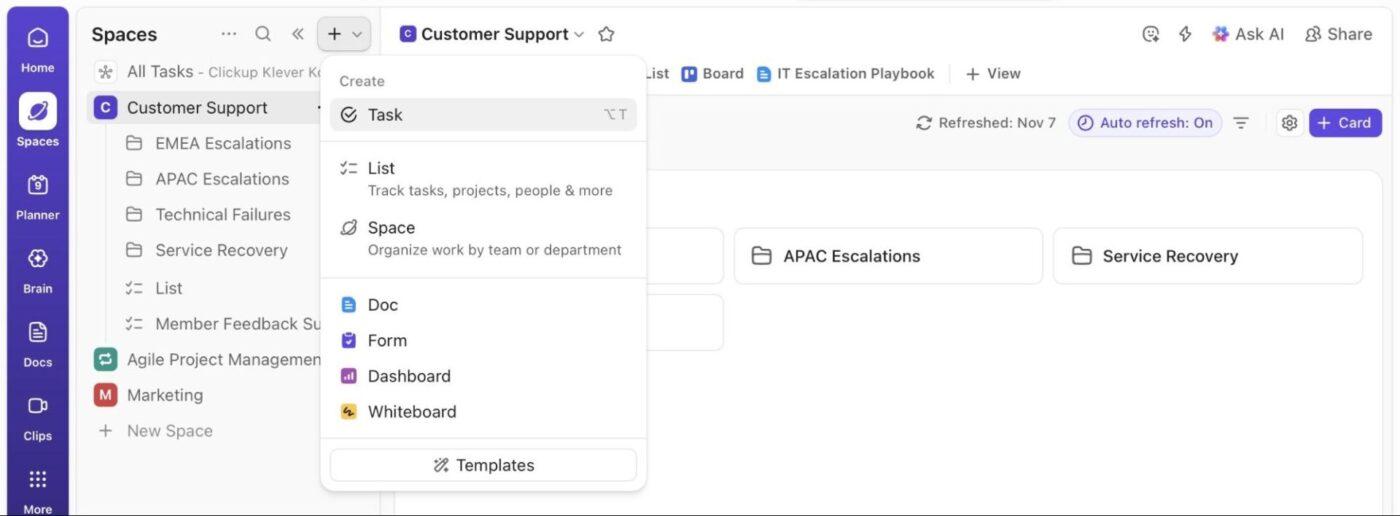
The Spaces Sidebar gives you a structured view of everything happening across your Workspace. It’s designed around ClickUp’s Hierarchy, the core framework that organizes all your work.

Here, you’ll find:
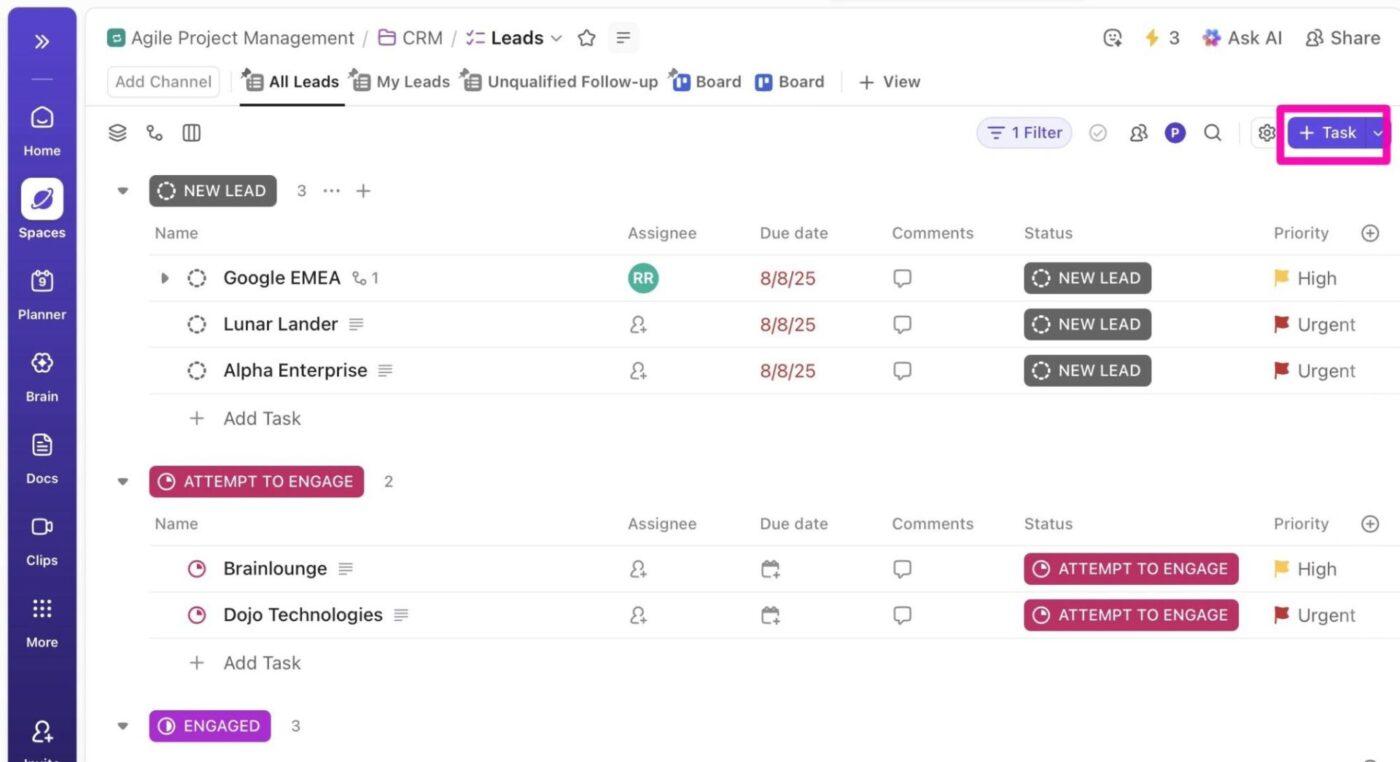
The Task management panel is the main workspace area where you interact with your ClickUp Tasks after selecting a Space, Folder, or List from the Sidebar.
Tasks are the building blocks of your work that allow you to capture actions, add details, collaborate, and move work to completion.
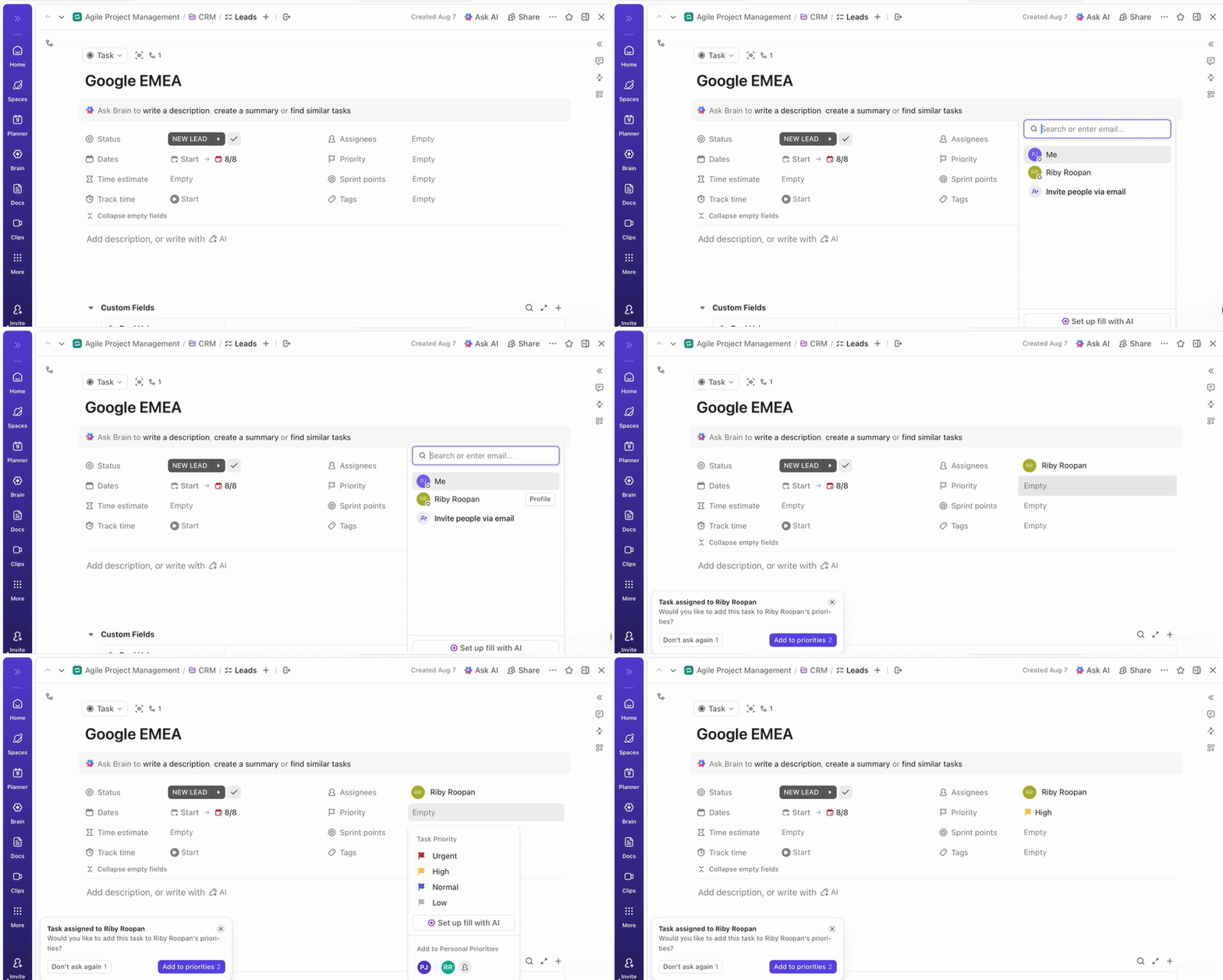
You can Assign Tasks to one or more people, or even entire Teams or Guests when permissions allow. You can also add Followers who don’t own the task but need to stay in the loop. And to help everyone focus on the right work at the right time, ClickUp Task Priorities include four levels (Urgent, High, Normal, and Low), making it easy to convey importance at a glance.
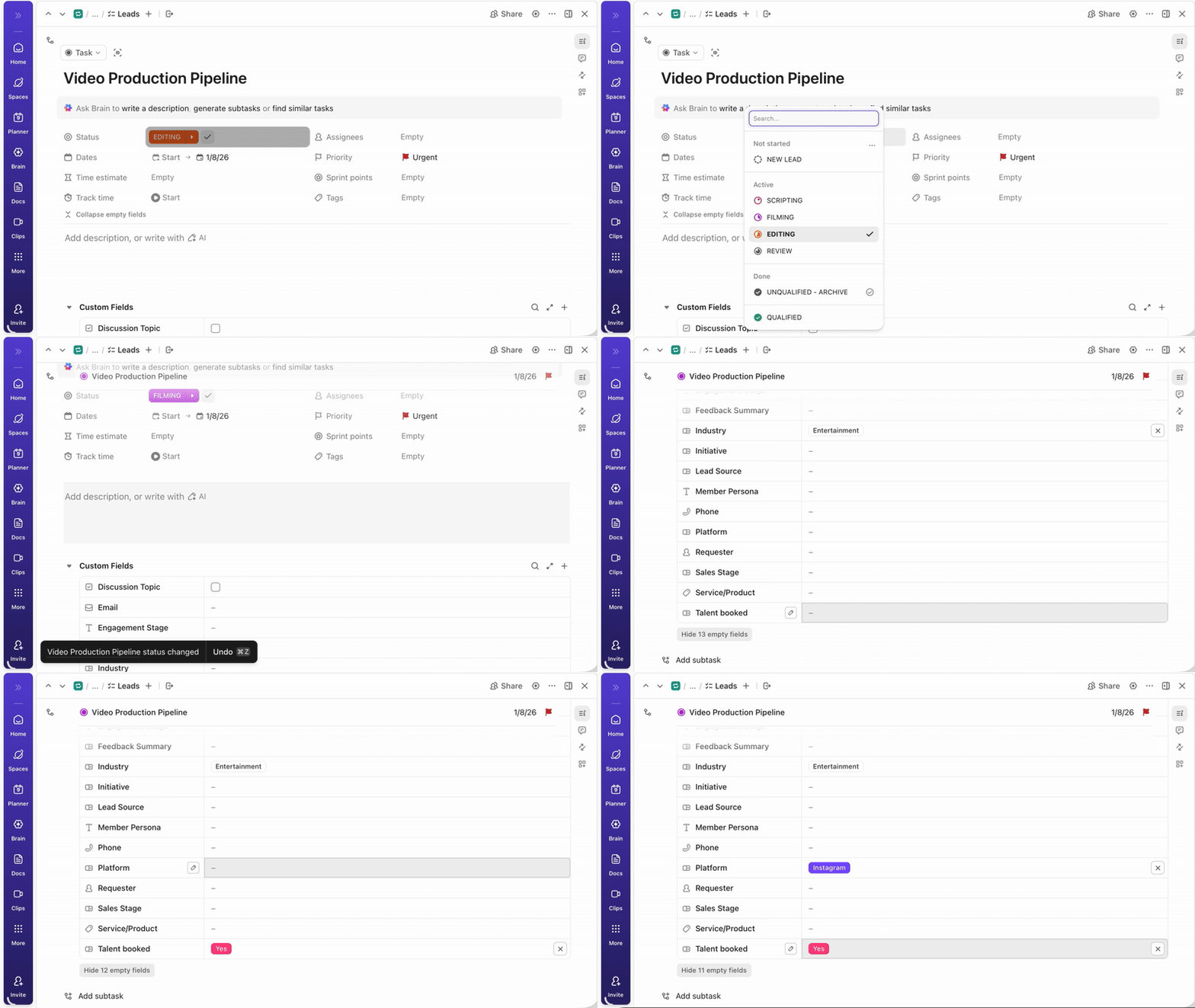
Along with priority, every Task supports rich, configurable attributes that are also fully customizable to match how your team works.
For instance, you can create ClickUp Custom Statuses like Scripting, Filming, Editing, Review, and Published for a video production pipeline, instead of forcing a standard ‘to-do, doing, done’ approach.
In the same task, ClickUp Custom Fields let you track details like Talent Booked, Platform (YouTube, Instagram, TikTok), Estimated Runtime, and Budget Approval Status.
🚀 ClickUp Advantage: Switch perspectives without changing or losing any data with ClickUp Views.
For instance, you can organize work in ClickUp List View, manage flow on a Kanban Board, plan timelines using Gantt or Timeline, schedule deadlines from a Calendar, review data in a Table layout, or map ideas through a Mind Map.
The project management software offers two built-in note-taking tools, each designed for different types of content.
Docs in ClickUp help you create a unified knowledge base where documentation directly supports workflows and project execution.
It provides real-time collaboration with teammates with rich formatting such as headers, checklists, tables, embeds, banners, and more.
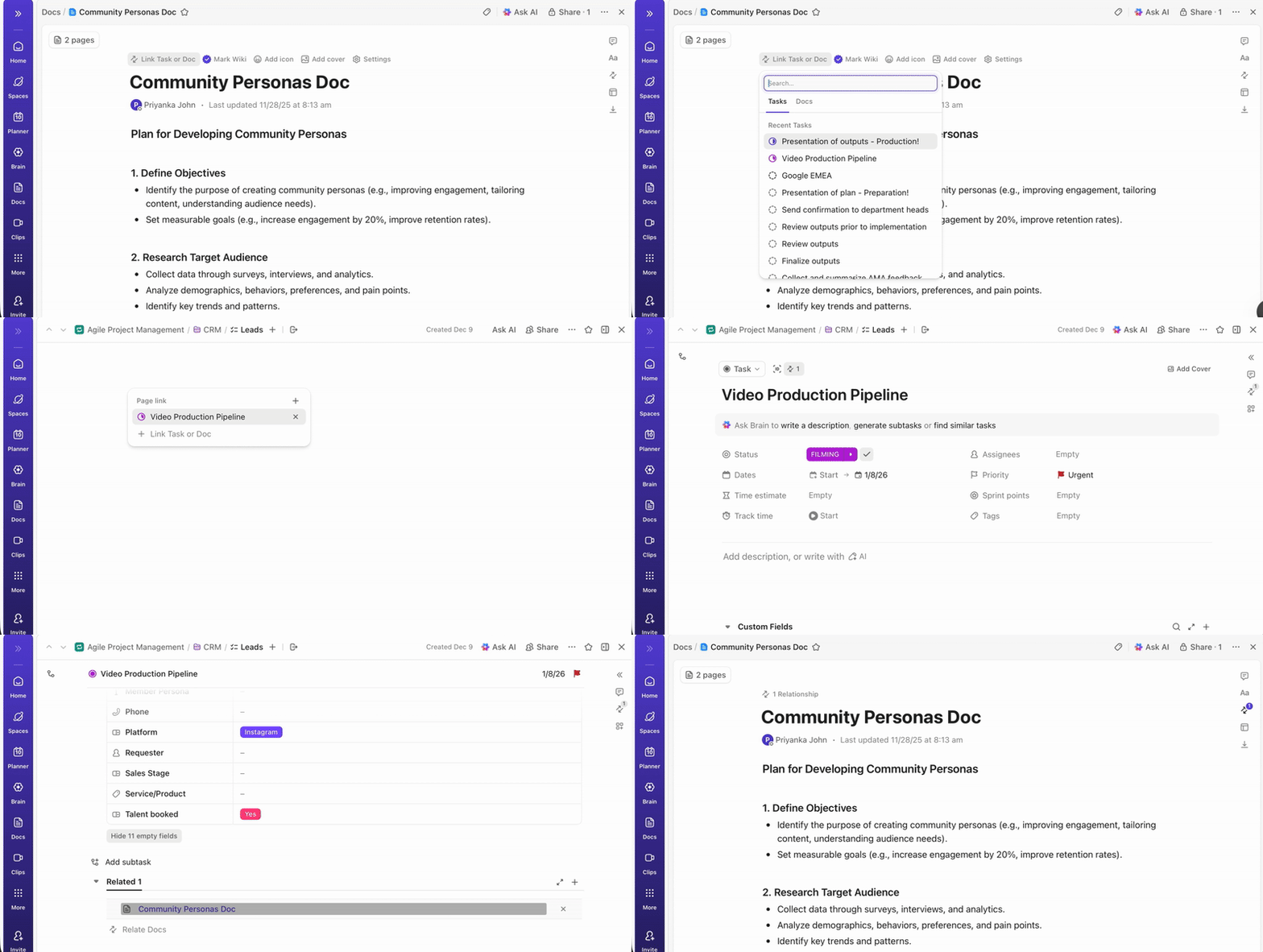
📌 Here’s how to access Docs:
Create a personal space for yourself in ClickUp Notepad. It is ideal for jotting down ideas, scratch notes, and daily planning.
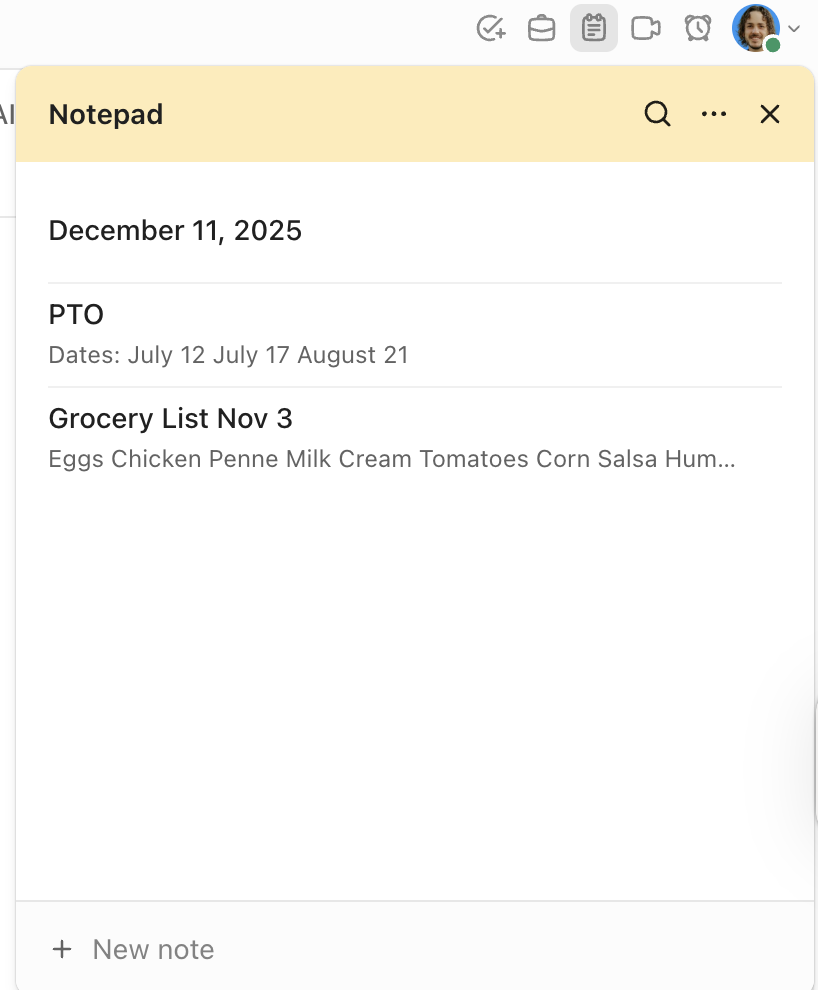
Here’s what you can do in Notepad:
❗️ Note: Notepad stays private unless you explicitly share content by converting it.
ClickUp Chat centralizes messaging, feedback, and document-based collaboration so your team can work together without relying on external communication tools.
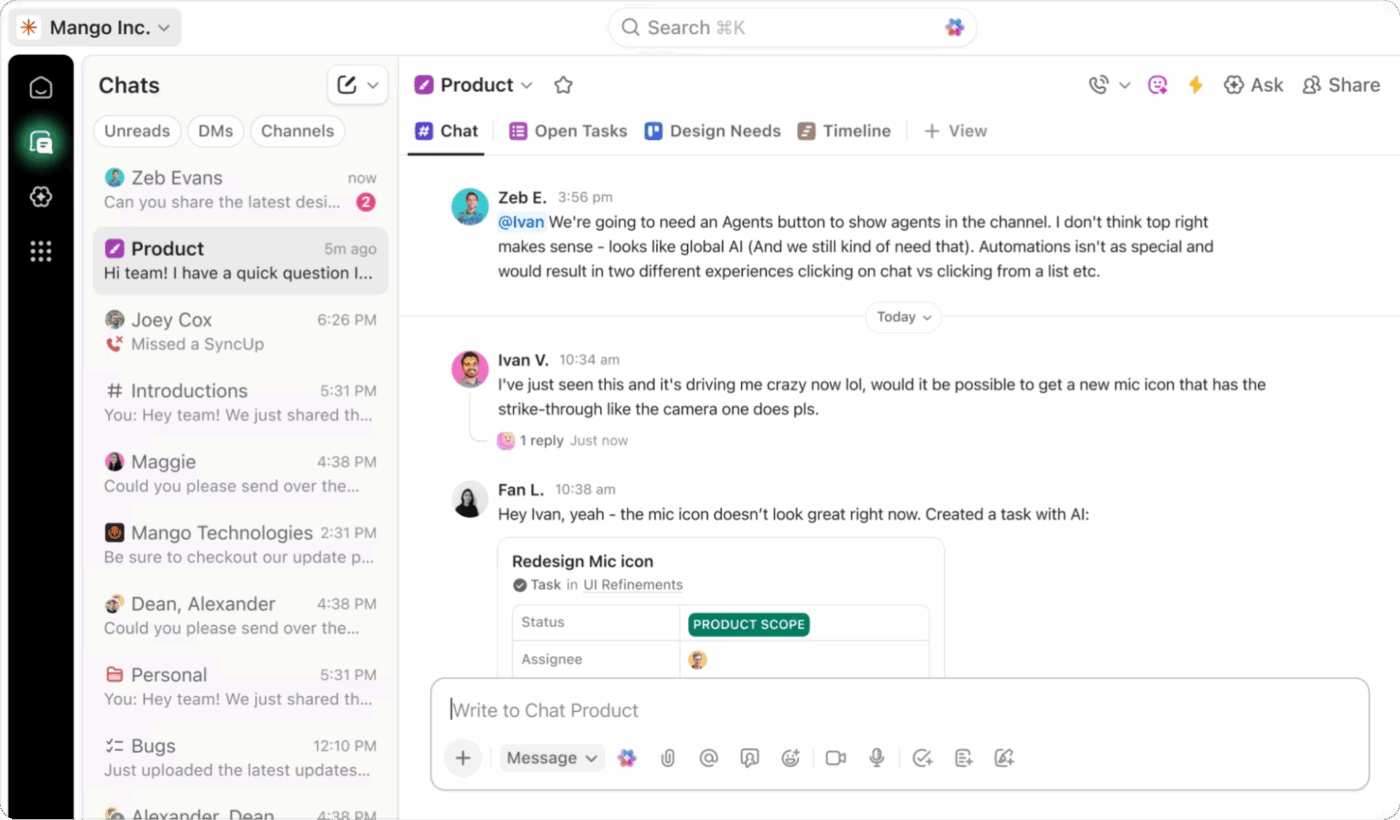
It allows you to:
💡 Pro Tip: Great collaboration shouldn’t stop at sticky notes. With ClickUp Whiteboards, your team can sketch, connect, or build ideas together. For creating a Whiteboard in your desktop app:

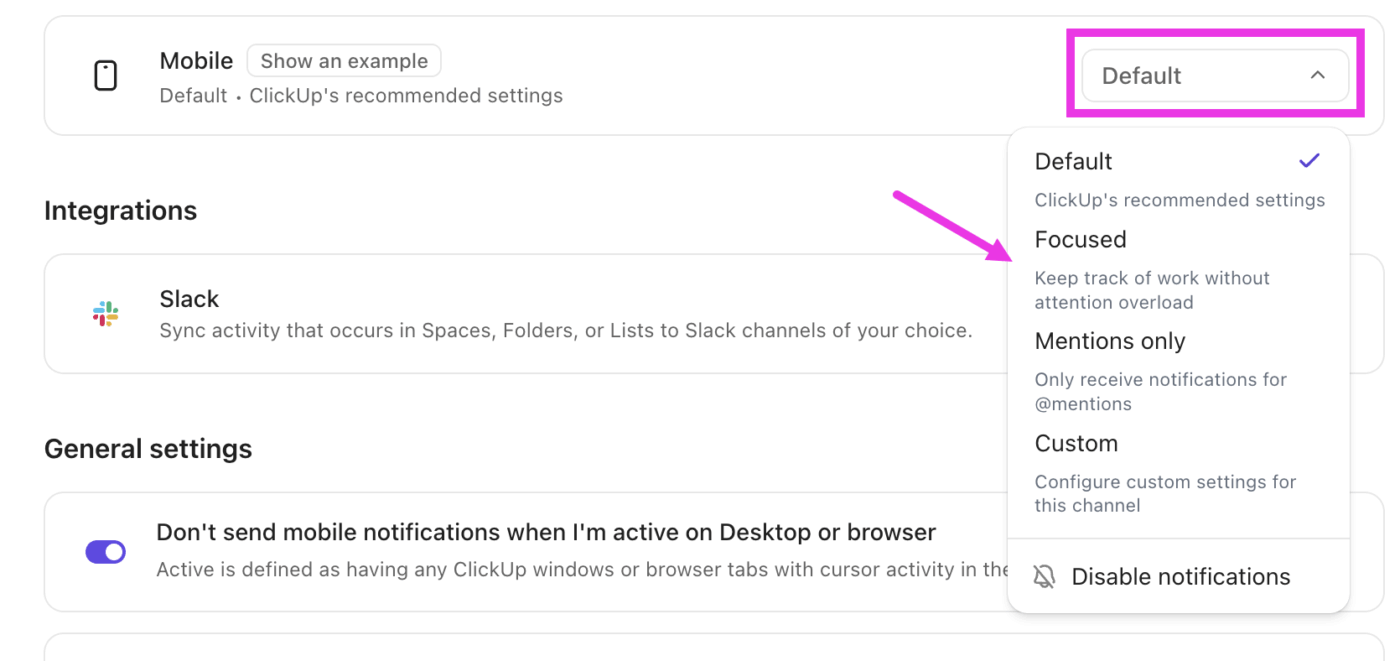
Staying informed shouldn’t come at the cost of your concentration. ClickUp Notifications keep you on top of task changes, comments, assignments, mentions, Chat activity, due date shifts, and more.
📌 You’ll see them in:
🔔 Tune alerts to your work style with:
ClickUp Reminders are perfect for quick nudges like sending a follow-up, grabbing a file, or checking in with a teammate, without creating a full task.
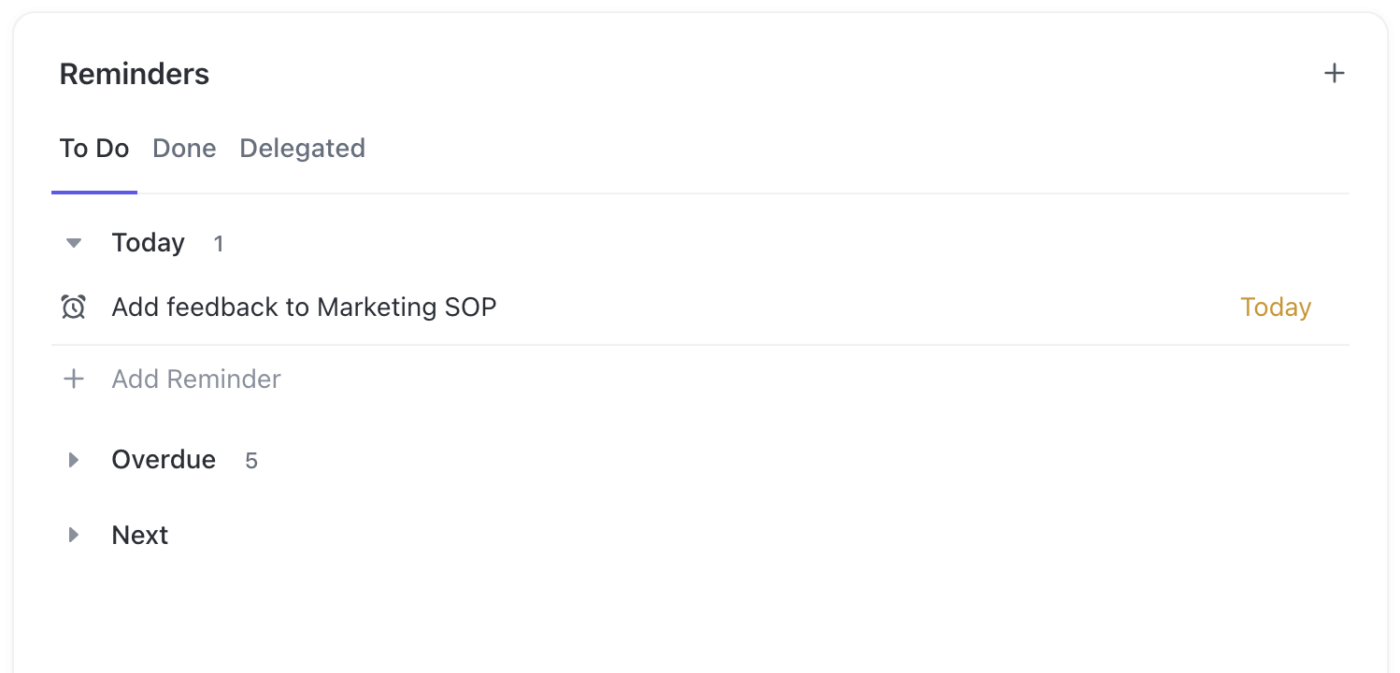
📌 Here’s what you can do:
When reminders come due, they surface automatically in your Primary Inbox tab.
🧠 Fun Fact: AI Sprawl shows up clearly in the fact that only 7.2% of teams say their AI setup is effective, and that’s exactly where ClickUp becomes relevant.
Instead of juggling a scattered stack, teams want one place where their work and their AI actually live together. ClickUp’s unified approach cuts down on the constant context switching that causes most of this wasted effort.
Now that you know your way around the interface, it’s time to actually put ClickUp to work.
This section walks you through the key features to help you use ClickUp for personal tasks without ever switching tabs. 📝
ClickUp Brain is the in-work AI inside ClickUp. It can summarize tasks and threads, help you draft and rewrite content, and answer questions using the context already inside your workspace.
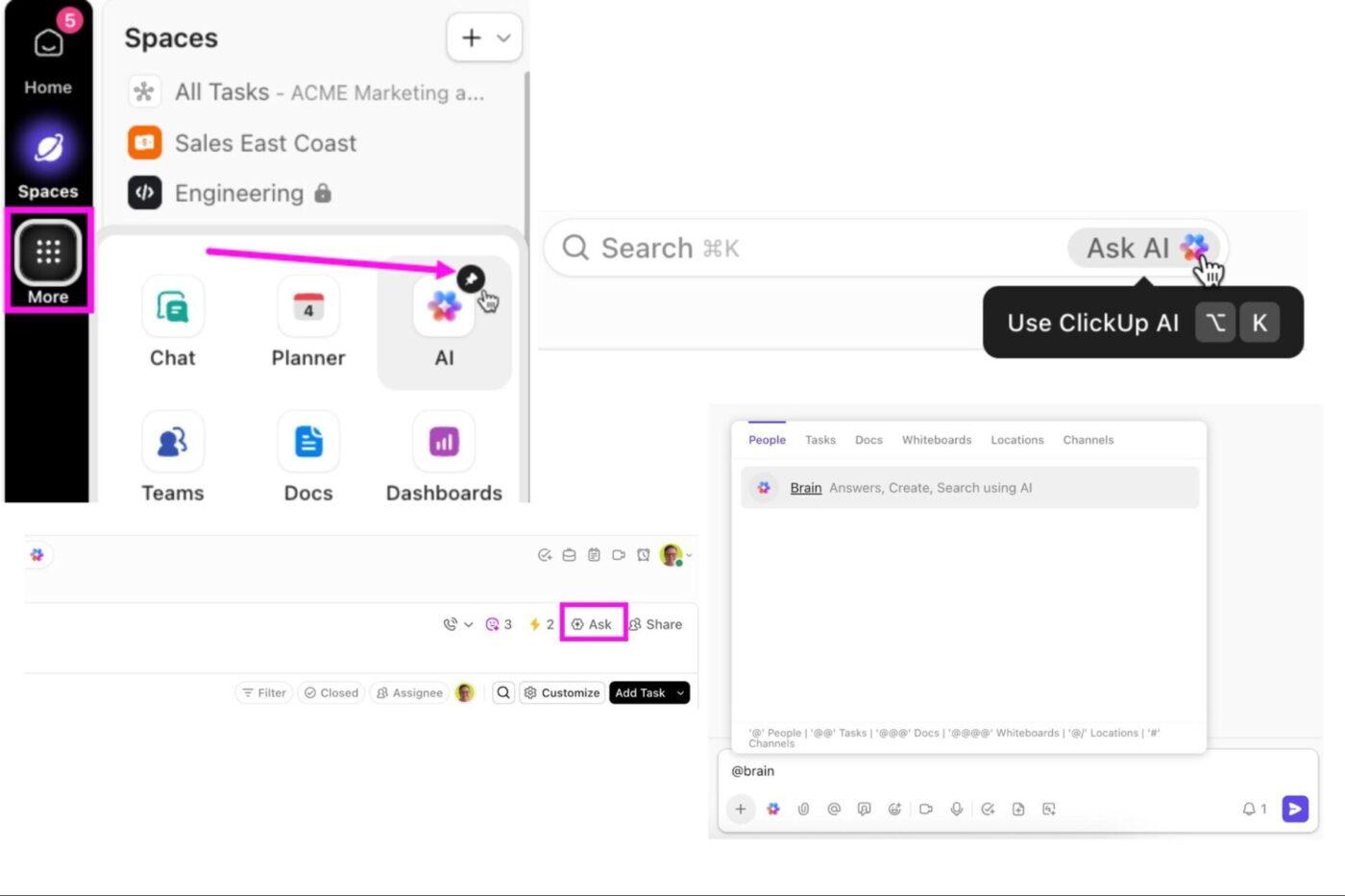
📌 Here’s how you can use ClickUp AI:
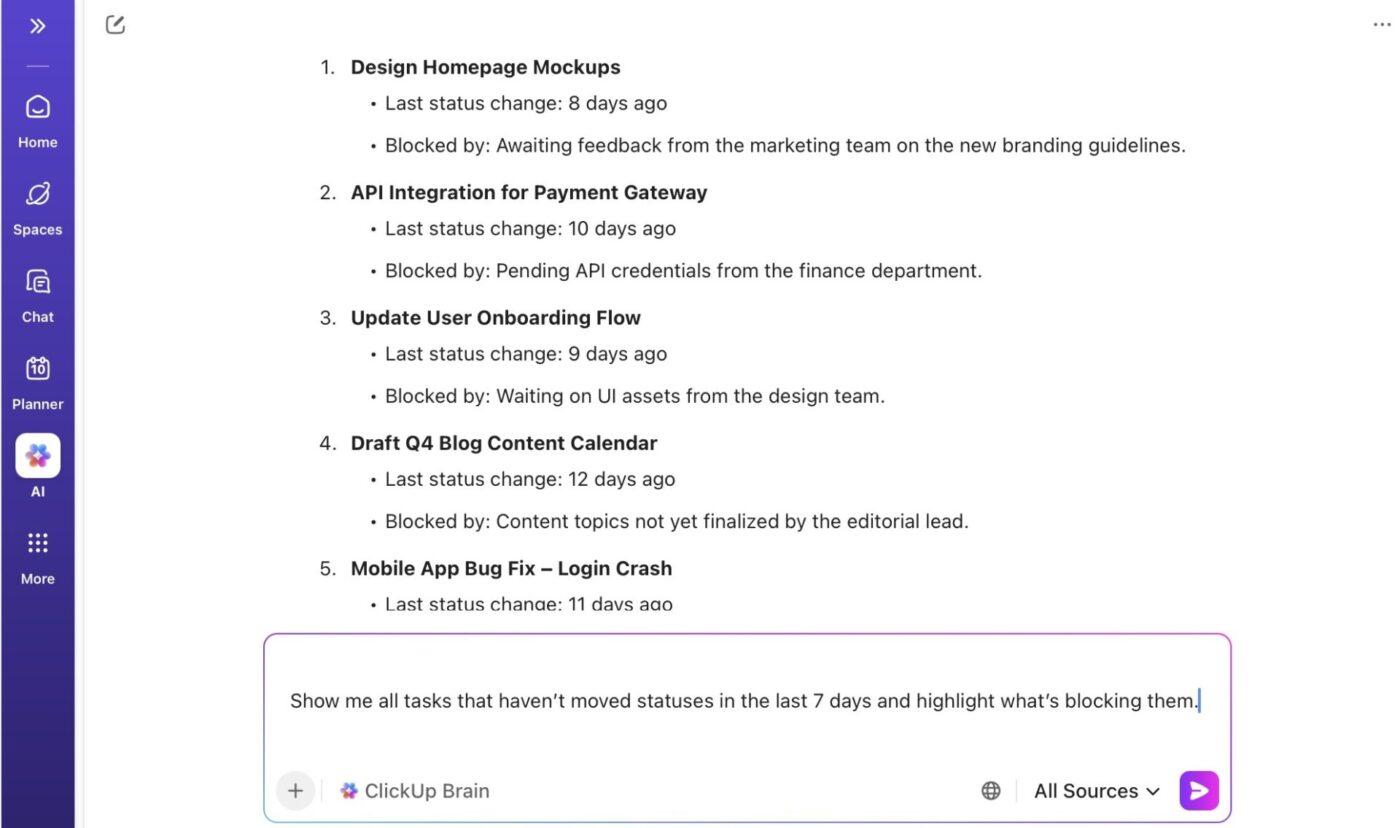
Now, here’s where things get exciting. If ClickUp Brain is the in-app intelligence, ClickUp BrainGPT is your voice-first, AI desktop companion, working across your entire computer.
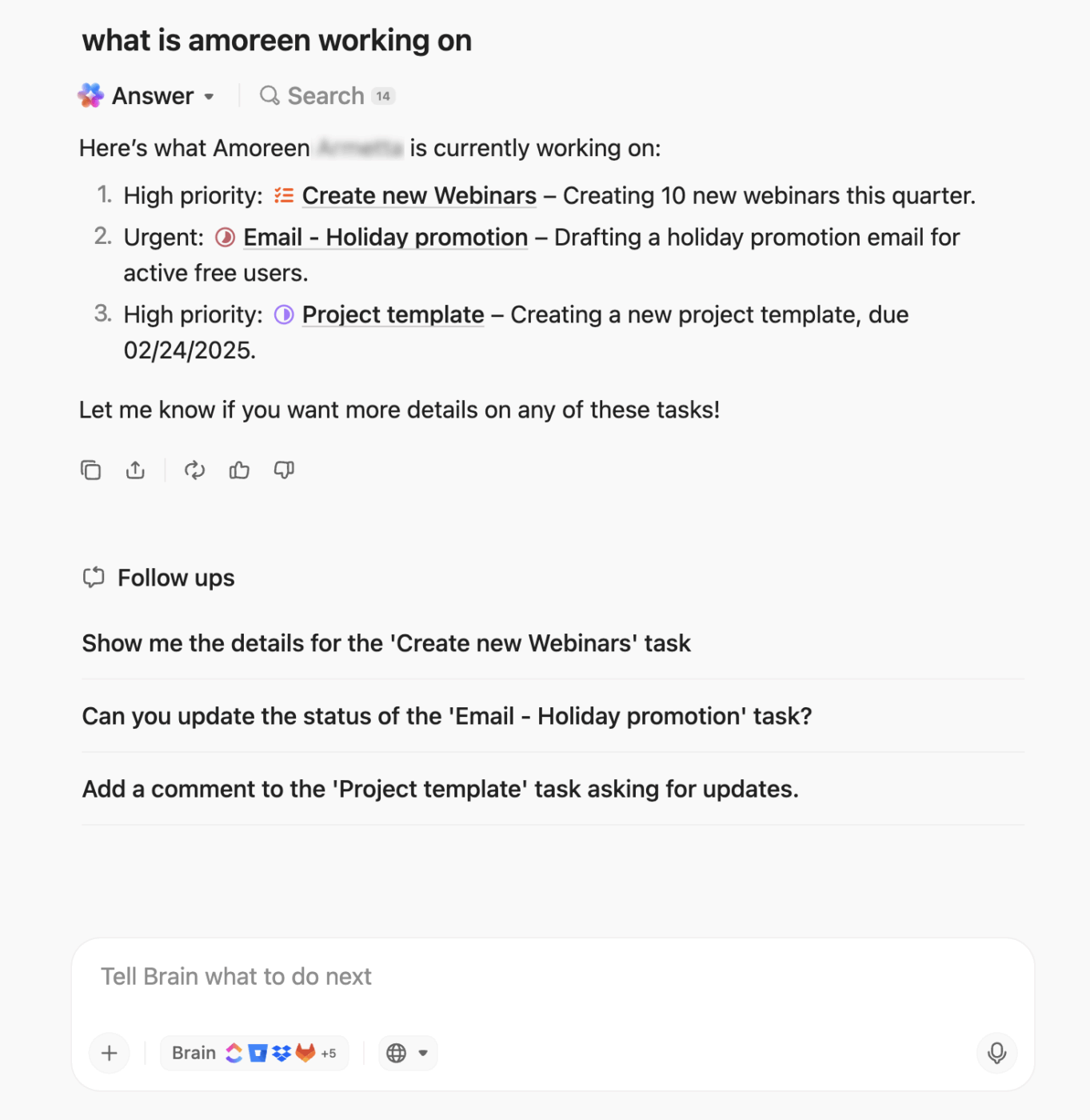
Because it supports multiple AI models, you can choose the right brain for the job, like ClickUp Brain for in-context work answers, or switch over to ChatGPT, Claude, or Gemini when you want a different style of reasoning or creativity.
One of the most useful everyday boosts? ClickUp Talk-to-Text, which helps you work up to 4x faster.
Typing fatigue statistics reveal that 72% of workers experience typing-related discomfort. But with this feature, you can finish reports, standups, scripts, or stakeholder updates without ever touching the keyboard. Just press fn and start talking.
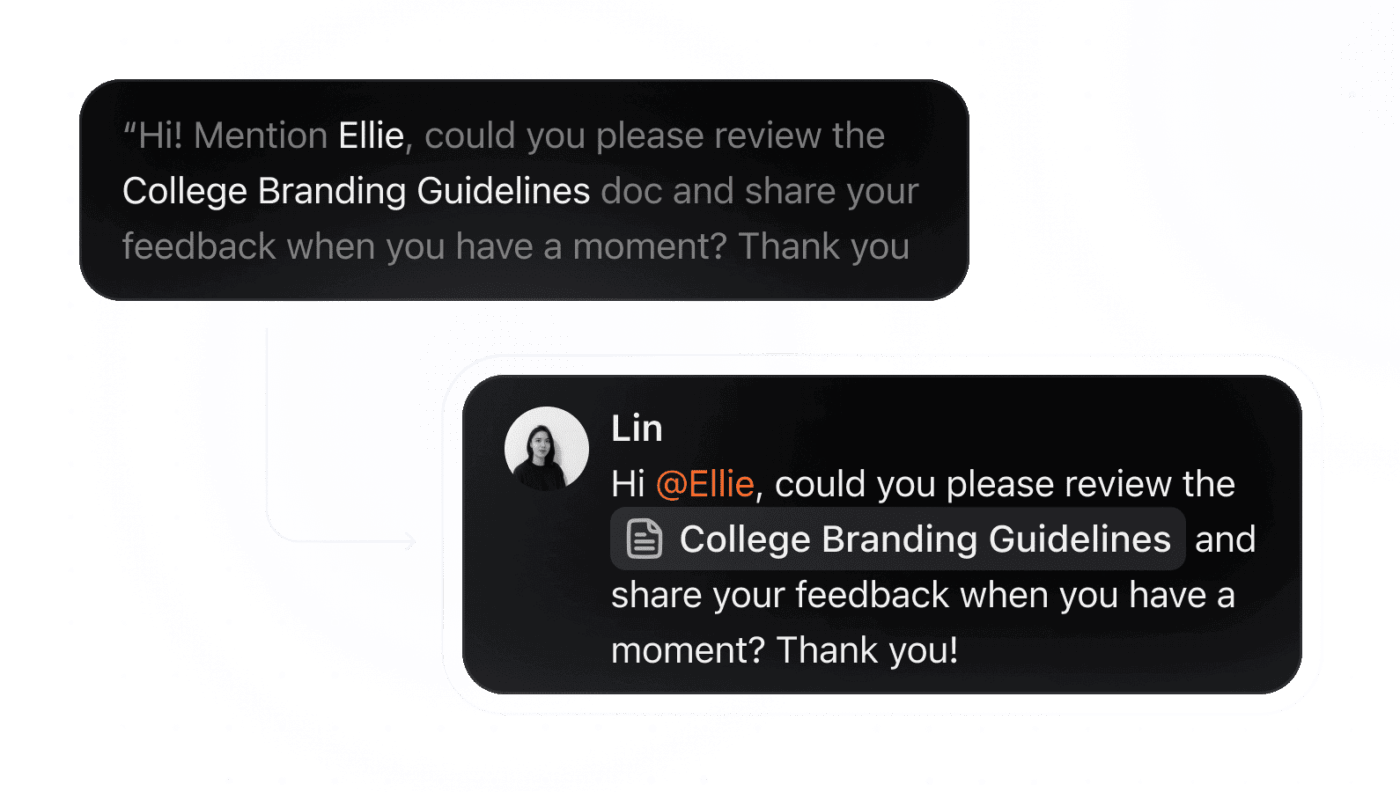
Because this Contextual AI Super App is connected to your work, you can say ‘@Jamie’ or reference a Task or Doc, and it automatically links everything correctly. Plus, BrainGPT writes fluently in 50+ languages.
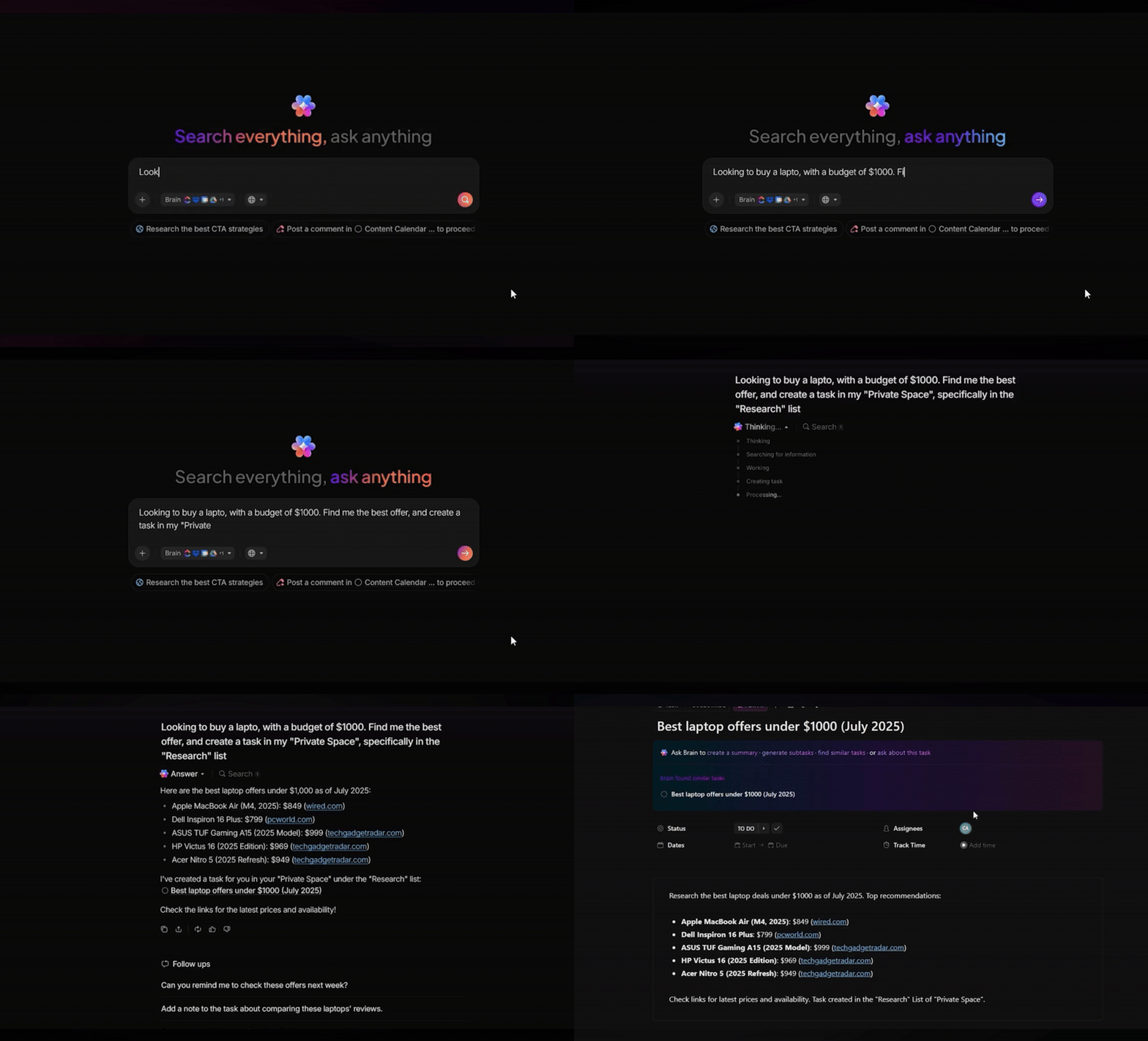
Search also gets a major upgrade. Instead of digging through apps one by one, BrainGPT gives you universal search across ClickUp, the web, and your connected apps like Google Drive or GitHub.
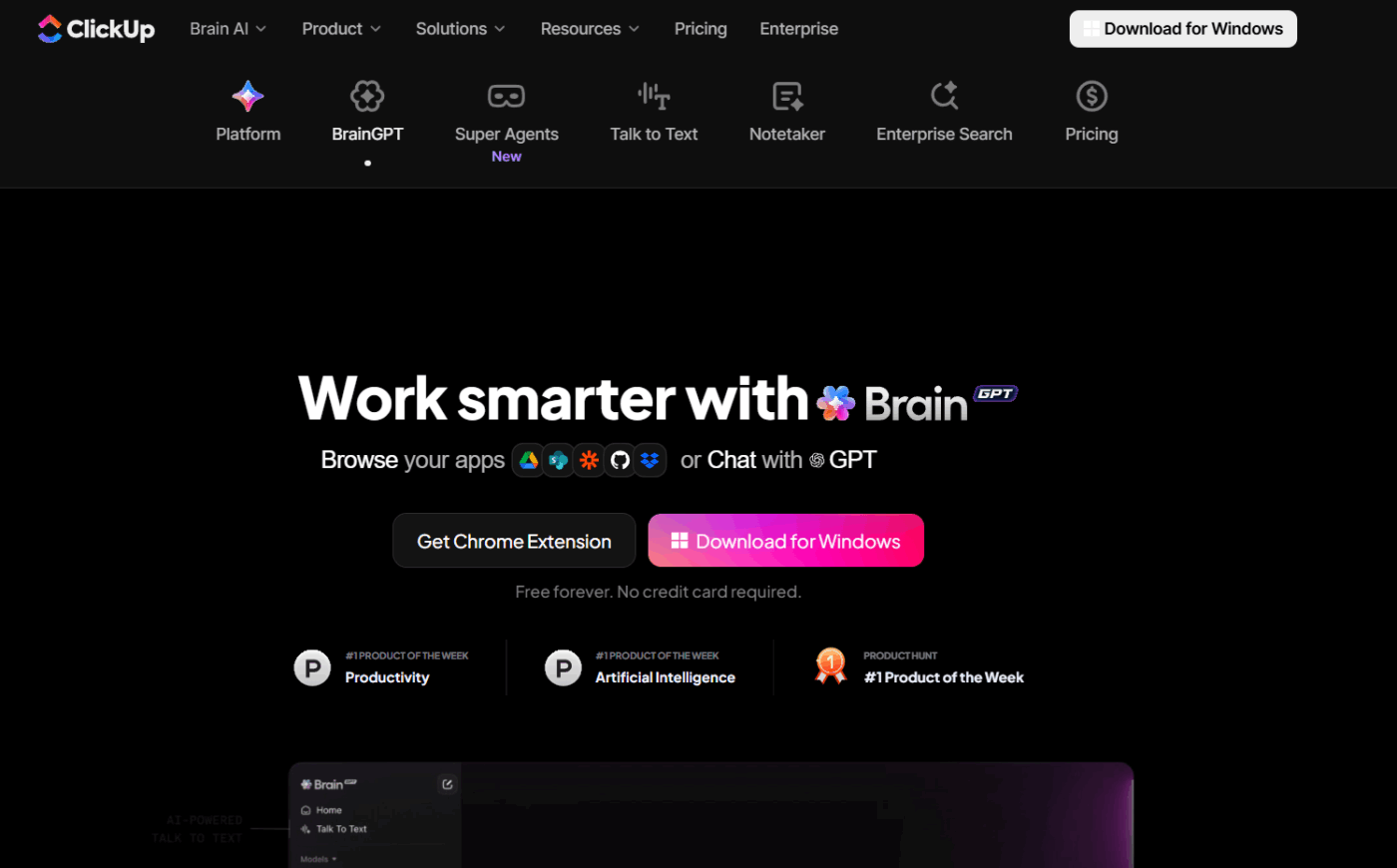
For macOS:
For Windows:
📮 ClickUp Insight: 24% of people fantasize about a “master tab” that handles everything at once.
The logic is simple: our brains are not built to juggle dozens of open tabs, and each new window adds subtle stress and cognitive overhead, even if you don’t notice it. 🧠
With ClickUp BrainGPT, you can centralize information, search across multiple AI models, and retrieve what you need instantly. This AI desktop companion gives you a single point of access without the anxiety of keeping everything open. Less clutter, less stress, more control. ✨
Autopilot Agents and Super Agents help your workspace run itself, so updates don’t die in chat and action items don’t get lost in meeting notes.
Autopilot Agents can take action in a specific location, like a Space, Folder, List, or Chat Channel, based on rules you define. For example, they can post recurring updates, summarize activity, answer repeated questions, or turn messages into structured work when a trigger happens.
When you set one up, you typically define:
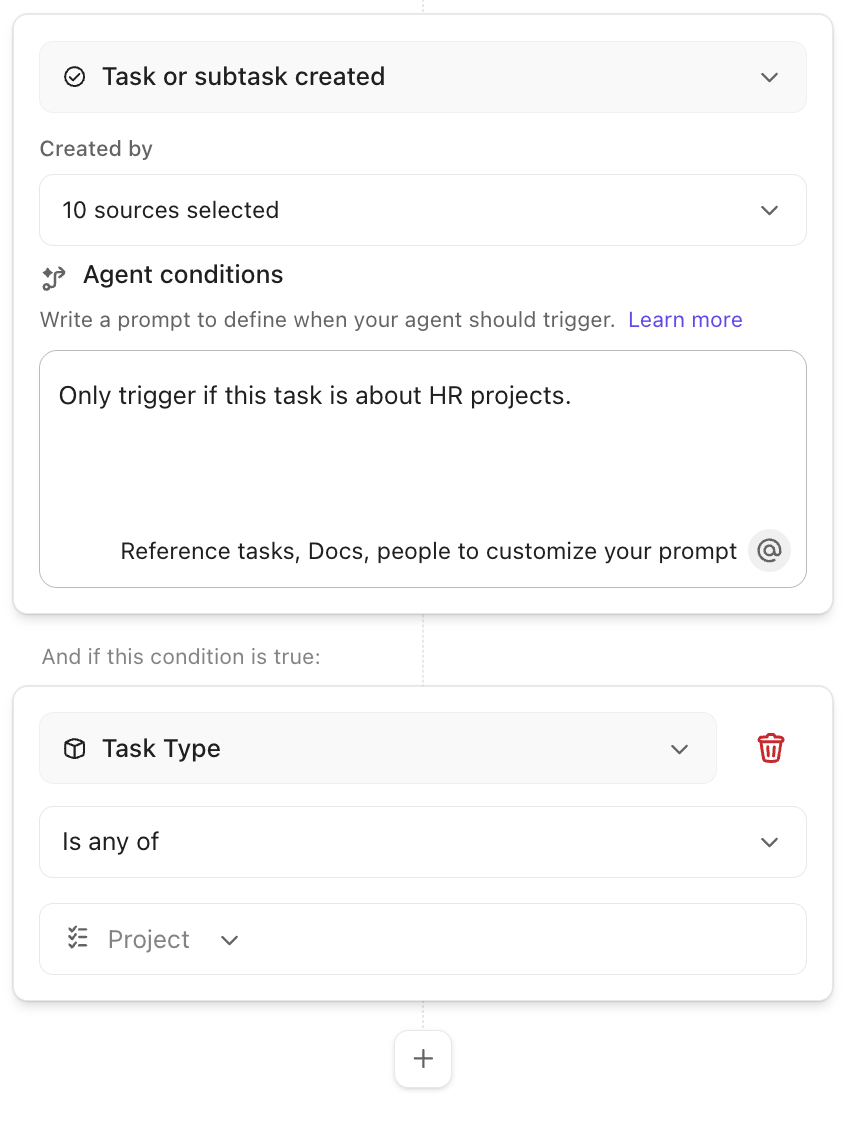
If you want to start fast, you can enable prebuilt agent options (availability varies by workspace and plan), such as:
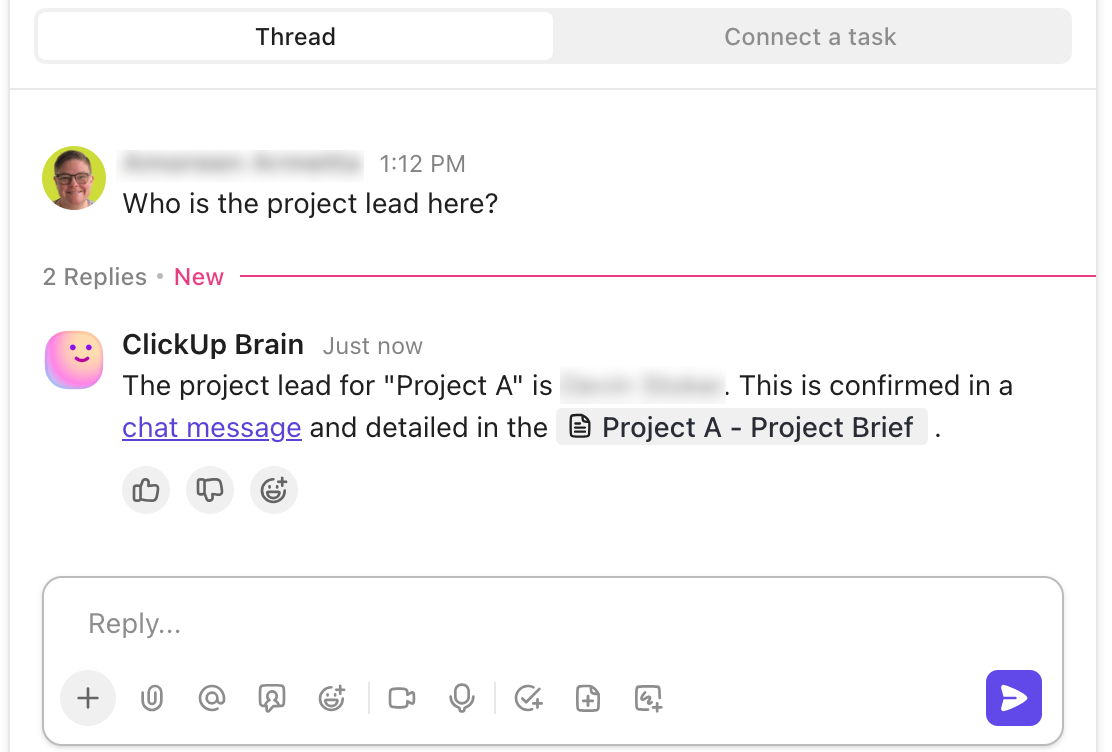
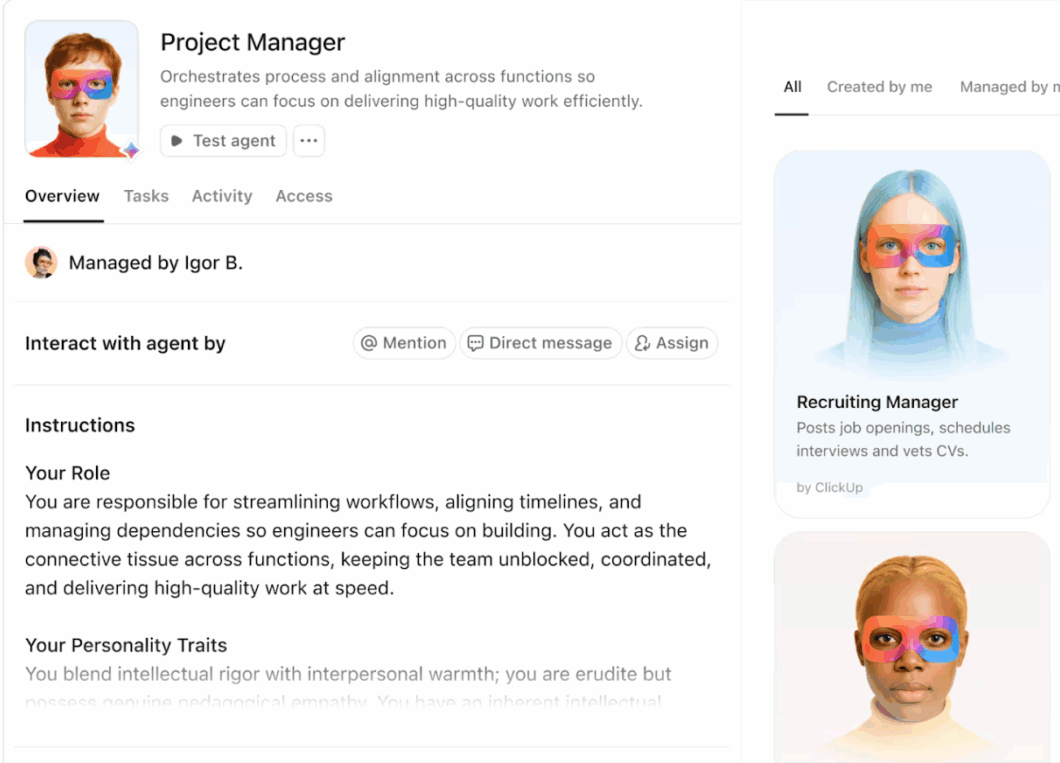
Super Agents are the advanced layer for building specialized, “role-like” agents, like intake triage, project coordination, or escalation handling.
What makes Super Agents different is that you can give them clearer instructions and a defined scope of knowledge, so they behave consistently and can handle more complex, multi-step workflows. Instead of “AI that summarizes,” Super Agents are designed for “AI that helps run the process.”
Example: In a launch channel, people drop updates like “design is blocked” or “we need approval by Friday.” A Super Agent can detect the request, create or update the right task, assign the owner, set the due date or escalation rule, and keep the plan moving.
Discover the best AI agents for sales productivity and CRM automation. 👇🏼
ClickUp Dashboards bring together metrics, updates, and insights using Cards (the building blocks of every Dashboard). Each card pulls in real, live data from your Workspace and turns it into something visual, trackable, and actionable.
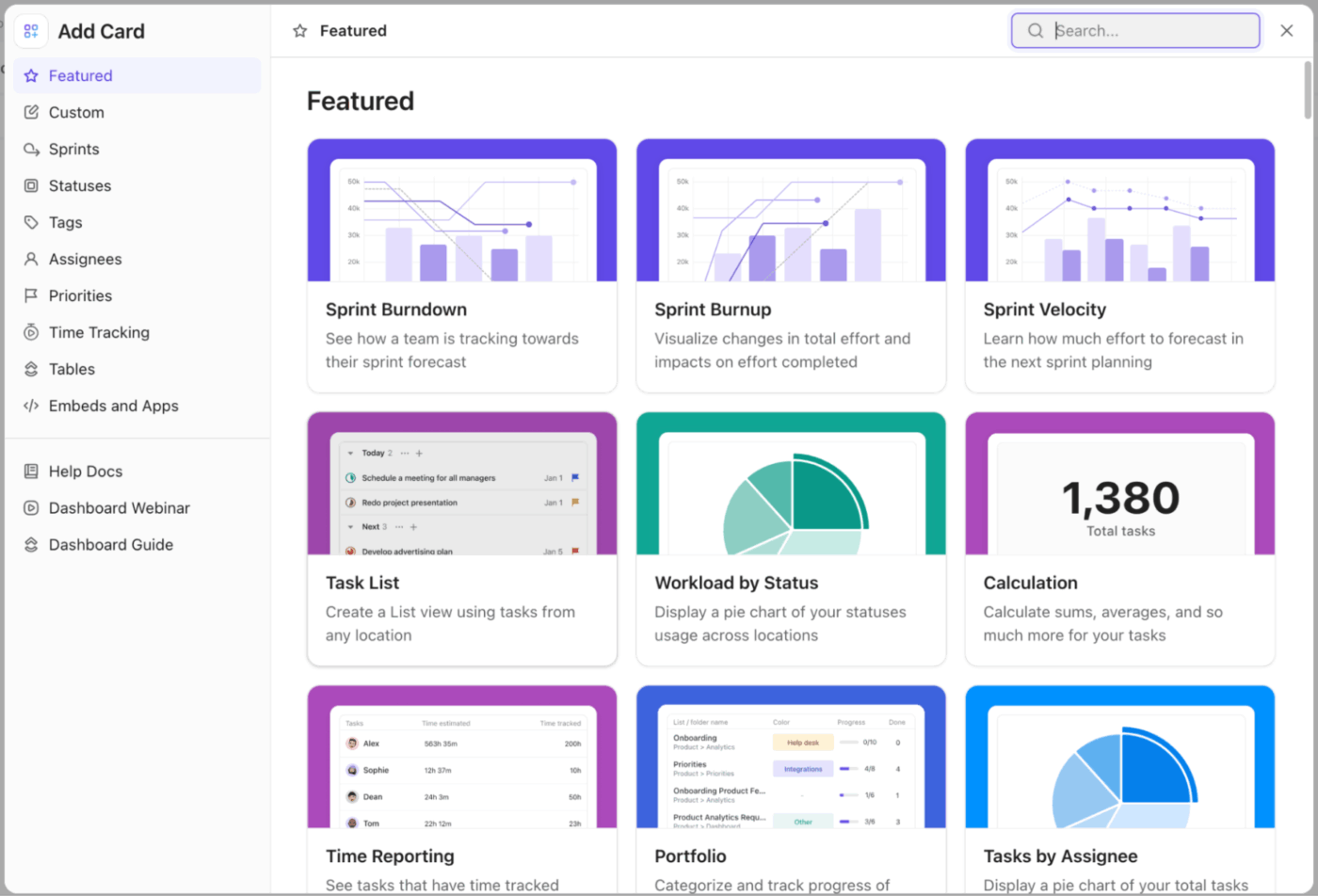
Cards are organized into categories so you can quickly find the data you want to visualize:
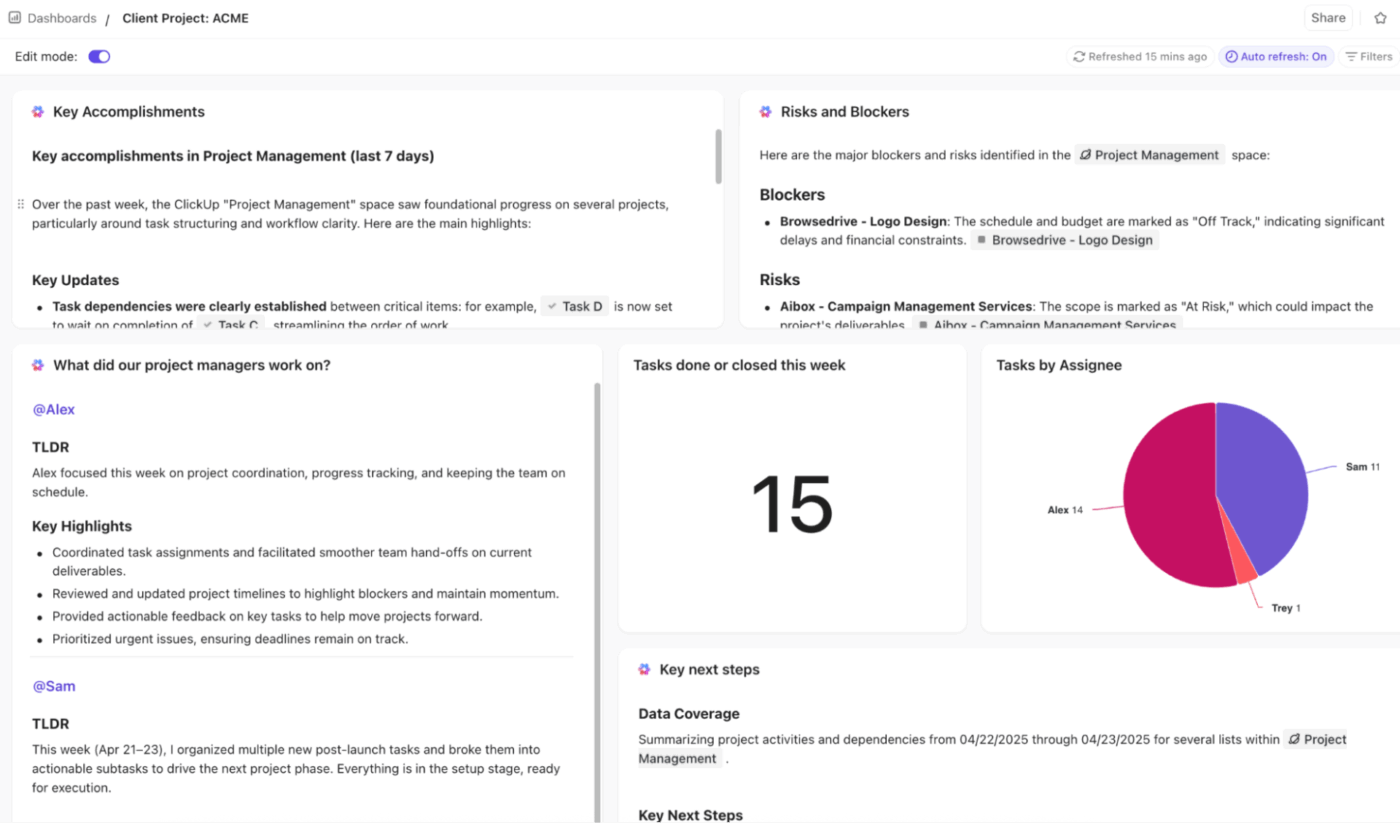
Depending on your plan, you can export individual cards as PDF, PNG, JPEG, SVG, or even CSV. Want to share the whole view? Export your entire Dashboard as a PDF for quick offline access.
🔍 Did You Know? Forrester’s Total Economic Impact™ (TEI) study found that a composite organization using ClickUp achieved 384% ROI and saved 92,400 productive hours by year 3 through automation and AI.
That’s roughly ~44 full-time employee-years of capacity (assuming 2,080 work hours per FTE-year), reached by year 3.
If your team’s work is spread across a dozen different apps, ClickUp Integrations help you bring it all together without the hassle of SaaS sprawl.
ClickUp offers dozens of ready-to-use integrations with tools like Slack, Google Calendar, GitHub, Email, HubSpot, Calendly, Office 365, and even Notion, solving work sprawl within ClickUp.
Using the ClickUp Slack Integration:
What you can do with the various ClickUp Google Workspace Integrations:
Working with the ClickUp GitHub Integration:
The ClickUp desktop app gives you faster ways to get things done. Use these quick tips to stay focused, move between tasks smoothly, and keep work on track.
When you’re juggling multiple priorities, switching back and forth between tabs can slow you down. The ClickUp desktop app solves that by letting you keep Docs, Tasks, and Dashboards open side-by-side.
Here’s how to get the most out of multi-window productivity in ClickUp:
No Wi-Fi? No problem.
ClickUp’s Offline Mode keeps your work moving even when your internet connection drops, making it one of the work-from-home essentials you don’t realize you need until you do. It’s available on all plans and works on the web, the desktop app, and the mobile app.
When ClickUp detects you’re offline, it’ll notify you, so you can keep going without missing a beat.
1️⃣ Create Tasks and Reminders
2️⃣ View Tasks and Notes you’ve recently opened
Here’s a comprehensive list of essential ClickUp Hotkeys for navigating and executing actions efficiently in the ClickUp desktop app:
Note: Most keyboard shortcuts in ClickUp use common defaults and cannot be customized. However, some desktop app shortcuts (like “Create New Task” and “Open Command Center”) can be changed in your desktop app settings. To see or adjust available shortcuts, check your personal or Workspace settings.
| Action | Mac shortcut | Windows shortcut |
| Create a new task | Cmd + E | Ctrl + E |
| Create Reminder | R | R |
| Open AI Command Bar (desktop-wide) | Cmd + J | Ctrl + J |
| Open AI Command Bar (in-app) | Cmd + K | Ctrl + K |
| Open Notepad | N or P | N or P |
| Show/hide sidebar | Cmd + \ | Ctrl + \ |
| Scroll to current position in Sidebar | Cmd + I | Ctrl + I |
Note: Cmd/Ctrl + J opens the AI Command Bar from anywhere on your computer if the desktop app is running. Cmd/Ctrl + K opens it within the app window.
| Action | Shortcut |
| Change Status | Shift + S |
| Add Comment | Shift + M |
| Set Date | Shift + D |
| Assign Assignee | Shift + A |
| Assign task to self | M |
| Add to Priorities | Option + A (Mac) / Alt + A (Win) |
| Timer | Shift + . |
| Tag | Shift + L |
| Subtask | Shift + T |
| Priority | Shift + P |
| Navigate between tasks in a List | Ctrl + Shift + Left/Right arrow |
| Action | Mac Shortcut | Windows Shortcut |
| Slash Commands | / | / |
| Mention user | @ | @ |
| Mention task | @@ | @@ |
| Mention Doc | @@@ | @@@ |
| Edit most recent comment | Up arrow | Up arrow |
| Add emoji | : | : |
| Paste text/images | Cmd + V | Ctrl + V |
| Hyperlink (highlight text) | Cmd + K | Ctrl + K |
| Duplicate selected text | Cmd + D | Ctrl + D |
| Align text left | Cmd + Shift + L | Ctrl + Shift + L |
| Align text right | Cmd + Shift + R | Ctrl + Shift + R |
| Align text center | Cmd + Shift + E | Ctrl + Shift + E |
| Inline code formatting | Cmd + Shift + C | Ctrl + Shift + C |
| Create bulleted list | Cmd + Shift + 9 | Ctrl + Shift + 9 |
| Create checklist | Cmd + Shift + 8 | Ctrl + Shift + 8 |
| Create numbered list | Cmd + Shift + 7 | Ctrl + Shift + 7 |
| Create heading | Option + Cmd + 1-4 | Alt + Ctrl + 1-4 |
| Action | Mac Shortcut | Windows Shortcut |
| Compose a message | Cmd + G | Ctrl + G |
| Search for messages | Cmd + F | Ctrl + F |
| Jump to first unread message | Cmd + Shift + J | Ctrl + Shift + J |
| Action | Mac Shortcut | Windows Shortcut |
| Open ClickUp Brain | Option + K | Alt + K |
| Open AI Command Bar (desktop app) | Cmd + J | Ctrl + J |
| Open AI Command Bar (browser) | Cmd + K | Ctrl + K |
| Use /ai Slash Command | /ai in any text field | /ai in any text field |
💡 Pro Tip: Enable/disable your keyboard shortcuts and explore every available command right from your settings. Click your personal avatar > Keyboard Shortcuts, then browse each category on the left to see all the shortcuts you can use.
ClickUp Automations handle repetitive actions, so your team doesn’t have to. They react to updates, enforce process rules, and move work forward automatically, keeping projects organized and on track without constant manual follow-ups.
Every Automation follows a simple, powerful structure:
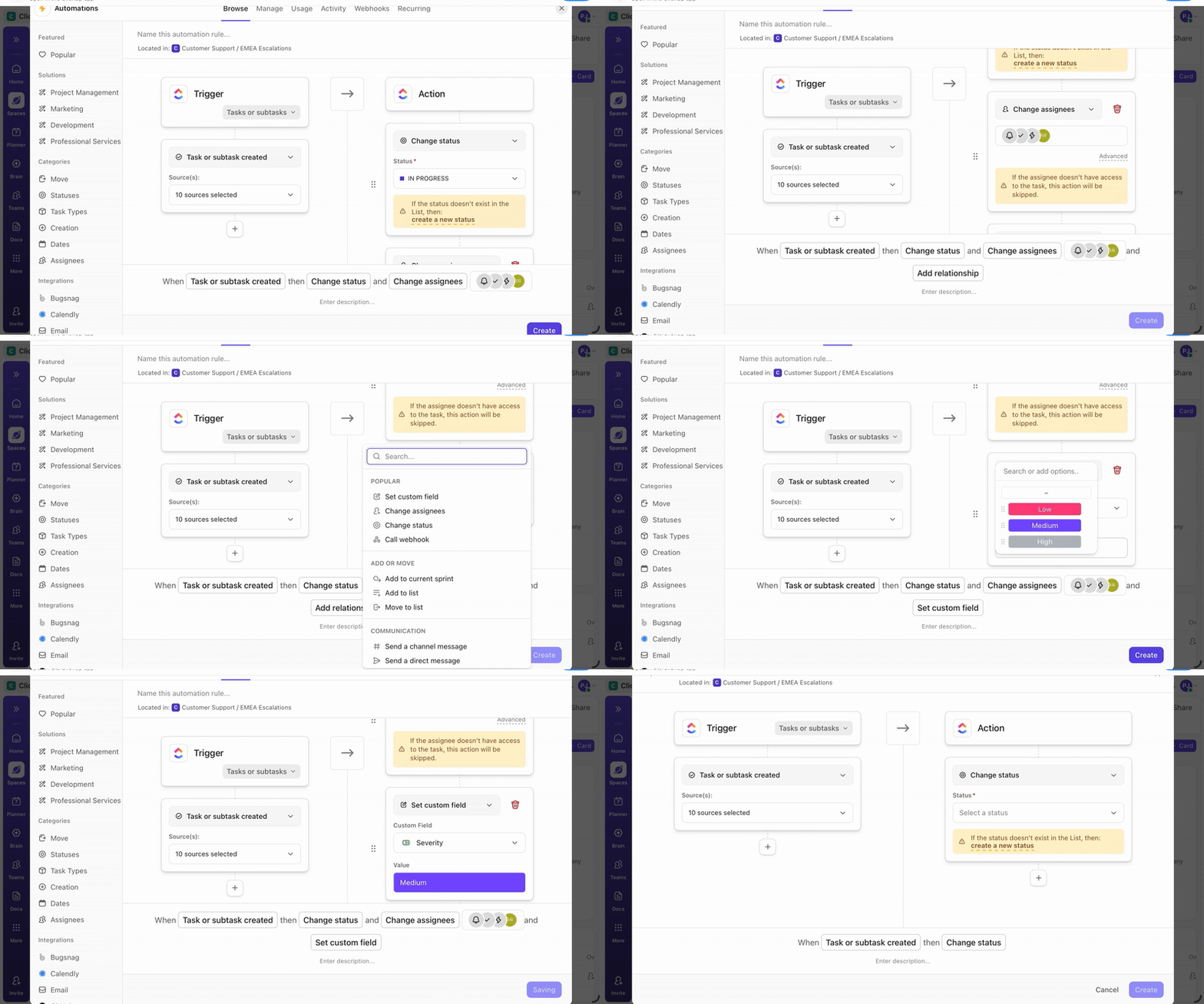
Once activated, the rule runs on its own without any coding.
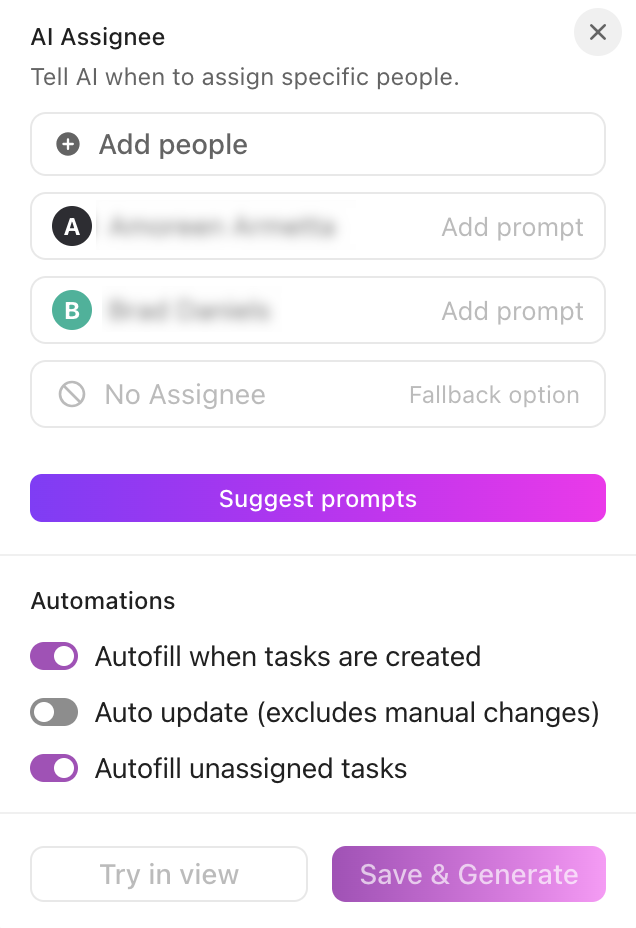
To take your productivity to the next level, you can use AI to automate tasks with ClickUp Brain. This unlocks a whole new category of actions, including:
Here’s a quick troubleshooting guide that will help you diagnose and fix the most common issues fast.
If you’re unable to log in (stuck at loading, repeated failures, or blank screen), try the basics first: double-check your credentials and ensure you have a stable network.
Sometimes the issue stems from corrupted local data. Clearing the app cache (or deleting the ClickUp folder from your system data) and then restarting the app often resolves persistent login problems. Also, ensure you’re running the latest version of the app.
If your tasks or updates don’t appear across devices, first check that you’re connected to the internet and that ClickUp’s servers are operational (not a global outage).
Next, make sure the app is updated. Older builds may have sync bugs. If the problem persists, try a manual refresh or reopen the desktop app. If you’ve made changes from mobile or browser, log out and back in on other devices, which often triggers a fresh sync.
Often, missing notifications are simply a settings issue. First, confirm that desktop notifications are enabled.
Then, check your operating system’s notification permissions and ensure ClickUp is allowed to send push alerts.
If it still fails, log out and log back in, or restart the app.
If ClickUp crashes, freezes, or fails to launch, confirm you’re using the latest version via the ‘About ClickUp’ or update menu.
If updating doesn’t help, a full reinstall can clear corrupted files. On macOS, delete the user data folder (~/Library/Application Support/ClickUp), then restart the app. On Windows, uninstall, clear the %AppData%\Roaming\ClickUp folder, and reinstall.
In addition, check system resource usage. If your computer is low on memory or CPU, closing other heavy apps before launching ClickUp can improve stability.
Remote and hybrid work comes with unique challenges: scattered tools, lost context, and endless app switching.
The ClickUp desktop app solves this by uniting everything your team needs into one cohesive workspace. With real-time updates, automations, and offline access, your team can collaborate seamlessly no matter where they are.
Sign up to ClickUp for free and turn your fragmented workflows into a single source of productivity.
Yes, ClickUp supports an Offline Mode on the desktop. You can view recently opened tasks and notes, and even create new tasks or reminders while offline. Once you reconnect, everything syncs automatically.
Generally, yes. The desktop version tends to be more responsive and avoids the lag and resource overhead that sometimes comes with running ClickUp in a browser.
Most core features, such as Tasks, Docs, Chat, AI, and Notifications, work in the desktop app. However, some things may behave slightly differently compared with the web version (e.g., certain browser‑based integrations or embeds).
BrainGPT (formerly Brain MAX) is ClickUp’s companion AI experience that supports voice-first capture and faster access to help you work across tasks, docs, and connected context.
Yes, Agents can act based on triggers and instructions you configure inside ClickUp. Advanced setups may use Super Agents for more specialized workflows.

© 2026 ClickUp

There’s an easier way. Try a free AI Agent in ClickUp that actually does the work for you—set up in minutes, save hours every week.