

Sorry, there were no results found for “”
Sorry, there were no results found for “”
Sorry, there were no results found for “”
Nobody installs a desktop app just to open the same software in a different way. They do it because browsers get cluttered with too many tabs. Eventually, the ClickUp tab is buried between a Google Doc and a Jira ticket, and you pay a small toggle tax every time you go hunting for it.
A Harvard Business Review study found that people toggle between apps roughly 1,200 times a day, and lose nearly four hours a week reorienting. ClickUp’s own Work Sprawl research found that teams burn 61% of their time searching for and updating information instead of doing the work.
That is the real value of the ClickUp desktop app. It gives ClickUp a dedicated place on your computer, easing navigation, and brings frequent actions (task capture, reminders, search, and notifications) within reach, so fewer of those 1,200 daily switches pull you out of ClickUp entirely.
TL;DR: The ClickUp desktop app is the installed version of ClickUp for Windows, macOS, and Linux, available on every plan, including for guests. It’s most useful for people who spend a meaningful part of their day in ClickUp. The setup that actually pays off: download the right build, enable shortcuts (they’re off by default), tune notifications, set browser links to auto-open in the app, then layer in AI like Brain MAX and Talk to Text once the basics are stable. Use the desktop app for execution, keep the browser for research.
The ClickUp desktop app is the installed version of ClickUp for your computer. It’s not a separate product, and doesn’t create a different Workspace. It gives you another way to access the same work, but in a more dedicated environment than a browser tab.
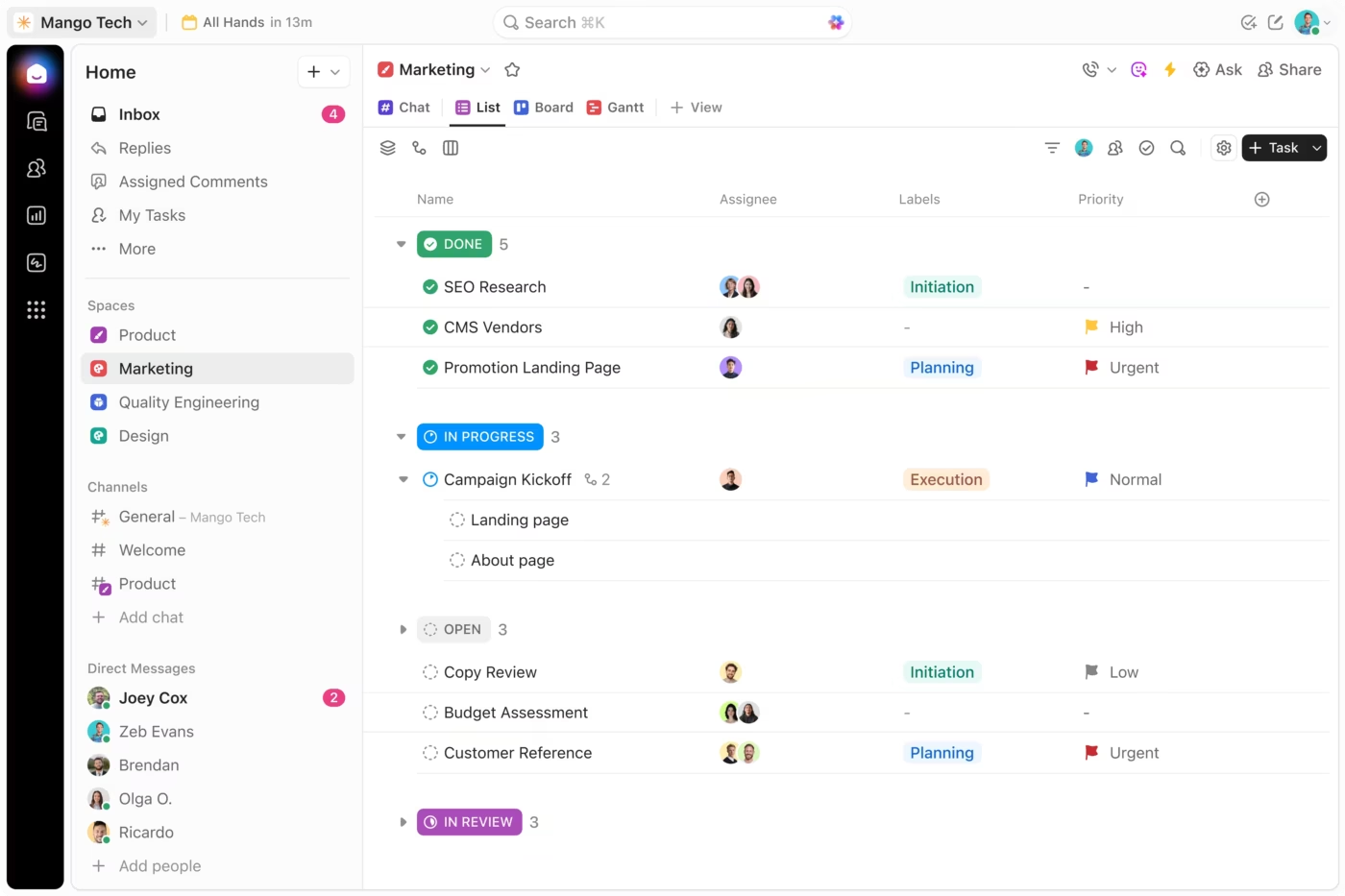
That distinction matters. The desktop app is valuable because it changes the friction profile of how you use ClickUp. A dedicated app window is easier to stay inside than a browser tab competing with email, meetings, and research.
Note: The ClickUp desktop app is available for all ClickUp plans and can be used by all users, including guests.
The ClickUp desktop app reduces capture time, eliminates tab-hunting, delivers OS-native notifications, and auto-opens ClickUp links from the browser, all actions a pinned browser tab cannot replicate. It’s most valuable when working in ClickUp is most of your day, and the small frictions of browser life start compounding.
You’re on a video call, and someone mentions a deadline change. In a browser, you would need to find the right tab (or reopen ClickUp entirely), navigate to the task, and update it before the conversation moves on. By then, you’ve already lost the thread.
In the desktop app, a global shortcut like Cmd/Ctrl+E creates a new task from anywhere on your machine, without switching windows or losing context. The gap between “I need to do something” and “it is now in ClickUp” drops to under two seconds.
Cmd/Ctrl +Tab. That’s it. Your sidebar, your open task, your scroll position: all exactly where you left them. The desktop app lives in its own window in your Dock or Taskbar, so returning to ClickUp after a meeting is a single keystroke, not a scavenger hunt through 34 open tabs.
That difference adds up. If you context-switch back to ClickUp six times a day, and each return saves even ten seconds of tab-hunting, you’re reclaiming a minute a day on navigation alone. Small, but it’s the kind of friction that makes people close the tool instead of using it.
A teammate messages you in ClickUp Chat asking for a status update. You check the task, reply in the thread, and link the doc, all without leaving the window. In a browser workflow, that same exchange often means: find the Chat tab, open the task in a new tab, copy the doc link from a third tab, paste it back in the first.
That consolidation is why Goutham R., a Customer Success professional, called out the shift in a G2 review:
ClickUp has eliminated our reliance on 4-5 separate tools (Trello for tasks, Confluence for docs, separate spreadsheets for OKRs, etc.). This reduced context-switching and improved visibility across departments. The cost savings from tool consolidation alone justified the investment—but the real ROI comes from faster decision-making and fewer missed handoffs.
Browser notifications are often unreliable. They require the tab to stay open, compete with every other site sending alerts, and often get blocked by OS-level permissions users forgot they set.
The desktop app pushes notifications through your operating system’s native notification layer. That means they show up in your notification center alongside calendar alerts, messages, and system updates. You see them whether or not ClickUp is in the foreground.
The real value is not more notifications. It is tunable notifications. Because the alerts run through your OS, you can use Focus Mode, Do Not Disturb, or scheduled notification windows to control when ClickUp is allowed to interrupt you, something a browser tab cannot do with the same precision.
You’re researching in Chrome and click a ClickUp link someone shared in an email. Without the desktop app, it opens another browser tab, adding to the pile. With auto-open enabled, that link opens directly in the desktop app instead.
That is the bridge between browser research and desktop execution. The browser stays for browsing. ClickUp stays for doing. One setting (supported on Chrome, Firefox, and Edge) keeps the two worlds separated without any manual effort.
The ClickUp desktop app and the browser version access the same Workspace, the same data, and the same permissions. The differences are environmental: how notifications reach you, what shortcuts are available, how links behave, and what happens when you lose internet.
| Dimension | Desktop app | Browser |
|---|---|---|
| Notifications | Delivered through your OS notification center (macOS, Windows, Linux). Controllable via Focus Mode and Do Not Disturb at the system level | Requires the tab to stay open. Competes with every other site sending alerts. Often blocked by OS-level permissions that users forgot they set |
| Global shortcuts | Cmd/Ctrl + J opens the AI Command Bar from anywhere on your machine, even when ClickUp is in the background. T and R create tasks and reminders in-app | Shortcuts work only while the ClickUp tab is focused |
| Offline access | Create tasks and reminders, view previously opened tasks. Edits and subtasks sync when you reconnect | No offline capability. Losing connection means losing access entirely |
| Auto-open links | ClickUp links clicked in Chrome, Firefox, or Edge open directly in the app instead of spawning a new tab | Links open as new browser tabs by default |
| Browser extensions | Not supported. Chrome extensions (time trackers, screen capture tools, third-party integrations) do not work inside the app | Full extension support |
| Embedded content | Some embedded content (Google Sheets, Miro boards) opens in the browser when clicked | Renders inline without leaving the tab |
| Window management | Dedicated window in Dock/Taskbar. Cmd+Tab (or Alt+Tab) switches to it instantly. Scroll position and sidebar state persist | One tab among many. Requires finding the correct tab after every context switch |
| Background behavior | Runs in the background even when the window is closed, keeping shortcuts and notifications active | Stops delivering notifications if the tab is closed or the browser quits |
Use the desktop app when:
Keep using ClickUp in the browser when:
The desktop app is not automatically better. It is more suitable for users whose work is already dense enough inside ClickUp that shaving friction off repeated actions matters. If your ClickUp usage is light or occasional, the browser is simpler and loses nothing functional except the environmental advantages above.
Attention residue, a term from Sophie Leroy’s 2009 research at the University of Minnesota, is the cognitive cost of switching between tasks in the same environment. Your brain carries fragments of the previous context into the next one. Separating research (browser) from execution (desktop app) creates an environmental boundary that signals a cognitive reset, reducing that residue.
The strongest use case for the desktop app isn’t replacing your browser; it’s creating a deliberate split between the two.
Here is what that looks like in practice. You’re reviewing three competitor landing pages for a redesign project, and find the insight you need. You Cmd+Tab to the desktop app, create a task with the finding, tag the designer, set it to “in progress,” and Cmd+Tab back. The browser stays open for research. ClickUp stays clean for doing. Neither environment accumulates the other’s clutter.
That is not “desktop good, browser bad.” It is one workflow with two dedicated zones. The desktop app earns its place the moment you stop using it for everything and start using it only for the work that needs to move.
Nine setup choices determine whether the ClickUp desktop app becomes a daily habit or sits unused. Pick the correct build for your OS, install Brain MAX, set up rules around startup behavior, notifications, and shortcuts, select the Workspace, set your auto-open preference, understand offline capabilities, and known limitations.
A good desktop workflow usually includes these elements:
Setting up the ClickUp desktop app takes six steps: download the correct build, sign in and configure app settings, learn the core navigation, enable fast-capture shortcuts, arrange your daily workflows, and then layer in AI. Most of the value comes from the first three.
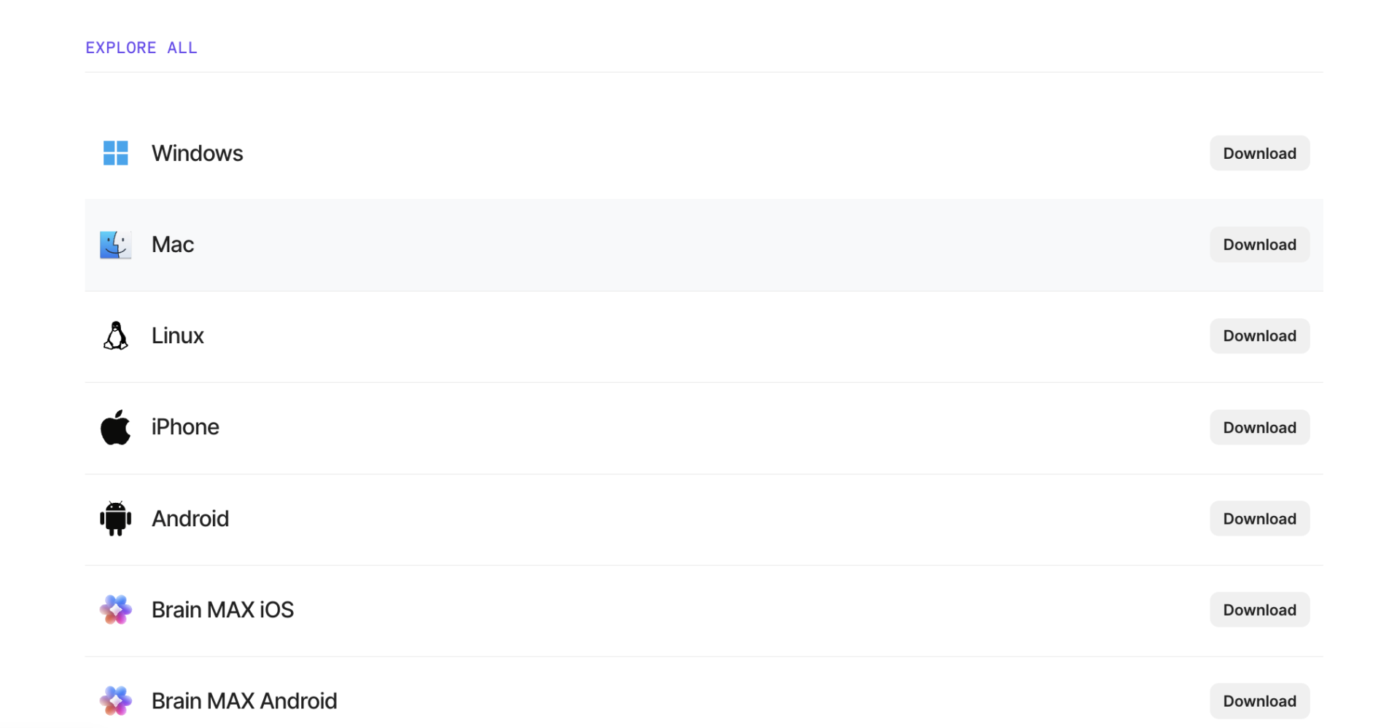
The best setup starts with the correct build. ClickUp supports Windows, macOS, and Linux, and the desktop app is available on every plan, including for guests.
If you use Linux, the desktop app relies on AppImage. If you use a Mac, make sure you are downloading the right version for your device, especially if you are on Apple silicon. Choosing the correct installer up front saves time later and avoids unnecessary troubleshooting.
Pro Tip: Use the official ClickUp download page rather than relying on old installers or saved links from previous versions.
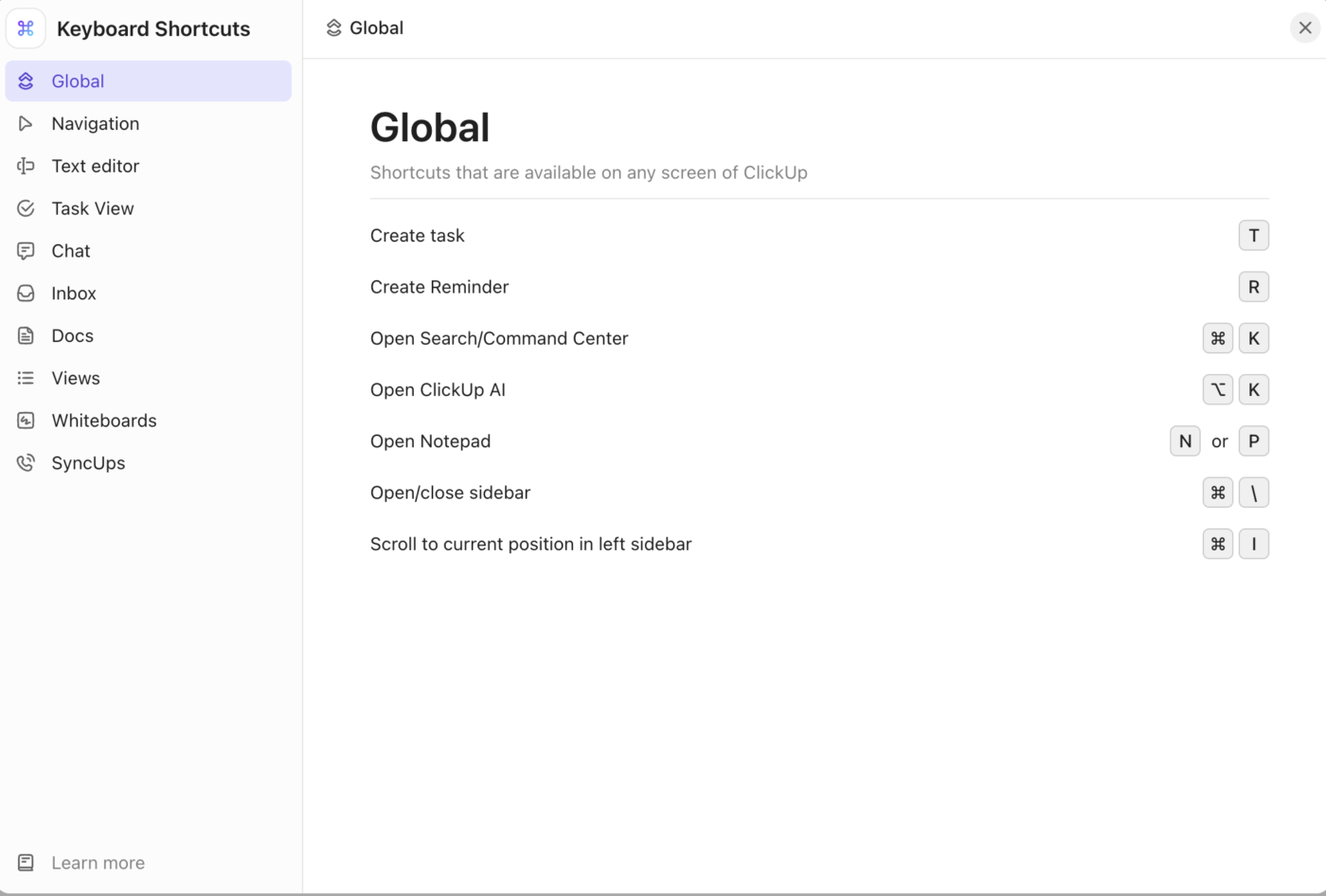
After installation, sign in and take a minute to configure the app before you start working.
Three settings matter most early:
Pro Tip: Keyboard shortcuts are disabled by default. Enable them manually in your personal settings.
You don’t need to master the full hierarchy on day one. You need to know where work changes state.
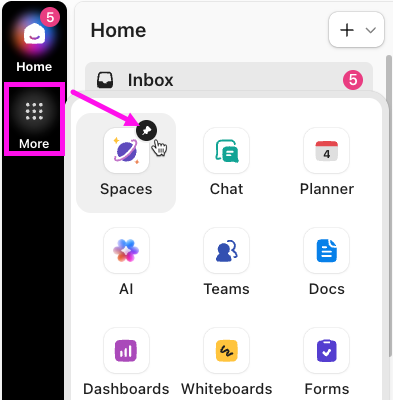
Start with these layers:
With ClickUp 4.0, Global Navigation stays visible across the entire app. That permanence means you never re-navigate to find Chat or your task list; they’re always one click away in the same vertical bar.
If your workflow is task-heavy, ClickUp Tasks become the center of the experience. If your workflow is documentation-heavy, ClickUp Docs becomes equally important. Either way, the app works best when you know which surface owns which kind of work.
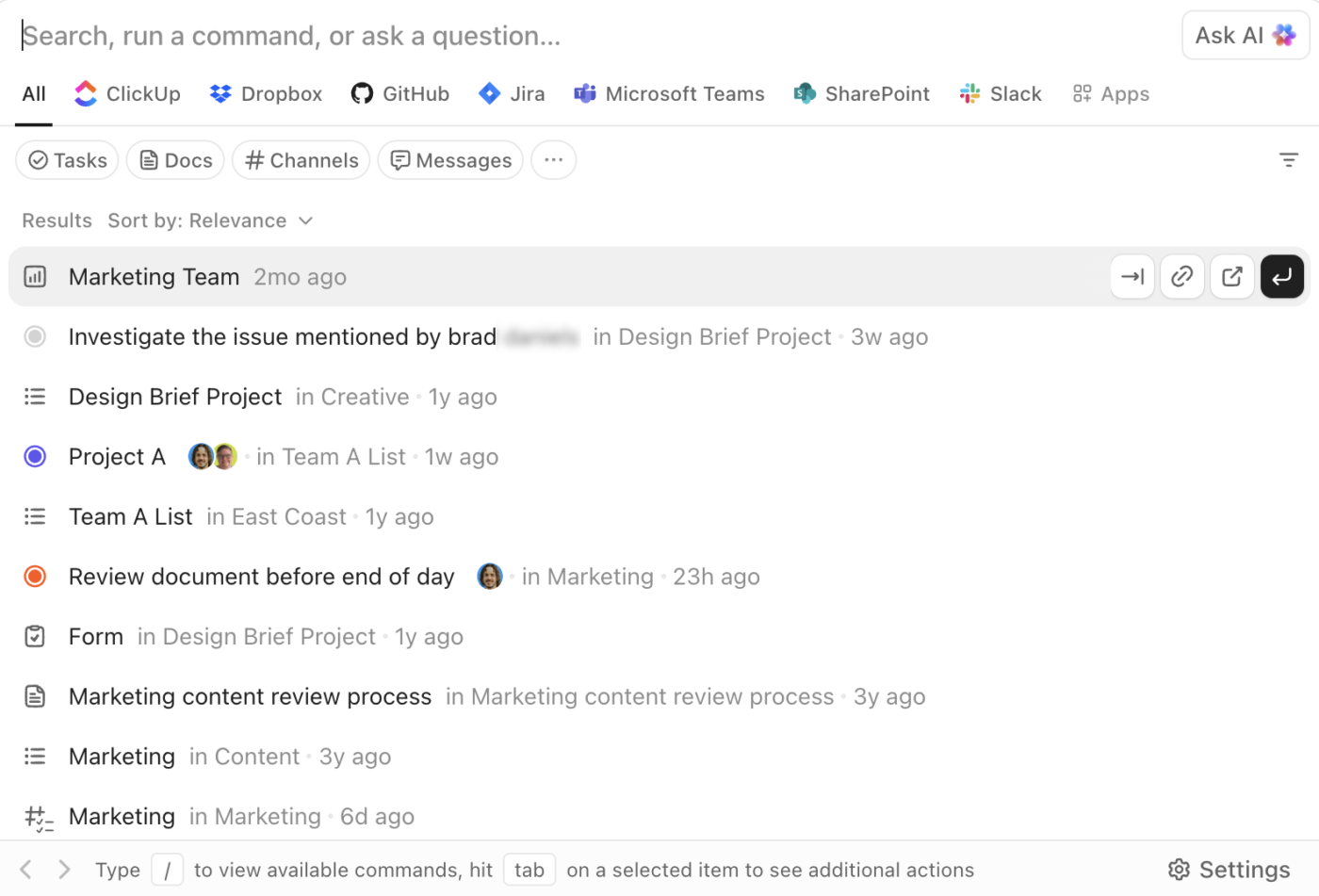
The desktop app starts paying off once capture feels immediate.
Start with these four keyboard shortcuts. They cover 80% of daily capture and retrieval.
The last one works at the desktop level as long as the ClickUp app is running. You can customize or disable any of these in your desktop app settings if they conflict with other tools.
Pro Tip: If you open ClickUp links from the browser often, enable auto-open on the desktop. That creates a cleaner handoff between browser research and desktop execution. It is a small change, but it reduces one more moment of friction from the workday.
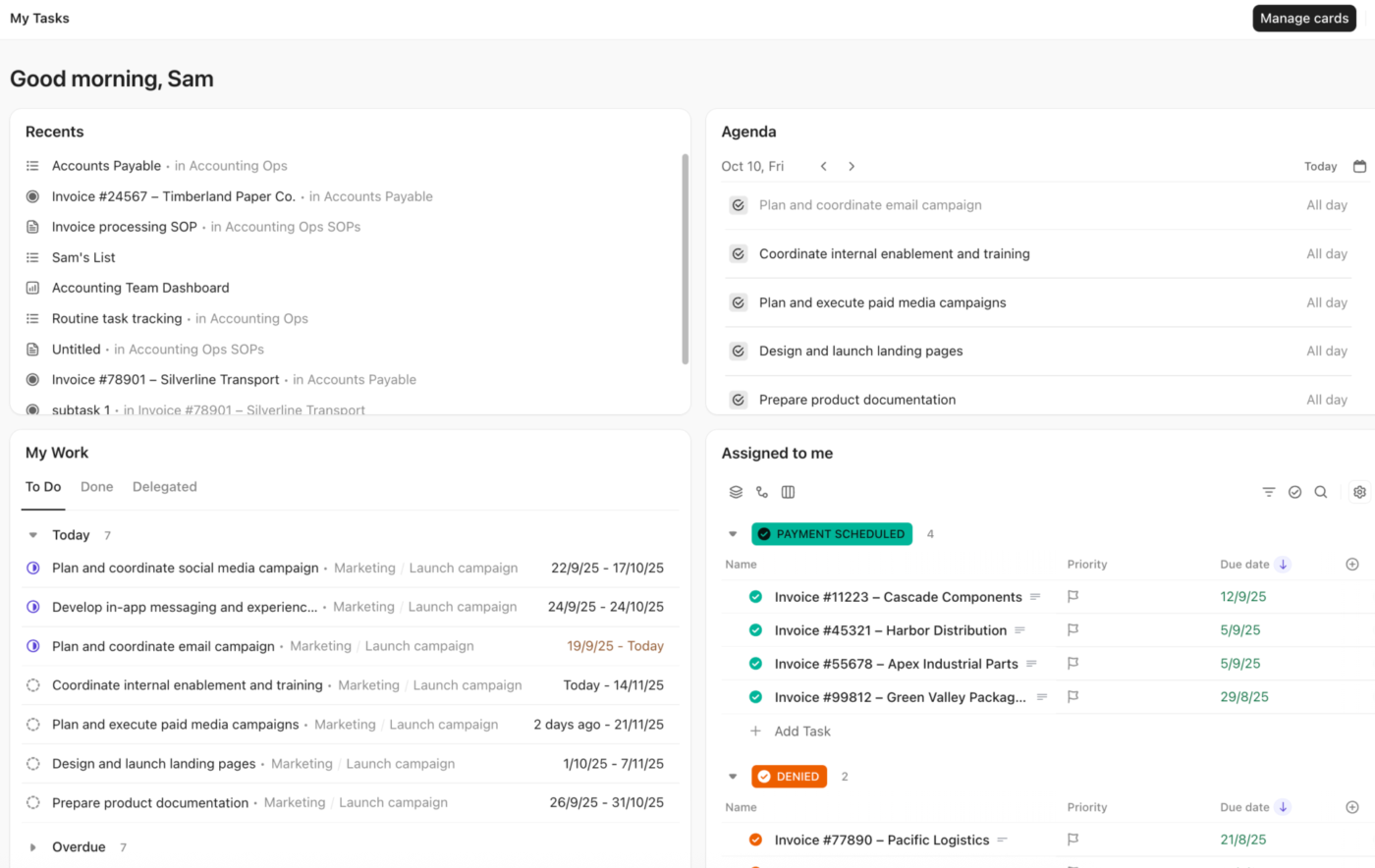
Once shortcuts and navigation are set, build your daily layout. The desktop app is strongest when it supports ongoing work, not occasional clicks.
Open the workflows you repeat every day and arrange them deliberately:
A practical setup: pin Chat and Planner in Global Navigation, keep your main working List or Board open in the center, and use Cmd/Ctrl + K to jump anywhere else. That three-element layout (communication + schedule + execution) covers most workdays without additional tabs.
Don’t start with every AI or automation feature turned on. Start once the core workflow is already stable.
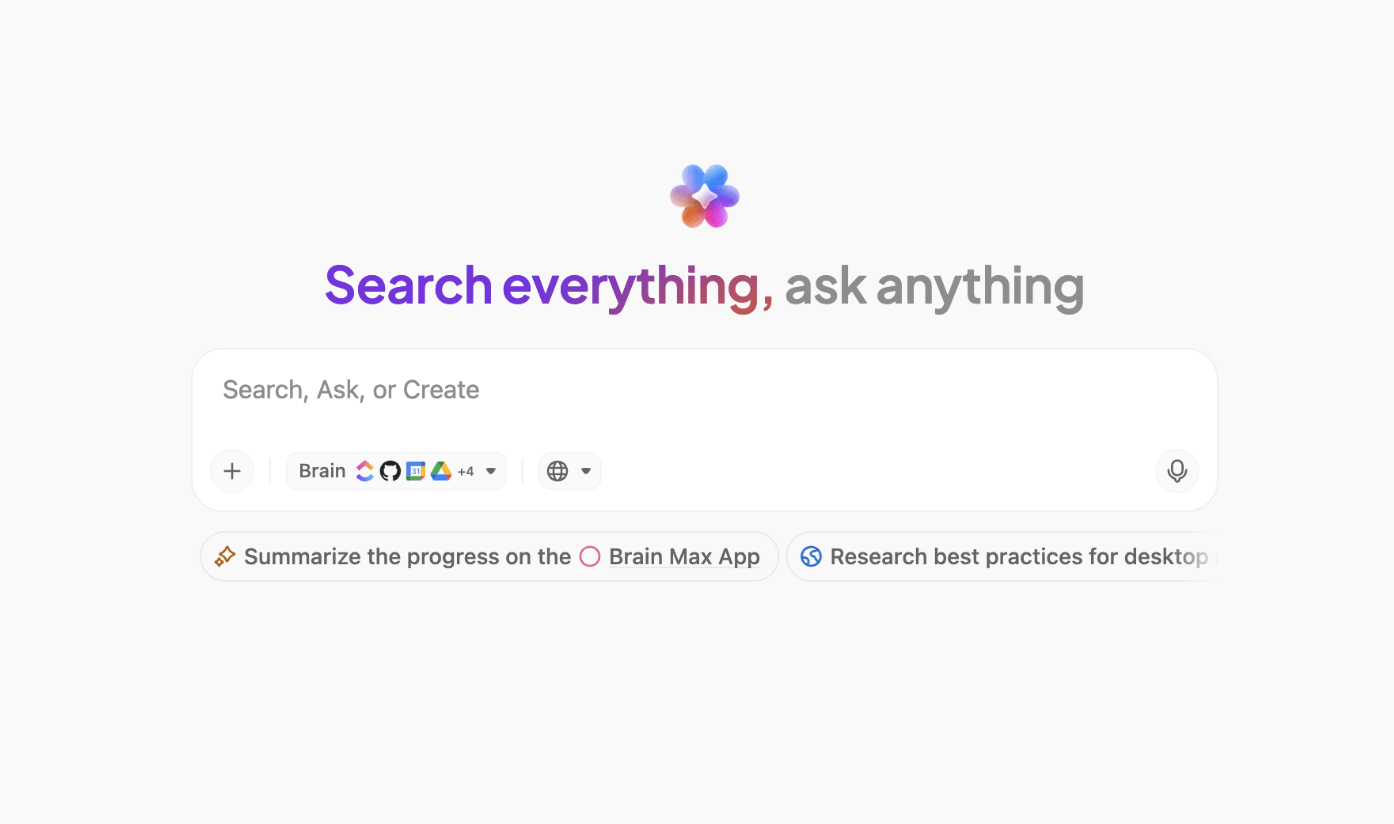
Brain MAX is a separate desktop app that searches ClickUp, connected apps (GitHub, Google Drive, SharePoint, and others), and the web from one search bar. It uses Brain by default, which has full access to your Workspace knowledge. You can switch to ChatGPT, Claude, or Gemini for alternate reasoning, but those models can’t access your ClickUp data.
Brain MAX desktop is currently available on macOS 13 and newer only. Windows users can access Brain through the AI Command Bar (Cmd/Ctrl + J) in the main desktop app.
Talk to Text converts speech to cleaned-up text in Brain MAX or any text box on your computer (email, a Google Doc, a Chat message). Press and hold ‘fn’ (or your custom shortcut key) to record, release to stop. The output is auto-formatted based on your writing style and language preferences, which you can configure in Brain MAX settings.
These additions make the desktop stack more interesting than a standard task app. You are not just opening a workspace. You are building a faster bridge between thought, capture, and action.
Want to know more about Talk to Text? Watch this video.
The ClickUp desktop app compounds value when you build it around repeat workflows (Inbox triage, task capture, chat responses) and periodically prune what isn’t working. Drop unused shortcuts, retune notifications when projects change, and update the app before troubleshooting it.
The most effective setup is usually boring. It is a small set of actions you repeat every day: check Inbox, open task, update status, capture reminder, review doc, answer chat, move on. If you find yourself doing something outside the app that could happen inside it (checking reminders in your phone, searching tasks in the browser), that is your cue to adjust the desktop setup, not add another tool.
If a shortcut sounds powerful but you never use it, remove it from your mental load. Keep the two or three that genuinely saved time. For most people, that ends up being T, R, and Cmd/Ctrl +J. If yours are different, that is fine. The point is a short list you can use without thinking.
The app becomes less useful if every update feels equally urgent. Tune the notification settings so desktop alerts reflect actual priority. Revisit these when your workload changes. A new project or a new sprint cadence means different things are urgent. Settings that worked last month may be noise this month.
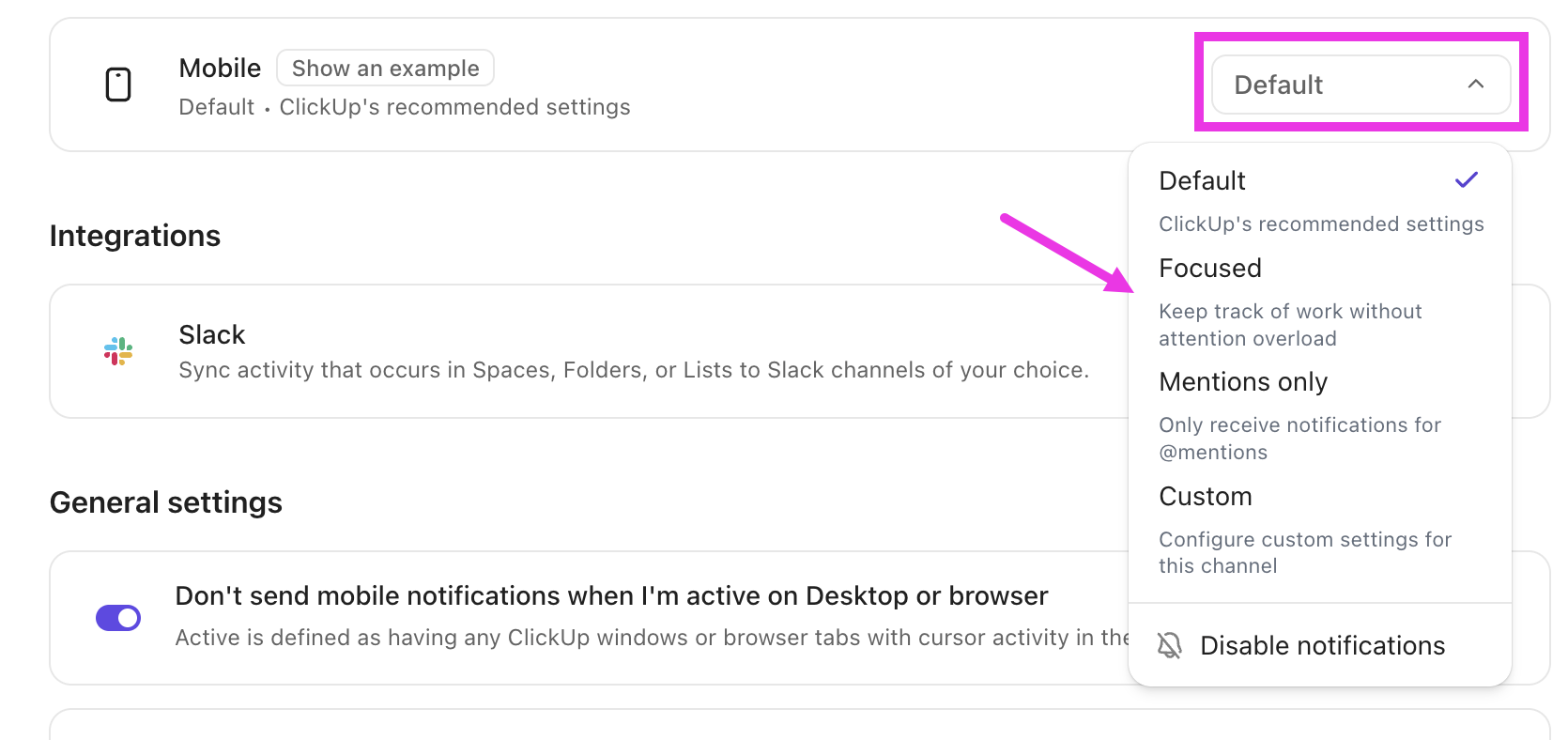
Offline mode is useful for continuity. It is not full-featured collaboration. Use it to capture, review, and stay moving until you reconnect. Remember: create and view offline, but edits and subtasks wait for reconnection
Most “broken” desktop app reports are version drift. If something feels off, check ClickUp → About ClickUp before doing anything else.
ClickUp’s desktop app suits you best when your work is already spread across tasks, docs, reminders, chat, dashboards, and AI.
That is where ClickUp’s advantage is strongest. You are not adopting a desktop app just to check tasks. You are consolidating multiple work surfaces into a single operating environment.
Honest limitation: ClickUp’s desktop app can be more than you need if your workflow is simple or if you only check work occasionally. It is also not the right place if you need to work a lot with Chrome extension-based integrations, because those are not supported there.
But if your day already lives inside ClickUp, the desktop app is where the product becomes more ergonomic. It shortens the distance between planning, communication, and execution.
If the goal is a more focused daily setup, download the ClickUp desktop app and configure it around the three actions you repeat most.
Six mistakes account for most abandoned ClickUp desktop installations: leaving shortcuts disabled, treating the app as a browser clone, enabling too many shortcuts at once, expecting Chrome extensions to work, closing the window and assuming it stopped running, and layering AI before the basics are stable.
What it looks like: You download the app, sign in, and immediately start working. Notifications flood in because you never tuned them. Shortcuts do nothing because they are disabled by default. You close the app after a day and say, “It’s the same as the browser.”
Fix: Spend five minutes on first launch. Enable shortcuts in personal settings, set notification rules to surface only assignments and mentions, and decide whether the app should launch at startup. That one pass changes the entire experience.
What it looks like: You open fifteen ClickUp views in the desktop app and toggle between them the same way you toggle browser tabs. The app feels just as cluttered as Chrome.
Fix: Reserve the desktop app for execution: the task you’re working on, your Inbox, and Chat. Keep research, comparison, and multi-reference browsing in the browser. The value is in the split, not in moving everything over.
What it looks like: You enable every available shortcut, then accidentally trigger actions you didn’t intend. You disable all shortcuts out of frustration.
Fix: Start with three: T (Task), R (Reminder), and Cmd/Ctrl J (AI Command Bar from anywhere). Add more only after those feel automatic, usually after a week.
What it looks like: You rely on a Chrome extension for time tracking, screen capture, or a third-party integration. You install the desktop app and wonder why it is missing.
Fix: This is an Electron limitation, not a ClickUp one. Every desktop app built on Electron (Slack, Notion, VS Code, Figma) has the same boundary. Keep extension-dependent workflows in the browser and use the desktop app for native ClickUp work. Some embedded content (Google Sheets, Miro boards) may
also open in the browser when clicked; that is expected behavior, not a bug.
What it looks like: You close the ClickUp window, then wonder why Cmd/Ctrl + J still works or why notifications keep appearing.
Fix: The desktop app runs in the background by default even when the window is closed. That is intentional: it keeps global shortcuts and notifications active. If you want to fully quit, use ClickUp → Quit ClickUp (Mac) or right-click the system tray icon → Exit (Windows). If you want background running but fewer interruptions, tune notifications rather than quitting the app.
What it looks like: You install Brain MAX on day one, connect three apps, and start issuing search prompts. But you have not set up your task structure, notification rules, or navigation yet. AI returns results you cannot action because the underlying workspace is messy.
Fix: AI tools like Brain MAX and Talk to Text multiply the value of a clean setup. They don’t replace it. Get navigation, shortcuts, and notification hygiene working first. Then add AI once you know where your
work lives and how it flows. The sequence matters.
Most ClickUp desktop app issues trace to five root causes: credentials or SSO token expiry, stale app versions, OS-level notification permissions, background process confusion, and global shortcut conflicts with other tools.
If none of these steps resolve your issue, report a bug directly to the ClickUp team with a screen recording and your app version number. Include whether the issue reproduces in the browser, as this helps the team isolate desktop-specific bugs.
The best way to use the ClickUp desktop app is not to treat it as a duplicate of the browser. Treat it as the place where work gets executed.
Install the correct version. Review the settings that shape your day. Keep a small shortcut set. Use the app for tasks, reminders, docs, chat, and other high-frequency actions. Then layer in AI and automation once the basics feel natural.
That is when the desktop app starts doing real work for you: less retrieval friction, faster capture, and fewer lost steps between noticing work and moving it forward.
Try it for yourself. Sign up for free on ClickUp today.
Yes. The desktop app is included on every ClickUp plan, including the Free Forever plan, at no extra cost, and is available to all users, including guests. There is no separate license or upgrade required to install it on Windows, macOS, or Linux.
The desktop app updates automatically, but a pinned shortcut in your Dock or Taskbar can still point to an older build after a system update. Check your version under ClickUp → About ClickUp before reinstalling or filing a bug. Most “broken app” reports are version drift, not actual bugs.
Most core workflows are available, but not everything behaves exactly the same. Integrations based on Chrome extensions are not supported in the desktop app, and some embedded content may open in the browser.
The desktop app is the installed version of ClickUp for tasks, docs, chat, and notifications. Brain MAX is a separate desktop app focused on AI: it searches ClickUp, connected apps like GitHub and Google Drive, and the web from one bar, and supports voice input via Talk to Text. Brain MAX runs alongside the main app and is currently macOS 13+ only.

Manasi Nair
Max 24min read
Manasi Nair
Max 20min read

Sudarshan Somanathan
Max 22min read

© 2026 ClickUp




