
Sorry, there were no results found for “”
Sorry, there were no results found for “”
Sorry, there were no results found for “”
Workers now toggle between apps 1,200 times a day, burning nearly four hours a week just resetting their attention. The tools meant to make us productive have become the thing fragmenting it.
So the best productivity tool isn’t the one with the longest feature list. It’s the one that kills your specific bottleneck. If your team is drowning in disconnected apps, start with an all-in-one like ClickUp or Notion. If the problem is personal task overload, then Todoist or Motion earns its place. For knowledge that has to last, Obsidian. For repetitive busywork, Zapier.
Beyond those, ChatGPT handles drafting and research, Grammarly polishes everything you write, Toggl Track shows where your hours go, and Raycast makes a Mac feel twice as fast.
We compared all ten on the job they do best, adoption friction, honest free-tier limits, total cost at scale, and whether their AI does real work. Each section covers what the tool nails, where it falls short, and who should skip it.
Every tool below is reviewed in full further down. We’ve looked at the highlight features of each tool, along with pricing and reviews. We also tell you where it shouldn’t be your first choice.
| Tool | Best for | Standout feature | Starting price | Where it taps out |
|---|---|---|---|---|
| ClickUp | Teams replacing several tools with one | Tasks, docs, chat, and dashboards in one workspace, plus Brain AI and Super Agents | Free forever; paid plans available | Steeper learning curve; best rolled out one workflow at a time |
| Notion | Flexible docs and team knowledge | Block-based pages that double as live databases | Free; paid from $10/seat/mo | Large databases slow down; thin on execution and reporting |
| Todoist | Low-friction personal task management | Natural-language input that sets date, time, and recurrence | Free; paid from $5/user/mo | No native dashboards, time tracking, or docs; free caps at 5 projects |
| Motion | AI auto-scheduling | Books tasks into open calendar slots and reflows when plans shift | From $19/seat/mo (no free tier) | No free tier; AI needs a couple of weeks to feel reliable |
| Obsidian | Local-first knowledge management | Plain-text Markdown notes linked into a navigable graph | Free; Sync from $4/user/mo | Setup and plugin tinkering up front; weak for real-time collaboration |
| Zapier | Cross-app automation | Connects 9,000+ apps with no-code triggers, filters, and paths | Free; paid from $19.99/mo | Pricing climbs with task volume; complex workflows take debugging |
| ChatGPT | General AI assistance | Drafting, summarizing, and research from one chat box | Free; paid from $8/mo | Can be confidently wrong; doesn’t track tasks or projects |
| Grammarly | AI writing assistance | Real-time grammar, clarity, and tone help everywhere you type | Free; Pro $144/member/yr | Uneven integrations; generative features sit behind paid |
| Toggl Track | Time tracking | One-click and background tracking that becomes clean timesheets | Free (up to 5 users); paid from $9/user/mo | Tracks time only, won’t manage projects; deeper reporting is paid |
| Raycast | Mac power users | Keyboard-first launcher for apps, commands, snippets, and AI | Free; Pro from $8/mo | Mac-only at full strength; advanced AI is paid |
Our editorial team follows a transparent, research-backed, and vendor-neutral process, so you can trust that our recommendations are based on real product value.
Here’s a detailed rundown of how we review software at ClickUp.
The best productivity tool is the one that removes your specific bottleneck, not the one with the most features. For teams buried in disconnected apps, ClickUp is the strongest all-in-one; for document-heavy teams, Notion. For personal task overload, Todoist; for calendar chaos, Motion. Obsidian wins for long-term notes, Zapier for cross-app automation, ChatGPT for drafting, Grammarly for writing polish, Toggl Track for time visibility, and Raycast for a faster Mac.
An all-in-one work management tool combines tasks, documents, chat, and reporting in a single workspace. It is built for teams whose biggest time sink is switching between disconnected apps. I tried a stack of them, and two became my favorites for very different reasons. One for teams that need execution depth and reporting, the other for teams that live in documents and want flexibility.
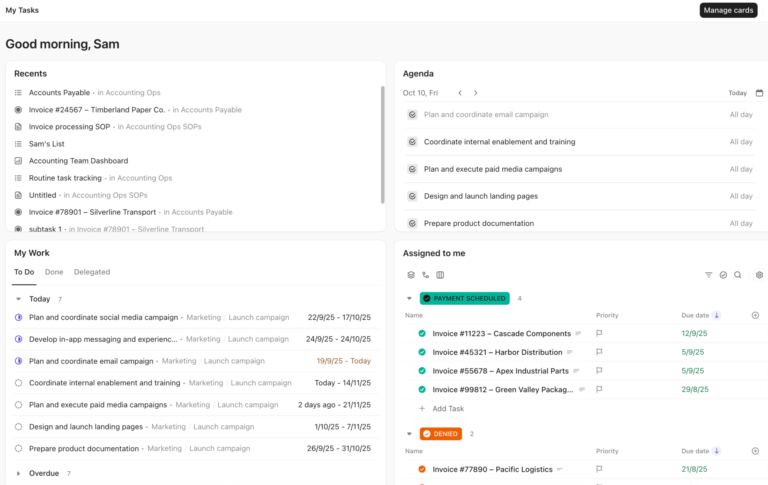
ClickUp is an all-in-one work platform that unifies tasks, docs, chat, dashboards, and AI in a single workspace, so teams can replace several tools at once. Our own team runs on ClickUp every day, which is the most honest way I can review it. For any team trying to shrink a sprawling stack, that is the entire value.
For example, look at how a single project moves through my entire editorial team. We plan a content calendar as tasks, draft each post in a ClickUp Doc linked to its task, leave edits in the task comments, and track what is shipping on a dashboard. The context stays with the work, which spares us the exports and “which version is current” pings that eat a publishing week.
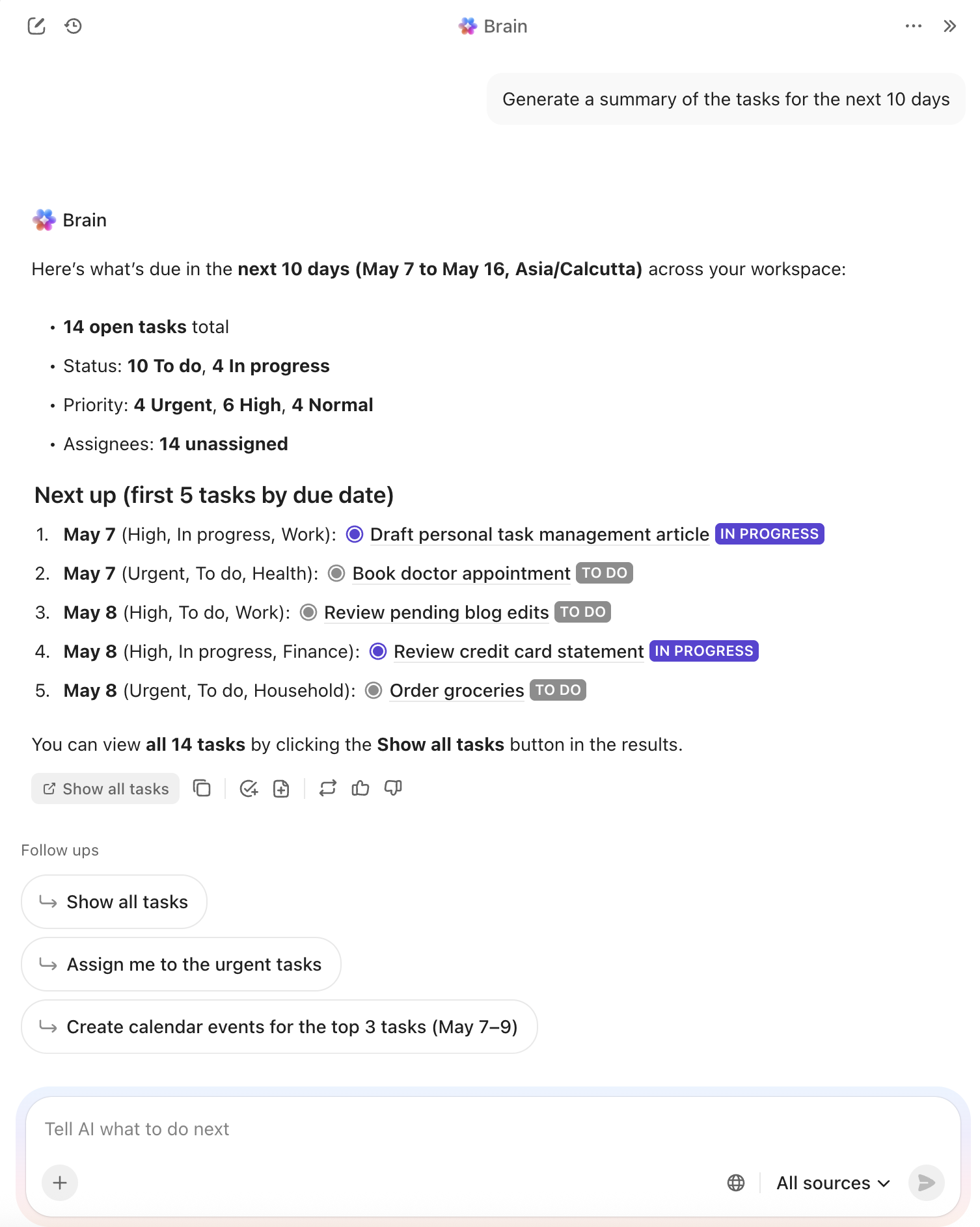
ClickUp Brain is the native AI layer our team reaches for daily. We ask it what is overdue on the list and who owns it, and Brain answers by referencing the live tasks. When a long thread piles up over a weekend, one Brain summary catches us up in seconds. It also includes several frontier models, such as Claude, GPT, and Gemini, under a single subscription. Plus, it helps us generate dashboards or status decks from a single prompt.
Further, ClickUp Super Agents handle the recurring chores, triaging incoming requests into the right list and compiling a weekly status report before the team even asks.
Reviewers keep circling back to how far the customization bends to fit a team. A G2 reviewer put it this way:
What I like best about ClickUp is its flexibility and the wide range of features available. Almost every aspect of the platform can be customized to fit your team’s specific needs, whether that’s task management, project tracking, dashboards, automations, forms, or reporting. Instead of forcing you into a rigid workflow, ClickUp allows you to build processes that work for your organization. I feel the AI tools have had a great deal in allowing for this flexibility. From content generation and meeting notes to task summaries and workflow assistance, the AI tools help save time and improve productivity without feeling overly complicated. As our needs have evolved, ClickUp has been able to scale and adapt with us.
Where ClickUp falls short: The surface area that makes ClickUp powerful also gives it a steeper learning curve. New teams get more value from rolling out one workflow at a time than from switching on every feature at once.
Skip ClickUp if: You’re a solo user who only wants a fast, lightweight to-do list and never plans to coordinate a team, in which case, Todoist will feel quicker to adopt.
Pro Tip: If you’re consolidating tools, migrate one workflow at a time. Teams that try to rebuild everything in week one are the ones who stall.
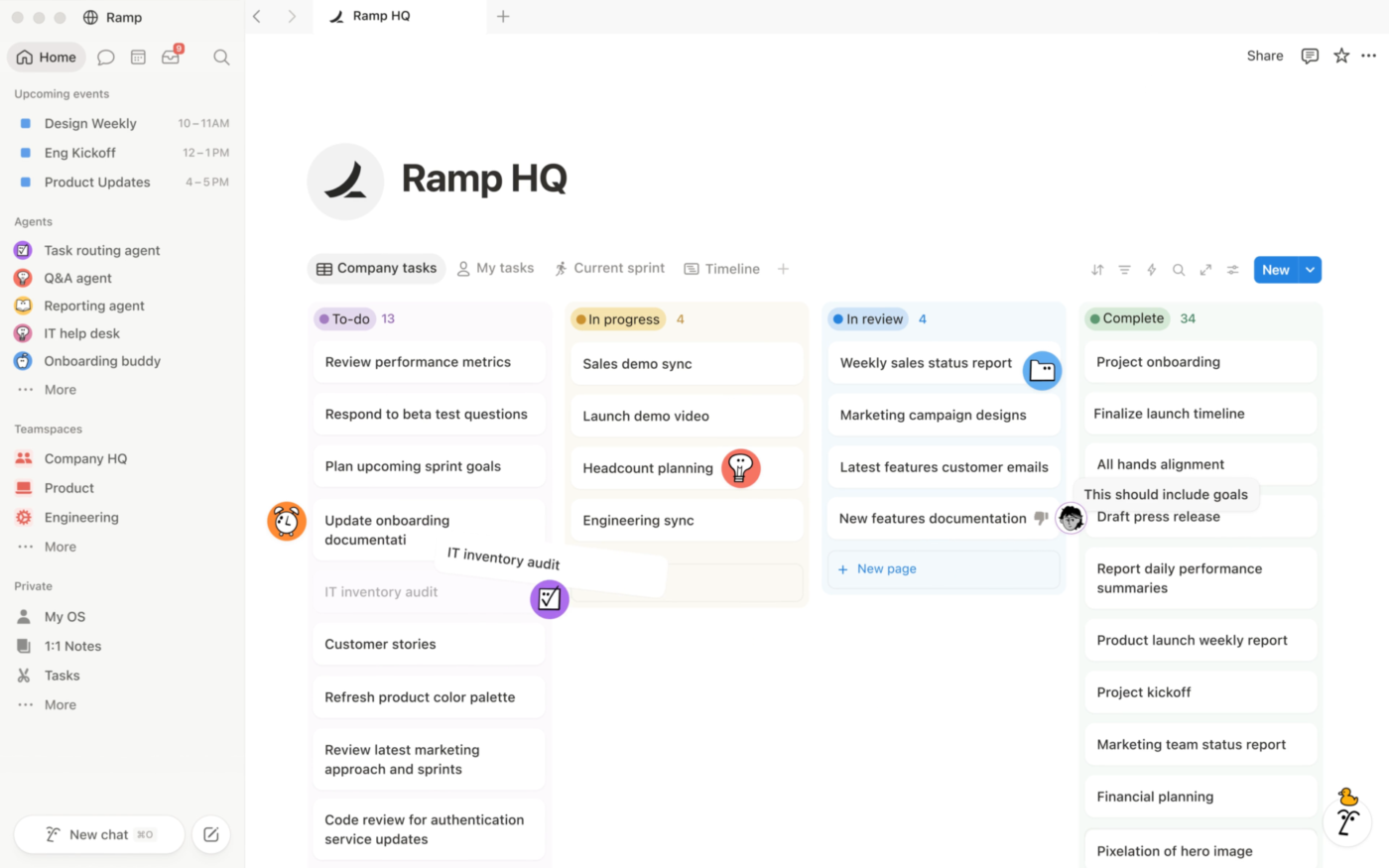
Notion is a flexible workspace that combines your databases with light project management. For instance, it pulled my notes, wikis, databases, and basic project management into a single editable canvas.
A single Notion page can host a table of contents, code snippets, an embedded Figma file, and a live database, supporting 50+ content types. Teams in product, design, and operations adopt Notion quickly due to its documentation support.
Notion is versatile. I created the structure I wanted from blocks, databases, and linked relations. Synced Blocks update content everywhere when edited, and page Verification marks a document as current, easing version control.
Notion AI is bundled into paid plans and can summarize docs, draft content, and answer questions across the workspace and connected tools like Slack and GitHub.
The trade-offs are real, too. That same flexibility became a setup tax when I just wanted to start working. Databases slowed down once my workspace grew large. And the project execution layer, while improving, still trailed dedicated work tools on dashboards, workload views, and reporting. I’d only choose Notion when documentation flexibility matters more than task execution, visibility, and team reporting.
Reviewers most often point to how much it pulls together in one place. A G2 reviewer described it this way:
What I like most about Notion is how it helps me organize my daily tasks, notes, and learning activities all in one place. I use it regularly to manage my work, tracking tasks, keeping notes on topics like Salesforce and DSA, and planning my day. I’ve set up separate pages along with simple workflows that help me stay consistent and focused. Overall, it has boosted my productivity and helps me stay organized throughout the day.
Where Notion falls short: Reviewers note that large databases can become sluggish as the workspace scales, so heavy, data-dense teams should pressure-test it before committing.
Skip Notion if: You need execution visibility and reporting more than documentation flexibility, in which case ClickUp will fit better.
For a deeper look at this category, see ClickUp’s guide to task management software.
Personal task and schedule tools help you organize your own day rather than coordinate a team. They split into two camps: low-friction lists that ask almost nothing of you, and AI schedulers that take planning off your plate entirely. I ran both ends of that spectrum to see which one held up past the first busy week.
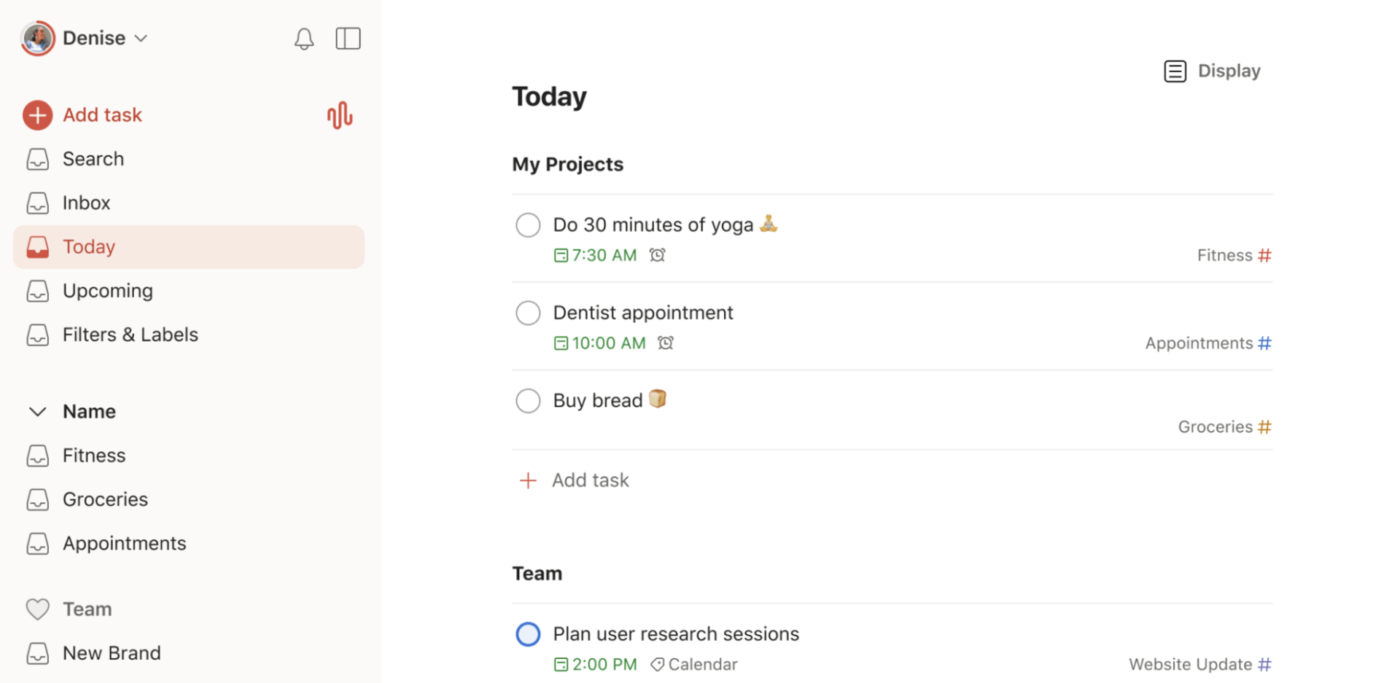
Todoist is a fast, low-friction personal task manager built around natural language input and minimal setup.
I type “submit report every Friday at 3 pm,” and it parses the date, the time, and the recurrence on its own. No menus, no date picker, the task just lands where it should. The interface stayed clean as my list grew, syncing instantly across web, mobile, and desktop.
What kept it on my phone were the small conveniences that made my life easier. Recurring tasks meant my weekly admin set itself up once and then just ran smoothly on its own. Projects and labels gave me just enough structure to separate work from my personal life without having to build a system to maintain.
Todoist Assist now layers AI on top, drafting tasks and filters, though I found the core app fast enough that I rarely needed it.
The limits showed up the moment I wanted heavier project infrastructure. Todoist offers good personal reports, but team dashboards are limited, time tracking depends on integrations, and notes are in task descriptions. I’d choose Todoist over a heavier tool when low friction matters more than cross-team coordination.
Reviewers point to how far a simple task app stretches into real project work. A G2 reviewer described it this way:
As an IT Project Manager in the Technology field, I personally use Todoist as my own project management tool to manage some projects. Todoist provides an agile environment where I can plan technical work and development tasks (aligned to the approved schedule) and assign them activities, monitor progress through one central view, and create recurring reminder notifications for maintenance reviews and change committee documentation.
Where Todoist falls short: It stays deliberately narrow, with no native dashboards, time tracking, or document layer, so anyone running multi-person projects will outgrow it. Reviewers also note the free Beginner plan caps you at five projects.
Skip Todoist if: You need to coordinate a team or run projects with reporting, in which case a work management tool will serve you better.
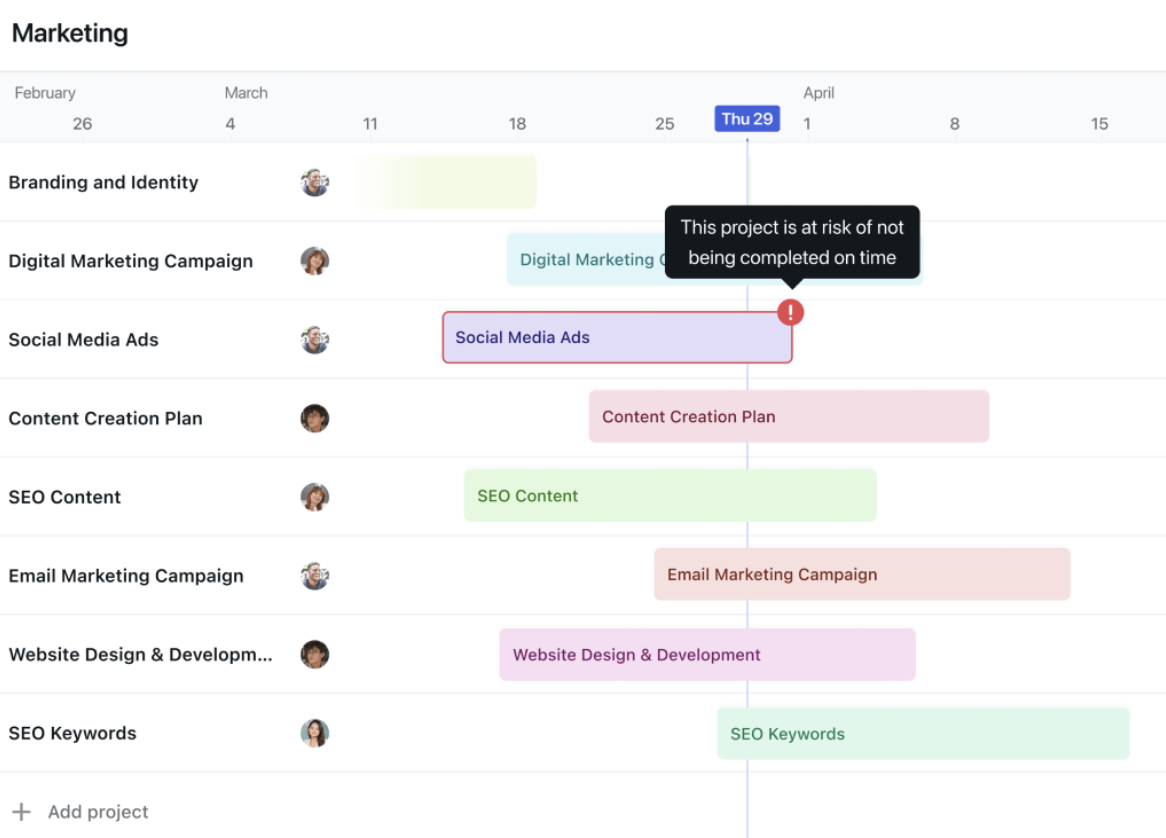
Motion is an AI calendar that schedules your tasks around your meetings. I tried it because my to-do list and my calendar never agreed, and the gap between them was where my productivity leaked.
What changed my week was handing over the scheduling. I gave each task a duration and a deadline, and Motion booked it into open slots around my meetings. The payoff was skipping the daily fifteen minutes I used to spend deciding what to do first. That decision fatigue is a real tax, and letting the AI absorb it freed up energy for the actual work.
I also loved the auto-rescheduling feature. Miss a block, and it rebuilds the plan and finds the task a new home. When a meeting ran long or a deadline shifted, my whole week adjusted without me touching it. I set deep-work blocks, and it learned to defend them, scheduling lighter tasks around the focus time instead of through it.
Motion has grown past pure scheduling, too. It now folds in an AI project manager, a meeting notetaker, and dashboards, so the same engine that plans my day also tracks project timelines and captures notes.
A G2 user credited it with keeping every project on a timely track:
Motion has elevated my productivity to the max. I am able to enter tasks for different projects and have an organized and timely calendar to follow. I use motion every single day, and it has been instrumental in improving my workflow.
Where Motion falls short: It runs on a paid plan with no free tier, so testing it long-term means committing, and reviewers note the AI needs a couple of weeks before the daily plan feels reliable. The credit-based AI usage can also climb for heavy users.
Skip Motion if: You want flat, predictable pricing or a tool that works from day one without a trust-building ramp, in which case a simpler scheduler or task app fits better.
Also Read: AI Productivity Tools
A private knowledge base stores your notes as files on your own device, so they open instantly, work offline, and stay yours even if a service shuts down. The trade-off is that real-time team collaboration takes a back seat. So this fits individuals building a knowledge base to keep for years. I tested the tool that defines this space.
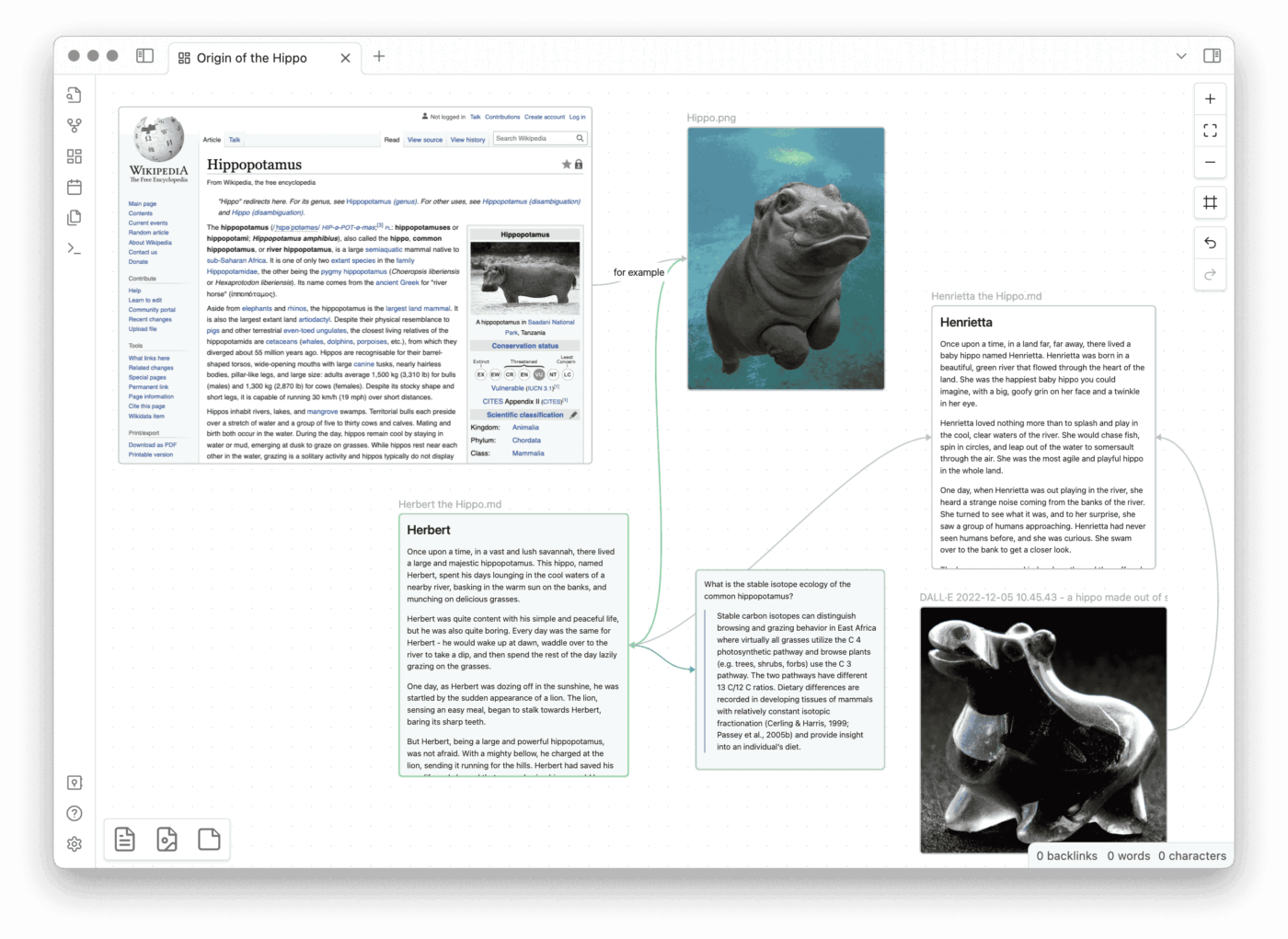
Obsidian is a local-first knowledge base that stores every note as a plain Markdown file on your device and links them into a connected graph. That single design choice is why I picked it up: my notes are mine, they open in any text editor, and they will outlive any company’s servers. Researchers, writers, and developers gravitate to it for exactly that reason.
What won me over was the mix of control and speed. The notes work fully offline, and a deep plugin ecosystem lets me bolt on whatever I need, from Kanban boards to AI assistants.
The real payoff showed up over months. Bidirectional linking meant every new note connected back to old ones, and the graph view turned a flat folder of files into a knowledge system I could navigate. Canvas also gave me ample space to research, brainstorm, and diagram. I could pull scattered notes onto one board and map out an argument visually before writing a word.
When I needed my notes on more than one machine, Obsidian Sync handled it without breaking the local-first promise. It syncs across devices with end-to-end encryption and keeps a full year of version history, so I can roll back any note.
A G2 user valued how it anticipates the small moves while you write:
The note-taking, creation of additional notes based on @ tags, is very helpful. I also like some of the automations that anticipate what symbols I’m needing (such as closing a parenthesis for me). One of the more helpful apps I’ve used in my day-to-day performance.
Where Obsidian falls short: There’s a learning curve, and the file-based model means real-time team collaboration isn’t its strength. That means it fits individuals far better than teams. Also, setting it up the way you want takes time and some plugin tinkering up front.
Skip Obsidian if: You need real-time team collaboration or a tool that works fully out of the box, in which case a cloud-based workspace will fit better.
An automation and AI assistance tool takes repetitive work off your plate, either by moving data between apps automatically or by drafting and answering on demand. I tested three that handle different parts of that job.
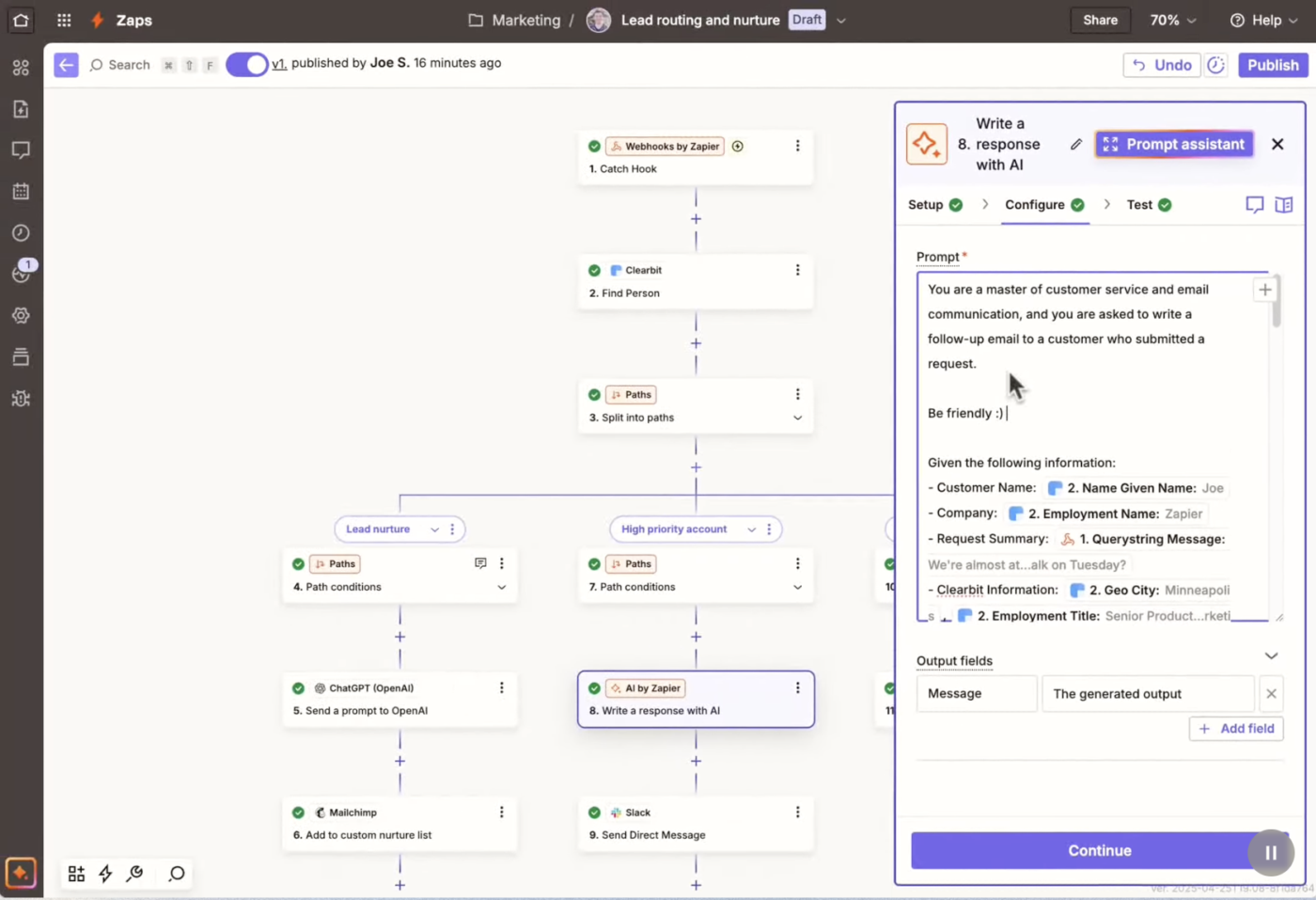
Zapier is a cross-app automation platform that connects 9,000+ tools and automatically moves data between them, with no code. A new form entry can create a task, update a CRM, and post to chat, all without anyone copying a thing.
In practice, I built a Zap that caught new form responses, logged them to a sheet, and pinged the right channel. Those small handoffs that used to clutter my list now run on their own, which frees up the attention I would’ve spent remembering them.
The depth surprised me once I dug in. Filters let a workflow run only when it matters, such as when a deal exceeds $5,000. Paths route data down different branches with simple if-then logic. Formatter cleans up dates and text before they land in the next app. These turned my basic Zaps into real logic, and they still needed no code.
Reach is what makes it stick across a team. Whatever tool your team relies on, Zapier probably supports it. Plus, even a non-technical teammate can build their own Zaps in an afternoon. Newer additions like Tables, Canvas, and AI Agents push it further, letting you map a workflow from a plain-English prompt.
A G2 user was struck by how fast it removed repetitive work:
I didn’t have to spend weeks designing complicated workflows. My first Zap took less than fifteen minutes to set up, and from that moment on, it started eliminating the manual tasks we were doing every day. We had several processes that weren’t particularly difficult, just repetitive. With Zapier, we connected everything, and the whole workflow became automatic. Processes that required multiple human actions now happen in seconds, and more importantly, the interface is user-friendly. The Trigger → Action logic is so straightforward that even people without a technical background can pick it up quickly. What surprised me even more is how much the platform has evolved over the years. What started as a simple automation tool now includes Tables, Interfaces, Canvas, Chatbots, AI Agents, and Copilot.
Where Zapier falls short: Pricing is tied to task volume, so the bill climbs as your automations get popular, something reviewers flag often. Complex, branching workflows can also take some trial and error to debug.
Skip Zapier if: Your workflows live almost entirely inside one platform that already has native automation, in which case you may not need a separate connector.
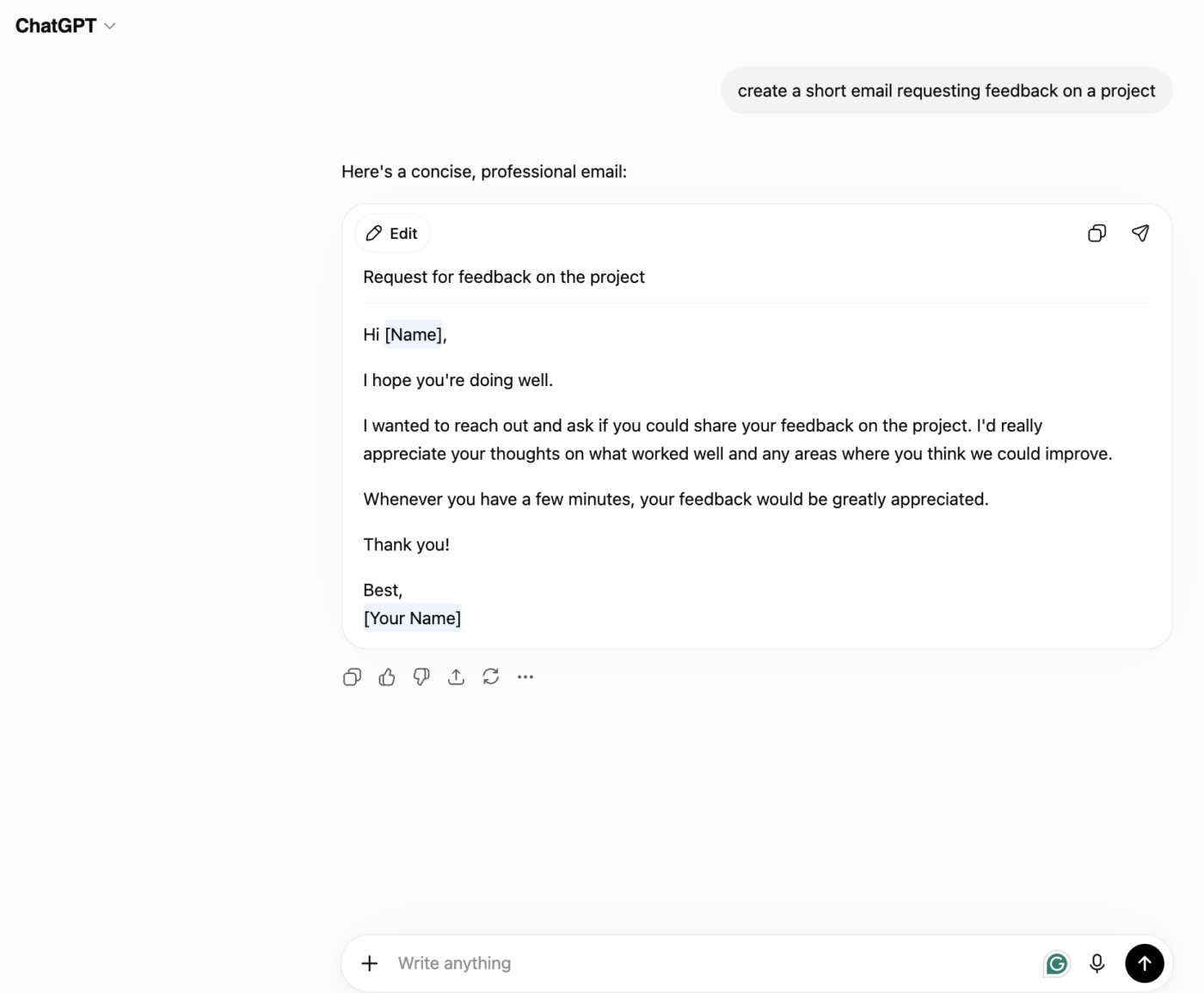
ChatGPT is a general-purpose AI assistant for drafting, summarizing, researching, and light coding from a single chat box. I leaned on it whenever a task was too small to open a dedicated app for, but too fiddly to do by hand.
The value for me was speed on first drafts. I would hand it a rough outline and get back something I could shape in minutes, instead of staring at a blank page. It summarized long reports into a few lines, turned messy notes into clean copy, and untangled the occasional script. The paid tiers add bigger context windows and file uploads, so I could drop in a full document and ask questions against it.
What earned it a spot was the low barrier. There are no menus to learn and no setup. I typed what I needed in plain words and got a usable answer. For the ad hoc thinking that fills a working day, like drafting an email, naming a feature, and sanity-checking an idea, it became the fastest way to get unstuck.
A G2 user pointed to the hours it saves on drafting:
ChatGPT has become an essential part of my daily workflow. The interface is clean and intuitive—no learning curve at all. Performance is fast even with long prompts. For a tech writer, the ROI is clear: I save at least 2-3 hours per week on documentation drafts. It also integrates well with other tools via API. The AI quality is genuinely impressive—responses are accurate, well-structured, and easy to adapt.
Where ChatGPT falls short: It can produce confident answers that are wrong, so anything factual needs a human check. It also does not track your tasks or projects, so it works best when feeding into a tool that manages the actual work.
Skip ChatGPT if: You need a system of record that tracks tasks and projects, since this is a thinking and drafting partner rather than a place to manage work.
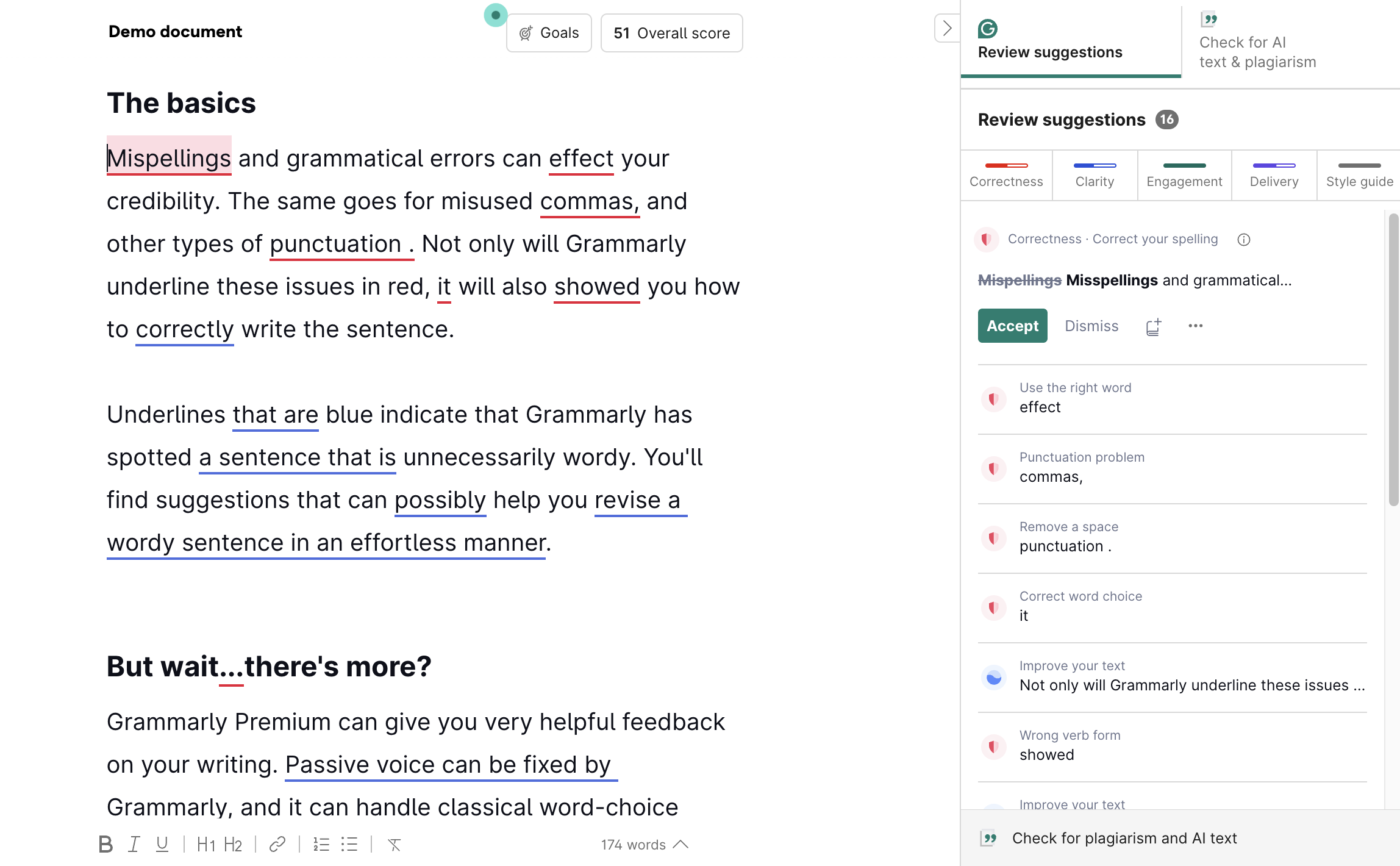
Grammarly is an AI writing assistant that checks grammar, clarity, and tone in real time across your email, docs, and browser.
The daily value was the consistency. I never had to paste text into a separate tool or break my flow. Grammarly flagged a clunky sentence the moment I wrote it. It suggested tighter phrasing and caught the typo I would’ve missed. Over a week, that steady stream of small fixes added up to cleaner writing for no extra effort.
The tone feature is the one I did not expect to lean on. Before sending a touchy email, I checked how it read, and Grammarly told me it sounded blunt. One click warmed it up. For anyone who writes to clients or execs, that read on tone is worth a lot. It catches the problems you can’t see in your own words.
The generative side does the heavy lifting now. I used it to shorten a long paragraph, rewrite a sentence in three ways, and shift a whole draft to be on-brand.
Grammarly works best layered on top of your other tools, polishing the words after the thinking is done. For people who send a lot of writing into the world, it raises the floor on quality.
A G2 user valued how naturally it fits into everything they already use:
Grammarly is really helpful. It integrates really well into all of the various programs that I use, and feels much more effortless than nearly any of the other AI assistants I’ve tried. Grammarly has also improved my grammar and writing – I have already seen a few places where I am correctly using a grammatical rule I was misusing before. It’s really easy to use, clear, and unobtrusive. I highly recommend it.
Where Grammarly falls short: Integration can be uneven across some platforms, and the free plan covers basics rather than the generative rewriting most professionals want.
Skip Grammarly if: You only need occasional grammar checks that a built-in editor already handles, since the paid value lies in the generative and tone features.
Personal speed and focus tools target the small actions that eat your day, like opening apps, searching for files, and pasting text, collapsing each into a keystroke or a single view. I tested the top two tools in this space.
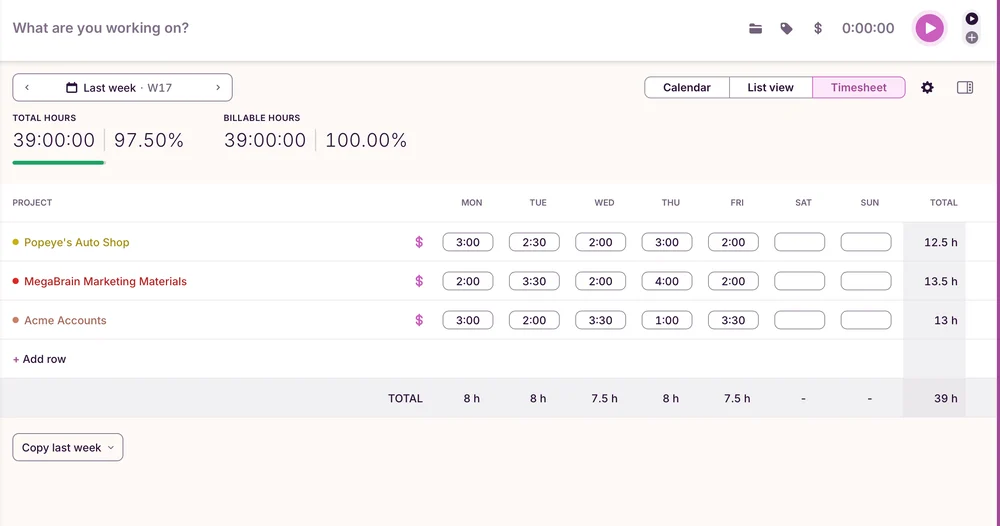
Toggl Track is a time tracker that logs hours in one click and turns them into clean reports and timesheets. It can also track automatically in the background, logging the apps and sites you use so you can fill gaps you forgot to start a timer for. That low bar is the point, because a tracker only helps if you use it past the first week.
I picked it up to answer a simple question: where does my day actually go? After a week, the timesheet reports had an honest answer. I was losing two hours a day to context switching, which I never noticed. The reporting and analytics view broke it down by project and task, so I could see the leak on a chart.
The reporting is good, too. Toggl groups your entries automatically and turns them into clean timesheets by project, client, or task. For freelancers, the built-in invoicing turns those hours into a bill in minutes, with no spreadsheets or math. Teams get the same view to see where the week went, plus time off tracking to plan around leave.
It connects through 100+ integrations and browser extensions, so it tracks time inside the tools you already use. For pure time visibility, few tools feel this light. It does one job and respects your attention while doing it.
A G2 user valued how fast it is to start and how clearly it shows the time:
The best thing about Toggl Track is how quick it is to start tracking time. You just hit the timer and get back to work, no complicated setup. I also like how it automatically groups your entries and shows everything clearly in the reports. It actually makes you aware of where your time is going without feeling heavy or confusing. The interface is clean, and it works the same on web and mobile, which makes it easy to keep track of things.
Where Toggl Track falls short: It has a narrow focus, so it tracks time well but will not manage your projects or tasks. Reviewers also note that the deeper reporting features are available only on the paid tiers.
Skip Toggl Track if: You want time tracking built into the same tool that runs your projects. In that case, tools like ClickUp, with time tracking native to the platform, fit better than a standalone specialist.
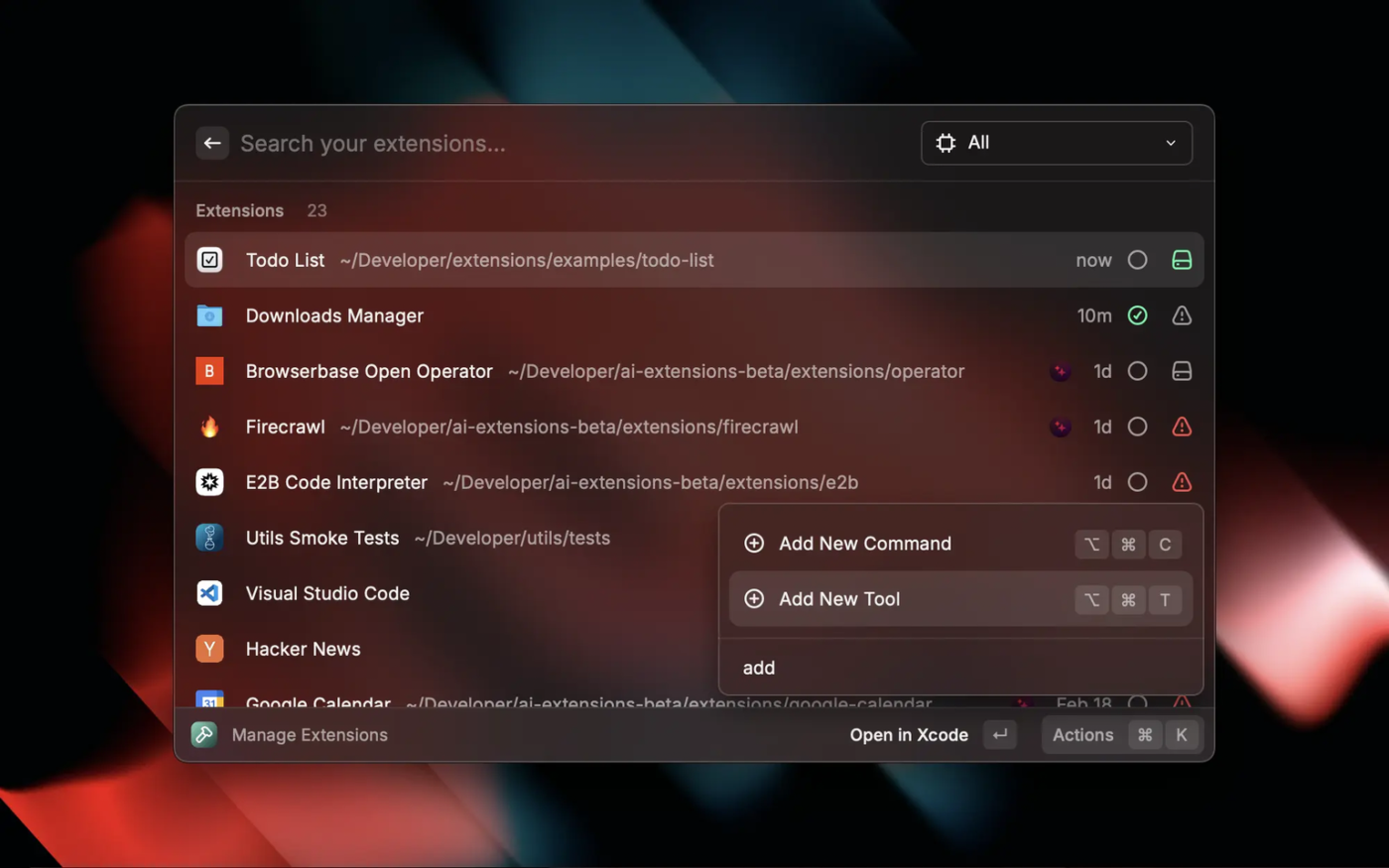
Raycast is a keyboard-first Mac launcher that puts apps, commands, snippets, and AI within a single shortcut.
The payoff shows up in the math of small savings. A normal app switch costs a few seconds and a sliver of attention. Raycast collapses that to a keystroke, and over the course of a day, those moments add up to real time and far fewer breaks in concentration.
The depth is in how many jobs it absorbs. Window management snaps apps into place without dragging. Snippets expand a keyword into a full block of text you would otherwise retype. The built-in calculator converts currency and time as you type. Raycast Notes lets me jot a thought without opening another app, and Raycast Focus blocks distracting apps during a work session. Each one removes a reason to leave the keyboard.
The AI layer ties it together on the paid tiers. Quick AI answers a question straight from the search bar, AI Chat works like an always-on assistant, and AI Commands run prompts you save for repeat tasks. None of it opens a separate window. For someone who relies on shortcuts, Raycast makes your Mac faster.
A G2 user described it as a true all-in-one hub for daily actions:
The incredible speed and flexibility of the extensions. I love being able to connect all my services (GitHub, Notion, Linear) and perform actions without ever leaving the launcher. The Snippets and Clipboard History are indispensable, and the built-in features like Window Management and Quicklink search make it a true all-in-one productivity hub. It saves me tons of time every day.
Where Raycast falls short: It is Mac-only at full strength (Windows is still in beta). That means cross-platform teams are out, and the more advanced AI features are behind a paid plan. It speeds up one person’s machine rather than coordinating a team.
Skip Raycast if: You work across Windows or Linux, or you want a team tool rather than a personal accelerator for your own Mac.
Before selecting a productivity tool, reconsider what “being productive” really means. This ClickUp video explains why many productivity systems fail and how to create one that lasts.
Start with the problem, not the feature list.
A productivity tool only helps when it removes the specific friction your team feels every week. Missed handoffs need a different tool from scattered notes. Manual admin needs a different tool from calendar overload. A team trying to consolidate work should not evaluate tools the same way a solo writer, freelancer, or Mac power user would.
The easiest way to choose is to ask what kind of productivity problem you are solving.
If your team struggles with unclear ownership, missed deadlines, scattered updates, and project visibility, start with a work management tool. ClickUp fits teams that want tasks, docs, chat, dashboards, time tracking, and AI in one shared workspace. Notion fits teams that care more about flexible documentation, wikis, and internal knowledge.
If the problem is personal planning, choose a personal productivity tool instead. Todoist works well when you need a fast task list with almost no setup. Motion is better when you want your calendar to plan your day for you. Raycast is useful for Mac users who want to move faster across apps, snippets, commands, and AI without touching the mouse.
Use the bottleneck as your buying filter:
| If your problem is… | Start with… |
|---|---|
| Too many disconnected apps | ClickUp |
| Flexible docs and internal knowledge | Notion |
| Personal task overload | Todoist |
| Calendar chaos and shifting deadlines | Motion |
| Long-term personal notes and research | Obsidian |
| Repetitive handoffs between apps | Zapier |
| Drafting, summarizing, and ideation with low setup | ChatGPT |
| Editing, tone, and grammar checks | Grammarly |
| Time visibility and billing | Toggl Track |
| Faster Mac workflows | Raycast |
This also prevents tool overlap. For example, if your team already manages projects inside ClickUp, you may not need a separate time tracker unless your reporting needs are very specialized. If your writing already happens inside Google Docs, Grammarly may add more value than moving the whole team into a new workspace.
The best productivity tool is not always the most powerful one. It is the one your team can use without constantly changing tabs, copying updates, or rebuilding habits from scratch.
Before choosing, check these three things:
This is where all-in-one tools and automation tools solve different problems. ClickUp reduces tool switching by keeping work, docs, comments, reporting, AI, and automation in one place. Zapier helps when your team still needs several apps, but wants them to communicate automatically.
Do not buy an automation tool to fix a messy workflow you have not defined. Automating chaos only moves bad data faster.
Almost every productivity tool now has AI. That does not mean every AI feature is useful.
Look for AI that works inside the tool’s core job. ClickUp Brain can answer questions from live workspace data. Motion uses AI to rebuild your schedule when work changes. Grammarly improves text where you write. Zapier uses AI to help build and run workflows. ChatGPT is stronger as a general assistant, but it does not manage your tasks or projects on its own.
The question is not “Does this tool have AI?” The better question is: “Does the AI remove work my team actually repeats?”
If the answer is no, treat it as a bonus rather than a deciding factor.
Every tool on this list now ships its own AI. Stack five of them, and you don’t get five assistants, you get five siloed ones that can’t see each other’s data. ChatGPT doesn’t know your tasks, Notion AI can’t read your Zaps, and Motion can’t see your docs. You’ve just recreated the toggling problem one layer up, at the AI level. The tools that actually compound are the ones whose AI can reason across your whole workspace, which is the real argument for consolidating rather than collecting.
Some tools are useful immediately. Others need structure before they pay off.
Todoist, Grammarly, ChatGPT, Toggl Track, and Raycast are low-friction tools. You can start using them the same day. ClickUp, Notion, Zapier, and Obsidian can offer more depth, but they need setup, rules, and maintenance.
That is not a bad thing. It just means the rollout should match the tool.
For team tools, start with one workflow: editorial calendar, sprint planning, client requests, content approvals, or weekly reporting. Don’t migrate everything at once. Teams lose momentum when they try to redesign their entire operating system in week one.
A cheap tool can get expensive if the limits sit exactly where your team needs depth. Check the details before committing:
This is especially important for tools like Zapier, where automation volume affects cost, and Motion, where you need to be comfortable paying for AI scheduling from the start. On the other hand, a broader tool like ClickUp may cost more than a simple task app, but make sense if it replaces docs, dashboards, time tracking, chat, and reporting tools.
Use this checklist when comparing any productivity software, so you’re judging fit instead of feature counts:
Score each tool against the criteria that matter for your team, and ignore the ones that don’t. A freelancer and a 200-person org will weight this list very differently.
Notice what every tool on this list is really fighting: the cost of work scattered across too many places. Todoist tames a personal list, Motion defends your calendar, Zapier stitches apps together, and Grammarly cleans up the writing. Each one closes a specific gap, and the trick is buying for the gap you feel.
Two habits keep the stack honest. Add a tool only when it removes a friction you can name, and retire whatever it replaces, so you’re consolidating instead of collecting. Then roll it out one workflow at a time.
If the gap you keep hitting is the toggling itself, the answer isn’t another app, it’s fewer of them. That’s where ClickUp earns the top spot: tasks, docs, chat, dashboards, AI, and agents in one place, so the work stops living in ten tabs. Get started free.
Productivity tools fall into five rough categories: all-in-one work management platforms (ClickUp, Notion), personal task and schedule managers (Todoist, Motion), knowledge bases (Obsidian), automation tools (Zapier), and AI or writing assistants (ChatGPT, Grammarly). Most teams end up combining one platform with one or two specialists rather than buying across every category.
A task manager organizes one person’s to-dos with minimal setup, while a project management tool coordinates multiple people with assignees, dependencies, statuses, dashboards, and reporting. Todoist is a task manager; ClickUp is a project management platform. The dividing line is whether you’re tracking your own work or other people’s.
Office suites like Microsoft 365 and Google Workspace have the largest install base, but among dedicated work platforms, ClickUp, Notion, and Asana are the most adopted, each holding 4.5+ ratings across 10,000+ G2 reviews. “Most used” rarely means “best for you,” though, which is why fit beats popularity.
Most offer a free tier and paid plans from roughly $5 to $30 per user per month. Watch the pricing model: Zapier bills based on task volume, and Motion charges per seat with no free tier. That means an inexpensive tool can get expensive once usage scales. Always model the cost based on your actual headcount before committing.
Yes, when the AI works inside the tool’s core job rather than bolting on summaries. ClickUp Brain answers from live workspace data, Motion auto-schedules your calendar, and Grammarly fixes text where you write. Treat standalone “AI features” that don’t remove repeated work as a bonus, not a buying reason.
A common high-leverage stack pairs one work management hub with a few specialists: a platform like ClickUp or Notion for tasks and docs, Zapier to connect the apps it doesn’t natively touch, and Grammarly or ChatGPT for writing. The goal is coverage without overlap, since duplicate tools scatter data and raise switching costs.

Manasi Nair
Max 23min read
Manasi Nair
Max 29min read
Manasi Nair
Max 14min read

© 2026 ClickUp




