Sorry, there were no results found for “”
Sorry, there were no results found for “”
Sorry, there were no results found for “”
Evernote’s free tier collapsed from unlimited to 50 notes in a single notebook. Paid tiers cost more than most competitors’ full-featured plans. A decade of your notes suddenly sat behind a paywall.
The best Evernote alternative depends on what broke first. Was it the price, the note limits, weak collaboration, or the fear of getting locked out of your own files? If you want a free Evernote replacement, start with OneNote or Apple Notes. For an open-source Evernote alternative, start with Joplin or Obsidian. Or if your notes need to become tasks, start with ClickUp.
Other than that, Apple Notes is the best zero-cost default if you’re fully on Apple hardware. Google Keep handles fast capture and reminders. Bear is the cleanest Markdown writing surface for Mac and iOS.
We compared all eight on free-tier limits, pricing, search and capture quality, cross-platform sync, data portability, and whether the app scales beyond personal notes. Each section covers what the tool does well, where it falls short, and who should skip it.
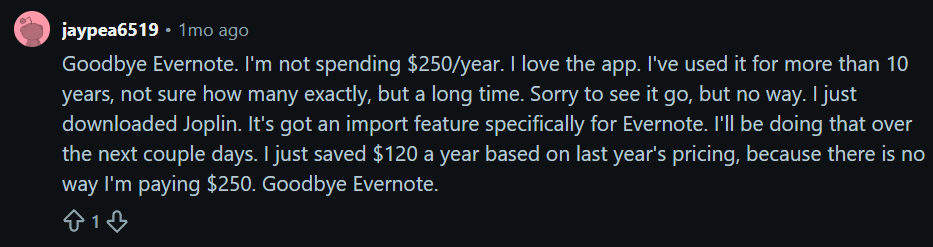
One longtime Evernote user’s reaction to the price increase:
| Tool | Best for | Standout feature | Starting price* | Honest limitation |
|---|---|---|---|---|
| Notion | Individuals and teams structuring notes as databases | Every note becomes a filterable database row | Free; Paid plans from $10/user/mo | Slows down on large workspaces |
| OneNote | Microsoft 365 users wanting a free swap | Handwriting search with no note cap | Free with a Microsoft account | Awkward export and lock-in |
| Obsidian | Solo power users who own their files | Plain-text files you own, linked in a knowledge graph | Free; Sync from $4/user/mo | Steep setup, no real-time collab |
| ClickUp | Teams of all sizes turning notes into tasks | Notepad lines convert to tracked tasks in 2 clicks | Free forever; Paid plans from $7/member/mo | Notepad is basic, setup curve from breadth |
| Apple Notes | All-Apple individuals wanting zero cost | Built-in OCR search across images and handwriting | Free on every Apple device | Apple-only, painful export |
| Joplin | Privacy-focused users self-hosting notes | E2E encryption plus one-click Evernote import | Free; Joplin Cloud from $2.75/mo | Dated UI, no bidirectional links |
| Google Keep | Individuals needing quick capture | Time- and location-based reminders | Free; no paid tier | No folders, minimal formatting |
| Bear | Solo Mac and iOS writers doing long-form | Nested tag hierarchy replaces rigid notebooks | Free; Pro $29.99/yr | Apple-only, no databases or collab |
*Please check the tool’s website for the latest pricing.
How we review software at ClickUp
Our editorial team follows a transparent, research-backed, and vendor-neutral process, so you can trust that our recommendations are based on real product value.
Here’s a detailed rundown of how we review software at ClickUp.
Eight tools made this list: Notion, OneNote, Obsidian, ClickUp, Apple Notes, Joplin, Google Keep, and Bear. Each one replaces Evernote for a different job and fails at the others. Every pick below gets the same treatment.
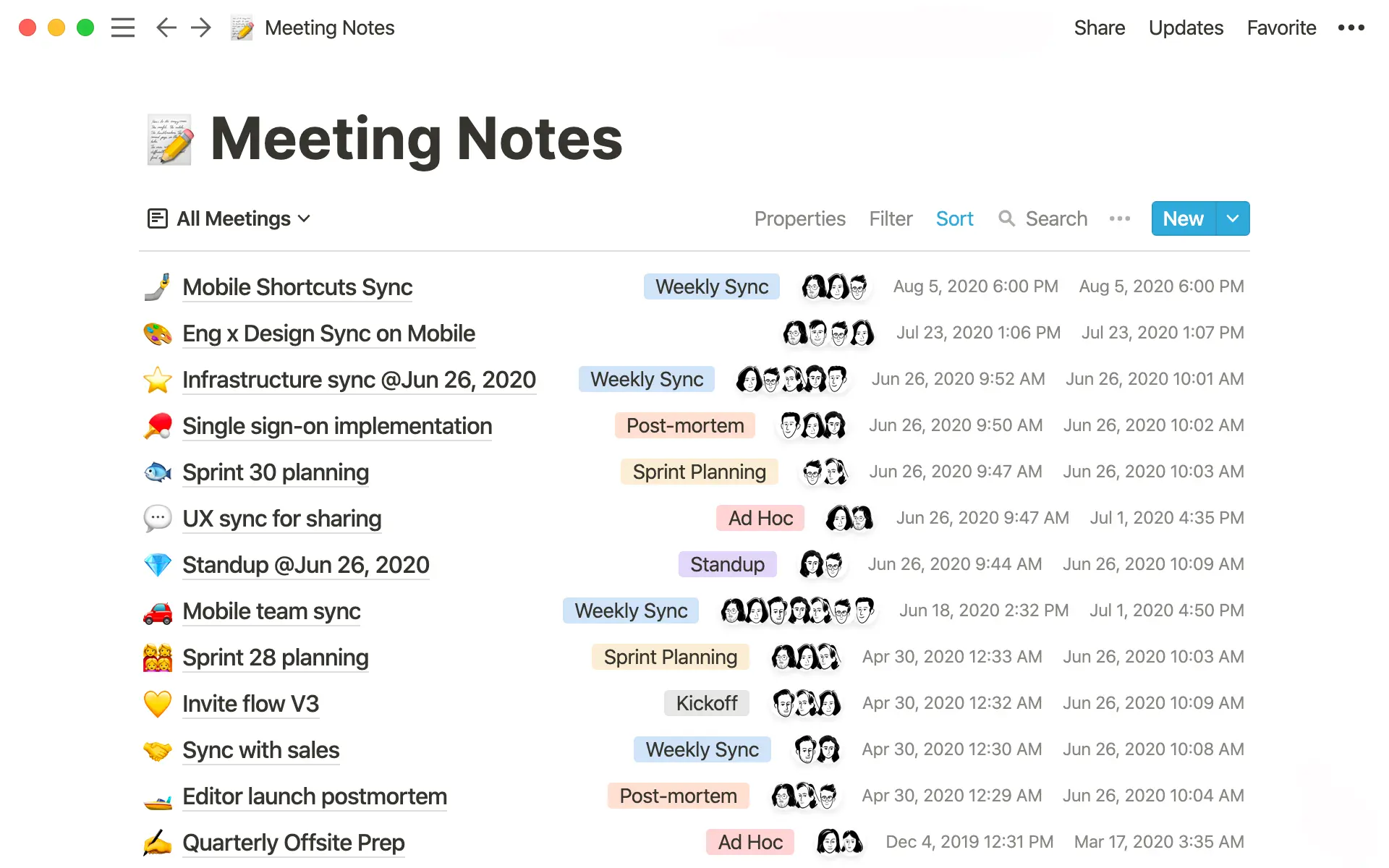
Notion’s main difference from Evernote is how it stores notes. In Evernote, a notebook is just a list of notes. In Notion, each note can also be a row in a database, with fields like tags, dates, or status. So a list of saved articles can become a table you sort and filter by topic, length, or whether you’ve read it.
The basics still work the way you’d expect. The Web Clipper saves web pages, search covers your whole workspace, and you can nest pages as deep as you need.
Notion also handles shared notes well. Team spaces, page permissions, and comments let a group work in the same place. This is also where it does more than Obsidian or Apple Notes.
Pricing: Notion pricing starts with a free plan (unlimited pages and blocks for individuals). The mid-level Plus plan costs $10 per user/month, billed annually. It unlocks unlimited file uploads and collaborative blocks. Business runs $20 per user/month, billed annually, and adds private team spaces, SAML SSO, and Notion’s AI features.
Ratings: It currently holds a 4.6 out of 5-star rating on G2, based on 12,000+ reviews, with users frequently praising its all-in-one flexibility and deep customization.
Where Notion falls short: It slows down on large databases. Reviewers consistently flag slow load times, and the mobile app lags noticeably with heavy workspaces.
Skip Notion if: You want to open an app and write one line in under two seconds. Or you need rock-solid offline notes (Evernote’s offline mode is more dependable).
What are real users saying about Notion?
Hear from a G2 reviewer:
Notion has streamlined my university organization and workflow. Being able to track tasks and manage files takes a massive amount of stress out of my daily routine. Notion AI has also been incredible for note-taking and summarizing information—it’s even helped me plan my final-year dissertation. Packed with features, it is easily worth the $10 a month asking price, which feels like an absolute steal.
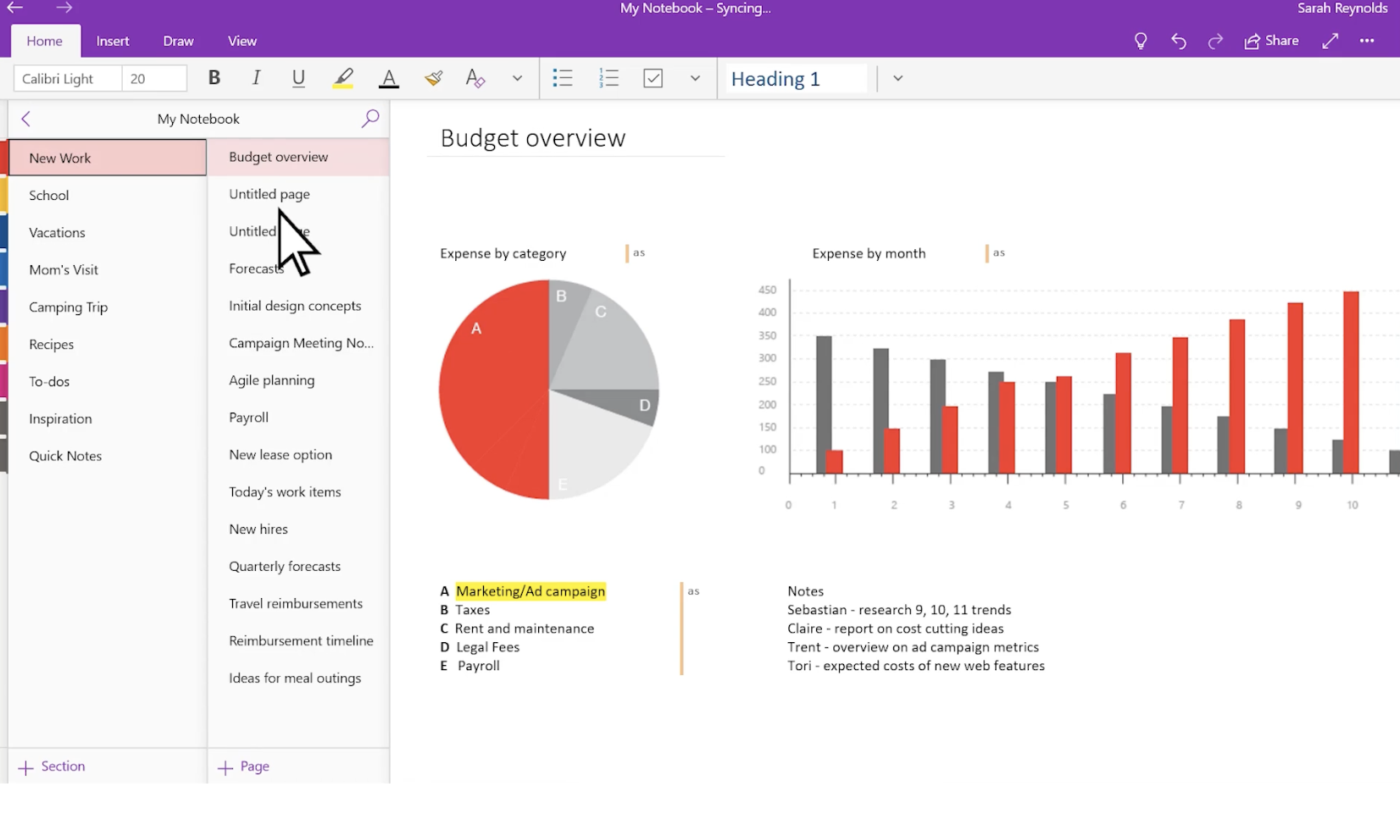
OneNote is the closest thing to a like-for-like Evernote replacement. It keeps the same notebook, section, and page structure that Evernote users already think in, so there’s little to relearn. The bigger difference is the limits: where Evernote’s free plan caps your notes, OneNote doesn’t cap notebooks or pages at all. You’re only bound by your OneDrive storage.
Its handwriting recognition lets you search your own handwriting, which is a paid feature in Evernote. It also clips the web, records audio, and syncs across Windows, Mac, iOS, and Android. Plus, the Outlook and Word integration is seamless. So if your work already runs on Microsoft 365, OneNote removes friction.
Pricing: OneNote is free with any Microsoft account, with note storage counting against your 5 GB free OneDrive allowance. Heavier users get more room and Copilot AI through a Microsoft 365 subscription.
Ratings: It currently holds a 4.5 out of 5-star rating on G2 across 1,800+ reviews. Users frequently praise its handwriting tools, organization, and tight integration with Microsoft.
Where OneNote falls short: Sync between devices can be flaky, and reviewers report lags and a clunky export process. OneNote’s free-form canvas feels flexible at first, but it gets messy fast.
Skip OneNote if: You want a clean Markdown export or a minimal, structured writing space. Exporting notes out of OneNote later is awkward, so weigh the lock-in before committing years of notes.
What are real users saying about Microsoft OneNote?
This is what a G2 reviewer has to say:
What I like best about Microsoft OneNote is how easy it is to keep all my notes in one place. I use it for meeting notes, project information, quick reminders, and day-to-day work, so I don’t have to search through multiple documents.
I also like that notes sync across devices and are easy to find later using search. It helps me stay organized and keeps important information readily available when I need it.
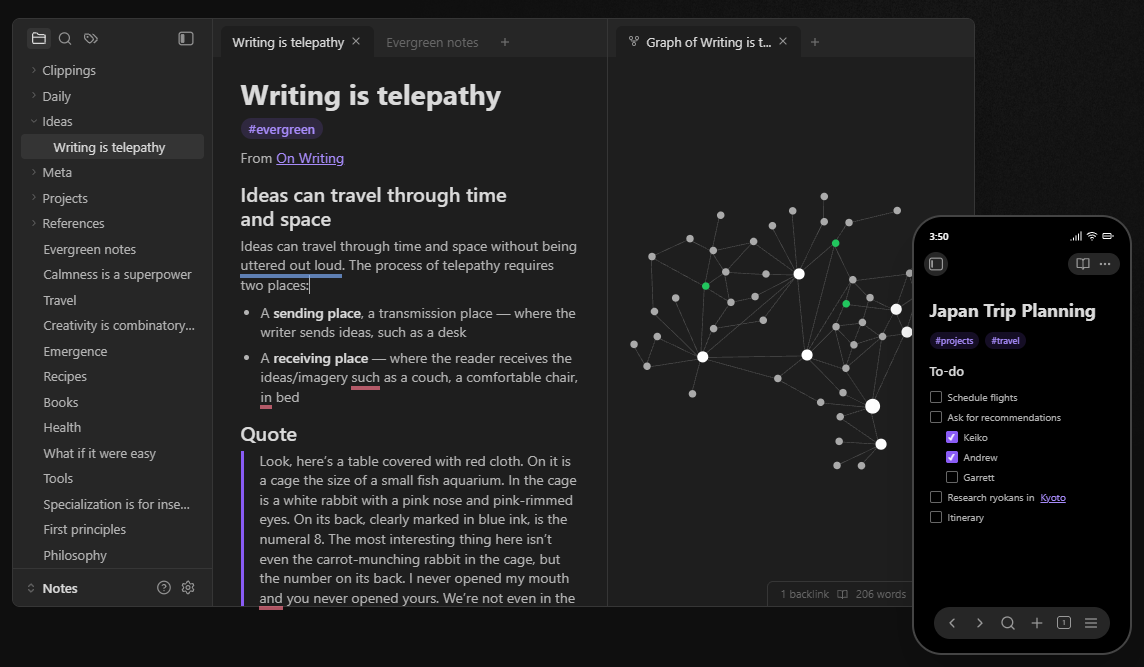
If your priority is owning your notes, not collaborating on them, Obsidian works. It answers the one fear every Evernote refugee shares: getting paywalled out of your own writing. Your notes live as plain text Markdown files in a folder on your device, so no company can lock them behind a price hike. If Obsidian vanished tomorrow, the files would still open in any text editor.
That local-first setup also makes it fast, since there’s no server to wait on when you open a note. On top of those files, Obsidian adds a knowledge graph. You can link a note to any other with [[wikilinks]], then see the connections mapped out. If you used Evernote to build a second brain and wished your notes could reference each other, this is the upgrade.
[[wikilinks]] and view how they relatePricing: Obsidian’s app is free for personal use, with all core features and community plugins included. Paid extras are optional add-ons. Sync at $4 per user/month billed annually for end-to-end encrypted sync and version history. Publish at $8 per site/month, billed annually, to turn notes into a public website. Business use needs a commercial license at $50/user/year.
Ratings: It currently holds a 4.8 out of 5-star rating on Capterra across 30+ reviews. Reviewers prefer it for its speed, plain-text controls, and deep customization.
Where Obsidian falls short: The learning curve is steep, especially if you don’t like tinkering with Markdown and plugins. Reviewers call this out repeatedly. Getting started can mean assembling your own setup.
Skip Obsidian if: You need real-time collaboration. It doesn’t exist here, so teams are far better off with Notion or ClickUp.
What are real users saying about Obsidian?
A Capterra reviewer shared their feedback:
As a language instructor, I finally found software that handles my chaotic mix of Norwegian, Swedish and Albanian notes. The bidirectional linking helps me connect grammar concepts across languages, when I explain Norwegian verb conjugations, I can instantly reference similar Swedish patterns. The markdown format means I don’t lose formatting when copying between devices. Plus it’s completely free for personal use, which matters when you’re working at a small language center.
ClickUp is the best Evernote alternative for teams, not for solo journaling. Choose it if your meeting notes, research notes, or rough ideas usually become assigned work. Skip it if you only want a lightweight personal notebook.
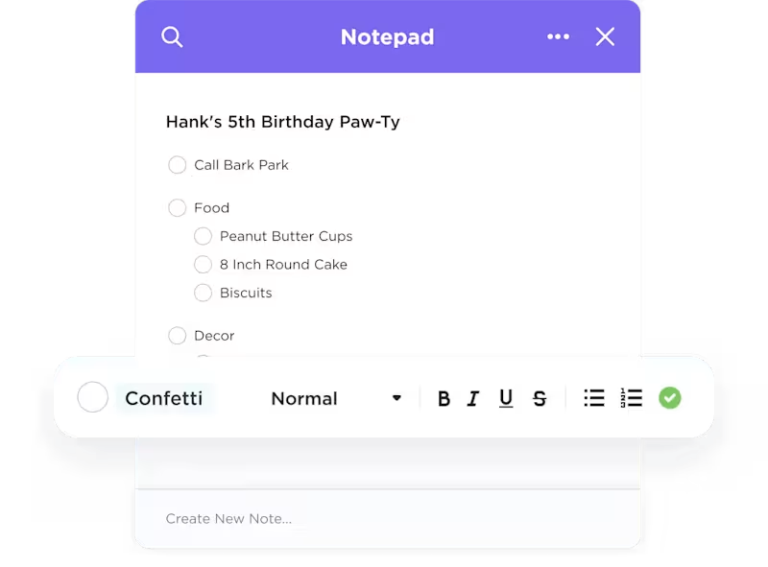
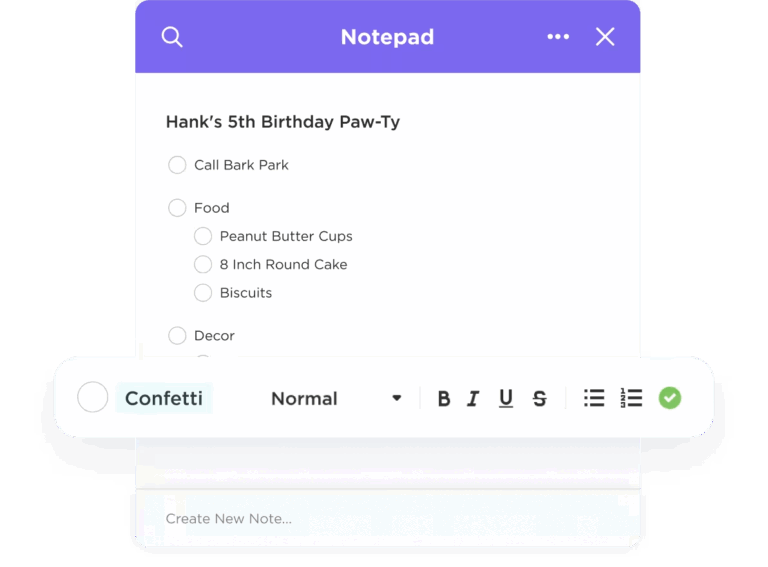
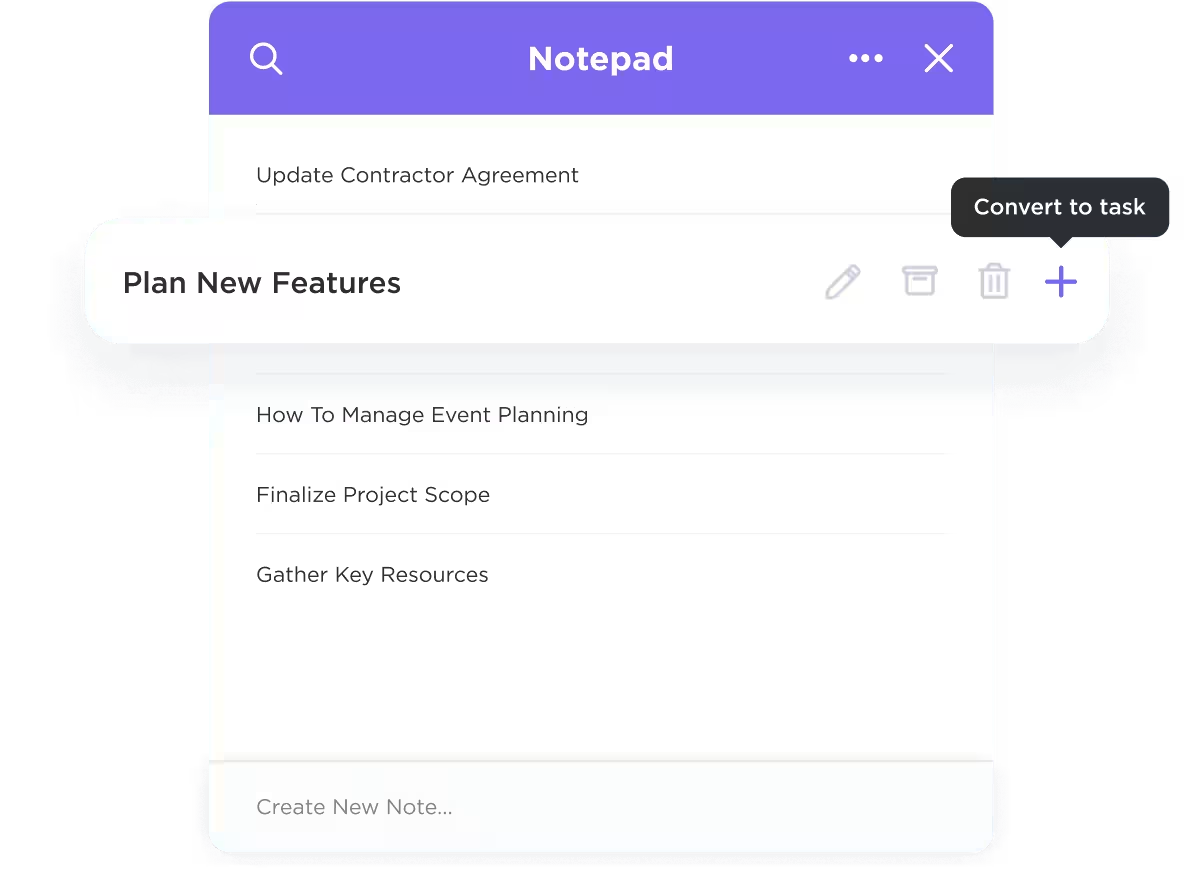
ClickUp Notepad maps most directly to how people used Evernote. It is a persistent scratch pad available from every screen in the app. Open it, type a thought, close it, move on. ClickUp lets you turn any line in that Notepad into a tracked task with an assignee, due date, and priority in just 2 clicks.
When notes outgrow a scratch pad, ClickUp Docs picks up. Attach a doc to a project list, and it inherits that project’s people, statuses, and context. Highlight a line, create a task from it, and the task stays linked back to the paragraph it came from.
Pricing:
Ratings: ClickUp holds a 4.6 out of 5-star rating on G2 across 12,700+ reviews. Users highlight the consolidation of scattered tools and the flexibility of task structures.
Where ClickUp falls short: ClickUp is a work platform with built-in note-taking, so its Notepad is intentionally lighter than a dedicated notes app. Teams consolidating tools get the most value; solo journalers will find it heavier than they need.
Skip ClickUp if: Your notes are personal, private, and never need to become anyone’s assignment. Apple Notes, Bear, or Obsidian will feel lighter and more focused.
What are real users saying about ClickUp?
A G2 reviewer explains why ClickUp is their go-to:
ClickUp is my daily go-to tool at our agency for managing tasks, teamwork, and creative chaos. It’s modern, clean, intuitive and incredibly customizable, which allows me to tailor everything exactly to the way my brain works. The UX is well thought out and genuinely makes it fun to work with. I also appreciate how easy it is to connect everything, streamline workflows, and collaborate efficiently. Features like Whiteboards, Clips, Reminders and the Notepad help me keep everything in one place. No more scattered tools, thoughts or chaos. It’s clean, efficient, and actually fun to use.
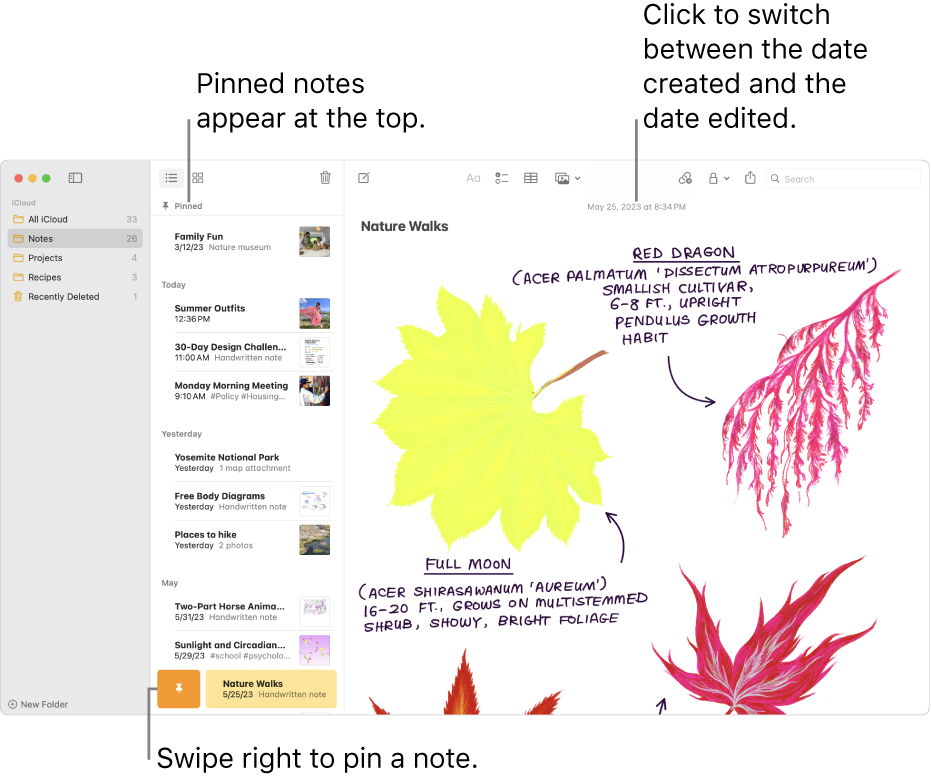
If you already use an iPhone, iPad, and Mac, the best Evernote alternative might be Apple Notes. It handles checklists, tables, scanned documents, Apple Pencil handwriting, folders, tags, and password-locked notes, all free and built in.
Notes sync across your Apple devices through iCloud without a new account, setup, or subscription. Search is fast and now reads text inside images and handwriting too.
Pricing: Apple Notes is free on every Apple device, with notes syncing against your free 5 GB iCloud allowance. If you need more room, an iCloud+ subscription is the way to go. But that’s a storage upgrade, not a Notes-specific fee.
Ratings: Apple Notes isn’t listed as a standalone product on G2 or Capterra, so there’s no verifiable star rating to cite. In expert reviews, Cloudwards likes its seamless Apple integration, clean interface, and security, while flagging weak cross-platform support and missing templates.
Where Apple Notes falls short: It’s effectively Apple-only, the iCloud web version is stripped down and unreliable, and there’s no Windows or Android app. Organization also tops out at folders and tags, with no databases or nested views like Notion, and heavy image-laden notes can lag.
Skip Apple Notes if: You work across Windows or Android. Or you need structured databases and clean export, as getting your notes back out later is painful.
What are real users saying about Apple Notes?
A Redditor had this to say:
I’ve used Apple Notes for nearly everything for over a decade now. It has great support and tons of updates. There’s definitely some missing features from Notability or Goodnotes, but Apple Notes is just such a good all-around platform. I definitely type my notes way more than handwriting though.
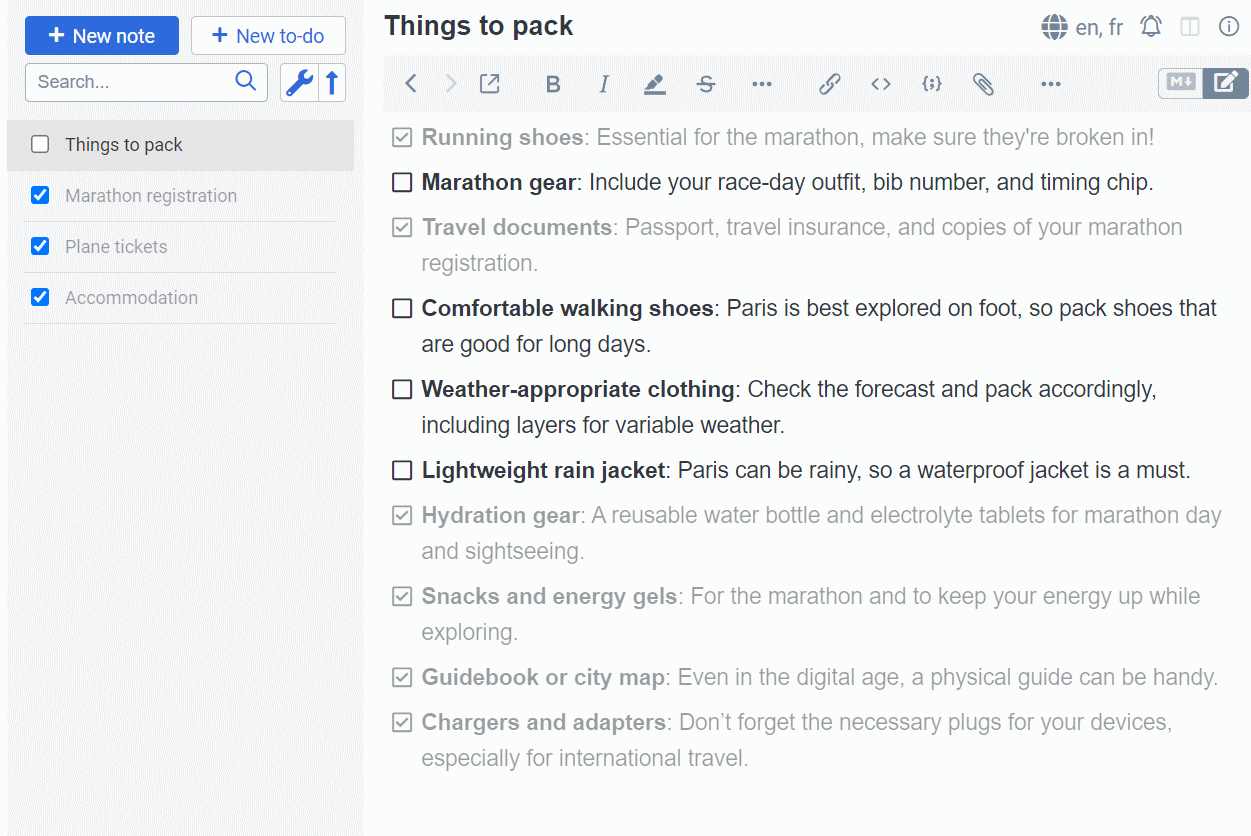
Joplin is built around control. It’s free, open-source, and supports end-to-end encryption. Your notes stay yours in a way a closed commercial app can’t promise. You also choose how it syncs, whether through Joplin Cloud, Dropbox, OneDrive, Nextcloud, or a server you host yourself. No single vendor controls your notes.
For Evernote users, Joplin has a real edge: a built-in importer pulls your notebooks and notes straight over via ENEX export. Migrating years of notes becomes painless. If you want Obsidian-style ownership but prefer a normal notebook structure over a knowledge graph, Joplin is the middle path.
Pricing: Joplin’s app is free and open-source, syncing through whatever service you choose. Paid Joplin Cloud tiers add hosted sync and publishing: Basic at $2.75/month billed annually with 2 GB storage. Pro at $5.45/month billed annually with 30 GB. And Teams at $7.6/user/month billed annually (minimum two users) with 50 GB per user. (All pricing converted from Euro to USD).
Ratings: Joplin doesn’t carry a meaningful G2 or Capterra footprint. There’s no star rating to cite. On Product Hunt, reviewers consistently praise its privacy focus, encryption, cross-platform reach, and flexible sync.
Where Joplin falls short: The polish lags the competition, and reviewers call the desktop interface dated next to Obsidian or Notion. The Android app can be frustrating to edit in, and sync sometimes needs a manual nudge with large libraries.
Skip Joplin if: You want a modern, refined interface or real team collaboration. It also lacks bidirectional linking and database views, so power users may outgrow it.
What are real users saying about Joplin?
Hear from an App Store reviewer:
It’s very smooth and secure with your own cloud storage. Free and open source and has backup option too.
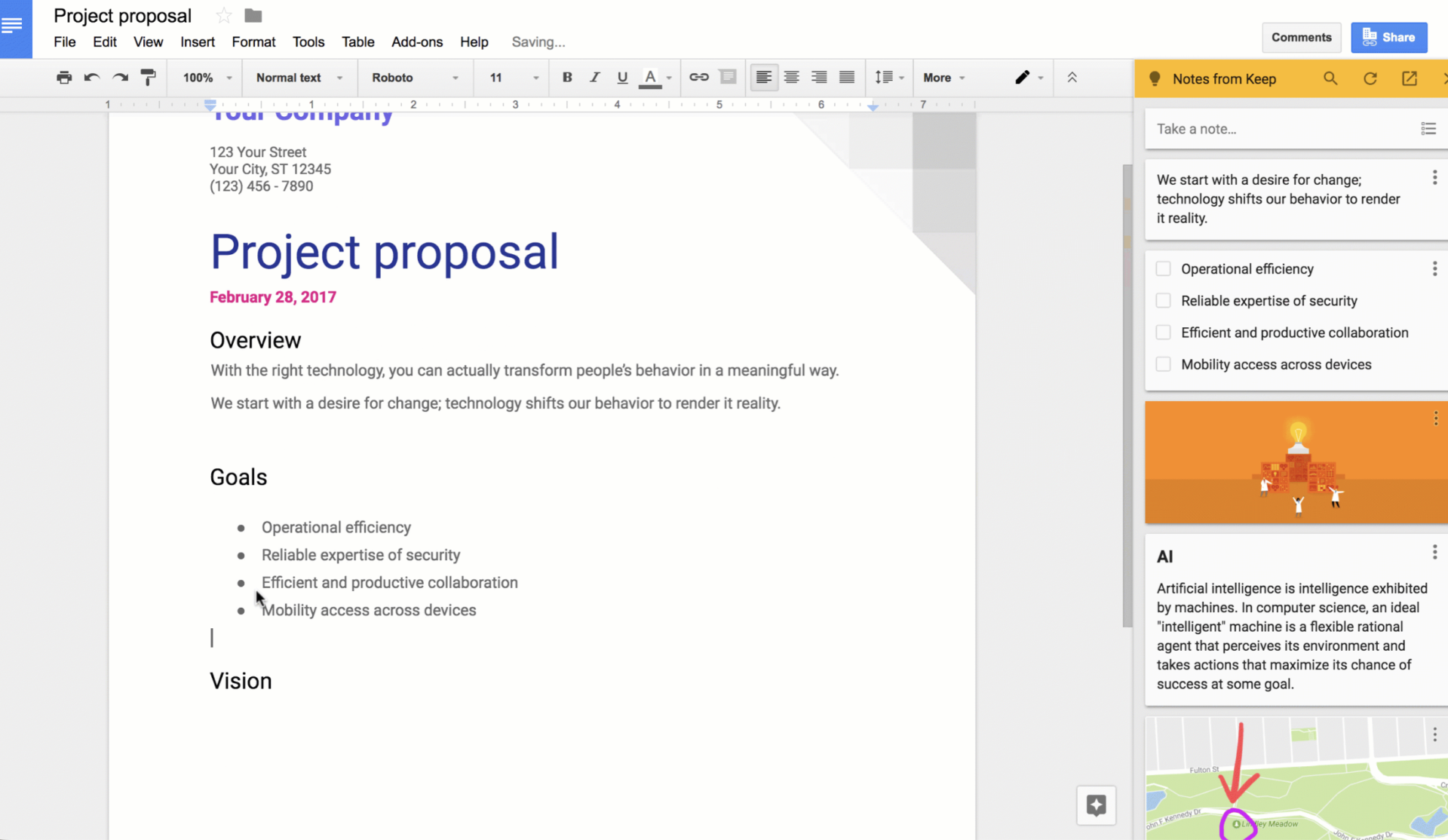
Open Google Keep, type or speak a thought, and you’re done in seconds. It’s free with any Google account and syncs across devices. You can also turn notes into color-coded reminders tied to a time or a location.
Keep is the simplest way to do the little things you used Evernote for: quick lists, voice memos, photo notes, and shared grocery lists. It connects to Google Drive, Docs, and Calendar, so your notes can surface when and where you need them. Real-time sharing makes it even better for families or small teams to keep a running list together.
Pricing: Google Keep is free with any Google account, and notes count against your shared 15 GB of Google storage. There’s no dedicated paid Keep tier. If you need more room, extra storage comes through Google One.
Ratings: It currently holds a 4.7 out of 5-star rating on Capterra across 220+ reviews. Reviewers like it for its simplicity, Google integration, and cross-platform sync.
Where Google Keep falls short: It’s deliberately shallow. There’s no folder hierarchy (only labels and colors), so it strains when dealing with a large or complex collection. Formatting is minimal, with no rich text or Markdown, and the desktop web app requires an internet connection.
Skip Google Keep if: You’re organizing hundreds of notes or need rich formatting and real structure.
What are real users saying about Google Keep?
A Capterra reviewer shared how they use Google Keep:
I started using Google Keep on my phone. I keep notes in it and I pin documents that I need at the top. I make lots of lists using this app as well. And, I like that it is a shared document between my phone and computer.
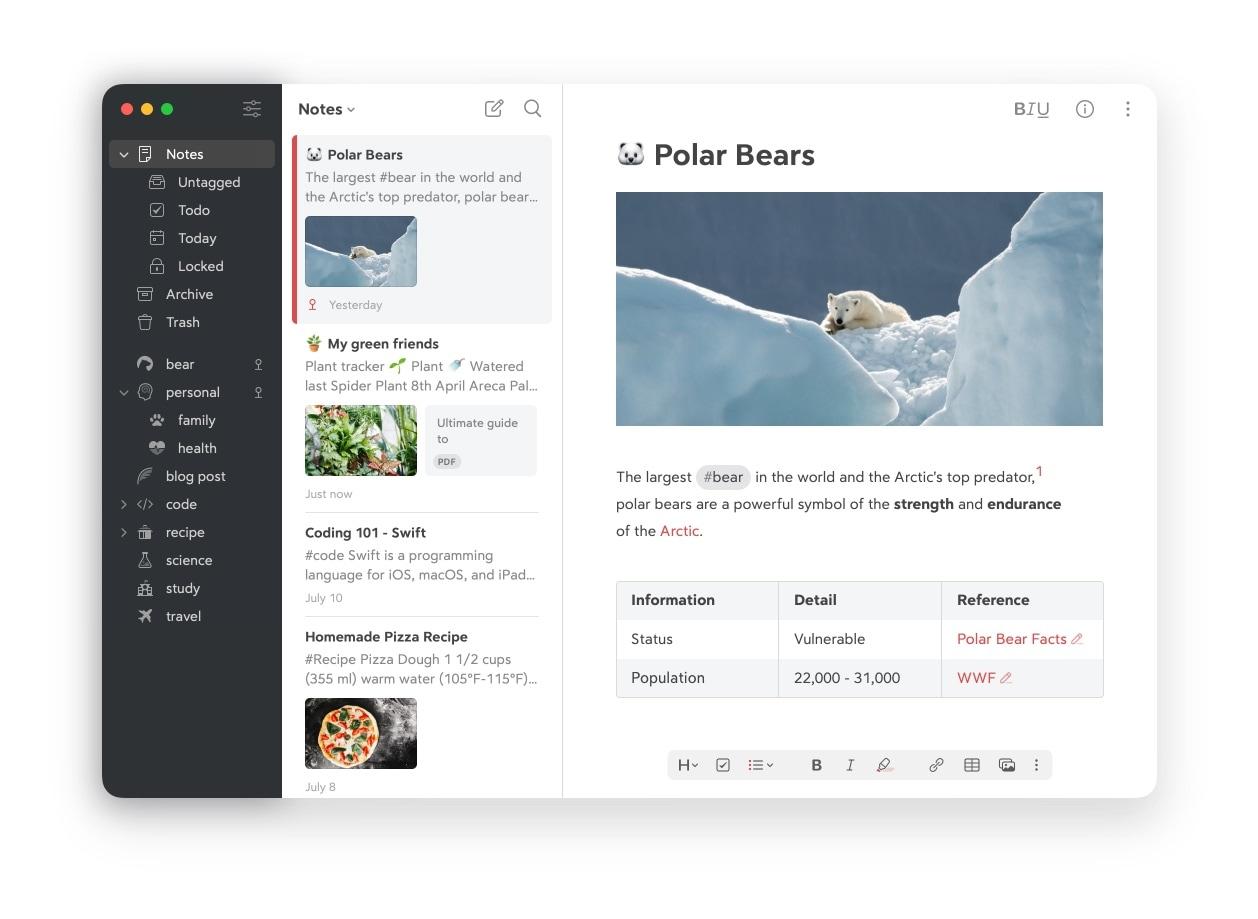
If you mostly used Evernote to write journal entries or long-form notes, Bear will feel like a relief. It’s the antidote to feature bloat. You can expect a clean, focused Markdown editor for Mac, iPhone, and iPad built for people who care about the writing surface.
Where Evernote kept piling on features, Bear strips back and swaps rigid notebooks for a tag-based system. Type #work/projects and the hierarchy builds itself. It also exports cleanly to Markdown, PDF, HTML, DOCX, and more, so you’re never locked in.
#work/projects to build your hierarchyPricing: Bear’s free plan covers local notes, document scanning, three themes, and export to TXT/Markdown/TextBundle/RTF. Bear Pro costs $29.99/year (7-day free trial included). This unlocks iCloud sync across devices, encryption, 28+ themes, and OCR search inside PDFs and images.
Ratings: It currently holds a 4.5 out of 5-star rating on G2 across 30+ reviews. It’s liked for its clean design and focused writing experience.
Where Bear falls short: It’s Apple-only, with no Windows or Android. This rules it out for cross-platform users. It’s also built for writing, not databases, collaboration, or project management, so it won’t replace Notion or ClickUp for structured work.
Skip Bear if: You work across Windows or Android. Or you need collaboration and structured data. The note-syncing feature is included with the Pro subscription.
What are real users saying about Bear?
A G2 reviewer shared how Bear feels:
Bear feels like a quiet desk when I open it. There is nothing shouting for attention. I can just type and not get pulled into menus or notifications. It makes focusing on text actually possible.
Before you move a single note, get clear on which of these makes or breaks the switch for you. Rank them by whatever pushed you out of Evernote, then judge your shortlist against your top two or three.
Study the limitations of the free plan: note count, storage, device sync, or features held back for paying users. Evernote’s 50-note wall is probably why you’re reading this, so don’t sign up for a different wall a little further down the road. Map your existing and potential library size against the cap before you commit.
Getting out of Evernote is the easy part. The harder question is whether your next app lets you walk just as cleanly in two years. Open or plain-text storage means your notes outlive the company that made the app. Proprietary formats mean you’re betting that today’s pricing and today’s owner stay friendly. If lock-in is what burned you, weigh these features.
Almost everything syncs fine with ten test notes. The cracks show at volume or on patchy Wi-Fi. Confirm sync covers every device you use, then check whether offline editing is a prominent feature or an afterthought. If you’re a power user with a large library, stress-test this before migrating everything.
Evernote spoiled people with a search that reaches inside images, PDFs, and handwriting. If that’s how you find things, a text-only search will feel broken no matter how clean the app looks. Decide upfront whether full-text search is enough or OCR is non-negotiable.
The sticker price is not what you will always pay. Add up sync add-ons, storage past the free allowance, and per-seat fees if anyone joins you. A tool that’s free for one person can cost more than Evernote for a team of five. So run the numbers for your team size before the free trial wins you over.
Learn six simple techniques to structure, categorize, and organize your notes:
Use the desktop app (Mac or Windows). Select a notebook, right-click, choose Export, and save as .enex (Evernote XML). Web export isn’t supported.
Export one notebook at a time if your library is large to avoid hangs, then import the .enex files into your new app.
Joplin and Notion both support Evernote imports directly. Obsidian usually needs a plugin or a Markdown conversion step, while Apple Notes, Bear, Google Keep, and ClickUp need more manual cleanup.
For most personal libraries, the export-and-import step takes under an hour. Cleanup time depends on whether your new tool preserves tags, attachments, formatting, and notebook structure.
Match what you used Evernote for to a tool and ignore the rest of the feature list.
Three tiebreakers if you’re stuck between two:
If your notes keep turning into work nobody finishes, try ClickUp free.
No. Evernote is still operational under Bending Spoons, which moved operations to Europe. It laid off most of the original staff and shifted to maintenance-and-monetization mode. This triggered the migration wave, but the app and your existing notes are not going away. The risk is stagnation and price, not closure.
Joplin and Obsidian. Joplin is open-source with optional end-to-end encryption and self-hosted sync, so no vendor can read your notes. Obsidian stores everything as local plain-text files that never touch a server unless you enable encrypted sync. Both avoid the cloud-stored, unencrypted model that worries privacy-focused Evernote users.
Notion and OneNote. Notion offers a free education-friendly plan with databases for organizing research, citations, and class notes. OneNote is free and ships with most Microsoft 365 student licenses. Its free-form canvas and handwriting search make it well-suited for lecture and tablet note-taking. Both run on every major platform.
Notion, OneNote, and Joplin all include browser web clippers that save pages directly into your notes, the closest match to Evernote’s signature clipper. Google Keep has a lighter Chrome extension for quick saves. Apple Notes and Bear rely on the system share sheet rather than a dedicated clipper.
For most people, Microsoft OneNote is the best free Evernote alternative because it keeps the notebook structure familiar while removing Evernote’s note cap. Apple Notes is the stronger zero-cost option for Apple users, while Joplin is better for privacy-focused users who want more control.
Most people leave Evernote because the free tier became far more restrictive, and paid plans became harder to justify compared to cheaper or more flexible alternatives. The bigger issue is trust: once users worry about pricing changes or lock-in, they start looking for apps with cleaner export, better free plans, or local-first storage.

Arya P Dinesh
Max 27min read

Manasi Nair
Max 27min read
Manasi Nair
Max 32min read

© 2026 ClickUp