

Sorry, there were no results found for “”
Sorry, there were no results found for “”
Sorry, there were no results found for “”
For years, the standard fix for calendar chaos has been a single sentence of advice: merge everything into one calendar. One calendar means one place to look, no toggling, no double-booking. On paper, it solves the problem completely.
People pour work meetings, dentist appointments, client calls, and their kids’ soccer schedules into one undivided stream.
But that ends up being the problem. Merging flattens the boundaries that separate calendars exist to protect. You don’t get clarity; just noise.
The cost of the alternative (juggling separate apps all day) is just as real and measurable. A Harvard Business Review study found that workers toggle between applications nearly 1,200 times a day, with roughly 4 hours a week lost to context switching alone.
So the real problem was never that you have several calendars. It’s that you have no single place to see them clearly. Below, you’ll build exactly that: a single view that overlays all calendars while keeping each one separate underneath.
Overlay every calendar into one color-coded view instead of merging them, so each keeps its own permissions, notifications, and sharing rules. Cap it at five to seven active calendars; past that, consolidate duplicates and unsubscribe from feeds you never act on.
Build the setup once: a primary view, colors by life domain, per-calendar alerts, and a real cross-account sync method (native sharing is read-only). Then prune quarterly. The overlay tells you where to look; the notification hierarchy tells you what actually deserves a response.
Managing multiple calendars well means seeing every commitment in a single view, while each calendar retains its own colors, sharing permissions, and notification rules.
It’s a practice of unified visibility. Meaning the calendars stay distinct, and only the way you view them changes. That separation is valuable because each calendar encodes a different context, such as who can see a client’s schedule, what triggers alerts, and who owns a family calendar.
Merging them into one account replaces those distinct contexts with a single permission set and one notification policy, which works for none of them.
Pro Tip: Set distinct notification sounds for each calendar so you can tell which commitment just popped up (work, family, client) without even looking at your phone.
Want to get a visual rundown on how to manage multiple calendars? Here’s a walkthrough for you:
Juggling separate calendars is draining because you become the sync engine: every availability check happens in your head, across apps that can’t see each other. The cost shows up as context-switching tax, double bookings, and a low-grade anxiety that something’s slipping. The drain is the switching itself, not the events.
These three words get used interchangeably, and the confusion causes real damage because one of them deletes data. Get the distinction right before you touch a setting.
| Approach | What it does | Reversible? | Best for |
|---|---|---|---|
| Overlay | Displays multiple calendars stacked on one grid, each in its own color. Underlying calendars stay fully independent | Yes, fully | Almost everyone; the default you should start with |
| Combine | Keeps calendars separate but manages them through one interface, flipping between or stacking them | Yes | People who want one app as a control panel without changing the data |
| Merge | Imports events from several calendars into one, often removing duplicates and sometimes deleting the originals | No, usually permanent | Retiring an old account, or consolidating truly redundant calendars |
Rule of Thumb: Reach for overlay first, combine if you want a single app as your home base, and merge only when a calendar is genuinely being retired. Treating the merge as the starting move is how people lose the context they need. Overlay is the closest you get to a combined view without changing the underlying data, which is exactly why it should be the default.
The standard advice stops at “get everything into one view.” But most multi-calendar setups that collapse were already overlaid. The failure happens one layer up: at attention, not visibility.
Once you stack five or six calendars into a single grid, every one of them fires notifications with equal weight. A dentist appointment pings 15 minutes before. So does a client pitch. So does a subscribed holiday you forgot to mute. The brain does what brains do with undifferentiated alerts: it starts dismissing them all.
This isn’t a calendar problem. It’s a well-documented phenomenon. Research by Ruskin and Hueske-Kraus found that when alarm frequency crosses a manageable threshold, clinicians ignore or override the majority of alerts, including critical ones.
The stakes in a hospital are obviously higher, but the wiring is the same: when every alert demands equal attention, the brain stops giving any of them real attention. Your calendar runs on that same logic. Stack five overlays firing identical pings and a dentist reminder, a client pitch, and a muted holiday all blur into one dismissible buzz.
That’s why the notification layer isn’t an optimization you get to later. It’s the structural piece that keeps an overlay from becoming noise with color coding. The overlay gives you one place to look. The attention hierarchy tells you what actually deserves a response and what can sit quietly in the background until you glance at your week view.
Build both, or the system dies within a month, the same way every other “just merge everything” setup does, only prettier.
A working multi-calendar system comes down to a handful of decisions. Settle them once at setup, and the system mostly runs itself afterward:
These seven steps build an overlay-first system that works across Google, Outlook, Apple, and task-based tools. Each step is tool-agnostic, with specifics where they matter.
Before you connect, color-code, or clean up anything, find every place your time lives.
Start with the obvious calendars: your work, personal, family, and school calendars, and any shared team calendar. Then look for the hidden ones. Check booking tools like Calendly, project management tools like ClickUp or Asana, travel apps, school portals, sports apps, appointment emails, event PDFs, Slack reminders, and recurring commitments you keep in your head.
For each one, write down three things:
This step reveals the real problem. You may not have “too many calendars.” You may have too many places where commitments are created without a single review point.
Once you can see every calendar you use, sort each one into three buckets: keep, merge, or drop.
Keep any calendar that has its own purpose, audience, or access rules.
Merge only when two calendars do the same job. For example, you may have two personal Google accounts with birthdays, dentist appointments, and travel plans split between them. Or you may have an old work calendar with recurring events still copied into your current one. In those cases, move the events into the calendar you use and retire the duplicate.
Drop anything that no longer helps you plan your time. This could be an old holiday subscription, a project calendar from a closed client, or a team calendar from a job you left.
By the end of this step, each calendar should have a clear reason to exist. If you cannot explain what a calendar is for, who needs access to it, or why it should send notifications, it probably needs to be merged or removed.
Pro Tip: Rename each calendar you’re keeping with a one-word purpose tag (e.g., “Work-Primary,” “Family-Shared”) right after sorting. Future-you will thank present-you when deciding what’s safe to drop next quarter.
Now choose the one place you will check before saying yes to anything.
This should be the calendar surface you already use most often. For instance:
In Google Calendar, use the left sidebar to show or hide calendars under “My calendars” and “Other calendars,” then keep only the calendars you need visible in your main grid. This works well for separating work, personal, shared family, holiday, and subscribed calendars without merging them into one account.
In Outlook, select the calendars you want to view, then use Split view to see them side by side or turn Split view off to overlay them in one calendar view. Each calendar keeps its assigned color, which makes it easier to scan meetings, personal blocks, shared calendars, and team schedules together.
In Apple Calendar, you can select which calendars appear in your calendar list, then view them together without moving the original events. This is useful when your calendar sources are mixed, but you still want a clean daily view on your Apple devices.
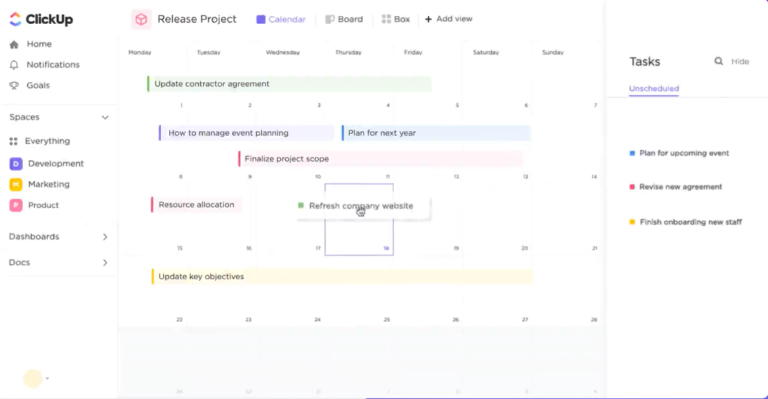
In ClickUp, connect Google Calendar or Outlook Calendar so external events can appear inside ClickUp’s Calendar View alongside your work. Use this when your day is driven by project execution, not just availability.
Once the calendars are visible together, do a quick overlap check:
That last point matters. An overlay view should help you see everything, not dump everything into one place. Keep the source calendars separate, but make one view your daily decision point.
Color-code your calendars by what the time represents, not where the event was created. Keep the list short. If you assign a separate color to every app, client, project, or event type, your calendar becomes harder to read.
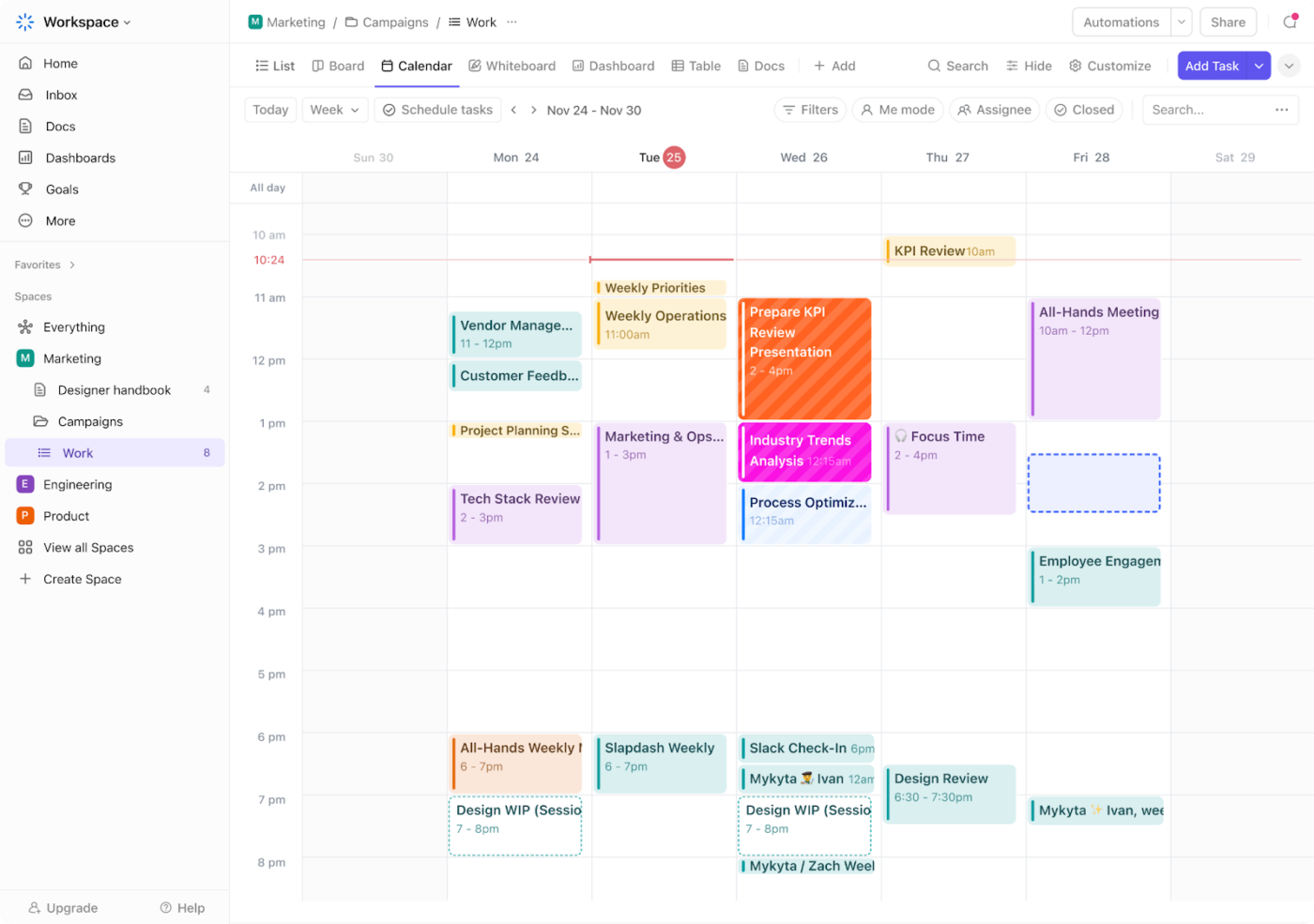
The goal is to make your week scannable in a few seconds. A blue block should always mean the same thing, whether it came from Outlook, Calendly, or ClickUp. This makes conflicts easier to catch.
Create a simple color key and reuse it everywhere your tools allow:
Don’t rely on color alone for anything critical. If a calendar is shared, or if multiple people use different color settings, add clear event titles too. For example, use “Focus block,” “School pickup,” “Client call,” or “Doctor appointment” instead of vague labels like “Busy” or “Hold.”
Not every calendar deserves the same level of interruption. Start with three alert levels:
Where your calendar app supports calendar-level notification settings, set defaults by calendar. For example, a client calendar might remind you 30 minutes before every event, while a subscribed holiday calendar stays silent. If your app only supports account-level or event-level alerts, apply the same principle manually: add reminders only to events that require action.
This is another reason not to merge everything into one calendar. Separate calendars give you more control over what interrupts you, what stays visible, and what sits in the background.
Here’s the failure that breaks most multi-calendar setups:
Google and Outlook have no native cross-account two-way sync. Seeing your work calendar inside your personal account doesn’t mean the two are syncing. Shared access, calendar subscriptions, and imported .ics files all behave differently, and none of them keep events updated in both directions across separate logins.
Match the method to what you actually need:
Don’t assume two calendars are “connected” because they appear in the same view. Test it once: add a sample event in one account, edit it, and check whether the change lands where you expect. Then delete it.
Set a recurring 15-minute calendar audit every quarter. Look for events you almost missed, meetings in the wrong calendar, reminders that fired late, and booking links showing you as free when you weren’t.
Check five things during the audit:
Keep the audit small. Fix only what caused confusion in the last few weeks. That might mean changing your default calendar, updating a booking link, deleting an old recurring event, or adjusting alerts for one calendar.
A practical ceiling is five to seven active calendars. Past that, toggling and scanning become their own chore, and the system meant to reduce overhead starts adding to it. The threshold has less to do with how many calendars you own and more with how many you can hold in view at once. In practice, about six color-coded layers is where most people stop scanning and start glossing over.
If you cross that line, resist the urge to merge everything into one. A single mega-calendar trades toggle fatigue for a wall of undifferentiated blocks you can no longer parse.
Three moves work better:
Also Read: Get the free ClickUp Schedule Blocking Template for turning your calendar from a record of meetings into a plan for your time.
Setting up the overlay is the first half. These habits keep it trustworthy.
Create a dedicated “Focus” or “Deep Work” calendar for planning blocks, separate from fixed commitments such as meetings, appointments, school pickups, and travel.
Set the availability correctly, because this is where blocking backfires. If the block protects your time, mark it busy so scheduling tools (Calendly, your team’s booking links) treat the slot as taken. If it’s a soft plan, you’d move it to the right meeting and mark it as free or tentative.
Most calendar mistakes happen at the moment of event creation. A personal lunch is added to a work calendar. A client call gets added to a personal account.
Set your default to wherever most new events should go, then glance at the calendar field before saving anything that matters. It’s a boring two-second check that kills the recurring cleanup of events landing in the wrong account.
Once you pass a few calendars, vague names stop working. “Calls,” “Projects,” and “Appointments” make sense alone, but not when every account has its own version.
Use prefixes that signal ownership or context:
This makes calendars easier to scan, sort, search, and hide in one move (toggling all “Work:” layers off at 6 pm, for instance). It also tells anyone you share it with exactly what belongs where.
For households, teams, or recurring collaborators, keep one clearly owned shared calendar for anything multiple people have to act on.
A good rule: If someone else needs to show up, drive, prepare, wait, approve, or plan around it, it belongs on the shared calendar. That covers school events, family appointments, team deadlines, client milestones, travel dates, and coverage plans.
Don’t lean on one organized person to forward invites and remind everyone. That person becomes a single point of failure the moment they’re on vacation. The shared calendar should be the source everyone checks before making plans.
The best tool for managing multiple calendars is Google Calendar for free overlays, Outlook for Microsoft 365 teams, and ClickUp when calendars sit beside tasks and projects. Apple Calendar fits all-Apple households; Fantastical works for power users juggling many contexts.
The right tool depends on whether you mostly need to view calendars together, sync them across accounts, or connect them to your actual work. Here are the main options at matched depth, with honest limitations and the sentiment from real users:
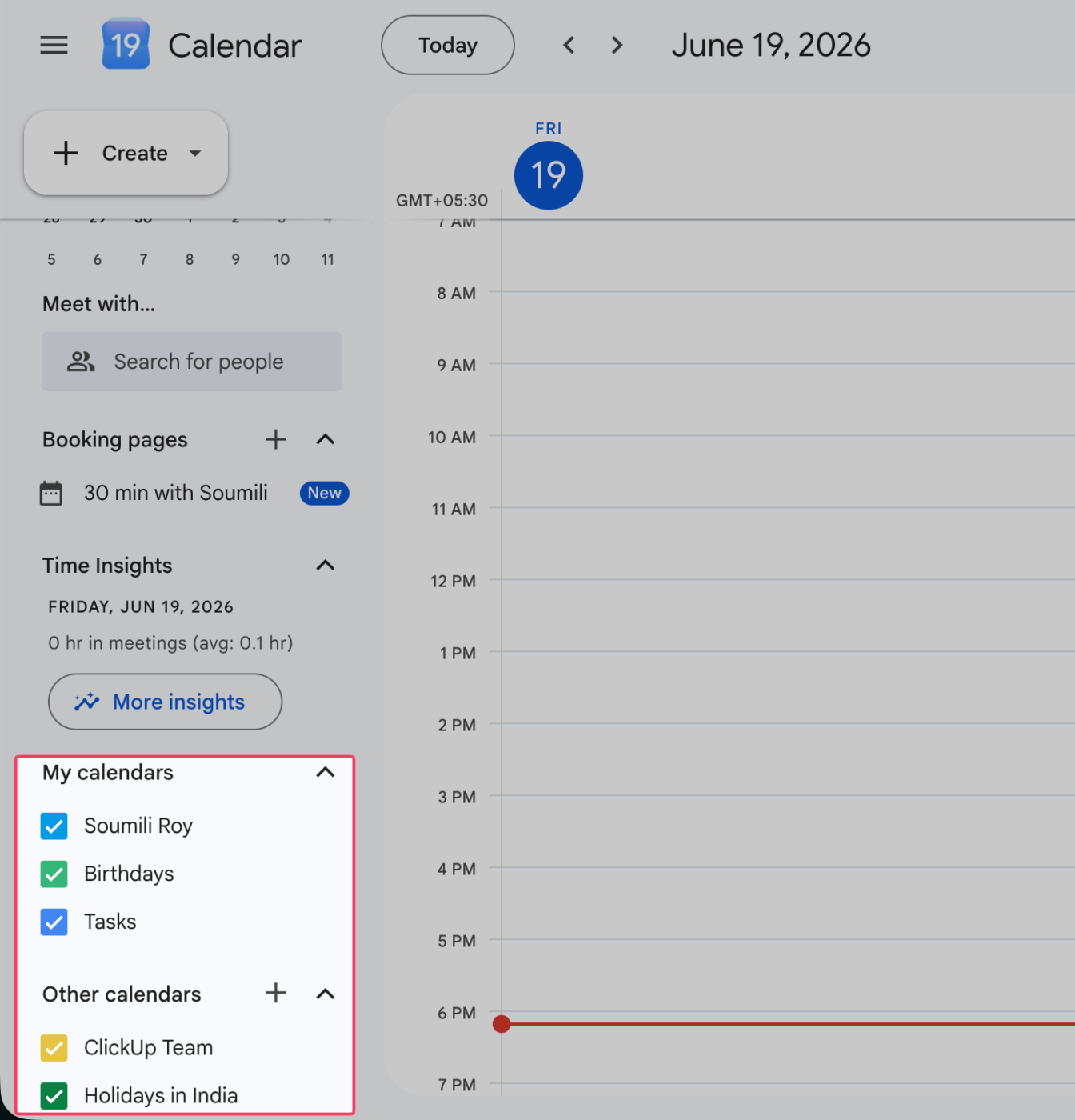
Google Calendar is the default for anyone running several calendars at once. You can layer work, personal, family, and subscribed calendars into a single grid, each color-coded, and toggle any of them on or off with one click. That overlay view is the whole point: a freelancer can see client deadlines, a partner’s shared schedule, and a project calendar stacked together, then hide all but one when they need to focus.
It suits individuals, families, and teams already in the Google ecosystem. You can create unlimited secondary calendars, share each one at its own permission level (free/busy only, view, or full edit), and subscribe to external iCal feeds so an outside calendar shows up alongside your own.
Side-by-side “day” view lets you compare several people’s calendars in parallel columns before booking, and Gemini can suggest meeting times by reading across all of them. It syncs instantly across the web, Android, and iOS.
A G2 user said:
I like how quickly I can use Google chat and the Google calendar which helps me stay up to date and on top of my tasks. It is always super easy to communicate with my coworkers quickly.
Where it taps out: Cross-account juggling is the weak spot. Viewing calendars from two separate Google accounts in one grid takes sharing workarounds, and color and notification settings don’t always carry between them, so heavy multi-account users do some manual upkeep.
Best for: Anyone overlaying multiple calendars who already lives in Google.
Skip it if: Your calendars are spread across non-Google accounts you need unified in one place.
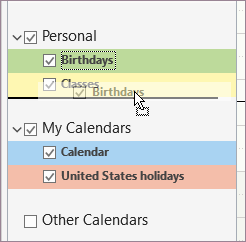
Outlook Calendar is the natural pick when your work life runs on Microsoft 365. It displays multiple calendars side by side or overlaid, allowing you to see your schedule, a team calendar, and a colleague’s availability in a single view. Because it reads free/busy data straight from the org directory, you can see who’s available before sending an invite, without anyone having to share anything manually.
It suits employees and teams inside a Microsoft environment. Shared calendars carry granular permissions. A manager can overlay personal, department, and meeting-room calendars, then book the room and attendees in one step.
The scheduling assistant finds a slot that works across attendees, and it syncs with Teams so every meeting carries a join link. Add iCal subscriptions, and it’ll pull in outside calendars alongside your Exchange ones.
Microsoft 365 Personal & Family (For Home)
Microsoft 365 Business (For Organizations)
A G2 user mentioned:
What we appreciate most about Microsoft Outlook is that it keeps email communication, scheduling, and calendar management together in a single platform. Since most of our internal and external communication still happens through email, having direct access to calendars, meeting invitations, contacts and tasks helps keep daily work organized without jumping between multiple applications. The integration with Microsoft Teams and Microsoft 365 has also been valuable. Scheduling meetings, managing shared calendars and coordinating across departments became much smoother once everything was connected through the same ecosystem.
Where it taps out: The overlay view differs between classic and New Outlook, so the experience isn’t fully consistent yet. The multi-calendar view you depend on might hop between different versions.
Best for: Teams already standardized on Microsoft 365 who need calendars and email in one place.
Skip it if: You’re outside the Microsoft ecosystem, or you want a consistent overlay view that won’t change under you.
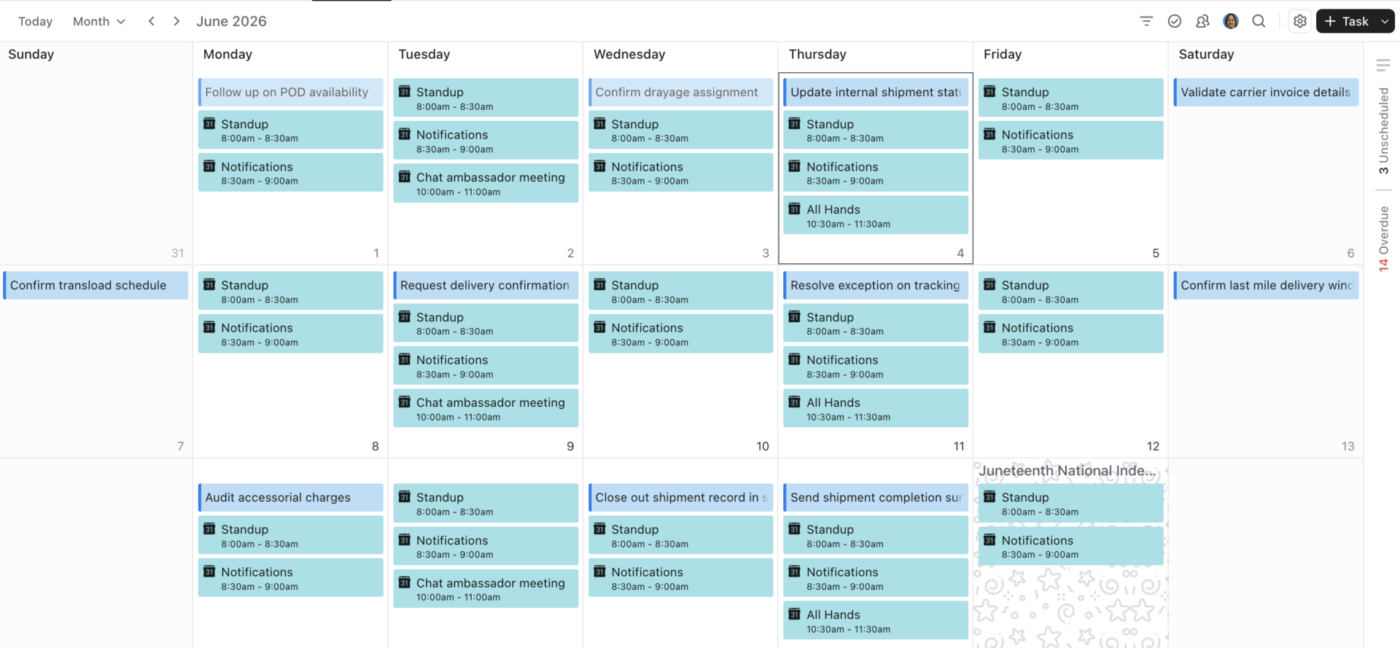
ClickUp Calendar earns its place by collapsing your project deadlines and your actual calendar. Calendar View can pull tasks from multiple Lists, Folders, or Spaces into one grid. And Google Calendar, Outlook, and iCal integrations layer your external events right alongside that project work. Instead of checking a task list in one tab and a calendar in another, the meeting and the deadline are scheduled for the same day.
It suits anyone whose schedule is half meetings and half deliverables. A freelancer can sync a personal Google Calendar, a client’s Outlook invites, and ClickUp tasks into one view to spot overbooked days before committing. The Google sync is two-way, so an event created in either place shows up in the other within minutes.
The Planner adds AI time-blocking, inserting tasks into open slots around your events. You choose which Spaces or Lists feed each calendar, keeping work and personal as separate or blended as you prefer.
A G2 user recently added:
I use ClickUp because it is the program through which I manage all the details of my day in an organized and simple way, and it helps me arrange my work with complete flexibility. What I like about ClickUp is that it offers great flexibility that allows me to work with a large team easily without complications, and we can track who has completed their work and who hasn’t yet. I also like the ability to create a work schedule with a calendar and dates and to seamlessly utilize Google Drive tools, which is very distinctive for me. Additionally, the program is supported by AI, which helps in easily obtaining all my needs these days, saving us a lot of time in our work.
Where it taps out: ClickUp is a full work platform, so if all you want is a standalone calendar with nothing attached to it, there’s more setup here than a dedicated calendar app asks for. The payoff comes once your tasks live in ClickUp, too.
Best for: Anyone who wants project tasks and external calendars unified in one view.
Skip it if: You only need a simple standalone calendar and don’t track tasks or projects.
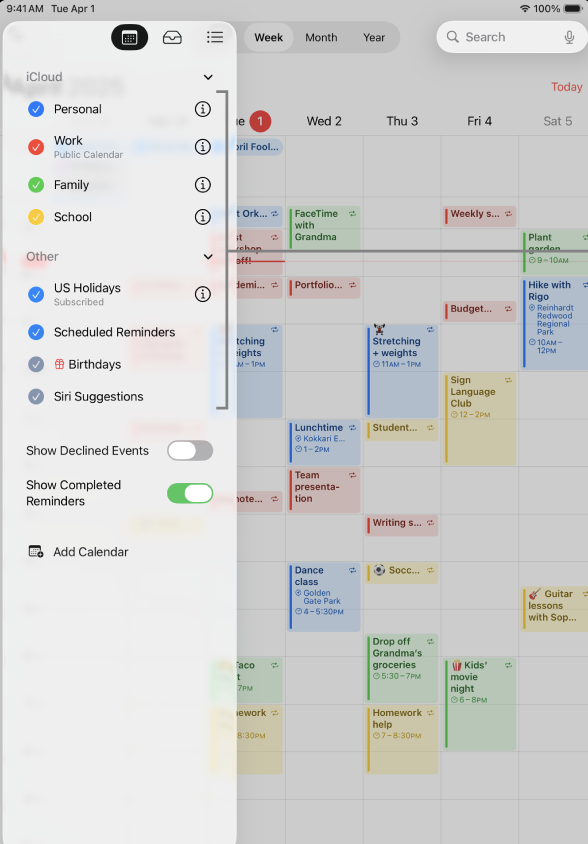
In a Mac-and-iPhone household, Apple Calendar is already there and already free. Add your iCloud, Google, Exchange, and CalDAV accounts once, and they stack into a single color-coded view you can thin out with a tap.
Accounts are color-coded and can be toggled on or off from the sidebar. You don’t need a bridge or a third-party sync tool: add the accounts once, and they layer into a single view.
It suits individuals and families anchored in the Apple ecosystem. Someone can view a personal iCloud, work Exchange, and shared family calendar in one window, then turn off a color to focus on just work.
iCloud Family Sharing offers a shared, editable calendar for the household, syncs events instantly across Apple devices, and uses natural language and Siri for voice entries like “lunch with Sam Thursday at 1.” Travel-time alerts and a map-aware “time to leave” nudge round it out.
A Reddit user said:
My family and I use the built in Apple Calendar as it’s the easiest thing to do because we’re all on iOS. I have read/write access to their calendars and they have access to mine. It’s helpful for us because I provide a rundown of weather and events for the following day for everyone. It’s not flashy, but it gets the job done.
Where it taps out: It’s Apple-only, with no Windows or Android app, so a mixed-device household loses the shared view on non-Apple phones. Two-way sync to connected Google or Outlook accounts also leans on Apple’s CalDAV handling, which can lag a few minutes behind those apps’ native clients.
Best for: Apple users consolidating calendars from several accounts in one place.
Skip it if: You or your team work across Windows or Android and need the same view everywhere.
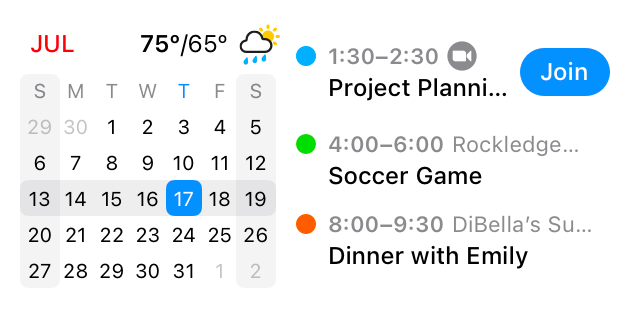
Fantastical is the pick for anyone whose calendar list has gone out of hand. It pulls iCloud, Google, Outlook, Exchange, and CalDAV accounts into one polished view, then adds “calendar sets.” You group calendars into named sets (Work, Personal, Side Hustle), and switch between them with a single tap, so you see only the layer that matters right now.
It suits freelancers, consultants, and anyone managing several distinct schedules at once. A consultant can keep a “Client A” set, a “Client B” set, and a “Personal” set, then flip to whichever context they’re in without the visual noise of the others.
Natural-language entry parses “Lunch with Sam Thursday at 1 at Blue Bottle” into a detailed event. The unified view shows tasks (including Todoist and Google Tasks) alongside events, with time zone support and weather, offering a dense feature set. Calendar sets sync across all your devices through a Flexibits account.
A G2 user added:
I love that I can manage all my calendars from one tool at the same time. And I love that I can create new events and new tasks by typing with natural language. I don’t have to select from lots of drop downs or anything like that.
Where it taps out: The features that justify Fantastical, including calendar sets, scheduling, and templates, sit behind the Premium subscription, so the free tier is thin. It’s also Apple-first, with no Android app, so a cross-platform team can’t all standardize on it.
Best for: Power users and freelancers who juggle several calendar contexts and want to switch between them instantly.
Skip it if: You want a capable free tier, or your team includes Android users.
Most failed calendar systems share the same handful of root causes. Each has a recognizable warning sign:
| Mistake | What it looks like | Fix |
|---|---|---|
| Merging when you meant to overlay | You can no longer share one calendar without exposing events from another. Work, personal, family, and shared commitments start living in the same place, even though they need different permissions. | Rebuild the setup as an overlay. Keep calendars separate, show them in one view, and reserve merging only for calendars you are retiring. |
| Coloring by app instead of meaning | Your week turns into a rainbow you have to decode every morning. A blue event in one app means work, while blue somewhere else means personal or family. | Assign one color per life domain, such as work, family, personal, health, or side projects. Use the same color logic across every tool where possible. |
| Assuming cross-account calendars sync | An event added in one account does not appear in the other, or it appears as read-only when you expected to edit it. | Check whether you have shared access, a calendar subscription, an imported calendar, or true two-way sync. Add a sync tool only if changes need to flow between accounts. |
| Running too many active calendars | Toggling calendars becomes part of your daily routine. You have to hide and show calendars just to understand whether you are actually free. | Keep only availability-changing calendars visible by default. Consolidate duplicates, hide reference calendars, and unsubscribe from calendars you never act on. |
| Leaving notifications global | You get pinged for a holiday calendar but miss a client call, appointment, or school pickup. Every event competes for the same level of attention. | Set alerts based on calendar importance where your app allows it. High-priority calendars should interrupt you. Reference calendars should stay quiet. |
Managing multiple calendars is a habit: one consolidated view you trust, a clear rule for where each new event lands, and color-coding that keeps work, personal, and shared time readable at a glance. Get that right, and the tool barely matters.
Start small. This week, sync your two or three busiest calendars into a single view, set one default for where new events go, and protect a recurring block of focus time before everything else crowds in. A system survives only if it’s simple enough to keep up on a chaotic day.
If you just need to glance at a couple of calendars now and then, a synced Google or Apple Calendar handles it fine.
But if your days run on the interplay between meetings and actual work, then your calendar and your tasks belong in the same system. That’s where a converged AI workspace like ClickUp helps, pulling events, to-dos, project tasks, and reminders into one view you can plan from.
Get started for free with ClickUp. Manage your calendars where the rest of your work already lives.
Native calendar apps let you view another calendar, but they don’t sync calendars two-way across separate accounts. Google and Outlook offer read-only sharing between accounts; to keep events updated in both directions, you need a dedicated sync tool like SYNCDATE or XCalSync, or a platform like Morgen that pulls each account onto one timeline. If you only need to see the other calendar, an iCal subscription or shared link is enough.
Open the Apple Calendar app, tap Calendars, and add your iCloud, Google, Outlook, and Exchange accounts so they layer into one color-coded view. Each account toggles on or off, and events stay in their source calendar. For two-way edits across accounts, Apple relies on CalDAV, which can lag a few minutes behind native apps. Power users who want context “calendar sets” often add Fantastical on top.
Double-bookings come from partial visibility, not from having too many calendars. Overlay every calendar in one color-coded view so a conflict surfaces before you accept the invite. For invites that land on separate accounts, mirror your busy blocks across them (calendar propagation) or use a scheduling tool that reads availability from all accounts at once, so a “free” slot is actually free.
In Google Calendar, use the left sidebar to show or hide each calendar under “My calendars” and “Other calendars,” then color-code them by life domain. You can create unlimited secondary calendars and share each at its own permission level (free/busy, view, or full edit). Viewing calendars from two separate Google accounts still needs sharing workarounds — Google has no native two-way sync across accounts.
Google Calendar is the best free overlay for most people; Outlook is the strongest pick within Microsoft 365; and ClickUp is best when your calendars sit alongside tasks, deadlines, and multiple projects. Apple Calendar suits all-Apple households, and Fantastical’s calendar suits power users juggling many contexts. Choose based on where your calendars already live and whether you need viewing, cross-account sync, or task integration.
Yes, by sharing one account’s calendar with the other, but the result is read-only, and colors and notification settings don’t always carry over. Google doesn’t natively support two-way sync for separate accounts. For editable, continuously synced calendars across accounts, use a third-party sync tool.
Set the shared calendar’s permission to “free/busy only” so others see when you’re booked, not what the events are. Google and Outlook both let you choose the sharing level per calendar (free/busy, view details, or edit). Alternatively, mirror personal commitments onto your work calendar as generic “Busy” blocks, or share a booking page (Calendly, Google appointment schedules) that exposes open slots only.
Multiple calendars viewed as one overlay beats a single merged calendar for almost everyone. Merging collapses every context into one permission set and one notification policy, so a client schedule, a family calendar, and a holiday feed all behave identically. Overlaying keeps each calendar’s colors, sharing rules, and alerts intact while showing everything on one grid. Reserve true merging only for a calendar you’re retiring.
EAs overlay each executive’s calendar in one tool with strict color-coding and per-calendar notifications, then use free/busy sharing or directory data to book across people. In Microsoft 365, Outlook’s Scheduling Assistant reads availability straight from the org directory. For cross-account or cross-org coordination, EAs add a two-way sync tool such as CalendarBridge or OneCal so a “free” slot is genuinely free before they confirm.
Select the calendars you want, then turn Split view off to overlay them on one grid, each keeping its assigned color. Outlook reads free/busy data from your Microsoft 365 directory, so you can see colleagues’ availability without manual sharing, and the Scheduling Assistant finds a slot across attendees. The overlay experience still differs between classic and New Outlook, so confirm which version your view is using.
Native calendar apps sync one account across that account’s own devices, but they do not sync events two-way between separate accounts. To keep separate accounts in step everywhere, use a dedicated sync tool like XCalSync, CalendarBridge, or OneCal, or a unified timeline like Morgen that pulls every account onto one editable surface. Test it once by adding, editing, and deleting a sample event, before you trust it.

Manasi Nair
Max 20min read

Sudarshan Somanathan
Max 22min read
Sudarshan Somanathan
Max 23min read

© 2026 ClickUp




