







Still downloading templates?
There’s an easier way. Try a free AI Agent in ClickUp that actually does the work for you—set up in minutes, save hours every week.
Sorry, there were no results found for “”
Sorry, there were no results found for “”
Sorry, there were no results found for “”
Most teams don’t struggle to create Standard Operating Procedures (SOPs); they struggle to make them usable. ⚠️
There’s often a dusty folder labeled ‘SOPs–Final’ that no one has opened in months. A Notion page marked ‘Create SOPs – WIP’ hasn’t been touched since the last reorg. And somehow, a few Slack threads or offhand comments carry more weight than the actual procedures documented in your SOP.
The result? New hires guess their way through onboarding, veterans invent shortcuts, and leaders micromanage—because the SOPs can’t be trusted to run the show.
This isn’t just a documentation issue—it’s operational drag and builds over time.
In this guide to organizing SOPs, we’ll move past the basics like naming conventions and folder structures.You’ll learn how to manage SOPs to match how your team works—so they’re easy to find, update, and most importantly, follow. ✅
The ClickUp SOP Template allows you to create, manage, and organize all your standard operating procedures in one place. It is ideal for operations managers and team leaders to ensure consistency in recurring tasks like HR onboarding, support escalation, or compliance workflows.
Standard Operating Procedures (SOPs) are a step-by-step guide or set of work instructions for consistently, compliantly, and efficiently completing recurring tasks.
At their core, SOPs are process documents. When you create SOPs, you turn tribal knowledge into a repeatable workflow so your team doesn’t reinvent the wheel with every task.
But writing them isn’t enough. Without proper SOP management, they become outdated, hard to find, and disconnected from the team’s workflow. To ensure these documents stay fresh, revisit them and make changes as your workflow evolves.
💡 Pro Tip: SOPs should be accessible to everyone who needs them. Consider localization and accessibility—multi-language support and screen-reader compatibility ensure all team members can use your SOPs, regardless of language or ability.
When you invest in intentionally structuring your SOP document library, the benefits ripple across your organization.
The impact? Take a look 👇
🔍 Did You Know? The CDC once wrote official SOPs for a zombie apocalypse—and they went viral. What started as a joke guide in 2011 became a full-blown emergency preparedness campaign, complete with evacuation checklists, supply kits, and outbreak protocols. Why? Because if you’re ready for zombies, you’re ready for anything. 🧟♂️
On the flip side, when SOP management is overlooked:
📌 For example, a manager may not realize a client refund takes five approvals—until it’s already delayed by a week.
And perhaps most importantly, your team stops trusting your SOPs. Once seen as irrelevant or outdated, even the best-written ones will not be followed for continuous improvement.
To avoid this, track SOP usage and effectiveness—monitor views, completion rates, and feedback to spot which SOPs are working and which need improvement.
Here’s a walkthrough of what separates a good standard operating procedure SOP doc from a bad one:
| Aspect | ✅ Good SOP | ❌ Bad SOP |
|---|---|---|
| Language | Simple, clear, direct; uses active voice | Vague, jargon-filled; uses passive voice |
| Step format | One clear action per line; starts with a verb | Blended steps; unclear sequencing |
| Version control | Clearly states version number, owner, and last update | No dates, ownership, or revision history |
| Visual aids | Includes screenshots, icons, diagrams, and headings | Wall of text with no visual breaks |
| Location and access | Stored in searchable, shared workspaces like ClickUp Docs | Hidden in local folders or poorly organized drives |
| Team collaboration | Built with input from people who do the work; reviewed regularly | Written solo and left untouched post-creation |
| Automation and integrations | Includes automated steps or triggers | Fully manual process |
| Security & Permissions | Role-based access, audit logs, and compliance features | No control over who can view or edit |
📮 ClickUp Insight: 74% of employees use two or more tools just to find the information they need—while jumping between emails, chat, notes, project management tools, and documentation.
This constant context-switching wastes time and slows down productivity. As the everything app for work, ClickUp unifies all your work—email, chat, docs, tasks, and notes—into a single, searchable workspace, so everything is exactly where you need it.
📌 Template Archive: Free Company Policy & Procedures Templates
Now that we’ve covered what SOPs are and why organizing them matters, let’s break down exactly how to do it, step by step:
Before you reorganize anything, you need to know what you’re working with. Start by reviewing your current SOP document library and ask:
The goal here is to declutter. Keep what’s current, archive what’s outdated, and flag obvious gaps where documentation doesn’t exist but should.
Remember SOP lifecycle management: Set clear criteria for archiving or retiring outdated SOPs so your library stays clutter-free and relevant.
💡 Pro Tip: During your audit, add columns for ‘Last used’ and ‘Last updated’. This will help you prioritize what to clean up, rewrite, or delete.
Organizing SOPs efficiently means creating a system where anyone, regardless of role or tenure, can find exactly what they need and when they need it.
Start by grouping SOPs based on how your organization operates. You can categorize by:
Avoid organizing based on how files were created in the past. Instead, structure them based on how people work today. A good SOP software should let you add folders, tags, or filters to keep the system intuitive and scalable.
This also lays the foundation for continuous improvement, and ClickUp Hierarchy is purpose-built for this. It lets you organize SOPs at multiple levels—Workspace > Folder > List > Task—so you can mirror your real-world organizational structure inside your documentation system. The key is knowing how your teams work—not how your folders were set up five years ago.

For example, you can have a Workspace for Operations, a Folder for Onboarding, a List for First-Week Tasks, and each Task as a specific SOP like ‘How to Set Up Email’—mapping specific tasks directly to real workflows.
If your team is global, consider categorizing SOPs by region or language, and ensure your system supports localization for maximum accessibility.
🎯 Quick Example: Are you not sure if your SOPs are too shallow or overly complex? Compare yours with curated industry SOP examples to see how others structure their step-by-step processes.
Consistent naming makes SOP documents instantly scannable, searchable, and self-explanatory. When everyone follows the same structure, friction is reduced across the board, from onboarding to audits.
A solid naming convention includes:
Here’s a quick before-and-after:
| ❌ Inconsistent | ✅ Clear & Consistent |
| refund_finalv3.docx | Support–Process Customer Refunds–v3 |
| hiring steps–new | HR–New Hire Onboarding Checklist |
| SOP-onboarding | Ops–Internal IT Onboarding–Draft |
ClickUp Brain helps reduce duplicate or misnamed Standard Operating Procedures (SOPs) by letting you ask questions like, ‘Do we already have an onboarding checklist?’ It surfaces existing Docs instantly, so teams reuse what’s there instead of creating inconsistently titled duplicates.
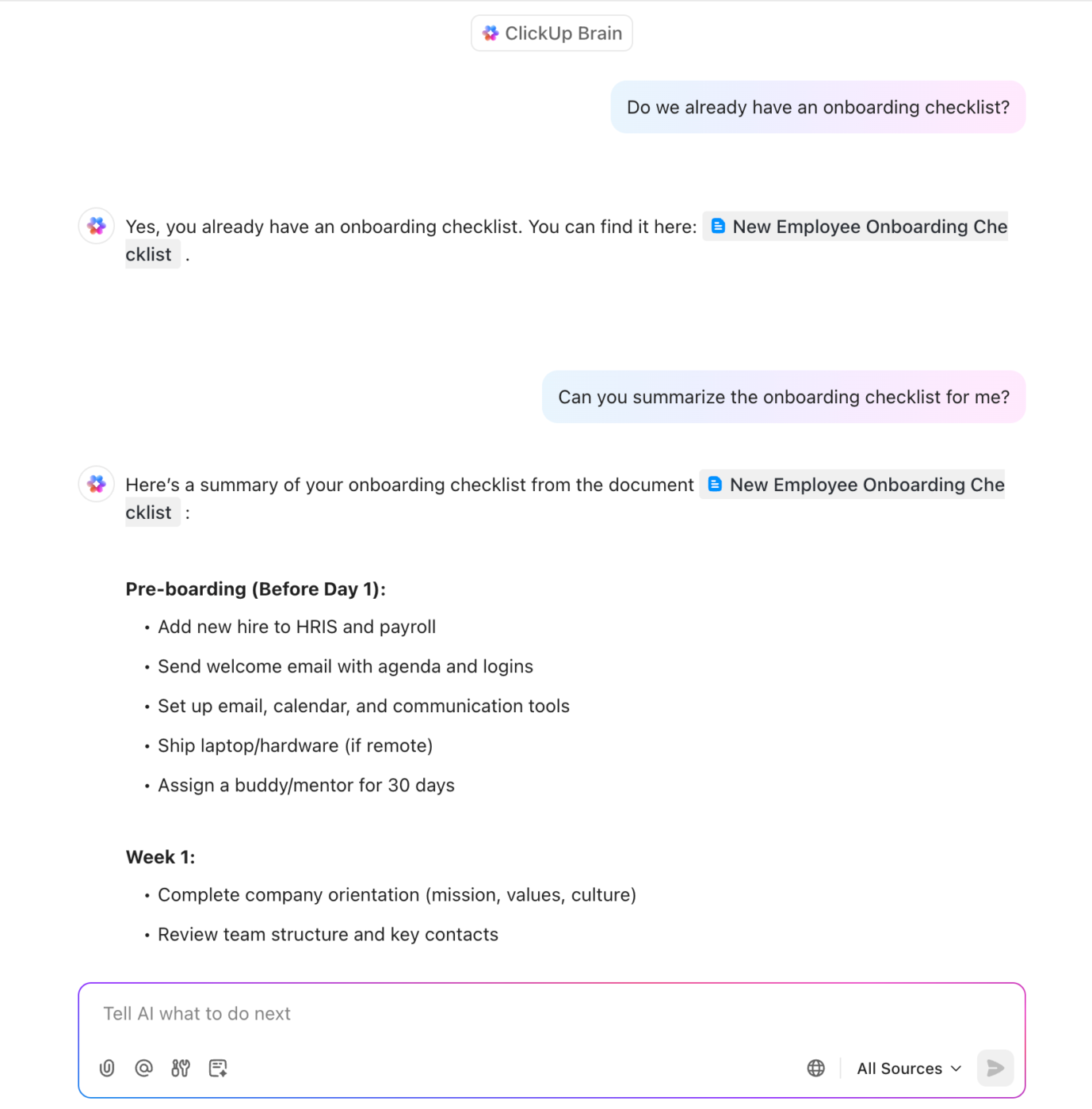
Additionally, advanced search and tagging features make it easy to find SOPs, even in large libraries. ClickUp’s Connected Search, its search functionality, lets you filter by tags, owners, or keywords within the SOP content.
📌 For example, let’s say you’re looking for all onboarding SOPs updated in the last quarter—you can filter instantly by tag and owner.
💡 Pro Tip: Once you’ve nailed your structure and naming conventions, you don’t always have to start from a blank page. Use one of these SOP generators to create first drafts faster, especially for repeatable or checklist-heavy workflows.
Even if your SOPs are all named correctly, inconsistent formatting can kill their usability. Some are three lines long, others are walls of text. Some include tools, others don’t. This inconsistency forces people to figure out the format before starting the task.
Standardizing the structure solves that.
Create a simple, repeatable layout that every SOP follows. A good structure balances clarity with flexibility.
📌 For example: “Submit Monthly Payroll” — Owned by Finance Lead, reviewed monthly. Used on the 28th to approve payroll via Gusto. Steps include reviewing hours, approving payments, and sending a confirmation email. If the 28th is a weekend, submit by Friday.
Here’s a format you can use, or pull from these process documentation templates if you need inspiration:
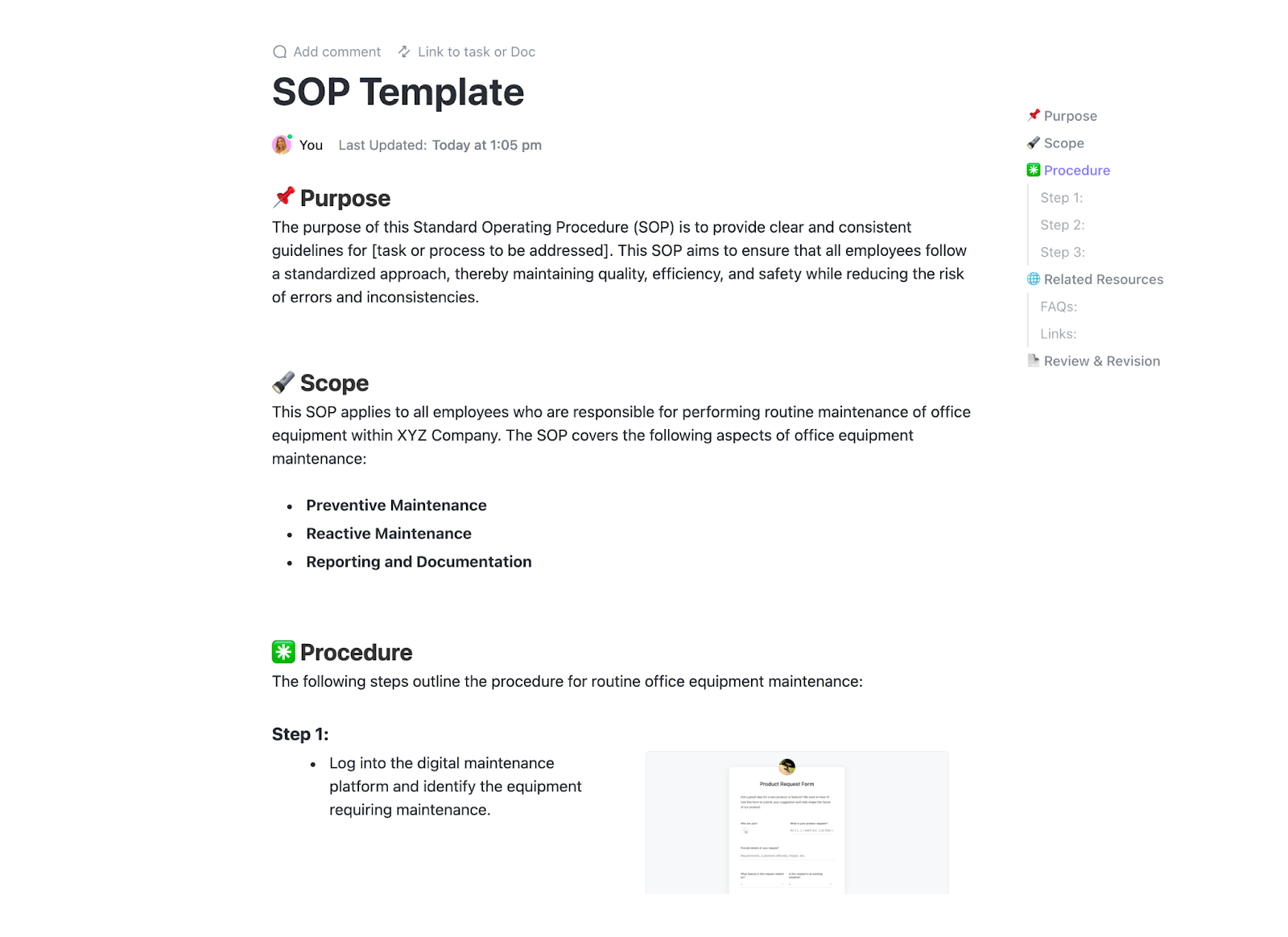
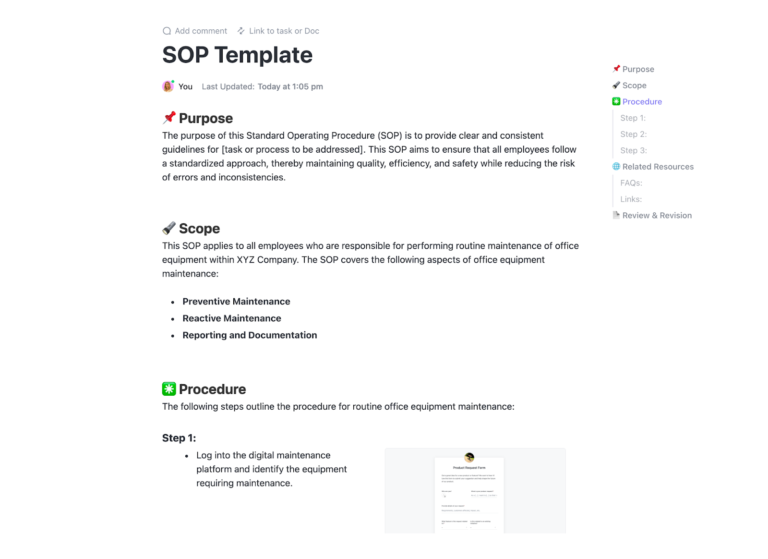
To avoid the manual setup, use the ClickUp Standard SOP Template. It provides a clean, plug-and-play structure with pre-labeled sections, visual cues, and embedded support for forms, images, and updates.
Each section is built to streamline your SOP process:
Assigning an owner to each SOP ensures it evolves with time. The owner isn’t necessarily the person who created it. They track process changes and keep documentation up to date to prevent drift.
Here’s what ownership should look like:
When ownership is clear, SOPs start supporting operational excellence across multiple departments. And they keep SOPs alive, not forgotten.
ClickUp makes it easy to embed accountability into your SOP system. You can assign a Doc owner directly within each SOP. But more importantly, ClickUp supports role-based access control, so you can decide who can view, comment on, or edit each SOP.
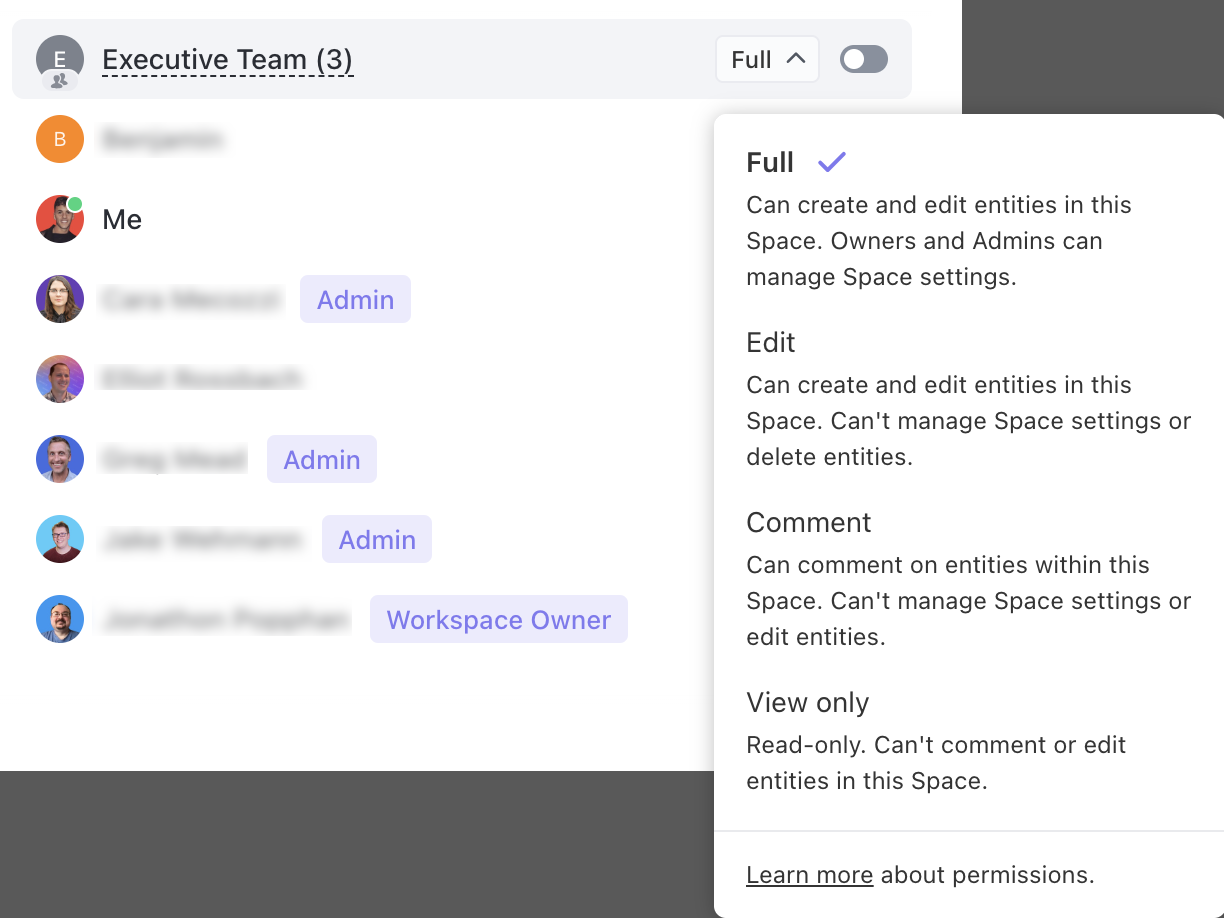
That means:
A centralized SOP repository brings order, visibility, and trust to your documentation. Here’s how to set it up right:
If you’re setting up a centralized SOP repository, ClickUp Docs provides a complete documentation system—ideal for teams moving away from scattered cloud storage and disconnected files—directly connected to your team’s workflow.
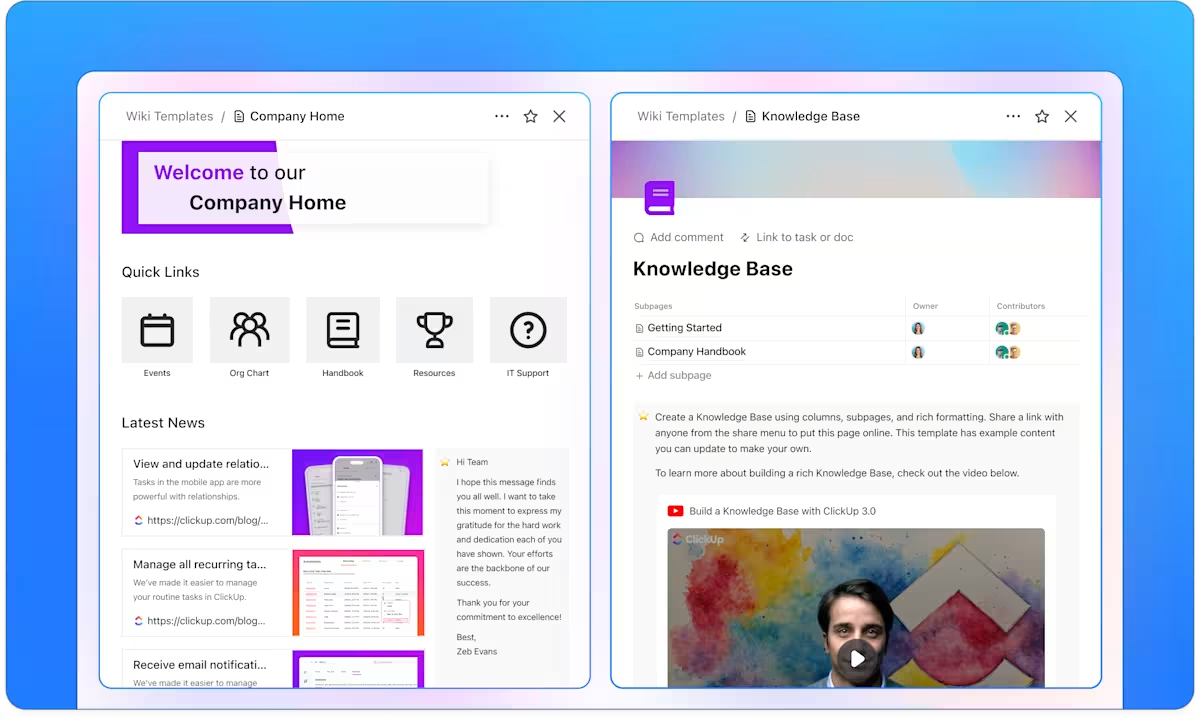
Using nested folders and lists, you can organize Documents by team, function, or process. Every Document can live inside the same workspace where tasks, projects, and goals exist.
With ClickUp Docs, you can:
🧠 Fun Fact: Toyota’s SOPs are so precise, they include how many seconds each task should take, down to the last bolt turn. They have ‘takt time,’ a production rhythm that makes every step measurable, repeatable, and almost impossibly efficient.
⚡ Template Archive: Top Content Writing Templates to Streamline the Process
If the refund process lives in a doc, but the customer ticket is in another system.
To fix that, shift from centralized access to nested folders, lists, and contextual access. Well, this is how 👇
With ClickUp Connected Search, you can ask ClickUp Brain, an in-built AI assistant, to surface exactly what you need (even across tools).
Say you’re looking for the latest SOP on handling enterprise leads. Instead of digging through folders, you can ask, ‘What’s our current process for qualifying enterprise leads?’
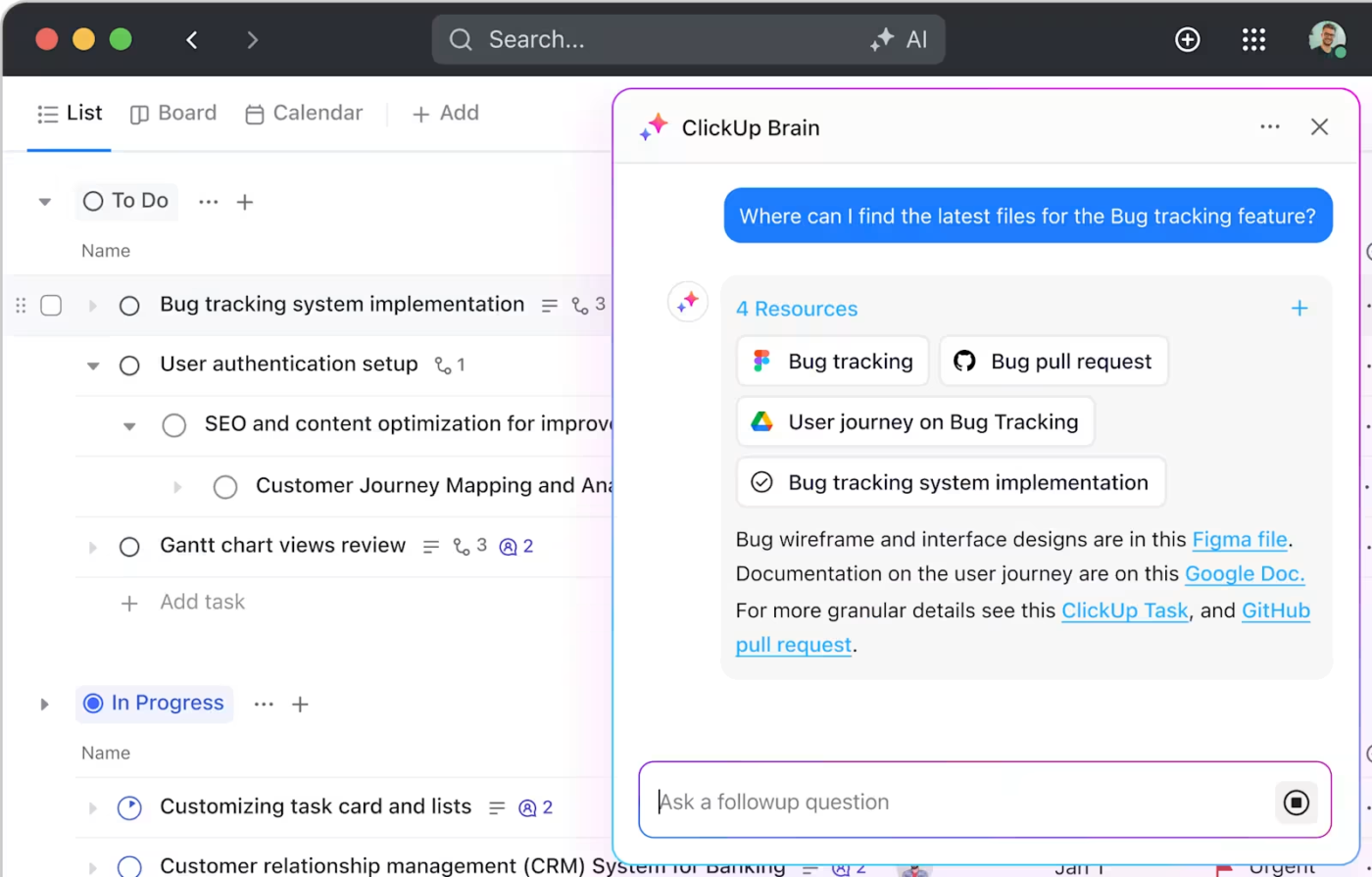
It’ll then fetch information from connected apps like Google Drive, GitHub, or Sheets (and of course, your entire ClickUp Workspace).
To make this work seamlessly, your SOPs need to live inside a system that treats them as part of your team’s collective knowledge. Turn to ClickUp Knowledge Management, a dynamic knowledge base that transforms every SOP into a living wiki with version history, advanced permissions, and real-time collaboration.
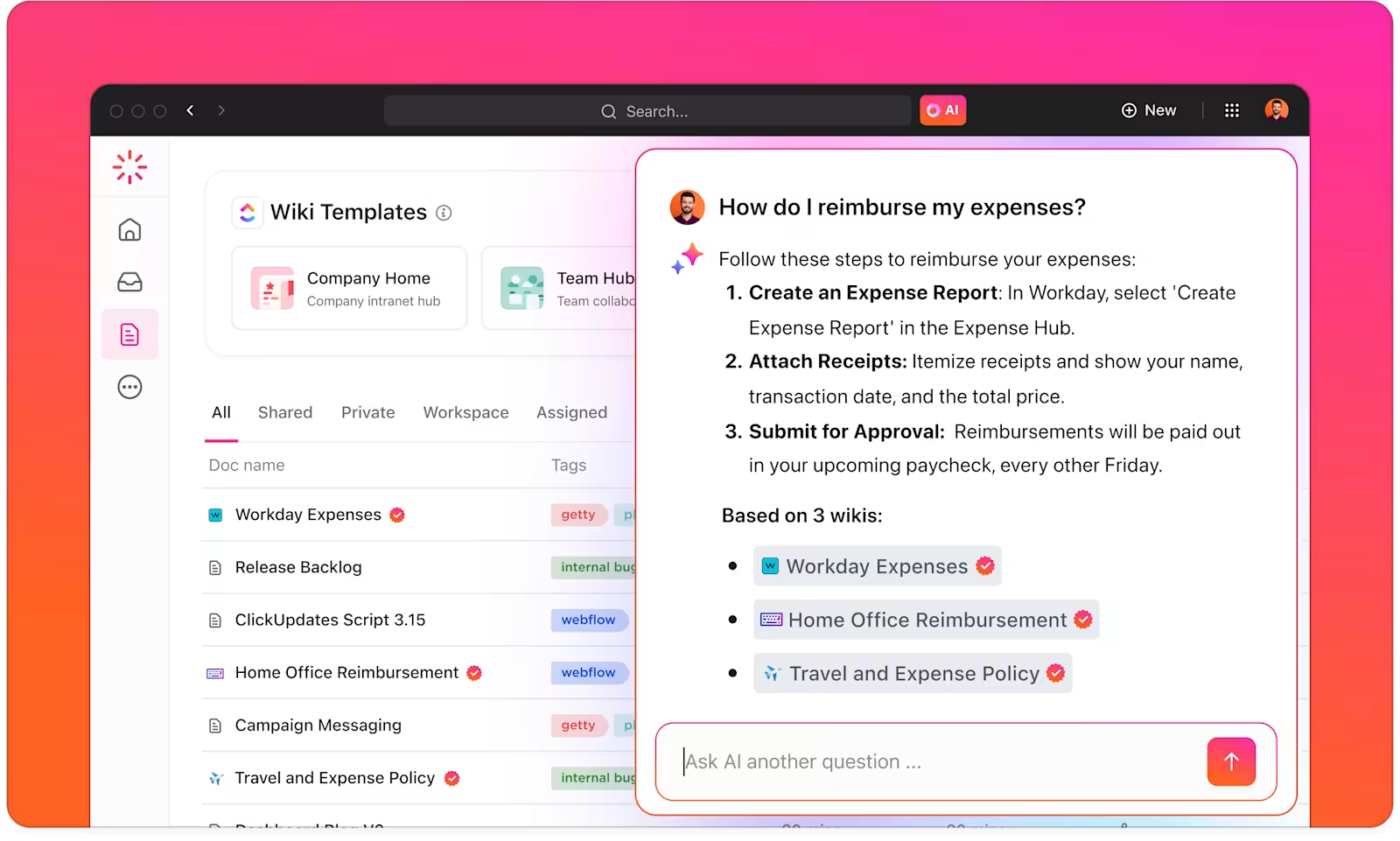
Inside this robust knowledge management software, you can use prebuilt templates to create new SOPs, link them to tasks or project docs, and update them with in-doc comments and AI-powered answers from ClickUp Brain.
⚡ Template Archive: Free SOP Templates & Formats (Standard Operating Procedures)
Take this: Your team rolls out a new CRM, but the sales qualification SOP still references the old one. A new rep follows the outdated steps and logs data in the wrong place, and now Marketing is looking at incomplete lead information.
This happens when SOPs are treated as ‘done’ after creation.
To avoid this, build a review system into how your team works:
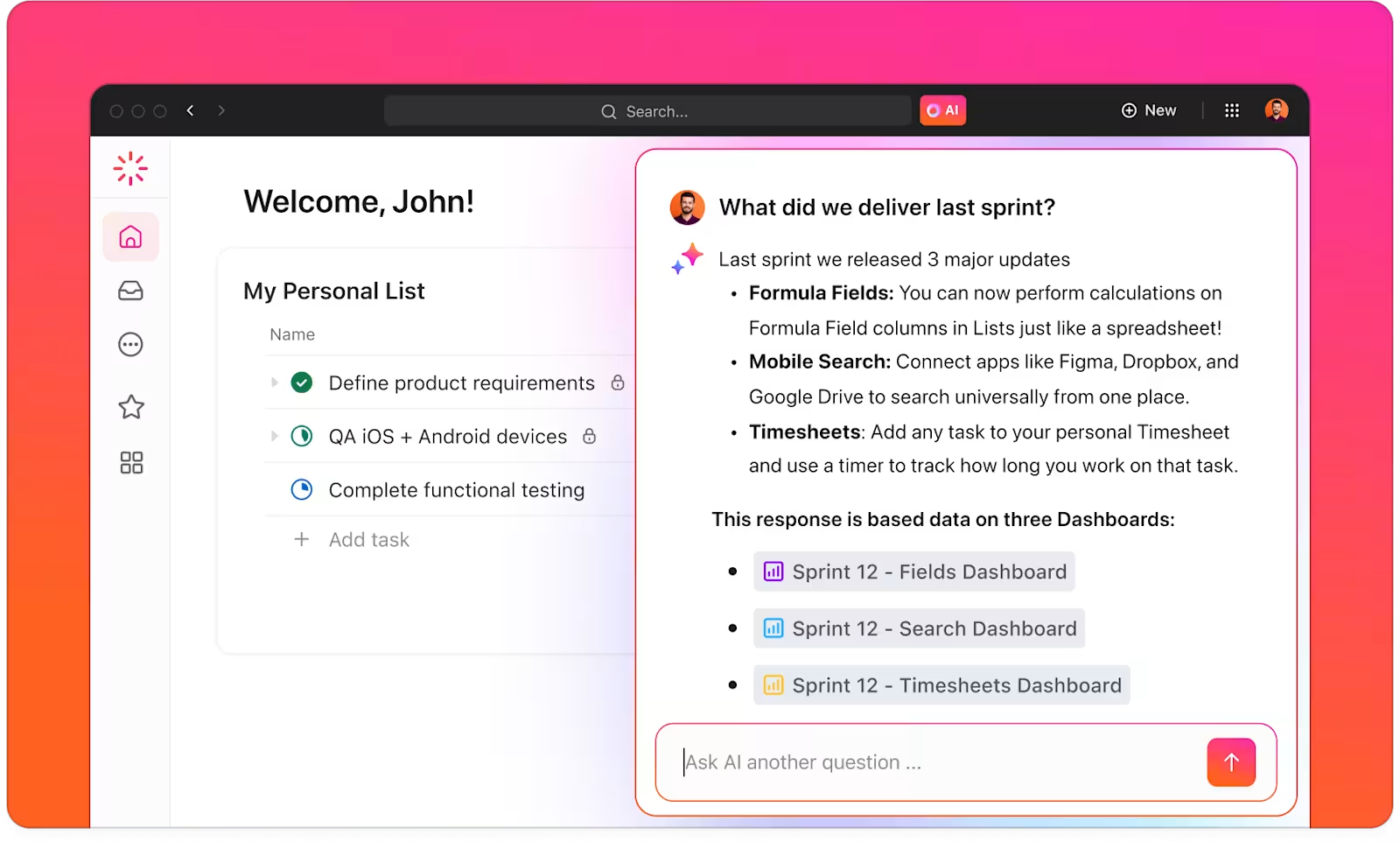
ClickUp Brain makes things easier to maintain. It can automatically scan your workspace to identify SOPs that haven’t been updated in months, or those with outdated references like old tools or owners. You can ask, ‘Which SOPs haven’t been reviewed since Q1?’ or any question relevant to your workflow.
📚 Also Read: Best AI Writing Tools for Content
ClickUp, the everything app for work, can help you organize every part of your SOPs, from documentation to execution.
You can start with ClickUp Docs to create structured, searchable SOPs that become the foundation for streamlined operations. From there, turn any step into an assigned work with ClickUp Tasks so process instructions move seamlessly into action.
Use ClickUp Brain to surface existing SOPs, answer role-specific questions, and ensure teams follow proper steps, helping minimize errors at scale.
And with ClickUp Automations, you can assign review tasks, notify stakeholders, or flag SOPs for updates after process changes, making it easier to stay current while maintaining consistency across teams.
Beyond that, you can access many ClickUp Templates to simplify things. One of its highlights is the ClickUp Standard Operating Procedures.
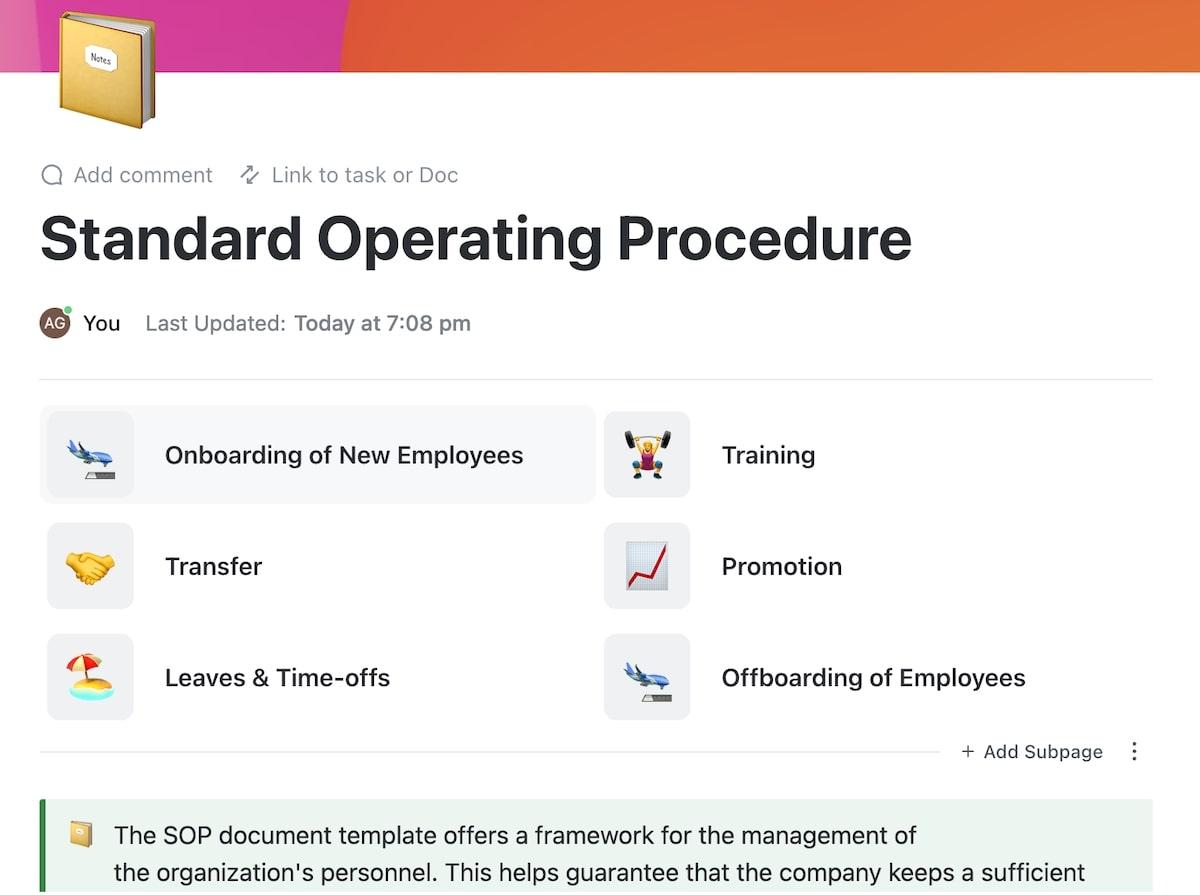
This template helps document workflows across functions, from onboarding and training to handoffs and approvals. Each section prompts you with key details like SOP ID, responsible owners, and executive summaries, so you don’t miss anything critical when standardizing recurring tasks.
Use Docs to centralize your SOPs, link them to Tasks, set review reminders with ClickUp Reminders, and track updates with ClickUp Custom Fields and automation.
📌 Template archive
There’s more, all segregated by roles. To name a handful:
As your team grows, you need to remember these three practical ways to scale SOP management without letting it turn into overhead:
When multiple people contribute to process documents, version chaos can quickly creep in. ClickUp Docs includes robust version control to track edits, restore older versions, and annotate what changed—so updates stay clear and traceable. You can view past changes, restore earlier versions, and add notes to explain what was updated and why.
During onboarding, new hires should create or co-own the SOPs for their role. It’s a win-win: they learn faster by writing down what they’re learning, and you get fresher documentation from a beginner’s lens. You can use the ClickUp Employee Onboarding Template to bake SOP creation into the first 30 days.
Your team is your best source of truth when it comes to what’s missing, unclear, or outdated in an SOP. Make it easy for employees to leave comments, suggest edits, or flag broken steps while using the process. A simple form, comment section, or task mention can power a lightweight feedback loop!
💡 Pro Tip: Set up document automation workflows that instantly generate role-specific SOP checklists when you hire new team members. Connecting your HR system to your SOP library allows you to create personalized process guides based on job titles and departments.
Every growing team reaches a point where speed without structure turns into rework. Where what used to be ‘just ask someone’ becomes a bottleneck. SOPs help big time in scaling, but what they do more is keep teams tight-knit and on the same page.
ClickUp connects your Docs, Tasks, and AI into a single system that scales with you. So your SOPs aren’t just written—they’re followed, tracked, and improved in real-time.
Because the teams that win aren’t the ones with the most documentation, they’re the ones with the fewest blockers.
Sign up for ClickUp today—your SOPs will thank you. ✨

© 2026 ClickUp

There’s an easier way. Try a free AI Agent in ClickUp that actually does the work for you—set up in minutes, save hours every week.