






Still downloading templates?
There’s an easier way. Try a free AI Agent in ClickUp that actually does the work for you—set up in minutes, save hours every week.
Sorry, there were no results found for “”
Sorry, there were no results found for “”
Sorry, there were no results found for “”
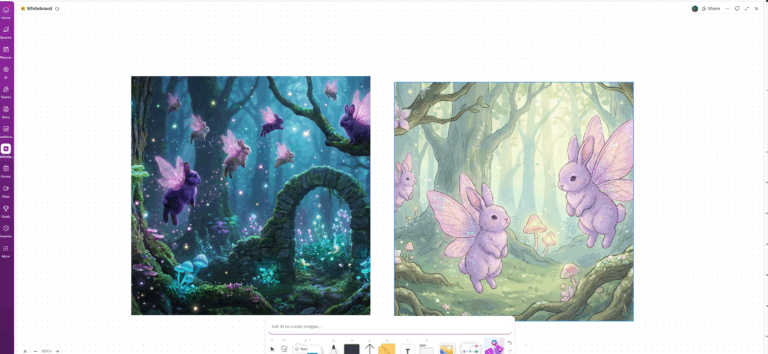
You’ve been scrolling through Canva templates all week, and somehow, everything starts to look the same. The layouts blend together, and the AI suggestions don’t quite match your style.
But great design shouldn’t feel generic.
The Canva AI alternatives on this list bring a fresh perspective—with smarter automation, better customization, and creative freedom that feels more you.
Ready to find your next favorite tool? Let’s dive in! 👇
Here are some of the best Canva alternatives to consider if you want stronger AI features and more control over your designs.
| Tool | Best for | Best features | Pricing |
|---|---|---|---|
| ClickUp | Creative teams needing structured workflows Team size: Solo → Enterprise | AI briefs, Whiteboard-to-task conversion, Figma embeds, Automations, Creative review flows | Free forever; Customization available for enterprises |
| Snappa | Fast social media graphics Team size: Small teams, solopreneurs | Magic Resize, Graphics Autopilot, Brand kit, Social scheduling | Free, paid from $15/mo |
| Fotor AI | AI photo enhancement + artistic filters Team size: Any | Portrait retouching, AI Photo Colorizer, AI cutout, art generator | Free, Pro from $10.99/mo |
| Adobe Express | Brand-consistent assets with Adobe ecosystem Team size: Creative pros, marketing teams | Adobe Stock access, Quick Actions, video tools, CC libraries | Free, Premium $9.99/mo |
| Visme | Data-driven visuals + presentations Team size: Business & education teams | Smart charts, Interactive maps, Screen recording, Animation controls | Free, Pro $59/mo |
| Figma AI | Collaborative UI/UX design Team size: Product, design, dev teams | Auto Layout, Make Design AI, design systems, interactive prototypes | Free, Professional from $20/mo |
| Piktochart | Infographics & reports Team size: Biz, nonprofit, educators | Interactive visuals, block editor, data import, branded templates | Free, Pro $29/mo |
| Designs.ai | AI-generated brand kits & visuals Team size: Small teams, creators | Logo generator, video maker, Designmaker, color matcher | Plans from $29/mo |
| Pixlr | Quick browser-based photo edits Team size: Any | AI Cutout, batch edit, double exposure, template designer | Free, Premium $9.99/mo |
| Design Wizard | Marketing templates & quick promos Team size: Small biz, marketers | Campaign-based templates, social scheduling, motion graphics | Free, Pro $9.99/mo |
| PicMonkey | Photo collages & portrait retouching Team size: SMBs, creators | Smart collage layouts, touch-up tools, borders/frames | Free trial, paid from $7.99/mo |
Canva AI is built for fast, accessible content creation, but it may not always align with every creative or professional need. Here’s why you might want to explore a Canva AI alternative:
🔍 Did You Know? 74% of artists have experimented with AI tools like ChatGPT to create or enhance their art.
If you’ve hit a creative ceiling, these Canva AI alternatives offer more range, better control, and smarter results without compromising speed.
Our editorial team follows a transparent, research-backed, and vendor-neutral process, so you can trust that our recommendations are based on real product value.
Here’s a detailed rundown of how we review software at ClickUp.
ClickUp is a powerful Canva AI alternative that picks up where quick visual tools leave off. It brings structure to creative work and layers in AI so teams can move faster without losing context.
You might be handling five different design tasks in a day, from mockups for a sales deck to last-minute ad banners. ClickUp for Design Teams helps you stay on top of them all.
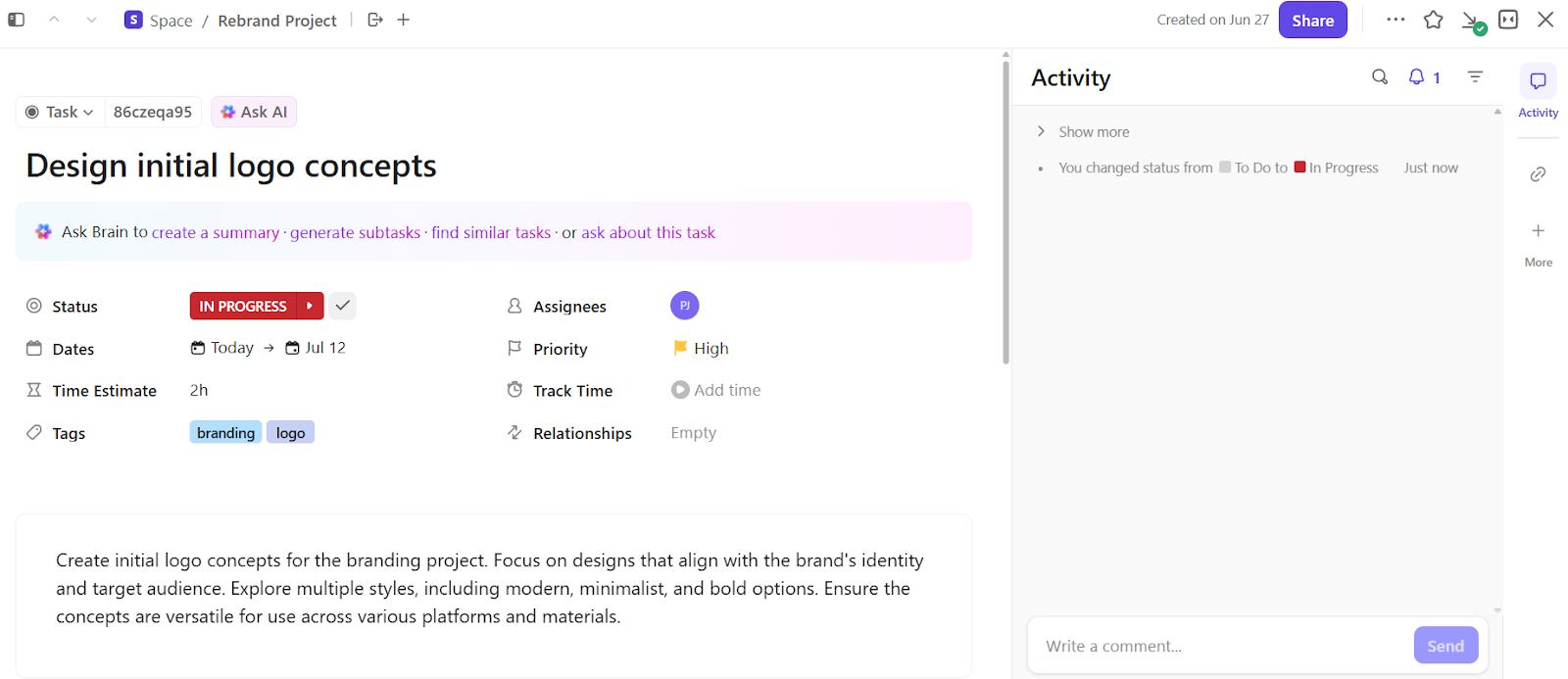
Let’s say you’re leading a rebrand. You can break down the entire project into ClickUp Tasks for logo concepts, updated brand colors, landing page visuals, and asset handoffs. Assign owners, set deadlines, and move tasks through review stages—all from one place.
Your team knows exactly what’s next, and you don’t waste time chasing updates.
ClickUp Whiteboards make it easy to gather input, sketch concepts, and map layouts without losing the link between ideation and delivery. While Canva AI’s creative canvas doesn’t connect to task workflows, ClickUp lets you turn sticky notes, wireframes, and sections into trackable work items.
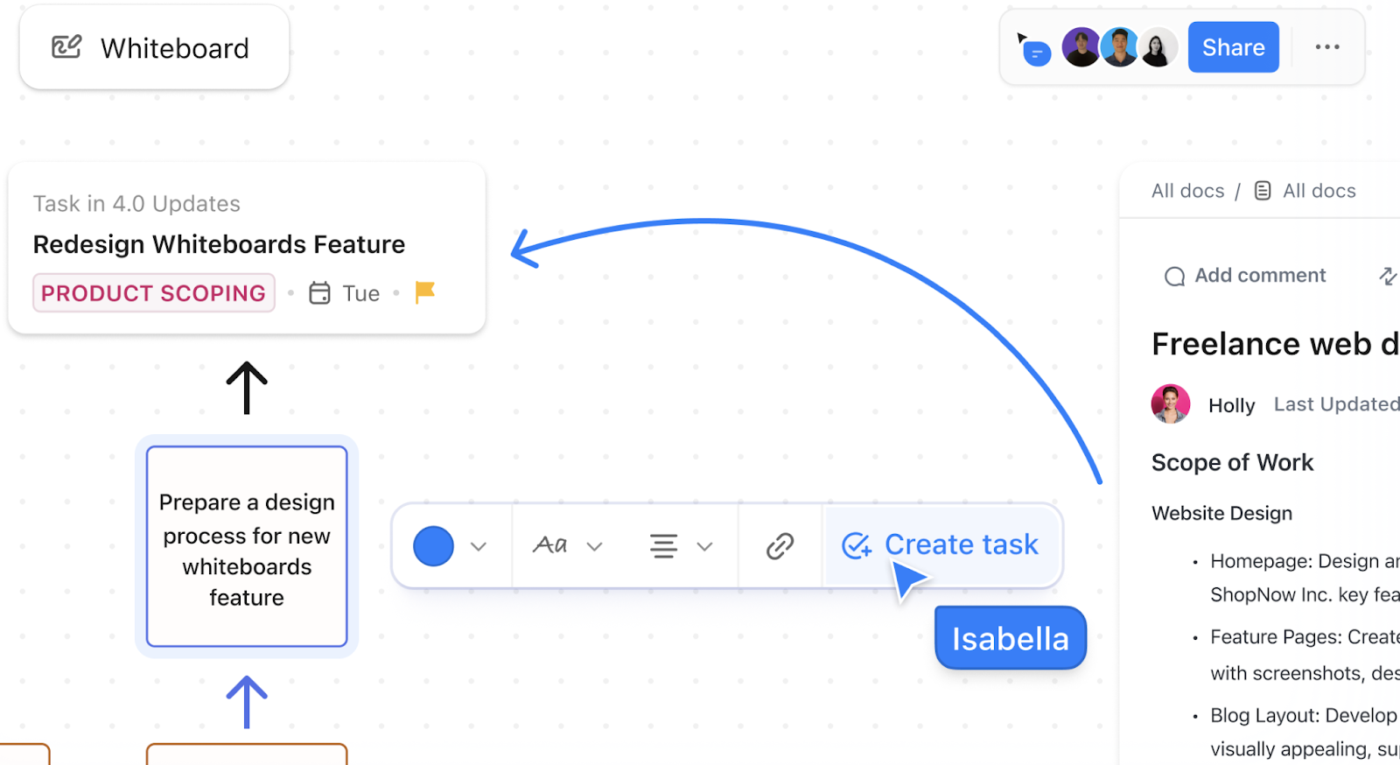
Suppose your team is kicking off a travel app launch campaign. On the Whiteboard, you plan a scroll-based landing page with location-based visuals, promo banners, and a testimonial slider. Once the direction is clear, assign each visual component as a separate Task for designers and illustrators already connected to the project timeline.
This is also where ClickUp Brain adds value. It’s an AI engine built into ClickUp that helps teams write, create, and organize work faster.
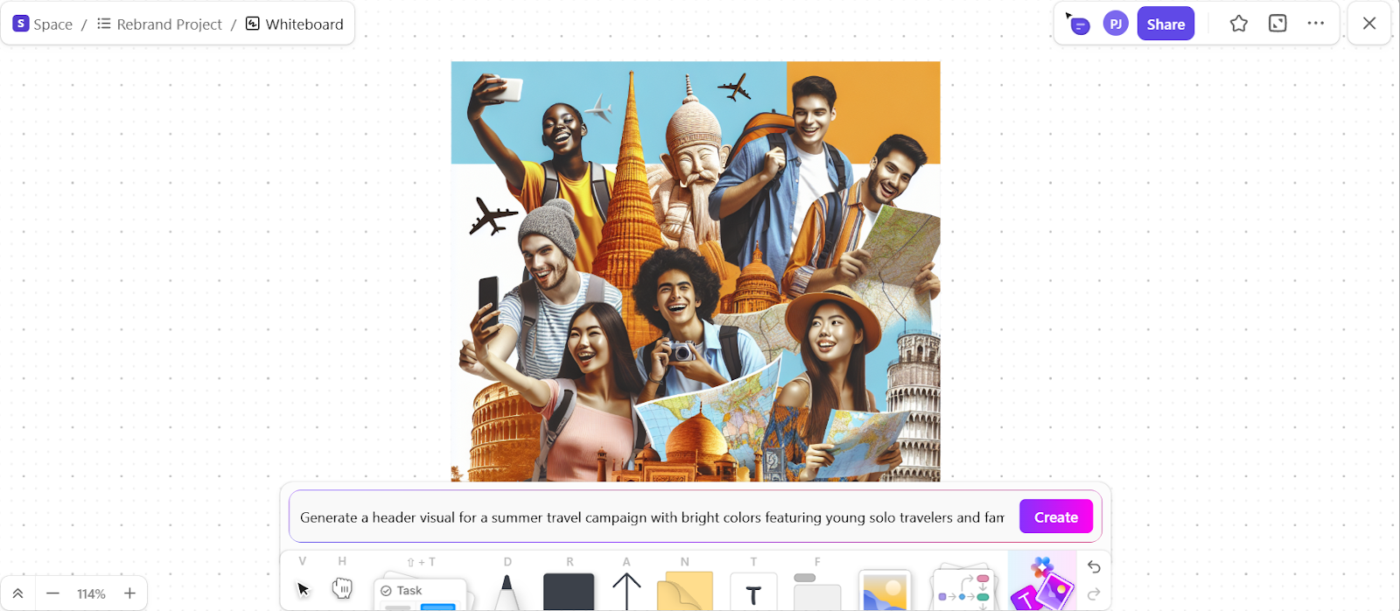
For your travel app brainstorm, you can prompt ClickUp Brain with something like: ‘Generate a header visual for a summer travel campaign with bright colors featuring young solo travelers and famous landmarks.’
ClickUp Brain will return an image concept right inside your Whiteboard. This keeps early ideation fast, focused, and instantly actionable.
If you’re still exploring layout options, try ClickUp’s Design Brief Whiteboard Template. This whiteboard template helps you visually map sections like banners, CTA blocks, or testimonials.
The AI design collaboration software also supports your team through the parts of the design workflow that usually slow things down.
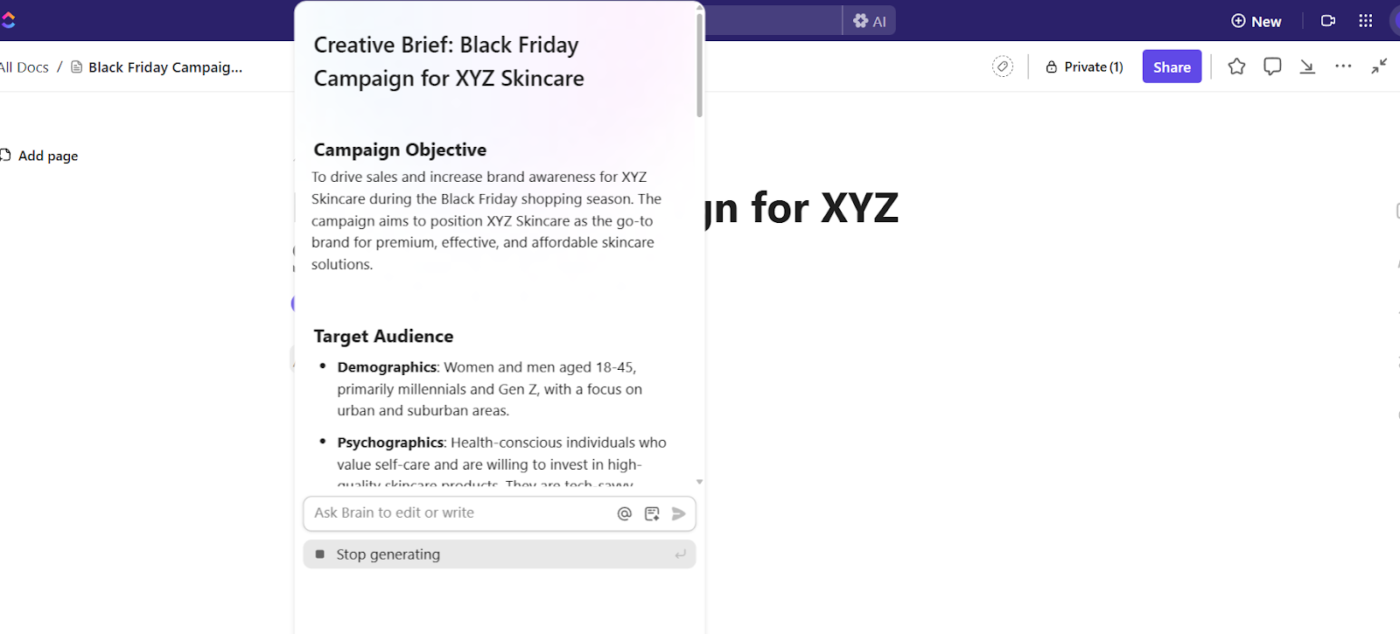
During kickoff, you can use it to generate a detailed creative brief based on a few key inputs.
For instance, if your team is launching a summer campaign for a travel booking app, you can plug in the objective (increase downloads), audience (millennial solo travellers), and tone (optimistic, lighthearted).
AI will draft a complete creative brief inside ClickUp Docs, including suggested asset types and messaging angles.
Once your team begins building assets, ClickUp Brain helps simplify versioning and feedback.
If your motion designer uploads a revised Instagram story and the marketing lead leaves notes across three comments, ask AI to pull key changes into the task. It will update the description and generate subtasks so editors know what to fix, and reviewers can approve the next version without confusion.
To make this even faster, the ClickUp Creative and Design Template gives you a ready-made task structure for managing briefs, asset reviews, deadlines, and approvals.
You can also use AI in any task or comment thread to write quick copy options like alternate CTAs, in-app banner text, or even alt text.
Here’s what stood out from a recent G2 review:
ClickUp is one of the most important tools we use as a game studio. I’m a Producer working on a first-person shooter with a team of around 100 people, and ClickUp helps us manage everything. That includes design tasks, engineering work, QA bugs, and art feedback. I really like how customizable it is. Each department can organize their work in a way that fits them, but everything still rolls up into one system. Sprint planning is easier, and the automations and integrations save us a lot of time.
🧠 Fun Fact: Ai-Da, the world’s first ultra-realistic robot artist, has had solo shows in major galleries, and her works have sparked debates about what it means to be a creator.
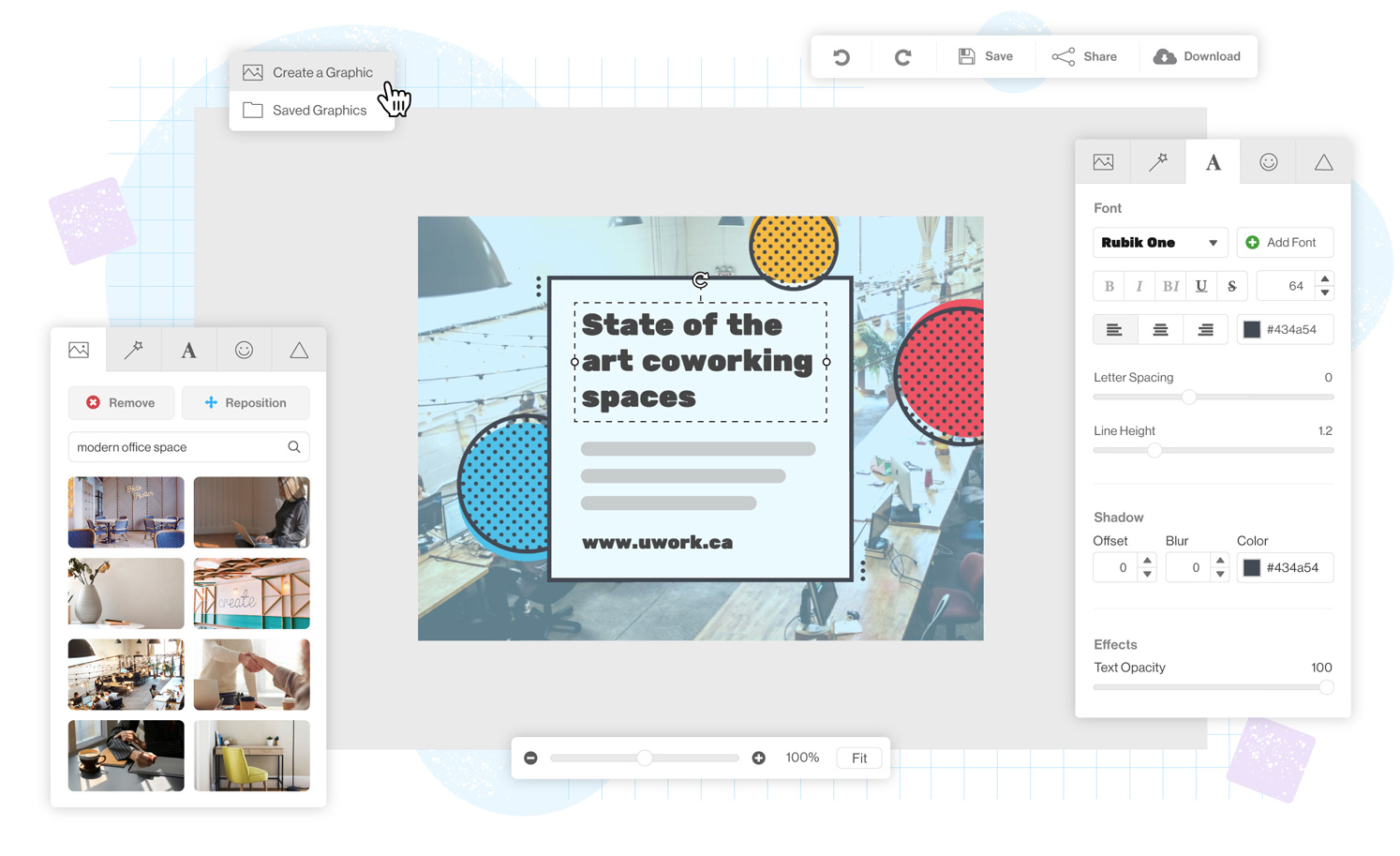
via Snappa
Most web design tools force you to guess dimensions for different platforms, but Snappa eliminates this entirely. The Canva AI alternative focuses specifically on social media content creation, offering preset sizes for every major platform from Instagram stories to LinkedIn banners.
What makes this tool particularly practical is its Buffer integration, allowing direct scheduling without switching between applications. However, the template selection remains limited compared to broader design platforms.
A helpful review on G2 explains it well:
The flexibility to work with text—adjusting styles, colors and proportions—, the storage structure by projects and how easy it is to manage the platform, are the things I like the most about Snappa when editing my materials when time is short and I’m not an expert in design tools.
📮 ClickUp Insight: 11% of our respondents leverage AI primarily for brainstorming and ideation. But what happens to these brilliant ideas afterward? This is where you need an AI-powered whiteboard, like ClickUp Whiteboards, which helps you instantly turn ideas from the brainstorming session into tasks.
And if you can’t quite explain a concept, simply ask the AI image generator to create a visual based on your prompt. It’s the everything app for work that enables you to ideate, visualize, and execute faster!
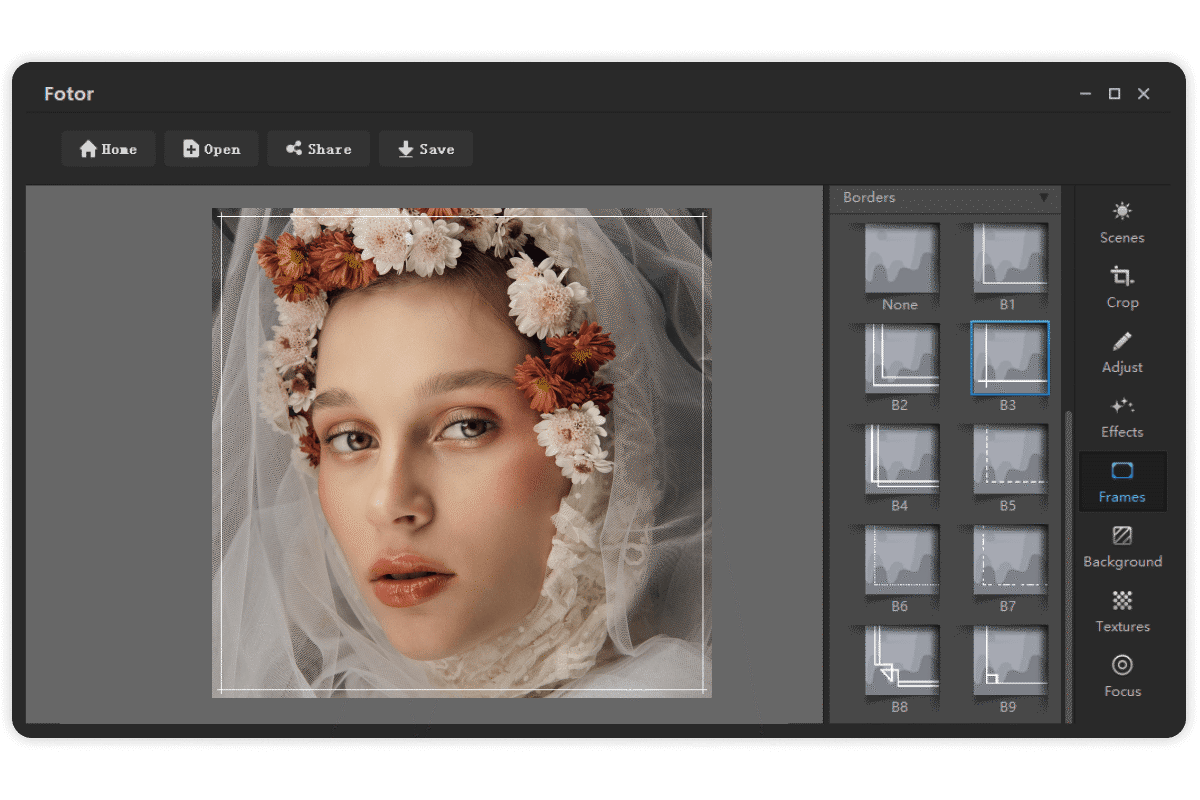
via Fotor AI
Fotor AI’s AI Portrait feature can detect faces and apply targeted enhancements like teeth whitening and skin smoothing. Beyond basic editing, the Canva AI alternative includes an art generator that transforms photos into artistic styles using text prompts.
Nevertheless, the AI processing can be slow during peak usage times. Furthermore, some advanced editing features require premium subscriptions that add up quickly.
One G2 review puts it this way:
Fotor adds an user-friendly interface to make it easy to use and select AI tools and image generators. Images can be created from prompts, or you can upload your own images from prompts and then select AI filters to manipulate or change them, including adding motion and special effects. You can also use it as a design tool to create logos and other artwork. I usually take what Fotor starts and then modify it extensively using traditional design and photo editing techniques.
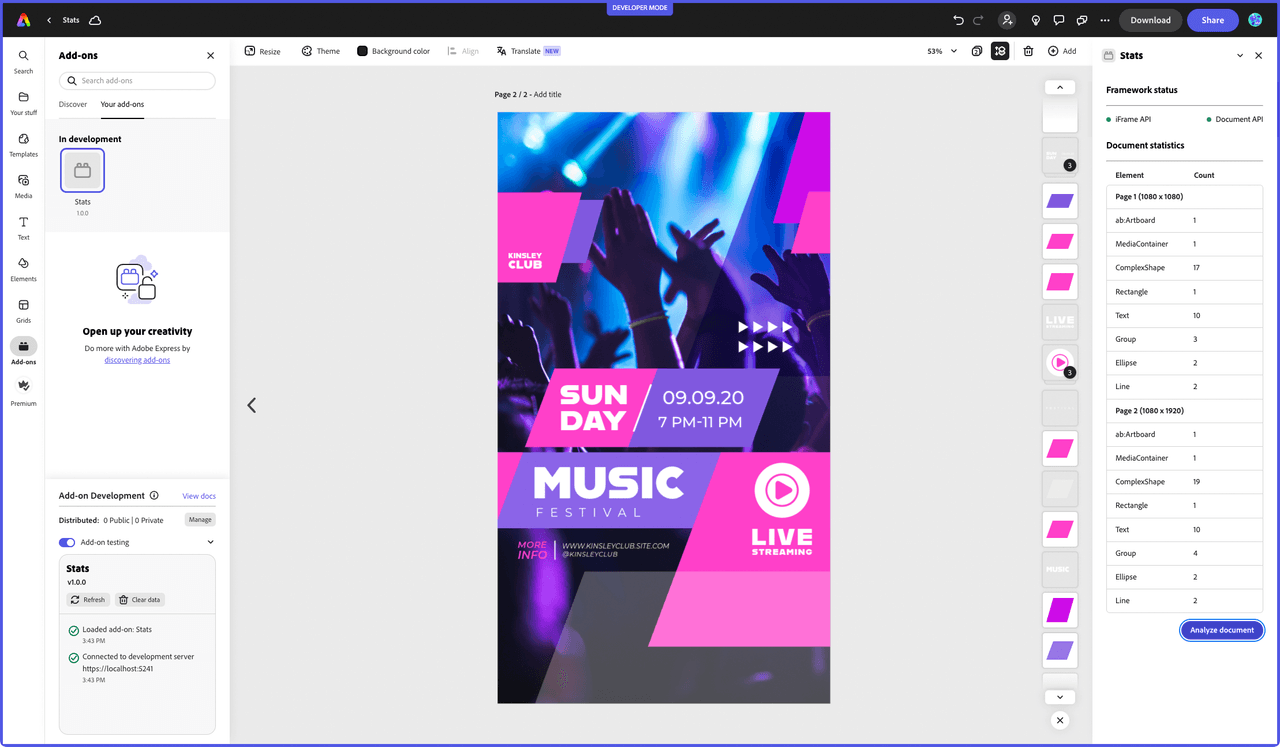
via Adobe Express
Unlike standalone design team collaboration tools, Adobe Express integrates seamlessly into the Creative Cloud ecosystem. This connection allows instant access to Adobe Stock’s extensive library and Creative Cloud Libraries for brand assets.
The Canva AI alternative’s Quick Actions feature handles common tasks like removing backgrounds or resizing images in seconds.
Real talk from a G2 review:
I like to use Adobe Express when I need to design something without being a graphic designer. It’s super intuitive and easy to use, plus I can make professional-looking stuff quickly. I also really like that they have an AI that helps with editing. It’s a very helpful feature.
💡 Pro Tip: Try prompt chaining. Generate something basic, then describe what you like about it and turn that into your next prompt.
via Visme
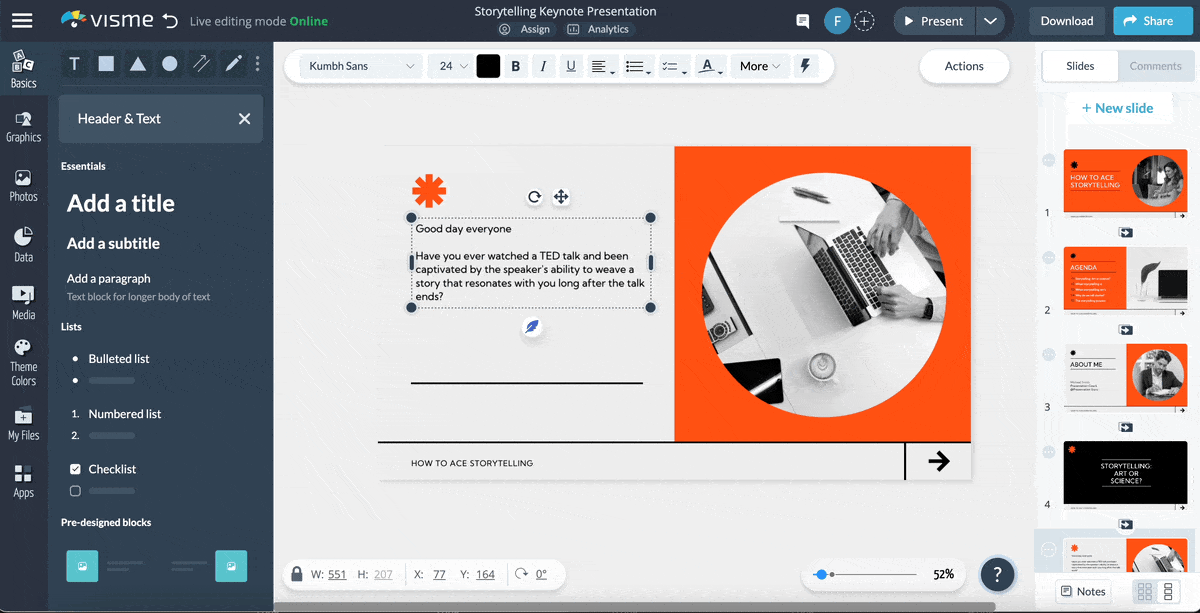
Where other design project management tools treat charts as afterthoughts, Visme builds them into the core experience. The platform connects directly to Google Sheets and Microsoft Excel files, updating charts automatically when data changes.
Its Interactive Map allows clickable regions for presenting geographic data. Yet, the learning curve can be steep for users expecting simple drag-and-drop functionality.
According to one G2 reviewer:
Visme offers an incredibly intuitive interface with a wide variety of templates that make it easy to create professional presentations, infographics, and reports. The drag-and-drop functionality, customizable assets, and built-in charts and graphs help streamline design workflows, especially for teams with varying levels of graphic design experience.
🧠 Fun Fact: British artist Harold Cohen created AARON, one of the earliest AI art programs, in the early ’70s. It could draw autonomously and Cohen treated it as his artistic partner for over 40 years.
via Figma AI
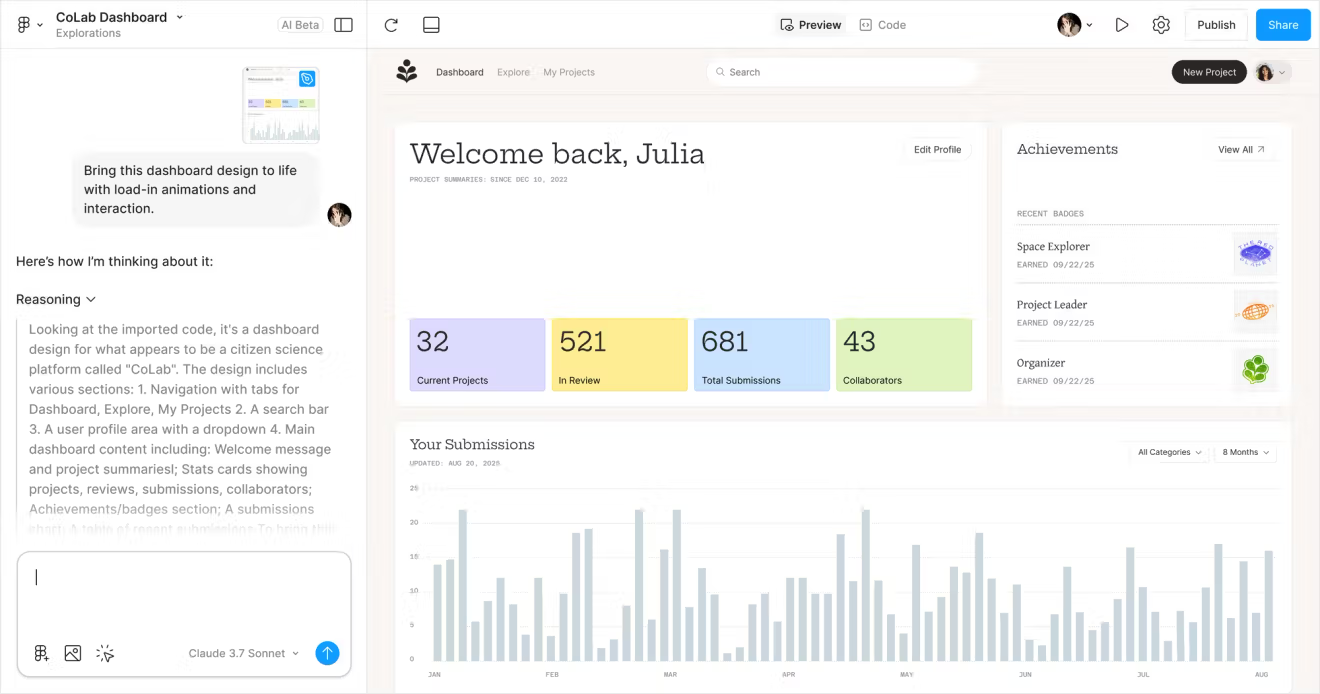
Figma AI’s Auto Layout feature automatically adjusts designs when content changes, maintaining consistent spacing and alignment. Its Component System lets teams create reusable design elements that update across all instances.
Still, the browser-based interface can feel sluggish when handling complex files with many artboards. Additionally, the AI features are still in beta and occasionally produce inconsistent results.
From a G2 review:
What I like most is that it’s very easy to use. For someone with basic design knowledge, they’ll quickly become familiar with it. It has plenty of tools in one, such as the ability to use vectors and images for editing and clipping masks, which is appreciated. There are slightly more complex tools for other types of tasks, but you’ll need a tutorial. For the basics, it’s very intuitive.
💡 Pro Tip: Maintain a prompt journal in ClickUp Docs. Seriously. Write down what worked, what didn’t, and any weird stuff the AI came up with. It speeds up your process way more than winging it every time.
via Piktochart
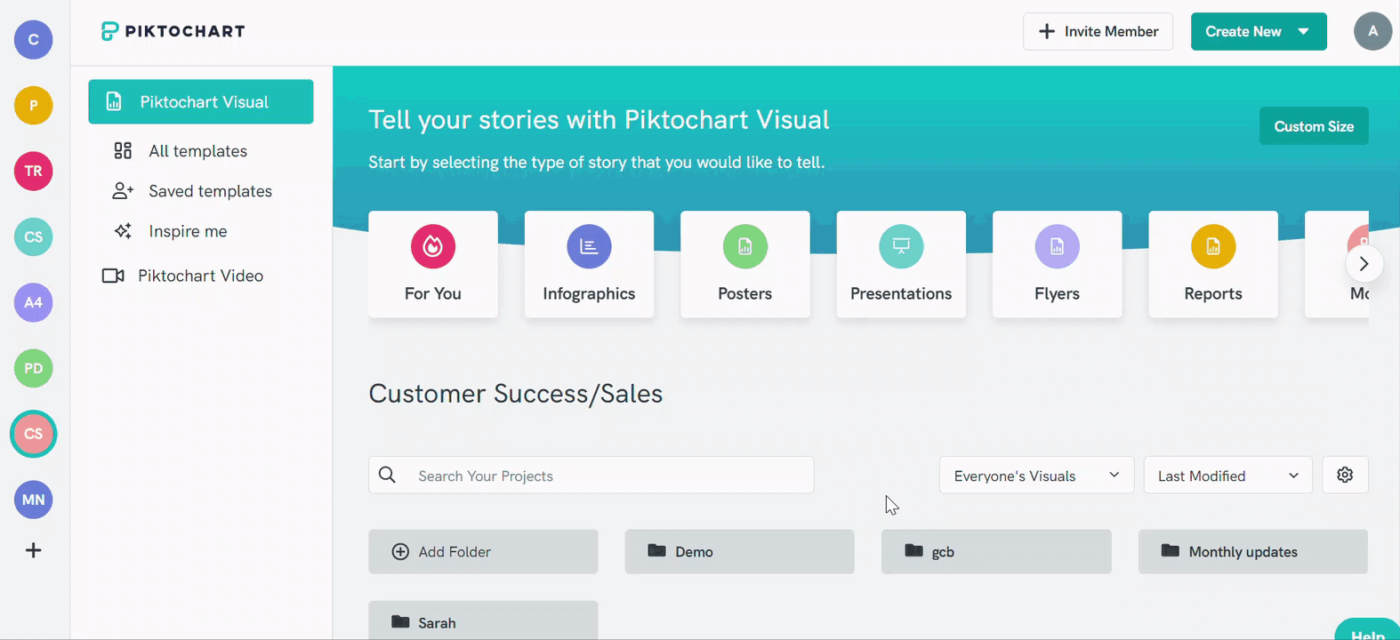
Rather than starting with blank canvases, Piktochart provides structured templates specifically for information design. This Canva AI alternative’s block-based editor lets you swap content sections without redesigning entire layouts. Its icon search function includes over one million icons organized by category and style.
The catch? Exporting high-resolution files requires premium subscriptions.
Here’s a firsthand perspective from a G2 review:
It’s easy and simple to make use of the application which allows creating infographics and presentations promptly and with no time and effort. It provides layouts that can be modified and changed, customize the text, and the font, and put our own pictures or those provided by the application. It enables me personally to arrange the info within a suitable way simply by dragging and dropping things and adding texts, it’s got a number of graphics options that can be adapted to any kind of data.
📖 Also Read: Canva vs. Figma—Which App Is Best for Designers?
via Designs.ai
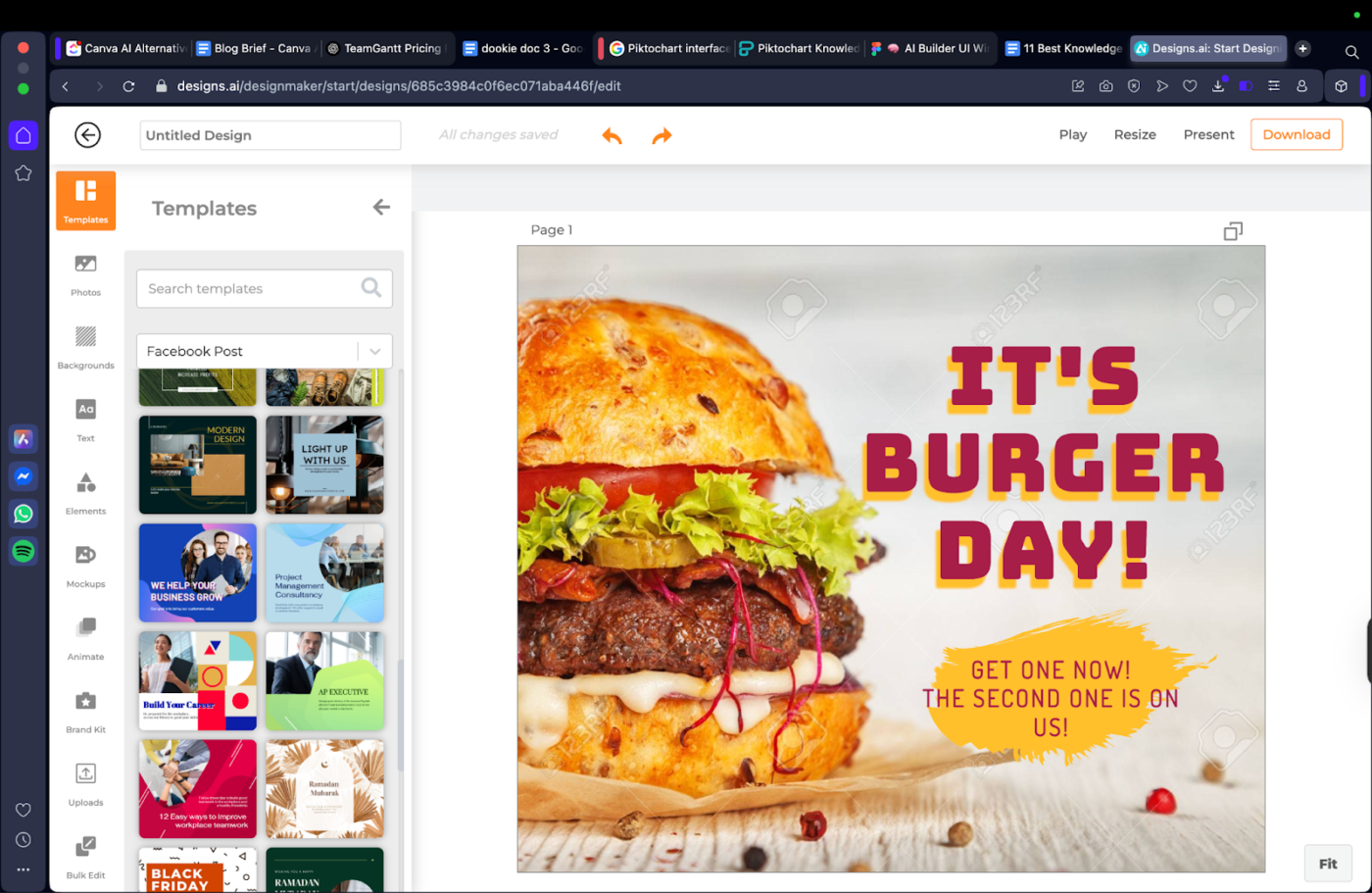
Designs.ai generates complete brand packages from simple text descriptions. The platform’s Logomaker AI creates multiple logo variations based on your industry and style preferences.
Its videomaker can produce marketing videos using AI-generated scripts and visuals. However, its customization options for using AI in graphic design remain limited once initial concepts have been generated.
See what this G2 reviewer had to say:
It’s a great tool for quick and easy design solutions, you can easily download your content and the user experience is good, beginners and experts can take advantage of the tools it provides.
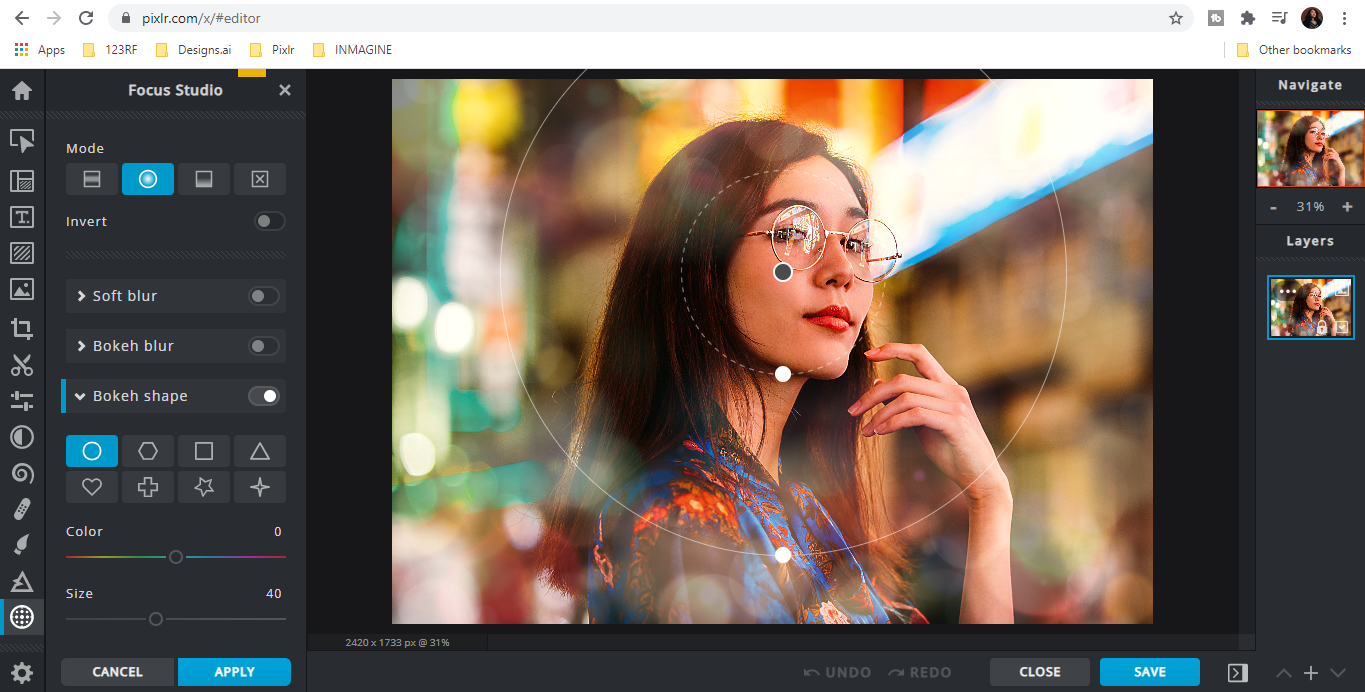
via Pixlr
Pixlr runs entirely in web browsers while maintaining professional editing capabilities. The platform offers both Express (simple) and Advanced (complex) editing modes within the same interface.
Its AI Cutout tool handles intricate selections like hair and transparent objects automatically. Nevertheless, saving projects requires account creation, which some users find inconvenient.
This is how one user described their experience:
One of the greatest strengths of Pixlr is that it automatically saves the work history, both within the browser and in a downloadable file. I also highlight its diversity of fonts and the free-to-use image bank it offers so I can experiment with different styles and create from scratch something simple, like a logo or a banner, or even more complex projects.
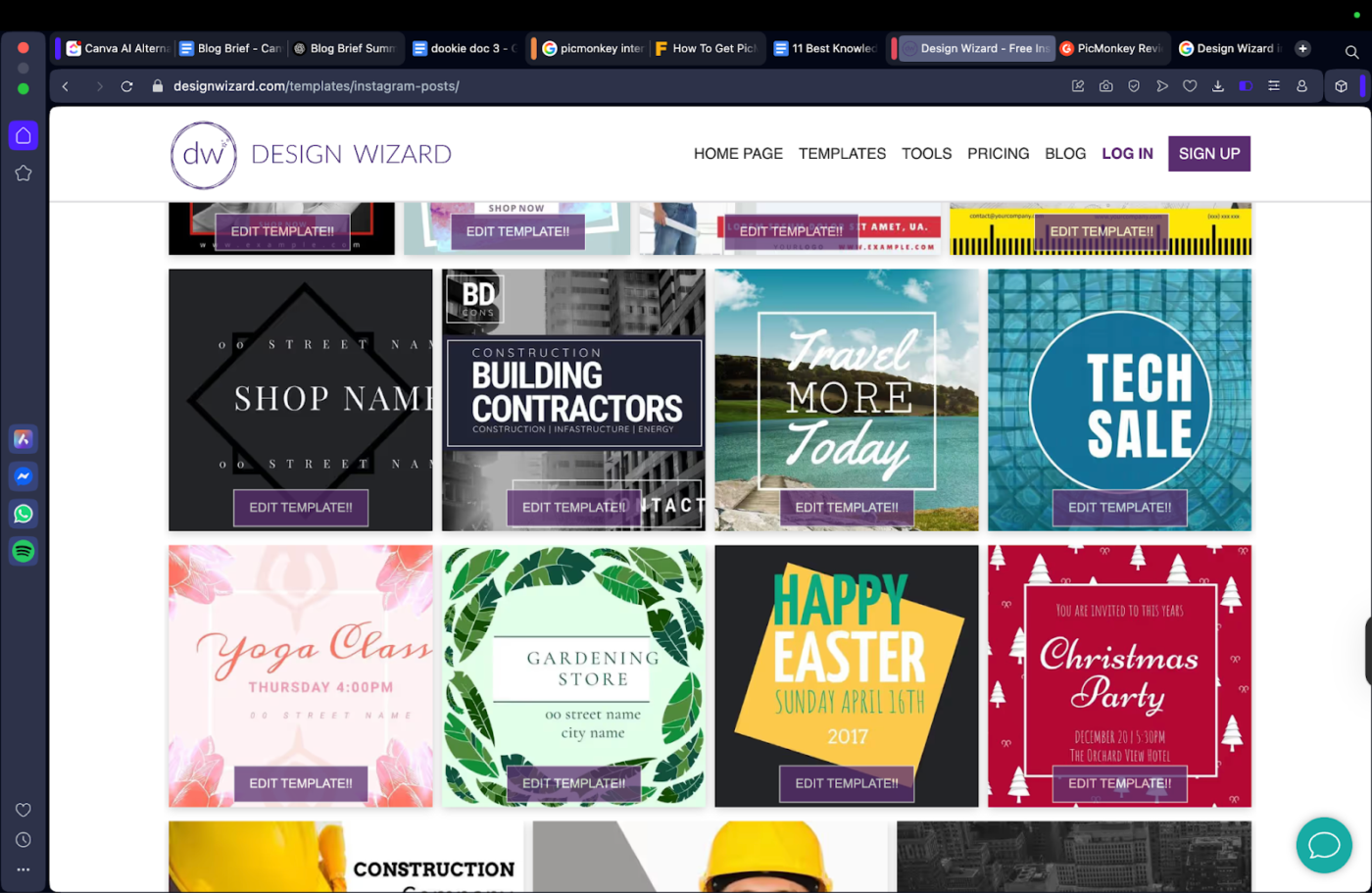
via Design Wizard
Design Wizard adapts designs for multiple advertising platforms automatically. Its video templates include motion graphics optimized for social media engagement.
However, the template style tends toward corporate aesthetics that may not suit creative brands. Plus, the stock photo library, though large, lacks the quality of premium services.
One review puts it this way:
Design Wizard is a simple app that fast and easy to use. As someone with no design skills, I use Design Wizard to create social media posts for different platforms. The best part is that there are templates to use. I have other tools but continue to use Design Wizard because they are constantly updating the tool and adding new images and templates.
📖 Also Read: How to Use AI in Canva for Creative Professionals
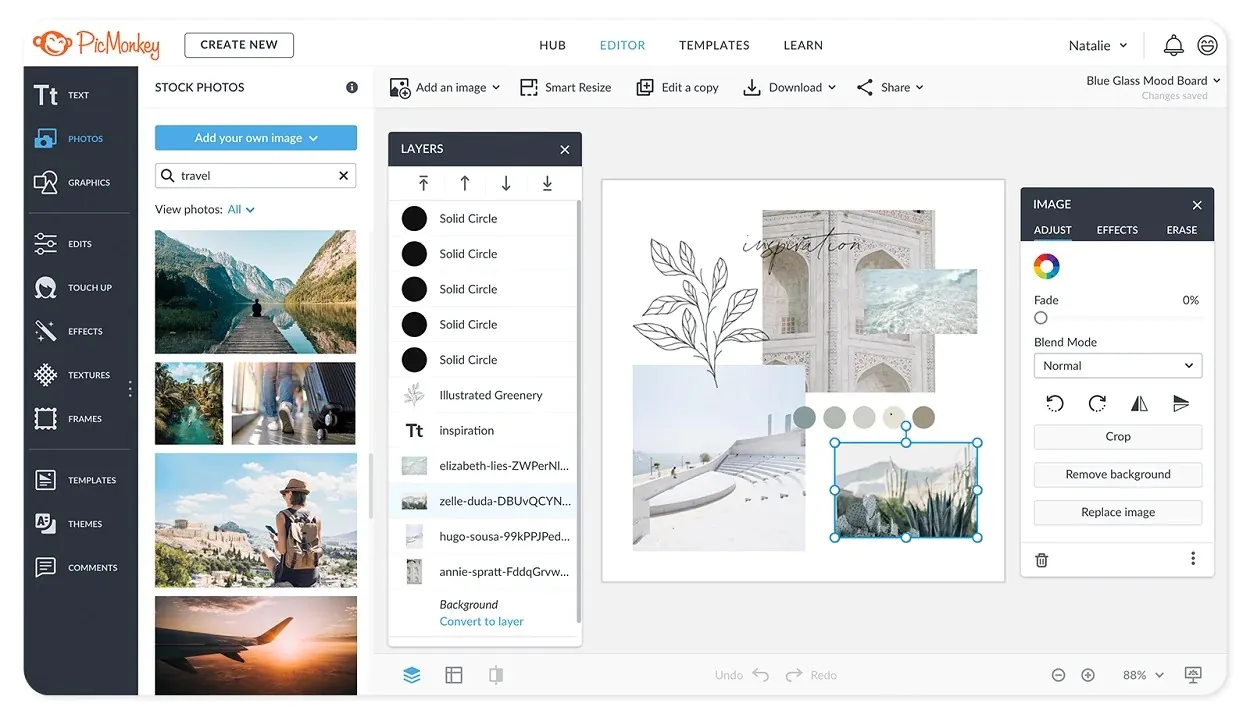
via PicMonkey
Where most editors treat collages as simple image placement, PicMonkey offers sophisticated layout algorithms. The Canva AI alternative’s touch-up tools include advanced portrait editing like teeth whitening and eye brightening.
Its Frames and Borders collection includes artistic options that complement various photo styles.
Here is what a G2 review says about PicMonkey:
With PicMonkey it’s easy to adjust my photos to any size I need – I like its option to insert watermarks designed by me to my edited images so I can protect the identity of my photos. I can access PicMonkey at any time because it’s an online tool, and as a plus my creations can be shared directly on my social networks.
🔍 Did You Know? 20.7% of artists feel that keeping the creative process a true collaboration between humans and AI is crucial for making art that stays fresh and engaging.
Creative work slows down when teams need to chase files, dig through messages, or guess the latest feedback. Without a clear system, great ideas get lost and timelines keep slipping.
ClickUp brings structure to every part of the design process. Teams can manage briefs, track changes, assign deadlines, and gather feedback in one place. Templates reduce setup time. Docs collect inputs without confusion. Whiteboards give everyone a shared space to align before execution begins.
Sign up for ClickUp today! ✅

© 2026 ClickUp

There’s an easier way. Try a free AI Agent in ClickUp that actually does the work for you—set up in minutes, save hours every week.