






Still downloading templates?
There’s an easier way. Try a free AI Agent in ClickUp that actually does the work for you—set up in minutes, save hours every week.
Sorry, there were no results found for “”
Sorry, there were no results found for “”
Sorry, there were no results found for “”
If your team lives in Gmail, Google Docs, Sheets, and Meet all day, you’re not alone. Google Workspace now powers well over 3 billion users worldwide, yet most project plans still sit in scattered tabs and quick spreadsheets.
This is where a project management tool with Google Workspace integration can help. The right software lets you assign ownership, track progress, and keep project documents connected to the right tasks and meetings ✅.
This list covers the best project management tools that connect with Google apps for effective project management without rebuilding how your team already works in Google Workspace.
📖 Also Read: Google Workspace Alternatives: Tools Like G Suite
Use this quick table to compare how each tool connects with the productivity tools of Google Workspace (formerly Google Suite), what it is best suited for, and where its pricing roughly starts:
| Tool | Best for | Key features | Pricing* |
| ClickUp | AI-powered project management connected to Google Workspace for teams of all sizes | Tasks, docs, chat, dashboards, and views; connect Gmail inbox and Google Drive files, sync dates with Google Calendar, and use AI summaries and updates | Free plans; customizations for enterprises |
| Asana | Structured work management for cross-functional Google Workspace teams | Gmail add-on for task capture; Google Drive attachments; Google Calendar sync; timelines and automation | Free plan; paid plans starting from $13.49/month per user |
| Wrike | Complex projects across departments using Google Workspace at small to mid-sized companies | Email-to-task workflows; Google Drive attachments; Google Calendar sync; Gantt charts and dashboards | Free plan; paid plans starting from $10/month per user |
| Zoho Projects | Classic planning and time tracking with Google app connections for small to mid-sized teams | Google app connections; task lists, milestones, dependencies, and Gantt | Free plan for up to 5 users; paid plans starting from $5/month per user |
| Trello | Simple boards alongside Google Workspace for small teams | Boards and cards; Google Drive Power-Up for Docs/Sheets/Slides; Google Calendar sync | Paid plans starting from $6/month per user |
| Kanbanchi | Kanban and Gantt inside Google Workspace for small organizations | Runs inside Google Workspace; Drive and Calendar support; Gantt charts; time tracking | Paid plans starting from $5.99/month per user |
| kissflow | Workflow-driven automation of approvals and projects with Google apps for mid-sized to large teams | Low-code workflows; connect Gmail, Drive, and Sheets; approvals and intake flows | Paid plans starting from $1,500/month |
| Smartsheet | Spreadsheet-style project tracking with Google Workspace integrations for small to mid-sized teams | Grid view; Google Drive attachments; calendar sync; dashboards and automation | Paid plans starting from $12/month per user |
| monday.com | isual boards and dashboards next to Google apps for mid-sized teams | Gmail + Drive connections; Google Calendar sync; boards, timelines, and automation | Free plan; paid plans starting from $12/month per user |
How we review software at ClickUp
Our editorial team follows a transparent, research-backed, and vendor-neutral process, so you can trust that our recommendations are based on real product value.
Here’s a detailed rundown of how we review software at ClickUp.
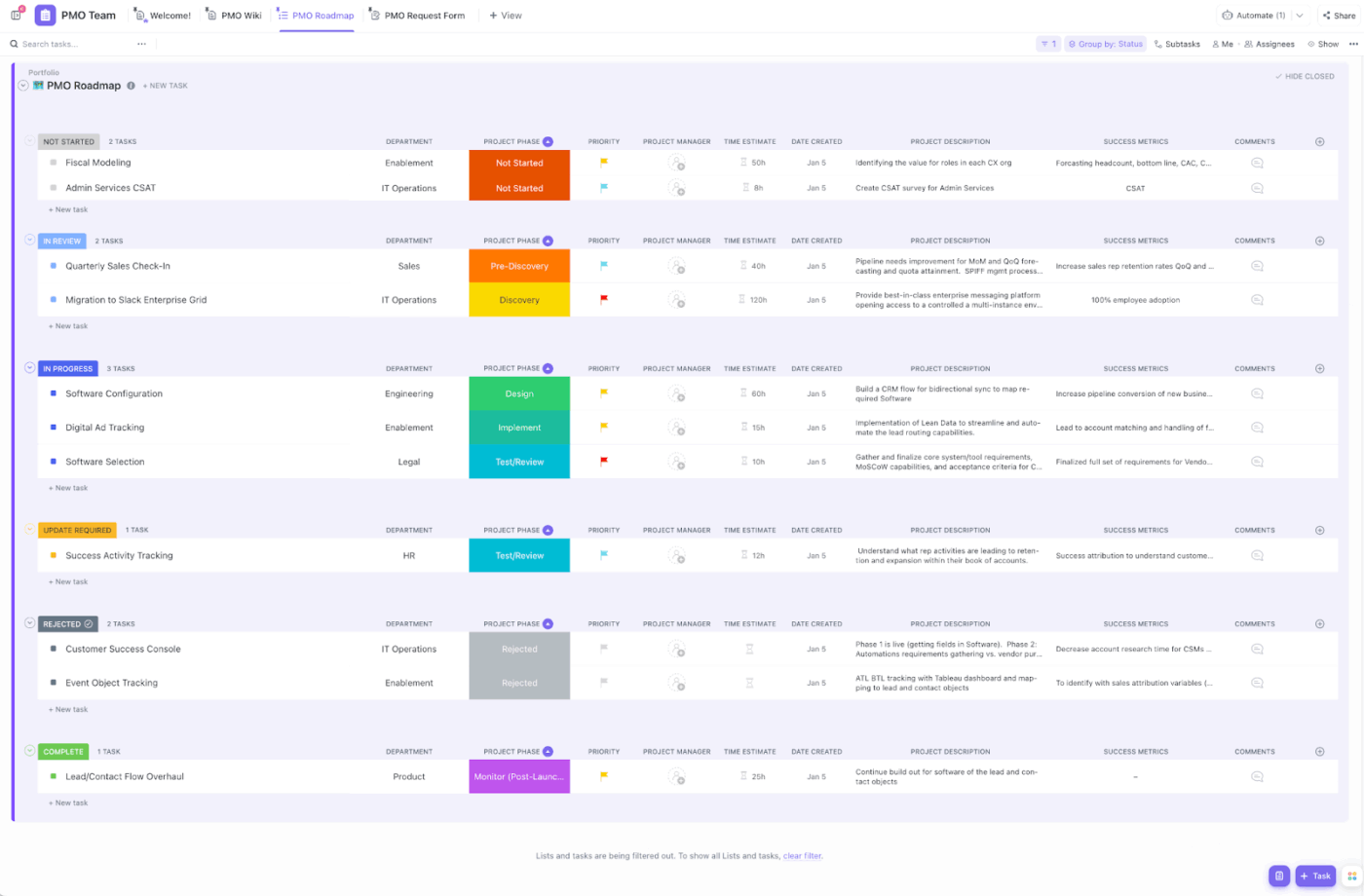
Plan, track, and organize your next project faster with the ClickUp Project Management Template. It gives you a ready-made workspace to capture tasks, timelines, and docs so your team can move beyond scattered Google Sheets and inbox notes into one clear project hub.
A good Google Workspace setup is not only about storing files. It’s about reducing the back-and-forth between tools when tasks change, files get updated, and timelines shift.
✅ Use this checklist to pick a project management software option that fits how your team already works in Google apps. The ideal tool does the following:
📮ClickUp Insight: Context switching is silently eating away at your team’s productivity. Our research shows that 42% of disruptions at work come from juggling platforms, managing emails, and jumping between meetings.
What if you could eliminate these costly interruptions? ClickUp unites your workflows (and chat) under a single, streamlined platform. Launch and manage your tasks from across chat, docs, whiteboards, and more—while AI-powered features keep the context connected, searchable, and manageable!
These tools are built for teams that already live in Gmail, Google Docs, Sheets, and Google Calendar and want project work to stay tied to those apps instead of scattered across tabs.
Below, you’ll find the top project management tools that connect tasks, files, and workflows with Google Workspace so you can plan, track, and deliver projects without breaking your team’s habits.
If your team runs projects inside Google Workspace, you already have the building blocks: Gmail for requests, Google Docs for specs, Google Sheets for trackers, Google Drive for files, and Google Calendar for deadlines.
But with work split across so many places, it’s hard to track progress and keep remote team members aligned once projects get more complex.
That’s work sprawl: action items live in email threads, and “the plan” becomes a mix of spreadsheets and calendar invites. Then AI sprawl shows up too: one tool summarizes meetings, another generates tasks, and you still end up copying and pasting updates between apps.
ClickUp for Project Teams solves both by acting as a converged AI workspace for project management. You keep task management, docs, timelines, and collaboration in one platform while still working closely with Google apps.
Here’s a quick rundown of how you can use ClickUp to manage projects, tasks, and Google Workspace files in one connected workspace:

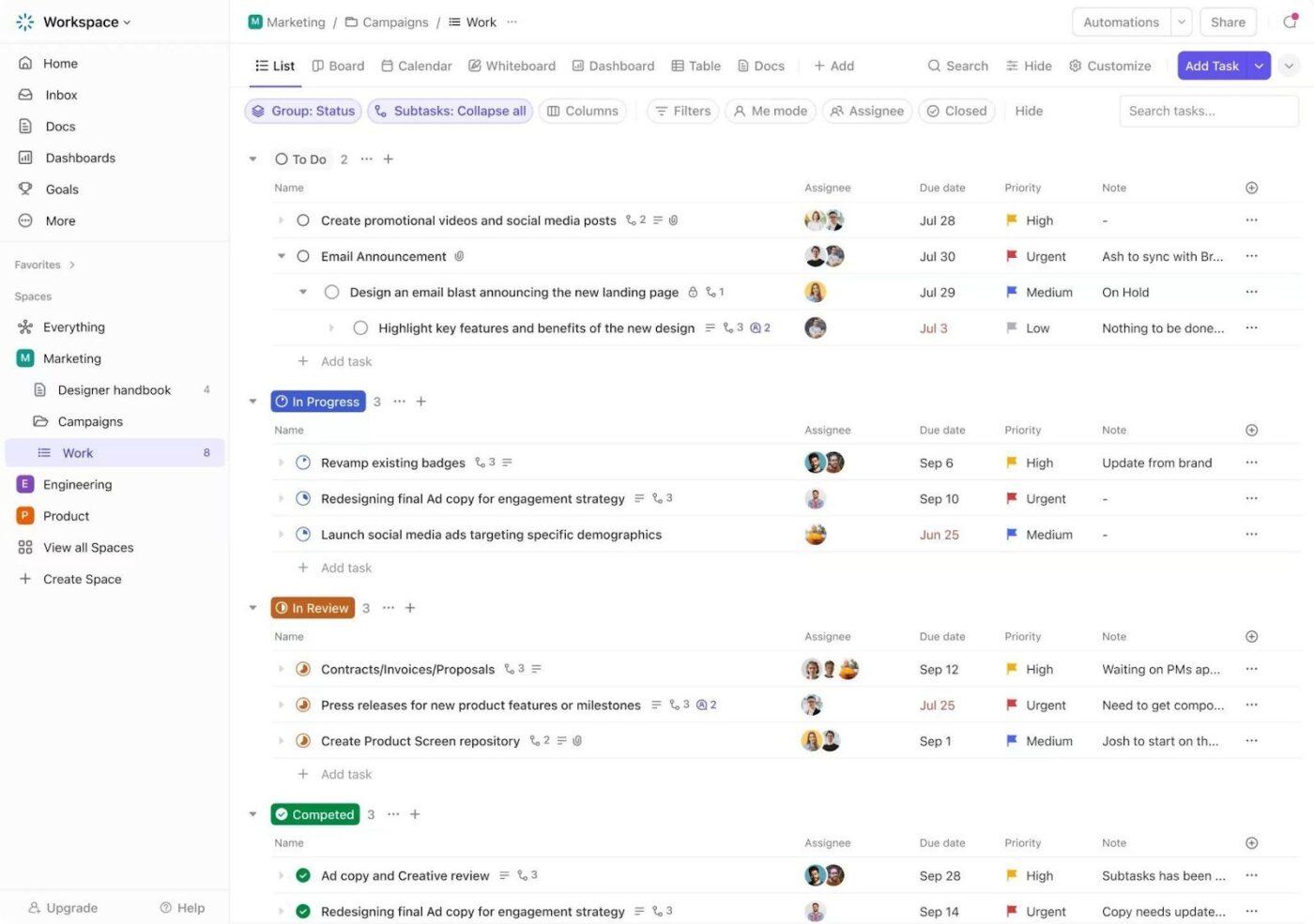
When an ask comes in via Gmail or a change happens in a Google Doc, the fastest way to manage projects effectively is to turn that “request” into a real task with an owner, priority, and due date.
ClickUp Tasks are built for that workflow. You can create tasks from docs, add details with Custom Fields, and use priorities, dependencies, and milestones to manage resources and keep the entire team aligned.
💡 Pro Tip: When you are mapping long project timelines in ClickUp Gantt View or ClickUp Calendar View, you can use the free ClickUp Days Calculator to quickly check the number of days between key dates and keep schedules realistic.
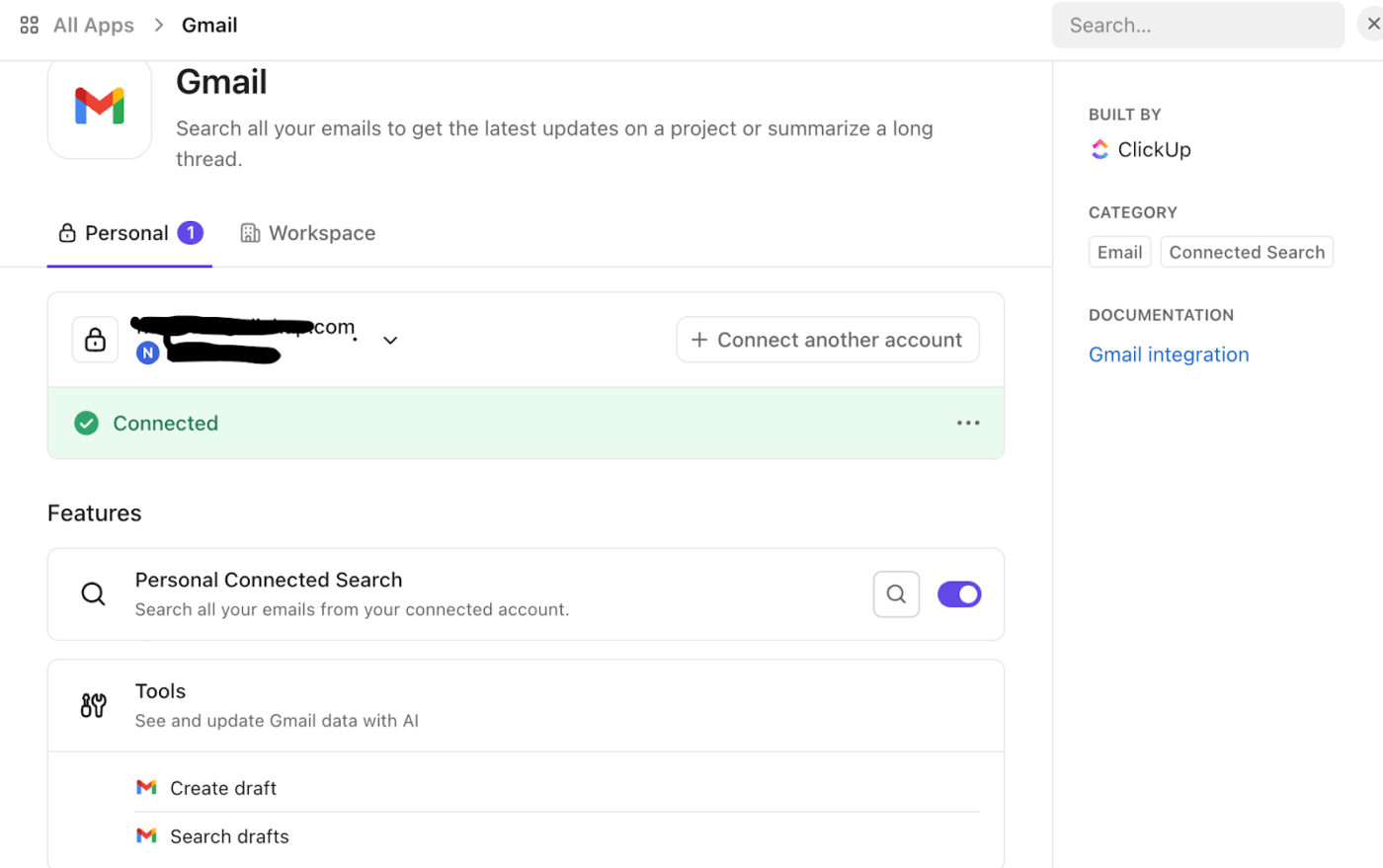
Start by connecting Google Drive (and Google Calendar) from ClickUp’s integrations, so your team can attach files, search, and preview Drive content in ClickUp.
You can also connect your Gmail inbox, so ClickUp Brain can help prioritize tasks, suggest follow-ups, draft responses, and more.
💡 Pro Tip: You can use ClickUp Brain to generate task summaries and progress updates directly from docs, comments, and meeting notes. You can then auto-create new tasks from those conversations so your task list updates itself without extra copy-paste.
For example, you can ask it to scan a project doc or meeting recap, pull out clear action items with owners and due dates, and push them straight into your task list.
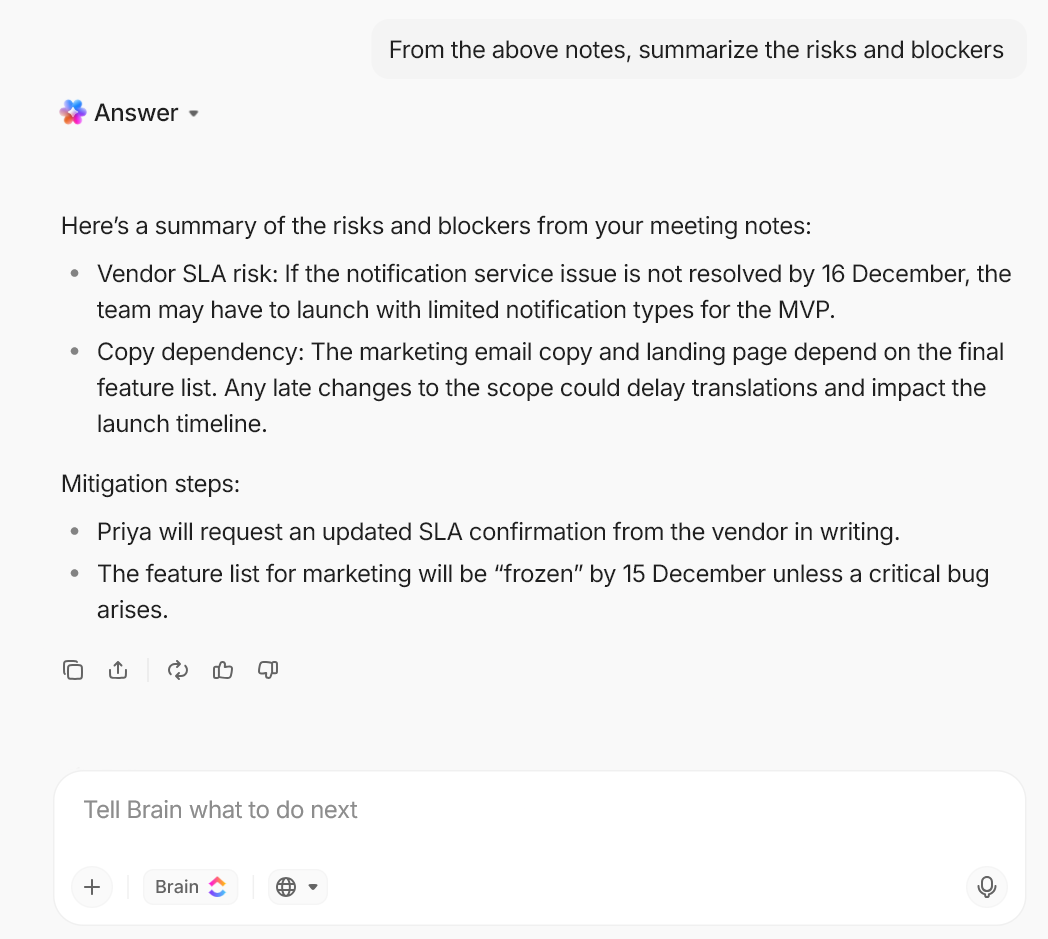
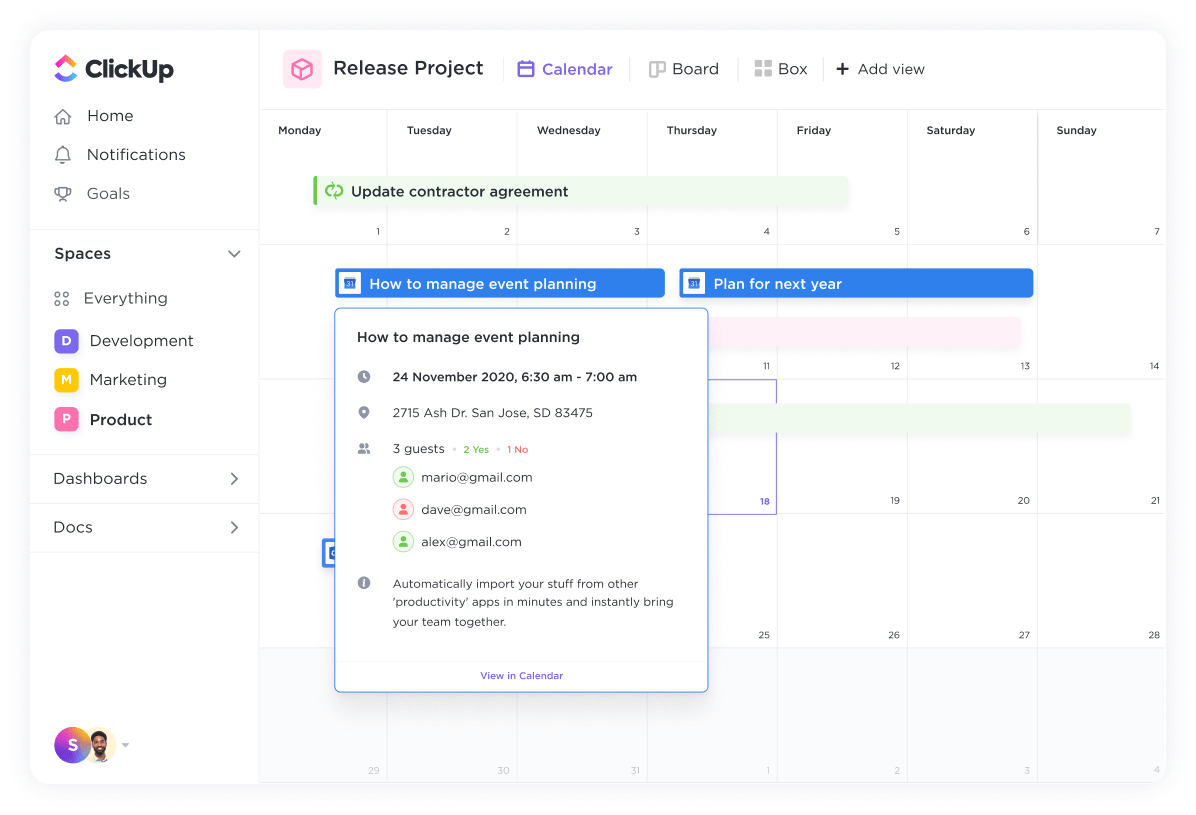
If your team plans their day in Google Calendar, you don’t want project due dates living somewhere else. ClickUp’s Google Calendar integration is designed to sync ClickUp Tasks with Google Calendar so you can manage schedules, track deadlines, and update events in real time.
Practical way to run this:
Watch this short video to learn how to manage multiple calendars from one place using ClickUp as your central project hub:
💡 Pro Tip: Run project updates faster with ClickUp BrainGPT (and Enterprise Search).
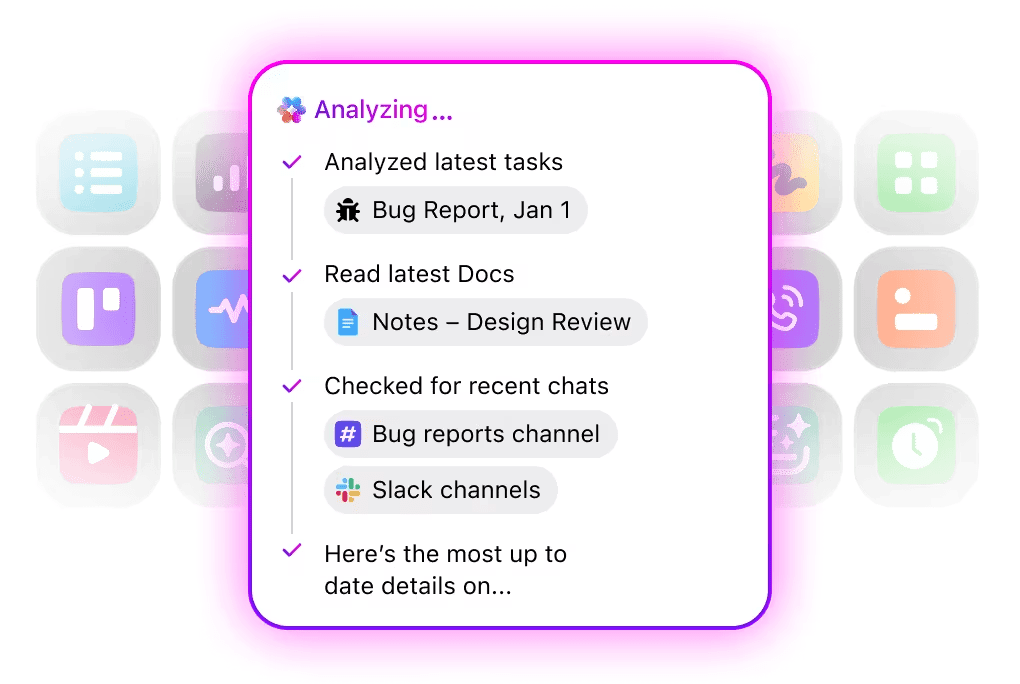
ClickUp BrainGPT is built for teams that need answers and updates across ClickUp and Google Workspace without bouncing between AI tools. You can search across your work apps and the web, switch between premium AI models, and use Talk to Text to turn voice into action when typing slows you down.
Here’s how you can use it:
You can create Google Docs directly from a ClickUp Task (so every new doc starts already tied to the work item), and embed Drive files so they open as a preview inside ClickUp.
This can be done for a couple of other Google Docs alternatives as well, thanks to ClickUp’s 1000+ integrations.
ClickUp supports editing embedded Google Sheets, so you don’t need to navigate away every few minutes.
💡 Pro Tip: When project decisions happen in chat, convert the message into a task immediately so it doesn’t get lost. ClickUp Chat is designed to link conversations to related tasks and docs and helps your team communicate in separate channels.
You can also use ClickUp’s AI to run ClickUp Agents in your key ClickUp Chat channels so they summarize long threads, surface the right docs and tasks, and answer quick “where is this?” questions from your workspace context.
A G2 review says:
I really appreciate the breadth of features that ClickUp offers, which helps me manage short-term tasks throughout the week and more complex, months long projects. It makes collaboration and communication with other team members seamless, which takes the clutter and chaos out of projects.
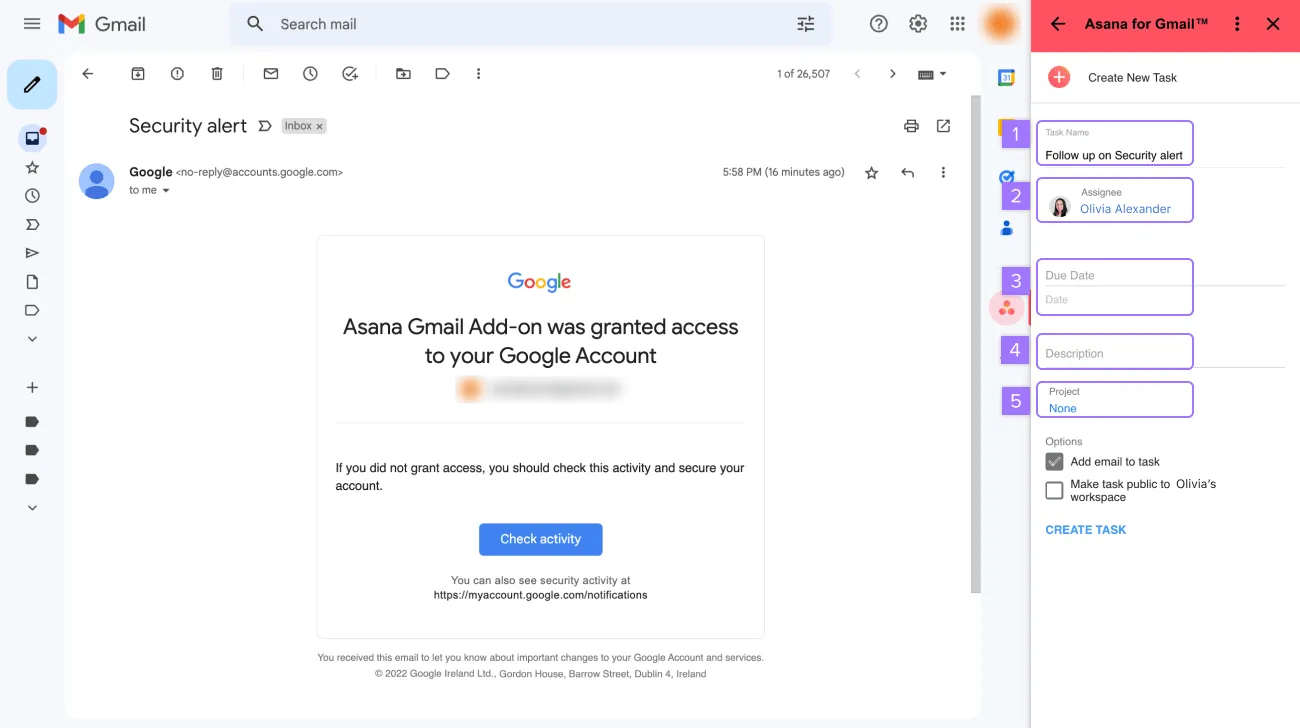
If your team runs day-to-day execution through Google Workspace, the hard part is keeping ownership and follow-through clear once requests start flying through Gmail and plans are stored across numerous Google Docs and Google Sheets.
Asana is ideal when you want a more structured project management approach without replacing Google apps. It adds a clear layer of accountability on top of the way teams already collaborate. This helps convert email threads into trackable work, which can be accessed in a single place instead of multiple tracker sheets.
That means you can keep writing in Google Docs, updating trackers in Google Sheets, and scheduling in Google Calendar, while Asana becomes the place you track progress and manage projects effectively.
A G2 user mentions:
The interface offers several ways to view tasks, which makes it flexible for different work styles. I also find it extremely helpful that Asana integrates smoothly with other apps, which reduces a lot of manual effort throughout the week.
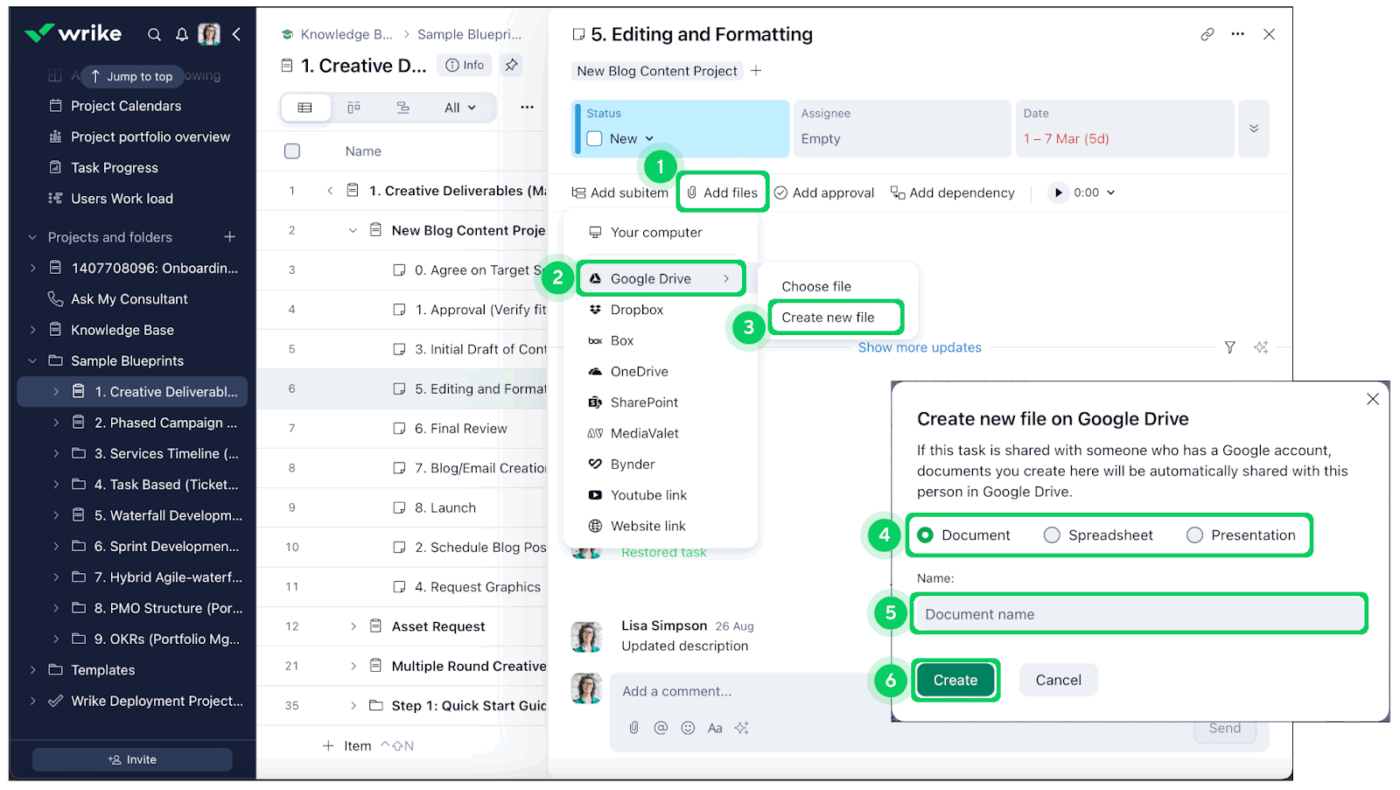
Wrike tends to work best when your “projects” are more than a simple checklist and include multiple stakeholders. If you are coordinating multiple approvals and shifting timelines, a spreadsheet alone rarely shows what is truly at risk, especially once dependencies pile up and priorities change.
This is where Wrike steps in as an execution layer that connects with core Google apps, so project work is not trapped inside email threads or multiple Drive folders. You can keep Google Drive as your source of files and Google Calendar as your scheduling hub, while Wrike helps teams coordinate tasks and track milestones across more complex projects.
It’s also a practical pick for organizations that want more control over how work flows across different teams. You can standardize how work gets assigned and how progress gets reported back to stakeholders.
A G2 reviewer notes:
Wrike has an uncluttered dashboard that allows us to see pending tasks and who needs to handle specific task. It is easy to move or reorder tasks to suit our workflow.
📖 Also Read: Best Google Tasks Alternatives and Competitors
👀 Fun Fact: In one survey, 76% of people who primarily use a project management tool to communicate with coworkers said it made them more efficient. Centralizing updates beats chasing long email threads almost every time.
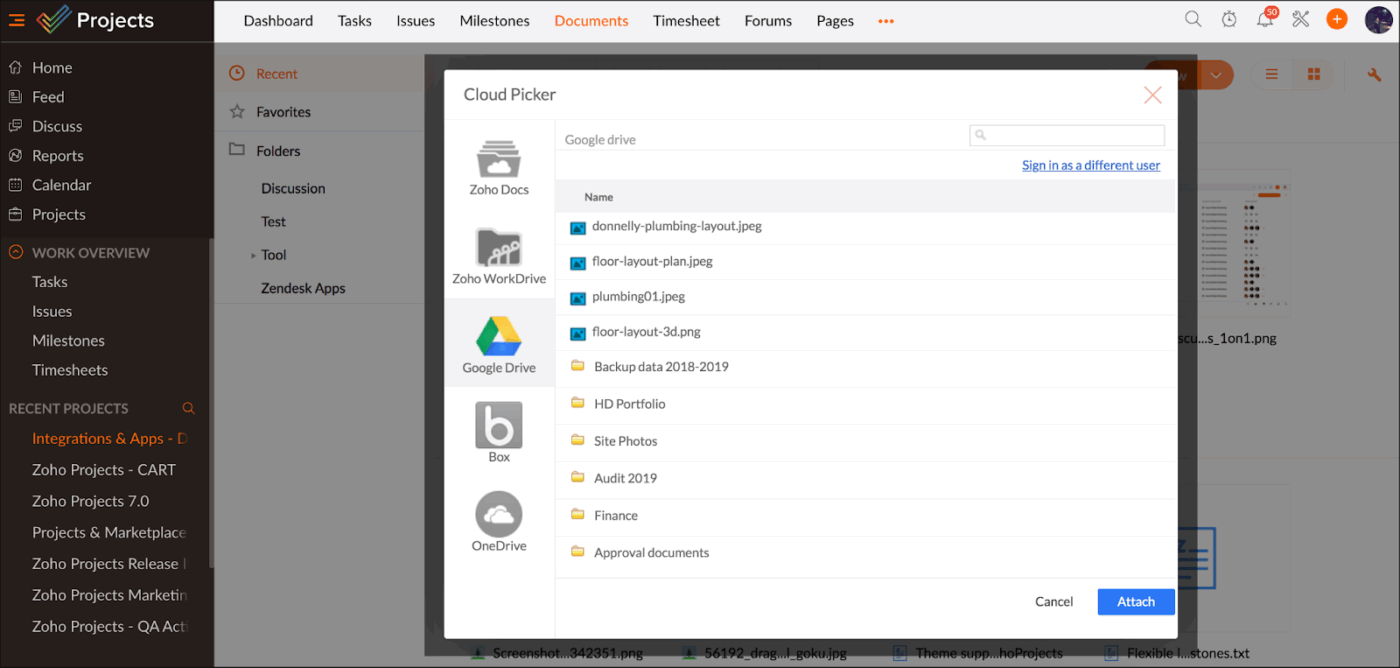
Zoho Projects works ideally for teams that prefer a “classic” project management software feel, where planning revolves around tasks, milestones, dependencies, and timeline-based tracking.
For Google Workspace users, Zoho Projects is designed to plug into the tools teams already use every day. Instead of treating Gmail, Google Drive, and Google Calendar as separate islands, the Google Workspace integration is meant to keep tasks and files connected inside your project hub.
This makes Zoho Projects a practical fit for small to mid-sized teams that want more reliable tracking and coordination, especially if they already use other Zoho products.
A G2 reviewer shares:
Managing multiple tasks and deadlines across a team can get overwhelming—but using Zoho Projects has really helped us keep everything organized and transparent. What I find most helpful is how easy it is to assign tasks, track progress, and monitor deadlines all in one place.
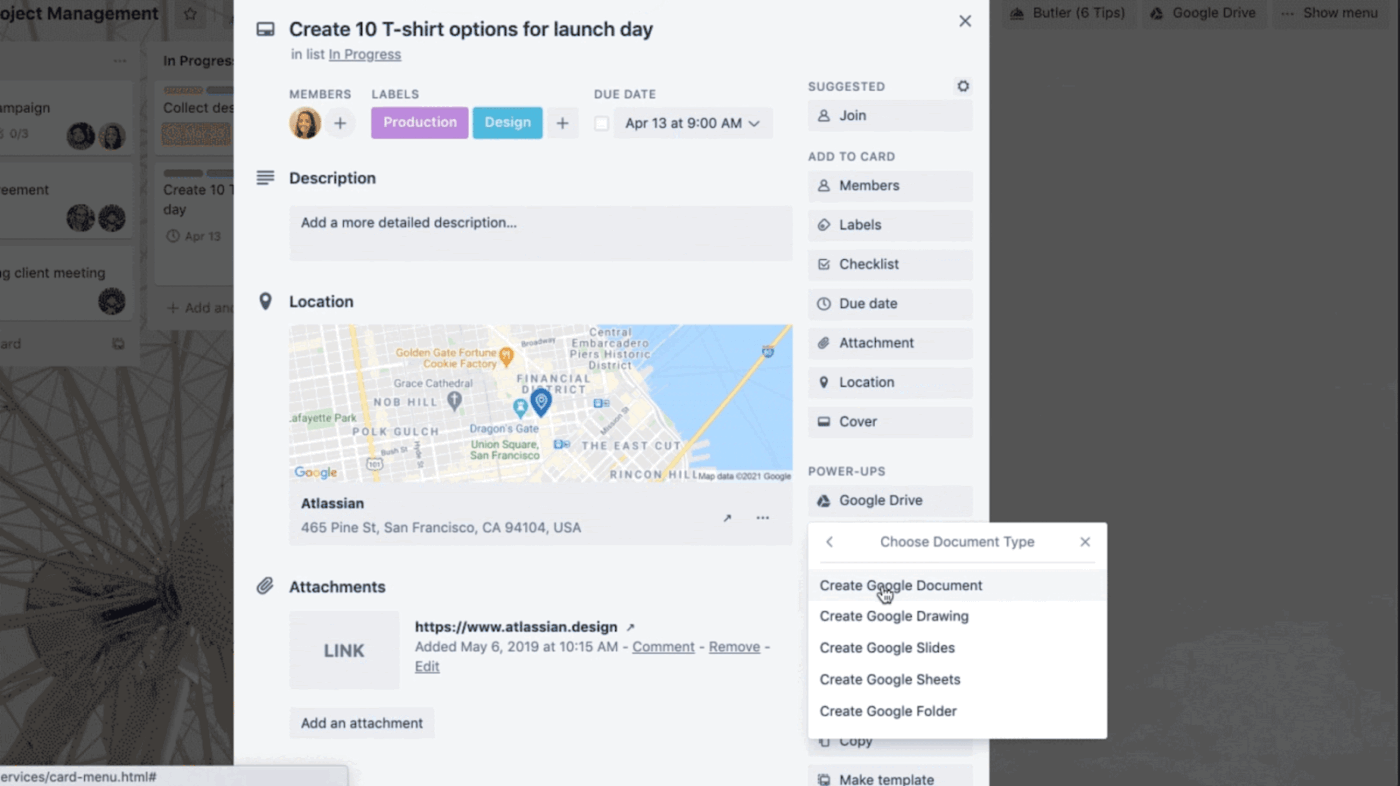
If your projects are lightweight, like weekly planning or internal checklists, Trello’s boards make task management feel approachable and easy to work on.
Google Workspace teams often like Trello because it layers neatly on top of the Google tools they already rely on.
You can keep project documents in Google Drive and bring them into the flow of work using Trello’s Google connections. This ensures project files are easy to access when someone is working from a Trello card.
And when scheduling matters, Trello can keep deadlines visible inside project management calendars like Google Calendar, which helps remote team members stay aligned on what’s due without having to open yet another planning tool.
A Capterra reviewer shares:
I’ve been able to go from general to do lists, email inbox overflow, post in notes, and specific project objectives into one unified place with complete organization.
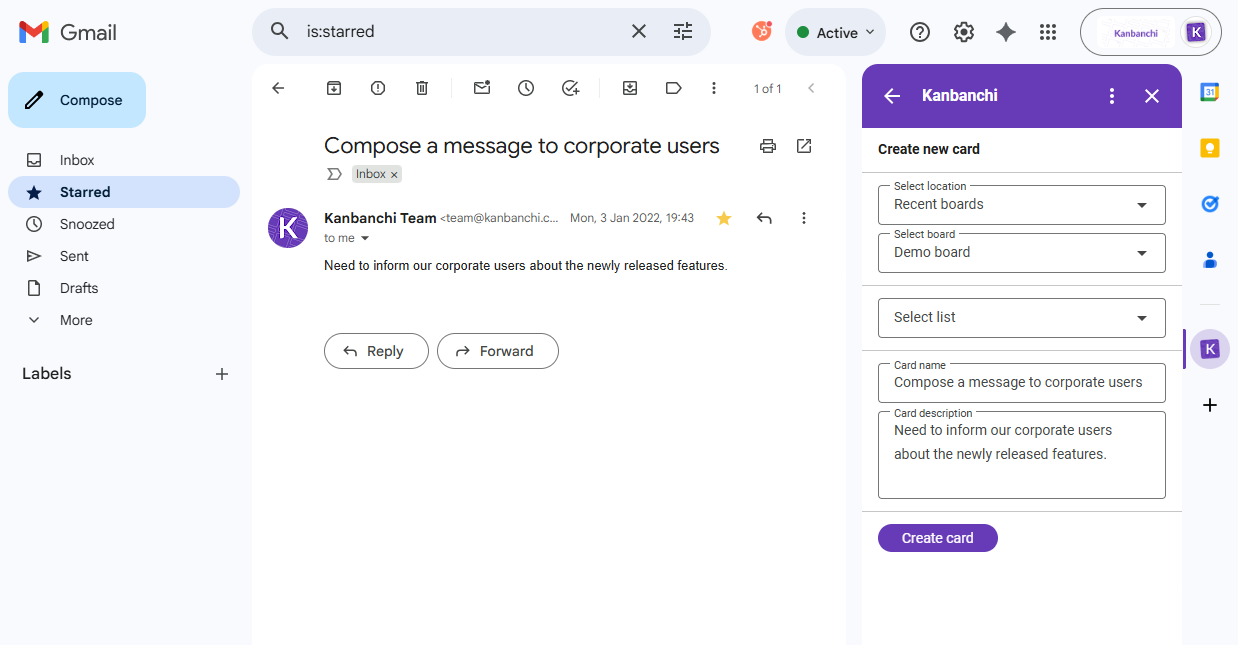
Kanbanchi is built specifically for teams that want a Google-native project management tool. If your organization already signs in with Google, stores everything in Google Drive, and plans the week in Google Calendar, Kanbanchi feels like an extension of that environment rather than a separate platform.
It’s especially useful when you want the simplicity of Kanban boards but still need planning tools like Gantt charts or time tracking. Because it’s built around Google Workspace access, onboarding is often straightforward for teams that don’t want to manage yet another login and tool switch.
That combination works well for teams that run delivery work where schedules matter, but you don’t want a heavyweight platform.
A Capterra reviewer notes:
Fantastic organisation of works with brilliant sharing of data, live updating within teams, colour coding of items and all features you can want and more from a kanban board.
📖 Also Read: How to Use Google Workspace for Project Management
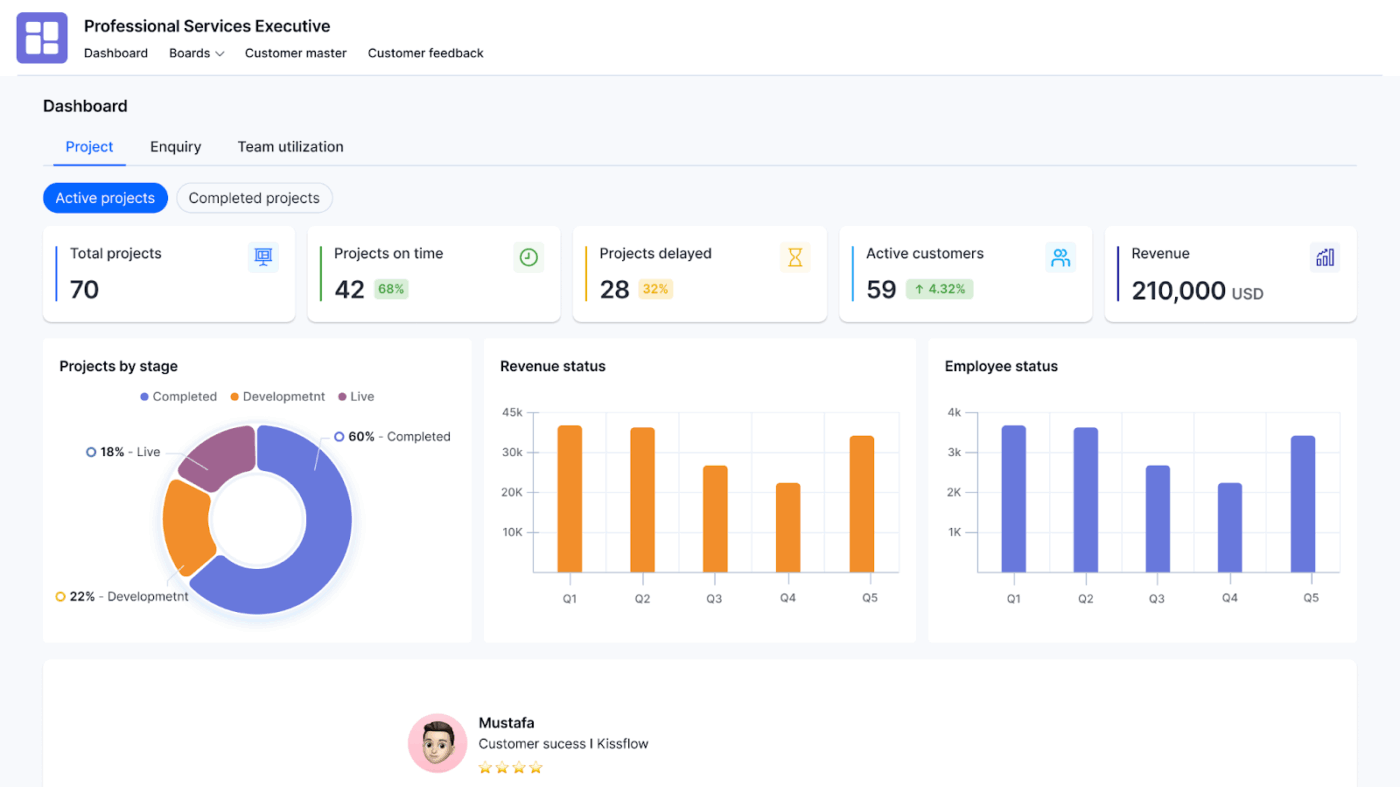
Kissflow is an ideal fit when your projects are made up of processes like approvals, request intake, and work routing between teams.
What Kissflow does well is give teams a structured way to run those workflows while still staying connected to Google Workspace.
Instead of letting the work stay inside Gmail threads and disconnected project documents, you can keep the flow visible with Kissflow’s interface, which helps teams deliver projects with fewer follow-ups and less manual coordination.
Teams generally use it to create processes like onboarding, procurement requests, internal operations workflows, and project-style delivery that depends on approvals.
A Capterra reviewer notes:
With its user-friendly interface, I can easily assign tasks to each party, without any need for coding. Additionally, kissflow offers top-notch functionality for access control and field obscuring. Overall, kissflow is a game changer for anyone looking to streamline their workflow.
📖 Also Read: Best Google Drive Integrations
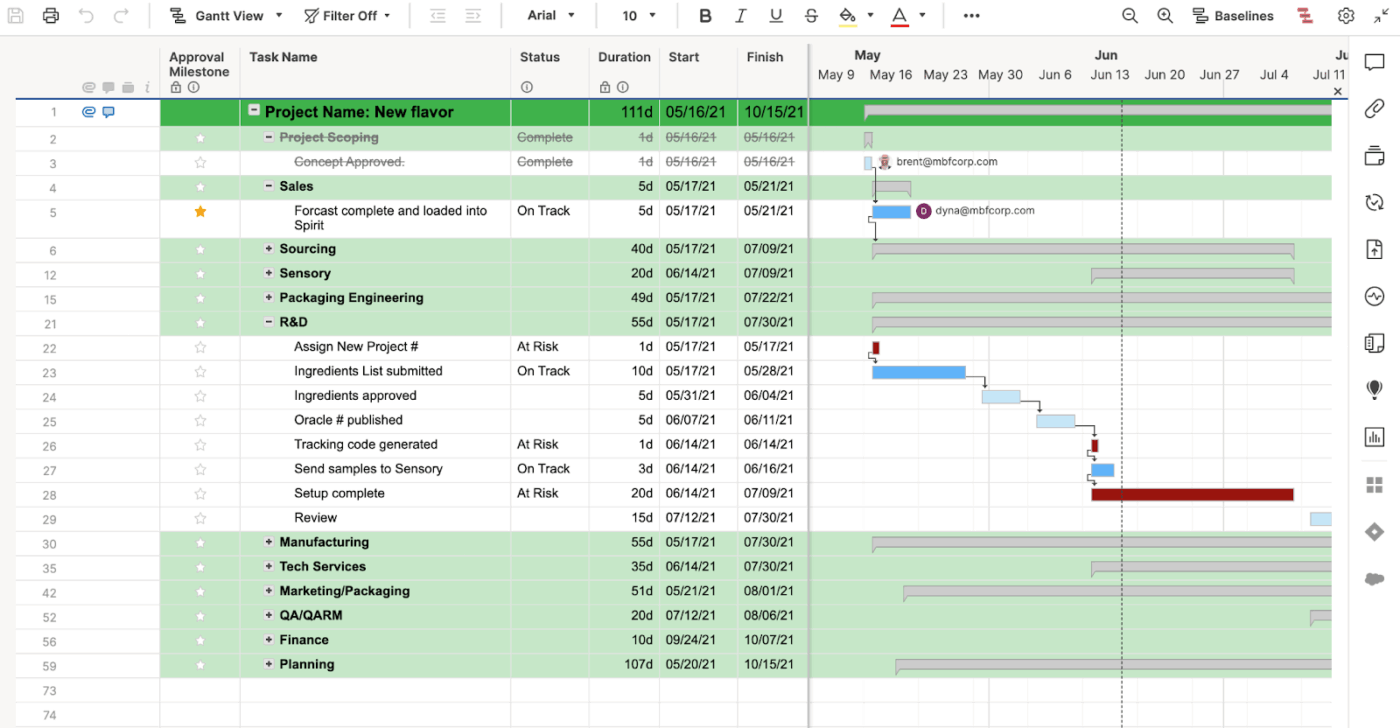
A spreadsheet is good for managing your projects until you are reviewing multiple owners, versions, and status changes, which can make tracking changes quite difficult.
Smartsheet is often the upgrade path for teams that plan in Google Sheets but need stronger control once work gets more complex. This tool keeps the grid-style experience many teams are comfortable with while adding more structure around how work is managed and reported.
For Google Workspace users, Smartsheet supports integrations that help keep files and schedules connected, which is useful when your project documents are stored in Google Drive, and your team depends on Google Calendar to stay on track.
This makes it a practical choice for teams that want to keep the spreadsheet-like workflow but reduce the chaos that comes with manual updates and unclear ownership across projects.
A G2 reviewer shares:
What we’ve come to appreciate most about Smartsheet is how flexible it is. Unlike traditional project management software that locks you into one rigid format, Smartsheet gives you the freedom to design your own workflows—whether that’s through grids, Gantt charts, calendars, or dashboards.
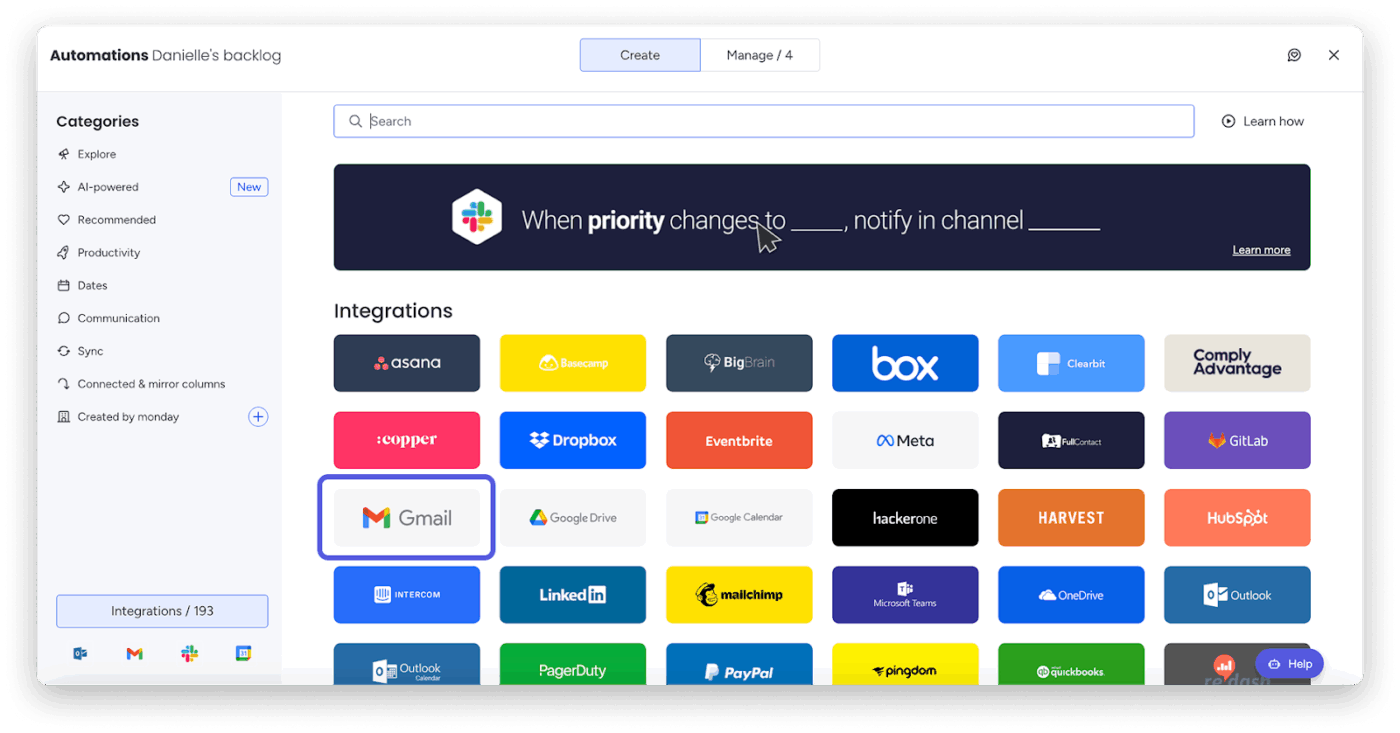
monday.com is popular with teams that want a visual way to run projects, especially when you are coordinating lots of moving parts across marketing, operations, and client delivery. It’s approachable for non-technical teams while still giving managers a clear way to track milestones and see progress.
For Google Workspace-heavy teams, monday.com is often where work happens, while Google apps remain the place where communication and files are tracked.
Its Gmail and Google Calendar connections are designed to reduce tab-switching, so the work that starts in email or needs to show up on a schedule stays connected to the project plan.
It’s also useful when you want templates and a quick setup for repeatable processes across teams.
A G2 reviewer shares:
I like the user-friendliness of monday Work Management, which makes it easy for employees to use with simple guidelines. The platform’s ability to set automations and dashboards is amazing, as it handles tasks so the users don’t have to worry—the platform essentially works for them.
If you are still looking for the best project management tools that work well with Google Workspace, here are three more options worth a look, each with a slightly different style and workflow.
Choosing project management software with Google Workspace integration makes sense if a lot of your work happens in Google apps. Teams can quickly find tasks and files across different projects, saving precious time and allowing stakeholders to easily access important documents through a simple interface.
As you compare the different tools you can work with, prioritize the basics that keep work moving: Drive files tied to real tasks, timelines that stay in sync with your calendar, and a setup that supports remote team members as projects get more complex.
ClickUp works well here because it gives you one hub for execution while still fitting into Google Workspace.
You can manage tasks, docs, and chat in one place, with Google Docs, Sheets, Slides, and Drive folders embedded into your work, sync schedules with Google Calendar, and add AI power with ClickUp Brain and ClickUp BrainGPT.
If you want one place to manage projects without leaving Google behind, try ClickUp for free.

© 2026 ClickUp

There’s an easier way. Try a free AI Agent in ClickUp that actually does the work for you—set up in minutes, save hours every week.