







Still downloading templates?
There’s an easier way. Try a free AI Agent in ClickUp that actually does the work for you—set up in minutes, save hours every week.
Sorry, there were no results found for “”
Sorry, there were no results found for “”
Sorry, there were no results found for “”

Imagine this: you ask ChatGPT to draft a blog outline. Then a script. Then rewrite a headline. By the end, you’ve got 12 different chats without a real thread tying them together.
ChatGPT Projects help knowledge workers, content creators, developers, marketers, and power users bring order and context to their workflow.
Within each project, you can set custom instructions to tailor ChatGPT’s responses specifically to the context of that project.
Thus, it lets you organize multi-step work, manage context across tasks, and make it easier to build on your ideas. In this blog post, we’ll explore ChatGPT Project features and how to use them. 📝
The ClickUp Project Management Template offers an intuitive, streamlined approach to managing tasks, timelines, and team collaboration. Its dynamic interface lets you view project progress at a glance—whether you’re dealing with a roadmap overview, Gantt charts, or OKR boards.
ChatGPT Projects are smart workspaces within ChatGPT that allow us to create dedicated project spaces to group related files and conversations
They let you collect all related chats, files, and custom instructions for a project, making it easier to maintain context and continuity over longer tasks or collaborative work. It’s invaluable for writing, research, planning, learning, and other processes.
🔍 Did You Know? The highest cost of running ChatGPT isn’t the data, it’s electricity. Processing your queries takes a lot of GPU power. That’s why tech companies are constantly trying to make models faster and more efficient after learning about how ChatGPT works.
Here’s a step-by-step breakdown to help you start your first ChatGPT Project with confidence and automate tasks with AI.
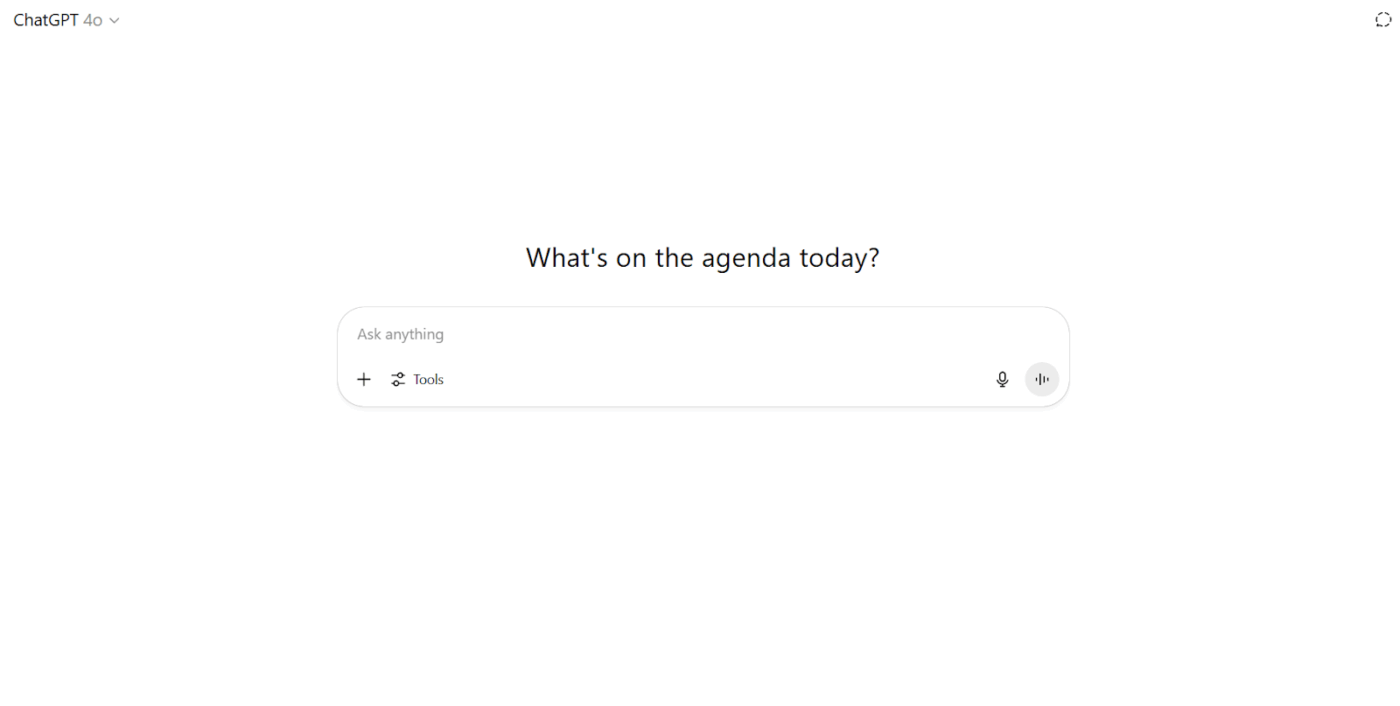
Launch the ChatGPT desktop app or visit chat.openai.com in your browser. Ensure you’re signed in to your Plus, Pro, Team, Enterprise, or Edu account. Projects aren’t available to free users.
📖 Also Read: Free Project Management Templates
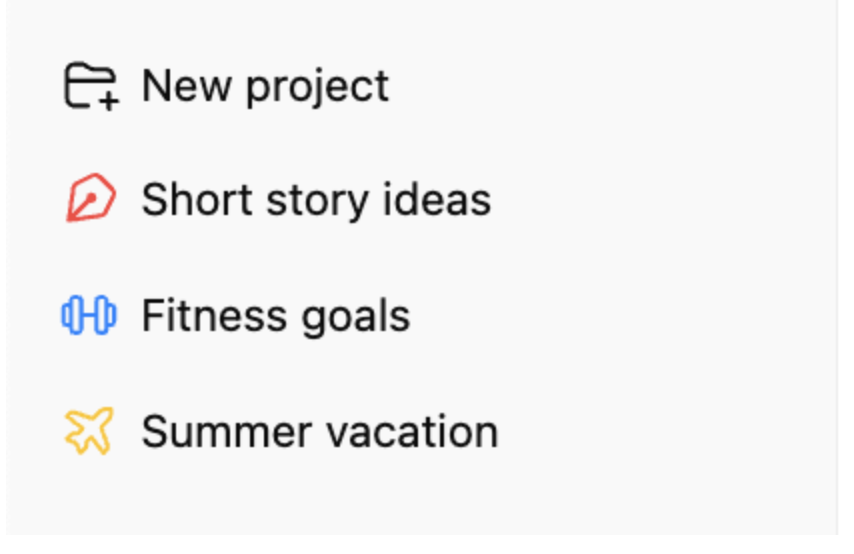
Once you’re in, look to the left-hand sidebar. This is where your existing chats and Projects are displayed. If you’ve used folders before, Projects will show up in a similar section.
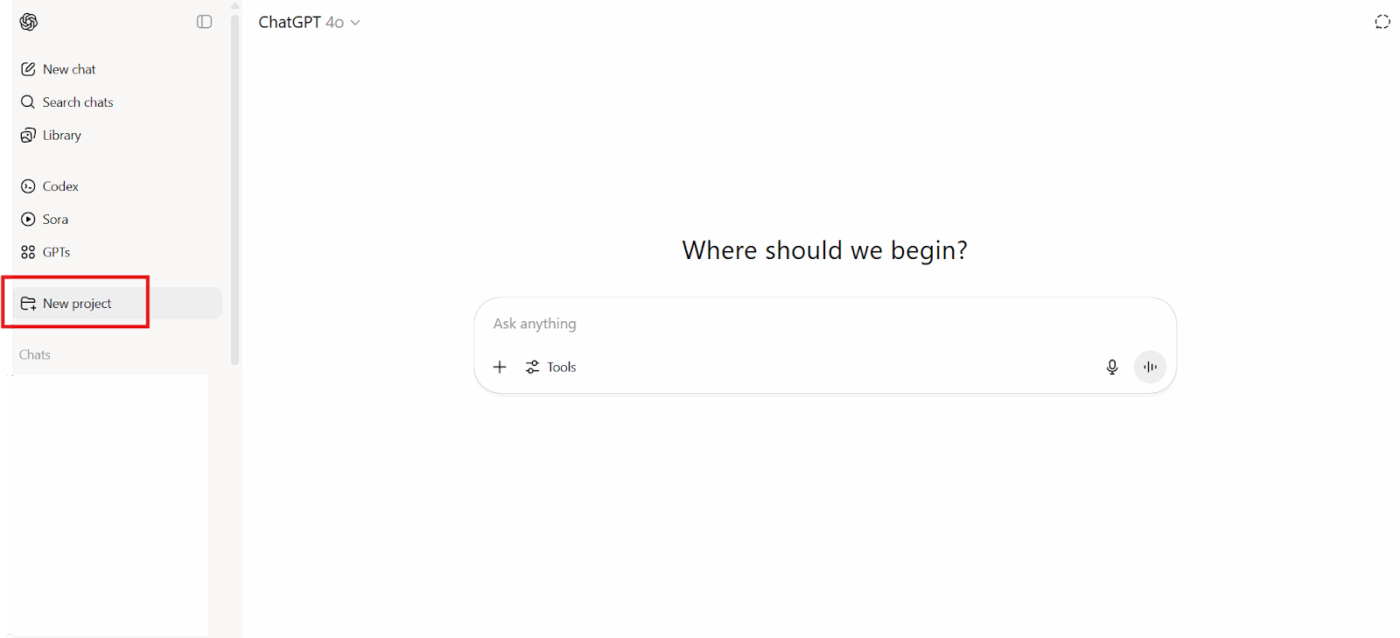
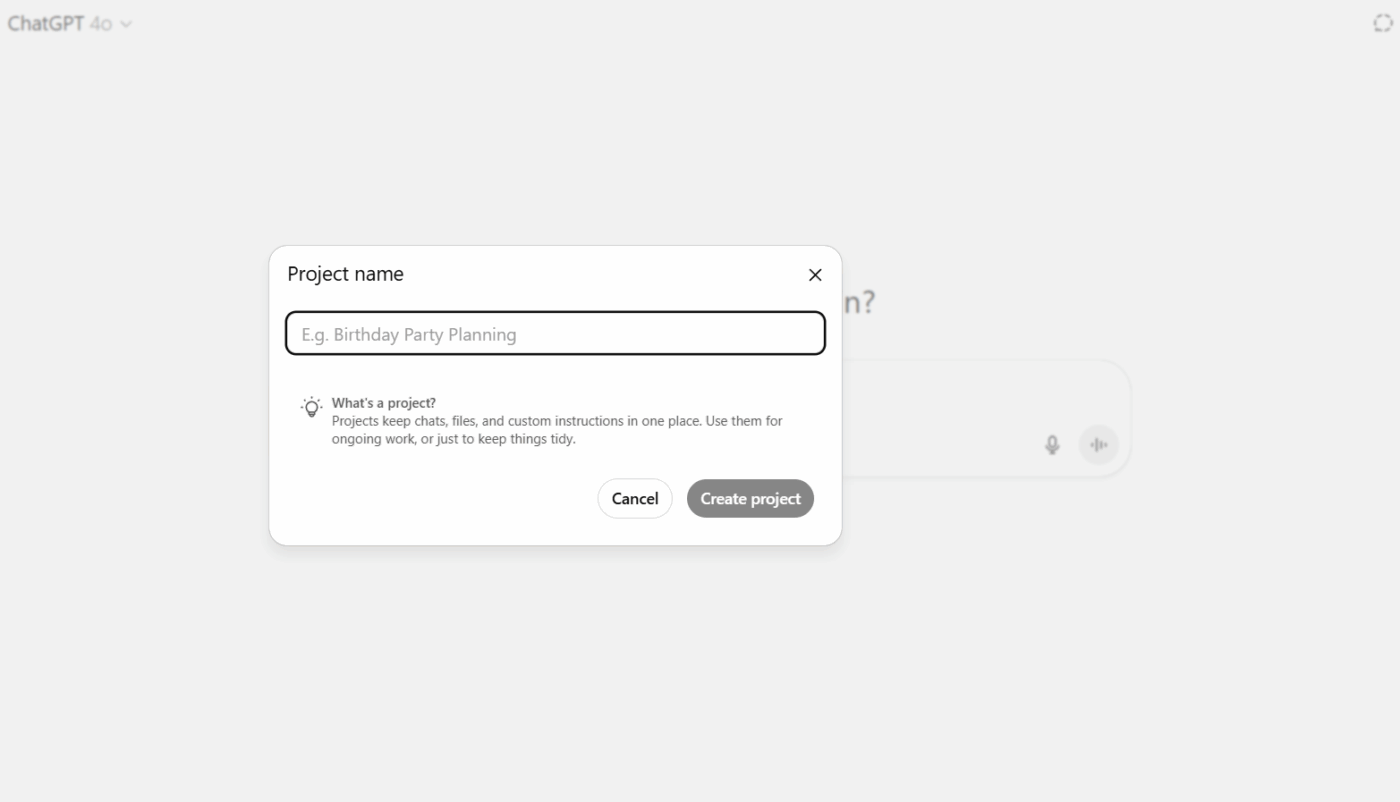
In the Projects section, click the + button; you’ll find it either next to Projects or at the top of the Projects list. This begins the process of creating a new Project space.
📮 ClickUp Insight: One in five employees says that simply knowing when decisions will be made would help them work faster. Yet, in the rush of a busy day, communicating timelines often falls through the cracks.
That’s where ClickUp Brain steps in. Acting as your AI-powered work copilot, it automatically gathers updates from tasks, threads, and docs—delivering daily digests, decision briefs, and summary comments. Here’s to never having to chase people (or information). 💨
Give your Project a clear, descriptive name. You can also choose a color or icon to help visually differentiate it from others. This is especially helpful if you plan to create multiple Projects for different clients or workflows.
If you have chats related to this Project already, just drag and drop them into your new Project. You can also move chats later if you prefer to start fresh.
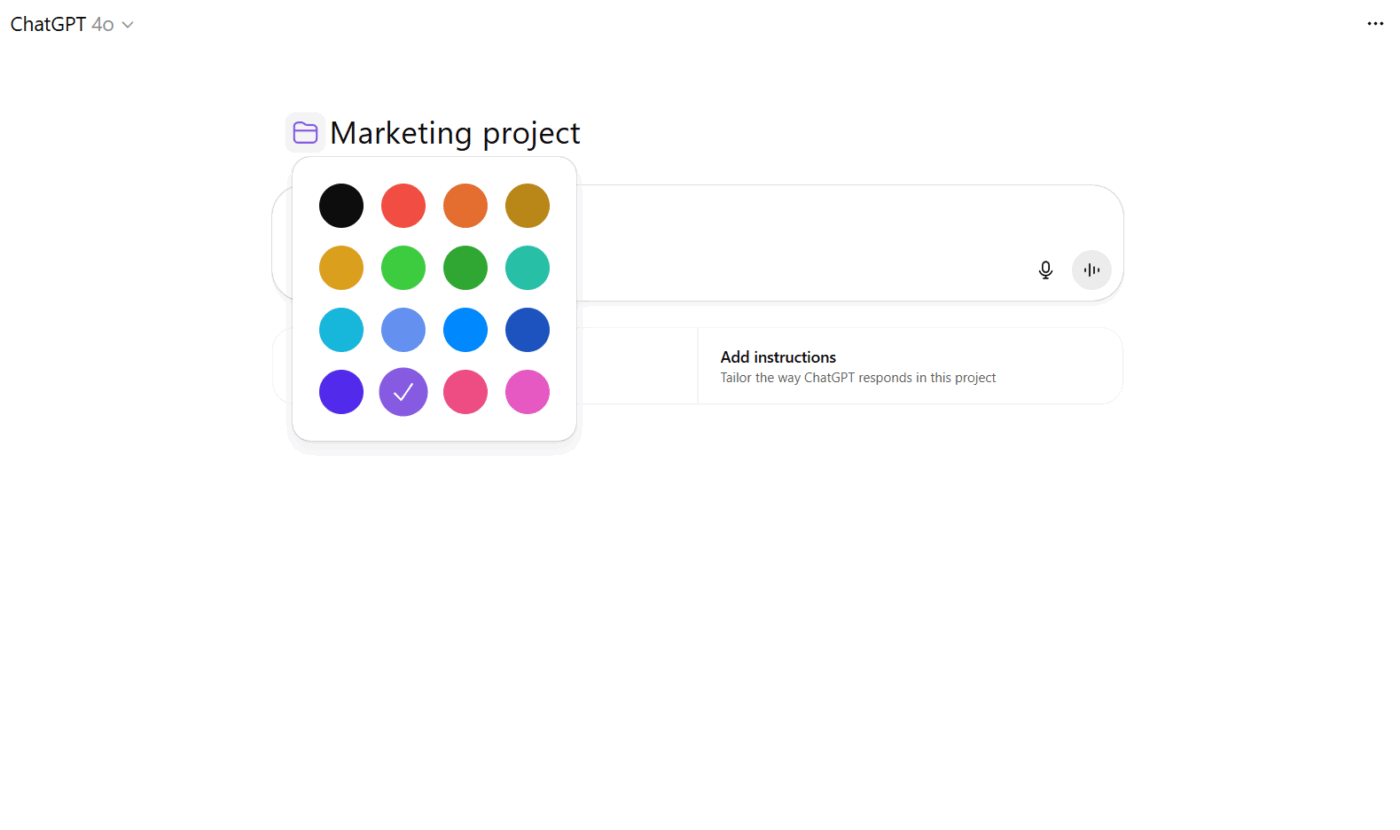
💡 Pro Tip: Click the upload icon inside the Project workspace and select related documents, PDFs, spreadsheets, images, or code snippets you want to add.
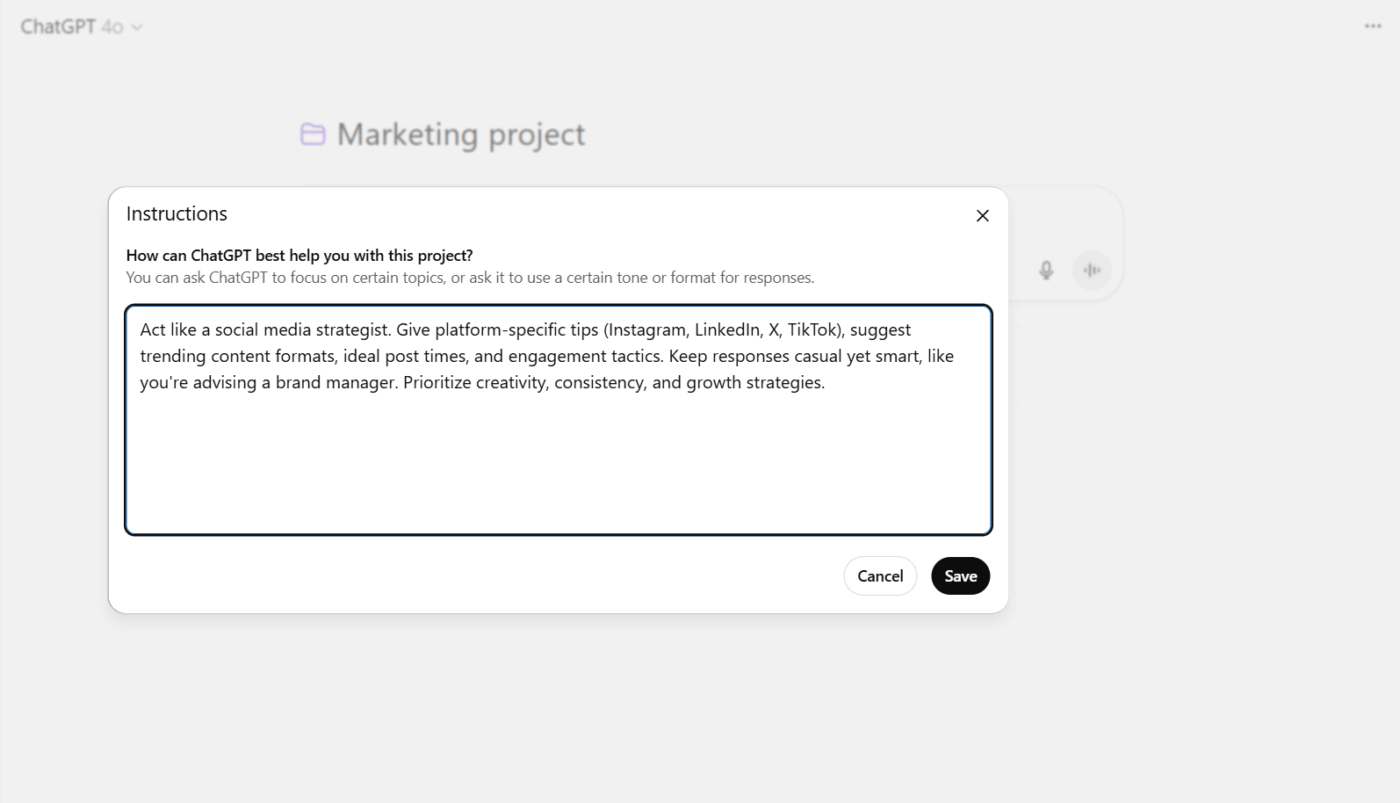
Each Project can have its own custom instructions, helping ChatGPT respond with better context. Use this to clarify goals, tone, audiences, or any must-follow rules for that specific project.
Now, you’re all set. Start a new Project chat within the project or pick up from where you left off.
💡 Pro Tip: Easily organize your workspace by moving existing chats into a project. Just drag a chat onto your project from the chat list or select Move to project from the chat’s menu. The chat will inherit the project’s instructions and file context, and you can remove it at any time from the same menu.
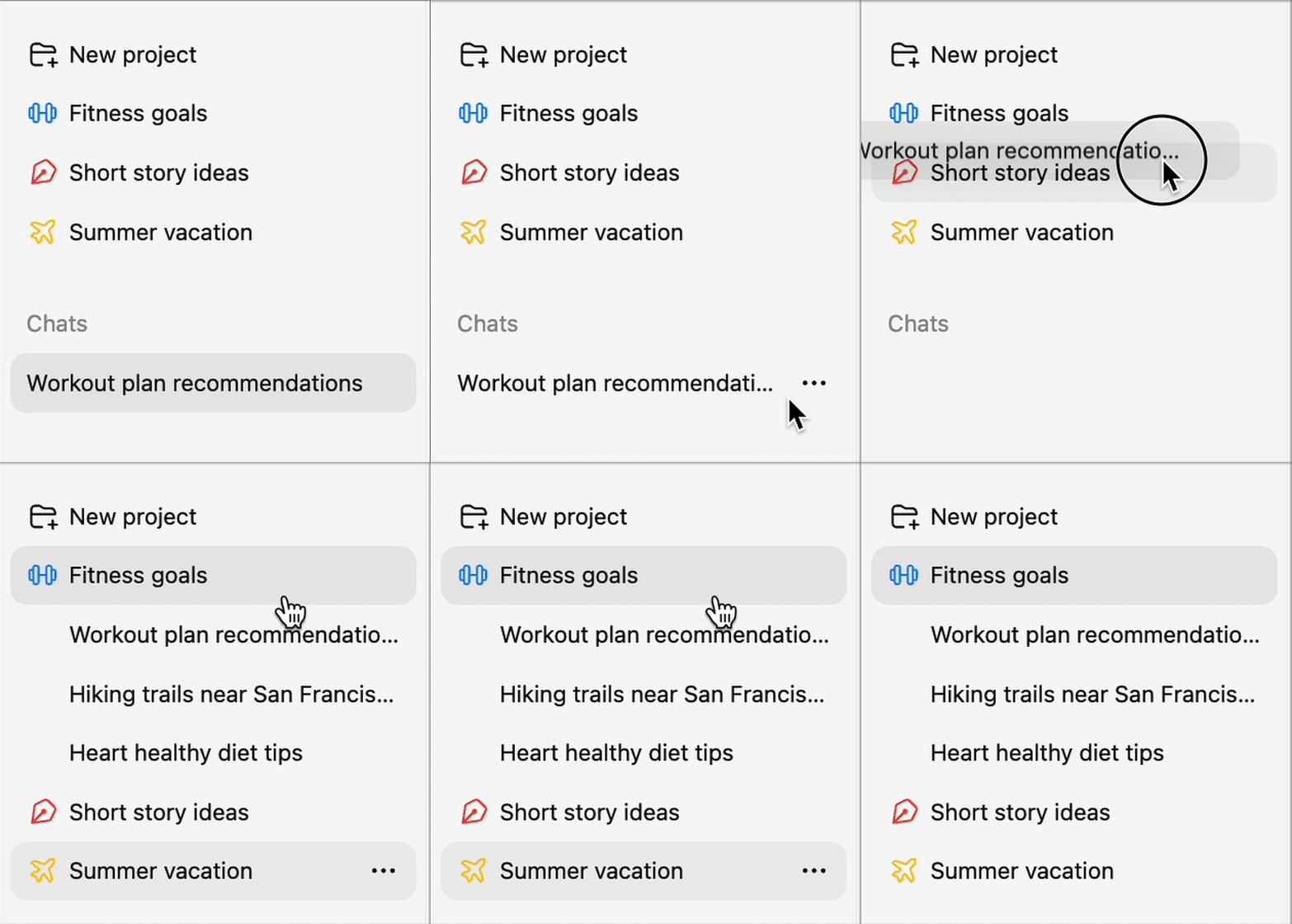
If you’ve already used ChatGPT and would like to move select chats into a project, here’s how:
📚 Also Read: How to Use AI for Productivity (Use Cases & Tools)
ChatGPT Projects are a smarter way to work on long-term, complex, or multi-layered tasks. Here are some that might come in handy:
🧠 Fun Fact: The ‘T’ in GPT stands for Transformer, which is the architecture that made large language models viable. Transformers were invented by Google researchers in 2017 and have since transformed everything from translation to meme generation.
💡 Pro Tip: Try the Branching Chats feature in ChatGPT. Users can open an existing chat and continue the conversation to explore a new idea without losing the original thread. For example, a data scientist might branch a teammate’s chat to test a new hypothesis while preserving the original chain of thought.

Want to fit ChatGPT Projects into your workflow? Let’s walk through its key features with practical examples.
ChatGPT Projects lets you store style guides, brand voice examples, and reference materials so every piece of content you write stays consistent without re-explaining your tone each time.
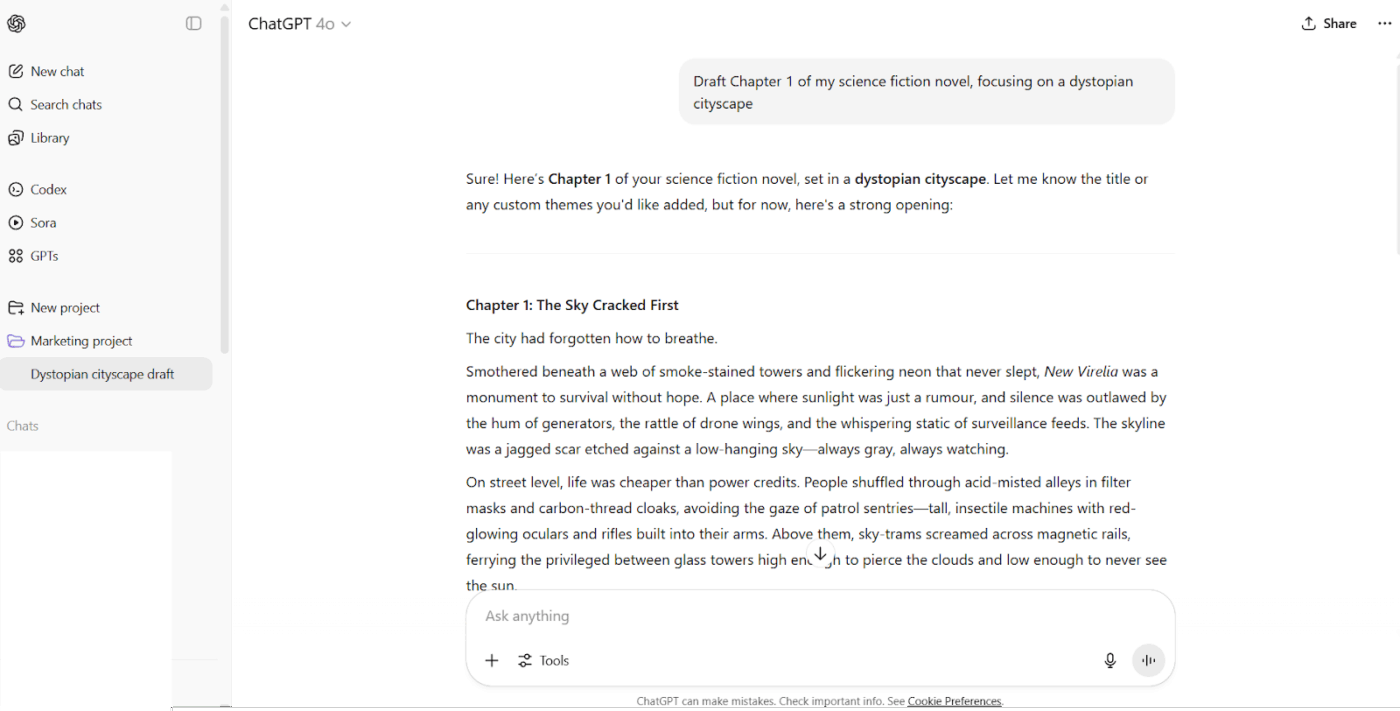
Here’s how it helps to ensure writing workflow automation:
📌 Example Prompt: ‘Draft Chapter 1 of my science fiction novel, focusing on a dystopian cityscape’ or ‘Compare the last two versions of this executive summary and highlight what changed.’
💡 Pro Tip: Use branching to test multiple tones or endings without overwriting your best version. You can also highlight text and use inline comments to leave edit notes, reminders, or feedback loops for future sessions.
Use ChatGPT Projects to store campaign briefs, audience research, and messaging guidelines. When you’re brainstorming ad concepts or refining positioning, the AI pulls from that context instead of starting from scratch every time.
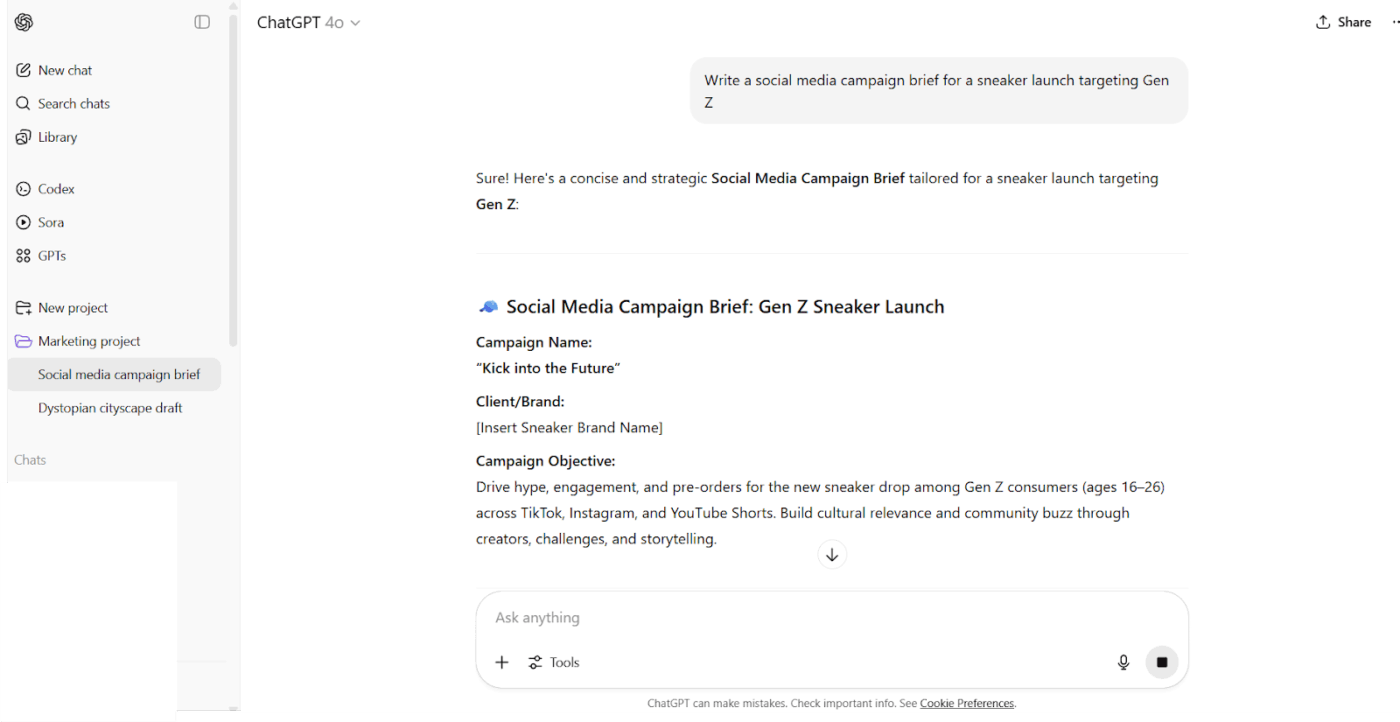
Here’s how to use ChatGPT Projects for product or marketing campaigns:
📌 Example Prompt: ‘Write a social media campaign brief for a sneaker launch targeting Gen Z’ or ‘Analyze competitor messaging and suggest three ways to differentiate.’
Store reading lists, course notes, and research papers in ChatGPT Projects so the AI can help you synthesize information, quiz you on concepts, or connect ideas across multiple sources.
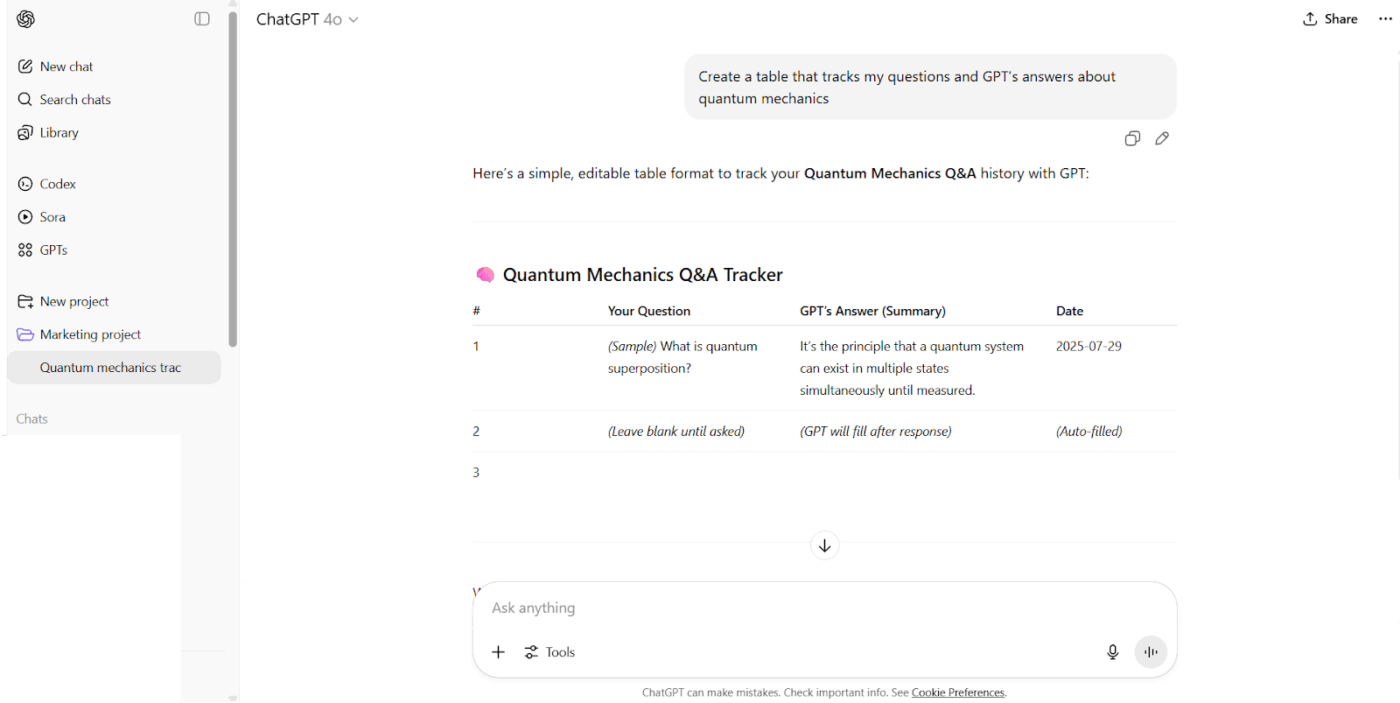
Here’s how Projects help with this use case:
📌 Example Prompt: ‘Summarize the main arguments from these four economics papers’ or ‘Create a table that tracks my questions and GPT’s answers about quantum mechanics.’
🎥 Watch: The Hidden Secrets of Using AI in Project Management No One Talks About
Drop your project files, API docs, and style conventions into ChatGPT Projects. Now, when you ask for help debugging or building a new feature, the AI already knows how your code is structured and what patterns you follow.
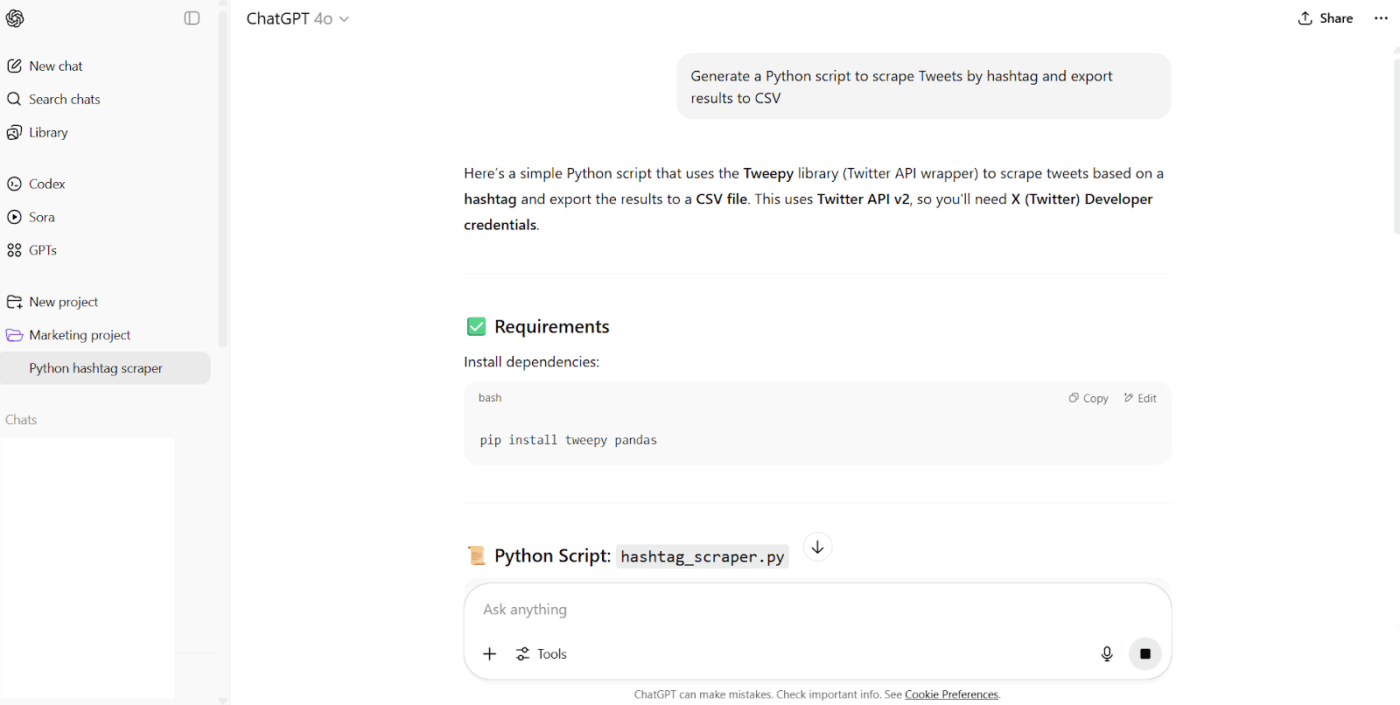
Here’s what you can do with ChatGPT Projects when working on software development:
📌 Example Prompt: ‘Generate a Python script to scrape Tweets by hashtag and export results to CSV’ or ‘Add inline documentation to all my API functions and check for security issues.’
Like a Reddit user mentioned:
You upload assets that set a common context for your chats, and you can have specific instructions that auto-apply to chats within that folder.
Honestly, I’m just grateful I have folders to organize my chats. The common context window is a nice bonus.
🚀 Friendly Tip: Meet ClickUp Brain MAX, a powerful upgrade that unifies multiple AI tools into one centralized productivity hub.
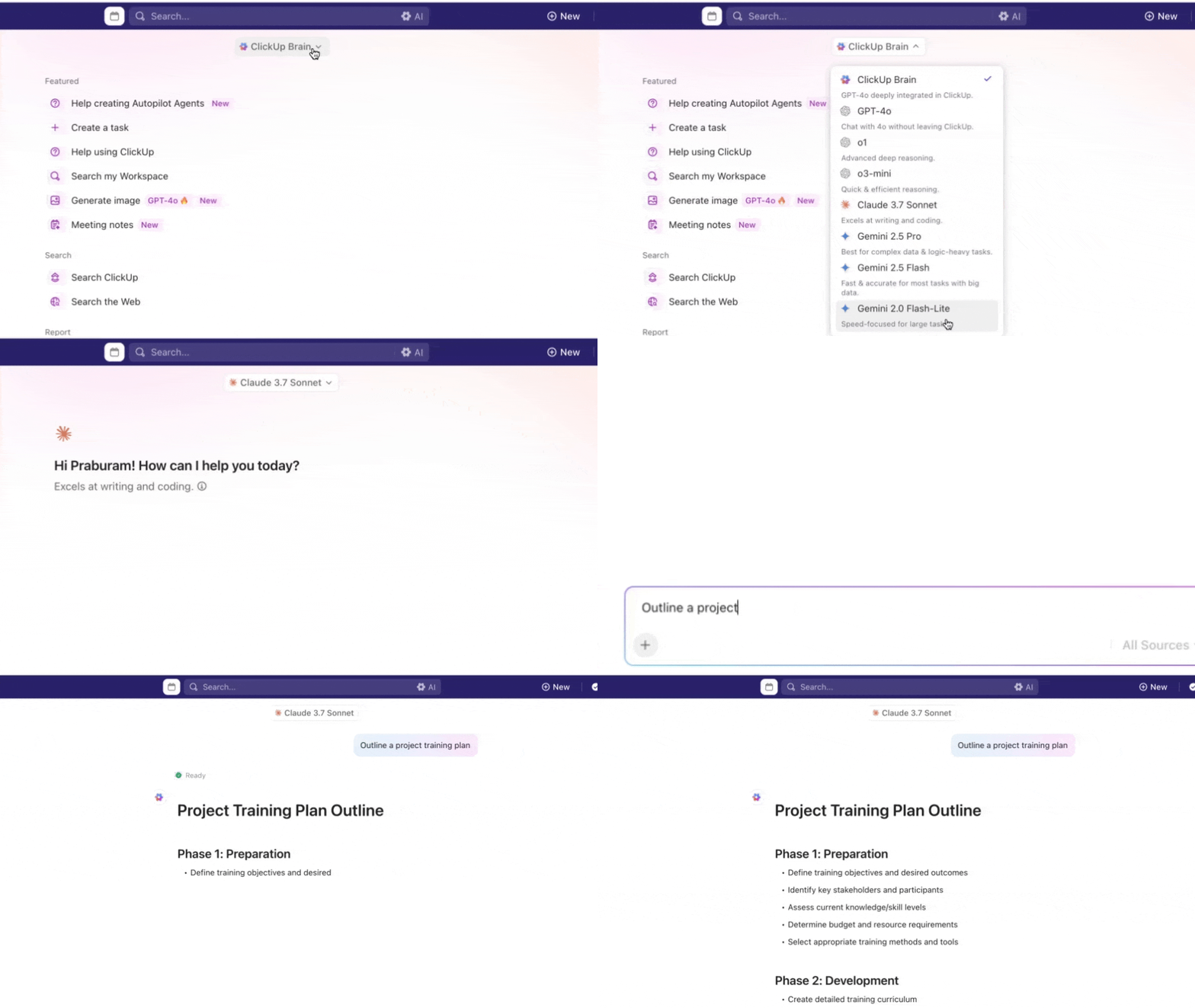
You don’t have to toggle between Gemini, Claude, or ChatGPT anymore. Brain MAX gives you premium AI models under one roof, a space that understands your workspace in full context and connects with your external tools.
It also lets you dictate tasks by voice with Talk to Text, auto-generate reports, and trigger workflows across other tools like Google Drive and SharePoint. You can choose the best AI model for each task, from GPT-5.0 to Claude Sonnet 4.
Here are some ChatGPT hacks you can employ:
🔍 Did You Know? In 2023, OpenAI partnered with the Government of Iceland to help preserve the Icelandic language by training GPT models to understand it.
OpenAI is steadily expanding the capabilities of ChatGPT Projects. Here are some to look out for:
OpenAI is also currently building out deep research capabilities (web search + project context) and voice interaction mode within Projects for more seamless AI collaboration. Looking ahead, OpenAI plans to introduce autonomous agents that can execute multi-step workflows within projects, such as data analysis or form completion.
🧠 Fun Fact: The training dataset for GPT models includes public web pages, books, articles, and code. However, OpenAI has never released the full list of sources, and certain sites—like Wikipedia and Stack Overflow—have pushed back against unlicensed scraping.
While ChatGPT Projects offers strong features, it has some significant limitations that can derail your timeline and make you consider ChatGPT alternatives. Understanding these constraints will help you avoid common pitfalls:
👀 Did You Know: Over a three-year period, organizations using ClickUp achieved an estimated 384% return on investment (ROI), according to Forrester Research. These organizations generated about US $3.9 million in incremental revenue through projects enabled or improved by ClickUp.
You might use ChatGPT Projects to plan a content campaign, but then you’re copying outputs into docs, manually creating tasks, assigning them to your team, and tracking progress in separate tools. This is what we call Work Sprawl.
The AI helps you think, but doesn’t help you execute.
ClickUp takes a different approach as the world’s first Converged AI Workspace.
ClickUp’s in-built AI assistant, ClickUp Brain, doesn’t just organize AI conversations—it connects them directly to your actual workflow. You can generate a content outline with Brain. Turn it into tasks instantly with a single prompt. Brainstorm feature ideas in the same space. Assign them to developers with full context. Link them to the project doc where decisions get made.
See how ClickUp takes AI project management automation and workflow to a new level?
A real-life user shares:
To any organization struggling with how to manage their projects, ClickUp will help in task collaboration. With this software, people can keep track of the to-do list items and work on those tasks within the stipulated time. It also helps the project management team to track the overall progress of the projects to ensure deadlines are kept.
For knowledge workers and teams tired of manually bridging the gap between AI outputs and real work, here’s why ClickUp’s Project Management Software beats ChatGPT.
You can 10X your productivity with ClickUp Brain. The AI-powered assistant is built to help you work smarter, faster, and more connected. It lets you instantly access knowledge, manage projects, and create content under one roof.
Let’s say you’re a product manager overseeing a cross-functional launch. Just ask ClickUp Brain, ‘What’s the current status of all the employees working on the project?’ It’ll instantly summarize all relevant tasks, updates, and blockers across your workspace.
ClickUp’s AI Enterprise Search instantly pulls answers from tasks, docs, and conversations, while the Brain can handle routine updates, standups, and tracking.
Better yet, the AI collaboration tool can auto-generate a project update for your weekly stakeholder email, suggest new sub-tasks based on recent comments, or even flag overdue items.
And if that all seems too good, wait till you use Brain MAX, your AI desktop companion.
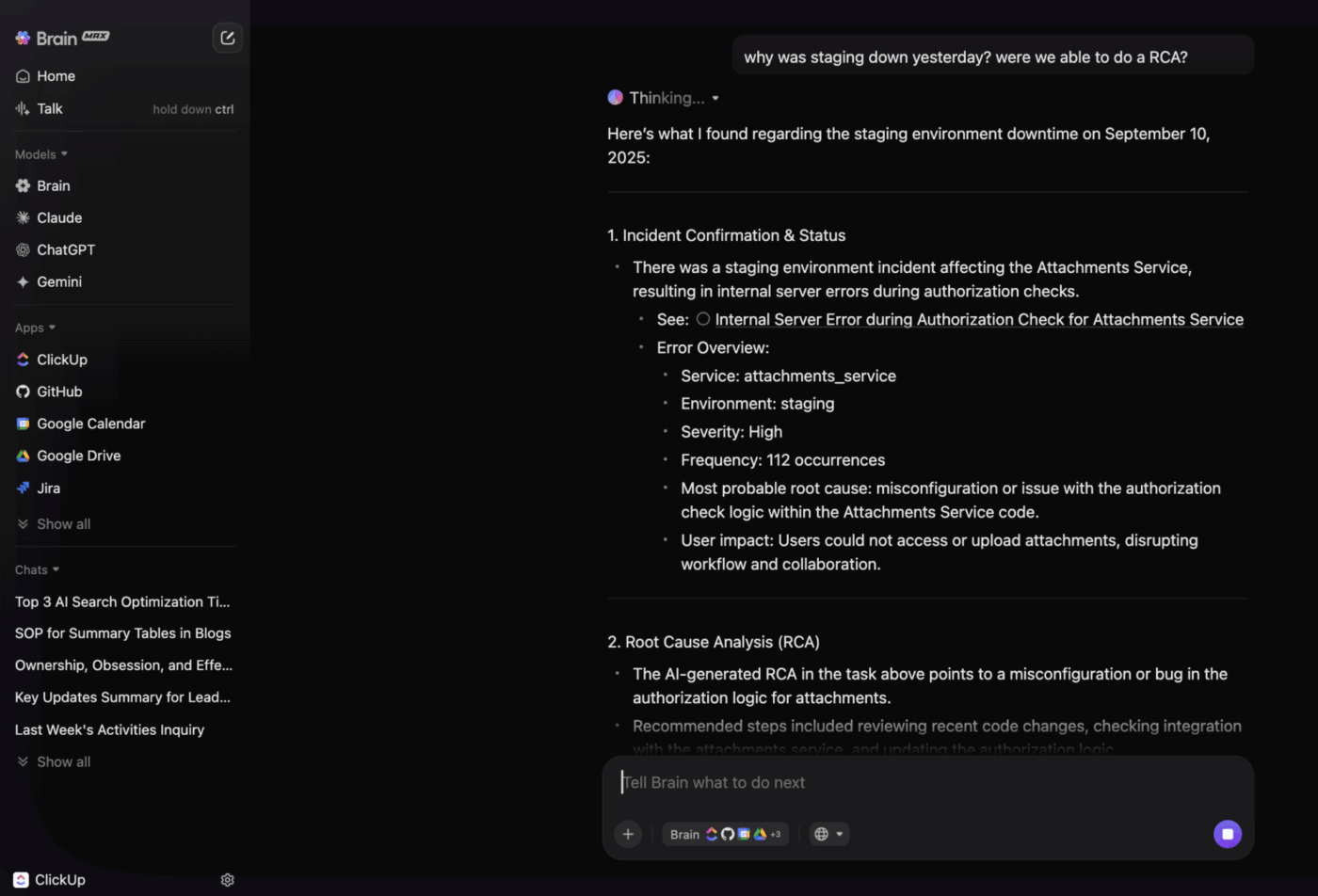
With Brain MAX, you can ditch AI tool sprawl, streamline collaboration, and keep your entire team aligned.
By automating repetitive tasks, surfacing the right information at the right time, and keeping everyone aligned, ClickUp Agents free up your energy for creative, strategic, and high-impact work.
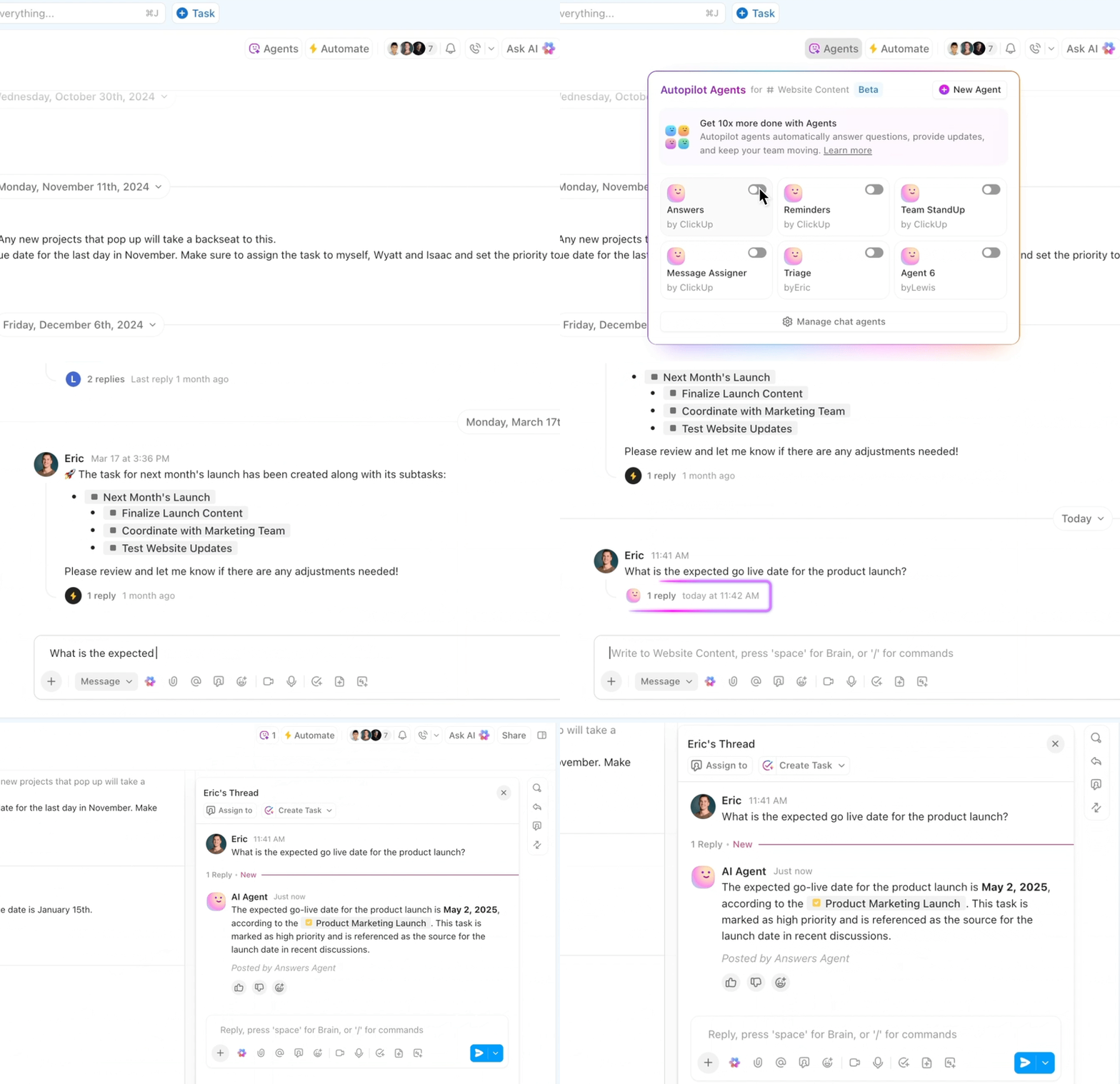
How ClickUp Agents specifically enhance project management:
Plus, there are Prebuilt Agents like Weekly Report, Daily Report, Team StandUp, and Answers Agents, which handle updates, progress summaries, and instant Q&A in project channels with minimal setup.
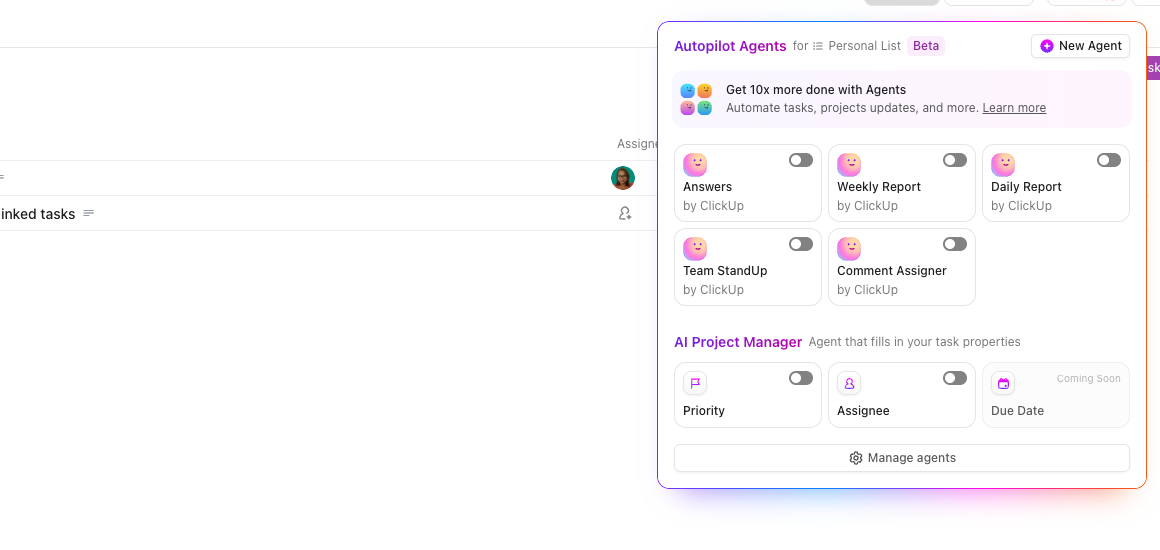
For more tailored needs, Custom Agents allow you to define specific triggers, actions, and knowledge sources to fit your unique workflows.
💡 Pro Tip: Project managers spend hours in meetings, juggling updates, decisions, and follow-ups across multiple projects. ClickUp’s AI Notetaker automatically captures meeting transcripts, summarizes key points, and extracts actionable items. This way, project managers can turn discussions into tasks instantly.
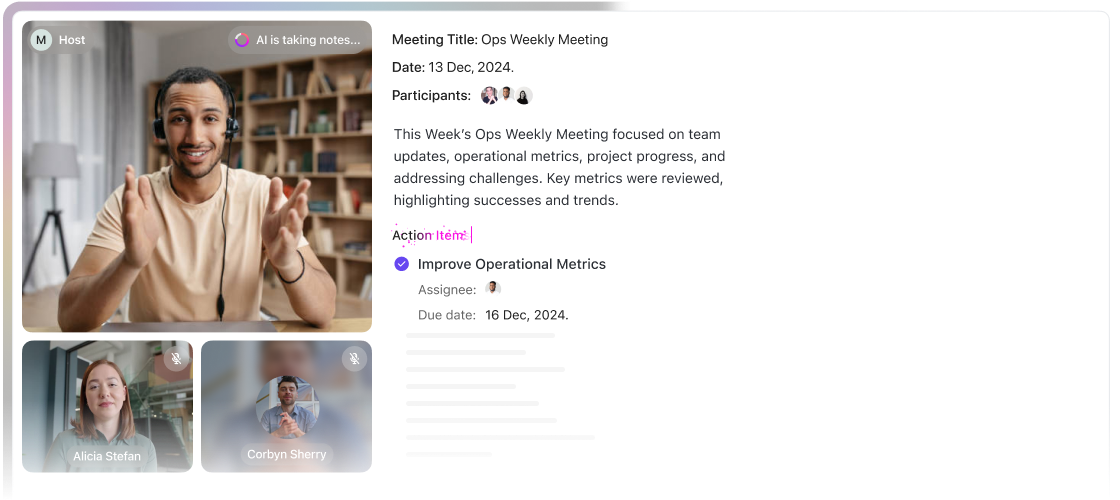
ClickUp Tasks helps you break down big ideas into smaller, actionable steps with due dates, assignees, priorities, and Custom Fields that reflect your unique workflow.
For instance, if you’ve outlined a product launch strategy, you can create individual tasks for landing page copy, ad creatives, email campaigns, and stakeholder reviews. Each task can be assigned to the right team member, given a clear deadline, and linked to related assets within the task management software.
To stay on top of everything, visualize these Tasks using ClickUp Views, such as Lists, Kanban Boards, Calendars, Gantt Charts, and more.
⚙️ Bonus: Compare ClickUp and ChatGPT to see how structured project management meets flexible AI assistance for faster, smarter workflows.
Want to save time on repetitive actions? Automation in ClickUp enables you to set ‘if this, then that’ triggers, conditions, and actions that run automatically.
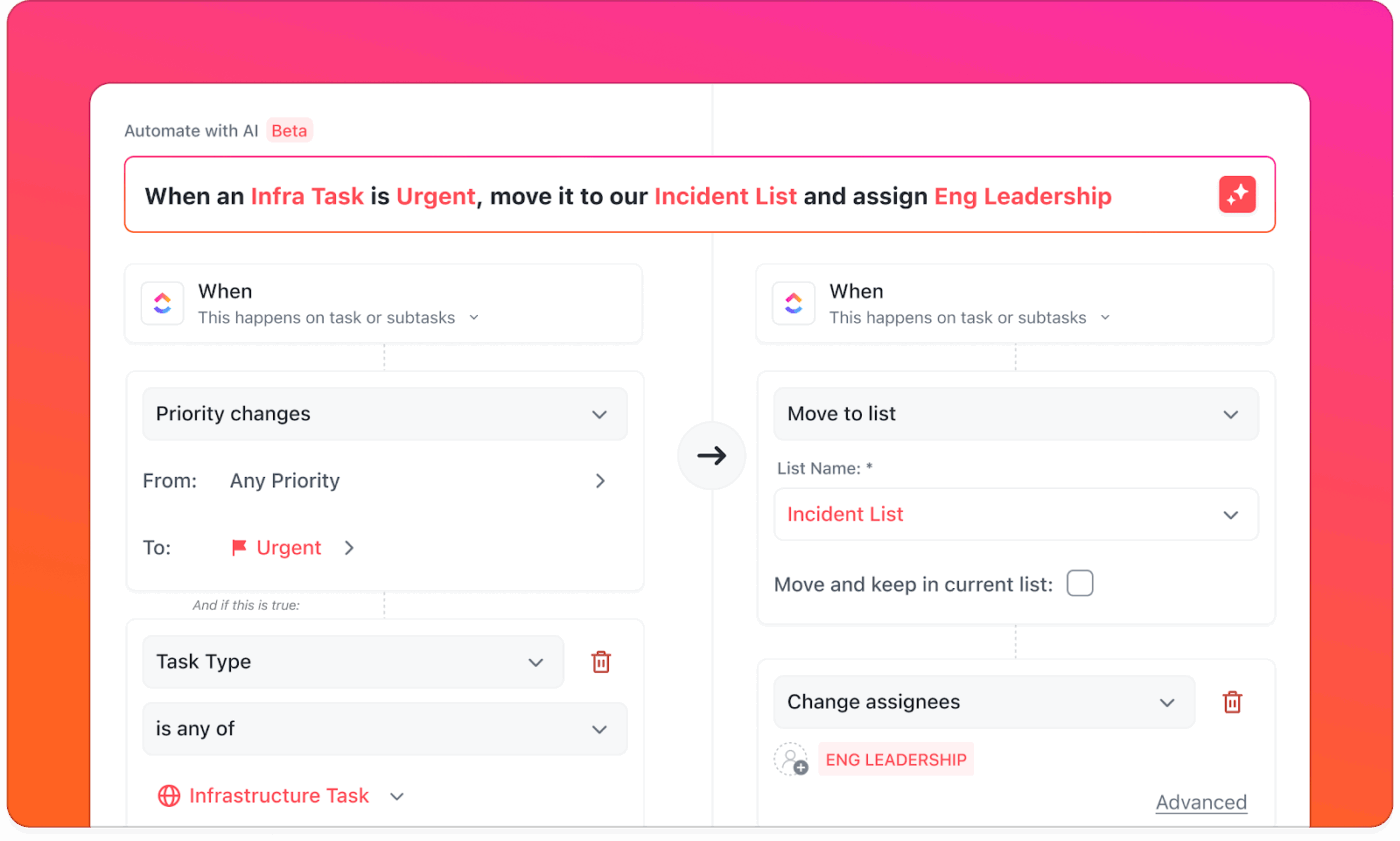
For example, when a task status changes to ‘In Review,’ ClickUp automatically assigns it to your QA lead, sets a due date for two days later, and posts a comment tagging them.
💡 Pro Tip: With ClickUp Dashboards, you get a real-time control center to track goals, team workloads, deadlines, and project health. Customize cards to monitor task progress, sprint velocity, or overdue items so you’re always aligned with real-world deliverables.
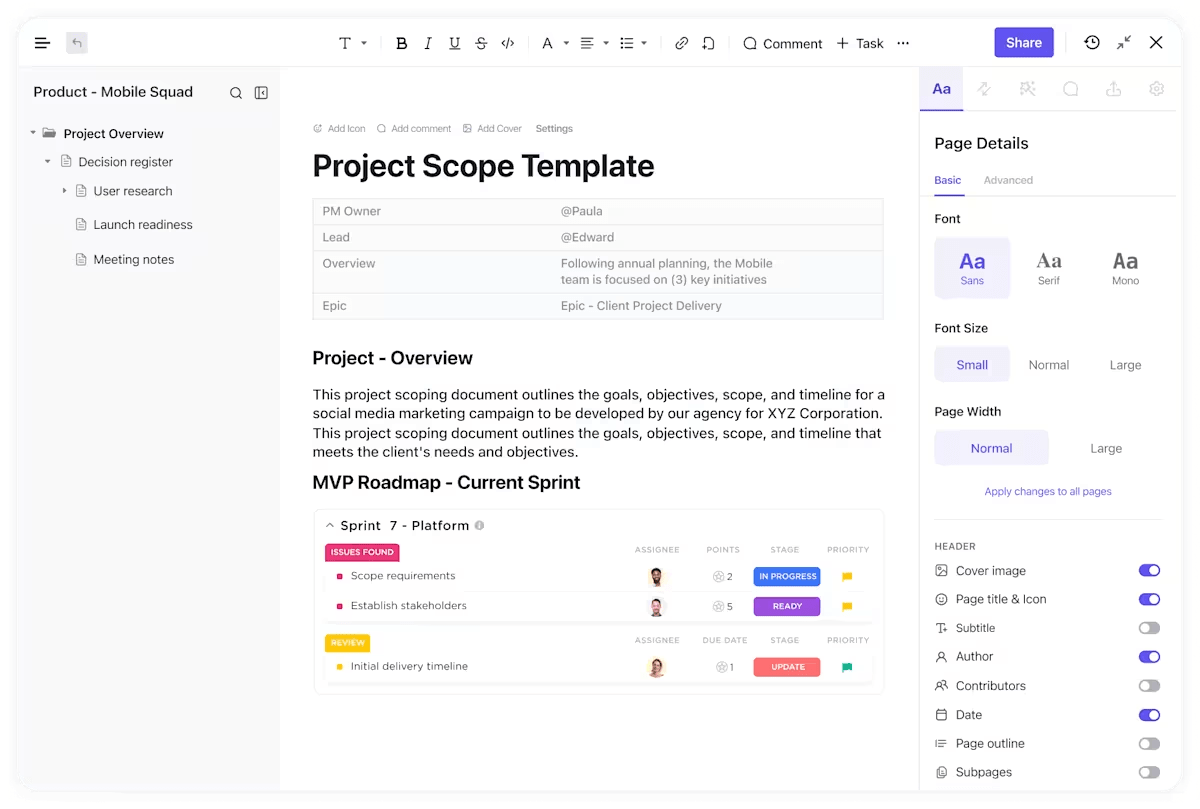
Once your ideas and project timelines are in place, use ClickUp Docs to store detailed outputs, meeting notes, briefs, and SOPs. You can co-edit with your team in real time, leave comments, embed tasks directly into your doc, and keep everything linked to your project workflows.
If you’re drafting a campaign brief, product update, or internal process documents, the Brain’s writing prowess helps you save time and sharpen your message. Just type out a rough thought and ask the AI to rewrite, expand, or summarize it.
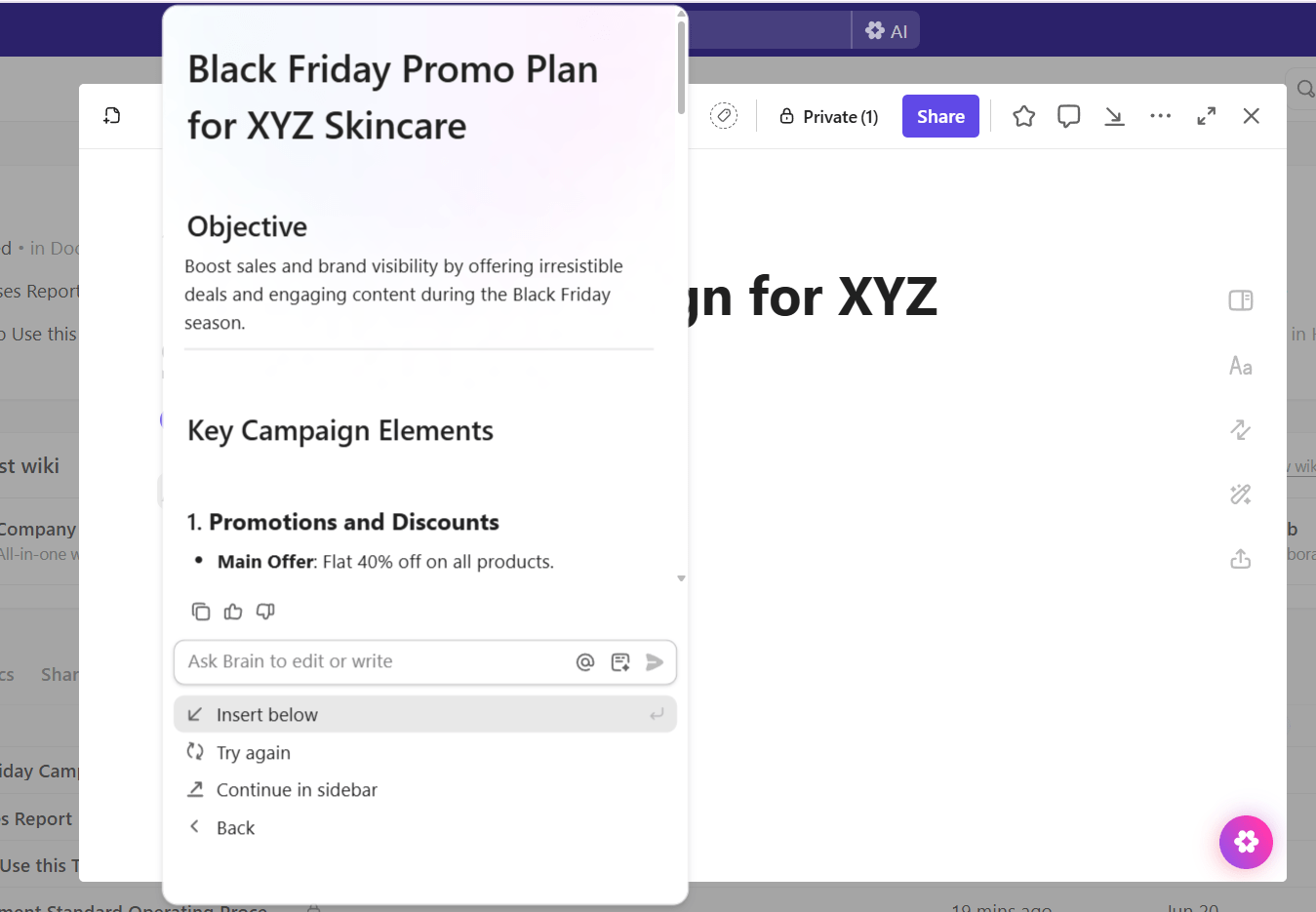
Let’s say you’re preparing a quarterly roadmap announcement. You can start with a bullet list of updates, then ask the AI to turn it into a clear, professional message, with the right tone and structure for your audience.
With integrations for platforms like Google Drive, SharePoint, Figma, Jira, GitLab, and time tracking apps, ClickUp enables you to attach files, sync tasks, embed designs, and manage issues—all without leaving your project hub.
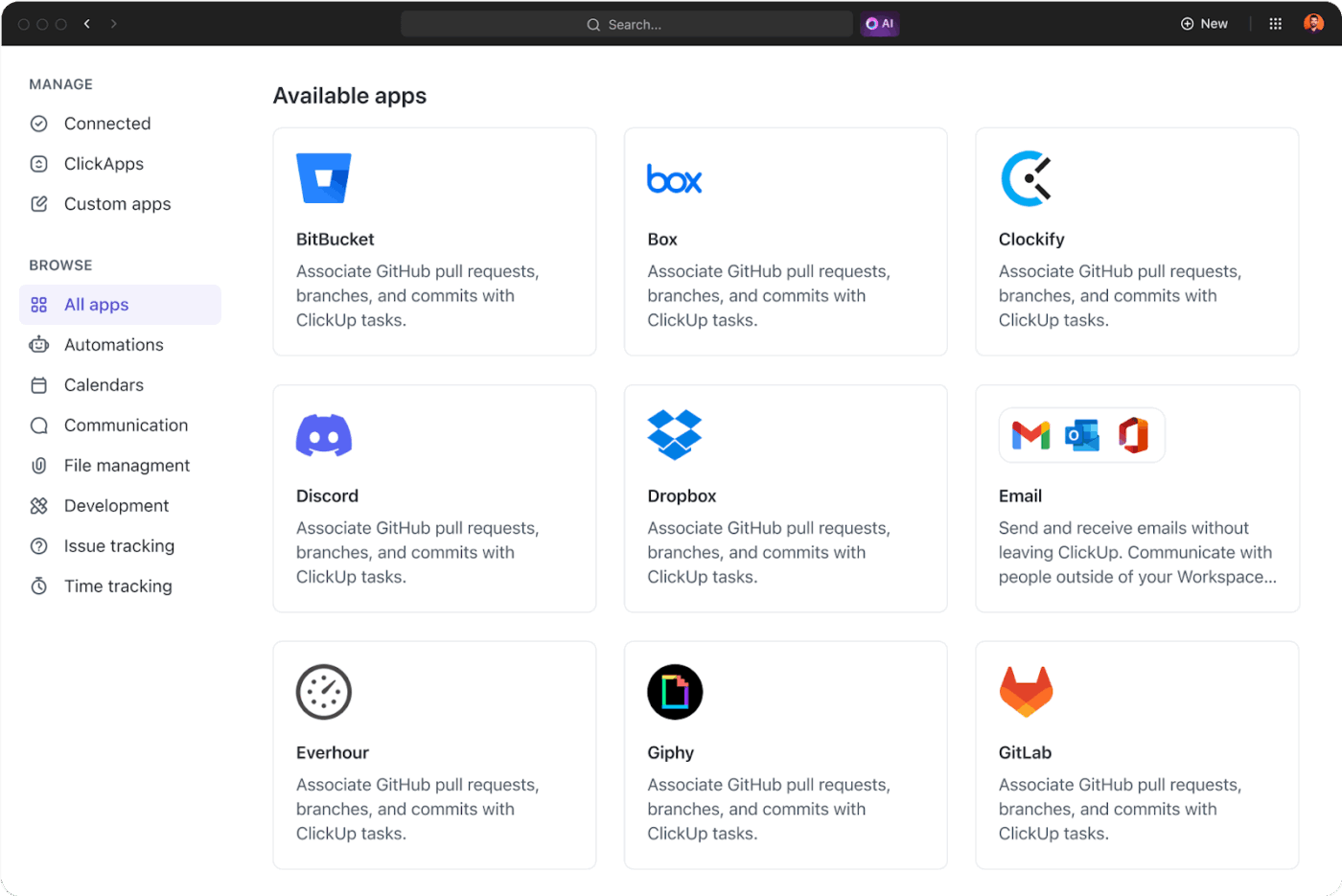
For project managers, these integrations translate to real-time visibility and control over every aspect of a project.
For example, imagine a product launch project where your marketing, design, and development teams all work in different tools. With ClickUp integrations, your designer can embed Figma prototypes directly into ClickUp tasks, enabling marketers and developers to review and comment on them without leaving the workspace.
At the same time, you can sync tasks with Jira so that any updates from the development team are instantly reflected in ClickUp.
This unified approach keeps all project assets, feedback, and progress updates in one place, making project delivery more efficient.
ChatGPT Projects are a great launchpad for ideation, creative briefs, research organization, and collaborative planning with AI. But to turn those thoughts into structured ideas is where you’ll need ClickUp.
With AI-powered task management, real-time dashboards, collaborative Docs, and customizable workflows, the platform helps you ship ahead of time.
So, what are you waiting for? Sign up to ClickUp for free today! ✅

© 2026 ClickUp

There’s an easier way. Try a free AI Agent in ClickUp that actually does the work for you—set up in minutes, save hours every week.