






Still downloading templates?
There’s an easier way. Try a free AI Agent in ClickUp that actually does the work for you—set up in minutes, save hours every week.
Sorry, there were no results found for “”
Sorry, there were no results found for “”
Sorry, there were no results found for “”
Sending just one follow-up increases the chances of a reply by 49%.
But writing, tracking, and sending those follow-ups manually? That’s where most of us give up.
The solution is Gmail automation.
With the right setup, you can organize your inbox, label emails, automate responses, and schedule follow-ups—all without constant manual effort. Whether you’re managing sales leads, client requests, or team updates, automation helps you stay on top of it.
And if you’re ready to take it further, tools like ClickUp can help turn those emails into tasks and timelines without the usual copy-paste chaos.
Gmail automation uses rules, filters, or tools to handle repetitive email tasks like labeling, sorting, follow-ups, and sending messages without manual effort.
Imagine this: you open your laptop, see a lead’s reply, and instantly, a personalized follow-up is sent, the message is tagged as Priority, and your team gets notified.
That’s Gmail automation in action. ✅
Helping you stay organized and save time every day.
Here are some key benefits of Gmail automation:
Note: Gmail can’t send scheduled follow-up emails on its own. You’ll need a third-party tool for that—Gmail’s native automation only supports filters, labels, templates, auto-replies, and scheduled send.
📖 Also Read: How to Achieve Inbox Zero
Before diving into advanced email management software for your automation needs, it’s worth exploring the native Gmail automation features first. These features are easy to set up and help you streamline email management directly inside Gmail.
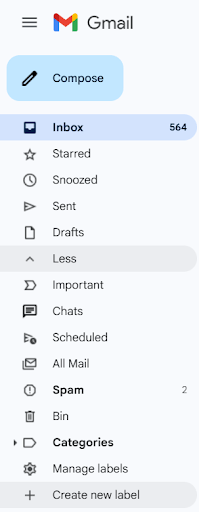
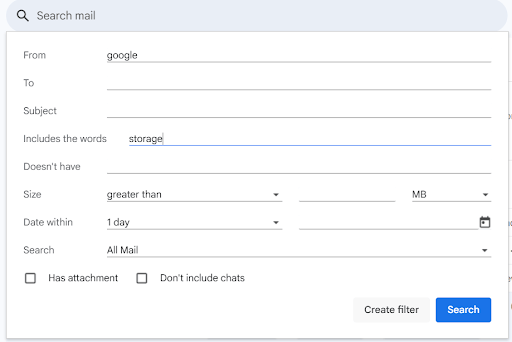
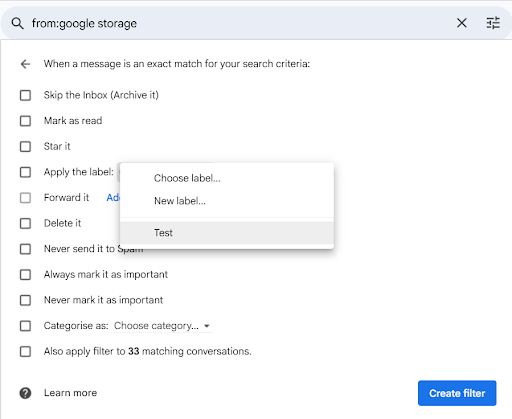
Filters and labels are Gmail’s built-in tools to automate sorting, archiving, and organizing incoming messages. If your Gmail inbox feels cluttered, this is one of the fastest ways to organize it.
Here’s a step-by-step guide on how to automate Gmail filters and labels:
👀 Fun Fact: In 1971, Raymond Tomlinson, who implemented the first email program, chose the “@” symbol to separate the user name from the host. It wasn’t commonly used before email, but now it’s iconic worldwide.
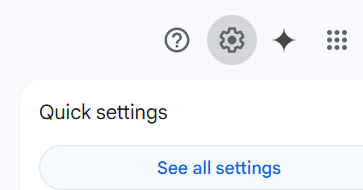
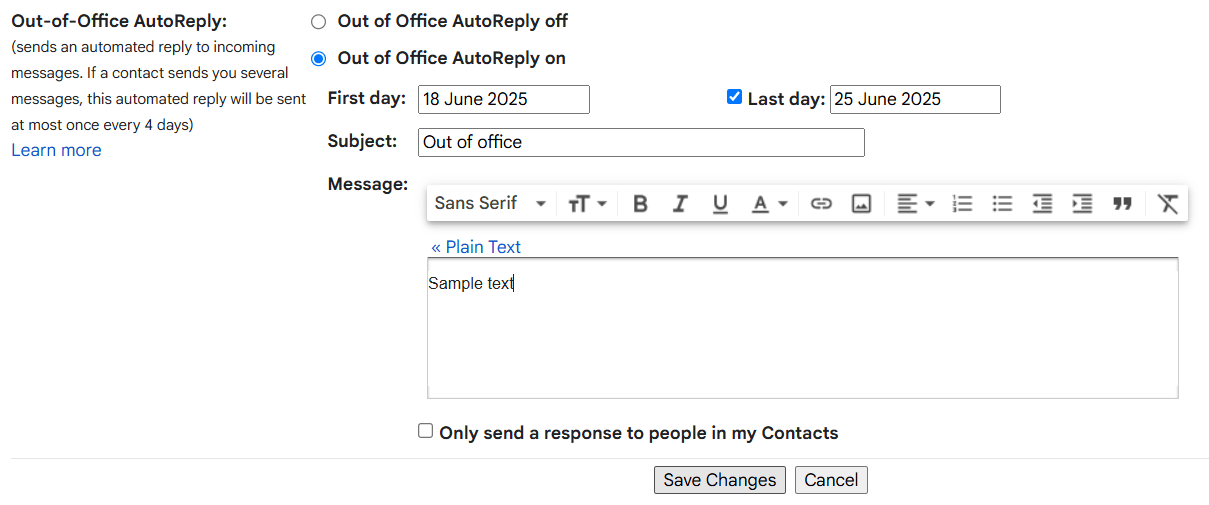
Suppose you’re stepping away from your inbox for a few days. In that case, Gmail’s vacation responder lets you send automatic replies to incoming messages, so your contacts are informed without any extra effort.
Here’s how to set it up:
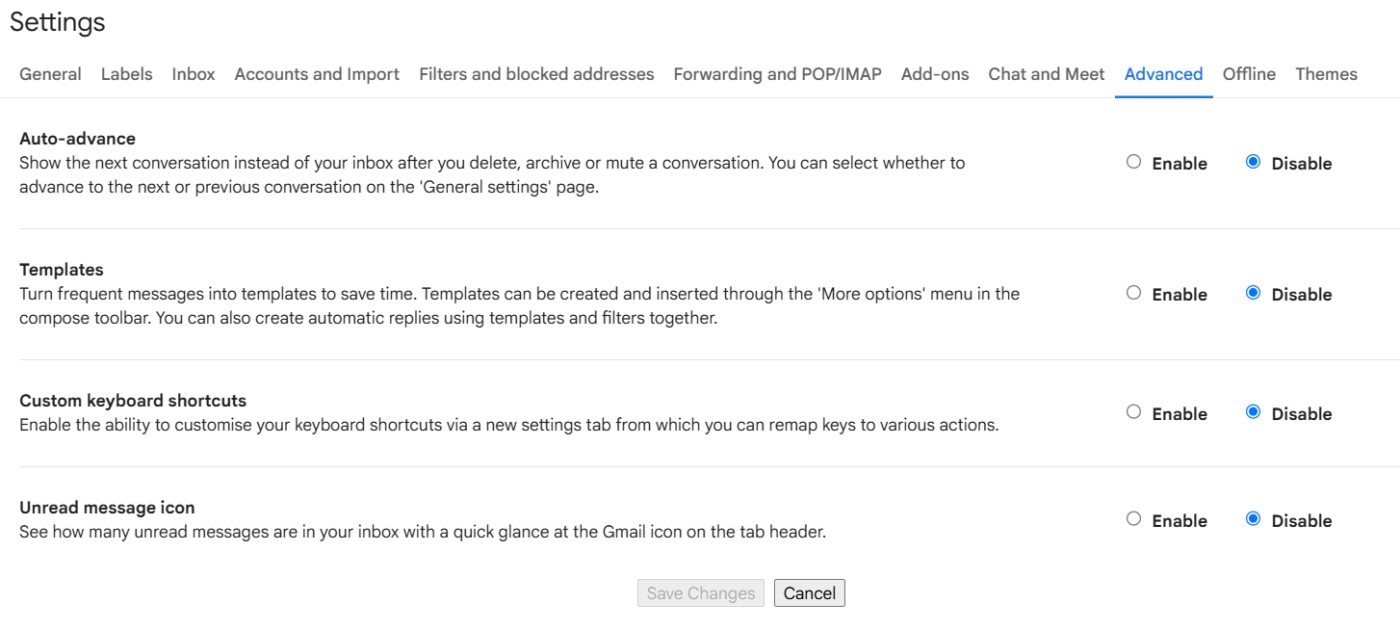
Gmail Templates—previously known as Canned Responses are reusable email messages that reduce repetitive typing and help maintain consistency in your communication.
Once enabled, you can pair templates with Gmail filters to send emails based on specific criteria in incoming messages automatically.
Here’s how to enable and use Gmail templates:
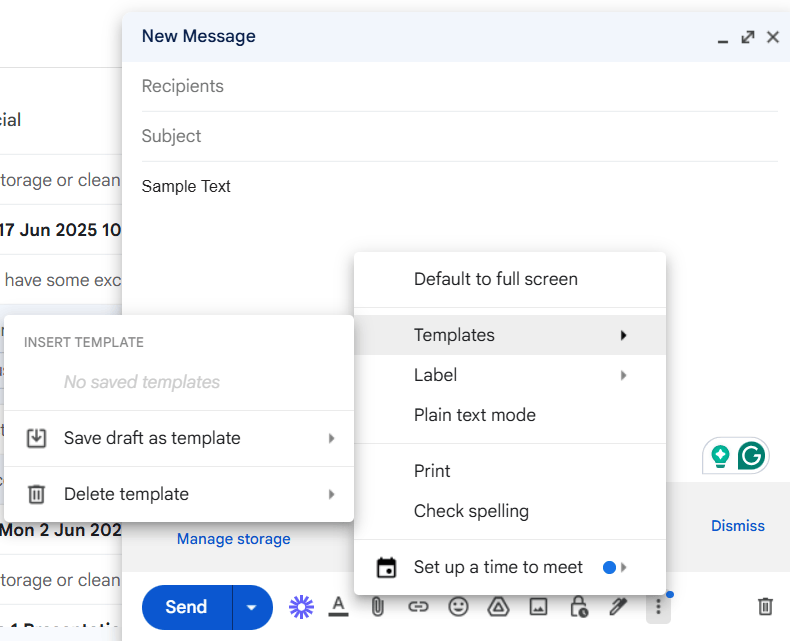
📖 Also Read: How to Create Email Templates in Gmail
Scheduling emails in Gmail is one of the simplest ways to automate your email routine.
Here’s how to schedule an email in Gmail:
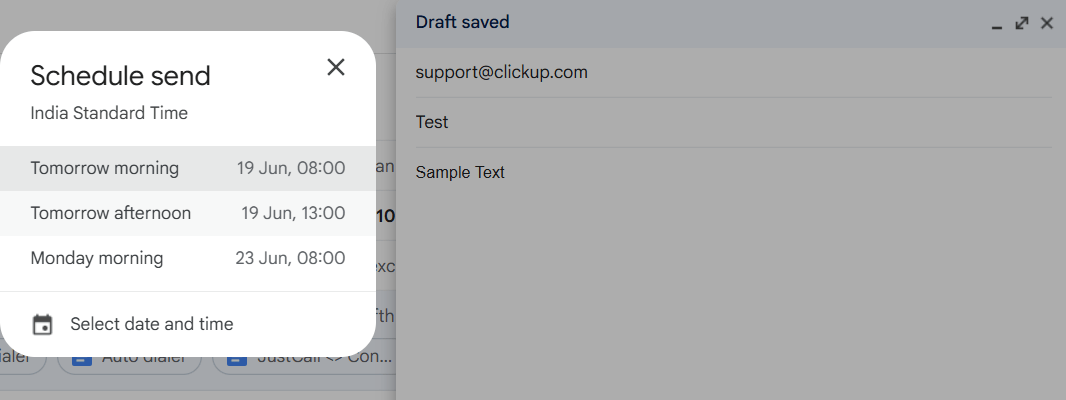
If you’re wondering how to organize your email inbox more efficiently, you can also create templates using search operators to help you quickly locate what matters. These advanced filters let you organize and clean your Gmail inbox based on specific criteria.
| Operator | Function |
| from: | Finds emails from a specific sender |
| to: | Finds emails sent to a specific recipient |
| cc: | Finds emails where a person is in the CC field |
| bcc: | Finds emails where a person is in the BCC field |
| subject: | Finds emails with specific words in the subject line |
| after: / before: | Filters emails by specific date range (format: YYYY/MM/DD) |
| older_than: / newer_than: | Filters emails by time duration (e.g., older_than:2y) |
| has: | Finds emails with specific content (e.g., has:attachment, has:drive) |
| category: | Filters by category (e.g., category:promotions, category:social) |
| label: | Finds emails with a specific label |
| in: | Searches within a specific folder (e.g., in:inbox, in:sent) |
| is: | Filters by status (e.g., is:read, is:unread, is:important) |
| OR / {} | Finds emails that match either condition (e.g., from:john OR from:jane) |
| AND | Filters emails that match all conditions (e.g., from:john AND to:jane) |
| -term | Excludes emails with a specific word or term |
| “exact phrase” | Searches for an exact match of the phrase |
| filename: | Finds emails with a specific attachment type or name |
| site: | Finds emails containing links from a specific domain |
| +word | Matches the exact keyword, avoiding synonyms |
| in:anywhere | Searches across all folders, including spam and trash |
📖 Also Read: How to Set Up Automatic Forwarding in Gmail
If you’re ready to take Gmail automation beyond filters and canned responses, Google Apps Script is your next step.
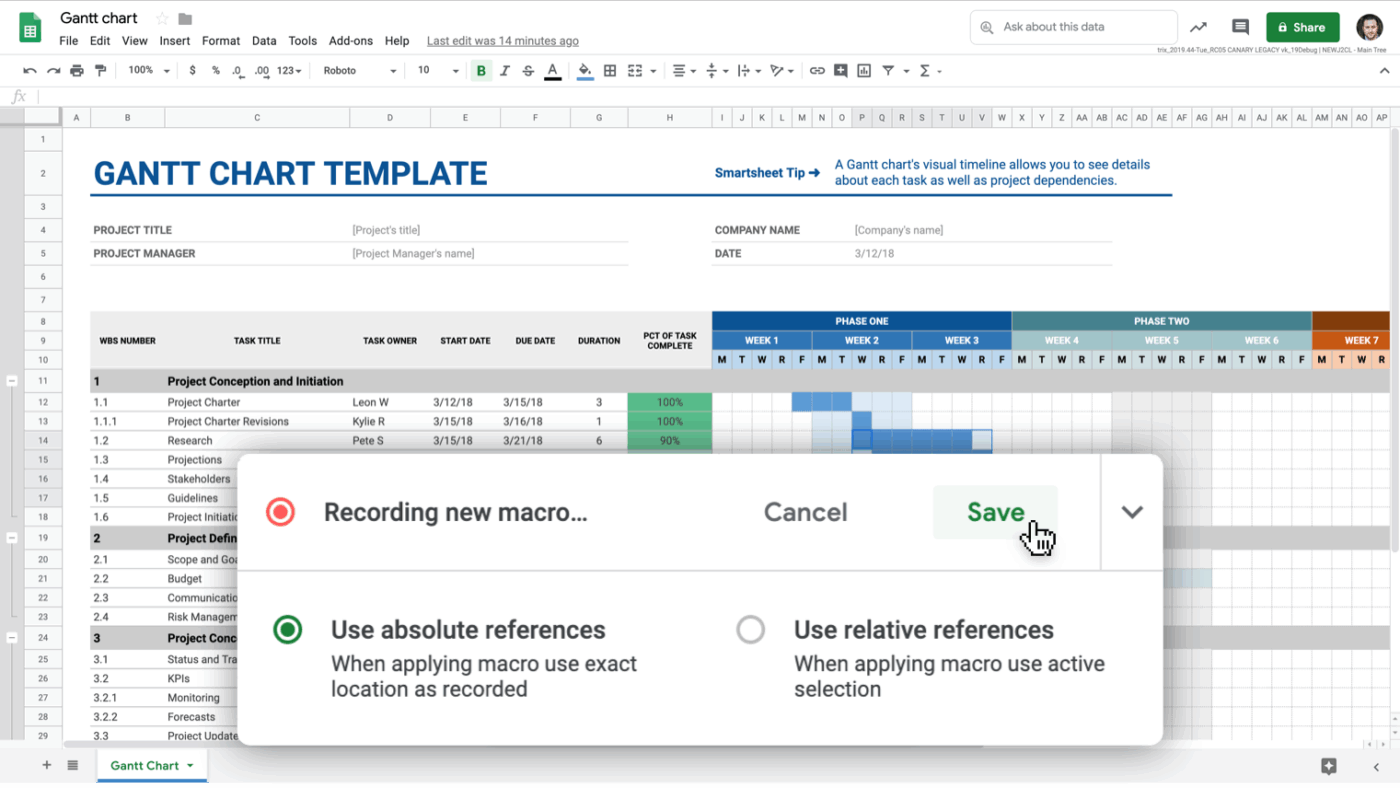
It’s a powerful, cloud-based coding platform built directly into Google Workspace accounts. Google Apps Script lets you automate and customize repetitive Gmail tasks and connect Gmail with other Google tools like Sheets and Docs.
📮 ClickUp Insight: 54% of professionals use email to access work-related information, yet important messages often get buried or lost in endless threads.
ClickUp’s Email Project Management brings email into your workflow so you can send, receive, and track emails directly from tasks.
Say goodbye to digging through your inbox and hello to organized, actionable communication.
📌 Example: Mail merge with Gmail and Google Sheets
You can create a mail merge system that pulls names, email addresses, and other data from Google Sheets and sends personalized messages through Gmail. Here’s how it works:
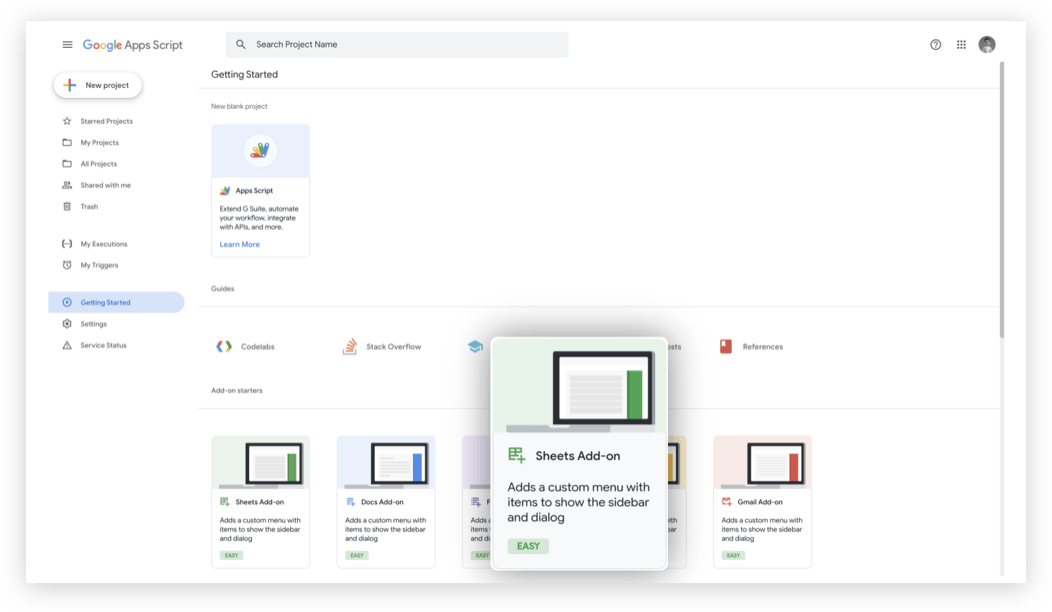
Gemini for Workspace can help draft Apps Script snippets through ‘Help me Write,’ but Gmail automation still primarily relies on manual setup of Apps Script. Gemini assists with code suggestions—it doesn’t execute or manage automation on your behalf.
Just describe what you want, like “automatically send a follow-up email two days after form submission”, and Gemini will create the script for you. You can then copy and paste it directly into the Apps Script editor.
📖 Also Read: Best Email Alternatives for Business Communication
Gmail automation helps you move faster through your inbox. However, most teams experience a significant slowdown once they have read the email.
One request comes in through Gmail, the next step lives in a spreadsheet, the status update is buried in chat, and the “who owns this?” question gets asked twice. That’s work sprawl: when work gets scattered across too many places, with context split across tabs and tools.
Now add AI sprawl to the mix, where one AI tool writes the reply, and another tries to turn it into tasks. Since each one sits outside your real workflow, you end up copy-pasting the same details again and again.
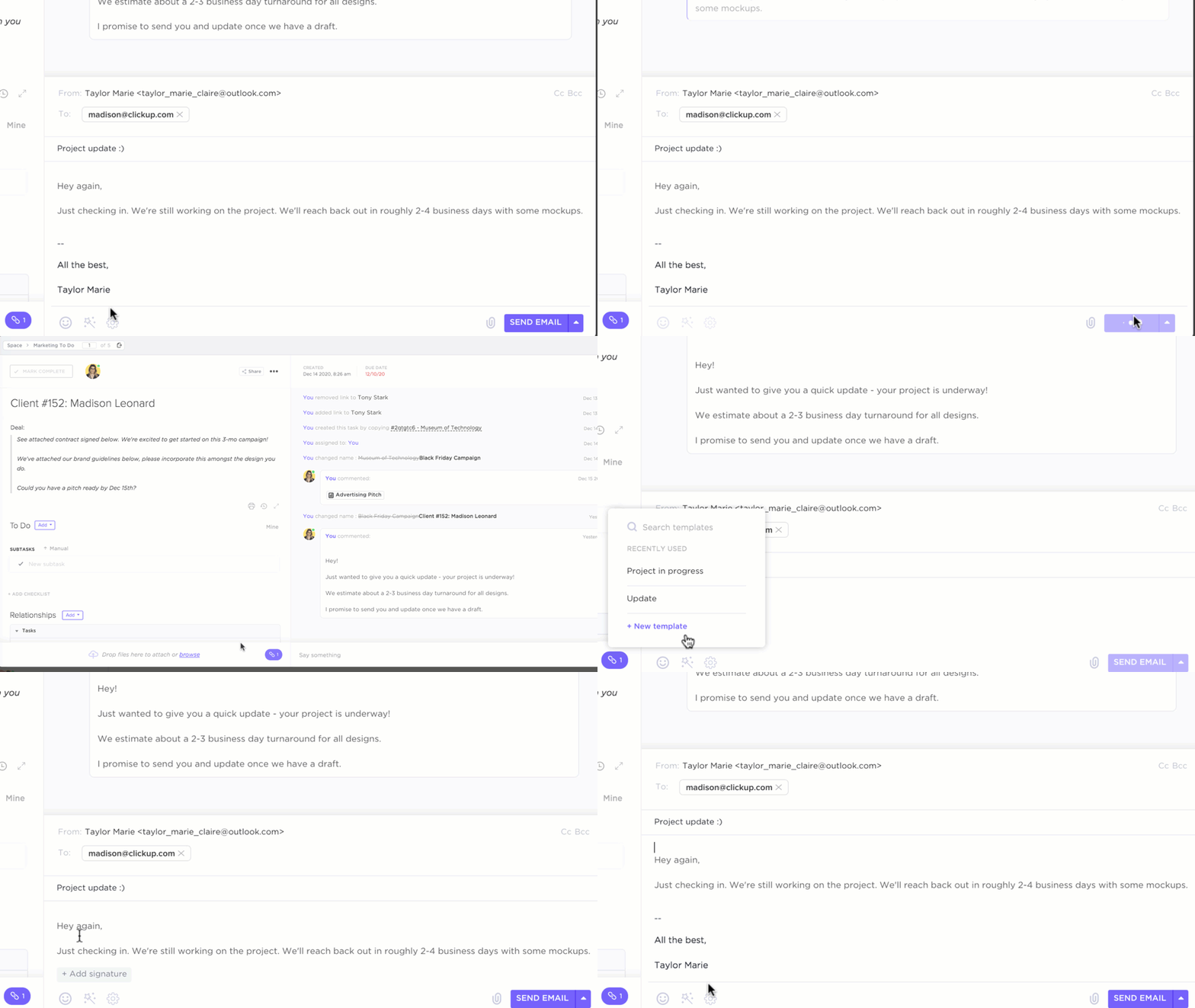
This is where ClickUp stands out as a converged AI workspace. With ClickUp’s Gmail integration and various ClickUp features, you can connect emails to tasks and docs and follow up in one place, so email automation actually turns into finished work.

Looking for a more holistic system to combine your email inbox and your other project workflows? ClickUp’s email project management helps you reduce manual work and ensures that critical incoming messages are never overlooked.
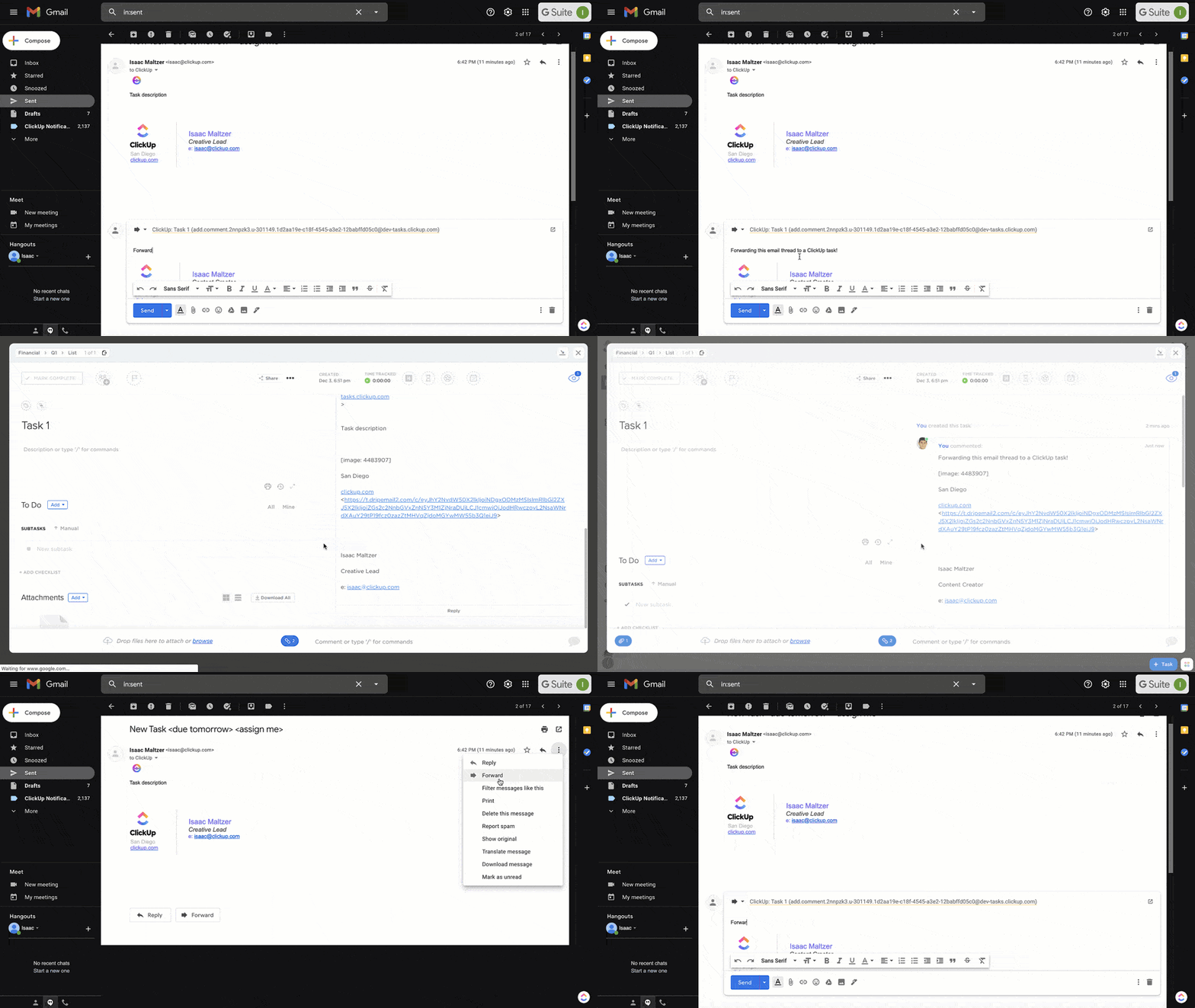
ClickUp also integrates directly with Gmail, letting you send and receive emails within your ClickUp Workspace. This allows you to respond to messages, link them to tasks, and tag teammates, all without switching tabs. You can then set up rules that create new tasks when an email is starred, labeled, or received from a specific sender.
For example, if a client sends feedback mid-project, you can open the message from inside ClickUp, reply with context, and immediately attach it to the relevant task. Your team can view the email and collaboratively handle any subsequent steps within the task.
This works well for:
📖 Also Read: Best Email Productivity Tools
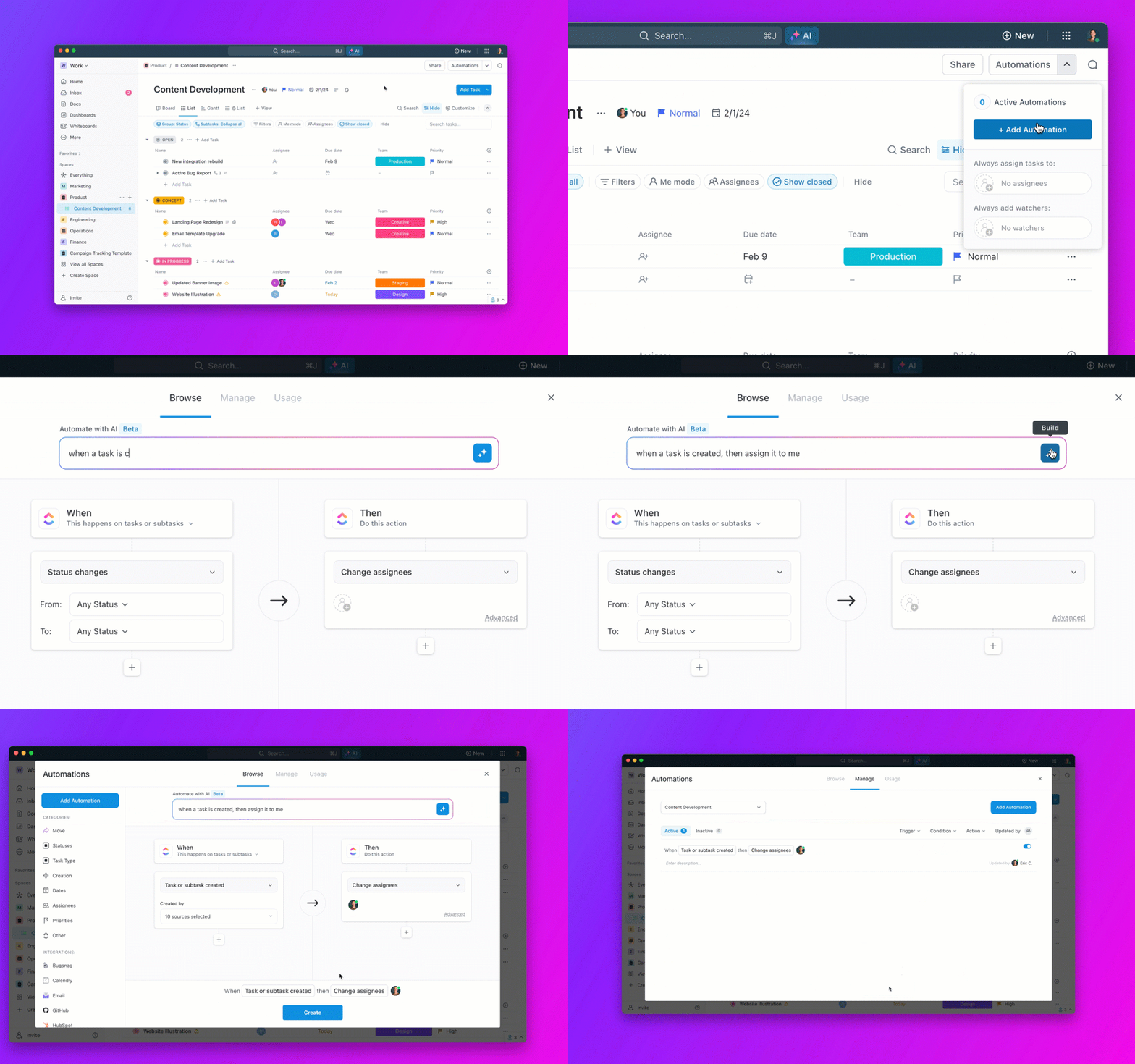
ClickUp Automations allows you to take email input and turn it into immediate action. Based on the sender or subject line, you can assign a task, set a due date, and even pre-fill a comment for the assignee.
Some practical automations include:
📽️ Here are a few ways you can use ClickUp Automations to help your team work smarter.
You can also experiment with different email management strategies inside ClickUp to cut down repetitive work and keep your inbox under control.
Whether you’re drafting personalized replies or summarizing long threads, ClickUp Brain handles the busywork so you can focus on decision-making.
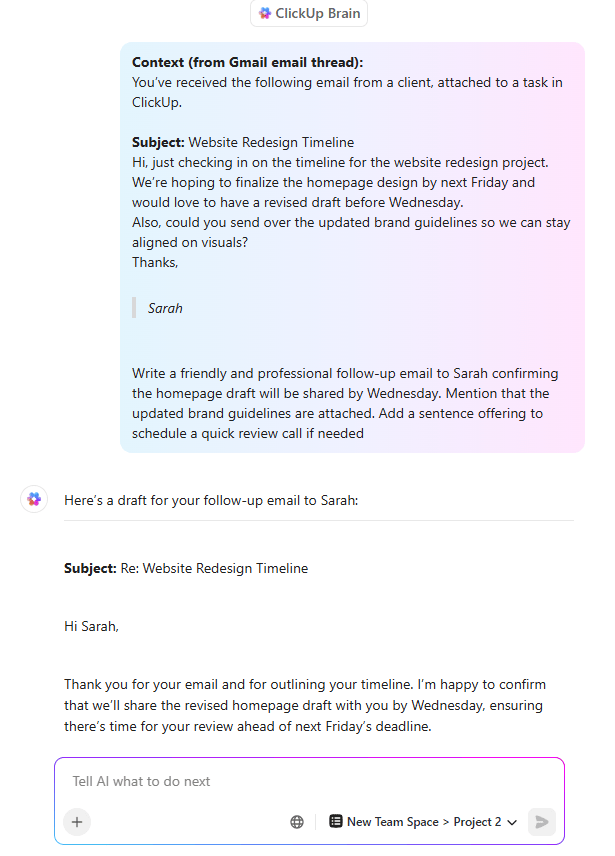
ClickUp Brain supports you to:
This turns your Gmail inbox into a knowledge management layer, pulling insights from Gmail attachments and conversations to support faster planning and execution.
💡 Pro Tip: Triple your productivity with an AI-assisted Gmail routine with ClickUp BrainGPT.
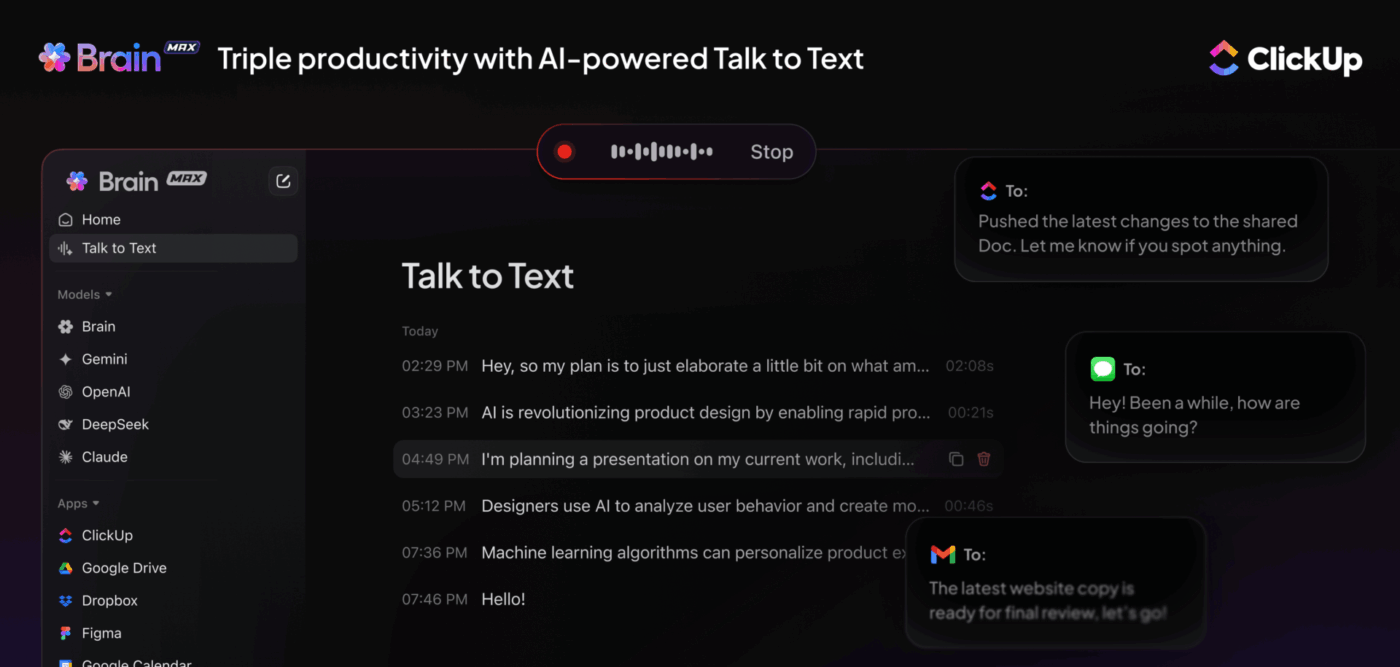
ClickUp BrainGPT helps you keep follow-ups and execution in sync with what’s happening in your Gmail inbox and beyond.
Turn an email into action instantly: From Gmail, you can create a ClickUp Task directly from an email (subject becomes the task name, and key details land in the description), so the follow-up lives on your to-do list instead of getting lost in the inbox
📖 Also Read: Best Shared Inbox Software
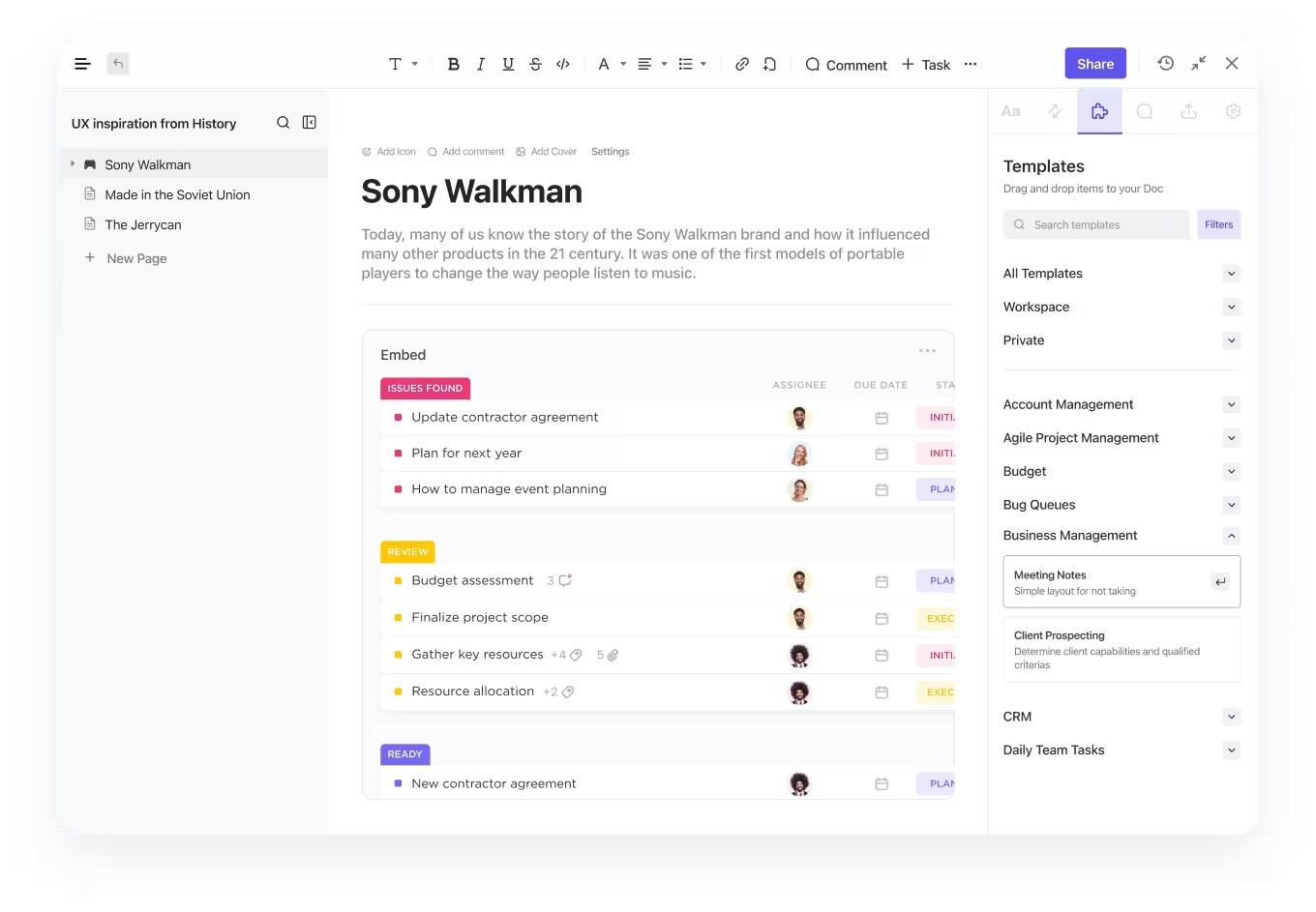
Once your inbox rules are doing their job, the next challenge is making sure the actual work doesn’t get scattered across email threads, chat pings, and random notes.
With ClickUp Docs, ClickUp Tasks, and the Email ClickApp, you can keep the conversation and the execution in the same place:
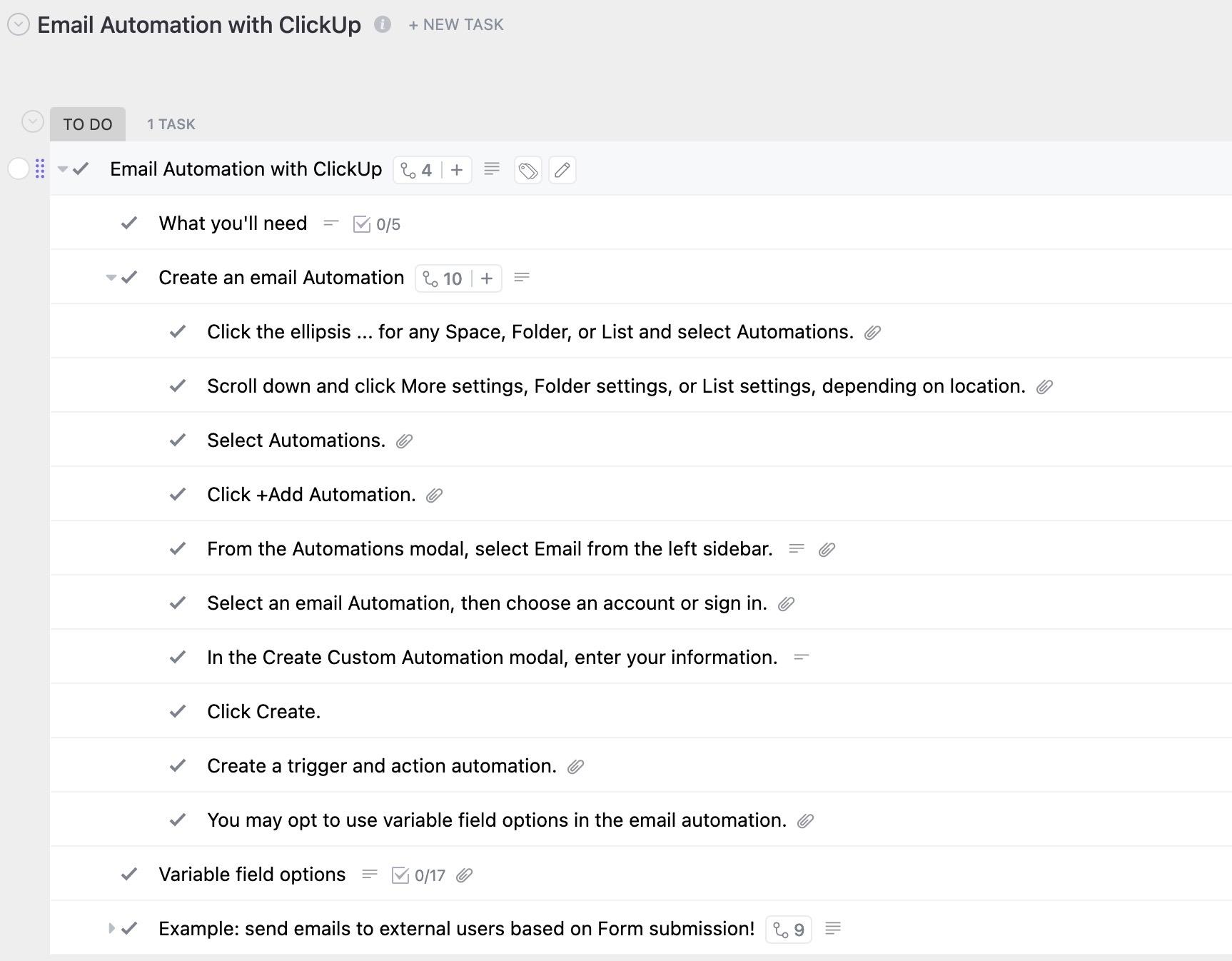
If you want a ready-made starting point, the Email Automation with ClickUp Template gives you one place to map the complete email workflow and track progress from “planned” to “sent” to “done.”
This template is built as a task-based setup with Custom Statuses, Custom Fields (like subject line and recipients), and multiple Views (List, Gantt, Workload, Calendar) so you can manage both the sequence and the execution without rebuilding a system from scratch.
🌻 Here’s why you’ll like this template
✨ Ideal for: Busy professionals and small teams running nurture emails, onboarding sequences, or customer follow-ups.
💡 Pro Tip: After syncing Gmail with ClickUp and turning emails into tasks, let ClickUp Agents handle the rest. They can monitor Gmail-synced tasks, post real-time updates, or answer questions in team Channels using live Workspace data.
👀 Fun Fact: Spam emails account for more than 45% of all emails. That’s nearly half of all emails sent every day.
Once you start automating your Gmail tasks, the benefits show up fast. Here are some everyday ways professionals use inbox management tools to stay productive and focused.
If a prospect doesn’t respond within three days, you can automatically send a follow-up using a personalized email template. For example, a sales team might set a rule where any email containing “proposal” triggers a gentle follow-up message after 72 hours.
👀 Fun Fact: Gmail was launched on April Fools’ Day, April 1, 2004. This is why many thought it was a prank, given the then-generous 1GB storage.
You can set up Gmail filters to sort messages based on subject lines, senders, or keywords. For instance, all invoices can go directly into a “Finance” label, while marketing briefs land under “Campaigns,” creating a more organized inbox without lifting a finger.
📖 Also Read: Best AI Email Writers for Professionals & Marketers
If you’re handling support emails from a shared account, filters can automatically forward emails containing keywords like “urgent” or “billing” to the appropriate team member’s Gmail account. This ensures timely responses without manual forwarding or CCing.
📖 Also Read: How to Use AI in Email
Create a filter that looks for subject lines with “unsubscribe,” “offer ends soon,” or “newsletter” and automatically archives emails or deletes them after 30 days. This helps reduce inbox clutter while still keeping messages available if needed later.
Using Gmail automation tools like ClickUp, you can set a rule that every starred email becomes a task in your to-do list. For example, when a client sends a revision request, starring the message can instantly create a ClickUp task with a due date and assignee—no copy-paste required.
📖 Also Read: Great Gmail Hacks to Manage Your Inbox
Gmail automation is a system for working smarter every day. By removing the need to sort, follow up, or forward messages manually, you give yourself more time to focus on what really matters: closing deals, serving clients, or launching your next big project.
From built-in filters and scheduled sends to advanced scripts and third-party tools like ClickUp, automation turns your inbox into a true command center where emails get forwarded automatically, and you can auto-delete emails based on preset criteria to clean up your inbox.
When you combine Gmail with ClickUp, you can turn messages into tasks, trigger inbox automations based on labels or keywords, and even use ClickUp Brain to summarize threads, draft replies, or extract insights from attachments.
All this means less context switching and faster execution. Ready to stop babysitting your inbox? Sign up on ClickUp today!
Not on its own. Gmail lets you schedule emails, but it doesn’t support true follow-ups. With ClickUp, you can track replies, automate follow-up tasks, and never miss a response again.
Start with Gmail’s filters, labels, and canned responses. Then use ClickUp to turn key emails into tasks, set reminders, and track progress all in one place.
Yes! With ClickUp’s Gmail integration, you can create tasks from starred emails, tagged messages, or even set custom rules for task creation.
You can use tools like ClickUp, which connects directly with Gmail. When an important message comes in, you can convert it into a task, assign it, and add deadlines—no need to switch apps.
Yes. Tools like ClickUp Brain or Gmail add-ons can draft or send smart replies based on message context. This is especially useful for common questions or status updates.
Yes—especially if you stick with trusted tools. Just make sure you review access permissions and choose software that follows data privacy best practices.

© 2026 ClickUp

There’s an easier way. Try a free AI Agent in ClickUp that actually does the work for you—set up in minutes, save hours every week.