“Looks good! Just a few small changes before Friday” is exactly the kind of email you get when you are hoping for a quick approval.
Now you have to compare the new requests with last week’s agreement, determine which deadline they refer to, and figure out what your team can realistically deliver. You still haven’t written a response.
That work adds up. Workers in a Microsoft Research field experiment spent an average of 11.7 hours a week on email before the study began. Researchers estimated that those who used Copilot in more than half of the study weeks spent 3.6 fewer hours on email each week.
That’s a meaningful reduction in time spent managing an inbox.
Putting AI to work in your own email takes a few decisions, though. You might want help catching up on a long client thread, drafting a routine reply, or identifying requests your team needs to act on. Each job needs different context and checks. A summary needs to preserve the latest deadline; a reply needs to reflect what you can actually promise.
This guide covers how to use AI in email across Gmail, Outlook, chat assistants, and ClickUp, with practical prompts and examples. You’ll learn how to choose what to delegate, give AI enough context to produce a useful draft, and turn email requests into work your team can track.
TL;DR: Using AI in email can help you summarize threads, prioritize messages, draft replies, prepare follow-ups, and identify tasks. Give the assistant the relevant history, your intended outcome, and guidance on tone. Check its output against the original messages, especially dates, prices, and commitments. For sensitive conversations, write your own draft and use AI to refine it. Move agreed requests into your team’s task system with confirmed owners and deadlines.
Summarize this article with AI ClickUp Brain not only saves you precious time by instantly summarizing articles, it also leverages AI to connect your tasks, docs, people, and more, streamlining your workflow like never before.
Summarize this article for me please
What Does Using AI in Email Involve?
Using AI in email means letting an AI model handle specific jobs across the email lifecycle. The AI sits inside your inbox, like Gemini in Gmail or Copilot in Outlook. Or it sits in a connected tool, like ChatGPT, Claude, or ClickUp Brain². It is different from AI for email marketing, which personalizes campaigns sent to thousands of subscribers. This guide covers the one-to-one and team email that fills a working day.
Five jobs make up most of the work:
Reading: Summarize long threads and identify decisions, dates, and requests. Include attachments only when the assistant can access them
Triage: Suggest which messages need attention based on deadlines, senders, and priorities you provide
Drafting: Prepare a reply or new message using your instructions, relevant background, and preferred tone
Following up: Identify unanswered requests in the messages available to it, draft reminders, and compile summaries
Turning requests into tasks: Extract action items and suggest owners and deadlines where the thread specifies them. Create tasks through a supported integration, or review and transfer them yourself
Start with a recurring task in your existing email management routine, such as summarizing a client thread before a weekly meeting. Check the result against the original messages before relying on it.
ClickUp’s own walkthrough covers the context method used in Step 3, live, on three emails people dread writing:
Summarize this article with AI ClickUp Brain not only saves you precious time by instantly summarizing articles, it also leverages AI to connect your tasks, docs, people, and more, streamlining your workflow like never before.
Summarize this article for me please
Which Email Tasks Should You Delegate to AI?
Summaries, prioritization suggestions, and routine drafts are useful starting points because you can check them against the original messages. For sensitive emails, such as feedback or an apology, consider writing the first draft yourself and asking AI to review it.
The research helps explain that distinction, though it doesn’t provide a task-by-task ranking.
The Microsoft field experiment introduced in the opening involved 7,137 workers across 66 firms. Across everyone assigned Copilot access, researchers estimated 1.3 fewer hours spent on email each week. The larger estimate in the introduction applies to regular users. These findings support AI’s potential to reduce email work overall, rather than proving that summarizing saves more time than drafting.
In a study of 1,100 professionals, participants evaluated congratulatory messages they were told had been written with different levels of AI assistance.
We see a tension between perceptions of message quality and perceptions of the sender. Despite positive impressions of professionalism in AI-assisted writing, managers who use AI for routine communication tasks put their trustworthiness at risk when using medium- to high-levels of AI assistance.
Anthony Coman, Researcher at the University of Florida’s Warrington College of Business and study co-author
When a supervisor used little AI help, 83% viewed them as sincere. With heavy AI assistance, that fell to 40% to 52%. The finding suggests that, for personal recognition, how much effort recipients believe you put into the message can affect how they receive it.
However, for tasks like a scheduling confirmation, the recipient mainly needs accurate details, so you can use AI for a first draft and check the facts before sending. With praise, feedback, or an apology, your choice of words also shows how much thought you’ve given the person and situation.
Wharton professor Ethan Mollick raised a related question about which writing tasks to delegate in an interview with WBUR’s On Point:
Like, you could use AI to write performance reviews. That’s the first thing everybody does with AI. But what’s the value of a performance review when it’s not being done by a human being? Right? So do we, is that something people should be spending time on? Is it important that I write a letter of recommendation by hand? Or is it just a pro-forma thing that I have to hand to somebody? So I think that that challenge is kind of the clarifying aspect of AI is: Does a human need to be involved?
He also allowed for AI-generated drafts when someone has already thought through the issue and needs help expressing it. You can make that decision email by email.
Use this table as a practical starting point, rather than a ranking of measured time savings:
Email task
What to delegate
What to keep under your control
Risk to check
Summarizing long threads
A summary of decisions, requests, and unresolved questions
Verify dates, numbers, and commitments against the source messages
A later reply changes an earlier agreement
Prioritizing messages
An initial ranking based on your stated priorities
Review priority messages and scan lower-ranked groups
An important client request gets ranked too low
Routine replies
Drafts for scheduling, confirmations, and factual updates
Approve names, facts, recipients, and promises before sending
The draft adds a commitment you haven’t agreed to
Praise, feedback, apologies, and negotiations
Tone and clarity checks on your draft, or wording options based on your decisions
The substance of the message and the final wording
The message sounds generic or misrepresents your position
Follow-ups and digests
Summaries of available threads and suggested reminders
Decide whether a follow-up is still needed and when to send it
A reply or changed deadline is missing from the assistant’s context
Turning requests into tasks
Extract action items and any explicitly stated owners or deadlines
Confirm scope, assignments, and dates before creating or approving tasks
A proposed request is treated as approved work
For agencies and client-facing teams, that last check matters whenever an email introduces additional work. Before assigning a request, confirm whether it falls within the agreed scope and whether the team has accepted the deadline.
Summarize this article with AI ClickUp Brain not only saves you precious time by instantly summarizing articles, it also leverages AI to connect your tasks, docs, people, and more, streamlining your workflow like never before.
Summarize this article for me please
Which Kind of AI Email Tool Fits Your Setup?
There are three broad approaches, which you can combine with your existing email productivity tools.
Approach
Examples
Context the AI sees
Best at
Watch out for
Built-in inbox AI
Gemini in Gmail, Copilot in Outlook
Your mailbox and, in some plans, your files
Summaries, triage, quick replies
Account and format limits
Standalone chat assistants
ChatGPT, Claude, the Gemini app
Content you provide or authorize it to retrieve through supported connections
Rewrites, tone, hard emails
Copy-paste and data handling
Work-management AI
Brain²
Accessible tasks, Docs, Chat, and supported connected-app data
Turning email into tracked work
More setup than a lone inbox needs
Built-in inbox AI: Gemini in Gmail and Copilot in Outlook
Ask Gemini to summarize an email without leaving Gmail
Built-in AI is a straightforward place to start because it sits where your mail arrives. In Gmail, the Ask Gemini panel can summarize a thread and respond to requests such as “Create a list of action items for me based on this email.”
Help me write drafts a new message from a prompt or refines existing text. In Outlook, Summary by Copilot summarizes email conversations. Its summaries can include numbered citations that take you to the source email, making it easier to check a detail against the original.
The friction shows up in account and app requirements. Copilot access depends on your subscription, Outlook version, and settings. Eligible users can also use Copilot with connected third-party accounts, including Gmail, Yahoo, and iCloud. Microsoft’s account-sharing feature is unavailable in classic Outlook for Windows.
Draft with Copilot requires HTML rather than plain-text messages in new Outlook and Outlook on the web. Microsoft’s mobile instructions also specify at least 100 characters for Coaching by Copilot to provide feedback on your draft. On the Google side, Gemini availability varies by feature, plan, region, and language; it is not limited to English.
Outlook also has a Prioritize feature that assigns priority levels to incoming messages. You can give it instructions about what matters, such as messages from your manager or customer complaints. It applies to emails received after you enable it, rather than retrospectively sorting your existing inbox. For a closer look at Google’s tools, see this guide to using Gemini in Gmail.
Best for: Individuals who work mainly in one email client and want summaries and drafting help without switching tools.
Skip it if: Your main need is coordinating deliverables across a team. Inbox assistance alone won’t establish task ownership, project status, or approval workflows.
Standalone chat assistants: ChatGPT, Claude, and the Gemini app
Give ChatGPT your situation and intended outcome to generate a first draft you can personalize
Chat assistants give you room to work through emails that need several revisions. You can compare versions, adjust the level of firmness, and explain why a phrase doesn’t sound like you.
Mollick’s point about drafting first applies here: providing your own writing gives the assistant an example of your style. You can then ask it to preserve that wording while improving clarity or shortening the message.
The trade-off is how you supply context. Without a connection, you’ll need to paste or upload the relevant material. Supported connections can reduce that work. For example, ChatGPT’s Outlook Email app can search and retrieve messages from an authorized mailbox, subject to account permissions and workspace settings. A broad search may still miss relevant messages, so specify the sender, subject, or date range when needed.
There is also a data-handling question. Pasting a client’s contract terms into a personal account may violate your company’s AI policy. Use an approved account and confirm what information you’re allowed to share. Our guide to writing emails with ChatGPT covers prompts for this approach.
For a difficult email, provide the thread, describe the outcome you need, and ask for three versions at different levels of firmness. Then ask the assistant to identify wording a recipient might find unclear or confrontational. Treat that feedback as possible interpretations, rather than a prediction of how the person will respond.
Best for: Emails that need several rounds of revision, such as pushback, negotiation, or a detailed explanation. For additional grammar and editing options, see these email writing tools.
Skip it if: You need continuous inbox processing but your chosen assistant lacks the connections or actions your workflow requires. Manually moving every thread between tools adds work.
Work-management AI that connects email to tasks
Bring Brain² into a team conversation to gather context from connected work sources
The third approach treats email as one input into the work. When the relevant sources are accessible, the AI can use a task, deadline, or decision recorded in a Doc alongside the email. That lets it prepare a reply with project context and help turn a request into a tracked item.
This is where Brain² fits. It can use tasks, Docs, Chat, and supported connected apps that you have permission to access. You can ask it to compare a client’s request with the project brief, draft a response, and create tasks once you’ve confirmed the scope, owners, and dates. We cover the setup and limitations in the ClickUp section below.
Best for: Agencies, client services, and cross-functional teams where email requests become deliverables.
Skip it if: Your email is mostly personal correspondence and you don’t need to connect it to shared project work.
Summarize this article with AI ClickUp Brain not only saves you precious time by instantly summarizing articles, it also leverages AI to connect your tasks, docs, people, and more, streamlining your workflow like never before.
Summarize this article for me please
How to Use AI in Email, Step by Step
Use these seven steps with the tools available to you. Features and actions depend on your account, connections, and permissions.
Step 1: Start with reading, not writing
Summarize an email-review discussion in ClickUp while keeping references to the source messages
Use AI to summarize long threads before drafting a reply. Ask for the information you need to act on, such as decisions, deadlines, and unresolved questions.
In Gmail, open the thread and ask Gemini to summarize it. In Outlook, select Summary by Copilot at the top of the thread. In ChatGPT or Claude, provide the thread or use a supported email connection. Try this prompt:
Summarize this thread in three bullets. Then list every decision, every date, and anything assigned to me by name. Distinguish proposed changes from confirmed agreements.
Before acting on the summary, open the source message for any number, date, or commitment. Where available, Outlook’s summary citations take you back to the relevant email.
Step 2: Let AI triage, then make the final call yourself
Ask Gemini which messages need attention, then check its suggestions against your inbox
Ask AI to group the available messages into “needs me today,” “needs me this week,” and “read later.” Review the priority messages and your VIP list first, then scan the lower-priority groups for overlooked requests.
Turn on Prioritize in Outlook, or ask Gemini to identify emails that need a reply. Outlook’s Prioritize feature evaluates new messages after you enable it; it doesn’t sort the existing backlog.
In a chat assistant, provide the relevant messages or retrieve them through a supported connection, then ask it to rank them against your priorities for the week. Subject lines and senders can help with an initial scan, but may leave out the actual request. Pair your prompt with a simple rule set for prioritizing emails at work.
A short email from an important client may deserve attention even without urgent wording. Check those messages yourself, and treat the AI’s suggestions as a starting point rather than a complete account of your responsibilities.
Step 3: Give AI context before you ask for a draft
A prompt such as “Write a follow-up email to Dana” leaves the assistant without important details about your relationship, the history, and your tone. Give it five layers of context:
Who you are: Your role, your style, and how you know this person
Who they are: Their role, what they care about, and the dynamic between you
What happened: The specific situation, who said what, and what is still unresolved
What you want: One concrete outcome, such as a yes, a date, or a decision
How you sound: Your usual tone with this person, which is more specific than “professional”
Before: “Write an email pushing back on this deadline.”
After: “I’m a senior designer who works with Priya weekly and keeps things direct. Priya is a product manager under pressure from sales. She moved the launch mockups from the 14th to the 9th on Monday’s call. I want her to agree to the 12th, with two screens shipping on the 9th as a preview. I usually write to her in short, friendly sentences with no corporate phrasing.”
Illustrative reply:
Hi Priya, Can we agree on the 12th for the full set of launch mockups? I can share two screens on the 9th as a preview. Let me know whether that works for the sales team.
Check that the draft presents the 12th as a proposal, rather than an agreed deadline. Confirm you can deliver the two preview screens before sending, and make sure the month is clear from the thread.
Use Gmail’s refinement controls to revise a draft before sending
Read the draft out loud and cut anything you would not say to this person face to face. Remove stock greetings where they add nothing. Replace stacked adjectives with one specific fact. Keep the closing to one line.
In Outlook, use Coaching by Copilot to review your own draft where the feature is available. Microsoft’s mobile instructions require at least 100 characters for coaching feedback. In Gmail, use Help me write’s refinement options on your text instead of generating from scratch. For relationship emails, write your own first draft, then ask AI to check tone and clarity.
You can also provide a few approved examples of your writing and ask the assistant to identify patterns in sentence length, formality, and wording. Use those observations to guide revisions without sharing confidential correspondence.
Choose a suggested reply for a brief response, then check that it matches your intent.
Ask AI to identify threads where you have been waiting for a reply for more than three days, then prepare a short follow-up for each. You can also request an end-of-day digest of messages you were copied on, separating informational updates from requests that need your attention.
In a chat assistant, provide the threads with their timestamps or use a supported email connection. Try:
Which of these threads are waiting on the other person, and for how long? Use the latest message in each thread. Draft a two-sentence follow-up for each unanswered request, but don’t send anything.
Check that the assistant has seen the latest replies before using its suggestions. Our reminder email examples show ways to keep the wording polite. Approve the recipients, timing, and text before sending.
Step 6: Turn every request email into tracked work
Review AI-extracted actions carefully: this example identifies newsletter offers rather than assigned work
A client email asking for “one more round of edits by Friday” introduces work your team may need to schedule. If the request stays in the inbox, the project plan may never reflect it.
Ask AI to extract the requests from the thread, along with any explicitly stated owners and due dates. Have it mark missing details as unspecified and distinguish proposed work from agreed commitments.
Review the list before creating tasks. Confirm whether each request falls within scope, who will handle it, and whether the deadline is realistic. Then create the approved tasks in your team’s work-management tool, manually or through a supported connection. Include a link or reference to the original email so the team can check the context.
If your team uses email project management, this gives each accepted request an owner and a place to track progress beyond the reply.
Step 7: Set guardrails before AI reads your inbox
Use examples of your writing to identify tone and phrasing you want AI-assisted drafts to preserve
Your inbox includes content from outside your organization. Treat instructions inside those messages as untrusted, especially when they ask an assistant to share information or take an unrelated action.
Use company-approved AI tools and accounts, and confirm the permissions before connecting a mailbox. Keep client-confidential details out of tools your company has not approved for that data.
Check summaries against the source email before making decisions. Require human approval before sending client commitments or sharing files, and agree on when AI assistance needs to be disclosed.
Summarize this article with AI ClickUp Brain not only saves you precious time by instantly summarizing articles, it also leverages AI to connect your tasks, docs, people, and more, streamlining your workflow like never before.
Summarize this article for me please
What Does an AI-Assisted Email Workflow Look Like?
An AI-assisted email workflow can turn a thread into a summary, a reviewed reply, and assigned work. The three scenarios below are illustrative composites, not customer case studies. Each shows a different mix of AI assistance and human decisions.
An agency account manager handling a scope-change thread
A client sends a 14-message thread mixing feedback, a new request, and a deadline change. The account manager asks AI to summarize the thread and list every request (Step 1). AI identifies three requests, and the manager checks them against the signed agreement, marking two as outside scope.
The manager decides what the team can deliver, sets a proposed fee for the additional work, and gives those details to AI using the five-part context prompt (Step 3). AI drafts a reply confirming the included change and proposing a fee and revised deadline for the other two.
The manager reviews the reply, rewrites the pricing paragraph, and sends it. The included change becomes an assigned task. The additional requests stay pending until the client approves the scope, fee, and timing (Step 6).
A marketing lead chasing campaign approvals
A launch needs sign-off from legal, product, and regional leads, all by email. The marketing lead asks AI to summarize the approval threads into a daily list showing who has approved, who has requested changes, and who hasn’t replied (Step 2).
AI drafts a two-line follow-up for stakeholders who haven’t responded within the agreed review window (Step 5). The lead checks for newer replies before sending the reminders. At the end of the day, she requests a digest of approvals received and decisions still outstanding.
AI helps prepare the routine updates, while the lead handles a stakeholder’s unresolved objection directly. Teams can also use Gmail automation rules to label approval messages so they’re easier to find.
A founder answering a customer escalation
A long-time customer emails about a billing error and threatens to cancel. The founder gives AI access to the relevant correspondence and asks for a summary of the support history and disputed charges (Step 1). She checks the summary against the billing records before deciding what to offer.
The founder writes the apology herself, then asks AI to check tone and clarity without changing the proposed resolution (Step 4).
She assigns the billing correction to finance with a confirmed deadline and links the customer’s email to the task (Step 6). Once finance verifies the correction, she follows up with the customer.
Summarize this article with AI ClickUp Brain not only saves you precious time by instantly summarizing articles, it also leverages AI to connect your tasks, docs, people, and more, streamlining your workflow like never before.
Summarize this article for me please
What Are the Most Common Mistakes With AI in Email?
An AI-generated reply can read well and still miss a changed deadline, imply approval, or use information you shouldn’t have shared. Check for these five mistakes before relying on the output.
Letting AI write relationship emails end to end
What it looks like: A congratulations note praises someone’s “outstanding contributions” without naming what they did.
The fix: Write the specific recognition, feedback, or apology yourself. Ask AI to improve clarity without adding praise, feelings, or promises you didn’t express.
Prompting with one line
What it looks like: “Follow up with the client” produces a generic reminder that ignores the extension you agreed to yesterday.
The fix: Include the latest agreement, the outcome you need, and your usual tone. Ask the assistant to flag missing information rather than fill in the gaps.
Trusting the summary without opening the thread
What it looks like: You confirm a delivery date from the summary, overlooking a later reply that proposed changing it.
The fix: Open the source message for each date, price, or commitment. Check whether the detail is current and agreed, rather than simply mentioned.
Leaving requests in the inbox
What it looks like: You acknowledge a client’s request, but never assign it. The client expects progress while the team’s task list remains unchanged.
The fix: Record accepted work with an owner, deadline, and reference to the email. Keep requests awaiting approval separate. Use inbox zero practices to clear processed messages only after the work is recorded.
Pasting confidential data into personal AI accounts
What it looks like: Someone copies a client contract into a personal chatbot account without checking whether company policy permits it.
The fix: Use an approved tool and account. Share only the information needed for the task, and check your organization’s data-handling rules before uploading contracts, customer records, or other confidential material.
Summarize this article with AI ClickUp Brain not only saves you precious time by instantly summarizing articles, it also leverages AI to connect your tasks, docs, people, and more, streamlining your workflow like never before.
Summarize this article for me please
How Can You Turn Email Requests Into Tasks in ClickUp?
ClickUp connects email conversations with the work they create. For agencies and client services teams, that means keeping a client’s request, the agreed response, and the assigned work together.
Keep email conversations on the task
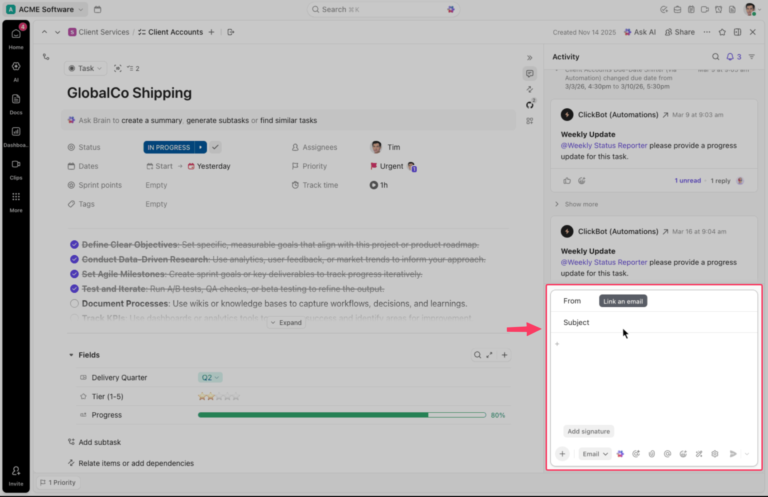
Compose an email directly from a ClickUp task using a connected account.
With Email in ClickUp enabled for the relevant Space and an email account connected, you can send and receive email from inside a task. Replies appear in the task’s activity feed as comments or threaded replies, so your team can follow the conversation alongside the deliverable.
For example, you could send a design proof from its review task and keep the client’s response attached to that work. One limitation to know: if the recipient changes the email’s subject line, their reply won’t appear back in ClickUp.
Turn incoming requests into tasks by forwarding them
Open a List’s menu and select Email to List to copy your unique address. Send or forward an email to that address to create a task. The subject becomes the task name, and the body becomes its description.
You can include assignment and due-date tags in the subject line, such as <assign name@company.com> and <due next Friday>. Check that the email address matches the intended ClickUp user and the deadline is agreed before sending. This is email-to-task creation, separate from AI interpreting the request.
Use Brain² to draft with project context
Brain² can work with tasks, Docs, Chat, and supported connected-app data that you have permission to access. Give it the client’s request and point it to the relevant brief or agreement, then ask it to compare the two:
Compare this client request with the linked project brief. List what is already included, what may be additional work, and anything you can’t determine. Cite the relevant details. Draft a reply for my review without agreeing to new fees or deadlines.
Review that comparison against the agreement before deciding what to offer. Once the scope is agreed, ask Brain² to create tasks or subtasks with the confirmed owners and dates. Have it leave unconfirmed details unset.
Specify the audience, timeframe, and tone when asking Brain² to draft re-engagement emails.
You can also switch between supported AI models available to your Workspace while retaining your conversation history and workspace context. For repeatable email work, a Super Agent can follow configured instructions and use the tools and knowledge you give it. Specify which requests it should flag for review and what it must leave for a person to decide. These AI agent prompting practices can help you define those instructions.
Choose the connection that fits the job
Email in ClickUp, email-to-task forwarding, and Brain²’s connected-app tools serve different purposes. Connecting an email account doesn’t automatically turn every incoming message into assigned work.
Outlook users can also use the ClickUp add-in to create tasks from selected emails or attach messages to existing tasks. The add-in isn’t available on mobile and doesn’t support shared inboxes. Check the requirements for the specific integration you plan to use.
For a visual queue, start with the Emails Kanban Board Template. Add accepted requests as tasks, assign owners and deadlines, and move them through statuses that match your process. Connecting your email account is a separate setup step; you still need to define how requests enter the board.
Watch how an email digest agent summarizes key client messages, a customer-update agent drafts emails when task statuses change, and a meeting follow-up agent turns notes into a recap with action items. Use these examples to plan your own workflow, with a review step before sending.
Summarize this article with AI ClickUp Brain not only saves you precious time by instantly summarizing articles, it also leverages AI to connect your tasks, docs, people, and more, streamlining your workflow like never before.
Summarize this article for me please
Make Email Easier to Act On
The next time a client asks for “a few small changes,” you should be able to see what those changes mean for the project without reconstructing the agreement from scattered replies. That’s a useful measure of your AI setup: whether it reduces the work needed to reach a clear decision.
For a personal inbox, drafting and summarizing may cover most of what you need. For a team delivering client work, the conversation also needs to stay connected to the brief, the deadline, and the people responsible. Otherwise, even a well-written response leaves someone to coordinate the work afterward.
ClickUp brings that project context and task management together, with Brain² helping you work across the information you can access. Start with ClickUp for free and try it on one active client project. Judge the result by whether your team can find the latest agreement and act on it without another round of clarification.
Summarize this article with AI ClickUp Brain not only saves you precious time by instantly summarizing articles, it also leverages AI to connect your tasks, docs, people, and more, streamlining your workflow like never before.
Summarize this article for me please
Frequently Asked Questions about How to Use AI in Email
Which AI is best for writing emails?
Choose your tool based on where you work and what context the assistant needs. Gemini in Gmail and Copilot in Outlook offer drafting help inside your email client. ChatGPT and Claude let you compare versions and refine wording through conversation. ClickUp Brain² can help when your reply needs accessible project context from tasks, Docs, and team discussions. Check account eligibility, connections, and permissions before choosing.
How can you tell if an email was written by AI?
Generic greetings, vague praise, and repetitive phrasing may make an email feel impersonal, but they don’t establish that AI wrote it. In the UF and USC study discussed above, participants were told how much AI assistance had been used; it wasn’t a test of their ability to detect AI writing. When reviewing your own draft, focus on accurate details, a clear purpose, and wording that fits the relationship.
Can ChatGPT organize my emails?
ChatGPT can help summarize messages, identify unanswered requests, and suggest priorities using emails you provide or retrieve through a supported connection. Its Outlook Email app can search a connected mailbox, while available organization actions depend on permissions and workspace settings. Specify the mailbox, date range, and task, and check the results before approving changes.
Can AI write daily email digests?
Yes. AI can summarize selected emails into a daily digest of key updates, requests, deadlines, and messages that need a reply. Specify which inboxes or senders to include, the time period, and your preferred format. Ask for links to the original messages so you can check details. Automatic daily delivery requires a supported scheduling or agent workflow with access to the relevant emails. Review the setup’s permissions and test a few digests for missed messages before relying on it.
How do I improve email tone and grammar using AI?
Write a rough draft, then tell AI who you’re emailing, what you want to achieve, and how you normally speak to that person. Try: “Fix grammar and make this clearer and warmer. Keep my meaning and wording where possible. Don’t add facts, promises, or apologies.” Review the changes before sending, especially phrases that could make a request sound like a demand or a proposed deadline sound agreed. For sensitive emails, ask for suggested edits with explanations so you can choose what to keep.
Everything you need to stay organized and get work done.