







Still downloading templates?
There’s an easier way. Try a free AI Agent in ClickUp that actually does the work for you—set up in minutes, save hours every week.
Sorry, there were no results found for “”
Sorry, there were no results found for “”
Sorry, there were no results found for “”
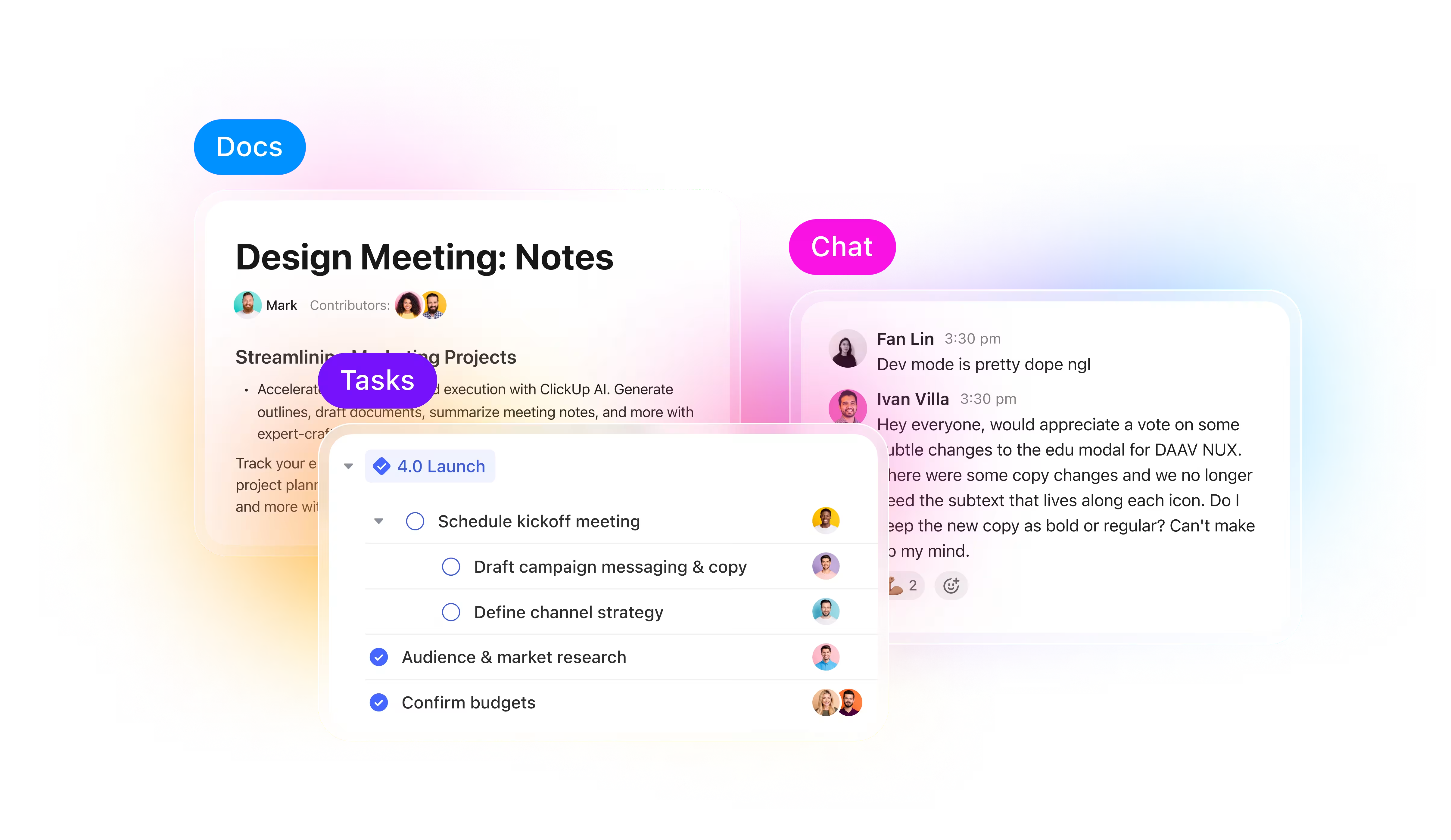
The deeper you understand ClickUp’s core features, the more productivity you will unlock.
Whether you’re a freelancer or part of an enterprise team, the tutorials below will help you learn ClickUp faster, build better workflows, and save real time.
Let’s get into the best ClickUp tutorials.
A Reddit user sums up the experience of using ClickUp as:
Hi there, 10+ years of experience in various tasks/projects/KB management. Tried basically anything serious commercial tool out there. What I like about ClickUp is basically what they market: one app for everything. Really like the level of customization of task management, and the KB is pretty solid too. They recently released a huge improvement to the chat, so we are also replacing Slack.
In short, ClickUp is a tool that just gets how you work.
So what does ClickUp offer that makes it an indispensable tool for personal and professional use alike?
❗The Silent Productivity Killer: The average knowledge worker toggles between apps and websites nearly 1,200 times each day. It adds up to under 4 hours each week, reorienting themselves after toggling—under 9% of their time at work.
📚 Also Read: How to Export ClickUp Data to Excel in Easy Steps
ClickUp is a self-serve tool with tutorials that show you how to use it more efficiently in a DIY way.
The key qualities include:
| Focus area | What a great ClickUp tutorial offers | Importance |
| Learning journey | A step-by-step path from fundamentals to advanced features | Ensures you can grow with ClickUp, no matter your starting point |
| Hierarchy clarity | Clear explanations of ClickUp workspaces, folders, lists, tasks, and nested subtasks | Helps you confidently structure projects for clarity and scale |
| Workflow inspiration | Real-world examples of complete processes (e.g., content calendars, agile sprints, client onboarding) | Makes it easy to adapt proven workflows to your own needs |
| Customization power | Guidance on goal-setting, custom fields, statuses, dashboards, AI, and automations | Lets you tailor ClickUp to match the way you work |
| Team success | Best practices for collaboration, roles, permissions, and communication | Empowers teams to adopt ClickUp smoothly and work together effectively |
| Scaling and growth | Tutorials that showcase dashboards, goals, and advanced views | Ensures ClickUp grows with you, from solo projects to company-wide systems |
| Connected workflows | Examples of integrating ClickUp with tools like Figma, Google Drive, or Zapier | Demonstrates how ClickUp fits seamlessly into your existing ecosystem |
| Practical resources | Templates, checklists, and ready-to-use examples | Saves time and helps you put learning into action immediately |
If you’re a ClickUp power user who lives and breathes ClickUp, you already have the foundation to become a ClickUp consultant. Productize your knowledge and help clients with:
And when you’ve done 3-4 setups, consider turning them into paid templates that you can sell on Gumroad, courses/mini-consulting offers, or recurring retainers for monthly Workspace maintenance.
💥 Free Learning Hub: If you’re serious about mastering ClickUp, start with ClickUp University. It’s the official, self-paced training hub with bite-sized lessons, quizzes, and real use-case demos.
You can go from beginner to workspace pro at your own pace and even earn certifications that boost your credibility as a ClickUp power user or consultant.
If you’re looking to tailor your ClickUp account to your needs, here are some of the best tutorials to get you started.
Watch these ClickUp tutorials to get started. All that matters is you get the most out of them, quickly.
Here we go 👇
Getting started with ClickUp takes less than a minute. Sign up with your email, enter the verification code, and you’re ready to explore your workspace instantly.
ClickUp is the everything app for work, and the On-Demand Demo shows why. In under five minutes, it moves through the platform’s core layers, including Tasks, Views, Docs, Whiteboards, and Dashboards. The video shows you in detail how they connect. It’s one of the best ClickUp tutorials you’ll come across.
The tour begins with ClickUp Views. Covering all 17 of them, it lets teams (and even students using ClickUp) see the same work through a perspective that caters to their needs.
For example,

The ClickUp tutorial then covers ClickUp Tasks—how they consolidate conversations, files, and updates into a single thread.
But how do you nudge someone into a small action without creating a new task?
Enter ClickUp Assigned Comments. They’re perfect for micro follow-ups, such as asking a teammate to review a line in a document or confirm a number inside a task. Each assigned comment shows up in the recipient’s Inbox, the notification stays open until resolved, and ensures accountability without cluttering your workspace with unnecessary to-dos.
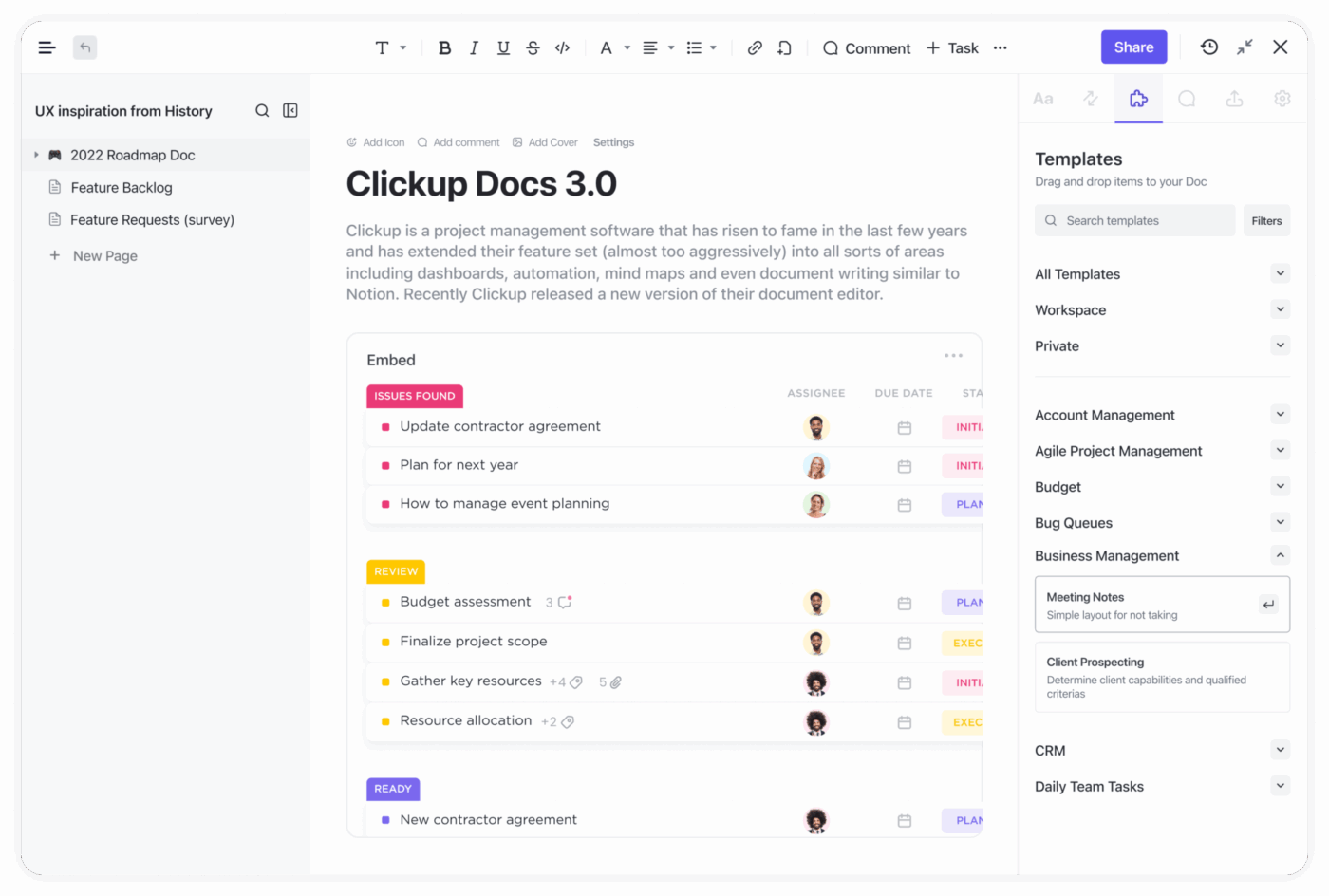
ClickUp’s collaborative documents—called Docs—let you brainstorm, write, and link directly to tasks, keeping everything connected. ClickUp Docs are editable and customizable.
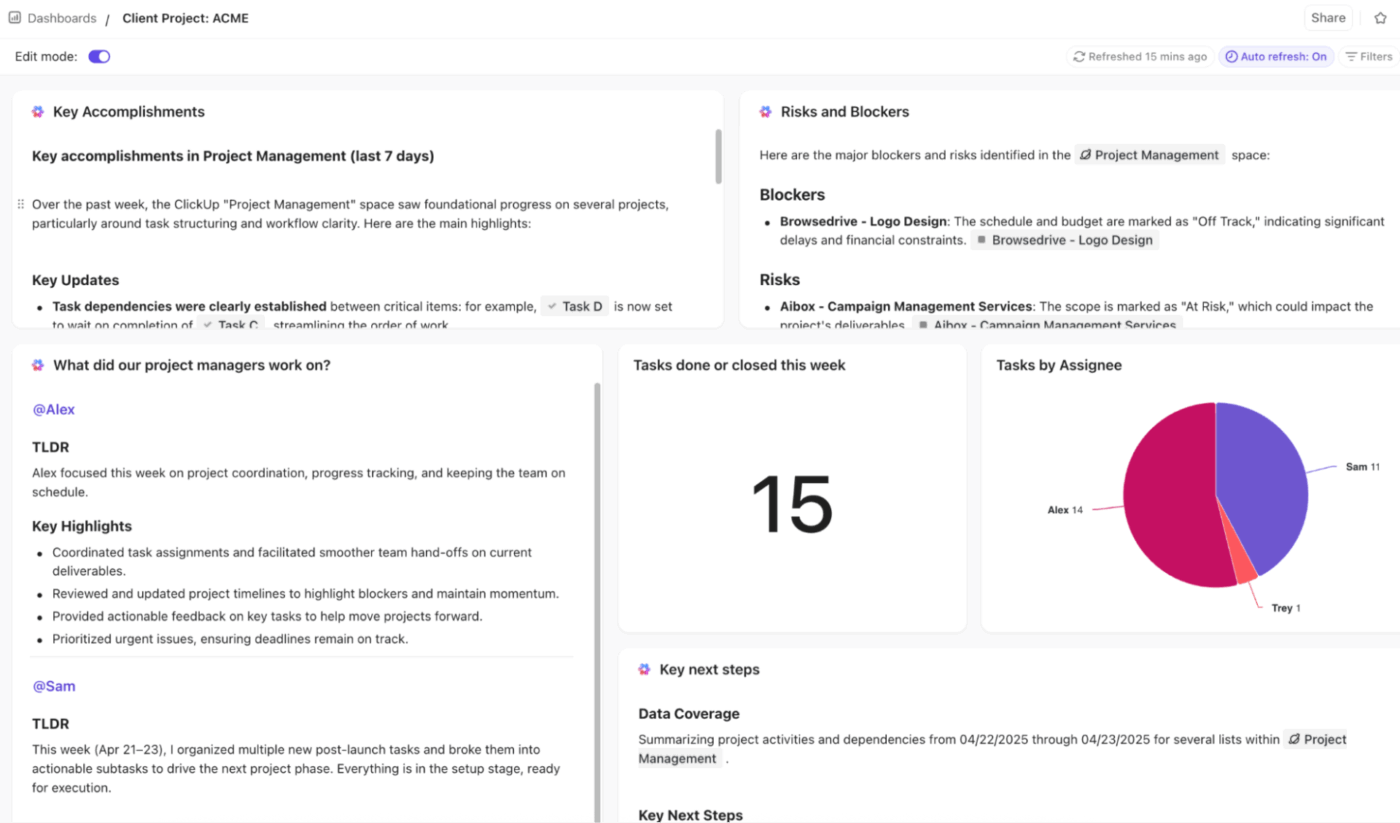
The demo ends with dashboards. ClickUp Dashboards are the visibility layer of your workspace. They are customizable and display live project progress, team workload, and company goals in a single visual control center.
⭐ Bonus: ClickUp’s AI Cards add AI-powered reporting directly to your Dashboards. They turn raw data into instant insights. They allow you to run custom prompts via the AI card. You’re not limited to pre-built summaries. You can ask the AI questions specific to your workspace and setup.
👀 Did You Know? ClickUp, created by Zeb Evans, was initially intended for internal use only. Little did he know that what he started as an internal solution could help fix broken workflows around the world, for teams of every size and in every industry.
In his words, “We thought it was just going to be an internal tool at first, aimed at saving ourselves time. And then we shifted that to saving the world time once we realized that there’s a huge need for this.”
ClickUp’s hierarchy is the backbone of how everything gets organized and helps teams manage tasks at every level.
At the highest level, you’ll have Workspaces. ClickUp structures your company-wide home base in this phase. Inside it, you set up ClickUp Spaces to represent departments or large functions. Within those, you create Folders that group related projects together.
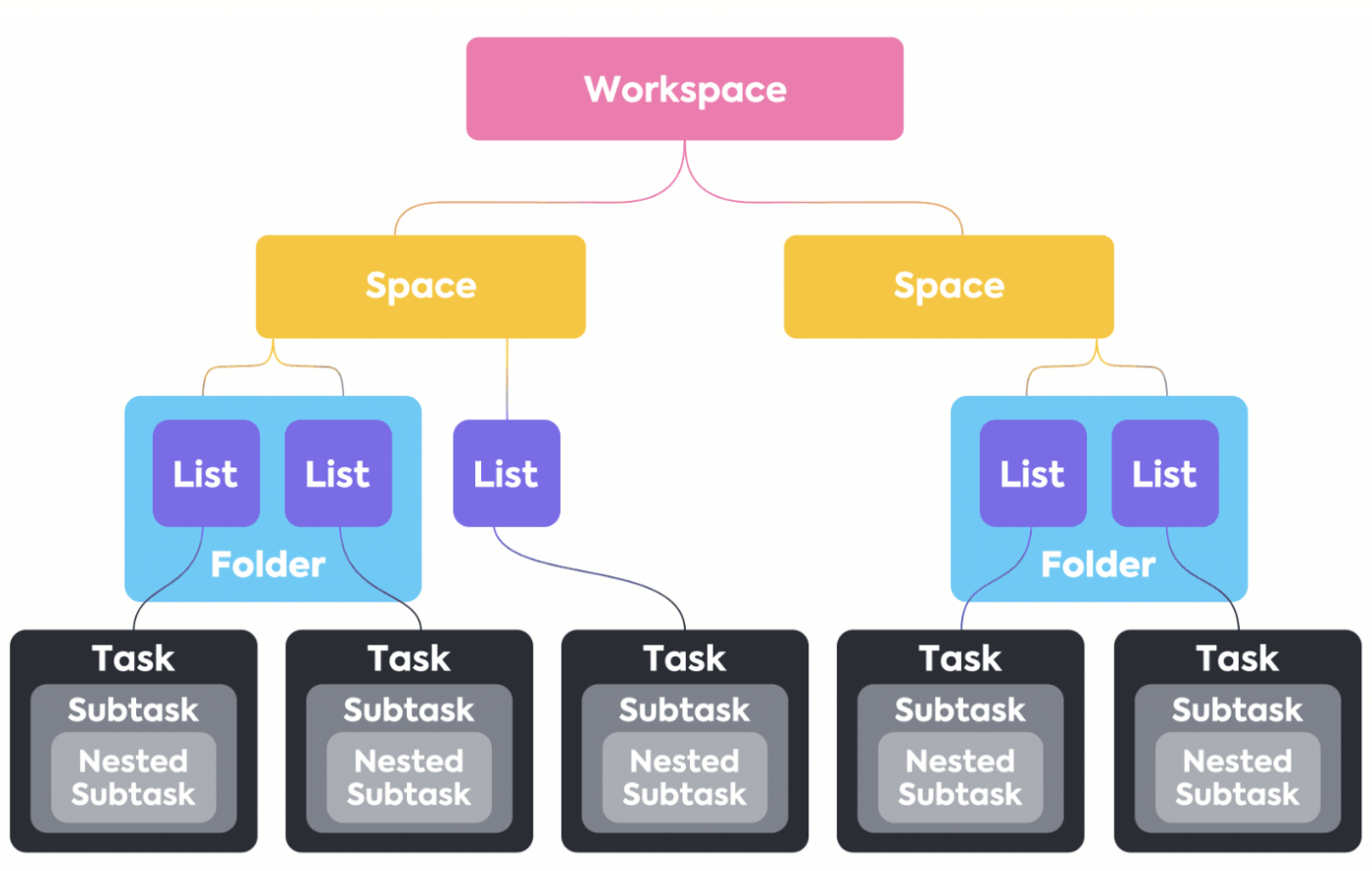
The structure narrows as you go:
The hierarchy adapts the way you work, but the logic stays consistent.
If you’re moving from another project management tool, you can import tasks directly into ClickUp. The import feature supports CSVs and even tools like Asana or Trello, so your existing data maps cleanly into Lists and Folders without manual setup.
📮 ClickUp Insight: 48% of employees say hybrid work is best for work-life balance. Yet, with 50% still working mostly in the office, staying aligned across locations can be a challenge. But ClickUp is built for all kinds of teams: remote, hybrid, async, and everything in between.
With ClickUp Chat & Assigned Comments, teams can quickly share updates, give feedback, and turn discussions into action—without endless meetings. Collaborate in real time via ClickUp Docs and ClickUp Whiteboards, assign comments to people, and keep everyone on the same page no matter where they work from!
💫 Real Results: STANLEY Security saw an 80% increase in teamwork satisfaction thanks to ClickUp’s seamless collaboration tools.
ClickUp Custom Statuses and ClickUp Custom Fields are two of the most important levers for shaping how projects run in your workspace, regardless of team size. Used well, they transform task lists into clear, measurable workflows aligned with how your team delivers work.
Case in point is this ClickUp tutorial showing you how to use them.
Custom Statuses define the movement of tasks through your process. ClickUp allows you to use the default sets or design your own.
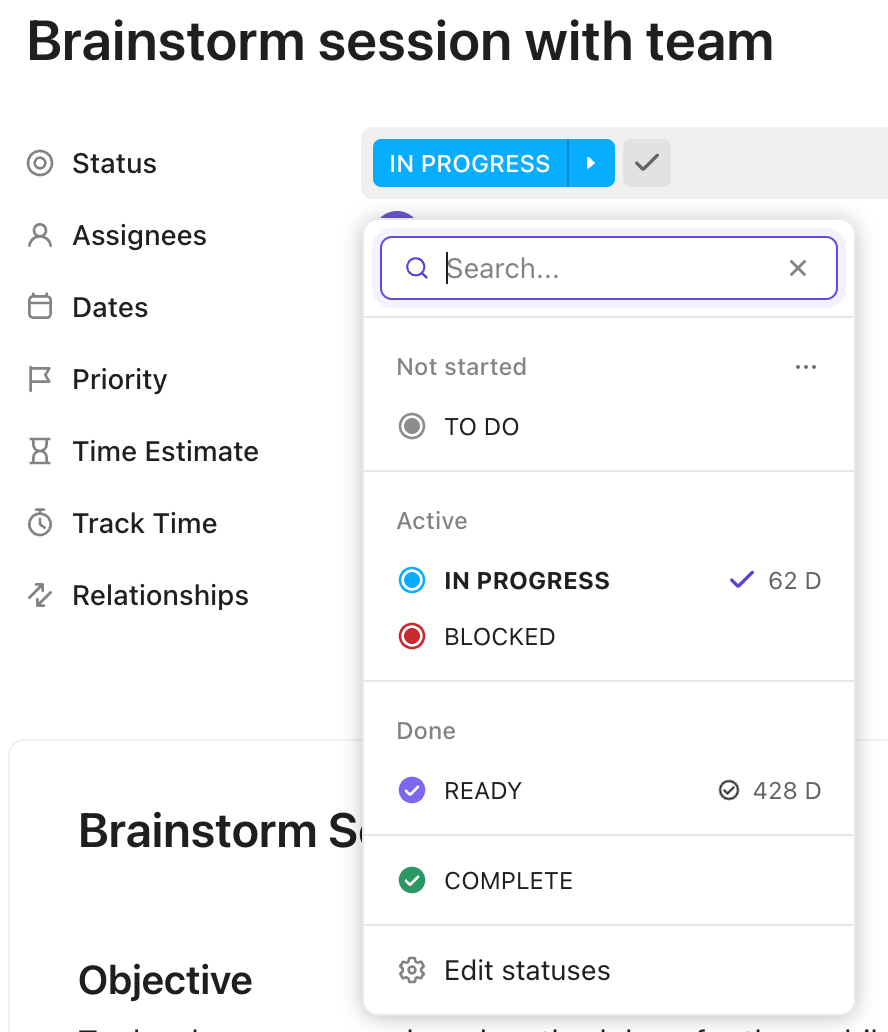
The strength lies in tailoring them precisely to the stages that matter in your environment, like:
To create or adjust them, open Space/Folder/List settings → Statuses. From there, build a custom set and apply it consistently across projects. For client-facing setups, like when building a ClickUp client portal, these elements make the experience structured and transparent.
You can set different statuses for each Space, Folder, or List, covering every base of every workflow, from design approvals to sprint cycles. Your progress stages always match your team’s reality.
Custom Fields, on the other hand, capture the information that statuses alone cannot. For example, data points that provide context, classifications, or quantitative tracking, like:

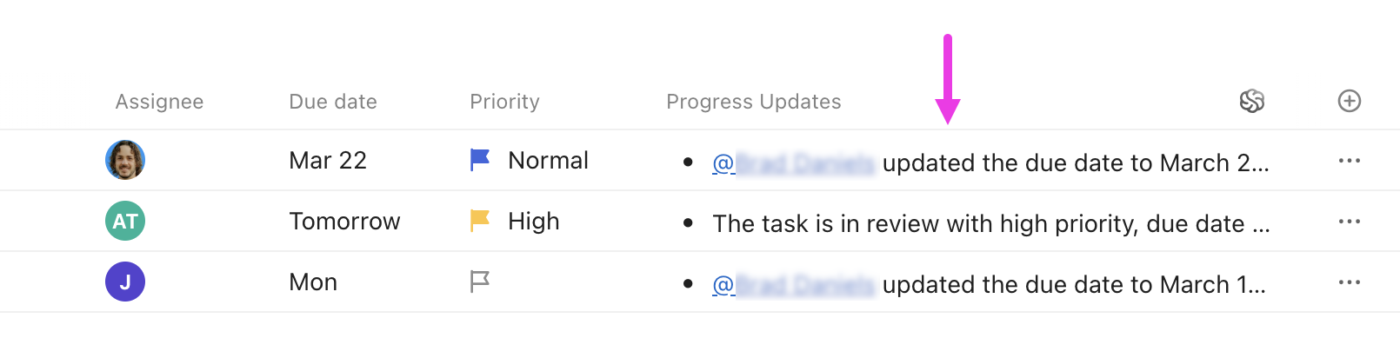
⭐ Bonus: ClickUp AI Fields bring AI directly into your task columns, automatically summarizing, translating, categorizing, or estimating work without manual effort. Unlike traditional custom fields, AI Fields don’t stop at storing data. They generate it.
You can create AI-powered summaries, progress updates, sentiment analysis, translations, action items, and more.
🧠 Fun Fact: The first recorded use of the word ‘automation’ came in the 1940s at Ford Motor Company. It described machines that could automatically transfer parts between production steps—an idea that revolutionized manufacturing and later spread to every industry.
Guests typically get access to specific Folders, Lists, and tasks, so you can share only what’s relevant. The ClickUp tutorial walks through reading task context, taking ownership, tracking time, and staying visible to the team. This is especially useful in ClickUp for Agencies, where client access needs to be precise and limited to only what’s relevant.
It starts at the task level. Everything you need sits in one place, so review context before you act:
You can also add Followers for stakeholders who need updates without needing to join every thread.

ClickUp Time Tracking is just another crucial component of the workflow in this role. Start a timer on the task or log time after the fact, mark entries billable or non-billable, add a short description, and save. You can also review and submit your entries on a timesheet to confirm accuracy.
⭐ Productivity Booster: ClickUp BrainGPT is your AI-powered desktop companion designed to simplify your workflow and keep you focused. Instead of bouncing between apps, Brain MAX brings your work together in one place, powered by context from your tasks, documents, and projects.
With Enterprise Search and Talk-to-Text, it’s easier than ever to capture ideas, find information, and act fast. Plus, you can switch between AI models like GPT-4.1, Claude, and Gemini, depending on the task at hand.
Here’s a glimpse of what you can do with BrainPGT:
If you’re under the misconception that creating workflows in ClickUp requires heavy tech dependency, it’s simpler than it looks.
As seen in this ClickUp tutorial, it is a step-wise process. Anyone in your team, even junior colleagues, can do it.
This setup is especially helpful during ClickUp onboarding, when new team members need a clear process to follow. In this setup, the Incoming Request List captures new work separately from active tasks. The tasks are created via Form Submissions.
Once tasks are added to the intake list, they undergo a triage process. This is where requests are validated, clarified, and prepared for action. When a task is ready, changing its status kicks off the next phase. Status changes act as automation triggers in this setup.
🎯 Example: When a request moves to In Progress and is marked as ‘Website’ as task type, ClickUp can automatically:
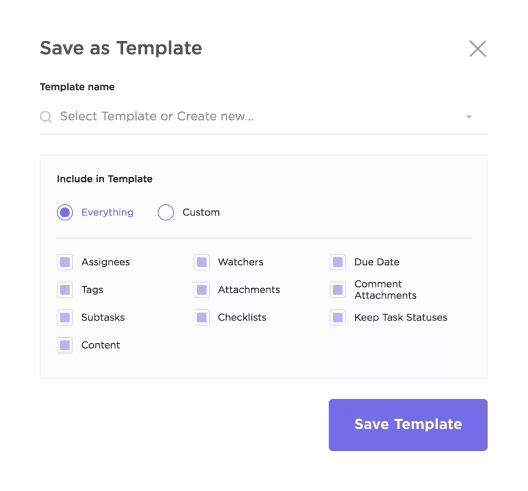
ClickUp Task Templates can help you avoid the hassle of manual setups. Save any task as a template, then apply it to new work to preload subtasks, checklists, comments, or assignees.
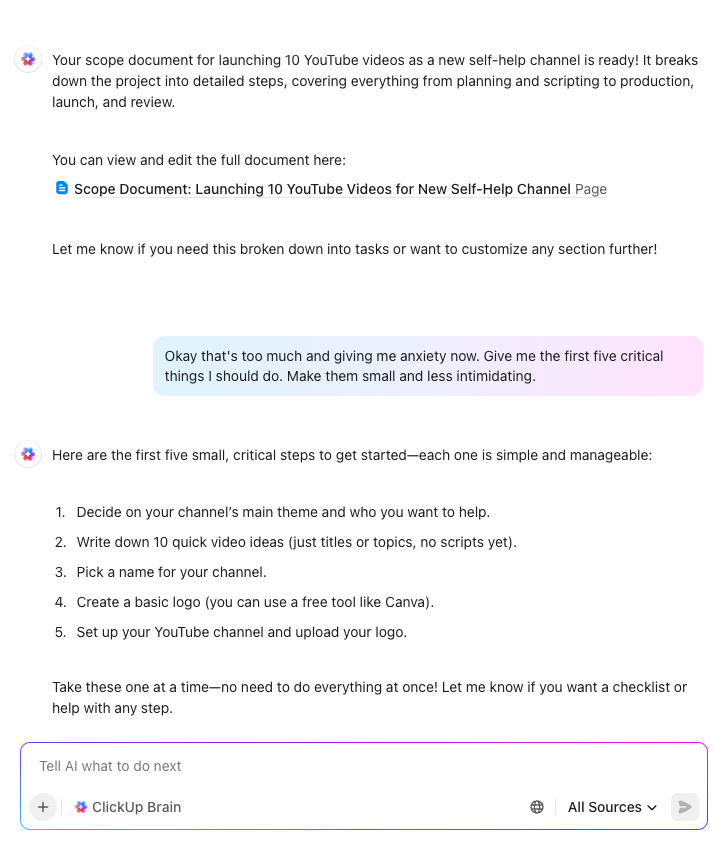
🤝 From the Community: A user-made guide on ClickUp Brain.
This ClickUp tutorial offers a walkthrough of Brain, the AI layer that turns your workspace into a self-managing system. It introduces the three pillars of Brain: AI Knowledge Manager, AI Project Manager, and AI Writer for Work. Each one is designed to reduce manual busywork and surface the right context instantly.
The AI Knowledge Manager acts like your internal search engine, pulling answers directly from your ClickUp Docs, Tasks, and Dashboards.
The AI Project Manager goes a step further, summarizing progress, tracking blockers, and automating repetitive updates through natural language prompts.
Meanwhile, the AI Writer for Work speeds up note-taking and report writing by transforming workspace data into structured summaries or briefs.
💡 Pro Tip: ClickUp’s Chrome Extension brings task management to your browser. With it you can:
ClickUp Chat has evolved into more than just a simple messaging solution. The video shows how to keep direct messages organized, layer in context with task and calendar tabs, and launch quick SyncUps without leaving the app.
It starts with DM sections. Rather than scrolling through one long list, you can group conversations into custom categories.
Tabs across the top of the DM window add even more context:
The ClickUp tutorial concludes with SyncUps, ClickUp’s built-in feature for transitioning from text to live collaboration.
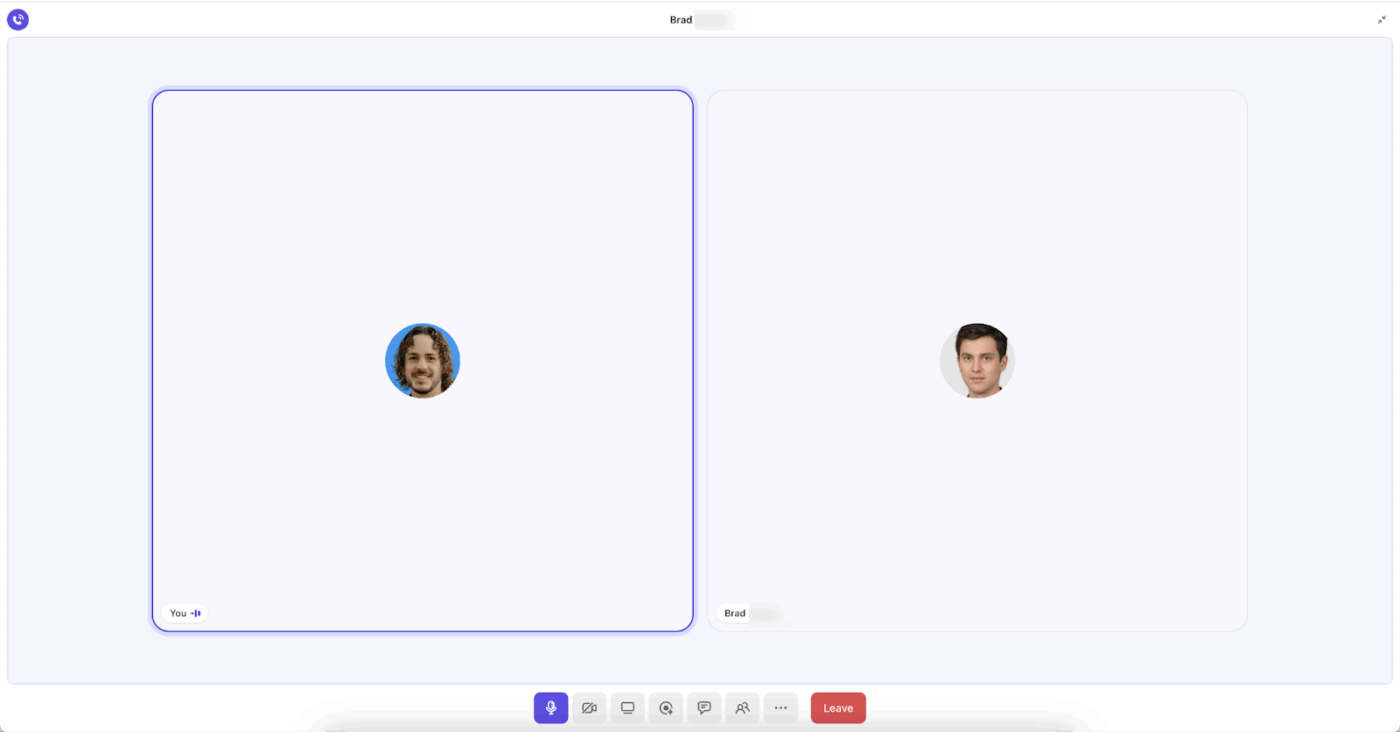
From the chat window, you can:
💡 Pro Tip: ClickUp lets you record SyncUps directly from the mini player or full-screen mode. Click the record icon to capture the session—a recording indicator will appear while it’s running.
Record your calls instantly during live ClickUp Chat SyncUps
Once the call ends, head to the Clips Hub to:
Before you jump into the setup steps, take 2 minutes for this Super Agents overview:
It’s the fastest way to understand what ClickUp means by “agents” when they’re behaving like real teammates inside your workspace. The big unlock here is context.
Agents get dramatically more useful when they can work with what already lives in ClickUp, like tasks, Docs, conversations, and the conventions your team uses day to day. This video helps you think in terms of “what would I delegate to a smart coworker” instead of “what can I automate.”
Now for the hands-on part:
This tutorial shows how to set up an Autopilot Agent, which is where you’ll start seeing immediate time savings. Autopilot Agents are built to run in the flow of work and handle repeatable routines based on a simple logic chain: Trigger → Conditions → Instructions.
ClickUp Autopilot Agents act like automated teammates right inside your ClickUp account.
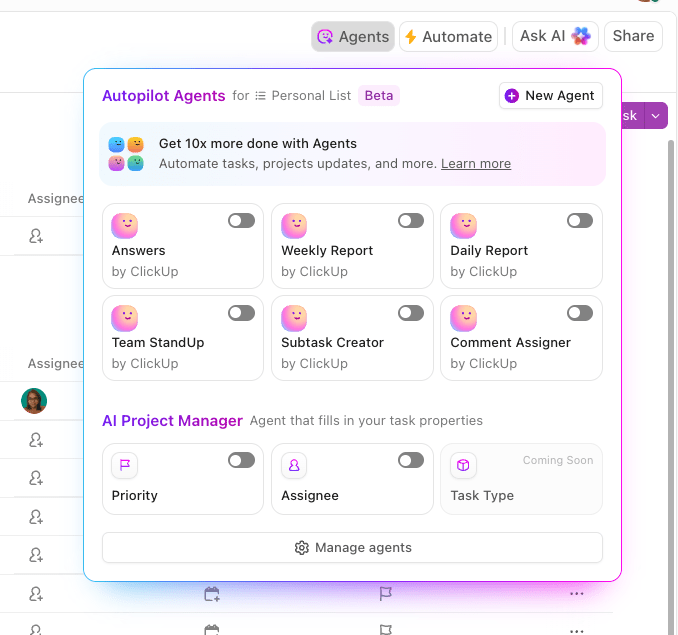
The video shows how to configure your first one so it can handle routine tasks such as drafting replies, assigning tasks, and generating scheduled reports.
Step 1: Set the trigger
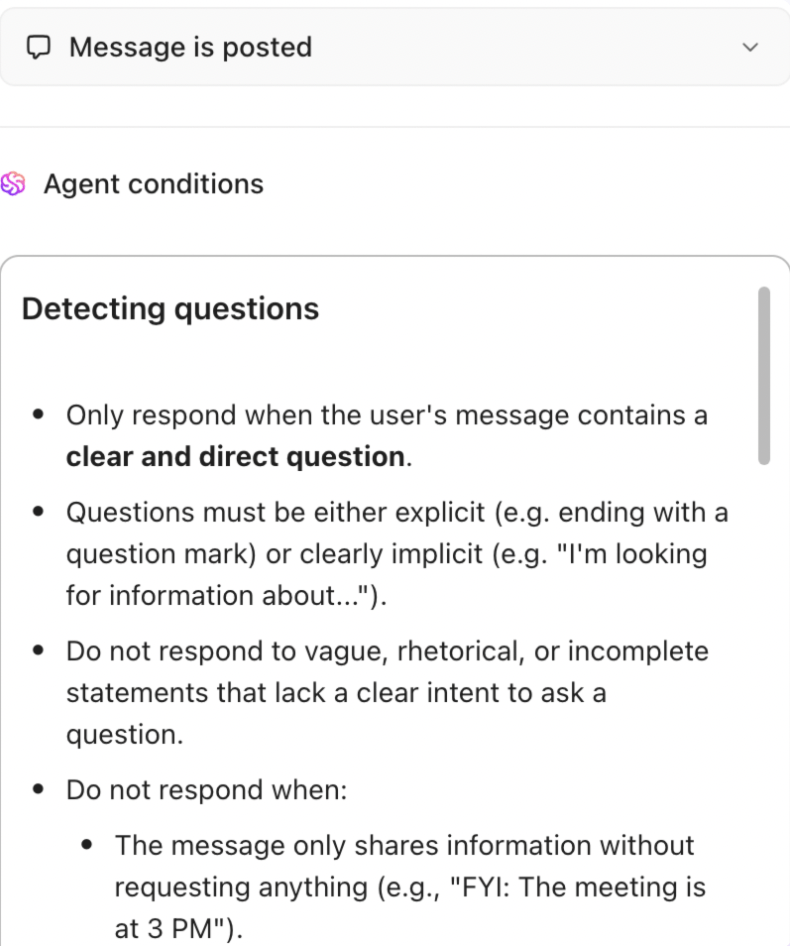
Triggers define when your agent should act. For example, every time a new task is created in a client request List, or at a scheduled time each week. You can refine triggers further so the agent runs only when a particular form is submitted or when a field meets specific criteria.
Step 2: Add conditions (optional filters)
Conditions decide whether the agent should run after a trigger fires. They can be as simple as “only if priority is urgent” or “only if the ticket language is French.” Leaving them blank tells the agent to always act.
Step 3: Write the instructions (the make-or-break part)
This is where you tell the agent its role, what sources it can rely on, and what the output should look like. Clear prompts are the difference between “wow, this is helpful” and “why are you like this.”
Example instructions:
From there, you can connect the agent to knowledge sources like Docs, Wikis, or the ClickUp Help Center. The broader its knowledge base, the more accurate and useful its output becomes.
⭐ Bonus: Configure Custom Autopilot Agents to respond to certain triggers and perform actions in a specific location. Let’s take the example of the HR team’s Channel that gets a lot of questions. To free up the team’s time, they use AI to answer these questions. The Custom Agent in the Channel is instructed to answer questions if the answer is in the knowledge base it can access.
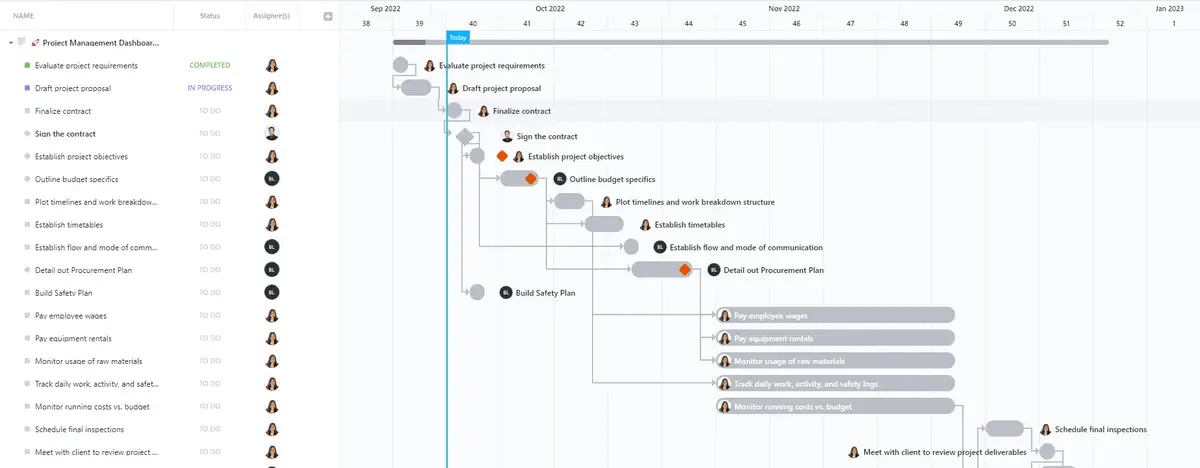
This ClickUp tutorial shows how to build a project management dashboard that consolidates dispersed updates into a single, at-a-glance view of progress, deadlines, and performance.
It begins with defining KPIs. Common examples include:
With KPIs set, the video moves into building the dashboard itself. In any ClickUp account, dashboards are made of cards, each tied to a data source (the source of truth).
The video concludes with automation examples and updates. Because dashboards in this project management tool are directly tied to tasks, they refresh in real-time as work progresses. You can also connect them to workflows so status changes or delays cascade into the dashboard automatically.
⚡ Template Spotlight: In this video, you also get a view of templates to get started on the go. For instance, the ClickUp Project Management Dashboard Template provides ready-made structures that you can adapt to your project needs.
It comes with prebuilt cards, layouts, and styling that you can refine as projects evolve.
🧠 Fun Fact: The now‑familiar Gantt Chart got its name from early 20th‑century engineer Henry Gantt, who designed it to track productivity and performance, with visuals that brought clarity long before apps existed.
ClickUp Whiteboards provide product teams with a shared canvas to transition seamlessly from brainstorming to execution without disrupting workflow. The walkthrough starts with a blank whiteboard as the team’s entry point. Ideas are captured as sticky notes, typically after sprint reviews or planning sessions.
The session shifts into organizing notes into themes. Multiple team members zero in on recurring topics like usability or feature requests.
The most important leap is creating tasks (something you don’t want to compromise on)! Any sticky note or grouped idea can be converted into a ClickUp Task on the spot. Those tasks carry descriptions, due dates, assignees, time tracking, priority, and so much more in between.
For product and dev teams, it means 👇
Because tasks sync instantly with your workspace, the whiteboard evolves into a living hub. Teams can revisit it to add new feedback, review progress, and see how initial ideas turned into completed deliverables.
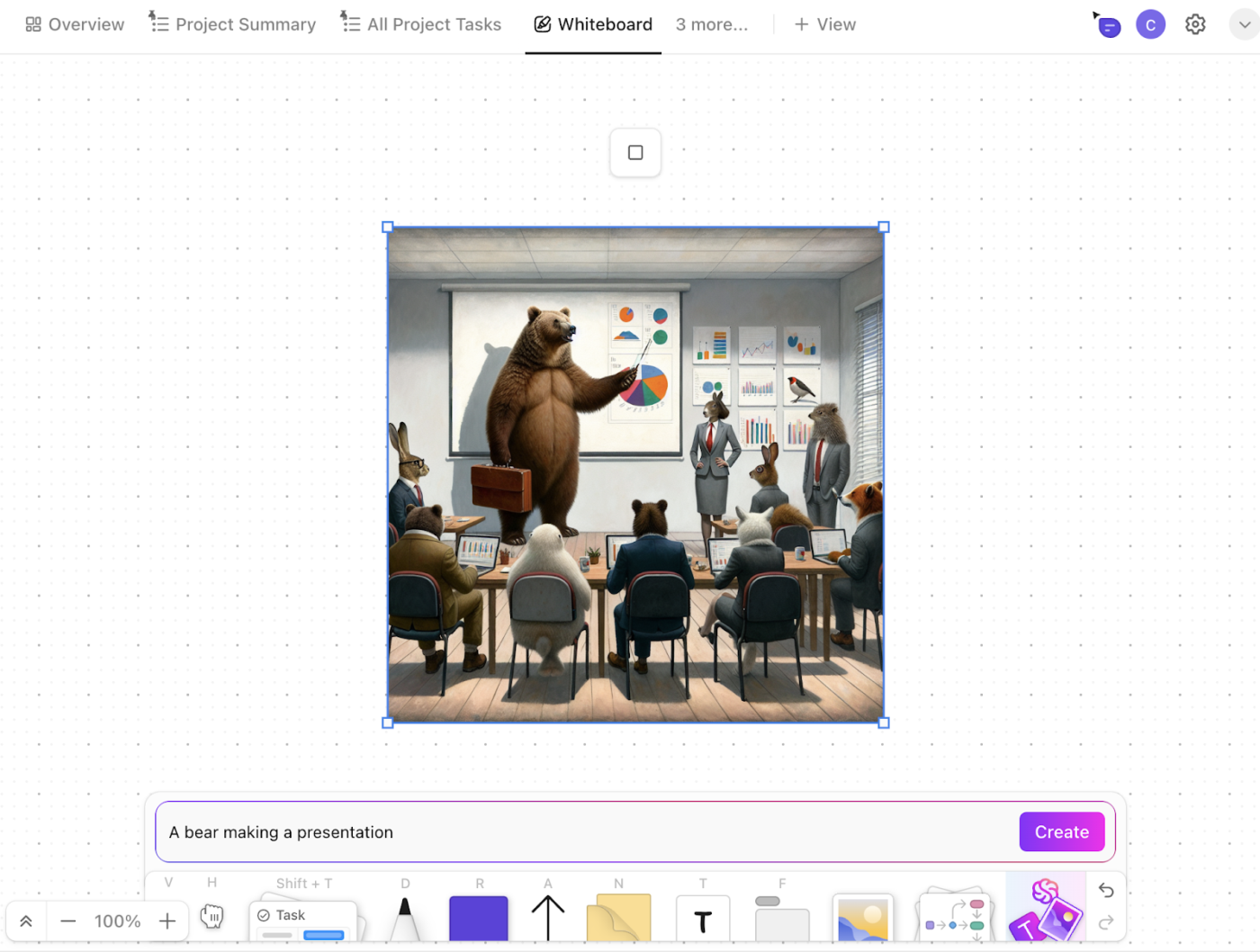
📌 Productivity Hack: Within ClickUp Whiteboards, you can use ClickUp Brain to instantly generate images. If a sticky note or idea needs a visual walkthrough (say flow, diagram, or concept sketch) generate it right on the board so the team sees both the note and its illustration side by side.
We’ve written extensively on how to use ClickUp Brain to optimize your tasks.
As context-aware artificial intelligence, it understands your work and connects scattered knowledge across tasks, Docs, and conversations into a searchable source of truth.
🔴 The Concept of Work Sprawl: The fragmentation of activities across multiple disconnected tools, platforms, and systems that do not talk to each other is called work sprawl. Why does it matter? Because it leads to inefficiencies, information silos, and productivity drain throughout the organization.
ClickUp can double as a full CRM that centralizes leads, opportunities, and customer records for you in one interface.
The video starts with the ClickUp Simple CRM List Template, which creates a lightweight system out of the box.
Each contact is represented as a task, with custom fields for deal value, company name, and pipeline stage. Views switch between list, board, and table so you can move seamlessly from a spreadsheet-style layout to a kanban pipeline.
From there, the walkthrough shows how to scale into something more robust:
For reporting, you can build ClickUp Dashboards that visualize pipeline value, deal progress, and conversion rates in real time. And because CRM data lives inside the same workspace as your projects, communication and execution stay tightly linked.
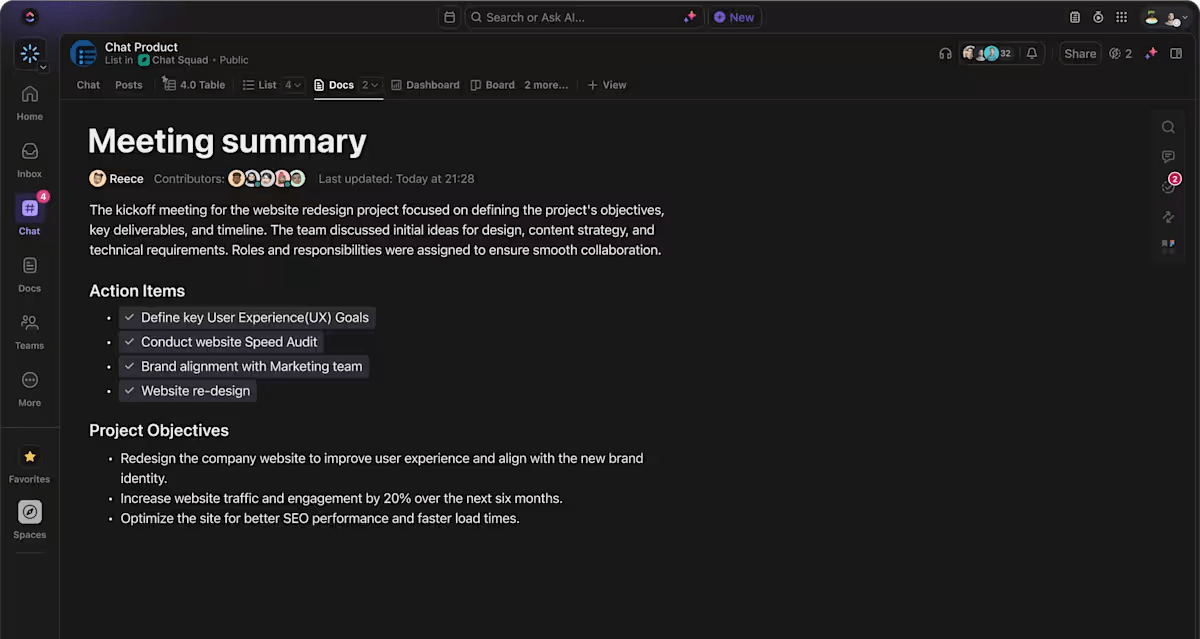
🤝 From the Community: A user-made guide on ClickUp AI Notetaker.
ClickUp’s AI Notetaker goes beyond just transcribing your meetings. It turns every conversation into actionable work. This video shows how to automate your meeting notes by combining Ask AI, Automations, and AI Fields to summarize discussions, highlight key takeaways, and update tasks automatically.
The AI Notetaker integrates with Zoom, Google Meet, and Microsoft Teams to automatically join calls, generate transcripts, and produce meeting summaries with clear action items and decisions. Each recording is saved as a private Doc within ClickUp, so your team can reference discussions, assign next steps, and keep context intact.
Dabbling works when you’re curious. But when ClickUp runs your real work, you don’t have time for trial and error.
Ten minutes with the right tutorial can replace hours of guessing.
And if you stick with it, something interesting happens: you stop “using” ClickUp and start designing systems inside it. That’s when you become a power user—and when ClickUp turns into a competitive advantage instead of just another tool.
Ready to put this into action?
Sign up for ClickUp for free and start building workflows that actually scale.

© 2026 ClickUp

There’s an easier way. Try a free AI Agent in ClickUp that actually does the work for you—set up in minutes, save hours every week.