

Sorry, there were no results found for “”
Sorry, there were no results found for “”
Sorry, there were no results found for “”
Your calendar is packed with video calls, yet projects still stall.
One update happens in a webinar, another in a group chat, and last week’s “big decision” is stuck in someone’s notebook instead of in your task or project management tool.
Microsoft’s 2023 Work Trend Index found that Microsoft 365 users spend 57% of their time in meetings, email, and chat, and only 43% actually creating. For remote teams, that gap between “we talked about it” and “we shipped it” shows up as missed deadlines and endless follow-ups across tools.
Adobe Creative Cloud’s Adobe Connect focuses on structured online sessions like webinars and training, while ClickUp SyncUps are built for everyday team updates that stay close to your tasks and projects.
In this blog, we’ll compare Adobe Connect Vs. ClickUp SyncUps across meetings, collaboration, and day-to-day execution so you can choose what fits your team’s size and working style.
| Aspect | ClickUp | Adobe Connect |
| Core purpose | All-in-one, cloud-based project management platform with a strong market presence. Comes with built-in task management, docs, and ClickUp SyncUps so teams stay on the same page and avoid feedback loops | Virtual classroom and webinar platform for training, events, and high-engagement video conferencing with customizable layouts and pods |
| Everyday standups and status syncs | Built for quick, recurring standups inside Lists and sprint boards, with tasks updated in real time as you talk | Better for structured, high-prep sessions; daily standups feel heavy and still need manual task transfer afterward |
| Managing ongoing work vs virtual training | Full project and task management platform where meetings sit next to Hierarchy, views, and reporting | Optimized for virtual classrooms and webinars; ongoing task tracking must happen in a separate tool |
| Automation, AI, and post-meeting follow-through | Automations plus ClickUp Brain, AI Notetaker, and AI Agents turn recaps into tasks and route work automatically | AI focuses on repurposing recordings and aiding live sessions; follow-up work still needs manual logging elsewhere |
| Team communication and live engagement | ClickUp Chat, comments, and SyncUps keep conversations, files, and tasks together in one workspace | Strong for in-session engagement with chat, Q&A, polls, and pods, but no native hub for ongoing async teamwork |
In most team settings, one app houses tasks, another stores meeting notes, and a private chat holds the latest scope changes. Every switch steals focus, and someone is always catching up instead of moving work forward. That is work sprawl.
ClickUp brings everything into one converged AI workspace. Projects, tasks, docs, chat, and ClickUp SyncUps sit in the same place.
You can manage projects, assign tasks, and share briefs there, instead of bouncing between separate collaboration tools and video conferencing apps. Decisions stay attached to the tasks they affect, not buried in someone’s notebook.
For remote collaboration, ClickUp acts as both project management software and a productivity hub. Team members can stay organized with visual task boards, lists, and calendars; track project progress in real time; and replace scattered to-do list tools with a single workspace.
ClickUp Brain adds AI on top of this. It summarizes long updates and helps draft recaps so your project manager spends less time rewriting and more time keeping active projects on track.
One G2 reviewer says,
“What I like most is how much I can centralise in a single place: tasks, documents, discussions, deadlines and dashboards for different projects and teams. ”
📖 Also Read: How to Improve Hybrid Workplace Communication
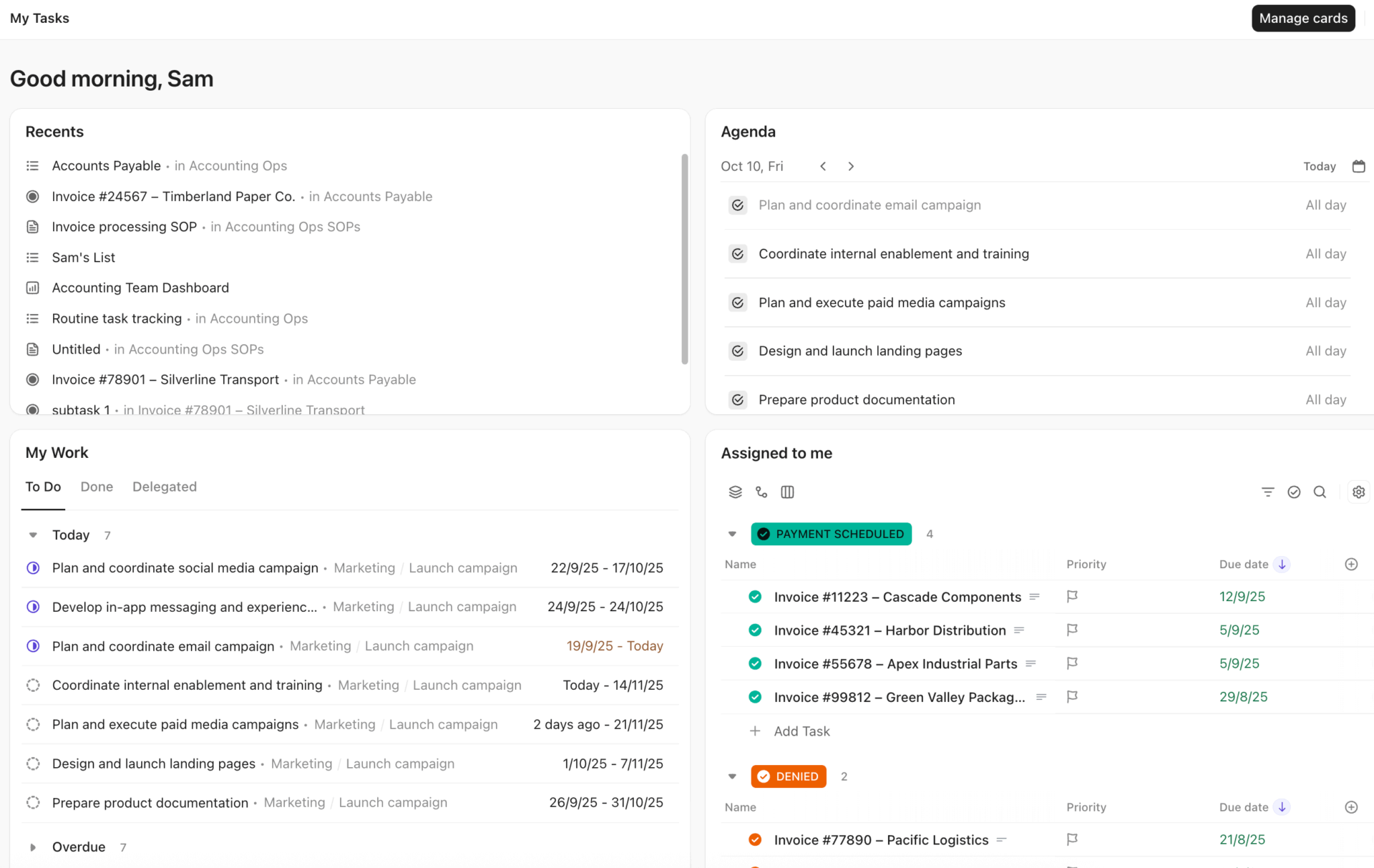
Let’s see how ClickUp helps teams share updates, run quick syncs, and turn conversations into clear, trackable work.
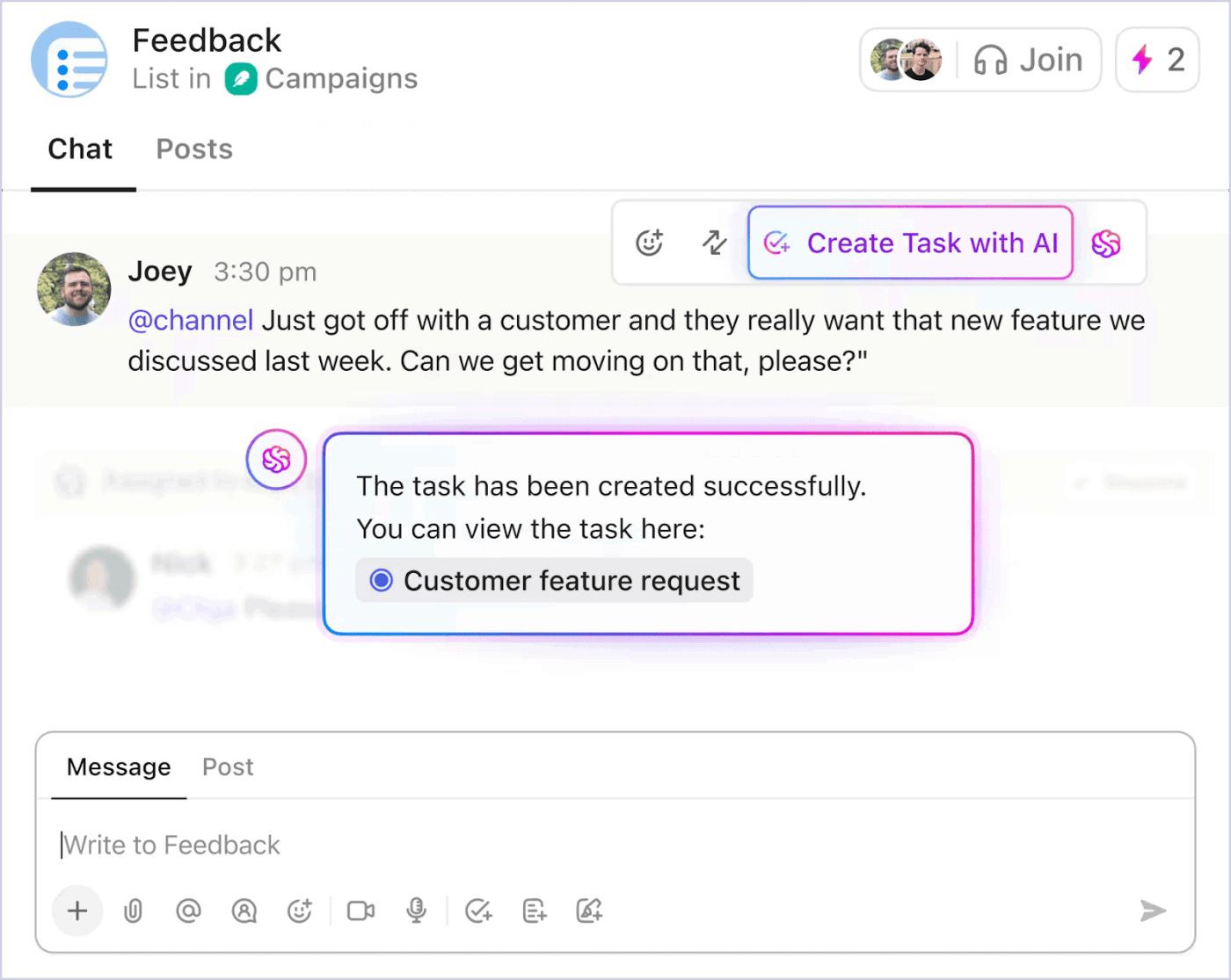
ClickUp Chat lets teams hold real-time conversations directly inside the same Spaces, Folders, and Lists where they manage work. You can @mention teammates, share files, link tasks, and react to messages without leaving your project management workspace, so context never disappears into a separate chat app.
Because your Chats live alongside tasks, Docs, and Dashboards, it is easy to turn a message into a task and track it through to completion. That closes the “we discussed it in chat” gap that often appears when teams rely on standalone messaging or webinar tools like Adobe Connect, where follow-ups have to be moved manually into another system.
📌 Example: A marketing squad uses a ClickUp Chat tied to their launch List. During a conversation about last-minute copy changes, the lead converts two key messages into tasks via ClickUp Tasks and tags the copywriter. Since all the tasks and chats are connected to the same workplace, it makes the process of following up much easier.
📖 Also Read: Best Chat Platforms
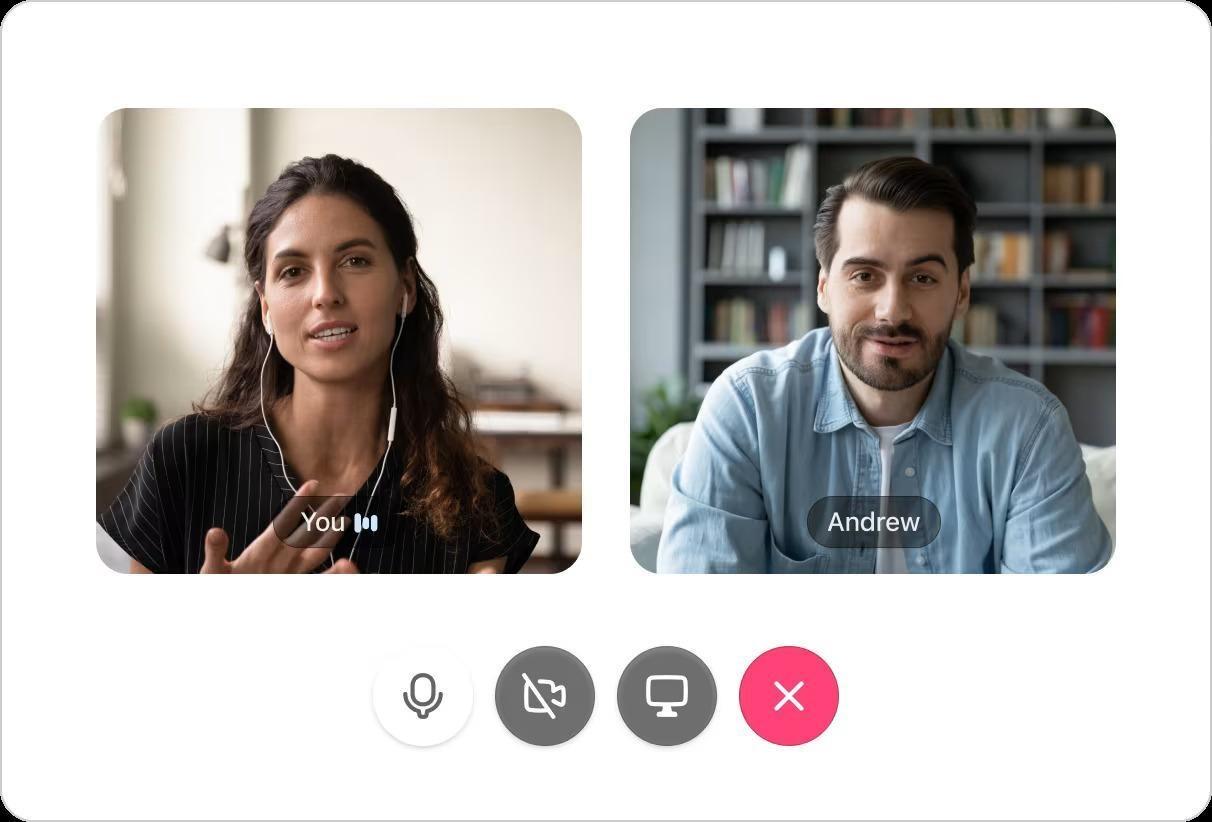
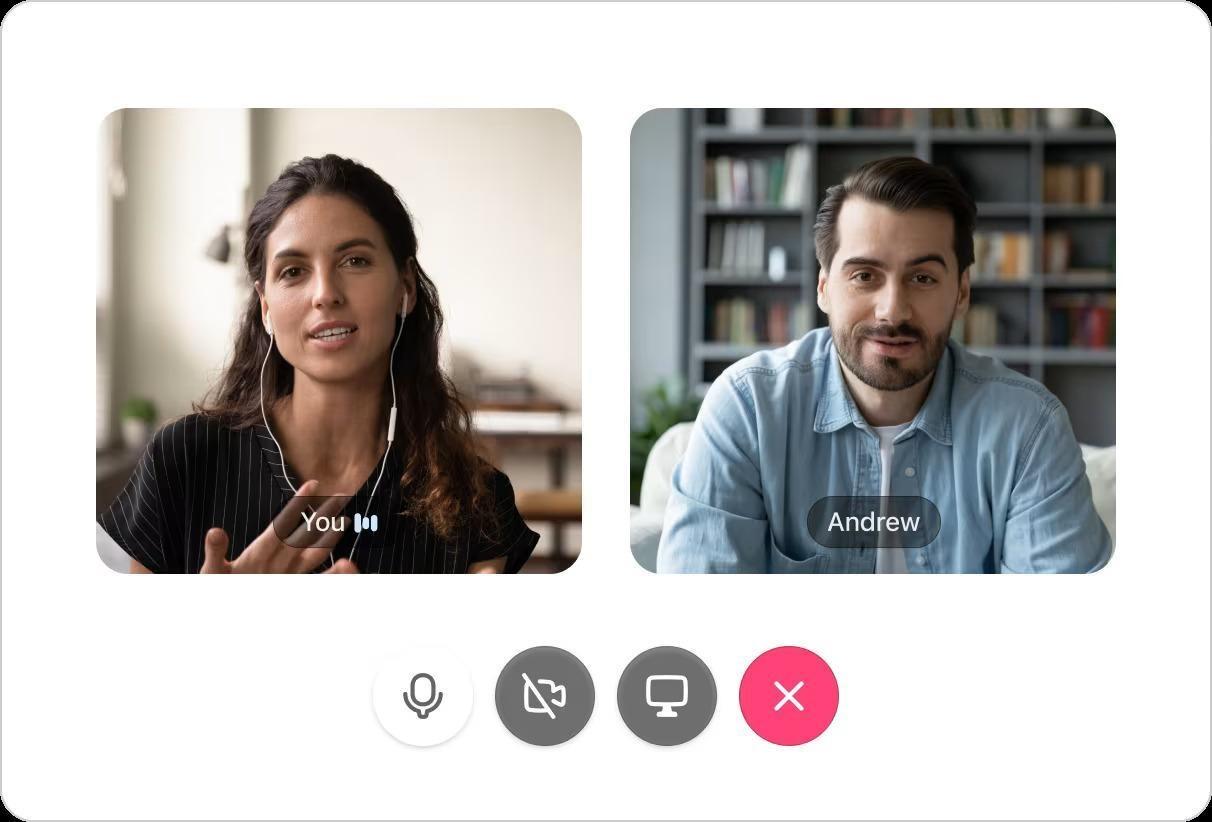
ClickUp SyncUps are lightweight meetings that live inside your workspace instead of a separate meeting app. Teams can run recurring standups or status check-ins from Lists and Spaces, review boards while they talk, and capture notes right where the work is already tracked.
Unlike webinar-style tools such as Adobe Connect that emphasize virtual “rooms” and layouts, SyncUps are built for everyday execution.
You see tasks and statuses on screen while you discuss them, and you can create or update tasks in real time instead of copying notes over after the call. ClickUp SyncUps comes with built-in AI note-taking to recap action items.
When you use AI Notes in a ClickUp SyncUp, the AI Notetaker automatically creates a meeting notes document (ClickUp Doc) after the call ends. This Doc includes the meeting summary, key points, action items, transcript, and any recordings if enabled. The notes are posted to the SyncUp thread and can also be found in the Docs Hub or your Planner, making them easy to access, share, and collaborate on with your team.
You can even record the SyncUp during your call and access it later from your Clips Hub for reference.
📌 Example: A product team runs a 15-minute SyncUp from their sprint List. As they talk through blockers, they open each task and spin up new subtasks in the same view. Afterward, AI Notetaker posts a summary and action list to the SyncUp thread (which appears in the List’s dedicated chat channel), so anyone who missed the call can see exactly what changed.
📽️ Watch: Still jumping between chat, email, and meeting notes after every standup or SyncUp? What if your updates, decisions, and follow-ups all lived in one place instead?
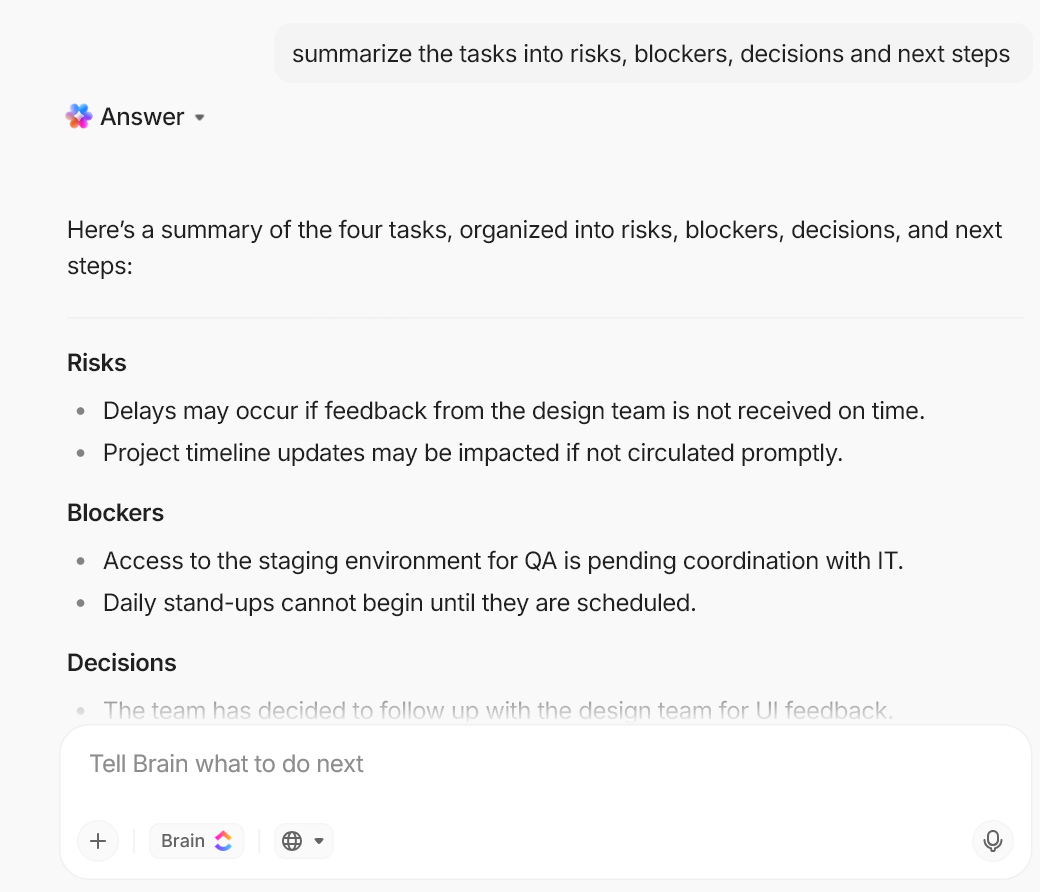
ClickUp Brain is the AI layer across your entire ClickUp workspace. It can summarize long Docs and tasks and extract action items from your workspace for you. This contextual AI tool can also answer questions about work in progress and draft updates or follow-up messages based on what is already stored in your projects.
But for something more relevant to your immediate meetings, you can try out ClickUp AI Notetaker.
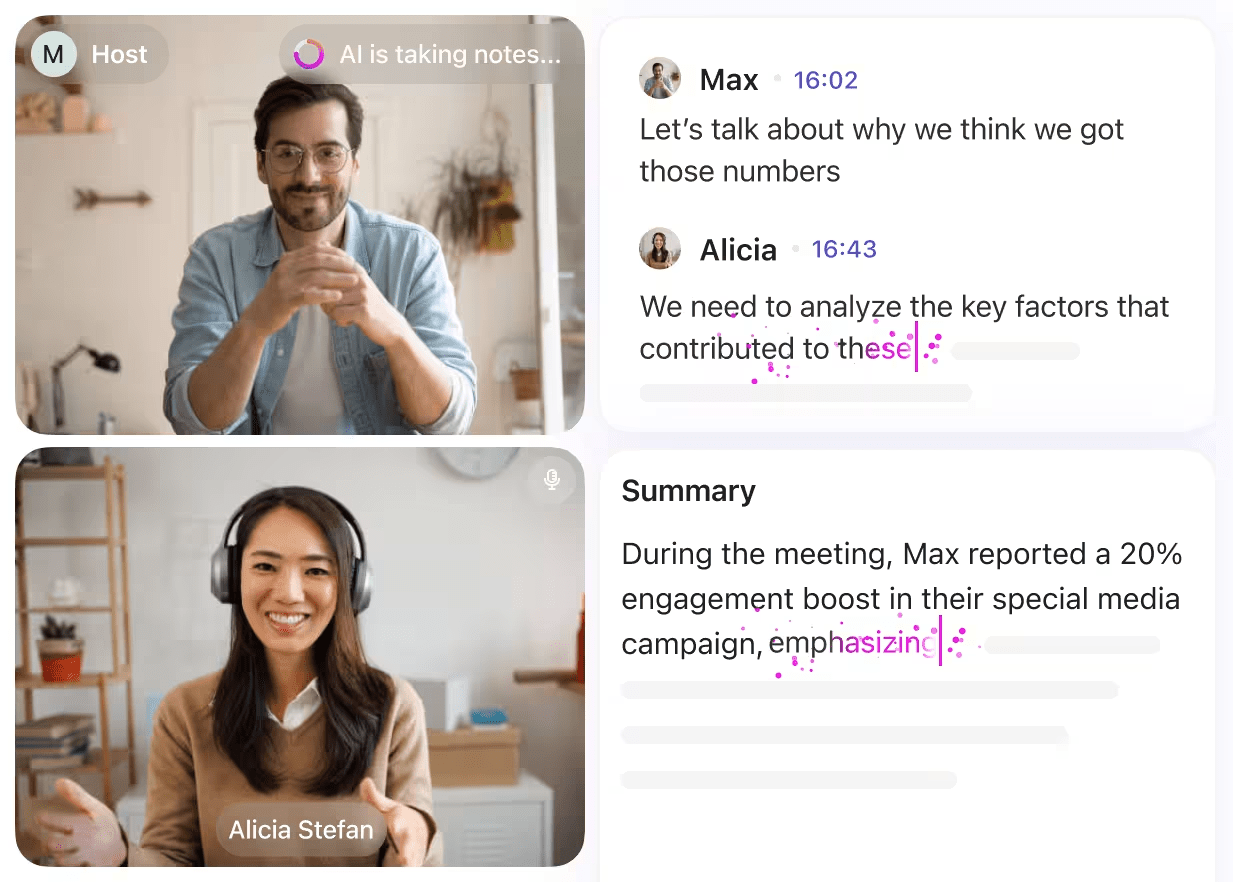
This AI tool automatically joins supported meetings, records the audio, and generates transcripts and summaries that stay searchable in Docs and tasks.
Because these recaps live in ClickUp rather than a separate file store, they are easier to connect directly to ongoing projects.
On top of this, ClickUp Super Agents and ClickUp Brain’s Enterprise Search help you pull in context from across ClickUp and connected tools. Super Agents can summarize long threads or help prepare agendas and follow-up messages, while Enterprise Search finds the right Docs and tasks to answer questions about a project.
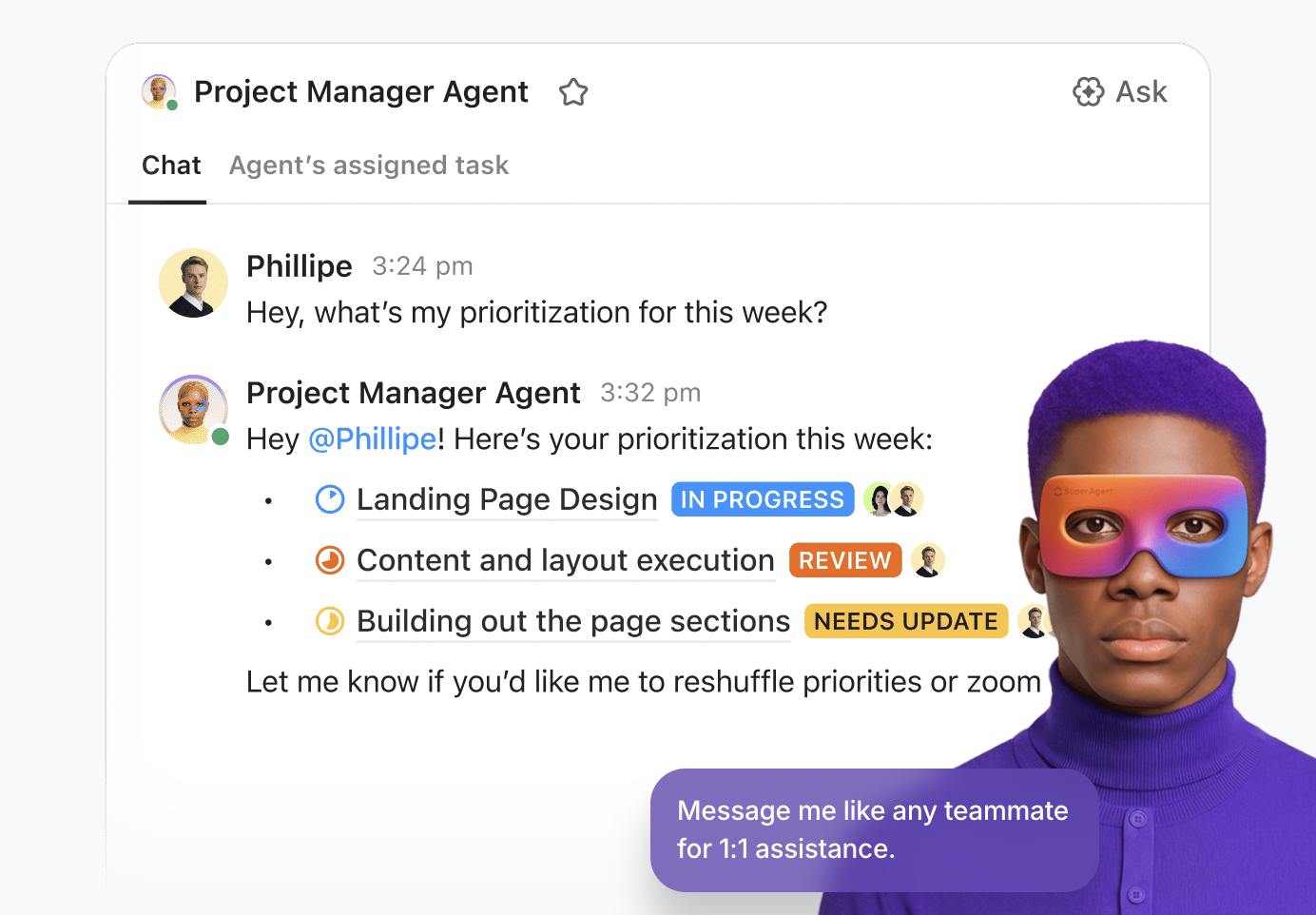
📌 Example: After a weekly product SyncUp, a PM (product manager) pastes rough notes into a task and asks ClickUp Brain to group them into “Decisions,” “Blockers,” and “Action items.” ClickUp Brain produces a tidy recap and suggests tasks, which the PM then assigns to engineering, design, and QA (quality assurance). No one has to parse chat logs or watch recordings to understand next steps.
💡 Pro Tip: Build an AI-assisted meeting follow-through system with ClickUp BrainGPT.
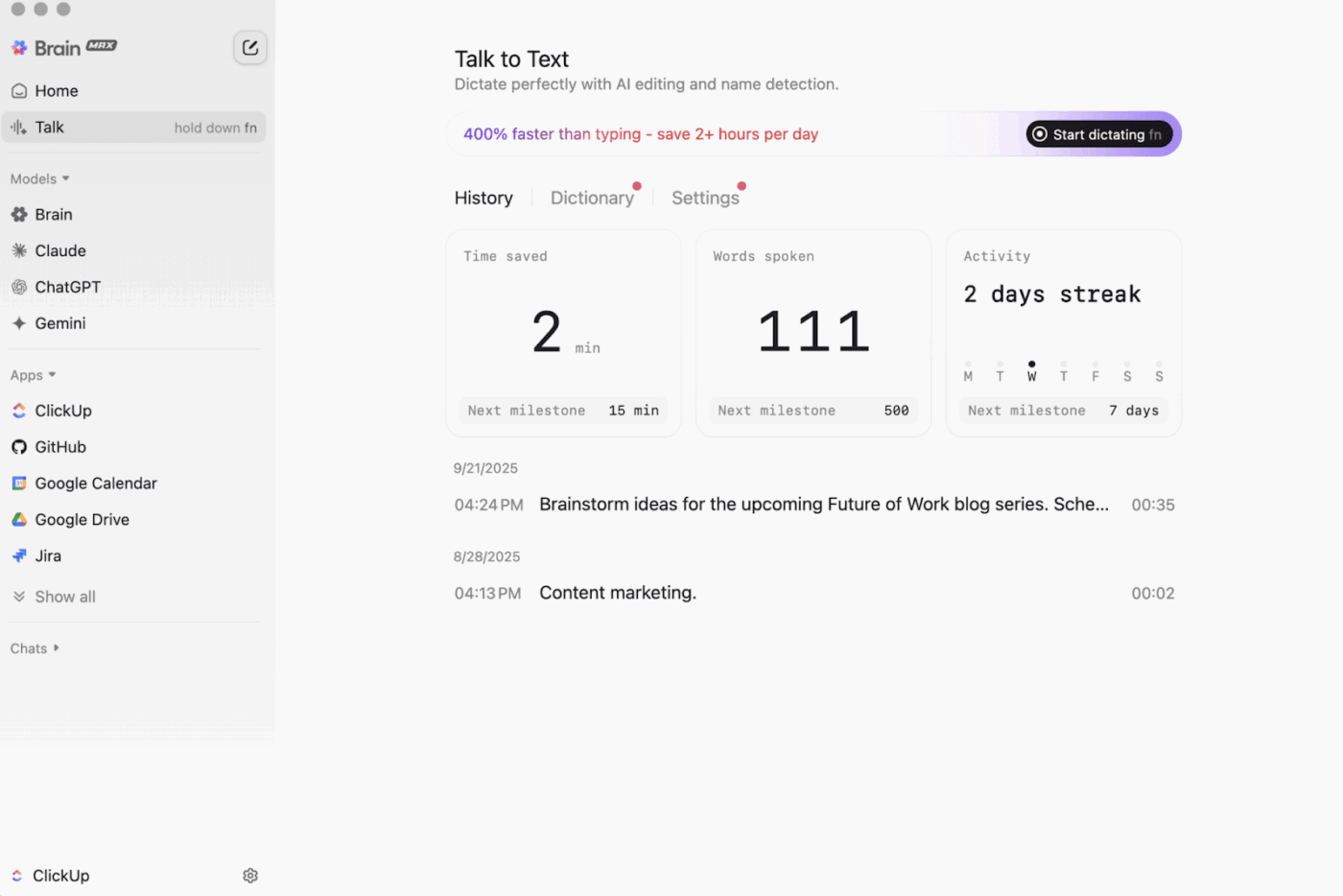
Dictate decisions and updates with Talk to Text: Right after a SyncUp or client call, use BrainGPT’s Talk to Text on desktop to speak your recap instead of typing it out. It handles punctuation, structure, and noise, so your spoken updates land as clean text in ClickUp Tasks, Docs, or Comments—without rewatching recordings or using separate dictation tools
Ask ClickUp BrainGPT to turn raw notes into a clean action plan: Paste (or dictate) rough bullets from your meeting into a Doc and ask ClickUp BrainGPT to group them into decisions, risks, blockers, and next steps. It can then draft task descriptions and even propose due dates based on the context already stored in your Workspace
Query past ClickUp SyncUps by topic or project: Instead of digging through old docs and chat threads, ask ClickUp BrainGPT questions like “What did we commit to for the Q3 onboarding rollout?” or “Summarize the last three SyncUps for our ACME launch.” Because ClickUp BrainGPT is wired into your Workspace, it can pull the right decisions and tasks into a single, up-to-date answer
Choose the right AI model for each follow-up: Use ClickUp BrainGPT’s access to multiple premium models (like GPT-4, Claude, and Gemini) from one place. You stay in ClickUp while ClickUp BrainGPT routes the work to the best engine for the job
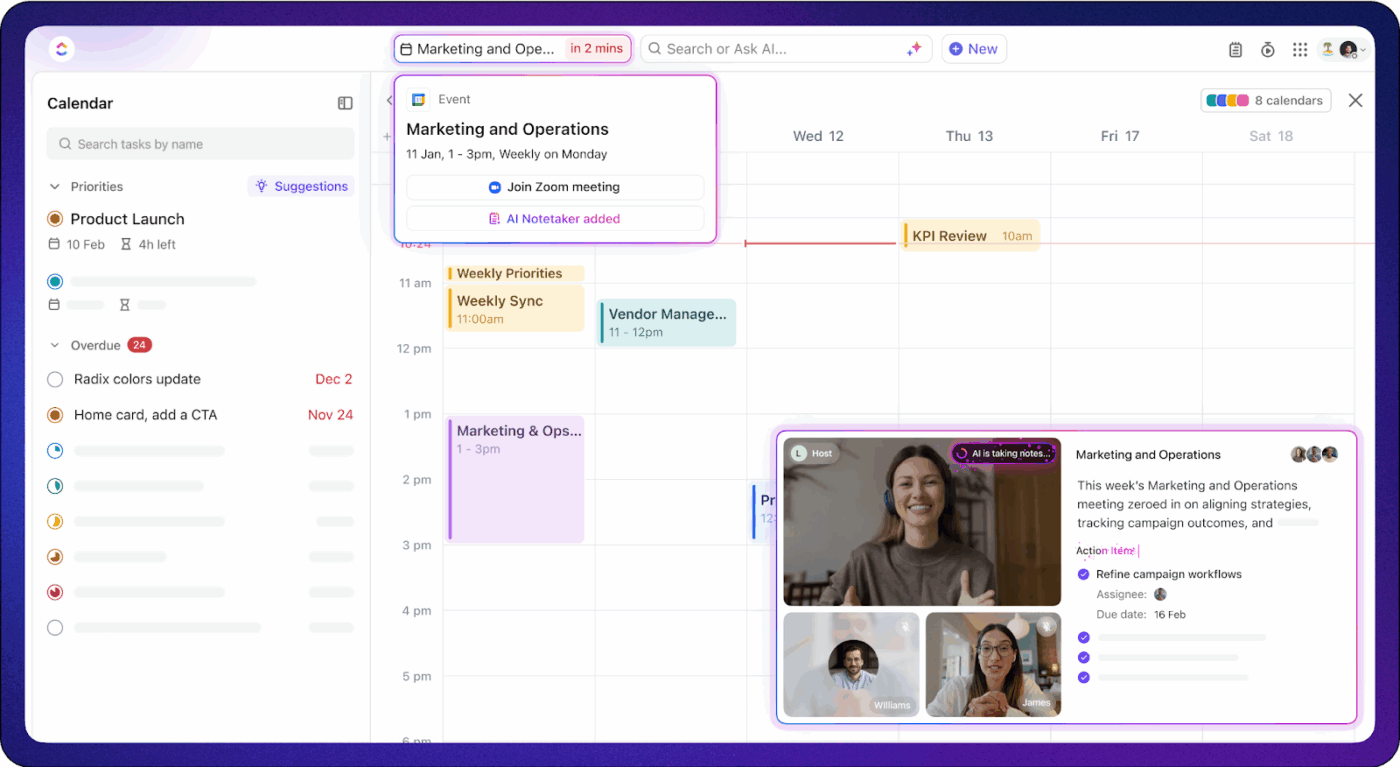
Most meeting tools focus on what happens during the call. ClickUp flips that by giving you everything you need before, during, and after a meeting in one workspace.
Start with ClickUp Meetings. You can create a meeting Doc or task and outline your agenda with rich text editing and checklists. You can then use Assigned Comments to turn talking points into owners and due dates without ever leaving the page.
Recurring tasks keep weekly 1:1s, sprint reviews, and project check-ins on a predictable cadence, while ClickUp AI Notetaker and ClickUp Brain help you generate minutes and follow-up emails in a few clicks instead of rewriting everything manually.
ClickUp Calendar brings the scheduling side to the same system. You can see tasks and meetings together in daily, weekly, or monthly layouts and drag and drop items to reschedule. You can also color-code work by status or priority so it is clear what needs attention first.
Calendar sync with Google Calendar means changes in ClickUp reflect on your external calendar and vice versa, making it easy to fit ClickUp SyncUps and check-ins around the rest of your day without double-booking.
📌 Example: A product squad runs a recurring weekly ClickUp SyncUp from a ClickUp List. On ClickUp Calendar, the ClickUp SyncUps sit alongside sprint tasks, so when priorities shift, the PM drags tasks and the next ClickUp SyncUp to new time slots in one view.
📖 Also Read: How to Automatically Take Notes in Zoom Meetings?
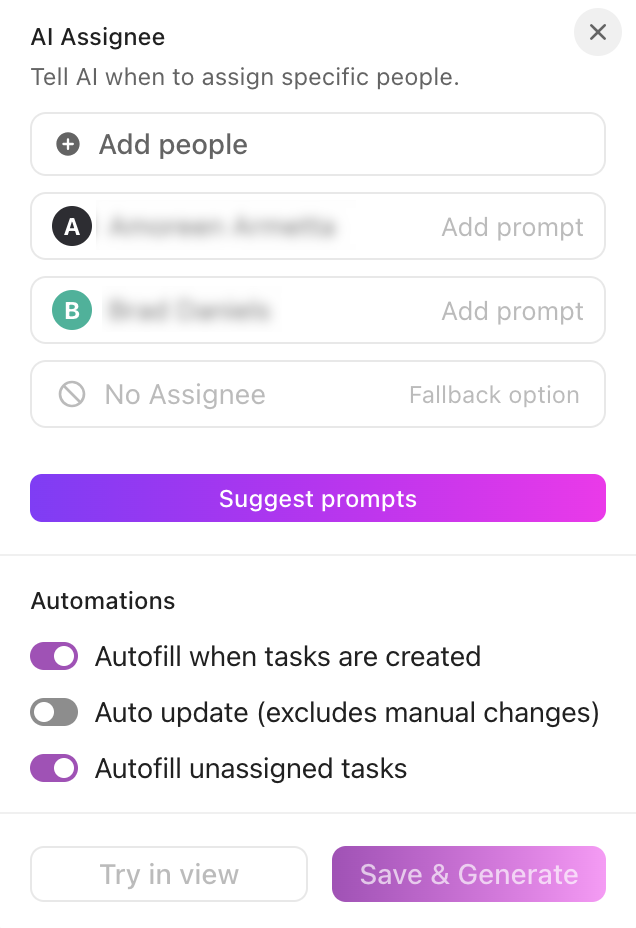
ClickUp Automations let you replace manual follow-up work with simple rules. You can trigger actions when a status changes, a due date arrives, a task is created, or a Custom Field is updated.
When you combine ClickUp Automations with ClickUp AI Notetaker and ClickUp Brain, a typical flow looks like this:
ClickUp also integrates with over 1000 tools your team already uses. These include common meeting platforms such as Google Workspace, Microsoft Teams, Slack, Zoom, and others. This gives you the flexibility of using external video tools where they make sense while still centralizing task tracking and automation in one place.
This makes ClickUp ideal for fast-moving teams looking for tools with security and collaboration features that streamline workflows with ease.
📌 Example: After a design review, a task moves to “In Review.” An automation instantly assigns it to the approver, adds a due date, and posts a comment tagging them with a link to the ClickUp AI Notetaker recap. No one has to remember the handoff, and the workflow continues smoothly between meetings.
📮 ClickUp Insight: The results from our meeting effectiveness survey indicate that knowledge workers could be spending nearly 308 hours per week in meetings across a 100-person organization!
But what if you could cut this meeting time down? ClickUp’s unified workspace dramatically reduces unnecessary meetings!
💫 Real Results: Clients like Trinetix achieved a 50% reduction in meetings by centralizing project documentation, automating workflows, and improving cross-team visibility with ClickUp. Imagine reclaiming hundreds of productive hours every week!
📖 Also Read: Best All-in-One Messenger Apps
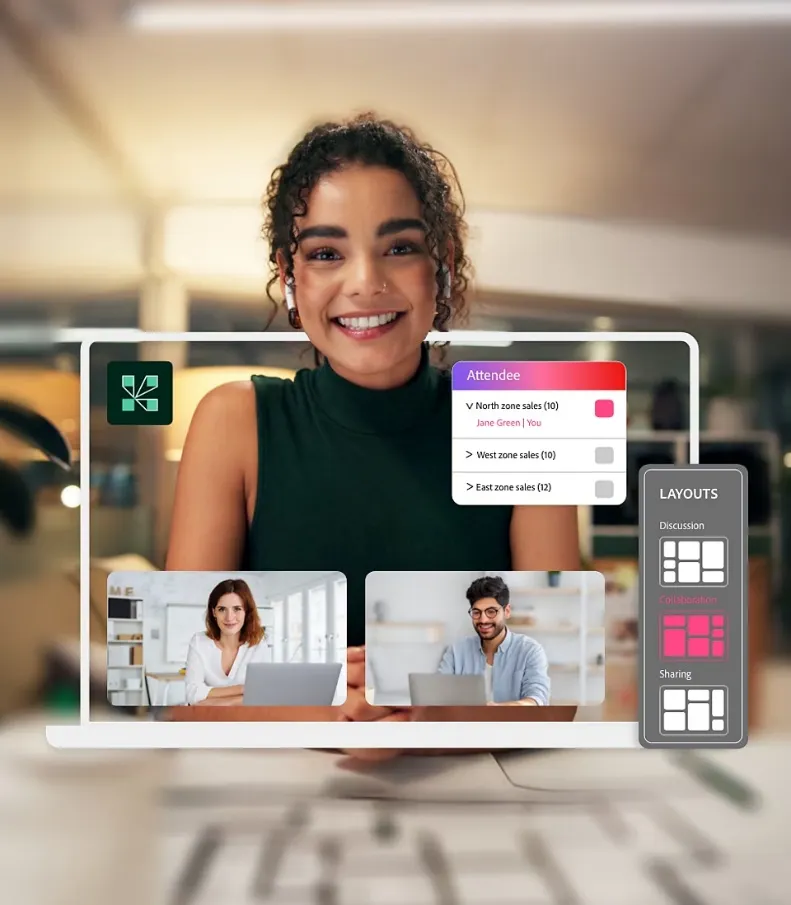
Imagine you are running a virtual training for hundreds of people and need more than a basic video call. You want polished layouts, engagement tools, and rooms you can reuse every week without rebuilding everything from scratch.
Adobe Connect is a web conferencing and virtual classroom platform designed for structured sessions such as webinars and onboarding programs.
Hosts build “rooms” using pods and layouts for chat, polls, Q&A, notes, file sharing, and screen sharing, then save them as persistent spaces they can reuse across events.
Because the rooms remember their configuration, trainers can preload content and slides once and reuse them for each cohort. Adobe connects deeply with learning ecosystems (such as Adobe Learning Manager and LMS platforms), making it a popular choice for enterprises with formal L&D programs and compliance-heavy training needs.
📖 Also Read: Best Screen Share Software for Remote Meetings
Adobe Connect focuses on host control, participant engagement, and repeatable room design rather than day-to-day task tracking.
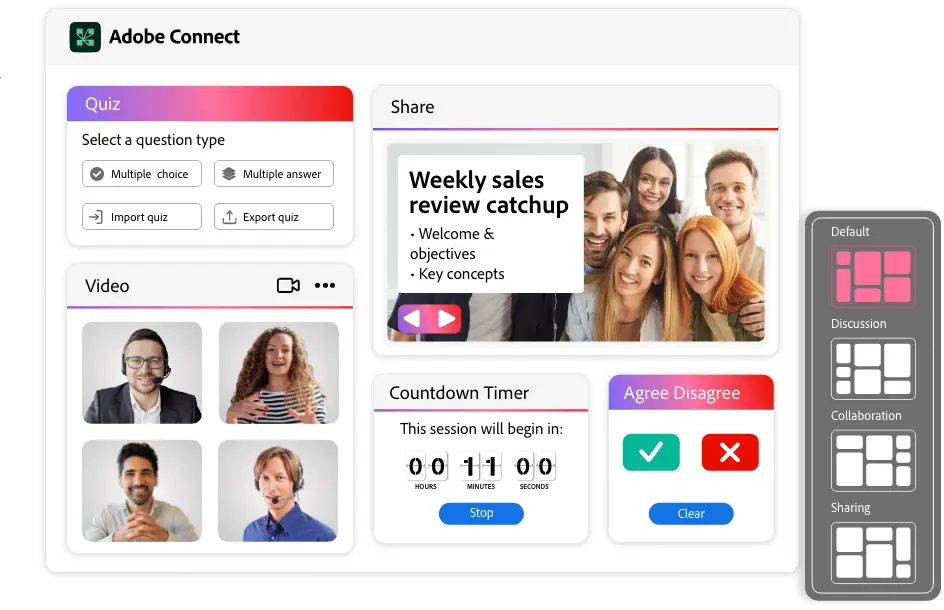
Adobe Connect uses “pods” (modules for chat, video, Q&A, polls, notes, files, etc.) and “layouts” (arrangements of those pods) to build persistent rooms.
Hosts can configure multiple layouts. For example, a lobby, a main presentation view, a breakout view, and a Q&A wrap-up, and move between them during a session with a single click.
Because rooms are persistent, you can close the session and return later to locate all pods and uploaded materials just as you left them. This is particularly useful for recurring training programs and multi-session courses where you don’t have to keep using version control to locate your content.
Users can also join in sessions through their mobile devices using Adobe Connect’s mobile app.
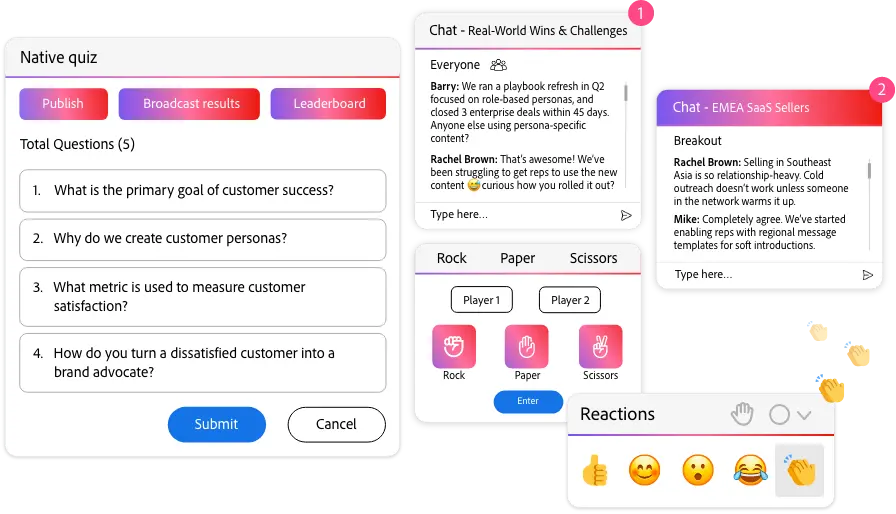
In big virtual classrooms or webinars, it is easy for only a few voices to dominate while everyone else stays on mute, making real remote collaboration difficult to achieve.
Adobe Connect’s breakout rooms let hosts split participants into smaller groups for discussions or role-plays. Each breakout room can have its own layout and pods, including whiteboards, chat, and shared notes.
Hosts can also move between rooms, send broadcast messages to all groups, and then pull everyone back into the main room to debrief. This is especially helpful for workshops and cohort-based learning where interaction drives outcomes.
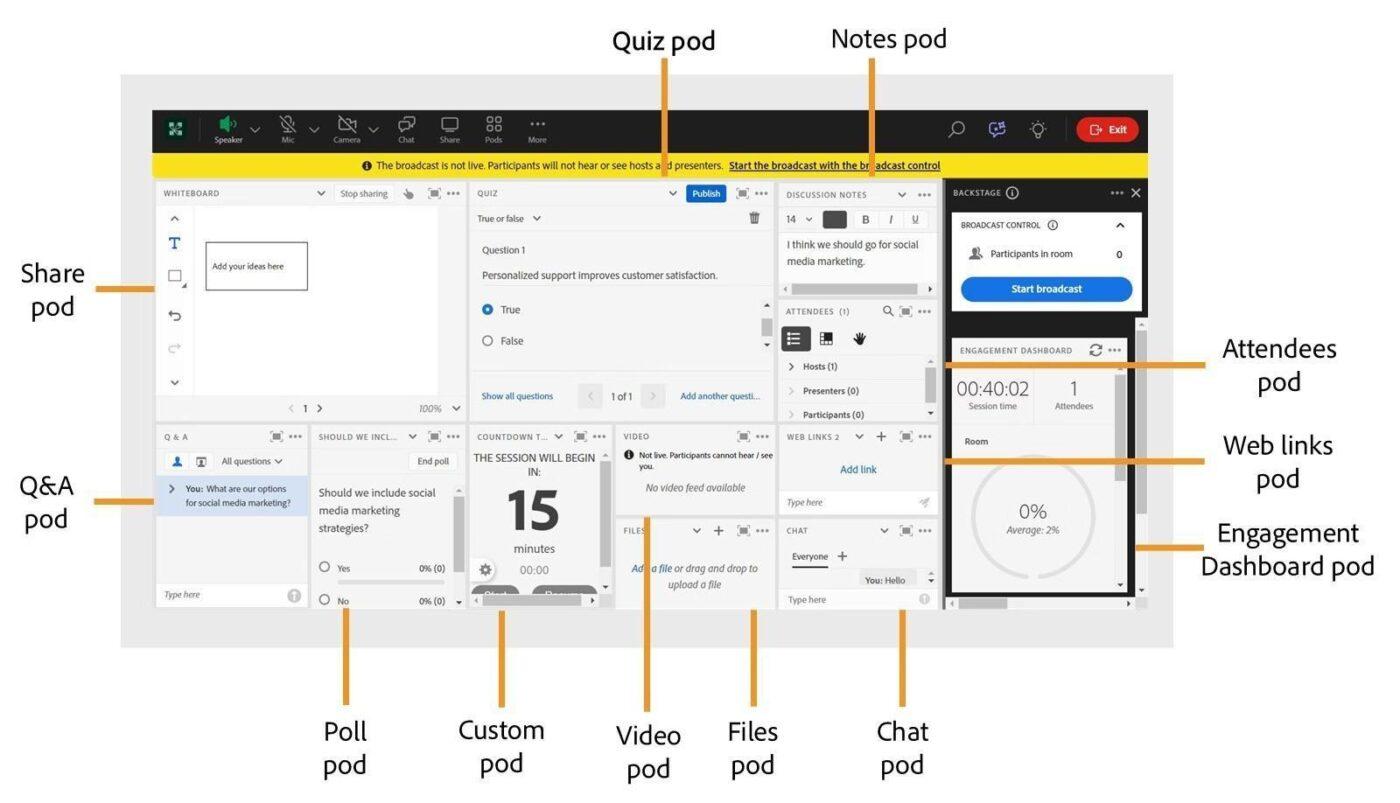
Large virtual sessions can quickly turn into one-way presentations where people tune out, especially when there is no easy way to collect feedback or involve the audience.
Adobe Connect addresses this with interactive pods for polls, Q&A, chat, and shared notes, so hosts can turn passive viewers into active participants.
Combined with file pods (for distributing handouts) and screen sharing, these tools turn webinars into more interactive experiences than a basic video call, all without relying on third-party plugins.
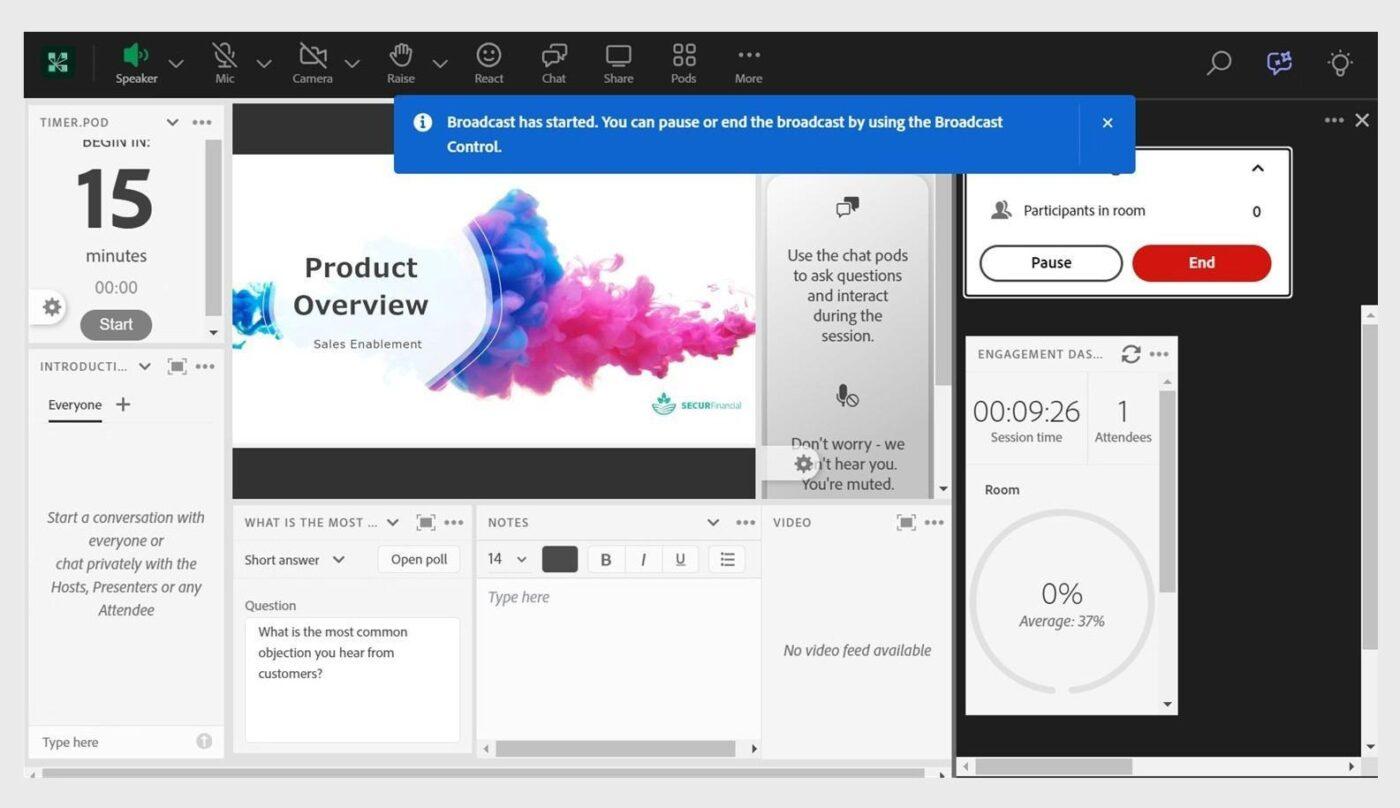
In a large virtual event, it is stressful when presenters are setting up slides or fixing audio in front of everyone, or when you cannot quickly mute noisy lines and keep things on track.
Adobe Connect gives hosts detailed control over what participants see and can do. You can restrict chat and manage rights for sharing screens or interacting with specific pods through a bunch of collaborative tools.
A backstage-style preparation mode lets presenters collaborate behind the scenes or load new content while attendees continue to see a stable view. That reduces on-screen fumbling during high-profile events.
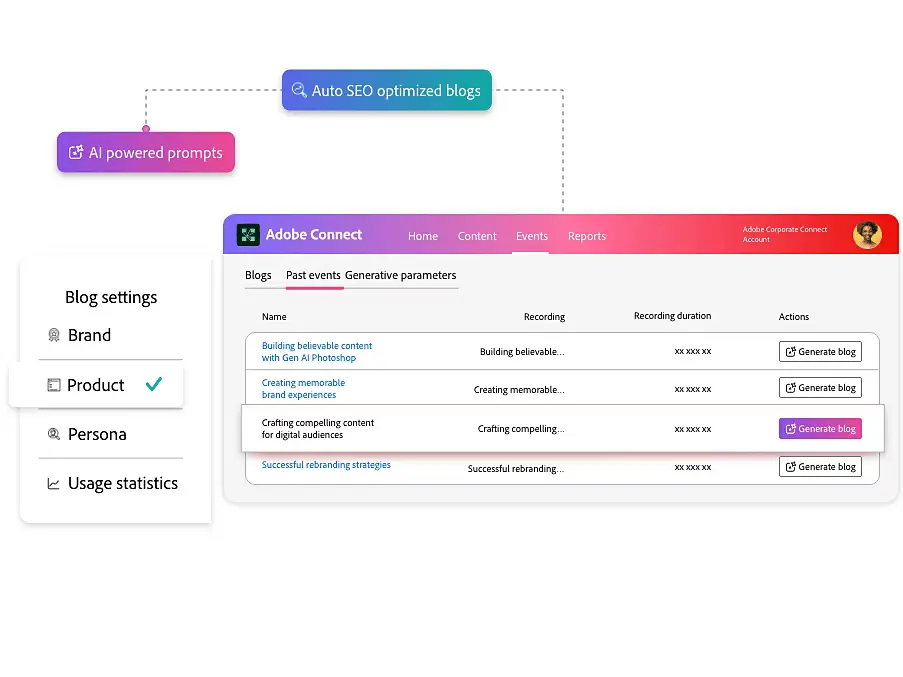
Adobe Connect’s AI-powered performance features include the ability to repurpose recordings into written content and generate structured recaps that segment long sessions into chapters and key points.
An AI help assistant can guide hosts and creative teams through features, and emerging AI Q&A (question-and-answer) tools are designed to categorize and help answer audience questions during live sessions.
For L&D (learning and development) teams running repeated webinars, this can streamline both delivery and post-event documentation.
📖 Also Read: AI Transcript Summarizers to Save You Time
Before we pick a winner, here’s how ClickUp SyncUps and Adobe Connect compare when you need meetings that actually turn into trackable work instead of disappearing into another video link.
ClickUp SyncUps
ClickUp SyncUps is designed to help ensure that daily standups and quick reviews live in the same environment as your tasks and Docs. They run from your Lists, Sprint boards, or project Spaces, so while you talk, the team is already looking at live data.
Adobe Connect
Adobe Connect can host live standups, but it’s built first for polished, structured sessions like virtual classrooms and webinars. Pods, layouts, and backstage prep shine for big events but can feel heavy for daily 15-minute check-ins. Once the call ends, you still need to move notes into a project tool to create and track tasks.
🏆 Winner: ClickUp wins for recurring standups and status syncs. ClickUp SyncUps sit inside your project workspace and turn updates into tasks and statuses immediately, while Adobe Connect is better for planned trainings and event-style meetings.
📖 Also Read: Team Collaboration Software Tools
ClickUp SyncUps
ClickUp is built for ongoing project and task management. ClickUp’s Hierarchy (Workspace → Spaces → Folders → Lists → Tasks) gives each stream of work a clear structure with assignees, priorities, and native time tracking at the task level. Teams can flip between List, Board, Calendar, and Gantt Views using the same data and see at a glance how work is moving.
All of ClickUp’s features sit around those tasks, so the conversations that start in a meeting land in the same place you track progress and outcomes.
Adobe Connect
Adobe Connect is optimized for delivering structured virtual classrooms and webinars. Persistent rooms and pods make those sessions feel polished and repeatable. However, after the session concludes, you still need to transfer action items and decisions into a separate project management platform for long-term tracking.
🏆 Winner: ClickUp clearly wins for ongoing project and task management. Adobe Connect is strong for delivering virtual events, but has to rely on another system to manage follow through.
📖 Also Read: Free Note Taking Templates for Better Organization
ClickUp SyncUps
ClickUp uses Automations and AI to help improve collaboration in the workplace by ensuring work continues after the call. ClickUp Automations let you trigger rule-based actions when statuses change or tasks are created, so boards stay accurate without constant manual updates.
ClickUp Brain, AI Notetaker, and Super Agents can then work together to summarize your ClickUp SyncUps meeting, extract action items, suggest follow-ups, and even generate task descriptions from notes or transcripts.
Adobe Connect
Adobe Connect’s AI capabilities are focused on events. They help repurpose recordings into content, generate recaps, and support hosts during live sessions with assistance and better Q&A handling. That’s valuable for training and marketing teams, but connecting those insights to ongoing tasks still depends on another platform.
🏆 Winner: ClickUp wins for automating post-meeting follow-through and tying AI directly to tasks, Docs, and workflows. Adobe Connect is best for AI that enhances and recycles training content.
👀 Fun Fact: Knowledge workers switch between apps and websites nearly 1,200 times a day, losing roughly 4 hours a week just reorienting themselves, exactly the kind of toggle tax ClickUp’s all-in-one workspace and SyncUps are designed to reduce.
ClickUp
ClickUp keeps everyday team communication close to the work. You can @ mention teammates, share files, convert discussions into tasks, and ensure that decisions stay attached to the work they affect.
Adobe Connect
Adobe Connect excels at engagement during scheduled sessions. Hosts lean on chat, Q&A, polls, whiteboards, file pods, and breakout rooms to keep participants active.
For live webinars or trainings, this feels richer than a basic video call. After the session ends, though, there’s no native workspace for ongoing async chat or task tracking.
🏆 Winner: ClickUp wins for ongoing team communication that stays linked to tasks and projects. Adobe Connect is stronger for one-to-many engagement during structured virtual events.
👀 Fun Fact: Microsoft’s NetMeeting helped to create the first public web conferences. Later, in 1999, WebEx Meeting Center was created and later renamed WebEx, which further helped push the popularity of webinars.
📖 Also Read: How to Use AI in Video Calls
Redditors generally treat these tools as solving very different problems: ClickUp is the all-in-one place to plan work and keep updates tied to tasks, while Adobe Connect shows up more in threads about structured webinars, virtual classrooms, and formal training sessions.
Users highlight ClickUp’s depth and flexibility as a productivity app:
✅ “We’ve been using Clickup for at least 4 years now and honestly it’s by far one of the best project management tools.”
Users also highlight a drawback of ClickUp:
🚩 “It’s my impression, that ClickUp is loaded with so many features, that this is also its main drawback being too overwhelming and carrying that load slows it down.”
For Adobe Connect, educators and admins often talk about its usability:
✅ “As a user of Adobe Connect, it’s pretty nice. I prefer it for multi-user video chat over Lync, because you can see all the videochats at once in a gallery view, versus just the “active speaker” in Lync (which is often incorrect).”
For Adobe Connect, Reddit mentions that it can work for structured sessions, but cost and friction are recurring themes. One teacher summed up their experience this way:
🚩 “I have stuck by Adobe for years after multiple price increases and unwanted UI updates/added features, but it has now been running so slow that it is borderline unusable and I’m just done.”
Overall, Reddit sentiment leans toward ClickUp when you need ongoing task management and meeting-to-action workflows for remote workers.
Users prefer Adobe Connect when they need heavier, event-style virtual classrooms but are willing to live with extra cost and a more old-school experience.
📖 Also Read: Best AI Tools for Meetings & Meeting Assistants
Adobe Connect is excellent when you need a polished “event stage” for virtual classrooms, webinars, and structured training. If your focus is running high-touch sessions with layouts, pods, and engagement tools for large groups, it does that job well, especially for learning teams and large enterprises.
ClickUp, on the other hand, focuses on project management and built-in collaboration. With ClickUp SyncUps beside your tasks, Docs, and Chat, it helps teams turn quick updates into clear action items.
You can keep task management and meeting notes together, avoiding decisions that get lost in separate video conferencing tools. With ClickUp Brain working as the intelligent AI layer, summaries and next steps remain connected to the work rather than floating in a separate recap.
So if you need big, polished events, Adobe Connect is a solid choice. But if you want everyday meetings and async check-ins to feed directly into how you plan projects and manage tasks, ClickUp SyncUps is the meeting tool that sticks with you after the call ends.
Start SyncUps in ClickUp and keep meeting tasks and follow-through in one place.
© 2026 ClickUp



