






Still downloading templates?
There’s an easier way. Try a free AI Agent in ClickUp that actually does the work for you—set up in minutes, save hours every week.
Sorry, there were no results found for “”
Sorry, there were no results found for “”
Sorry, there were no results found for “”
During data migration, it is best for you to preserve intent while you move. Moreover, it is recommended that you validate each step before making anything live.
That discipline matters, as a Bloor Group study found project data migration overruns timelines by 41% on average. The usual culprits are messy exports with loose field mapping and untested dependencies.
The fix here is a repeatable path with some guardrails. You can confirm export parity, pre-map columns, run a pilot, and only then scale. In this guide, we’ll walk through a proven flow and import it into a structured ClickUp workspace, so teams keep momentum.
Note: Microsoft Project for the web has now become Microsoft Planner, which is currently rolling out to customers.
Some of the major reasons why Microsoft Project users tend to look for other options are:
All of this results in work sprawl. Teams end up spending 60% of their time sharing links, hunting updates, and reconciling project data across apps instead of moving work forward. When that becomes standard, project managers begin searching for a single platform to plan, discuss, and deliver.
ClickUp solves this by being a converged AI workspace that combines project management, knowledge, and chat in one workspace.
Consider ClickUp as your central hub for analyzing workflows and making faster decisions without the need to switch tabs or combine multiple apps.
🧠 Fun Fact: Today, over 3 million teams use ClickUp to work faster with centralized knowledge, efficient workflows, and focus-friendly chat that replaces noise with momentum.
Before you touch an export, it helps to set up for a hassle-free data migration. A quick audit, a few decisions about what to carry over, and a clear workspace structure will save hours and help your team keep momentum.
Inventory what you actually use in Microsoft Project today: active schedules, resource sheets, calendars, and key views.
You can current versus archived or completed plan files, project data locations (dependencies, constraints, baselines), and fields to preserve. Also, flag formulas, custom calendars, and add-ins you rely on so you can plan equivalents in ClickUp.
Not everything needs to move, right? So, you can bring over living work and authoritative history, while leaving experimental drafts behind.
Export the essentials (WBS, dates, dependencies, assignees) and rebuild complex views or reports natively in ClickUp, where they’ll be easier to maintain. This is also a great time to standardize naming, normalize owners, and retire duplicate plans.
📮ClickUp Insight: Over 60% of our survey respondents spend more than an hour a day typing, and 36.75% regularly feel discomfort or pain in their hands.
Typing fatigue isn’t just an annoying side effect of the way we work. It’s a productivity killer.
But it’s easily fixable. ClickUp Brain GPT’s Talk-to-Text is your shortcut to a healthier workday.
Dictate updates, brainstorm ideas, or meeting notes hands-free, and give your wrists (and your focus) a break.
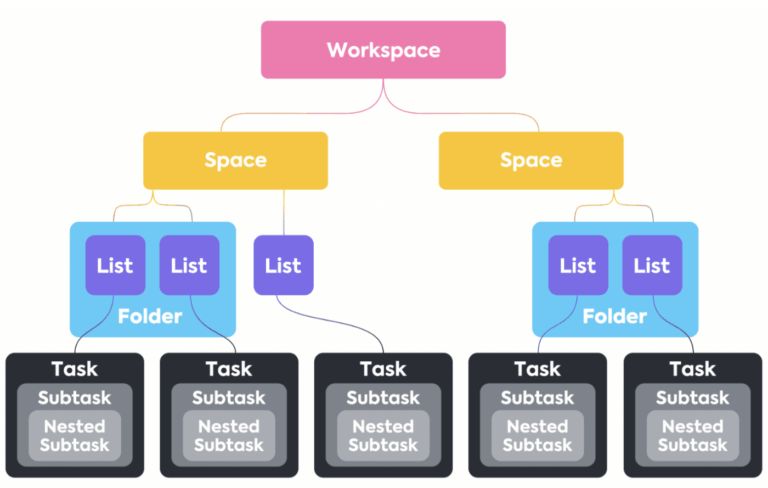
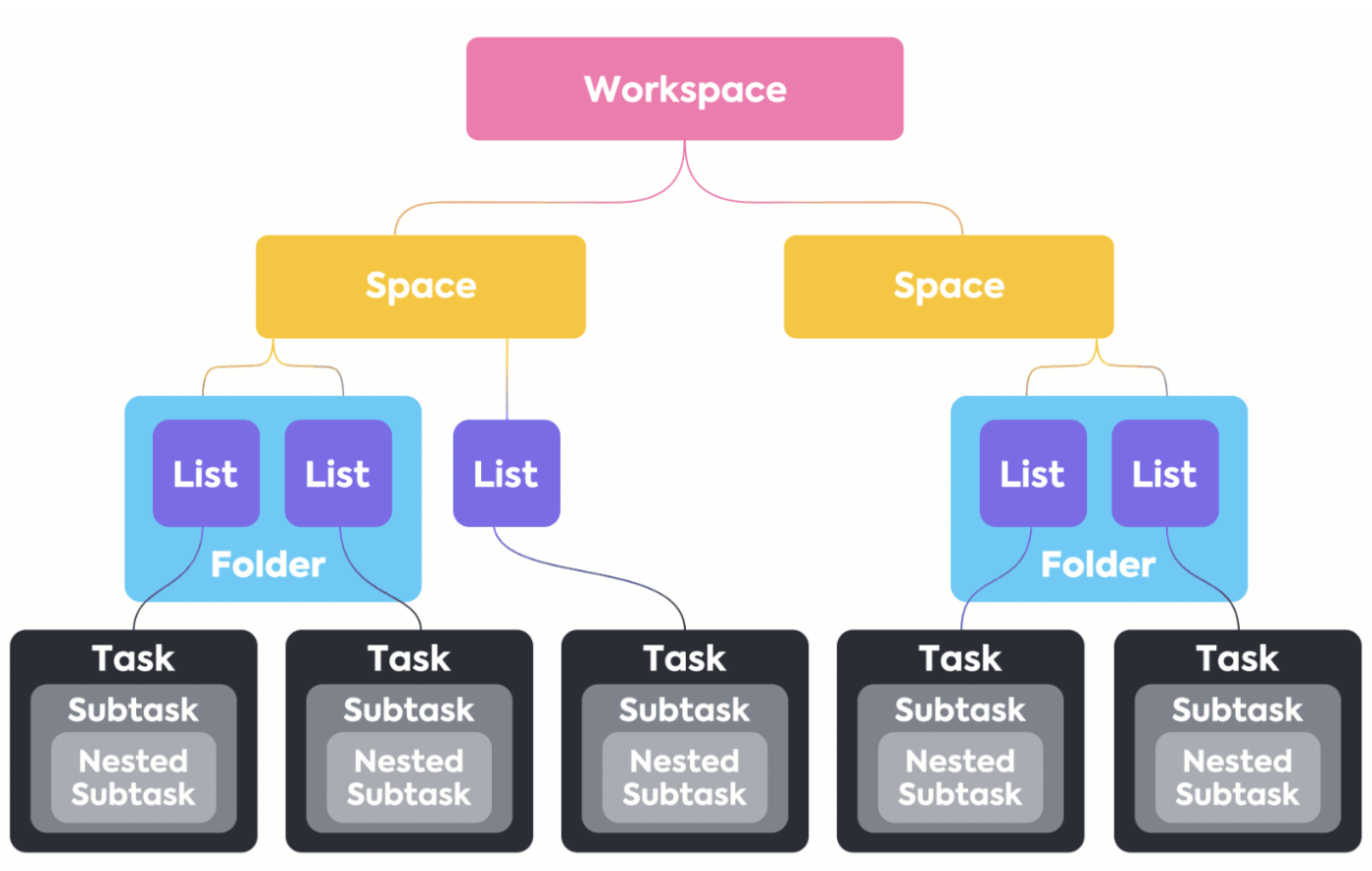
You need to establish hierarchy, so imports land in the right place:
💡 Pro Tip: Just open your export in Excel or Sheets to tidy up the column names, turn formulas into values, and align the date formats. You can also check that the assignees match ClickUp users. The neater the source, the easier the import will go for you.
Here’s a step-by-step breakdown of how to migrate from Microsoft Project to ClickUp and shift from your existing spreadsheet software in seconds.
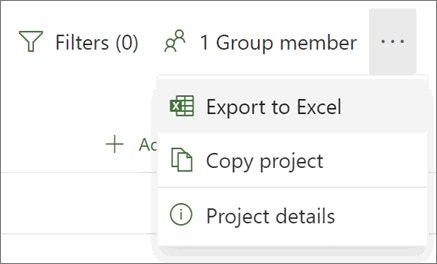
You can export your project to Excel when managing a Microsoft Project for the web.
When you open the Excel file, you’ll find a tab named “Project tasks”. At the top, it summarizes key project details, including its name, project manager, start and end dates, duration, and completion percentage. It also shows the export date. Below that summary, you’ll also find a table with all the detailed project information.
Before you import, give the file a quick tune-up so it lands neatly in your ClickUp workspace. Standardize column names to match the fields you’ll create (Owner, Priority, Cost), convert formulas to values, and make sure start/end dates use one format.
You can break multi-select cells into separate entries, keep dependencies as clear IDs, and confirm assignee emails match real users.
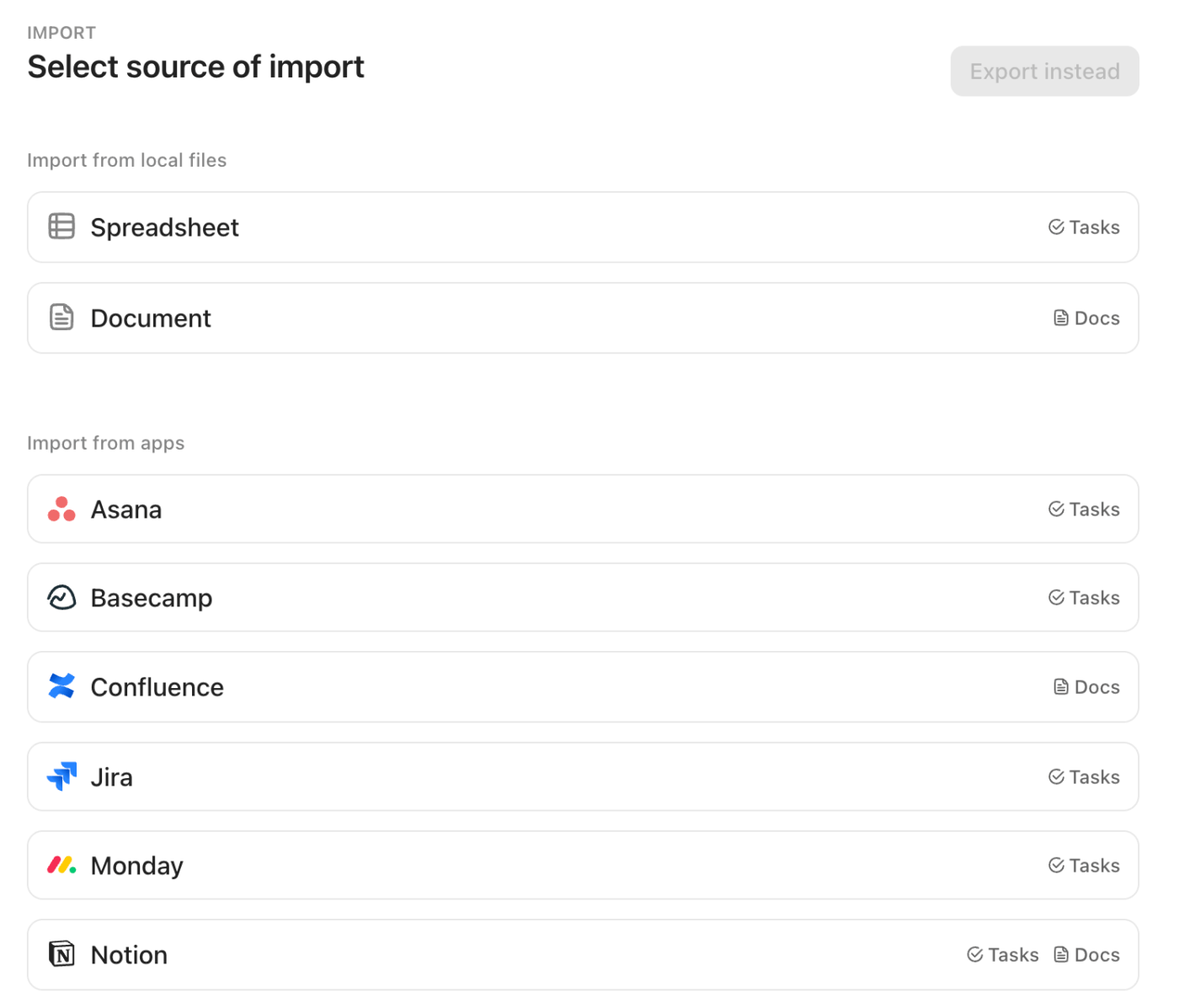
Once your CSV is tidy, bring it into your ClickUp workspace with the Spreadsheets Importer. Upload the file you exported from Microsoft Project (CSV/Excel works great), then map each column to ClickUp task fields or ClickUp Custom Fields—assignees, statuses, start/end dates, effort, cost, and more.
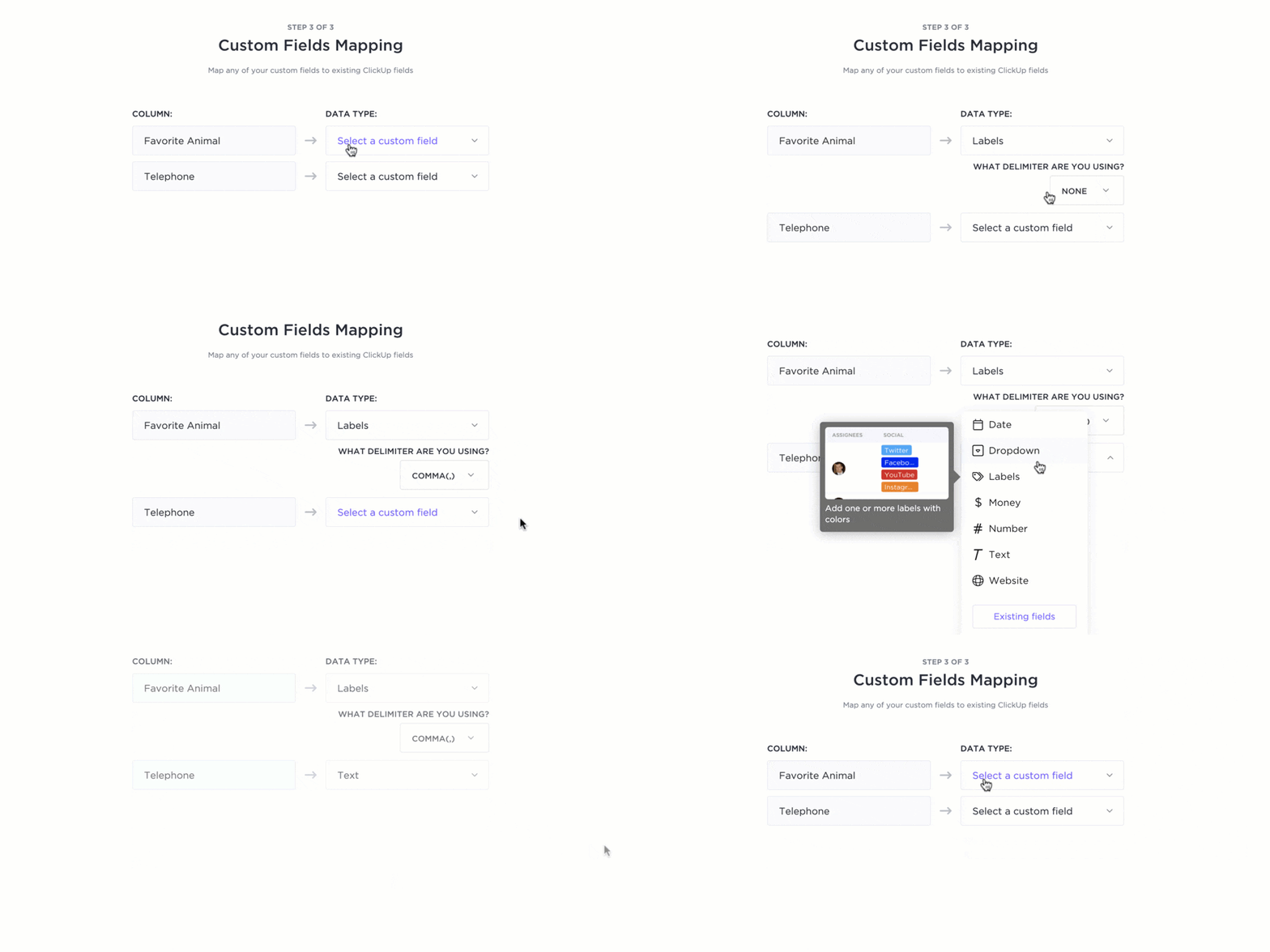
You’ll also choose where everything lands in the Hierarchy (pick a Space, drop it into a Folder, and create a target List) so your projects don’t arrive in a single pile. A live preview helps you spot mismatches before the import runs, which keeps your data migration clean.
If you’re importing a structure to ClickUp from MS Project, include a simple “Path” column (for example: [Parent Task, Subtask A]). The importer will attach first-level subtasks to their parent so relationships survive the move, and you can quickly add deeper levels or dependencies afterward.
📽️ Watch a video: Looking to set up your hierarchy in ClickUp? Check out this best practices guide to get started:
You can also start the importer from Workspace settings: open Imports/Exports, choose Spreadsheet, confirm the date format (Y-M-D is common), and map fields on the “Map fields” screen.
A temporary “Spreadsheet Import” List is created automatically; from there, you can regroup, reassign, or bulk-edit tasks as needed. The net result: all the data you care about arrives in the right place, on the right platform, ready for your team to manage and deliver.
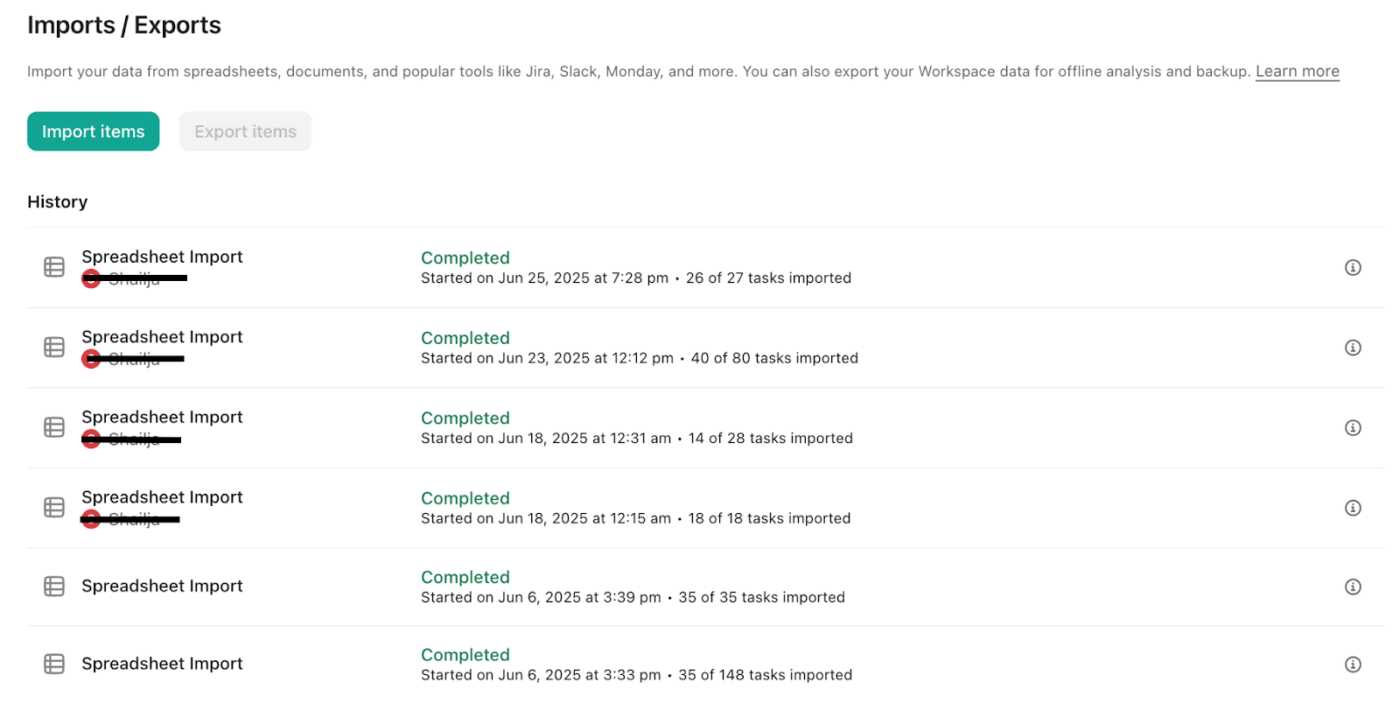
A temporary “Spreadsheet Import” List is created automatically; from there, you can regroup, reassign, or bulk-edit tasks as needed. The net result: all the data you care about arrives in the right place, on the right platform, ready for your team to manage and deliver.
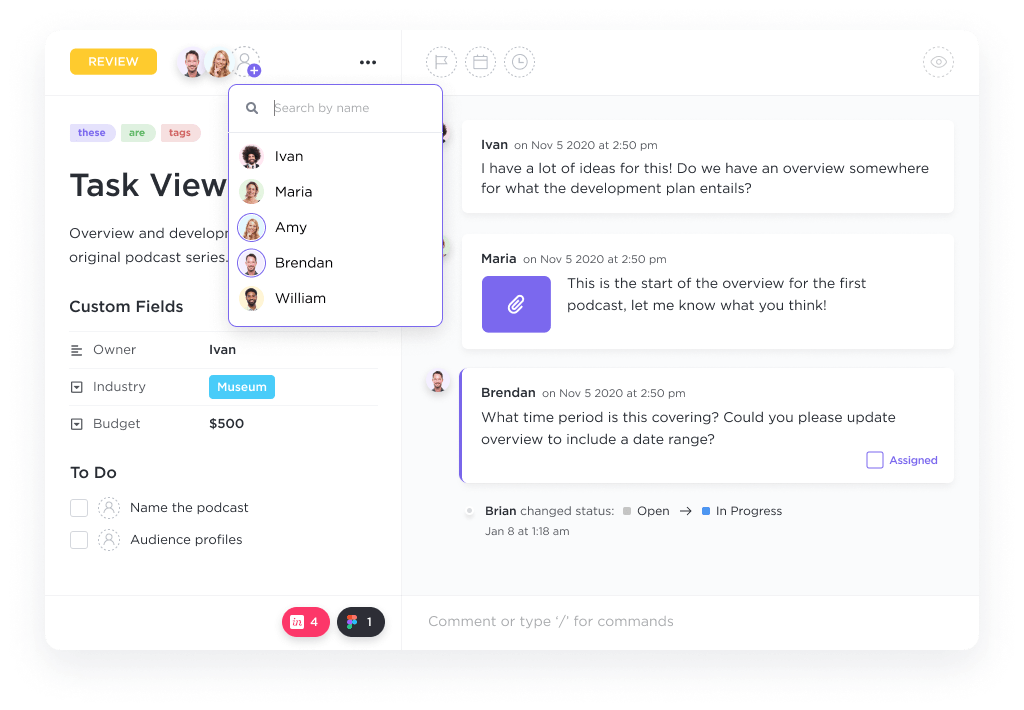
After the import, restore the sequencing logic you relied on in Microsoft Project by using dependency Relationships in ClickUp Tasks.
If your plan spans departments, group related work in the right Space and Folder so handoffs between teams and workflows are easy to manage inside one ClickUp workspace. The outcome is the same logic you modeled in Microsoft’s tool, now living on a single platform your team can actually maintain day-to-day.
It’s time to re-establish your project’s structure by adding timelines, milestones, and resource assignments in ClickUp.
Use Gantt views or Timeline views to visually map out your project schedule, ensuring all key dates and deliverables are accounted for. Mark important tasks as milestones to highlight critical checkpoints, and assign resources by adding team members to tasks or subtasks.
This not only mirrors your original MS Project plan but also leverages ClickUp’s collaborative features, making it easy to track progress and adjust workloads as your project evolves.
To fully transition your project management process, set up workflows in ClickUp that reflect your MS Project stages.
Customize task statuses to match your team’s process (such as To Do, In Progress, Review, Done), and use automations to streamline repetitive actions like status changes or notifications. You can also organize your lists and folders to mirror your previous workflow structure, ensuring a smooth handoff for your team.
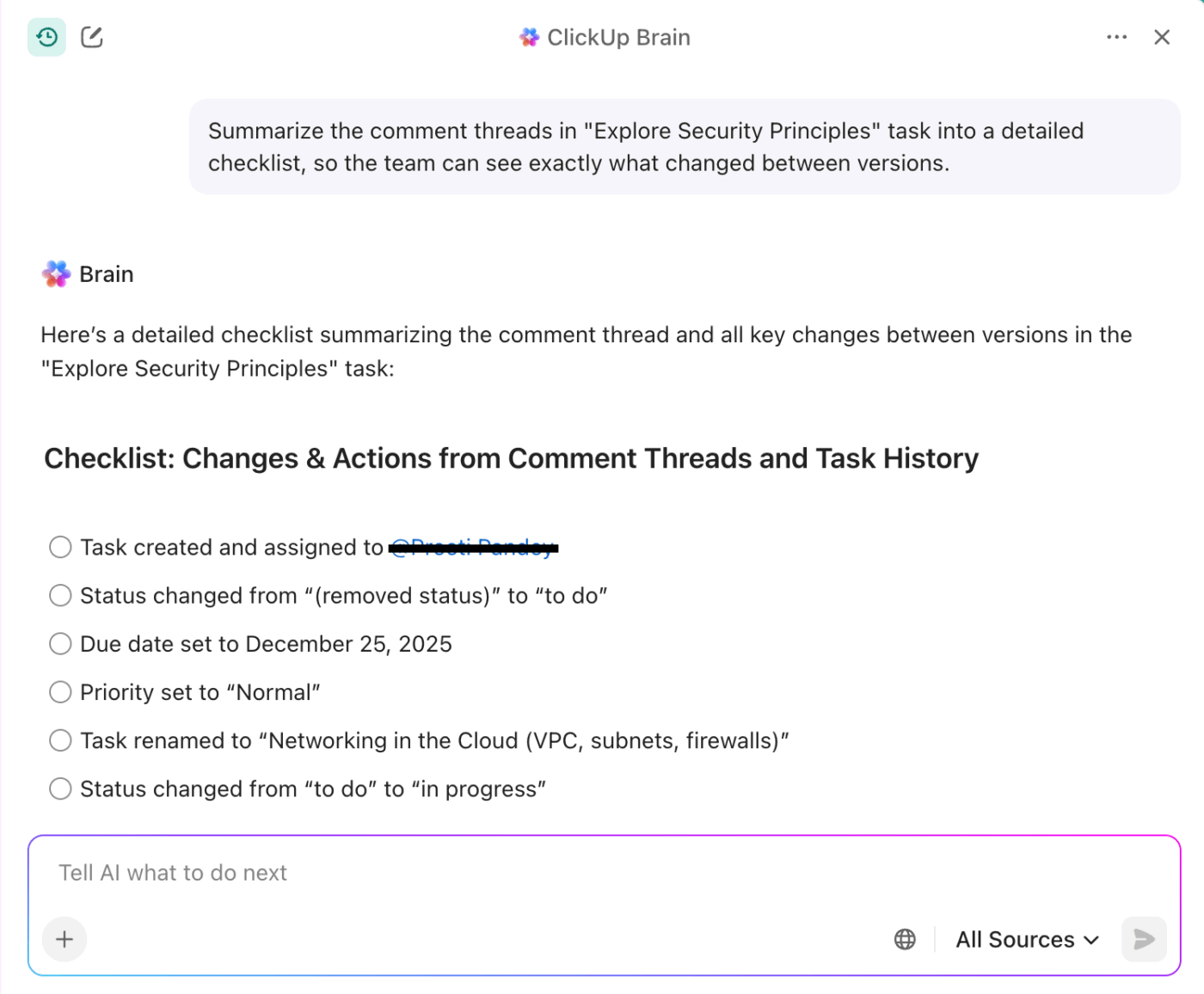
💡 Pro Tip: You can also use ClickUp Brain to summarize comment threads post-migration, so designers and writers see exactly what changed when transitioning from previous software to the current one.
📖 Also Read: Workflow Automation Examples and Use Cases
You’ve completed the migration. Now, the goal is clear visibility with fewer manual steps in everyday project management. Here’s how you can achieve that:
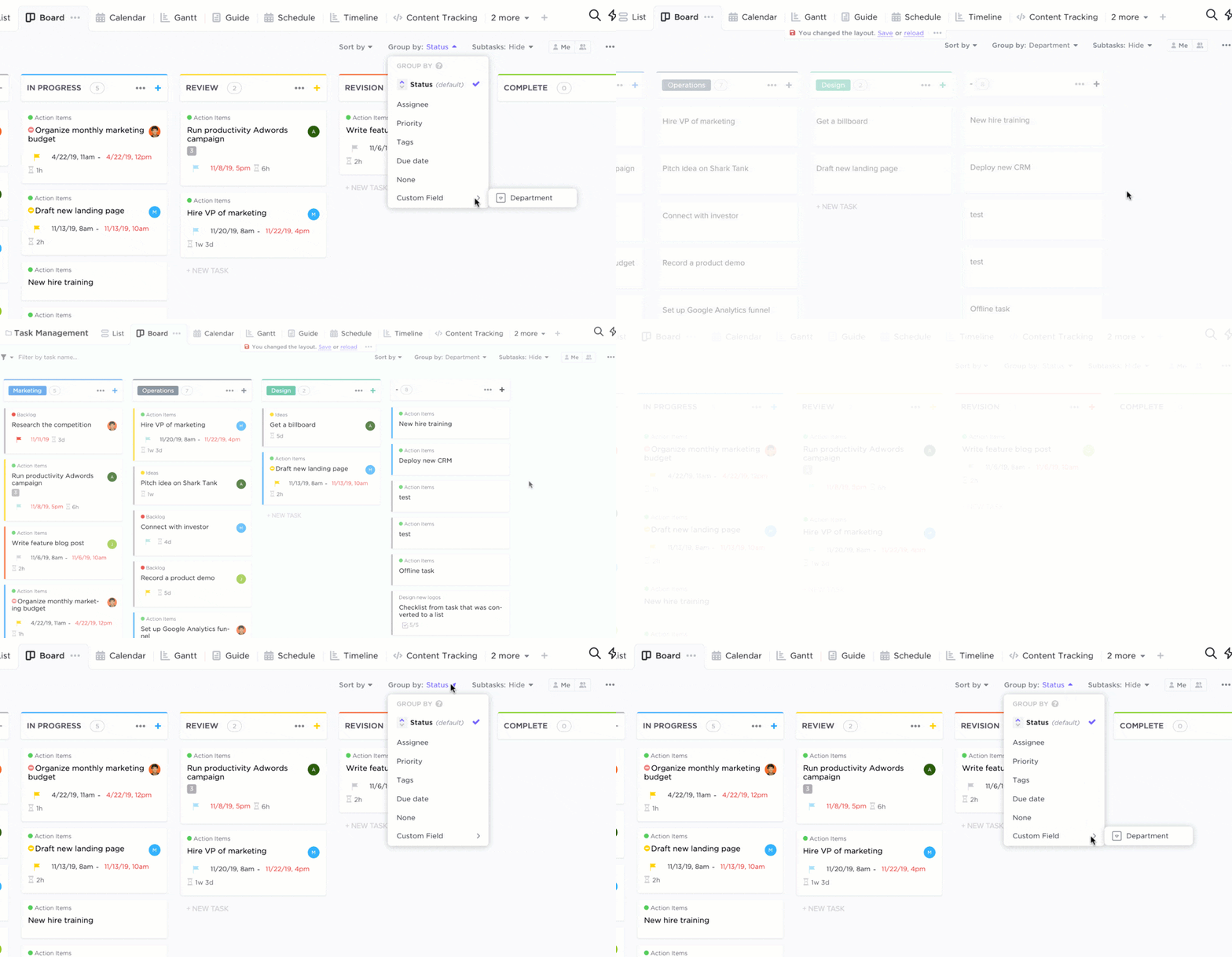
Start with the basics and make them yours. Use ClickUp Tasks in List view for granular tracking, ClickUp Kanban boards, ClickUp Gantt charts for timelines and dependencies, and ClickUp Calendar for schedules.
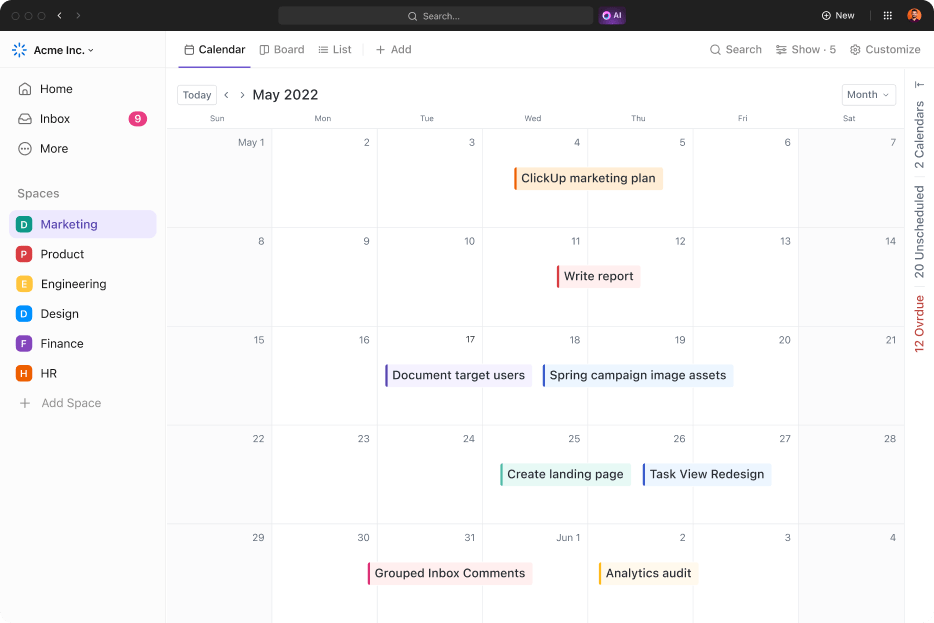
You can configure views at the Space, Folder, or List level so each audience—PMs, execs, or stakeholders—sees what matters. Align statuses, milestones, and owners so imported data reads cleanly from day one, and you can quickly review progress across projects.
With ClickUp Dashboards, you can roll up workload, timelines, health, and budget indicators in one place.

You can drop in widgets for due dates, time tracking, and resources to highlight risk and momentum. Additionally, filter by Space, Folder, or List, and spin up client-facing views when you need lightweight external visibility without exposing every file or field. It’s the control room your PMO wanted from your previous tool.
Here’s what the Account Director at Pontica Solutions, Dayana Mileva, says about ClickUp:
“I was looking for a project management platform, and I found the best. Right away, it felt like ClickUp could solve all of our problems and create out-of-the-box solutions to benefit us in ways that I hadn’t even imagined.”
ClickUp Automations lets you create simple rules that do the upkeep for you—auto-assign when statuses change, post nudges before deadlines, or shift dates when dependencies move.
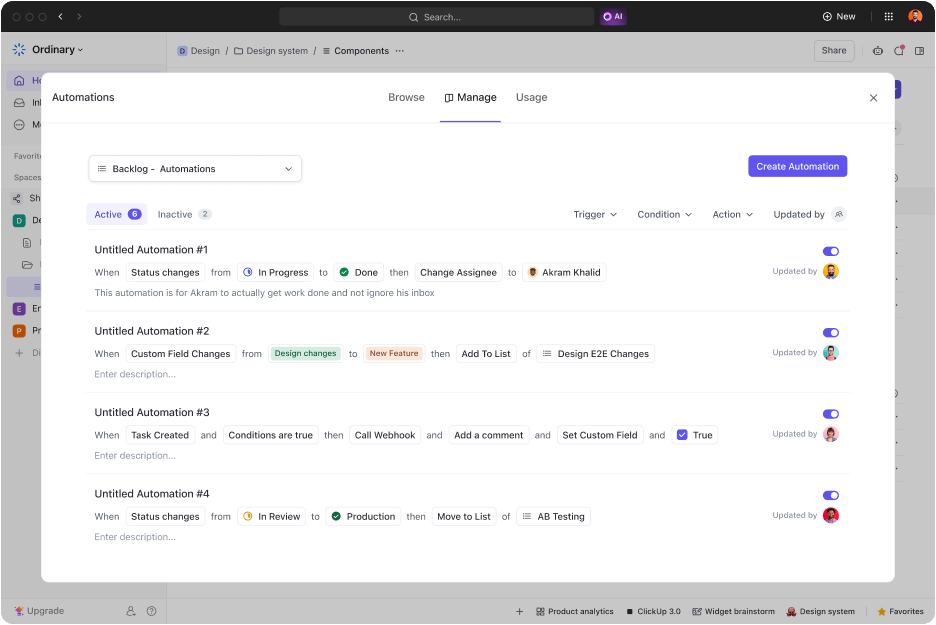
Layer in integrations with your everyday apps (think Slack notifications or updating a handoff board) so updates happen where people already live. Over time, you can change the rules to mirror your evolving workflows.
ClickUp Brain adds an intelligent layer across your ClickUp workspace, so your team spends less time on admin and more time moving work to completion. It turns scattered updates into clear insight, automates routine steps, and keeps cross-functional workflows aligned.
📖 Also Read: Best Task Management Software Ranked & Reviewed
Even with solid prep, a few bumps are normal. Here are quick fixes you can apply right away.
👀 Did you know: Your files are encrypted in transit and at rest. If you hit persistent blockers, lean on support or a dedicated migration specialist—especially when you need to integrate Outlook or other Microsoft tools alongside ClickUp.
📖 Also Read: Best Microsoft Project Alternatives Free & Paid
Data migration should be a short, well-run project so that you can keep momentum and help project managers land in your ClickUp workspace with confidence. Here’s a tight playbook for moving from Microsoft Project without surprises.
While importing any tool into ClickUp, run a 10–14 day dual-run window. In this case, keep MS Project read-only, and capture feedback in ClickUp Docs to refine the process.
Migrating from MS Project to ClickUp is a significant change for your team, and effective training is essential to ensure a smooth transition. ClickUp offers a variety of resources and structured programs to help your team quickly adapt and make the most of the platform:
Here’s a quick comparison of Microsoft Project with ClickUp:
| Capability | Microsoft Project | ClickUp |
| Collaboration | ✅ Real-time collaboration, assign tasks, share files, co-author, @mention. | ✅ Native collaboration across Tasks, Docs, Whiteboards, comments, Chat. |
| AI | ✅ Copilot in Planner for planning, scheduling, and tracking. | ✅ ClickUp Brain, AI Notetaker, AI Cards for summaries and updates. |
| Views | ✅ Grid/board, timeline, calendar, charts. | ✅ List, Board, Calendar, Gantt, Timeline (and more). |
| Reporting | ✅ Real-time dashboards and visualizations. | ✅ Dashboards with cards for status, workload, time, custom KPIs. |
| Resource management | ✅Assign people to tasks and track capacity/allocations in Project | ✅Workload, capacity, time tracking, and team analytics via Dashboards/Views. |
| Pricing page | ✅Public pricing is listed on Microsoft’s Project pricing page | ✅Public pricing with Free Forever and paid tiers. |
When you move from Microsoft Project to ClickUp, you gain speed and clarity with the vast range of features in the ClickUp workspace. Here’s how those core capabilities translate one-to-one.
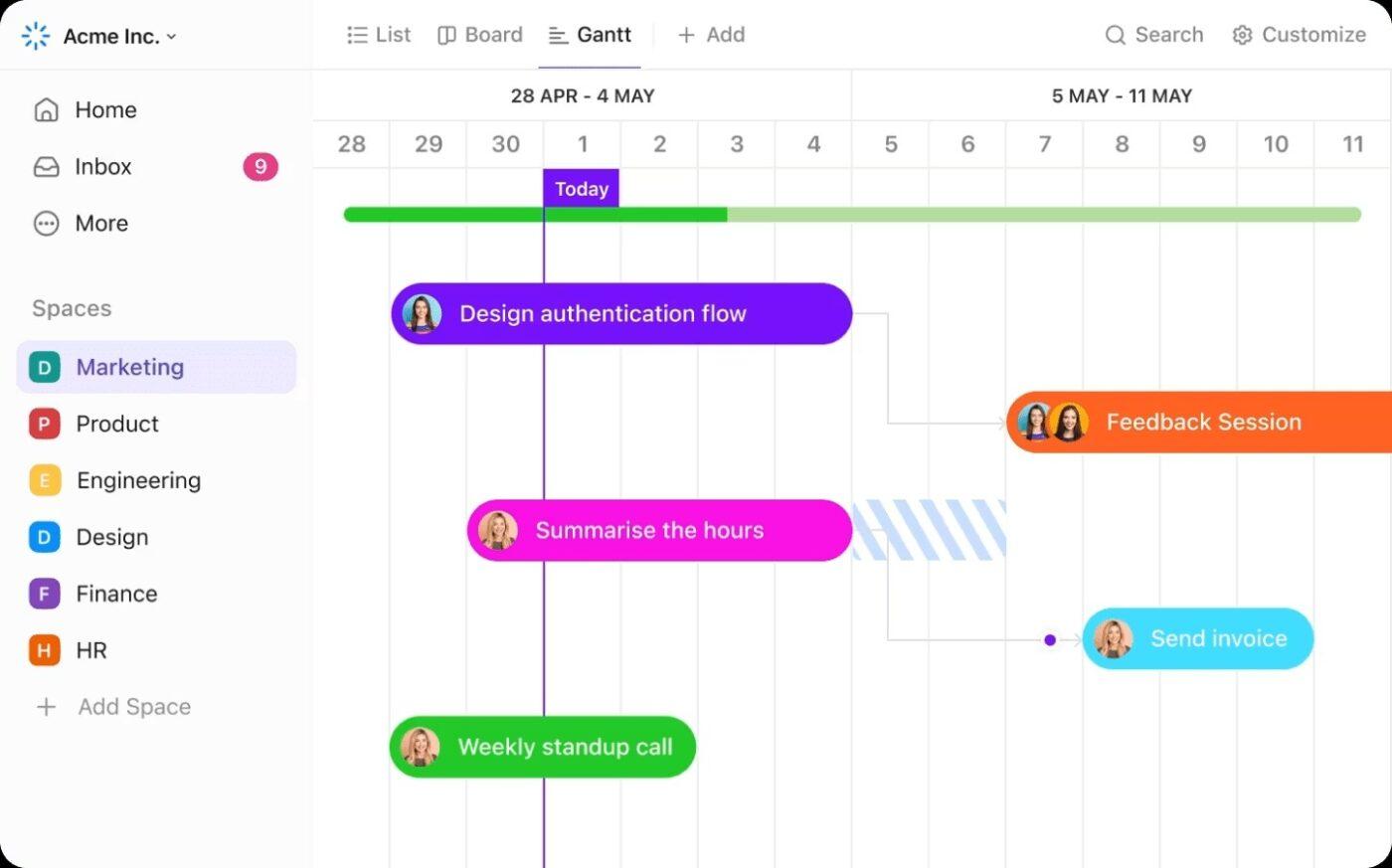
Plan timelines, visualize dependencies, and track milestones with a Gantt chart without wrestling with a static file. Drag to shift schedules, bulk-reschedule when dates change, and keep parent and sub-tasks in sync. Critical path, progress, and resource views sit in the same place, so your project management stays transparent from kickoff to delivery.
See real-time capacity instead of snapshot spreadsheets. Group by assignee or team, view load by time estimates, and spot over/under allocation at a glance. As work moves or owners change, the view updates instantly—no exports, no manual reconciles—so you can rebalance before timelines slip.
Shift a blocking task and downstream items auto-adjust. Turn on Critical Path to reveal the exact chain that governs your finish date; Slack Time makes schedule float obvious, so you can make informed trade-offs without guesswork.
Build live, audience-specific reporting instead of static packets. Mix cards for status, time tracking, workload, billable hours, risks, and more—across projects, teams, or clients. Dashboards become your real-time control center for decisions, not a weekly ritual of exporting and stitching data from other tools.
Let AI handle the busywork. ClickUp Brain summarizes project status, drafts updates, flags risks, and nudges owners—all using context from your tasks, docs, and timelines. You get faster standups, cleaner handoffs, and fewer surprises, so your team can focus on delivery instead of administration.
📖 Also Read: How to Automate Repetitive Tasks
You’ve seen the path for a smooth data migration: audit what matters, decide what to rebuild, set a clean Hierarchy, tidy your CSV, import, then reconnect timelines and dependencies. From there, align reporting, automate routine steps, and keep projects visible so your team can deliver without detours.
The takeaway is that a unified ClickUp workspace reduces tool-sprawl and makes the migration process predictable, so work doesn’t pause while you switch systems.
If your requirements include clear ownership and reliable schedules, ClickUp gives you one place to plan, collaborate, and ship. Try ClickUp for free to start moving live work while you migrate.
Typical hiccups include duplicate tasks, mismatched custom fields, date-format drift (start/end), unlinked dependencies, missing assignees (email mismatches), and a lost hierarchy. Prevent most of this by cleaning your CSV, mapping fields carefully, preserving parent–subtask paths, and validating timelines in Gantt.
Many teams self-serve data migration at no added cost using ClickUp’s spreadsheet importer. Your main expense is internal time. Larger rollouts may use optional partners or services; those fees vary by scope. Regular ClickUp plan pricing is separate.
For most teams, yes. ClickUp covers project management end-to-end with Gantt, Workload, Dashboards, automations, and AI (ClickUp Brain), plus flexible custom fields and views inside one ClickUp workspace. Very specialized PPM needs should pilot first to confirm fit.

© 2026 ClickUp

There’s an easier way. Try a free AI Agent in ClickUp that actually does the work for you—set up in minutes, save hours every week.