






Still downloading templates?
There’s an easier way. Try a free AI Agent in ClickUp that actually does the work for you—set up in minutes, save hours every week.
Sorry, there were no results found for “”
Sorry, there were no results found for “”
Sorry, there were no results found for “”
By the time you’ve manually scheduled weekly check-ins, compiled your status report from different sources, and written recurring follow-up emails, half your workday is gone.
Well, learning how to automate office work with AI helps you avoid all this and more, improving workplace productivity and efficiency.
In this blog post, we’ll explore how automation reduces manual work and why platforms like ClickUp are worth looking into if you want to get more work done. And have more room to breathe. At the same time!🧰
Office work automation involves integrating digital tools, systems, and software to streamline everyday administrative tasks, including manual data entry, document management, communication, and scheduling.
Here’s how AI in the workplace helps power automation at the office:
📌 Example: A marketing team uses ClickUp to manage their content creation process. Instead of manually assigning tasks and following up on deadlines, they set up automation rules within the tool. When a task moves to the ‘In Review’ stage, the platform automatically assigns it to the editor, adds a due date, and sends them a reminder.
📮 ClickUp Insight: 45% of workers have thought about using automation, but haven’t taken the leap.
Factors like limited time, uncertainty about the best tools, and overwhelming choices can hold people back from taking the first step toward automation. ⚒️
With its easy-to-build AI agents and natural language-based commands, ClickUp makes it easy to get started with automations. From auto-assigning tasks to AI-generated project summaries, you can unlock powerful automation and even build custom AI agents in minutes—minus the learning curve.
💫 Real Results: QubicaAMF cut reporting time by 40% using ClickUp’s dynamic dashboards and automated charts, transforming hours of manual work into real-time insights.
Artificial Intelligence is changing how office work gets done, taking over the time-consuming tasks so you can focus on higher-impact goals.
Here’s a quick video on how you can use AI to automate tasks and boost productivity.
And for those of you who prefer to dig deep into the details, read on!
AI in email management filters and prioritizes your inbox based on behavior patterns, sender reputation, and content urgency. It can draft replies, summarize long email threads, and suggest responses that match your preferred tone while keeping context intact.
✅ Try This: Train your AI email assistant by regularly labeling emails as ‘urgent,’ ‘for later,’ or ‘not important.’ This behavior establishes a learning loop, enabling the system to understand what matters to you and adjust its filters.
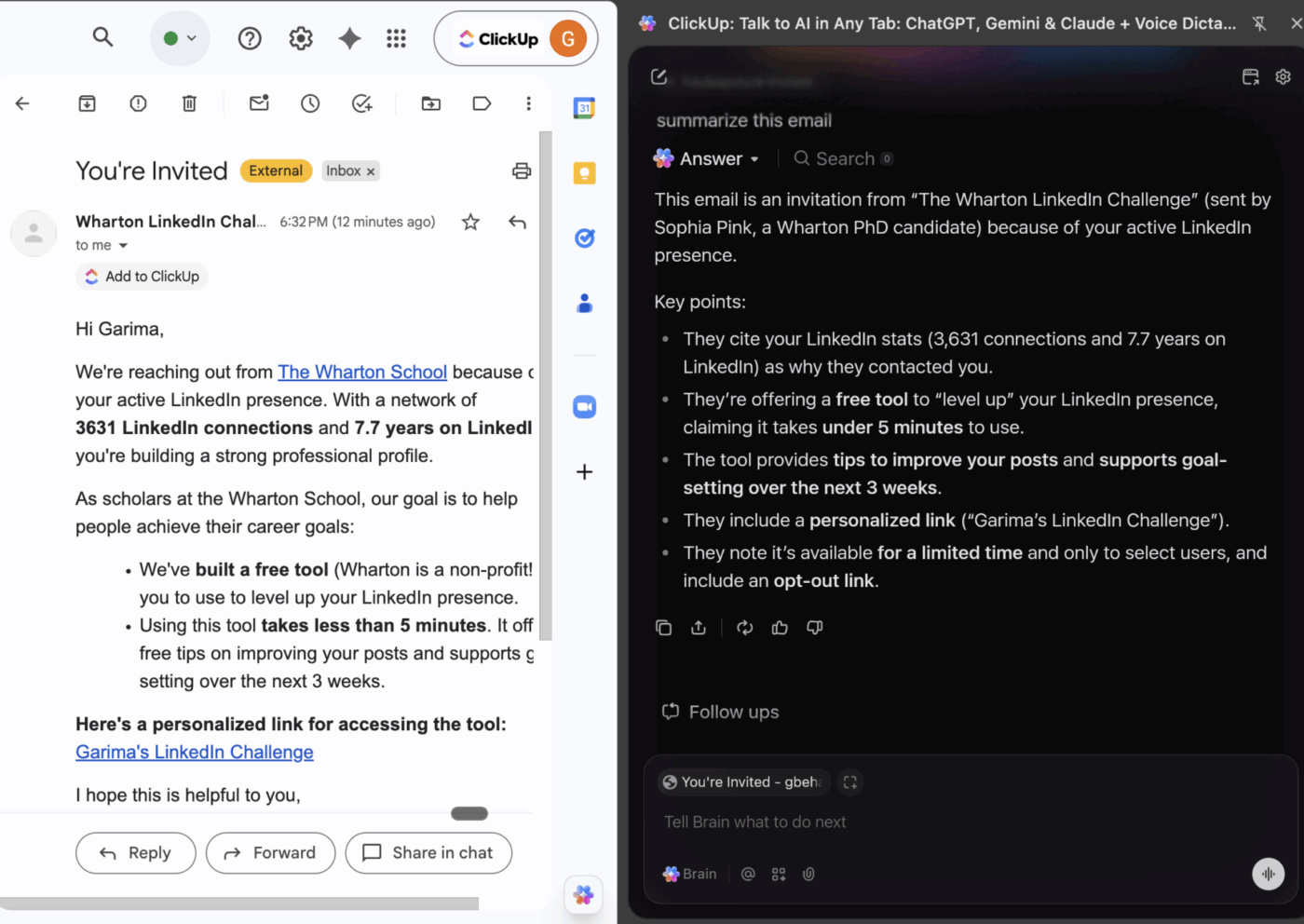
ClickUp Brain MAX Chrome Extension is your secret weapon for taming a chaotic email inbox. When you’re dealing with long, back-and-forth email threads (the kind where five people hit Reply All), it jumps in to summarize the conversation directly inside your browser window.
And, if you’re already using Email within your ClickUp workspace, you can ask ClickUp Brain, your built-in, context-aware AI assistant, to do the same. Without even leaving ClickUp!
Bye-bye context-switching.
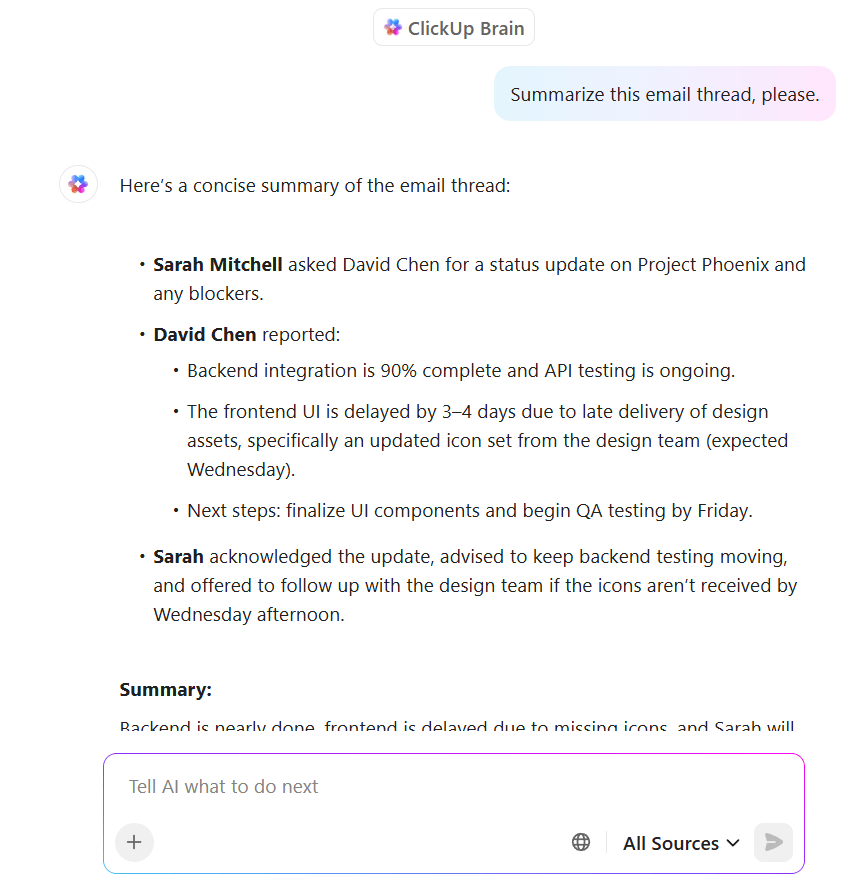
The AI tool reads the full context and gives you:
📌 Example Prompt: Summarize this email thread and draft a response asking for final approval on the new campaign plan.
AI analyzes your availability, meeting preferences, and focus hours to suggest optimal times for meetings. You can use AI for daily life tasks like automatically sending invites, rescheduling conflicts, and factoring in time zones and priorities across team members.
Suppose you open your ClickUp workspace and realize your week is packed: content deadlines, standups, and that strategy session that keeps getting bumped. Stressful, right?
Instead of playing calendar Tetris, turn to ClickUp Calendar.
With Google Calendar fully synced, it already knows what’s on your plate. ClickUp Brain scans your existing events, your task queue, and even your ‘Do Not Disturb’ preferences, and deep work every Thursday afternoon.
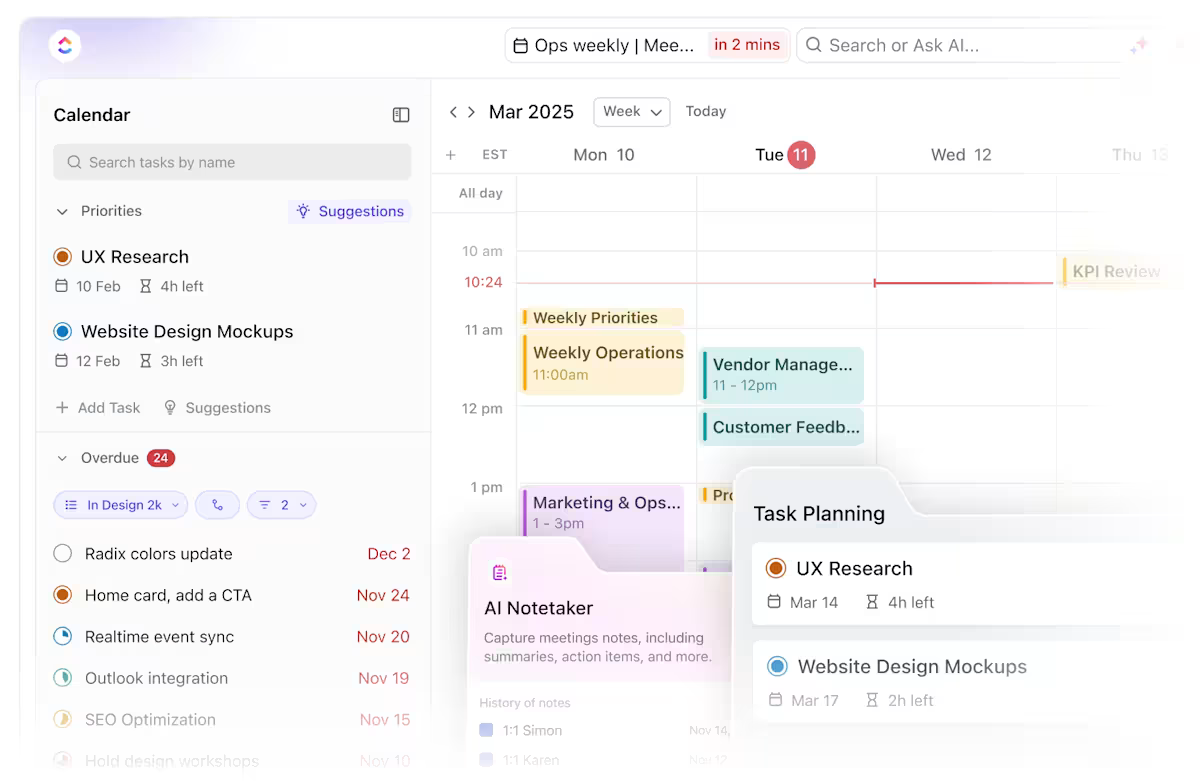
Let’s say you’ve got five tasks marked ‘High Priority’ but limited time this week. You prompt ClickUp Brain with: Reorganize my top five priority tasks based on my available time this week, and block out time to complete them without overlapping meetings. And it rebalances everything in seconds.
✅ Try This: Protect your focus time by setting parameters like ‘no meetings before 10 AM’ or ‘only two meetings per day.’ AI can then automatically block time for deep work and shift less important meetings around it.
You can use AI to capture meeting notes, transcribe conversations in real time, extract action items, summarize decisions, and organize notes under predefined categories, such as ‘discussion points’ or ‘next steps.’
✅ Try This: Use consistent verbal cues like ‘Let’s decide on…’ or ‘Next action is…’ during meetings. These cues help AI recognize decisions and tasks for automatic tagging or follow-up creation.
We’ve all been there. The meeting ends, and suddenly it’s radio silence.
ClickUp’s AI Notetaker saves the day without you having to press ‘record’ or scramble to type notes.
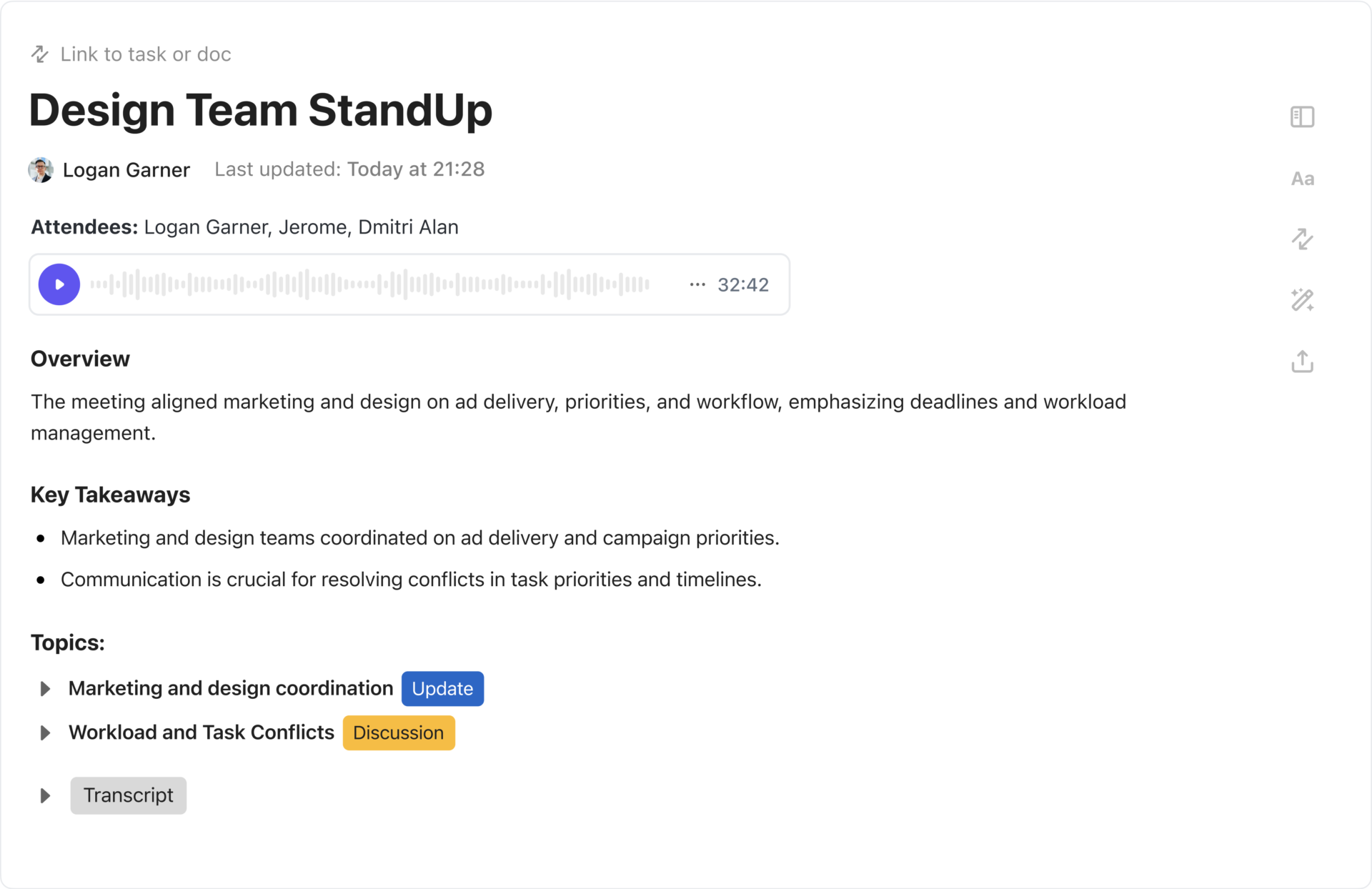
Here’s how it helps during the meeting:
You can also ask ClickUp Brain to summarize these discussions, fetch key decisions and updates using natural language commands, and create follow-ups from your transcripts.
📖 Also Read: Free Schedule Templates in Excel, Sheets, & ClickUp
Manually entering data is nobody’s idea of a good time; it’s time-consuming, error-prone, and usually the first thing to get deprioritized.. AI can autofill data fields, detect inconsistencies, clean up duplicate entries, and even generate formulas or summaries based on natural language instructions.
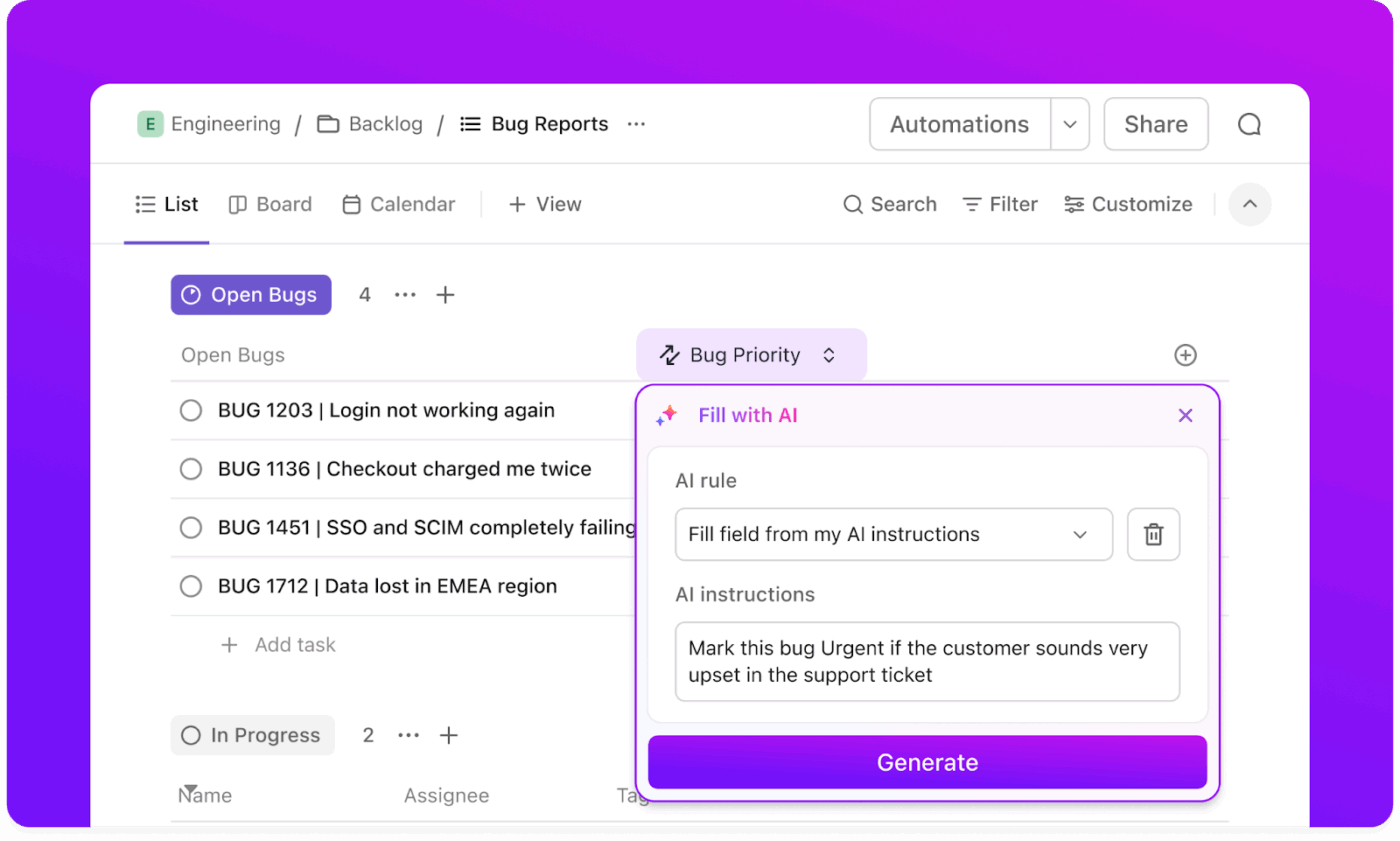
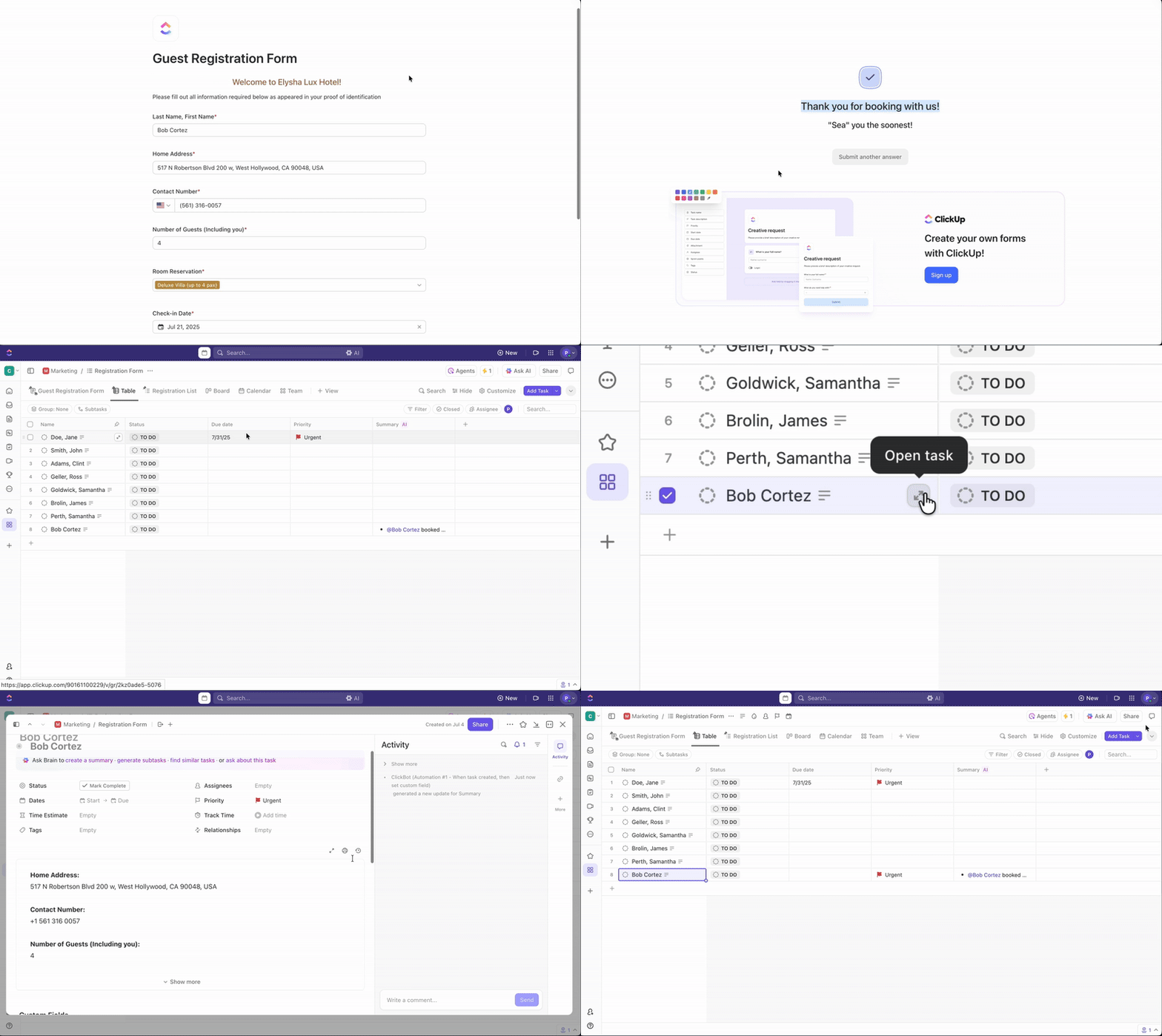
For instance, you’re running an internal bug reporting process. No need to DM issues or fill out a random spreadsheet. You can just create a ClickUp Form.
Include dropdowns for severity level, a file upload for screenshots, and hidden fields for internal use (like which team it routes to). When someone submits the form, ClickUp auto-creates a task, and AI Autofill assigns it to the right dev and tags it with the right priority level.
🎥 Watch how AI Autofill works—this video shows AI Assign and AI Prioritize in action:
Once the data rolls in, ClickUp Table View gives you a clean, spreadsheet-style way to manage everything. Each task from the form appears as a row, and each field becomes a column with status, tags, submitter, and deadlines. You can bulk edit rows, apply priority filters, and group bugs by status or owner.
Now comes the fun part: seeing the big picture without digging through rows.
Create a ClickUp Dashboard that pulls from your task list. Add cards like ‘Tasks by Status,’ ‘Open Bugs by Team,’ or ‘Average Resolution Time.’
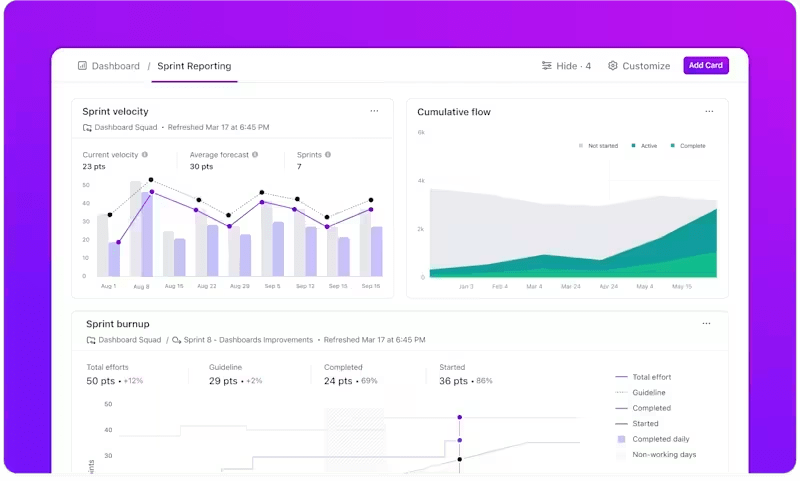
Set your Dashboard to auto-refresh so you always see real-time data, which is great for weekly check-ins or sharing with leadership. You can even turn data into a client-facing dashboard, showing only filtered insights.
This video walks you through the process, step-by-step!
🧠 Fun Fact: The filing cabinet was patented in 1898 by Edwin G. Seibels. Before that, most office records were stored in stacked boxes, envelopes, or bound books. The vertical file changed how offices organized information and led to the rise of paper-heavy bureaucracy in the 20th Century.
AI tracks task activity, detects changes in status or urgency, and updates project timelines accordingly. It can suggest reassignments, flag bottlenecks, and generate daily summaries or standup updates.
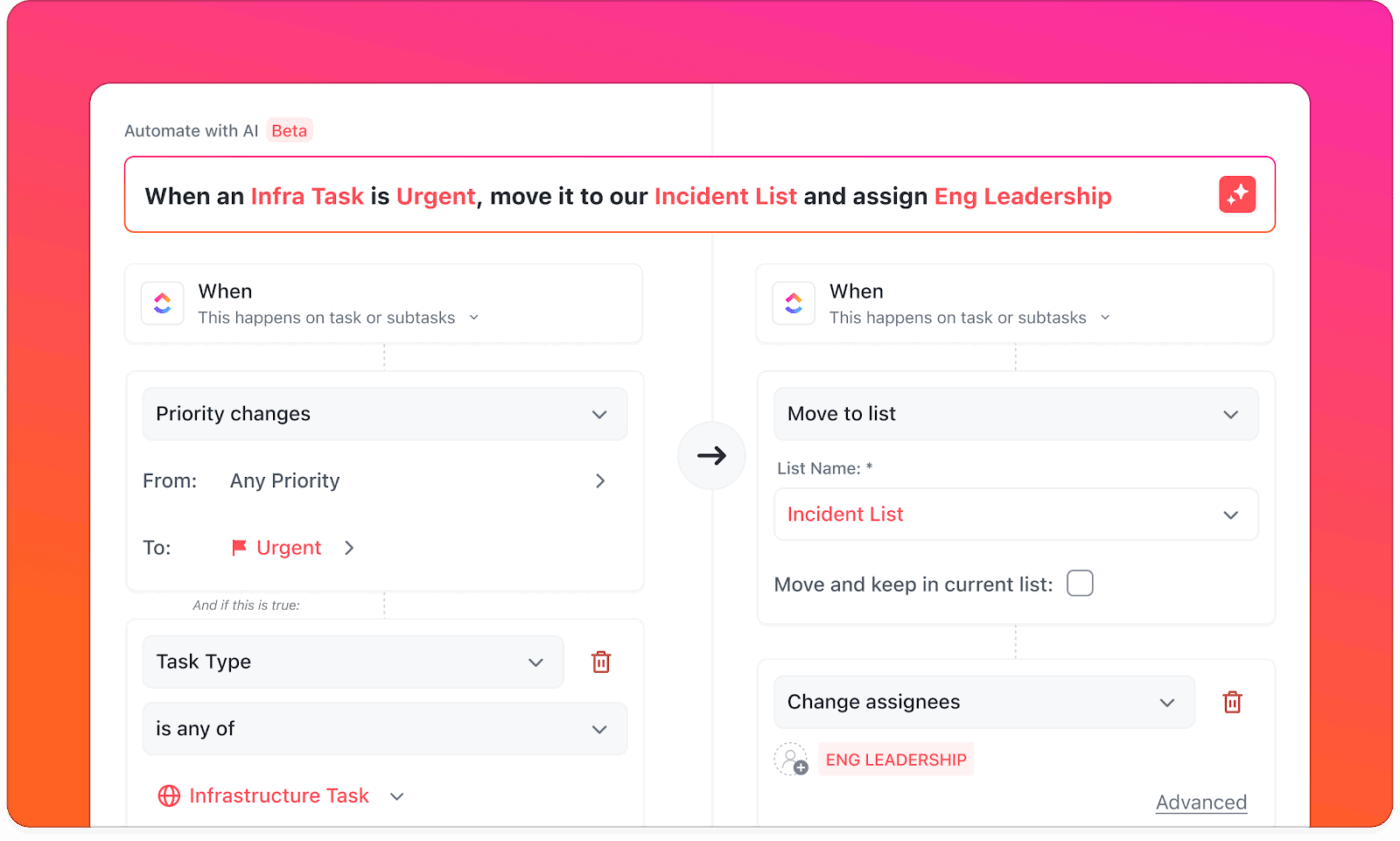
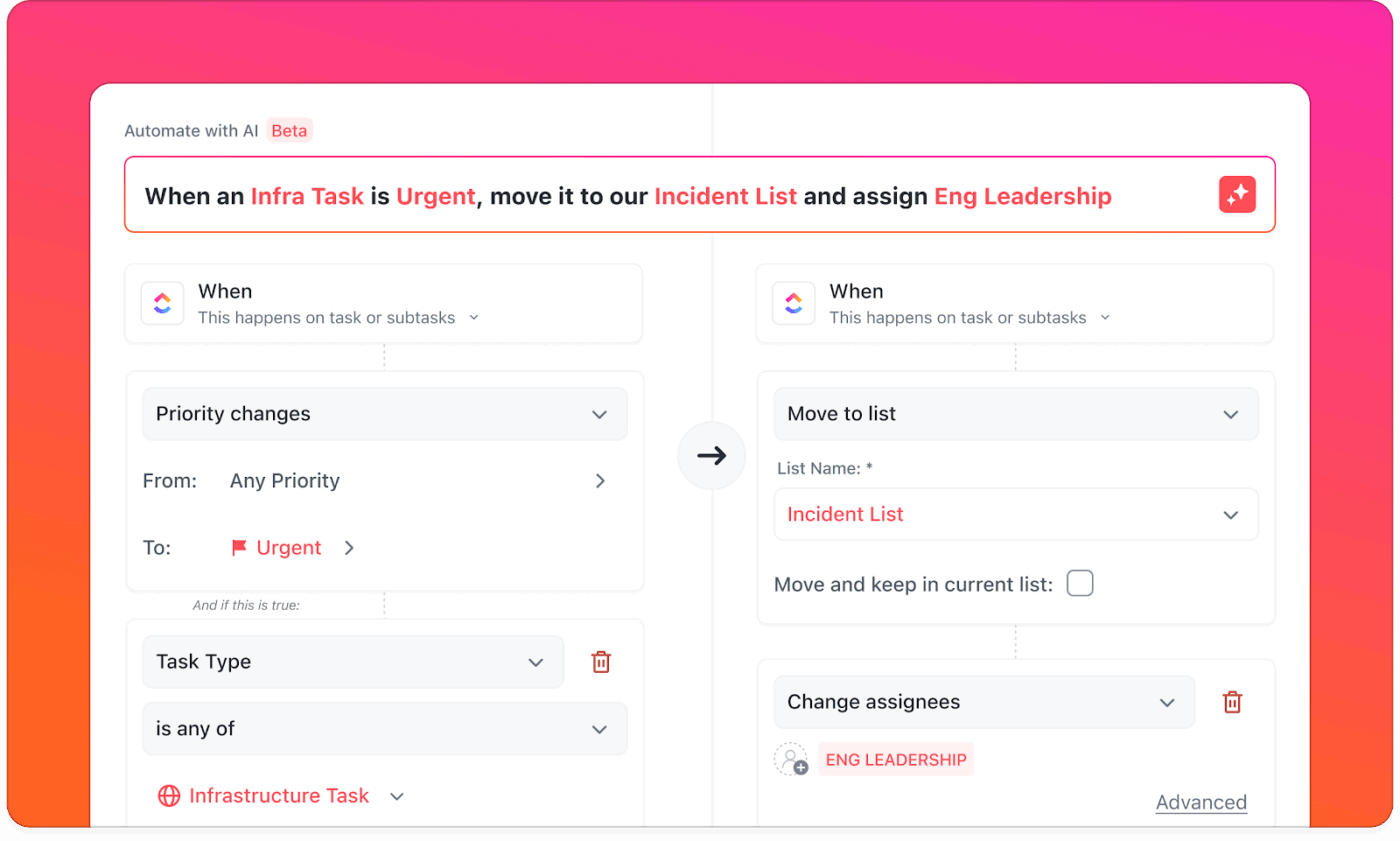
With ClickUp Automations, your projects practically run themselves. From shifting timelines to notifying the right people, this tool ensures updates happen before you have to ask for them.
Automations run on a simple rule: ‘When this happens, do that.’ You can set up triggers like:
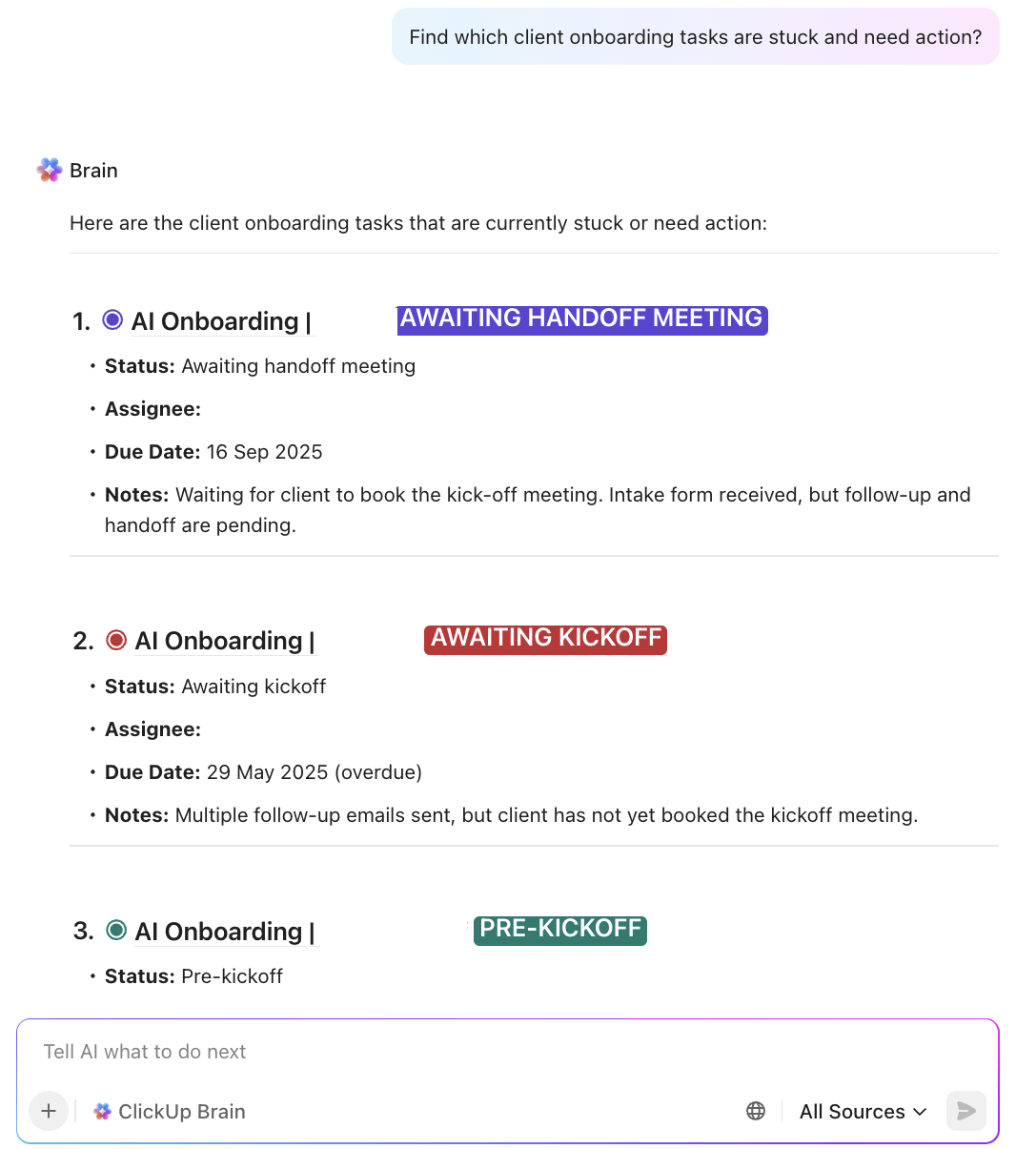
For instance, when a bug fix moves to ‘Review,’ ClickUp auto-assigns it to QA and sends a notification to the reviewer. Plus, ClickUp Brain flags bottlenecks and suggests changes to keep the timeline on track.
📌 Example Prompt: ‘Which tasks are consistently overdue?’ or ‘What’s causing bottlenecks in this sprint?’
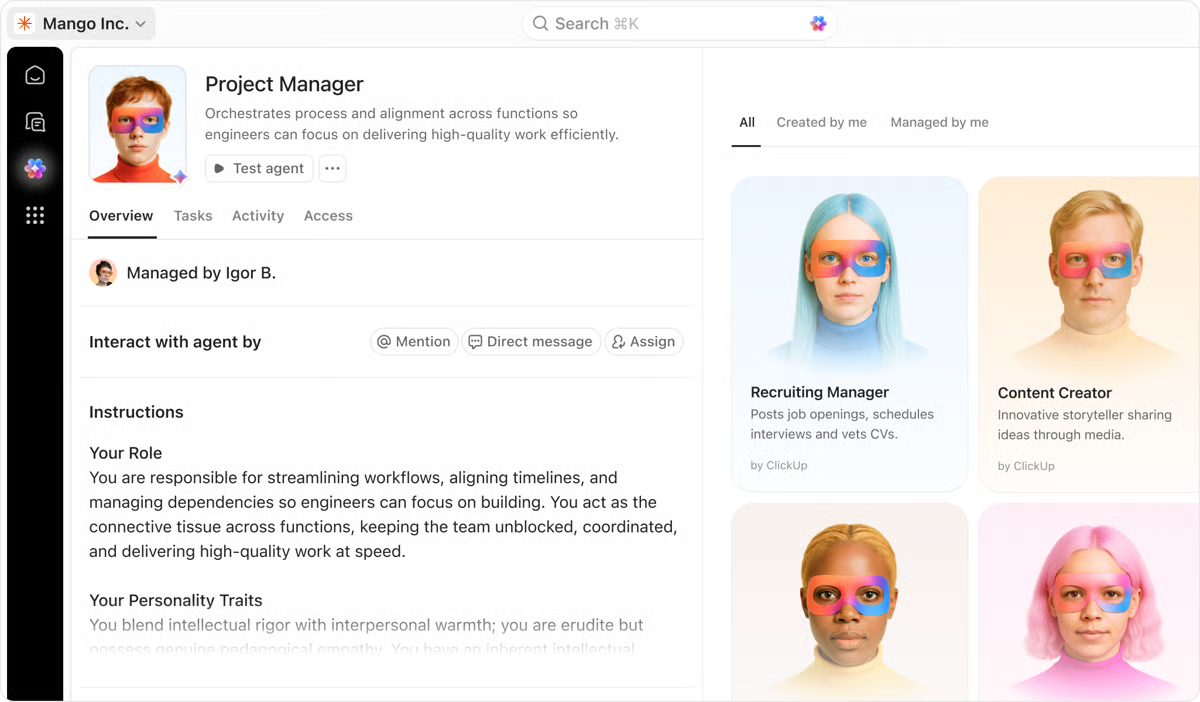
💡 Pro Tip: Once your automations are handling the predictable steps, level up with ClickUp Super Agents. Use them when a workflow needs judgment, not just rules.
📌 For example, instead of triggering a single assignment, a Super Agent can:
It’s the difference between automating steps and automating ownership.
AI can generate first drafts of internal documents, simplify complex text, organize content by headers, and identify outdated or conflicting information in existing docs.
Creating internal documents isn’t a lonely task. ClickUp Docs make it collaborative, interactive, and enjoyable. If you’re drafting SOPs, company policies, meeting agendas, or onboarding guides, Docs helps you build living, dynamic documents, co-edited by your team right inside your workflow.
Here’s what you can do with Docs in ClickUp:
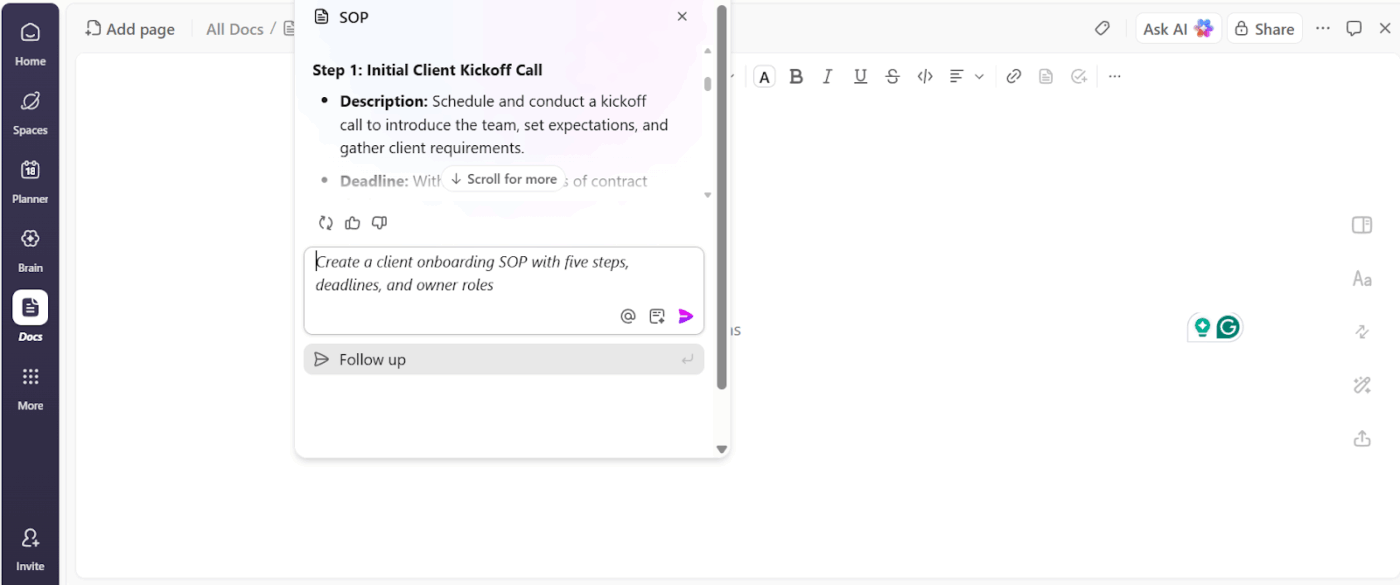
Once the Doc is open, ClickUp Brain’s AI writer helps you write, rewrite, and review content. It drafts first versions from simple prompts, rewrites confusing sections, and organizes info under smart headers.
📌 Example Prompt: Create a client onboarding SOP with five steps, deadlines, and owner roles. You could also highlight a messy paragraph and prompt: Make this more concise for an internal knowledge base.
🧠 Fun Fact: Typewriters revolutionized office work in the late 1800s, but early models were so loud that companies began designing typing pools—rooms full of typists—specifically to keep the noise away from executives.
Today, you’ve got speech-to-text AI tools that can do voice typing for you! No clickety clack—just your voice, transcribed into text. One such tool, ClickUp’s Talk to Text, helps you dictate notes, docs, and tasks—4x faster than typing!
So you’re ready to save time, reduce grunt work, and finally stop doing the same ten things a day. But, how to automate your office work with AI?
Here’s a step-by-step guide to executing AI workflow automation. 👇
Let’s start with the basics. You need to figure out: What can be automated?
Look around your workday. Are there tasks that feel like déjà vu every time you do them?
Here are some examples:
If yes, those are gold for AI task automation. The rule of thumb? Start with stuff that’s repetitive, rule-based, and low-risk. Leave the complicated decision-making to humans.
🔍 Did You Know? The first email ever sent was in 1971 by Ray Tomlinson, who worked as an engineer at Bolt, a computer company.
Before you bring in the bots, it’s helpful to know what you’re automating. Jot down:
This makes it easier to see where AI can help and where it can’t. While you’re at it, ask yourself: What’s the goal? Saving time? Reducing errors? Knowing the why helps you measure results later.
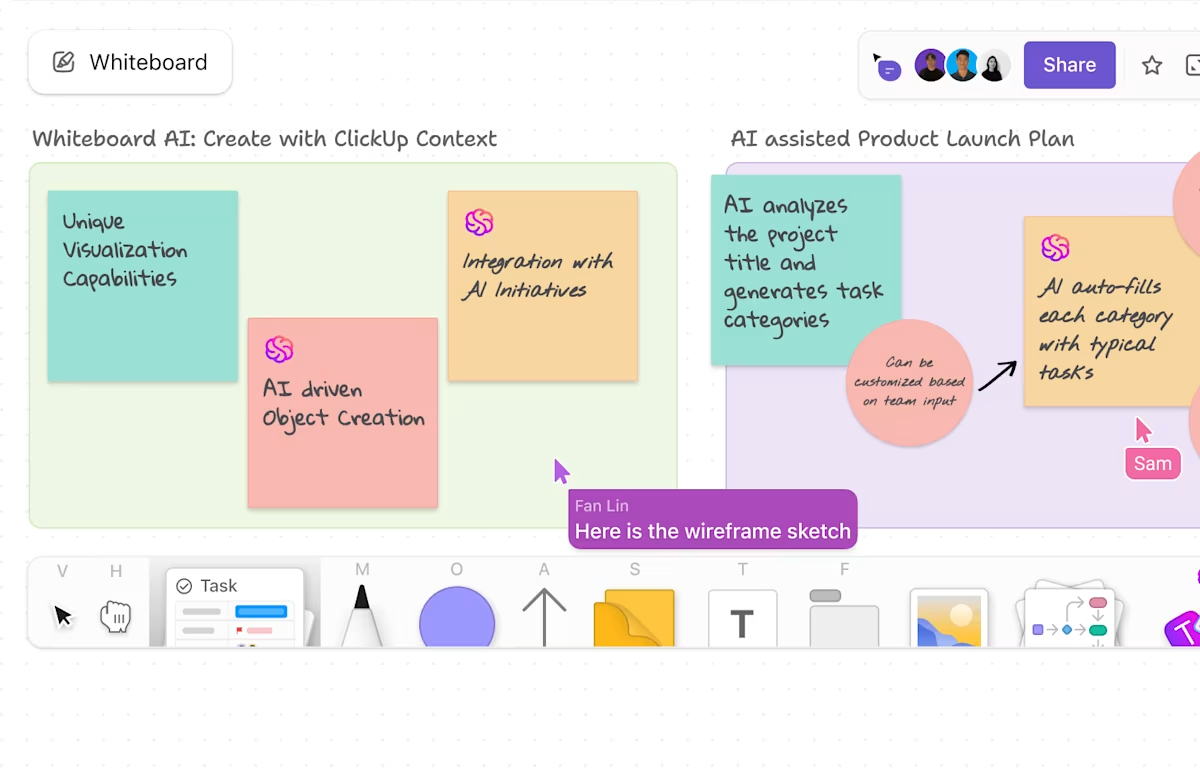
🚀 ClickUp Advantage: ClickUp Whiteboards are great for brainstorming workflows individually. You can add tables, sticky notes, and different visual elements to jot down problems that can be automated. Then, these notes directly turn into tasks or documents, giving you the clarity you need before you automate.
Now, for the fun part: choosing your tech stack. If you’re new to automation, you’ll want tools that are:
This is where many teams go wrong. They add standalone AI tools for writing, meetings, or automation, only to create more context-switching and more places for work to get lost. This results in costly AI Sprawl.
A better approach is to consolidate around a Converged AI Workspace—a single platform where projects, documents, communication, and automation live together, and AI has full visibility into what your team is working on. A platform like ClickUp!
Because when AI understands your tasks, deadlines, and conversations, it can do more than generate text or answer questions. It can actually move work forward.
📮 ClickUp Insight: Can your AI assistant or Copilot proactively flag issues? Only 9% of our AI maturity survey respondents say their AI can anticipate and resolve issues independently.
That’s because most AI tools operate within disconnected apps and have zero visibility into dependencies or blockers.
When an AI system can’t visualize the connections between workflows, it can’t spot risks early or help teams stay ahead.
ClickUp Brain operates within a Converged AI Workspace where dependencies, deadlines, and project progress are all connected. It can inform you about what was discussed in last week’s meeting, which tasks are now delayed, and even help you readjust your weekly schedule based on the defined priorities.
You don’t need to overhaul your entire workflow to see results. Here’s a mini-automation you can try this week:
Run it for a few days to see if it’s working as expected. Make tweaks if needed.
🔍 Did You Know? Long before calendar apps like Google Calendar or Outlook existed, professionals relied heavily on physical paper organizers and desk planners to manage appointments, deadlines, and tasks.
Products like Day-Timer and similar datebooks were standard tools for office scheduling—so much so that early personal information manager software like Borland Sidekick (1980s) was designed to replace paper calendars and planners by offering a digital appointment book alongside notes and reminders.
Now that you’ve built a system, it’s time to bring people into it:
🚀 ClickUp Advantage: Record a ClickUp Clip to explain your AI setup, and ClickUp Brain will automatically transcribe and summarize it. So even if someone joins later or forgets the details, they can just search and get what they need.
Here are some AI hacks to use your new automation system effectively:
Too often, teams rush to adopt automation without mapping out processes, defining ownership, or validating outputs. The real benefit of AI comes from how you implement it, not just what you automate.
Here are some common mistakes to avoid and solutions:
📮 ClickUp Insight: 21% of people say more than 80% of their workday is spent on repetitive, mundane tasks. And another 20% say repetitive tasks consume at least 40% of their day.
That’s nearly half of the workweek (41%) devoted to tasks that don’t require much strategic thinking or creativity (like follow-up emails 👀).
ClickUp AI Agents help eliminate this grind. Think task creation, reminders, updates, meeting notes, drafting emails, and even creating end-to-end workflows! All of that (and more) can be automated in a jiffy with ClickUp, your everything app for work.
💫 Real Results: Lulu Press saves 1 hour per day, per employee using ClickUp Automations—leading to a 12% increase in work efficiency.
AI takes a surprising amount of weight off your shoulders. However, automation must live within your workspace, not scattered tools.
ClickUp, the world’s first Converged AI Workspace, is the perfect tool to give you everything you need in one workspace. With ClickUp Brain that helps you write, summarize, and format text while taking care of routine tasks, you get an AI assistant that thinks for you.
Pair that with ClickUp’s Project Management, Automations, and Agents, and you’re no longer stitching tools together—you’re running work on an intelligent system that scales with your team.
Sign up to ClickUp for free today and try it for yourself! ✅

© 2026 ClickUp

There’s an easier way. Try a free AI Agent in ClickUp that actually does the work for you—set up in minutes, save hours every week.