
Sorry, there were no results found for “”
Sorry, there were no results found for “”
Sorry, there were no results found for “”
Creating fillable forms in Google Docs can simplify data collection and make it easy for respondents to submit information online.
Whether gathering feedback, conducting surveys, or organizing event registrations, a well-designed fillable form streamlines the process and ensures you get the information you need.
Google Docs is a simple and free alternative to popular tools like Microsoft Word or PDF editors for designing a fillable form. While those options might offer more features, Google Docs is easy to use and works well with other Google tools.
In this guide, we’ll walk you through the steps to create a fillable form in Google Docs. We will also share an additional tool to elevate form designing and creation.
1. What is the easiest way to create a fillable form in Google Docs?
You can build a fillable form by inserting tables, customizing table properties, and adding checklists or dropdown menus for structured responses.
2. Can Google Docs convert PDFs into fillable forms?
Yes—upload your PDF to Google Drive, open it in Google Docs, and recreate form fields using tables, checklists, and dropdowns.
3. What are the limitations of creating forms in Google Docs?
Google Docs lacks advanced question types, branding controls, analytics, integrations, and real-time collaboration features needed for professional survey creation.
4. What’s a better alternative for designing and managing fillable forms?
ClickUp Forms offers drag-and-drop form building, conditional logic, branding options, automatic task creation, and integrated analytics.
5. How does ClickUp improve the complete form-to-workflow process?
It converts every submission into a task, syncs data instantly, supports custom fields, and lets teams collaborate and analyze responses in one workspace.
You can create a fillable form in Google Docs by opening a new document, inserting tables to structure fields, and customizing table properties for clean formatting. Checklists and dropdown menus help you capture multiple-choice or single-select answers. You can also import a PDF into Google Docs, convert it into an editable format, and rebuild form fields using tables and dropdowns. For a smoother experience, ClickUp’s free Form Template offers a faster, customizable alternative for professional form creation.
Fillable forms created on Google Docs are great for vanilla PDF forms. You can build one from scratch, convert it from a PDF or into a PDF format, or use an add-on. Many users find it easier to use than Google Forms to create a survey or quiz.
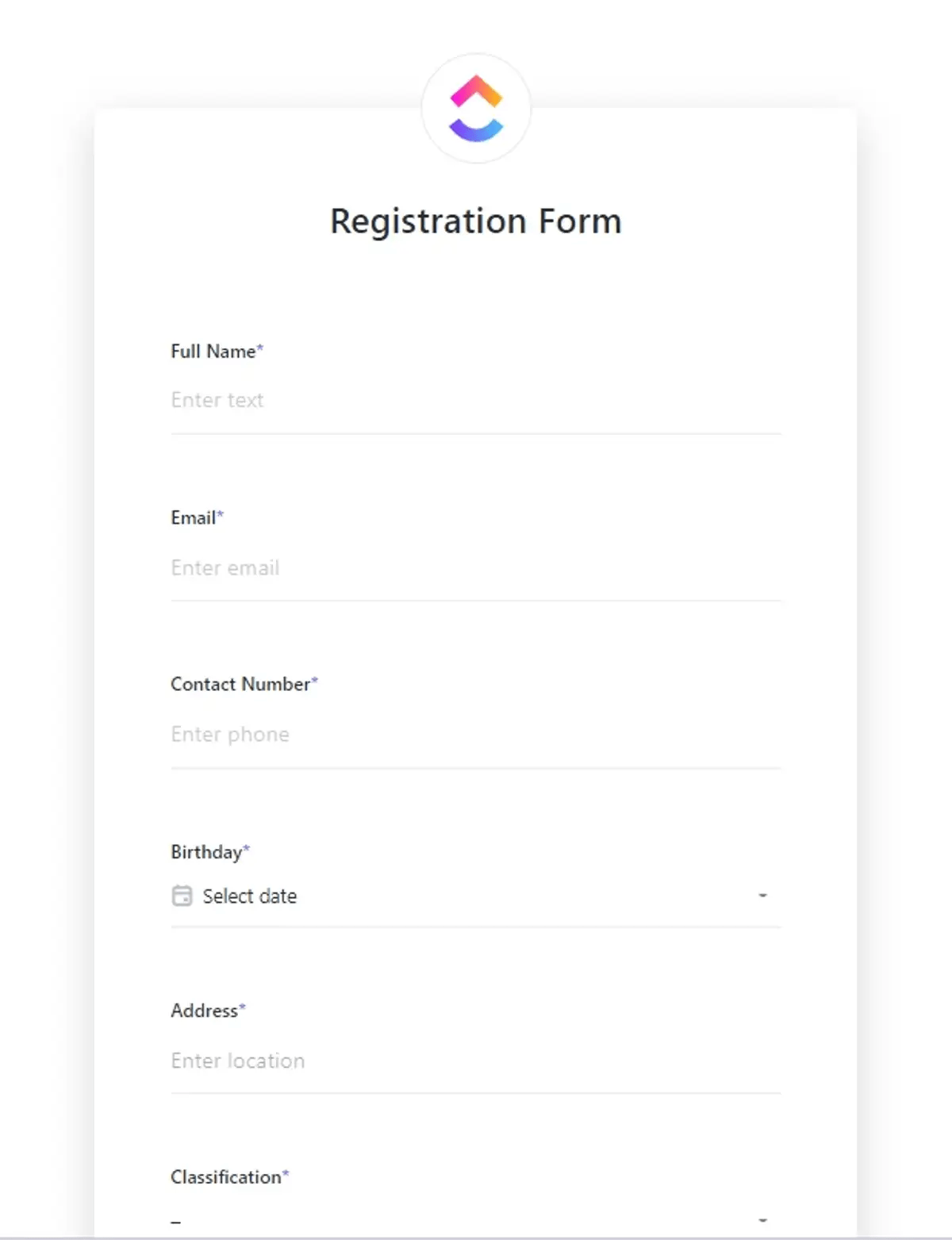
Creating fillable forms in Google Docs can be tricky. Try ClickUp’s free Form Template—easy to customize, share, and collect responses! 🚀
Creating a fresh, fillable form in Google Docs is straightforward. It has four simple steps.
The first step to creating a fillable form is to open a new Google Doc. If you’re already familiar with the process, you can go to an existing Google document.
For those unfamiliar with the process, here’s what you need to do:
The next step is to add tables to your document. Tables are versatile and keep everything divided into neat sections. To add a table:
This will automatically insert a table into your document.
The series of text boxes can capture information such as first name, last name, email address, etc. A single text box can capture sizeable paragraphs of information such as extensive descriptions.
💡 Pro Tip: Divide the fillable form into bite-sized sections and have a small table for each section.
Here, you’ll find the ‘Table Properties’ that you can tweak to create a beautiful-looking fillable form.
You can also customize a table’s properties to design the fillable form and the fillable PDFs in Google Docs to your style.
Now, let’s understand how to add checklists and dropdown menus.
Surveyors use checklists to help form recipients select multiple options. Suppose you’re conducting user research for a coffee brand. You want your recipients to pick their go-to coffee brands, so you can add Starbucks, Folgers, Lavazza, etc.
Go to the checklist button as shown in the image below. Select it to create your desired set of options for your questions.
After selecting the checklist and adding your choices, it’ll look something like this.
The dropdown list is just the opposite of a checklist. It allows users to select only one option from multiple choices. That works better with dichotomous questions like Yes/No, Coffee/Tea, etc.
Here’s how you can do it for your fillable form:
You can create a new template, add options, save it to the list of templates, and insert it into the document.
Now, you can assemble a fillable PDF of your own.
Another feature of Google Docs is that it allows you to create fillable documents and forms by importing PDFs. Let’s see how to do that.
If you’re tasked with creating fillable PDFs and forms, it’s easy if you have access to Google Drive and Docs.
Here’s how to do it:
Google Docs forms lack advanced design options like themes, branding, and logos, restricting professional surveys compared to dedicated tools. They offer only basic question types without rating scales, matrix questions, or conditional logic, making complex surveys challenging. Analytics, real-time collaboration, and integrations with CRM or email tools are absent, requiring manual data handling in Sheets or Excel
Creating fillable forms for surveys with Google Docs can be tricky. Here are five reasons why the standard Google form falls short for some uses:
Google Docs lacks advanced survey design features found in dedicated tools.
Other platforms offer customizable templates, themes, and branding options that can give your surveys a professional and polished look, a feature that Google Docs’ basic formatting restricts.
Imagine you wish to create a retail industry survey that adheres to all your branding guidelines. The survey should have your colors and your company logo. The survey must also use watermarked retail store item designs representing the retail industry to make it more relatable. With Google forms, you can’t achieve this.
By using proprietary survey tools, you can effortlessly select a theme, choose brand colors, and upload your logo to achieve the desired look and feel of the survey.
Unlike Google Docs, which only allows for simple multiple-choice and text-entry questions, specialized survey tools like SurveyMonkey, Typeform, and ClickUp offer a wide range of question types, such as rating scales, matrix questions, and conditional logic.
Suppose you want to conduct an employee survey on whether your employees own pets and whether you should offer pet care. Creating a complex study with conditional logic on Google Docs can be challenging.
However, with specialized survey tools like ClickUp, this process is straightforward and intuitive, allowing you to create tailored surveys for different research needs easily.
Google Docs does not offer analytical tools for survey responses, such as summary tables and charts. You have to analyze the data collected separately manually. Later, you can copy the analysis to Google Docs to present the inferences.
Unlike other tools, Google Docs also does not provide real-time data visualization, cross-tabulation, sentiment analysis, and custom reporting. These features are essential for gaining deeper insights and making data-driven decisions.
For example, imagine you’ve surveyed 100 people on their choice of beverage and the reason for their choices. If you do it on Google Docs, you must make 100 copies of the survey, validate and copy the data to a data processing system like Excel or Google Sheets, and analyze it manually.
However, in proprietary tools like ClickUp, data is transferred seamlessly to a table and analyzed automatically based on the question type. The data analysis can then be presented in real time to stakeholders, enabling you to make data-driven decisions.
Google Docs’s collaboration functionality on surveys is primarily document-centric, lacking robust collaborative features specific to survey creation and analysis.
Other tools offer features like team collaboration in real-time, role-based permissions, comment threads on individual responses, and team dashboards, enhancing teamwork and efficiency in survey projects.
Suppose you’re conducting a user research survey for a new model of washing machine. Multiple teams will want answers to their specific questions. The product team will need information on the washing machine’s functioning and the sales team will need information on the overall sales experience and pricing. And you can’t work on one section after another. Every team must work on it simultaneously without interfering with other survey sections. Here’s where form creation on Google Docs fails.
Unlike Google Docs, which has limited integration capabilities, specialized survey tools seamlessly integrate with various platforms such as CRM systems, email marketing tools, and analytics software. This seamless integration enhances automation, data syncing, and overall workflow efficiency, making you more productive and effective.
For example, you might want to survey the experience of customers who have been with you for over a year and have a yearly turnover of more than $100,000. If you have access to a CRM, you can access this information. Once you create your fillable forms on your survey tool, you can call the data from the CRM and send it to customers with a click.
ClickUp provides a stronger alternative to Google Docs with its drag-and-drop Form Builder, conditional logic, branding tools, and embedded forms. It supports advanced Custom Fields, automatic task creation, and reusable setups through the Feedback Form Template. Teams can instantly share forms, manage submissions across List, Board, and Calendar views, and streamline follow-ups. With, ClickUp Docs, and ClickUp Brain, they can analyze data, collaborate in real time, and build smarter, customized survey workflows.
As discussed earlier, creating fillable forms in Google Docs has several limitations. ClickUp, an all-in-one project management tool, is the best Google Forms alternative out there.
Consider ClickUp your ‘everything work’ app, which prioritizes project management and enables close collaborations and access control features to create fillable forms and manage form fields. ClickUp’s feature-rich ‘Form view’ for creating surveys sets it apart from other survey tools with limited features.
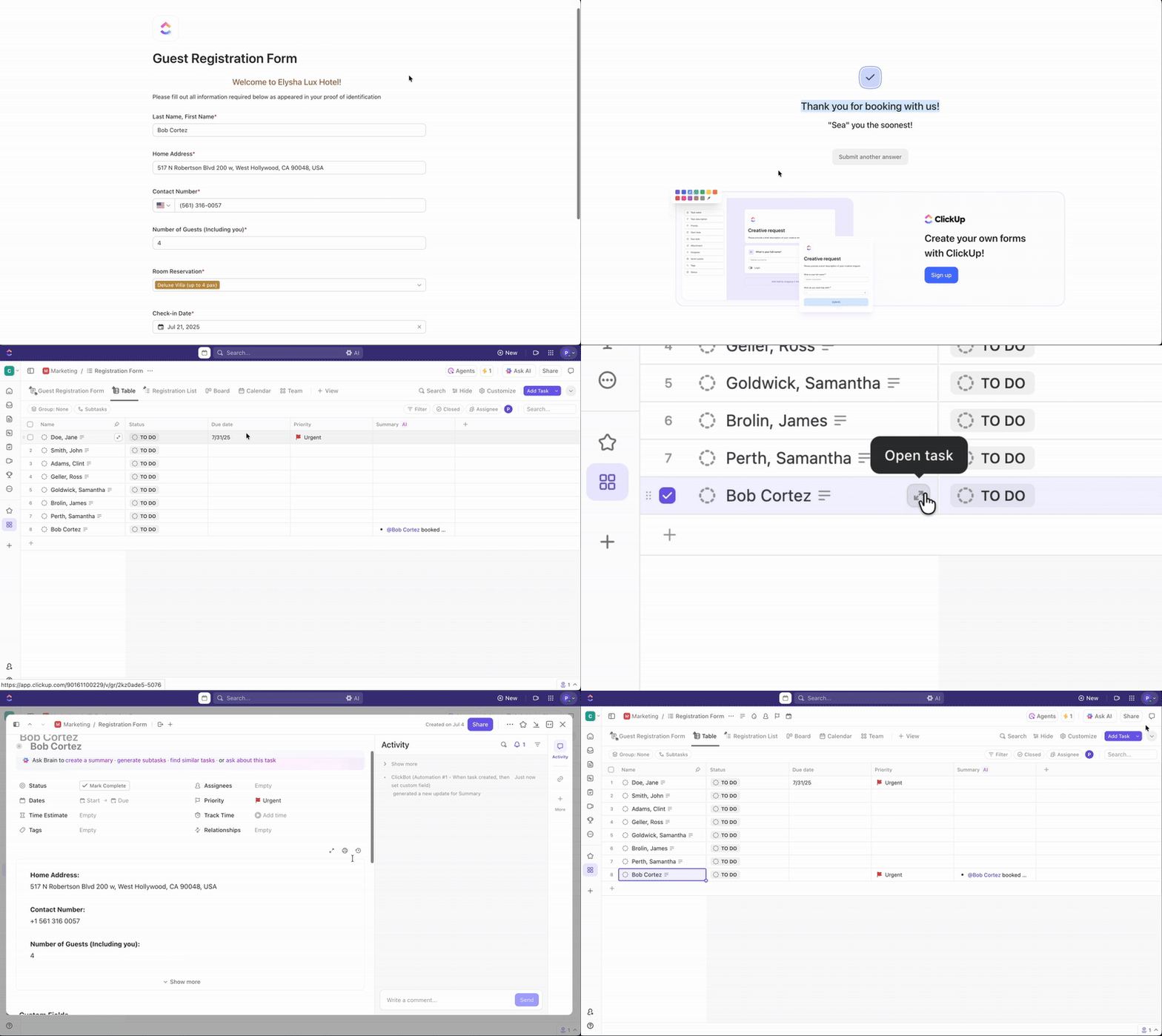
ClickUp Form Builder gathers all the data from fillable form fields and responses and converts it into a task. It can also display the data on a graph, unlike Google Docs, where you have to transfer all the details entered into the fillable document or forms into a spreadsheet before visualizing it in a graph or chart.
Here are some exceptional ClickUp Forms features:
There’s more to ClickUp than meets the eye, so let’s explore its features in detail and learn how to create fillable forms in ClickUp Forms.
Also Read: An Educator’s Guide to ClickUp Forms
ClickUp’s Form Builder lets you create clean, professional forms using drag-and-drop fields, conditional logic, branding elements, and custom themes. ClickUp Custom Fields supports a wide range of Custom Fields—like dropdowns, ratings, phone, email, and long text—to capture precise responses and even hide fields when needed. Every submission can automatically create tasks, and teams can streamline recurring workflows using the Feedback Form Template. Forms are easy to share via direct links or embeds, making survey distribution fast and frictionless.
Here are just some of the features that ClickUp users employ every day:
You can build professional-looking, neat, fillable forms to collect any information you need for the survey. You can also assign tasks to take proactive action after form completion.
The conditional logic allows building intelligent forms to support different templates for as many use cases as needed.
Here’s a list of things you can do in the Form view:
Watch this quick tutorial to get a better idea of creating custom forms in ClickUp.
ClickUp Custom Fields add variety to and help create the correct responses to questions in the survey. Here are the most used custom fields:
These fields help capture the right kind of response and make it easy for responders to answer.
You can hide specific fields like names and email addresses. For instance, if you’re collecting customer feedback, you’re not required to show the customer’s name and email address, which you can prefill in the survey and keep hidden.
ClickUp can automatically create tasks for other users as it receives responses. You can assign these tasks to one person or multiple assignees at a time or to other users in a specific group. You can filter and sort your tasks by assignees in the List, Board, and Calendar view.
Task descriptions can also include the form information so that you can find tasks quickly and work on similar requests.
📮ClickUp Insight: 92% of knowledge workers risk losing important decisions scattered across chat, email, and spreadsheets. Without a unified system for capturing and tracking decisions, critical business insights get lost in the digital noise.
With ClickUp’s Task Management capabilities, you never have to worry about this. Create tasks from chat, task comments, docs, and emails with a single click!
Email is out, ClickUp Forms are in!
Spending your time doing repetitive tasks is never ideal. ClickUp lets you templatize anything that you need to use repeatedly.
For example, getting customer feedback is a repeated task. So, ClickUp’s Feedback Form Template allows you to customize and use it repeatedly.
Here’s what task templates can do for you:
You can share the forms you created by clicking the copy icon. Then, copy the link to the clipboard and share it on social media, personal messaging, and anywhere else you can think of.
In just four steps, you can set up your feedback form, experience survey, or discovery question survey on ClickUp. Here’s how:
Also Watch: ClickUp Form View Tutorial
Now, you’re ready to collect data for your survey. Share the form with your audience by sharing the direct link or embedding it to the landing page through the code.
ClickUp Dashboard is another super intuitive feature and is easy to set up.
Additionally, you can create your dashboard from scratch or choose one from ClickUp Dashboard templates.
ClickUp Docs helps teams collaborate during the survey ideation stage by enabling real-time editing, comments, shared documents, and action-item tracking. It keeps research ideas organized and easily transforms notes into tasks. With ClickUp Brain, teams can instantly generate tailored survey questions aligned with their goals.
Throughout this journey, we learned about creating forms, sharing them, and analyzing the survey results through ClickUp’s arsenal.
Before drafting a business survey, there is also an ideation stage. In this stage, multiple teams come together to decide on the survey’s hypotheses and relevant questions. This is where ClickUp Docs can be super helpful.
ClickUp Docs is an incredible tool that enables you, the research expert, to create, share, and store company or project-related documents with your in-house or virtual team.
You can collaborate with others to make real-time edits to docs, mention people using comments, delegate action items, and transform the text into manageable tasks to keep track of ideas. Share the document securely with your team while keeping the work organized.
With the integration of the all-powerful AI assistant ClickUp Brain, teams can craft meaningful survey questionnaires quickly tailored to the survey’s intent. Think of it as your personal assistant trained to create copy based on a specific business prompt.
While Google Forms offers basic functionalities, it lacks advanced survey design features, offers limited question types, and does not provide integrated analytical tools. Additionally, it has basic collaboration features and restricted integration capabilities compared to specialized survey tools.
Why settle for less when you can use ClickUp?
It’s a comprehensive solution for creating and managing forms. Its form builder allows you to drag and drop elements effortlessly, customize forms to match your brand, and share them with your team.
So, what are you waiting for?
Sign up to ClickUp today and transform your forms!
© 2025 ClickUp