
Sorry, there were no results found for “”
Sorry, there were no results found for “”
Sorry, there were no results found for “”
If you don’t write it down, it doesn’t exist.
It’s true! Effective note-taking shapes how teams collaborate and communicate.
As a candidate for a role, have you ever asked a company about its meeting culture? It speaks volumes about their collaboration and task management.
Green flags include:
Here’s where visual note-taking apps like Microsoft Loop and OneNote excel. They help streamline your thoughts, organize tasks, and enable team collaboration.
But which one fits your working style best? In this blog, we’ll break down Microsoft Loop vs. OneNote to help you decide. If you need more than just notes, ClickUp combines tasks, docs, and collaboration—all in one place.
| Feature | Microsoft Loop | OneNote |
| Rich multimedia support | Supports various multimedia elements | Allows embedding of images, audio, and videos |
| Advanced task management | Includes task assignment and progress tracking | Lacks built-in project management features |
| Microsoft 365 integration | Deep integration with Microsoft 365 apps for seamless collaboration | Integrates with Microsoft apps but more static |
| Collaborative Workspaces | Provides dedicated project hubs and flexible workspaces | Primarily for individual note organization |
| Offline Access | Requires internet for full functionality | Offers offline access to notes |
| AI-powered features | Offers AI-driven enhancements for productivity | Does not include AI-powered features |
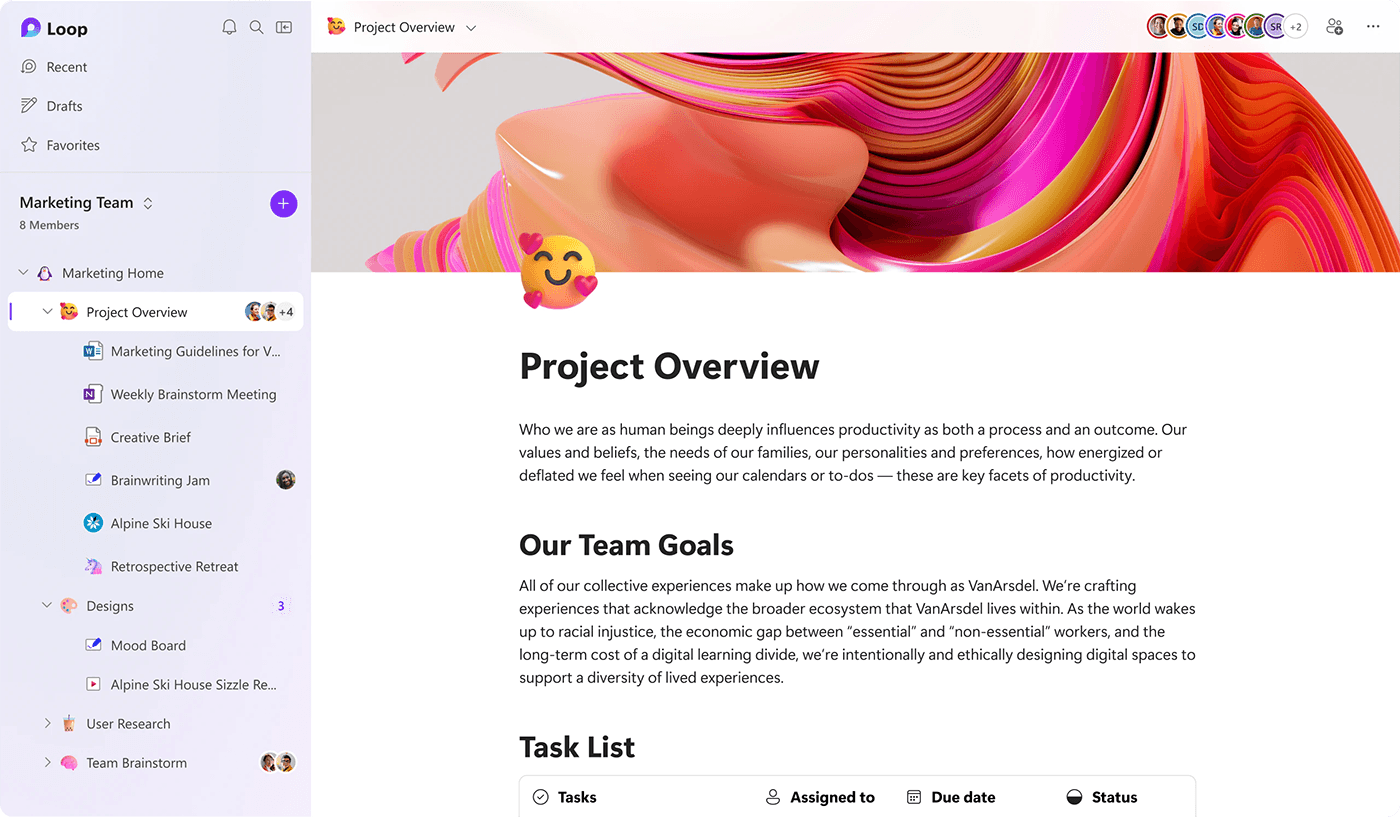
Microsoft Loop is a collaborative productivity tool within Microsoft 365. It lets teams create and share content in real-time using interactive Loop components, seamlessly integrating across apps like Teams, Outlook, and Word.
Introduced on November 15, 2023, Microsoft Loop brings powerful real-time co-authoring through its Fluid Framework, allowing multiple users to collaborate on documents and tasks simultaneously.
Microsoft Loop transforms your team’s co-creation experience by connecting teams, content, and tasks across all your tools and devices. It also lets you organize your ideas, content, and resources as your project develops.
Loop components are small, movable pieces of content that stay up-to-date no matter where you put them. Drop a task list in Teams, embed it in an email, or add it to a Word doc—any changes sync instantly across all locations.
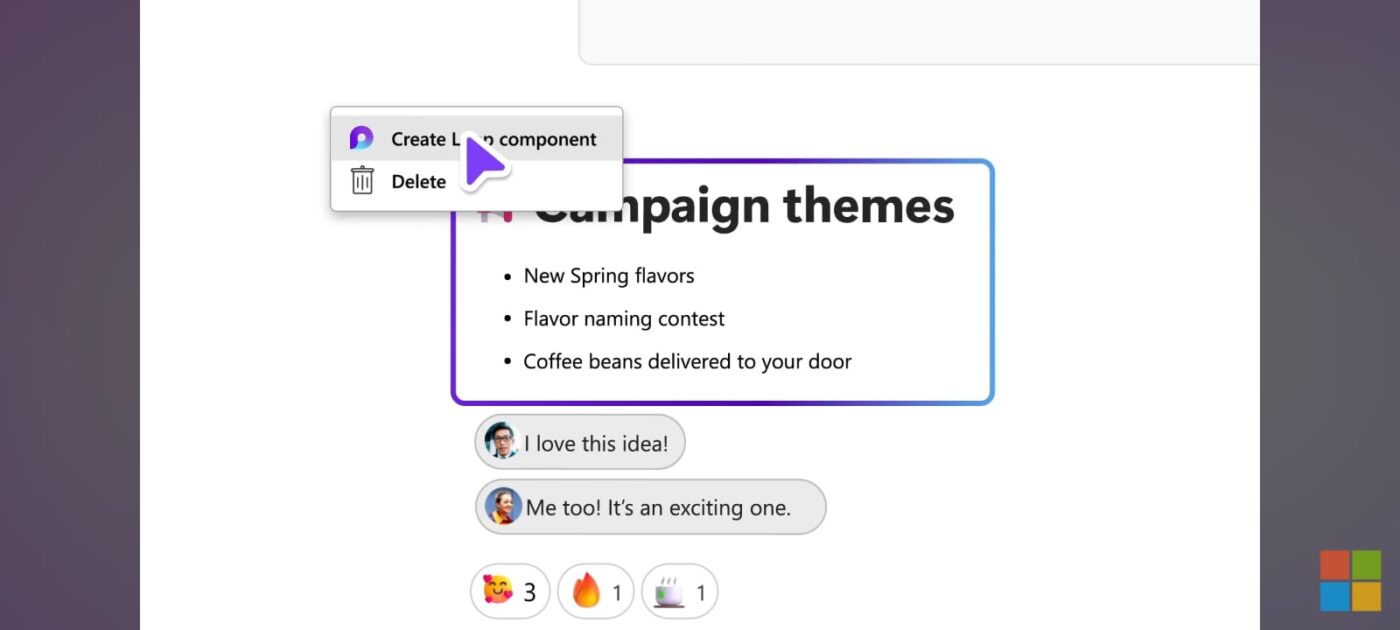
Here’s a list of components that you can create:
What’s neat is how these components connect with other Microsoft tools. For example, if you make a task list, it will automatically sync with Planner and To Do.
🧠 Fun Fact: Microsoft Loop acts like a magic creativity wand.🪄 Just type “/” to instantly add labels, live dates, images, emojis, tables, checklists, and more!
The Loop Workspaces is a standalone app you can access through the Microsoft Loop web app. Use it to:
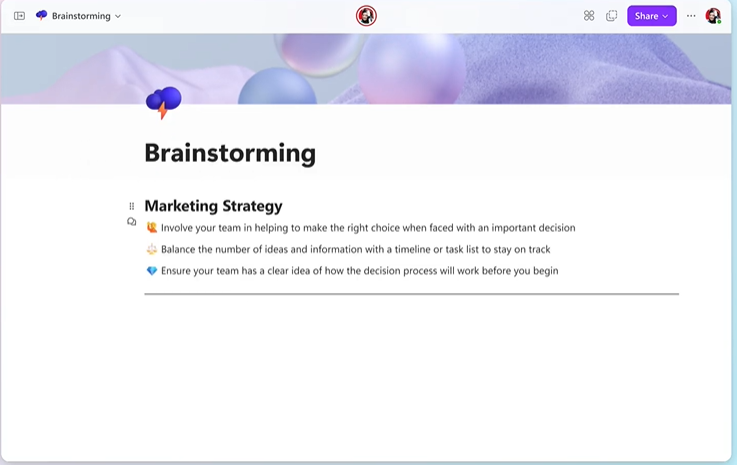
Pages in Loop provide a flexible environment, functioning like digital whiteboards that adapt to your needs. Add people, tasks, links, and data—all editable in real time.
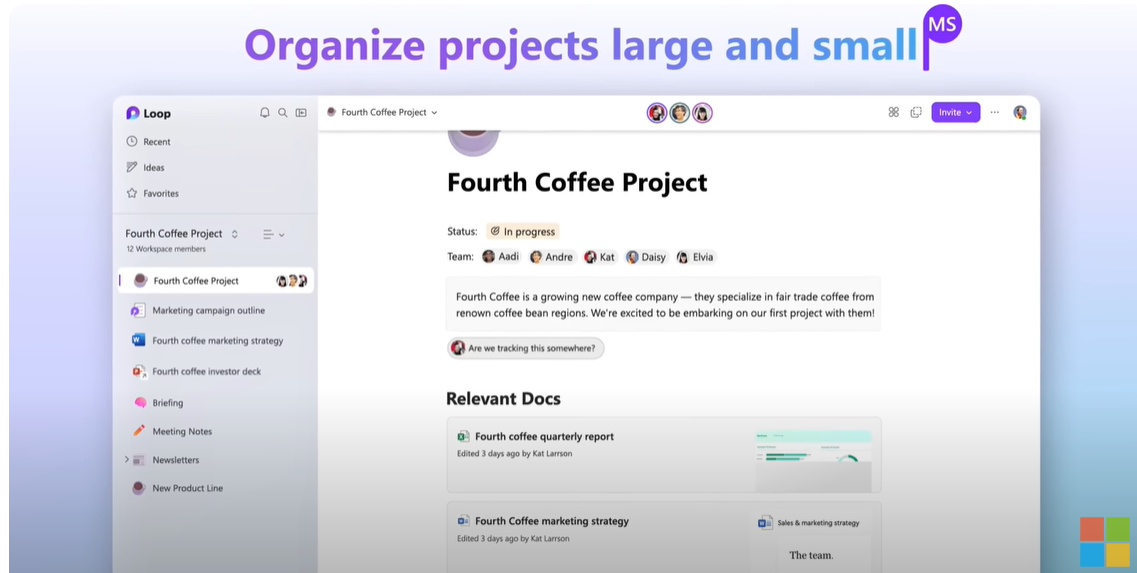
With Loop Pages, teams can:
Loop plays nice with the entire Microsoft ecosystem. Whether it’s Microsoft Teams, documents, spreadsheets, or presentations, you can effortlessly work together within the Loop workspace, eliminating the barriers between different productivity tools:
Stay on the same page—literally. When someone edits a new Loop component:
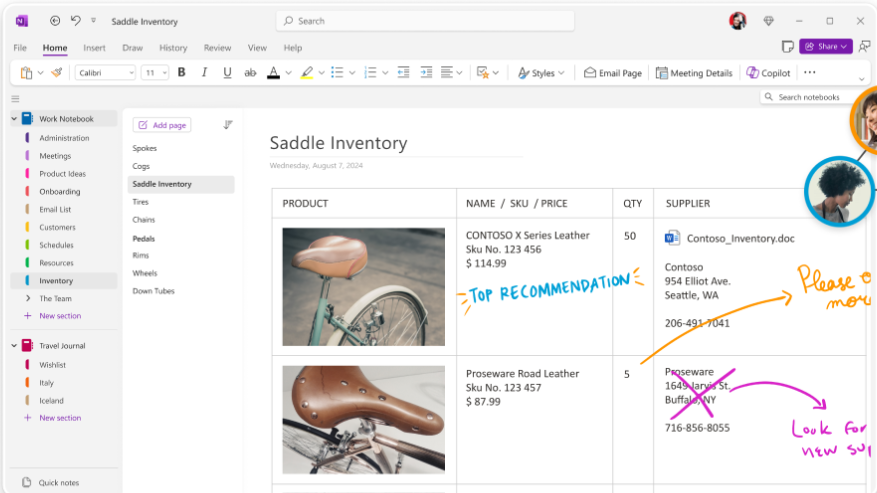
Microsoft OneNote is a professional note-taking app that lets you capture, organize, and share information across devices. It offers a flexible, unified workspace for jotting ideas, managing tasks, and collaborating.
With features like multimedia support, rich text formatting, and seamless integration with other Microsoft apps, OneNote is ideal for both personal and professional use.
Unlike standard word processors, which force you into rigid formats, Microsoft OneNote gives you a blank canvas to work on. You can click any spot on the page to type, sketch, or add multimedia—the space adapts to how you naturally organize information.
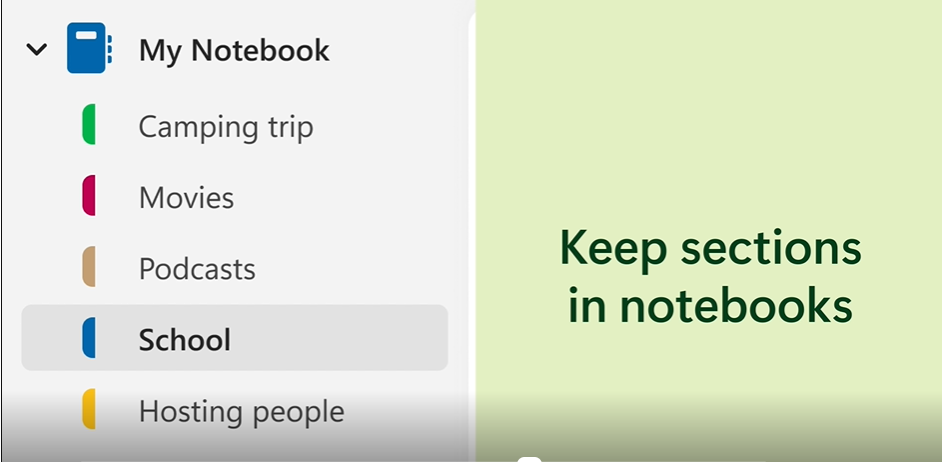
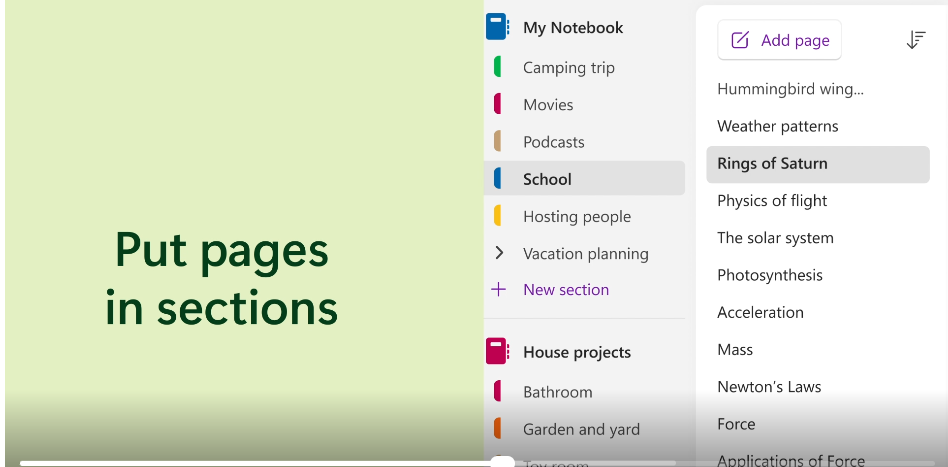
OneNote mimics the structure of a traditional binder, organizing your notes into notebooks, sections, and pages. You can create multiple notebooks—whether it’s for work projects or personal planning. 📑
Within each notebook, you can add sections like ‘Meeting Notes,’ ‘Project Ideas,’ ‘Camping Trip,’ etc., and fill them with individual pages, making it easy to stay organized and efficient.
Who says your notes have to be just text? With OneNote, you can bring them to life! Add images, tables, spreadsheet data, hand-drawn sketches, record audio, or embed videos into your pages.
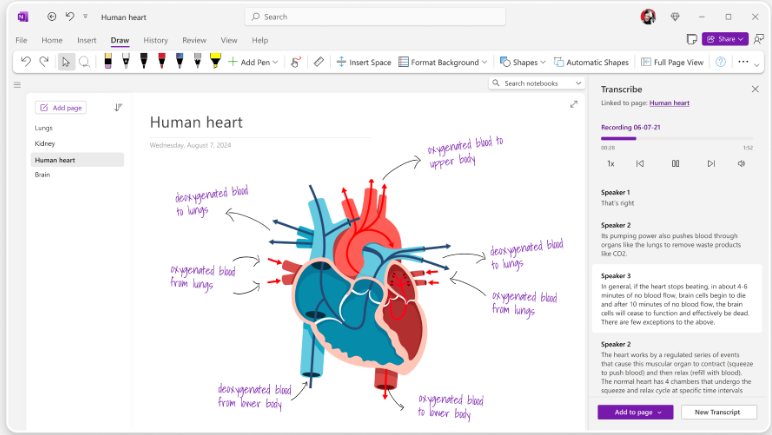
Whether capturing a lecture, saving a tutorial video, or using visuals to map your ideas, OneNote makes it easy to keep everything in one creative, interactive space.
Have you ever spent ages hunting for a specific note, only to come up empty-handed? Well, OneNote’s powerful search feature lets you find what you need in seconds. It can find words:
From quick reminders to buried meeting notes, OneNote ensures you can locate everything effortlessly, so you spend less time searching and more time getting things done.
👀 Did You Know? Over 26% of Americans say they’re ‘almost constantly’ online, highlighting the growing importance of digital note-taking tools like OneNote in our daily lives!
If you’ve been trying to pick between Microsoft Loop and OneNote, you’re likely weighing their different approaches to team collaboration and note organization. Let’s break down how they stack against each other to help you pick the right one. 💁
Here’s a quick checklist table comparing their key features:
| Features | Microsoft Loop | OneNote |
| Real-time co-authoring | ✅ | ✅ |
| Free-form canvas | ✅ | ✅ |
| Notebook structure | ❌ | ✅ |
| Rich multimedia support | ✅ | ✅ |
| Advanced task management | ✅ | ❌ |
| Seamless integration with Microsoft 365 apps | ✅ | ✅ |
| Collaborative workspaces | ✅ | ❌ |
| Offline access | ❌ | ✅ |
| Search across content | ✅ | ✅ |
| Version history for notes | ✅ | ✅ |
| Tagging and organization | ✅ | ✅ |
| Mobile app support | ✅ | ✅ |
| AI-powered features | ✅ | ❌ |
Not convinced yet? Here’s a more in-depth understanding of both tools.
Microsoft Loop focuses on three main sections: Components (reusable bits you can embed anywhere), Pages (flexible canvases for work), and Workspaces (where everything lives). These parts are designed to move and change as your team needs them.
OneNote follows a familiar structure: Notebooks contain ‘Sections,’ which hold ‘Pages.’ It’s more fixed than a physical notebook system, which makes it great for keeping information tidy.
🏆 Winner: OneNote takes it for a more familiar, easy, and structured way of organization.
Loop fits into Word, Excel, Teams, and other Microsoft 365 apps. You can pull in data and content from across these tools to create a central workspace, allowing for real-time collaboration.
OneNote connects, too, but more as a place to store embedded documents than an interactive hub. While you can include content from other Microsoft apps, it stays more static. It can handle multiple editors but is more about sharing reference materials.
🏆 Winner: Loop’s deeper integration and real-time collaboration tools give it the edge.
Loop comes ready to handle project management—you can assign tasks, set due dates, and monitor progress. This feature makes it particularly useful for teams juggling complex projects with many moving parts.
OneNote doesn’t include built-in project management features. While remarkable for information organization, it’s not designed to track tasks and project timelines.
🏆 Winner: Choose Microsoft Loop here for project management capabilities.
Loop offers templates and components you can tailor to your specific needs, whether you’re running creative projects or managing complex processes.
OneNote offers pre-formatted templates, too, but they are mainly used for organizing notes. While you can arrange information how you like, it’s less adaptable for creating different workflows with limited customization.
🏆 Winner: Loop’s broader customization options give it the lead.
We turned to Reddit to explore where users stand on the Microsoft Loop vs. OneNote debate, and many shared insights on the strengths of each tool.
A user comments on the collaboration capabilities of both the tools:
I’m using both. Loop for collaboration and OneNote for everything else. Now that OneNote is beginning to support Loop integration, it’s the best of both worlds.
Another one, favors OneNote for search functionality:
Loop is seriously lacking in the search functionality. Nowhere near as useful and accurate search as OneNote.
Another user believes both serve different use-cases:
I’d stick with OneNote for personal use and maybe consider creating a Loop for group projects
If you think Microsoft Loop and OneNote are impressive, wait to see what ClickUp can do.
When it comes to ClickUp vs. Microsoft Loop and OneNote, ClickUp steals the spotlight by blending Loop’s collaboration and OneNote’s organization.
ClickUp, the everything app for work, single-handedly manages projects, jots down notes, tracks deadlines, and creates detailed workflows that adapt to your working style and specific needs.
Whether you’re a student trying to keep track of assignments, a small business owner juggling priorities, or part of a large team coordinating projects, ClickUp has your back!
📮ClickUp Insight: Think your to-do list is working? Think again. Our survey shows that 76% of professionals use their own prioritization system for task management. However, recent research confirms that 65% of workers focus on easy wins over high-value tasks without effective prioritization.
ClickUp’s Task Priorities transform how you visualize and tackle complex projects, highlighting critical tasks easily. With ClickUp’s AI-powered workflows and custom priority flags, you’ll always know what to tackle first.
Wondering what sets ClickUp apart? Let’s see:
With ClickUp Docs, teamwork gets a whole lot easier. Its real-time document editing feature lets you assign action items, tag team members in comments, and even convert text into tasks to delegate responsibilities without a hitch.
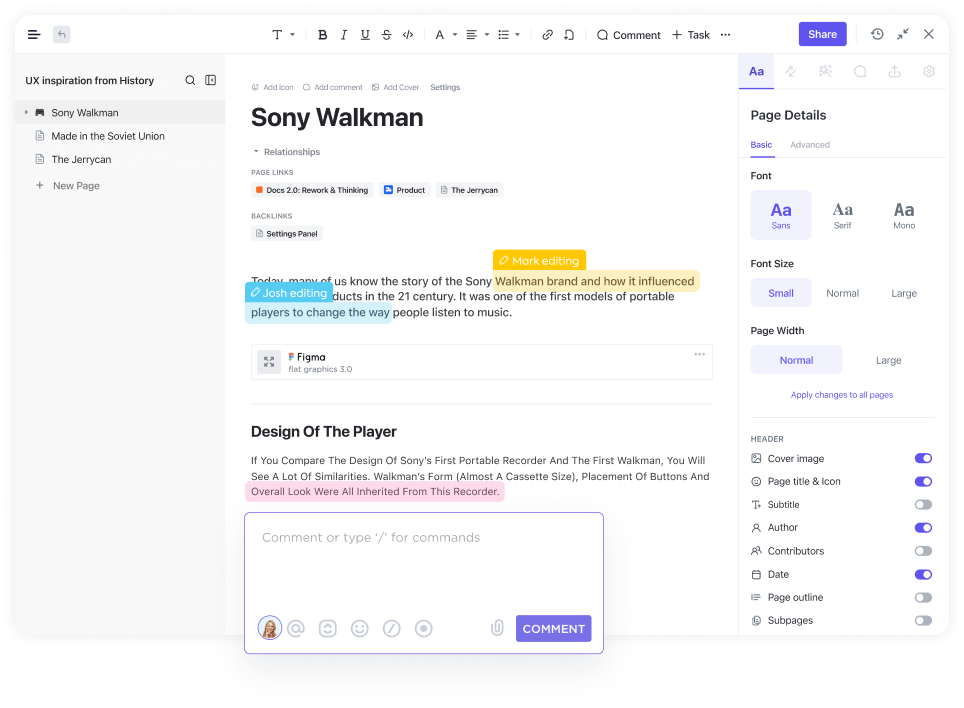
Need something more polished? Use intuitive tools like nested pages, tables, and ready-to-use templates to build verified wikis, research roadmaps, or detailed documents.
Its research and task management software supports advanced formatting, providing color-coded banners and syntax-highlighted code blocks, making ClickUp ideal for creative and technical projects.
Plus, privacy settings let you control who sees or edits your docs, keeping sensitive info secure and designed to enable collaboration with external teams.🤝
💡 Quick Hack: ClickUp Docs lets you nest unlimited subpages within a single page. Create detailed hierarchies for seamless organization.
📖 Also Read: Best Team Collaboration Software Tools
💡 Pro Tip: With ClickUp Docs, you can create unlimited subpages within a single page to build complex hierarchies and keep your work perfectly organized!
Want quick, private note-taking that works hand-in-hand with your project management? ClickUp Notepad brings a fresh take on digital notes by combining personal jotting with seamless task creation.
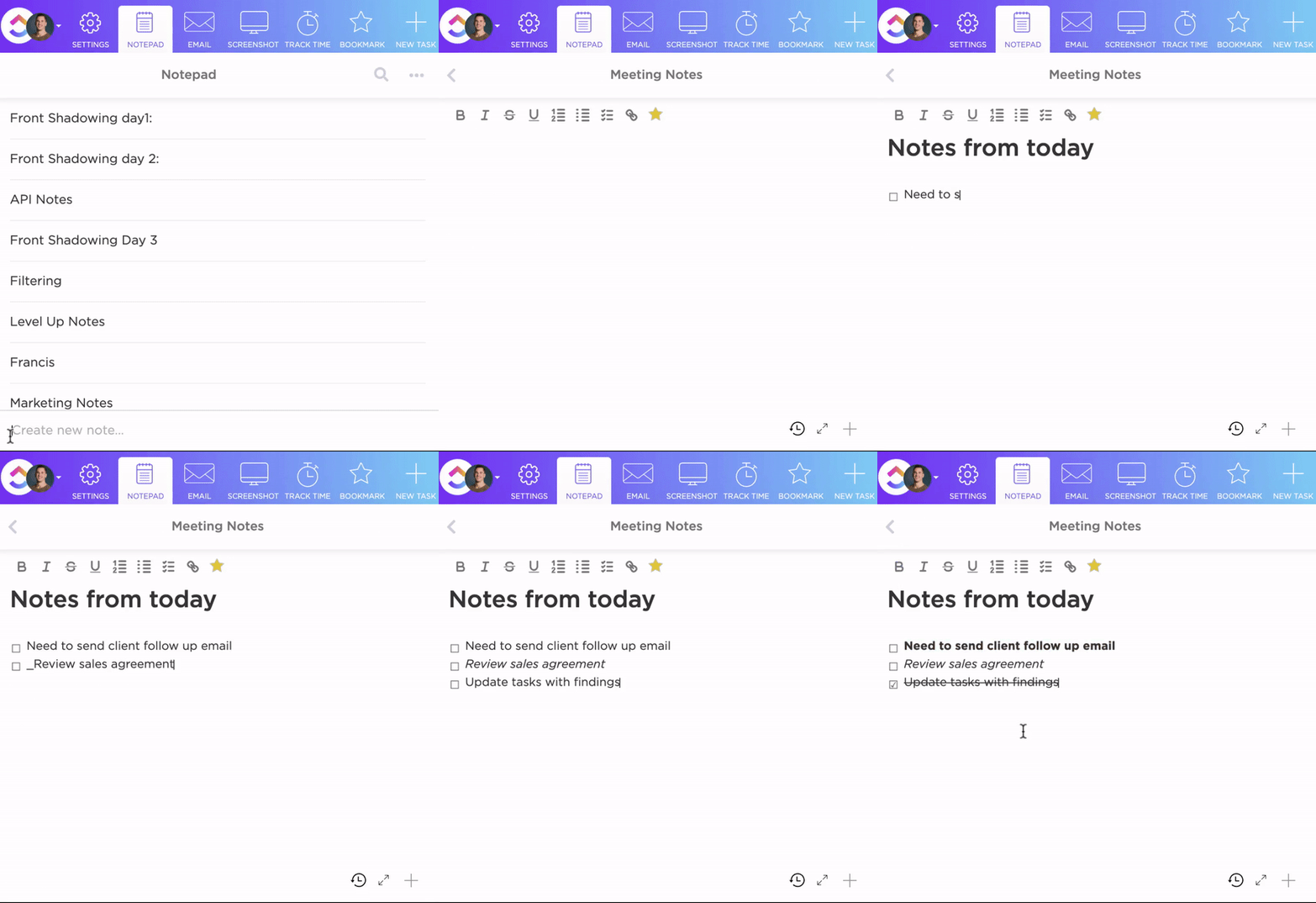
From your ClickUp workspace, you can open the Notepad through the Quick Action menu in the top-right corner. Pin it to your toolbar, and you’re ready to capture ideas on the go.
Let us explain with an example:
Taking notes during a client call
Converting notes into tasks
After the call, you can:
There’s more! Your notes are private—they’re just for your eyes. Keep them safe with ClickUp Notepad and freely brainstorm ideas or keep personal reminders without worrying about workspace visibility.
The real magic happens when you want to turn those quick notes into action items. See a great idea in your notes? Transform it into a task with a click right where you need it in your workspace.
Jazz up your notes with the help of a text toolbar and /Slash Commands that help you add:
💡 Pro Tip: Download ClickUp’s Chrome extension to capture notes while browsing. It is perfect for saving research or inspiration without switching several tabs or windows.
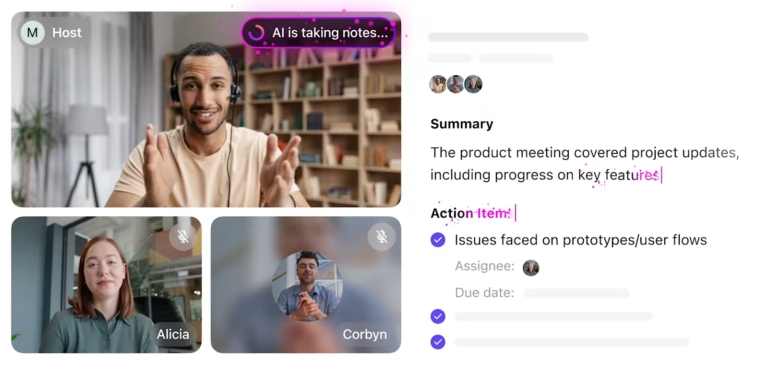
Unlock the true potential of your meetings. ClickUp’s AI Notetaker provides 10x more actionable insights from your notes
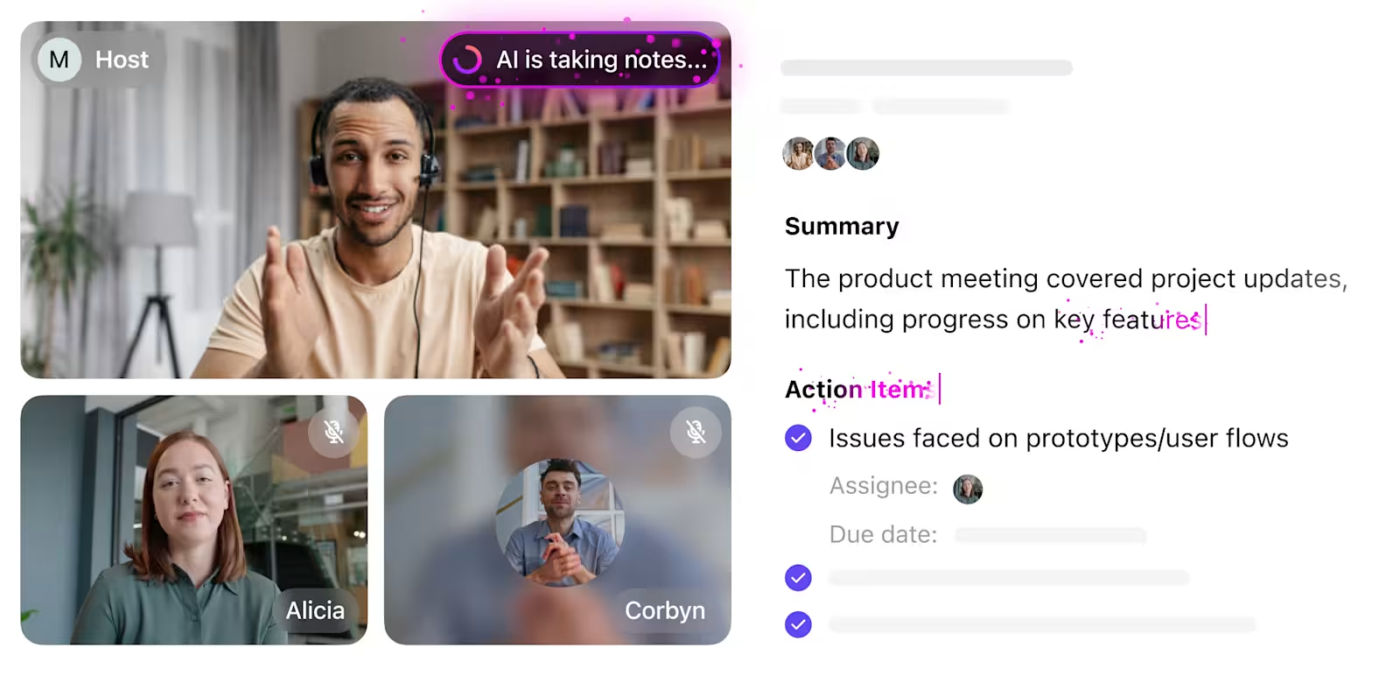
And let’s be honest, sometimes meetings are a blur. AI Notetaker fixes that:
When comparing Microsoft Loop and OneNote, the conversation often centers around how well each handles collaboration and idea organization.
But what if we tell you that there’s a tool that brings fresh perspectives and possibilities to both these areas? Meet ClickUp Whiteboards!
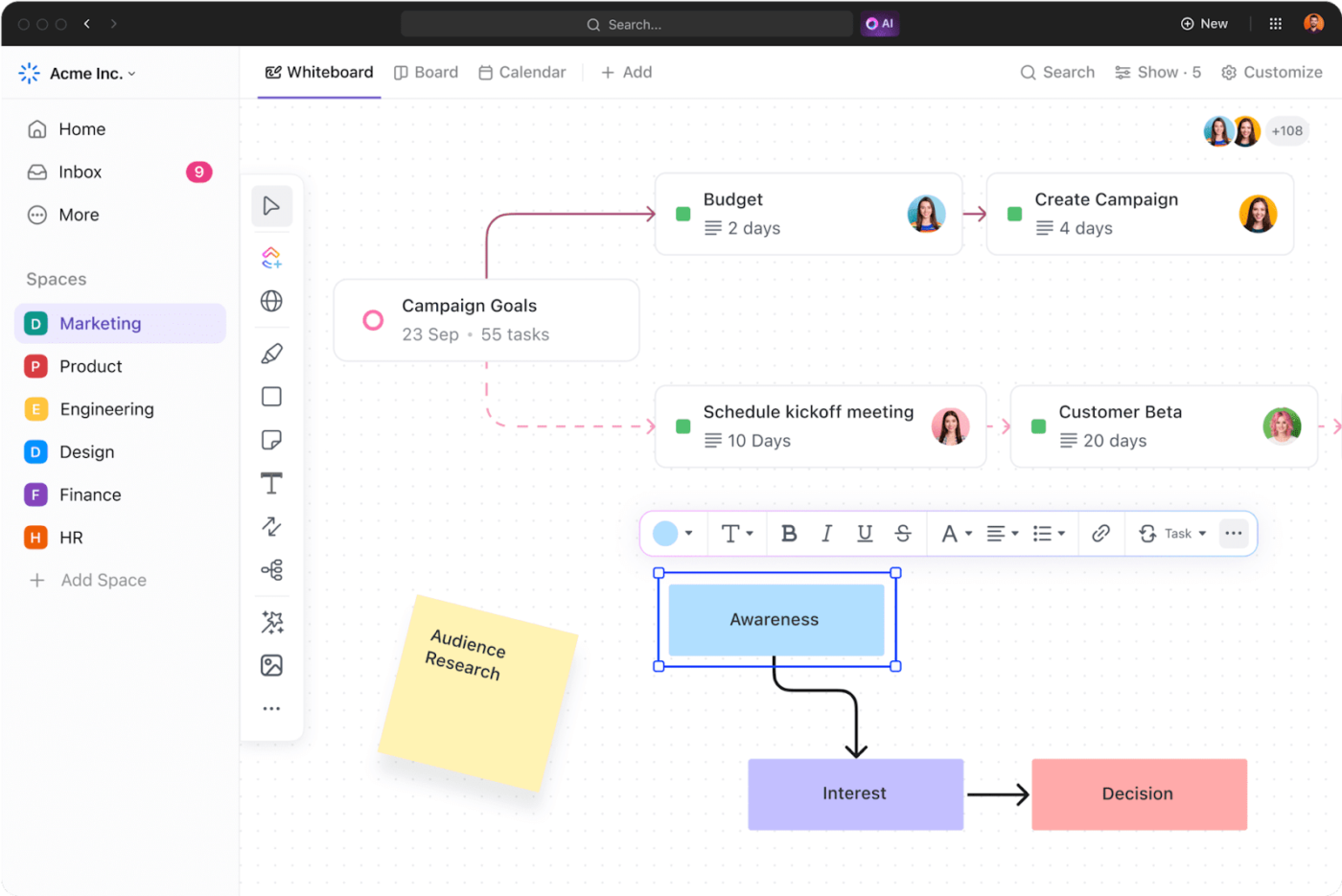
ClickUp Whiteboards revolutionize note-taking by providing a dynamic, interactive canvas where teams can meet in a shared visual space to map ideas, strategies, and workflows.
ClickUp Whiteboards go beyond basic drawing tools, offering rich formatting options such as changing colors, adding text styling, and converting elements from one type to another as your ideas take shape. It takes a simple click to convert that brainstormed product feature idea into a trackable task or link a timeline to your project schedule.
Let’s look at a practical example of how ClickUp Whiteboards can bring your ideas to life:
📌 Create a new whiteboard for your meeting notes
📌 Add key discussion points as sticky notes
📌 Use different colors to categorize topics—red for urgent items, blue for long-term plans
📌 Draw connections between related ideas using arrows
📌 Convert important action items into tasks right from the whiteboard
The real power comes from combining these features. A product team could sketch out user flows, add research findings as notes, draw connections between features, and turn approved ideas into development tasks—all without switching tools.
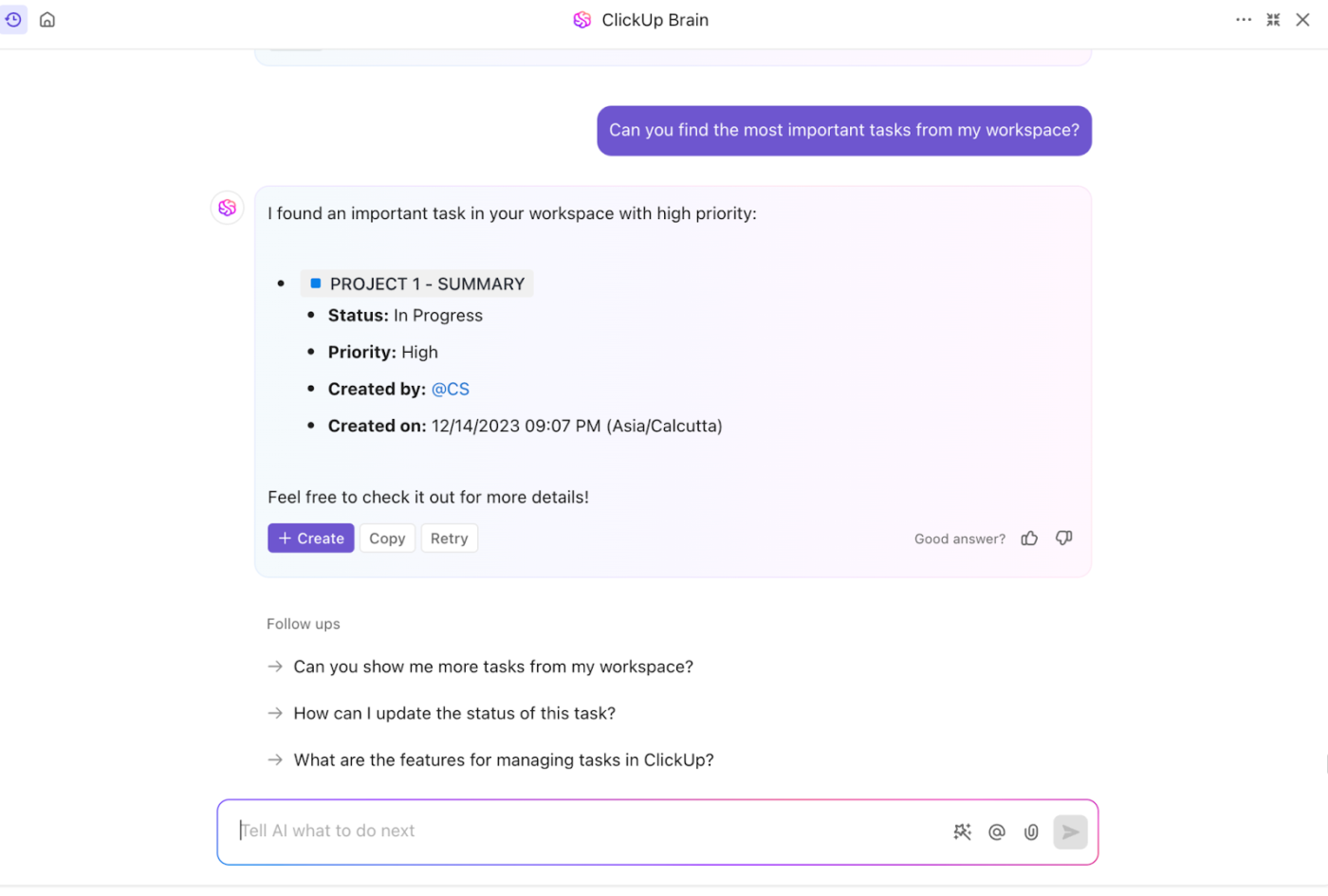
We all need a shortcut to dig up information, whether we’re scrambling for numbers in a board meeting or cozying up with a cup of coffee. This is where ClickUp Brain helps—like flipping through a well-organized photo album, it makes finding what you need effortless.
ClickUp Brain is a powerful AI assistant that provides a centralized hub for tasks, documents, and organizational knowledge.
Its smooth task management integration within your ClickUp Workspace, Google Workspace ecosystem, and project boards adds another layer of organization to your note-taking workflow.
Here’s a practical example of using ClickUp Brain for meeting notes:
Prompt example:
“Create meeting notes for our weekly team sync, including action items and discussion points.”
Steps:
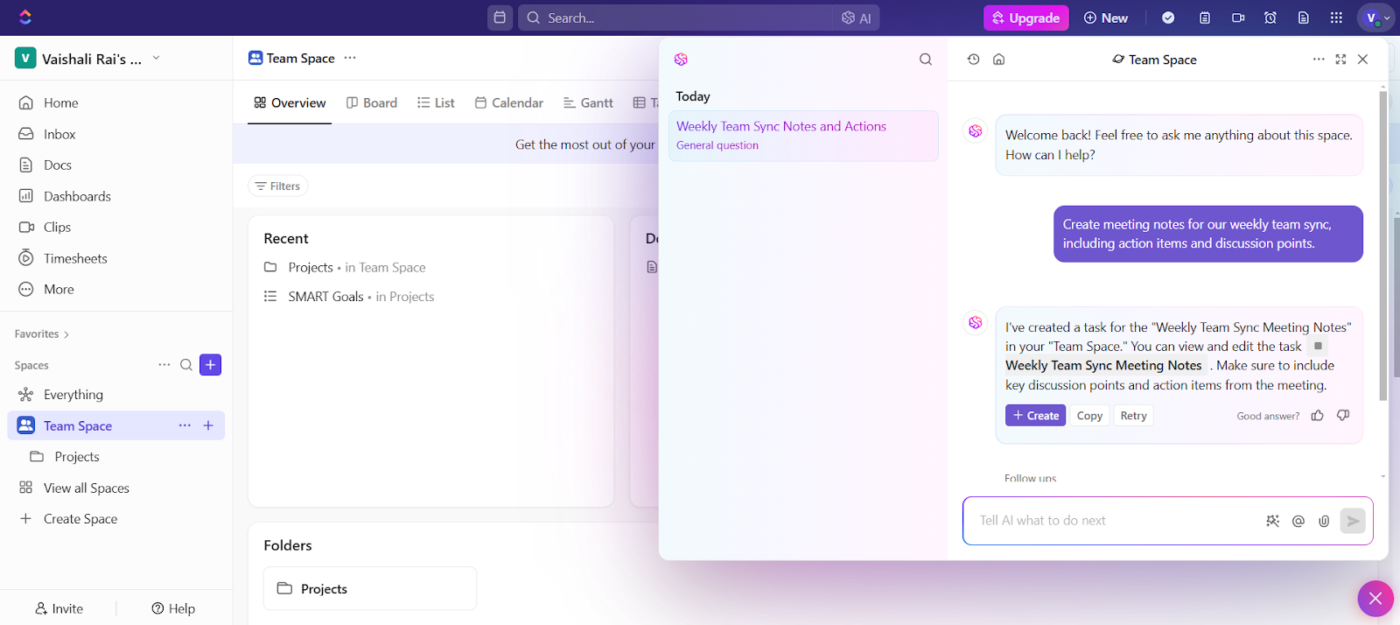
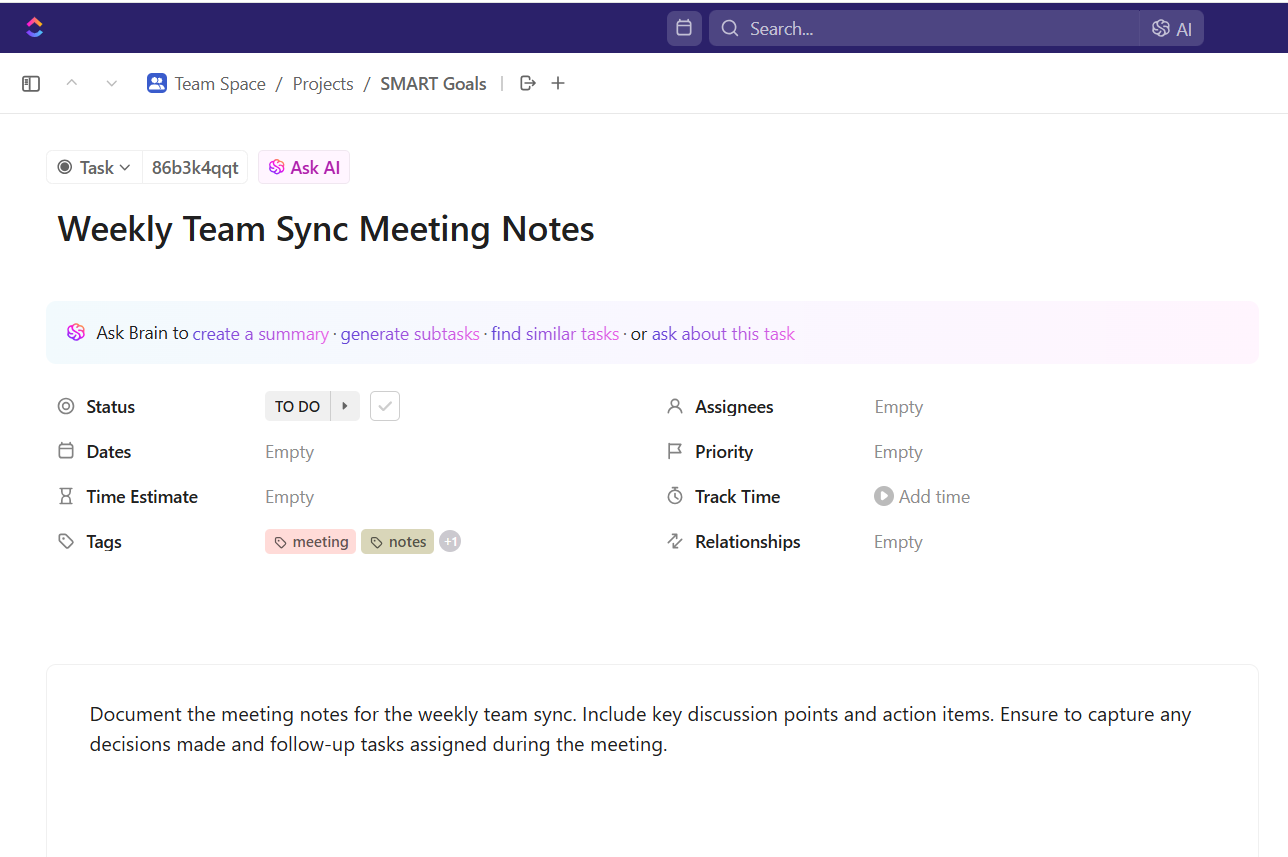
This approach helps you maintain organized meeting records, enhance team communication, and improve task management while ensuring follow-up tasks are completed.
Features like ‘Assignees,’ ‘Dates,’ and ‘Time Estimate’ ensure accountability and efficient scheduling. Tags like ‘meeting’ and ‘notes’ enable easy categorization and retrieval of meeting information.
💡Pro Tip: Click the ‘+’ icon on the right sidebar to enhance your notes by linking tasks and URLs, pulling files from ClickUp Integrations, and attaching content like documents, videos, or other files within ClickUp.
ClickUp Tasks allow you to:
Also, ClickUp’s Connected Search gives your team a better grasp of knowledge management, allowing them free access to knowledge and effective information sharing.

It allows you to:
I have been more productive because I’m able to keep my notes all in one place on ClickUp.
A study by McKinsey found that implementing social technologies, including collaboration tools, can increase productivity by up to 25%.
Yet, as seen in this Microsoft Loop vs. OneNote comparison, each tool has limitations. While Loop excels at real-time teamwork and OneNote excels at note organization, neither offers the complete package modern teams need.
That’s where ClickUp comes in.
Think about what matters most to your team. It could be sharing ideas quickly during brainstorming sessions, keeping project files tidy, or ensuring everyone stays on track with their tasks. ClickUp gracefully handles all of this.
Ready to give your team the complete collaboration solution they deserve? Try ClickUp for free today.

Manasi Nair
Max 26min read

Arya P Dinesh
Max 16min read
Manasi Nair
Max 24min read

© 2026 ClickUp