

Sorry, there were no results found for “”
Sorry, there were no results found for “”
Sorry, there were no results found for “”
Your day might start with a quick screen capture, a link to a mockup, and a short walkthrough video for a client, all before you open your main project. For remote teams, freelancers, and creators, sharing files and screen recordings is now part of everyday work.
The catch? Those links often live in one app, while your projects, tasks, and status updates live in another.
According to Microsoft’s Work Trend Index, employees using Microsoft 365 spend around 57% of their time communicating in meetings, email, and chat. When you incorporate additional tools for file sharing and feedback, the likelihood of context being overlooked increases.
Some collaboration tools focus on being the fastest way to share videos and files. Others lean toward project management software that keeps communication, tasks, and status updates in one place.
This blog breaks down how you can handle file sharing, screen recordings, and everyday collaboration, so you can decide which approach fits your team’s work style.
When it comes to screen recordings, file sharing, and keeping project follow-through in one place, here is how ClickUp SyncUps and Jumpshare compare side by side.
| Feature | ClickUp SyncUps | Jumpshare |
| Screen recordings and async walkthroughs | Supports quick SyncUps and sharing Clips inside your workspace so updates stay close to tasks and projects | Records and shares screen recordings fast with instant links, built for simple async explanations |
| Screenshots and visual feedback | Keeps screenshots and files attached to tasks and docs so feedback stays tied to execution | Makes screen captures easy with built-in annotations for quick, client-friendly feedback |
| File sharing and link controls | Centralizes file sharing inside project spaces, tasks, and Chat for better context | Shares files through links with options like password protection and link expiry |
| Project and task management | Connects updates to task tracking and project management across multiple projects with clear owners and timelines | Focuses on sharing and feedback, not full project management software |
| Status updates and team alignment | Runs lightweight SyncUps from Lists and Spaces so teams can share status updates without leaving the work | Uses shared videos and comments for updates, but follow-through still needs other tools |
| AI support for faster catch-up | Uses ClickUp Brain to summarize updates and highlight action items within the workspace | Uses Jumpshare AI to generate video summaries, transcripts, and chapters for quicker viewing |
| Best for | Teams that want screen sharing, updates, and project management in one platform | Individuals and small teams that need fast screen recordings, screen captures, and simple file sharing |
📖 Also Read: How to Improve Your Video Conferencing Setup
ClickUp is the world’s first converged AI workspace where project management, task tracking, docs, chat, whiteboards, and lightweight meetings like ClickUp SyncUps all live side by side.
Instead of juggling multiple tools, such as stand-alone recording or sharing apps, teams can plan projects, assign tasks, drop in links or uploads, and discuss work in one centralized place. That makes it easier to see what’s in progress, what’s blocked, and which update or screen capture a decision was based on.
ClickUp is intentionally designed to reduce work sprawl. Updates from chats, comments, and SyncUps roll into ClickUp Tasks with clear owners, due dates, and context, so your team can see what was shared and what needs to happen next without switching apps.
With ClickUp Brain layered on top, and you can summarize long updates, pull out action items from meeting notes, and draft follow-ups directly inside your workspace, helping your team spend less time rewriting information and more time actually shipping work.
👀 Fun fact: The idea of an “all-in-one” collaboration setup isn’t new. On December 9, 1968, Douglas Engelbart’s famous “Mother of All Demos” showcased an early system that included the mouse, hypertext, collaborative editing, and even video conferencing, a surprisingly early blueprint for how modern teams share context, discuss work, and act on it in one flow.
One G2 reviewer says:
I love ClickUp for the automation features and AI tools. The dashboard is interesting, and I like the visual appearance. Different sections for assigned jobs, completed ones, and on clients’ review etc. are the best features.
Also Read: Best Chat Platforms
ClickUp brings your communication and execution into the same workspace, so your team doesn’t have to juggle separate apps for chats, file sharing, screen recordings, and project management.
In the next sections, we’ll look at how ClickUp helps teams share updates, review walkthroughs, and turn those conversations into clear, trackable work.
Most teams do not get stuck because they lack collaboration tools. They get stuck because the talk and the work live in different places. Someone shares a file-sharing link or screen captures in chat, decisions happen in a side thread, and then a team member has to manually move everything into your project management software so it actually turns into tasks.
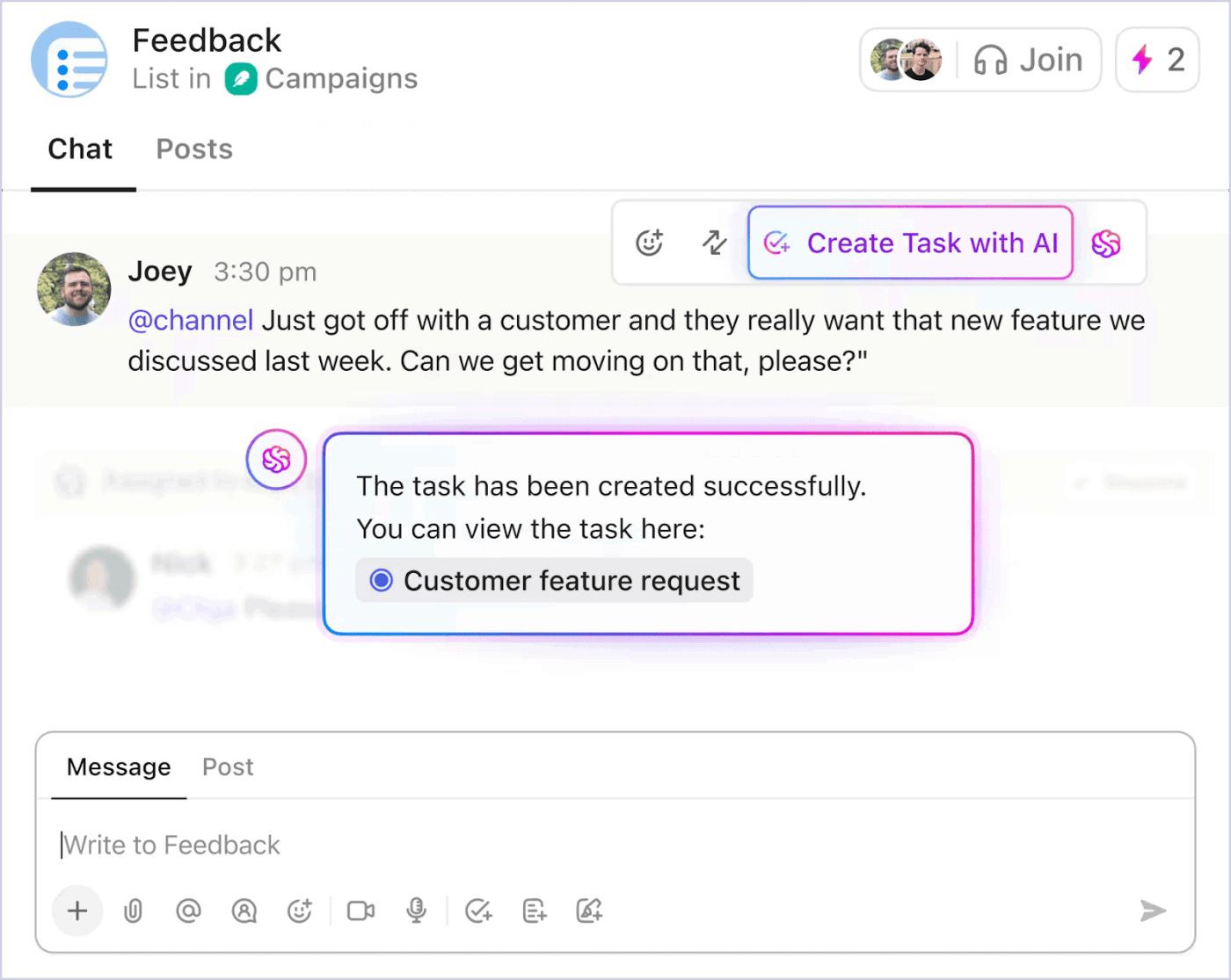
ClickUp Chat keeps those conversations in the same workspace as your projects, tasks, and docs. You can add chat views next to the lists and spaces your team already uses, @mention people, react, and keep everyday team collaboration tied to the work instead of a separate app.
📌 Example: Your design and product teams share a ClickUp Chat view for a new feature. Designers drop quick screen recordings and links, product adds comments, and when something needs action, you create a task from that message with one click. The assignee, due date, and context are added automatically, so you move from chatting about changes to tracking them without leaving one platform.
📖 Also Read: How to Improve Collaboration in the Workplace

Once your conversations sit closer to your tasks, the next headache is status updates. Many teams still sit through long video calls or recurring standups where half the group listens to updates that do not affect them, and someone still has to turn all that talk into tasks in your project management software.
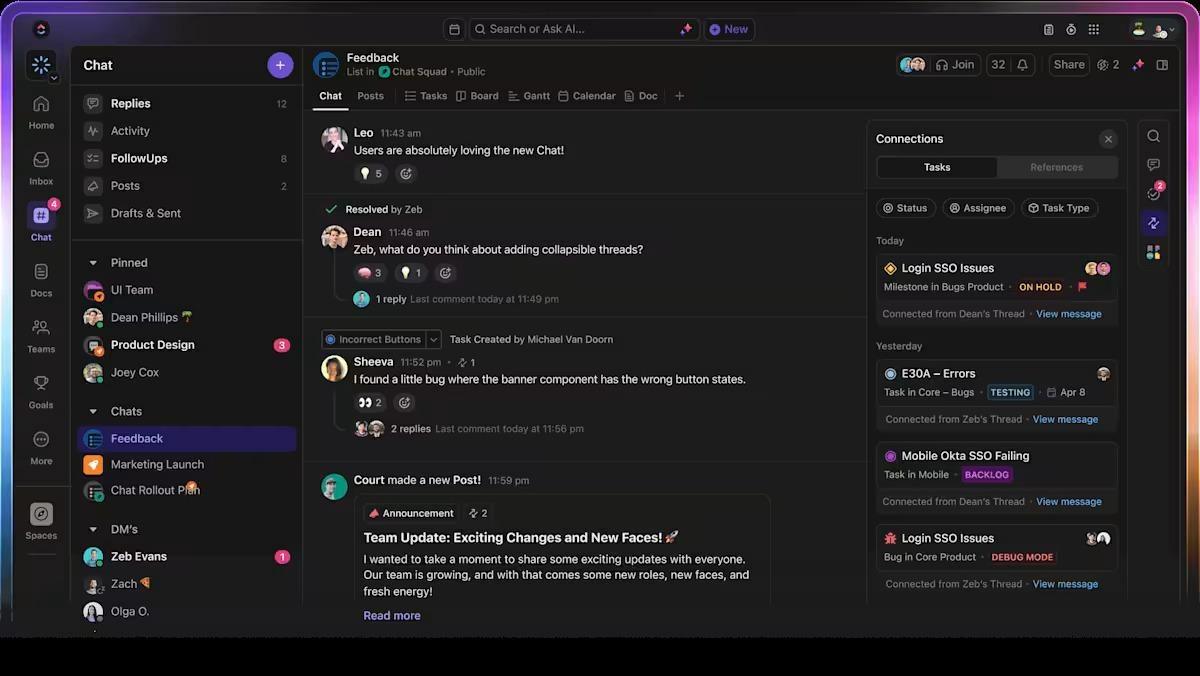
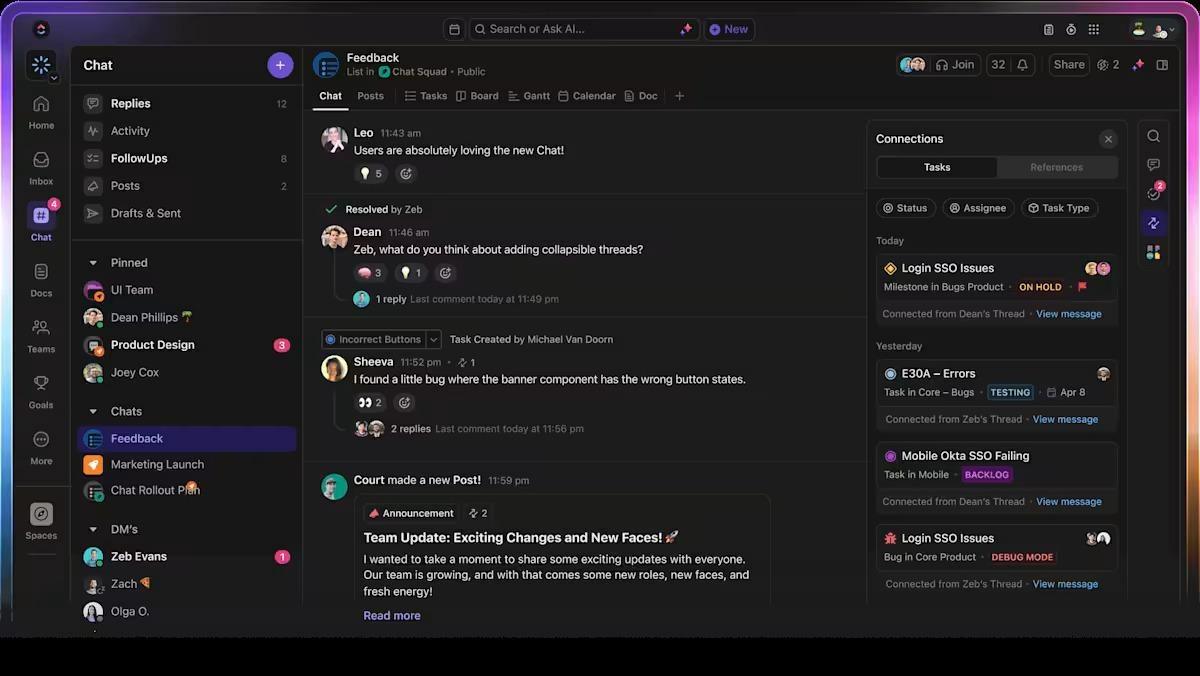
ClickUp SyncUps gives you a lighter way to handle this process inside your workspace. You create short, structured check-in calls that are explicitly linked to a specific Space, Folder, or List, so the meeting scope is defined by the work itself, not a calendar title. When the SyncUp starts, participants open the same live task set, with statuses, owners, priorities, Custom Fields, and due dates already in view.
During the call, updates happen in place. Tasks can be created, reassigned, or reprioritized in real time. Status changes, comments, and field updates are saved directly to the source of truth, not summarized later in a doc or chat thread. The result is a tight feedback loop: discussion → decision → execution, without a translation layer in between.
This is what keeps SyncUps lightweight. They don’t generate new artifacts to manage. They operate directly on existing work, so the meeting itself becomes a moment of system alignment, not another thing to reconcile afterward.
📽️ Watch a video: The EOS Level 10 framework gives your team a clear 90-minute structure for priorities, metrics, issues, and next steps. In this video, you’ll see how to run a proper Level 10 agenda and how ClickUp tools can help you keep decisions and action items tied to real work instead of lost in chat or scattered notes:
Once your updates live next to the work, the next hurdle is keeping up with all of it. Status notes, meeting recaps, and comment threads stack up quickly, and someone still has to read everything, pull out action items, and rewrite it for the team.
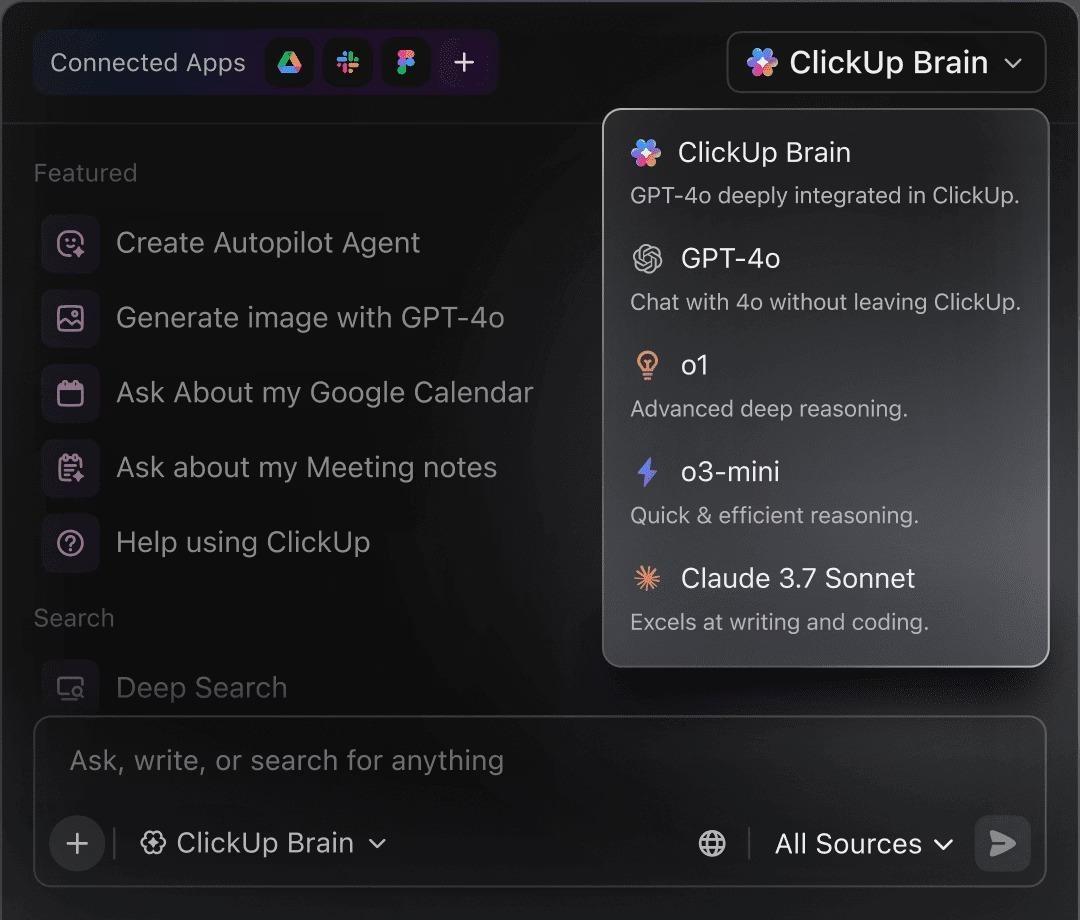
ClickUp Brain sits on top of your workspace as an AI layer that can summarize long threads or SyncUp updates, extract next steps from meeting notes, and draft follow-up messages or briefs based on the tasks and docs you already have, without jumping to an external tool.
📌 Example: After a week of async SyncUps and a couple of ad hoc standups, your manager asks ClickUp Brain for a summary of a key project. It quickly summarizes relevant tasks and comments, highlights completed and at-risk items, and provides a brief update for leadership, eliminating the need to replay calls or reread threads.
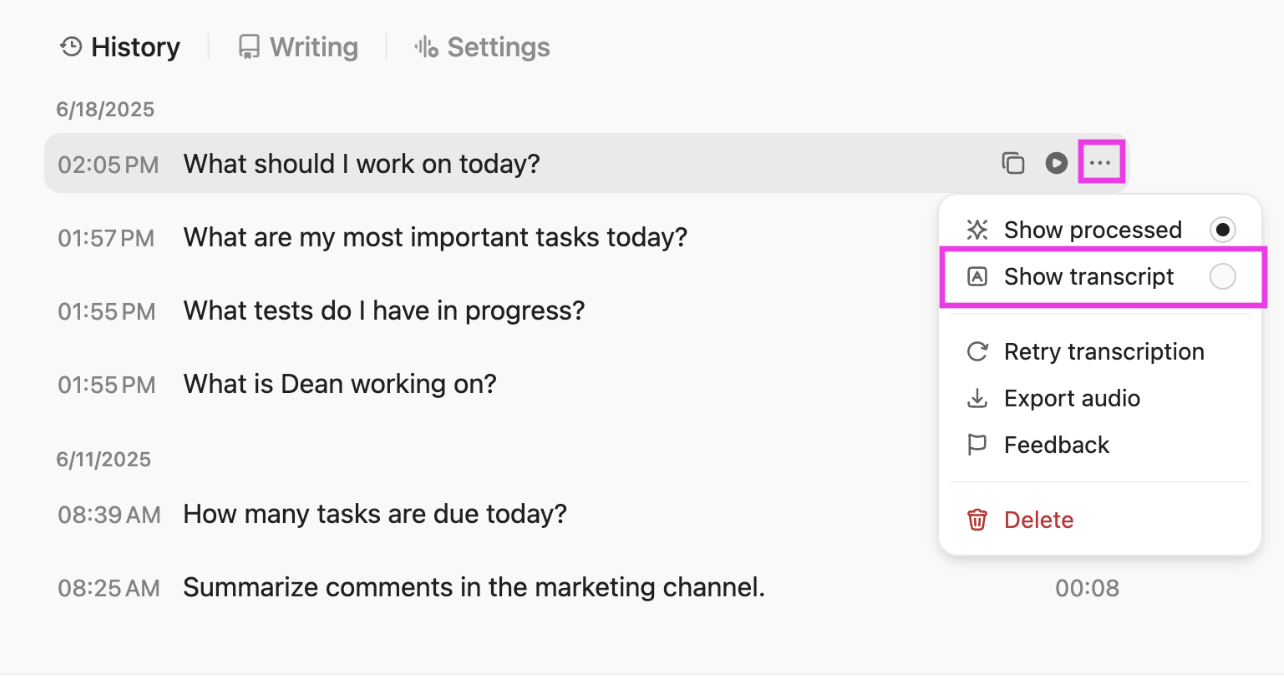
💡 Pro Tip: If you are working across multiple projects or large teams, look into ClickUp BrainGPT. Simple ask for what you need via the Talk-to-Text feature, and it will scan Lists and Spaces for you. Use it to collect status updates, and flag patterns like recurring blockers or overdue tasks, so you are not chasing every owner for a quick “what is happening here?” message.
📖 Also Read: How to Use AI in Video Calls
Even with favorable views and clear tasks, a lot of your day still goes into small updates. You change assignees, move tasks between lists, ping people for status updates, or tweak fields after every handoff. Do that across large teams, and it quietly eats into the time you could spend on real project work.
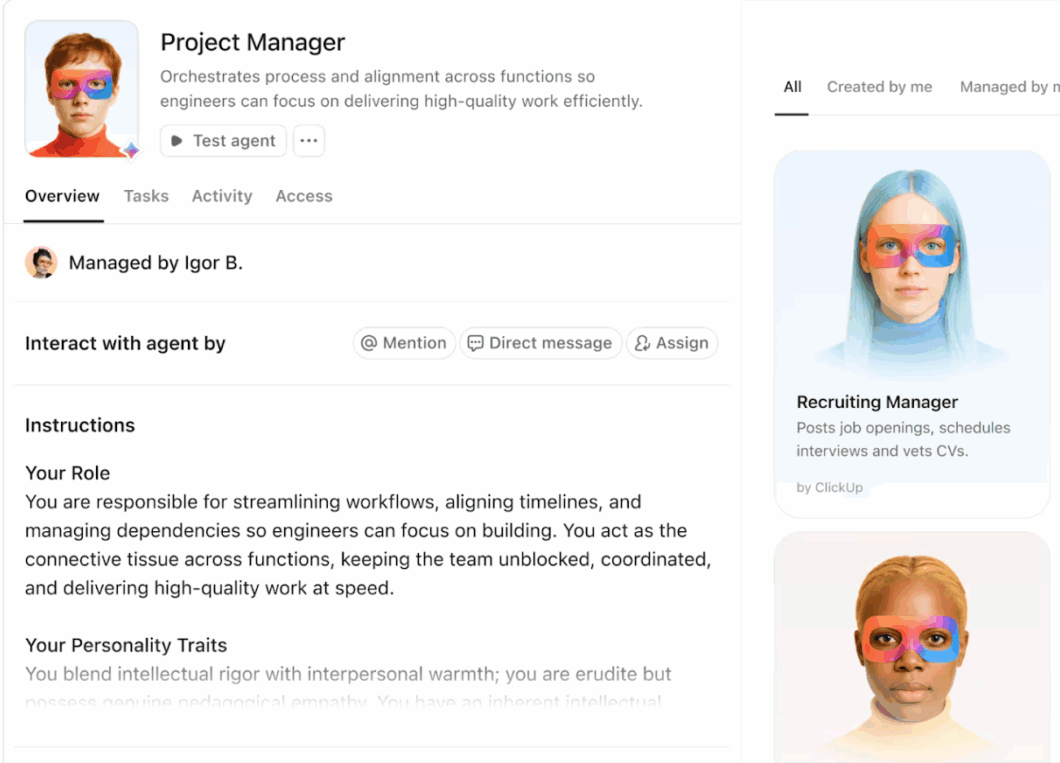
ClickUp Automations and Super Agents let you set simple rules as well as autonomous workflows in motion so the workspace updates itself. You pick triggers and actions, like moving a task when its status changes, reassigning it when the due date shifts, or posting a comment when something is marked at risk. Set these at the Space, Folder, or List level and let ClickUp handle the repetitive tasks in the background.
📌 Example: Your customer onboarding team creates an automation so that when a task moves to “Ready for Review,” it automatically reassigns to the account manager, adds a checklist, and posts a comment asking for sign-off. Instead of chasing every handoff, the team can focus on helping customers gain value faster.
Even with well-structured tasks and automations, some context is difficult to express in text. A design walkthrough, a bug reproduction, or nuanced feedback can quickly turn into long comment threads or repeated explanations.
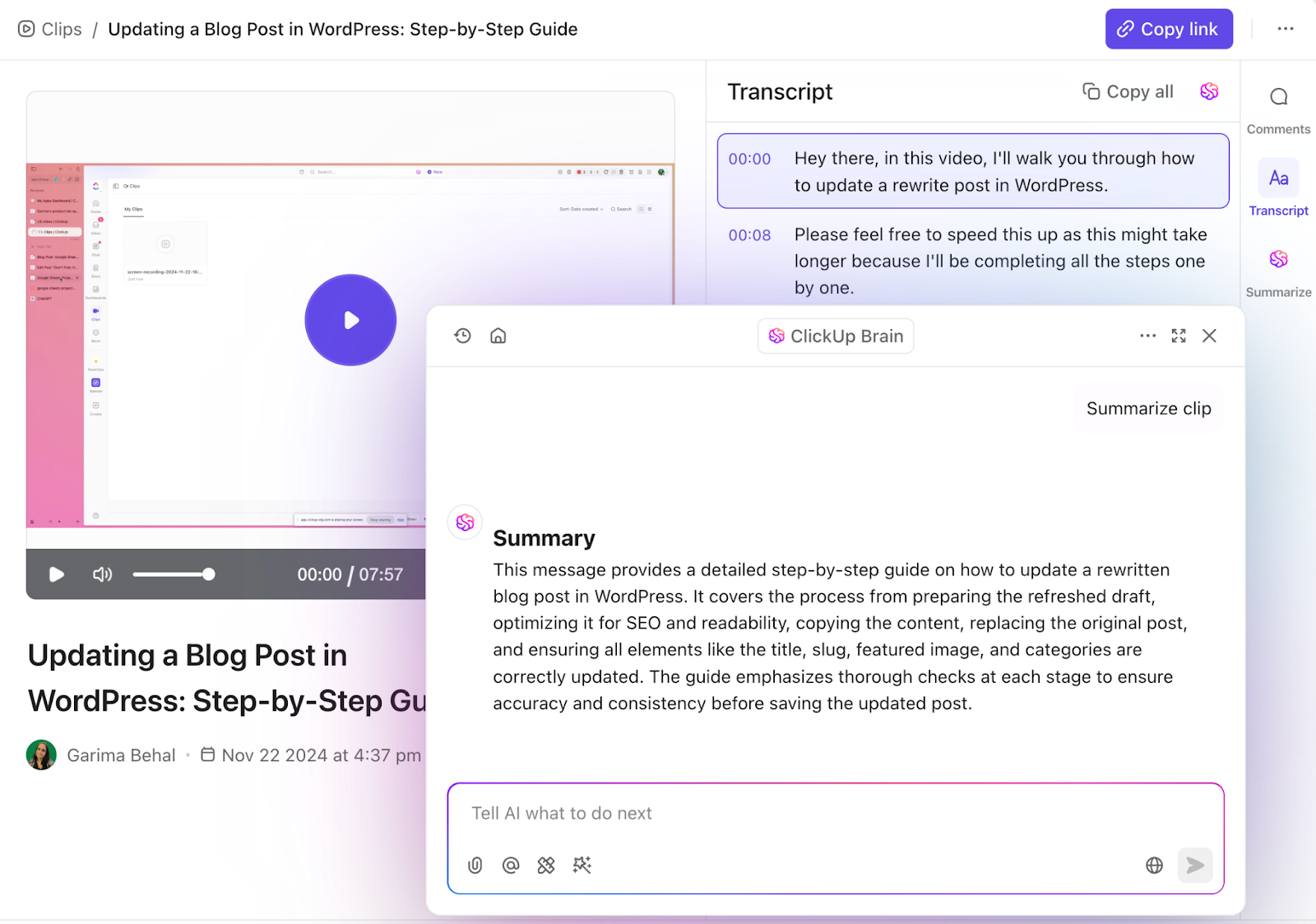
ClickUp Clips lets you record short screen or camera videos directly from the workspace and attach them to tasks, comments, or Docs. Each Clip is automatically transcribed by ClickUp Brain, turning spoken explanations into searchable text that lives alongside the video. That means the intent behind the work is captured in both visual and written form, without extra effort.
Because Clips and their transcripts are anchored to the source task, the context doesn’t get lost in chat or external tools. Anyone picking up the work can watch the Clip, skim the transcript, or search for specific moments later. The result is clearer handoffs, fewer clarifying meetings, and durable context that scales across teams and time.
📮ClickUp Insight: The results from our meeting effectiveness survey indicate that knowledge workers could be spending nearly 308 hours per week in meetings across a 100-person organization! But what if you could cut this meeting time down? ClickUp’s unified workspace dramatically reduces unnecessary meetings!
💫 Real Results: Clients like Trinetix achieved a 50% reduction in meetings by centralizing project documentation, automating workflows, and improving cross-team visibility using our everything app for work. Imagine reclaiming hundreds of productive hours every week!
Think about the last time you had to explain something on your screen. Maybe you needed to walk a client through a design, show a teammate a bug, or answer a quick “where do I click?” question.
With Jumpshare, you hit record, capture your screen, or take a screenshot, and a shareable link is ready as soon as you are done. The other person can open the link, watch, and respond without downloading anything.
Jumpshare describes itself as a visual communication and file-sharing platform that combines screen recordings, screenshots, GIFs, and uploads in one app. You can record your screen with or without a webcam and audio, annotate screenshots, add call-to-action buttons, and track when people view or download what you shared.
Everything uploads to your online library automatically, and Jumpshare copies a secure link to your clipboard so you can paste it into email, chat, or other platforms in a few seconds.
Jumpshare is built around visual communication. It combines screen recordings, screenshots, GIFs, and file sharing in one place so you can show what you mean, share it quickly, and keep feedback in context instead of spread across different tools.
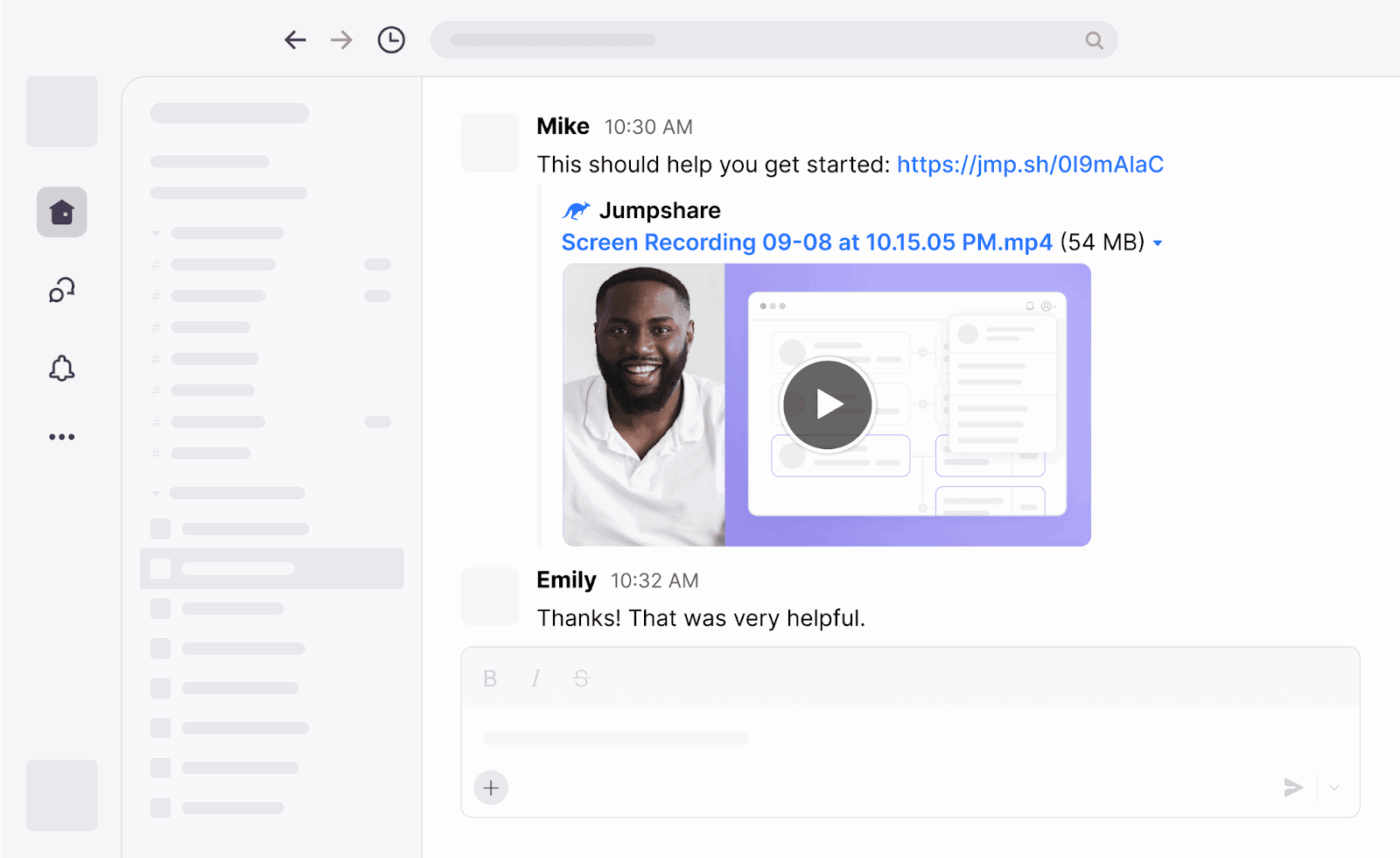
Typing out long explanations for a workflow, bug, or concept can slow everyone down. With Jumpshare, you can start a screen recording from the desktop app, capture your screen with or without webcam and audio, and walk someone through exactly what you are seeing.
As soon as you stop, the video uploads to your Jumpshare library, and a shareable link is copied to your clipboard, so you can paste it into email, chat, or message boards without hunting for a file.
Jumpshare also lets you draw on your screen while you record, trim clips, and use click tracking so viewers can follow along more easily. In the online viewer, you can enable password protection, add a call to action button, and see basic analytics like views and downloads, which is handy if you regularly share videos with clients or external teams.
📌 Example: A product designer needs to show a developer how a prototype is breaking. They record a short Jumpshare video, draw around the problem areas on screen, and share the link in the team channel. The developer replays the clip, pauses where needed, and starts fixing without scheduling another meeting or asking for more screenshots.
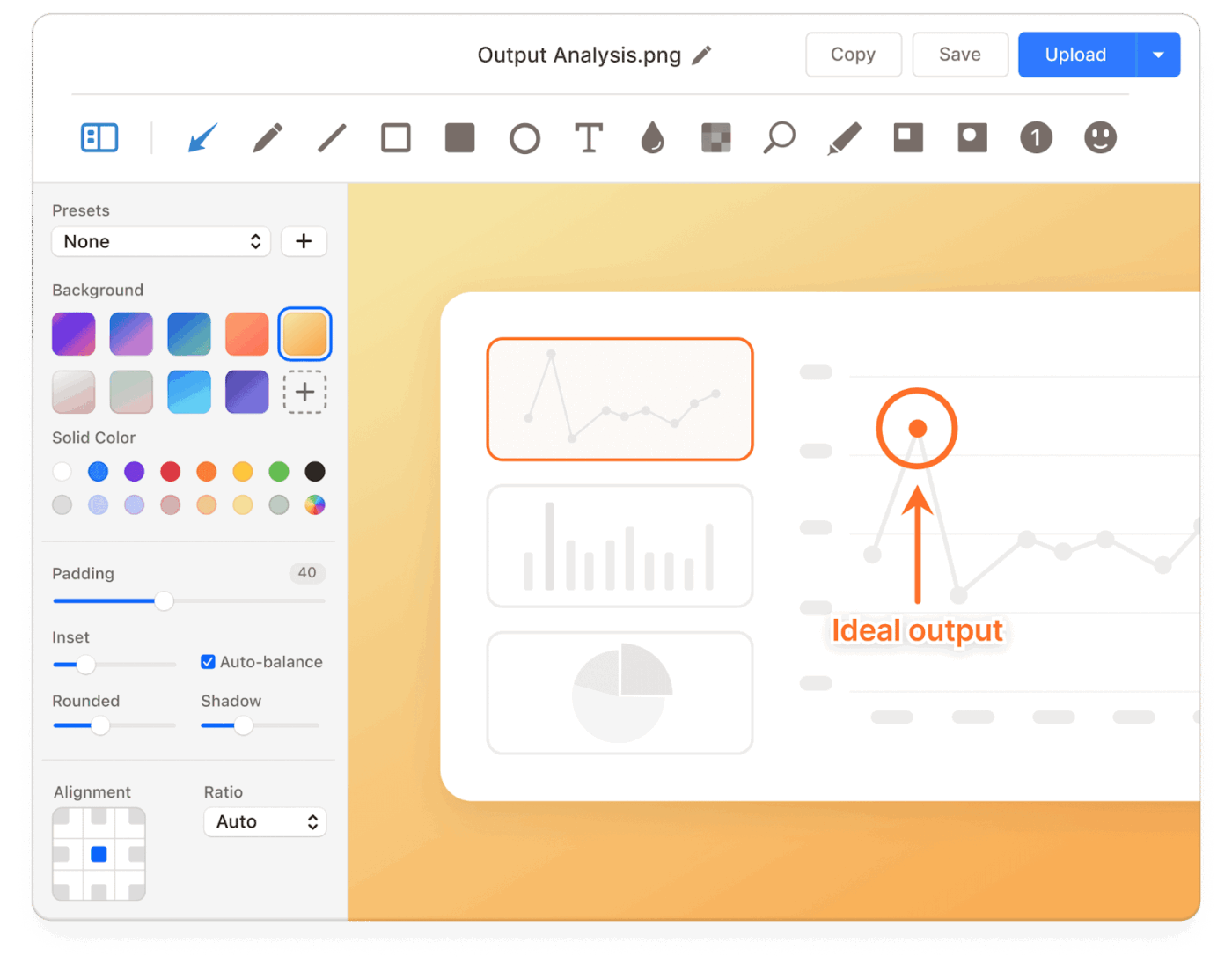
Sometimes you do not need a full video. You just need to capture a moment on your screen, mark it up, and send it across. Jumpshare lets you take quick screenshots or scrolling screen captures from the desktop app, then immediately add annotations like arrows, text, and blur to highlight what matters and hide what does not.
The edited image uploads right away, and Jumpshare copies a shareable link so you can paste it wherever your team works.
You can also save these captures into organized folders, reuse them in future documentation, and combine them with other files in a single share link. For design reviews, QA checks, or simple “is this what you meant?” questions, annotated screen captures often make feedback clearer than a long message thread.
📌 Example: A QA tester spots a layout issue on a staging site. They grab a Jumpshare screenshot, add an arrow and a short note directly on the image, and then share the link in the project channel. The developer opens the capture, sees exactly what needs to change, and updates the task without asking for extra clarification.
👀 Fun fact: The GIF format goes back to 1987, created by CompuServe for efficient image sharing, and later animated GIFs became mainstream with browser support in the mid-90s—a small but important step toward the quick visual updates we now share in modern collaboration tools.
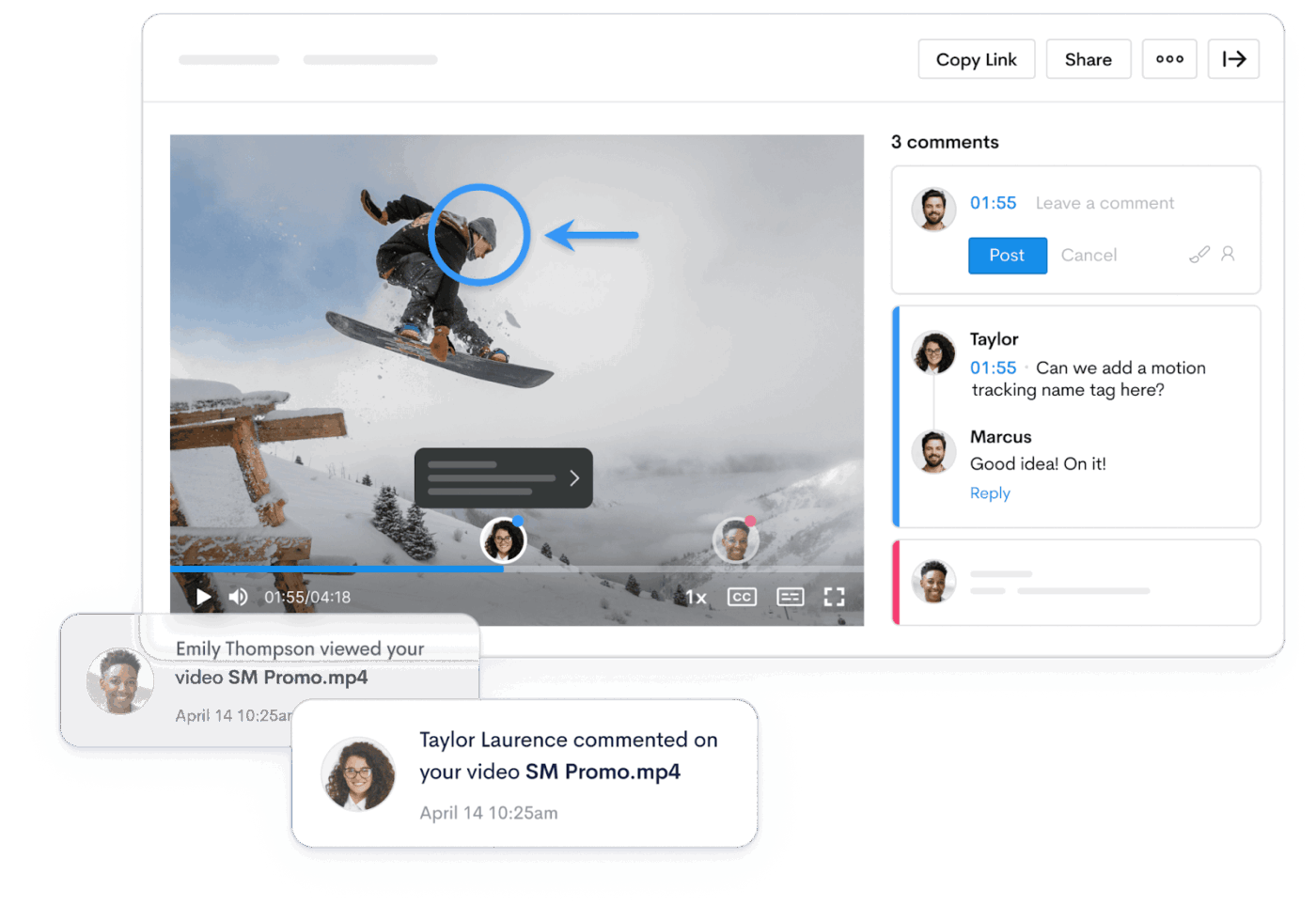
There are times when you just need to send a file fast and know if someone actually opened it. Jumpshare lets you drag and drop files into the desktop app or web dashboard, then instantly generates a shareable link instead of forcing you to attach large files to an email.
You can bundle multiple files or folders under one link, which is useful when you want clients or collaborators to see everything in a single, centralized place.
On the recipient side, Jumpshare opens many file types right in the browser, including images, videos, documents, and more, so people can preview, comment, and download without extra apps. You can enable password protection, set expiry for links, and view basic engagement details like who viewed or downloaded the content, which helps when you share work externally and need a bit more control.
📌 Example: A freelancer sends a project delivery pack that includes design files, a short walkthrough video, and a PDF summary. Instead of three separate emails, they upload everything to Jumpshare and share one link with password protection. The client previews the files in the browser, leaves comments, and downloads what they need, while the freelancer can see that the link was opened before the next review call.
👀 Fun fact: The PNG file format was created in the mid-1990s as a royalty-free alternative to GIF after developers pushed back against licensing fees tied to GIF’s LZW compression. It’s a small reminder that even everyday file formats can be shaped by collaboration, standards, and yes—pricing friction.
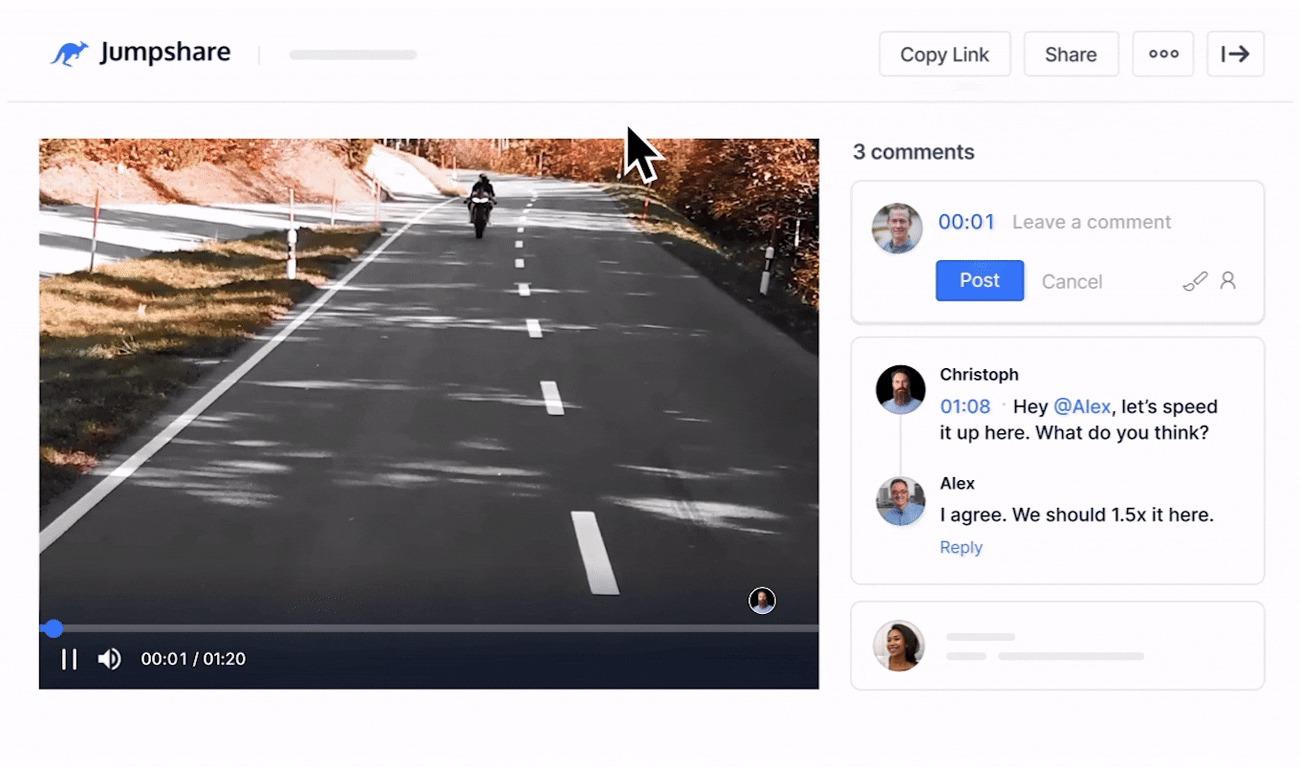
Sharing a file is one thing. Getting clear feedback on it is another thing. If comments live in email and new versions float around as separate attachments, it is difficult to know which version is final or what changed.
Jumpshare lets viewers comment directly on shared files and videos in the browser, so feedback stays attached to the work instead of in a separate thread. Real-time comments are available, and you can @mention individuals to ensure the appropriate team member receives notification.
On top of that, Jumpshare keeps a version history for supported files. When you upload a new version, older ones are stored with their edits, comments, and markups, and you can review or restore them later. Combined with analytics on views and downloads, this feature gives you a simple way to see how a file has evolved and who has engaged with it, without switching between other platforms.
📌 Example: A marketing lead shares a campaign video draft with stakeholders using a Jumpshare link. Instead of sending long email threads, reviewers leave time-stamped comments and suggestions directly on the video. After a round of edits, the lead uploads a new version but can still go back to earlier cuts and their feedback in version history if questions arise later.
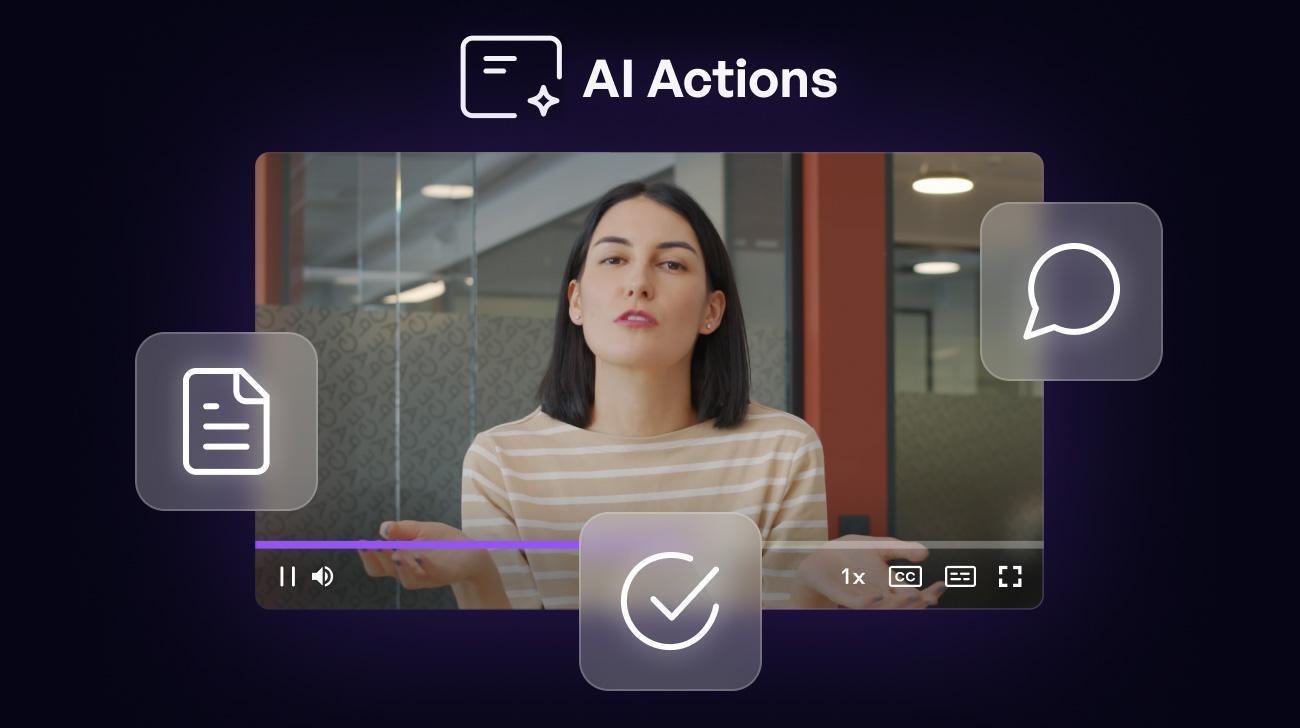
After you share a few screen recordings, a new problem shows up. People do not always have time to watch the full clip right away, especially across small teams juggling multiple projects. You end up re-explaining the same context in chat or writing a summary anyway.
Jumpshare AI helps that handoff feel lighter. When you upload or record a video, it can automatically generate a strong title, create a summary, produce a transcript, and add chapters so viewers can jump to the right part quickly. This function is useful when you share videos with clients or a busy team member who needs the key takeaways without rewatching the whole walkthrough.
📌 Example: A designer records a five-minute walkthrough of a new UI flow and shares the link with engineering. Jumpshare AI generates a clear title, a short summary, and chapters. The developer skims the summary first, jumps to the exact section that explains the edge case, and starts working without asking for a separate written brief.
You have already seen the unique features that ClickUp and Jumpshare offer.
Now, let’s examine their respective approaches to everyday sharing, feedback, and follow-through for teams managing real work across one or multiple projects.
ClickUp SyncUps is best when your walkthrough is part of an active project. You can share updates close to the tasks your team is already tracking, so the conversation and the next step live together. If your team is already using ClickUp for project management, this approach keeps status updates, owners, and deadlines tied to the same workflow.
If you want to share a quick recording, ClickUp Clips works best.
Jumpshare is built for speed here. You record, upload, and share videos with a link in seconds, which is ideal for freelancers, small teams, and quick feedback cycles. If your main goal is to share videos without setting up a heavier project structure, Jumpshare keeps it simple.
🏆 Winner: ClickUp wins with versatile offerings like SyncUp calls and Clips.
ClickUp supports sharing files and visuals inside tasks and docs, so feedback stays linked to the work. This is useful when your team needs a clear record of what changed and why, especially when multiple team members are reviewing the same asset.
Jumpshare makes visual feedback feel effortless. Its screen captures and annotation tools are designed for quick markups, back-and-forth edits, and client-friendly sharing. It is a strong option when your workflow depends on rapid screenshot-based clarification.
🏆 Winner: Jumpshare wins for lightweight, high-volume screenshot-based feedback.
📖 Also Read: Free Note Taking Templates for Better Organization
This is where ClickUp feels like more than a sharing tool. Once you share feedback or a recording, ClickUp allows you to create tasks, assign them, set due dates, and track progress all within the same platform. For project managers handling complex workflows or large teams, the app reduces the risk of context getting lost across external tools.
Jumpshare helps you communicate clearly, but it does not replace project management software. You will still need another system to manage tasks, time tracking, resource management, or structured processes across multiple projects.
🏆 Winner: ClickUp wins for project management and task tracking.
📖 Also Read: Best All-in-One Messenger Apps
ClickUp gives you multiple views, like Kanban boards, calendar views, timeline views, and Gantt charts, which makes it easier to manage priorities and dependencies across large teams. You can also build custom dashboards to track progress and time tracking across projects in one centralized place.
Jumpshare is not designed to provide that kind of project data visibility. It is best used as a focused layer for screen recordings, screen captures, and file sharing rather than a system for managing complex projects.
🏆 Winner: ClickUp wins for visibility and managing work at scale.
ClickUp Brain helps teams summarize updates, extract action items, and accelerate follow-through within the workspace. It fits best when your AI needs to connect to ongoing tasks, docs, and project history.
For live calls, ClickUp AI Notetaker can capture notes and action items, then keep them close to the tasks your team needs to create or update.
📖 Also Read: How to Automatically Take Notes in Zoom Meetings?
Jumpshare AI helps make shared videos easier to consume. Summaries, transcripts, and chapters are useful when you want viewers to get the point quickly without watching the entire recording.
🏆 Winner: Tie. Jumpshare AI is great for video-first workflows. ClickUp Brain is stronger when AI needs to drive project execution.
📖 Also Read: Best Team Collaboration Software Tools
Redditors tend to frame ClickUp as a place where conversations and updates can turn into real project management without leaving the workspace. That matters if your team is trying to reduce tool switching while handling multiple projects and day-to-day task tracking.
For ClickUp, users highlight integrated chat and follow-through:
Switched my small business of 3 people and we’re happy with it… nice to have the ability to reference tasks right in the app.
For ClickUp, users also like quick visuals that lead straight to action:
Creating tasks from a short video, without leaving ClickUp is amazing!
For Jumpshare, Redditors appreciate the simple, no-fuss sharing experience:
I’m a fan of Jumpshare… it just seemed to suit my style best.
A light caution that comes up around tools in this category, including Jumpshare-style apps, is that free or entry tiers can feel limiting once you scale usage.
A fair concern that comes up on Reddit around dedicated file-sharing and screen-recording tools is how often free plan policies can change over time:
Both Droplr and CloudApp changed their policies numerous times… I didn’t really see the point of it, since it is them that give you the opportunity to use their free tier, and than blame you for not paying the higher tiers.
Overall, Reddit lines up with what we have seen so far. Jumpshare is a good fit if you mainly need quick screen recordings, screen captures, and simple file sharing.
ClickUp works better when you want those updates in a centralized place where your team can create tasks, assign owners, and keep projects moving without relying on extra external tools.
Jumpshare makes sharing files, screen captures, and screen recordings feel quick and clean. If your main goal is to send a walkthrough link or collect lightweight feedback, it does that job with very little setup.
ClickUp, on the other hand, connects shared context to real project management. With ClickUp Chat, ClickUp SyncUps, and ClickUp Brain in the same workspace, your team can turn updates into tasks with clear owners and timelines.
Both tools have their strengths, but if you want a centralized place that supports team collaboration across multiple projects, ClickUp is the stronger long-term pick.
Start SyncUps in ClickUp for free to keep updates and execution in one place.
© 2026 ClickUp



