






Still downloading templates?
There’s an easier way. Try a free AI Agent in ClickUp that actually does the work for you—set up in minutes, save hours every week.
Sorry, there were no results found for “”
Sorry, there were no results found for “”
Sorry, there were no results found for “”
Ever tried planning an event with five spreadsheets, a dozen email threads, and three different chat apps? It’s hectic, yes.
That’s why modern teams are turning to all-in-one platforms like ClickUp.
Instead of jumping between tools, you can plan, track, and execute everything in one place. With ready-made templates, smart automations, and customizable dashboards, ClickUp helps you streamline the entire process.
Let’s explore how! 💁
Every event is different. Some are fast-moving virtual launches, while others are complex, multi-day speaker sessions. What stays the same? The need for control, visibility, and flexibility.
ClickUp excels here, adapting to your unique workflow management style. Here’s why you should use the event management software:
As an event planning platform, ClickUp adapts to different event workflows, from virtual launches to multi‑day conferences.
Using event management software like ClickUp ensures every task, deadline, and stakeholder stays connected throughout the event lifecycle.
But, how to use ClickUp effectively?
Here’s a step-by-step guide to help you plan and execute your entire event workflow all within the event planning software. 🎯
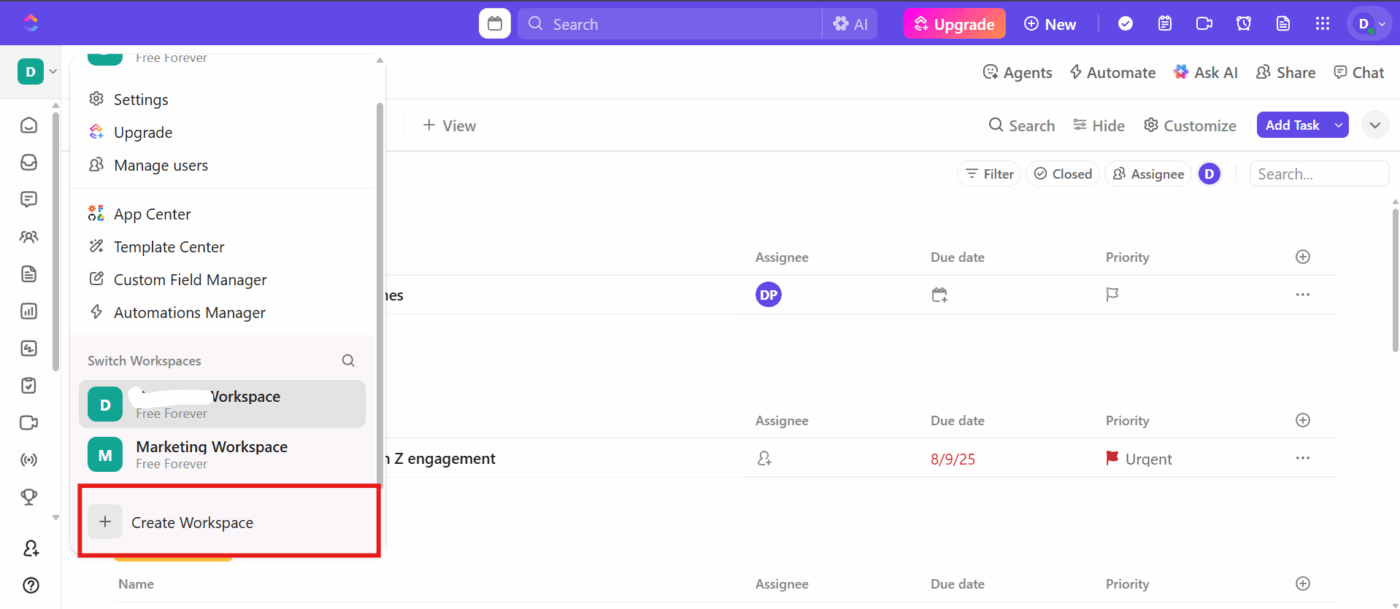
If you’re starting from scratch or want a dedicated space for all event-related work, create a new Workspace. But if you already have a Workspace (e.g., Marketing or Projects), make a Folder within it for your event (e.g., Annual Conference).
How to do it:
With your event folder in place, the next step is to create Lists, each one representing a key area of your event project management workflow, like:
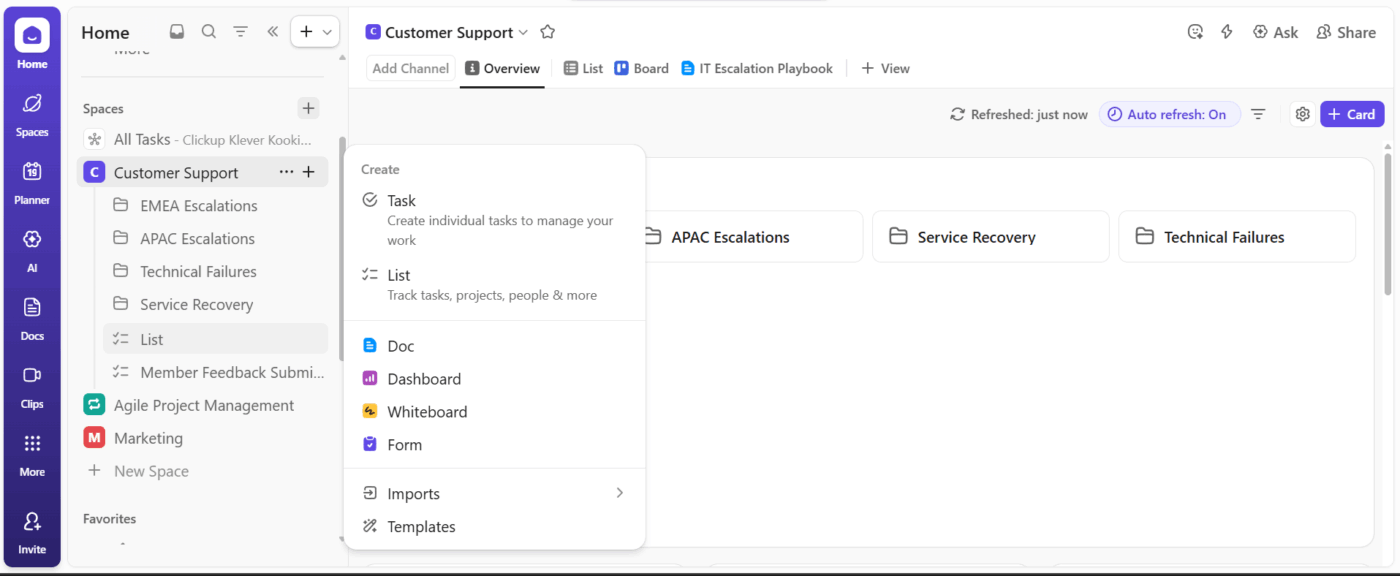
How to do it:
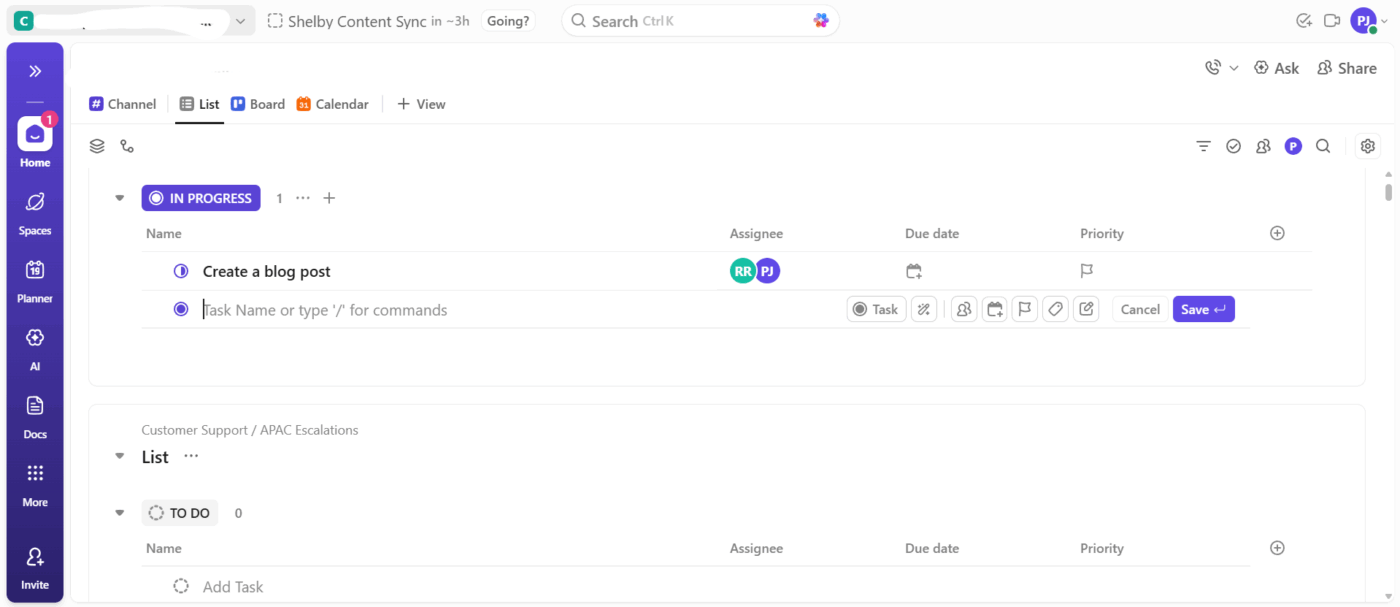
Now that your Lists are ready, it’s time to break them down into actionable tasks.
ClickUp Tasks are fully customizable, smart, and deeply connected to everything else in your Workspace. With features like priority levels, custom statuses, and task types, these elements help you stay focused on even the most minute details.
How to do it:
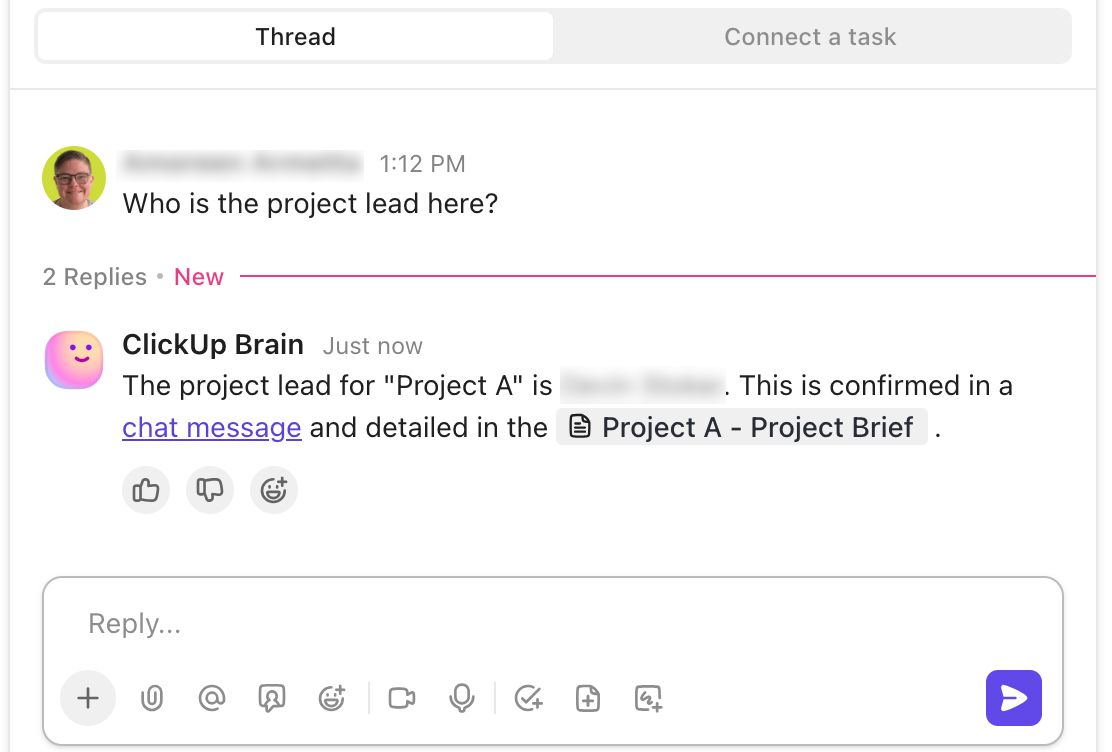
This is a great time to tap into ClickUp Brain, your AI-powered assistant built right into your Workspace. The AI for event planning can help you kick things off by summarizing meeting notes, assigning tasks, or getting quick answers about your Workspace setup.
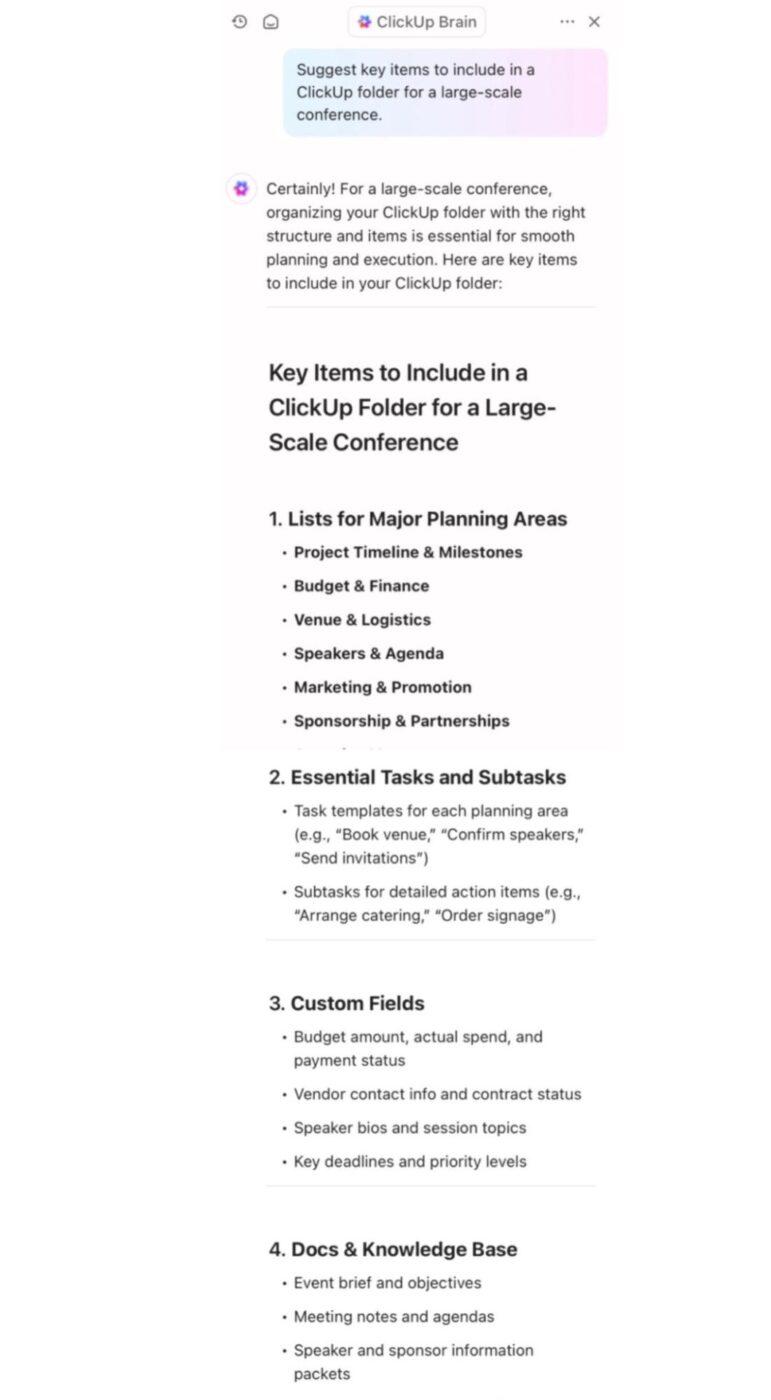
For instance, if you’re just setting up a new folder for your upcoming conference, you can ask ClickUp Brain to generate a comprehensive checklist based on your event type. It can include tasks like Book venue, Design event page, Create registration form, or Order printed badges. This saves hours of upfront planning, especially for first-time organizers.
💡 Pro Tip: You can access ClickUp Brain from the toolbar or by typing your question in the AI assistant panel anywhere in your Workspace.
And if you don’t want to create your Workspace from scratch? Use ready-to-use ClickUp Templates.
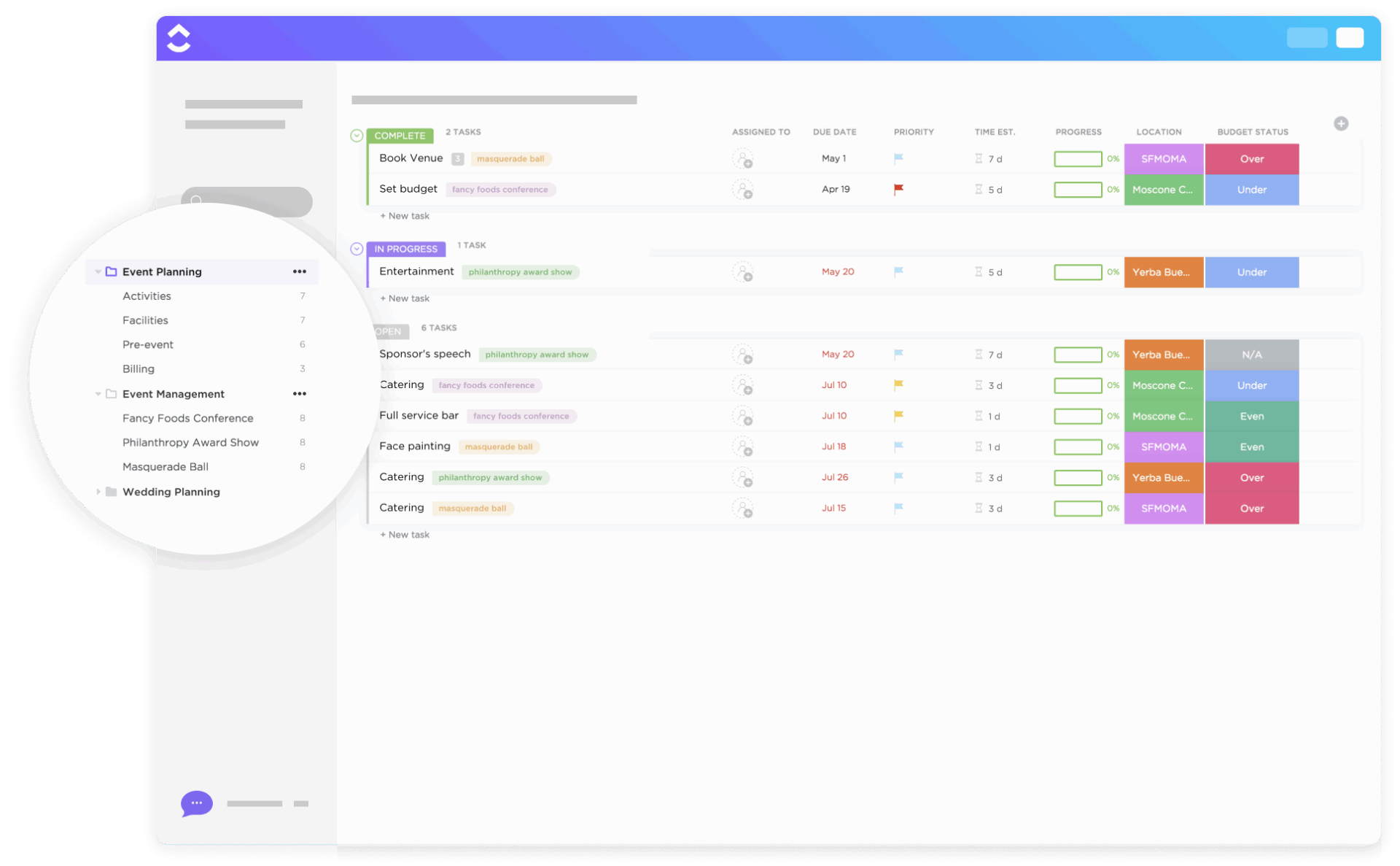
ClickUp Event Management Template offers a ready-to-use Workspace to help you plan and run any type of event, whether it’s a virtual conference event, internal training, or product launch.
You’ll get pre-built lists like:
Once set up, you can:
💡 Pro Tip: When managing event costs, don’t rely on notes or spreadsheets outside your workspace. Use Money Custom Fields to track expenses like venue fees, catering, speaker payments, and vendor invoices. Then, later in Formula Custom Fields to automatically calculate totals, such as estimated vs. actual spend, remaining budget, or cost per attendee.
Now that you’ve created your Workspace, you must visualize it. Turn to ClickUp Custom Views to manage your timelines with different views like a time-based ClickUp Timeline View, a structured ClickUp Gantt Chart View, or a big-picture ClickUp Calendar View.
For instance, the Calendar View helps you see all your event tasks, deadlines, and milestones plotted on a calendar. This makes it easy to:
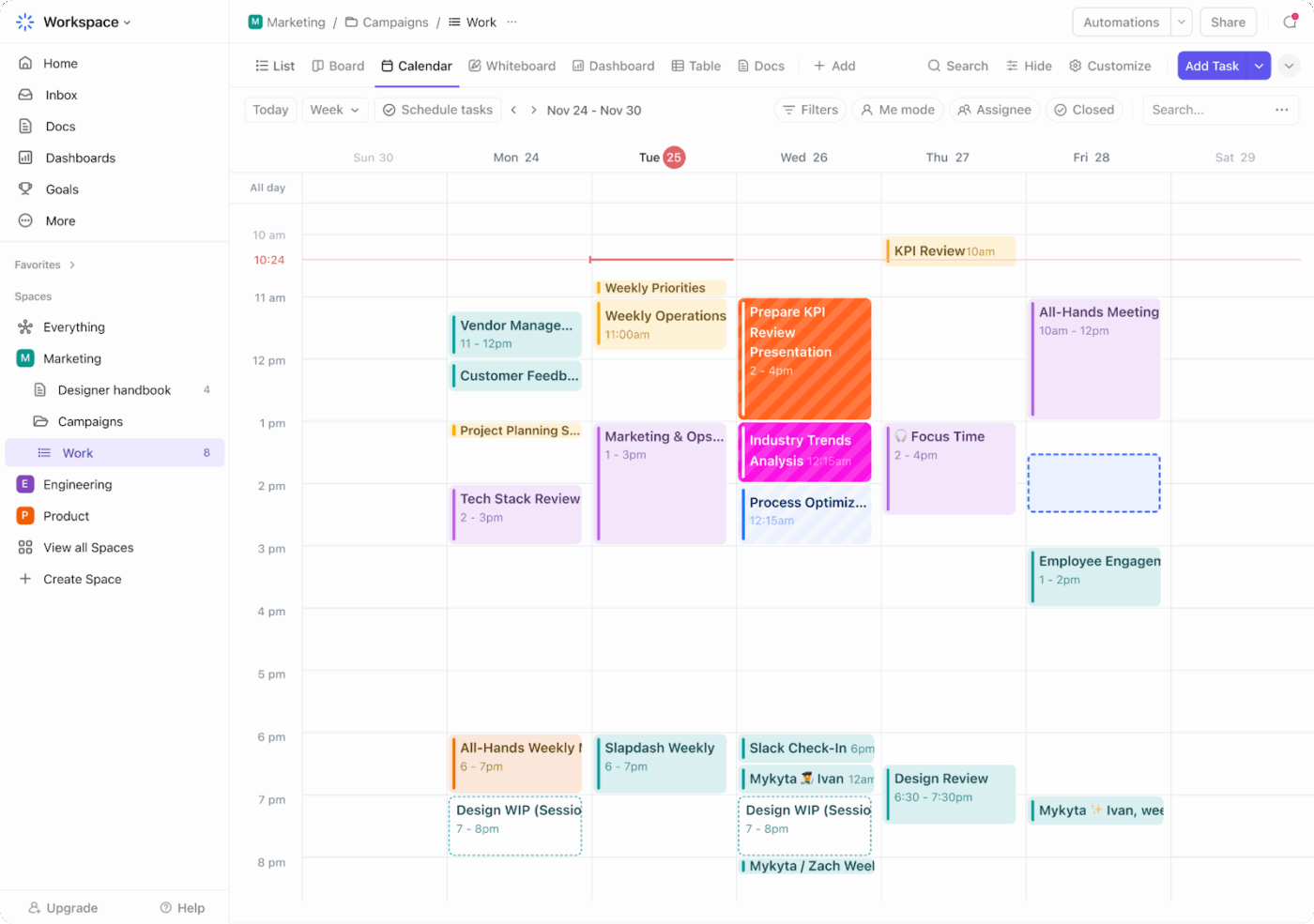
For a more detailed, timeline-style overview, use the Gantt Chart. This view helps you visualize dependencies between tasks (e.g., Book venue must be done before Send invites).
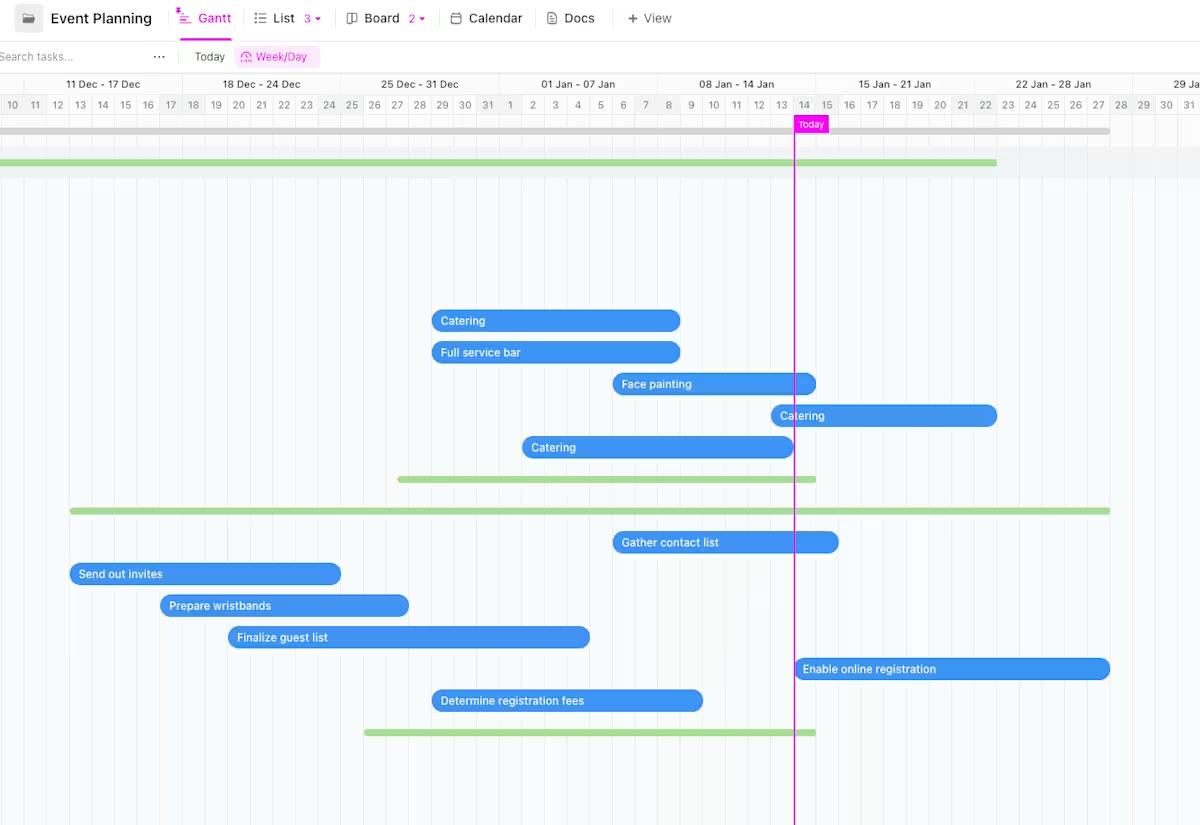
All you need to do is go to your event’s Space, Folder, or List, click + View, and select either Calendar or Gantt as per your workflow.
Bringing an event to life requires smooth communication and coordination, both within your team and with outside partners.
ClickUp Chat connects your entire team’s conversations directly to tasks, documents, and timelines. You can create Channels for Logistics, Speakers, Marketing, and Emergency Plans.
Jump into a call with vendors or team members in one click and let the ClickUp AI Notetaker automatically generate call summaries and action items after the meeting.
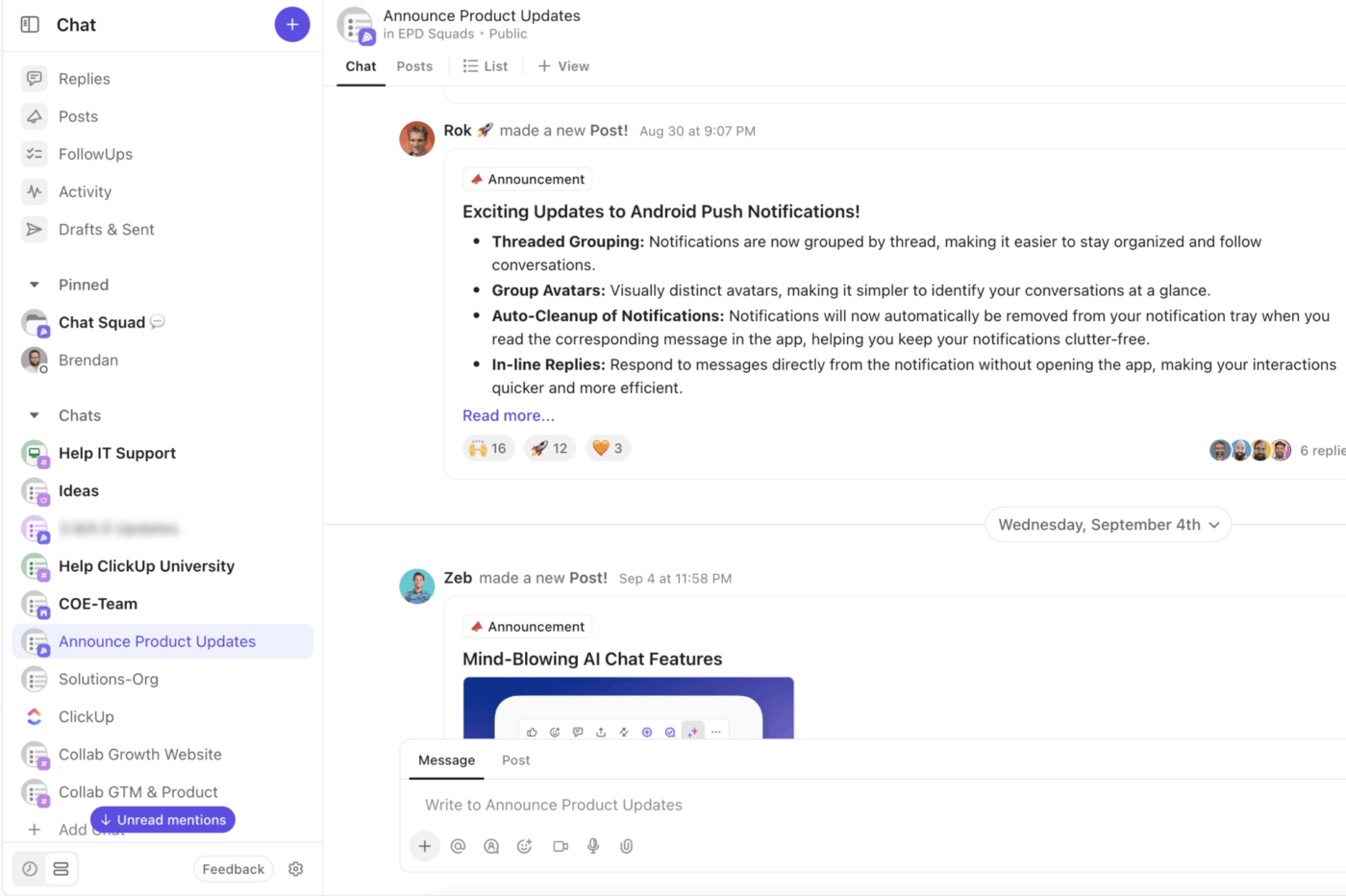
Alongside Chat, you can store all important event documents and collaborate on event briefs, meeting notes or agendas in ClickUp Docs. You can edit together, leave comments, collect event feedback surveys, and ensure everyone is working from the latest information.
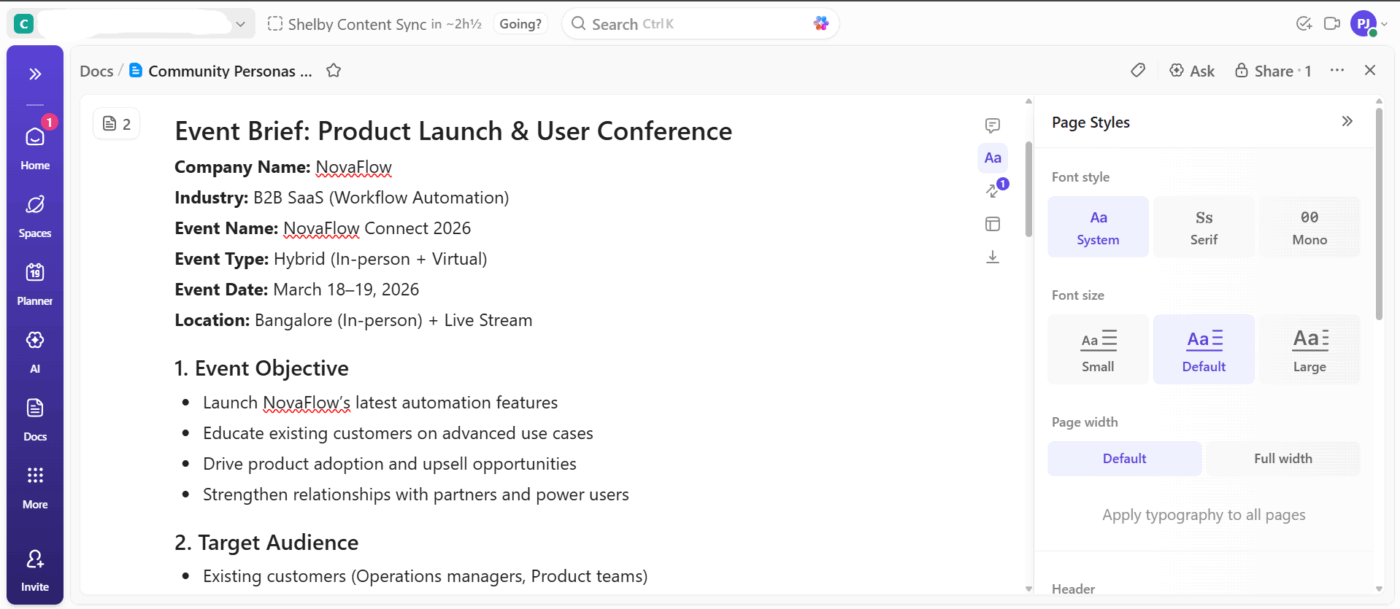
📌 Example: For a webinar, your team can draft the event script in a ClickUp Doc while updating venue details and tech requirements in Chat. Any updates flagged in Chat instantly tag the right teammate, reflect in the Doc, and trigger follow-up tasks.
How to use it:
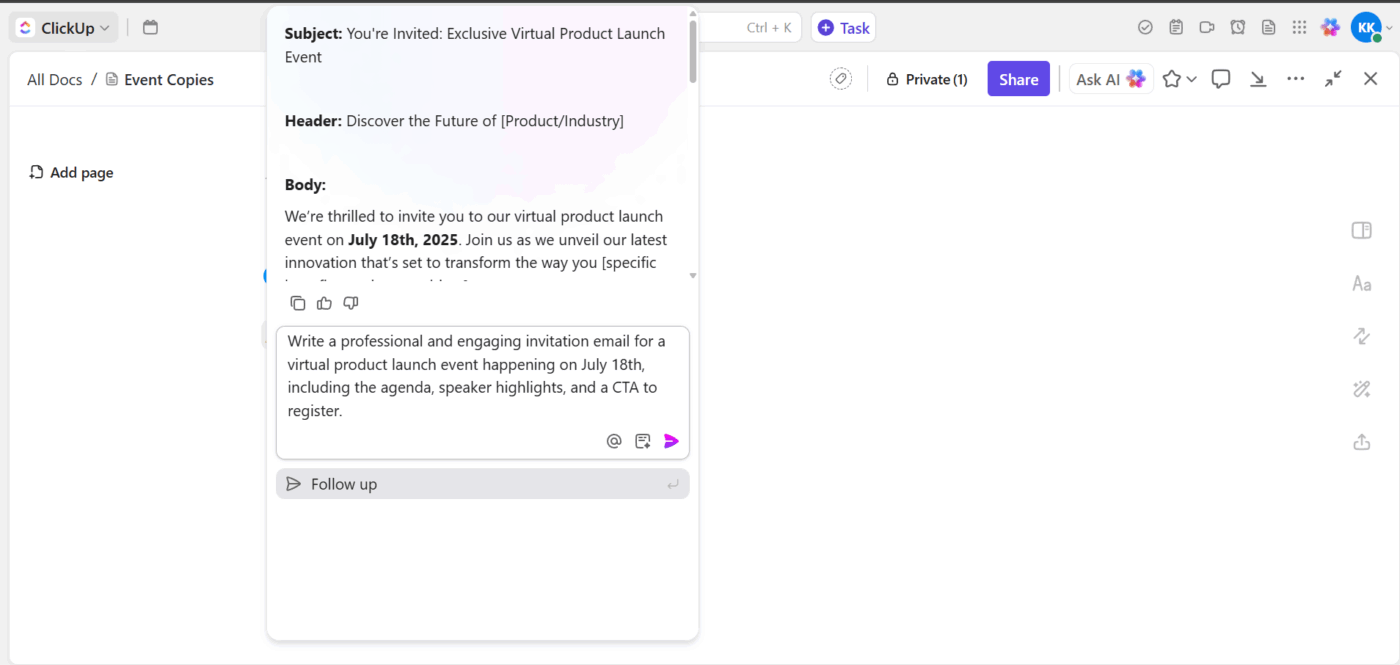
Plus, ClickUp Brain helps you draft invites, schedules, and follow-ups in seconds with its built-in AI Writer. It also turns raw details into clear action plans, allowing you to move from ideas to execution faster than ever.
⚡ Workflow upgrade: let Super Agents coordinate the chaos
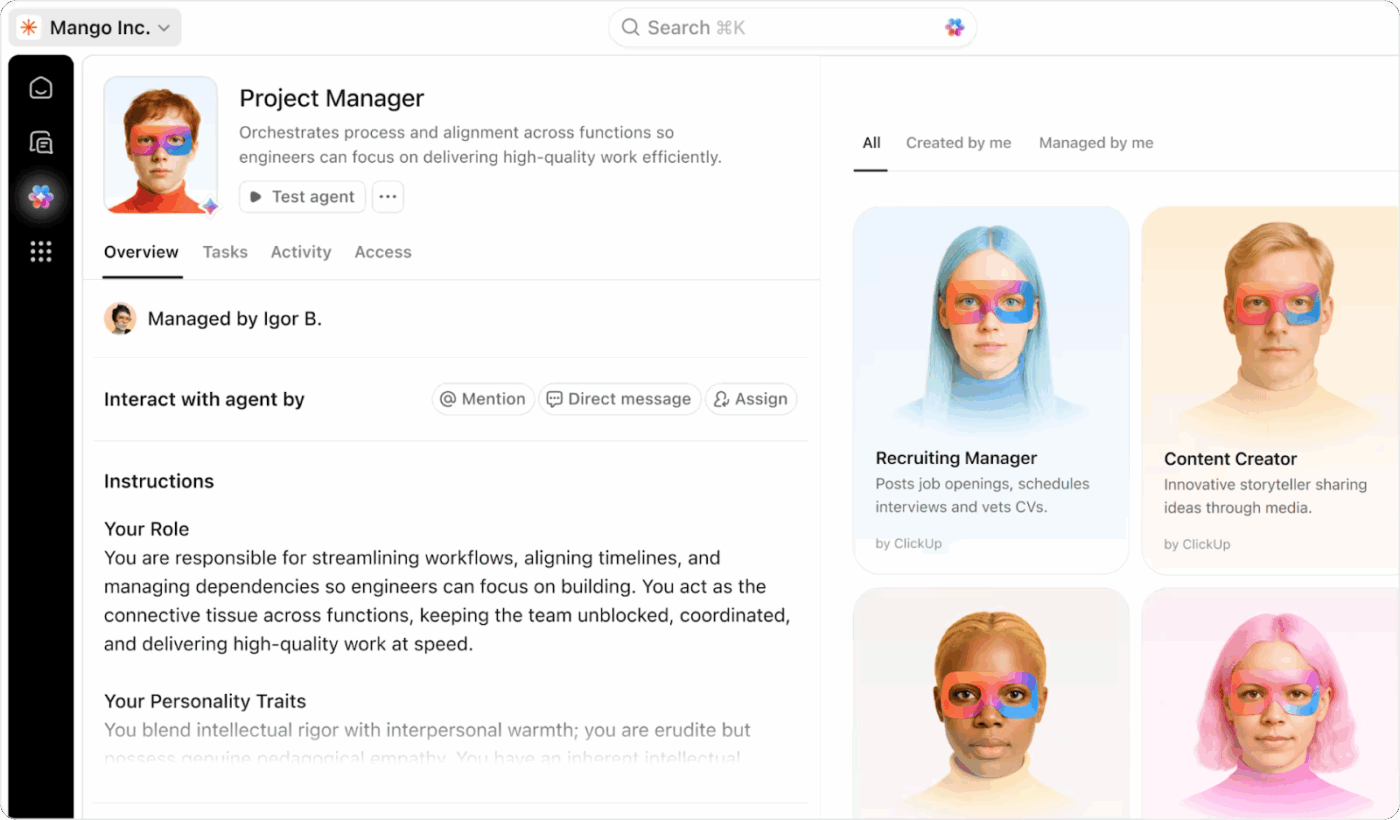
Events live and die by communication, last-minute speaker changes, shifting vendor timelines, updated agendas, and missing approvals. These updates usually scatter across chats, comments, emails, and meetings. Super Agents help you stay ahead by quietly monitoring conversations across your workspace and turning important details into action.
If someone drops “Catering will need headcount by Friday” in Chat, Super Agents can capture it, surface the reminder, and spin up the follow-up task automatically. They act like a behind-the-scenes coordinator, making sure nothing important fades into the background, especially when your event is moving fast.
📌 Example Prompt: Write a professional and engaging invitation email for a virtual product launch event happening on July 18th, including the agenda, speaker highlights, and a CTA to register.
🚀 ClickUp Advantage: Event collaboration gets messy when updates live in chats. ClickUp AI Agents solve this by actively monitoring conversations and turning discussion into execution. They can listen for decisions, changes, or requests across Chat, Docs, and tasks, then take action in real time.
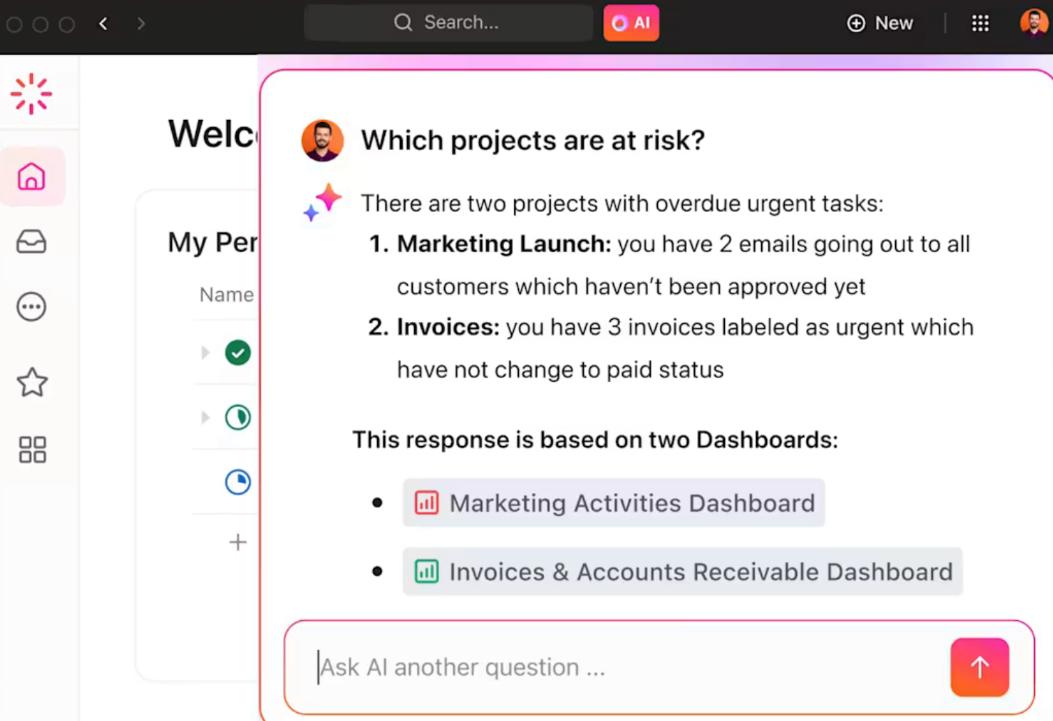
Before you start managing budgets, inventory, or vendor performance, you need a clear line of sight. ClickUp Dashboards give you exactly that.

How to use it:
📮 ClickUp Insight: Only 7% of professionals depend on AI primarily for task management and organization. This could be because the tools are restricted to specific apps like calendars, to-do lists, or email apps.
With ClickUp, the same AI powers your email or other communication workflows, calendar, tasks, and documentation. Simply ask, ‘What are my priorities today?’ ClickUp Brain will search across your Workspace and tell you exactly what’s on your plate based on urgency and importance. Just like that, ClickUp consolidates 5+ apps for you within a single, super app!
As your event plan grows, so does the busywork. Manually updating every task can slow down the process. ClickUp Automations maintain momentum by handling recurring tasks behind the scenes. It helps you set ‘if this, then that’ rules for a smooth and efficient planning process.
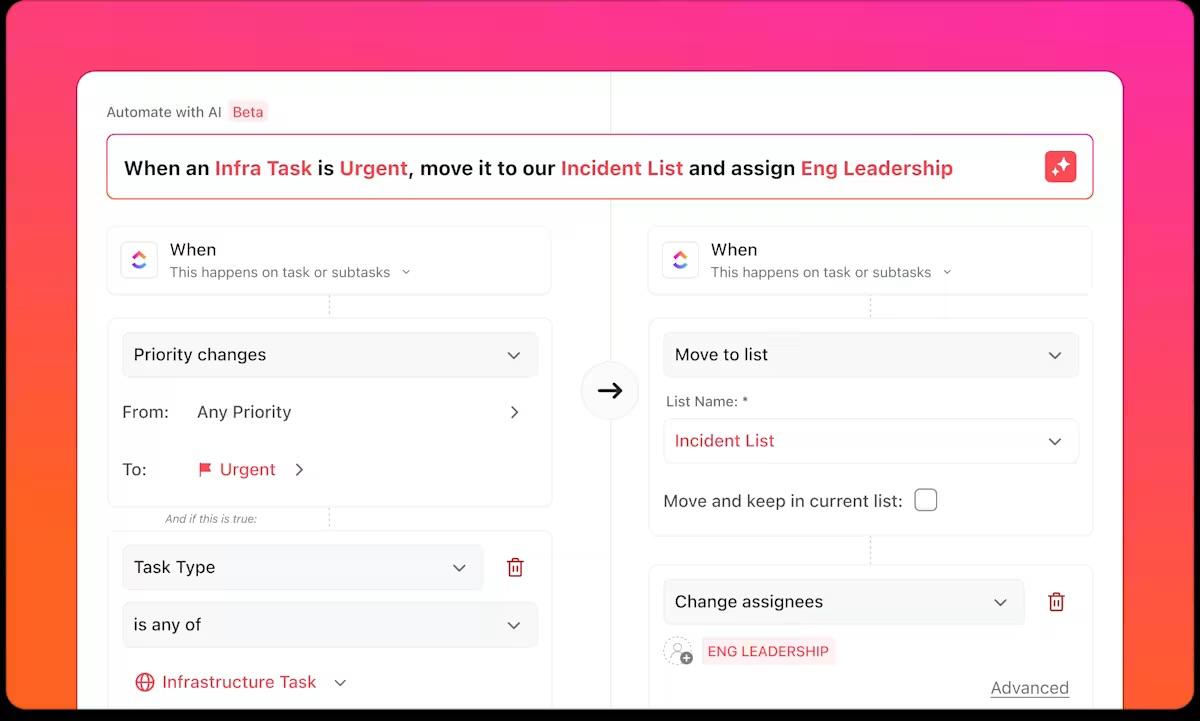
How to use it:
You can review automation logs to ensure everything is running smoothly and adjust as needed.
📌 Example: Let’s say a speaker confirmation is pending. You can create an automation where once the task status changes to Waiting on Speaker, Automations automatically assign it to the event coordinator, add a follow-up comment, and move the due date ahead by two days.
Or, skip the manual setup and just ask ClickUp Brain: ‘If status is Waiting on Speaker, assign it to the coordinator, add a reminder, and push the due date by 2 days.’
📮 ClickUp Insight: 43% of people say repetitive tasks provide helpful structure to their workday, but 48% find them draining and a distraction from meaningful work.
While routine can offer a sense of productivity, it often limits creativity and holds you back from making meaningful progress.
ClickUp helps you break free from this cycle by automating routine tasks via intelligent AI Agents, so you can focus on deep work. Automate alerts, updates, and task assignments, and let features like Automated Time Blocking and Task Priorities protect your power hours.
💫 Real Results: Lulu Press saves 1 hour per day, per employee using ClickUp Automations—leading to a 12% increase in work efficiency.
Event planning templates in ClickUp help teams standardize workflows while staying flexible for different event types.
From event proposal templates to itinerary templates, here’s a list of ClickUp’s top event planning templates designed to keep your team on track and your events running smoothly. ⚒️
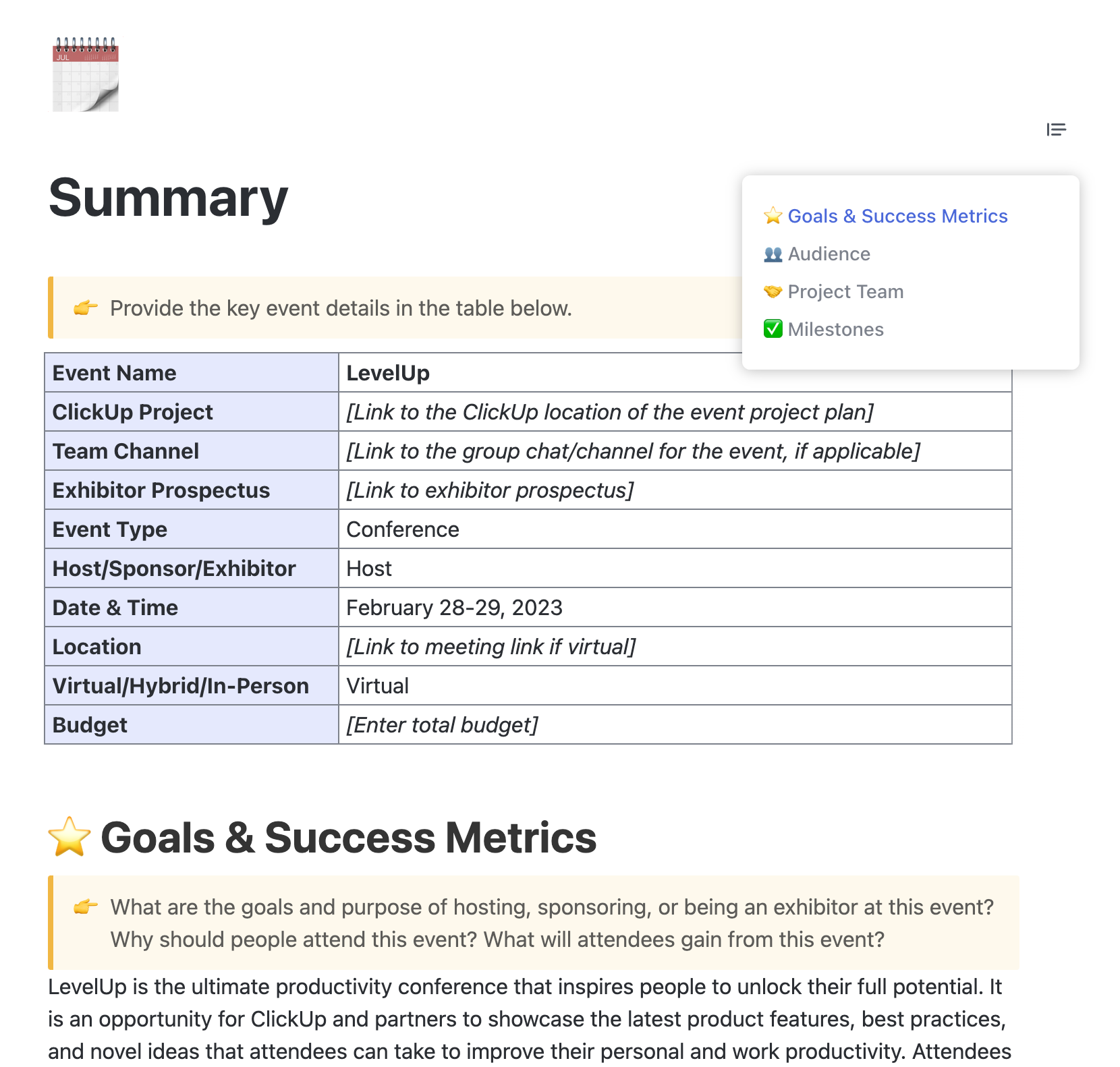
This ClickUp Event Brief Template centralizes all event details in a single location, making it easier for teams to stay coordinated from the start.
The template allows users to link directly to related project spaces, team discussions, and exhibitor documents, ensuring everything stays connected. Sections such as milestones, team roles, and audience insights are organized through a dropdown menu, making navigation simple.
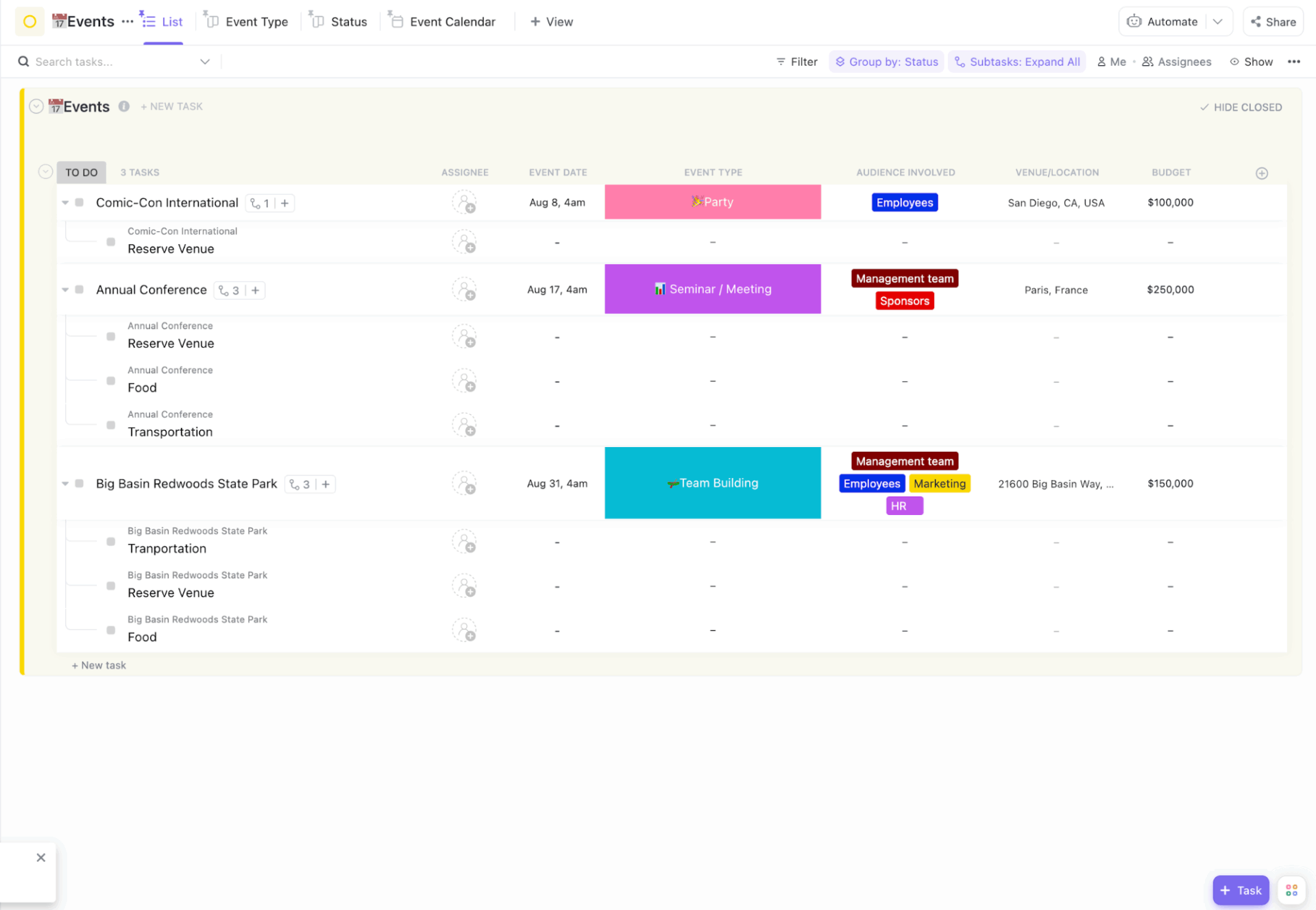
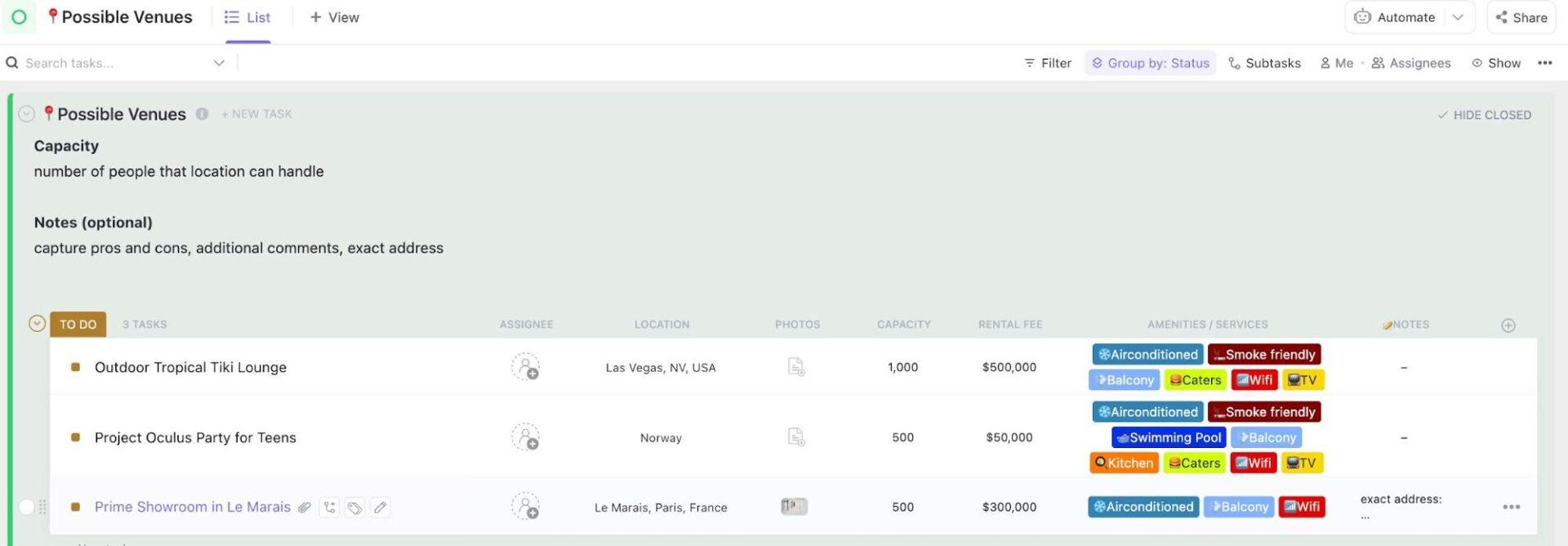
Budget overruns can derail even the most well-planned events. The ClickUp Event Budget Template is structured as a List view with tasks and subtasks, helping you break down each event into components like venue, transportation, and food. Each Custom Field allows you to input event dates, locations, and budget allocations, so you can easily manage and compare financial details.
The template also includes Custom Fields for stakeholders such as employees, sponsors, or HR teams, giving you visibility into who’s involved and where funds are being allocated.
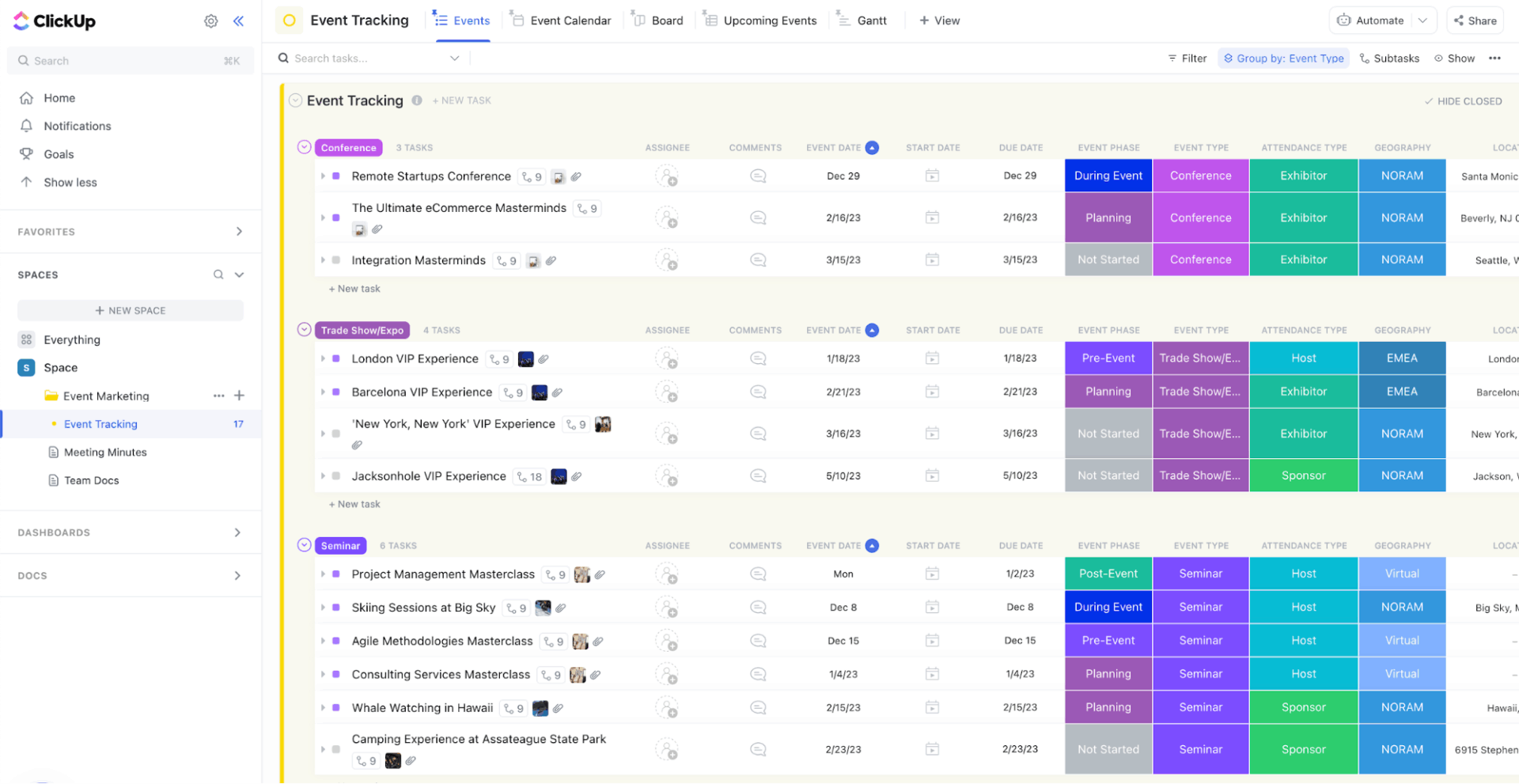
When managing event marketing, there’s no room for confusion, delays, or missed deadlines. The ClickUp Event Marketing Template helps teams track progress across different stages, including pre-launch planning, promotion, and on-site execution.
The template includes multiple views tailored to specific tasks.
Team Docs can be used to draft briefs and promotional plans, and the Events View centralizes event details in one place. The Event Calendar shows a timeline of deadlines to help teams stay on schedule.
The ClickUp Run of Show Template gives you a minute-by-minute event flow. You can outline stage cues, speaker timings, audio/visual checkpoints, transitions, and backstage notes in one structured timeline. Each line item can include owners, run times, and dependencies, so the production team stays perfectly coordinated.
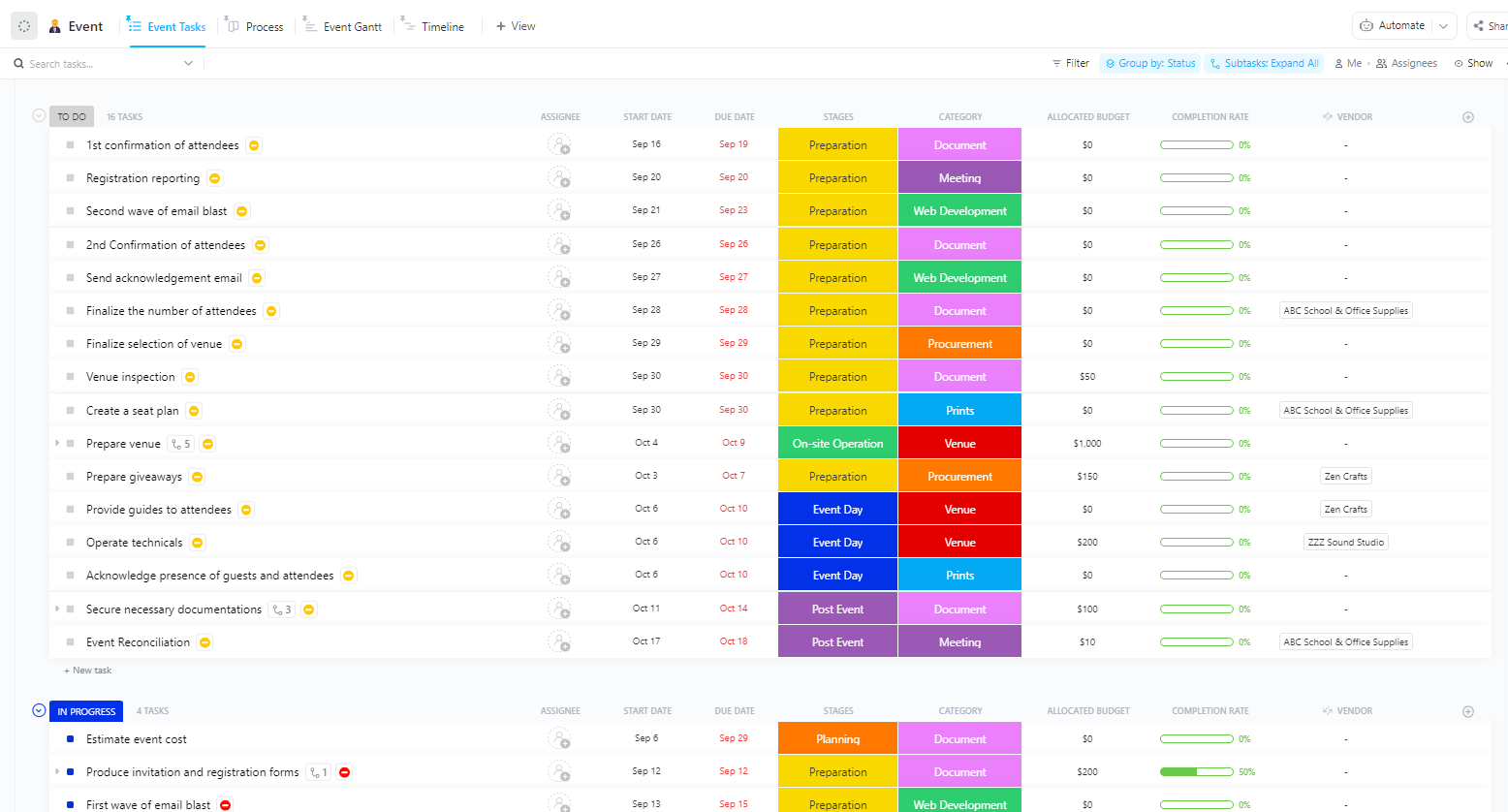
The ClickUp Conference Management Template organizes the planning process into manageable, trackable tasks. It uses custom statuses like To Do, New Registration, Active, and In Progress to give clear visibility into where each task stands.
The template is structured to follow the natural flow of event phases, from Planning and Preparation to On-site Operation, Event Day, and Post Event, so teams can monitor progress at every stage. Tasks can also be sorted by Custom Fields, such as Procurement, Web Dev, Documents, Prints, Venue, and Meeting, helping teams assign work efficiently.
⚙️ Bonus: Check out these conference agenda templates to organize these events with an efficient structure.
Sales, Marketing, Design Lab, Logistics, Engineering, and Support need to do their tasks in a specific order for the customer’s project to be a success—it used to be an absolute pain before ClickUp. Without the ability to track project timeline, goals, and global teams’ tasks all in one place, we struggled to get all the pieces for events on time.
Event planning comes with constant pressure, including tight deadlines, scattered details, and numerous moving parts.
ClickUp, as a project management software for events, simplifies the process by solving the most common challenges teams face. Let’s take a look at some. 👀
When you’re managing a complex event, it’s the little details that make or break the experience. ClickUp takes care of everything behind the scenes, from deadlines to last-minute changes, so nothing gets missed.
What makes it truly powerful is how AI is woven into every part of your Workspace. With ClickUp Brain, you get smart assistance within your project management tool that understands your priorities and helps create and track tasks from conversations while enabling team collaboration. Sign up to ClickUp for free today! ✅
ClickUp is used to plan, organize, and execute events by managing tasks, timelines, budgets, vendors, and communication in one centralized workspace.
Yes. ClickUp works well as event management software because it combines task tracking, templates, dashboards, automations, and AI tools that adapt to different event types and team sizes.
Yes. With Lists, dependencies, Gantt charts, and dashboards, ClickUp supports complex, multi‑day events with multiple stakeholders, vendors, and workflows.

© 2026 ClickUp

There’s an easier way. Try a free AI Agent in ClickUp that actually does the work for you—set up in minutes, save hours every week.