






Still downloading templates?
There’s an easier way. Try a free AI Agent in ClickUp that actually does the work for you—set up in minutes, save hours every week.
Sorry, there were no results found for “”
Sorry, there were no results found for “”
Sorry, there were no results found for “”

Specs evolve, messaging shifts, and feedback stays active long after the first draft ships. When edits live across scattered docs, chats, and tools, progress slows, and context gets harder to track.
Gemini helps teams revise what already exists without spinning up duplicate drafts. It helps reshape copy, tighten structure, and adapt tone while staying close to the original intent. That makes it easier to move quickly while keeping reviewers aligned.
This guide shows how to rewrite content with Gemini in workflows that look like real work: changing specs, stakeholder edits, approvals, and version churn. You’ll also see how ClickUp supports the flow by keeping rewrites tied to tasks, reviews, and approvals. 🔁
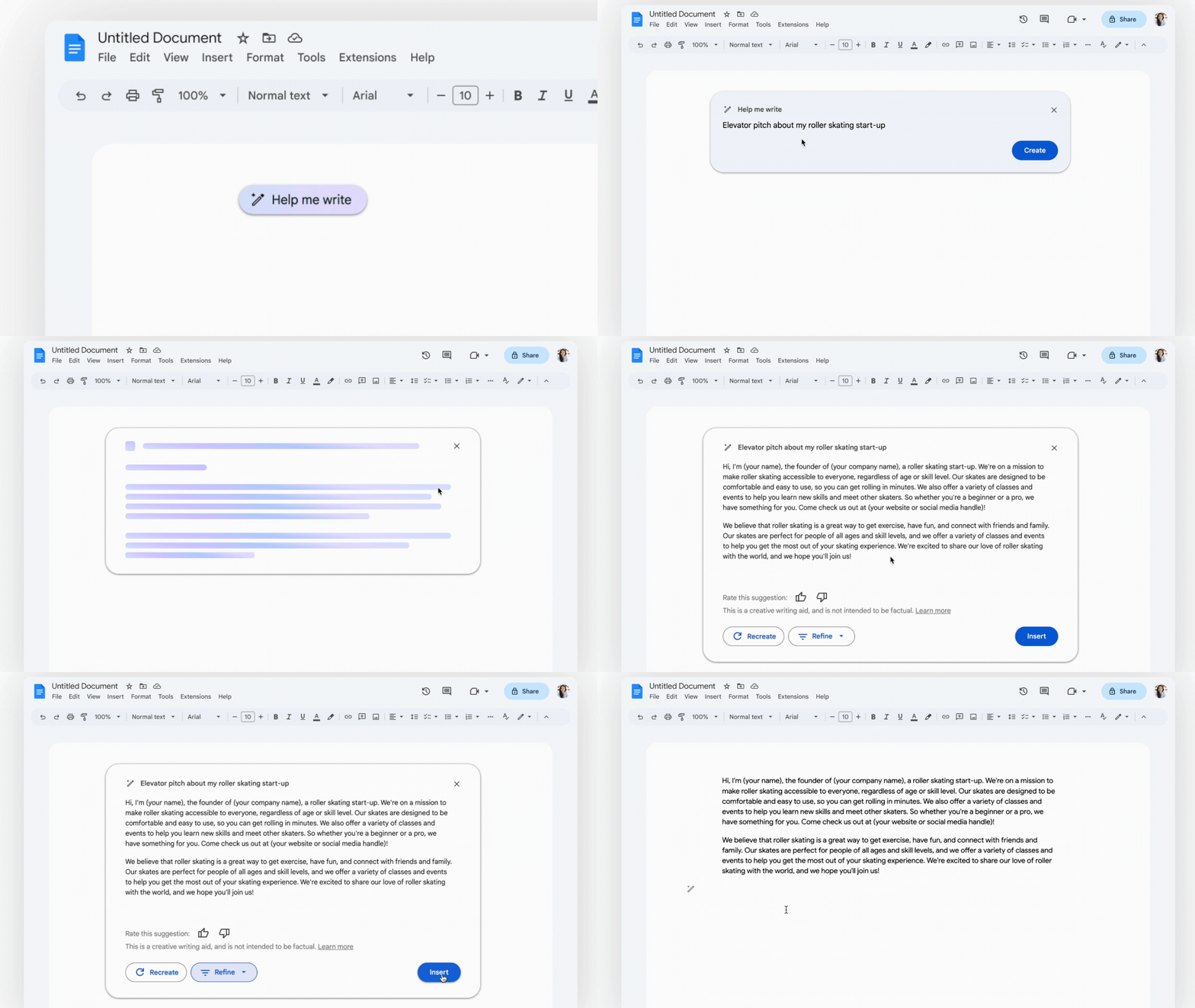
Gemini’s content rewriting feature is an AI-powered editing suite integrated across Google Workspace (like Google Docs and Gmail) and the standalone Gemini app.
It allows you to transform existing text by adjusting its tone, length, and structure without losing the original meaning. It uses large language models (LLMs) to interpret context and generate rewrite options you can review and apply.
🧠 Fun Fact: Classic novels went through extreme rewrites. Ernest Hemingway rewrote the ending of A Farewell to Arms 47 times. His belief was simple: rewriting was where meaning became precise.
Gemini can help you rewrite directly inside Google Docs, which keeps edits closer to where teams already draft and review.
Here is how you can get started. 👇
To use Gemini in Google Docs, you must have an eligible Google account. This feature is currently available to users with a Google Workspace Labs enrollment or those with a Gemini Business, Enterprise, or Education add-on.
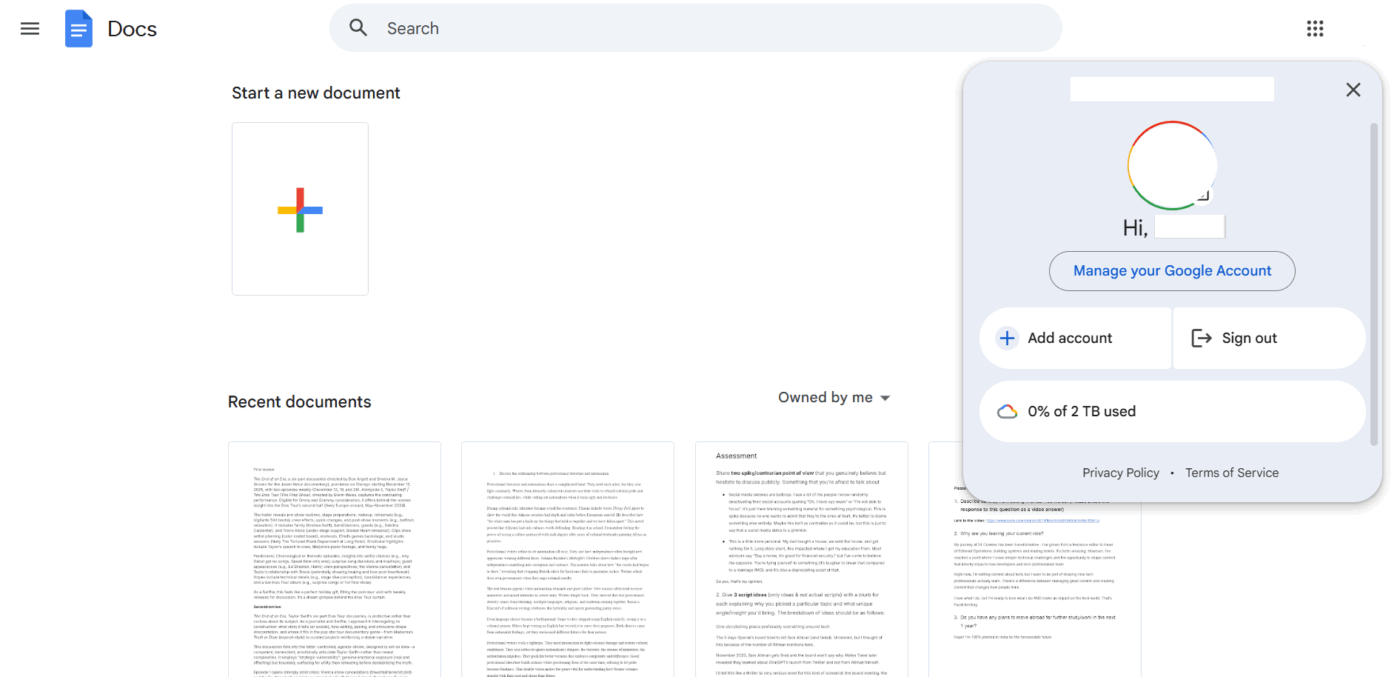
If you are using a personal account, you will need a Google One AI Premium subscription. Ensure you are signed into the correct account before opening your document.
🧠 Fun Fact: You’ve likely heard the advice to ‘kill your darlings’ (delete your favorite but unnecessary scenes). While often attributed to Stephen King or Ernest Hemingway, the phrase actually originated with Sir Arthur Quiller-Couch in 1916. He told writers: ‘Whenever you feel an impulse to perpetrate a piece of exceptionally fine writing, obey it—wholeheartedly—and then delete it before sending your manuscript to press.’
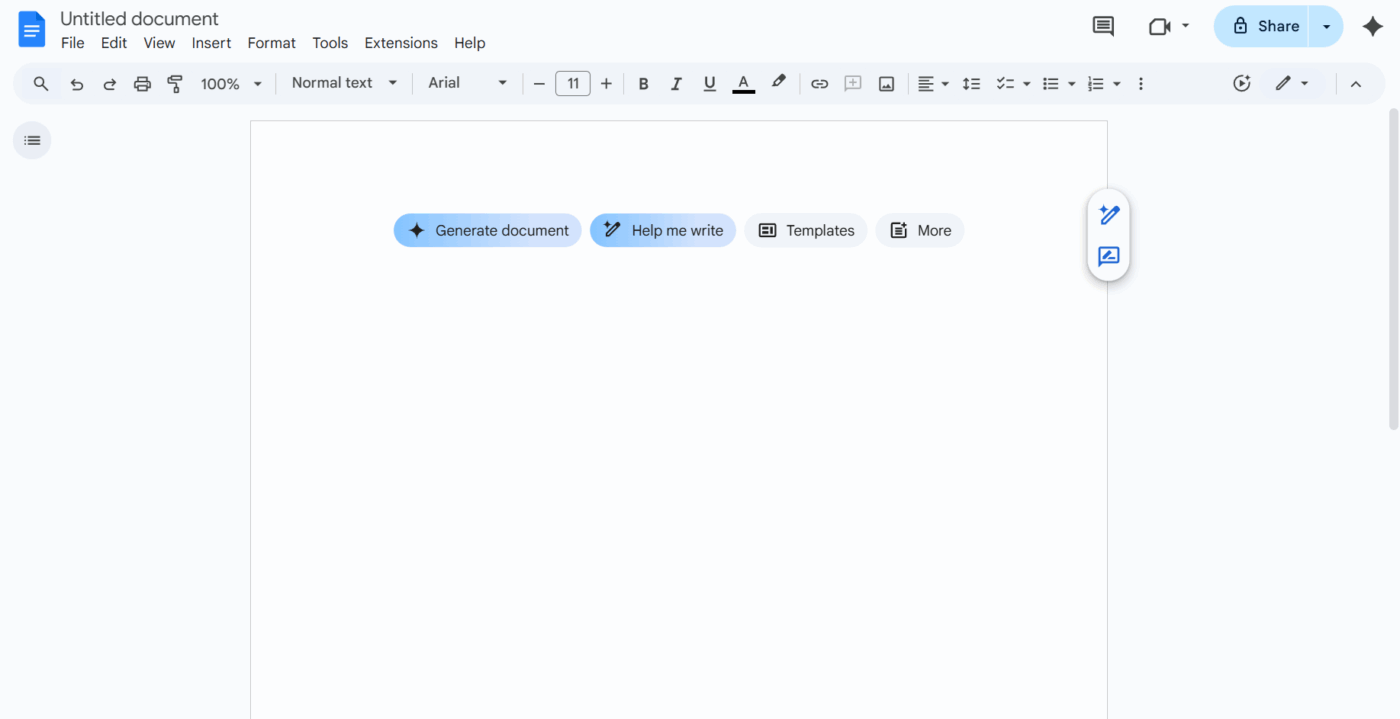
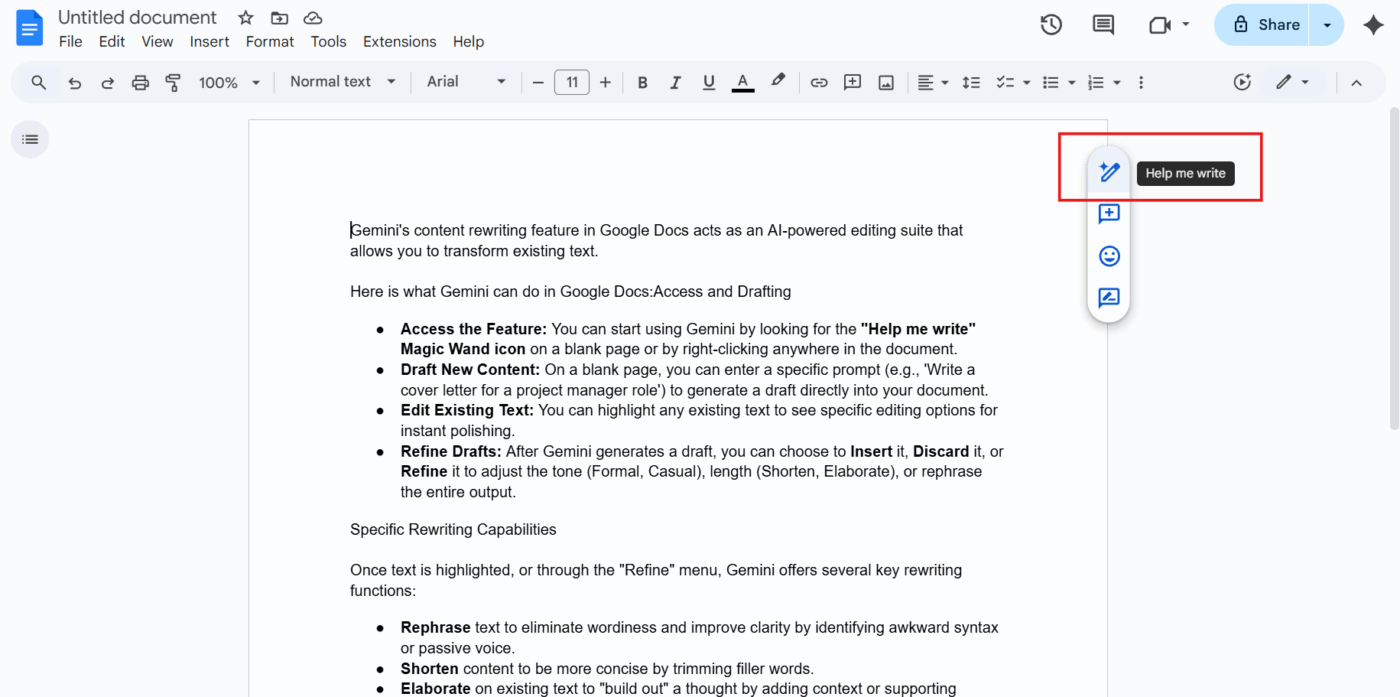
Once you open a new or existing Google Doc, look for the Magic Wand icon (labeled Help me write):
🔍 Did You Know? The famous children’s author Roald Dahl was a relentless reviser. He once claimed that by the time he finished a story, he would have reread and rewritten the beginning at least 150 times.
He famously said, “Good writing is essentially rewriting. I am positive of this.”
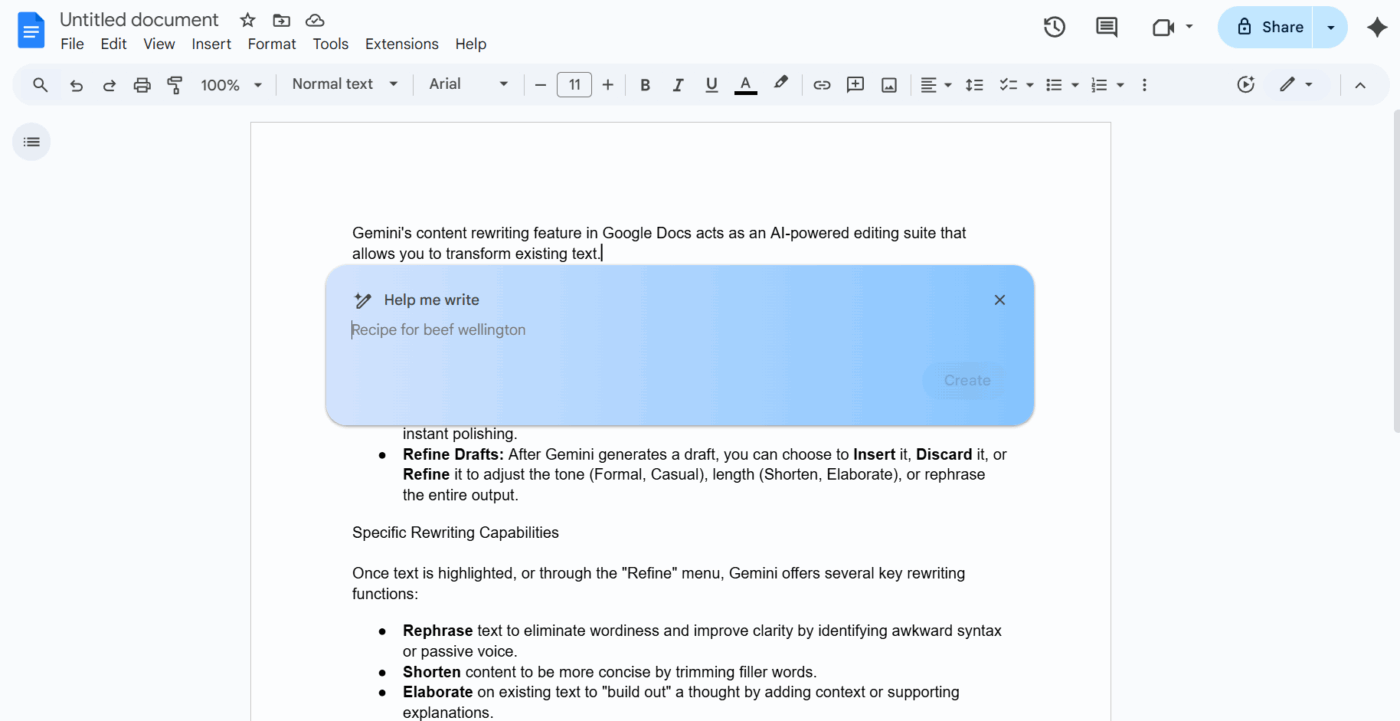
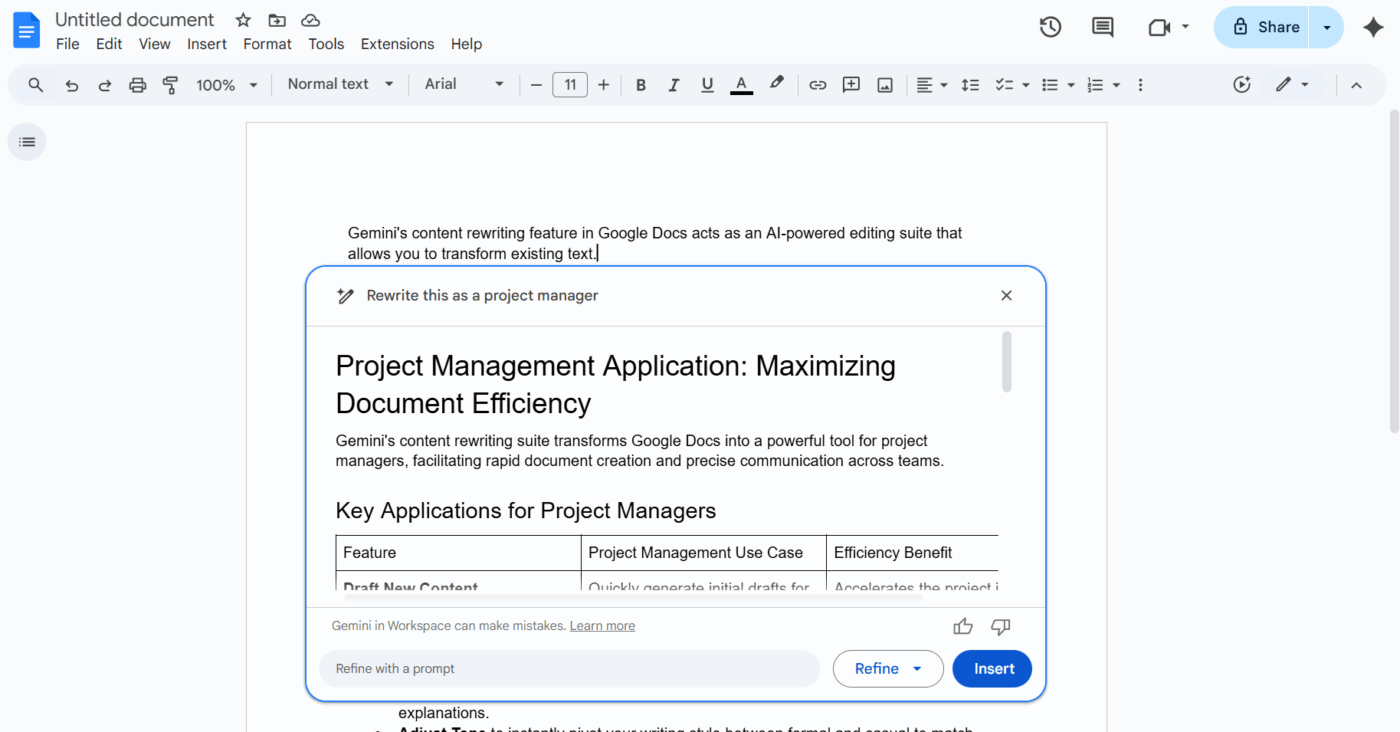
Clicking the icon will open a floating text box. Here, you can type a specific command. For example, you might type, ‘Rewrite this as a project manager.’
After typing your prompt, click the Create button. Gemini will then generate a draft directly on your page.
💡 Pro Tip: If you aren’t sure how to phrase your instruction, ask Gemini: ‘Make this a power prompt: [Your original prompt]’. It will rewrite your instruction to be more detailed and effective before you apply it to your text.
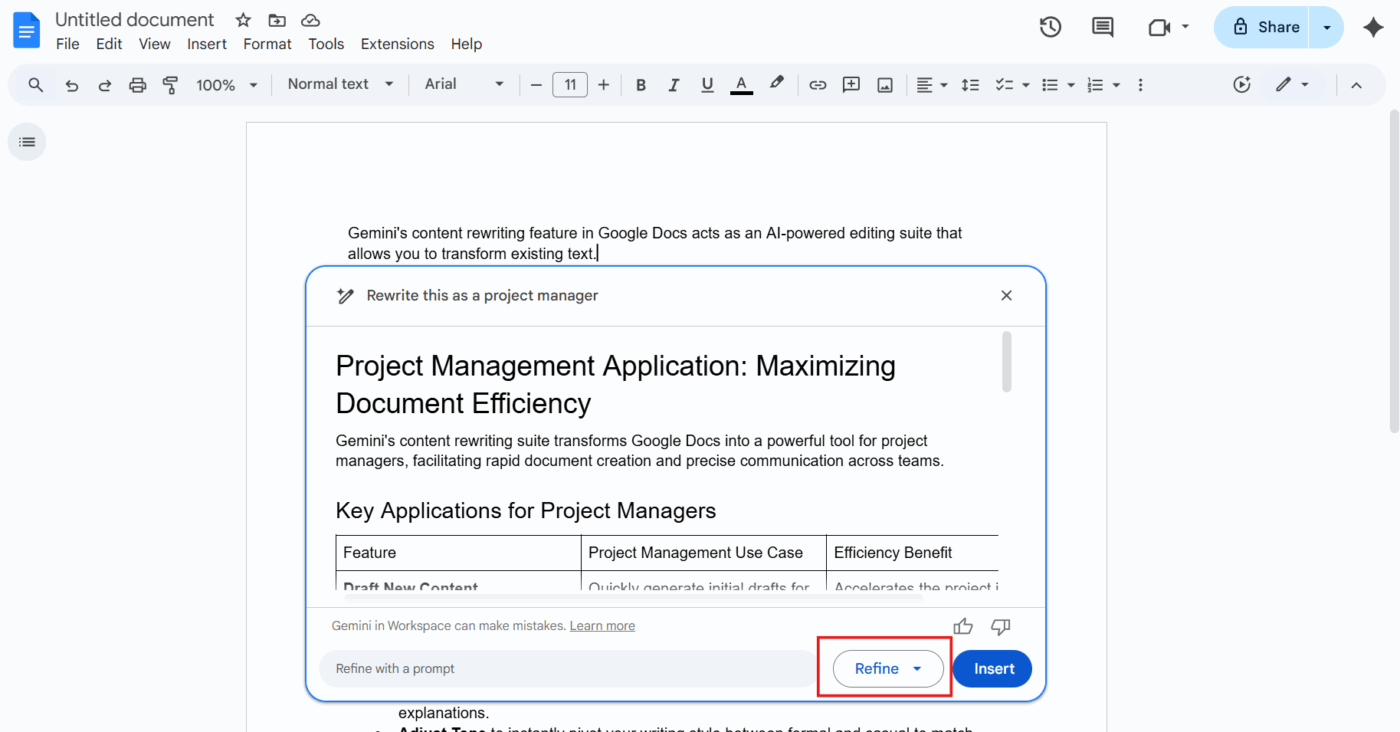
Gemini will present a draft of the requested text. You can review the output and choose from several options:
If you want to use Google Gemini to rewrite content you have already written, simply highlight the text you wish to change.
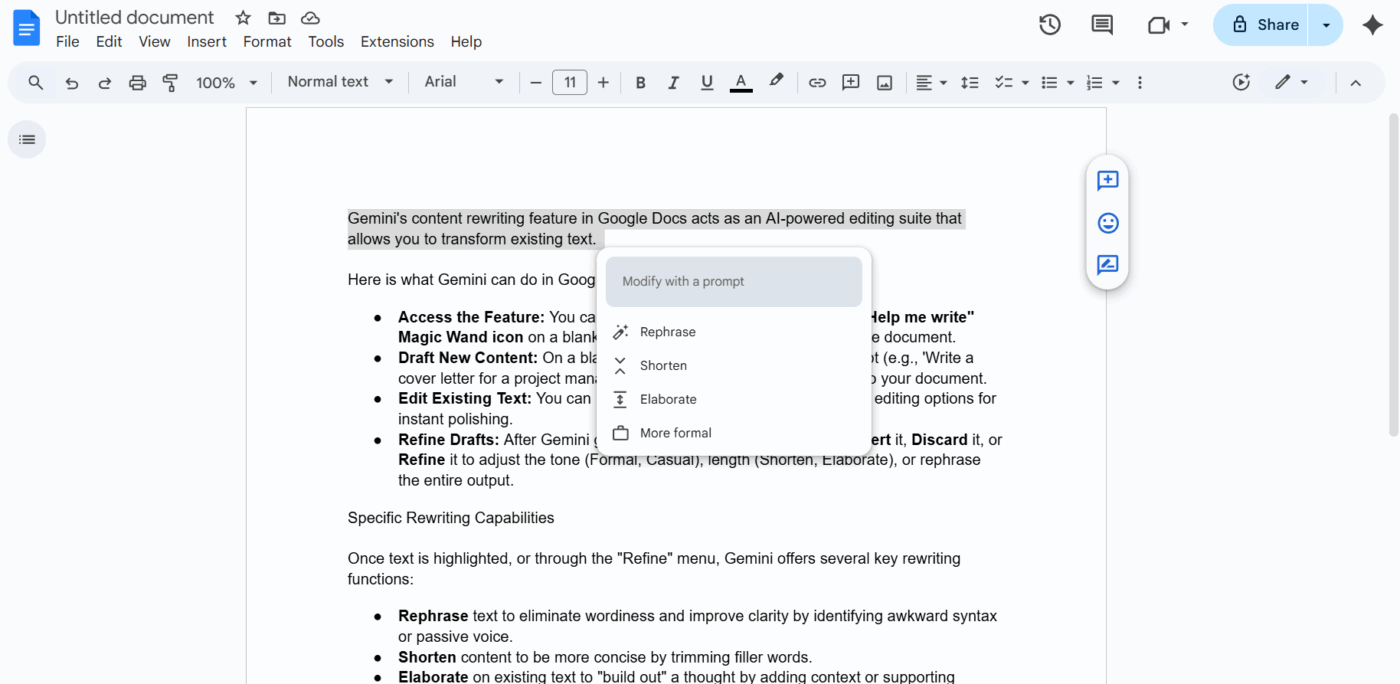
The Help me write icon will appear near your selection. Clicking it will give you specific editing options like Summarize, Bulletize, or Rephrase to polish your existing work.
📮 ClickUp Insight: 59% of our survey respondents say they do not have a weekly reset or review system in place.
When updates live across tasks, comments, docs, and messages, pulling everything together can feel like a project of its own. By the time you gather information on what changed, what slipped, and what needs attention, the energy to actually plan the week ahead is already gone.
What if an agent can take over this for you? ClickUp’s AI Agents can automatically compile activity across tasks and summarize what needs follow-up.
Instead of spending time reconstructing the past, you get to make clearer decisions about what comes next.
Here are seven ways you can use Gemini’s rewriting features to polish your documents. 📃
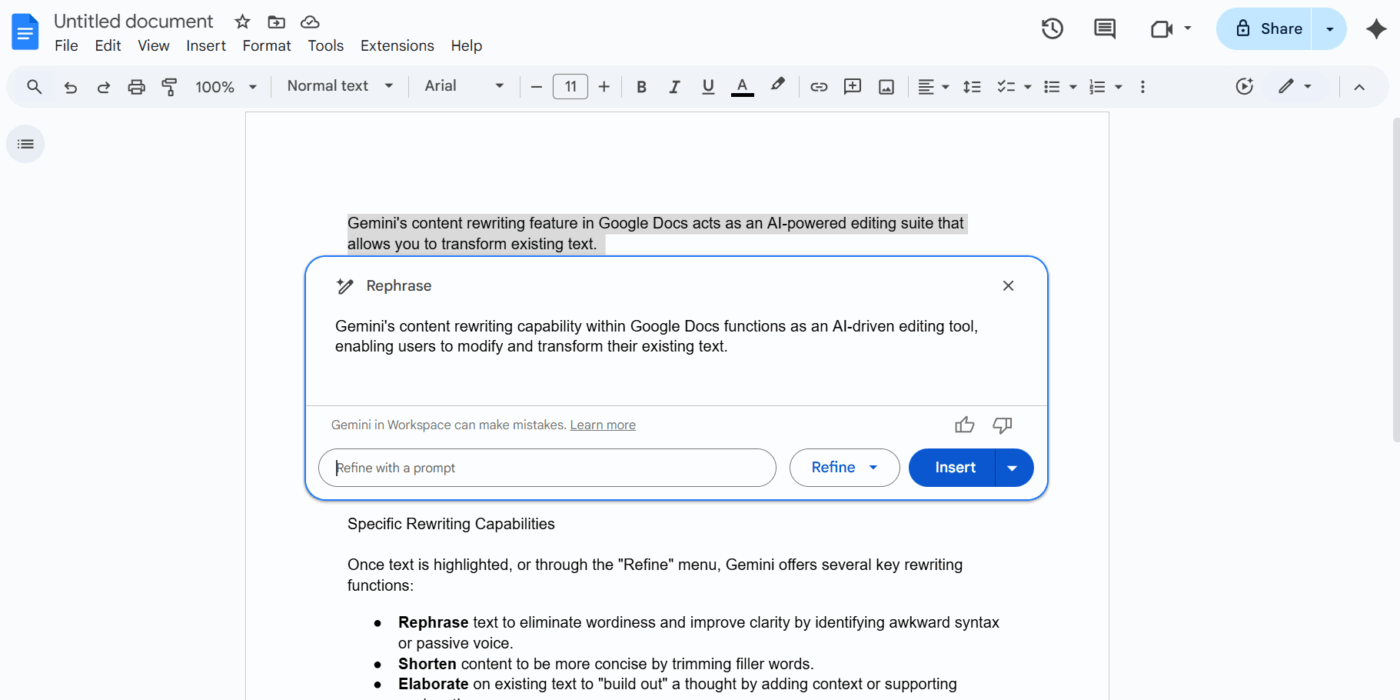
The Rephrase tool acts as a fresh set of eyes, identifying passive voice, repetitive words, or awkward syntax. It’s invaluable when you know what you want to say, but the current phrasing feels ‘clunky’.
Gemini reorganizes the sentence structure to ensure the most important information comes first.
🔍 Did You Know? Many canonical texts exist in multiple rewritten versions. Shakespeare’s plays survive in different quartos and folios that contain notable differences in wording, scene order, and emphasis.
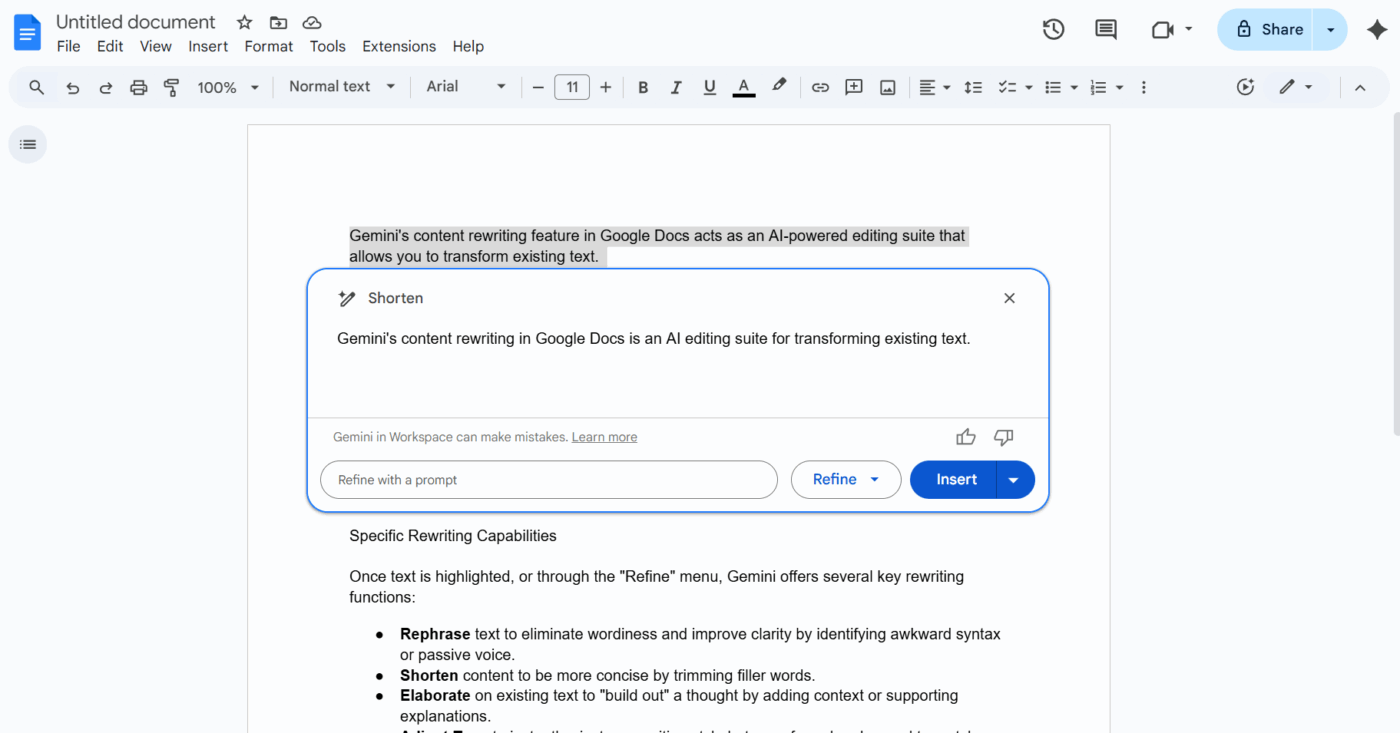
Gemini’s Shorten feature scans your text for ‘filler’ words, like basically, actually, or to, and trims them. It’s perfect for meeting a character limit on a social post, tightening an email, or making a technical manual more direct.
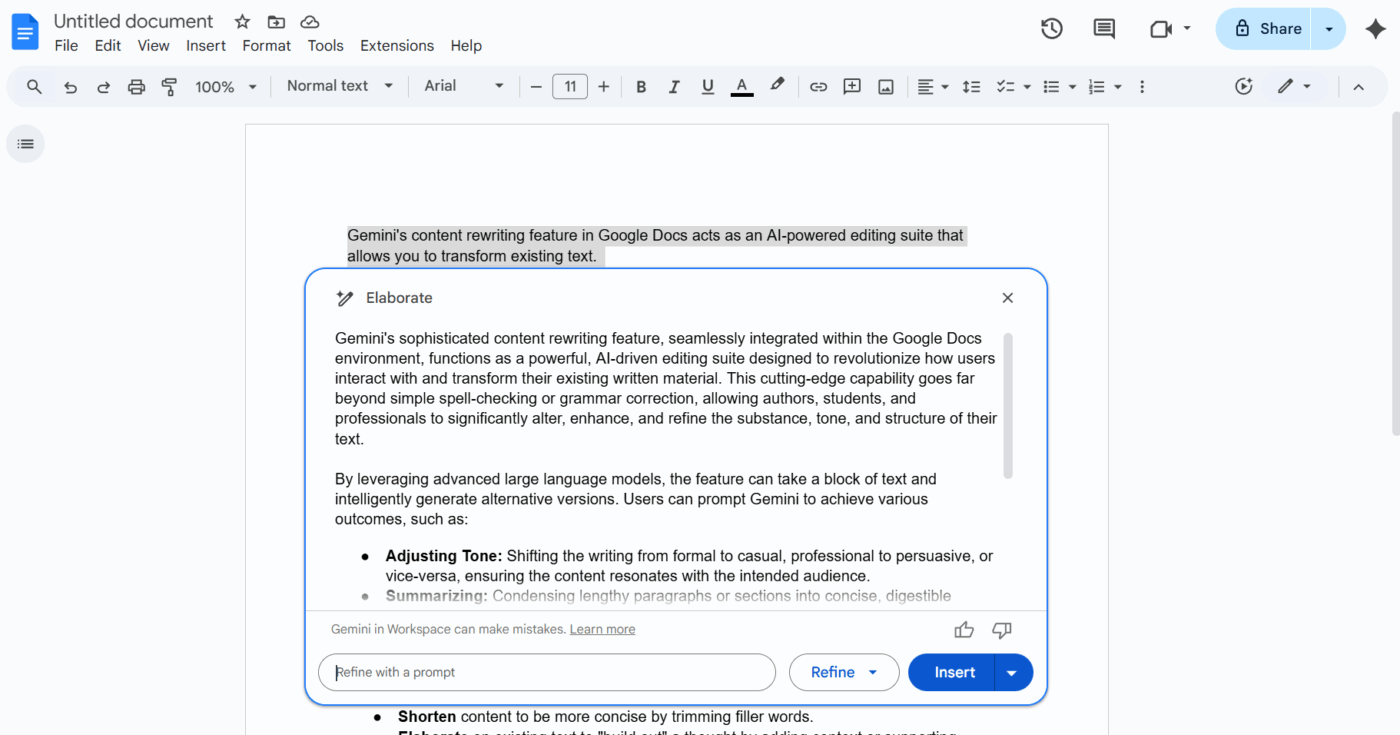
When your writing feels too brief or ‘thin,’ Gemini can help you ‘build out’ the thought. The Elaborate tool looks at your topic and suggests relevant context, examples, or supporting explanations.
It’s an excellent way to turn rough meeting notes into a comprehensive project proposal.
💡 Pro Tip: Use delimiters for clarity. Separate your instructions from the source text using symbols like triple quotes (”’) or brackets. This helps AI writing improvers distinguish between what they need to do and what needs to be changed.
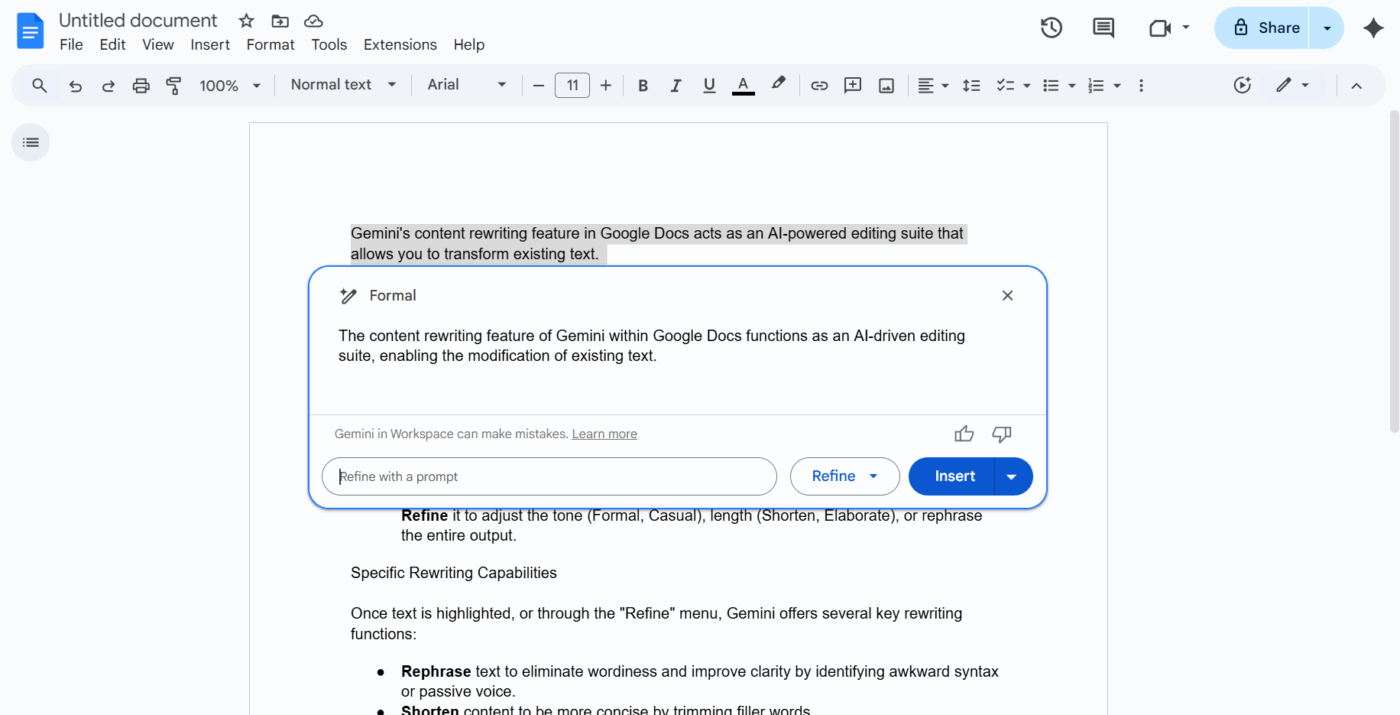
Matching your audience’s tone is critical. If you’ve written a stiff, corporate-sounding update but want to share it in a relaxed Slack channel, Gemini can soften the language.
Conversely, it can take a casual brainstorm and add the professional polish required for an executive summary.
💡 Pro Tip: Leverage ClickUp Super Agents for document reviews.
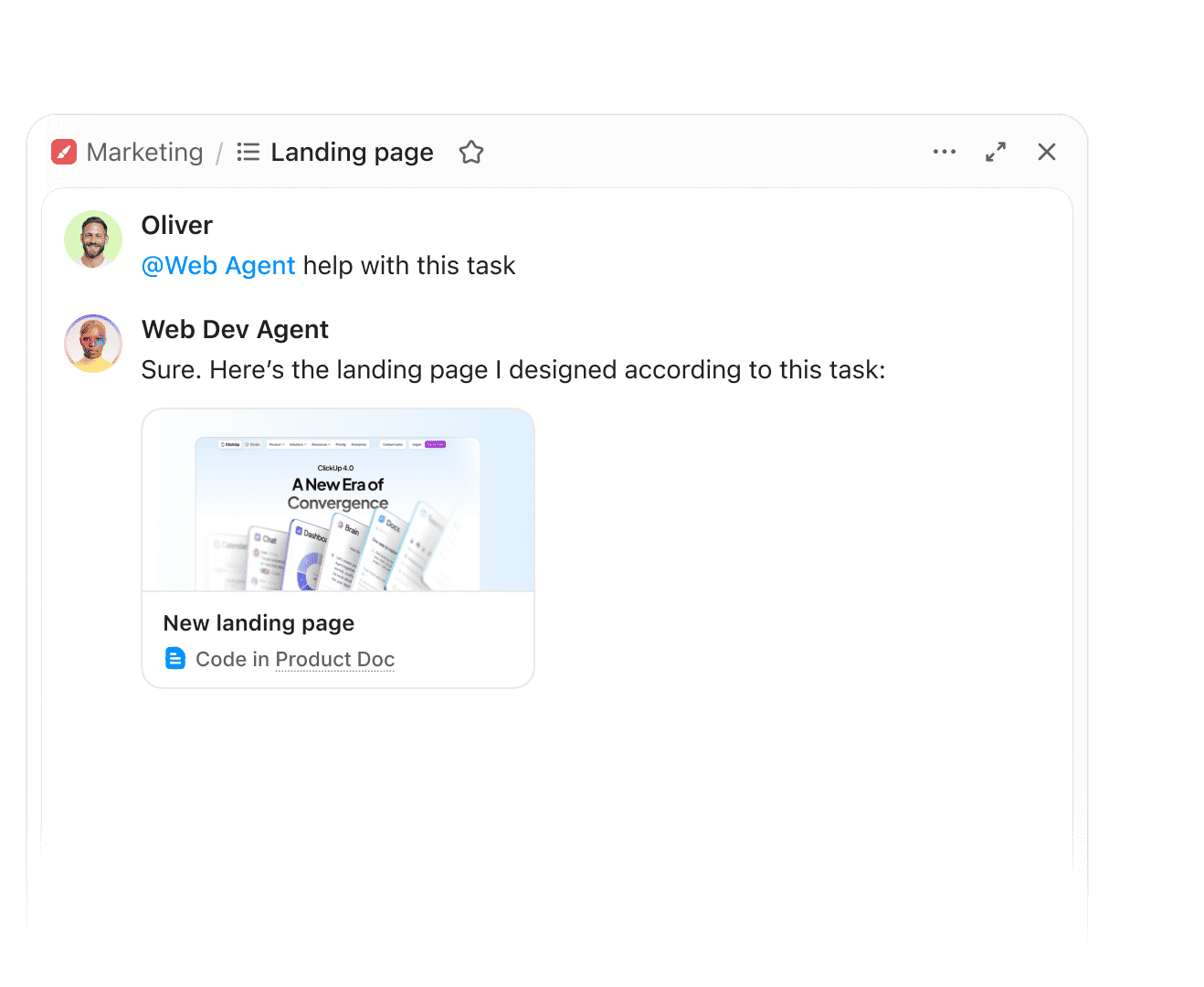
Assign specific roles like ‘Quality Checker’ or ‘Brand Copywriter’ before you ask for a rewrite. This forces the AI to look at the text through a specific professional lens.
Find out more here:
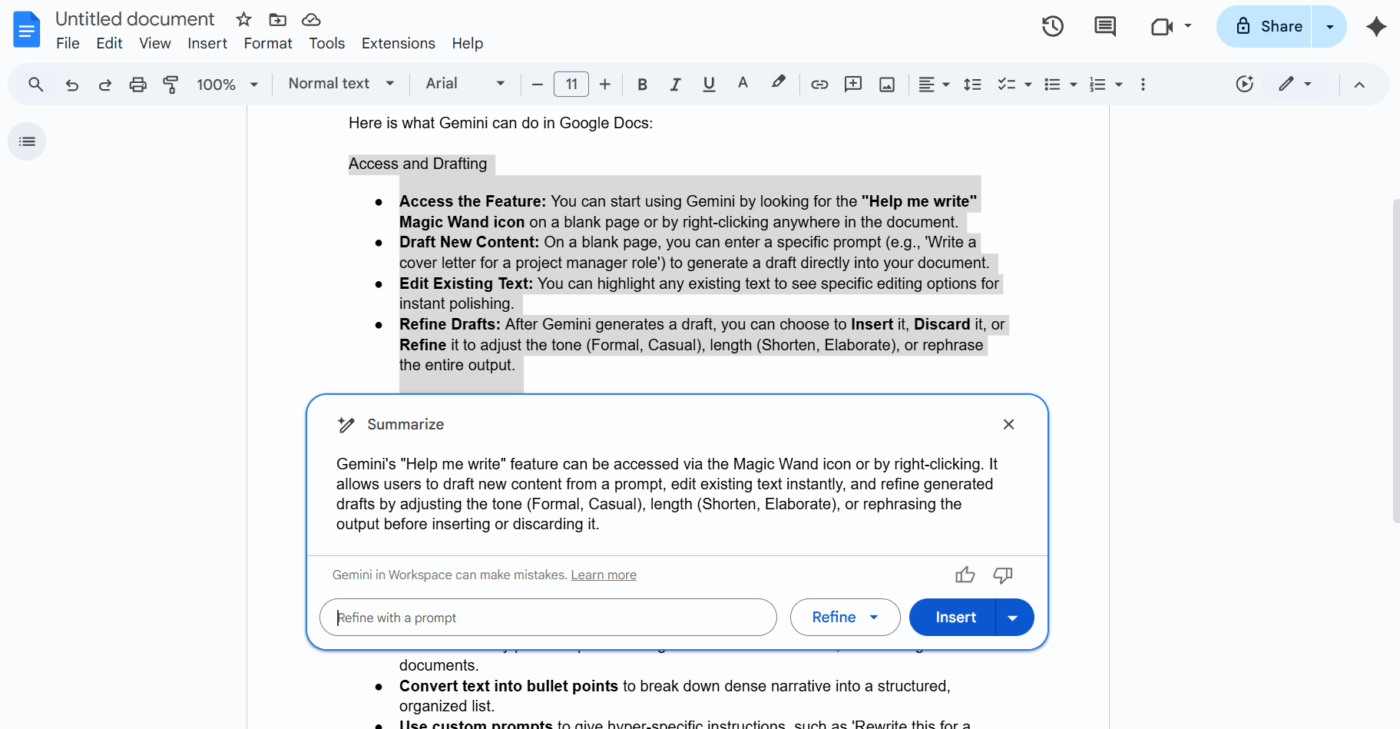
If you are staring at a five-page document and need to extract the ‘big picture,’ Gemini can do the heavy lifting. It identifies the primary arguments and conclusions, providing a high-level overview.
This is specifically helpful for creating executive summaries at the top of long reports or catching up on long email threads.
💡 Pro tip: Keep role and audience fixed. Gemini’s tone changes work best when you define who is writing and who is reading, then change only one variable at a time (tone, length, or structure).
🧠 Fun Fact: Search engines reward rewritten clarity. Google’s Search Quality Evaluator Guidelines explicitly prioritize content that is clear, helpful, and well-structured. Rewriting to improve intent match and readability aligns more closely with ranking guidance than publishing ‘net new’, but poorly structured content.
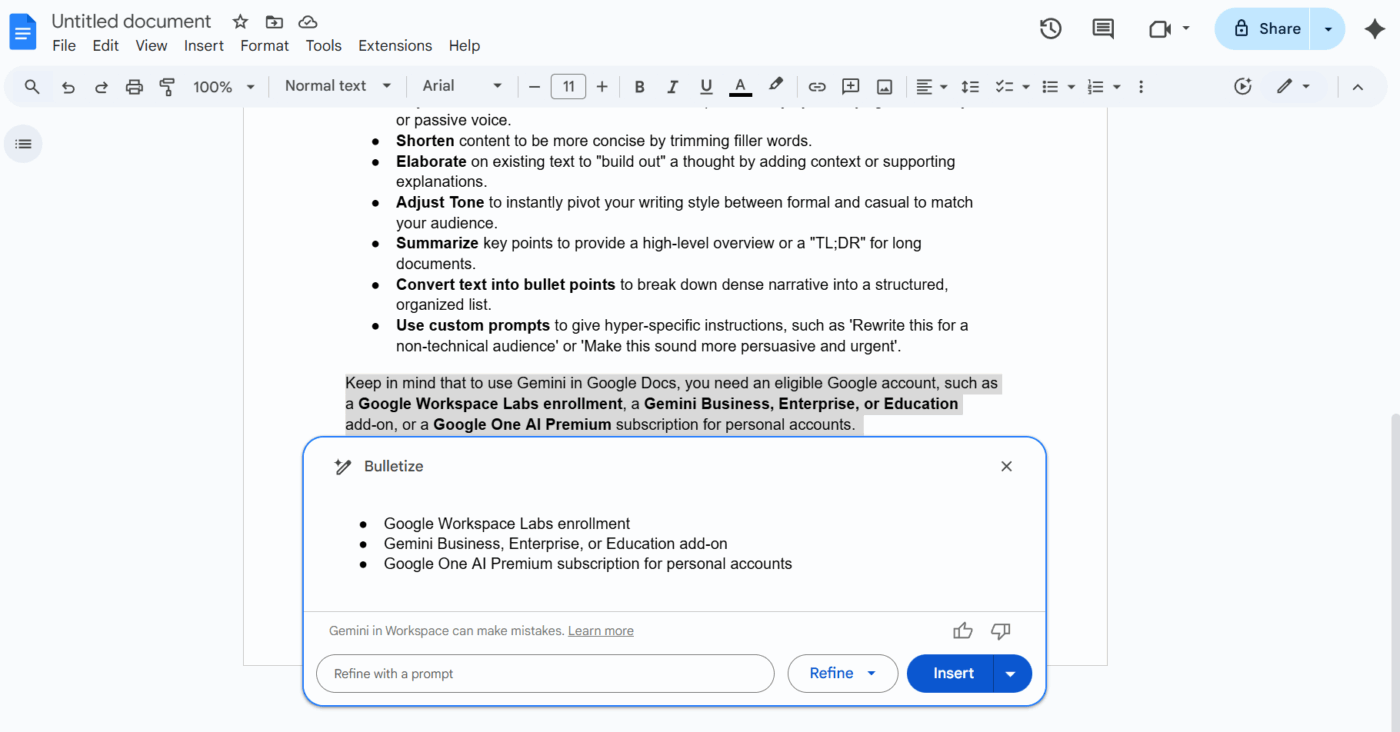
Walls of text are where readers go to lose interest. Gemini can take a dense narrative and reorganize it into a structured, bulleted list.
It automatically identifies logical breaks in your thought process, such as steps in a process, a list of requirements, or a set of benefits, and formats them for quick scanning.
📌 Note: When Gemini bulletizes, constantly review for parallel structure. If one bullet starts with a verb, keep all bullets in that form.
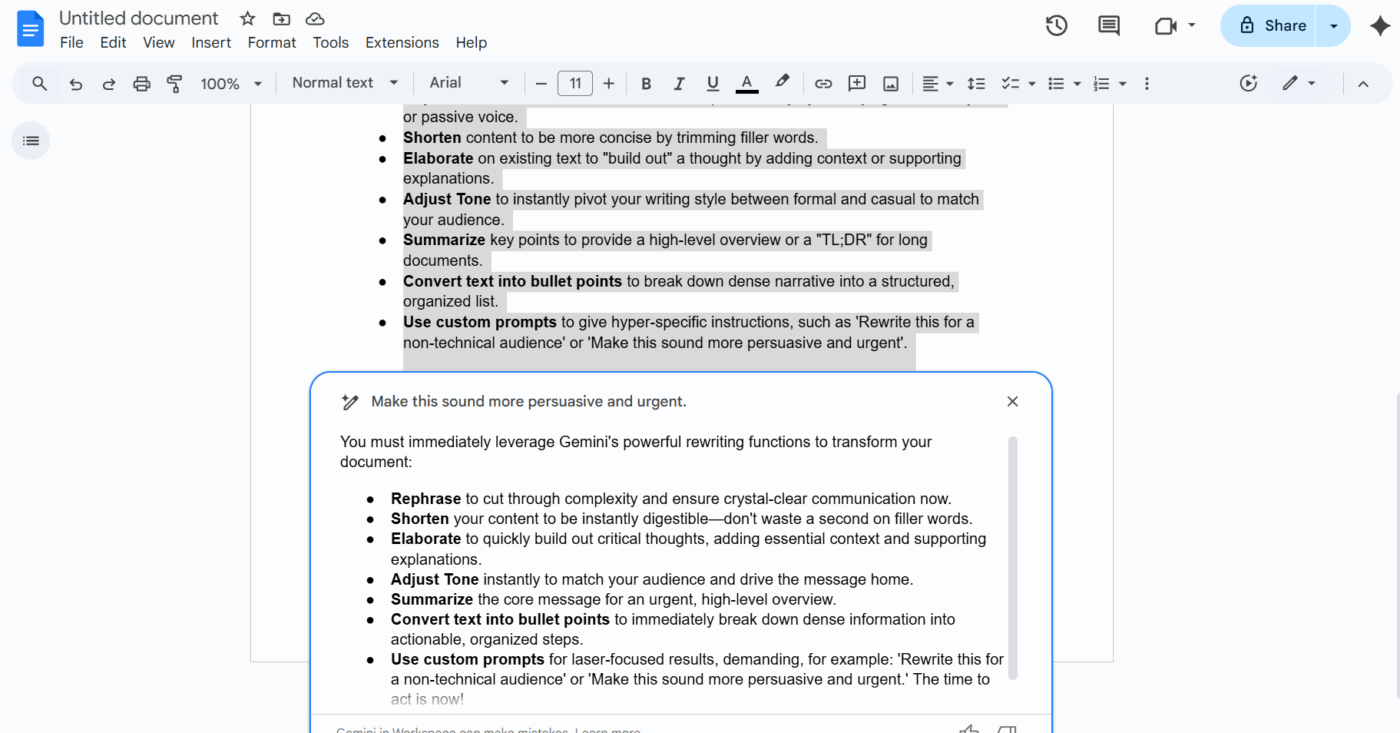
The preset buttons are just the beginning. With the Custom Prompt field, you can give Gemini hyper-specific instructions.
You can tell it to ‘Rewrite this for a non-technical audience,’ ‘Make this sound more persuasive and urgent,’ or even ‘Adapt this email into a LinkedIn post with relevant hashtags.’
🧠 Fun Fact: Headlines existed long before newspapers. Ancient Roman news sheets carved in stone, called Acta Diurna, used short, attention-grabbing summaries to announce events. The instinct to hook readers predates modern media by thousands of years.
To get the best results, your Gemini prompts should move beyond simple commands like ‘rewrite this.’ The more context and intent you provide, the more accurate the output will be.
An effective rewriting AI prompt template typically includes three key elements:
📌 Try this prompt: Rewrite this paragraph to be more persuasive, focusing on the cost-saving benefits, and format the output as a short LinkedIn post with three hashtags.
To truly master Gemini’s rewriting capabilities, you need to go beyond the basics. While the AI is powerful, its output is only as good as the guidance you provide. Here are some tips to get the best results:
If you are rewriting for a team workflow, add one more constraint: “Keep review comments and approvals intact.” That forces you to treat rewriting like an execution step, not a one-off wordsmith exercise.
🎥 Watch how AI transforms tedious document review into a few seconds of smart summarization and cleanup.
While Gemini is a powerful writing assistant, it has specific constraints that require human oversight. Understanding these boundaries ensures your final document remains accurate and professional:
⚙️ Bonus: Before you finalize or publish any text rewritten by Gemini’s AI blog writer, use this quick checklist to ensure quality and accuracy:
Gemini can speed up rewrites. ClickUp helps teams keep rewrites connected to execution in a converged AI workspace. That matters when content changes need follow-through, approvals, and a clean audit trail.
In ClickUp, drafts, tasks, feedback, and approvals can live together, so rewrites do not drift into disconnected “final-final” files. Instead of rewriting in isolation, you rewrite in the same place where decisions get tracked, avoiding any work sprawl.
Let’s take a closer look at what this Google Gemini AI alternative offers! 👀
Rewriting content often creates a mess of ‘Version 2’ or ‘Final Final’ files across various folders.
ClickUp Docs ends this chaos by hosting your entire content library directly inside your project workspace. You can use Relationships in ClickUp to link a Doc to a specific task, ensuring that the person assigned to the rewrite has every resource at their fingertips.
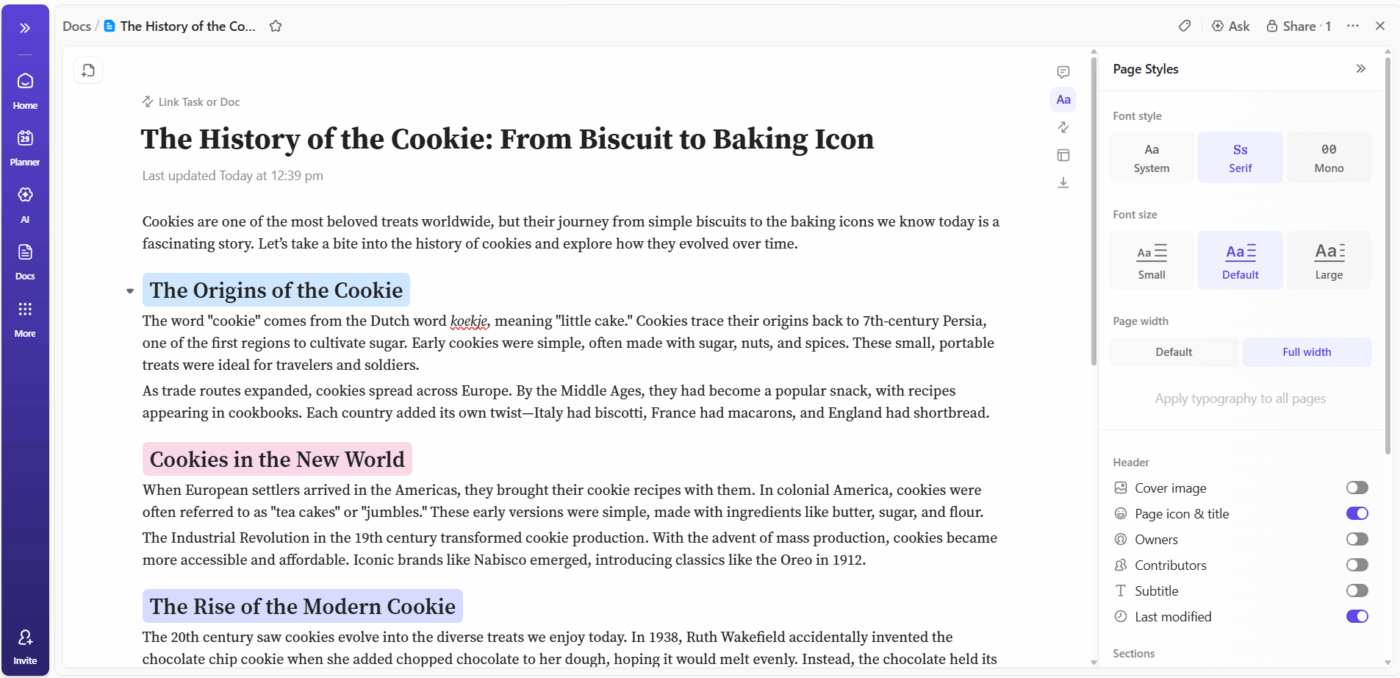
Suppose you lead a content refresh for a product launch. You create a Doc for each rewritten page and link it to the launch task.
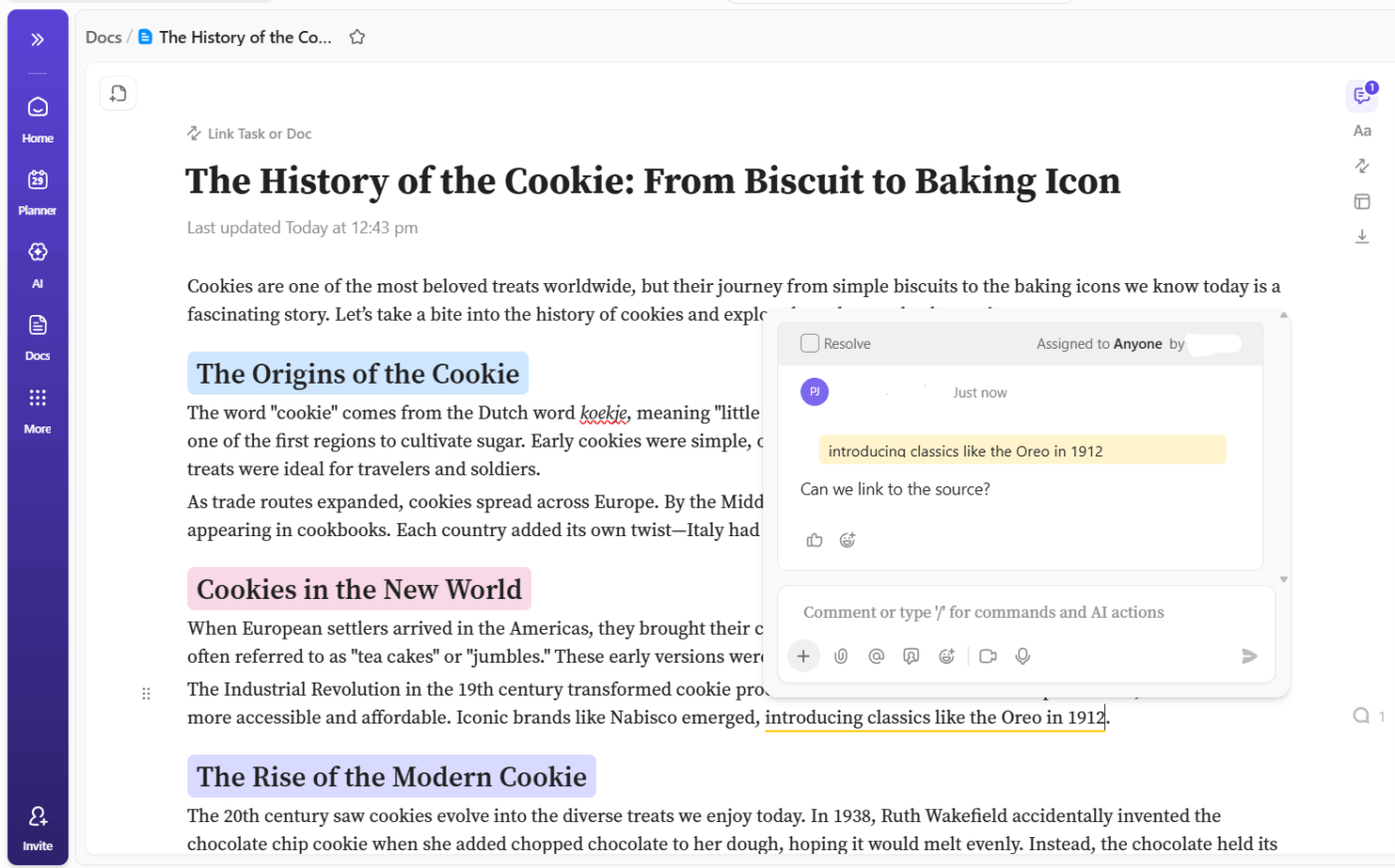
Editors leave Assigned Comments in ClickUp, stakeholders add suggestions in the same document, and you resolve feedback as you revise. When someone asks for a change in tone or structure, you see the request next to the exact paragraph that needs work.
🎥 Watch this video to simplify content production in ClickUp:
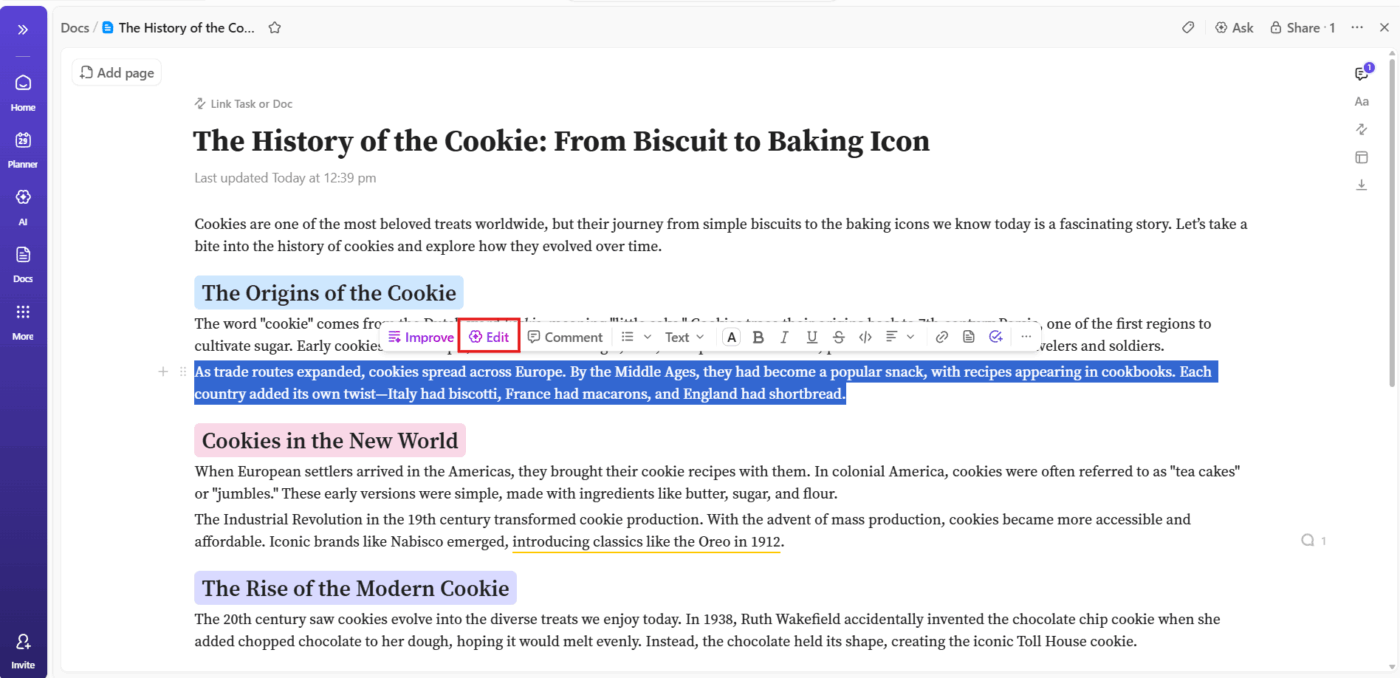
Once your draft is in one place, ClickUp Brain can support rewrites without forcing teams to bounce between tabs.
It uses Contextual AI to generate content that aligns with your brand voice. What’s more, it eliminates the need to copy-paste text into external AI windows, which keeps your data secure and your workflow fast.
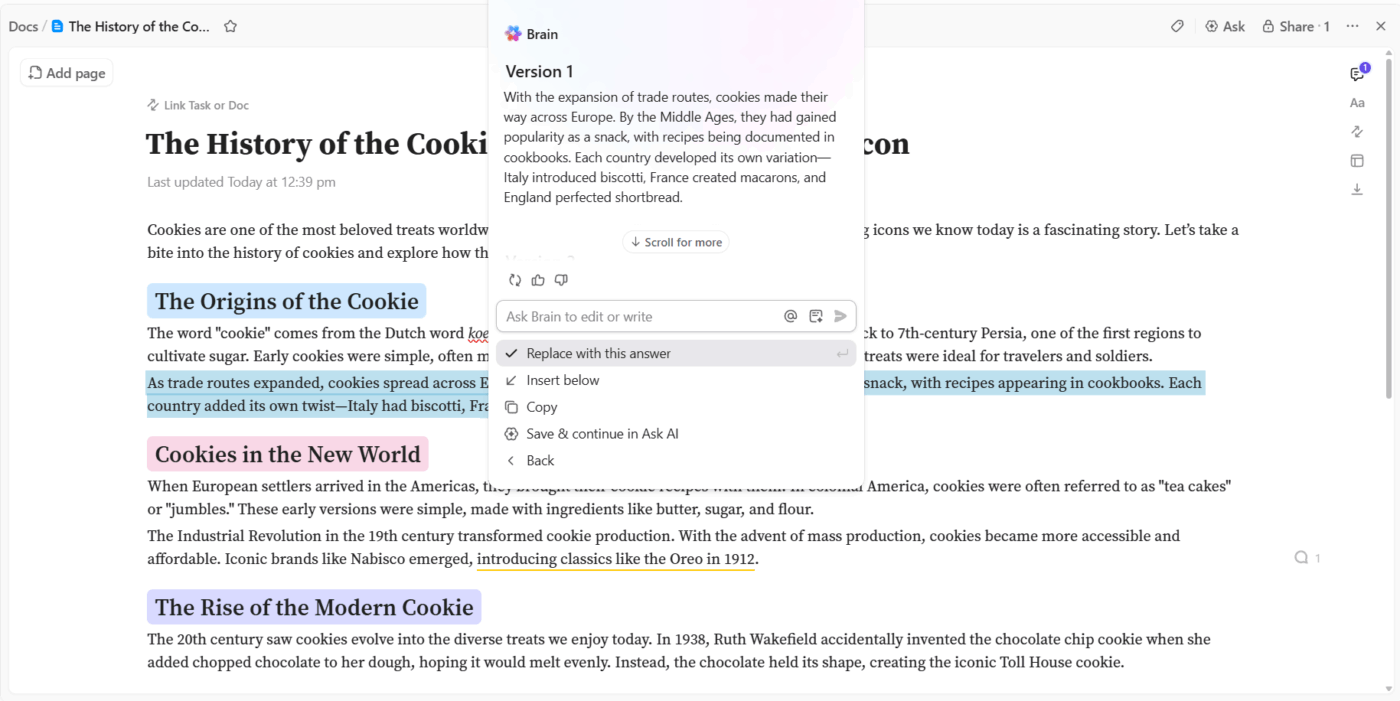
For instance, let’s say you are converting a dry, 2,000-word whitepaper into a conversational ‘how-to’ guide.
You can highlight a dense paragraph of technical jargon and ask ClickUp Brain to ‘Explain this like I am a beginner’ or ‘Change tone to professional yet friendly’. It immediately provides a rewritten version that flows better. This allows you to focus on the high-level strategy while the AI handles the repetitive task of rephrasing sentences.
Here’s a prompt you can try during your next rewrite: Generate alternative versions of this text.
You can even move to Ask AI and continue your conversation there.
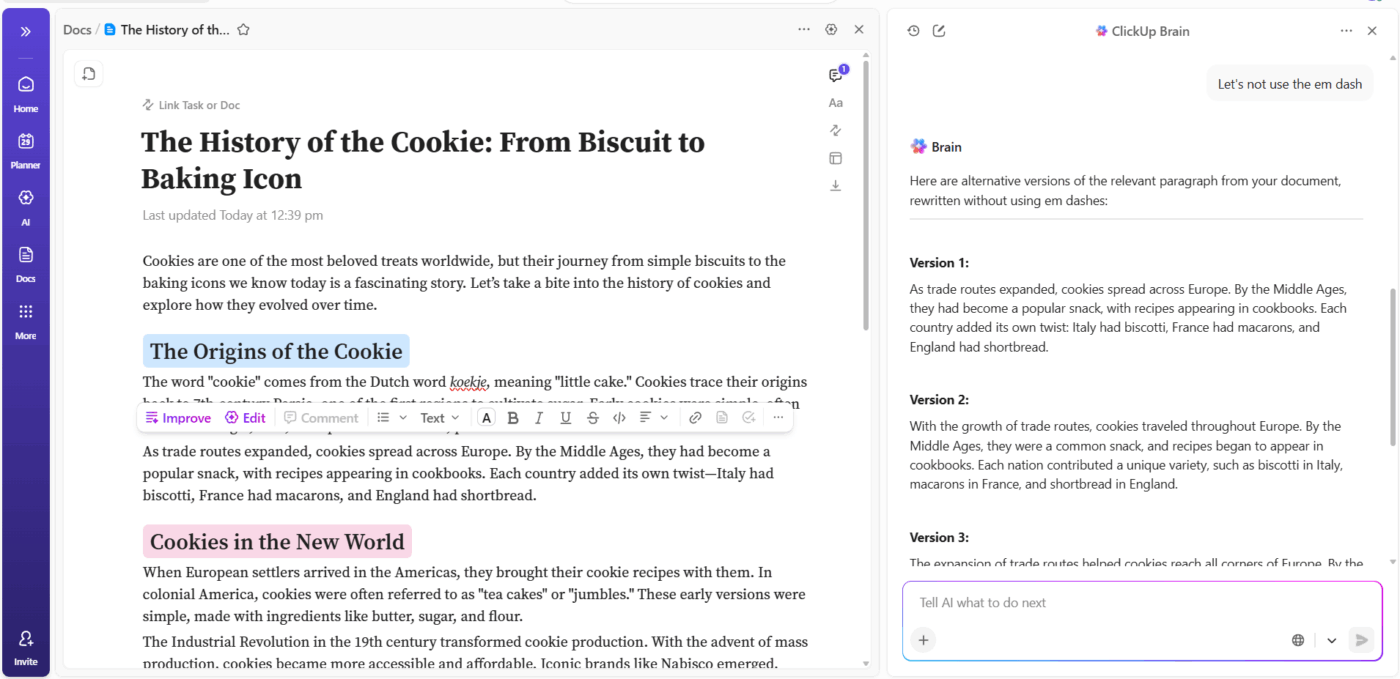
ClickUp Brain also gives you access to multiple AI models, which means you can match the right AI to your specific rewriting task. You can switch between Claude, ChatGPT, and Gemini depending on the content type and complexity.
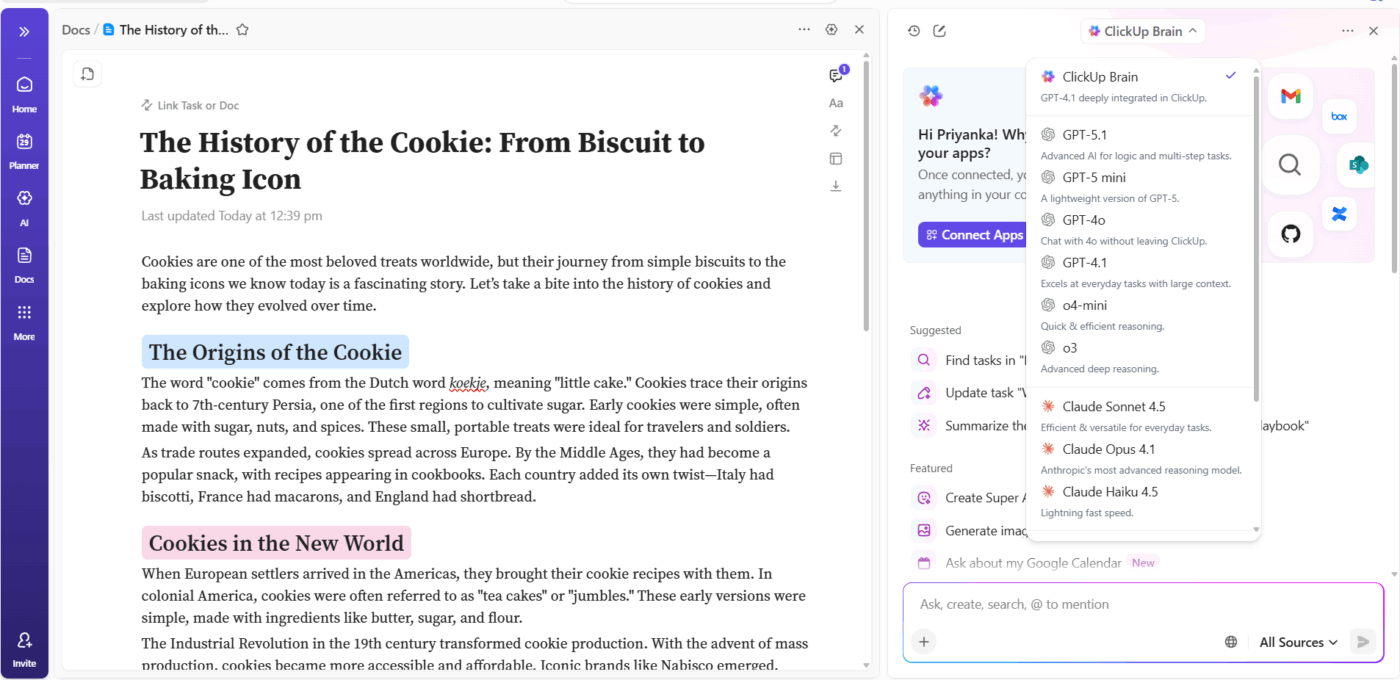
The flexibility ensures you’re not locked into a single AI’s limitations. If one model’s output doesn’t match your needs, you can regenerate the same prompt using a different model and compare results instantly.
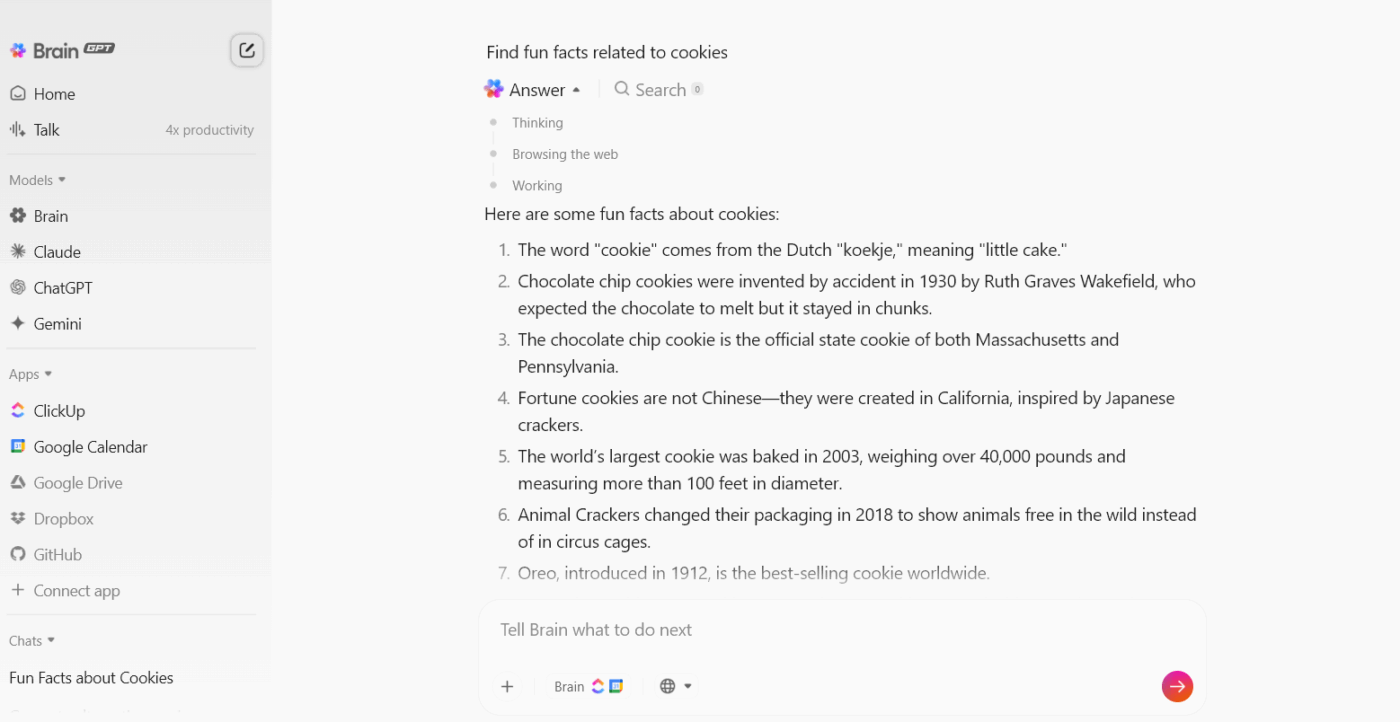
ClickUp BrainGPT serves as an always-on desktop and browser companion. Like the in-app assistant, BrainGPT allows you to use premium models like ChatGPT, Claude, or Gemini to perform deep research or draft outlines without AI Sprawl.
Plus, BrainGPT includes Web Search, which means you can research competitive content or verify facts without leaving your rewrite workflow. The search results include clear citations you can trust, helping you quickly validate claims or gather supporting evidence for your content.
For instance, if you’re rewriting a technical article and need recent statistics or industry developments, BrainGPT pulls current web information and cites the sources directly in the results.
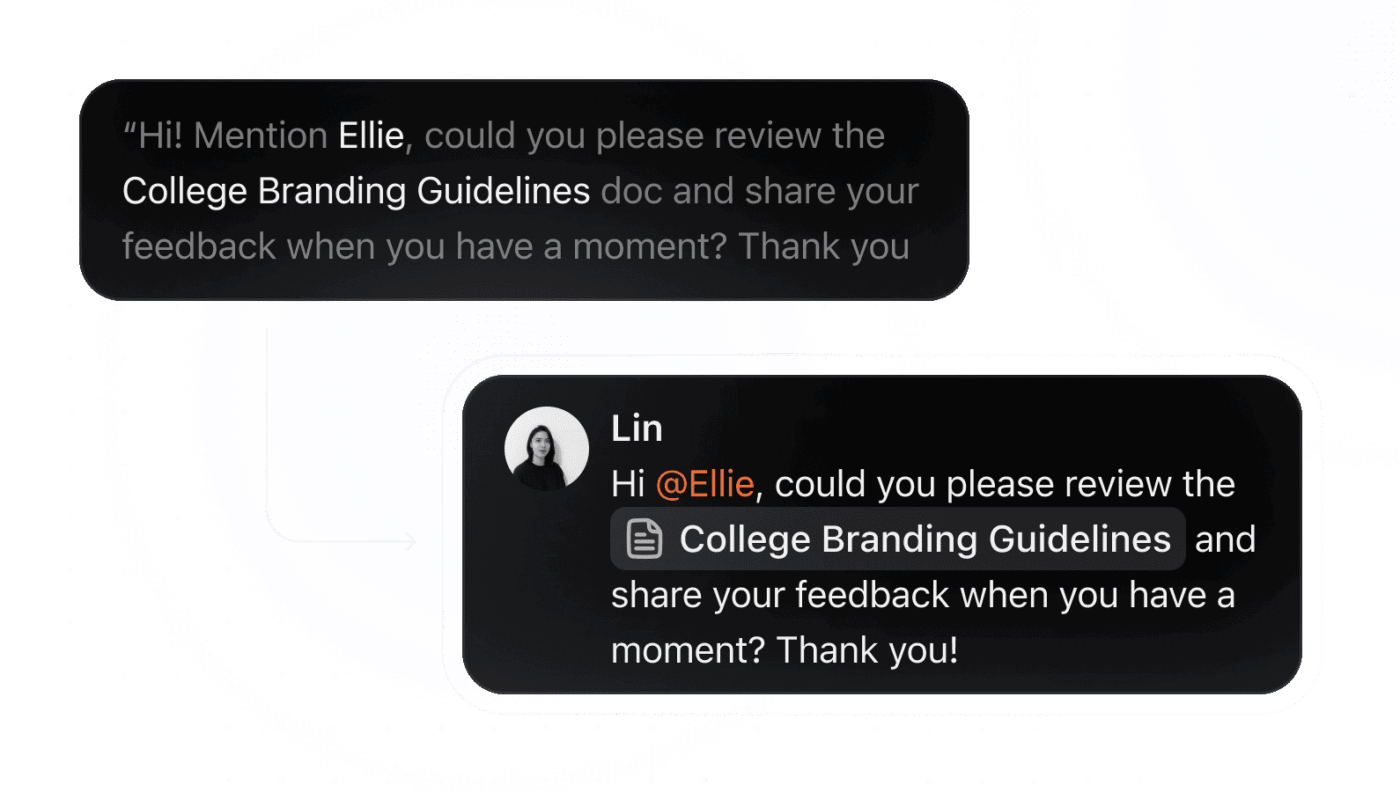
ClickUp Talk to Text helps you capture ideas and draft content up to 4x faster.
Press and hold your keyboard shortcut to start dictating, and your speech converts into polished, professional text automatically.
Suppose you’re struggling to rewrite a complex paragraph—speaking it aloud often reveals clearer ways to structure your thoughts, and Talk to Text captures those variations instantly.
Talk to Text includes several features that make dictation practical for professional content:
🧠 Fun Fact: Leo Tolstoy rewrote War and Peace multiple times over seven years. His wife, Sophia, manually copied the massive manuscript by hand eight times (and some parts nearly 30 times) to incorporate his endless revisions.
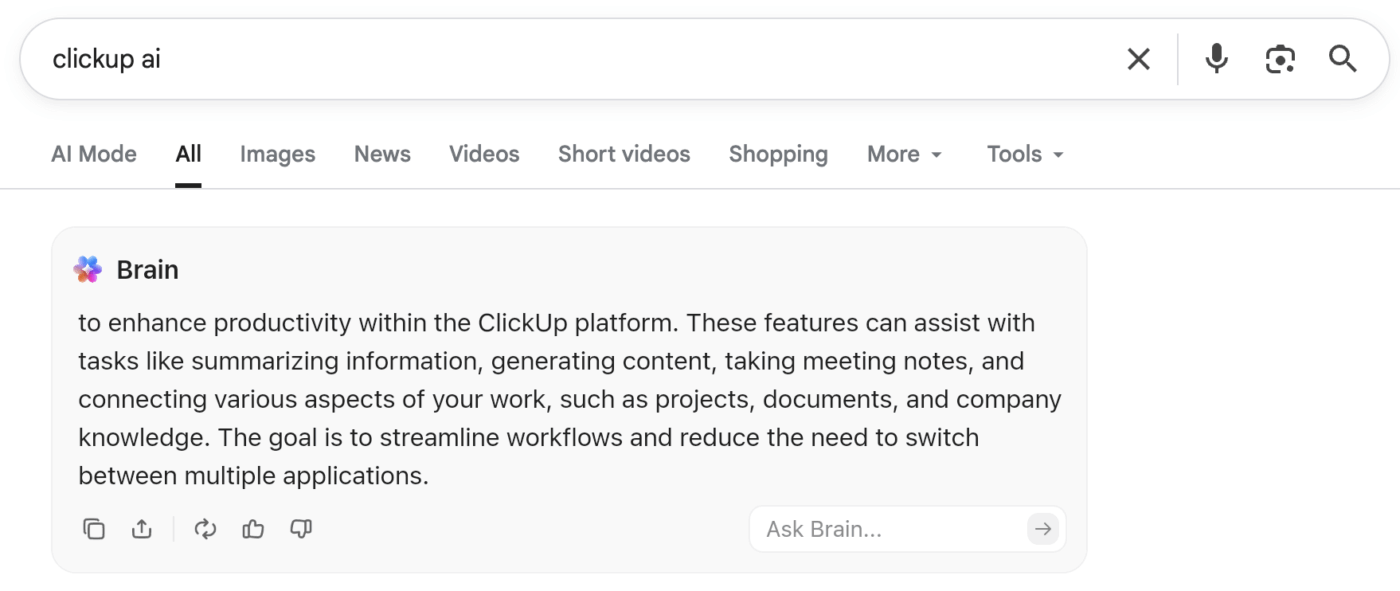
ClickUp BrainGPT’s Chrome extension works directly in your browser, letting you summarize competitor content, capture web research, or create tasks from any webpage.
For example, if you’re rewriting content and spot a competitor’s approach you want to reference, you can open the BrainGPT sidebar, summarize that page, and ask follow-up questions without switching tabs.
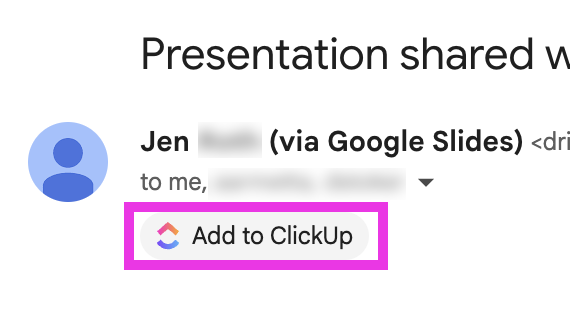
The extension can also bookmark pages as ClickUp Tasks or extract text from Gmail to create action items, keeping all your rewrite-related materials connected to your workflow.
🎥 Learn more about using AI in daily life tasks:
Gemini provides a helpful set of tools to instantly reshape your work. These AI features help you move past the ‘clunky’ first draft stage, so you can focus on the big-picture strategy that moves the needle.
However, while Google Workspace offers a good starting point, managing those revisions across endless tabs and docs can quickly turn into a project of its own.
ClickUp simplifies this entire flow by bringing your drafts, tasks, and team feedback into one single home. You can switch between top-tier models like Gemini, Claude, and ChatGPT to find the perfect voice for your brand without ever leaving your document. It transforms rewriting into a streamlined part of your actual execution.
Ready to eliminate the sprawl and start finishing? Sign up for ClickUp today! ✅
Gemini can maintain brand voice more reliably when you provide specific guidance. For stronger consistency, paste a short “voice sample” and define constraints (reading level, sentence length, and terms to avoid).
Gemini and tools like ChatGPT handle rewrites well, but they live in separate tabs where you lose workspace context. ClickUp Brain gives you multiple AI models (Claude, ChatGPT, Gemini) directly in your documents while accessing your brand guidelines, past campaigns, and project history automatically.
Yes, Gemini is highly effective at repurposing content for various channels. You can easily prompt it to turn a long blog post into a punchy LinkedIn update, an X (Twitter) thread, or a casual Instagram caption.

© 2026 ClickUp

There’s an easier way. Try a free AI Agent in ClickUp that actually does the work for you—set up in minutes, save hours every week.