






Still downloading templates?
There’s an easier way. Try a free AI Agent in ClickUp that actually does the work for you—set up in minutes, save hours every week.
Sorry, there were no results found for “”
Sorry, there were no results found for “”
Sorry, there were no results found for “”
When you’re working across multiple projects, blockers are inevitable at some point.
While you can’t always prevent every blocker, you can control its impact by ensuring you highlight it on time and effectively.
Microsoft’s telemetry shows employees are interrupted about every two minutes, which is why a blocker update can disappear fast unless you document it where your manager can track it.
This guide shows you how to report blockers to your manager effectively without sounding reactive. You’ll learn how to state what’s blocked, explain the impact, share what you tried, and propose a few possible solutions so your manager can act fast.
You’ll also see how ClickUp helps you document blockers and make progress easier to track across the team.
🧠 Did You Know? Google’s research on team effectiveness highlights psychological safety as a key factor in whether people feel safe taking interpersonal risks, like raising concerns or admitting they’re stuck. When your team culture supports that, you’re more likely to surface blockers early instead of protecting the status quo.
When you report a blocker in a chat thread, it is easy to lose context. That creates extra back-and-forth, and you can end up losing lots of time.
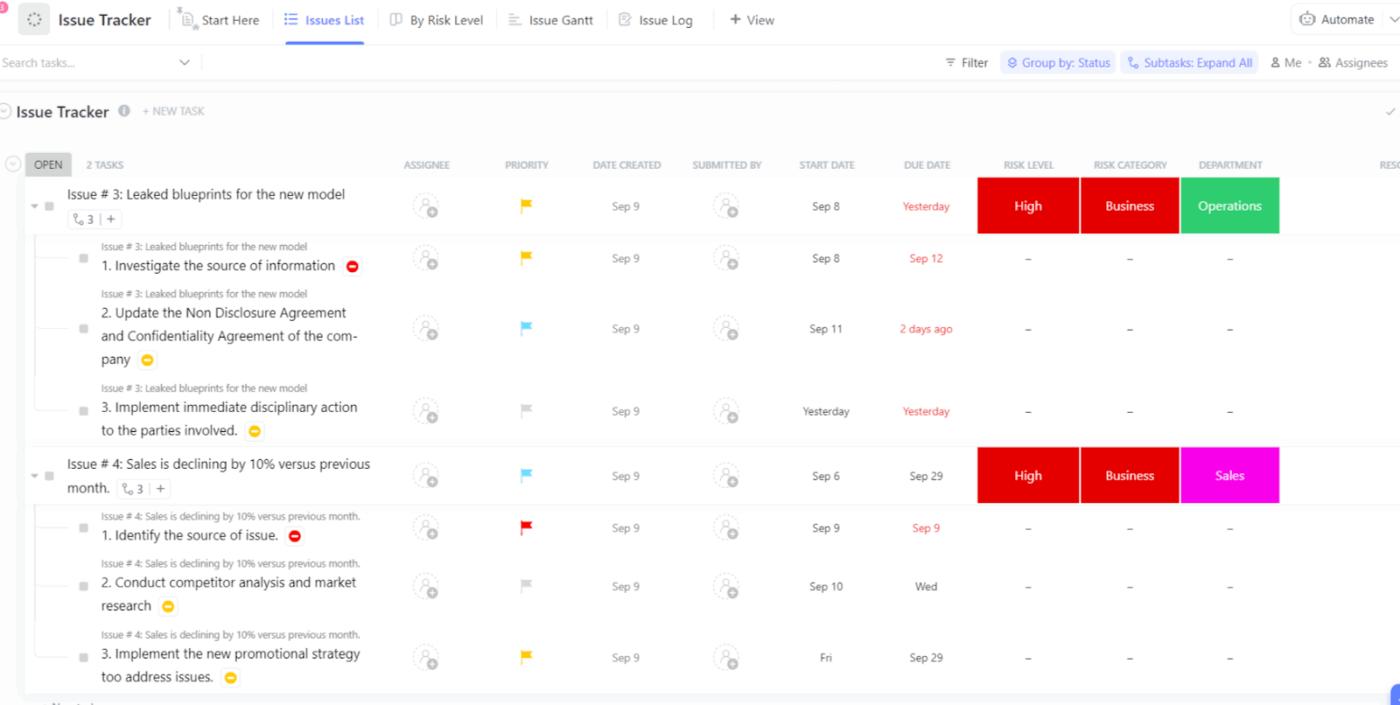
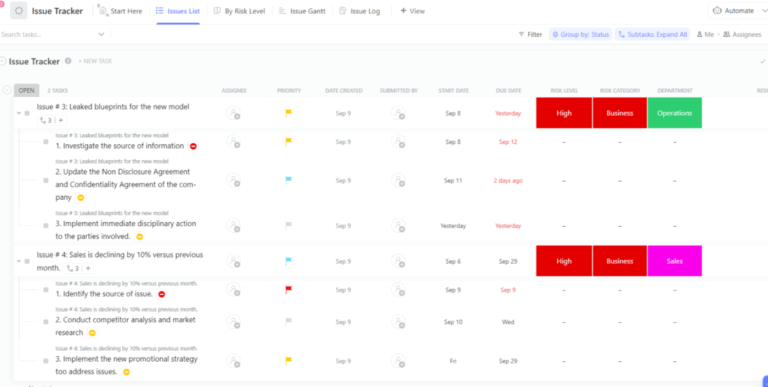
The ClickUp Issue Tracker Template provides a shared space for reporting, tracking, and prioritizing issues, allowing your manager to see what is blocked and what support is needed. With the template, your team can collaborate more quickly by keeping all issue reports in a single database.
When you tell your manager you are “blocked,” you must be clear about whether you are dealing with dependency or a real blocker.
Each of these requires a different response from leadership and your team, so it’s essential to understand what truly constitutes a work blocker.
✅ Here are some types of blockers:
Obstacles make your job harder, but they don’t ully stop progress. They are often treated as impediments that reduce velocity rather than shutting work down completely.
📌 Examples of obstacles:
Dependencies show up when your output relies on another team or system. Cross-team or external dependencies are a frequent cause of delays because they add waiting time and coordination overhead.
📌 Examples of dependencies:
A blocker is a hard stop where you can’t move forward until the blocker is fixed or removed. That is why you should report it early and with clear context, rather than waiting for the next status update.
📌 Examples of true blockers
📮ClickUp Insight: For 34% of our survey respondents, decision delays stem from waiting on managerial sign-off, turning simple approvals into blockers.
The longer it waits, the longer you do too. ⏳
With ClickUp’s Automated Approval Workflows, tasks can be auto-routed to the right approver and can move forward instantly.
No more chat pings, no more inbox hunting—just smooth, hands-free progress. ✅
📖 Also Read: Blog Status Report
Reporting a blocker can feel like a difficult conversation, and that is normal. Research on psychology shows that a healthy workspace culture creates a shared belief that you can raise concerns and surface mistakes without negative consequences. When that belief is low, people hold back, even when they have relevant knowledge that could prevent bigger issues later.
But the longer a blocker sits, the more it leads to rework and rushed decisions.
When you report early, you give your manager a fair shot at removing friction and reallocating capacity, while also getting the right leaders involved before the problem becomes a deal breaker for delivery.
There is also a clear team impact. Blockers rarely stay contained to one person and affect handoffs and task sequencing.
The Project Management Institute has reported that poor communication is a contributing factor in over half of failed projects. This is a reminder that late or unclear updates can turn manageable issues into downstream delays.
You should report early with context and some possible solutions. A good manager is not looking for all the answers in one message. They are looking for a clear report they can act on, so the team can resolve the issue and keep progress predictable.
💡 Pro Tip: Super Agents in ClickUp can handle day-to-day project and task updates for you.
The Project Status Summarizer creates a concise, dated status update that documents project progress, wins, and blockers, improving stakeholder visibility and decision-making.
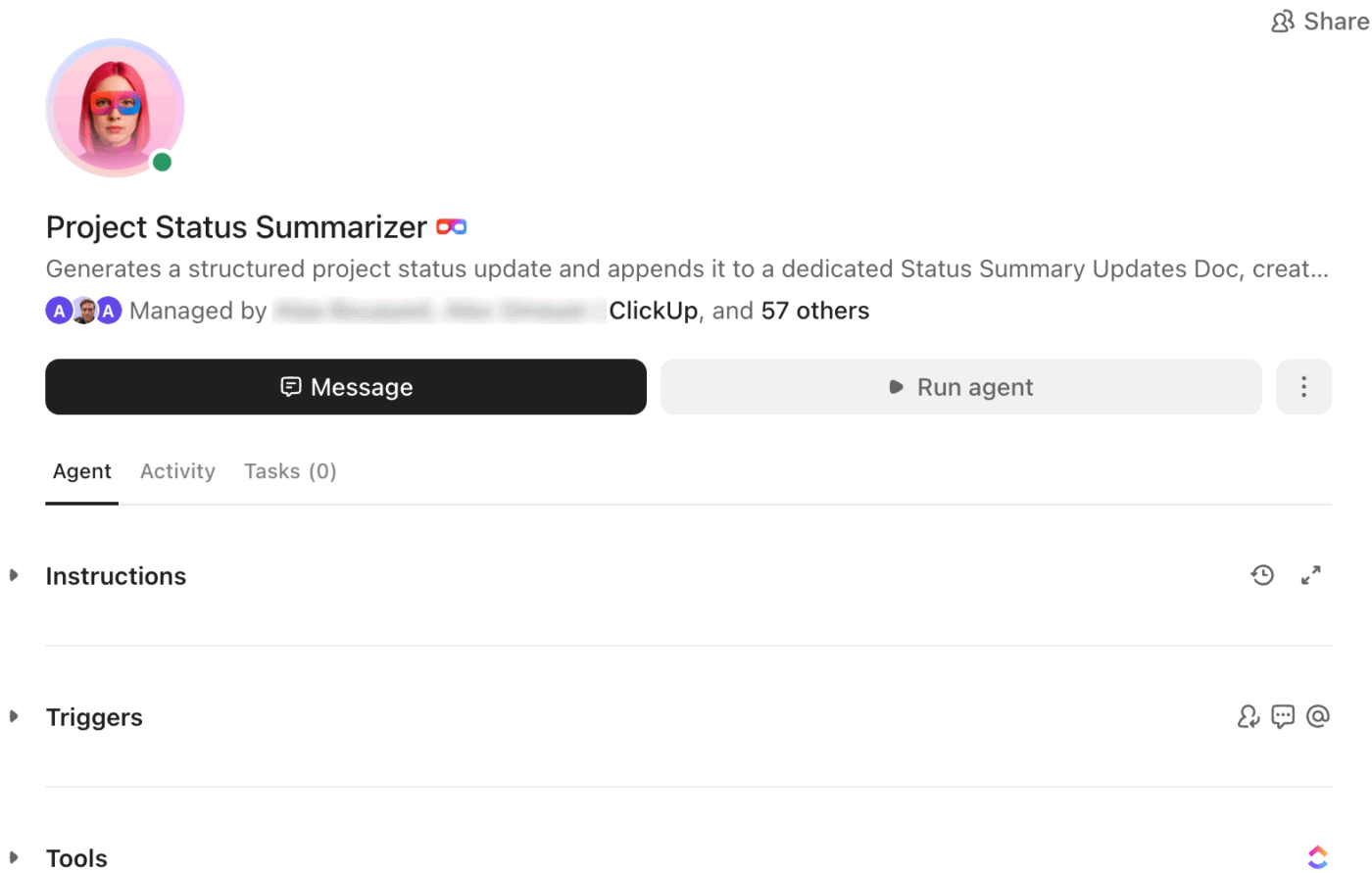
If you contact the Agent from a task in the project List or a single task you want summarized, it will use that context. You can also DM the Agent, @mention it, or assign it to a task. Just like you would any other teammate.
Explore the Super Agents catalog to learn more!
When your project updates are in one tool, while decisions are in another, you end up with a lot of things happening simultaneously. This is how a blocker report turns into more back and forth and far slower progress, and this is known as work sprawl.
To make things more complicated, you get an additional layer of AI sprawl. Here, different teams pull answers from disconnected AI tools that don’t have the context of your actual tasks or decisions. ClickUp fixes this by providing a converged AI workspace, so your work and your AI support exist in the same place.
This is important for reporting blockers because your manager cannot control what they cannot see. When your blocker update is tied to the work itself, it is easier to get a quick response and align your team to expedite the fix.
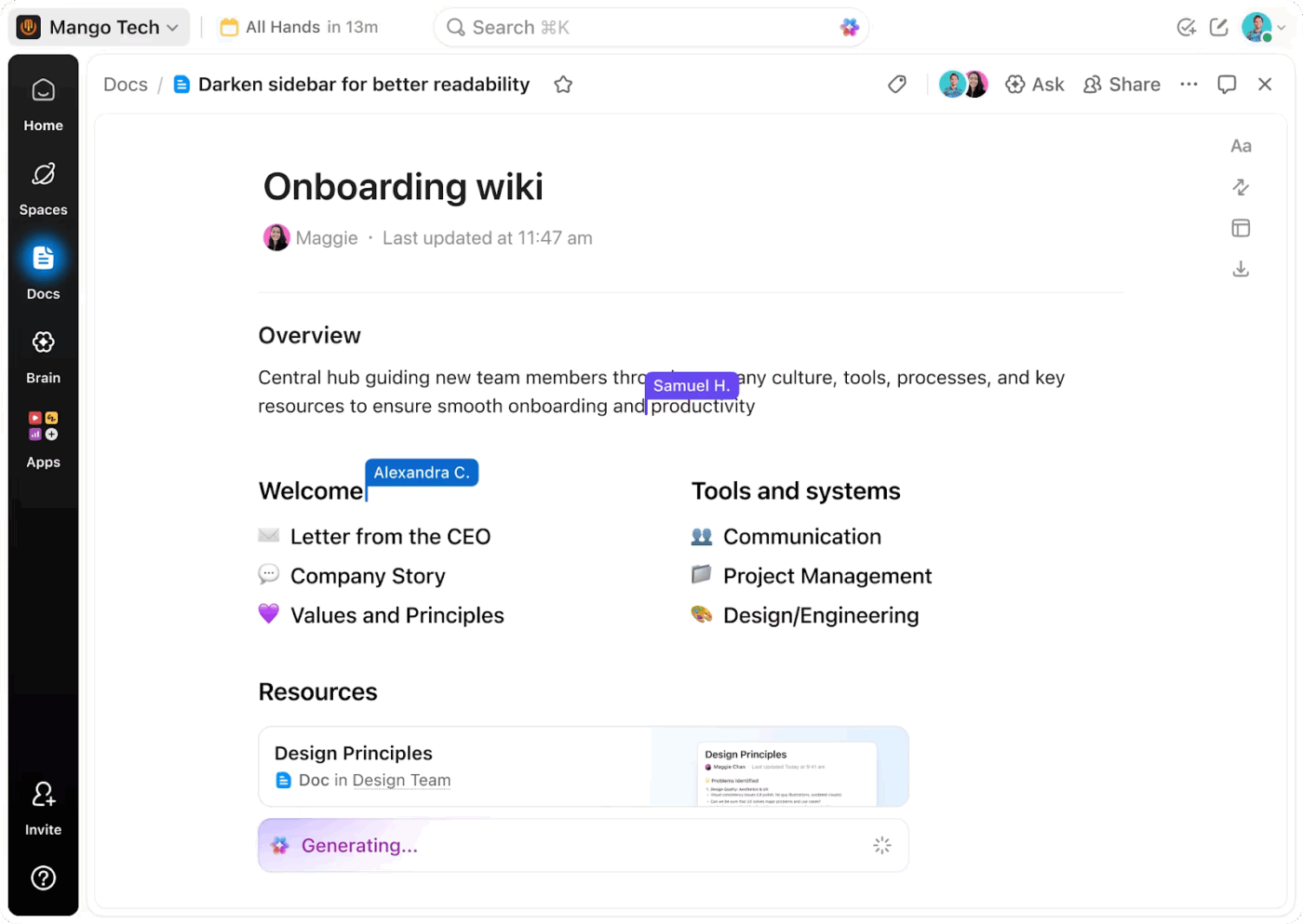
Reporting a blocker often fails because it doesn’t immediately give your manager critical details about impact and timing, and the decision to be made. When reporting a blocker, you should open with a sentence that answers what is blocked and what that implies.
Then you should document the minimum supporting context where it is easy to reference later. ClickUp Docs helps here because you can keep the “why” close to the work, and you can also check page history to see what changed and when. That makes it easier to keep expectations aligned when requirements shift.
✅ Here’s how ClickUp Docs can help with reporting blockers to your manager:
📖 Also Read: Internal Communication Tools
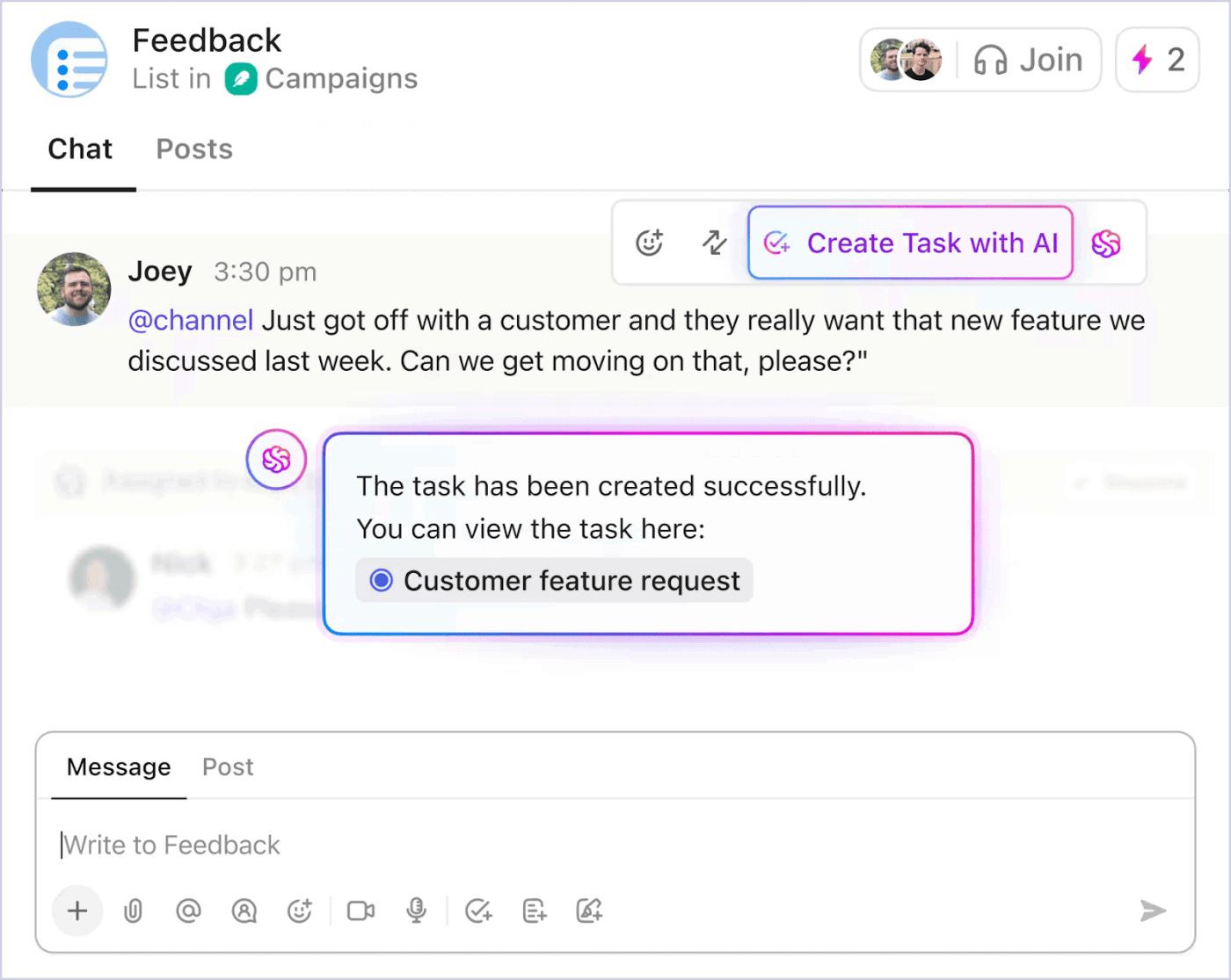
In most workplaces, blockers surface in messages first. You should convert the conversation into trackable work so your manager has a clear account of what was agreed.
In ClickUp Chat, you can create a task from a chat message or connect the message to an existing task. That keeps the original context attached to the work, which helps your manager and your team avoid repeat questions.
✅ Here’s how ClickUp Chat can support reporting blockers to your manager:

Even when your manager replies quickly, blockers can linger when no one takes ownership of the follow-up. This is where updates start protecting the status quo, because everyone assumes someone else will take the next step. You should make ownership explicit.
ClickUp Assign Comments lets you turn a comment into an action item by assigning it to a person. This creates a required item for the assignee to complete before the task can be closed, which helps you keep accountability clean.
✅ Here’s how ClickUp Assign Comments can support reporting blockers to your manager:
If every blocker is reported differently, your manager cannot compare severity or manage capacity across projects. You should standardize the report format so leadership can act faster and your team can stay aligned on priorities.
That is where the ClickUp Issue Tracker Template fits naturally. It gives you a consistent place to report issues with ownership and status, so your manager can review what needs support without asking for “all the answers” in every update.
🌻 Here’s how the template can support reporting blockers to your manager:
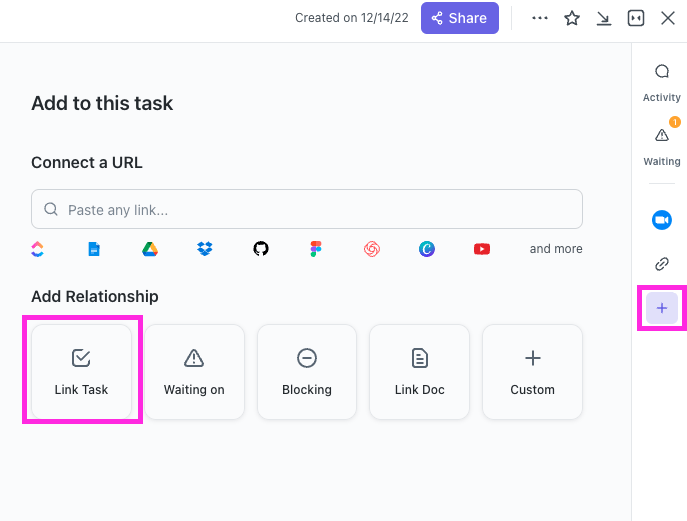
Many blockers are dependency problems in disguise. Your manager can’t resolve what they can’t see, especially when the dependency is on the other side of the organization. You should make the relationship explicit so the impact is clear.
ClickUp lets you set tasks to “block” or “wait on” each other using Dependency Relationships. That gives your manager visibility into the chain of work, so they can intervene earlier and prevent downstream delays.
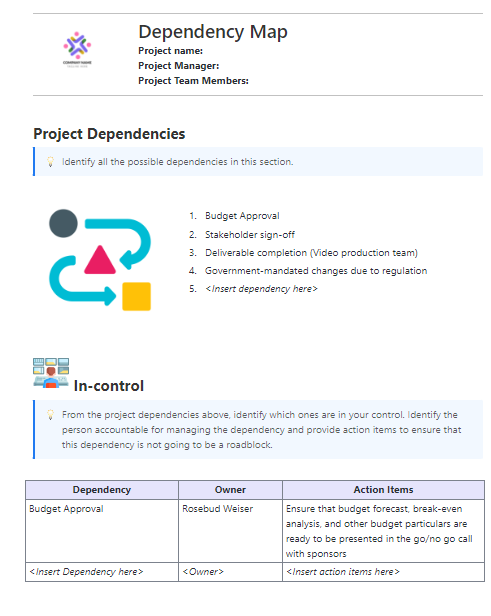
If you want a clearer view across a broader workflow, the ClickUp Dependency Mapping Template helps you map relationships early, before delivery pressure forces rushed decisions.
🌻 Here’s how the ClickUp Dependency Mapping Template can support reporting blockers to your manager:
📖 Also Read: Best Task Management Apps for Mac Users
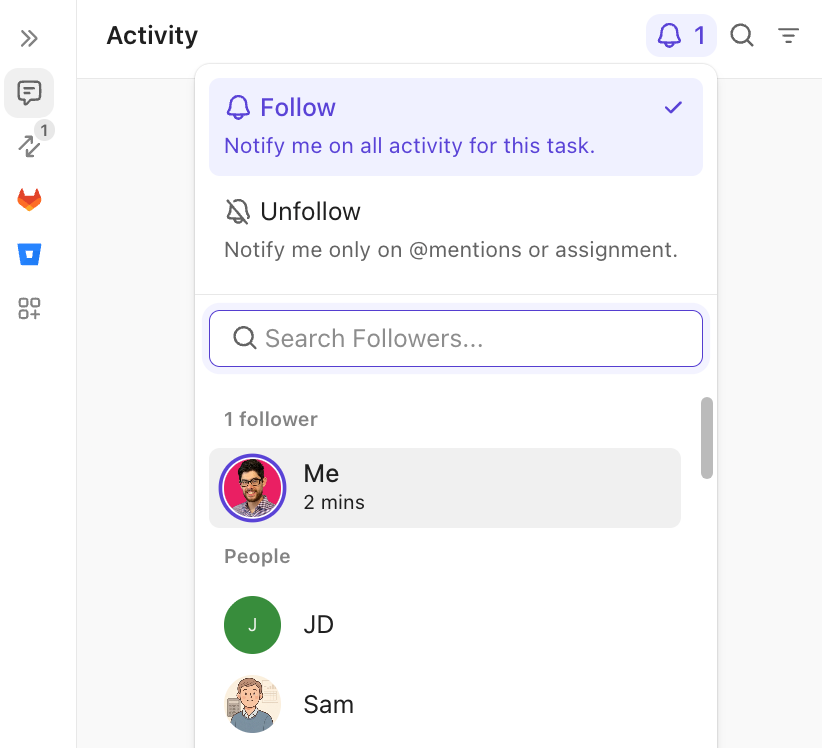
Your manager needs visibility for projects, but extra check-ins create more work and less focus. You should keep them informed in a lightweight way that doesn’t add more status updates.
In ClickUp, you can add your manager as a task watcher/ follower so they receive task updates in notifications. This is useful when the blocker is active and changes quickly, because your manager can stay aware without requiring more meetings.
✅ Here’s how task watchers (followers) can support reporting blockers to your manager:
📖 Also Read: Best Time Management Techniques Proven To Work
Some blockers repeat because the process is unclear, and approvals are a common example. When nobody knows what is pending or who owns the next step, your work slows down, and you end up reporting the same blocker multiple times.
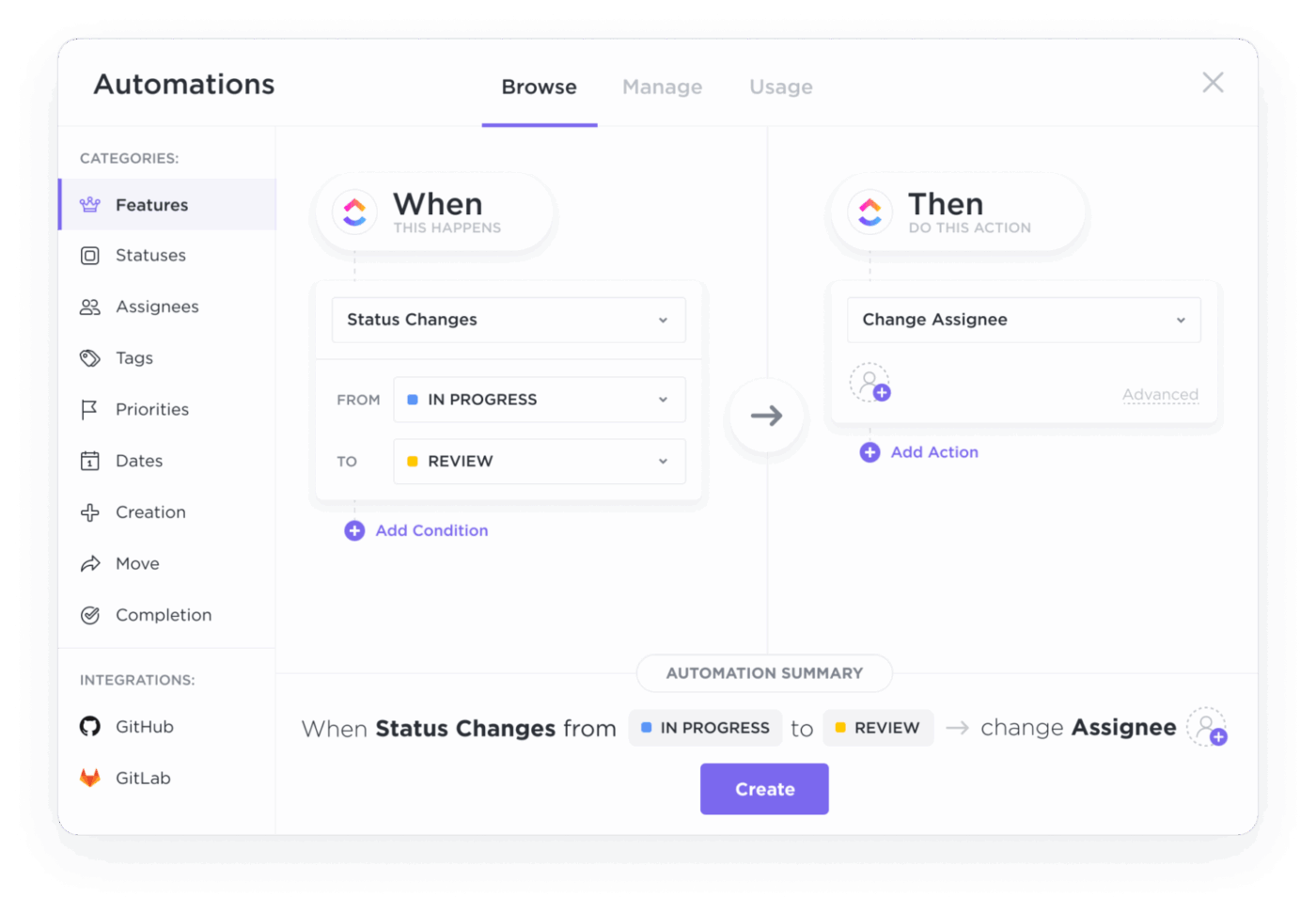
ClickUp Automations can help you keep approvals moving with less manual follow-up. That makes it easier for your manager to act on decisions.
✅ Here’s how ClickUp Automations can support reporting blockers to your manager:
💡 Pro Tip: Keep blocker decisions from getting lost with the ClickUp AI Notetaker.
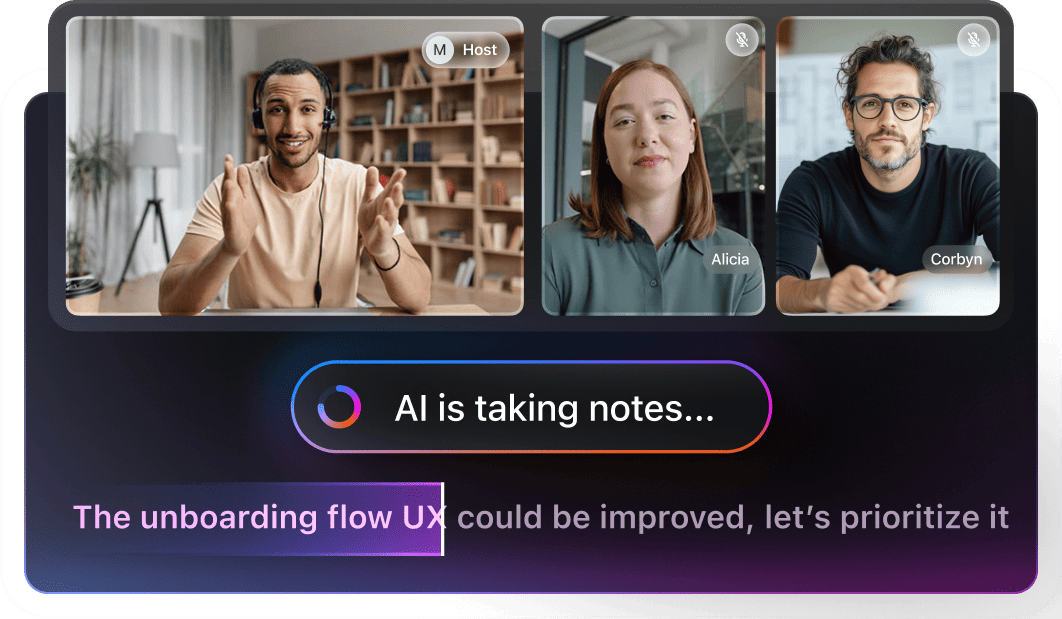
Approval blockers often repeat because the decision was made in a meeting, but the next steps never get documented in a way your manager and team can act on. You should use the ClickUp AI Notetaker to capture the discussion, then share a clean summary and action items directly alongside the work, so leadership can respond with full context and move the blocker forward.
✅ Here’s what you can do:
🎥 Watch this video for tips on using ClickUp to improve team communication and collaboration
You should treat a blocker update like a business update. The goal is to help your manager make a decision fast, while keeping your team aligned on what changes in priorities. Harvard Business Review notes that delivering bad news to your boss is easier when you are direct and focus on what happens next.
You also need a repeatable process for reporting blockers, with a built-in mechanism for escalations. .
✅ Here are some best practices for reporting blockers professionally:
📖 Also Read: Best Project Management Tools
Most blocker updates fail for predictable reasons. The message might be too vague, or the update lands too late for your manager to do anything meaningful. This results in more status checks and less focus time for the team.
Project escalation guidance from PMI repeatedly emphasizes that escalation works when it is timely and structured around resolution.
A good manager can help you fix constraints, but they cannot act on incomplete information. When the report lacks a clear point, your manager has to ask for all the answers in follow-ups. That slows progress and can make you look unprepared, even when you are not.
✅ Here are some common mistakes people make when reporting blockers to their managers:
The right blocker update depends on how your team runs work. In some settings, the real risk is missing context. In others, it is timing. You should match your blocker reporting process to the way decisions get made, so your manager can respond quickly, and your team can keep progress predictable.
✅ This is how you can communicate blockers depending on your work setting:
Async work breaks down when updates are scattered, and people lack the context to take the next step. This kind of work is built on strong documentation and clear processes.
In an async setup, you should treat every blocker update like a mini brief. Your manager needs enough information to act without scheduling another meeting. Here’s the right way to do this:
Hybrid work often creates two versions of reality. One group hears the update live, while another group only sees fragments. That is where blockers become complicated because of uneven context.
You should set explicit working agreements for when you go async versus sync, so you make expectations clear instead of assuming everyone knows the process. In practice, hybrid teams do best when you document the blocker first, then use a quick standup to decide what happens next.
📖 Also Read: Workflow Automation Examples and Use Cases
When you’re working in Agile and Scrum settings, blocker reporting becomes a part of the operating rhythm. The Daily Scrum improves coordination and helps identify obstacles, which is exactly where blockers should surface early. That means you should not wait for a separate escalation meeting.
📖 Also Read: Free Productivity Templates in Excel & ClickUp
Client-facing blockers need a different lens because your report has two goals. You need internal support to unblock work, and you need external trust so the relationship stays stable. This is where “bad news” becomes a leadership skill. Focus on communicating a constructive message with clarity.
You should avoid overpromising and vague updates like “we ran into challenges.” Instead, give a short, factual update, explain what it changes, and offer a solution path with timelines that your manager can stand behind.
🎥 See how Super Agents in ClickUp can help you automate executive updates!
When you report blockers, the hard part is maintaining consistency. If you change your format every time, your manager has to reinterpret your update, even when the issue is simple.
✅ Below are four templates that match the most common blocker-reporting situations. You can plug these into ClickUp Brain to get customized blocker updates as per your workspace updates:
If your manager works across multiple projects, they usually want a quick summary they can act on. A status report template gives you the structure to communicate risk and the request without overexplaining.
📌 Here’s an example you can use:
Subject: Blocker: [deliverable] needs [decision/access/approval] by [date]
Hi [Manager name], I’m blocked on [task/deliverable] because [one-sentence cause].
Impact:
– What this blocks: [milestone / dependent task / client commitment]
– If unresolved by: [date/time], risk is [slip by X days / reduced scope/rework]
What I’ve tried:
– [Action 1]
– [Action 2]
Possible solutions:
1) [Option A] with trade-off [cost/risk]
2) [Option B] with trade-off [cost/risk]
Request:
– Please [approve/decide/escalate/introduce] by [date/time]
Next update: I’ll post again by [time/date] or sooner if something changes
In a daily standup, you should keep the update tight. You want to signal what is blocking progress and what support you need after the meeting.
📌 Here’s an example you can use:
Yesterday: [what moved forward]
Today: [what you planned to complete]
Blocker: [what is blocked + why, one sentence]
Impact: [what this blocks for the sprint/delivery]
Request: I need [decision/access/approval] from [person/team] by [time]
Next: I’ll share an update in [channel/task] after standup
If you want the fastest response, report blockers where the work already exists. When you capture the blocker inside ClickUp Tasks, your manager can see the full activity trail and the latest context without asking you to re-explain it.
Likewise, if your manager needs to take action, you should convert the request into an accountable item using ClickUp Assigned Comments, so it does not get lost in a thread.
📌 Here’s an example you can use:
Blocker summary:
– Blocked item: [task name + link if needed]
– Cause: [dependency/approval/access / external constraint]
Impact:
– Blocks: [deliverable/next task/stakeholder]
– Risk if unresolved by: [date/time]
What I’ve tried:
– [Action 1]
– [Action 2]
Possible solutions:
1) [Option A]
2) [Option B]
Request:
– @ [Manager name], can you [approve/decide/escalate] by [time]?
Escalation works best when you treat it like a decision memo. Your manager should be able to read it once and choose a path.
📌 Here’s an example you can use:
Subject: Escalation needed: [blocker] affecting [project/deliverable]
Hi [Manager name], I’m escalating a blocker that prevents progress on [deliverable].
Decision needed by: [date/time]
Decision options:
1) [Option A]
2) [Option B]
Context:
– What happened: [2–3 lines]
– Why it cannot be resolved at my level: [constraint]
Impact:
– Timeline risk: [X days / missed milestone]
– Business risk: [client impact/compliance/cost]
Recommendation:
– I recommend [A/B] because [reason]
Next update: I’ll report again by [time/date]
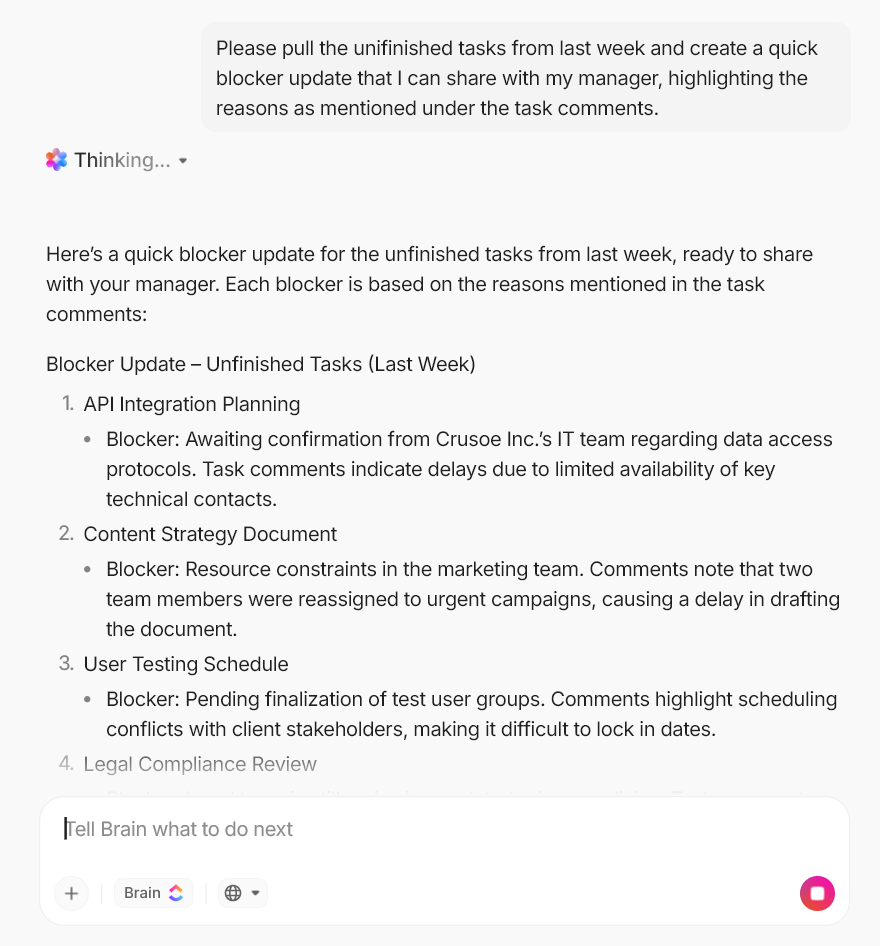
Once you have a standard format, you should not rewrite it from scratch every time. ClickUp Brain is designed to work across your tasks, docs, and workspace knowledge, so you can generate a clean first draft and keep the tone consistent.
It helps you pull the right details quickly, so you can send a blocker update that your manager can act on without chasing the “other side” of the story.
✅ Here’s how ClickUp Brain helps you update blockers faster:
💡 Pro Tip: Build an AI-assisted blocker reporting routine with ClickUp Brain MAX.
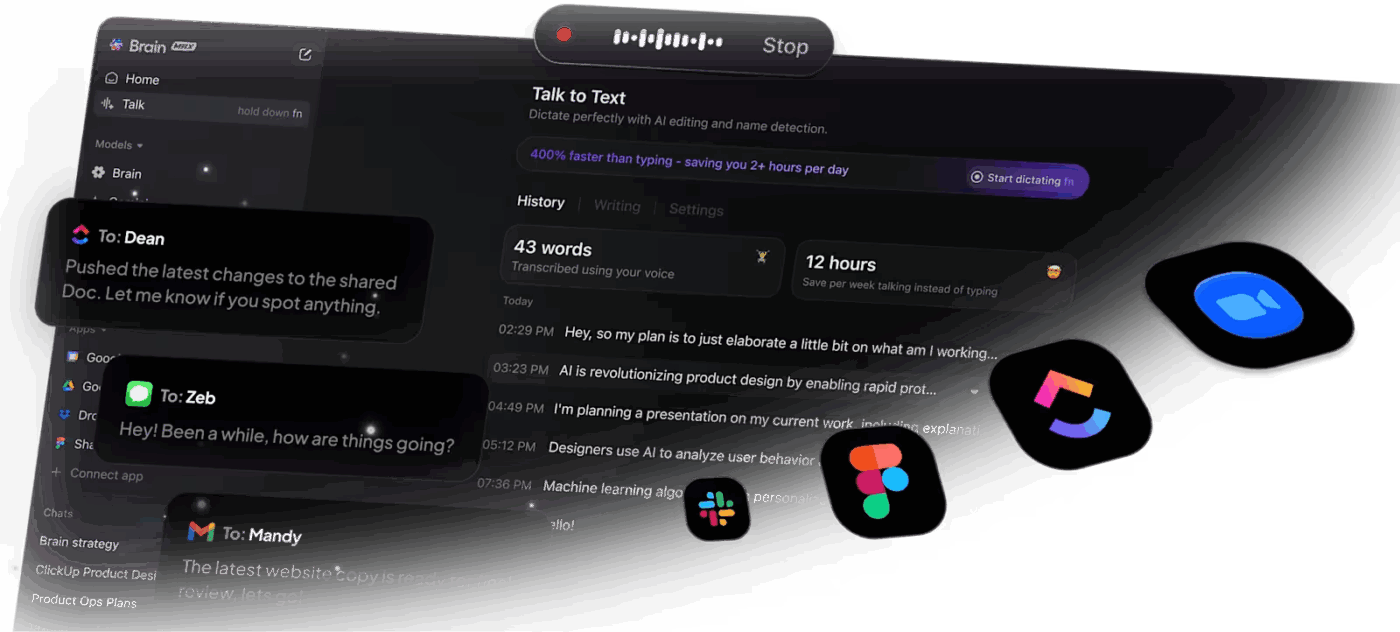
ClickUp Brain MAX helps you keep blocker reporting consistent because you can draft updates quickly, pull proof fast, and reduce AI sprawl from tools that don’t understand your actual work context.
This is especially helpful when your manager asks for clarity on what changed, what is blocking progress, or what support you need next.
✅ Here’s what you can do:
When you report a blocker early and clearly, you protect your progress. You also protect your team from downstream delays that happen when dependencies stay invisible.
ClickUp helps by keeping tasks, communication, docs, and ClickUp Brain in one connected workspace. That means your blocker updates stay tied to the actual work, not scattered across tools. With automation and ClickUp Super Agents ready to take on the day-to-day tasks, you can stay on top of things with a lot less effort.
When you standardize how you document blockers and propose possible solutions, you spend less time talking and more time doing the job. Sign up for ClickUp for free ✅.
A blocker is an issue that stops progress on a task or project until something changes. It is usually tied to a dependency, missing access, a pending approval, or a decision your team cannot make alone.
If you can still move forward by switching tasks or creating a workaround, it is more likely an obstacle, not a blocker. The key point is whether it prevents meaningful progress.
You should report it as soon as you confirm it is blocking progress on the critical path, or it will affect a deadline. Early reporting gives your manager time to manage priorities, adjust capacity, and remove the constraint before it becomes expensive to fix.
If you are unsure, report it when you have tried one or two reasonable steps and still cannot move forward. That shows responsibility without escalating too early.
You should keep it factual and professional: what is blocked, what it impacts, what you tried, and two possible solutions. This keeps the update focused on process and delivery, not on personal performance.
A good manager is interested in risk control and execution, not blame. When you communicate clearly and make a specific request, you come across as prepared.
You should keep it short: what you completed, what you planned to do, what is blocked, and what you need next. Add a one-line impact statement so your team understands what is at risk.
Then follow up after the standup with a documented update in your task or tracker, so the blocker does not disappear until it is resolved.
You should document blockers with full context so your manager can respond asynchronously. That means capturing the cause, the impact, what you have tried, and the request for support in one place.
Remote teams also benefit from consistent templates because fewer people can rely on hallway updates. When you keep one account of decisions, the other side stays aligned.
You should send a short follow-up that restates the impact, the deadline for a decision, and the best next step. If timing matters, request a time-bound response so your manager can prioritize.
If there is still no response, you should escalate through the agreed process in your organization while keeping the tone neutral and focused on protecting the project and team commitments

© 2026 ClickUp

There’s an easier way. Try a free AI Agent in ClickUp that actually does the work for you—set up in minutes, save hours every week.