






Still downloading templates?
There’s an easier way. Try a free AI Agent in ClickUp that actually does the work for you—set up in minutes, save hours every week.
Sorry, there were no results found for “”
Sorry, there were no results found for “”
Sorry, there were no results found for “”
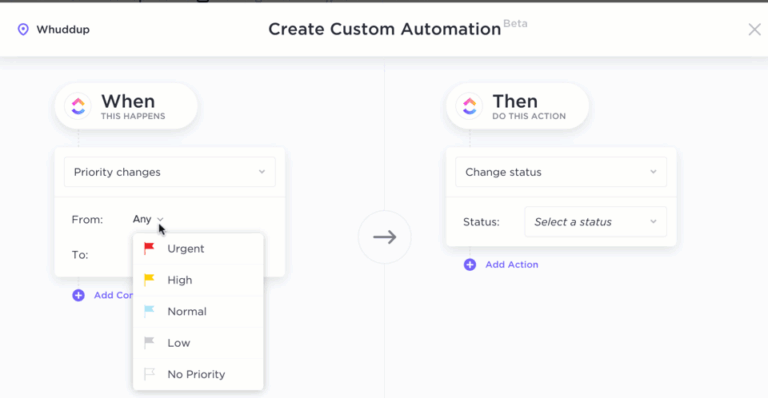
Most teams spend far too much time on small, repeatable tasks like filing attachments and updating sheets. McKinsey estimates that 60% of employees could save 30% of their time with workflow automation alone.
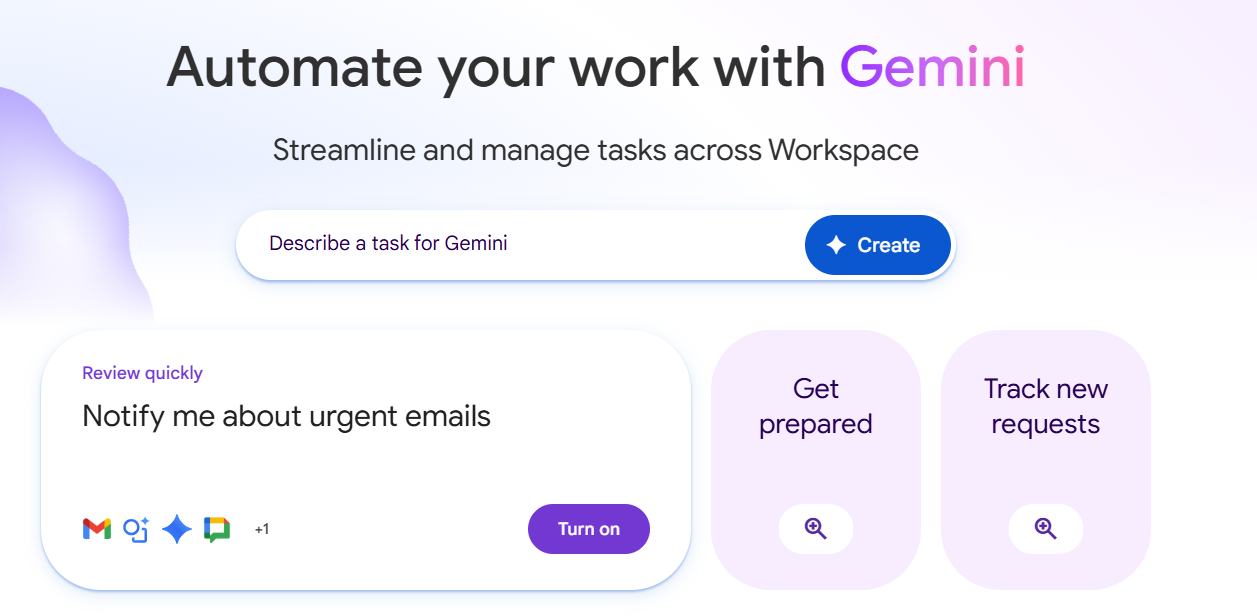
Google Workspace Studio is Google’s new hub for AI agents that live inside Gmail, Drive, and Calendar and take such repeatable tasks off your hands.
These agents read your instructions in natural language, then take actions for you. These actions include summarizing unread emails, routing documents for approval, or posting a daily status in Chat.
In this guide, you’ll learn how to automate work using Google Workspace Studio, where it fits best, and when you need a broader system like ClickUp to manage the full workflow.
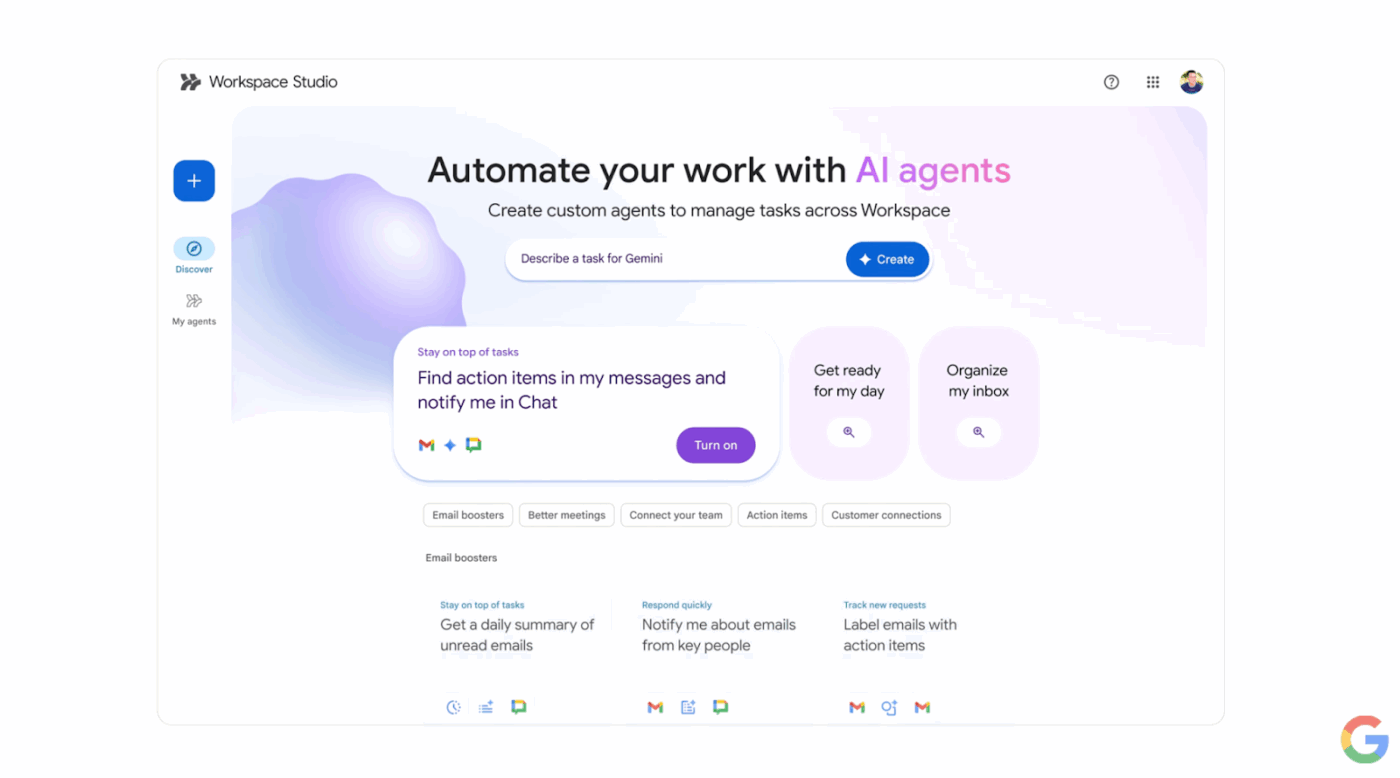
Google Workspace Studio is the central place to design, manage, and share AI agents across Google Workspace. Instead of writing scripts, you can simply describe what you want.
Workspace Studio can read text, apply natural language processing, and reason about context. You can use prompts like, “Summarize my unread emails every morning and send me a Chat recap.” With such input, Workspace Studio builds an agent that runs that routine on your behalf.
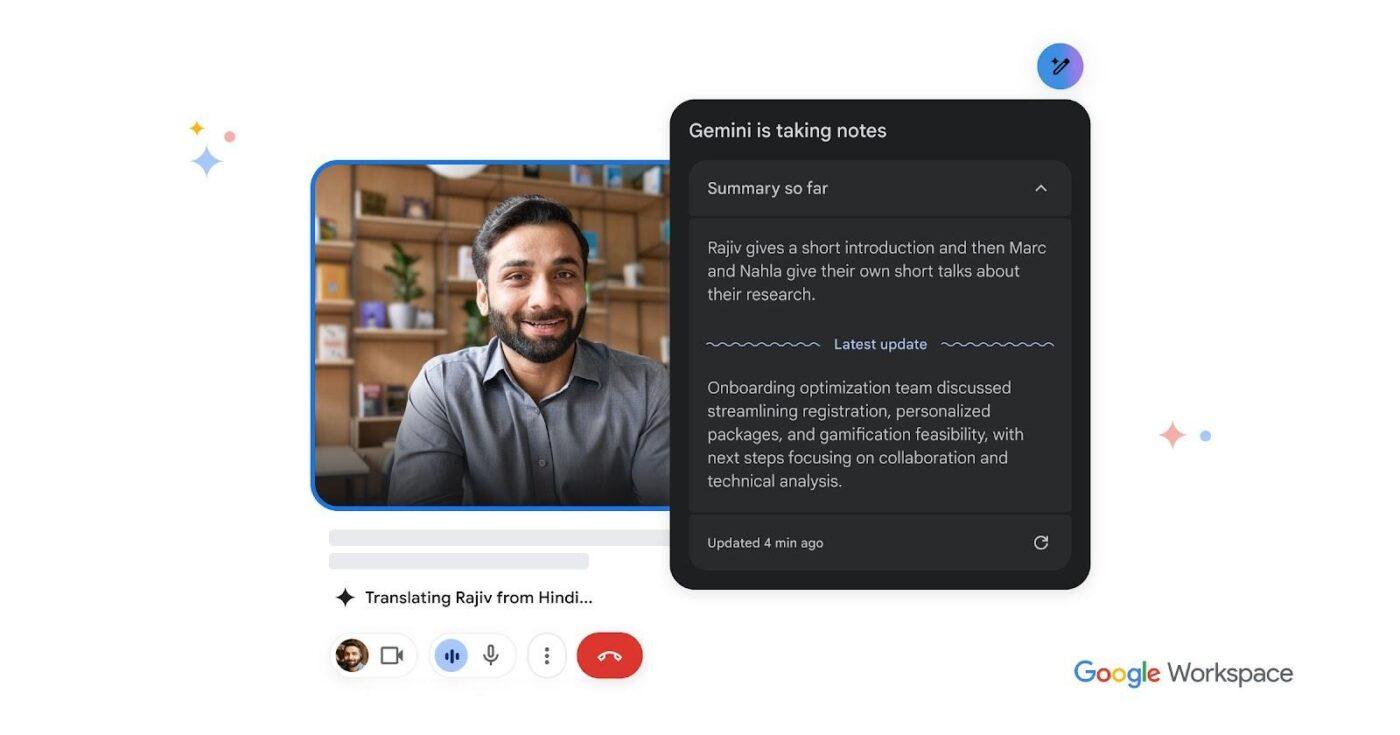
These agents are powered by Gemini 3, Google’s multimodal AI model.
If you’re automating work using Google Workspace Studio, there are two core parts:
Because Workspace Studio is built directly into Workspace, these agents act inside the tools you already use:
🧠 Did You Know? Early adopters in Google’s Gemini Alpha program have already used Google Workspace Studio powered by Google AI Pro to handle well over 20 million tasks in a single month. From status reports to legal notice triage and travel requests, Workspace can take care of all.
📖 Also Read: How to Automate Google Sheets with AI
Workspace Studio is built for the repeatable work that slows teams down. At a high level, agents follow a simple pattern: trigger → interpret context (often with Gemini) → take action across one or more apps.
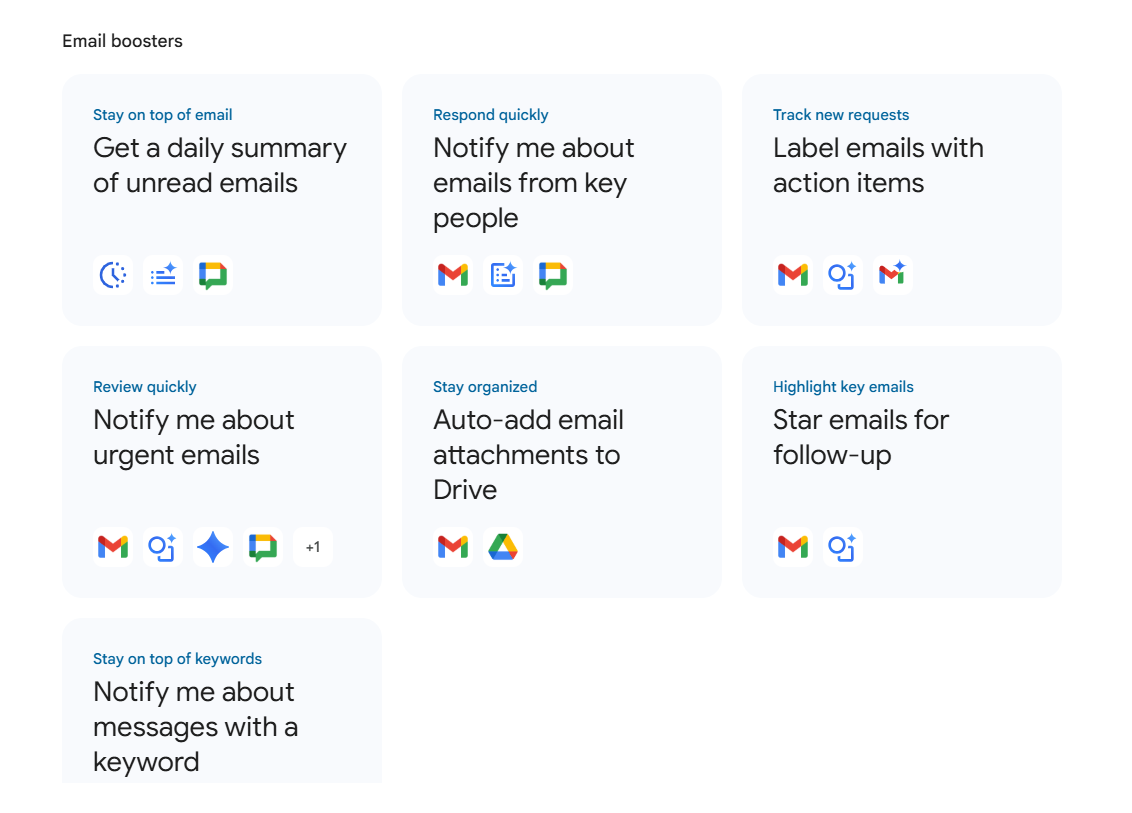
Here are seven common AI-powered automation categories you can use to build your own AI agents with a Google Workspace account.
(You may have to check your user access to configure these AI automation workflows. Access your admin console settings to switch on this capability.)
📖 Also Read: Automate Workflows to Boost Productivity
📖 Also Read: How to Automate Processes with AI
📖 Also Read: Google Sheets Automation Ideas For Your Workflow
📮ClickUp Insight: 88% of our survey respondents use AI for their personal tasks, yet over 50% shy away from using it at work. The three main barriers? Lack of seamless integration tools, knowledge gaps, or security concerns.
But what if AI is built into your workspace and is already secure? ClickUp Brain, ClickUp’s built-in AI assistant, makes this a reality. It understands prompts in plain language, solving all three AI adoption concerns while connecting your chat, tasks, docs, and knowledge across the workspace. Find answers and insights with a single click!
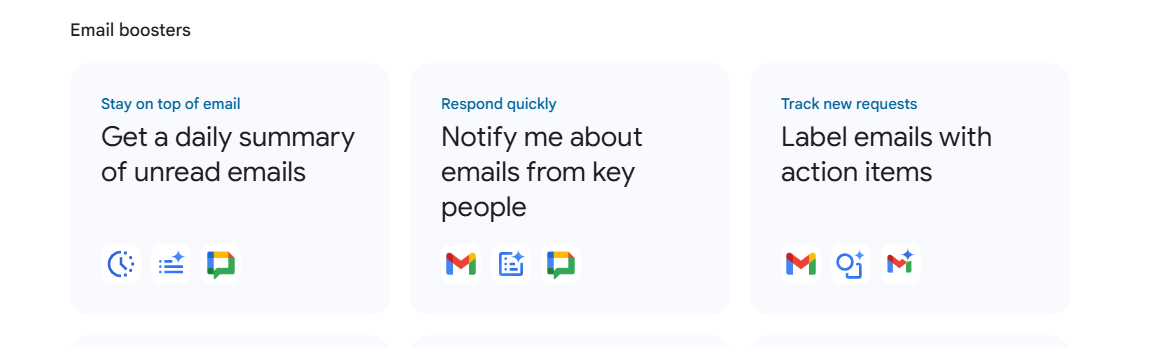
When you automate work using Google Workspace Studio, the easiest win is a workflow that starts from a real bottleneck: inbox triage, doc approvals, or request intake.
Google’s own guidance also recommends starting from templates so you can learn how starters and steps fit together before building from scratch.
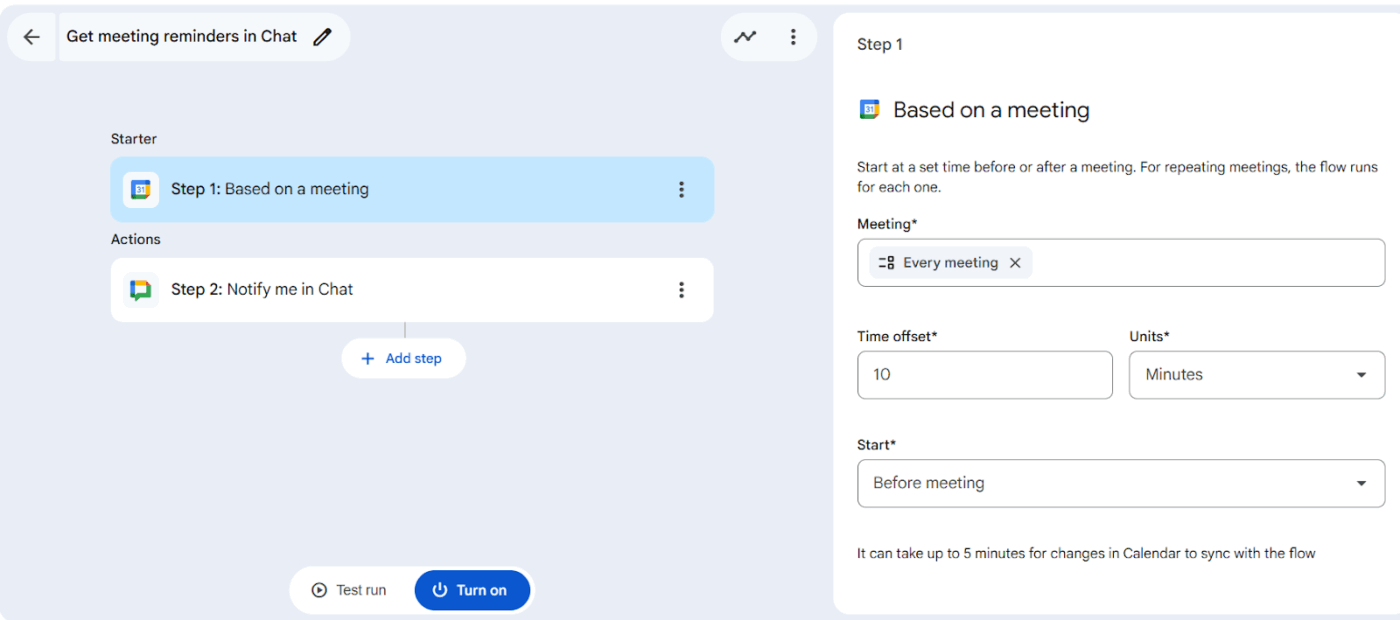
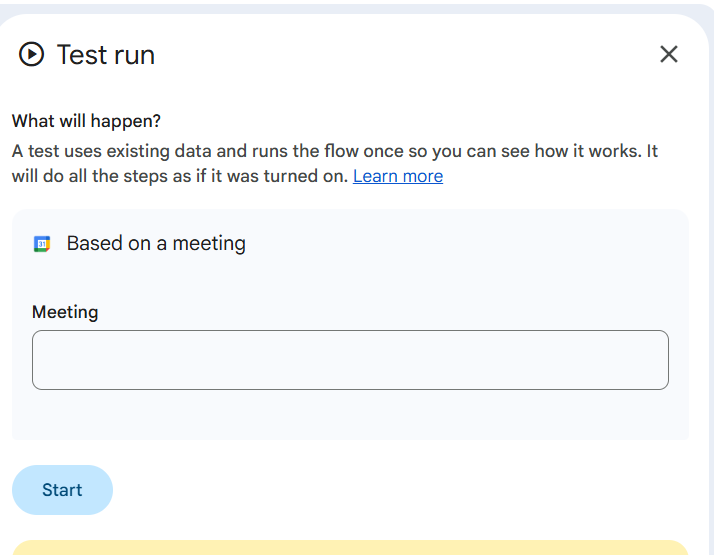
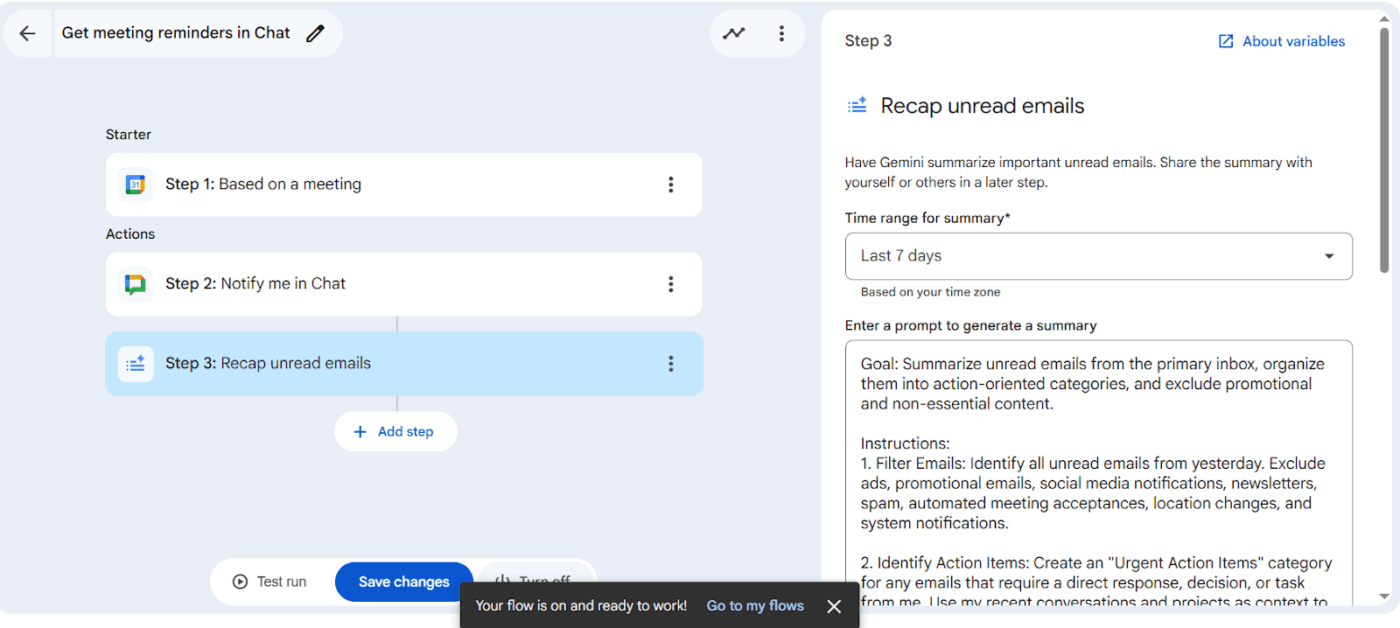
✅ Below is a practical example you can adapt: “Get meeting reminders, notify in Chat, and recap unread emails.”
📖 Also Read: Best AI Productivity Tools to Use
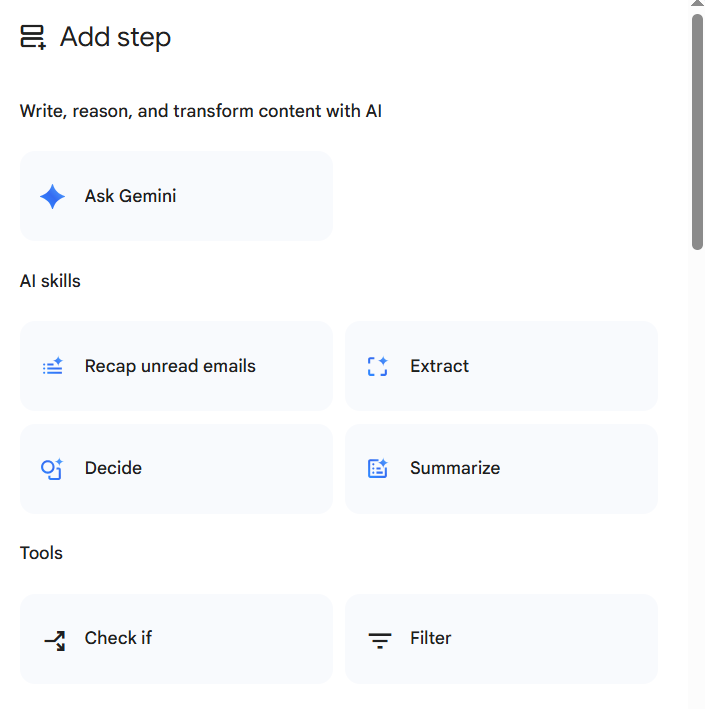
💡 Pro Tip: Keep your first agent “single purpose.” Once it runs cleanly for a week, add one improvement at a time (like routing by vendor or adding an approval step).
📖 Also Read: How to use Google Sheets for Project Management
Traditional automation logic relies on coding skills to create detailed workflows, but Google Workspace simplifies the process with its templates. You can create, manage, and share your AI agents from your Workspace Studio and use templates to get a head start.
Templates show you the basic pattern (starter + steps) already wired up, so you can tweak a few details and create agents in minutes.
✅ Common template patterns include:
📖 Also Read: Best Marketing Automation Software
Workspace Studio makes it easy to create agents quickly. The bigger challenge is keeping them reliable as you add more workflows, teammates, and shared data. Here are some tips that can help you make the most of the platform.
Write down:
✅ Google’s template-first approach is a smart default for this.
📖 Also Read: Free Best Project Management Templates
Avoid “run on every email.” Instead:
Do the following:
Workspace Studio has documented constraints, including:
Create a simple inventory:
This prevents “agent sprawl” from turning into mystery automation.
💡 Pro Tip: If you’re blending Workspace Studio with data projects (for instance, combining sentiment data from news, social media mentions, and earnings reports), you can centralize your findings in a workspace like ClickUp’s Data Analysis Findings Template.
Workspace Studio is a strong choice when your work lives mostly inside Gmail, Drive, Docs, Sheets, Calendar, and Chat. But it is not designed to cover every workflow need on its own.
Google sets practical limits such as:
If you are trying to coordinate many multi-step automations across teams, these ceilings can show up sooner than expected.
Workspace Studio is great for operational actions like summarizing, labeling, routing, updating, and notifying.
What it does not aim to be:
📖 Also Read: Workflow Automation and Use Cases
Because non-technical users can create lots of agents quickly, teams often run into:
Google provides controls and guidance, but the operating model (naming, ownership, reviews) still needs to be set by your team.
You’ll likely want to use additional tools beyond Workspace Studio or replace it when:
That’s where ClickUp fits, as the layer that manages the full workflow around the automations you run inside Google apps.
📖 Also Read: Best Project Management Tools
Workspace Studio can reduce the micro-admin inside Google apps. But the bigger issue many teams hit is work sprawl plus AI sprawl: approvals in email, docs in Drive, trackers in Sheets, updates in Chat, and a growing list of AI tools that each operate in their own window.
ClickUp is built to solve that with a converged AI workspace: projects, docs, tasks, chat, dashboards, and AI all live together, so automation outputs don’t float around without owners or next steps.
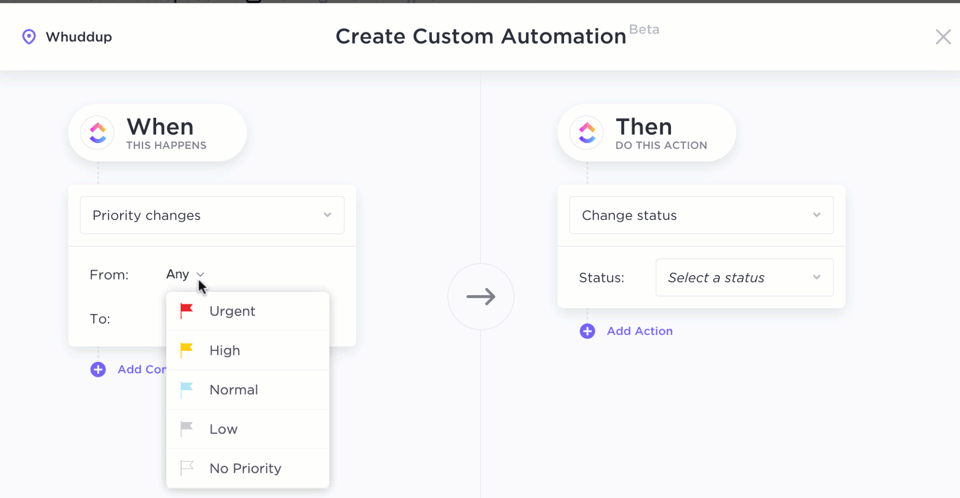
Where Google Workspace Studio helps you create AI agents inside Google Workspace and its Workspace apps using plain language and natural language, ClickUp Automations takes a broader approach. It lets teams move work forward automatically with triggers, conditions, and actions across Lists, Folders, and the entire ClickUp ecosystem.
Not sure how to get started? ClickUp gives you 100+ automation templates and a visual builder so you can say, “When this happens, move the work forward automatically.”
Examples that work well for workflow owners:
📽️ Are you still creating tasks, scheduling, or copying and pasting by hand? Check out this video to learn how you can use AI for task automation and save time and effort for your team.
💡 Pro Tip: If you’re serious about measuring what automation is doing for you, pair ClickUp Automations with the free Automation KPI Tracking Template by ClickUp to track volume, time saved, and error rates.
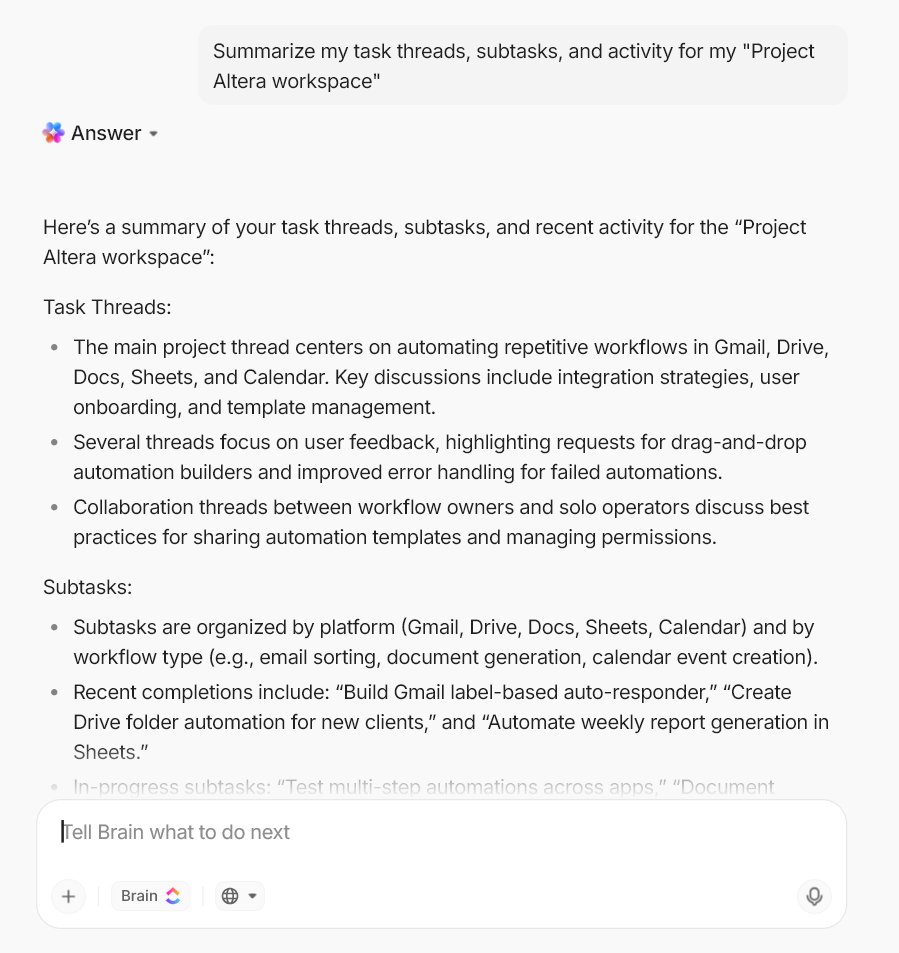
ClickUp Brain is designed to understand context across your workspace so you can move faster on everyday work, not just automate simple tasks. It’s especially helpful for teams and solo operators who need one place to plan, document, and execute work.
Here’s how it lets workflow owners automate repeatable work while still keeping humans in control:
Then add ClickUp AI Agents when you want “always-on” help that can deal with ambiguity.
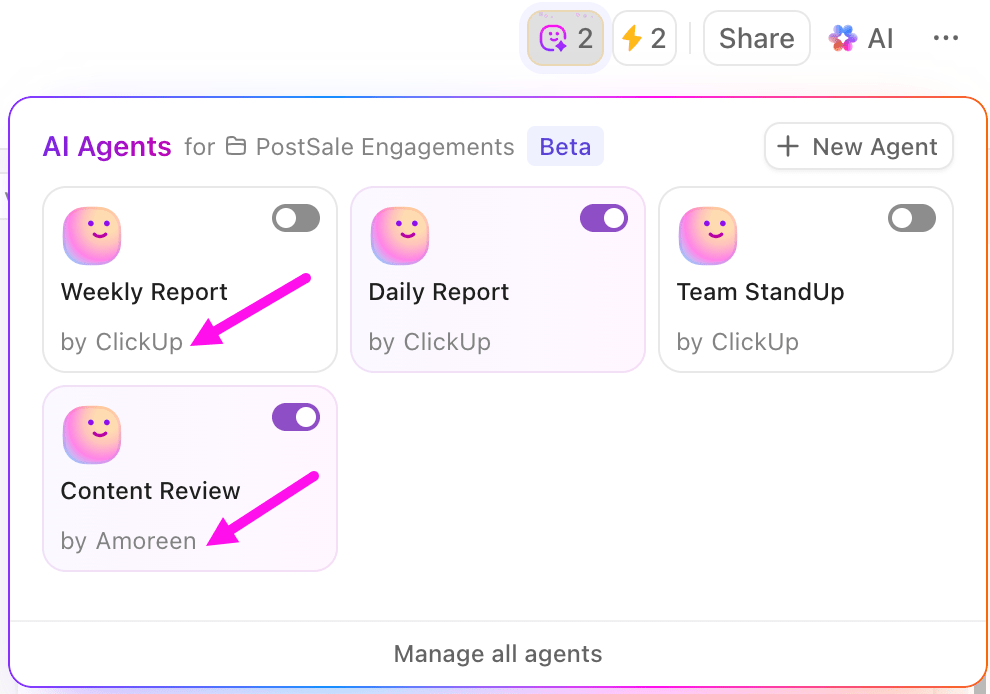
That’s useful when your processes include messy inputs like emails, docs, and chats, or when you need to detect urgency or tone in incoming feeds.
You can even custom-create different AI agents and add preconfigured instructions, roles, and triggers, all without any coding assistance.
💡 Pro Tip: Build an AI-assisted work routine with ClickUp BrainGPT.
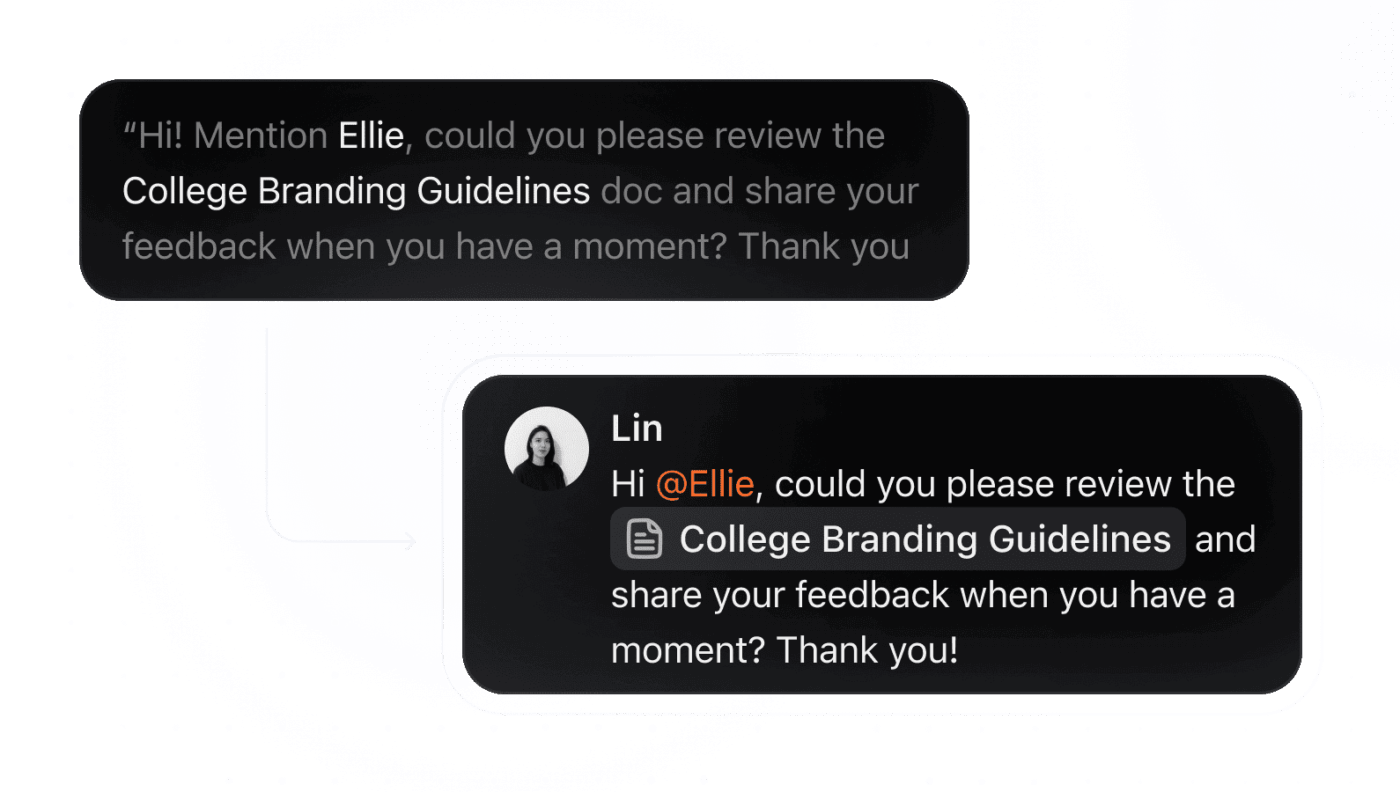
ClickUp BrainGPT is a desktop AI companion (which can now be accessed as a Google Chrome extension) that helps you automate tasks around planning, writing, and retrieval when work is spread across tools.
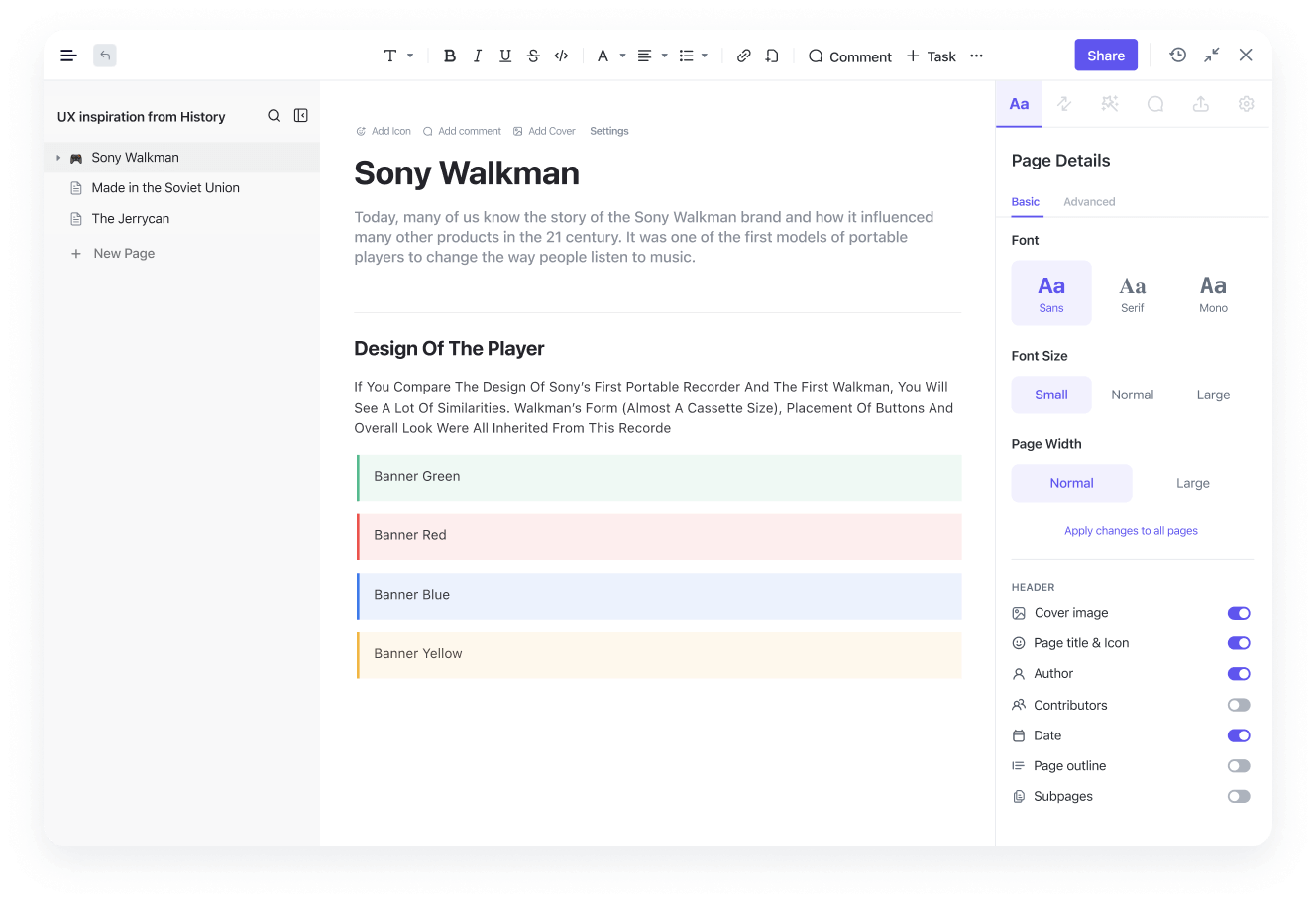
ClickUp Docs are built for living process docs, SOPs, and internal knowledge that teams actually use while executing campaigns and projects. Instead of switching between tools, you can access ClickUp Docs directly within the tasks they govern.
Where this helps most:
But ClickUp’s collaborative approach doesn’t end here. Instead of sharing your ClickUp Docs through a link on a separate messaging platform, you can use ClickUp Chat so conversations stay linked to the work.
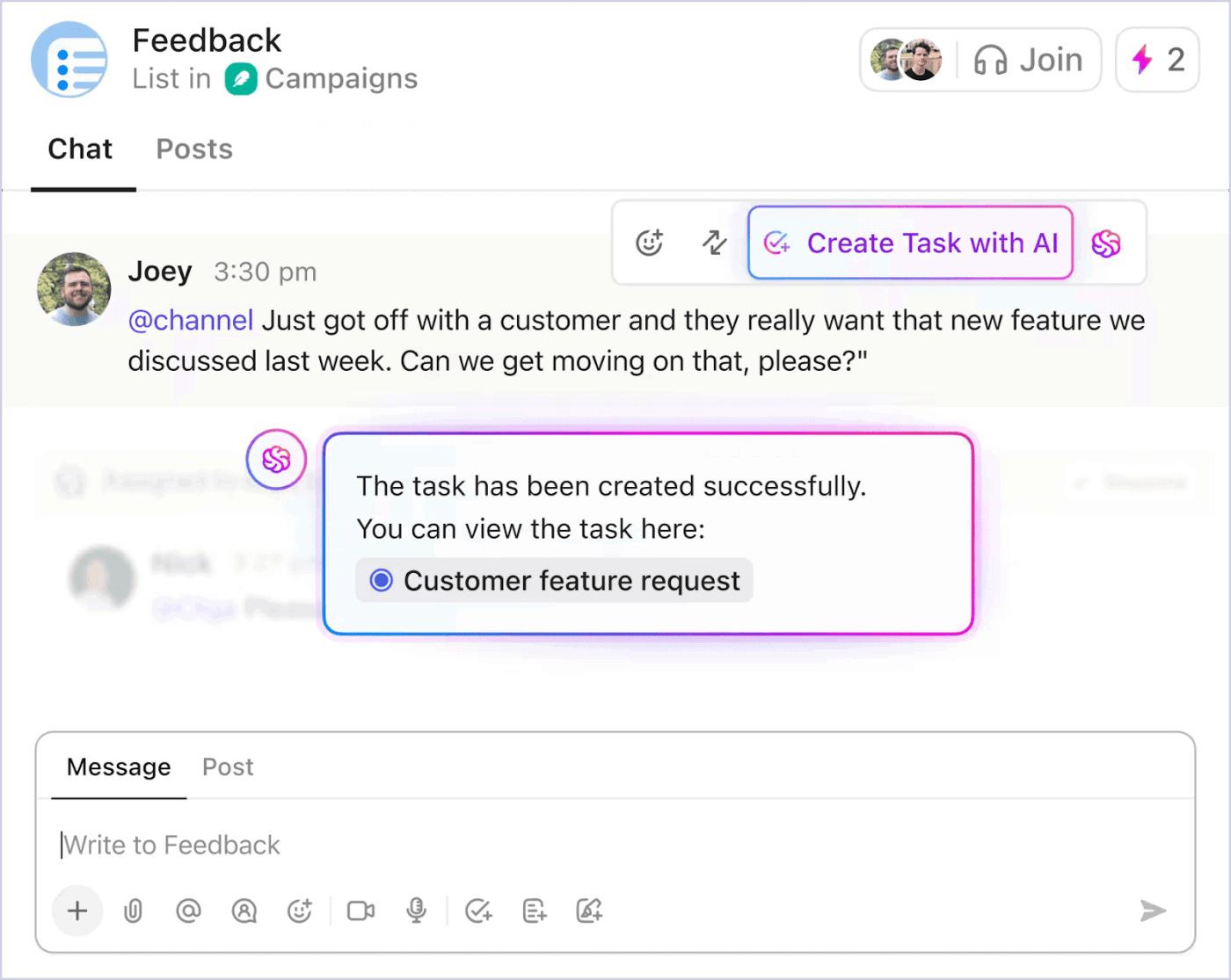
You can turn messages into tasks, keep discussions contextual, and reduce the “scrollback problem” that shows up when teams rely on chat alone.
If your team does things like customer feedback triage or incident coordination on support messages, ClickUp Chat, along with ClickUp Tasks, helps you keep the full context. The process becomes much easier for teams as messages and outcomes get stored in one platform instead of being split across tools.
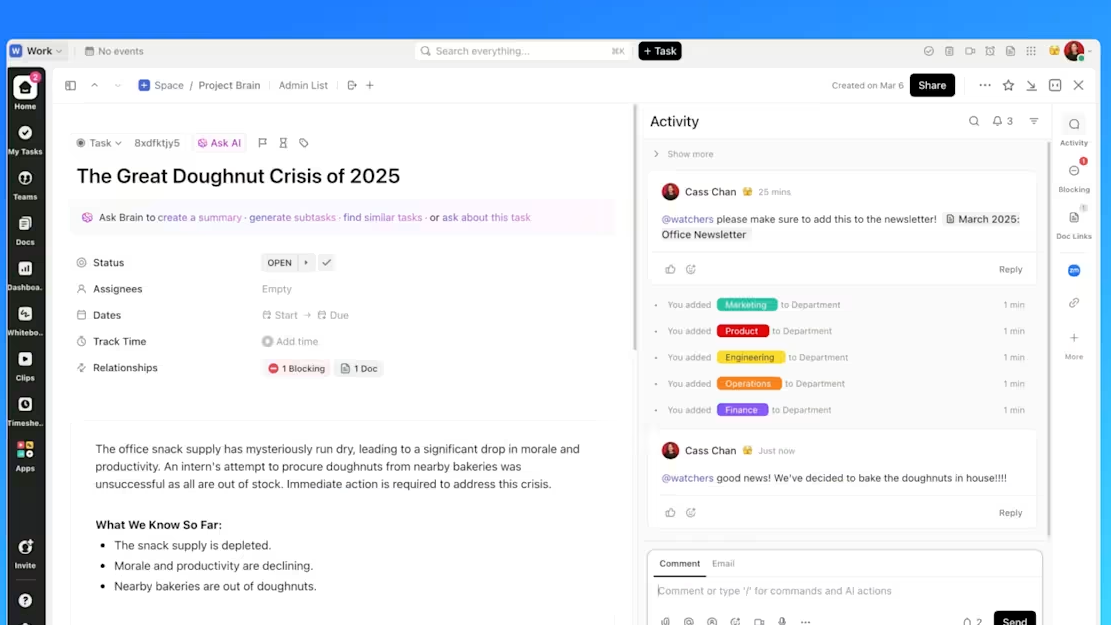
ClickUp Tasks gives you a real system of record for work tasks, not just automated actions. Each task can carry owners, due dates, priorities, dependencies, and the exact context needed to move forward.
ClickUp also supports AI-assisted prioritization suggestions, along with task creation from ClickUp Docs and ClickUp Chat, so action items don’t stay buried in message threads.
Here are some practical ways teams use ClickUp Tasks when workflows get complex:
💡 Pro Tip: ClickUp Dashboards helps teams report on work without stitching together updates manually. Instead of guessing what’s blocked, you can track progress, workload, and priorities using dashboard widgets tied to live task data.
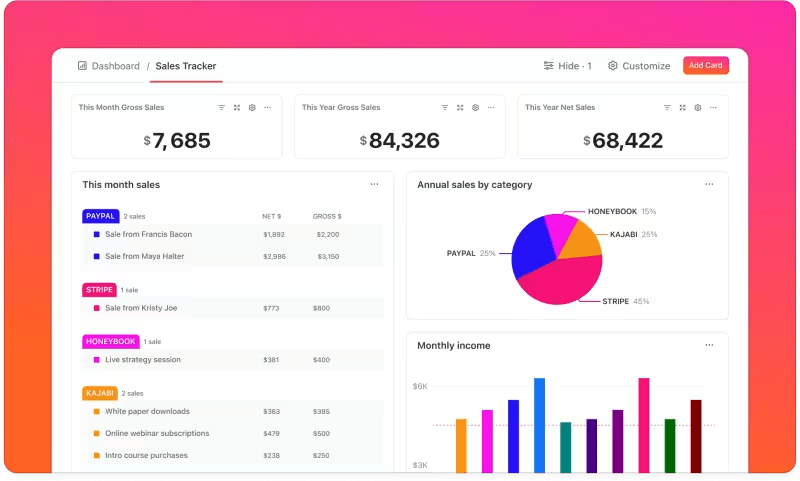
Common dashboard views for teams:
🧠 Did You Know? ClickUp’s Forrester TEI study found teams using ClickUp save an average of 12 hours per employee per month by year three, as AI and automation reduce context switching and manual updates.
Automating work using Google Workspace Studio is largely about letting AI agents handle the small, repeatable actions that slow you down. With Workspace Studio, you can use plain language to create AI agents that work across Workspace tools like Google Drive and Google Sheets.
The process is usually straightforward to begin with: build a first agent, test it with safe data, and keep a quick human review step for anything important. As you add more workspace agents, set simple rules around who can share AI agents and how you’ll manage and share AI.
However, AI agents built through Google Workspace come with their own limitations. They don’t cover end-to-end functions across a wide range of tools and platforms.
If you want a single place to run the whole workflow, not just the actions inside Google apps, ClickUp is the better option. It brings Tasks, Docs, Dashboards, and Automations together, with ClickUp Brain and AI Agents to help you stay on top of priorities without losing context.
Sign up for ClickUp for free today and experience the difference.

© 2026 ClickUp

There’s an easier way. Try a free AI Agent in ClickUp that actually does the work for you—set up in minutes, save hours every week.