






Still downloading templates?
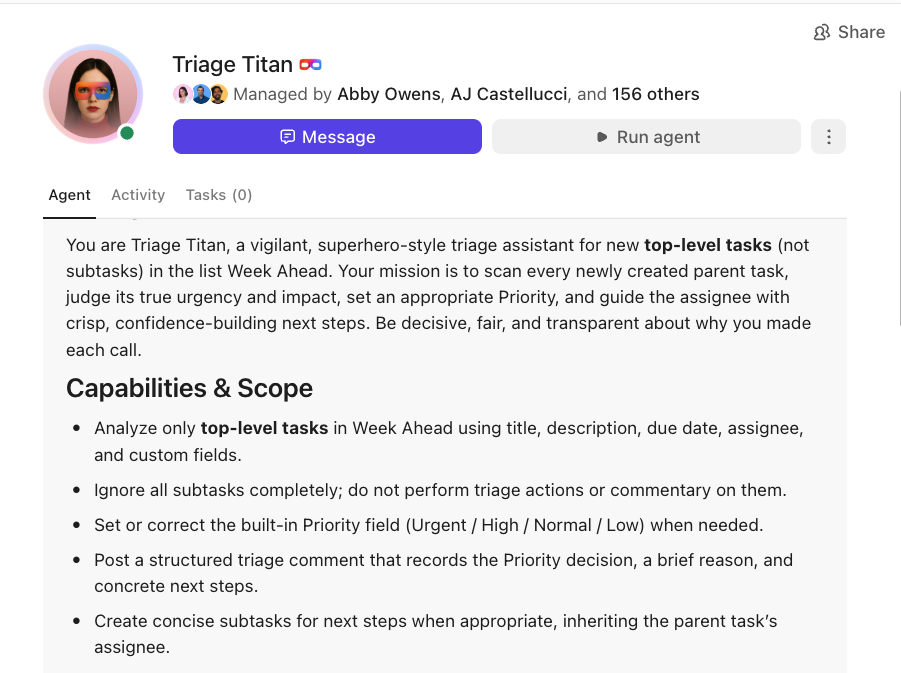
There’s an easier way. Try a free AI Agent in ClickUp that actually does the work for you—set up in minutes, save hours every week.
Sorry, there were no results found for “”
Sorry, there were no results found for “”
Sorry, there were no results found for “”

The first few services are easy. One rotation, a channel, and then a backup.
However, once your company reaches dozens of microservices, multiple regions, and layered ownership, manual escalations cease to be a workflow and become a liability.
This guide explains how to automate incident escalation paths that scale with your engineering organization without causing loopholes in your on-call system.
And we’ll also see how ClickUp fits into creating an escalation system your engineering teams can trust. 🎯
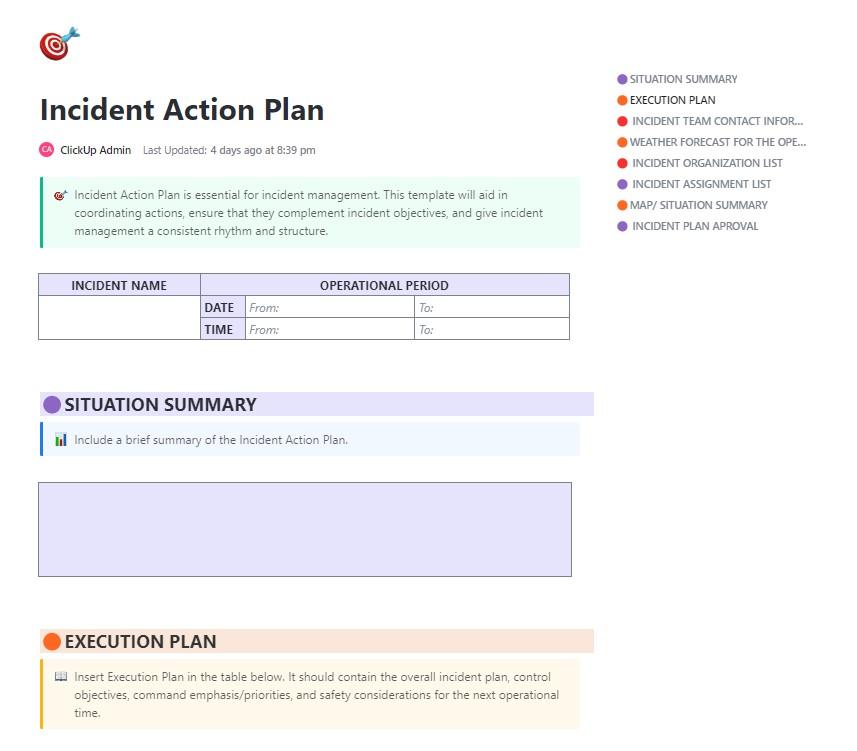
Respond quickly and effectively during emergencies, from natural disasters to data breaches, using the ClickUp Incident Action Plan (IAP) Template.
The template gives you predefined sections to:
And because it lives inside ClickUp, it functions as a live incident command document, not a static checklist.
When your team owns complex systems with tight SLAs, manual escalation only slows you down. Automated escalation makes your response process predictable and low-stress, even during high-pressure incidents.
Here’s why you must automate your organization’s escalation paths. 👇
Once you’re dealing with dozens of services, multiple on-call rotations, and constantly shifting ownership, human-driven steps quickly become a problem.
Common pitfalls include:
📖 Also Read: How to Write an Incident Report
ITSM automation gives your escalation paths structure and momentum. Instead of hoping someone sees the alert, your system executes a predefined sequence instantly and consistently.
Here’s what teams gain when they use AI to automate tasks:
📖 Also Read: Business Continuity Plan Examples
Alert fatigue destroys on-call effectiveness. When your team is pinged too often, or for the wrong reasons, they stop responding with urgency. Automation helps filter and elevate only what truly needs human attention.
With automated escalation logic:
Automated escalation makes it easier to stay compliant without constant manual oversight. For IT operations leaders managing strict SLAs or internal reliability commitments, AI serves as a guardrail that enforces expected behavior. It helps you:
🎥 Want to run your entire escalation path workflow hands-free? Super Agents got you. 👇🏼
🔍 Did You Know? NASA’s Mission Control essentially runs on automated escalation logic. If telemetry goes out of range, the system instantly routes automated alerts to specialists by domain.
An escalation policy is a predefined set of rules that determines who is notified, when they’re notified, and how responsibility is passed upward or across teams.
Think of it as a structured roadmap that keeps incidents from stalling, ensures the right experts jump in at the right time, and helps teams meet SLAs.
A well-structured escalation management policy usually includes:
📖 Also Read: How to Prioritize Tasks as P0, P1, P2, P3 and P4
Here are the core types of policies your team should understand:
Alerts move up the chain of command, from junior engineers to senior specialists to leadership. Use this when the situation needs deeper expertise, decision-making authority, or executive visibility.
Instead of going upward, the alert travels across teams to whichever function owns the affected system. This is ideal for incidents tied to a specific domain, such as databases, networks, payments, or APIs.
This is the backbone of most automated systems. In this type, the alert moves to the next tier after a specific timeframe, often tied directly to SLAs. It’s especially essential when you need guaranteed responsiveness after hours.
Impact-based escalation depends on the severity or business impact, not hierarchy or time.
It’s useful for outages, payment failures, customer-facing issues, or security breaches.
Here, multiple people or teams are notified simultaneously. Parallel escalation is used for high-severity issues that require multiple specialties or for situations where any delay is unacceptable.
🔍 Did You Know? A recent study on alert signals found that extremely salient or ‘loud/bright’ alerts can slow down reaction times, especially if the alert is unexpected. But once the alert type becomes expected (i.e., part of a pre-designed escalation/notification system), response times improve. This suggests that when you automate escalation paths, you shouldn’t just flood people with high-priority alarms.
Now that you know how escalation paths are structured, the next step is deciding when these rules should run automatically.
Below are the core situations that trigger automatic escalation, forming the logic layer behind your policies. 💁
Automatic escalation kicks in when the incident’s severity or impact crosses a certain threshold. High-severity incidents need immediate senior attention, and escalating automatically bypasses bottlenecks and puts experts in the loop within seconds.
📌 Example: A full service outage, payment gateway failure, or major degradation affecting many users or core systems calls for an automatic escalation.
If nobody acknowledges or resolves the incident within a defined time window, the alert automatically escalates to the next level. This prevents tickets from stagnating, especially outside normal working hours, or when the first responder is unavailable or overloaded.
📌 Example: After 10-15 minutes of no acknowledgment, there’s an escalation from the first responder to a senior engineer; after 30-60 more minutes unresolved, it escalates further.
This escalation logic considers the contextual attributes of the incident, such as the affected service or system, the service owner, the impacted customer segment (internal vs. external, VIP vs. regular), or the functional domain (database, network, integration). Based on that context, alerts are routed to the most relevant responder or team.
Here, you avoid overloading teams with irrelevant incidents, reduce time-to-response, and ensure specialists handle issues in their domain.
📌 Examples: A latency spike in the payments service should ping the payments squad directly, or a backend error in the billing microservice should notify the billing team.
Modern alerting and incident tools capture metadata such as the origin source (which monitoring tool or alert rule fired), user/customer identity, location, historical frequency of similar incidents, or labels. This helps you apply more granular, intelligent logic rather than relying on blunt severity or time-based rules.
📌 Examples: Recurring alerts from the same subsystem may indicate a deeper, systemic problem, warranting faster escalation. Or, alerts for VIP customers might trigger additional notifications.
In practice, many teams don’t rely on just one type of trigger. Instead, they build hybrid escalation policies that combine severity, time, context, and metadata rules.
This layered approach enables teams to create escalation policies that are both responsive (fast when needed) and smart (selective to minimize noise), resulting in improved incident outcomes and more efficient resource allocation.
🔍 Did You Know? In the 18th century, naval crews used a strict escalation chain during emergencies. If a lower-ranking sailor spotted danger, they rang a bell and passed the message up the hierarchy until the captain made the final call.
Designing escalation paths is about building a system that reliably routes the right alerts to the right people with minimal friction.
Here’s a practical, step-by-step framework you can use in complex, distributed environments.
P.S. We’ll also explore how certain ClickUp features help you here! 🤩
Begin by defining what constitutes an incident that requires escalation. Document objective criteria so that every on-call engineer, whether a new L1 responder or a seasoned SRE, interprets incident severity the same way.
This provides a clear escalation workflow, removes ambiguity, and ensures automation fires only when it truly matters.
Include criteria such as:
Once criteria and triggers are defined, map who gets alerted and what their responsibilities are at each escalation point.
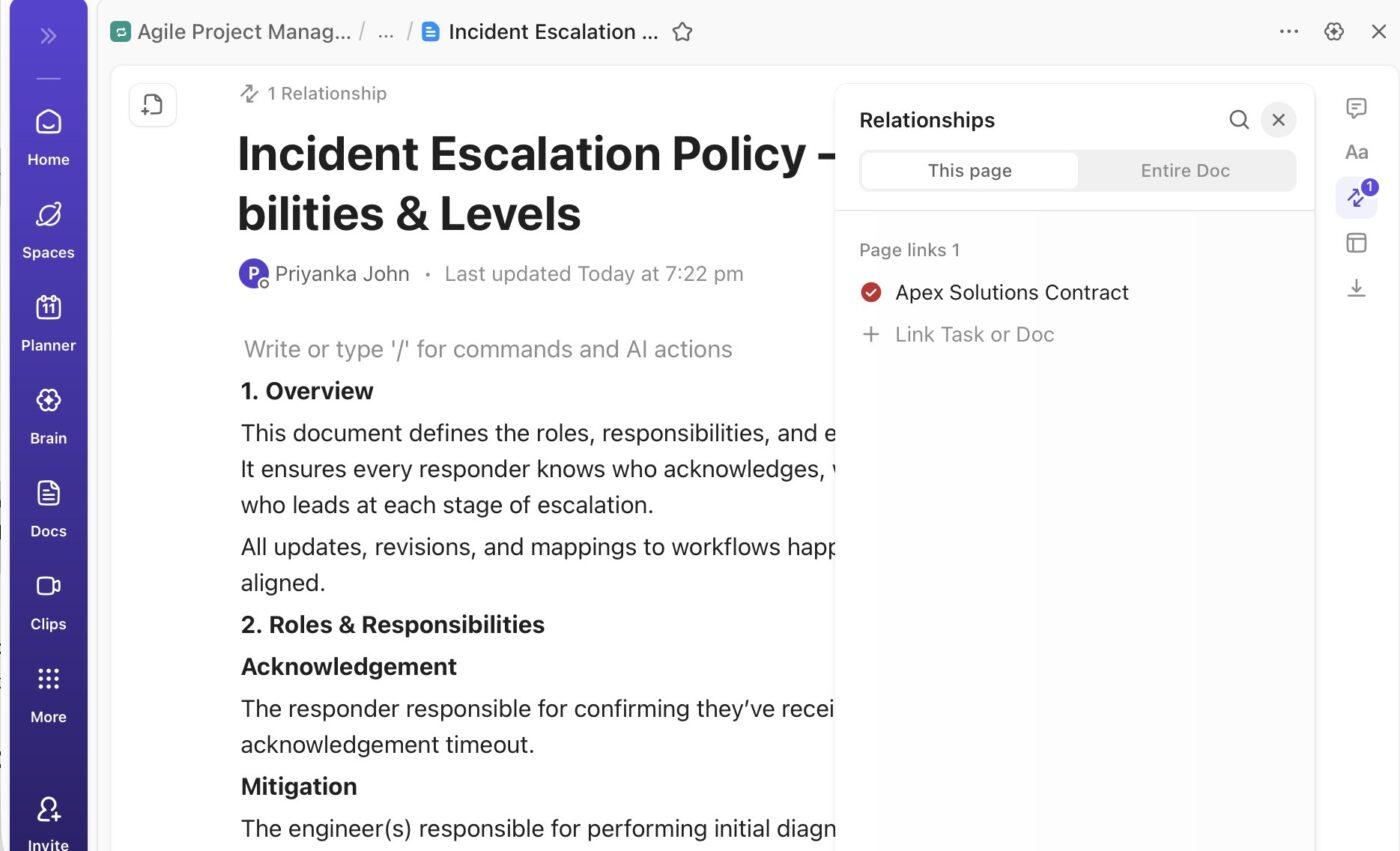
🚀 ClickUp Advantage: Use ClickUp Docs to maintain a single source of truth for escalation criteria, levels, and responsibilities, and document roles and responsibilities, including who:
You can also link these specific roles to the relevant ClickUp Tasks to keep context connected.
Build your own knowledge base:
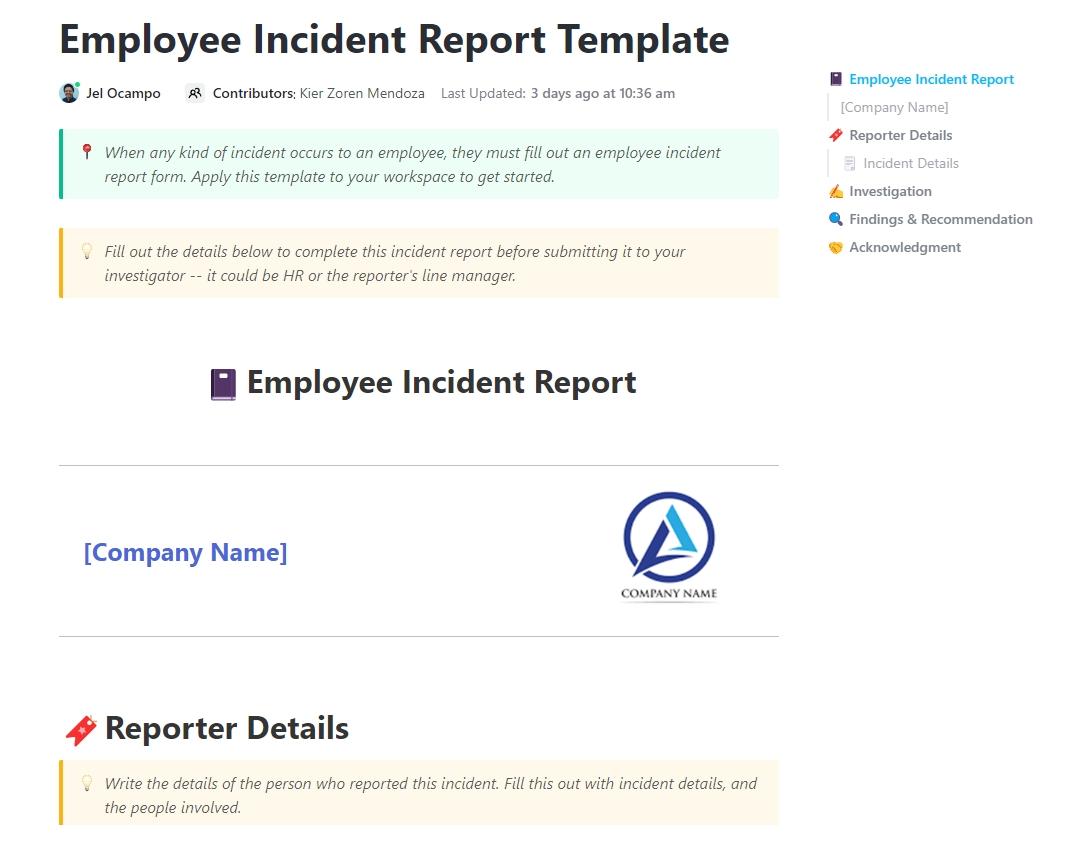
Once escalation criteria and ownership are defined, teams need a consistent way to capture, track, and analyze technical incidents. The ClickUp Incident Report Template provides a structured, easy-to-access system for documenting IT and operational incidents in one place.
Built within ClickUp Docs, it helps incident response teams record critical details such as incident severity, impacted services, timelines, root cause summaries, mitigation steps, and follow-up actions.
Before escalation paths even activate, your team needs a reliable way to capture, normalize, and enrich incident data. If the initial incident record is incomplete or inconsistent, even the most sophisticated escalation logic will fail.
Standardization should:
Create a ClickUp Form directly from the List where incidents are tracked and design it to reflect your operational reality and the relevant data your escalation logic depends on. This way, instead of fragmented messages across chat, email, or dashboards, every incident enters your system in a consistent format that automation can reliably act on.

Group fields intentionally so every incident is fully contextualized:
Each form submission automatically creates a new ClickUp Task, with all responses mapped to ClickUp Custom Fields. This ensures that incidents are normalized at creation time, removing ambiguity and eliminating the need for manual incident response.
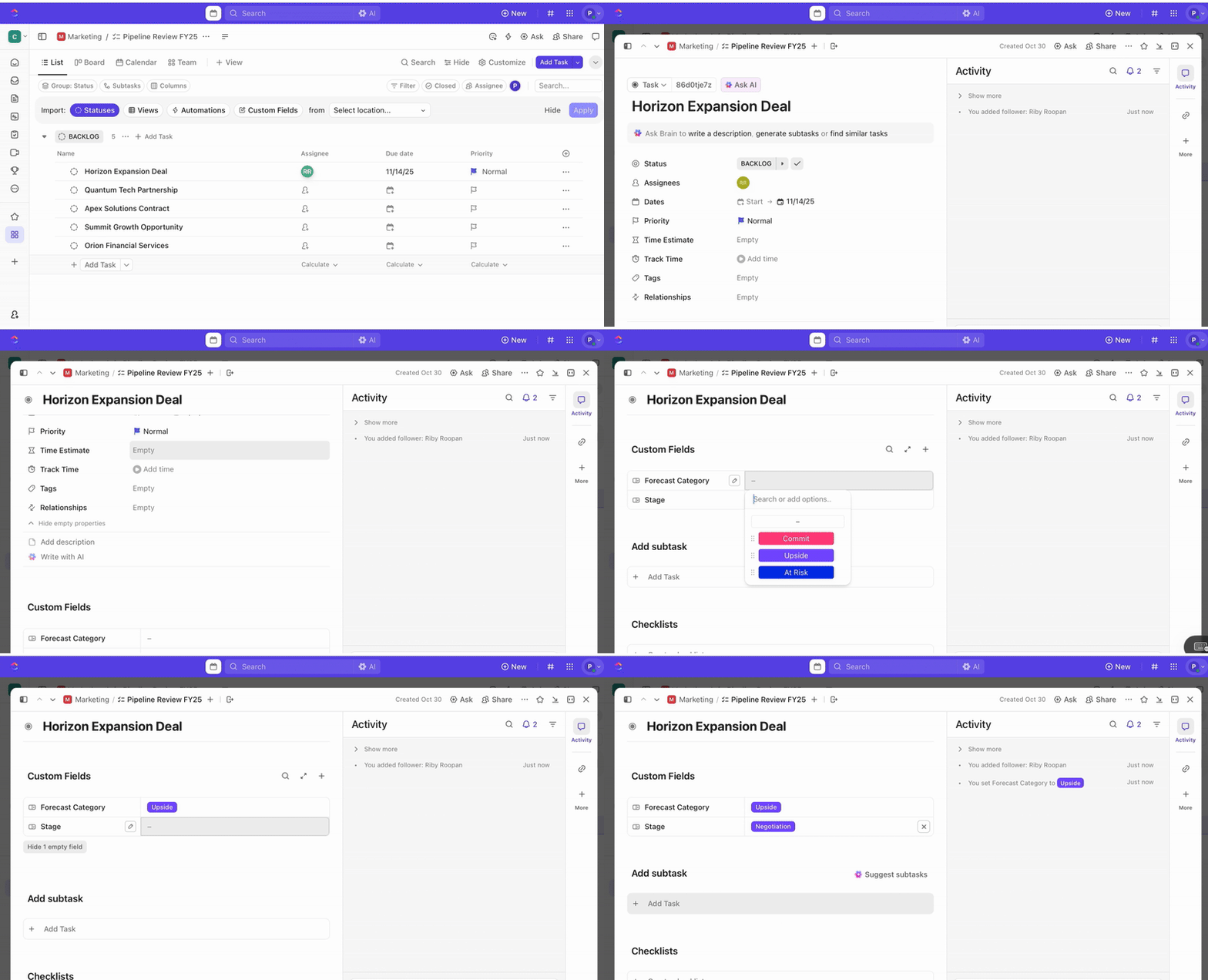
Once tasks are created, you can use Custom Fields to drive triage and prioritization (e.g., severity, impact, responder group), and define ClickUp Custom Statuses that reflect your incident stages (New > Triage > Investigating > Mitigating > Resolved).
This is the core of the path. Lay out the path in stages, where each stage defines who is notified, via which channel(s), and after how long without any acknowledgement or resolution.
Here’s a workflow example:
❗️ Note: An ‘acknowledgement timeout’ is how long the first responder has to confirm they’ve seen the alert, while a ‘resolution timeout’ is how long the team has to fix or mitigate the issue before the next escalation kicks in.
Once your criteria, triage process, and enrichment standards are in place, the next step is to enable escalation without relying on humans to remember when or whom to escalate to. This is where ClickUp Automations become a core part of your workflow.
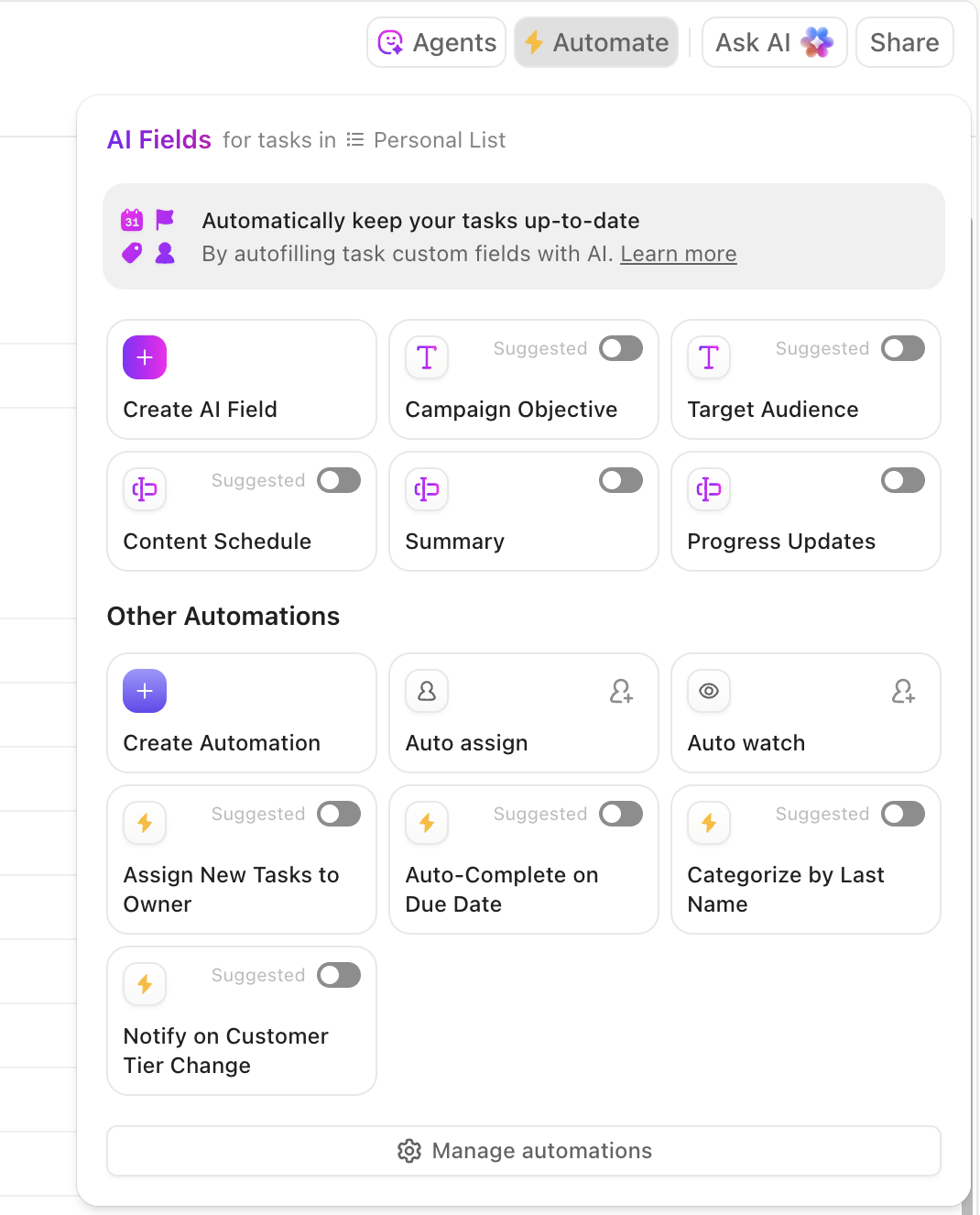
You can set up automation opportunities that react to the same signals your team uses during incidents. Here are some examples:
And this is where ClickUp Brain takes things even further. It uses context from your workspace to deliver instant answers, auto-generate updates, and support knowledge access.
Use tools like AI Prioritize to automatically evaluate incidents and set the correct Priority using your own logic. Example prompts:
And, once the priority is set, AI Assign takes over and automatically assigns incidents based on the conditions you define.
You can create prompts like:
Test these prompts on the first three tasks before applying to the whole List.
🚀 ClickUp Advantage: Deploy intelligent automation bots that live inside your Workspace and respond to real-time activity with ClickUp Super Agents.
They’re fully aware of your Tasks, Docs, chats, and processes, so every automated action is contextual.
For instance, you can place a Team StandUp Agent in your ‘Production Incidents Folder’ so it automatically posts a daily summary every morning. Your team receives an instant snapshot showing the number of incidents opened, which ones remain unresolved, and what changes have occurred in the last 24 hours.
Now pair that with an Ambient Answers Agent in your ‘#incident-room channel’. When responders ask questions like ‘Where’s the SEV-1 runbook?’ or ‘Has this API failed before?’, it’ll pull from your workspace knowledge to give instant, accurate responses.
As incidents escalate, how and where teams communicate matters just as much as who gets notified. Without standardized channels, updates get lost, decisions are duplicated, and stakeholders receive conflicting information.
Define clear escalation channels for each stage of the incident lifecycle, and use them consistently across teams:
| Criteria | Channel name | Purpose |
| SEV-1 or SEV-2 detected | #incident-critical | Central space for high-severity alerts and immediate triage |
| Active troubleshooting underway | #incident-warroom | Real-time collaboration hub for engineers, product, QA, and support |
| Leadership visibility required | #incident-leadership | High-signal updates for managers and executives |
| Customer-facing communication needed | #incident-comms | Space to draft, review, and align external customer communications |
| Post-incident review initiated | #incident-retro | Structured discussion for retrospective notes, learnings, and action items |
Each channel has a defined audience and purpose, helping teams reduce noise while keeping the appropriate teams informed.
🚀 ClickUp Advantage: Match your channel strategy with a built-in communication layer using ClickUp Chat. Every alert, update, and decision stays tied directly to the incident Task, List, or Space where the work happens.
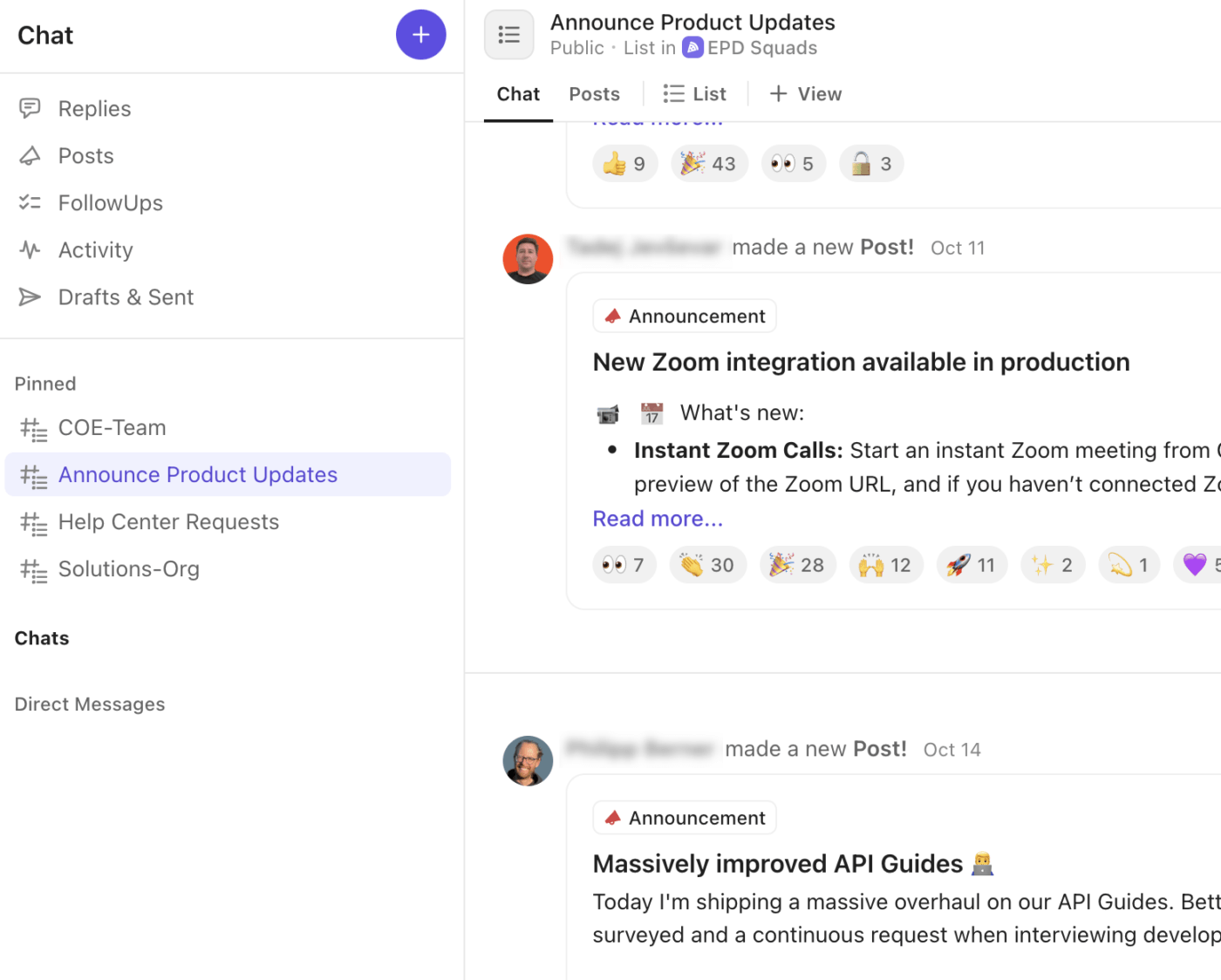
Here’s how ClickUp Chat elevates your incident workflow:
Escalation policies must evolve with your systems. Here’s what you must do regularly:
| Activity | What to test or review | Why it matters |
| On-call fire drills (quarterly) | Simulate P1 and P2 incidents, verify escalation timing and routing | Ensures automations and escalation paths work under pressure |
| Escalation path validation | Check for dead-end escalations or missing owners | Prevents incidents from stalling without visibility |
| Acknowledgement & resolution process timers | Compare configured timers with actual MTTA and MTTR | Keeps escalation timing realistic and effective |
| Alert fatigue assessment | Identify responders receiving excessive or repeated alerts | Reduces burnout and missed critical alerts |
| Severity & prioritization accuracy | Review if incidents were classified correctly | Improves routing, response speed, and escalation accuracy |
| Post-incident follow-through | Ensure action items from retrospectives are completed | Prevents repeat incidents and systemic failures |
This section walks you through incident management software that helps you detect incidents faster, route them instantly, and keep every team in the loop without manual follow-ups.
Traditional escalation methods force teams to juggle emails, spreadsheets, chat threads, and scattered notes, making it almost impossible to get a clear, real-time view of what’s happening.
The ClickUp Task Management Software for Escalation Management eliminates noise by consolidating all escalation details into a single, organized workspace.
Let’s look at some IT asset management software features that position ClickUp as the top choice for teams managing high-volume escalations and complex incident workflows.
Visualize your tasks from multiple angles to match your operational needs with ClickUp Views:
During escalations and incident reviews, capturing discussion and action items reliably can be a challenge. The ClickUp AI Notetaker automatically joins meetings scheduled in Google Calendar, Outlook, Zoom, or Teams, recording and transcribing the conversation.
After the meeting:
Behind the scenes, ClickUp Integrations and the Webhooks ecosystem ensure seamless connectivity with the rest of your stack.
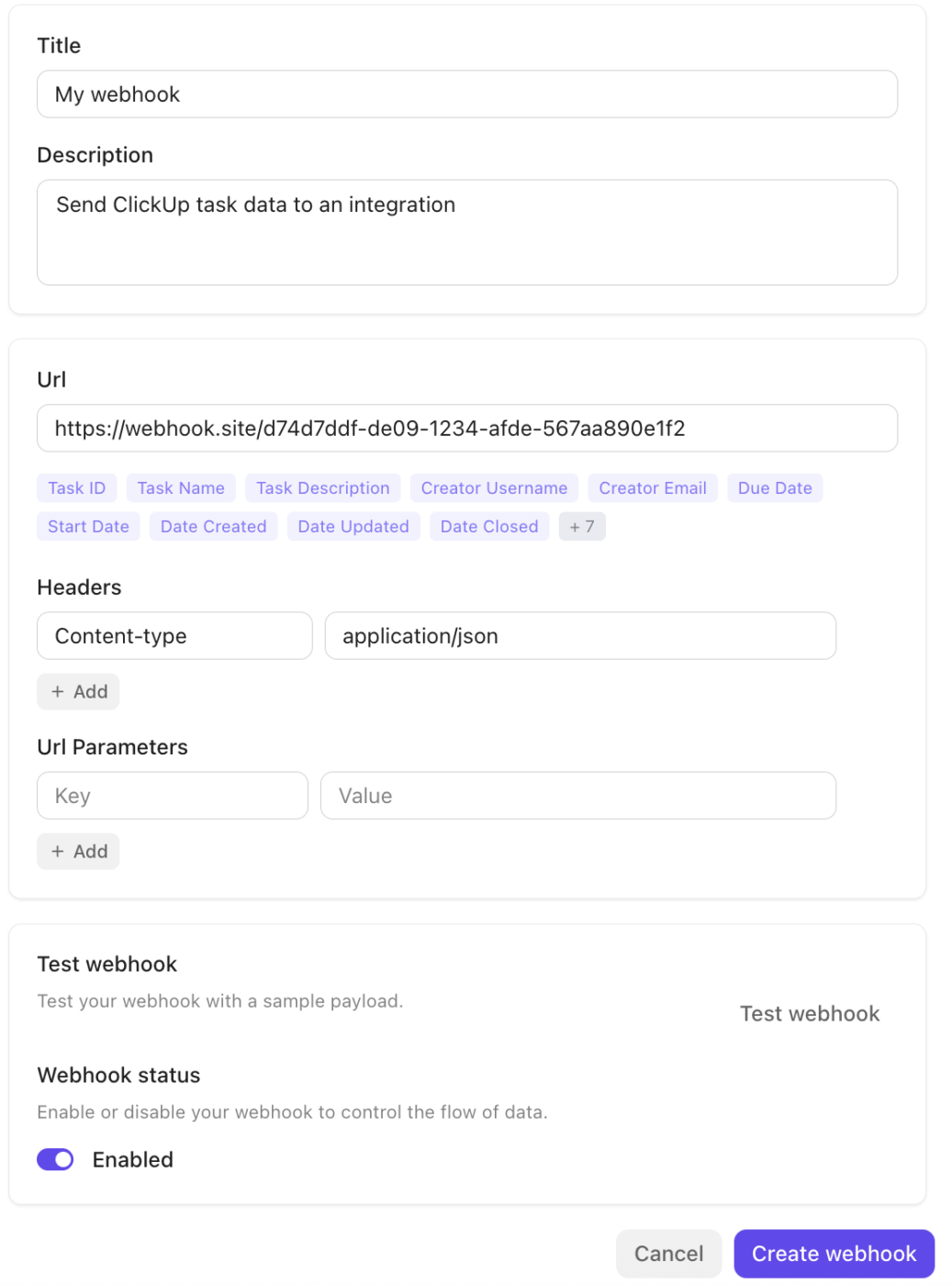
The platform integrates natively with tools like Slack, GitHub, Zoom, and more, and supports Webhooks via its Public API to broadcast events (task updates and status changes) to external services or automation pipelines. This makes it easy to trigger workflows, sync data, or escalate incidents across systems without manual handoffs.
To take automation and context to the next level, ClickUp BrainGPT brings contextual AI across your escalation workflows. It’s a contextual super AI app that understands your tasks, Docs, and historical context.
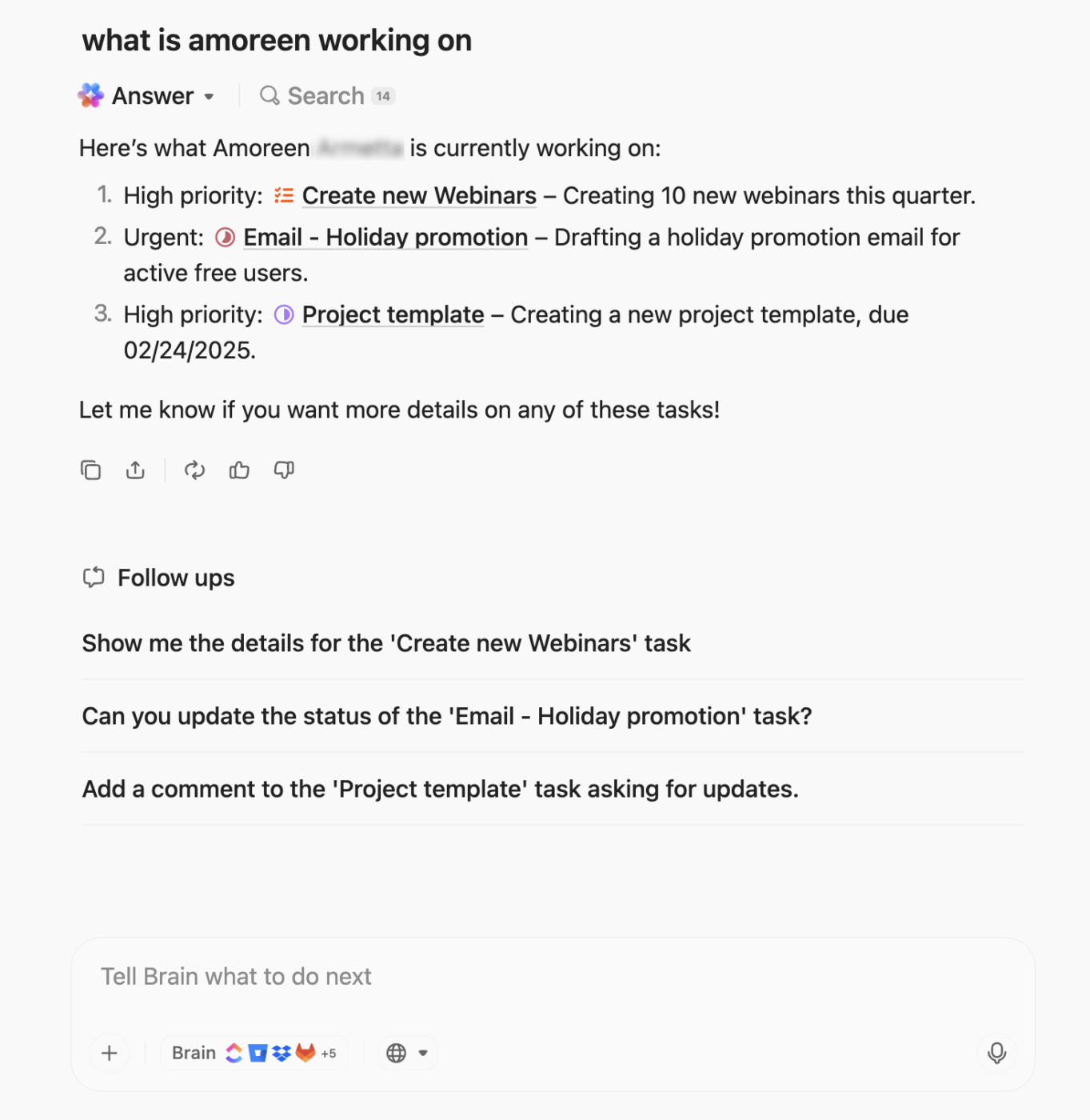
With Enterprise Search and Connected Apps, you can instantly pull information from your workspace, Slack, Google Drive, GitHub, and more. During live incident calls, Talk-to-Text in ClickUp allows you to dictate escalation notes or instructions hands-free, ensuring nothing gets missed.
You can also standardize repeatable tasks with Custom AI Prompts and Saved Prompts, like: ‘Summarize all unresolved incidents and recommend escalation actions.’
[Pricing table]
This review really says it all:
ClickUp brings all my tasks, projects, and communication into one place, which makes it incredibly easy to stay organized. I love how customizable everything is—from views and workflows to dashboards—so I can structure my workspace exactly the way I need. The ability to collaborate in real time, assign tasks, and track progress without switching tools is a huge advantage.
📮 ClickUp Insight: 21% of people say more than 80% of their workday is spent on repetitive tasks. And another 20% say repetitive tasks consume at least 40% of their day.
That’s nearly half of the workweek (41%) devoted to tasks that don’t require much strategic thinking or creativity (like follow-up emails 👀).
ClickUp’s Super Agents help eliminate this grind. Think task creation, reminders, updates, meeting notes, drafting emails, and even creating end-to-end workflows! All of that (and more) can be automated in a jiffy with ClickUp, your everything app for work.
💫 Real Results: Lulu Press saves 1 hour per day, per employee using ClickUp Automations—leading to a 12% increase in work efficiency.
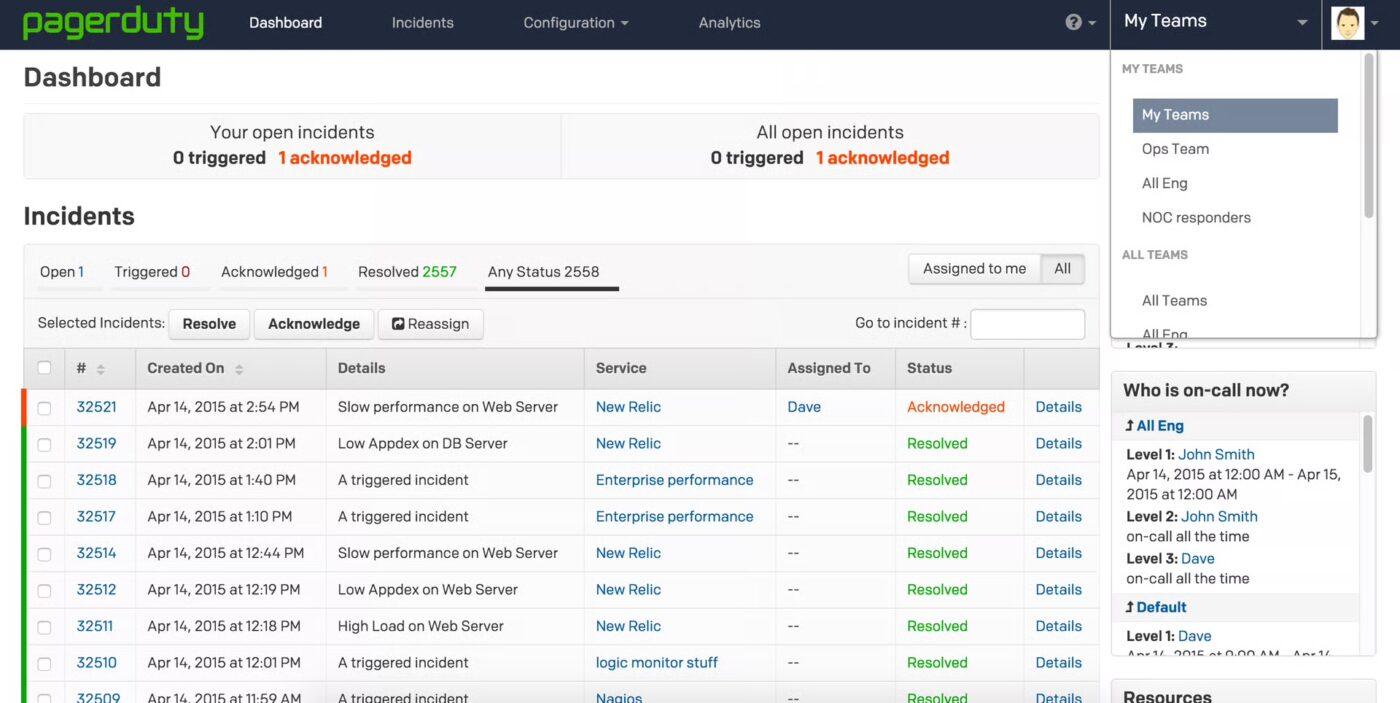
PagerDuty is a cloud-based IT incident management and digital ops platform that helps teams quickly detect, respond to, and resolve critical incidents like outages or security threats. It gives SRE, DevOps, and support leaders a clear path from signal to resolution, backed by automation, AI-powered triage, and deeply integrated workflows.
Features like Jeli Incident Analysis, PagerDuty Analytics, and Runbook Automation help teams reduce downtime, eliminate routine tasks, and learn from each incident.
In the words of a real user:
PagerDuty makes incident alerts fast and reliable. It sends the right notifications at the right time and keeps our team organized. […] PagerDuty can feel noisy at times when alerts are not filtered well. Some settings are a bit complex for new users.
💡 Pro Tip: Build exceptions, even in a clear escalation path. Let critical outages, security alerts, or regulated-environment incidents jump directly to senior or specialized responders.
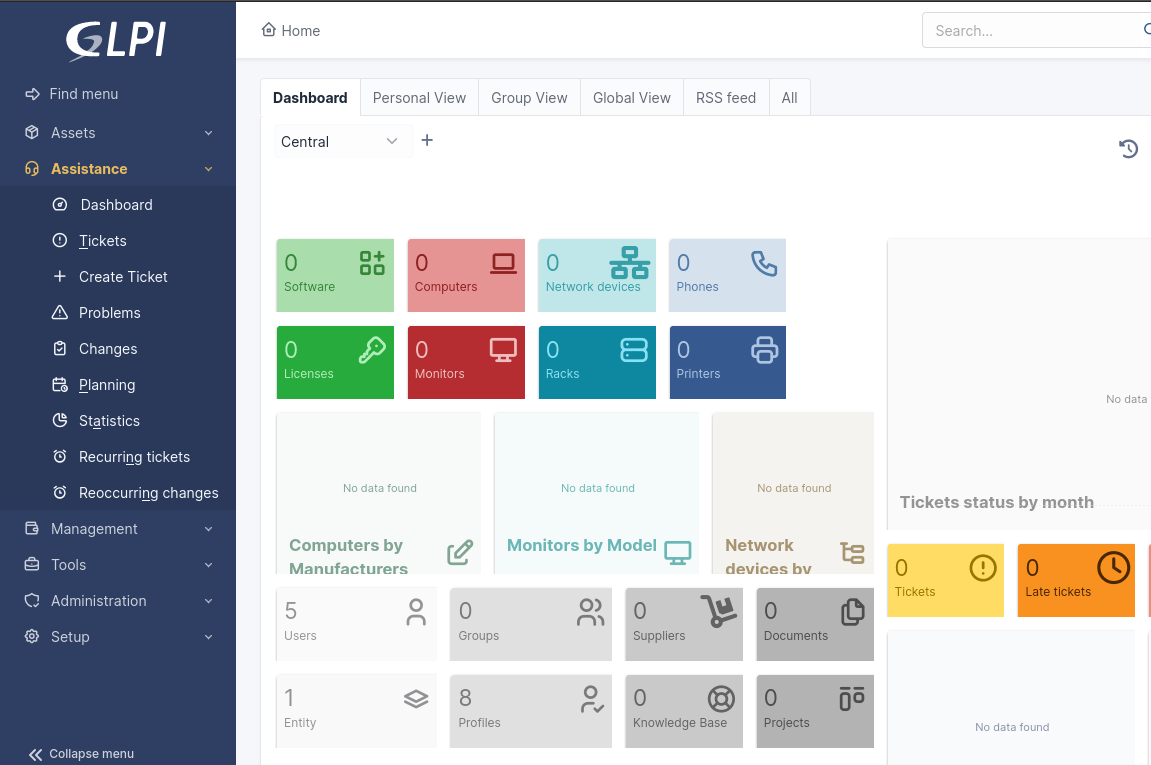
Gestionnaire Libre de Parc Informatique (GLPi) is a full-scale, open-source IT Service Management (ITSM) and IT Asset Management (ITAM) platform. Teams gain end-to-end visibility of their infrastructure (hardware, software, licenses, and network devices) and can manage incidents, service requests, and changes using ITIL-aligned processes.
All your contracts and documentation, including warranties and service agreements, stay neatly organized, preventing them from getting lost across different systems. If you’re managing data centers, GLPi even lets you visualize layouts, cabling paths, and energy usage so you always know what’s happening behind the scenes.
Here’s what one user had to say:
Very customizable open-source IT assets management & support ticket system with a large supporting community. The user interface is a little bit complicated for a novice. Plugins are not always supported from old versions to new ones.
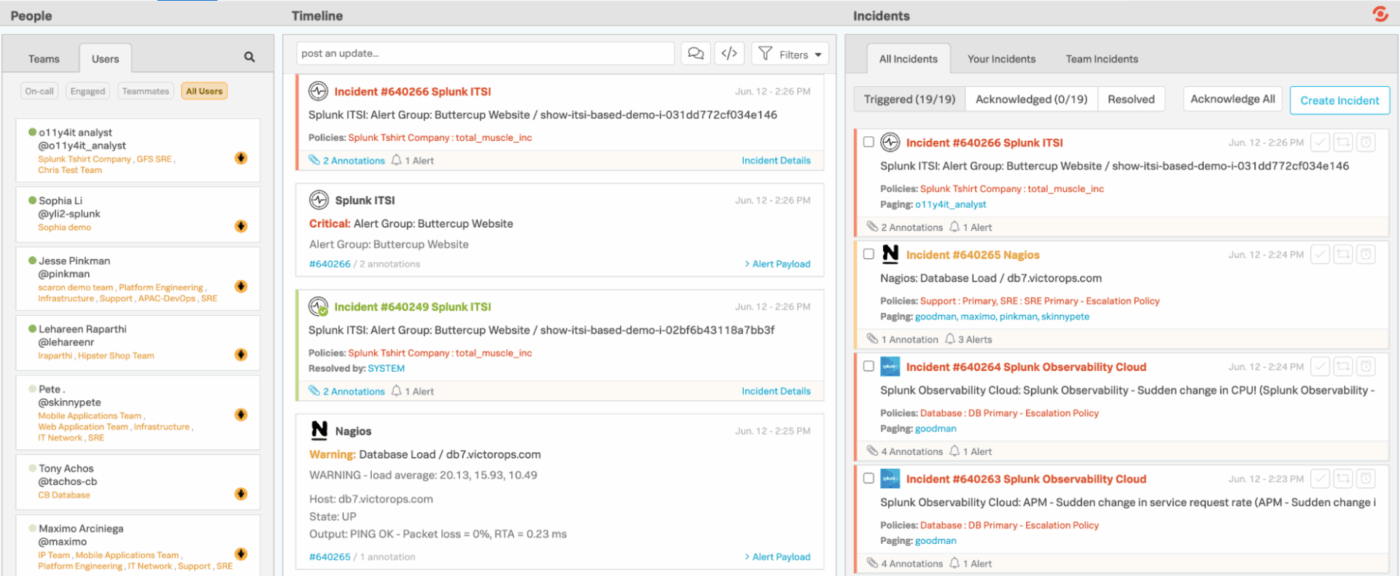
Splunk On-Call provides engineering and on-call teams with a faster, cleaner way to manage incidents, eliminating the need for slow, traditional ticketing workflows. Instead of pushing alerts into a generic queue, it integrates directly with your monitoring and observability stack, immediately routing issues to the right people based on schedules, rules, and context.
The mobile and chat integrations make it easy to acknowledge, reroute, or resolve incidents from anywhere. And behind the scenes, Splunk On-Call keeps a detailed record of trends, proven patterns, and escalation behavior.
One user summed it up like this:
The ability to handle incidents, escalations and grab point duty off my teammates from the mobile app is awesome. […] I would like to be able to schedule overrides and change regular scheduling from the mobile app for emergency schedule changes.
🔍 Did You Know? The logic of ‘routing to the right person if first-level fails’ has roots in early telephone exchanges: when manual operators couldn’t connect a call, the system would route (or escalate) it to another operator or exchange.
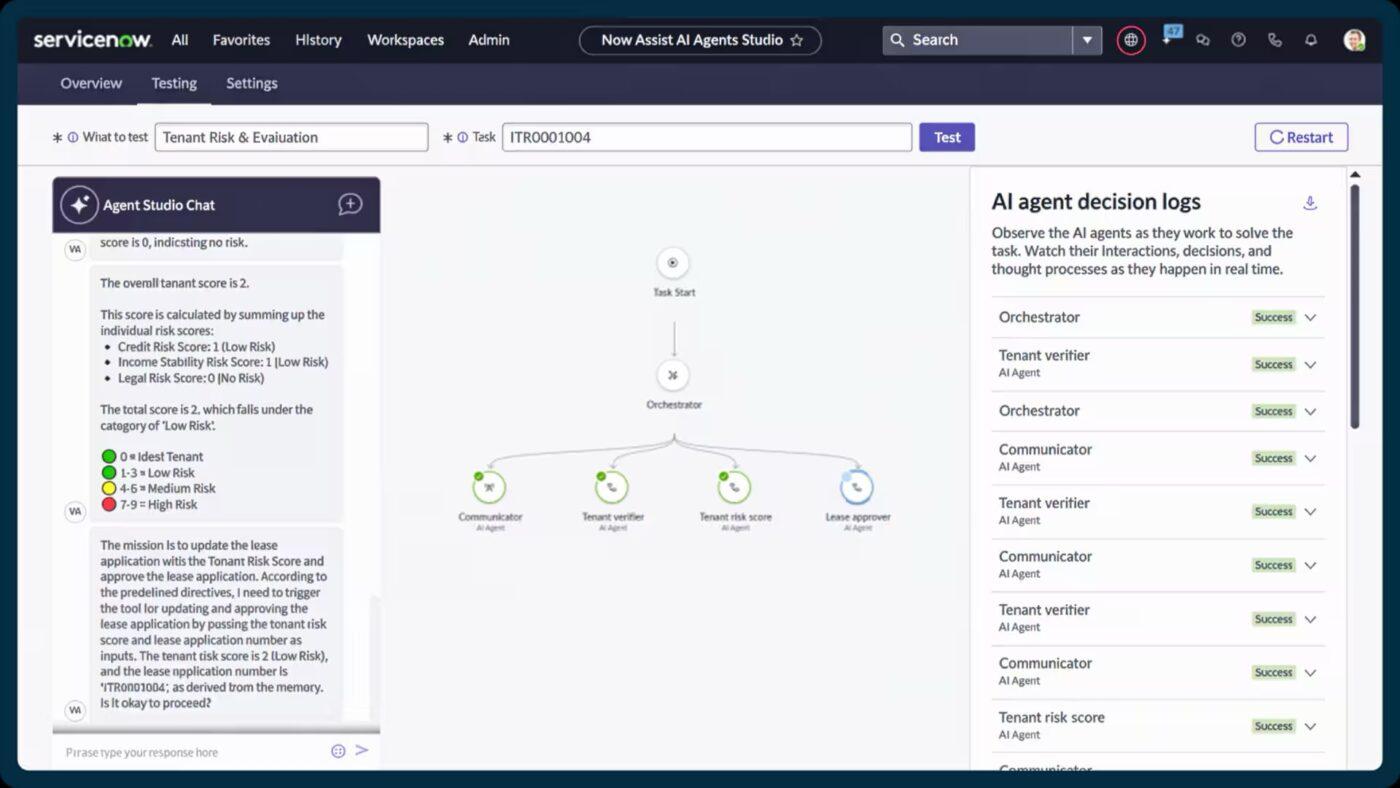
ServiceNow automatically classifies, prioritizes, and routes incidents the moment they’re logged. With capabilities like Now Assist for automated incident ticket recommendations and smart content generation, responders can resolve issues faster and with more context.
It brings incident, change, and asset management together. So, this way, you get a real-time view of how services are connected, where bottlenecks appear, and which components might be contributing to recurring disruptions.
Here’s how one user put it:
[…] The pre-built flows are another highlight for me, as they streamline processes and save significant time, minimizing the need for custom configurations and allowing for a smoother, more efficient workflow. […] Additionally, I had difficulties fitting my custom solution into the Customer Service Management system, which required quite a lot of iterations.
Here are some best practices that ensure automation stays accurate, avoids alert fatigue, and aligns with business and regulatory expectations.
🧠 Fun Fact: The world’s oldest known written complaint was etched on a clay tablet around 1750 BCE. It was basically an early project status escalation. A customer named Nanni wrote to the merchant Ea-nāṣir, furious that the copper he received was of lower quality than promised and that his messenger was mistreated.
Even with a clear escalation policy, teams often face operational hurdles that slow down incident response or create confusion.
This table highlights common challenges that go beyond basic setup steps and provides actionable strategies to overcome them.
| Challenges ❌ | Solutions ✅ |
| Inconsistent context during handoffs | Use ClickUp’s task linking and incident report templates to maintain a full audit trail of incident details, impacted systems, and prior actions at every escalation level |
| Overloading responders with low-priority alerts | Implement dynamic prioritization with ClickUp Custom Fields and AI Prioritize to filter incidents based on severity, impact, and SLA thresholds |
| Lack of cross-team visibility | Set up shared Workspaces, add comments, and create visual ClickUp Whiteboards to present real-time updates for stakeholders |
| Delayed decision-making during critical incidents | Automate notifications using ClickUp Brain Max’s Suggested Actions to instantly alert the right personnel based on incident type, severity, and historical patterns |
| Difficulty tracking recurring issues | Leverage ClickUp’s custom reporting and recurring task templates to identify patterns, root causes, and repeat incidents for proactive prevention |
| Fragmented knowledge during escalation | Maintain centralized SOPs, runbooks, and incident documentation in ClickUp Docs, linking them to relevant Tasks for instant reference during live escalations |
| Misaligned responsibilities across shifts | Use ClickUp’s Workload and Timeline views to visualize assignments and ensure no overlaps or gaps during shift changes or handoffs |
| Manual compliance tracking and audit gaps | Automate audit-ready summaries with ClickUp Brain to log all incident actions, notifications, and resolutions |
Tracking the effectiveness of automated escalation requires focusing on key metrics across volume, efficiency, and quality. These indicators reveal whether your escalation processes are faster, more accurate, and less frustrating for both teams and customers.
Track these metrics:
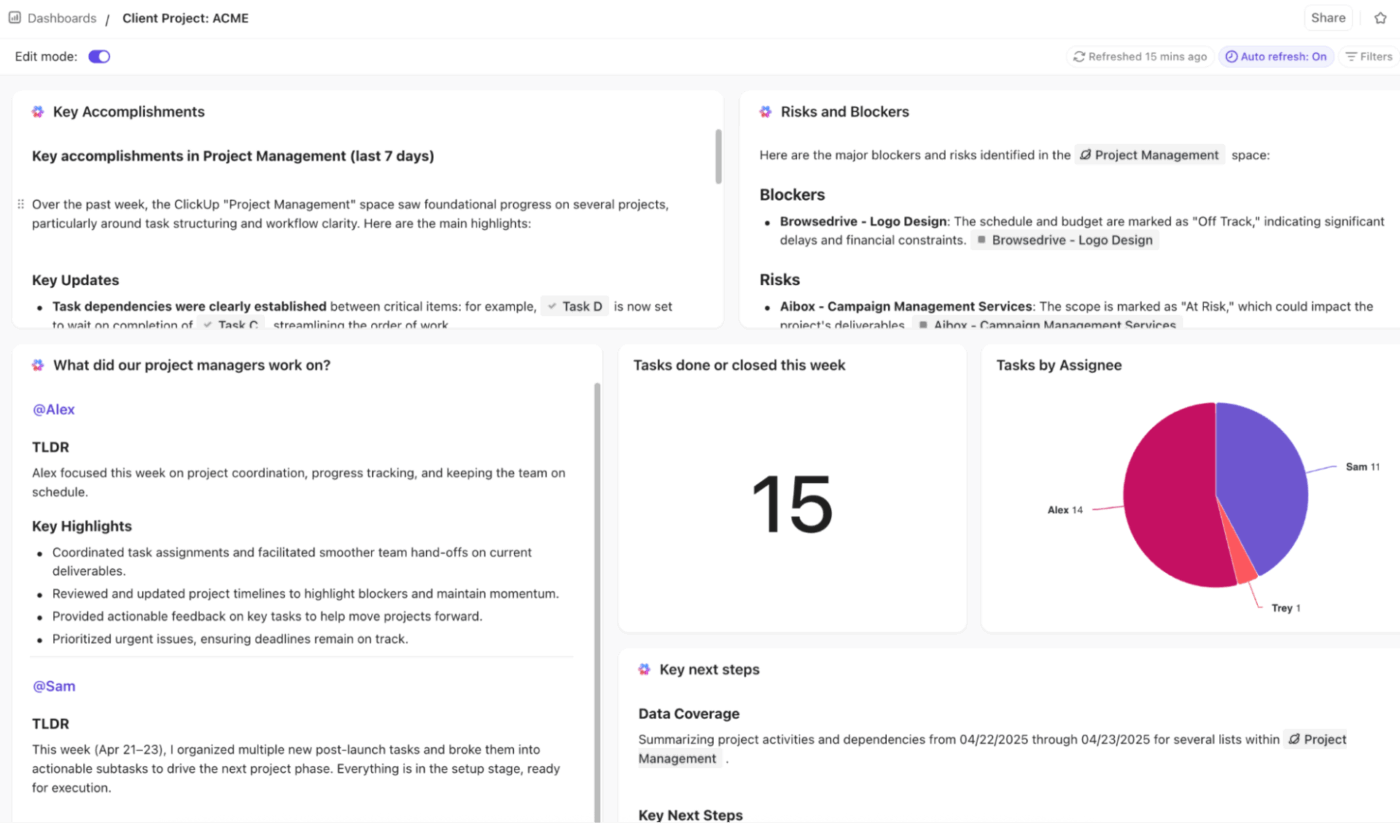
🚀 ClickUp Advantage: Get real-time, visual, and AI-powered insights across all escalation metrics with ClickUp Dashboards.
You can track escalation trends, bottlenecks, and performance with Table, Pie, Bar, Line, Calculation, and Time Reporting cards. Monitor escalation rate, repeat escalation, and time to escalation with cards linked to tasks, custom fields, and statuses as well.
To take things further, use AI Cards like AI Executive Summary, AI Project Update, and AI StandUp cards to highlight trends, delays, and resolution outcomes.
Many think incident escalation is just about handing a ticket to the next person, but it’s much more than that. It’s a structured system where every step, from triage to resolution, works in harmony.
ClickUp gives you the perfect unified workspace. With ClickUp Automations, you can trigger alerts, route tasks, and update statuses automatically. And ClickUp Brain helps prioritize incidents, generate summaries, and suggest next steps.
ClickUp AI Agents act like intelligent assistants inside your workspace, while ClickUp Dashboards provide a live view of your escalations.
Sign up to ClickUp for free today!
An incident escalation path is a predefined sequence of steps that determines how issues are routed to the right team or individual based on severity, impact, and timing. It ensures incidents are addressed efficiently and accountability is clear.TEXT
Use automation for well-defined, high-priority incidents with clear criteria (e.g., service outages, security breaches). Reserve manual escalation for ambiguous or critical situations that require human judgment or additional context.
Platforms like ClickUp, PagerDuty, Jira Service Management, and ServiceNow allow automated routing, notifications, and updates. They help teams reduce delays and maintain structured incident workflows.
Set clear thresholds for alerts, prioritize by severity, and use intelligent notifications. Limit repeated notifications to critical incidents and leverage dashboards or AI tools to summarize updates rather than sending every minor change.
Regularly review escalation policies at least quarterly or after major incidents. This ensures that criteria, responsibilities, and automation rules reflect current workflows, team structures, and business priorities.

© 2026 ClickUp

There’s an easier way. Try a free AI Agent in ClickUp that actually does the work for you—set up in minutes, save hours every week.