






Still downloading templates?
There’s an easier way. Try a free AI Agent in ClickUp that actually does the work for you—set up in minutes, save hours every week.
Sorry, there were no results found for “”
Sorry, there were no results found for “”
Sorry, there were no results found for “”
You open your laptop to send an invoice and pause. Did you already bill this client for this month? Or was that last month? You scroll through emails, chat messages, and a half-updated spreadsheet named something like ‘Retainers_FINAL_v3.’
You make a mental note to double-check later, knowing full well that ‘later’ usually means right before tax season. Retainers are supposed to make life easier – it’s a predictable income, but tracking them can get messy fast.
This guide walks you through building a client retainer tracker in Google Sheets. We’ll cover essential data points, step-by-step setup instructions, and best practices to keep your billing accurate and your client relationships strong.
We’ll also look at how ClickUp, the world’s first Converged AI Workspace, helps you when Google Sheets start feeling limiting. 💁
You’re juggling multiple clients, and you have a nagging feeling that you can’t figure out your billable vs. non-billable hours. This leads to lost revenue or awkward conversations with clients about unexpected overages, damaging the trust you’ve worked hard to build.
A single sheet consolidates all this data, making it easy to see who’s approaching their limit and who has unused hours. Here’s why you should start here. 🛠️
While spreadsheets are effective for simple setups, they lack automation for manual updates.
🧠 Fun Fact: The term ‘retainer’ originated in the medieval period (15th century) to describe a person, often a loyal supporter or dependent of a person of high rank, who was “retained” in service. These individuals, often part of a larger group known as a retinue or affinity, were kept to serve a lord, nobleman, or monarch as advisors, bodyguards, attendants, or soldiers
A client retainer tracker in Google Sheets is a spreadsheet that monitors retainer agreements, giving you a clear view of hours worked, remaining balances, and billing cycles.
You’ve tried making a tracker before, but it led to a system that’s hard to maintain, causing billing disputes and eventual abandonment of the tracker altogether.
Here are some essential data points that make retainer management genuinely useful. 📊
Every row in your tracker needs basic identification data to keep your work organized. This includes the client’s name, their primary contact, the project or engagement name, the start date, and any relevant contract reference number.
When you’re managing multiple retainers, you need to be able to quickly filter or search by client without endlessly scrolling through hundreds of rows.
💡 Pro Tip: Add a ‘Status’ column with options like Active, Paused, or Completed. This allows you to easily filter out inactive clients from your main working view, keeping your tracker clean and focused.
To avoid cash flow confusion when you bill a client, you need to track the monthly retainer amount, billing frequency (like monthly or quarterly), payment terms, and the renewal date.
A common retainer fee example is a $3,000/month retainer for 20 hours of design work, billed on the first of the month, with net-30 payment terms. Your spreadsheet should capture all of these details in their own dedicated columns.
🔍 Did You Know? In professions like law, time is often logged in precise increments (e.g., 0.1 hours or 6-minute blocks) to ensure accurate billings against retainers.
Your tracking method must match your contract structure. Some retainers are hours-based, where a client pays for a set number of hours per month, while others are based on project deliverables, where they pay for a specific number of outputs.
Here’s what to track:
If you manage both types of retainers, use separate tabs in your spreadsheet. Mixing them in a single view is a recipe for confusion and reporting headaches.
Your clients expect to know their remaining balance at any time, and fumbling for an answer erodes the trust you’ve built. Your tracker must include columns for hours or deliverables used, what’s remaining, any rollover balance from previous months, the invoice status, and the date payment was received.
You can use simple subtraction formulas like ‘=Retainer Hours – Hours Used’ to automatically calculate the remaining balance. For payment status, create a dropdown menu with options like ‘Not Invoiced,’ ‘Invoiced,’ ‘Paid,’ and ‘Overdue’ to keep financial tracking clear.
You know what information to track, but staring at a blank spreadsheet can feel overwhelming, especially when you think about setting up formulas and linking different tabs.
This hesitation can lead to more lost billable hours or a clunky tracker that breaks easily. With this straightforward guide, you can build a functional tracker in minutes. ✨
Start by creating a new Google Sheet. Name the first tab ‘Client Overview’ for summary data and create a second tab named ‘Time Log’ for detailed entries.

On the ‘Client Overview’ tab, add headers for:
On the ‘Time Log’ tab, include columns for

Use the SUMIF formula to automatically pull the total hours from the ‘Time Log’ tab into the ‘Client Overview’ tab. For example, in the ‘Hours Used’ column, you could use a formula like =SUMIF(TimeLog!B:B, A2, TimeLog!E:E).
🔍 Did You Know? 94% of spreadsheets used in business decisions contain critical errors. The biggest issue is basic planning. Most spreadsheets are built on the fly, without clear structure or validation, and problems are only spotted after they’ve already affected pricing, billing, or operations.
Make important information stand out by using conditional formatting. For instance, you can set a rule to highlight the ‘Hours Remaining’ cell in red when the balance drops below a certain threshold, like two hours.

💡 Pro Tip: Lock the cells that contain your formulas to prevent team members from accidentally overwriting or breaking your calculations.
Prevent typos and keep your data consistent by creating dropdown lists for columns like Client Name and Status. This ensures that formulas work correctly and your reports are accurate.
💡 Pro Tip: Before you roll it out to your whole team, test your new tracker with a single client’s data to catch any formula errors early.
You’ve built the perfect tracker, but after a few weeks, it’s already out of date and feels like another chore to maintain. These operational best practices will help you keep your spreadsheet accurate and useful over time. 👇
These habits are effective for a small client roster, but the manual discipline they require often breaks down as your business scales.
📮 ClickUp Insight: 39% say financial instability is their biggest fear when considering a portfolio career—uncertainty is the top roadblock.
Instead of guessing where your time and money go, ClickUp lets you track every hour spent on each project with built-in time tracking. You can tag tasks by client or income stream, log billable hours, and use Custom Fields to record rates or payments.
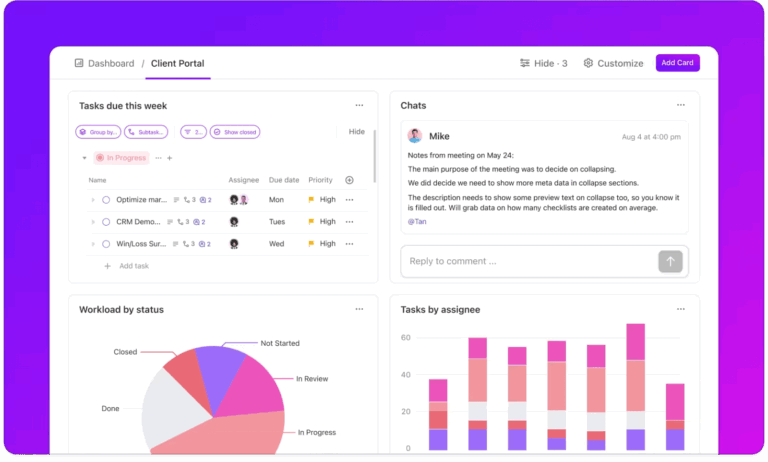
With Dashboards in ClickUp, you see exactly how much time you’re investing, what it’s worth, and which projects are most profitable—all in real time.
Your spreadsheet system is starting to crack under the pressure of a growing client list. This manual chaos leads to lost revenue, an inability to get a real-time overview without manual reporting, and an unprofessional workflow.
Here are the specific constraints that compound as you grow:
When these limitations start costing you more time and money than the spreadsheet saves, it’s time to explore smart retainer management software.
Why you need more than just a spreadsheet:
Stop Running Your Agency on Spreadsheets — These Agency Management Tools Scale 😮💨🔥 | ClickUp
Your spreadsheet chaos is causing you to drown in manual updates and tool sprawl. Eliminate manual work and the risk of errors by bringing your time tracking, client data, and project management into the world’s first Converged AI Workspace: ClickUp! 🤩
A glimpse into the platform:
Let’s explore how it’s the perfect tool for agencies and freelancers alike. ✨
In Google Sheets, retainer trackers usually break for one reason: the rules change. Hours roll over, rates differ by client, and some retainers reset monthly, others don’t.
ClickUp keeps the spreadsheet layout you’re comfortable with, but locks in structure using ClickUp Table View and built-in ClickUp Custom Fields. Each row can represent a client retainer or a monthly retainer cycle.
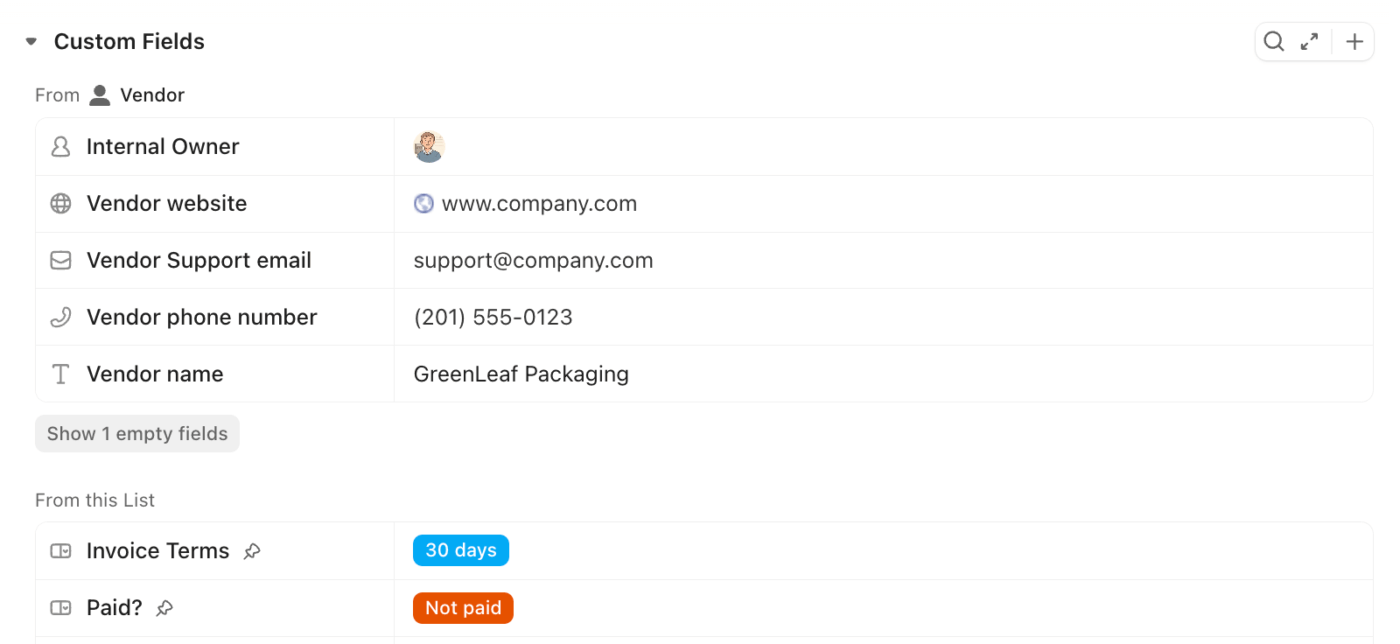
Custom Fields define the rules clearly:
For instance, you track 12 active retainers in Table View. Instead of recalculating formulas every month, each retainer task carries its own fields, so the logic stays intact even as values change. You can filter and sort your client list by any field, and when you update it in one place, the changes are reflected everywhere.
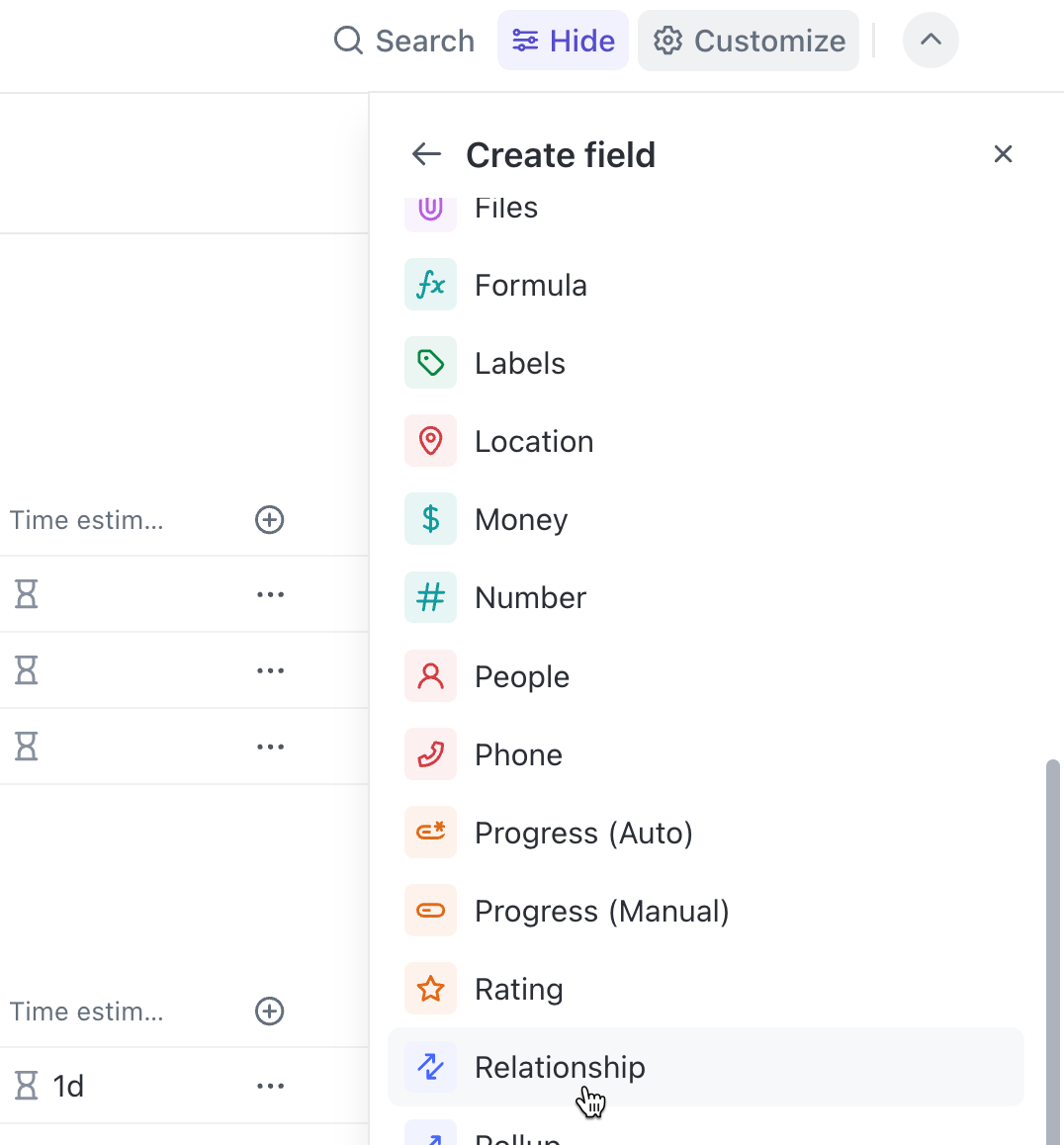
💡 Pro Tip: Sheets can show retainer numbers, but they struggle to answer the real question: what work is consuming this retainer? Connect retainer records directly to ClickUp Tasks or projects with ClickUp Relationships. Say if a client’s monthly retainer is linked to 18 tasks across strategy, content, and design. At any point, you can open the retainer and see exactly what work is drawing down hours.
In Sheets, tracked time spent on tasks usually lives in a separate tab, disconnected from deliverables. That’s where trust erodes.
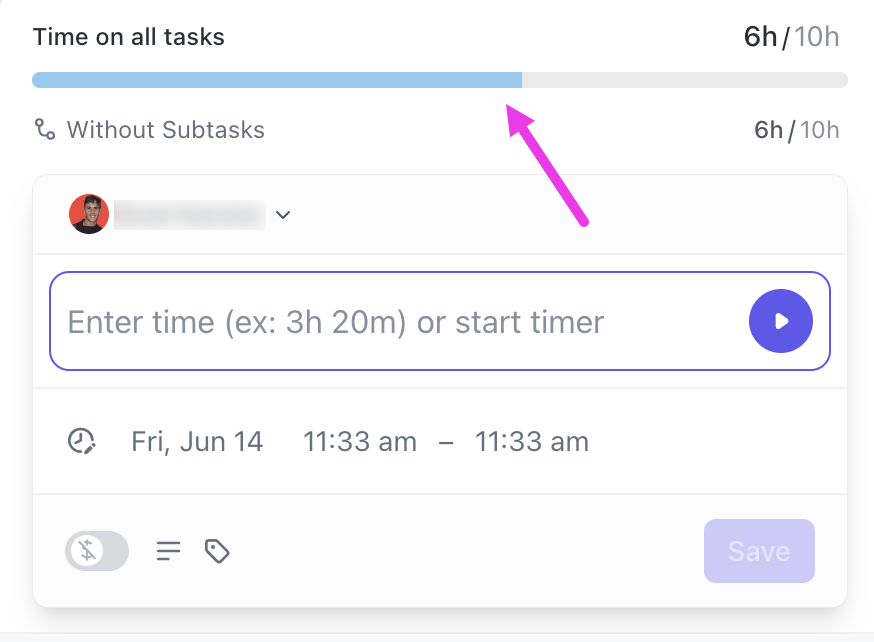
ClickUp Time Tracking ties time tracking to Tasks, so retainer usage is always explainable. Say a strategist logs 2.25 hours on “Monthly performance review.” You can also mark them as billable or non-billable to ensure accurate invoicing. Those hours automatically roll up to the client’s retainer usage. When billing time comes around, all you have to do is review it.
🧠 Fun Fact: The term ‘freelance’ originated in the early 1800s to describe medieval mercenary warriors or ‘free lances,’ whose services were not sworn to any specific lord.
Retainers fail quietly. One month they’re fine, the next they’re overrun, and you only notice after delivery.
ClickUp Dashboards surface that risk early.

You can create a dashboard showing:
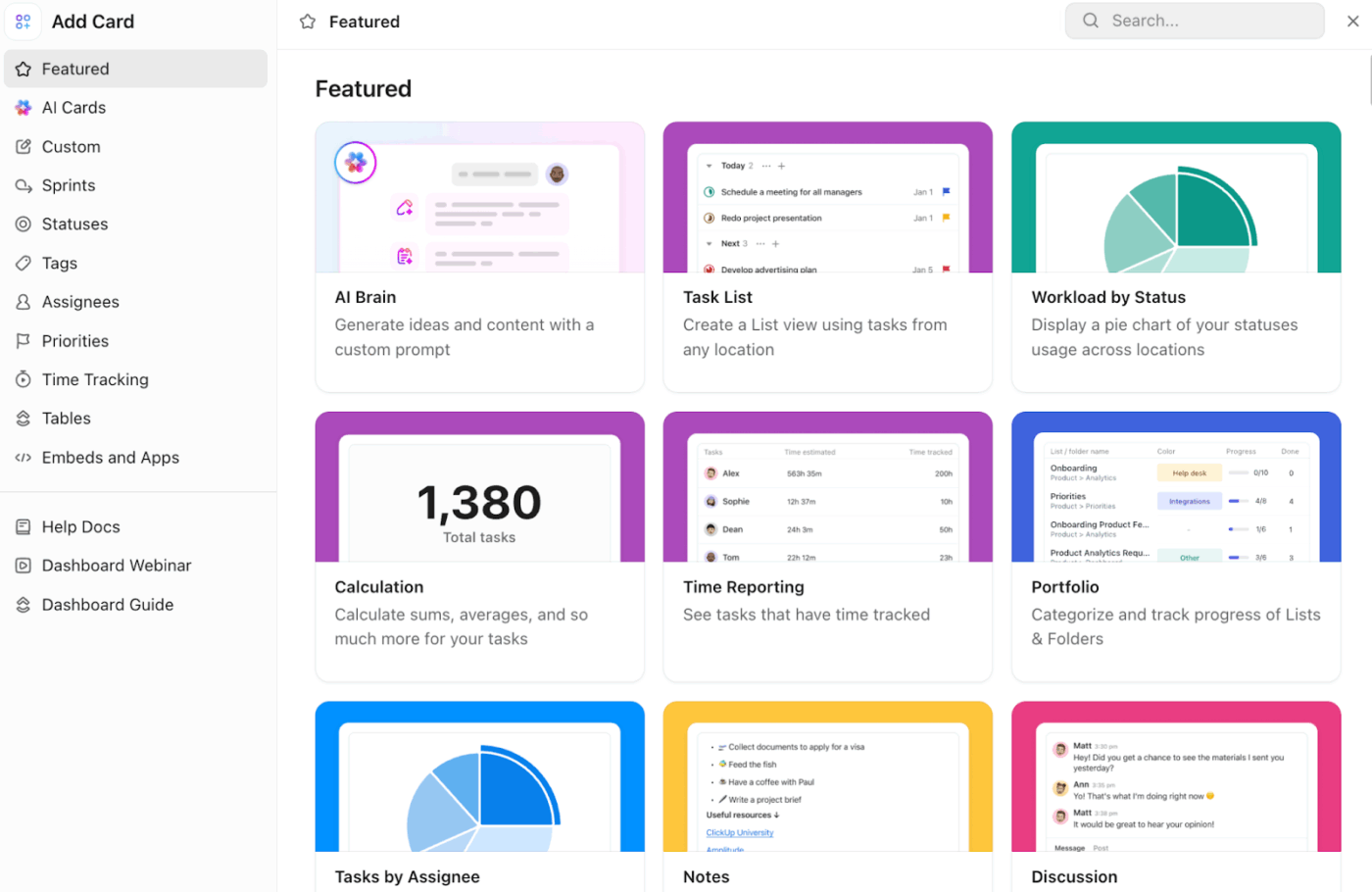
Here are some custom cards you can add to your dashboard:
This allows you to track team utilization across clients and spot trends in scope creep before they turn into billing disputes.
A quick guide to building your dashboard:
ClickUp Brain, the platform’s contextual AI, works on top of your existing retainer data (tasks, time tracked, custom fields, relationships). Instead of checking multiple dashboard cards, you can ask direct questions and get contextual answers pulled from your workspace.
What it does well for retainers:
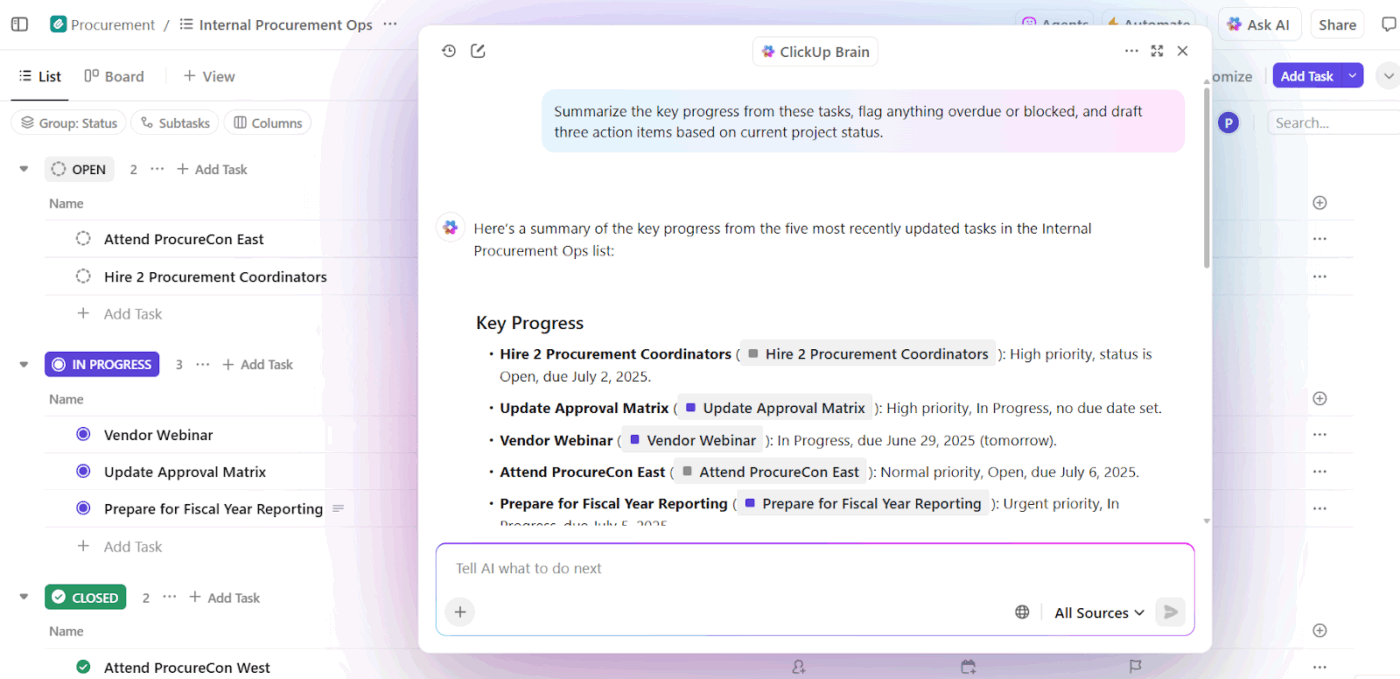
📌 Example Prompts:
While ClickUp Brain responds when you ask questions, ClickUp Super Agents work proactively in the background. They monitor your workspace continuously and surface issues without being prompted.
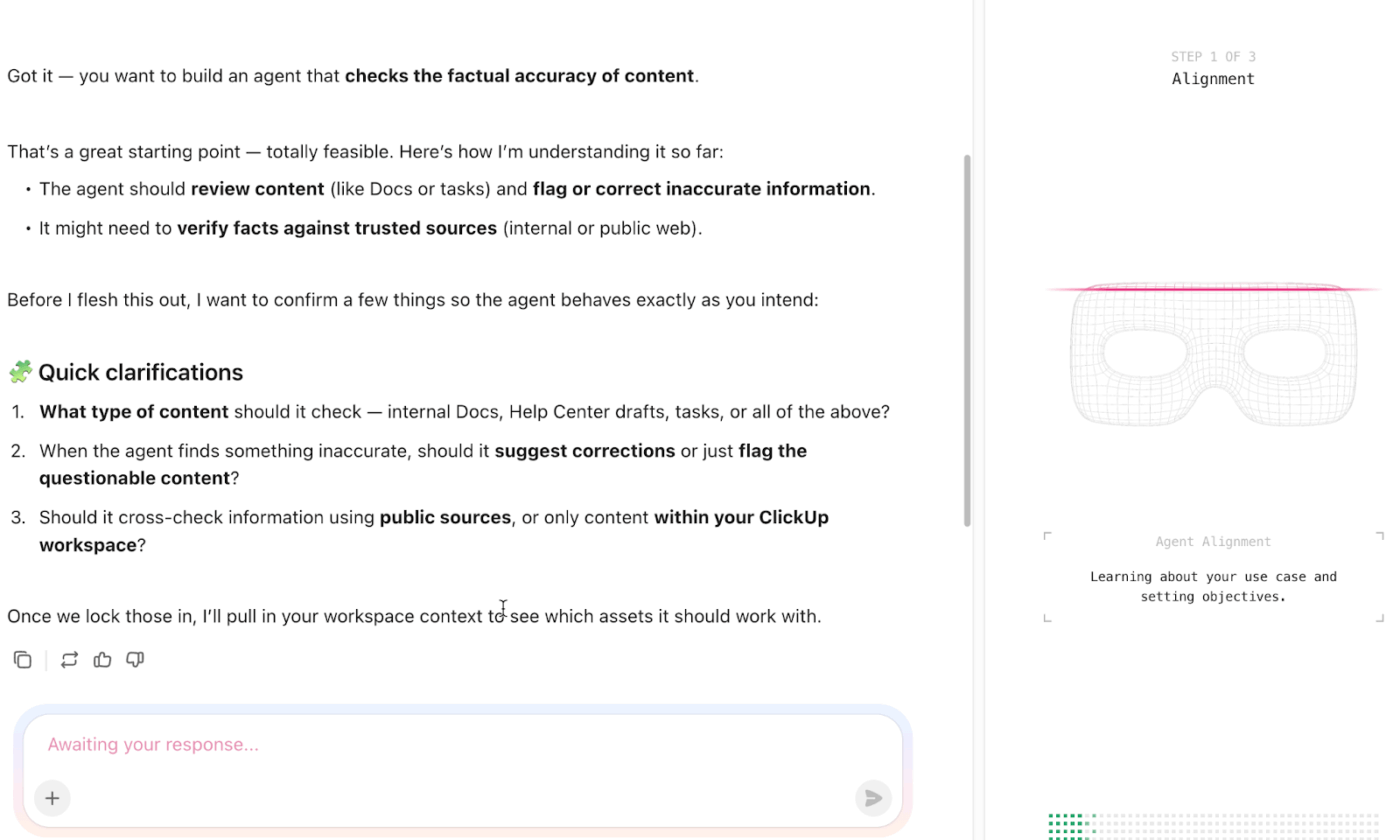
What they do:
For instance, you can create a Super Agent that flags when a client crosses 75% retainer usage halfway through the month, giving you time to reset priorities. Or before a renewal, another Super Agent highlights retainers where usage regularly exceeds limits.
🔍 Did You Know? Historically, some retainer arrangements prohibited professionals from representing any clients with conflicting interests. Over time, this “exclusive retainer” became less common due to ethical rules in modern legal services.
Google Sheets is a reasonable place to start tracking client retainers. It gives you visibility, forces you to think through limits, and helps you avoid flying blind. For a while, that’s enough. But as soon as retainers stack up—different billing cycles, rollover rules, uneven usage—the spreadsheet starts demanding more attention than the retainers themselves.
ClickUp fits in here. You still get the structure of a table, but now it’s connected to real work, time tracking, and live visibility. Dashboards show you retainer health before things go sideways. ClickUp Brain helps you spot patterns early. Super Agents keep an eye on usage so you don’t have to remember to check.
Sign up to ClickUp for free today! ✅
What is an example of a retainer fee structure for client work?
A common retainer fee structure is a monthly retainer of $2,500 for 15 hours of work, with unused hours rolling over for one month and overage billed at $175/hour.
How do you track retainer hours when multiple team members work on the same client?
Each team member should log their hours separately with their name attached to each entry. A SUMIF formula can then be used to sum all entries by client, regardless of who logged them.
Should you track retainer hours or deliverables in your client tracker?
This should match your contract structure. If you’ve agreed to a set number of hours, track hours, and if you’ve promised specific outputs like blog posts or designs, track deliverables.
When should you move from Google Sheets to dedicated retainer management software?
Consider switching when you’re managing more than five active retainer clients or find yourself spending significant time on manual data entry and reconciliation.

© 2026 ClickUp

There’s an easier way. Try a free AI Agent in ClickUp that actually does the work for you—set up in minutes, save hours every week.