






Still downloading templates?
There’s an easier way. Try a free AI Agent in ClickUp that actually does the work for you—set up in minutes, save hours every week.
Sorry, there were no results found for “”
Sorry, there were no results found for “”
Sorry, there were no results found for “”
Zeb Evans, the CEO and Founder of ClickUp, said in an interview.
ClickUp started as an internal tool to solve their team’s productivity fragmentation across 15 different tools. We later shifted to saving the world time.
What started as a simple internal workflow for us turned into an image that powers how we build ClickUp every single day.
Every week, product, design, and engineering teams work on a single source of truth. This shared board is where everything is visible: the progress, blockers, and what we’re shipping.
Then those boards feed straight into our Dashboards, so things like velocity and release readiness show up minus the detective work!
Using our own system has taught us a lot about how teams and Agile processes work.
So I want to show you what we’ve learned.
Below, I share how ClickUp uses sprint boards for Agile product development.
A sprint board is a visual view of sprint work, organized into stages like To do, In progress, Review, and Done. In ClickUp, most teams build sprint boards using Board View, then layer in sprint settings like dates, points, spillover, and reporting.
To effectively manage Sprints in ClickUp, you can visually represent tasks, subtasks, effort estimations, and other related details on the Kanban-style Board View.
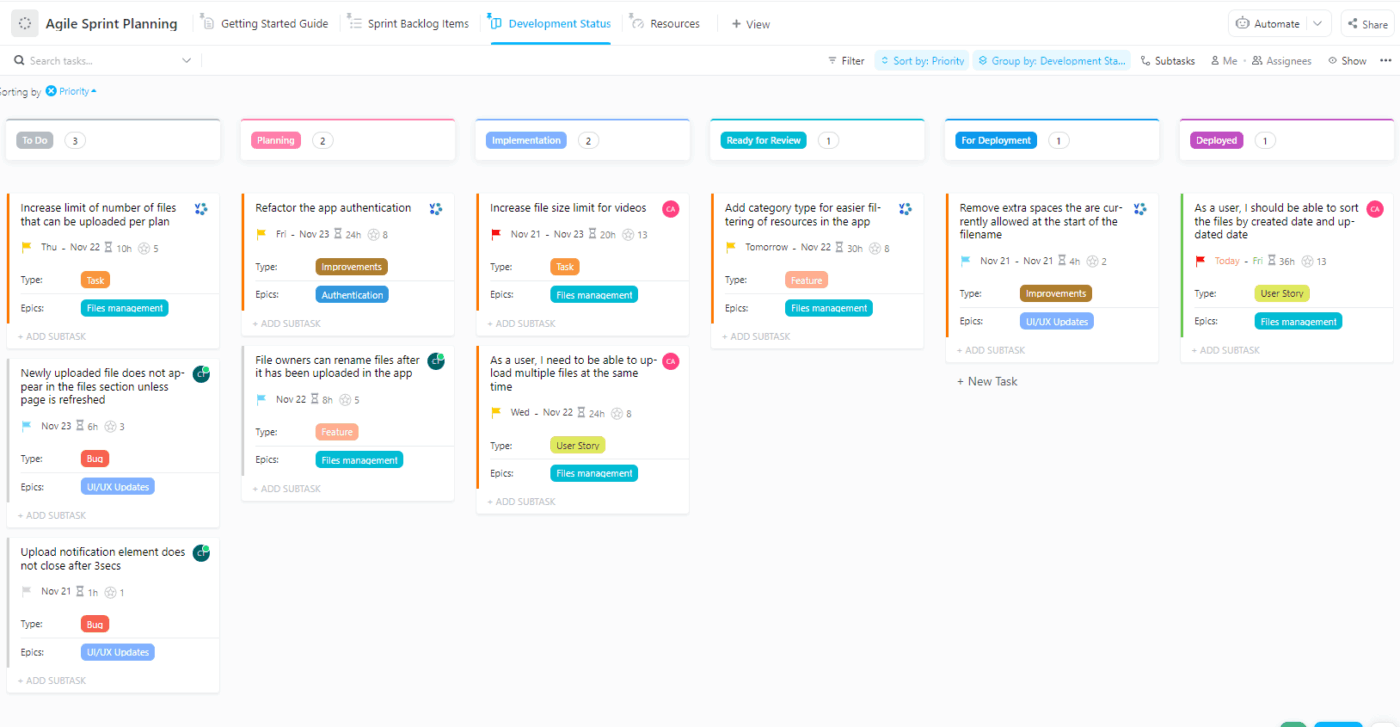
It allows you to view, organize, and manage all tasks within a sprint while integrating key sprint settings, including duration, start and end dates, points or time estimates, spillover, and reporting.
⚡ Template Archive: If building out your sprint board or backlog feels like reinventing the wheel each time, check out our curated list of work breakdown structure templates.
A quick overview of what ClickUp’s Sprint Board can do:
| Feature | Functionality |
| Unified sprint task view | See all your sprint tasks and subtasks under one roof. Manage everything from one board and stay on top of progress. |
| Effort estimation and progress tracking | Track work using points or ClickUp Time Estimates. Everything stays synced with your sprint duration, start and end dates, and any tasks that spill over into the next sprint. |
| Dashboard reporting integration | Build custom Dashboards with Sprint reporting cards like Velocity, Burnup, and Burndown to see your team’s progress and spot bottlenecks. |
| New sprint cards | The latest Velocity, Burnup, and Burndown cards are faster, more accurate, and support Custom Sprint Durations. Legacy cards don’t play nicely with custom durations, so it’s worth upgrading for better Agile reporting |
| Drill-down analytics | Click into your cards for detailed insights. See which tasks, assignees, and changes contributed to your team’s results. |
| Flexible data sources and filters | Customize what you see by choosing which sprints, lists, or custom fields to include. You can even decide whether to show subtasks, archived work, or tasks in multiple lists. |
👀 Did You Know? ClickUp’s AI, ClickUp Brain, has experienced remarkable growth, rising from approximately 665,000 to over 2 million workspaces within a year. That’s more than triple the number of teams now using AI to plan, write, and work smarter every day.
📚 Read More: How to Build Agile Team Roles and Responsibilities
One thing we love about building in ClickUp is knowing that every Agile team (including ours!) has its own quirks, rituals, and ‘this is how we do it’ rules.
That’s actually why ClickUp for Agile Teams exists.
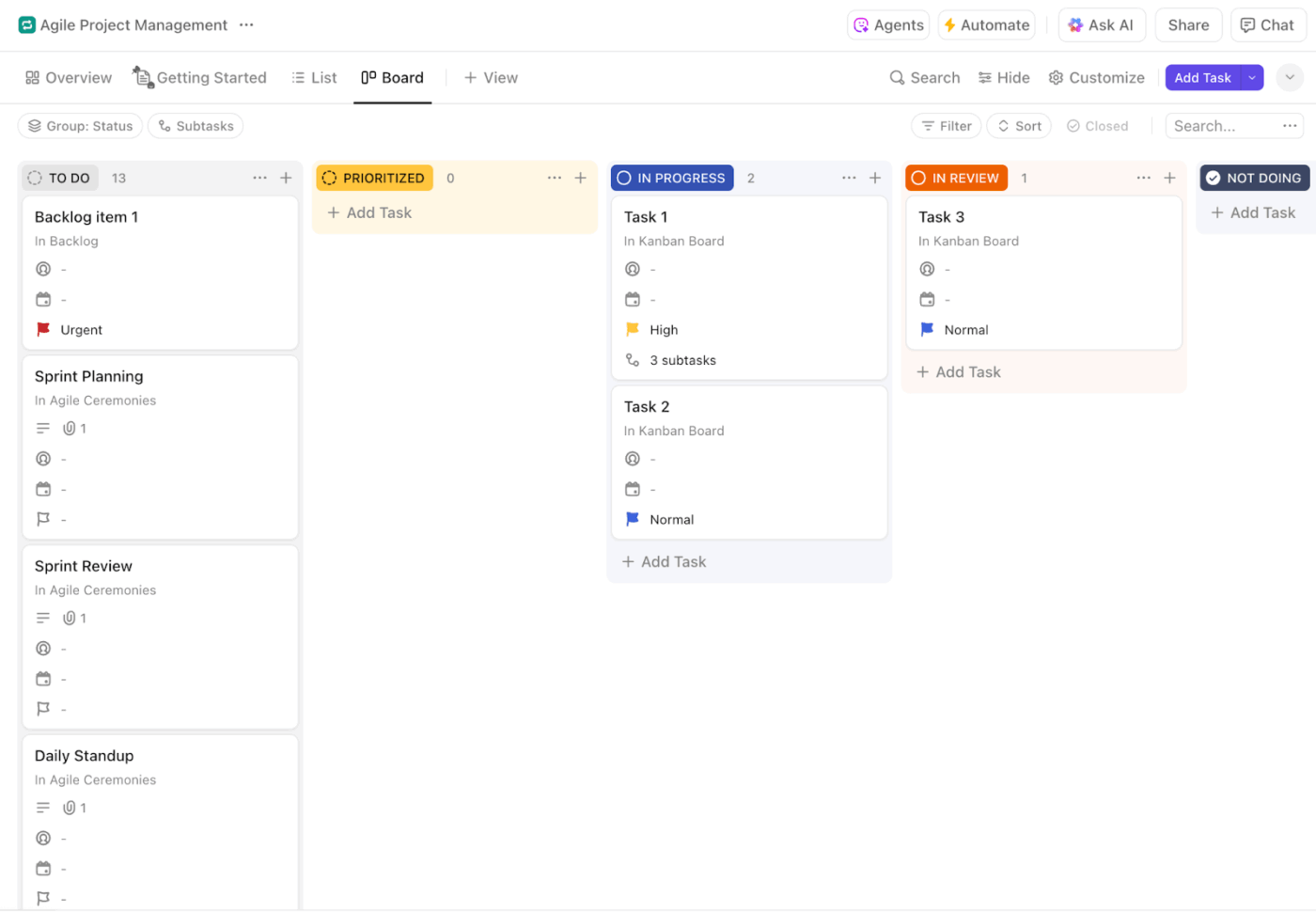
Inside that setup, we get instant access to the two views Agile teams practically live in:
Within the workspace, you can rename columns, rearrange stages, add steps like Review or QA, or keep it wildly simple.
⭐ Bonus: The Ultimate Guide to Agile Values
Sprint boards in ClickUp become more powerful when you connect them with the rest of your workspace.
ClickUp Tasks help break high-level work into subtasks, nesting layers when the effort spans multiple components, and keeping in-depth context.
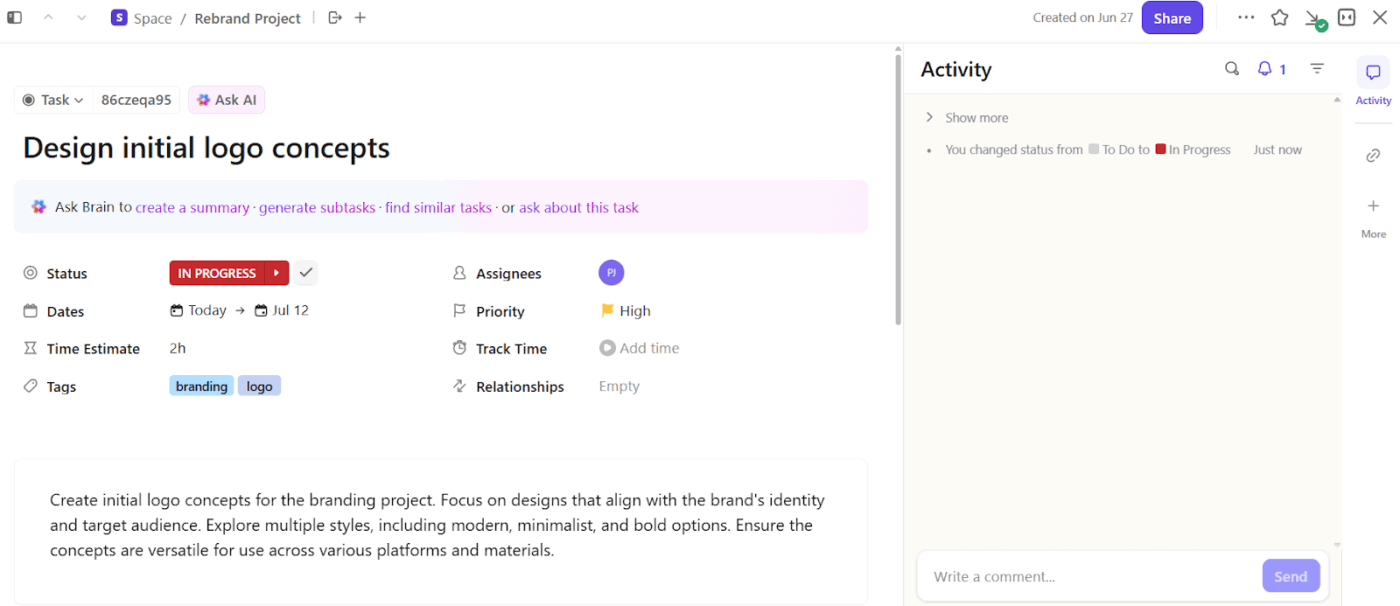
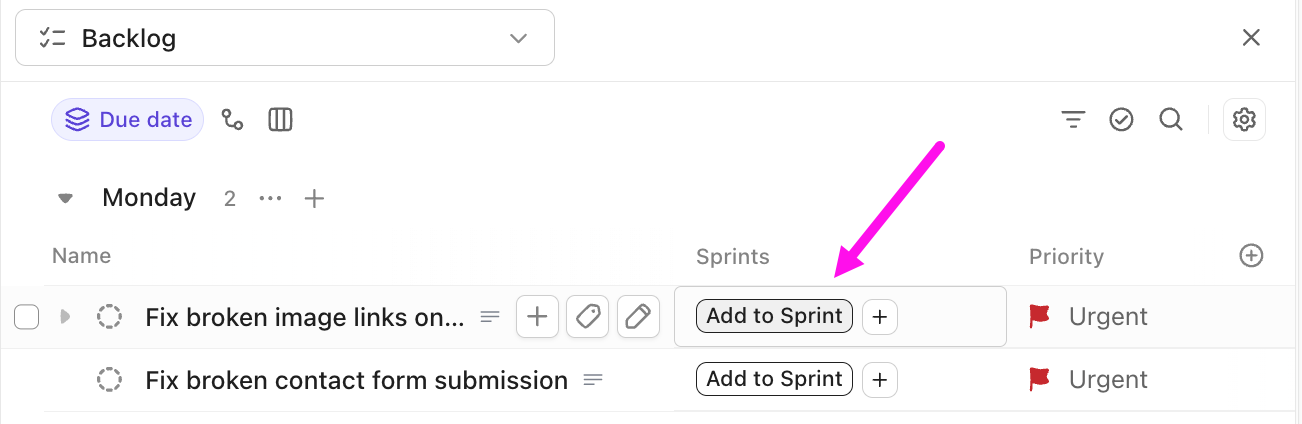
From there, ClickUp lets you map your sprint to a specific backlog list. This serves as a single source of upcoming work.
What’s even better is that each backlog item includes an option to add it directly to the active sprint. If your team is planning several stories at once, you can batch those selections and drop them in with one move.
All of this ties into your broader goals in ClickUp. You can connect sprint tasks to the goals they support, track progress as work moves across the board, and see how each sprint contributes to the bigger picture.
🚀 ClickUp Advantage: ClickUp AI helps you manage Tasks. Here’s how:
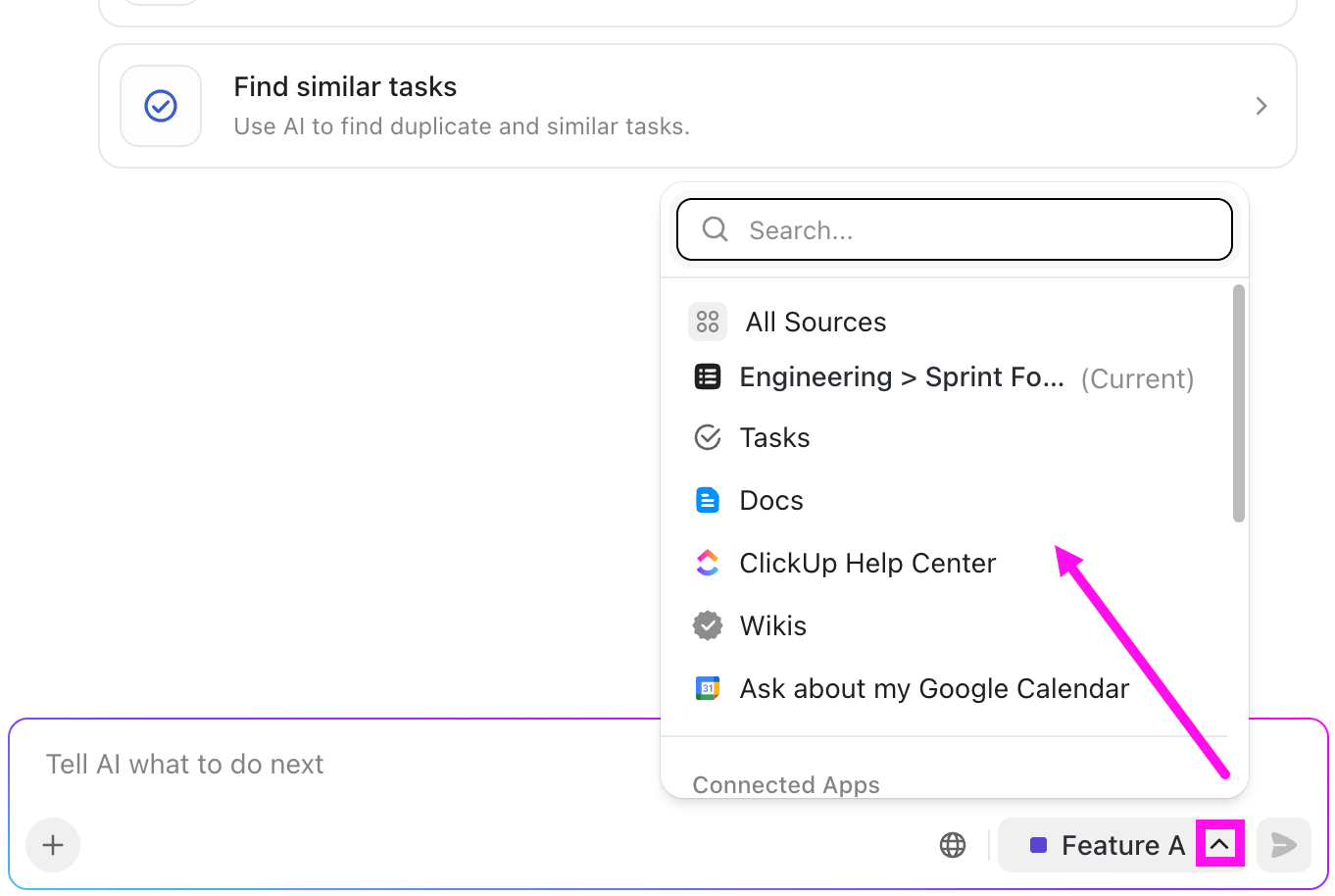
⚡ Template Archive: Free Agile Templates for Project Planning in Excel & ClickUp
Sprint Boards come to life when the conversations that shape them happen in the same place.
Enter: ClickUp Chat
Your cross-functional teams can talk through priorities, refine ideas, or share quick decisions long before anything gets dragged across a board.
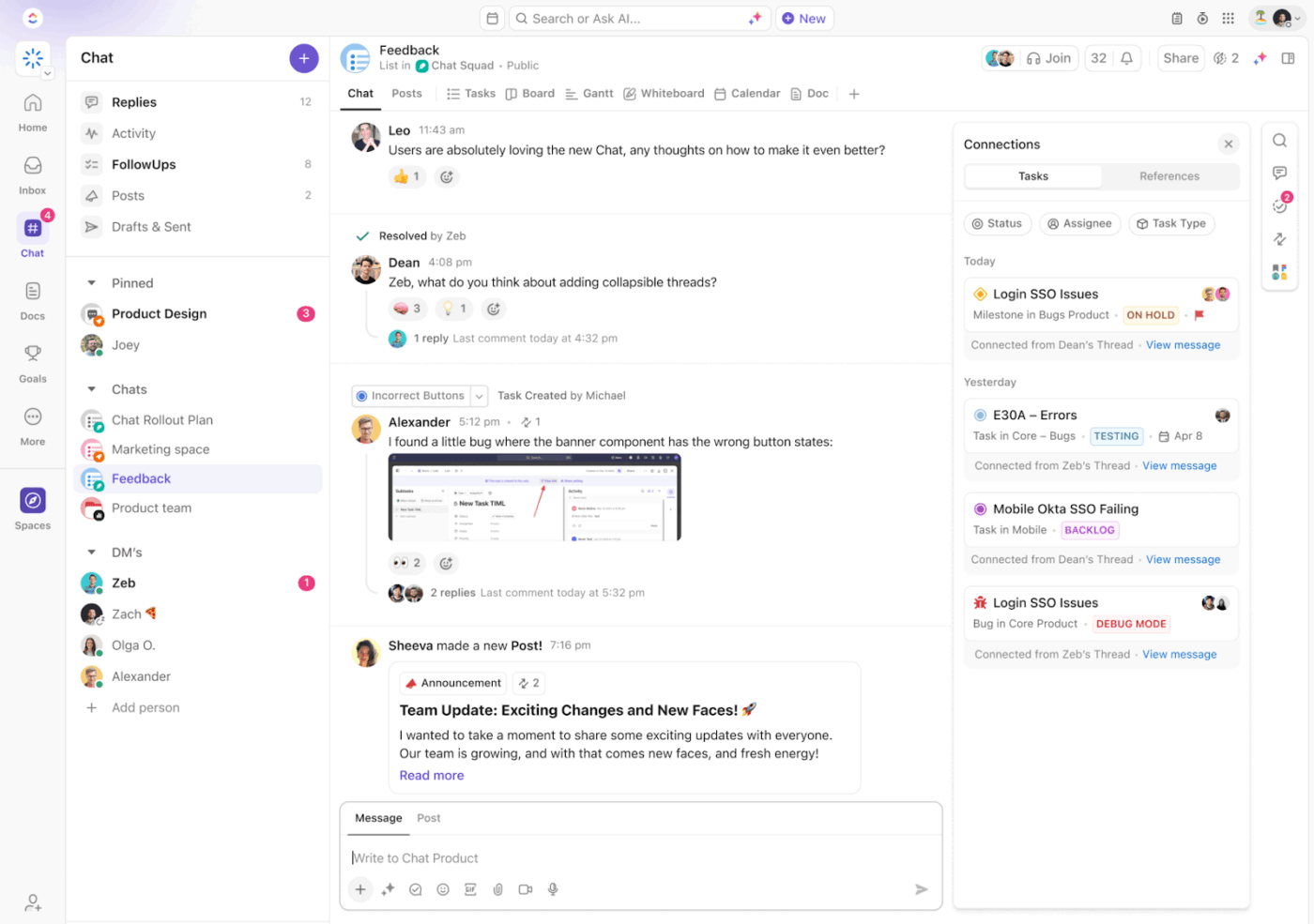
ClickUp Chat’s SyncUps take it to another level. During sprint planning, someone can start a SyncUp right inside the channel and share their screen to walk through backlog items or the current sprint.
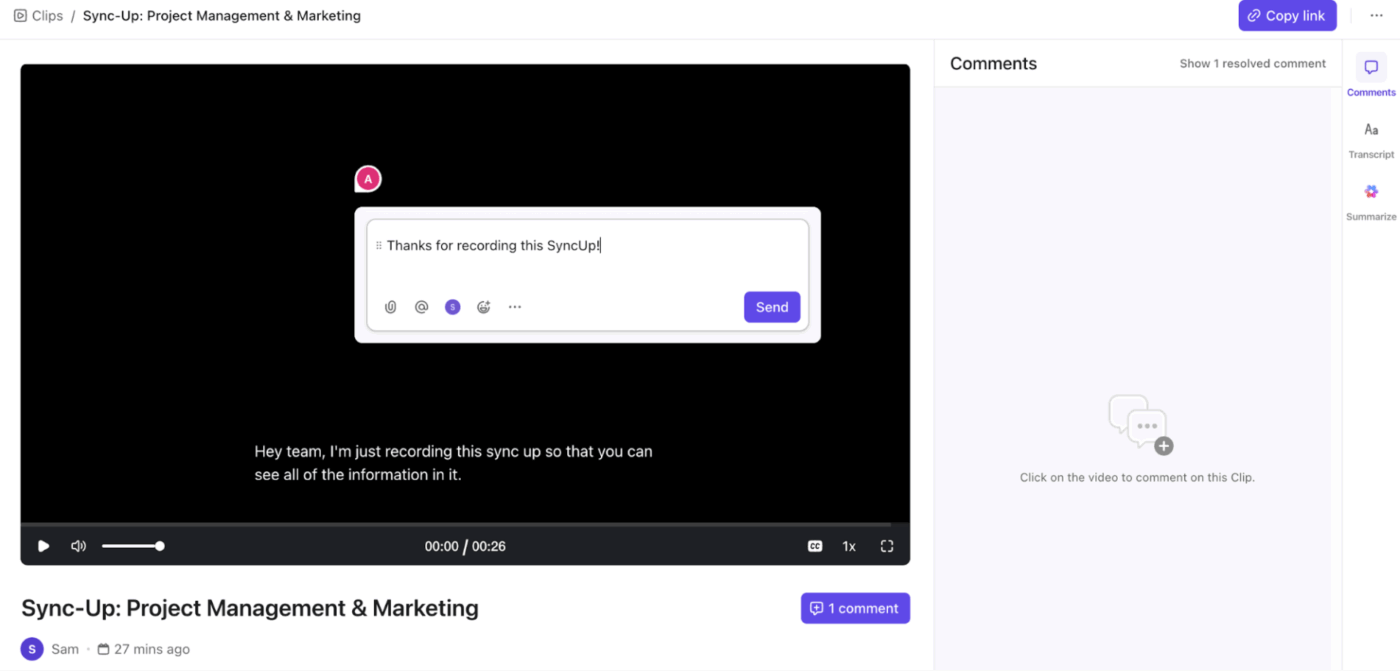
For bigger ideas or mid-sprint adjustments, ClickUp Whiteboards is the place to discuss them with your team.
Sketch a quick flow, map dependencies, or refine a story as a group. When something is ready to become work, it turns into a task right from the board (talk about ease!).
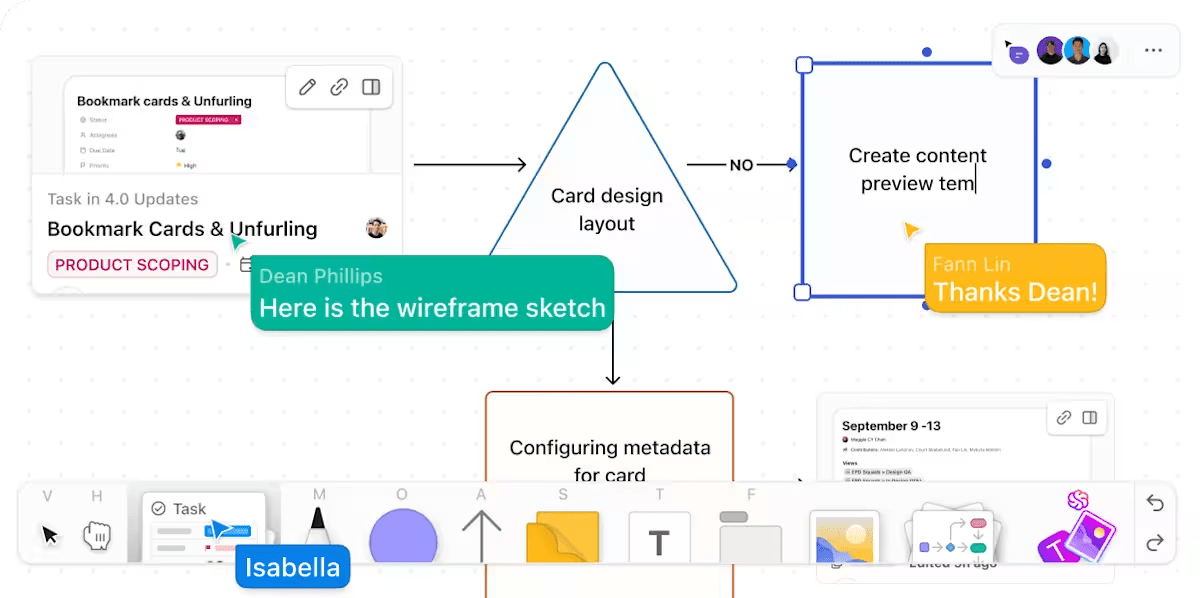
Let’s dig into the benefits of using sprint boards for Agile project management 👇
When we plan a sprint on a board, our software development teams get a high-level view of what’s going on. We can see the big, small, and absolutely non-negotiable tasks for the ongoing sprint.
Visualizing work as cards helps stack-rank priorities and spot where we’re overloading the development team. By the time we lock in the sprint, we know exactly what we’re saying yes to and what we’re parking for later.
We love that a glance at the board tells us who’s doing what and how the sprint is shaping up. Every card has an owner and a status, so there’s no ‘I thought you were on that’ moment.
In standups, we just walk the board from left to right and talk about movement. People naturally take ownership because their work is right there for everyone to see. This keeps our Agile teams aligned (minus the feeling of heavy-handed tracking).
📮 ClickUp Insight: Nearly a third of workers (29%) hit pause on their tasks while waiting for decisions, left in a state of uncertainty, unsure when or how to move forward.
A productivity limbo no one wants to be in. 💤
With ClickUp’s AI Cards, every task includes a clear, contextual decision summary. Instantly see what’s blocking progress, who’s involved, and the next steps—so even if you’re not the decision maker, you’re never left in the dark.
Boards make stuck work pretty obvious to the whole team at once. When cards stop moving or stack up in the same column, we know there’s a bottleneck—reviews, QA, requirements, whatever that may be.
We can jump straight to those cards, read the comments, and unblock things as fast as they start becoming a threat. This is where sprint boards really shine for Agile software development teams working on complex Agile projects.
With a well-maintained sprint board, delivery never feels like a mad rush at the end of every week. We can see work flowing across the board steadily, which helps us smooth out spikes and avoid last-minute pileups.
And because every task is tracked, we start to notice real patterns in how the team delivers (how much we usually finish, how long things take, and where we tend to slow down).
🚀 ClickUp Advantage: As we’re already talking about making sprints smoother… we also lean on one of our favorite ClickUp superpowers to keep everything moving without babysitting the board. We use ClickUp’s own Super Agents because they save us from the ‘did anyone do that?’ spiral.
Here’s how they help us every day:
For new features, we drop our notes in ClickUp Docs, and an Agent automatically generates subtasks based on the headings (it’s magic, trust us!)
Let’s now zoom in on how we actually use sprint boards at ClickUp:
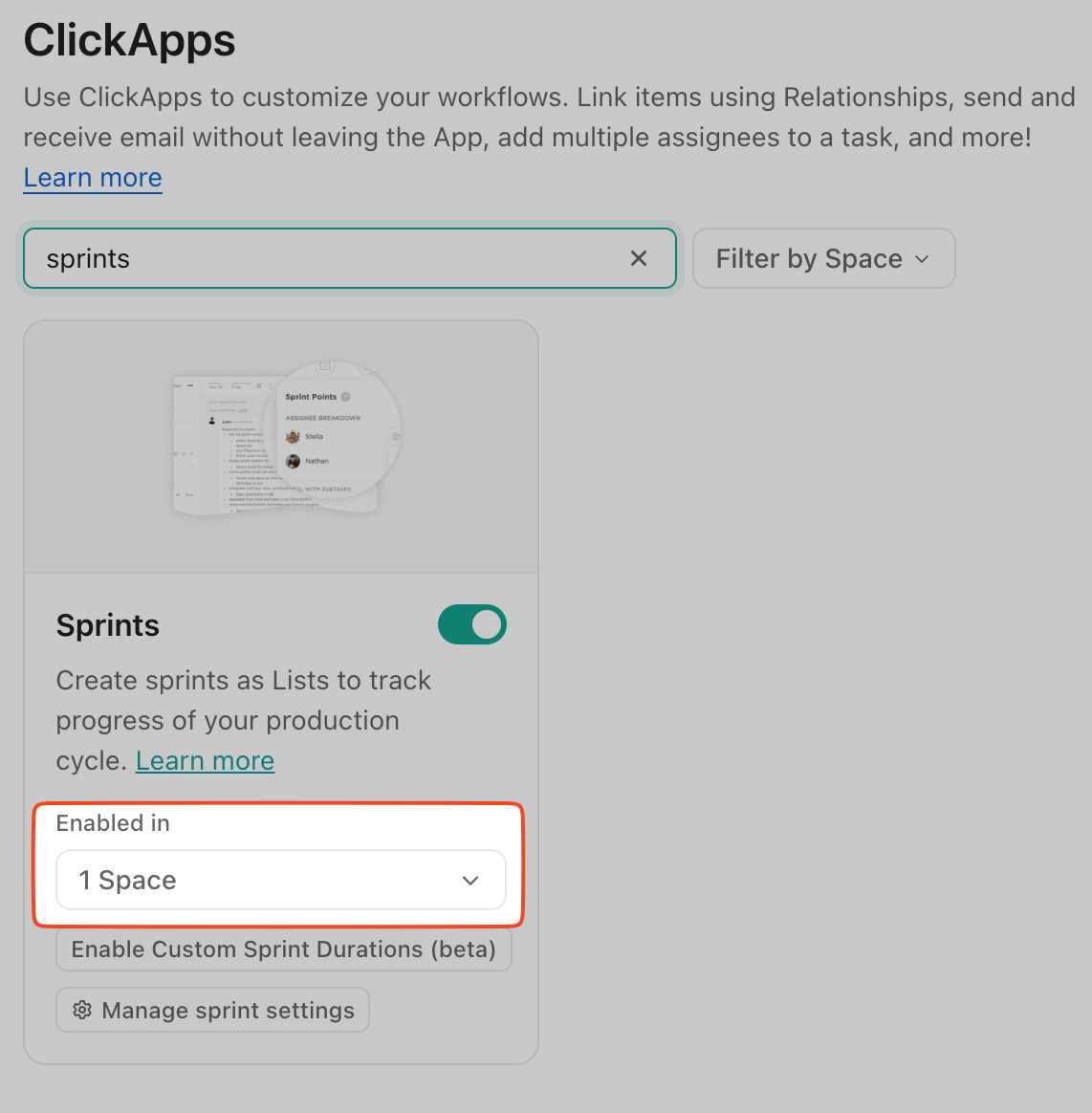
Before we can start tracking burndown charts or debating velocity in retros, we need a solid home for our sprints. First things first, this is how you can turn on ‘Sprints’ on ClickUp (if you cannot see it already):
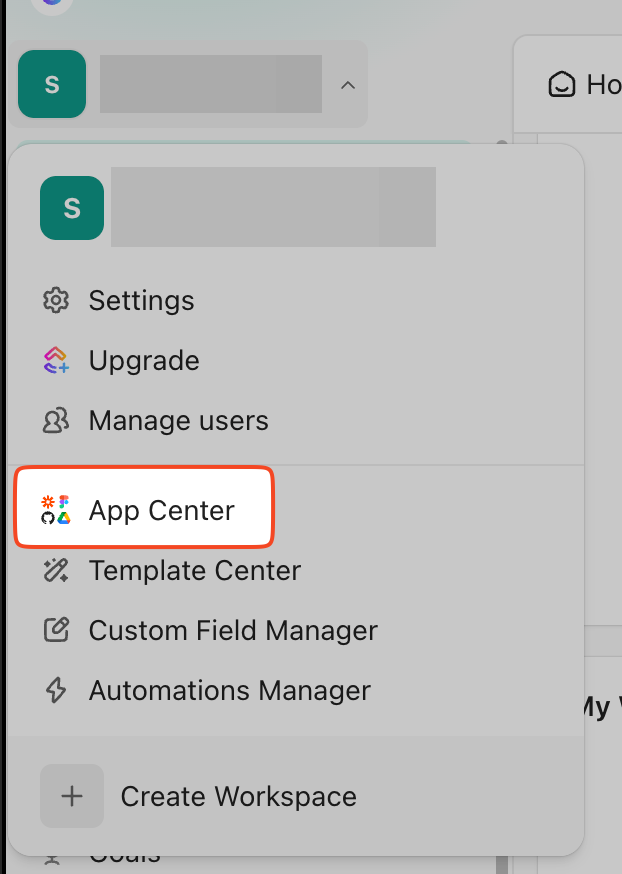
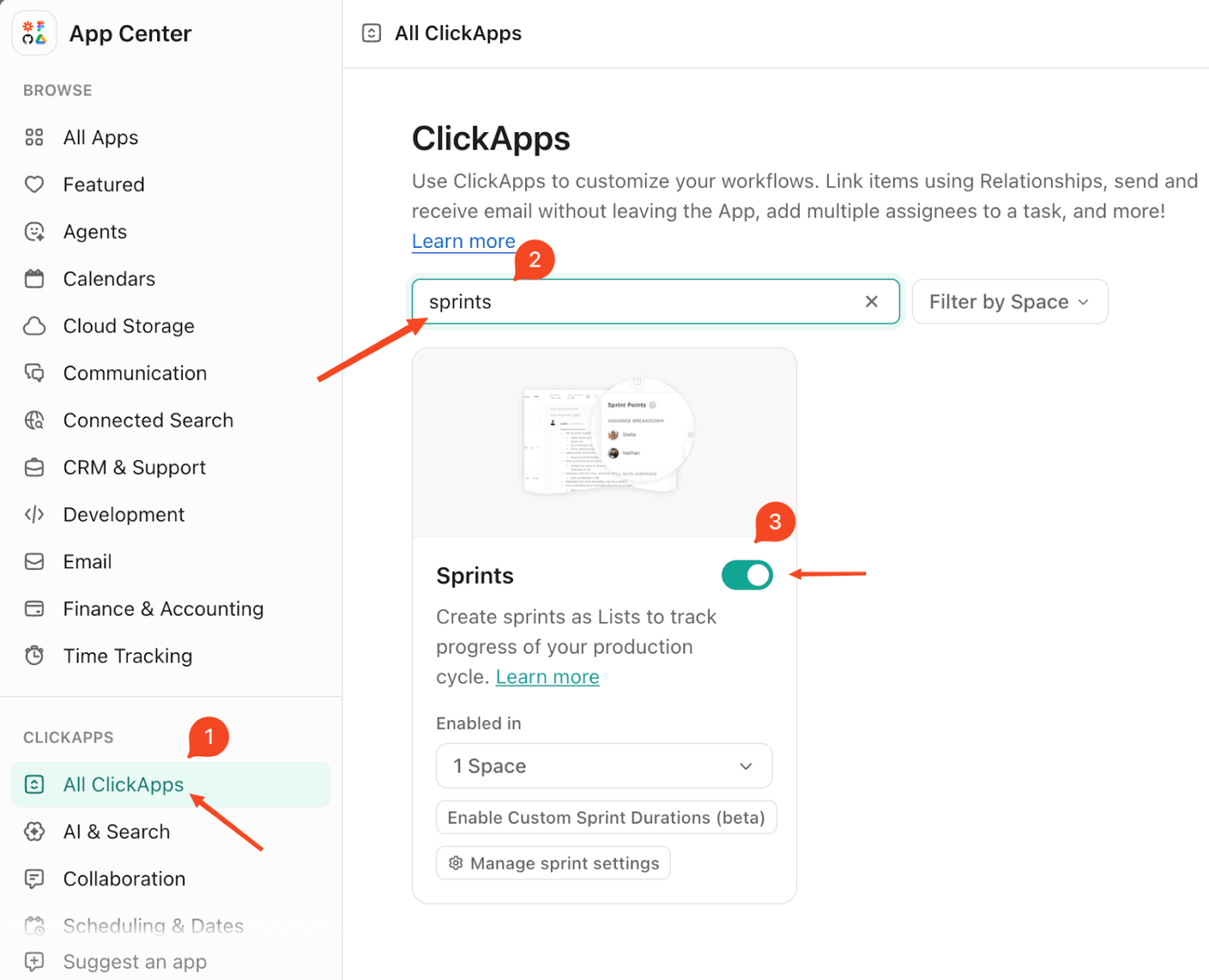
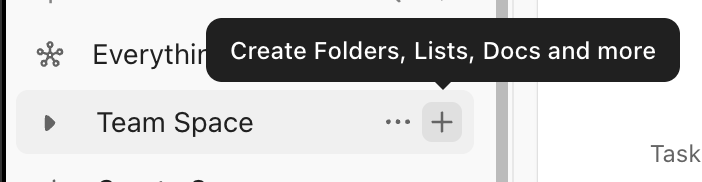
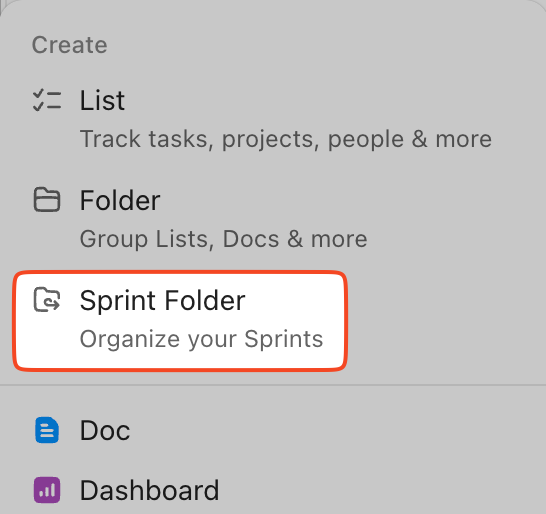
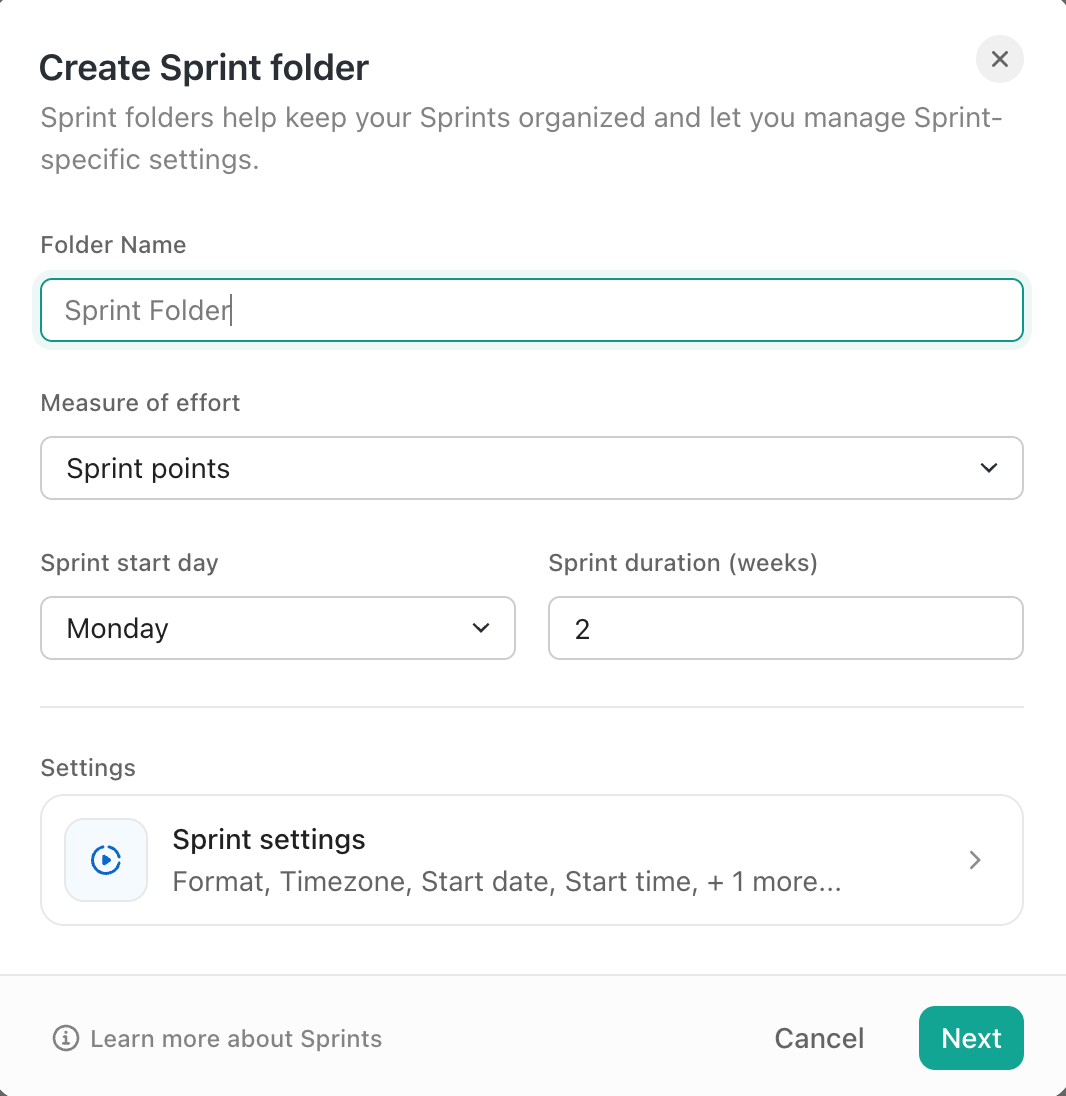
We now have a Sprint Folder that knows each List inside it is a sprint, with dates, reports, and Agile-specific settings ready to go.
🚀 ClickUp Advantage: One of the best productivity boosts we’ve given ourselves is letting ClickUp Automations take over all the repetitive sprint admin work.
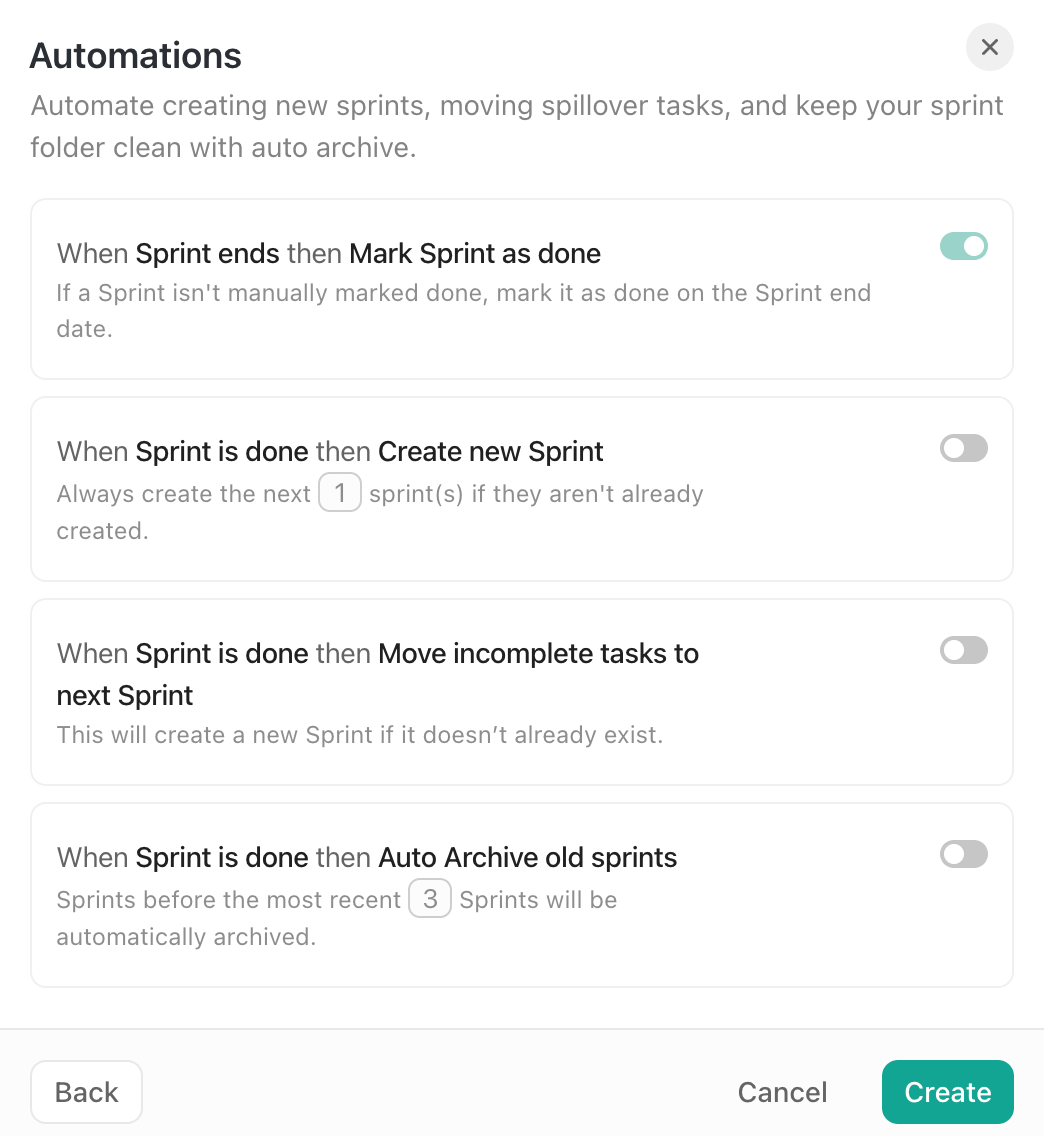
With these automation switches, we can:
📚 Read More: Agile Documentation: Best Practices for Agile Teams
Now that our sprint board is set up, we need to decide what actually goes into a sprint. From here, we first groom our backlog outside the sprint:
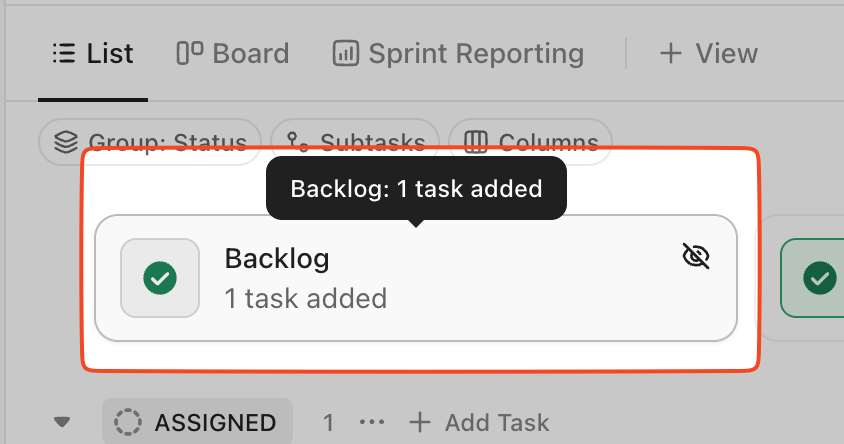
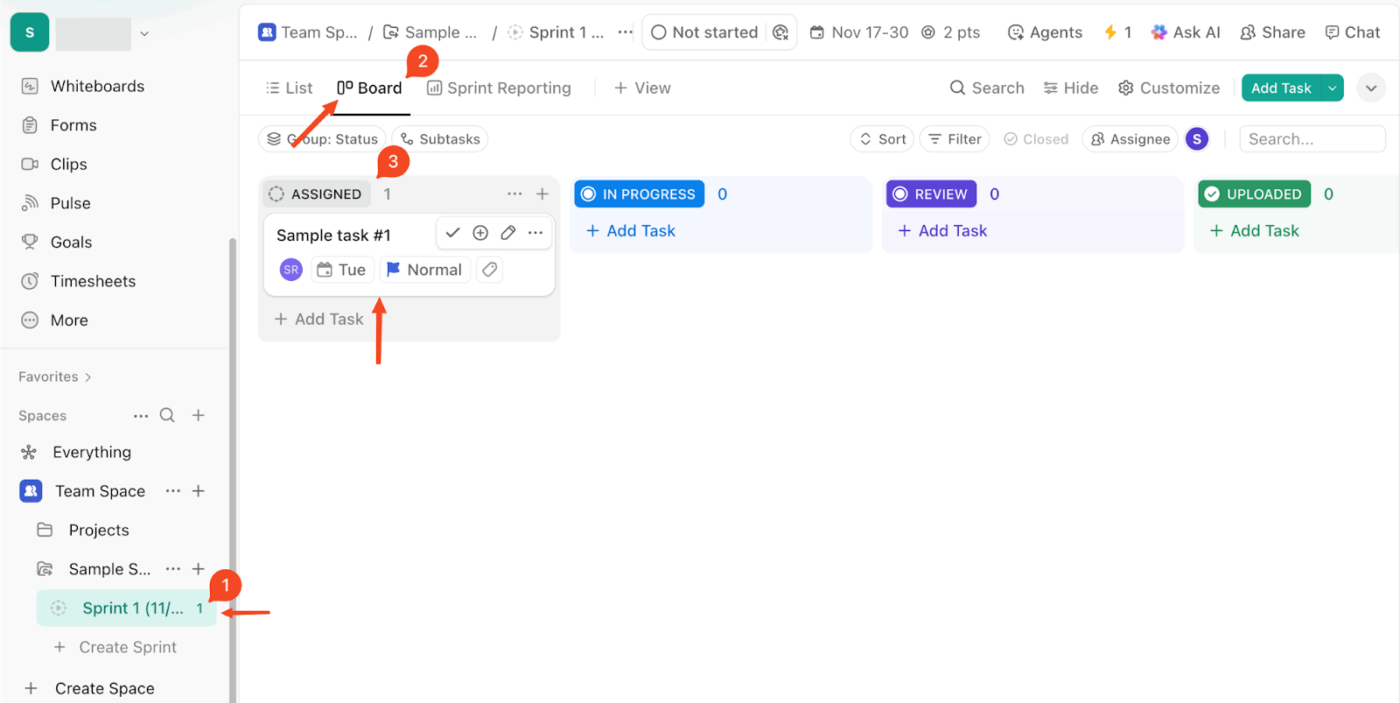
Then we pull the best work into the sprint. A simple way to think about it:
🚀 ClickUp Advantage: Create AI Fields for your epics. We recommend the following fields:
| AI Field | Description |
| Summary | Summarize the epic |
| Progress Updates | Receive updates on the progress of the epic |
| Action Items | Identify work that needs to be done for the epic |
| T-Shirt Size | Identify how much effort the epic is |
| Categorize | Let ClickUp AI categorize your epics, or create your own custom prompt to do so |
Watch this video to get the most out of AI Fields:
🔊 Hear it from a ClickUp user, who is a software engineer:
My experience with ClickUp has been very positive. The platform is intuitive and user-friendly, making it easy for our team to adopt without a steep learning curve. One of the standout features for us has been the ease of creating and managing sprints. The flexibility to customize sprint boards, assign tasks, and track progress in real time has greatly improved our workflow efficiency.
ClickUp has also provided a seamless user experience with its clean interface, quick navigation, and robust integrations. Whether it’s setting priorities, monitoring timelines, or collaborating across teams, everything feels streamlined and well-structured. Overall, ClickUp has simplified how we plan, execute, and review our projects, making it an excellent tool for agile sprint management in our company.
Once the sprint starts, our job is basically to babysit the work in the best possible way. We want to see what is moving, what is stuck, and whether we are still on track to finish what we promised.
On the sprint board, we keep our current Sprint List in Board view and watch tasks flow from To Do to Done. During standups, we literally walk the board together, talk through what moved, and call out anything sitting too long in In Progress or Review.
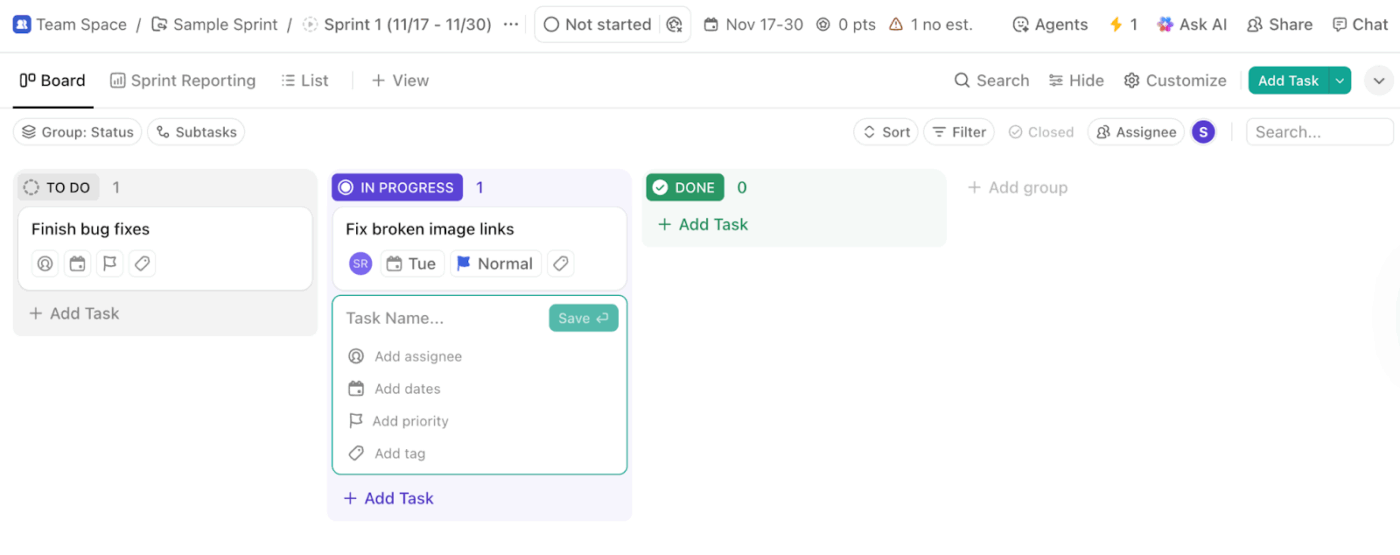
Then we zoom out with Sprint Dashboard cards, which give us the bigger picture behind the board.
Sprint cards sit on ClickUp Dashboards and pull data directly from our Sprint Folder, so we can report on and visualize sprint progress accurately.
In a nutshell, this is what my team cannot go without 👇



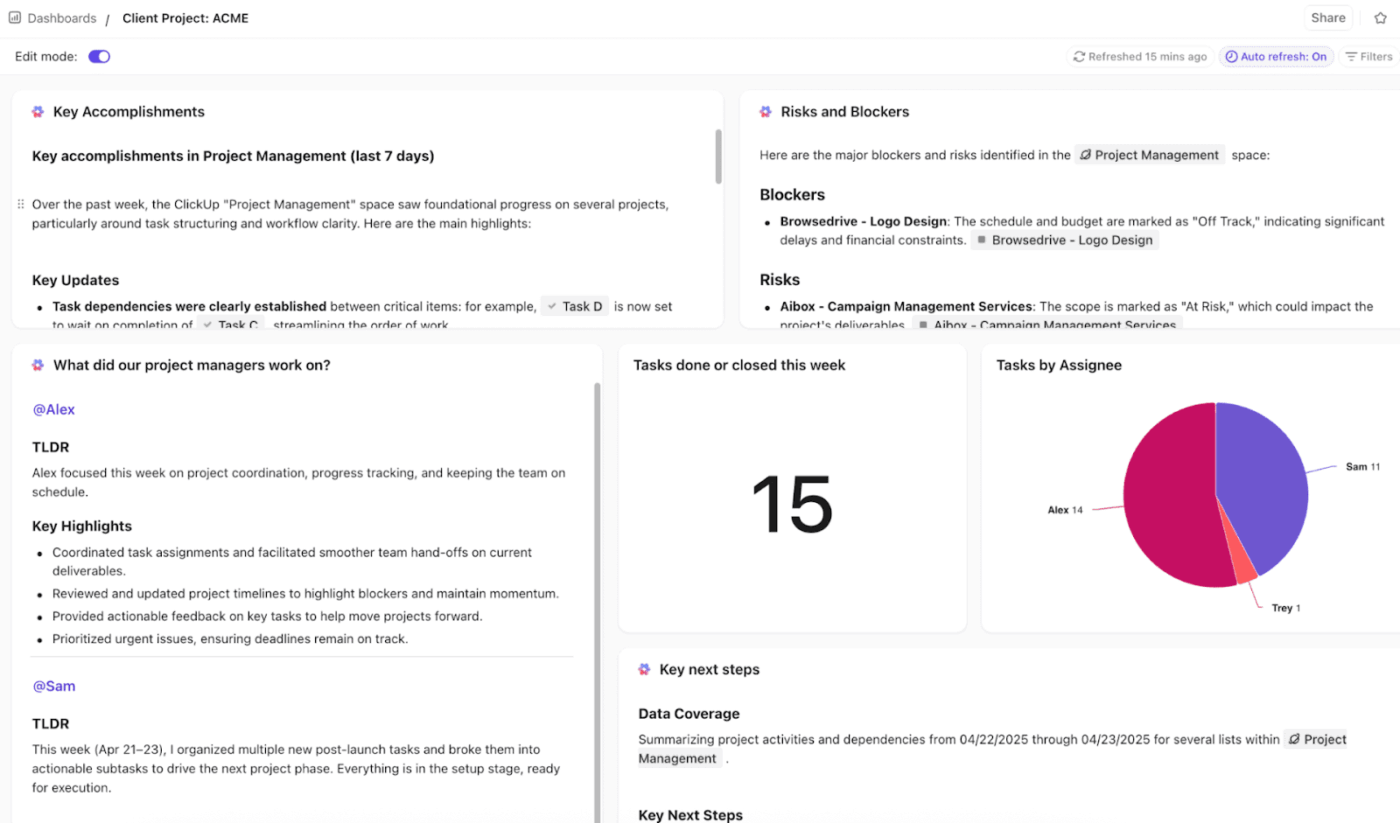
We use Dashboards to measure Agile metrics.
ClickUp Dashboards can be created for both internal and external stakeholders. They can be customized at a team level and for a high-level view.
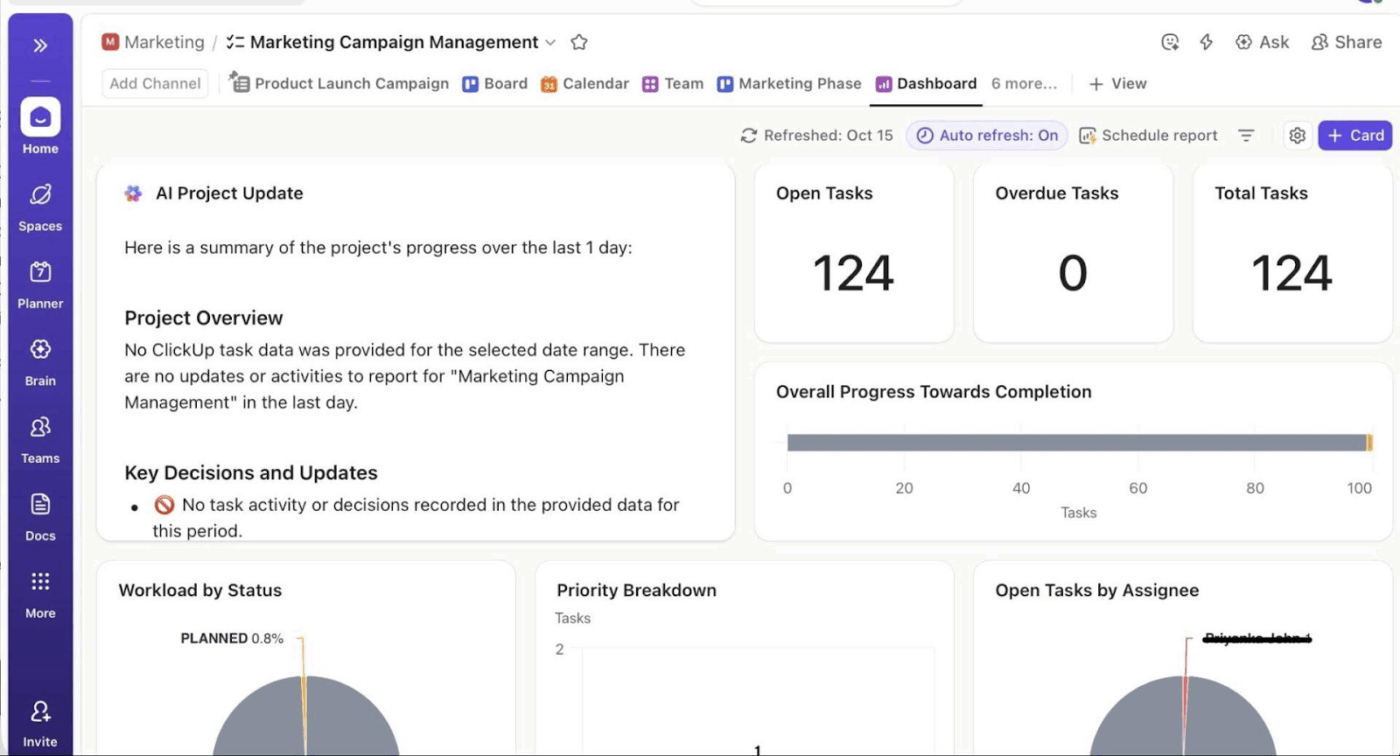
With AI Cards, anyone can get a quick summary of the key action items.
👀 Did You Know? When YouTube launched in 2005, it originally started as a video dating site called ‘Tune In, Hook Up.’ Nobody uploaded dating videos… but everyone uploaded random clips. That accidental pivot changed the internet!
By the time we hit the end of a sprint, we have two different conversations to run:
And we make sure to treat them as separate moments, even if they happen back-to-back.
In the sprint review, we usually:
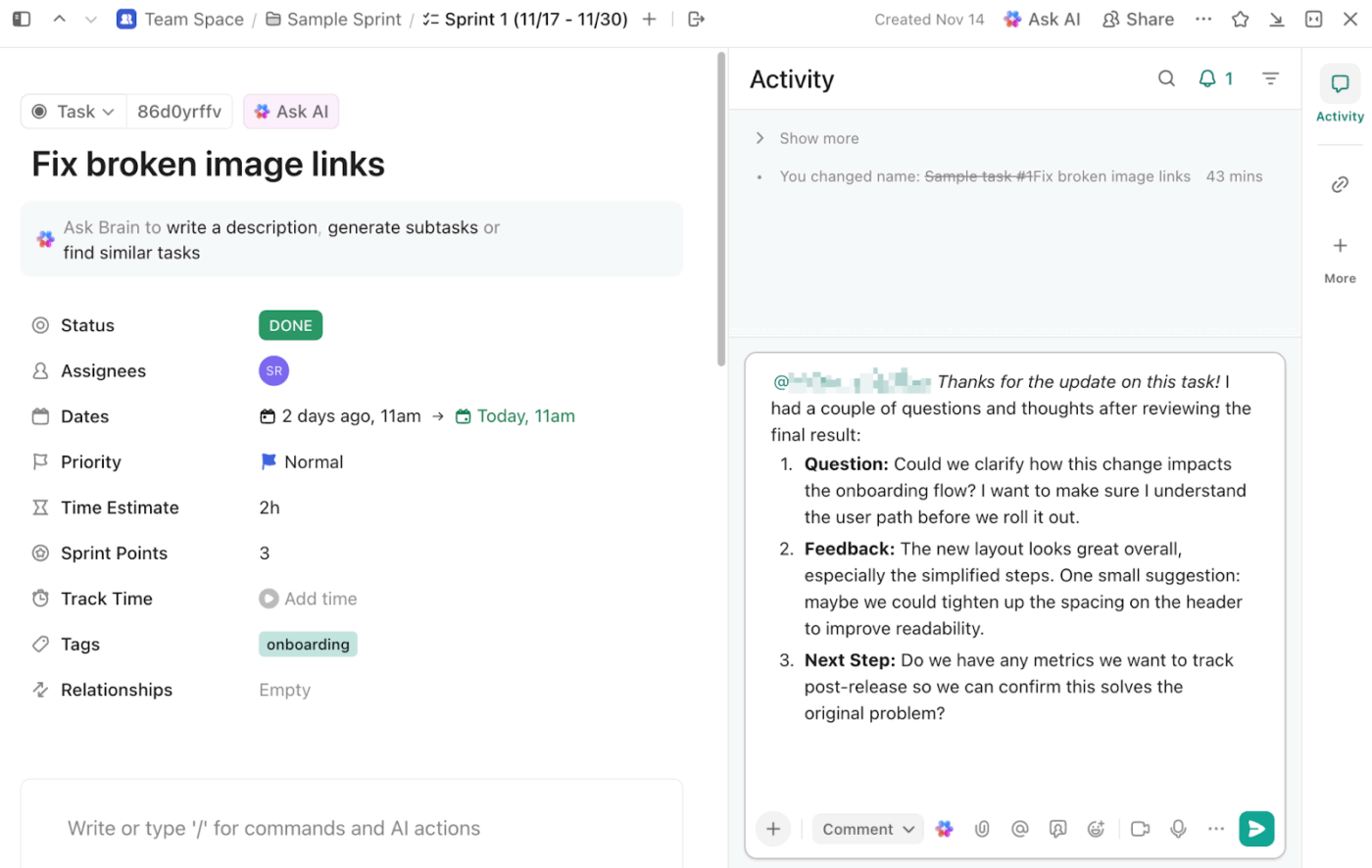
The end of a sprint is where all the learning happens, and it is very easy for that learning to evaporate into random notes and chat threads. But the ClickUp Retrospectives Template helps our team run consistent, structured retros every time!
In this template:
If you’ve ever felt confused about story points, this video is the perfect shortcut.
It shows (step by step) how to compare tasks, pick a baseline, use the Fibonacci scale, and estimate as a team without overthinking it. You’ll see real examples, real sprint boards, and the exact moments where teams usually get stuck. Watch it once, and your next sprint planning session will feel ten times easier.
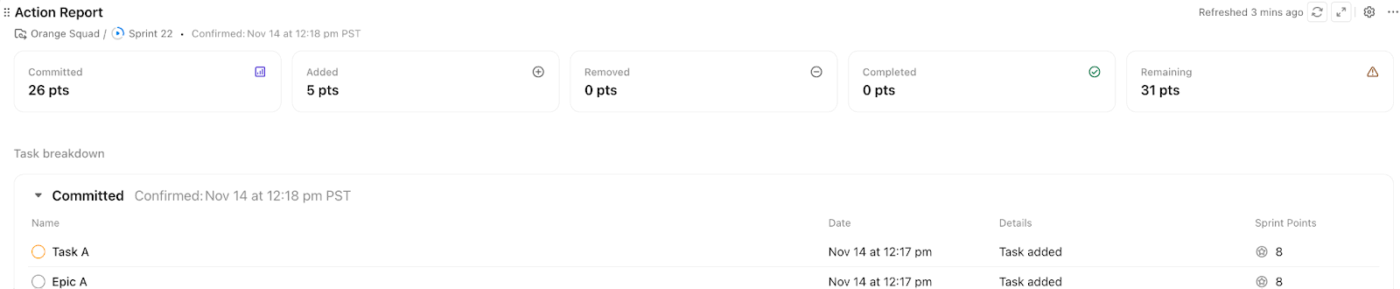
The Sprint Task Report is where we pause for a second and look in the mirror. It lays our original commitment next to what happened, and tracks every scope change along the way, so we can see the full story of the sprint.
The report shows five key tiles, and each one tells a different part of the story:
| Sprint task report | Description |
| Committed | The effort we locked in when we confirmed the sprint. This is our original promise in points or time, before anything changed. |
| Added | Extra work or extra effort that came in after confirmation. This is where mid-sprint scope creep shows up loud and clear. |
| Removed | Work we pulled out or reduced after confirmation. This highlights where we quietly shrank the sprint to cope with reality. |
| Completed | All the work we actually finished before marking the sprint done. This is our true done pile, not just what we hoped to do. |
| Remaining | Tasks that were still open when the sprint ended. These are the items likely to roll into the next sprint or need rethinking. |
Since each tile is clickable, we can drill into the exact tasks behind those numbers and see which owners, types of work, or epics are driving the patterns.
From there, we tweak our next sprint:
🚀 ClickUp Advantage: Connect external apps to your Workspace. Here are some ClickUp Integrations that are real time-savers:
| Integration | Description |
| Codegen | Codegen is your AI developer teammate in ClickUp.It is an external AI Agent that completes tasks, builds features, and answers code questions using natural language. |
| GitLab | Link Spaces directly with GitLab projects. Tasks in Spaces with a connected project can be linked with commits, branches, and merge requests. |
| GitHub | Link Spaces directly with GitHub repositories. Tasks in Spaces with a connected repo can be linked with commits, branches, and pull requests. |
| Bitbucket | Link Spaces directly with Bitbucket repositories (repos) so you always know what work is related. Tasks in Spaces with a connected repo can be linked with commits, branches, and pull requests. |
| Figma | With our Figma integration, you can: – Search across apps, including Figma, using Connected Search – Run Figma-specific commands from the Command Center – Embed Figma content in ClickUp |
With the process in place, it helps to see how sprint boards function inside Agile product environments. So let’s walk through a few examples:
Our engineers and product managers at ClickUp plan epics in ClickUp to prioritize work, improve visibility, and collaborate.
Teams are organized into squads, each having a dedicated Folder. Each squad Folder contains Lists for backlog items, bugs, and Sprints.
Epics and user stories exist in the squad’s feature Lists, product roadmap Lists, and Sprint Lists thanks to the flexibility of Tasks in Multiple Lists.
Yggdrasil Gaming is a game development company that switched to ClickUp to manage its engineering work. After moving development into ClickUp, they cut development-specific costs by about 30% and increased productivity by 37%.
Long story short:
Marketing teams have just as much chaos as engineering… sometimes more. A useful real-world example is Santander, whose marketing org shifted from long, rigid campaign planning to tight, two-week Scrum cycles. It gives them room to test ideas fast and make smarter decisions as results come in.
Their sprint board helps them:
Designers love structure just as much as they love creative chaos, and Google’s UX teams are a good example of balancing both. They use design sprints as a focused, time-boxed workflow to iterate on UI and UX ideas as fast as humanly possible.
A typical design sprint for them flows like this:
Here are a few sneaky, under-the-radar mistakes we see teams make on sprint boards ⬇️
It’s surprisingly easy for swimlanes to drift away from how work moves through the team. When the board stops matching reality, people often start hopping lanes or ignoring them entirely.
✅ Fix: Rebuild swimlanes around real workflow steps or actual owners, and review them each sprint.
Blocked tasks love to hide in places no one checks, like sub-tasks or the middle of a cluttered column. When that happens, a slowdown feels sudden even though the work stalled ages ago.
✅ Fix: Give blocked items their own unmistakable tag or lane, and require anything paused for more than an hour to get flagged.
Some teams slice work so thinly that the board starts looking like confetti. As a result, it sometimes becomes harder to see the big picture than to do the work.
✅ Fix: Set a minimum sane task size and bundle ultra-tiny items into chunks that represent real user value.
Cards occasionally sit in active columns without a clear owner, silently waiting for someone to magically pick them up. More often than not, everyone assumes someone else is on it.
✅ Fix: Require a named owner before a card goes into any active state and update ownership openly when it changes.
When we run our software development projects inside ClickUp, everything just falls where it’s supposed to fall. Our Agile scrum board becomes the single place where ideas turn into tasks, tasks turn into progress, and progress turns into shipped features. And the best part isn’t even that. It’s that we don’t waste time guessing where things are or who’s doing what.
Sprint Boards give us a clear, living picture of our task management so we can move work across stages, unblock teammates quickly, and stay focused on what delivers value. Pair that with ClickUp Automations, Docs, Dashboards, and AI… and suddenly our software development processes feel a whole lot lighter.
We plan smarter, review faster, and ship with way more confidence. Sign up for ClickUp and see how far your team can go when your sprints finally flow.
⚡ Template Archive: Free Sprint Planning Templates for Agile teams
Board view in ClickUp helps you organize tasks, user stories, and priorities for a dedicated sprint cycle. Similar to a traditional physical scrum board, it displays work in stages (such as To Do, In Progress, and Done) but with powerful automation, filtering, and reporting features ideal for managing Agile projects. It helps team members visualize workload, stay aligned, and collaborate in real time.
Sprint Boards help teams stay aligned with Agile principles by giving everyone a shared view of the work. Tasks are organized clearly, which helps team members focus on the most important items during sprint planning. With a visual workflow, it becomes much easier to track progress, manage scope, and keep delivery predictable. This tight feedback loop is what supports better decisions and smoother product development.
Yes, Sprint Boards connect directly with your backlog and all related tasks. You can pull refined items into a sprint, group them by status or assignee, and keep everything in sync through your project management tools. This connection helps the scrum master and the team maintain a clean backlog while ensuring every task has a clear path into an upcoming sprint.
ClickUp gives you several ways to track progress in real time. You can use Board view to watch tasks move across stages, Table view for deeper task details, and Dashboards for metrics—like completed points, workload, and sprint burndown. These views help team members and the scrum master stay aligned on progress, blockers, and overall delivery pace. What’s even better is that it takes team collaboration to another level!
A strong sprint review highlights completed work, gathers feedback, and connects outcomes to the product vision. After that, a retrospective helps the team reflect on how the sprint went. We look at what worked well, what slowed us down, and what we want to improve. Turning these insights into actionable tasks keeps continuous improvement alive, which is a big part of Agile practices and collaborative teamwork.

© 2026 ClickUp

There’s an easier way. Try a free AI Agent in ClickUp that actually does the work for you—set up in minutes, save hours every week.