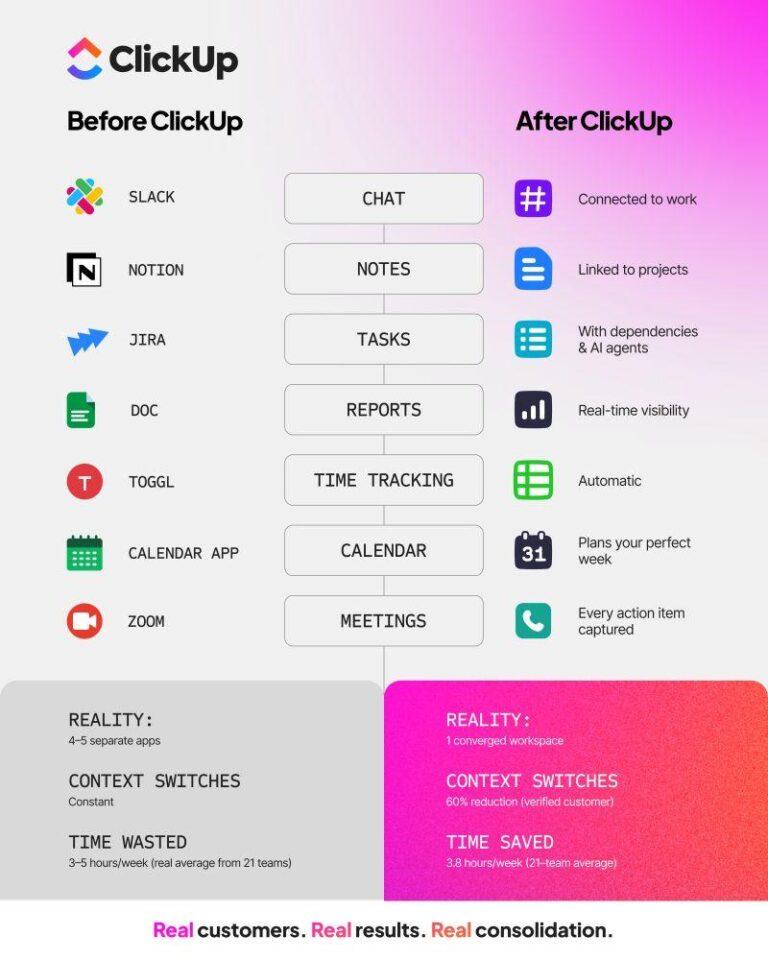
ClickUp gets called a lot of things. A project management tool, Slack replacement, converged AI workspace, or ‘the everything app’ to name a few.
The truth is somewhere in between all of those.
The short version: ClickUp is where your team’s work actually lives. Tasks, docs, chat, dashboards, goals, sprints, and AI, all in one workspace (instead of being spread across 10 tabs). Over 5 million teams use it, from two-person startups to Fortune 500 companies, and they all use it differently.
This is your crash course on what ClickUp is actually used for: 20+ real use cases, the features behind them, and the stuff most people don’t discover until month three. Whether you’re evaluating ClickUp for the first time or trying to figure out what you’re not using yet, start here.
Summarize this article with AI ClickUp Brain not only saves you precious time by instantly summarizing articles, it also leverages AI to connect your tasks, docs, people, and more, streamlining your workflow like never before.
Summarize this article for me please
What Is ClickUp Used For?
ClickUp brings all your workflows under one unified, AI-powered workspace
The world’s first converged AI workspace, ClickUp, is used to handle end-to-end workflows within teams and across departments. With it, your projects, tasks, docs, chat, dashboards, and AI all run together inside a unified workspace.
Now, the best part. ClickUp’s breadth of features and extensive customization help teams model workflows across a range of use cases, including project management, task management, software development, collaboration, reporting, CRM, and more.
Brain², ClickUp’s context-aware AI, comes with a deep understanding of your workspace as it sits on top of your tasks, docs, chats, and projects. It gives you accurate answers, summaries, insights, and recommendations about your work without having to switch tabs or dig through scattered folders.
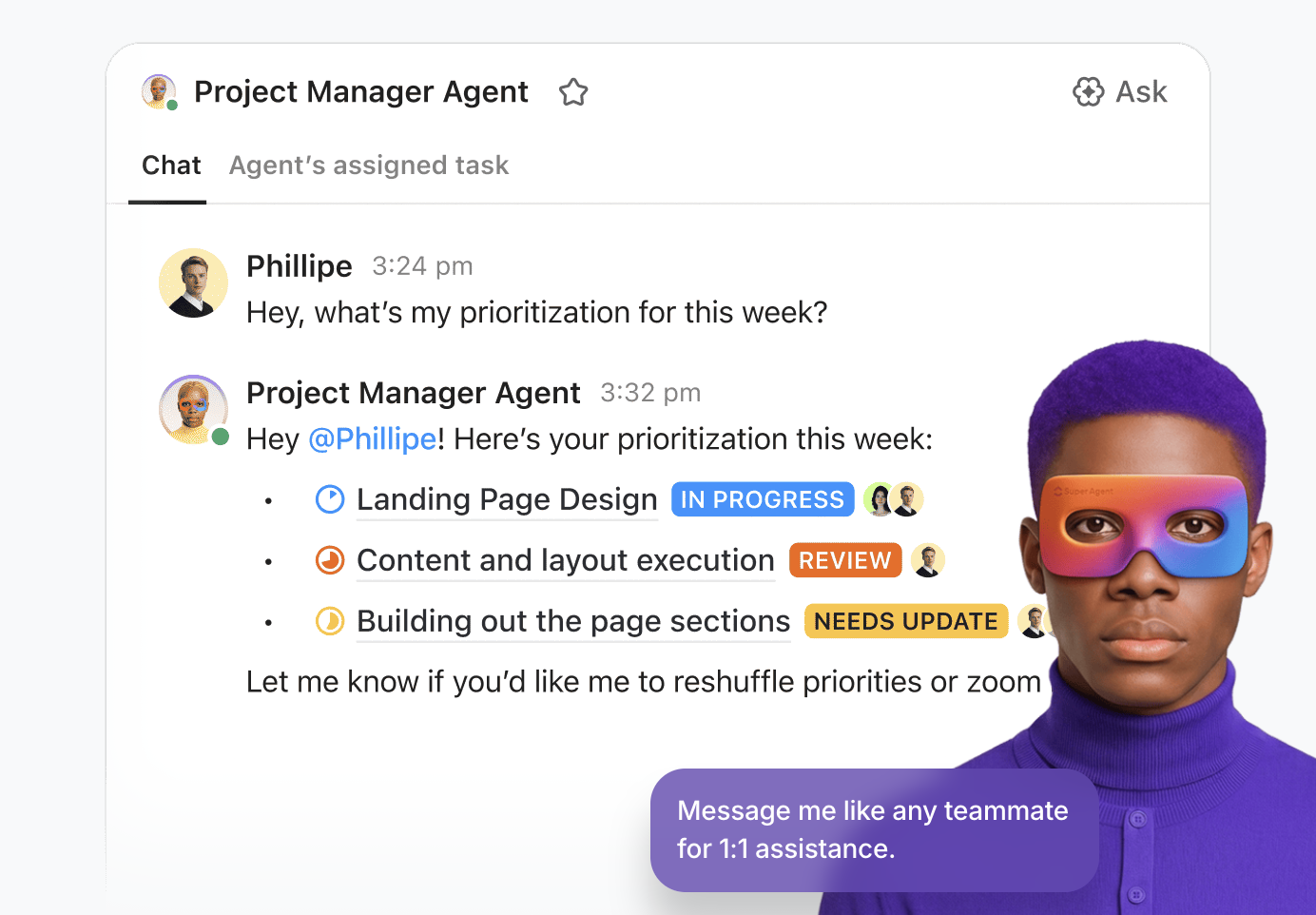
And that’s not all. You get a suite of advanced features, such as no-code Automations, MCP connections to external tools and apps, and Super Agents (AI agents). They allow you to automate daily standups, generate project updates, maintain documentation, route tasks between ClickUp and external tools, monitor deadlines, and run recurring workflows that would otherwise require manual effort.
Together, these capabilities transform ClickUp from a project management tool into a unified command center for your work.
ClickUp features at a glance
Here’s a quick overview of key features and what they are used for:
Use case
Key ClickUp feature
Best for
Project management
Gantt, Timeline, Board, and 15+ views
Engineering, PMO, operations
Task management
Custom Statuses, Priorities, Task Types
Every team
Software development
Sprints, Git integrations, Automations
Dev and QA teams
Team collaboration
Chat, SyncUps, shared Docs
Cross-functional teams
AI-powered workflows
Brain², Super Agents, MCP integrations
Teams replacing multiple AI tools
Meetings & follow-ups
Planner, Calendar, AI Notetaker
Managers, consultants, client-facing roles
Docs & knowledge management
Docs, Wikis, Enterprise AI Search
HR, product, content teams
Reporting & dashboards
Dashboards, AI Cards, Workload view
Leadership, ops, finance
CRM & client work
Custom Fields, Forms, Email in ClickUp
Sales, account management
Automations
No-code builder, 90+ triggers, Google Drive sync
Ops, marketing, support
The most common benefits of ClickUp, as reported by users, include:
96.7% report better efficiency as a result of using ClickUp
87.9% report better collaboration as a result of their teams using ClickUp
87.5% report improved visibility as a result of using ClickUp
🧠 Fun Fact: ClickUp started as an internal tool built to fix a simple problem: productivity was broken. Too many tools, too many silos. Today, our mission is to give teams back 20% of their time by bringing all work into one place. And the best part is that there are 5 million plus teams with us for this.
Summarize this article with AI ClickUp Brain not only saves you precious time by instantly summarizing articles, it also leverages AI to connect your tasks, docs, people, and more, streamlining your workflow like never before.
Summarize this article for me please
Who Uses ClickUp (and Why It’s So Popular)
ClickUp is popular because it collapses project management, docs, chat, and AI into one workspace. It cuts right through the cost and context-switching of managing multiple tools and separate subscriptions. Over 5 million teams use it, and users created more than 3.6 billion tasks in 2025 alone.
Work tools often solve just one piece of the puzzle. You’ve got project tracking in one app, docs in another, dashboards in a third, and even separate team chat collaboration tools. You end up stitching them all together to get work done.
ClickUp is built differently. From day one, it was designed to handle every layer of your work in one connected place so that you don’t have to wrangle the Work Sprawl of disconnected apps to find the information you need.
So how does ClickUp do that exactly? By not limiting you to one department, team size, or workflow. You can customize your workspace to match how your work flows between teams.
That flexibility means different teams use ClickUp for very different things:
Leadership gets real-time visibility across every team without chasing status updates
Engineering runs sprints, backlogs, and roadmaps alongside PRDs and Git integrations
Marketing manages campaigns, content calendars, and creative approvals in one pipeline
Sales builds lightweight CRMs with Custom Fields, Forms, and Email in ClickUp
HR handles onboarding checklists, policy wikis, and training workflows
Operations automates recurring processes, tracks compliance, and monitors KPIs on Dashboards
No matter the use case, your team stays aligned, moves faster, and can say goodbye to tool sprawl.
This build-for-every-team approach goes back to ClickUp’s earliest days. In the words of Zeb Evans, the CEO and Founder of ClickUp:
Despite universal advice to “niche down” and avoid competitive markets, ClickUp deliberately built flexible software for teams of “two or more people” across all verticals. Everyone said “do not go into this category, this is so stupid,” but our conviction about building flexible, customizable software that molds to how teams work proved correct.
His LinkedIn post adds more context to why ClickUp brings work + AI into one unified platform:
Summarize this article with AI ClickUp Brain not only saves you precious time by instantly summarizing articles, it also leverages AI to connect your tasks, docs, people, and more, streamlining your workflow like never before.
Summarize this article for me please
20+ Ways to Use ClickUp Across Teams
No two teams use ClickUp the same way. A marketing team’s workspace looks nothing like an engineering team’s, even though they’re built on the same platform. Let’s dig into the 20+ ways you can put ClickUp to work every day.
Let’s start with a quick summary of every use case covered in this section, followed by a deep dive into each one.
Use case
What it covers
Project management
Plan tasks, timelines, and dependencies across 15+ views. Track milestones, manage workloads, and visualize progress from Gantt charts to Kanban boards.
Task management
Customize statuses, set priorities, use Task Types, and let Brain² auto-create, classify, and assign tasks based on triggers and AI logic.
Software development
Run sprints, manage backlogs, link Git repos, auto-route bugs from Forms, and use Enterprise AI Search to find specs across tools in seconds.
Team collaboration
Replace Slack, email, and Zoom with Chat, SyncUps, and shared Docs. Convert messages into tasks, and use Autopilot Agents to triage conversations.
Unified AI
Access Claude, GPT, and Gemini through Brain² with auto-routing, persistent memory, artifact creation, and connections to external tools via MCP.
Meetings & follow-ups
Use Planner and Calendar to schedule work, join calls, and let AI Notetaker capture transcripts, chat, and action items from any meeting.
Document management
Create Docs and Wikis that live alongside tasks. Use AI to draft, summarize, and search across your entire knowledge base.
Reporting
Build Dashboards with custom widgets and AI Cards that auto-summarize activity, flag risks, and track KPIs in real time.
Marketing campaigns
Manage campaign timelines, creative approvals, and asset delivery in one pipeline with Calendar view, Proofing, and Automations.
Automated workflows
Build no-code Automations with 90+ triggers, Google Drive sync, conditional Agent logic, and cross-tool actions like Change Task Name and Add Relationship.
Content operations
Track content from brief to publish with Custom Fields, approval workflows, editorial calendars, and linked Docs for every piece.
Budgeting & finance tracking
Use formula fields, Custom Fields, and Dashboards to track budgets, forecast spend, and flag overruns across projects.
Process improvement & auditing
Standardize processes with Checklists, Time Tracking, and Automations. Identify bottlenecks and measure cycle times.
CRM & client work
Build a lightweight CRM with Custom Fields, Forms for intake, Email in ClickUp for client communication, and Dashboards for pipeline visibility.
Event & logistics planning
Coordinate venues, vendors, and deadlines with Calendar, Gantt, Dependencies, and shared task lists across internal and external stakeholders.
Onboarding & training
Create repeatable onboarding flows with Templates, Checklists, and Docs. Track new hire progress and automate reminders.
Product launches
Align product, marketing, and engineering on one timeline with Gantt, Dependencies, and cross-team views that surface blockers early.
Service & support operations
Route tickets from Forms, automate SLA escalations, and give support teams a shared queue with real-time status visibility.
Compliance & audit readiness
Enforce review workflows with Permissions, Checklists, Custom Statuses, and audit-ready task histories.
Design ops
Manage creative feedback with Proofing, brainstorm on Whiteboards, share screen recordings with Clip, and track design requests in one queue.
1. Project management
Think about your typical workday. It usually involves chasing updates, hopping between task boards and chat apps, and searching for that final doc, across five different tools. For many of us, more time goes into managing timelines, dependencies, and stakeholders than doing work.
Worst of all, a traditional project management tool forces you to adapt your workflows to its rigid structure.
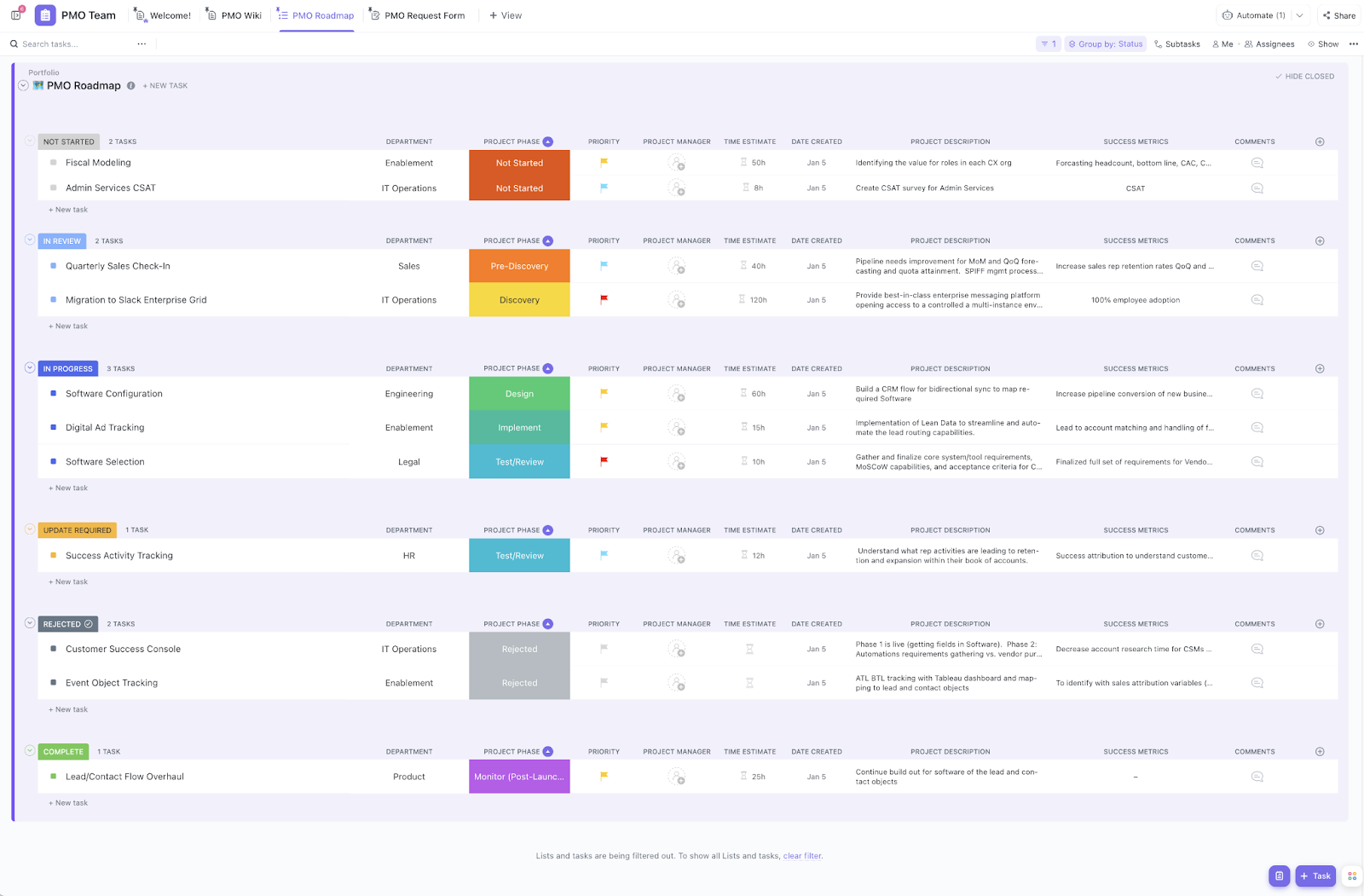
Enter: ClickUp for Project Management. With AI-powered project management capabilities, it breaks complex workflows into tasks and smaller subtasks, connects related work with dependencies, and tracks milestones that mirror your real workflow.
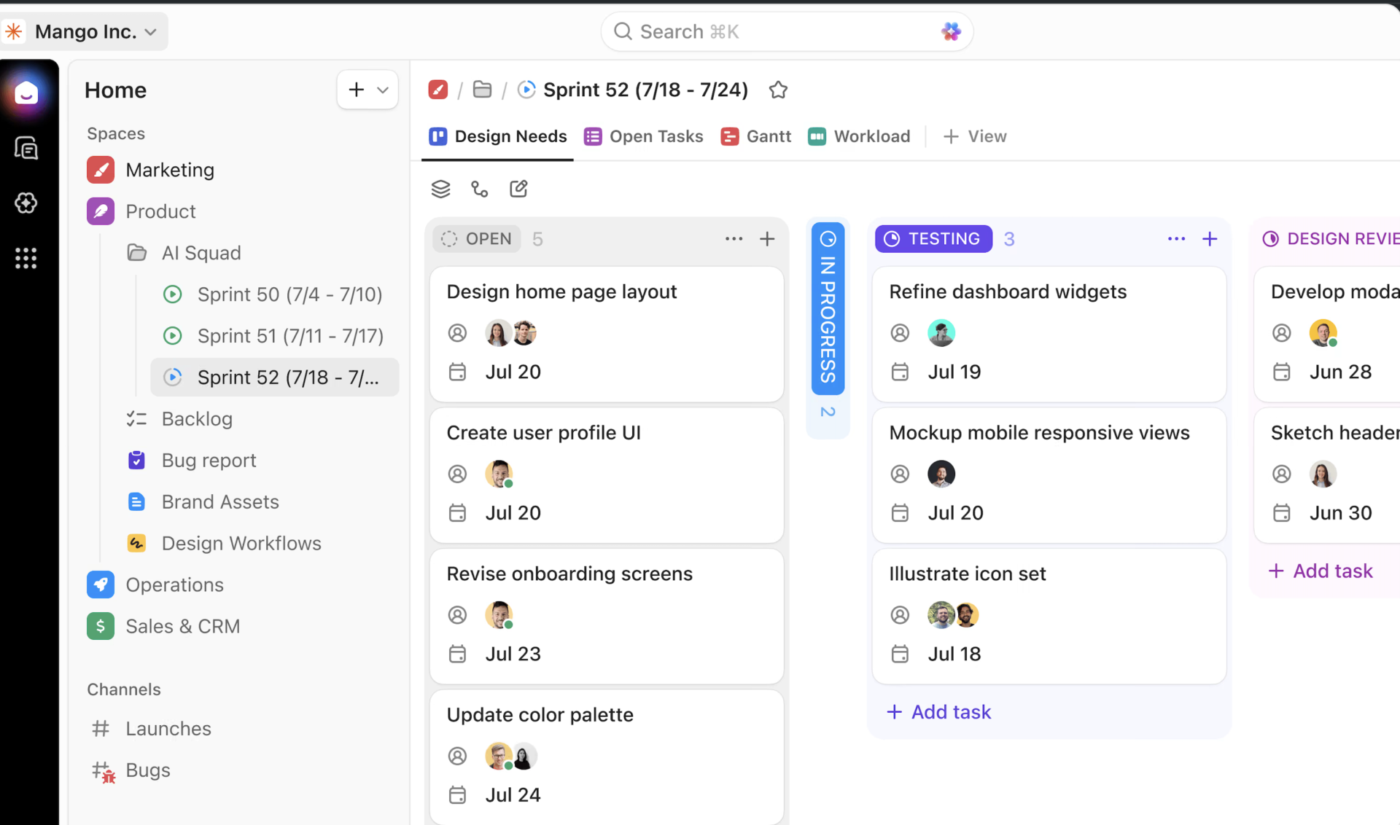
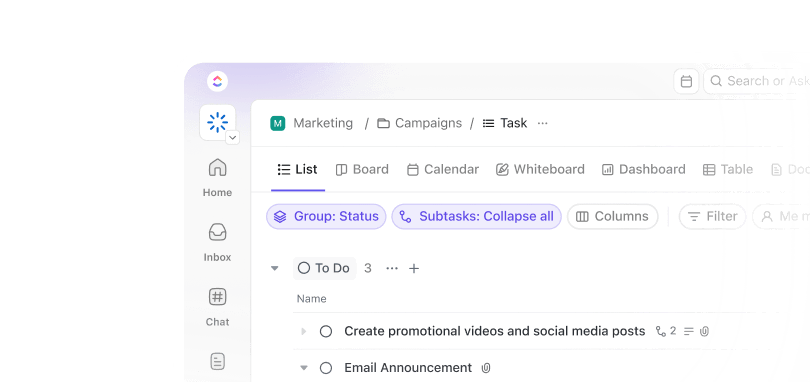
With 15+ Custom Views like Gantt, Timeline, Board, or List, you can choose how to visualize progress based on how your team works. Alongside, you can see your project from every angle and:
Track plan vs. reality with Gantt Baselines: Save your original project schedule as a baseline, then overlay it on your live Gantt timeline. Instantly spot which tasks slipped, which came in early, and by how much, so your next status report writes itself
Get a high-level overview: View multiple projects side-by-side or zoom into a single one. Flexible sorting and grouping help you monitor progress, spot bottlenecks early
Organize your projects: You get custom sorting, filtering, and grouping options. Create cascading views to see what’s on deck today, what’s coming soon, and what needs urgent attention
📌 Real-world example:How Savills manages multi-country IT delivery in ClickUp
Savills’ regional IT team delivers CRM rollouts, custom builds, and infrastructure projects across 14 regions in Asia. The portfolio had outgrown Azure DevOps and a stack of Excel trackers, so IT Business Partner Cherry Wong rebuilt the entire delivery lifecycle on ClickUp.
Requests now come through Forms with built-in checklists, and a demand board vets them before anything becomes a live project. From there, one record carries the work end to end: the enhancement request, backlog, and bugs all sit under one parent task. Ian Or, who runs a 10-person CRM delivery team across India, Hong Kong, and China, can trace exactly what was deployed and what caused an issue months later.
When a ticket hits “ready for development,” the vendor team is assigned automatically. Vendors leave questions as comments, business analysts answer in the same thread, QA verifies in place, and the whole exchange stays attached to the ticket. The monthly PowerPoint marathon is gone too: a live CIO dashboard now shows project health across every country in real time.
“ClickUp gave us back 50+ hours a month. Instead of scheduling calls and waiting on everyone’s availability, we just develop and resolve things in the task thread. For a 10-person team across India, Hong Kong, and China, that’s a whole person’s productivity we didn’t know we were losing.“
Ian Or, Senior Project Manager, Savills
💡 Pro Tip: Feeling overwhelmed setting up your workflow from scratch? Start with ClickUp’s Project Management Template. It gives you a pre-built Space organized by project phases, complete with List and Kanban views, so you can track tasks and resources immediately.
ClickUp Tasks is the execution layer that powers every workflow.
Start by customizing your task statuses to reflect how your team works. Need ‘Client Review’, ‘On Hold’, or ‘Needs Permit Approval?’ You’ve got it!
ClickUp Tasks capture critical information across Custom Fields and can be visualized according to your preference
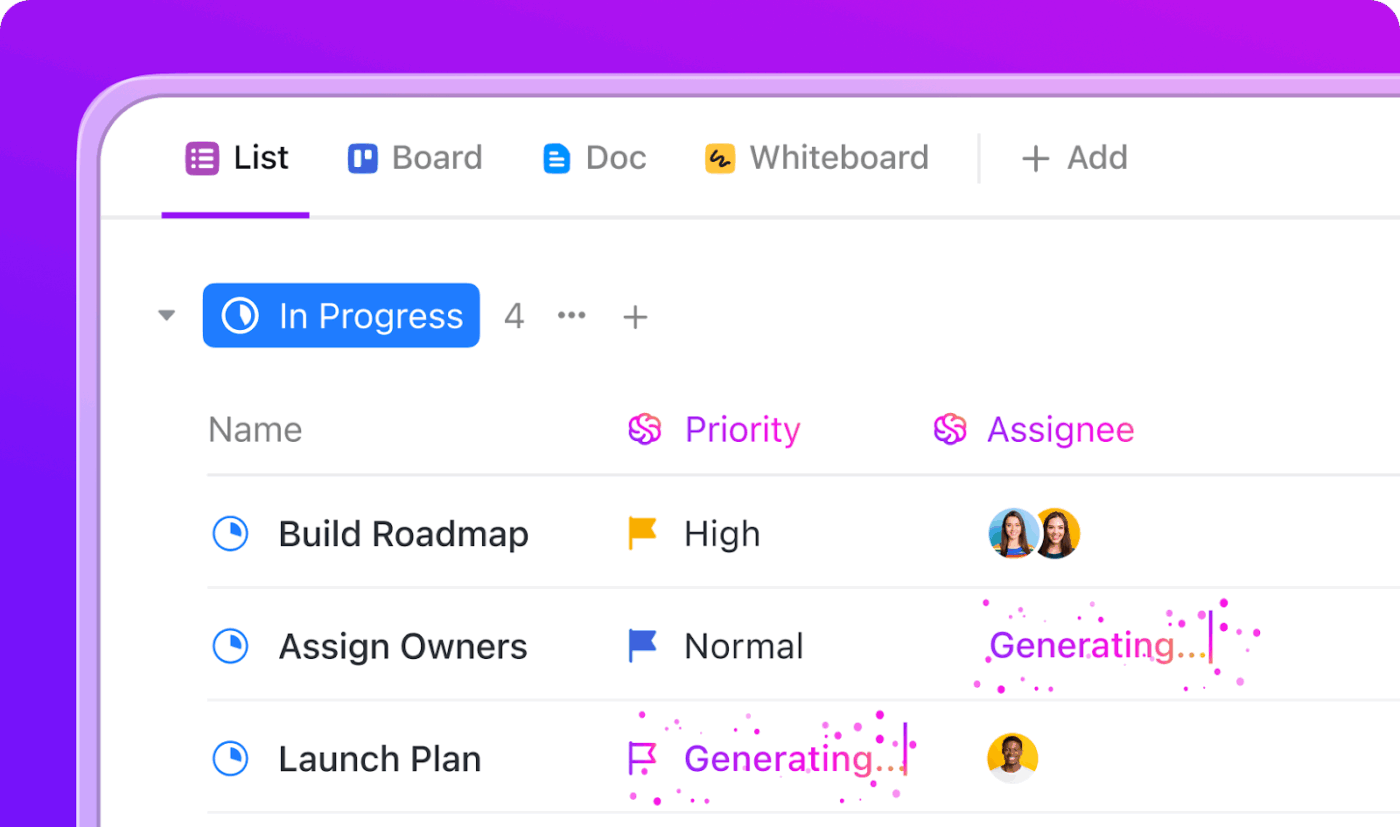
Next, set priority levels to help your team focus. Choose Urgent, High, Normal, or Low in the task management software. Then there’s the Tasks + Brain² combo that adds an intelligence layer:
Auto-create tasks when triggers fire (e.g., a lead enters your CRM → ClickUp generates a pre-filled task)
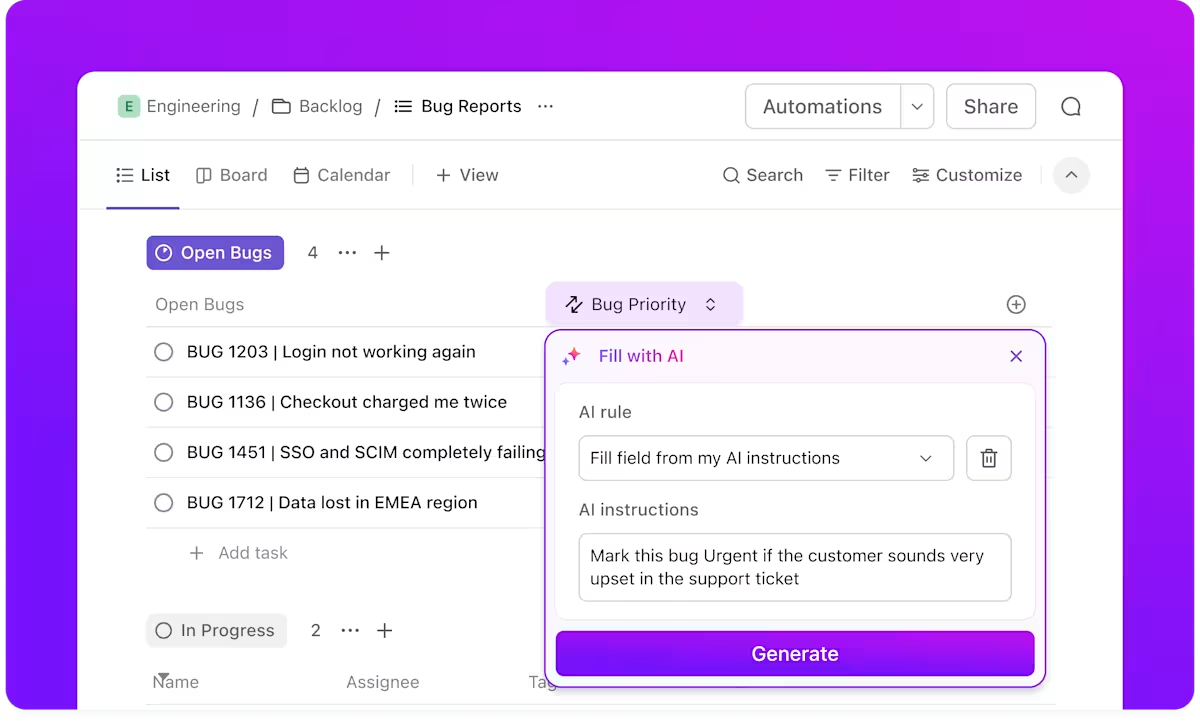
Update or classify tasks based on AI outputs (e.g., add “Urgent” if sentiment is negative)
Assign tasks automatically using routing rules, capacity limits, or custom logic
Track automation performance with Custom Fields or Statuses like “AI-suggested,” “Escalated,” or “Manual review”
Custom Fields scope to specific Task Types, so a Bug task only shows bug-relevant fields (severity, environment, repro steps) while a Feature Request shows its own set (target release, priority tier, linked PRD). This reduces clutter for teams managing multiple types of work in the same List, and fields auto-organize by Task Type in the Custom Field Manager, the Fields sidebar, and the task view.
Use AI Assign, AI Prioritize, and other AI Autofill properties to surface insights and automate task management in ClickUp
📌 Real-world example: How Bell Direct uses ClickUp to triage 800+ emails a day
Bell Direct, a subsidiary of Bell Financial Group (ASX: BFG), manages operations for one of Australia’s leading stockbroking firms. Their team was drowning in 800+ client emails daily, each needing to be read, categorized, and routed to the right person. Two full-time employees spent their entire days just managing that email traffic.
They deployed a ClickUp Super Agent they named “Delegator.” Every incoming client email becomes a task in a triaging queue. The Delegator scans each one, assesses urgency, and automatically classifies tasks by priority, client, and brand using AI-powered Custom Fields. Keyword detection pushes urgent requests straight to the top. The agent then routes each task to the right team member in real time, with no manual intervention.
The result: two FTEs’ worth of work now handled by the agent, a 20% boost in operational efficiency, and urgent requests prioritized in seconds instead of hours.
“The AI Agent has become part of the team. Previously, we needed two full-time employees just to triage and assign tasks. Now, the agent does it all, instantly and accurately.“
Manage sprints, backlogs, and roadmaps with ClickUp for Software Teams
ClickUp AI can automatically assign tickets, update sprints, suggest fields, summarize PRDs, and clean up stale items. Far from manually organizing work, your backlog evolves in real time, so engineers stay focused on delivery.
Team chats, PRD reviews, retro notes, and standups are likely to contain hidden action items.
ClickUp AI can detect these and turn them into trackable tasks with assignees and next steps—no more “Did anyone capture that?” moments. Your DevSecOps team can find pull requests, specs, files, and sprint work in seconds, even across tools with ClickUp’s Enterprise AI Search.
ClickUp integrates with the full dev ecosystem: GitHub, GitLab, Bitbucket, Sentry, PagerDuty, Jenkins, LaunchDarkly, and more.
📌 Real-world example: How Rillsoft Sistemas ships ERP software with AI agents in the sprint
Rillsoft Sistemas, a Brazilian ERP company, runs engineering, customer support, operations, product management, and marketing in one ClickUp workspace.
Four Super Agents handle the connective work:
Sprint Assistant turns conversations into sprint summaries and backlog updates
SupportFlow AI triages tickets and pre-drafts replies
Meeting Recap Bot converts client calls into assigned action items
Docs Helper drafts SOPs and onboarding guides
During a recent retail-ERP rollout, Sprint Assistant caught a missing API dependency blocking the billing and inventory modules before anyone on the team noticed it manually. It connected information from tasks, comments, and meeting notes, then flagged it in the daily summary. That saved the client launch from slipping by days.
“ClickUp turned repetitive operational work across our engineering, support, and ops teams into automated workflows, so we spend our weeks delivering and solving client problems instead of writing summaries.”
Rodrigo Nascimento, Developer, Rillsoft Sistemas
4. Team collaboration
Are you tired of using Slack for instant messaging, emails for updates and feedback, and Zoom for video calls? What if we told you those days are behind you?
ClickUp Chat reduces context sprawl by putting these conversations directly inside the space where your work happens. Chat sits alongside your tasks, Docs, Whiteboards, and projects:
Chat is integrated into your sidebar, so you can see unread messages, DMs, and channels in one place
In the new converged Home, chats, tasks, and Spaces live together, so you move seamlessly between the work and the conversations about that work
For big initiatives, you can create a project-specific channel that sits right next to the List you’re using to manage tasks, so context never gets lost
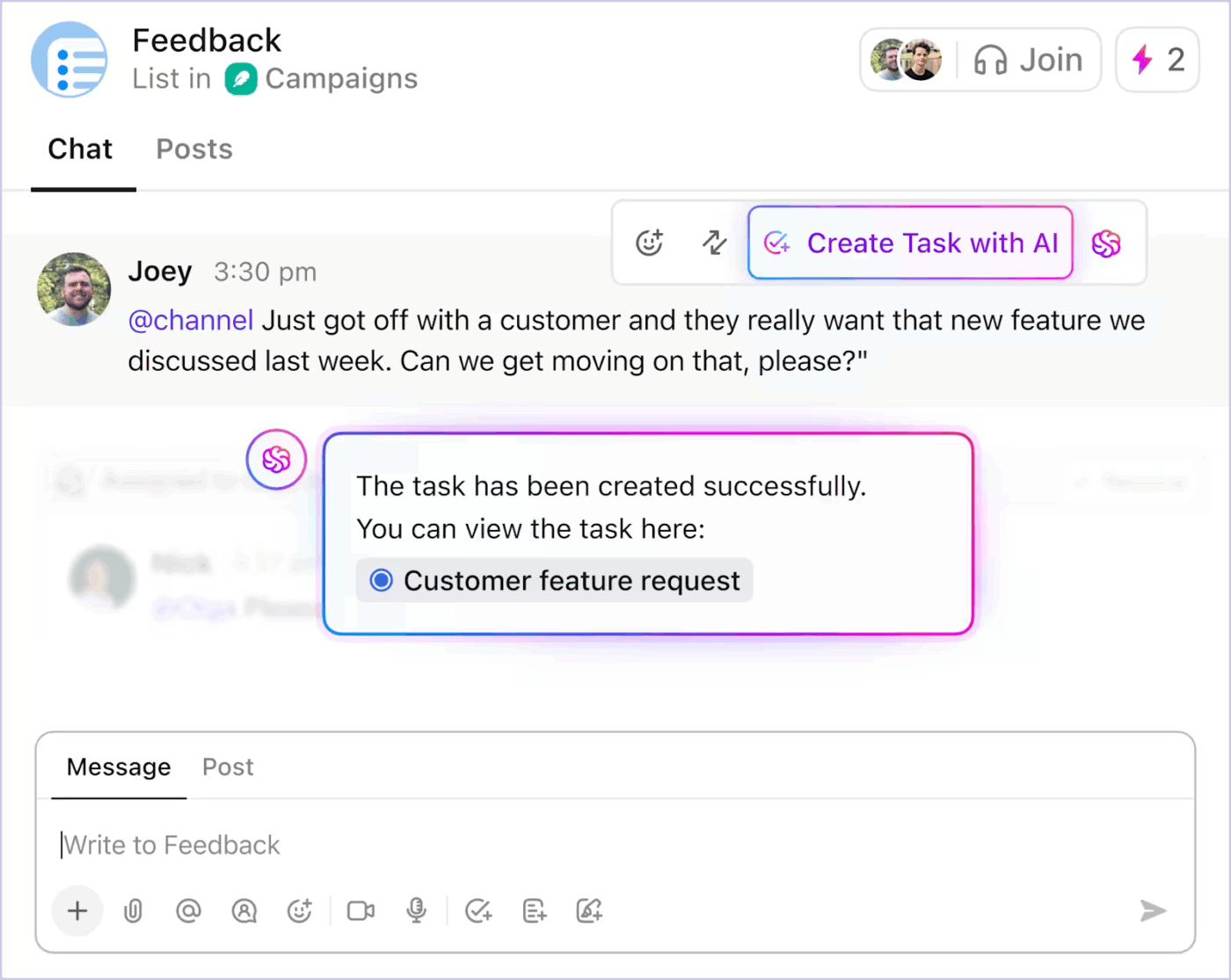
Create trackable tasks directly from ClickUp Chats
When something important comes up in a conversation, you don’t have to copy-paste it into a tool “meant” for work. In ClickUp, you can:
Convert a chat message into a task with two clicks
Relate a chat to an existing task so that key decisions and details are always visible from both sides
Use labels like Replies, Chat Activity, Drafts, and Sent to jump back into ongoing conversations without hunting through long histories
📌 Real-world example: How path8 Productions replaced Slack and five other tools with ClickUp
Pat Henderson, founder of path8, had one dealbreaker when considering ClickUp: his team loved Slack. The workflows were smooth, everyone was comfortable, and nobody wanted to learn something new.
Then he saw ClickUp Chat. Not only did it replicate everything they loved, the migration was seamless. ClickUp imported every channel, every conversation, down to the emoji reactions people had added. Pat made the call to switch on a specific day, and the team had zero questions about how to use Chat.
path8 consolidated project management and team communication into one platform, eliminating the app-switching that used to fragment their day.
“I was like, we can use ClickUp for project management but we’ll still use Slack because everyone loves it. Then I got into ClickUp and saw the Chat. I was like, okay, this is essentially Slack. We moved everything over and had zero questions about how to use it. It was just really clean and smooth. People got it.”
Pat Henderson, Founder, path8 Productions
Pro Tip: Switching from Slack? You can now import your Slack history into existing ClickUp Channels, so past conversations, decisions, and context carry over instead of starting from scratch. Map incoming Slack channels to the ClickUp Channels, Spaces, or Lists you already use.
5. Unified AI that works your way
AI was supposed to make life easier. But switching between multiple AI tools, like ChatGPT, Claude, and Gemini, probably wasn’t the AI-powered future you wanted.
Each tool has its own login, its own context window, and its own limitations. You waste time repeating prompts, losing context, and jumping between tabs, fighting AI sprawl.
Brain², ClickUp’s context-aware AI, already knows what you’re working on, who owns what, and what’s been decided. That context changes what AI can actually do for you.
AI that co-works with you
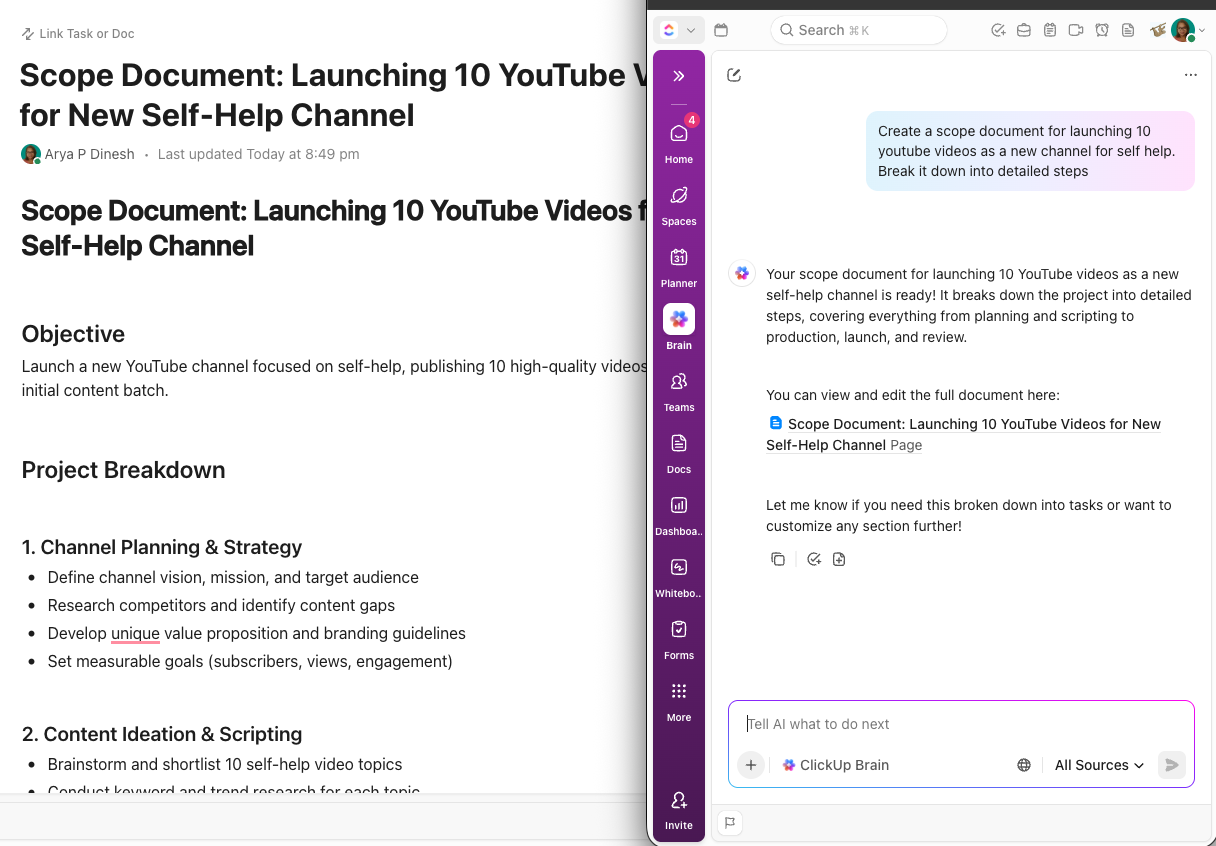
Say “we need a landing page,” and Brain² doesn’t just write copy. It designs and builds the page, then breaks it into subtasks (finalize hero, collect testimonials, set up deployment) with scope and assignees ready to go. See it in action.
Brain² also generates slide decks, dashboards, working app prototypes, and reports, all pulling from your actual workspace data instead of starting from scratch. Need to assign something? Say, ‘Create a task for Maya to update the launch deck by Friday,’ and Brain² does the rest. Task created, deadline set, and assignee added ✅.
Memory that compounds
Brain² learns your preferences, writing style, and project context across conversations. Tell it something once and it retains it going forward. You can even import what you’ve already taught ChatGPT or other AIs, so you’re never starting from zero.
Every frontier model, one subscription
Under the hood, Brain² automatically routes your request to the best frontier model for the job (or lets you pick manually). This capability is consistently updated with newer models as they become available, which means you’re always ahead of it. One subscription, every model.
Why limit yourself to one model? ClickUp brings them all together under one platform
Enterprise search across your entire stack
This ambient AI tool doubles up as an intelligent search bar for your company’s knowledge base. It pulls the answer from ClickUp, the web, and connected work apps such as Slack, Google Drive, and project docs. You’ll always get a complete answer with links to relevant documents and suggested next steps.
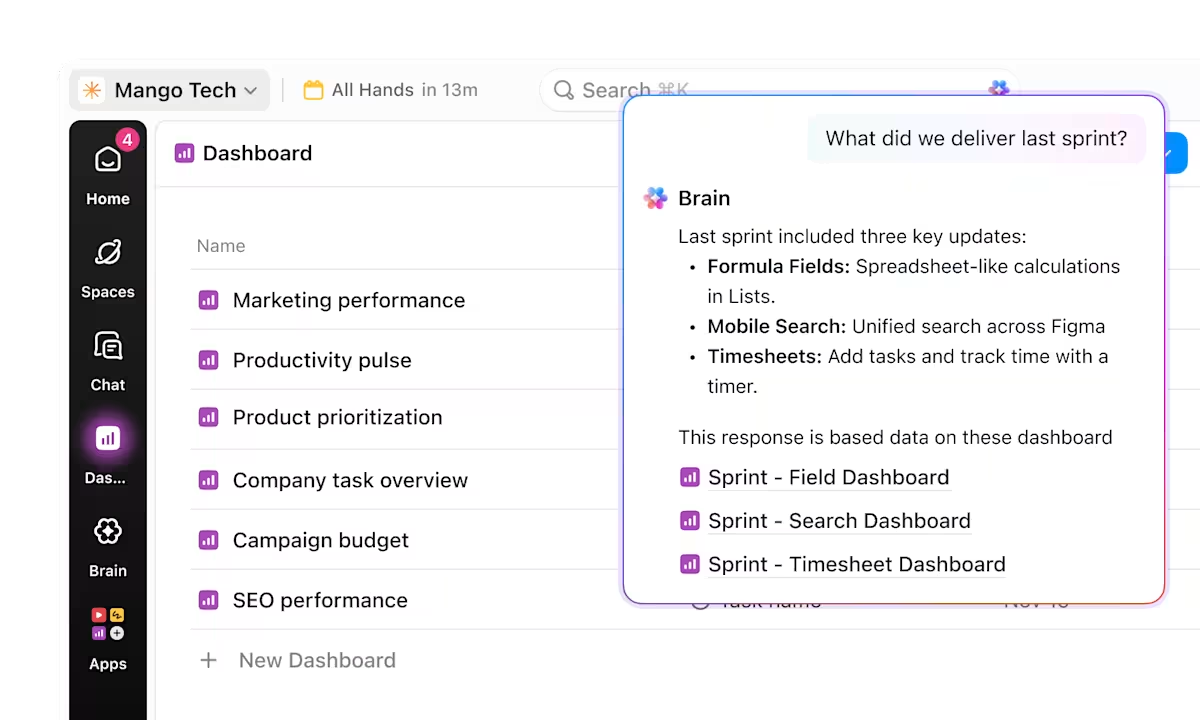
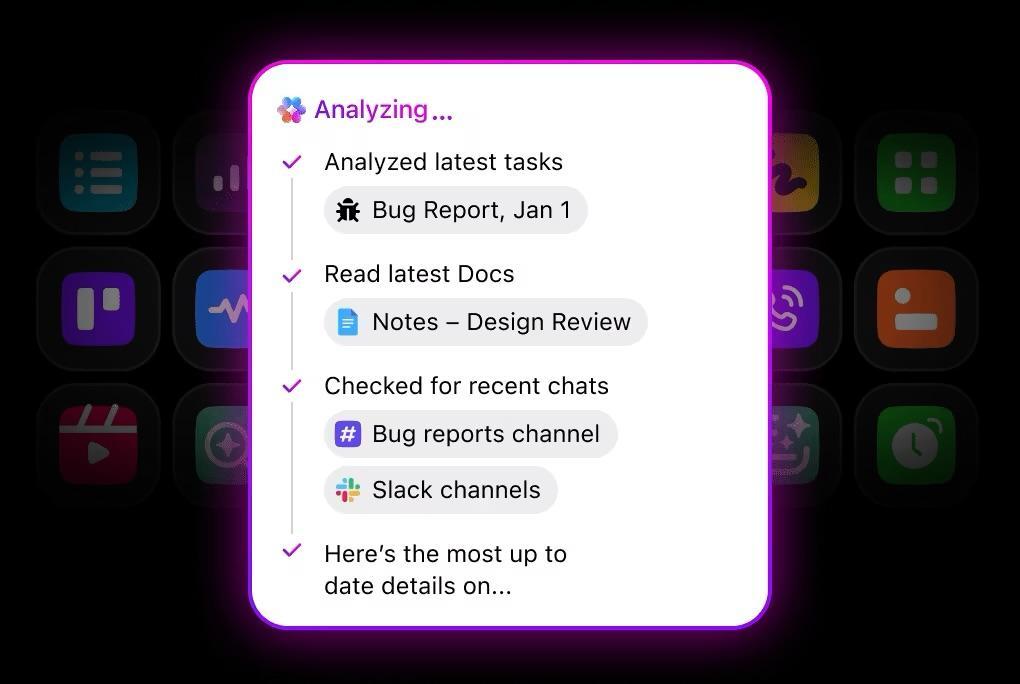
Writing this article, for instance, we asked Brain² to compile a list of every update we shipped recently, and here’s what it came back with.
Brain² can pull information from your workspace, the web, connected apps and more
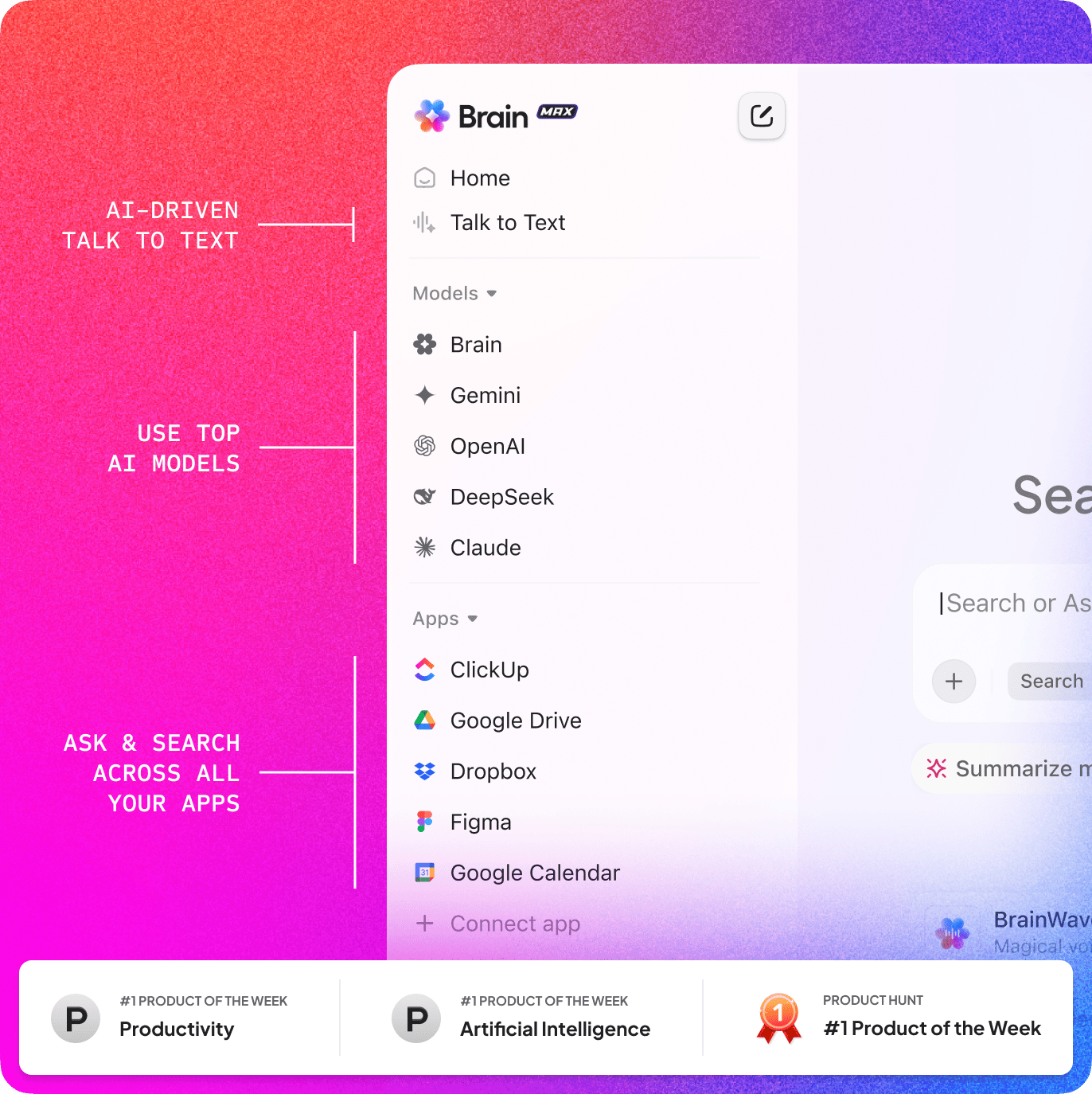
Brain MAX puts the full power of Brain² in a standalone app across every device. It’s available as a desktop app for Mac, a Chrome extension for any browser, and a mobile app for iOS and Android.
It connects to your entire stack (ClickUp, Google Drive, GitHub, Gmail, Slack, Figma, and more) so you can search, ask, and take action across all your tools from one place. Summarize a web page, find a buried Slack thread, or ask about a document in Google Drive without switching tabs.
Use Talk to Text to speak 4x faster than you type. Dictate updates, brainstorm ideas, or draft messages hands-free. Brain MAX cleans up your words, learns your vocabulary, and formats transcripts into summaries, lists, or action items.
Brain MAX is your AI assistant that works everywhere
Need more evidence? Here’s what a G2 user had to say about Brain MAX:
The new Brain MAX has greatly enhanced my productivity. The ability to use multiple AI models, including advanced reasoning models, for an affordable price makes it easy to centralize everything in one platform. Features like voice-to-text, task automation, and integration with other apps make the workflow much smoother and smarter.
Connected, autonomous AI workflows via ClickUp MCP
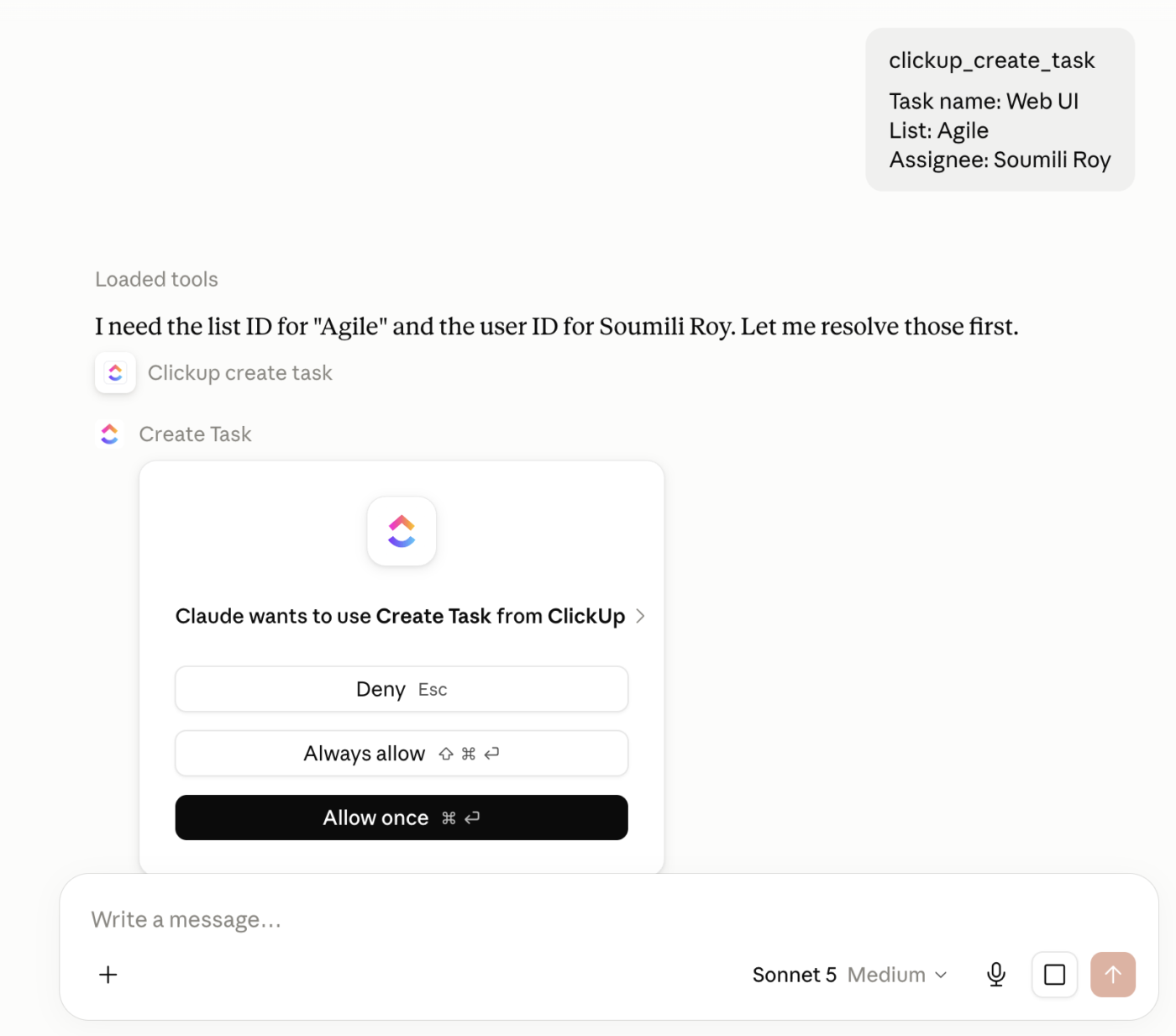
Your team doesn’t have to leave their favorite AI tools to work with ClickUp. External tools can access and check your tasks, summarize a project, or create new work, all grounded in live ClickUp data via MCP. Here’s how it works:
From the outside in: Connect ClickUp MCP with ChatGPT or Cursor, and those tools can reach into your ClickUp workspace to search tasks, pull project context, create work, and update statuses. A developer can ask Cursor to find the spec for a feature they’re building. A manager can ask ChatGPT to summarize this week’s sprint progress. Both are working with live ClickUp data, no tab-switching required. Available on all plans.
From the inside out: Super Agents can connect to any MCP-compatible server, your CRM, support desk, data warehouse, or internal APIs, and pull data or take action in those systems directly from ClickUp. A Super Agent could check a customer’s account in Salesforce, pull their latest support tickets from Zendesk, and update the relevant ClickUp task with a summary.
What that means for you: ClickUp becomes the hub where information flows in from your tools and actions flow back out, without anyone manually moving data between apps.
Create tasks, docs, plans, and so much more with ClickUp MCP
On average, a knowledge worker loses 103 hours in meetings. If we look at coordination as a task, you need to switch between a calendar app, a meeting tool, and the actual project management platform to start with. That’s three tools right there to set up the meeting.
To solve this, ClickUp has a connected scheduling system powered by the Planner and Calendar.
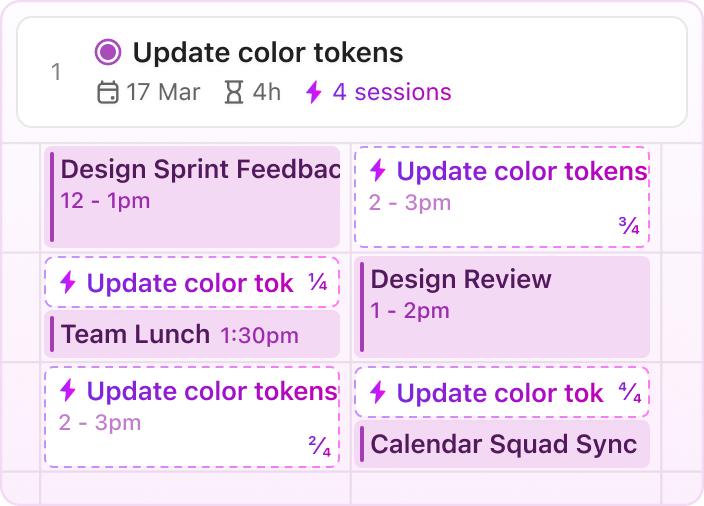
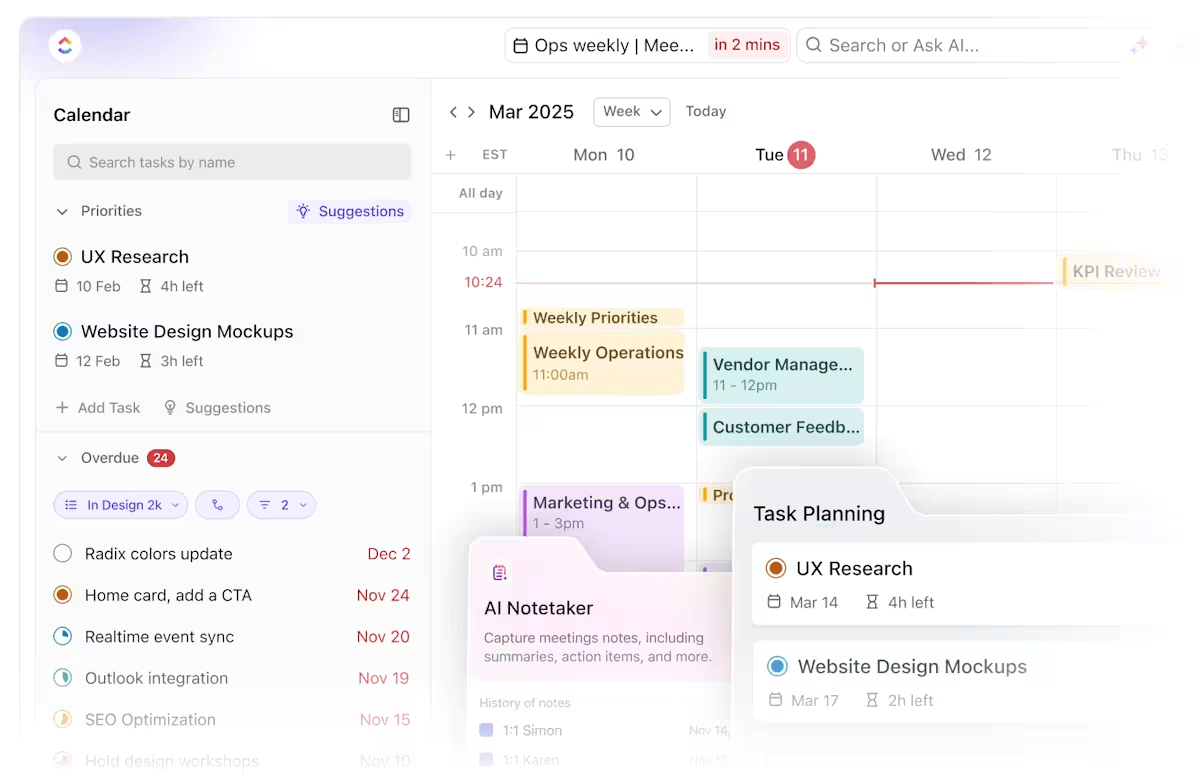
With the Planner, see all your tasks, meetings, and priorities in one place. Drag tasks into your schedule to plan your day or week. Tasks instantly become time blocks, so you can balance meetings with focused work.
Use ClickUp Planner to auto-block priority tasks and adapt your schedules dynamically
Inside the Calendar Glance, you can quickly join or schedule meetings without leaving ClickUp. When you open a time slot, ClickUp Calendar suggests available windows based on your workload and existing plans.
Schedule tasks and events easily with ClickUp Calendar
Need to turn ideas into action? You can schedule tasks directly from your Planner, block time for them, and adjust your week with simple drag-and-drop. Everything stays synced, so you always know what should happen next.
AI Notetaker: every meeting, fully captured
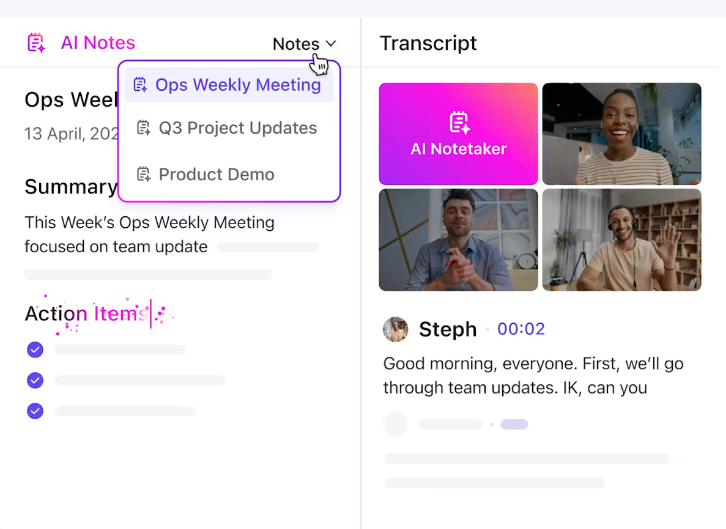
Get meeting recordings, transcripts, and action items in your inbox with ClickUp’s AI Notetaker
You can send AI Notetaker to any meeting with just a shared link, even ad hoc calls that aren’t on your calendar. It also captures the in-meeting chat from Zoom, Google Meet, and Teams, so side conversations, shared links, and quick decisions that happen in the chat window are all included in your notes with sender attribution.
Don’t need the full recording? The toggles in AI Notetaker settings let you keep just the summary, just the transcript, or just the recording, whatever fits your team’s needs. With AI handling notes, extracting action items, and assigning follow-ups, meetings stop being isolated events and become part of a connected workflow.
📌 Real-world example: Teams using AI Notetaker are cutting that overhead entirely.
A Senior Project Manager at Global Vaccine Data Network put it simply:
“Our meetings used to spawn hours of follow-up. ClickUp’s AI Notetaker now sits in every meeting we run, capturing minutes, action items, and assignments automatically. The work that used to begin after a meeting now begins inside it.“
Rachel Drummond, Office Operations & Marketing Manager at Treescapes, saw similar results:
“Before, I was juggling post-call chaos: scribbled notes, missed follow-ups, Ctrl+F in my docs. Now? ClickUp’s AI Notetaker captures every key detail, summarizes next steps, assigns follow-ups, and cuts my post-meeting admin time in half.“
And Ashley Campos, CSO at dlivrd Tech, highlights the action layer:
“ClickUp’s AI Notetaker summarizes the call and turns takeaways into assigned tasks you can drop straight into your list. It’s the first tool that helps our team turn meeting notes into action instead of more noise.“
ClickUp hosts your documents and Wikis in the same place where your tasks, timelines, and projects already live.
ClickUp Docs come with Brain² directly inside the editor. The AI assistant lets you create anything: a quick internal note, a detailed process guide, a client-facing proposal, or an entire knowledge base. Your Docs are dynamic, and Brain² is context-aware.
What makes this different from a standalone doc tool: Docs are connected to your work:
Link a Doc to a task and the context travels with it
Embed a live task list inside a Doc and it updates as statuses change
Create a Wiki for your processes and it becomes the single source of truth that Brain² can search and cite
For teams managing policies, SOPs, or knowledge bases, Docs also supports nested pages, rich formatting, version history, and inline comments. Stakeholders can review and approve without leaving the document, and you can lock pages to prevent edits after sign-off.
When you need to go beyond text, use Enterprise AI Search to pull answers from Docs, tasks, chats, and connected apps like Google Drive, Slack, and GitHub, all from one search bar.
Generate summaries, create action items, assign tasks from Docs using Brain²
ClickUp Dashboards give you one clear, real-time view of everything happening across your projects.
Build your dashboard with drag-and-drop cards that show exactly what matters to you. Visualize task statuses, surface overdue work, compare estimated vs. actual time, or track goals linked directly to the tasks that support them.
Visualize complex data with ClickUp Dashboards and ask Brain² to make sense of it for you
🤓 What makes Dashboards powerful is the variety of cards you can choose from. For instance:
A Pie Chart card can visualize tasks by status, assignee, or priority, showing you how work is distributed at a glance
A Calculation card can roll up numbers, such as hours logged across a team, total estimated effort, or budget spent versus remaining
For more detail, a Table card pulls in lists of tasks with filters applied, letting you zoom in on specific metrics like overdue items or upcoming deadlines
And when you need to go deeper, drill-down views let you click straight into the underlying tasks without leaving the Dashboard
To cap it all, add cards for sprints, time tracking, workload, or even embed external content like Google Sheets or Figma files. And as you integrate more projects, Dashboards Hub becomes an indispensable tool. It’s the central place where all Dashboards live, complete with filters, sorting, and favorites for quick access.
📌 Real-world example: How Finastra uses ClickUp Dashboards for executive reporting.
Finastra’s global marketing team needed clearer visibility across departments and a faster way to report progress to senior leadership.
With ClickUp Dashboards, Finastra delivers a unified, real-time view of project health to the executive vice presidents of each business unit. Their dashboards aggregate campaign progress, regional performance, risk areas, and upcoming milestones—all updated automatically as teams work.
As Joerg Klueckmann, VP of Marketing, explains, “Communicating the status and performance of our global and regional marketing campaigns to our business units was far from optimal. With our new Dashboards, we’re saving time, and our stakeholders have real-time access to the information they need, whenever they need it.”
9. Marketing campaigns
Campaign work moves fast. There are always multiple channels in play, last-minute edits to manage, and timelines that shift without warning.
ClickUp helps you manage the campaign lifecycle in one spot, so your team can spend less time coordinating and more time creating marketing assets.
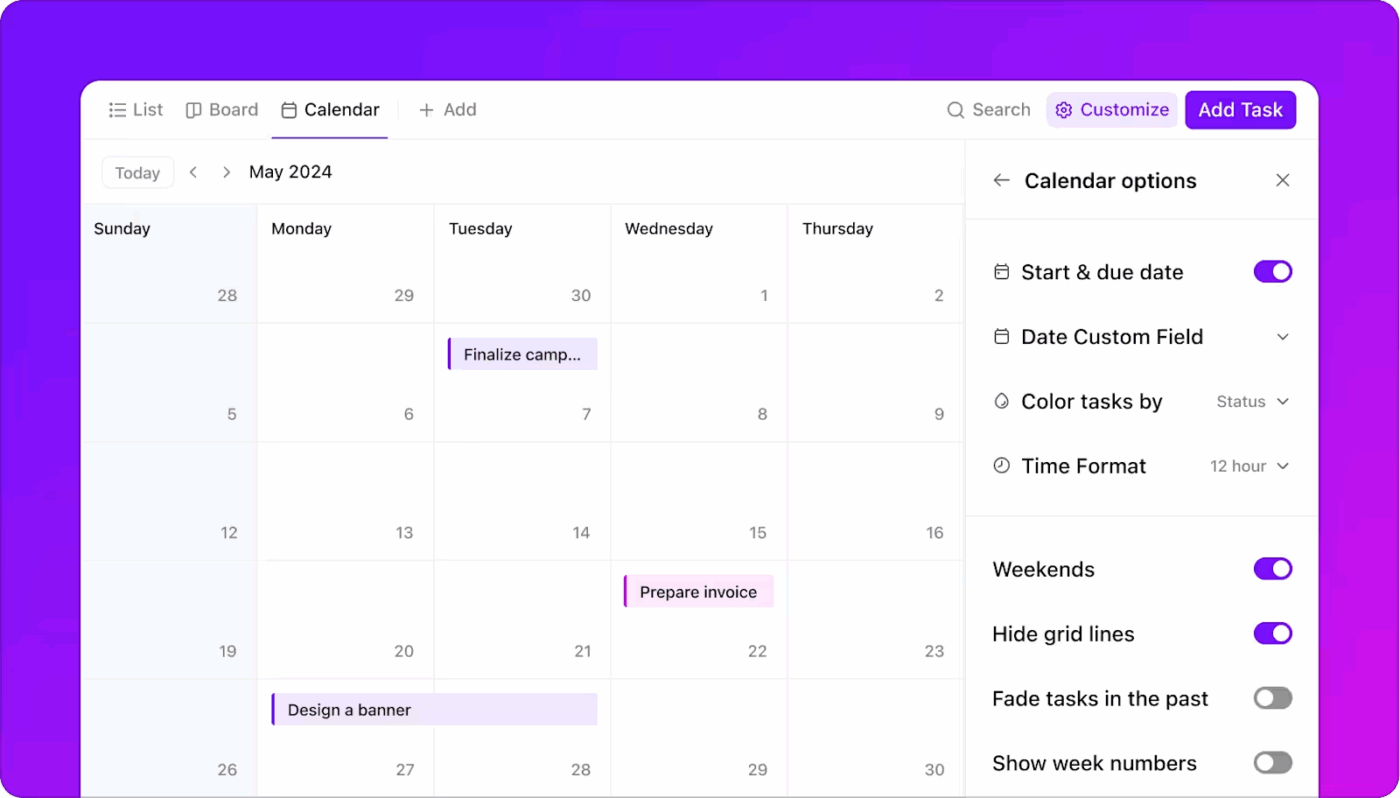
Start with ClickUp’s Calendar View to plan your campaign timeline. Schedule email sends, blog launches, ad drops, and social posts across daily, weekly, or monthly views.
Plan tasks and deadlines visually with ClickUp Calendar View
Tasks are easy to drag around if something shifts, and you can filter by team, channel, or campaign to focus on just what you need. It even syncs with Google or Outlook Calendar, so what’s on your marketing calendar matches what’s in your ClickUp workspace.
As campaigns ramp up, you need more clarity and quickness. For this, break down complex tasks into actual, actionable steps.
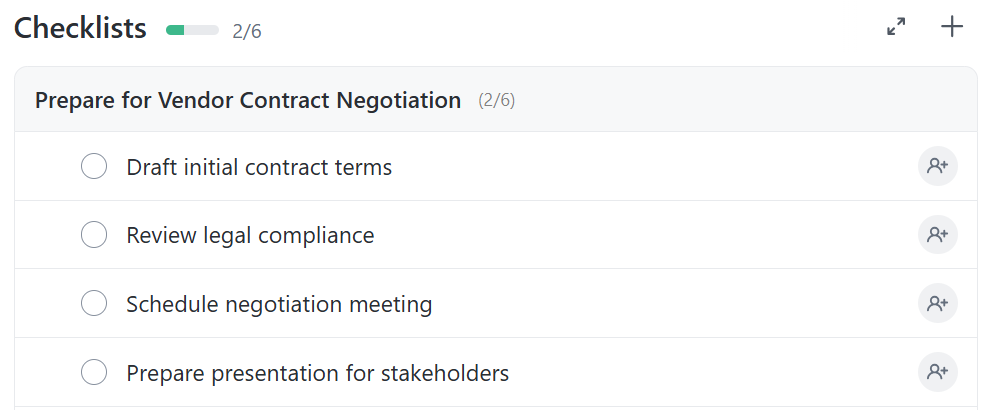
Use ClickUp Task Checklists and subtasks to turn every task into a clear sequence. Instead of a vague ‘build landing page’, you might create checklist items or subtasks like ‘write homepage copy’, ‘design hero image’, ‘review legal’, or ‘QA test form’. Each item can be assigned to someone and updated in real time as it’s completed.
📌 Real-world example: How our marketing team shifted from content creation to content production with ClickUp.
At ClickUp, our marketing team manages a high-volume content pipeline—blogs, newsletters, webinars, videos, social campaigns, and product launches—all inside one ClickUp workspace.
Every new piece of content starts as a task with a content production checklist covering research, outlining, drafting, editing, design requests, SEO updates, and final QA. Each step has its own owner and deadline, so nothing slips through the cracks.
All briefs, drafts, feedback threads, and approvals live inside ClickUp Docs, which means writers, designers, and PMMs collaborate in real time without hunting for links or old versions. As deadlines shift, the team uses Calendar View to drag and rearrange publish dates instantly.
Greg Swan, ClickUp’s Content Manager, shares a quick hack:
Turn every content task into a repeatable workflow using checklists. It cuts rework and keeps your writers, designers, and editors perfectly aligned
How many times do you stop what you’re doing at work just to remind someone about a deadline, update a status, or move a task along? Yep, you’re not alone. And that’s exactly where an automated reminder can work wonders!
Our research data shows that 45% of knowledge workers have thought about using automation but haven’t taken the leap. What deters them from taking the first step toward automation? Factors such as limited time, uncertainty about the best tools, and overwhelming choices.
Trigger AI-generated updates for tasks with customized ClickUp Automations
ClickUp makes this transition smoother. With no-code Automations and easy-to-build AI Agents, get started with AI-powered workflow automation quickly.
Move a request to the right team based on a custom field
These rules keep your system consistent without requiring anyone to babysit the process.
Then layer in AI Super Agents—your intelligent automation partners. They understand context, not just triggers.
Instead of stacking conditions and actions, you describe the outcome you want (“Send daily standup updates,” “Escalate overdue work,” “Route bugs by severity”), and the Agent builds the logic for you. Agents can read tasks, comments, Chat conversations, and fields to decide what should happen next.
Finally, Agents can interpret context to ensure tasks, updates, and follow-ups happen without manual effort, all in accordance with your custom instructions.
Set up autonomous workflows with ClickUp Super Agents
Together, Automations + Agents + Brain create a workspace where work moves forward even when you’re not pushing it—reducing delays, errors, and operational overhead.
📌 Real-world example: CEMEX, a global manufacturer and supplier of cement, was struggling with manual work and needed an all-in-one productivity platform to scale its operations.
ClickUp helped CEMEX automate tasks such as the project intake process to allow teams to get to work faster.
The result?
15% reduction in time-to-market
From hours to seconds for project hand-offs
It’s been great because the whole team follows up on their daily tasks in ClickUp. ‘Before the automations, whenever a copywriter finished a task, we had to manually communicate up the chain of command that the copy was ready. That could take 36 hours.
Every content manager knows their job can get chaotic. Between managing writers, approving designs, and keeping up with edits, hitting your deadlines is a constant challenge.
ClickUp Docs helps you keep the entire content lifecycle in one place—from briefs and outlines to final drafts. Your writers will use Docs for drafting, editors can leave comments, and stakeholders will approve them via inline comments and edits without switching tools.
With Brain² built in, you can generate outlines, rewrite sections, summarize feedback, and convert approved copy directly into tasks with deadlines and assignees.
Create outlines, come up with plans, write drafts, and execute from a unified platform in ClickUp Docs
Don’t stop there. Use Docs to create repositories for your content team. Include style guides, prompt libraries, branding assets, and more that anyone across departments can use.
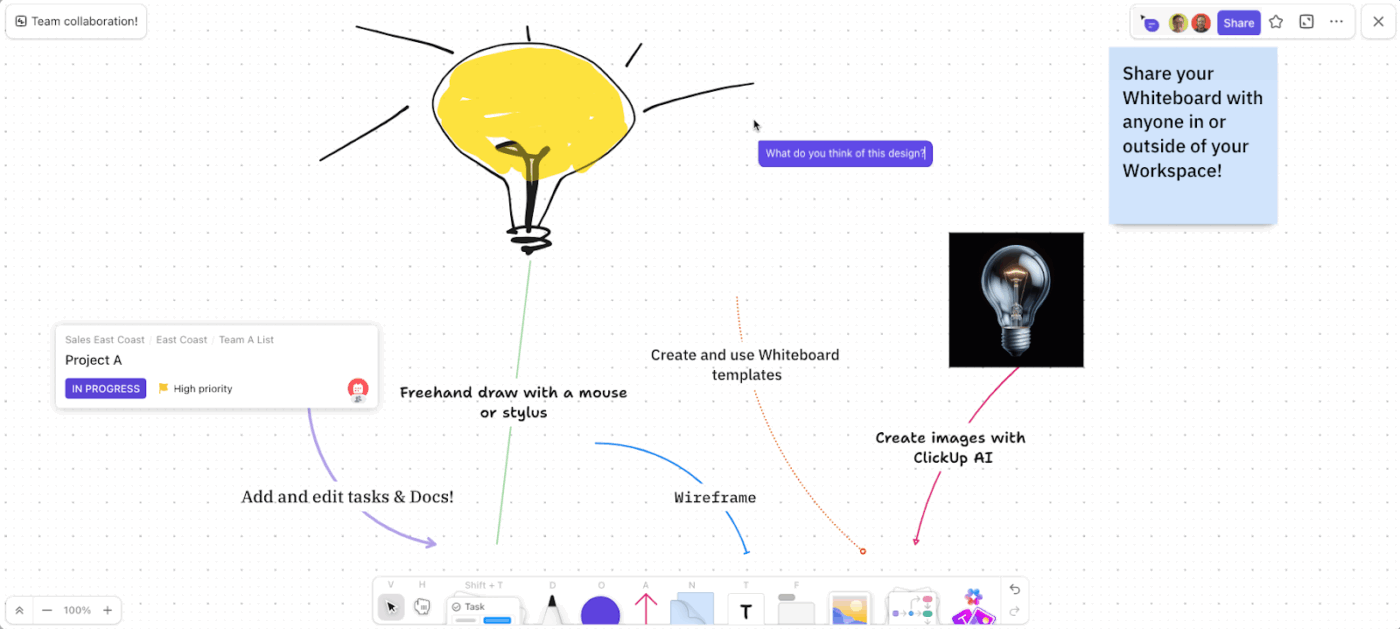
When brainstorming ideas and strategies, you have ClickUp Whiteboards. The digital canvas lets you map content calendars, user journeys, creative concepts, and workflows visually.
Add sticky notes, connect ideas, drop in tasks or Docs, and turn any node into actionable work. No more lost brainstorms or disconnected planning files. Your strategy lives right next to execution.
Draw, connect ideas, write notes, and add images and links in ClickUp Whiteboard for effective collaboration
📌 Real-world example: How Oxford University Press runs global content operations with eight Super Agents
Oxford University Press, the world’s largest university press, runs marketing and content operations across the UK, India, and the US from one ClickUp workspace.
Campaign briefs that used to take them two to three hours of back-and-forth now land in under 30 minutes, drafted by Brain². Eight Super Agents handle the review layer: one per major social platform, a blog reviewer, an alt-text generator, a UTM link checker, a Campaign Planner, and a Monday reporting agent that replaced the weekly status meeting entirely.
On a recent three-market academic launch, their Campaign Planner caught two deadline conflicts three weeks before go-live. By the time a human reviewer opens a task, the structural work is already done.
“Marketing, Web Ops, and our agents all run in one ClickUp workspace. Briefs, social reviews, status updates, all in one place. We retired our weekly status meeting because the Monday digest replaces it.“ Vartika Singh, Sr. Marketing Executive, Oxford University Press
12. Budgeting and finance tracking
Trying to control cash flow with scattered spreadsheets and last-minute approvals just drains your focus. On the other hand, ClickUp helps you build a budgeting system that’s built for how you work today.
At any given time, you open your Dashboard and see exactly how much runway you have left in months, which department is burning through its budget the fastest, and which vendor invoices are overdue.
The financial widgets in ClickUp for Finance Teams show your MRR trend line, last month’s spend vs. budget, and forecasts for upcoming expenses.
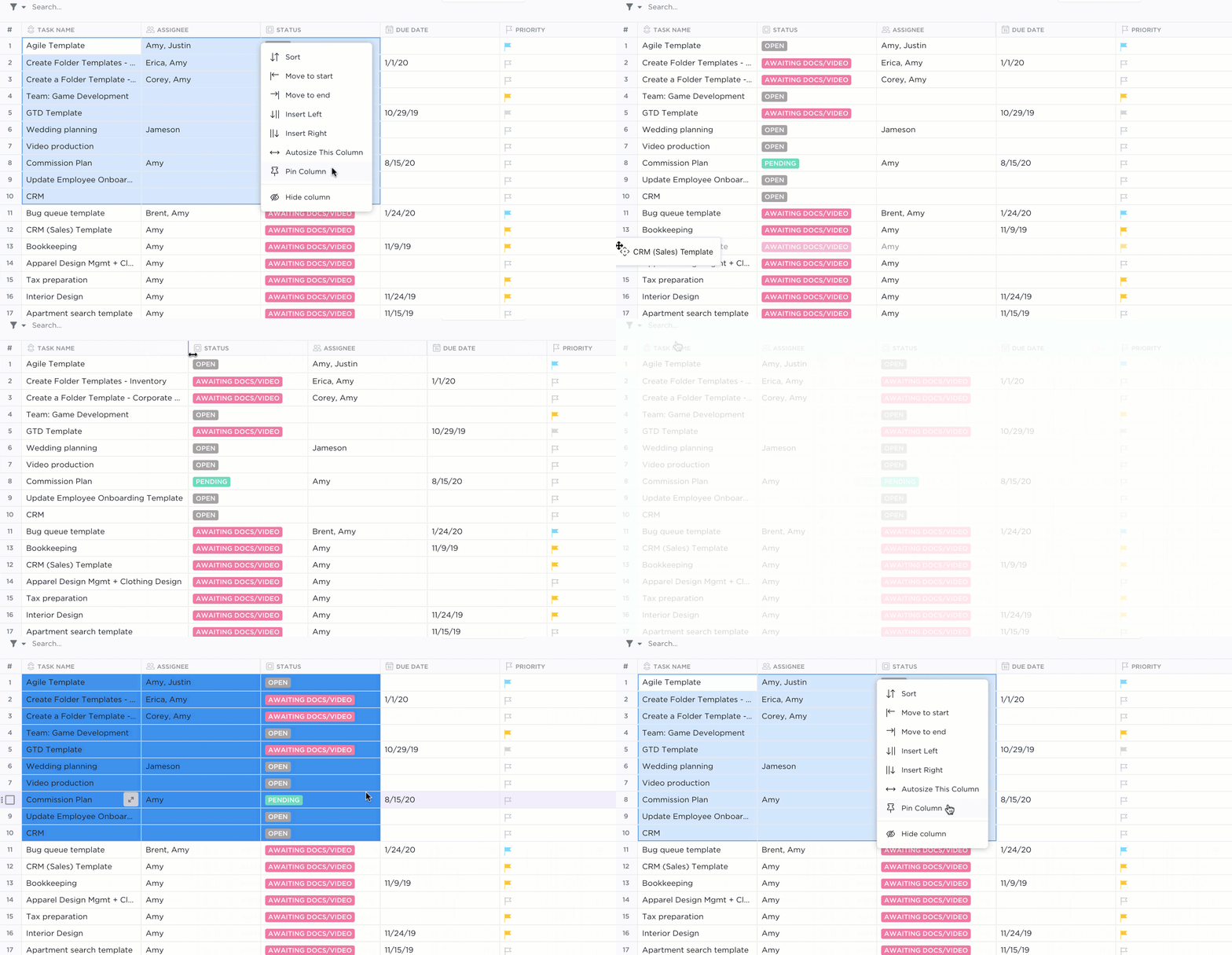
Switch to ClickUp Table View when you need to break things down line by line. Start by adding custom columns for expense categories, budget owners, due dates, and payment status to organize spending exactly how your team needs it.
Get the familiarity of spreadsheets in ClickUp’s Table View
Filter and sort your rows by department or vendor to spot trends or catch duplicate costs before they add up. When you have an expense ready for review, attach receipts right to the row and tag teammates in task comments for sign-offs.
Got more than one team fighting for the same budget? Use ClickUp Portfolios in your Dashboards to pull every project into one clear view.
See who’s on track and who’s burning through cash too fast. Zoom in on any project to check budget progress and make quick calls without second-guessing the numbers.
📌 Real-world example: One team that’s seen a major shift in productivity with Table View is Cartoon Network’s social media team.
Cartoon Network’s social media team used to struggle with scattered workflows across multiple tools. Managing campaigns for both Cartoon Network and Warner Bros meant constant context-switching and missed details.
With ClickUp’s Table View, they now track all channels in one place, making it easier to manage deadlines, assets, and priorities.
ClickUp is so customizable that no matter what someone needs, you can figure out how to do it in a way that doesn’t impact the whole system, and that works for everyone. There are things like Table View that we didn’t even knowwe needed until we had them.
Sarah Lively, Director of Social Media, Cartoon Network
13. Process improvement and auditing
Teams often struggle to track how processes actually run versus how they were designed. Without documentation or an organized process, everyone is likely to skip steps when priorities change.
ClickUp helps you bring structure, visibility, and accountability back into your processes.
Start with Custom Fields to capture the exact information your audits rely on—risk level, status reason, process owner, compliance category, evidence links, or department. Every entry is structured, searchable, and uniform across teams.
Then elevate your audits with Custom AI Fields. These fields don’t just store data—they interpret it. They can automatically:
Detect missing information (“This compliance check has no evidence attached”)
Assess risk levels based on task content
Summarize long audit notes into clear findings
Flag unusual patterns, delays, or repeated compliance gaps
Score tasks or submissions based on criteria you define
AI Super Agents can then reinforce process discipline by flagging stalled tasks, detecting missing steps, routing work to the right owner, and notifying auditors when evidence is uploaded. Agents can even read task content and highlight inconsistencies or incomplete information during audits.
Watch this video to learn how ClickUp Super Agents help manage project risk:
To map current vs. ideal workflows and visualize where breakdowns occur or are likely to happen, you have Whiteboards.
📌 Real-world example: Talent Plus, a global human resources consulting firm, needed a better way to keep over 100 team members aligned on fast-moving client projects. With different departments juggling scattered tools, work updates got lost, and leadership often lacked a clear view of project health.
ClickUp became their single source of truth, and Whiteboards made a big impact. Instead of jumping between diagramming apps and manually moving ideas into tasks, the team now maps out SOPs, brainstorms, and builds workflows visually right inside ClickUp.
When we switched to ClickUp Whiteboards, we could finally turn ideas into tasks instantly without extra steps. It saved us time and kept everyone on the same page.
Ashley Pavlik, Director of Product Development at Talent Plus
14. CRM and client work
Traditional CRMs box your teams into rigid pipelines and predefined sales stages.
If your workflow doesn’t fit their structure, you end up hacking the system, juggling external spreadsheets, or stitching tools together just to manage deals, onboarding, and client communication.
Marketing runs on one platform, sales uses another, and onboarding sits somewhere else. The result is siloed data and lost context.
ClickUp’s CRM, on the other hand, adapts to your process.
Start by building the customer database you actually need
Create Custom Fields for deal size, contract terms, lifecycle stage, renewal risk—whatever your team relies on
Link tasks, docs, files, and messages so every client interaction lives in one place
You can even map Task Dependencies to see how onboarding tasks connect with product setup or billing steps.
Then, streamline your intake with ClickUp Forms. Customers can submit requirements, briefs, or onboarding info through branded forms powered by conditional logic. Their responses instantly create tasks, apply tags, assign owners, and trigger automated workflows without manual sorting.
Collect info faster with customizable ClickUp Forms that automatically turn responses into ClickUp Tasks
Whether you’re managing leads, renewals, or post-sale service, ClickUp gives you a connected, flexible CRM that adapts to your full client lifecycle from prospect → pipeline → onboarding → ongoing account management.
📌 Real-world example: How Pharmacy Mentor serves 200 clients with a 3-person team
Pharmacy Mentor, a marketing agency for community pharmacies, had three people serving 200 clients across scattered Google Docs, Trello, and a standalone CRM. Client projects were duplicated, progress was invisible, and only 20% of clients responded to intake questionnaires.
They consolidated everything into ClickUp as their CRM and project management platform. ClickUp Forms replaced the old questionnaires and pushed client response rates from 20% to 80%. Automations send email updates that keep everyone in the loop. Master Client Cards give account executives a single view of every touchpoint, and Dashboards show client health, upcoming projects, and workload per account exec at a glance. Client projects now require 20% fewer revisions, and the team doubled productivity.
“ClickUp has helped our business become much more productive, saving time, reducing the need for pointless meetings, and vastly increasing employee and client satisfaction.” Lewis Norwood, Head of Client Relations, Pharmacy Mentor
When events are run from spreadsheets and scattered chats, so many things could go wrong. For starters, you could double-book vendors. Or forget to tell a team member about a key change, causing last-minute chaos.
ClickUp’s Event Management Platform brings every moving part of an event into one connected system. Your team stays coordinated from pre-event planning to post-event wrap-ups.
Time Management tools help you stay on schedule. Break large events into structured tasks with start/due dates, and add assignees to show clear ownership. Track billable hours, log prep time with global time tracking, and use time estimations to set accurate expectations with clients and partners.
Then, with Task Dependencies, create an order of operations. Use Priorities and ClickUp Task Checklists so your crew knows what must happen first and what can wait.
Create Task Checklists to keep every detail in check
Whether you’re checking vendor arrival times, updating run-of-show tasks, or approving last-minute changes, ClickUp’s mobile app keeps your event plan accessible.
📌 Real-world example: How Convene manages multi-client events in ClickUp
Convene, a company managing meeting and workspace solutions across multiple locations, adopted ClickUp to unite 200 professionals from diverse departments under a single event planning workspace.
Customizable templates deliver a consistent client experience across all properties, from initial planning to day-of execution. Time tracking helps forecast projects and improve delivery timelines.
The result: Fewer coordination meetings, streamlined event details, and consistent quality across locations.
Want your new hires to be up to speed quickly and not waste their time piecing things together from scattered files?
Use ClickUp Docs to write handbooks, step-by-step guides, or project notes right where the work happens. Link Docs directly to tasks so anyone can see the why behind what they’re doing without bouncing between tools.
You can also bring related Docs together to build living wikis that grow and stay fresh as your team does.
🎥 Bonus: If you’re creating an internal knowledge base for the first time, this video shows you how to create one with ClickUp.
After you put together these docs, create ClickUp Automations to handle the rest. The moment someone joins, their tasks kick off automatically.
Welcome messages, first-day steps, and reminders all stay on track without you having to chase things down. Everyone knows what to do next, and you get more time to help them settle in for real.
📌 Example: An HR team streamlines operations with ClickUp and reduces the chaos of scattered SOPs and constant employee questions.
They draft recruiting workflows, onboarding checklists, and compliance SOPs with Brain², which pulls language and standards from their existing HR documents.
All finalized SOPs are stored in ClickUp Docs, neatly organized with pages for hiring, benefits, training, and performance reviews. When policies change, HR updates the Doc once, and every team instantly sees the latest version.
During onboarding and daily operations, employees rely on Brain² with Enterprise Search to get immediate answers. They can ask questions like “What’s our leave approval process?” or “Where do I find the IT asset form?” and the AI fetches the exact policy, the Doc link, and next steps based on the context.
Find anything across your workspace with Enterprise AI Search
You know that feeling when a launch is days away, and you’re still working on last-minute copy tweaks or a bug fix that’s holding everything up?
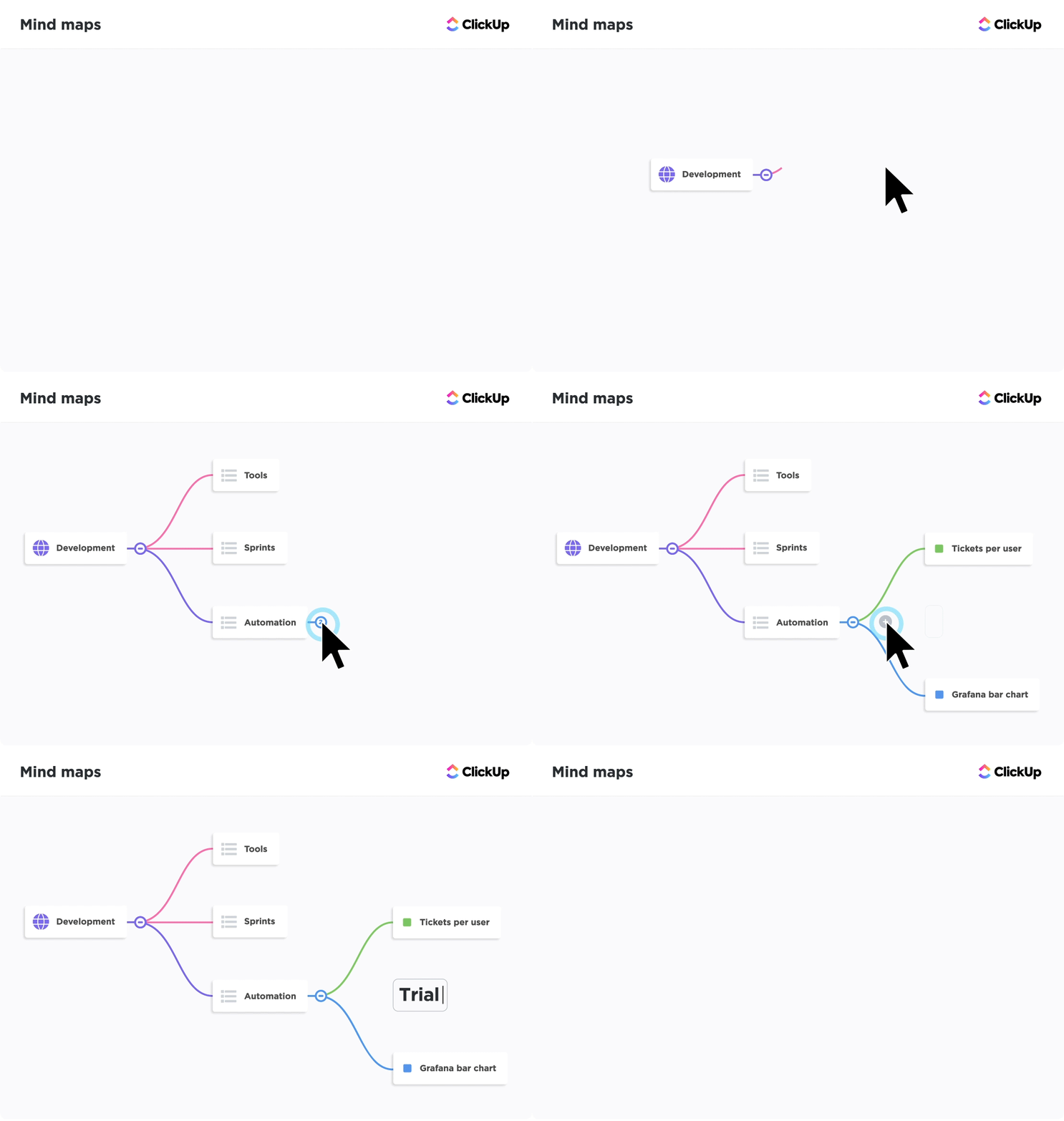
ClickUp’s Mind Maps help software development teams pull every piece into one clear plan from beta testing notes to final promo posts.
You can start with a blank mind map to capture ideas for features, tasks, campaign steps, and any loose thoughts from your team. As branches grow, you can drag and drop them around to shape the plan and connect related pieces. When you’re ready, flip any branch into a real ClickUp Task right from the map.
Visualize ideas and tasks clearly with ClickUp Mind Maps
Once the tasks are rolling, ClickUp Dependency Relationships keep your plan in sync. Mark tasks as waiting on others when something must be done first, flag blockers that hold up the next piece, or link related tasks for better context.
When dates shift (because they always do), ClickUp’s Reschedule Dependencies ClickApp automatically moves linked start and due dates to match. So if your final design file is delayed by a week, the next steps push out too without manual updates.
📌 Real-world example: How Lulu Press aligns product, dev, and marketing for every launch
Lulu Press, a self-publishing platform serving creators in 225+ countries, was running product development and marketing campaigns across Jira and Basecamp. Manual status updates, scattered requests across emails and chats, and disjointed workflows slowed every release.
After consolidating into ClickUp with GitLab integration, cross-team visibility improved immediately. Product, development, and marketing now work from one connected workspace where every release has a shared timeline, clear owners, and automated handoffs.
The team saw a 12% increase in work efficiency and 100% company-wide adoption.
18. Service and support operations
Ask any support manager what keeps them up at night, they would say ‘visibility.’ What’s stuck? Or escalated? What’s about to breach an SLA?
When those answers live across multiple platforms, reporting loses clarity and becomes guesswork.
ClickUp Integrations with 1000+ tools, including Intercom, Zendesk, Help Scout, Gmail, and Slack, ensure tickets convert into ClickUp tasks.
From there, Multiple Assignees lets teams collaborate on complex issues (like billing + technical + compliance tasks) without breaking a ticket into unnecessary duplicates. Everyone sees who owns what, and progress updates stay in one place.
Use Task Tags to categorize issues instantly (SLA breach risk, refund request, P1 bug, VIP customer). Then add Task Priorities so agents know what must be handled right now, what can wait, and what needs escalation.
If your support team is already overwhelmed with support tickets, it’s time to use AI customer service agents to offload the repetitive tasks.
📌 Real-world example: How Guardian Angel Carers manages support across 18 franchise branches
Guardian Angel Carers coordinates 500+ carers across 18 individually owned home-care branches in the UK. Support queries, compliance questions, and performance reviews used to live in a shared Outlook inbox, spreadsheets, and handwritten notes.
Now every query moves through a tracked ClickUp workflow with custom statuses (allocated, awaiting response, resolved), urgency fields, originating branch, and due dates. A Super Agent files the weekly performance report automatically every Friday at 4:30 PM. Each branch has its own Space with dashboards showing lead sources, conversions, and where the next marketing spend should go.
“Support queries used to live in a shared Outlook inbox, growth in spreadsheets, and my handwritten to-do list. Consolidating all 18 branches into one ClickUp workspace gave us a single system of record and made consistency possible.”
Tyler, National Operations, Guardian Angel Carers
19. Compliance and audit readiness
Forget rummaging through old folders and scattered emails just to answer a simple audit question. With ClickUp, every policy, approval, and control update lives in a single, structured system that’s up to date and traceable.
Here’s how it keeps your audit and compliance documentation audit-ready:
Set up advanced Permissions to control who can view, comment, or edit sensitive folders and docs. For example, you can give your compliance team full access but limit others to view-only, so nothing important gets changed by accident
If an update does happen, the Activity Log tracks every change in detail. You’ll always know who made edits and when
If you’re someone who forgets the routine checks, ClickUp Recurring Tasks helps you stay ahead before an audit catches you off guard. Build license renewals, policy reviews, or safety inspections that repeat on the schedule you choose.
Tasks recreate themselves when marked done or appear automatically on a set date. With ClickUp Notifications, your team gets reminders right in their inbox or in ClickUp, so everyone stays on track.
A regulatory compliance checklist Super Agent, configured with your specific requirements, can run through each task, flagging missing elements
📌 Real-world example: How Magical Moments ABA runs HIPAA-compliant operations across four states
Magical Moments, an Applied Behavior Analysis therapy organization, delivers clinical services across Indiana, Georgia, Virginia, and North Carolina with 71 ClickUp users on Enterprise.
Every non-clinical workflow (client intake, talent acquisition, staffing, quality assurance, multi-state community engagement) runs inside ClickUp, while sensitive clinical data stays in their EMR. The two systems connect via API without compromising either.
ClickUp Enterprise’s HIPAA compliance handles the operational layer, and the separation between systems means audit readiness is built into the workflow, not bolted on after.
“We handle sensitive client data across four states, so HIPAA compliance isn’t optional. ClickUp Enterprise checks that box while keeping clinical outcomes in our EMR. Each system does its intended job.” Jacob, Operations, Magical Moments ABA
20. Design ops
The last thing you want is your design team to get stuck on endless review cycles, unclear priorities, and scattered feedback.
Use the Proofing feature to annotate images, videos, PDFs, and Figma exports directly inside ClickUp.
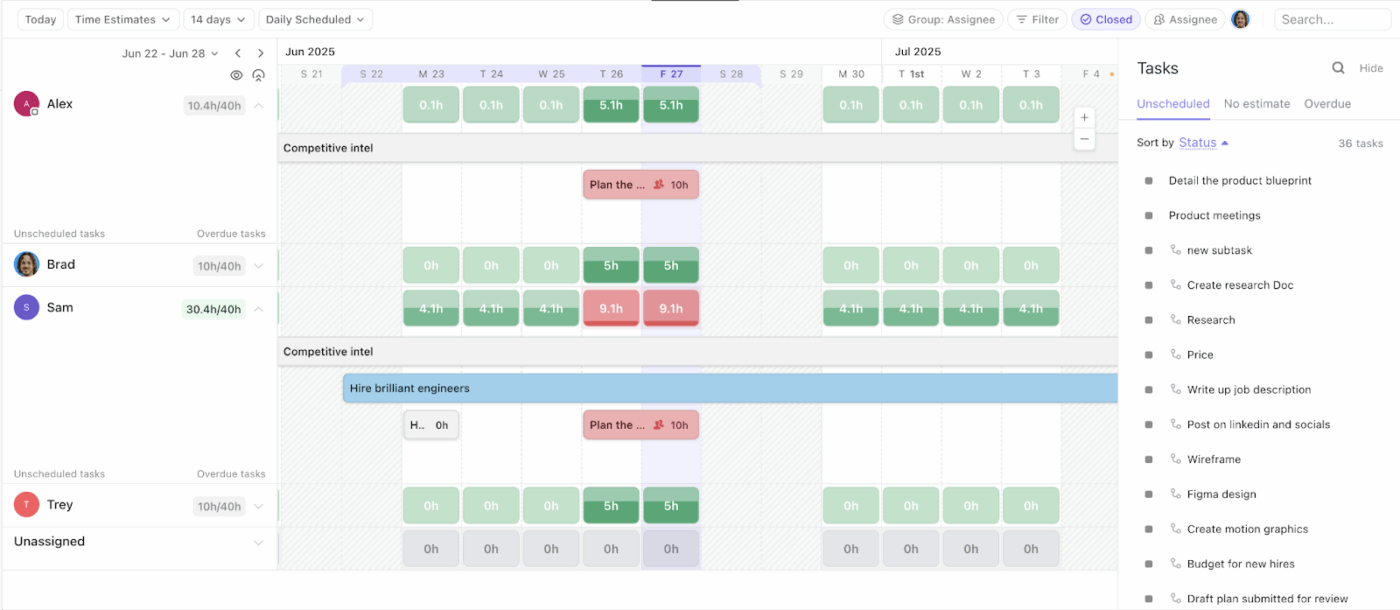
With Workload View, design managers can instantly see who’s overloaded, who has bandwidth, and where bottlenecks are forming. This helps assign work fairly and spot issues early, especially during big campaign pushes or product launches.
Visualize your team’s work and capacity over a day, week, and month with Workload View
Teammates can use Brain² to generate concept images, mood-board elements, and quick visual drafts. It’s perfect for early-stage brainstorming, A/B variations, or placeholder assets that can then be fine-tuned by designers.
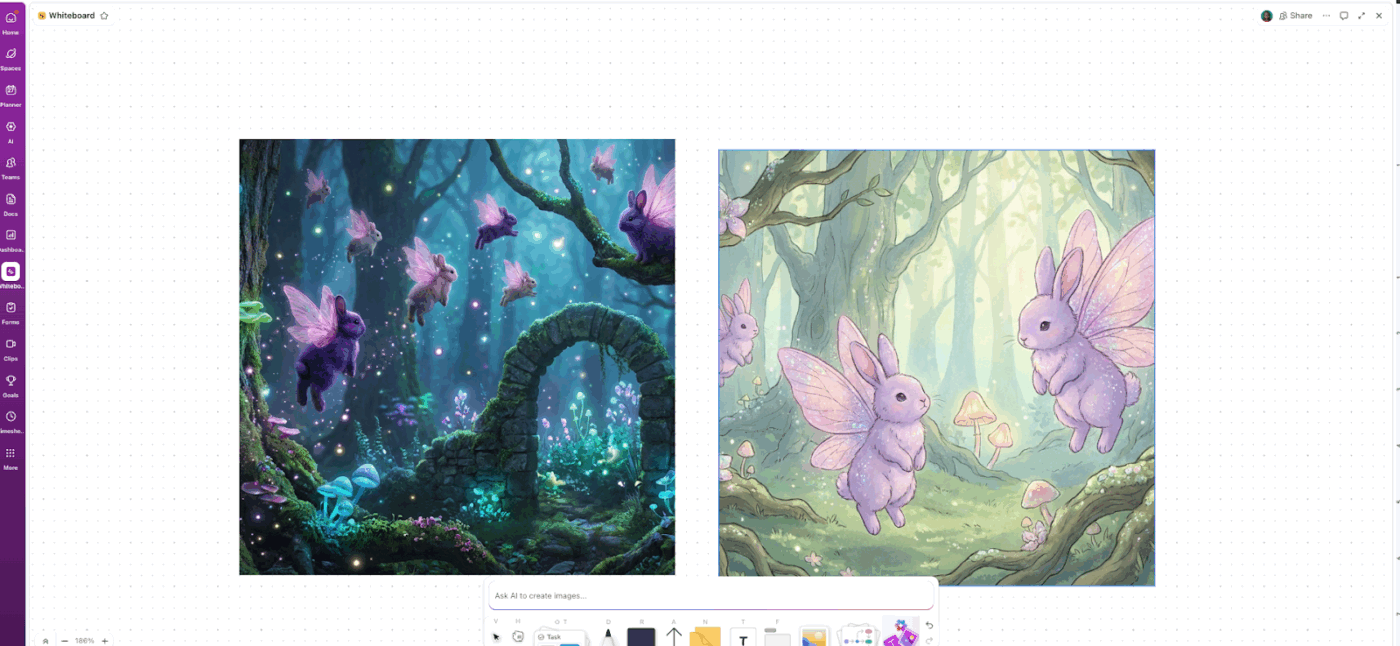
Use Brain² to generate images with ClickUp Whiteboards
⭐ Bonus: Use Voice Clips during design reviews. Record a quick walkthrough explaining layout decisions or motion choices, and let ClickUp transcribe everything so copywriters, PMs, and developers get the full context without a meeting.
📌 Real-world example: How RedCube Creative runs design, production, and web delivery in one workspace
RedCube Creative, a multimedia production and design agency in Georgia, was running photo/video production, web development, and graphic design across Slack and Monday. Project status lived in the project manager’s head, details got dropped between tools, and keeping everyone aligned was its own layer of labor.
After moving to ClickUp, web, production, and design teams work from one shared workspace. Dashboards give a one-glance view of all active client work across every creative discipline. Chat replaced Slack for internal communication, and project management time dropped by nearly half a day per person each day. The transition took two weeks.
“ClickUp has been the most feature-rich project management and communication platform at a reasonable price that we have used in our 8 years of existence.“
Summarize this article with AI ClickUp Brain not only saves you precious time by instantly summarizing articles, it also leverages AI to connect your tasks, docs, people, and more, streamlining your workflow like never before.
Summarize this article for me please
Is ClickUp Free? Plans & Pricing Explained
Yes. ClickUp offers a Free Forever plan with unlimited tasks, unlimited members, collaborative Docs, Calendar, Kanban boards, Sprint Management, and trial access to Brain² AI features. No credit card required, no time limit.
When your team outgrows the free tier, paid plans unlock more storage, automations, integrations, and admin controls:
Brain² AI is available as an add-on on any paid plan. The Brain AI add-on ($9/user/month) includes unlimited Brain² conversations, premium model access (Claude, GPT, Gemini), and 1,500 AI Super Credits per user per month. The Everything AI add-on ($28/user/month) bundles in AI Notetaker, AI Fields, expanded Super Agent credits, and more.
Free Forever workspaces get trial access to Brain² (25 uses per workspace,) and 500 AI Super Credits to test Super Agents, AI Cards, and other premium AI features before committing to a paid plan.
Summarize this article with AI ClickUp Brain not only saves you precious time by instantly summarizing articles, it also leverages AI to connect your tasks, docs, people, and more, streamlining your workflow like never before.
Summarize this article for me please
ClickUp Pros, Cons & Limitations
ClickUp’s main trade-off is depth. The same flexibility that lets it replace multiple tools means there’s more to explore upfront. Here’s a straightforward look at where ClickUp shines and what to expect when getting started.
Where ClickUp stands out:
Consolidation: Tasks, docs, chat, dashboards, and AI in one workspace. Teams regularly replace 3+ tools after switching
Customization: Statuses, Custom Fields, Task Types, views, and Automations all bend to how your team works, not the other way around
AI built into the workflow: Brain² isn’t a bolt-on chatbot. It sits inside your tasks, docs, and chats with the full context of your workspace, so it gives answers grounded in your actual work.
Free tier that’s genuinely usable: Unlimited tasks and members at $0 is rare in this category. Most competitors gate basic features or cap users
What to know before you start:
There’s a lot to discover: ClickUp packs more features than most work tools, so teams coming from simpler apps like Trello or Todoist may want a few days to explore. Templates, guided setup, and Brain² make this faster than it used to be
Setup makes the difference: The teams that get the most from ClickUp are the ones who take time to configure their Spaces, statuses, and Automations. A quick-start template gets you running in minutes, and you can refine as you go
Storage on the free plan is limited: Free Forever caps storage at 60MB, which works for lightweight projects. Teams working with images, PDFs, or design files will want to upgrade to Unlimited for unlimited storage
Full AI is a paid add-on: Every plan includes trial access to Brain², but unlimited AI capabilities (Super Agents, AI Notetaker, premium models) require a paid plan plus an AI add-on starting at $9/user/month
Built for teams, not just to-do lists: ClickUp is designed for teams consolidating multiple tools into one workspace. If you only need a personal checklist app, it may offer more than you need right now, though it’ll be ready when your needs grow
Bottom line: ClickUp rewards teams that invest a little time in setup. If you’re replacing a patchwork of disconnected tools and want everything in one place, that time pays back fast.
Summarize this article with AI ClickUp Brain not only saves you precious time by instantly summarizing articles, it also leverages AI to connect your tasks, docs, people, and more, streamlining your workflow like never before.
15+ views including Gantt, Kanban, Calendar, List, Mind Map, and more
List, Board, Calendar, Timeline
Board, List, Calendar (no native Timeline/Gantt)
Kanban Board native, Calendar and others (via Power-Ups)
Time Tracking
Native time tracking and estimates
Available in Premium and Business plans
No native time tracking; can integrate with third-party tools
Available via Power-Ups (e.g., Time Doctor, Harvest)
Docs and Wikis
Built-in Docs, Notepad, and Whiteboards
Limited; primarily task-focused
Robust documentation capabilities with rich text formatting
Limited; can use attachments or links to external documents
Automations
Advanced automations with conditional logic and custom triggers
Basic automations in Premium and Business plans
No native automation; can integrate with third-party tools
Butler automation (available in Business Class and Enterprise plans)
Goal Tracking
Native Goals feature with measurable targets and progress tracking
Available in Premium and Business plans
No native goal tracking; can create custom databases to track goals
No native goal tracking; can use Power-Ups or external tools
Sprints/Agile
Full support for Agile workflows, including sprint planning, backlog, and burndown charts
Limited Agile features; can use Timeline and Boards for basic Agile workflows
No native Agile support; can create custom workflows using databases and templates
Limited Agile support; can use Power-Ups like Agile Cards or Corrello
Resource management
Native workload management, capacity planning, and resource allocation
Available in Business and Enterprise plans
No native resource management capabilities
Available via Power-Ups (e.g., TeamGantt, Placker)
Integrations
Over 1,000 integrations, including Slack, Google Drive, Zoom, Microsoft Teams, and more
Integrates with popular tools like Slack, Google Drive, Microsoft Teams, and more
Limited integrations; can connect with tools like Slack, Google Drive, and GitHub via API or Zapier
Integrates with tools like Slack, Google Drive, Microsoft Teams, and more via Power-Ups
Pricing*
Free plan available; paid plans start at $7 per user/month
Free plan available; paid plans start at $10.99 per user/month
Free plan available; paid plans start at $8 per user/month
Free plan available; paid plans start at $5 per user/month
*Please check the tool website for the latest pricing
Summarize this article with AI ClickUp Brain not only saves you precious time by instantly summarizing articles, it also leverages AI to connect your tasks, docs, people, and more, streamlining your workflow like never before.
Summarize this article for me please
How to Get Started with ClickUp
Getting started with ClickUp is simple.
Sign up for a free account and invite a few teammates so you’re not exploring alone. We promise the user-friendly interface needs no learning curve.
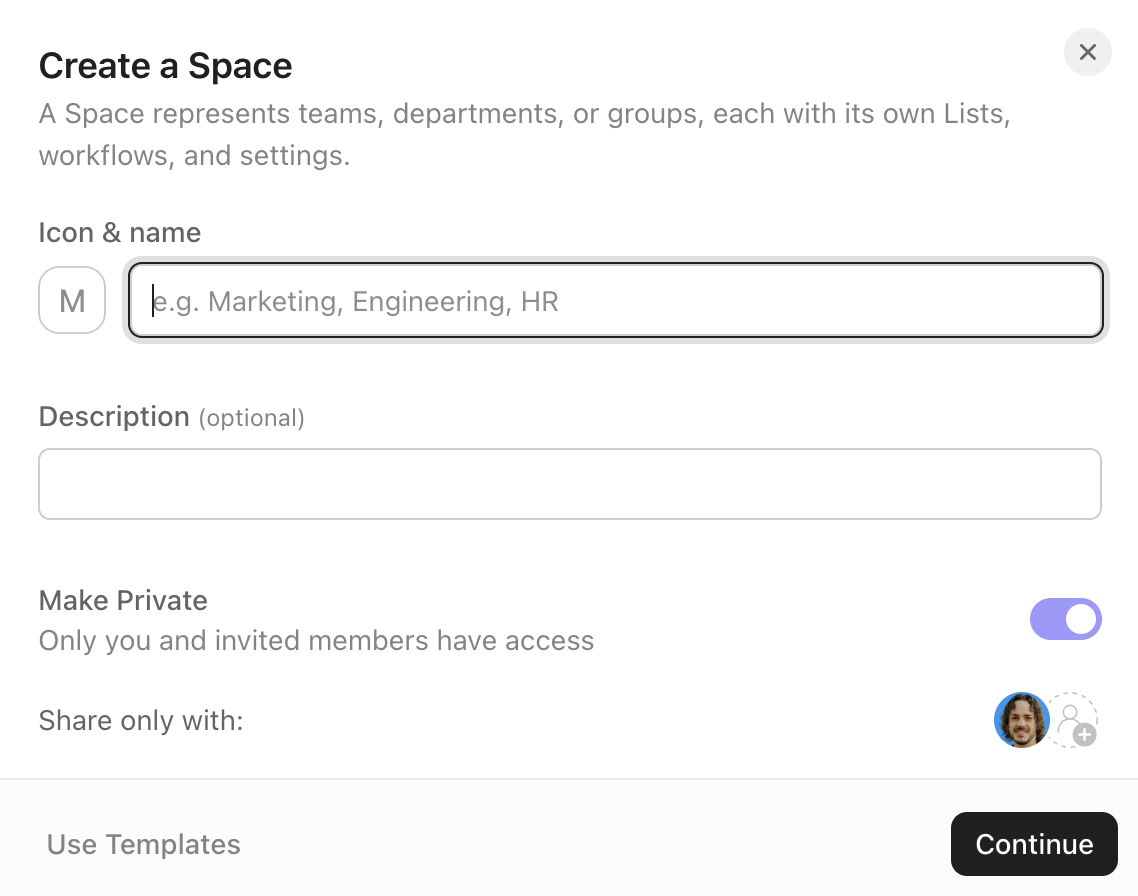
Next, create your first Space: think of it like a home base for a project, department, or client work. Add a few Folders and Lists inside to break things down further. Your tasks live here, ready to be organized however you like.
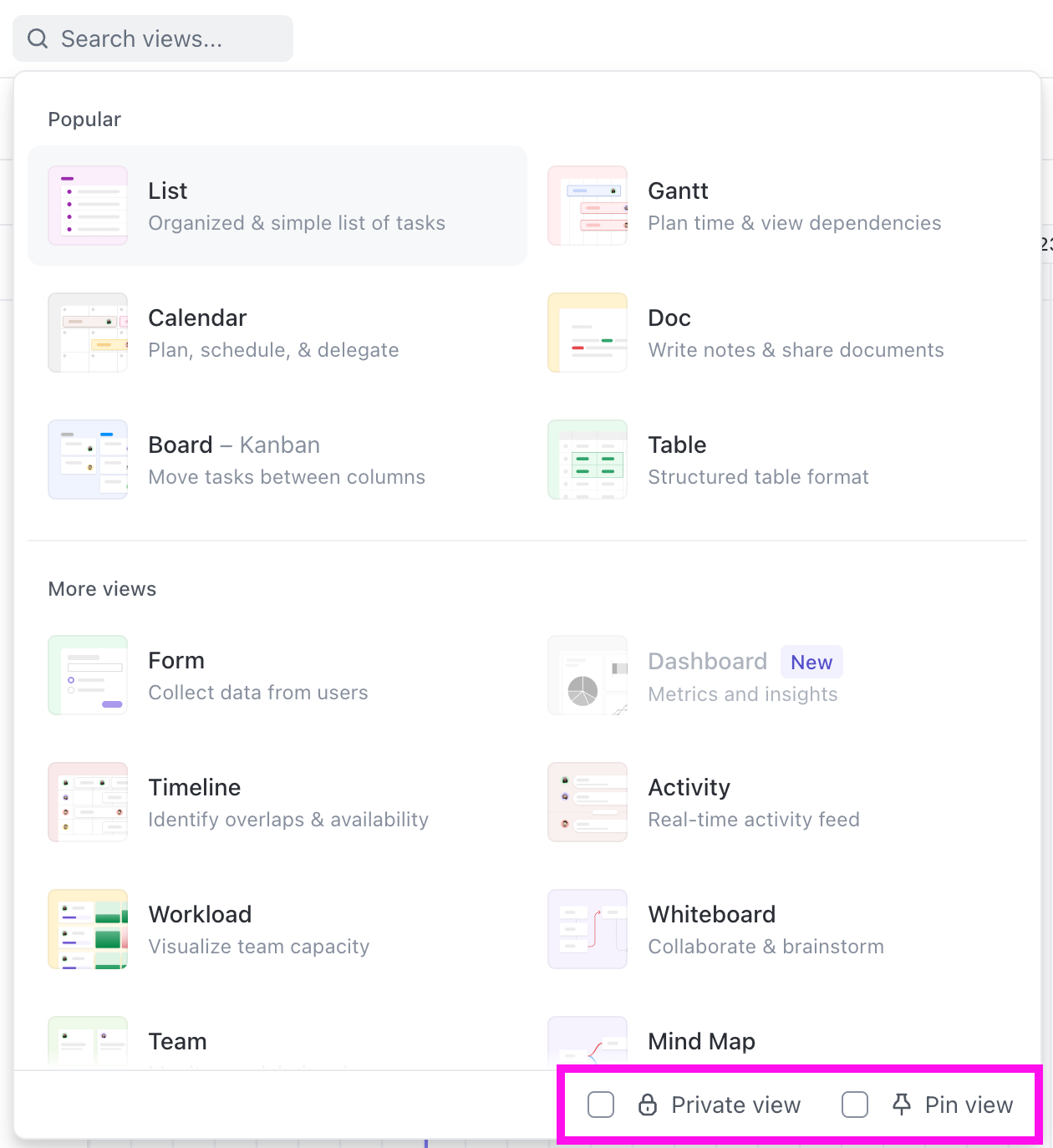
Try out different Views like List, Board, or Calendar to see which layout fits your style best. Don’t hesitate to experiment; you can always switch it up later.
Want an extra boost? Turn on Brain² to help you set up the workspace. It can create lists and tasks, assign relevant statuses, and give a complete workflow customized to your preferences.
Let AI build you a customized workspace, complete with lists, tasks, and other relevant details
Finally, connect your favorite tools, invite the rest of your team, and hit the ground running. The sooner you start working in ClickUp, the sooner you’ll wonder how you ever managed work without it.
⭐ Bonus: Learn ClickUp faster with ClickUp University. If your team wants to master ClickUp’s customizable features without guesswork, ClickUp University is the best place to start. You get video tutorials, allowing users to learn at their own pace and build confidence with real workflows. Each module gives valuable insight into how teams use ClickUp in practice, so you can pick up techniques that translate directly into your event and logistics processes.
Summarize this article with AI ClickUp Brain not only saves you precious time by instantly summarizing articles, it also leverages AI to connect your tasks, docs, people, and more, streamlining your workflow like never before.
Summarize this article for me please
Centralize Your Work and Boost Productivity with ClickUp
If you’re jumping between different tools for different purposes, like tasks, docs, chat, goals, sprints, or reminders, ClickUp is the only workspace you really need.
It unifies every piece of your work. Complex projects, quick checklists, team conversations, and even your personal to-dos are organized and customizable in project management software.
Need to plan a product launch? Run an Agile sprint? Take meeting notes and assign action items on the fly? ClickUp handles it all in one place.
With powerful views like Gantt charts, Boards, Calendars, and Whiteboards, plus built-in AI, automations, and integrations, ClickUp keeps everyone aligned on the project progress.
👉 Ready to replace all those extra apps? Start using ClickUp today and bring all your work together under one roof.
Summarize this article with AI ClickUp Brain not only saves you precious time by instantly summarizing articles, it also leverages AI to connect your tasks, docs, people, and more, streamlining your workflow like never before.
Summarize this article for me please
Frequently Asked Questions About ‘What Is ClickUp Used For?’
What is ClickUp mainly used for?
ClickUp is used to run an entire team’s work inside one workspace. Projects, tasks, docs, chat, dashboards, and AI all live together, replacing separate tools like Asana, Notion, Slack, and Trello. Teams use it for project management, task management, software development, collaboration, reporting, CRM, and 15+ other workflows. Brain², ClickUp’s context-aware AI, adds intelligent search, automation, and content creation across every surface.
Is ClickUp actually free?
Yes. ClickUp offers a Free Forever plan with unlimited tasks, unlimited members, collaborative Docs, Calendar, Kanban boards, and Sprint Management. No credit card required, no time limit. You also get trial access to Brain² AI features. Paid plans (Unlimited at $7/user/month, Business at $12/user/month, and Enterprise) add unlimited storage, advanced automations, and admin controls. Full AI capabilities are available as an add-on starting at $9/user/month.
What are the downsides of ClickUp?
ClickUp’s main trade-off is depth. The same flexibility that lets it replace multiple tools means there’s more to explore when getting started. Teams coming from simpler apps may want a few days to find their footing, though templates and AI-assisted setup make this faster than it used to be. The Free Forever plan caps storage at 60MB, and full AI features require a paid add-on. ClickUp is built for teams consolidating multiple tools, so solo users who only need a basic checklist may find it offers more than they need right now.
Why is ClickUp so popular?
ClickUp is popular because it collapses project management, docs, chat, and AI into one workspace, cutting the cost and context-switching of separate subscriptions. Over 5 million teams use it, and users created more than 3.6 billion tasks in 2025 alone. Its customization lets engineering, marketing, sales, HR, and operations teams all work inside the same platform without compromising on how each team structures their workflow.
Everything you need to stay organized and get work done.