






Still downloading templates?
There’s an easier way. Try a free AI Agent in ClickUp that actually does the work for you—set up in minutes, save hours every week.
Sorry, there were no results found for “”
Sorry, there were no results found for “”
Sorry, there were no results found for “”
It’s 9:55 a.m. Your team jumps on a Zoom call. Decisions get made. Action items fly. Thirty minutes later, you’re copying notes into task boards and forwarding links so nothing slips.
Here’s the fork in the road. Zoom is a leading video conferencing platform built for video calls and reliable screen sharing. ClickUp SyncUp lives closer to the work. You can schedule meetings, capture meeting notes, and trigger automated task creation linked to tasks and owners.
There’s a reason this feature matters. Microsoft’s Work Trend Index shows that the average employee spends 57% of their time in meetings, email, and chat. That’s a lot of talk that needs to become action fast.
This guide compares Zoom vs. ClickUp SyncUp so remote teams can pick what fits their day-to-day activities, whether they want best-in-class calling or meetings that flow straight into work.
When you compare Zoom vs. ClickUp SyncUp, you’re really choosing between a standalone video conferencing platform and a meeting layer that lives inside your project management workspace.
Here’s an overview of their key features, task creation abilities, and other advanced features:
| Feature | ClickUp SyncUp | Zoom Meetings |
| Core focus | Built into ClickUp as part of a Converged AI Workspace for project management and team communication | Standalone video conferencing platform for hosting and joining online meetings and webinars |
| Everyday standups and project updates | Start SyncUps from Lists, views, or tasks so teams review boards, update tasks, and talk in the same place | Run HD video calls with screen sharing and chat, but boards and trackers usually sit in a separate project tool |
| Task and project management | Full task and project hierarchy with owners, due dates, dependencies, dashboards, and automated task creation from meetings | No native project management; action items from Zoom meetings must be created in external tools |
| Meeting notes and automated action items | ClickUp Brain and AI Notetaker create summaries, searchable transcripts, and tasks that link directly to docs and views | Zoom AI Companion generates summaries and suggested action items that still need to be pushed into project tools |
| Screen sharing and screen recordings | Share your screen in SyncUps, and save SyncUps and Clips in the Clips Hub with transcripts and comments tied to tasks | Share screens in Zoom meetings and record sessions to local or cloud storage, then share links separately |
| Scheduling and integrations | Schedule meetings where you manage work and use the ClickUp–Zoom integration to start Zoom meetings from tasks | Schedule Zoom meetings from the Zoom app or calendar integrations and add Zoom links to Google or Outlook events |
| Reporting and visibility after meetings | Dashboards show how meeting-driven changes affect workloads, burndown, and delivery in real time | Analytics focus on meeting usage and quality, not on project outcomes or sprint health |
| Best for | Teams that want SyncUp features, meeting notes, and automated task creation attached to project management in one workspace | Teams that need a familiar Zoom alternative to in-person meetings and fast video calls across devices |
📖 Also Read: AI Tools for Meetings
ClickUp is a converged AI workspace that brings tasks, docs, chat, meetings, and AI into one place so teams can plan, execute, and report without jumping between tools.
Picture a department lead running a cross-functional rollout.
Updates live in Zoom chat, follow-ups sit in the inbox, and the latest scope change is buried in someone’s personal notes. Every switch costs focus and makes it harder to see what actually moved forward.
ClickUp is built to reduce this work sprawl by keeping everything connected in a single workspace.
With ClickUp SyncUp and ClickUp Meetings, teams can start quick video calls from the same lists and tasks they already use, capture meeting notes in context, and tie decisions directly to owners and deadlines.
ClickUp AI Notetaker and ClickUp Brain then turn those conversations into summaries and action items, so “we talked about it” becomes “it’s in the system” automatically.
If you still rely on Zoom for larger briefings or external calls, the ClickUp–Zoom integration lets you start or join Zoom meetings from ClickUp Tasks, Docs, and Chat, and keep the join link and recording attached to the work.
One user put it simply:
The ability to create custom views, dashboards, and fields is amazing. I also love the wide range of features it offers, from task management and time tracking to document collaboration and goal setting. It’s truly an all-in-one workspace.
Customer ratings and reviews:
📖 Also Read: Collaboration in the Workplace
Here’s how ClickUp features help remote teams replace “call, copy notes, then update the board later” with meetings that live right inside their project management workflows.
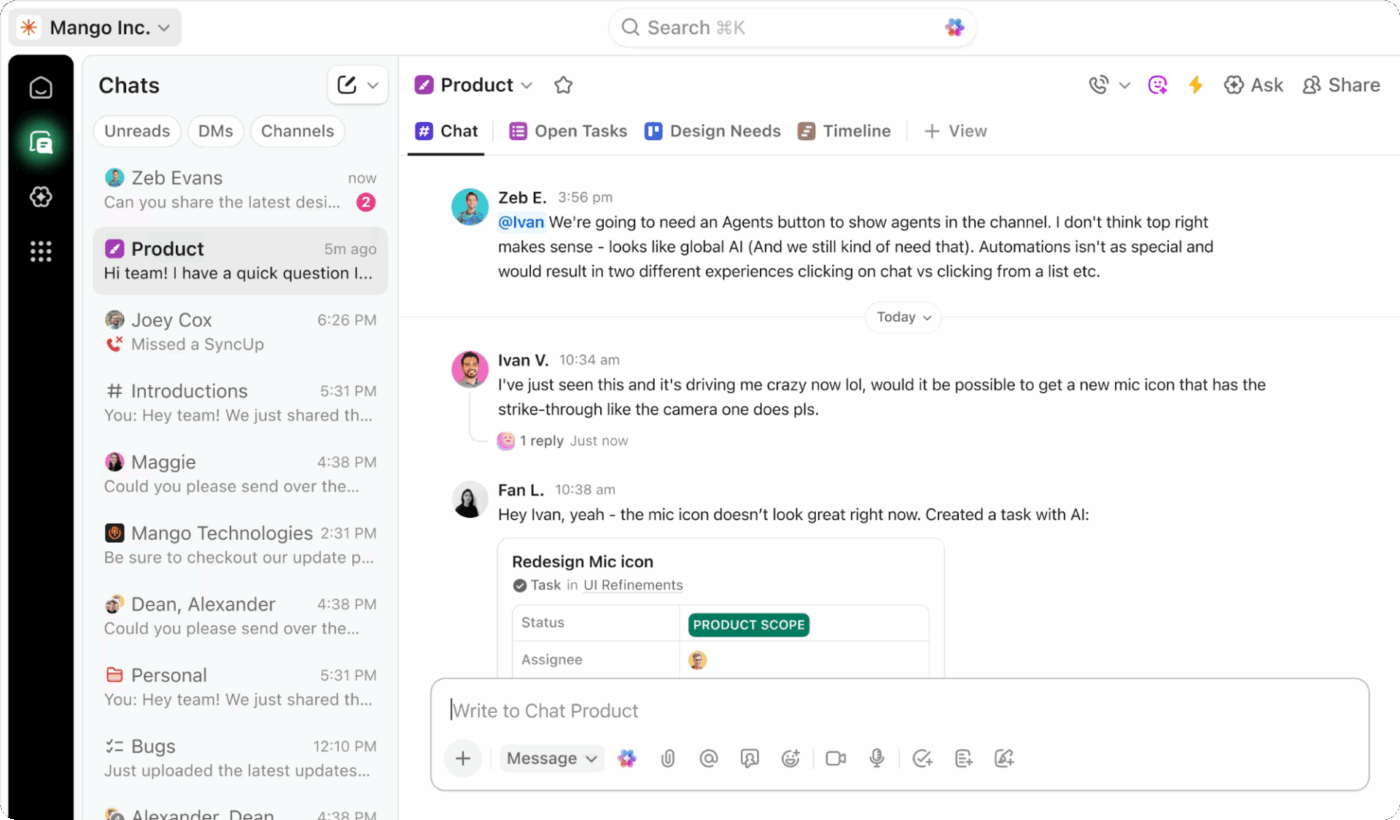
ClickUp Chat combines real-time messaging and work management so conversations never drift away from the tasks they impact.
Teams can chat in channels or direct messages, share files, and turn any message into a task in ClickUp Tasks in one click. This ensures that decisions, files, and action items remain in the same workspace, which makes them easier to track and locate.
ClickUp’s AI can also summarize long threads and suggest tasks from the conversation, which is especially handy after a busy day of back-and-forth. Instead of scrolling through Zoom chat logs or scattered DMs, you receive clean takeaways and actionable work inside ClickUp Chat itself.
📌 Example: A product squad discusses a bug in a ClickUp Chat channel, attaches screenshots, and agrees on the fix. The PM converts the message into a task in ClickUp, assigns an engineer, and sets a due date. When the fix is complete, the task status, comments, and attachments show the full story. No more relying on old chat threads.

ClickUp SyncUp brings lightweight video calls directly to your ClickUp Workspace.
You can start a SyncUp from a List, task, or chat, and keep working in your ClickUp workspace while the call is live.
Screen sharing, comments, and task links all live in the same place, which makes status updates and quick stand-ups easier to run and easier to follow through on. Because SyncUps are part of ClickUp Chat, you don’t need a separate meeting app for internal check-ins.
But when you do need a fully fledged Zoom meeting (perhaps for an external demo or webinar), you can start Zoom meetings from ClickUp Tasks, Docs, and Chat using the Zoom integration.
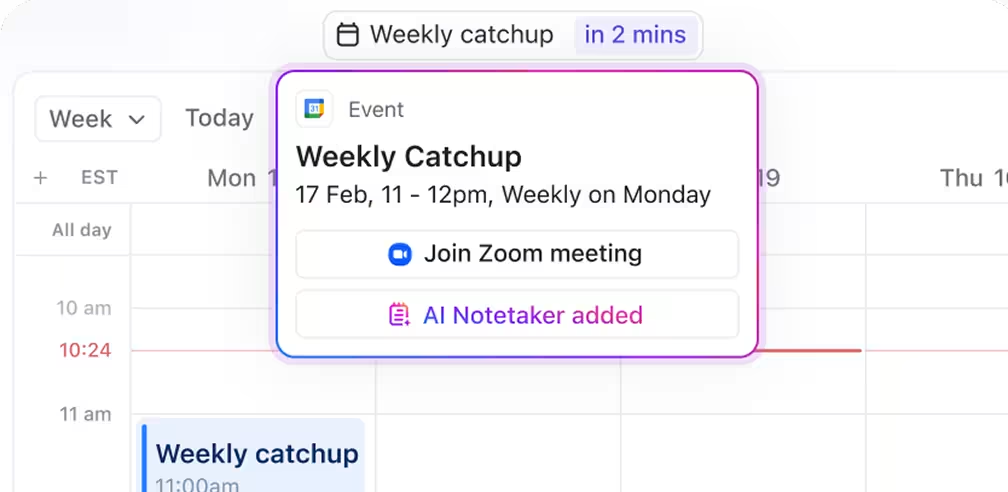
The join link is automatically added as a task comment, assignees and followers get notified when the meeting starts, and recording links can be attached to the same task for easy reference.
📌 Example: A remote engineering team hosts a daily SyncUp from their sprint List. They open the board, review blockers, and create new tasks while on the call. For the monthly customer webinar, the CSM starts a Zoom meeting from a ClickUp task, presents from there, and later drops the Zoom recording link onto the same task so sales and support can revisit the call without asking for the link again.
💡 Fun Fact: Research suggests up to one-third of meetings are unnecessary, and inefficient meetings are a top barrier to productivity. Tools that tie discussion to tasks help reduce that waste.
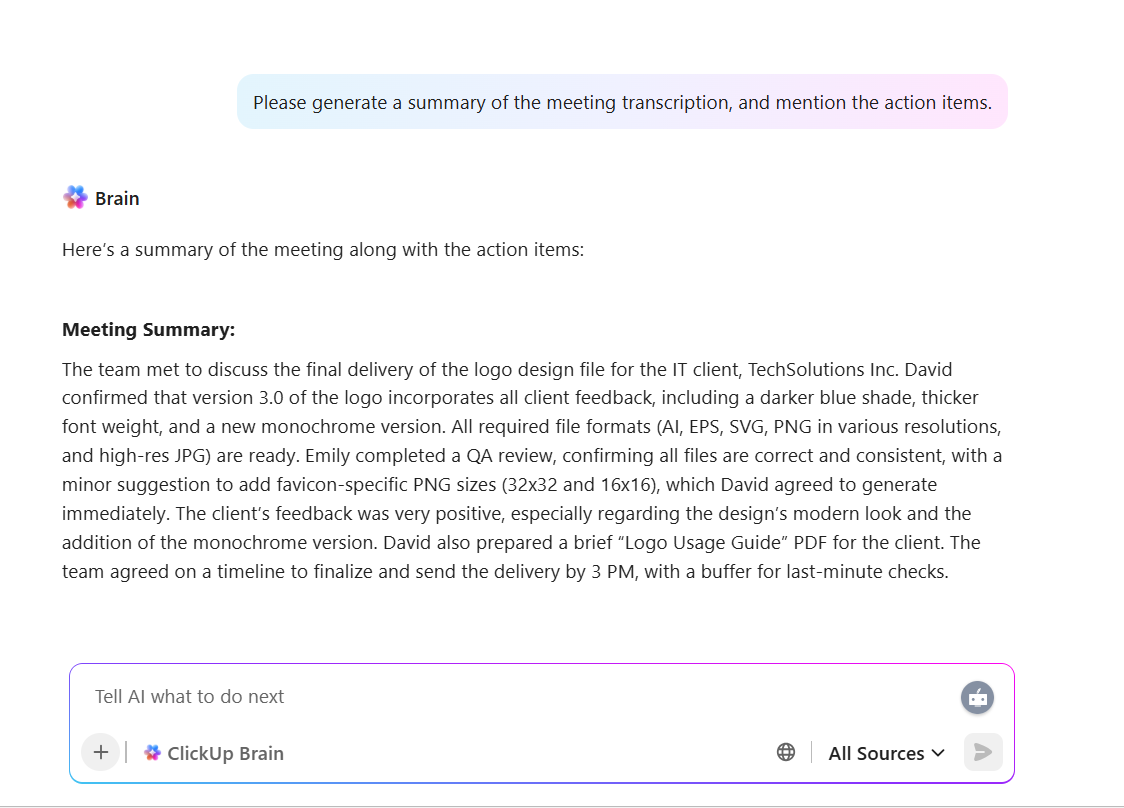
ClickUp Brain and ClickUp AI Notetaker close the loop between “we talked about it” and “it’s in the system.”
AI Notetaker can automatically join your meetings, capture meeting notes, highlight key decisions, and turn action items into ClickUp Tasks as soon as the meeting wraps (whether you ran a ClickUp SyncUp or a Zoom meeting).
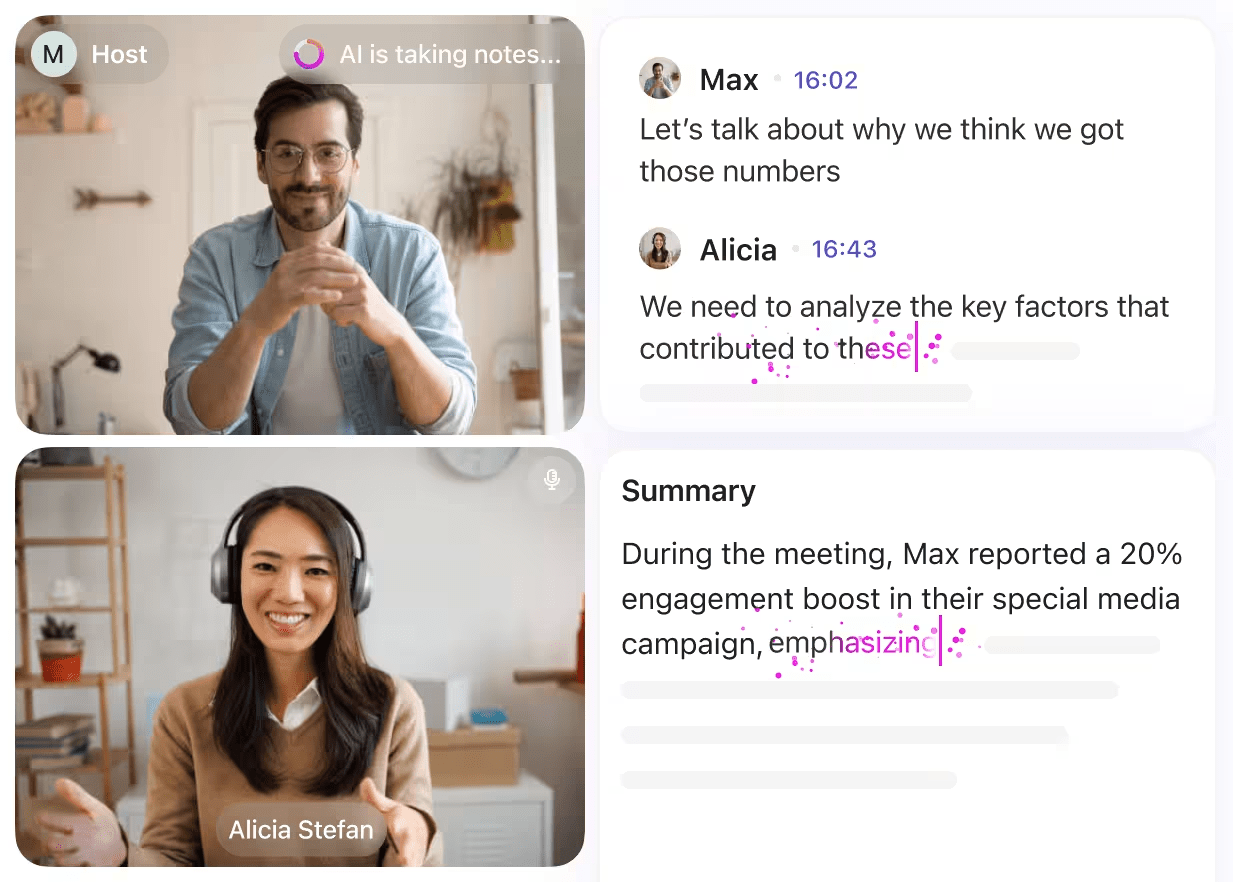
From there, ClickUp Brain can summarize long discussions, suggest owners and due dates, and keep docs and tasks aligned.
With ClickUp Brain MAX, teams use Talk to Text to speak updates instead of typing.
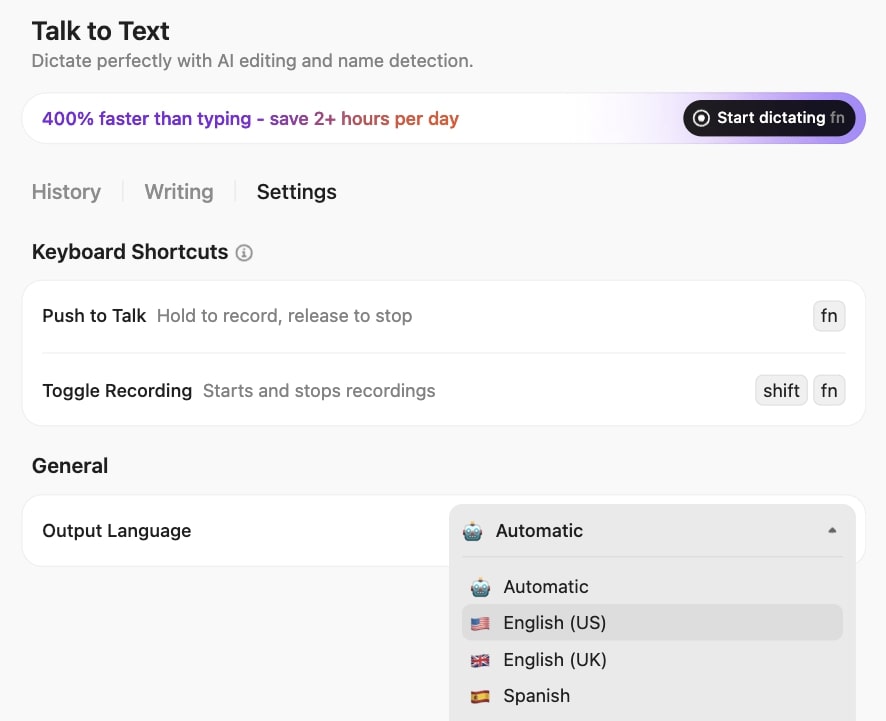
On average, ClickUp Brain MAX users report saving 1.1 days per week, working 4x faster than typing, and cutting tool costs by up to 88% by combining multiple AI helpers into one workspace.
ClickUp Brain MAX also runs on premium AI models like Brain, Gemini, OpenAI, DeepSeek, and Claude. As you speak, it edits for clarity and tone, then delivers polished text for docs and task updates.
📌 Example: After a cross-functional planning call, AI Notetaker generates a recap with decisions and action items, then creates tasks for design, engineering, and analytics in the correct Lists. The PM quickly reviews the summary, adjusts two due dates, and is done. There’s no need to copy bullets from a Zoom summary into a separate project management tool.
💡 Pro Tip: Want a consistent recap format every time? Start with note-taking templates, so handoffs stay clear and searchable.
Here’s a perfect guide on how ClickUp Brain makes your note-taking journey a breeze of fresh air:
📮 ClickUp Insight: In our survey, 88% of teams already use AI to speed up everyday work. Pair ClickUp Brain with SyncUp to cut meeting time, get instant meeting summaries, and turn decisions into automated task creation—so next steps land in ClickUp tasks without manual data entry.
Zoom is a leading video conferencing platform that helps teams, customers, and partners get on a call quickly with reliable video, audio, and screen sharing.
Zoom Meetings sit at the core of Zoom Workplace, giving you HD video, in-meeting chat, reactions, and recording for everything from daily standups to global webinars.
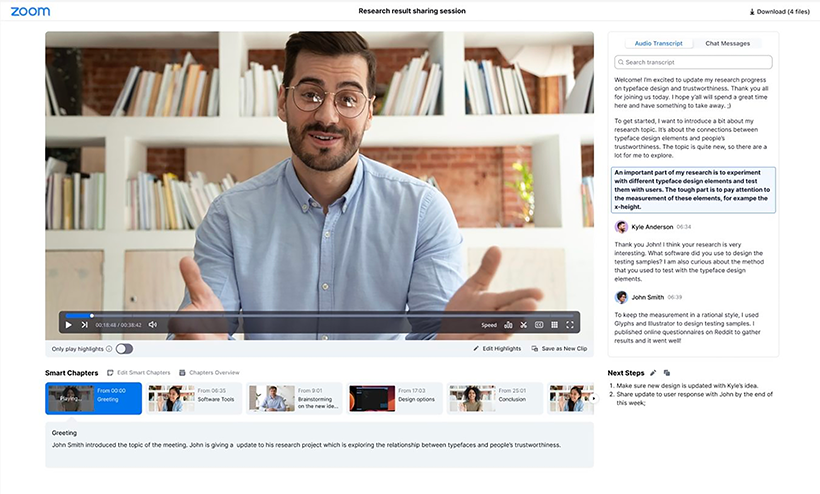
In a typical day, a project manager might spin up a Zoom meeting link from Google Calendar and share their screen to walk through a roadmap. Users can then access the meeting chat for quick links and rely on cloud recordings to review a section of the meeting later.
Adding to that, Zoom AI Companion can generate meeting summaries, action items, and follow-up prompts.
Zoom also integrates with popular tools like Slack, Microsoft Teams, and Google Workspace, so you can schedule Zoom meetings, share recordings, and keep basic follow-up flowing through the apps your team already uses.
Customer ratings and reviews:
📖 Also Read: How to Automatically Take Notes in Zoom Meetings
Zoom focuses on running smooth video calls and helping teams stay aligned after those calls with AI summaries, recordings, and chat.
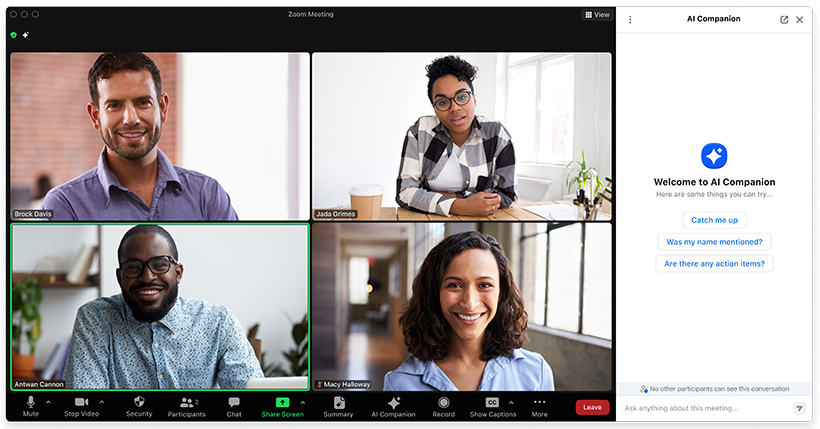
Zoom’s AI Companion listens during Zoom meetings and produces a structured meeting summary with chapters, key points, and suggested action items once the call ends.
Hosts can view and edit these summaries from the Summaries page in Zoom, share them with participants, and use the content to draft follow-up emails or internal updates.
📌 Example: A customer success manager hosts a quarterly business review. After the call, AI Companion generates a recap with decisions and next steps. The manager tweaks a few lines, sends it to the customer, and then hands the key action items over to their project management tool to track execution.
💡 Pro Tip: If you need a dedicated capture tool, AI note takers for Zoom can auto-tag speakers and topics for shareable summaries.
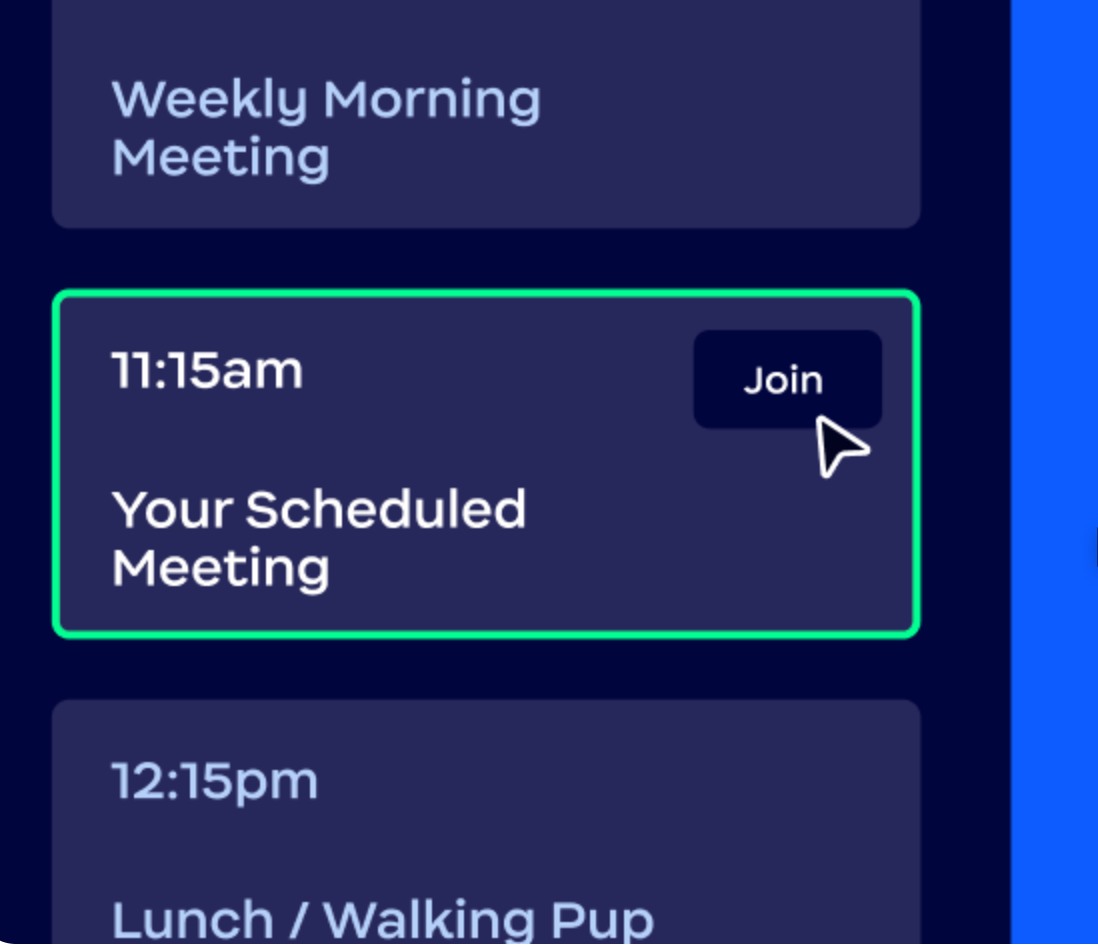
Zoom makes it simple to schedule meetings from the tools you already use. With Zoom Scheduler and calendar add-ons, you can publish availability, share booking links, and add Zoom meeting links to Google Calendar or Microsoft 365 events in a couple of clicks.
Attendees pick a slot, receive automated reminders, and join directly from their calendar invite.
📌 Example: A partner manager sends a Scheduler link to enterprise clients. They choose a meeting time, the event lands on both calendars with the Zoom link attached, and email reminders go out automatically—no back-and-forth to confirm availability.
💡 Fun Fact: Microsoft’s Work Trend Index shows employees get pinged about every two minutes—roughly 275 interruptions a day across meetings, email, and chat.
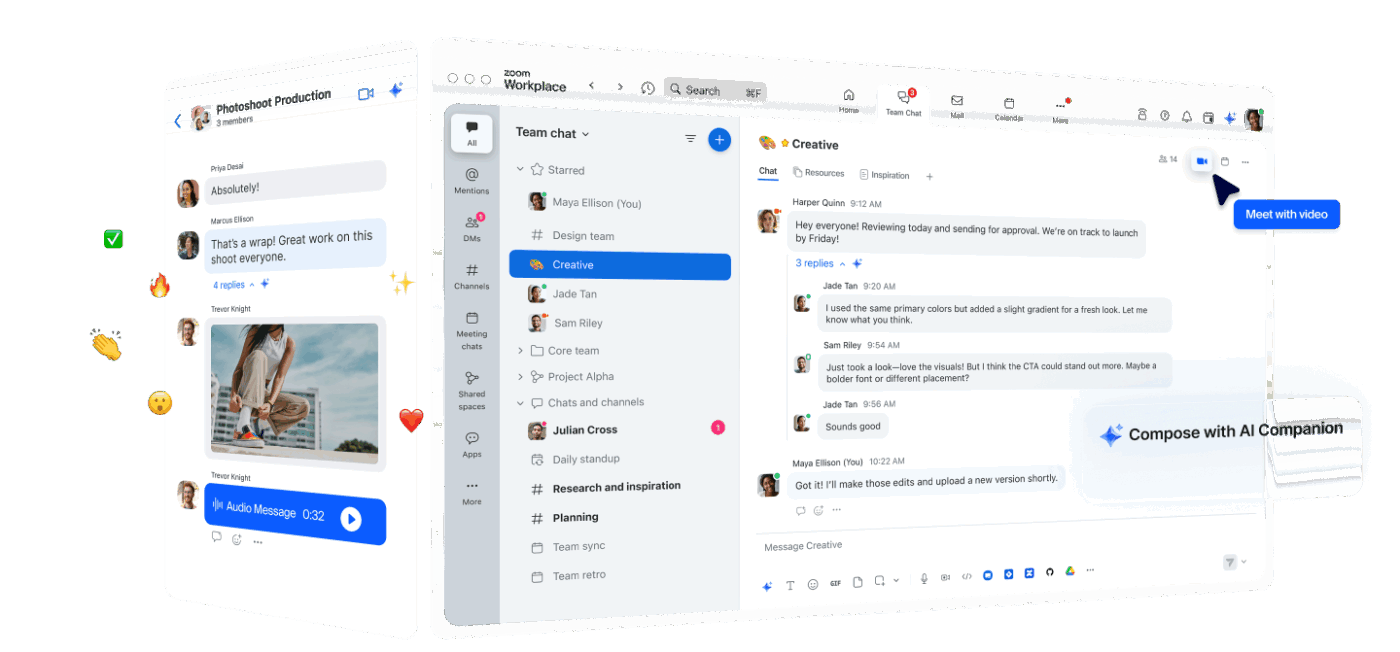
Zoom Team Chat offers channels and DMs where teams can keep conversations going between meetings, share files, and pin important threads.
During Zoom meetings, participants can use in-call chat, whiteboards, and annotations while screen sharing to clarify decisions in real time. Cloud recordings then capture the session so anyone who missed it can review what happened later.
📌 Example: A distributed product team walks through a prototype on a Zoom call while capturing quick notes and links in the meeting chat. Afterward, they pin the recap thread in Team Chat and attach the cloud recording so new stakeholders can get up to speed without scheduling another call.
💡 Pro Tip: For smoother presenting and troubleshooting, this guide to screen share software covers setup tips and best practices.
💡 Pro Tip: If you’re weighing plan limits and storage for recordings, this Zoom pricing breakdown helps you match features to your budget.
Now let’s look at Zoom vs. ClickUp SyncUp feature by feature to see which meeting tool fits your day-to-day work best.
With ClickUp SyncUp, you start video calls directly from lists, views, or tasks. Your sprint board, backlog, or roadmap is already open when the meeting begins, so you can update statuses, add assignees, and adjust due dates in real time.
Because SyncUps live inside ClickUp, team communication, project management, and standups happen in the same workspace instead of scattered tabs.
Zoom is built for live video calls first. Teams can host Zoom meetings with HD video, screen sharing, breakout rooms, and chat, which works well for remote standups and quick check-ins.
But your boards and trackers typically live in another tool, so you’re still switching between Zoom and your project management system to see tasks, owners, and timelines.
🏆 Winner: ClickUp wins for recurring standups and internal updates where you want video calls and project updates in one place.
📖 Also Read: AI Transcript Summarizers
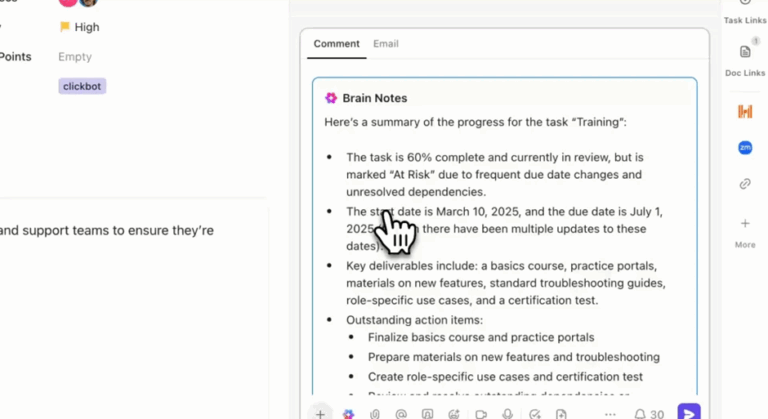
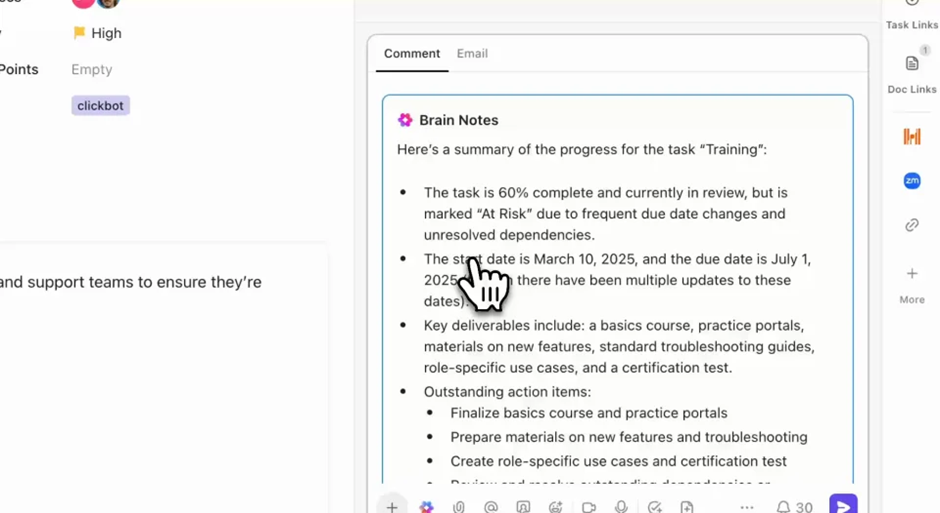
ClickUp Brain and AI Notetaker help you go from meeting notes to action without extra admin work. AI Notetaker can join Zoom meetings or SyncUps, capture smart summaries, and produce meeting notes docs with action items that link straight to ClickUp Tasks.
From there, you can use automated task creation to assign owners, set due dates, and keep meeting notes and follow-up in the same workspace.
Zoom’s AI Companion can generate meeting summaries, highlight key talking points, and suggest follow-up tasks after a Zoom meeting.
These are useful for remembering what was said, but they still need to be moved into your project management tool, either via integrations or manual copy-paste. That adds an extra step between “we decided” and “this is now a tracked task with an owner.”
🏆 Winner: ClickUp wins for automated task creation and keeping meeting notes, summaries, and tasks together instead of in separate apps.
📖 Also Read: How to Use AI for Video Calls
ClickUp combines SyncUps, ClickUp Chat, Docs, and Whiteboards in one workspace. Teams can hold a quick SyncUp, follow up with threads in ClickUp Chat, and convert messages or comments into tasks in a single click.
For async collaboration, you can share screen recordings with ClickUp Clips and let Brain summarize long updates. This can help people catch up in their own time without relying on another meeting.
Zoom offers strong in-call collaboration: in-meeting chat, reactions, polls, and whiteboards make live sessions more interactive. Zoom Team Chat keeps conversations going between calls with channels and DMs.
However, decisions and links still need to be carried over into your project management and documentation tools, which means context can drift once the meeting ends.
🏆 Winner: ClickUp wins for keeping team communication, async updates, and project management in the same place.
📖 Also Read: All-in-One Messaging Apps
In a SyncUp, you can share your screen directly from ClickUp to walk through tasks, dashboards, or docs. When you need async explanations, ClickUp Clips lets you record quick screen or voice videos and share them inside tasks, docs, or chat.
All Clips and SyncUps are stored in the Clips Hub with transcripts and comments, so screen recordings stay attached to the work they explain.
Zoom is excellent for live screen sharing and long-form recordings. You can record Zoom meetings to local or cloud storage and send the link to attendees or stakeholders. That makes it ideal for demos, training, and client-facing sessions.
But those recording links usually live in email, chat, or storage tools, not the tasks or project plans that need them later.
🏆 Winner: Tie. Zoom is strong for long live sessions and webinars, while ClickUp is better for sharing screen recordings directly inside tasks and docs.
📖 Also Read: Best Chat Platforms
ClickUp lets you schedule meetings where you manage your work. Use Calendar views to see tasks and events together, then use the ClickUp–Zoom integration to start Zoom meetings from tasks or drop Zoom links into task comments when a call begins.
That way, you can schedule meetings, attach join links, and keep track of follow-ups in the same project management tool instead of juggling multiple calendars.
Zoom integrates with Google Calendar, Outlook, and other scheduling tools so you can add Zoom links to events with a click.
Zoom Scheduler and booking links make it easy to share availability with clients or partners and have meetings land on everyone’s calendar automatically. For external calls and customer-facing sessions, this flow feels familiar and efficient.
🏆 Winner: Tie. Zoom wins for external scheduling and booking flows, while ClickUp is better when you want to schedule meetings right from the same place you manage tasks.
📖 Also Read: Hybrid Workplace Communication
ClickUp Dashboards give leaders real-time visibility into what happens after meetings. You can track workloads, burndown charts, velocity, and custom KPIs based on the tasks created or updated in SyncUps and AI Notetaker notes.
Because reporting runs on live ClickUp tasks, it becomes easy to see whether meetings are actually moving projects forward or just filling the calendar.
Zoom provides analytics around meetings, such as participant counts, call quality, and feature usage. This makes it quite useful for IT and operations teams.
But it doesn’t connect those data points to project outcomes, sprint health, or delivery dates without a separate reporting stack. You still need another tool to understand the impact of Zoom meetings on real work.
🏆 Winner: ClickUp clearly wins on post-meeting visibility, tying meeting-driven changes directly to work and capacity.
📖 Also Read: How to Record Audio on Zoom
Reddit users say these tools serve different jobs. Zoom gets people together fast, while ClickUp turns decisions into work you can track.
For ClickUp, many users appreciate meeting-to-action workflows:
It will create a doc in ClickUp with overview, key take aways, next steps and key topics… all nicely formatted and easy to read.
For Zoom, Redditors highlight reliability and familiarity—especially with externals:
When dealing with externals Zoom is the safest choice… almost everyone is familiar with Zoom, and it’s a very simple UI.
But others note AI summaries can miss details and need review:
Zoom AI Companion does a good job… but the inaccuracies and generalizations can change the meaning of what happened.
📖 Also Read: Zoom Alternatives
Zoom makes getting people together feel easy and familiar. For quick check-ins, client demos, and large webinars, it delivers reliable video, simple joins, and a clean follow-up flow.
ClickUp, on the other hand, helps you manage all your communication and collaboration in a single AI-powered workspace that ensures you and your team stay on the same page.
It helps you track project progress, enable file sharing, and automate repetitive tasks. You can get started with a free plan and manage multiple projects easily using centralized task management and over 1000+ ClickUp integrations. Got a list of actionable tasks? ClickUp will help you complete them with its project tracking and automated task creation workflows.
Both tools have their strengths, but if you want something that helps you access meetings, manage project workflows, and prioritize task tracking, ClickUp is the ideal tool for you.
See how it feels to have everything in one place by signing up to ClickUp for free! No clutter. No switching between tabs to manage projects. Just a tool that works with you, not against you.

© 2026 ClickUp

There’s an easier way. Try a free AI Agent in ClickUp that actually does the work for you—set up in minutes, save hours every week.