






Still downloading templates?
There’s an easier way. Try a free AI Agent in ClickUp that actually does the work for you—set up in minutes, save hours every week.
Sorry, there were no results found for “”
Sorry, there were no results found for “”
Sorry, there were no results found for “”
Gemini Tasks, also known as Gemini in Google Tasks, makes it easy to capture reminders.
It’s a fast way to turn passing thoughts into to-dos.
In this guide, we’ll show you how to set up Gemini Tasks effectively.
You’ll see where it works best and how it integrates into real-world work, where collaboration and context are crucial.
Gemini + Google Tasks combo is Google Workspace’s AI-powered feature for managing your to-dos. It’s built into the Gemini assistant and uses natural language processing, which means you can create tasks just by talking or typing in plain English.
Think of it as a productivity assistant that listens to your commands.
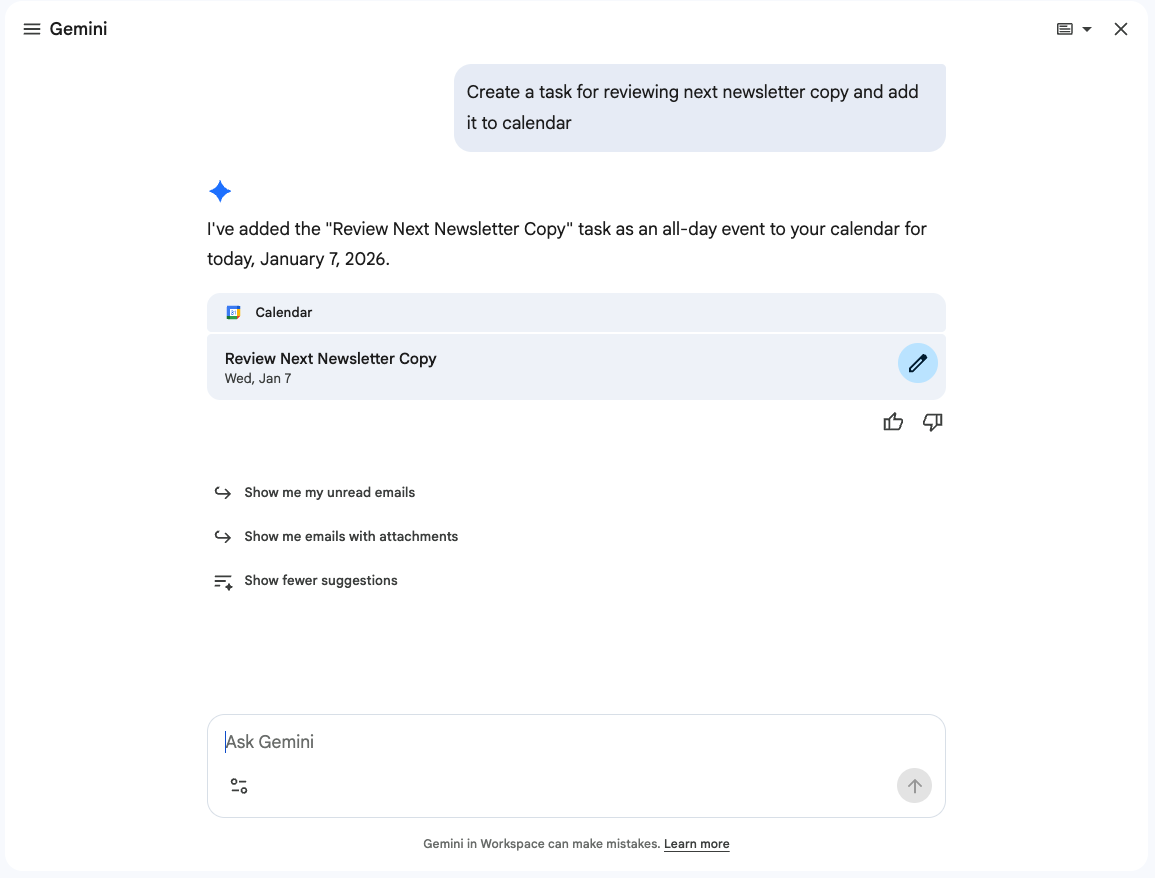
When you ask Gemini to create a reminder, it connects directly to your Google Tasks account. This integrated workflow enables seamless task synchronization across your Google Workspace, so a to-do list item created with your voice appears on your Google Calendar automatically.
Its core purpose is to make personal productivity easier for anyone already using Google’s apps.
📖 Read More: Best Reminder Apps to Stay on Top of Tasks
You’ve heard about using AI for tasks, but you’re worried it will be a headache to set up.
This friction often stops people before they even start. The result? They miss out on the convenience AI can offer.
Connecting Google Tasks to Gemini is surprisingly simple and avoids this frustration. The integration allows Gemini to read, create, and modify items in your Google Tasks list.
For most people using Google for project management, this connection is automatic. However, personal account holders may need to enable it in their settings.
First, head over to gemini.google.com or open the Gemini app on your phone. All you need to do is sign in with your Google account. This simple authentication step automatically links the basic functionalities.
If you’re on a company account, your administrator might need to approve the extensions first. For most users, this step takes less than a minute.
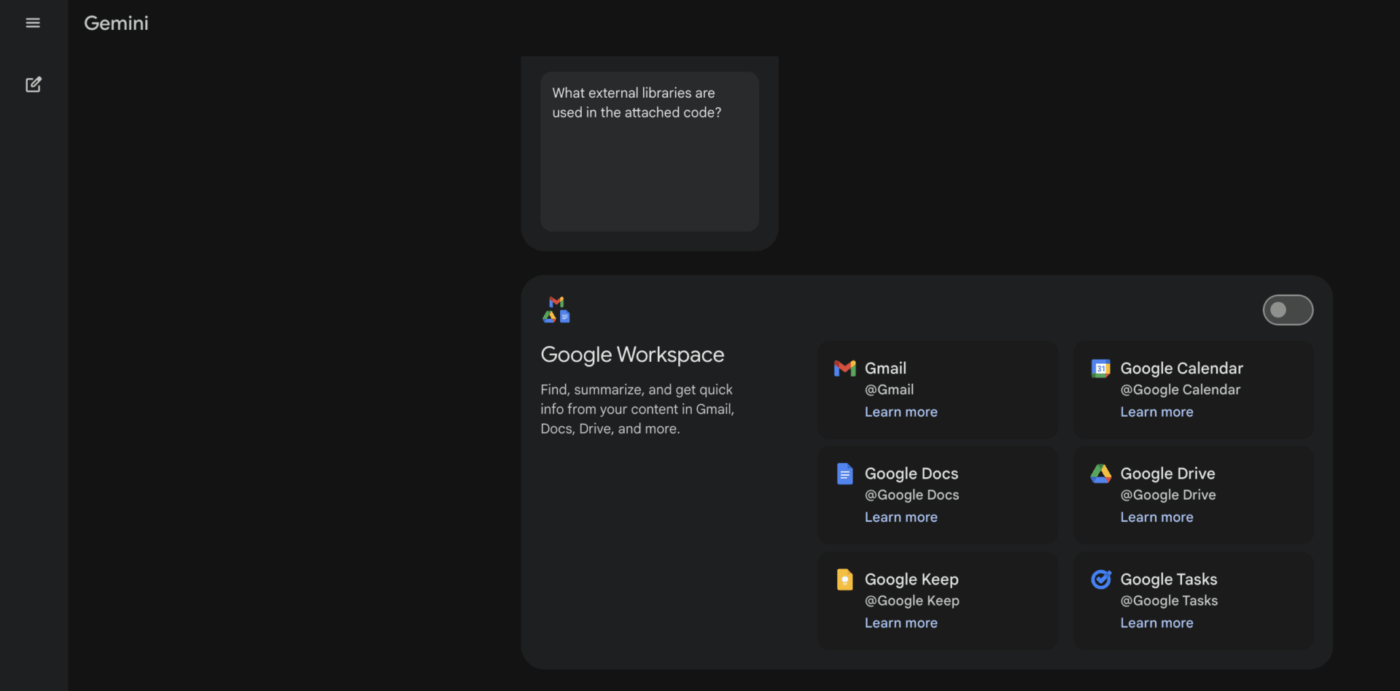
Once you’re signed in, find the settings menu and look for extensions. You’ll need to enable the Google Workspace extension to grant Gemini permission to access your other apps. This is the key that unlocks its full potential.
Here’s what you’re allowing Gemini to do:
If you ever change your mind, you can turn these permissions off in your Google account settings at any time.
📮 ClickUp Insight: 45% of our survey respondents say that they keep work-related research tabs open for weeks. For another 23%, these treasured tabs include AI chat threads stuffed with context.
Basically, a huge majority are outsourcing memory and context to fragile browser tabs. Repeat after us: Tabs are not knowledge bases. 👀
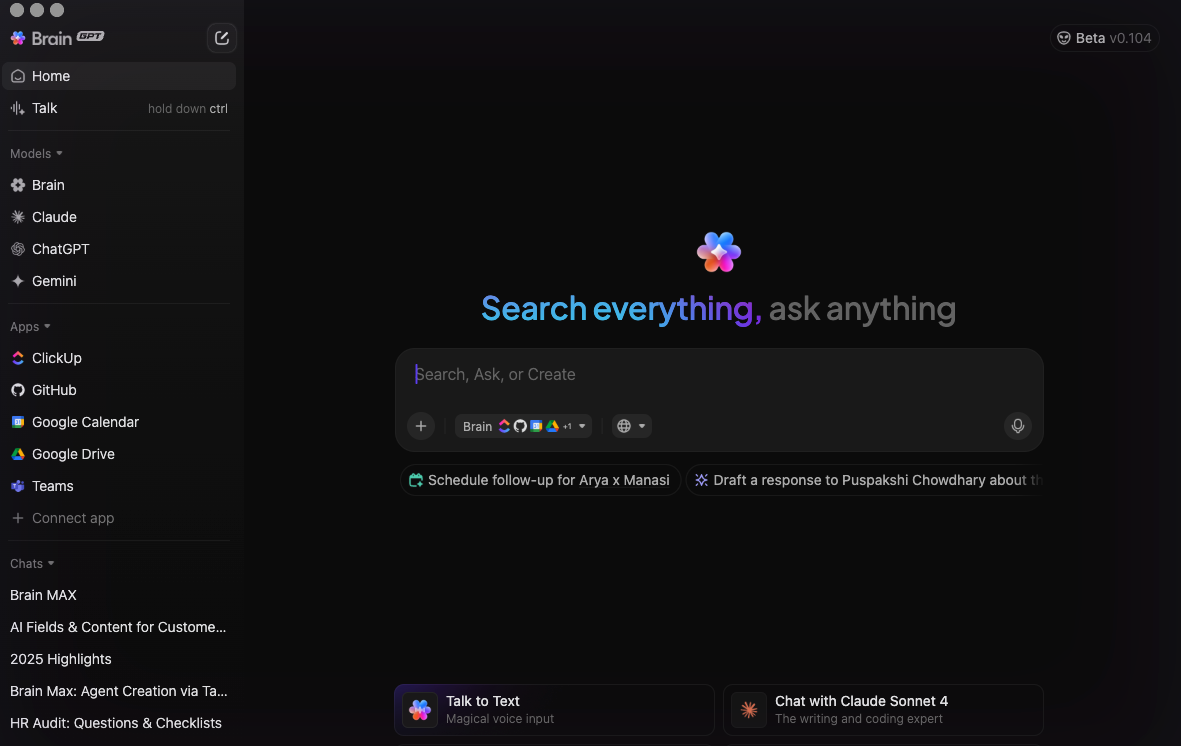
ClickUp BrainGPT changes the game here.
This AI super app lets you search your workspace, interact with multiple AI models, and even use voice commands to retrieve context from a single interface. Since MAX lives in your PC, it doesn’t compete for tab space and can save conversations until you delete them!
If you’re tired of clicking through endless menus just to add a simple to-do item, task creation will feel like a chore, so you avoid it.
The beauty of Gemini is that it replaces tedious clicks with conversational prompts.
You just speak or type what you need done, and the AI assistant interprets your request. While this feels like magic for simple reminders, the AI’s interpretation can sometimes miss the mark on more complex requests.
💡Pro Tip: If you’re looking for ready-to-use prompts to accelerate your Gemini workflow, check out ClickUp’s Gemini Prompts template, which provides 600 AI Gemini prompts for business and productivity.
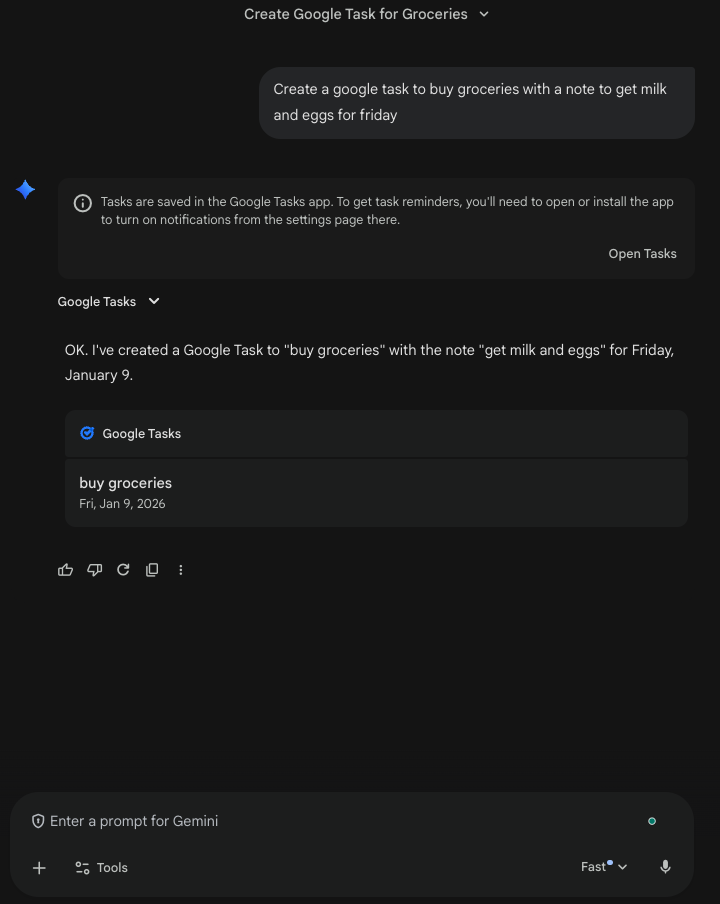
You can add tasks with dates, times, and notes just by saying what you want. Gemini’s natural language parsing understands the details and fills them in for you. This works great for straightforward, personal to-dos that don’t require much context.
Try a few of these prompts to see it in action:
While this is perfect for personal reminders, you’ll find that adding project context, assigning tasks to a teammate, or setting dependencies requires a different tool.
🌼 Did You Know: Beyond simple reminders, Gemini Agents can now execute multi-step workflows across your apps, such as researching a trip and automatically drafting the itinerary in a Doc. Unlike standard chatbots, these agents can navigate live web browsers and use “thought signatures” to stay on track during complex, long-term projects. They essentially act as a proactive workforce, moving from just answering questions to independently completing your actual to-do list.
Have you ever been in a meeting and had a great idea, only to forget it moments later? This happens when your ideas are disconnected from your work. Gemini attempts to solve this by allowing you to create tasks directly from your ongoing conversations.
If you’re discussing a project, you can simply say, “Add this point as a task.” This is convenient for capturing action items during a brainstorming session.
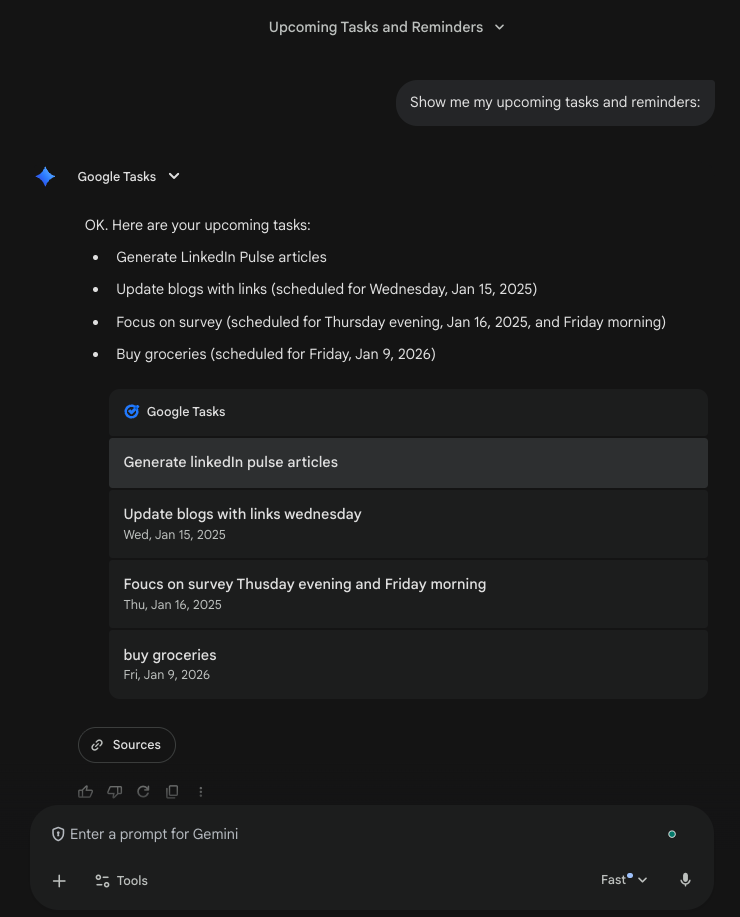
You can see your tasks by asking Gemini directly, opening the Google Tasks app, or checking your Google Calendar. Gemini will read your to-do list back to you on command, but it’s not a substitute for a true project dashboard.
To get a sense of your schedule, you can ask Gemini simple questions. It pulls information from Google Tasks and presents it in a conversational format.
Here are a few prompts to try:
Please note that the results are purely text-based. You won’t get a visual timeline, a Kanban board, or a priority list matrix to help you organize your work.
📖 Read More: Visual Task Management: Tools and Strategies
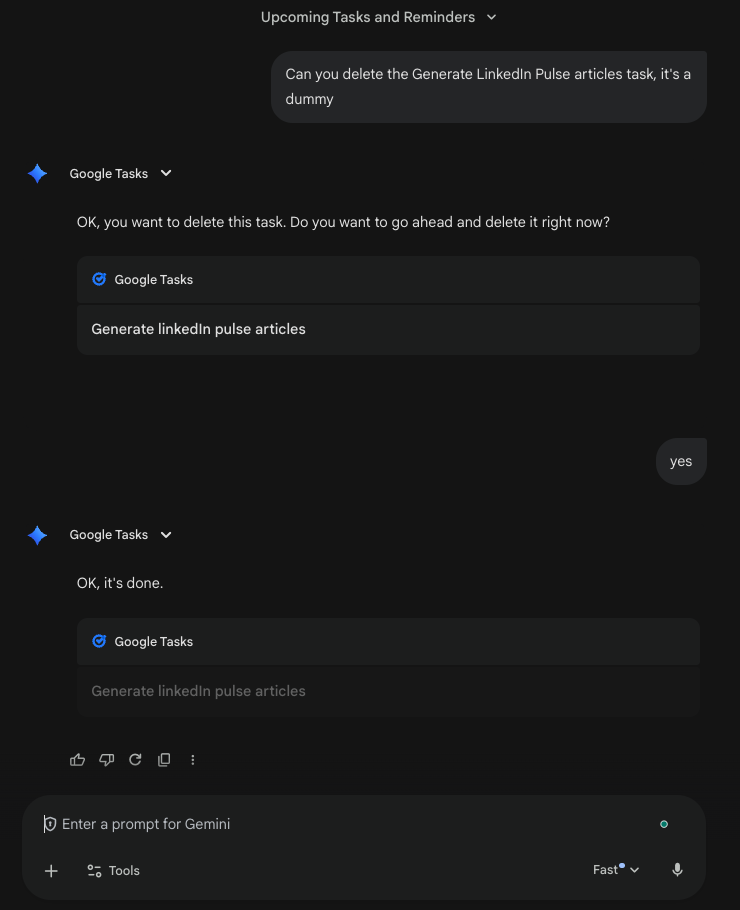
Just as you create tasks with your voice, you can modify them the same way. You can change due dates, mark items as complete, or remove them entirely.
For example, you can say:
Gemini needs enough context to know which task you’re referring to. If you need to edit or reorganize multiple tasks at once, you’ll have to do it manually in the Google Tasks app. Gemini does not currently support bulk actions.
Manually creating the same recurring tasks every week is a waste of time and effort.
For instance, you might have a weekly report to submit or a daily stand-up to prepare for, and forgetting these recurring duties can cause problems. Open Gemini (Web or App).
✅ Give a scheduling prompt. You must be specific about what and when.
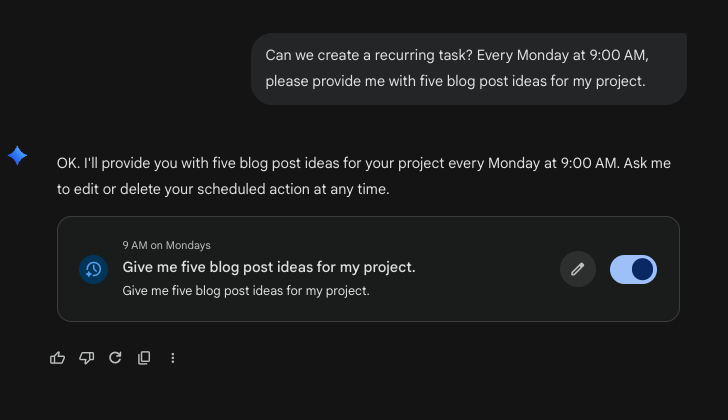
✅ Confirm the Action: Gemini will show a summary of the schedule. You can then edit or adjust it as needed.
✅ Manage Actions: You can find these in Settings > Scheduled Actions. From there, you can pause, edit, or delete them.
This creates a false sense of automation. You still lack the power to connect actions across your tools. True workflow automation involves triggers, conditions, and actions that move work forward.
| Capability | Gemini Scheduled Actions | True Workflow Automation |
|---|---|---|
| Recurring reminders | ✓ | ✓ |
| Trigger-based actions | ✗ | ✓ |
| Cross-tool workflows | ✗ | ✓ |
| Conditional logic | ✗ | ✓ |
| Team assignments | ✗ | ✓ |
You tried using Gemini for a team project, and now everything is a bit disorganized.
Tasks are scattered. No one knows who is responsible for what, and your to-do list is completely disconnected from your project plan.
This chaos is a direct result of using a personal productivity tool for collaborative work.
Gemini + Google Tasks is genuinely useful for personal reminders. But it’s not designed for managing projects with teams, deadlines, and interconnected parts. Here’s where it falls short:
Personal AI assistants are great at capturing ideas.
However, team productivity often breaks down later, when those ideas need to be turned into shared, coordinated work.
Tasks are created, but the context resides elsewhere. Decisions sit in meeting notes. Follow-ups disappear into chat. Projects slow down not because people forget, but because work loses its connective tissue.
This is where a converged AI workspace, like ClickUp, a single platform where projects, documents, conversations, and analytics coexist, comes into play.
With contextual AI, like ClickUp Brain, embedded as the intelligence layer that understands your work, it effectively solves for work sprawl, aka the fragmentation of work activities across SaaS applications that don’t talk to each other.
Productivity improves when AI understands more than a single prompt or voice command. It needs to know which project a task belongs to, which document explains it, who owns the work, and what depends on it next.
In ClickUp’s converged AI workspace, that context already exists. Tasks, Docs, Chat, calendars, and goals live in one system. ClickUp Brain operates across all of it, connecting work instead of fragmenting it.
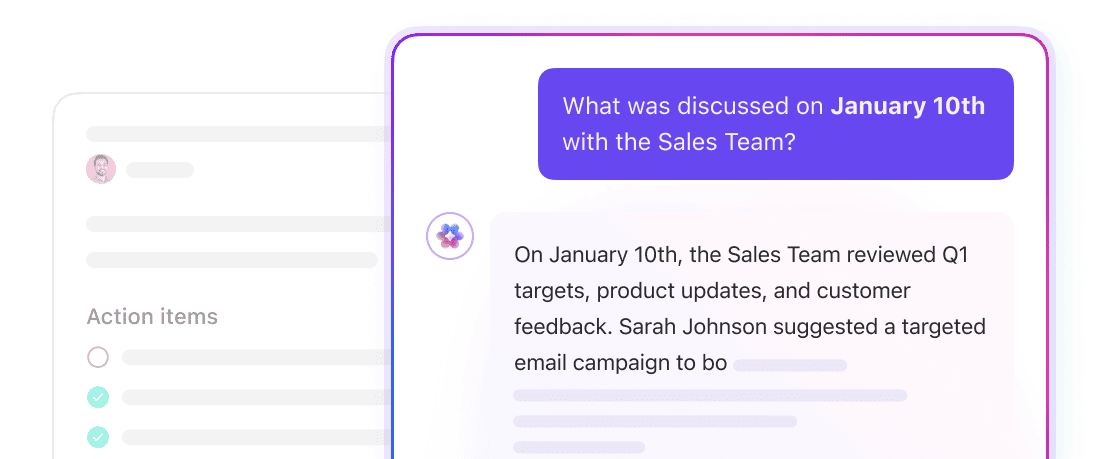
Meetings are where context is created and often where it gets lost. Notes are taken, but action items are scattered across tools. A tool like Gemini demands extra setup when you’re trying to connect this context to your tasks.
With ClickUp’s AI Notetaker, meetings are captured automatically. Decisions, follow-ups, and key discussion points are recorded as they happen. ClickUp Brain then converts those notes into structured tasks and sub-tasks, already tied to the right project, document, and people.
The result is simple. Less manual cleanup, clear ownership, and faster follow-through!
📖 Read More: How to Improve Collaboration in the Workplace
Work moves faster when knowledge, conversation, and execution stay connected.
As a converged AI workspace, ClickUp gives you the full suite of features. ClickUp Docs aren’t static files. They’re directly linked to the tasks they support. ClickUp Chat keeps conversations anchored to real work, not floating in separate channels.
ClickUp Brain works across all of these. It can summarize Docs, extract action items, answer questions in Chat, and turn conversations into tasks without losing context. Instead of re-explaining work, teams keep moving forward.
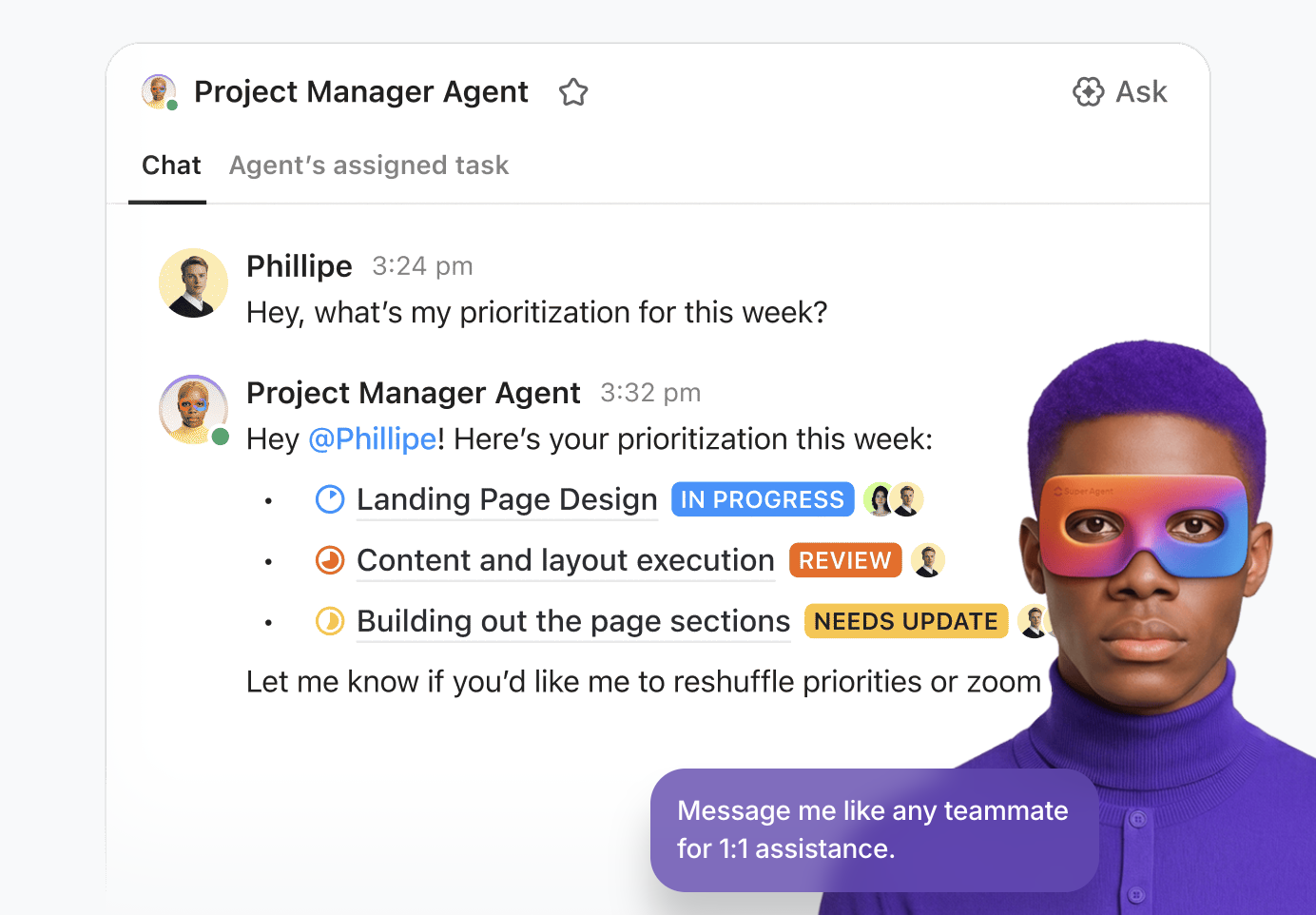
Once work is structured, ClickUp’s AI and automation features kick in to help reduce manual effort.
With ClickUp Automations, tasks can be assigned based on role or workload, allowing for more efficient task allocation. Status changes can trigger handoffs. Deadlines can automatically notify the right people.
For more complex workflows, tasks can be delegated to Super Agents for follow-up, reporting, or execution. Because the agents already understand the workspace, your work runs seamlessly!
ClickUp also provides access to multiple AI models within Brain, allowing teams to choose the right intelligence for tasks such as writing, planning, analysis, or execution.
You can also mention @brain anywhere, in tasks, Docs, comments, or Chat, and get responses grounded in real project context, integrated apps, and even web knowledge.
The difference is clear. Simple AI helps you remember things. Contextual AI helps teams run work.
By bringing tasks, Docs, Chat, automation, and ClickUp Brain together, ClickUp becomes a complete AI-powered work platform where ideas don’t just get captured. They get executed.
The core difference comes down to personal reminders vs. team project management. While both use AI to create tasks, their purpose and capabilities are worlds apart.
| Capability | Gemini Tasks | ClickUp |
|---|---|---|
| Task creation via AI | ✓ | ✓ |
| Project organization | ✗ | ✓ |
| Team collaboration | ✗ | ✓ |
| Task dependencies | ✗ | ✓ |
| Multiple views (List, Board, Calendar, Gantt) | ✗ | ✓ |
| Custom fields and workflows | ✗ | ✓ |
| Connected documentation | ✗ | ✓ |
| Reporting and dashboards | ✗ | ✓ |
| Workflow automation | Limited | ✓ |
Let’s be clear: Gemini Tasks is a fantastic tool for what it was designed for—capturing quick personal reminders and to-dos with your voice.
Its natural language interface is frictionless and a great example of how AI can make daily life easier. ✨
But when it comes to managing real work, personal AI assistants have a ceiling.
You quickly realize that productivity requires more than just a list of tasks. It requires tasks that are connected to projects, teams, and goals.
The search for “how to use Gemini Tasks” often ends with the discovery that you need a tool built for collaboration, not just conversation.
The right approach depends on your needs. For teams ready to move beyond personal to-do lists and into a world of connected, AI-powered work management, ClickUp is ready to help.
Get started for free with ClickUp and experience the difference of a truly integrated workspace where AI understands your entire project context, not just isolated tasks.
Gemini Tasks syncs natively with Google Workspace apps, such as Tasks and Calendar, but does not directly integrate with third-party task management software. Your tasks will remain within the Google ecosystem unless you manually move them.
Your data is governed by Google’s privacy policy. For standard Gemini users, Google may use conversations to improve products. However, for Workspace Enterprise/Business users with the Gemini add-on, Google explicitly states that data is not used to train their models.
While Google Tasks does allow for “Shared Lists” (captured in a Group or Space), Gemini’s ability to interact with those shared lists is currently very limited compared to personal lists. It cannot “assign” a task to a teammate via a voice command.
Gemini Tasks is primarily used for creating personal reminders and individual to-do items through natural language prompts. It syncs with Google Tasks and Calendar to support personal productivity.
Is Gemini Tasks good for team productivity? Gemini Tasks is not designed for team productivity. It lacks essential features like task assignment, shared project visibility, dependencies, and collaborative workflows that teams need to work effectively.
The key limitations are its lack of team collaboration features, no project structure, no task dependencies, limited automation, and no reporting or dashboard functionality.
Yes, ClickUp can handle everything Gemini Tasks does, such as AI-powered task creation, while also providing a comprehensive suite of project management, team collaboration, automation, and reporting features. This makes it suitable for both personal and team productivity.

© 2026 ClickUp

There’s an easier way. Try a free AI Agent in ClickUp that actually does the work for you—set up in minutes, save hours every week.